 UPDF
UPDF
 UPDF for Windows
 UPDF for Mac
 UPDF for iPhone/iPad
 UPDF for Android
 Nomostar
 UPDF AI Online
 UPDF Sign
 IvyCraft
 Edit PDF
 Annotate PDF
 Create PDF
 PDF Form
 Edit links
 Convert PDF
 OCR
OCR PDF to Word
 PDF to Image
 PDF to Excel
 Organize PDF
 Merge PDF
 Split PDF
 Crop PDF
 Rotate PDF
 Protect PDF
 Sign PDF
 Redact PDF
 Sanitize PDF
 Remove Security
 Read PDF
 UPDF Cloud
 Compress PDF
 Print PDF
 Batch Process
 About UPDF AI
 UPDF AI Solutions
 AI User Guide
 FAQ about UPDF AI
 Summarize PDF
 Translate PDF
 Chat with PDF
 Chat with AI
 Chat with image
 PDF to Mind Map
 Explain PDF
 PDF AI Tools
 Image AI Tools
 AI Chat Tools
 AI Writing Tools
 AI Study Tools
 AI Working Tools
 Other AI Tools
 AI Bookmark Generation
 AI Bookmark Summary
 AI Watermark Generation
 AI Background Generation
 AI Sticker Generation
 AI Stamp Generation
 AI Editing Suite
 UPDF Copilot
 AI Page Management
 AI Semantic Search
 PDF to Word
 PDF to Excel
 PDF to PowerPoint
 Enterprise Solution
 Enterprise Sign
 Enterprise AI
 Enterprise Plan
 Enterprise User Guide
 Enterprise Webinar
 IT
IT Education
 Construction
 Financial Service
 Healthcare
 Insurance
 Legal
Legal Manufacturing
 Government
 Researchers & PhDs
 Solopreneurs & Freelancers
 Lawyers & Legal Professionals
 Real Estate Agents & Brokers
 Education Solution
 Customer Stories
 User Guide
 UPDF Tricks
 FAQs
FAQs UPDF Reviews
 Download Center
 Blog
Blog Newsroom
 Tech Spec
 Updates
 UPDF vs. Adobe Acrobat
 UPDF vs. Foxit
 UPDF vs. PDF Expert

Looking for the best PDF editor for Windows 2026 usually means one of three things: you want a free tool that will not ruin your file with a watermark, you need a full editor for Windows 10 or Windows 11, or you are trying to decide whether a paid PDF editor is worth it for work files. The right answer changes by task.
This guide compares Windows PDF editors by real editing depth, OCR, privacy, export quality, free limits, and everyday speed. If you only need to highlight or sign a public PDF, a free tool may be enough. If you need to edit original text, handle scanned PDFs, keep client files local, or work across Windows, Mac, iPhone, iPad, and Android, UPDF as a full PDF editor is the stronger route.
Consider the edits you make most often when comparing the available tools. For the next step, you can explore editing PDF content in UPDF in the video below.
Windows • macOS • iOS • Android 100% secure
Quick Picks: Best PDF Editor for Windows 2026
| Need | Best pick | Why it fits |
|---|---|---|
| All-in-one professional PDF editing on Windows | UPDF | Direct text & image editing with adaptive text boxes, one-click element alignment, high-accuracy OCR, AI assistant, and enterprise-grade security (ISO 27001). Cross-device syncing across Windows, Mac, iOS, and Android. Free trial offered. |
| Basic PDF editing for light tasks | PDFgear | A lightweight free option for basic markups, simple text insertion, and page merging—best for budget-conscious users who only need casual edits. |
| Offline utility toolbox | PDF24 Creator | Useful for simple offline utilities like merging, splitting, compressing, and converting files without a full writing workspace. |
| Open-source layout fixes | LibreOffice Draw | Suitable for basic open-source graphic/object tweaks, though complex PDF layouts and typography may shift or break. |
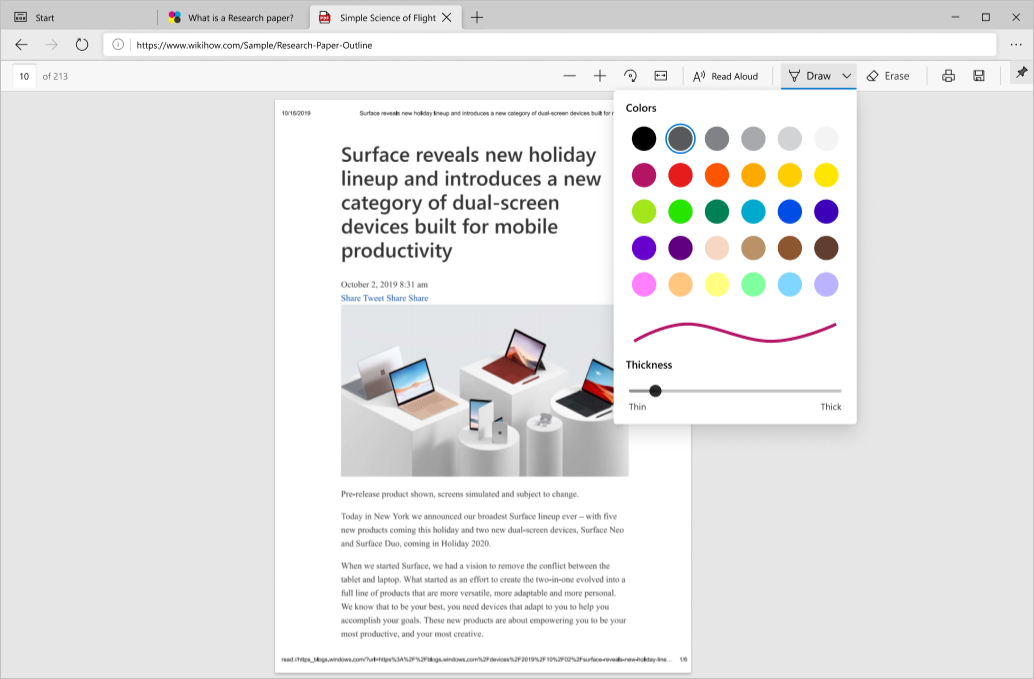
| No-install viewing & markup | Microsoft Edge | Built into Windows for fast viewing, simple form filling, highlights, and freehand drawing—not for rewriting original text or running OCR. |
How to Choose a Good PDF Editor for Windows
Do not choose only by the word "free." Many Windows PDF editors let you edit first and reveal the real limit when you export. Before installing anything, check five things:
- Text editing: Can it edit original PDF text with auto-reflow, or does it only slap a new text box on top?
- OCR: Can it make scanned PDFs searchable and editable?
- Output: Does the saved file add a watermark or flatten your edits?
- Privacy: Are business files processed locally or uploaded to a server?
- Windows support: Does it work reliably on Windows 10 and Windows 11?
If your main task is browser-based editing, compare it with an online PDF editor. If you also work on macOS, keep a cross-platform option such as PDF editor for Mac in mind so your workflow does not change on every device.
Best PDF Editors for Windows in 2026
1. UPDF: Best for Full PDF Editing on Windows
UPDF is built for users who need true desktop-class control over their documents. While basic tools treat PDFs like static images with text layers slapped on top, UPDF interacts directly with the PDF’s internal structure to deliver a Word-like editing experience on Windows.
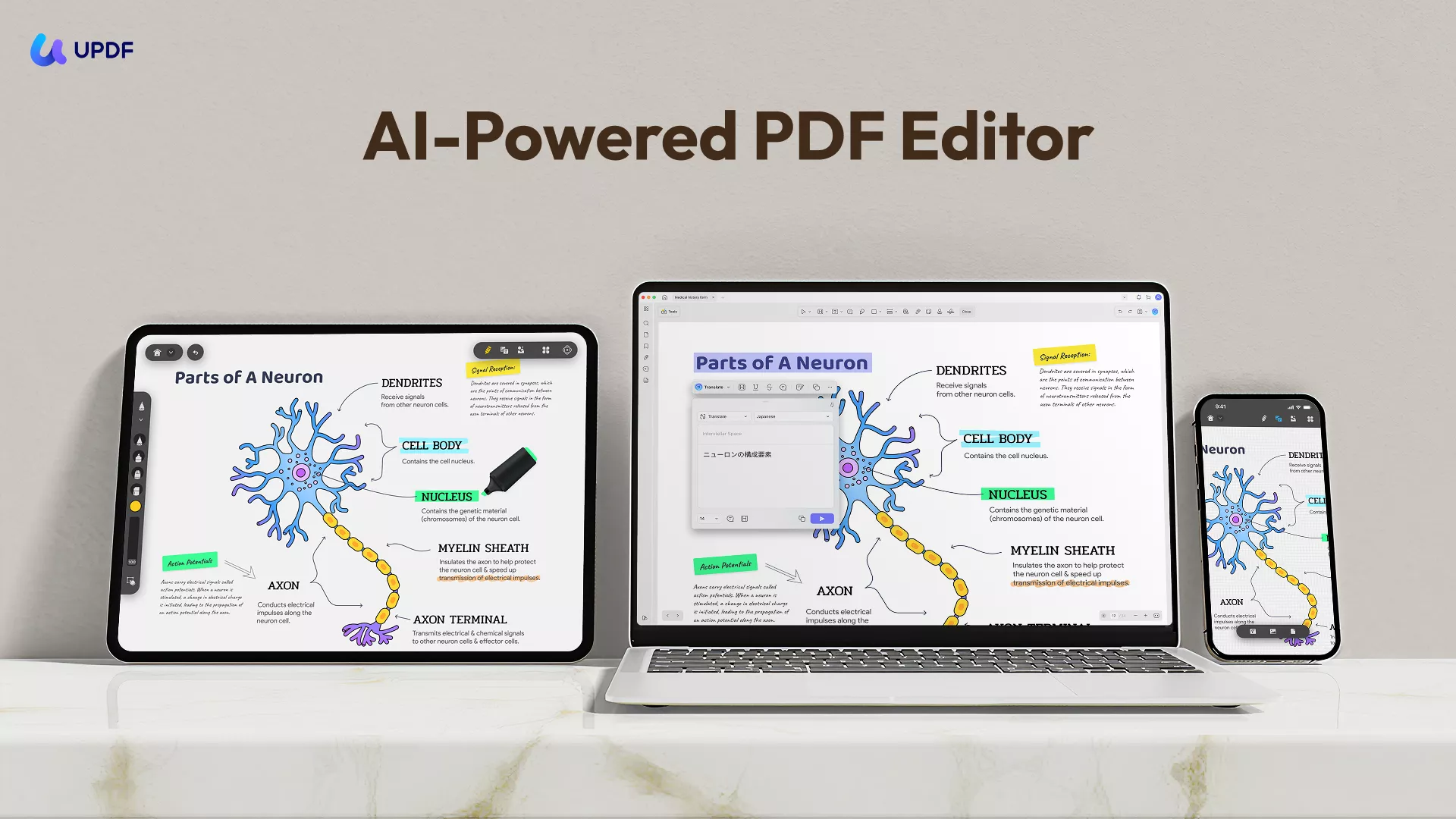
- Adaptive Text Boxes & Seamless Reflow: Edit original text effortlessly. As you add, delete, or modify words, UPDF’s text boxes automatically adjust and reflow text to prevent line overlap or broken formatting.
- One-Click Layout & Alignment Controls: Select all elements on any page—text, images, shapes—with a single click and align them instantly (left, center, right, or distribute evenly). You can also copy an entire formatted text box and paste it anywhere across pages in seconds.
- High-Level Security & Enterprise Readiness: UPDF processes files locally on your desktop and operates under ISO 27001 data security compliance, ensuring enterprise-grade protection for confidential files. Larger teams can also utilize the UPDF Enterprise Dashboard for centralized SSO, license deployment, and team management.
Real-World Business Scenarios:
- Contract & Legal Adjustments: Update party names, dates, or payment terms quickly while keeping complex multi-column layouts and legal disclaimers perfectly aligned.
- HR & Onboarding Workflows: Fill out, edit, sign, or redact employee records locally without sending sensitive Personally Identifiable Information (PII) to cloud servers.
- Financial Statements & Invoices: Use built-in AI-powered OCR to turn scanned receipts or balance sheets into searchable text, fix numerical errors, and export clean files.
Use it when: Confidential business files, scanned contracts, complex multi-page formatting, repeated editing, page organization, OCR, and cross-device workflows.
Choose a lighter option when: You only need a one-time, no-install tool to sign or highlight a public form.
Where it fits better than a free editor: Layout stability is guaranteed with adaptive text boxes, privacy stays local, and you do not need separate apps for OCR, conversion, page management, or protection.
2. PDFgear: Free Utility for Light, Non-Sensitive Work
PDFgear offers a completely free, watermark-free toolkit covering basic PDF editing, page merging, annotations, and lightweight OCR. It is popular among students and casual users who need simple PDF tweaks without a monthly subscription.
Cons & User Feedback:
- Privacy & Telemetry Concerns: Community discussions (e.g., on Reddit) frequently raise red flags regarding PDFgear's closed-source background, aggressive online promotion, and persistent background processes.
- Limited Layout & Formatting Control: Editing existing text lacks precise alignment, font matching, and spacing adjustments—often causing text overlapping on complex templates.
- Stability Issues: Users occasionally report layout breaking when saving complex multi-page documents.
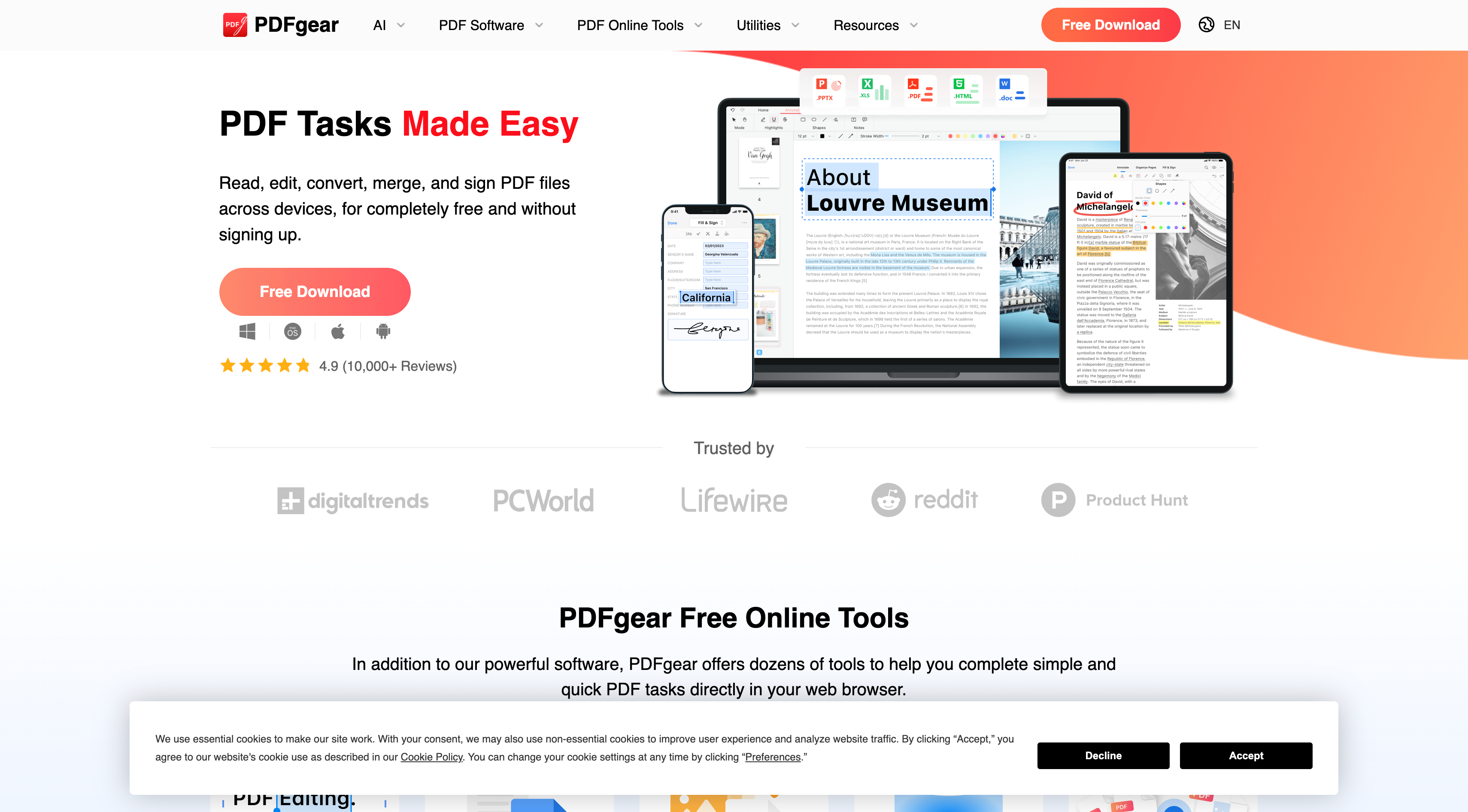
Best Scenario: Quick, casual edits on public or non-sensitive files (like school assignments or simple forms) where cost is the only constraint. Avoid using it for confidential business contracts or strict enterprise compliance.
3. PDF24 Creator: Best Free Offline PDF Toolbox
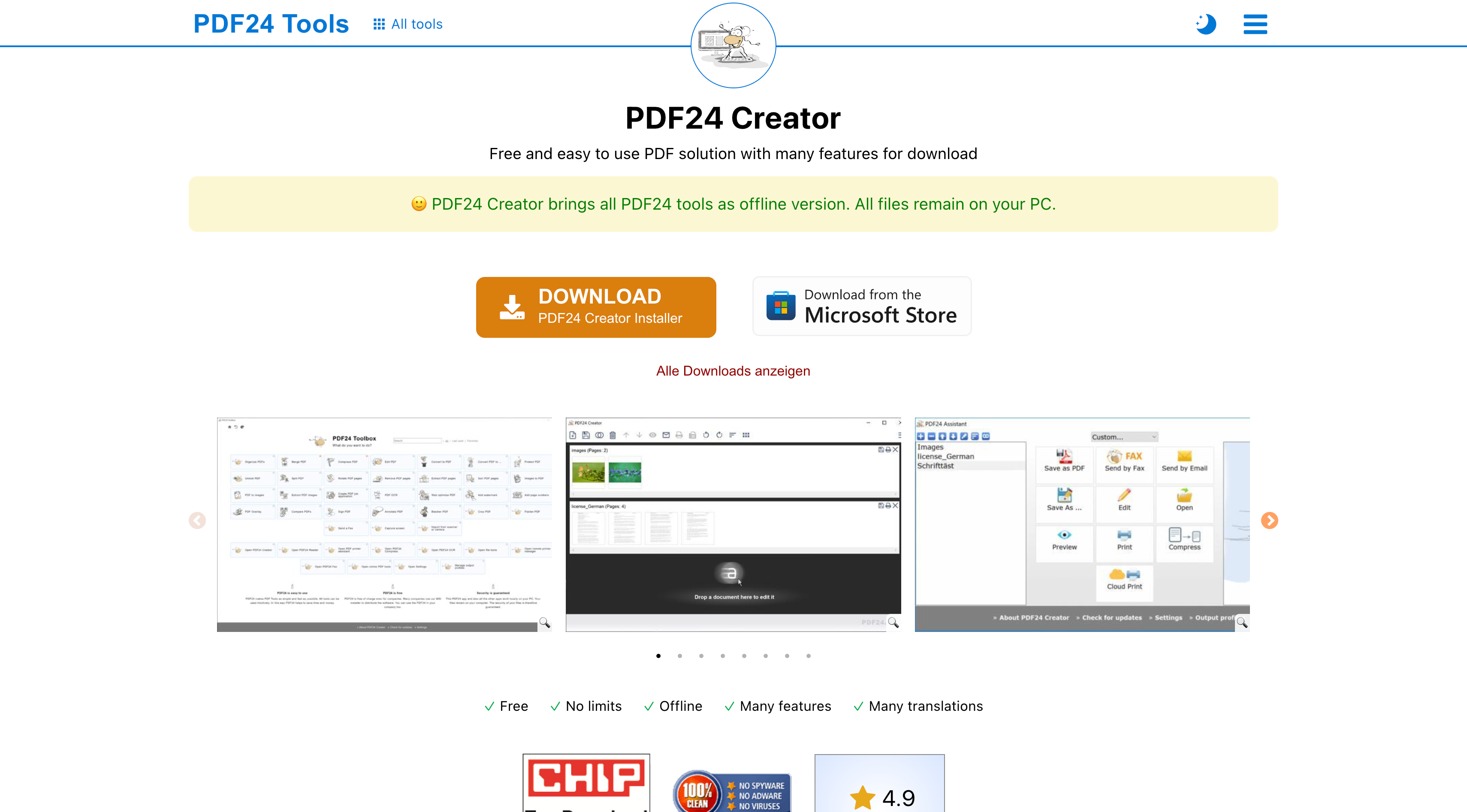
PDF24 Creator is a free, modular Windows software suite built around a virtual PDF printer driver. It excels at quick utility tasks like merging scattered files, splitting pages, compressing, and protecting PDFs offline.
Cons & User Feedback:
- Dated, Clunky Interface: Operating PDF24 feels like using a set of disconnected, 2000s-style mini-apps rather than a modern, unified writing canvas.
- Extremely Basic Text Controls: It offers very poor control over existing PDF text and typography. You cannot smoothly rewrite original paragraphs or adjust line height naturally.
- Windows-Only Desktop App: The full offline suite is limited strictly to Windows devices.
Best Scenario: Office administrative tasks that require quick batch merging, page reordering, or reducing file size before emailing. It is a file-management utility, not a true PDF text editor.
4. LibreOffice Draw: Open-Source Drawing Tool with Heavy PDF Limitations
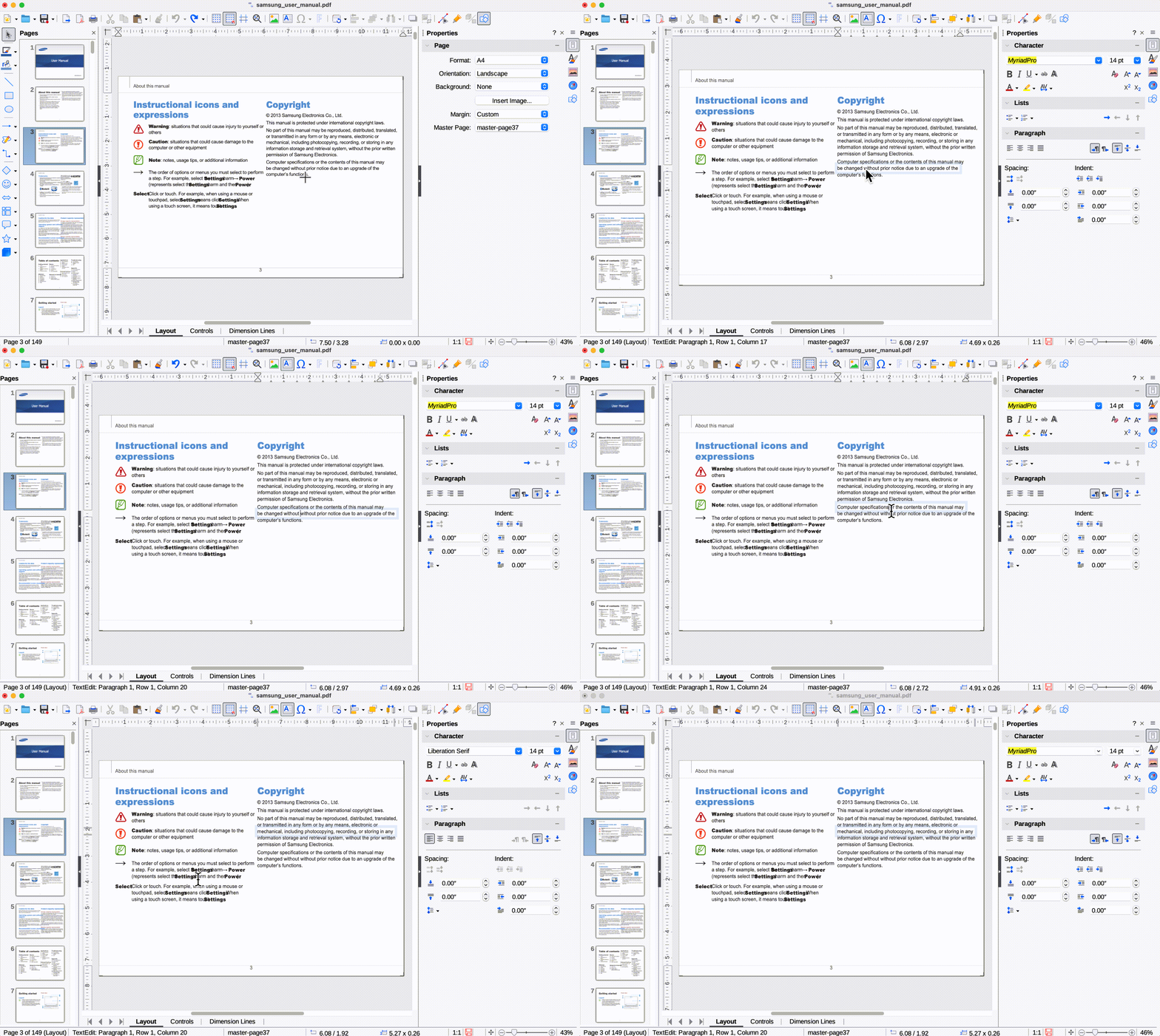
LibreOffice Draw is a free, open-source graphic application that can import PDFs and let you edit individual on-page objects. While it sounds promising as a totally free editor, its performance on real-world PDFs is highly frustrating.
Cons & User Feedback:
- Slow Rendering: Opening and saving medium-to-large PDF documents takes a noticeably long time compared to dedicated PDF editors.
- Broken Paragraph Flow (Line-by-Line Split): LibreOffice Draw breaks text blocks into isolated, line-by-line text boxes rather than readable paragraphs. Batch editing or revising a single paragraph becomes a painstaking, line-by-line manual ordeal.
- Font & Size Rendering Bugs: Documents with mixed font sizes, custom typography, or complex column layouts frequently load with mangled fonts and overlapped lines.
Best Scenario: One-off, single-page open-source graphic tweaks where you only need to drag an image or change a standalone heading. Completely unsuited for multi-page business reports or legal documents.
5. Microsoft Edge: Best Built-In Option for Quick Markup
Microsoft Edge comes pre-installed on Windows and serves as a fast PDF viewer. Strictly speaking, it is not a PDF editor—it only allows you to fill simple form fields, draw freehand, highlight lines, and slap new floating text boxes over pages.
Cons & User Feedback:
- Cannot Edit Original Text: Edge cannot select, delete, or rewrite existing text inside a PDF layer at all.
- File Size Explosion Bug: Recent updates to Edge's integrated PDF engine have triggered a widespread bug reported by users on Reddit: adding just a few text boxes or annotations can unexpectedly blow up a 100 KB file into a larger document.
- Font & Alignment Glitches: Text inserted via Edge often renders in unpredictable font sizes and loses alignment when saved.
Best Scenario: Zero-install quick reading, signing a simple flat form, or highlighting notes on a public PDF. It's better not use it to modify document text or process layout-sensitive files.
Free Utilities vs. Full-Featured Editors: Why UPDF’s Free Trial Outperforms Web Tools
Many users assume they must choose between a restricted "free" utility and an expensive paid subscription. However, UPDF offers a completely free trial with no time limits, granting full access to its deep editing capabilities, adaptive text box reflow, element alignment, page management, and high-accuracy OCR.
The only distinction in UPDF’s free version is that a small brand watermark is added to the upper-left corner upon saving. This makes UPDF ideal even if you are not ready to upgrade immediately:
- Use a free utility (like PDFgear or Edge) when you only need to add a quick highlight to a public PDF, sign a simple one-page document, or merge files where precise text alignment and document privacy are not priorities.
- Use UPDF’s Free Trial when you need to rewrite existing text cleanly without breaking paragraph layouts, run OCR on scanned forms, or verify how your document looks with professional-grade desktop controls before deciding to remove the watermark.
If you need a seamless workflow across desktop and mobile, UPDF’s single account covers Windows, Mac, iOS, and Android. For mobile-heavy tasks, see UPDF's PDF editor app guide, or compare Android options in the free PDF editor for Android article.
Windows • macOS • iOS • Android 100% secure
FAQ
What is the best PDF editor for Windows 2026?
For full editing, OCR, private documents, and cross-device work, UPDF is the better all-in-one choice. For a free editor suitable for light Windows tasks, PDFgear is worth testing because its official site says it has no watermarks and supports editing, conversion, annotation, and OCR.
Can I use a free PDF editor on Windows 10 without a watermark?
Yes, but you need to check the export rules before editing. Some tools are free to download but add watermarks when saving. Test with a copy of your PDF before using the tool on an important file.
Is an open-source PDF editor for Windows enough?
It can be enough for simple visible text or layout fixes. For scanned PDFs, exact formatting, OCR, private business files, or repeated editing, a dedicated PDF editor is usually safer.
Does Windows 11 include a full PDF editor?
No. Windows can open PDFs in Microsoft Edge for viewing, markup, and simple form work, but it does not replace a full PDF editor for original text editing, OCR, conversion, and page management.
Is it safe to edit confidential business files or financial contracts with UPDF?
Yes. Unlike browser-based PDF editors that require uploading files to online servers, UPDF processes all editing, OCR, and document operations locally on your Windows device. Furthermore, UPDF adheres to international ISO 27001 security standards, making it safe for corporate, financial, and legal workflows. Organizations can also manage member permissions securely via the UPDF Enterprise Management Console.
Conclusion
For a balanced Windows workflow, start with the task: use a free editor for simple public files, and use UPDF when editing accuracy, OCR, privacy, and cross-device consistency matter.







 Enrica Taylor

 Enid Brown
 Lizzy Lozano