 UPDF
UPDF
 UPDF for Windows
 UPDF for Mac
 UPDF for iPhone/iPad
 UPDF for Android
 Nomostar
 UPDF AI Online
 UPDF Sign
 IvyCraft
 Edit PDF
 Annotate PDF
 Create PDF
 PDF Form
 Edit links
 Convert PDF
 OCR
OCR PDF to Word
 PDF to Image
 PDF to Excel
 Organize PDF
 Merge PDF
 Split PDF
 Crop PDF
 Rotate PDF
 Protect PDF
 Sign PDF
 Redact PDF
 Sanitize PDF
 Remove Security
 Read PDF
 UPDF Cloud
 Compress PDF
 Print PDF
 Batch Process
 About UPDF AI
 UPDF AI Solutions
 AI User Guide
 FAQ about UPDF AI
 Summarize PDF
 Translate PDF
 Chat with PDF
 Chat with AI
 Chat with image
 PDF to Mind Map
 Explain PDF
 PDF AI Tools
 Image AI Tools
 AI Chat Tools
 AI Writing Tools
 AI Study Tools
 AI Working Tools
 Other AI Tools
 AI Bookmark Generation
 AI Bookmark Summary
 AI Watermark Generation
 AI Background Generation
 AI Sticker Generation
 AI Stamp Generation
 AI Editing Suite
 UPDF Copilot
 AI Page Management
 AI Semantic Search
 PDF to Word
 PDF to Excel
 PDF to PowerPoint
 Enterprise Solution
 Enterprise Sign
 Enterprise AI
 Enterprise Plan
 Enterprise User Guide
 Enterprise Webinar
 IT
IT Education
 Construction
 Financial Service
 Healthcare
 Insurance
 Legal
Legal Manufacturing
 Government
 Researchers & PhDs
 Solopreneurs & Freelancers
 Lawyers & Legal Professionals
 Real Estate Agents & Brokers
 Education Solution
 Customer Stories
 User Guide
 UPDF Tricks
 FAQs
FAQs UPDF Reviews
 Download Center
 Blog
Blog Newsroom
 Tech Spec
 Updates
 UPDF vs. Adobe Acrobat
 UPDF vs. Foxit
 UPDF vs. PDF Expert

MOBI is a legacy eBook format commonly associated with older Kindle devices and eBook libraries. Unlike PDF, which uses a fixed-page layout, MOBI content is usually reflowable and adapts to different screen sizes. You may want to convert MOBI to PDF when you need consistent pagination, easier printing, broader document compatibility, or access to PDF editing and annotation tools. However, because the two formats handle layouts differently, some fonts, images, page breaks, or tables of contents may change during conversion.
Before you begin, make sure the MOBI file is DRM-free and that you have the right to convert it. Most online converters cannot process DRM-protected Kindle books. If the upload or conversion repeatedly fails, DRM protection or file corruption may be the cause rather than the converter itself.
Quick Answer:
Part1: 6 Best Methods to Convert MOBI to PDF
Although many MOBI to PDF converter tools are available today, we have below shortlisted the top six converters you can use. Almost all of them are web-based, meaning you can use them without installing any software.
After converting a MOBI file to PDF, you might need to open or make edits to it. In this situation, UPDF can be of assistance. UPDF is a comprehensive PDF management tool that harnesses the power of AI, enabling effortless tasks such as editing, reading, annotating, summarizing, translating, converting, and more with PDFs. You can download it now for efficient PDF management after the conversion.
Windows • macOS • iOS • Android 100% secure
Now, let's take a look at how to change MOBI to PDF.
1. Convert with TinyWow
TinyWow is an online MOBI to PDF converter that can instantly convert MOBI files to PDFs. All it requires is uploading the MOBI file, doing the conversion, and downloading the converted PDF.
Follow the below steps to convert MOBI to PDF with TinyWow:
- Go to TinyWow website and click "Upload" to upload the MOBI file.
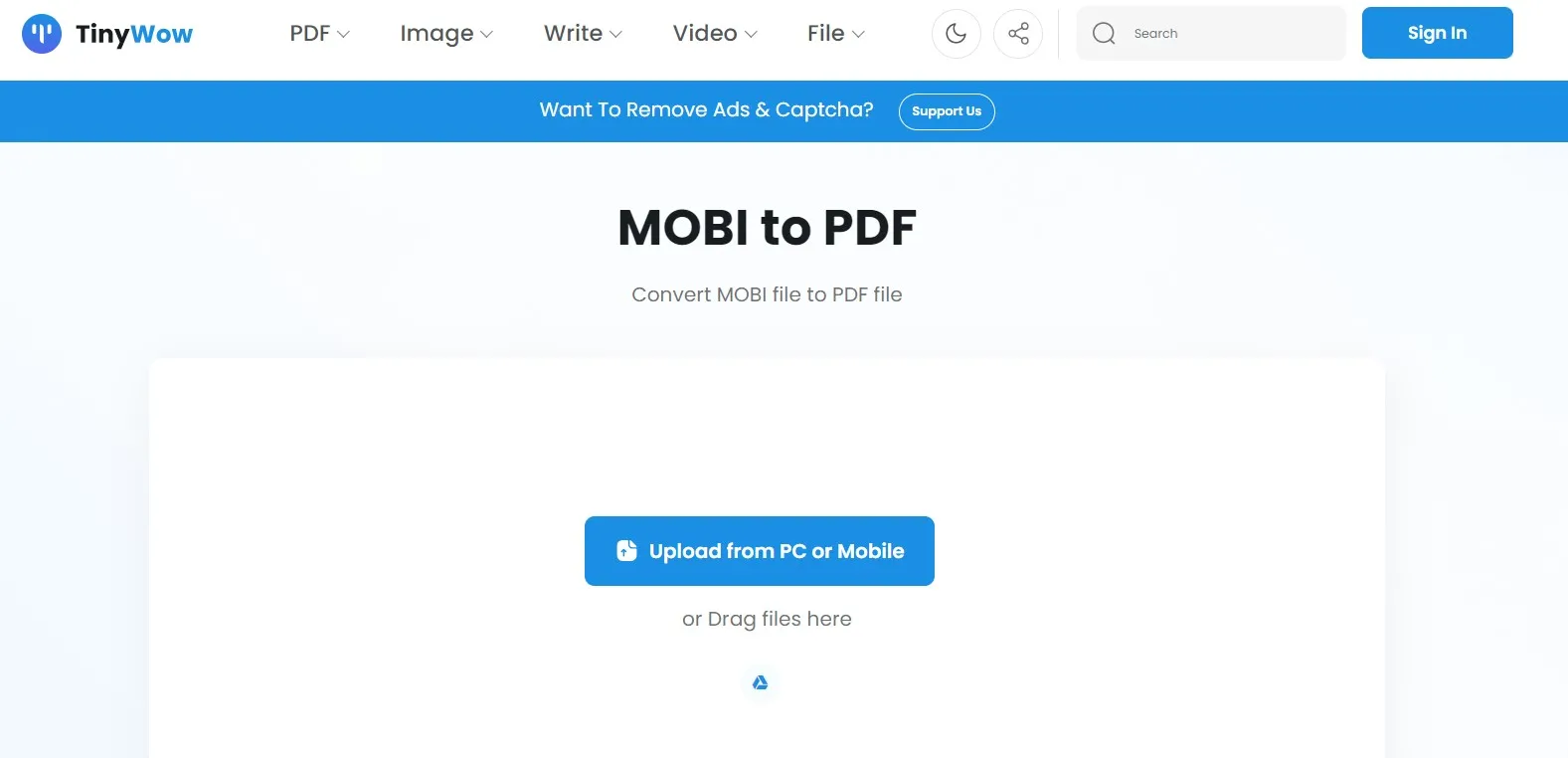
- Click the "Convert" button once the file is uploaded.
- After conversion, click "Download" to download the converted PDF.
This way, you can instantly get PDFs from MOBI files. However, there are a few cons associated with using TinyWow, as follows:
Cons:
- The file must be uploaded to a third-party server, so it may not be suitable for confidential eBooks.
- Conversion time depends on the file size and network connection.
- Complex formatting, embedded fonts, or image-heavy layouts may not be reproduced exactly in PDF.
- Uploaded and generated files are deleted one hour after upload, according to TinyWow.
TinyWow is best suited to quick, non-confidential, one-off conversions when you do not need advanced output controls.
2. Convert with OnlineConvert
As the name implies, OnlineConvert provides a web-based approach to convert MOBI to PDF. It allows you to upload the MOBI file from the desktop, Google Drive, Dropbox, web link, or OneDrive.
Follow the below steps to convert MOBI to PDF with OnlineConvert:
- Go to OnlineConvert website and click "Choose Files" to upload the MOBI file.
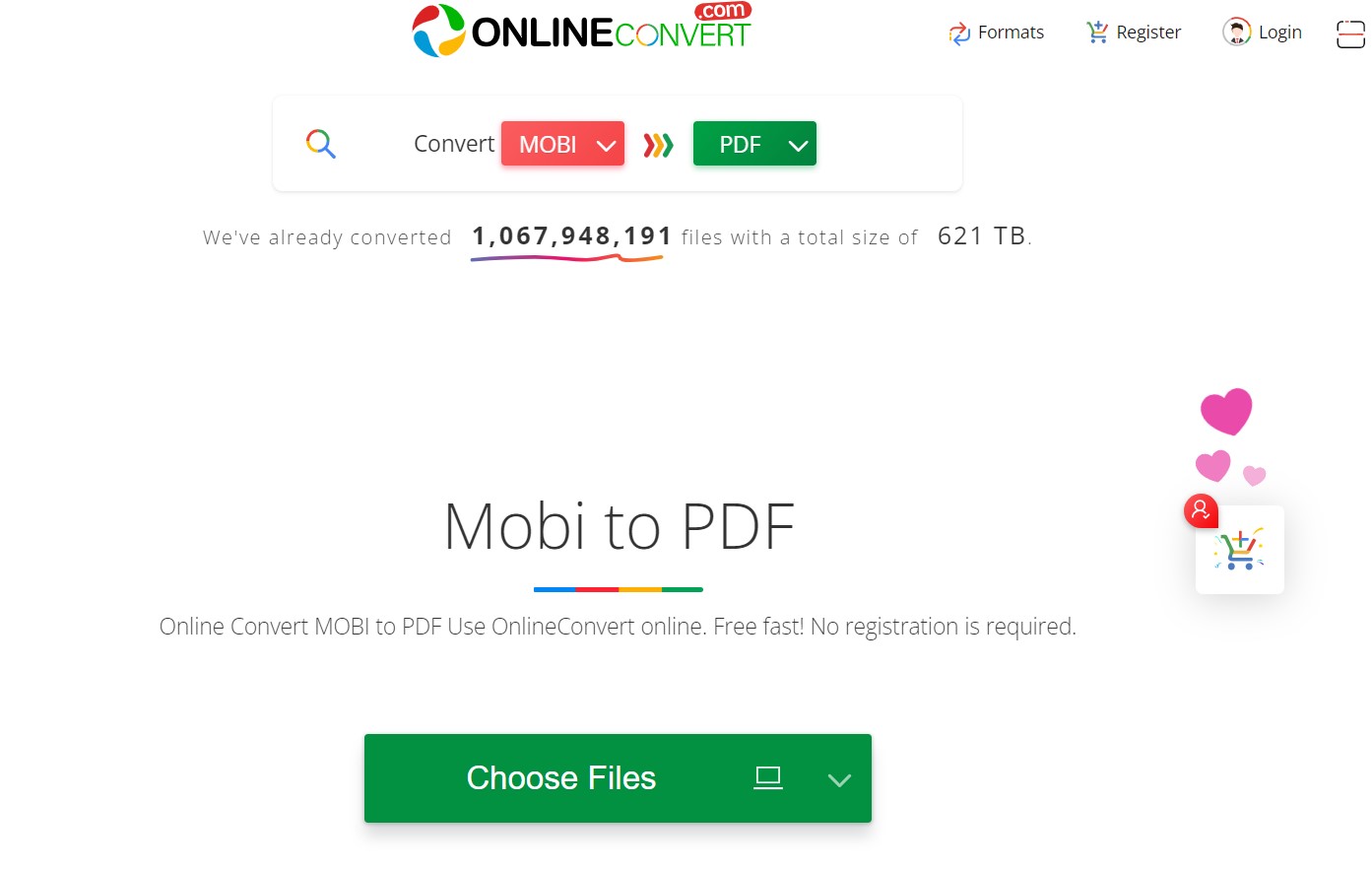
- Click the "Convert" button once the file is uploaded.
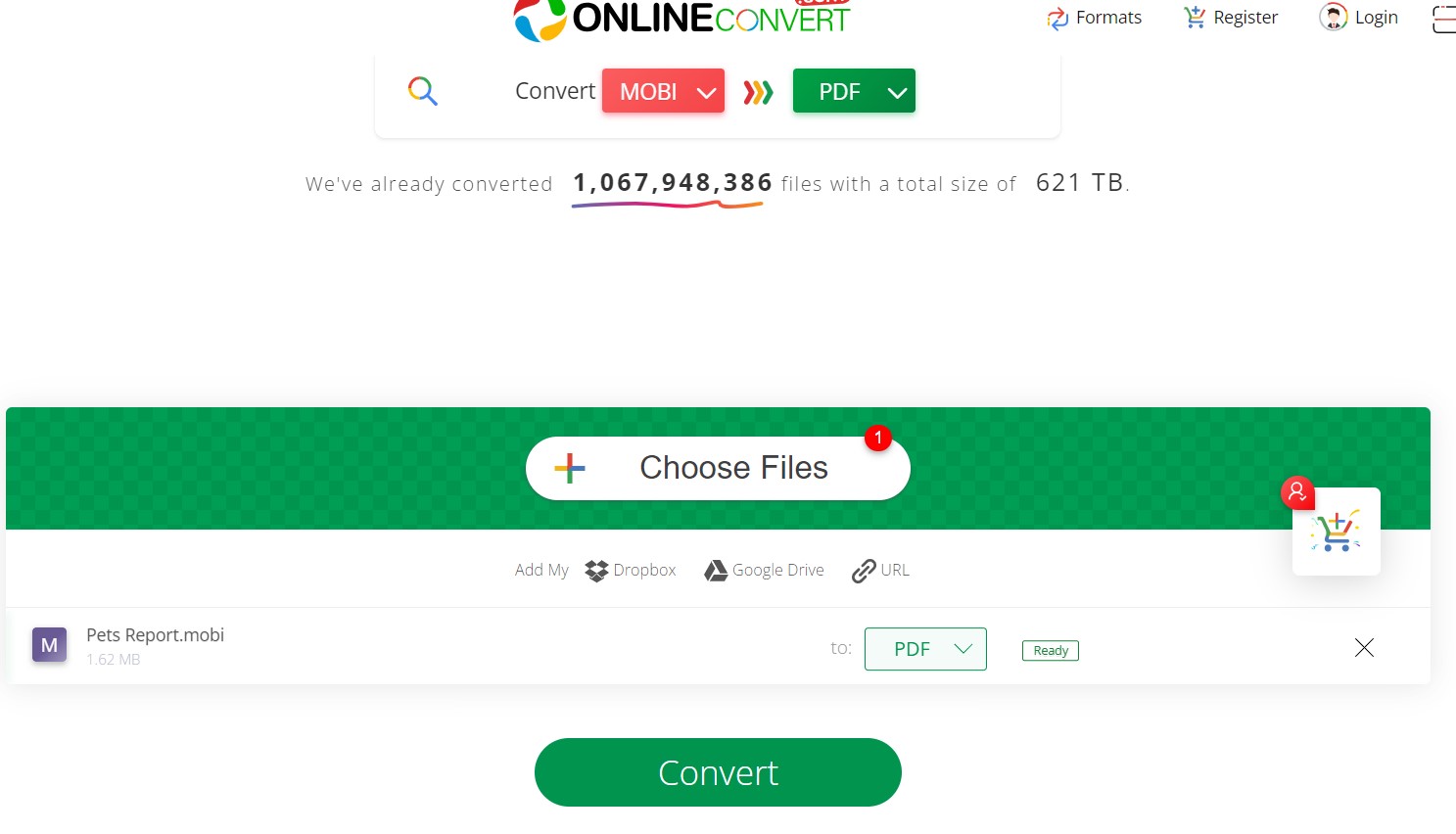
- Click the "Download" button once the conversion is completed.
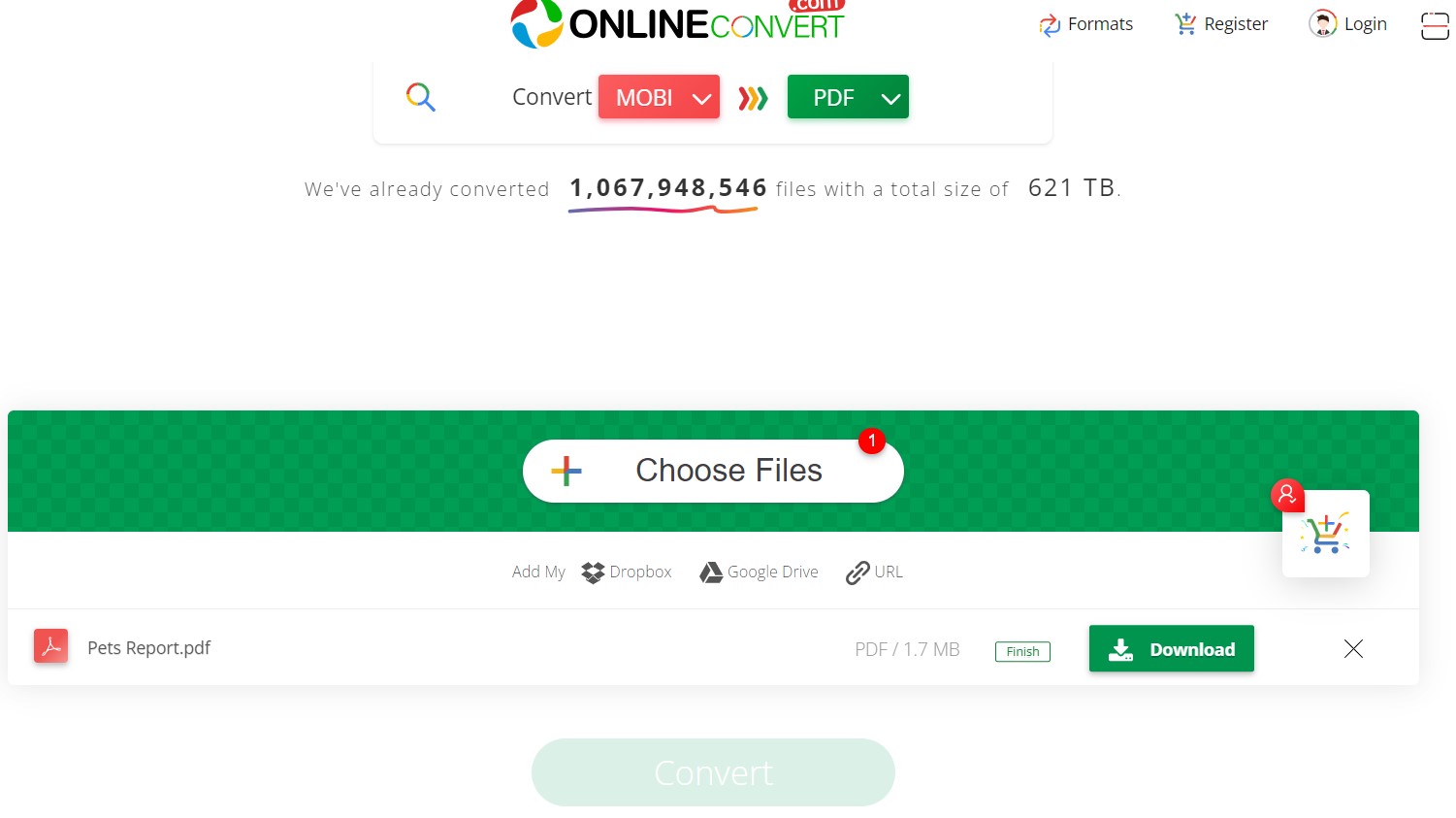
This way, a three-step process with OnlineConvert can instantly convert MOBI to PDF. However, there are a few limitations you need to keep in mind:
Cons:
- Free-account file-size and usage limits may change, so check the current plan before uploading a large eBook.
- The conversion requires uploading the MOBI file to an external server.
- Output quality may vary when the original eBook contains custom fonts, complex tables, or fixed-layout pages.
In short, if you want to convert MOBI to PDF for free, then use OnlineConvert when your file size is below 3 MB.
3. Convert with i2pdf
i2PDF is another online MOBI to PDF converter to convert the file format easily. It claims to automatically delete the files after 30 minutes.
Follow the below steps to use i2PDF to convert MOBI to PDF:
- Go to the i2PDF website and click "Choose Files" to upload the MOBI file to convert.
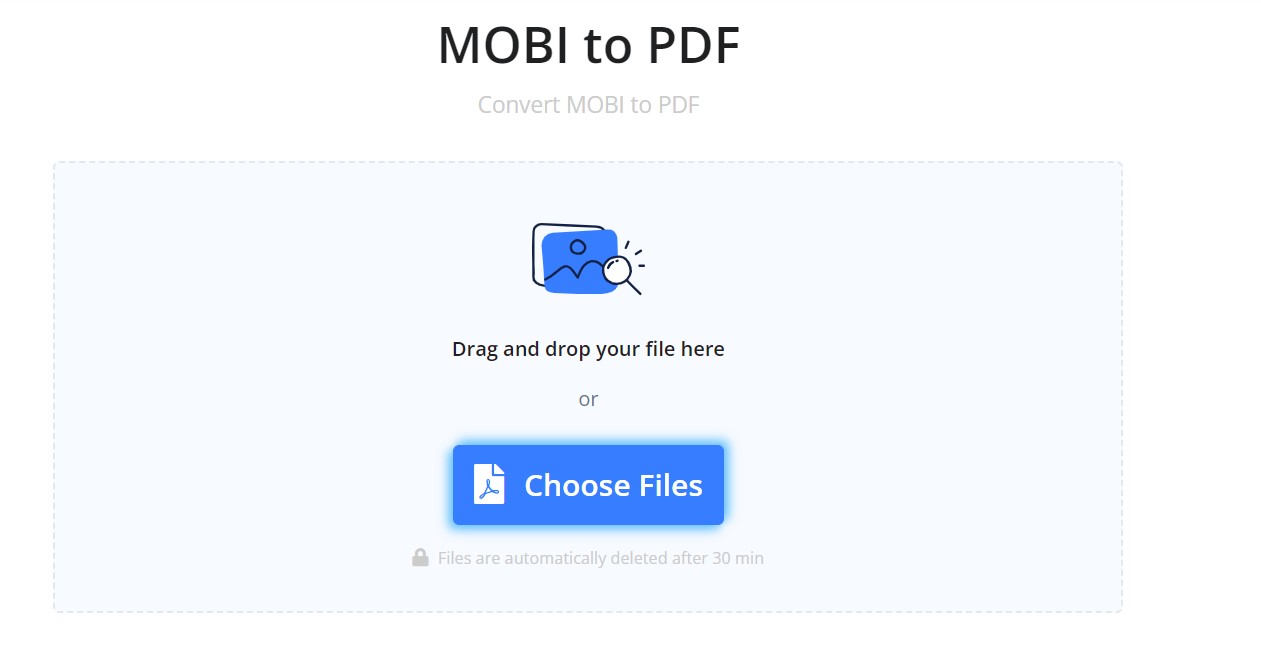
- Click the "MOBI to PDF" button to initiate the conversion.

- Once the conversion is completed, click "Download".
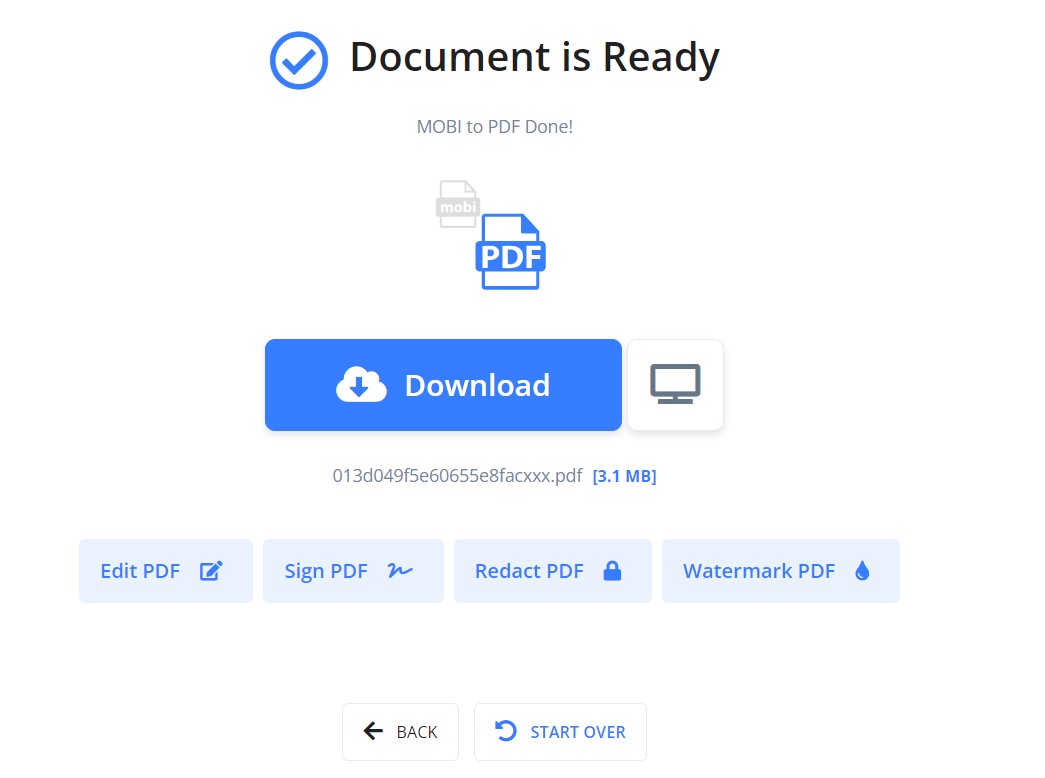
This way, you get a PDF version of the MOBI file within seconds. However, there are a few cons with i2PDF, as follows:
Cons:
- It shows ads throughout the conversion process.
- It may disturb the layout and formatting during conversion.
- It requires a reliable internet connection.
i2PDF is suitable for users who want a simple browser-based converter and prefer a clearly stated file-retention period. According to i2PDF, uploaded files are automatically deleted after 30 minutes.
4. Convert with CloudConvert
CloudConvert is a well-known tool to convert or get PDFs from different formats. One such format it supports is converting MOBI to PDF. You can upload the MOBI file from a desktop, Google Drive, OneDrive, Dropbox, or web URL.
Follow the below steps to convert MOBI to PDF with CloudConvert:
- Go to the CloudConvert website and click "Select File" to upload the MOBI file.
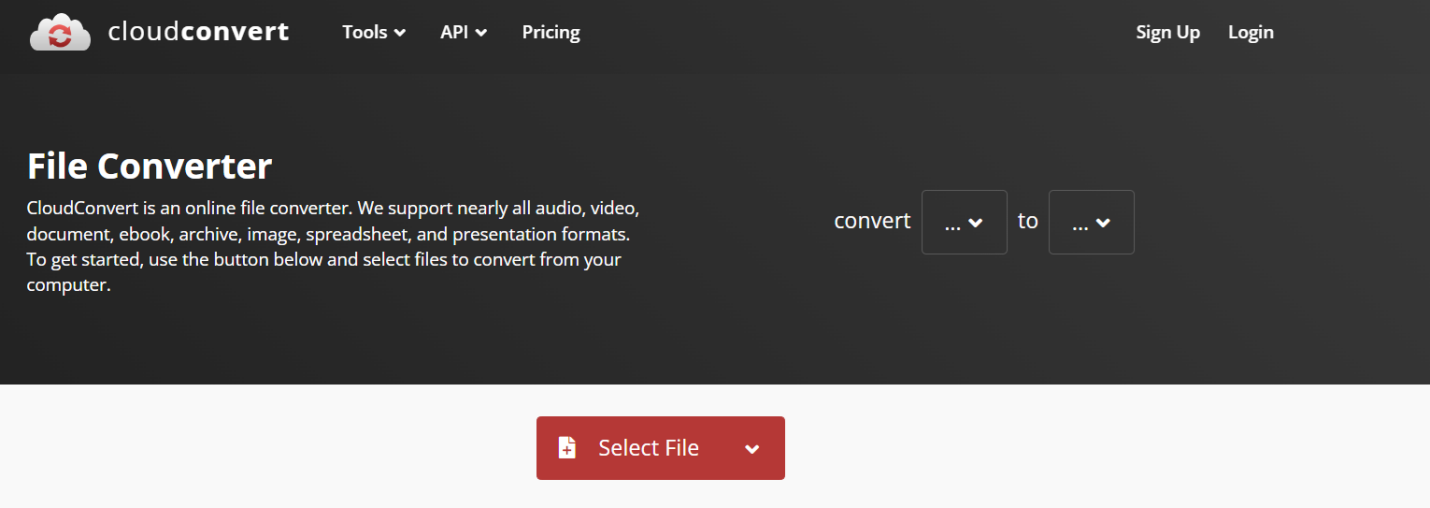
- Once the file is uploaded, click the "Convert" button.
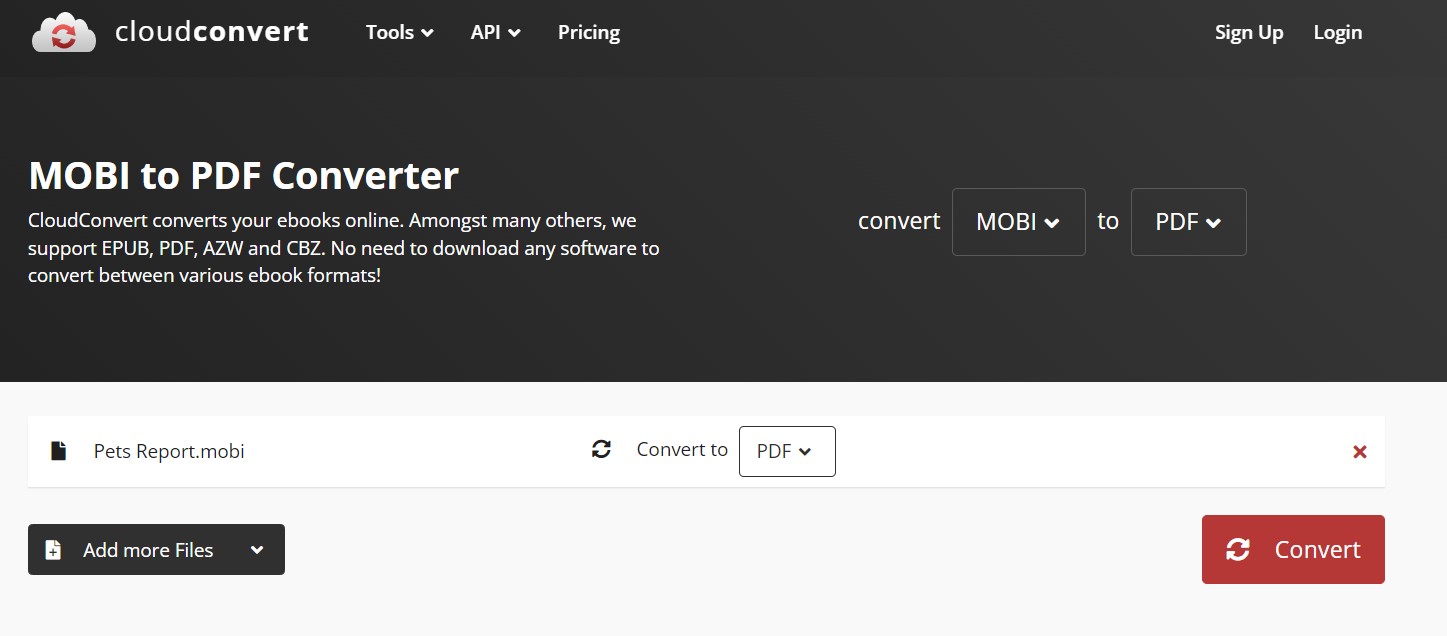
- After conversion, click "Download" to download the converted PDF.
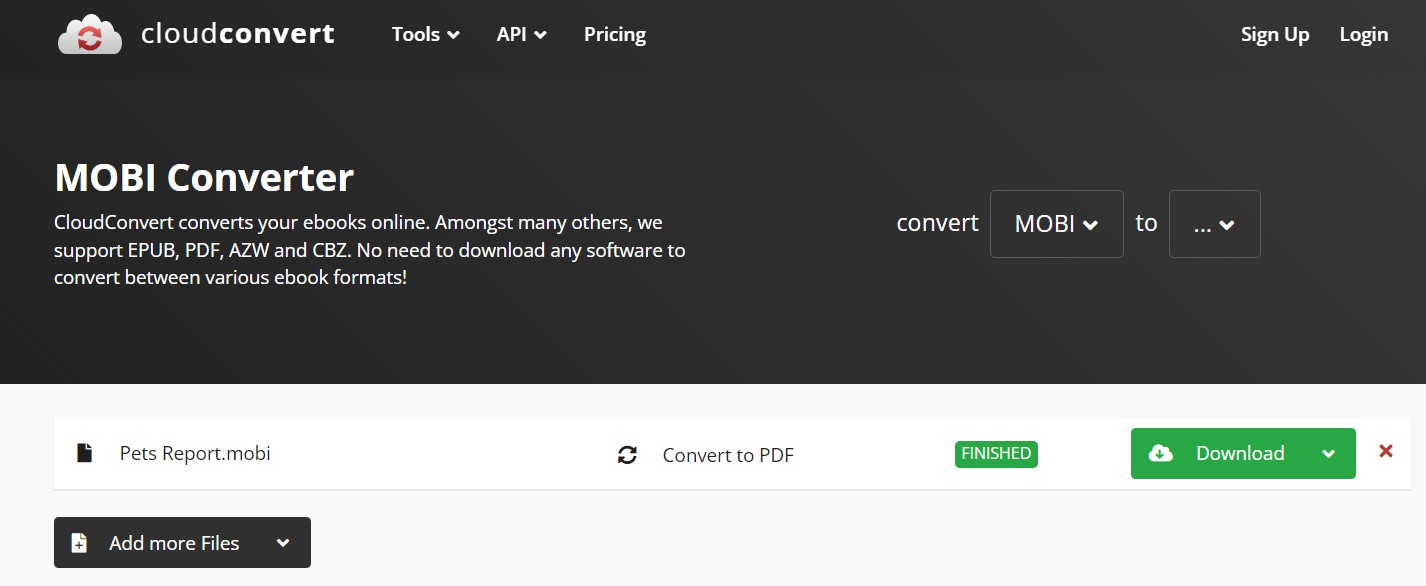
This way, CloudConvert lets you easily convert MOBI to PDF. However, there are a few limits with CloudConvert, as follows:
Cons:
- It provides limited capabilities within its free plan.
- It is dependent on a reliable network connection.
- It may disturb the format/layout during conversion.
In short, CloudConvert is a good converter to convert MOBI to PDF, but it requires a subscription to access its full capabilities.
5. Convert with Convertio
Convertio offers a click-based approach to convert MOBI to PDF on the web. You also get the option to convert files from Dropbox and Google Drive. Moreover, it can batch-convert multiple files at once.
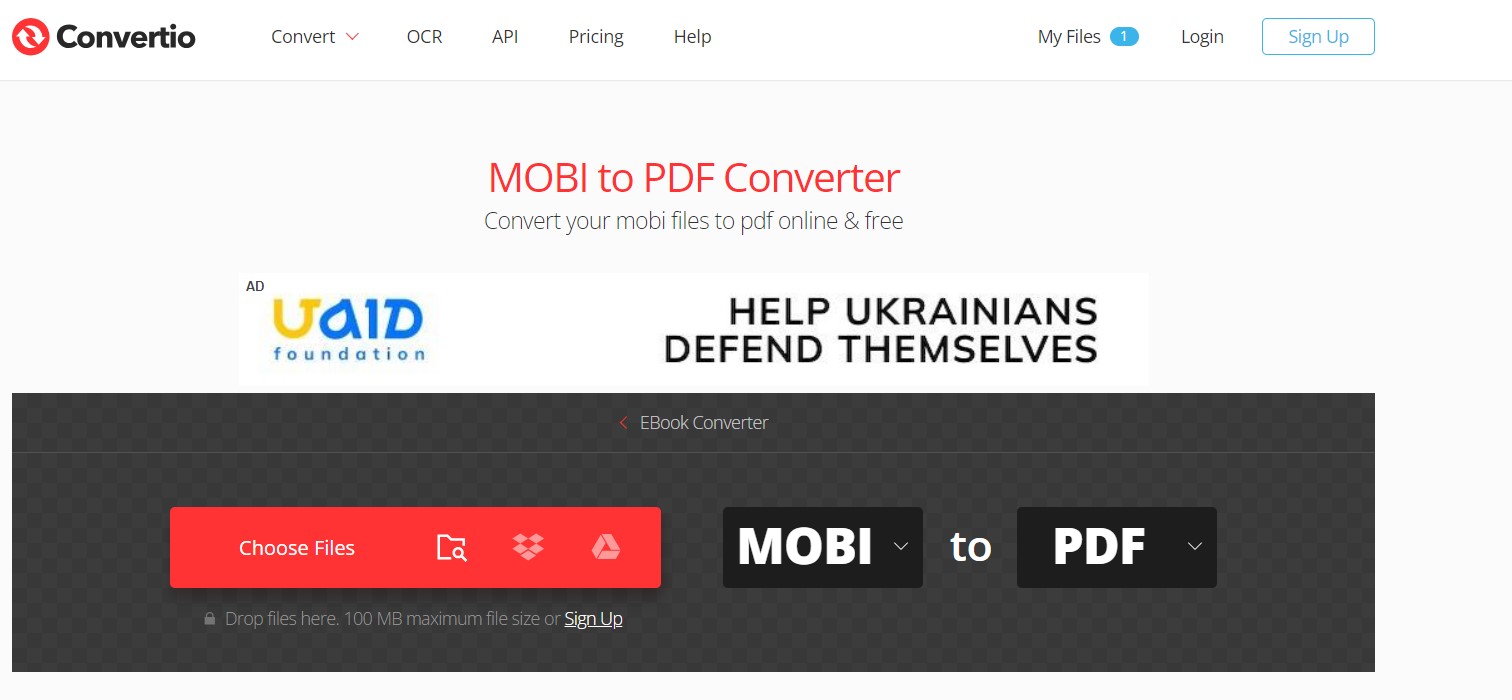
Follow the below steps to convert MOBI to PDF with Convertio:
- Go to the Convertio website and click "Choose Files" to upload the MOBI file.
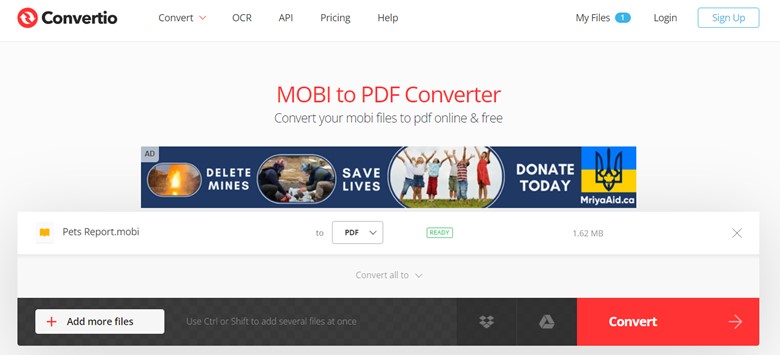
- Click "Convert" to initiate the conversion process.
- After conversion, click "Download".
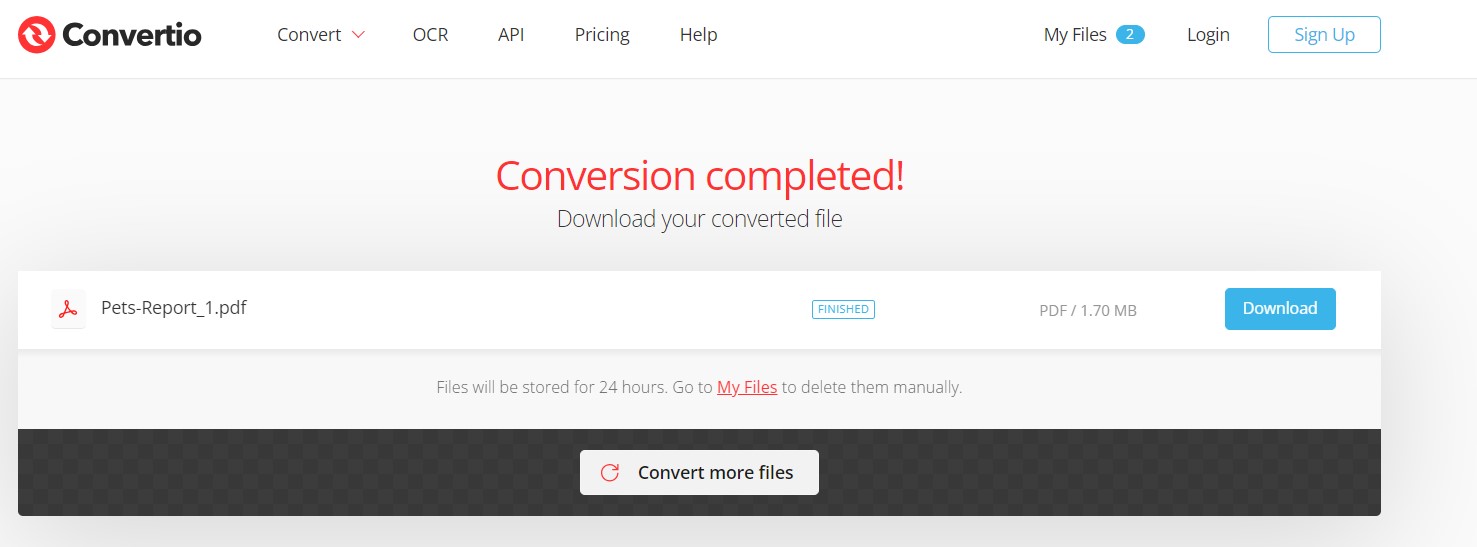
So, Convertio also provides similar steps like all other tools. Therefore, it also comes with a few limits/cons, as follows:
Cons:
- It can alter the format/layout during conversion.
- It shows ads during the conversion process.
- It keeps the file stored for 24 hours.
Simply put, try Convertio yourself and see if it fulfills your needs.
6. Convert with PDF Candy
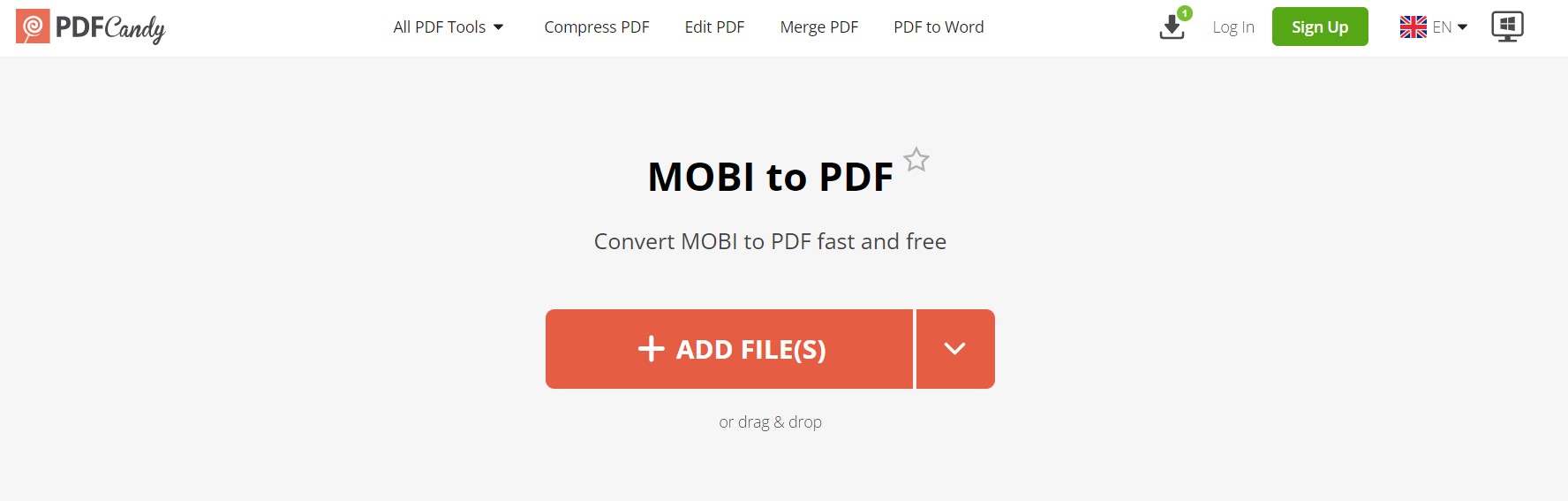
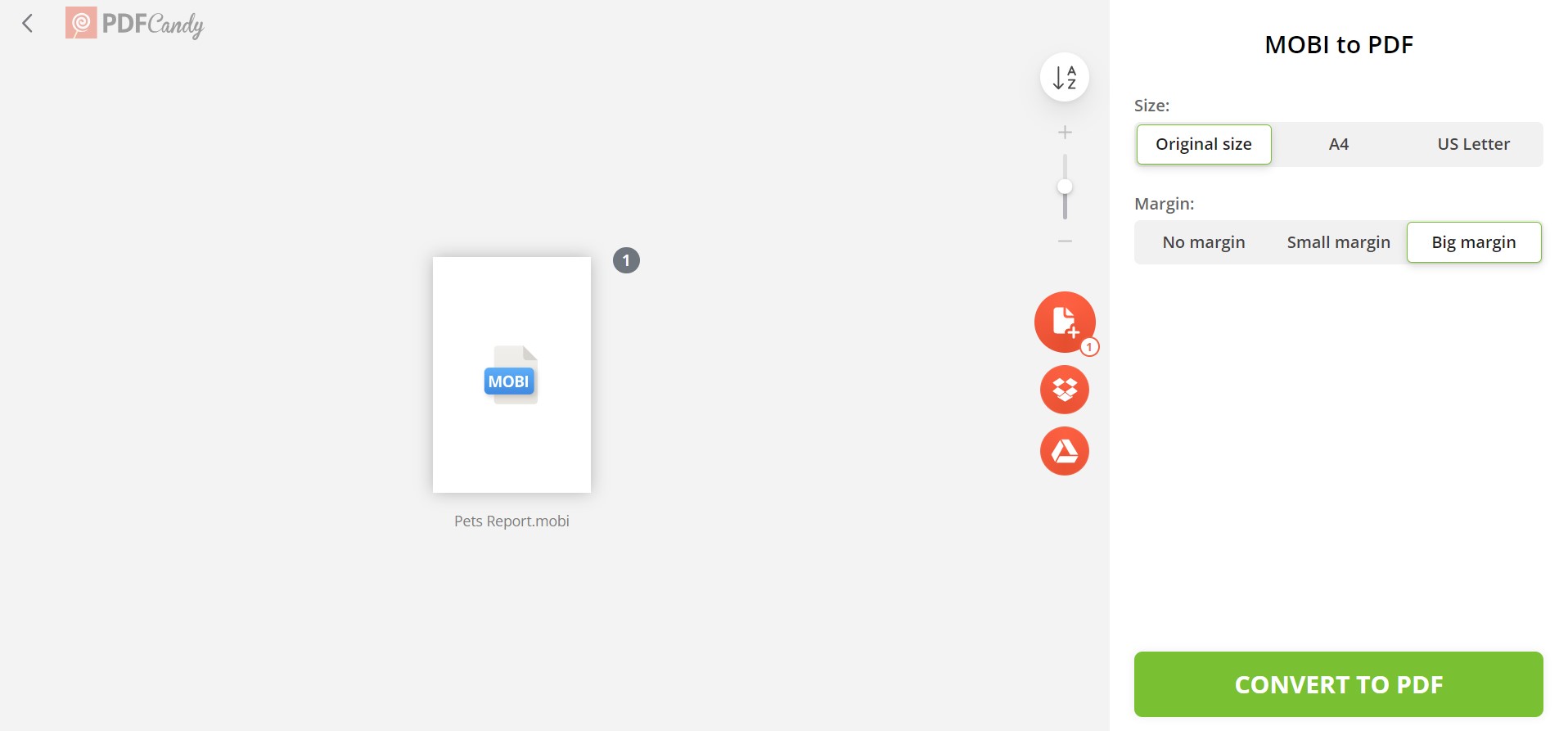
Last on our list is PDF Candy. PDF Candy allows you to drag and drop or upload MOBI files from the desktop, Google Drive, and Dropbox. It also allows you to adjust the page size, margins, orientation, etc.
Follow the below steps to use PDF Candy to convert MOBI to PDF:
- Go to the PDF Candy website and click "Add File(s)" to upload the MOBI file.
- Once the file is uploaded, customize the settings if you want and click "Convert to PDF".
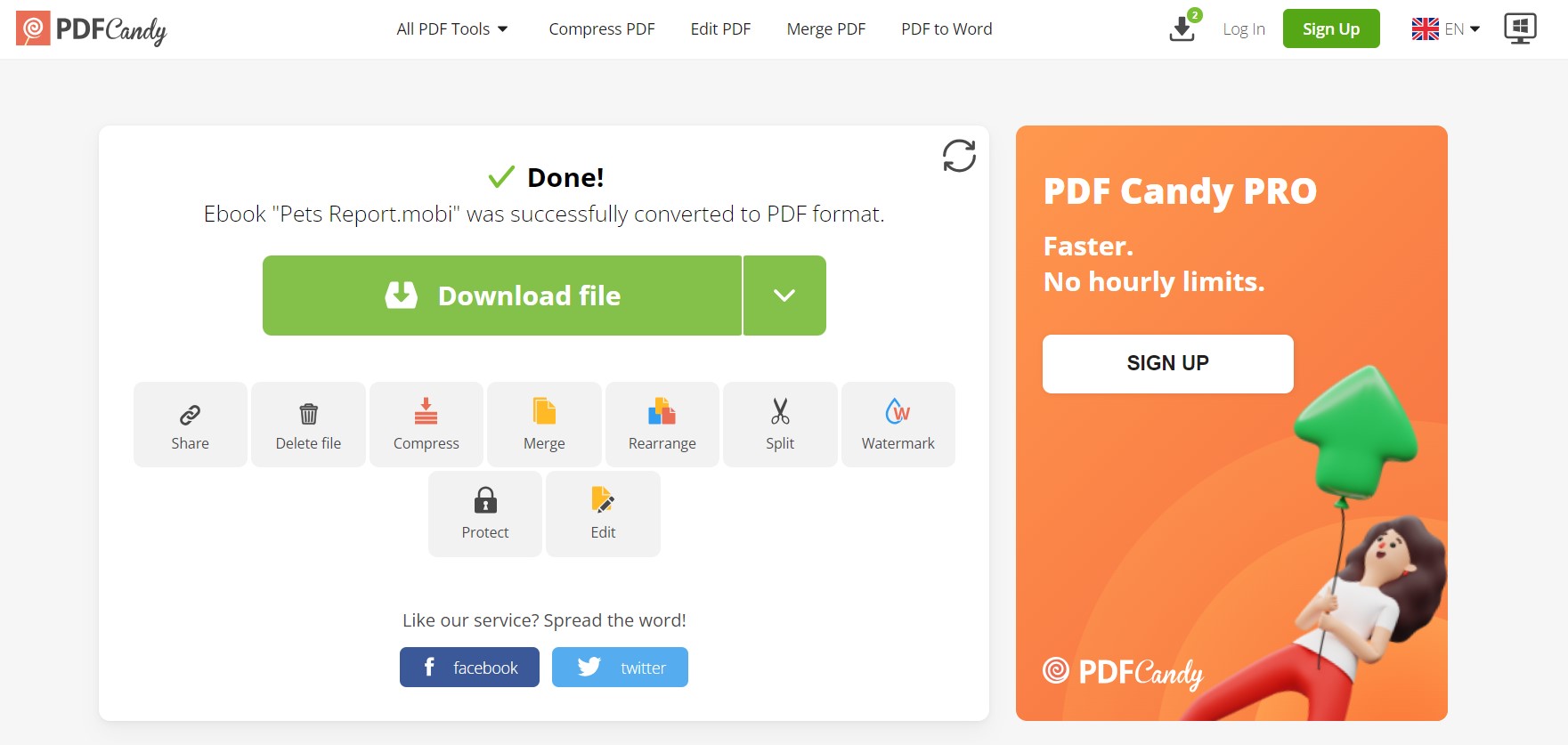
- After conversion, download the converted PDF by clicking "Download file".
In short, PDF Candy also offers a similar approach to converting MOBI to PDF like other online tools. However, you might experience a few limits with this tool, as follows:
Cons:
- It requires a proper internet connection.
- It may alter the layout/format during conversion.
PDF Candy is worth considering when you want to control the PDF page size, orientation, and margins before conversion.
Once the conversion is complete, open the PDF in a dedicated editor such as UPDF to check whether the page layout, images, and chapter structure were preserved correctly.
Part 2. UPDF: The Best PDF Reader and Editor
Now that we have learned about the few best tools to convert MOBI to PDF, the next thing is how to handle PDF files effectively. This is where UPDF comes into action. It allows you to edit the converted PDF from FB2, Image, HTML, and DXF file effectively.
UPDF is an AI-driven PDF reader and editor tool that incorporates all the features you need to handle PDFs effectively. Below are the main features of UPDF worth knowing:
- Read PDFs: It allows you to view/read PDFs in different layouts and even supports slideshow mode.
- Edit PDFs: It can edit the text, images, links, and other elements in PDFs.
- Annotate PDFs: It can mark, draw, highlight, add stamps/stickers, underline, and do similar annotations.
- Compress PDFs: It can compress and reduce the size of large PDFs.
- Convert PDFs: It can instantly convert PDFs to other formats, such as Word, PowerPoint, Excel, image, RTF, CSV, text, etc.
- UPDF AI: It incorporates ChatGPT-powered AI assistance to make AI provide summaries, translations, explanations, and answers to your document-related questions.
- Batch PDFs: It can convert, insert, encrypt, print, and combine multiple PDFs at once.
- Organize PDFs: It can rearrange, remove, split, add, and extract PDF pages.
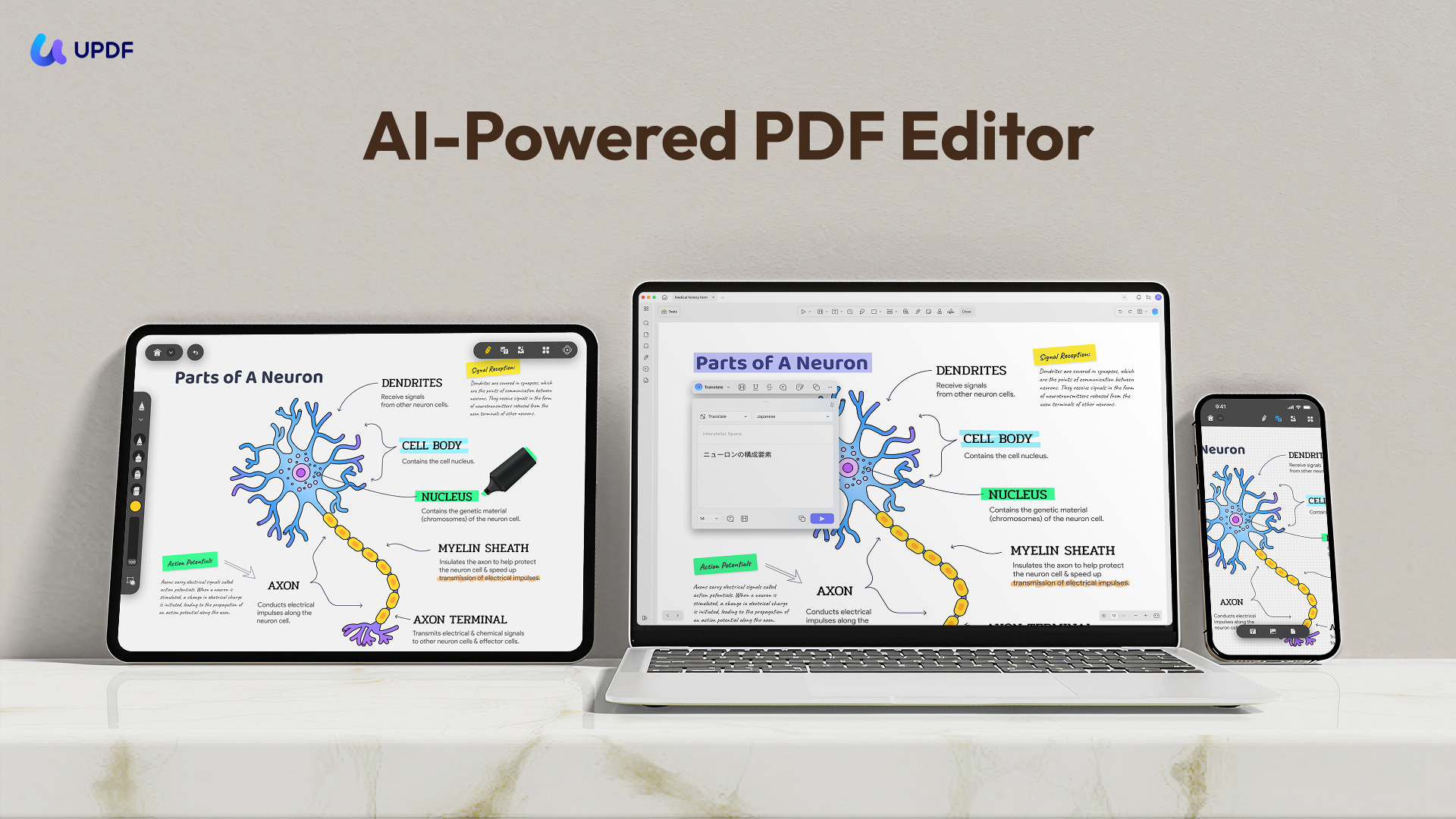
In short, UPDF is a complete, one-stop tool to read, edit, annotate, and deal with almost all other activities related to PDFs. So, why think more? Download UPDF and have the most powerful tool to handle converted PDFs.
Windows • macOS • iOS • Android 100% secure
Part 3. FAQs about MOBI Files
Q1: What program opens MOBI files?
There are many programs that can open MOBI files, as follows:
1. Mobipocket Reader
2. Mobi File Reader
3. FBReader
4. Calibre
5. Stanza
Besides the above programs, you can also open MOBI files on Amazon Kindle devices.
Q2. How do I read MOBI files on my PC?
The best way to read MOBI files on your PC is by using the Amazon Kindle app. Alternatively, you can use any e-book reader of your choice to read MOBI files on your PC.
Q3. Can you convert a MOBI to EPUB?
Yes, you can convert MOBI to EPUB. Many online conversion tools can do the conversion easily and instantly, such as Zamzar, Convertio, CloudConvert, etc.
Q4. Can Google Books read MOBI?
No, Google Play Books cannot read MOBI files. It only supports PDF and EPUB formats. So, you have to first convert MOBI to PDF or EPUB to read it with Google Play Books.
Conclusion
Converting MOBI to PDF is useful when you need fixed pagination, easier printing, or compatibility with standard document workflows. For a quick, non-confidential conversion, an online tool such as TinyWow, i2PDF, CloudConvert, Convertio, or PDF Candy may be sufficient. Before uploading, confirm that the MOBI file is DRM-free, review the service’s file limits and privacy policy, and expect possible layout changes because MOBI and PDF handle pages differently.
After conversion, open the resulting file in UPDF to inspect the layout, correct editable content, annotate passages, reorganize pages, compress the document, or use AI to summarize and translate it. This two-stage workflow provides a more accurate description than suggesting that UPDF directly converts MOBI files.
Windows • macOS • iOS • Android 100% secure





 Enid Brown
 Lizzy Lozano
 Grace Curry