 UPDF
 UPDF for Windows
 UPDF for Mac
 UPDF for iPhone/iPad
 UPDF for Android
 Nomostar
 UPDF AI Online
 UPDF Sign
 IvyCraft
 Edit PDF
 Annotate PDF
 Create PDF
 PDF Form
 Edit links
 Convert PDF
 OCR
 PDF to Word
 PDF to Image
 PDF to Excel
 Organize PDF
 Merge PDF
 Split PDF
 Crop PDF
 Rotate PDF
 Protect PDF
 Sign PDF
 Redact PDF
 Sanitize PDF
 Remove Security
 Read PDF
 UPDF Cloud
 Compress PDF
 Print PDF
 Batch Process

 About UPDF AI
 UPDF AI Solutions
 AI User Guide
 FAQ about UPDF AI
 Summarize PDF
 Translate PDF
 Chat with PDF
 Chat with AI
 Chat with image
 PDF to Mind Map
 Explain PDF
 PDF AI Tools
 Image AI Tools
 AI Chat Tools
 AI Writing Tools
 AI Study Tools
 AI Working Tools
 Other AI Tools
 AI Bookmark Generation
 AI Bookmark Summary
 AI Watermark Generation
 AI Background Generation
 AI Sticker Generation
 AI Stamp Generation
 AI Editing Suite
 UPDF Copilot
 AI Page Management
 AI Semantic Search
 PDF to Word
 PDF to Excel
 PDF to PowerPoint
 Enterprise Solution
 Enterprise Sign
 Enterprise AI
 Enterprise Plan
 Enterprise User Guide
 Enterprise Webinar
 IT
 Education
 Construction
 Financial Service
 Healthcare
 Insurance
 Legal
 Manufacturing
 Government
 Researchers & PhDs
 Solopreneurs & Freelancers
 Lawyers & Legal Professionals
 Real Estate Agents & Brokers
 Education Solution
 Customer Stories
 User Guide
 UPDF Tricks
 FAQs
 UPDF Reviews
 Download Center
 Blog
 Newsroom
 Tech Spec
 Updates
 UPDF vs. Adobe Acrobat
 UPDF vs. Foxit
 UPDF vs. PDF Expert


Quick answer:
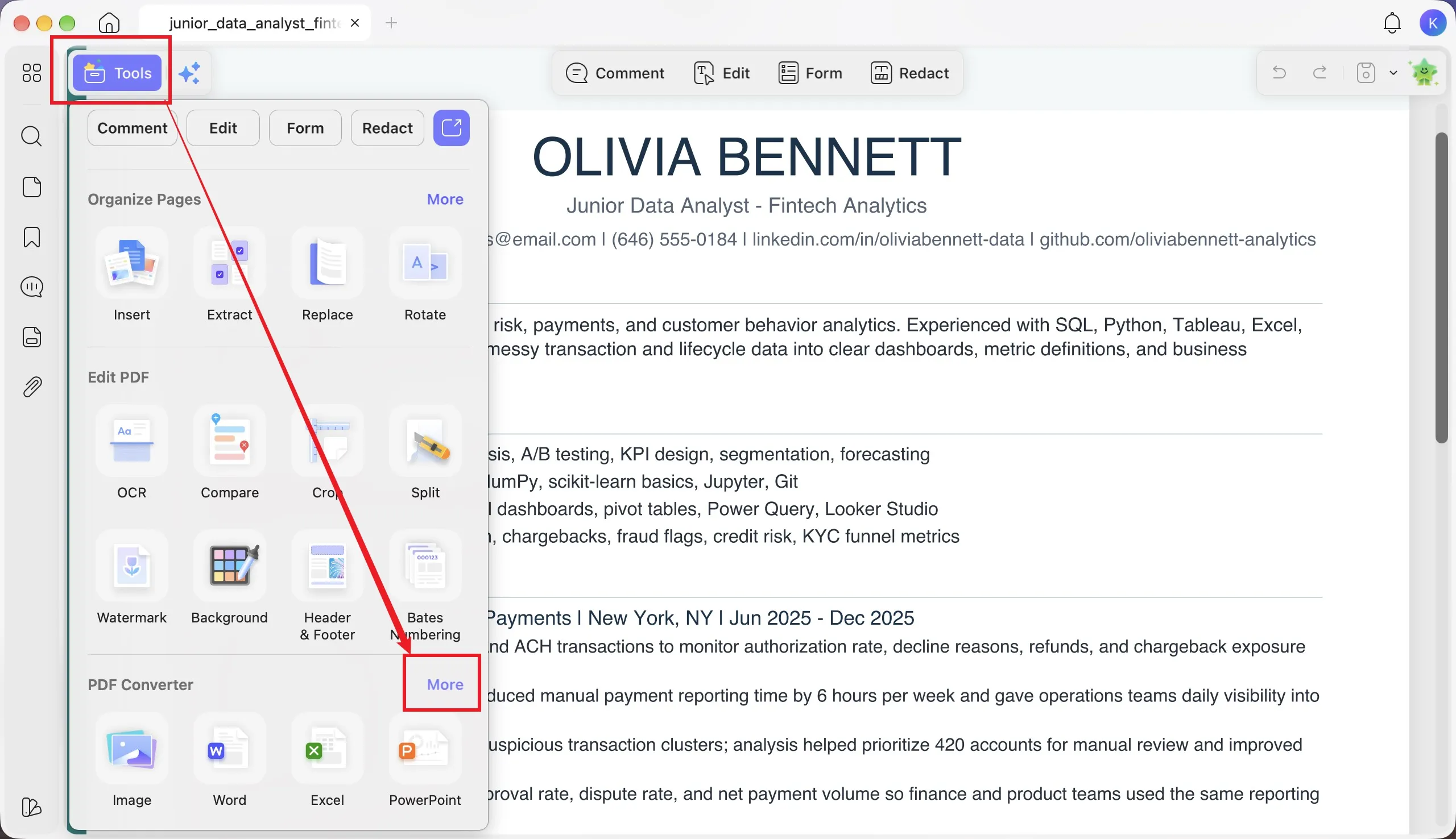
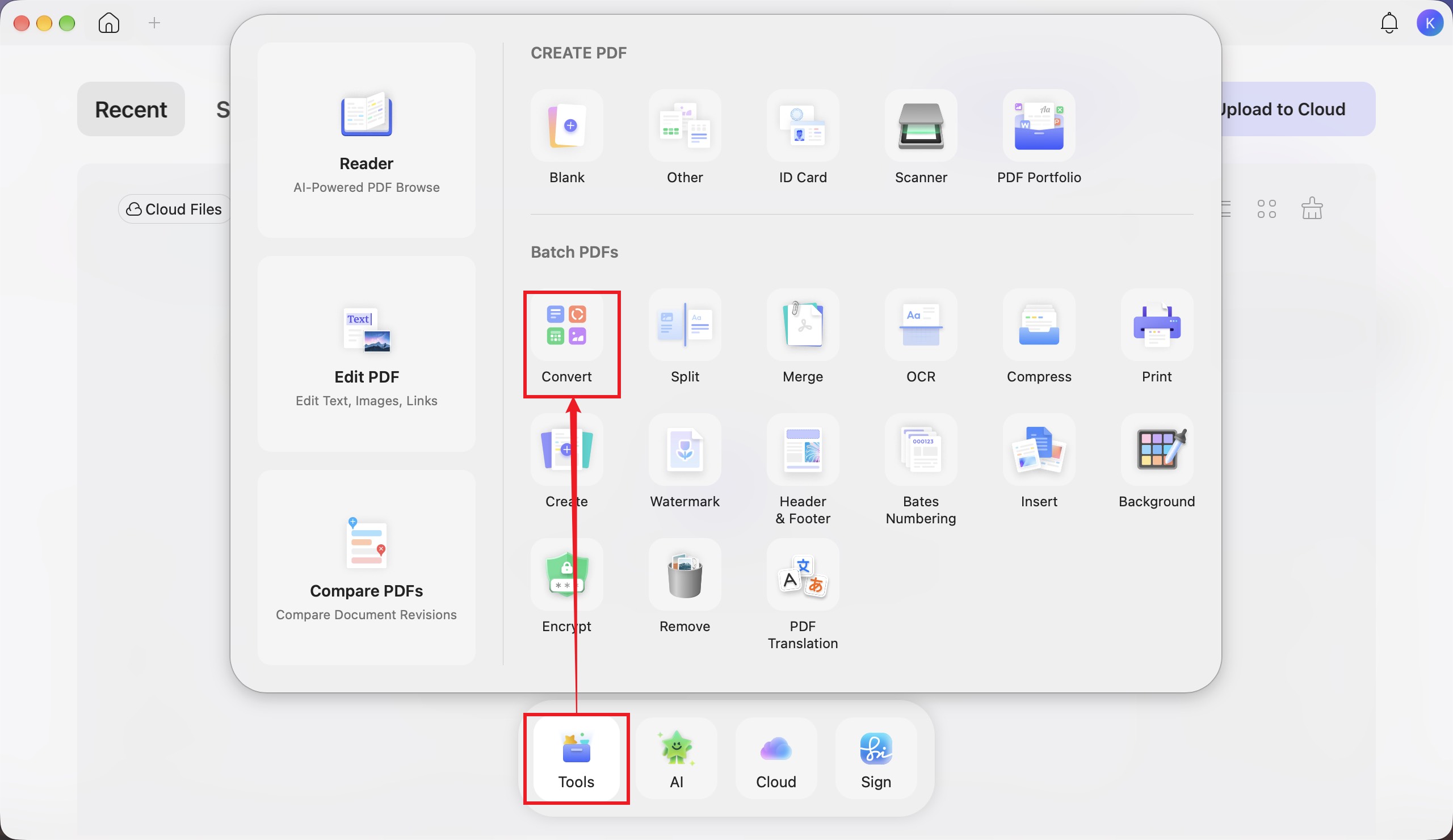
UPDF desktop supports PDF-to-HWP conversion on Windows and Mac. For one file, open the PDF and choose Tools > More > HWP, then click Convert. For multiple files, start from the home screen: Tools > Convert. Add your PDFs, choose HWP, and click Apply. HWPX output is also available.
If a school, employer, or client requests an editable HWP document, sending a PDF may not meet their submission requirements. UPDF desktop can export directly to HWP or HWPX, without converting the document to Word first.
Both Windows and Mac support single-file and batch conversion. Choose the extension requested by your recipient and review the converted document before sharing.
Windows • macOS • iOS • Android 100% secure
Part 1. How to Convert PDF to HWP with UPDF Desktop
Use the single-file converter when you need an HWP copy of one PDF. You can choose the output format and page range before exporting.
Step 1. Open the PDF Converter
Open your PDF in UPDF. Click Tools in the upper-left corner, find PDF Converter, and click More to display the available output formats.
Step 2. Select HWP and Check the Settings
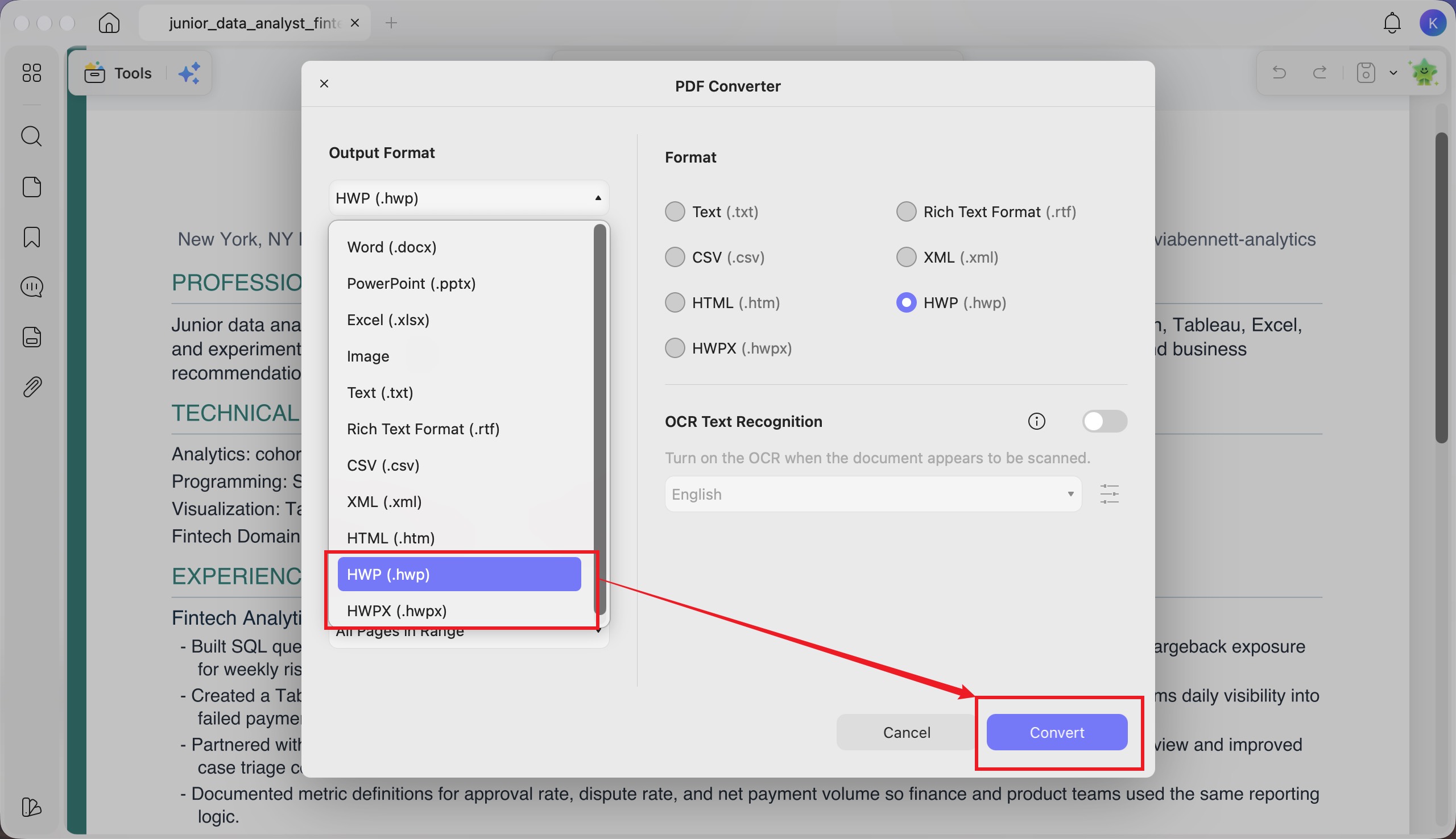
In the Output Format menu, select HWP (.hwp). Choose HWPX (.hwpx) instead if that is the required format. Check the page range so the export includes the pages you need.
For a scanned PDF, enable OCR Text Recognition and select the appropriate document language from the available options. OCR recognizes text in scanned pages; proofread its results before submitting the document.
Step 3. Convert and Review the File
Click Convert and follow the save prompts. Open the exported document in an HWP-compatible editor and compare it with the original PDF. Check Korean characters, names, numbers, table cells, and page breaks rather than assuming that every element will match exactly.
Need an editable HWP copy of a PDF? Try the UPDF desktop conversion workflow with your document.
Windows • macOS • iOS • Android 100% secure
Part 2. How to Batch Convert PDF to HWP
Step 1. Open Convert from the Home Screen
On the UPDF home screen, click Tools. In the panel that opens, find Batch PDFs and choose Convert.
Step 2. Add PDFs and Choose HWP
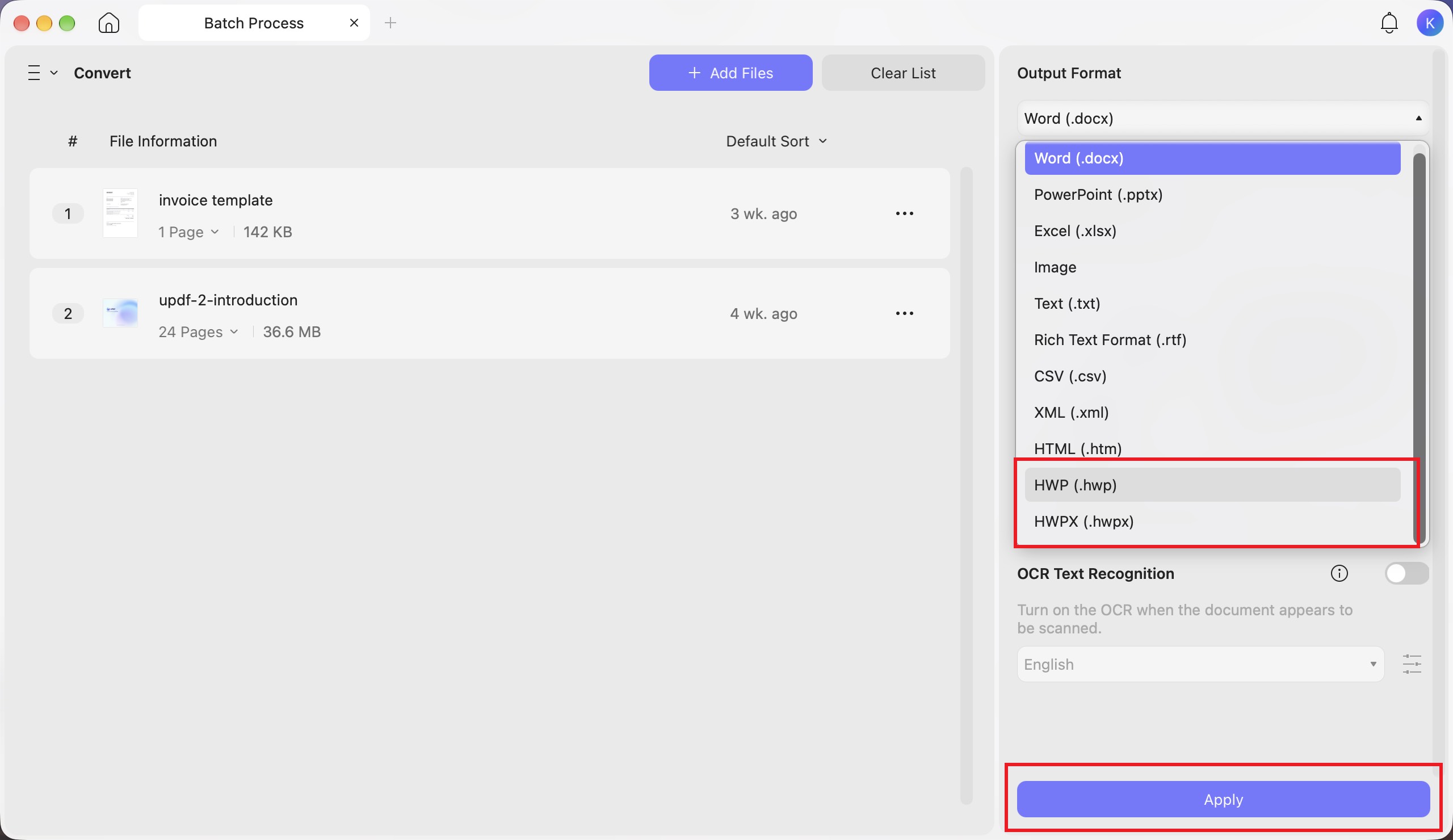
Click Add Files and select the PDFs you want to process. Open the Output Format menu on the right and choose HWP (.hwp) or HWPX (.hwpx), according to the recipient’s requirements.
Review the file list and page selections. If the documents are scanned, enable OCR Text Recognition and select the appropriate language from the available options.
Step 3. Apply the Batch Conversion
Click Apply and follow the prompts to save the converted files. Open and check the exported documents before sharing. The batch workflow uses Apply, whereas the single-file converter uses Convert.
Working through several PDF documents? Use UPDF’s batch converter to export them together instead of repeating the single-file steps.
Windows • macOS • iOS • Android 100% secure
PDF-to-HWP Conversion Limits
Part 3. What Is HWP, and How Is It Different from HWPX?
HWP is a word-processing document format used by Hancom’s Hangul application. It can contain editable text, tables, images, and other document elements. Although associated with Korean-language workflows, it is not restricted to Korean text.
HWPX is Hancom’s XML-based document format. Hancom explains the move to HWPX in its official documentation. HWP and HWPX are different formats: choose the one accepted by the recipient or submission system.
Part 4. Can You Convert PDF to HWP Online?
ConvertHelper lists a PDF-to-HWP conversion page. Before uploading a document, check the current file requirements and file-handling policy. Start with a non-sensitive sample and verify that the downloaded result opens correctly.
The retained screenshots below illustrate the online workflow shown in the original guide. The current interface may differ, and conversion output has not been independently tested for this update. Do not assume complete layout preservation or upload confidential documents without reviewing the service’s policies.
Upload: Select your PDF using the upload control.

Choose the format: Select HWP from the available document output formats.

Convert and check: Start conversion, download the result when available, and test it in an HWP-compatible application.

Part 5. FAQs About PDF-to-HWP Conversion
1. Does converting PDF to HWP translate the document into Korean?
No. File conversion changes the document format, not its language. Text remains in its original language unless you translate it separately.
2. Can I convert a PDF to HWP by changing its filename extension?
No. Renaming .pdf to .hwp does not convert the file contents and may prevent the document from opening correctly. Export the PDF with a converter that supports HWP.
3. Do I need the original PDF password to convert a protected document?
If the PDF requires a password to open, obtain it from the owner before proceeding. If permissions restrict conversion or content extraction, ask the owner for an authorized, unrestricted copy. Conversion is not a way to bypass document permissions.
Conclusion
UPDF lets you convert PDF to HWP or HWPX on Windows and Mac, either one file at a time or in batches. Use PDF Converter for an individual document, or start from Tools > Convert on the home screen for multiple PDFs. Choose the requested extension and review the exported files before submitting them.
Ready to create your HWP files? Download UPDF and use its PDF conversion tools for your next document or batch.
Windows • macOS • iOS • Android 100% secure




 Enola Davis
 Enola Miller
 Enid Brown
 Lizzy Lozano