 UPDF
UPDF
 UPDF for Windows
 UPDF for Mac
 UPDF for iPhone/iPad
 UPDF for Android
 Nomostar
 UPDF AI Online
 UPDF Sign
 IvyCraft
 Edit PDF
 Annotate PDF
 Create PDF
 PDF Form
 Edit links
 Convert PDF
 OCR
OCR PDF to Word
 PDF to Image
 PDF to Excel
 Organize PDF
 Merge PDF
 Split PDF
 Crop PDF
 Rotate PDF
 Protect PDF
 Sign PDF
 Redact PDF
 Sanitize PDF
 Remove Security
 Read PDF
 UPDF Cloud
 Compress PDF
 Print PDF
 Batch Process
 About UPDF AI
 UPDF AI Solutions
 AI User Guide
 FAQ about UPDF AI
 Summarize PDF
 Translate PDF
 Chat with PDF
 Chat with AI
 Chat with image
 PDF to Mind Map
 Explain PDF
 PDF AI Tools
 Image AI Tools
 AI Chat Tools
 AI Writing Tools
 AI Study Tools
 AI Working Tools
 Other AI Tools
 AI Bookmark Generation
 AI Bookmark Summary
 AI Watermark Generation
 AI Background Generation
 AI Sticker Generation
 AI Stamp Generation
 AI Editing Suite
 UPDF Copilot
 AI Page Management
 AI Semantic Search
 PDF to Word
 PDF to Excel
 PDF to PowerPoint
 Enterprise Solution
 Enterprise Sign
 Enterprise AI
 Enterprise Plan
 Enterprise User Guide
 Enterprise Webinar
 Banking
 Healthcare
 Insurance
 Legal
Legal Manufacturing
 Government
 Education Solution
 Customer Stories
 User Guide
 UPDF Tricks
 FAQs
FAQs UPDF Reviews
 Download Center
 Blog
Blog Newsroom
 Tech Spec
 Updates
 UPDF vs. Adobe Acrobat
 UPDF vs. Foxit
 UPDF vs. PDF Expert

Open dense PDFs for work or study and simply need a clean way to add drawings? You might want to circle key numbers, sketch a quick idea, or visually explain confusing sections. This guide shows practical methods to draw on PDF across devices, without forcing you into one specific tool.
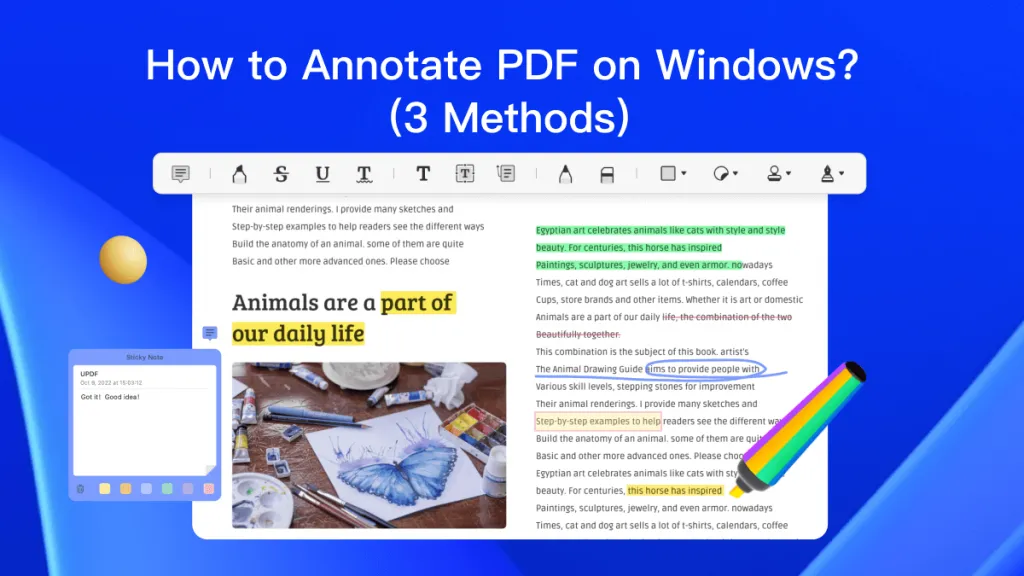
Moreover, you will see which approach matches your workflow, from fast markups to more detailed visual notes. Start with the main guide on annotating PDF as an overview, then use this tutorial when you need deeper visual markup tips.
Part 1. Quick Diagnosis: Which Drawing Method Fits Your Workflow?
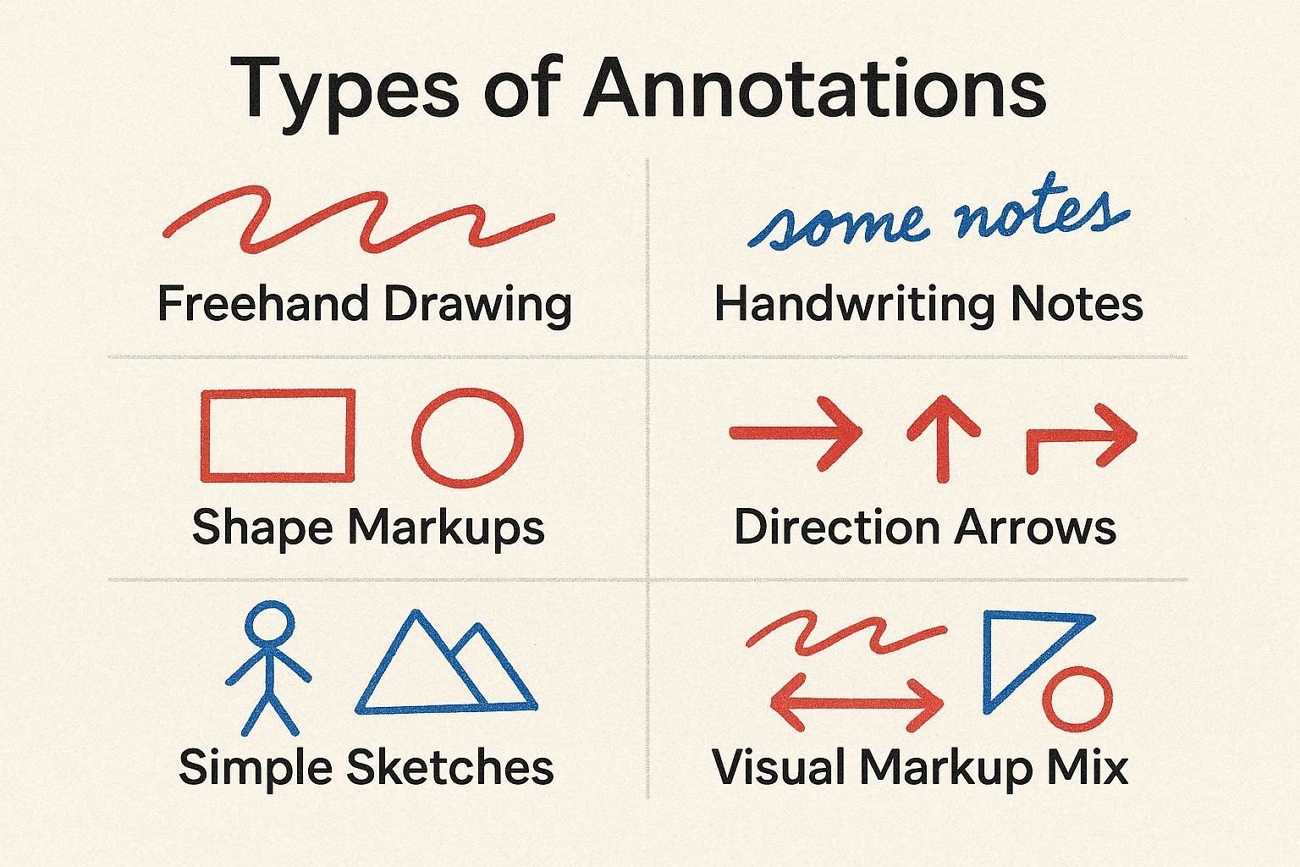
Different professionals draw on PDFs for different reasons and devices, so choices should feel clear. The types of annotations shared below help users match their real‑world tasks with the right style.
- Freehand Drawing: Loose lines to circle numbers or mark rough ideas during quick reviews.
- Handwriting Notes: Write short thoughts by hand, like margin notes on lecture slides or ebooks.
- Shape Markups: Add shapes to PDF to group related clauses, figures, or important slide content visually.
- Direction Arrows: Arrows pointing from short comments to exact words, values, or design elements.
- Simple Sketches: Mini diagrams showing flows, page layouts, or feature ideas beside the original text.
- Visual Markup Mix: Combine lines, shapes, and arrows when a single style cannot show everything clearly.
How to Choose the Right Drawing Method?
The table below will help you pair your needs with practical plans, tools, and drawing styles:
| Your Needs | Recommended Plan | Typical Tools | Draw Types | Use Cases |
| Circle exam formulas | Mobile stylus | UPDF mobile | Freehand, shapes | Last‑minute revision on the bus before the university exam |
| Point out the wrong contract clause | Desktop software | UPDF, Adobe Acrobat | Arrows, rectangles | Mark, the lawyer, comments on the vendor agreement draft |
| Sketch homepage layout ideas | Desktop software | UPDF, Canva export | Sketches, visual mix | Share first layout options with a freelance web designer |
| Mark the teacher's feedback on essays | Online tools | Xodo, Smallpdf | Freehand, handwriting | Comment on student PDF submissions in the shared folder |
| Highlight confusing slide transitions | Mobile stylus | UPDF on iPad | Shapes, arrows | Prepare teaching notes during commute with Apple Pencil |
Your drawing needs are now clearer, so you do not have to guess tools anymore. Next, we will walk through specific methods and tutorials that match your situation and chosen drawing style.
Part 2. Full Guide: How to Draw on a PDF?
Drawing lines on PDF documents becomes easier once after knowing which method fits different workflows. Now, let's explore the practical methods and tools that fit different drawing needs:
Plan 1. Draw on PDF Online - Free & No Installation
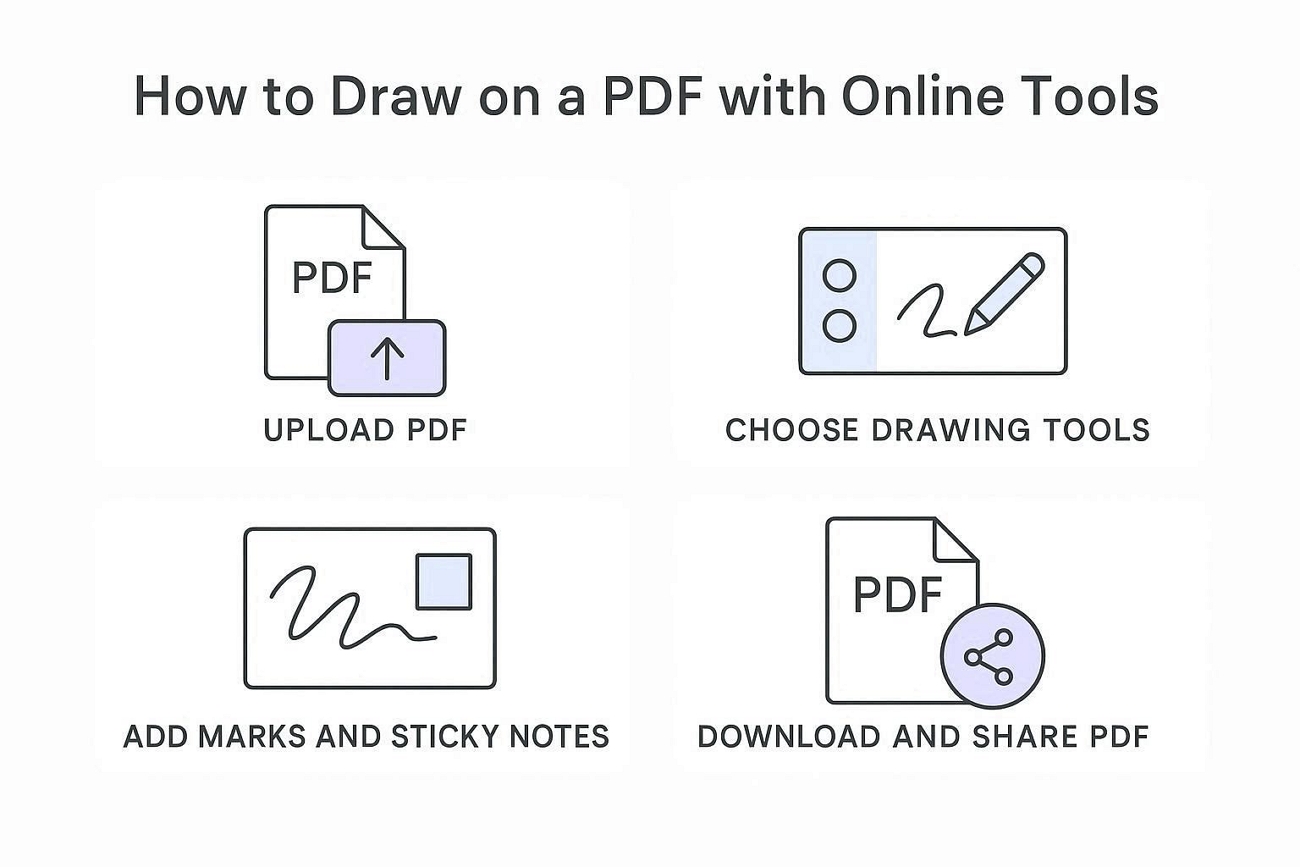
Most online editors follow almost the same simple steps to help users draw on a PDF. Look at the steps below to understand the basic flow before choosing any online tool:
- Upload a PDF file from your computer or Cloud drive.
- Open the drawing or annotate tools and pick a pen or arrows.
- Add your marks, sketches, or sticky notes on PDF pages that need attention most.
- Download the updated PDF, then share it or store it with your other files.
Which Online Tool Fits Your Quick Drawing Tasks?
People use different online tools depending on limits, drawing options, and small privacy details. Look at the table below to compare common options before professionals decide where to start:
| Feature | Xodo | Smallpdf | Canva | PDFescape |
| Freehand Drawing | Basic pen, color change | Simple drawing tool | Draw tool in editor | Basic freehand option |
| Shapes/Arrows | Rectangles, circles, arrows | Rectangles, lines | Many design shapes, icons | Rectangles, lines, checkmarks |
| Handwriting/Sketch | Works with touchscreen stylus | N/A | Handwriting is possible with a tablet | Rough handwriting, not stylus‑centric |
| File Size Limit | Moderate uploads, suits study PDFs | Daily file and task limits | Handles large designs, account‑dependent | Free: about 10 MB, 100 pages |
| Function Limit | Fewer advanced layout tools in the web app | Basic editing and markup features | Focus on design, weaker pure PDF controls | Tools locked in paid version |
| Privacy | Browser‑based, online processing only | Files are handled on their servers temporarily | Needs a cloud account | Ads in the online version |
| Save with Watermark | N/A | Exports without logos | PDF downloads without an extra watermark | No automatic watermark in basic export |
Suitable Scenarios for Online Drawing
- Student With Shared Laptop: Mark multiple exam pages during a library study session.
- Freelancer Reviewing Client Draft: Add fast arrows and circles before sending comments back through email.
- Teacher Updating Handouts: Highlight PDF mistakes on a worksheet right inside the browser before printing copies.
- Team Member Fixing Slides: Sketch simple changes on a project PDF stored in a shared drive.
Limitations
- Large research PDFs fail to upload because of strict file size limits.
- Frequent daily edits become slow when every change depends on the internet speed.
- Sensitive contracts feel unsafe when uploaded to third‑party servers for editing.
Having these limitations in mind, power users will feel boxed in and frustrated. That is where they need a stable desktop tool to draw on a PDF on Mac or Windows.
Plan 2. Draw on PDF with Desktop Software – Full Control
Desktop apps give more stable performance, better privacy, and stronger tools when users draw on PDF files. The table below compares key features and shows which desktop option fits best:
| Features | UPDF | Adobe Acrobat | Foxit PDF Editor | Mac Preview | Windows Edge |
| Freehand Drawing | Yes, smooth pen | Yes, comment tools | Yes, pen tools | Basic markup | Ink tools |
| Pressure Sensitivity | Yes, stylus support | Yes, stylus support | Partial, device‑dependent | No | Yes, pen support |
| Shapes (Arrow/Rectangle) | Arrows, rectangles, ovals | Arrows, rectangles, more | Arrows, rectangles, callouts | Rectangles, lines | Basic shapes, lines |
| Measurement Tools | Distance, area | Distance, area, perimeter | Distance, area | None | None |
| Batch Process | Yes, unlimited files | Yes | Yes | No | No |
| Supported System | Windows, macOS | Windows, macOS | Windows, macOS | macOS | Windows |
| Learning Cost | Low, simple UI | Medium–high, many menus | Medium, business‑style | Very low | Low, browser‑like |
| Price | Starting from $49.99/year | Starting from $179.88/year | Starting from $129.99/year | Free with macOS | Free with Windows |
| Recommend | Yes (for everyone) | Yes (power users) | Yes (office teams) | No (basic only) | No (quick markup) |
The tools discussed above help with drawing, but UPDF balances power, price, and an easy interface. Compared with heavier editors, it stays fast for daily markups while still handling longer review sessions. That makes it a strong choice when online tools feel too limited or unreliable. So, follow the steps below to see how to add an arrow or other drawings to a PDF:
Windows • macOS • iOS • Android 100% secure
Step 1. Access Comment Tool in UPDF
Once you open a PDF in UPDF, click the “Tools” option and press the “Comment” option to access the drawing tools.
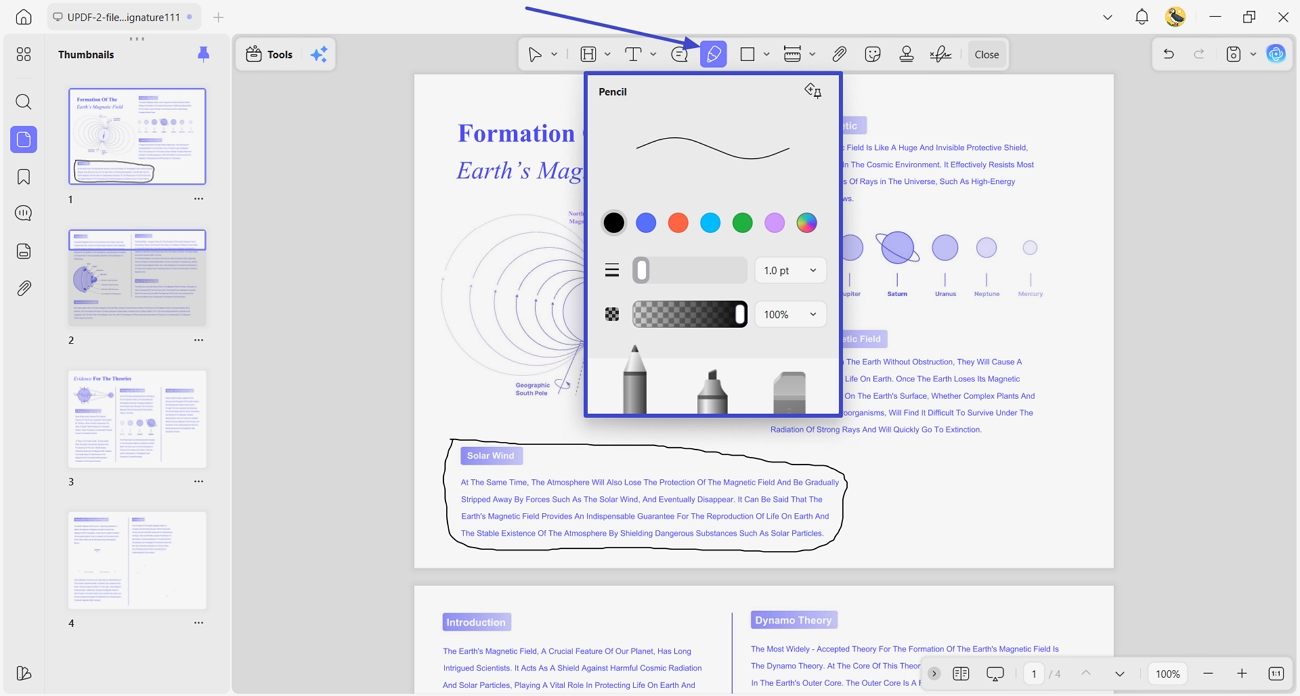
Step 2. Select The Pen Tool
For freehand drawing, click the “Pencil” icon in the toolbar and set the color and thickness. Then, draw on the PDF page.
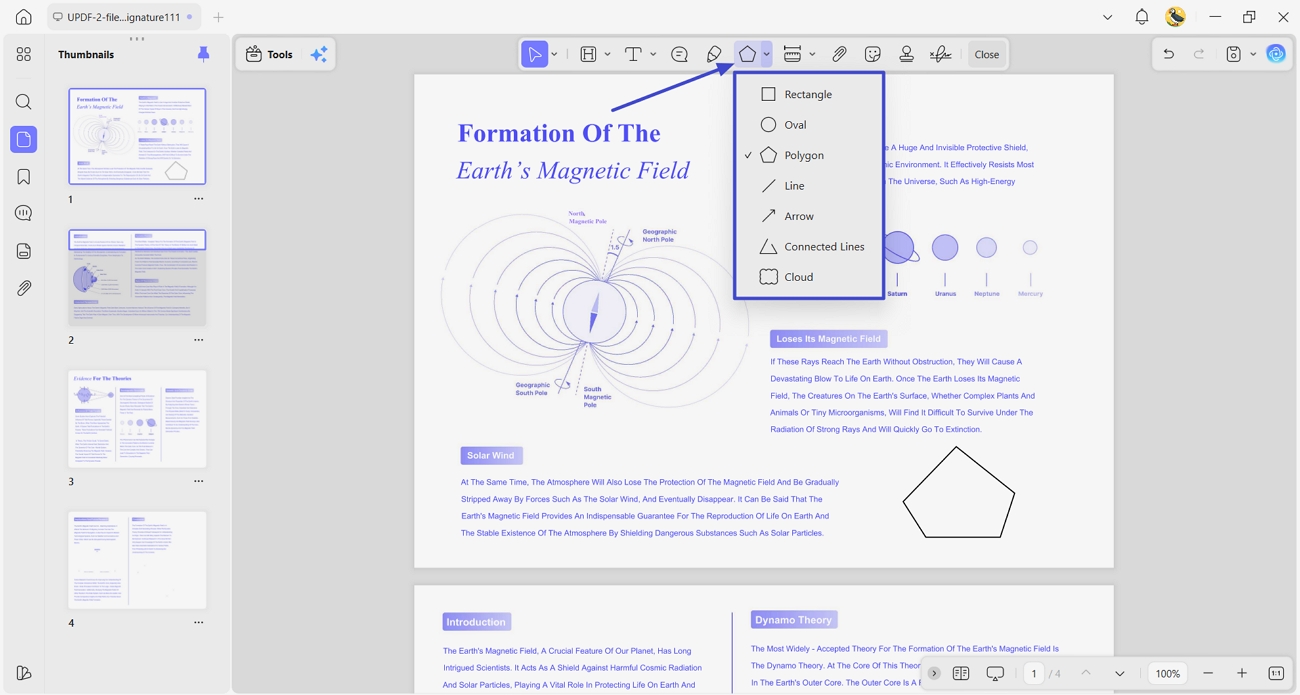
Step 3. Draw a Shape on PDF
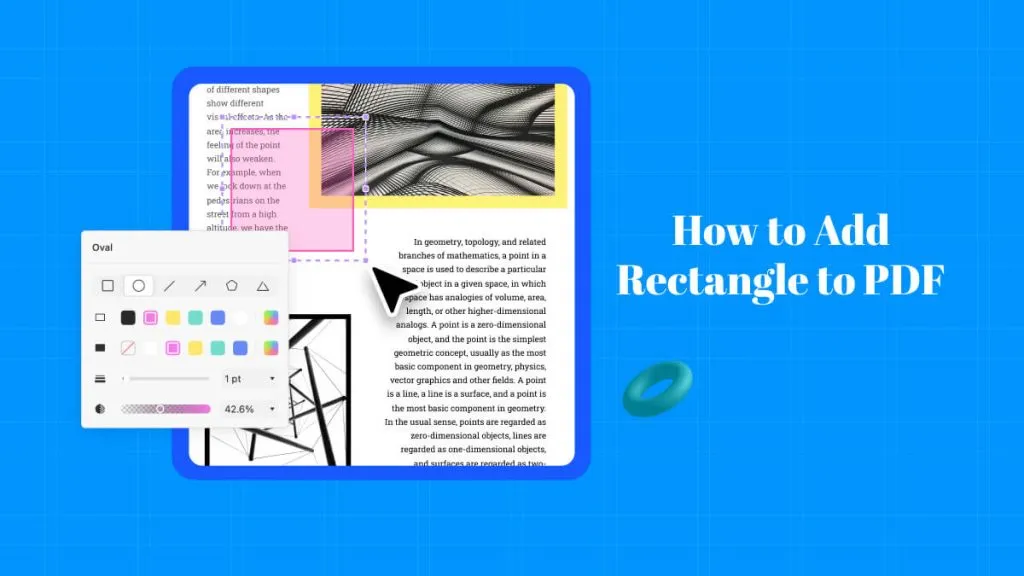
Afterward, press the “Shapes” icon and select the shape from Rectangle or Circle. After picking the tool, drag over the page to draw a shape.
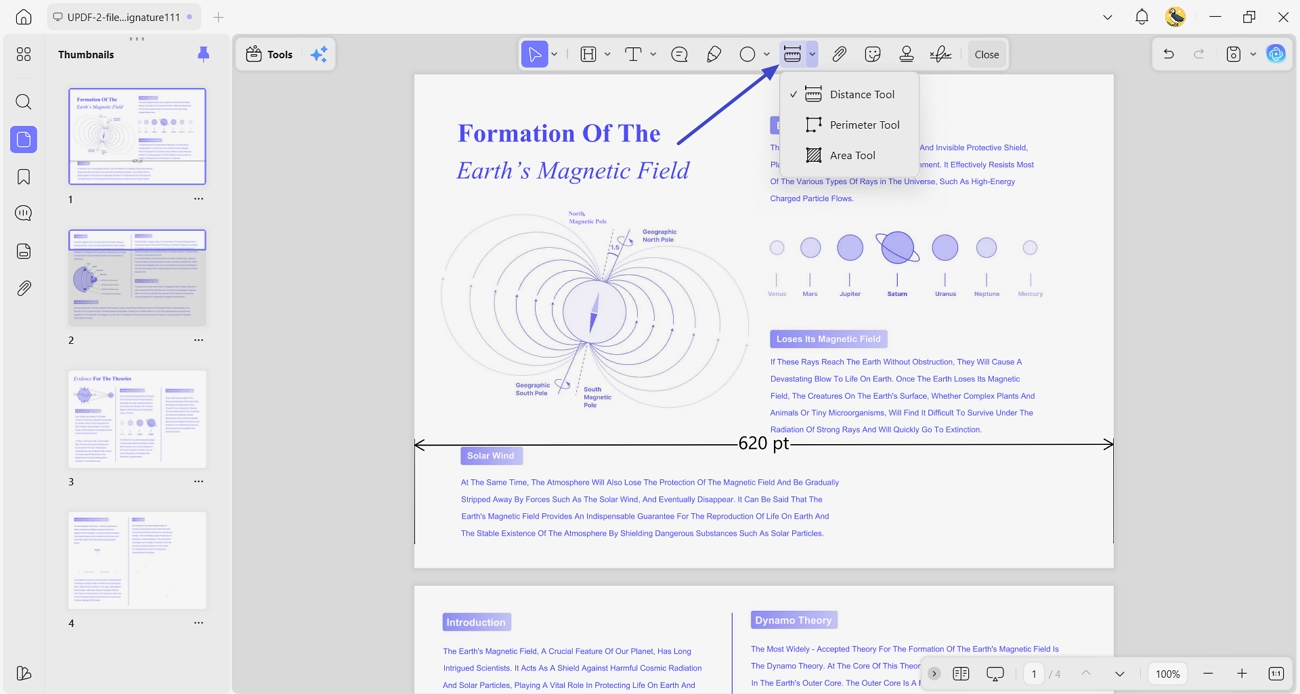
Step 4. PDF Measurement Annotation
Now, choose a “Distance Measurement” tool and start measuring the distance along the line.
Plan 3. Draw on PDF on Mobile (iPad/Android/iPhone)
Students and field professionals now draw on PDF files directly from phones and tablets. Stylus setups like iPad with Apple Pencil or Galaxy devices with S Pen make handwriting natural. Look at the table below to see which mobile app best fits different real‑world drawing needs:
| Feature | Markup | Samsung Notes | UPDF | Xodo | Drawboard PDF |
| Devices | Built- in (iOS) | Available in Galaxy phones and tabs | Android, iOS | Android, iOS | Available in Galaxy phones and tablets |
| Core Features | Pen, highlighter, shapes | Pen, highlighter, handwriting | Pen, shapes, notes, cloud sync | Pen, highlight, comments, shapes | Advanced ink, layers, bookmarks |
| Limitations | Limited tools, no batch | Best on Samsung hardware | Fewer system shortcuts | Interface busy at first | Fewer general note features |
| Price | Free | Free on Samsung devices | Free tier, paid upgrade | Free, optional premium | Paid app, trial/subscription |
| Use Cases | Doctor marking report changes | Student annotating formula slides | Consultant reviewing contract pages | Agent circling issues on reports | Architect sketching floor tweaks |
Part 3. Advanced Drawing Techniques & Tips
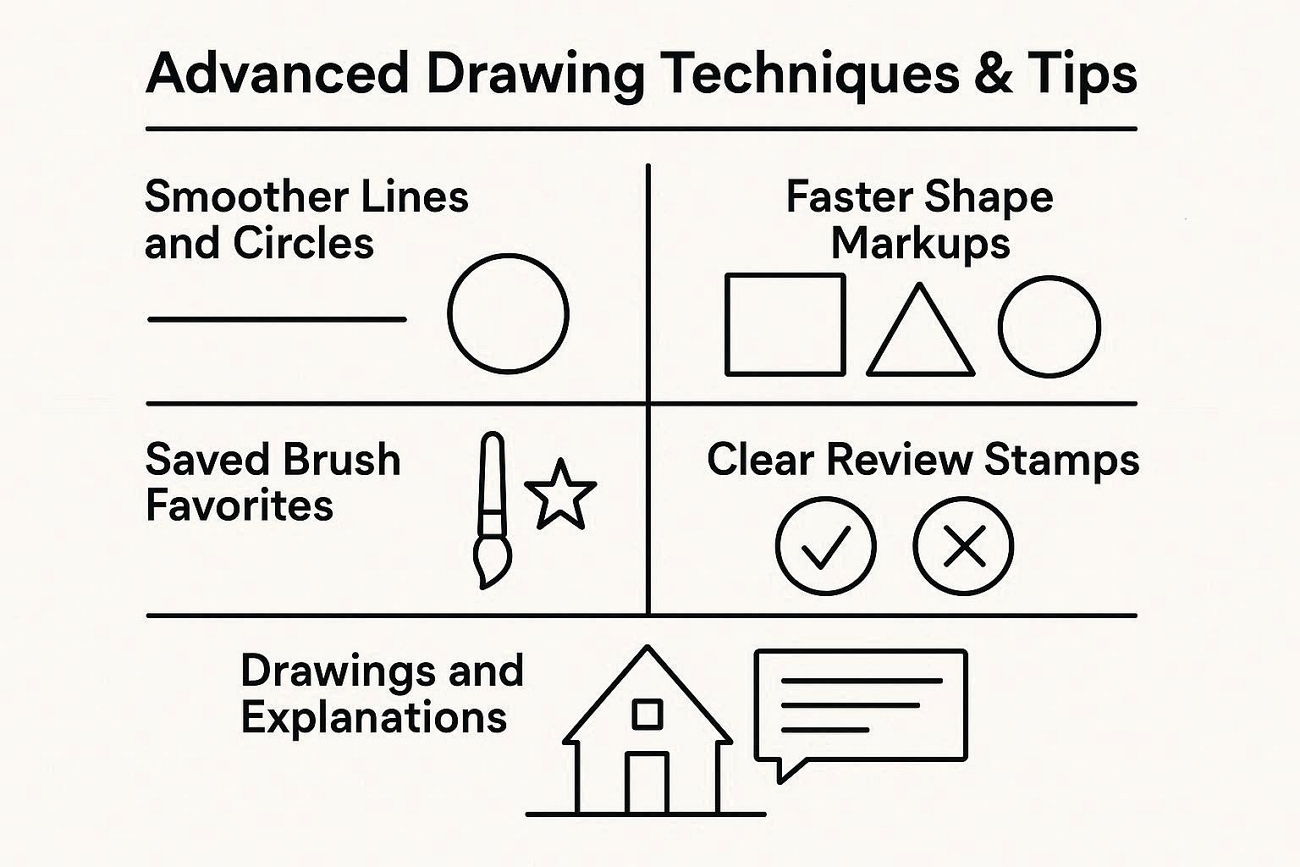
Small changes in tools and settings can upgrade every drawing made inside a PDF. These tips make markups easier to understand without extra effort:
- Smoother Lines and Circles: Draw a line or rough circle, then long‑press or right‑click to smooth edges. This makes straight lines and adds circles to PDF shapes look neat, even with shaky hands.
- Faster Shape Markups: Switch to shape tools whenever arrows, rectangles, ovals, or lines can replace messy freehand. Clean shapes guide readers’ eyes to numbers, clauses, or labels much more clearly.
- Saved Brush Favorites: Set a pen color and thickness combination that feels right for common notes. Save it as a preset to access later and match the style without manual adjustments.
- Clear Review Stamps: Insert stamps like Reviewed or Approved when the whole document review is complete. These visual labels help teammates see status without reviewing all comments.
- Drawings and Explanations: Place a sticky note right beside the drawing that might confuse someone reading later. Brief text inside the note explains why the arrow, line, or shape was added.
FAQs
- Can I draw on a scanned PDF (image-based PDF)?
Scanned PDFs can still be marked up using drawing tools in most modern PDF editors. Some apps may first run OCR or treat the page as an image, yet drawing still works.
- Does drawing on a PDF permanently change the original file?
If saved under a new name, the original file stays unchanged and safely preserved. Saving over the same file keeps the drawings, but most tools still allow deleting annotations.
- Can I erase only part of a drawing?
Yes, most PDF editors include an eraser tool that removes small sections of drawn lines. Some apps also let individual shapes or strokes be selected and deleted without affecting others.
- Can I lock or protect my drawings?
Yes, many editors allow locking annotation layers, so drawings cannot move or be edited accidentally. For stronger protection, apply a password or permissions so others cannot draw on PDF content.
Final Words
In conclusion, online tools suit quick, one‑off edits on shared files, while desktop software fits longer review work. However, mobile apps help tablet note‑takers and on‑site teams sketch, sign PDFs, and draw on PDFs while moving. If more powerful features are needed, choosing one main editor across devices keeps drawing and comments consistent. To explore more markup options beyond drawing, continue with the main annotate PDFs guide.
UPDF is the all-in-one drawing tool whether you want to circle, sketch, or write handwritten notes as the workflow we've mentioned above, or whether you use laptop, computer or mobile phone on different systems, it can support you all the time. Download and try to draw on your PDF now!
Windows • macOS • iOS • Android 100% secure



 Enid Brown
 Lizzy Lozano
 Enya Moore