 UPDF
UPDF
 UPDF for Windows
 UPDF for Mac
 UPDF for iPhone/iPad
 UPDF for Android
 UPDF AI Online
 UPDF Sign
 Edit PDF
 Annotate PDF
 Create PDF
 PDF Form
 Edit links
 Convert PDF
 OCR
OCR PDF to Word
 PDF to Image
 PDF to Excel
 Organize PDF
 Merge PDF
 Split PDF
 Crop PDF
 Rotate PDF
 Protect PDF
 Sign PDF
 Redact PDF
 Sanitize PDF
 Remove Security
 Read PDF
 UPDF Cloud
 Compress PDF
 Print PDF
 Batch Process
 About UPDF AI
 UPDF AI Solutions
 AI User Guide
 FAQ about UPDF AI
 Summarize PDF
 Translate PDF
 Chat with PDF
 Chat with AI
 Chat with image
 PDF to Mind Map
 Explain PDF
 PDF AI Tools
 Image AI Tools
 AI Chat Tools
 AI Writing Tools
 AI Study Tools
 AI Working Tools
 Other AI Tools
 AI Bookmark Generation
 AI Bookmark Summary
 AI Watermark Generation
 AI Background Generation
 AI Sticker Generation
 AI Stamp Generation
 AI Editing Suite
 UPDF Copilot
 AI Page Management
 AI Semantic Search
 PDF to Word
 PDF to Excel
 PDF to PowerPoint
 Enterprise Solution
 Enterprise Sign
 Enterprise AI
 Enterprise Plan
 Enterprise User Guide
 Enterprise Webinar
 Banking
 Healthcare
 Insurance
 Legal
Legal Manufacturing
 Government
 Education Solution
 Customer Stories
 User Guide
 UPDF Tricks
 FAQs
FAQs UPDF Reviews
 Download Center
 Blog
Blog Newsroom
 Tech Spec
 Updates
 UPDF vs. Adobe Acrobat
 UPDF vs. Foxit
 UPDF vs. PDF Expert

Insert and Edit Text in PDF with UPDF on Mac
UPDF on Mac can help you edit existing text, add new text, add rich text, and add text as comments in PDF. We will should all the guides here. Download UPDF on Mac via the button below or go to the App Store.
Windows • macOS • iOS • Android 100% secure
1. Edit PDF Text
Open a PDF document for editing.
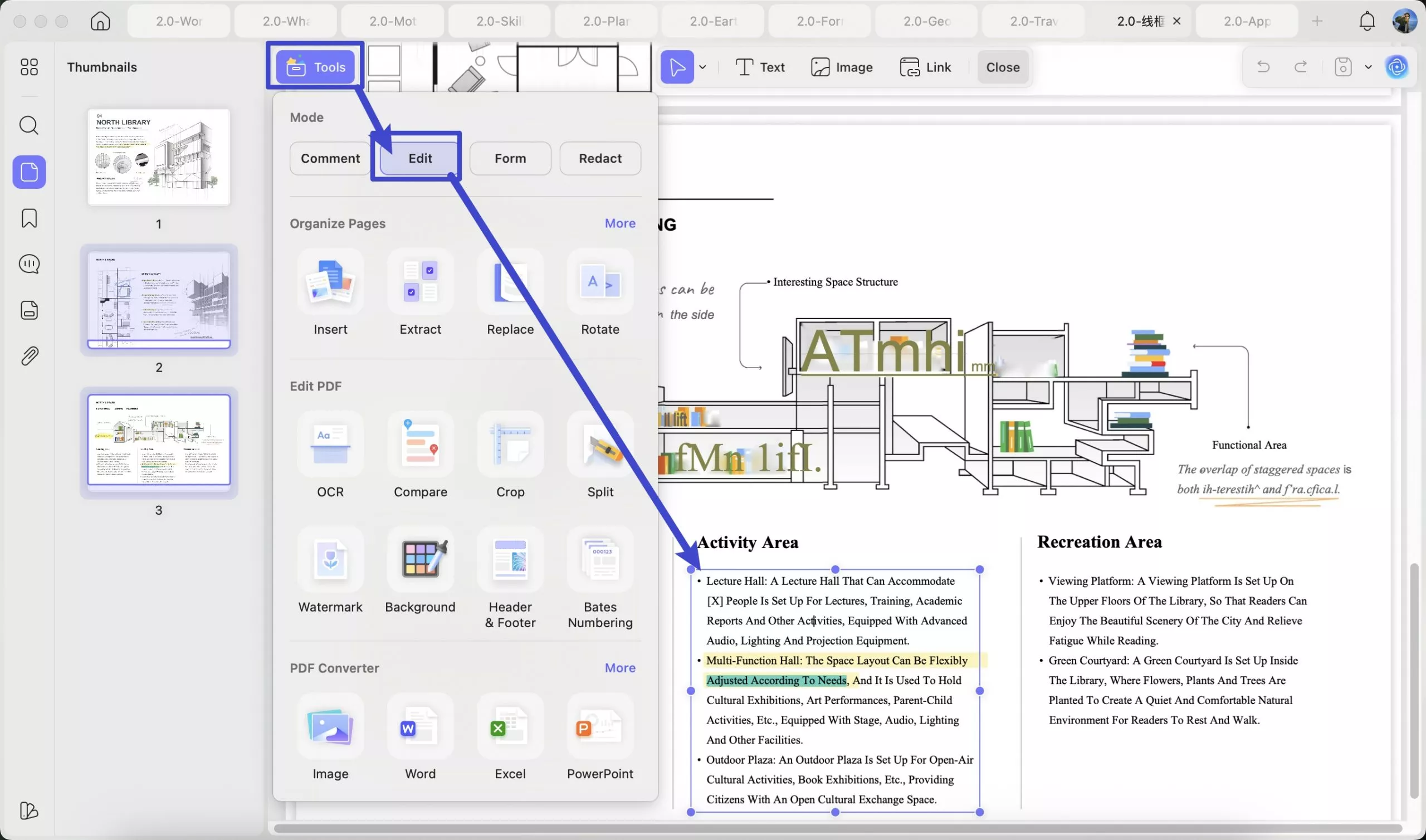
- Click the Tools icon and select Edit to go into PDF editing mode.
- Click the line or paragraph to be edited. A purple borderline will appear. You can now modify the text per your requirements.
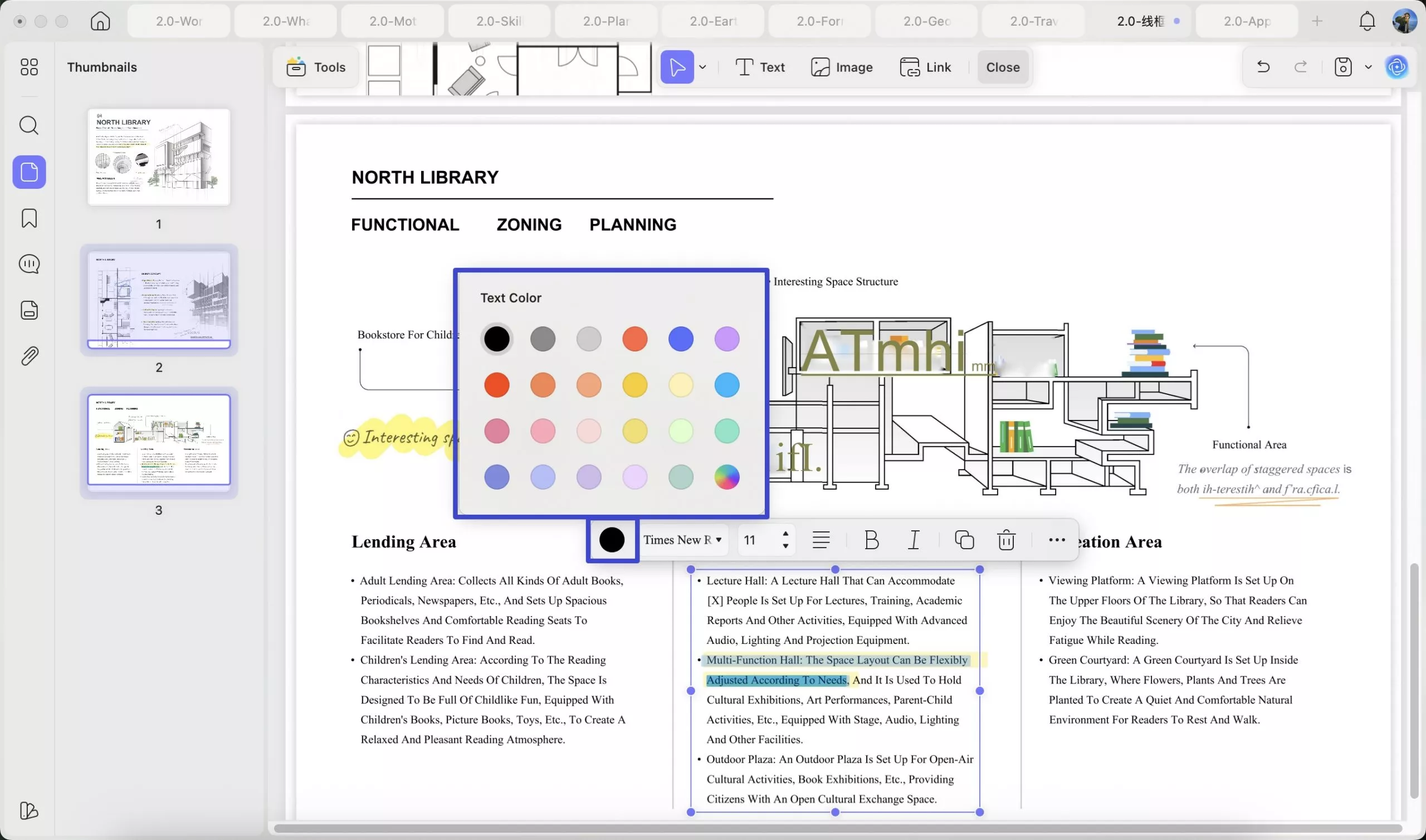
- Drag to select the text, and you can change the font, font size, font style, text alignment, add underline and strikethrough, and change color. Line spacing, paragraph spacing after, character spacing, and object arrangements can also be made using the right toolbar.
- When changing the color of the text, you are allowed to pick the color you want from the PDF. What you need to do is click on the color and select the picker, then, move the picker to get the color you need,
- Moreover, you can delete the content you do not need and add a new one. Also, you can drag the text box to change the position and drag the edge to change its size.
2. Add New Text to PDF
If you want to add extra text to PDF, follow the guide below.
- Click the Edit option in the Tools to enter the editing mode. In Edit mode, click the Text icon in the top toolbar.
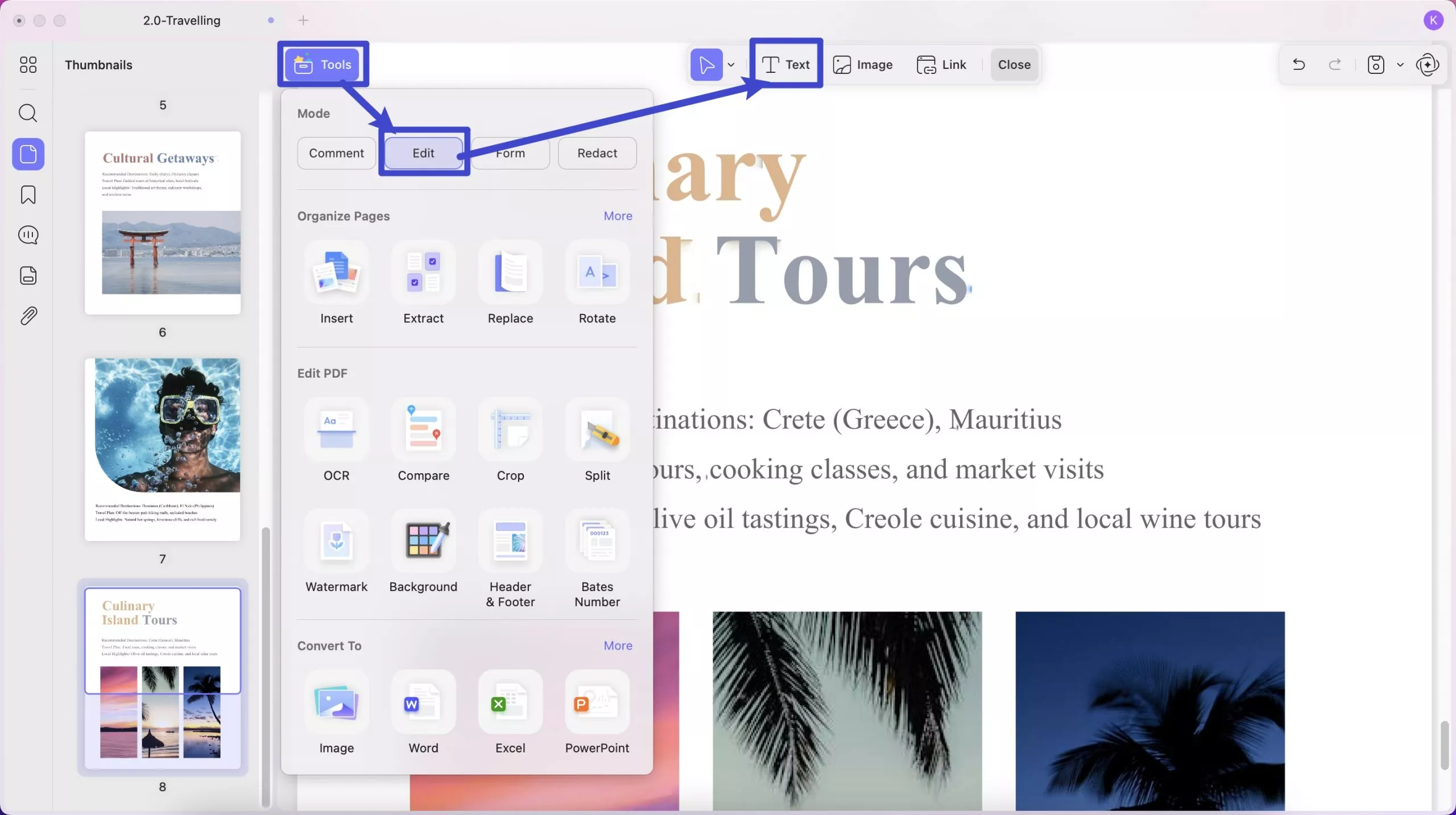
- Click anywhere in the PDF file and start typing. UPDF lets you set the style of the text. You can select the preset style on the pop-up menu. You can also set the font, font size, color, and alignment of the text.
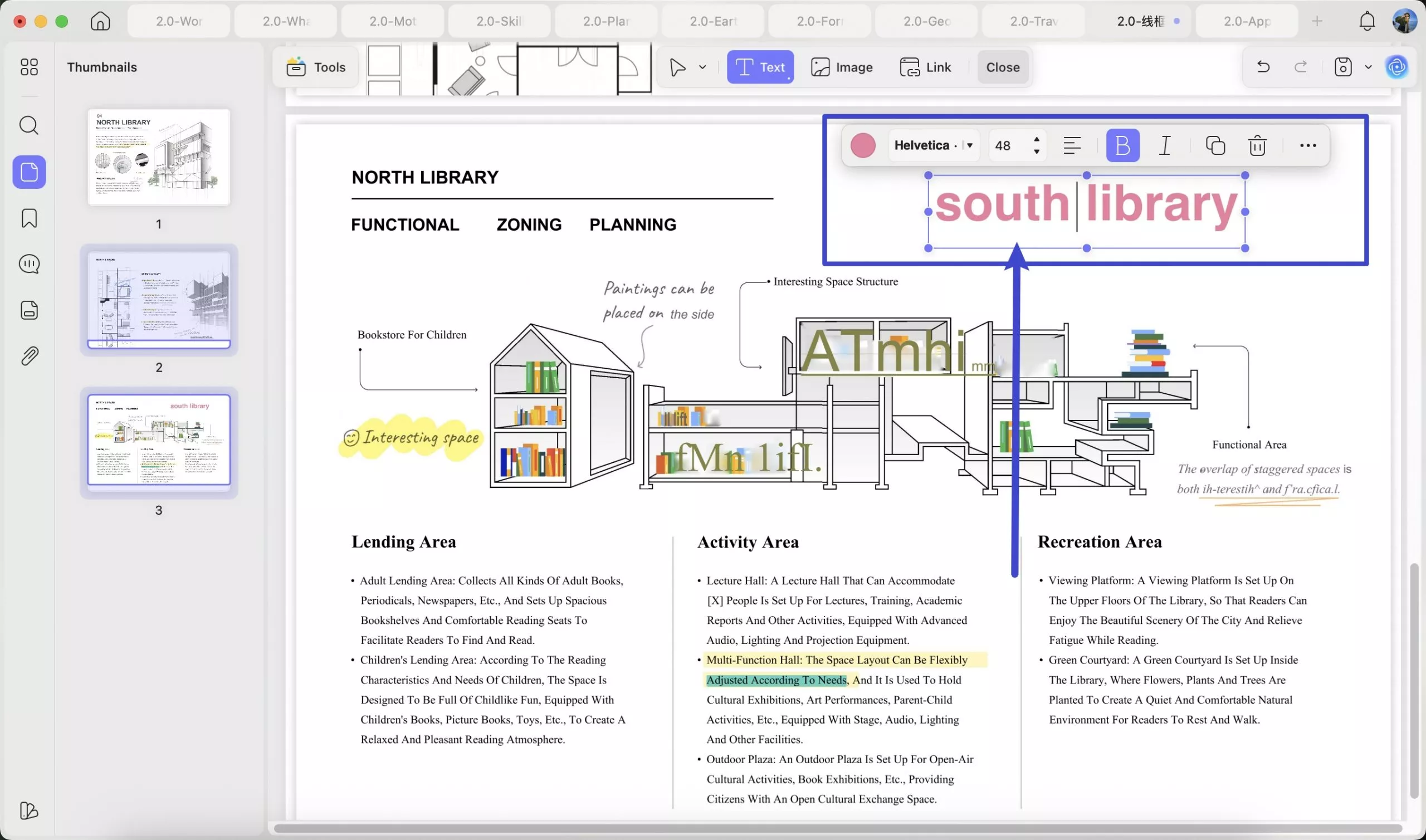
- To exit editing mode, click Close on the top menu bar or Tools to enter another mode.
3. Add Rich Text to PDF
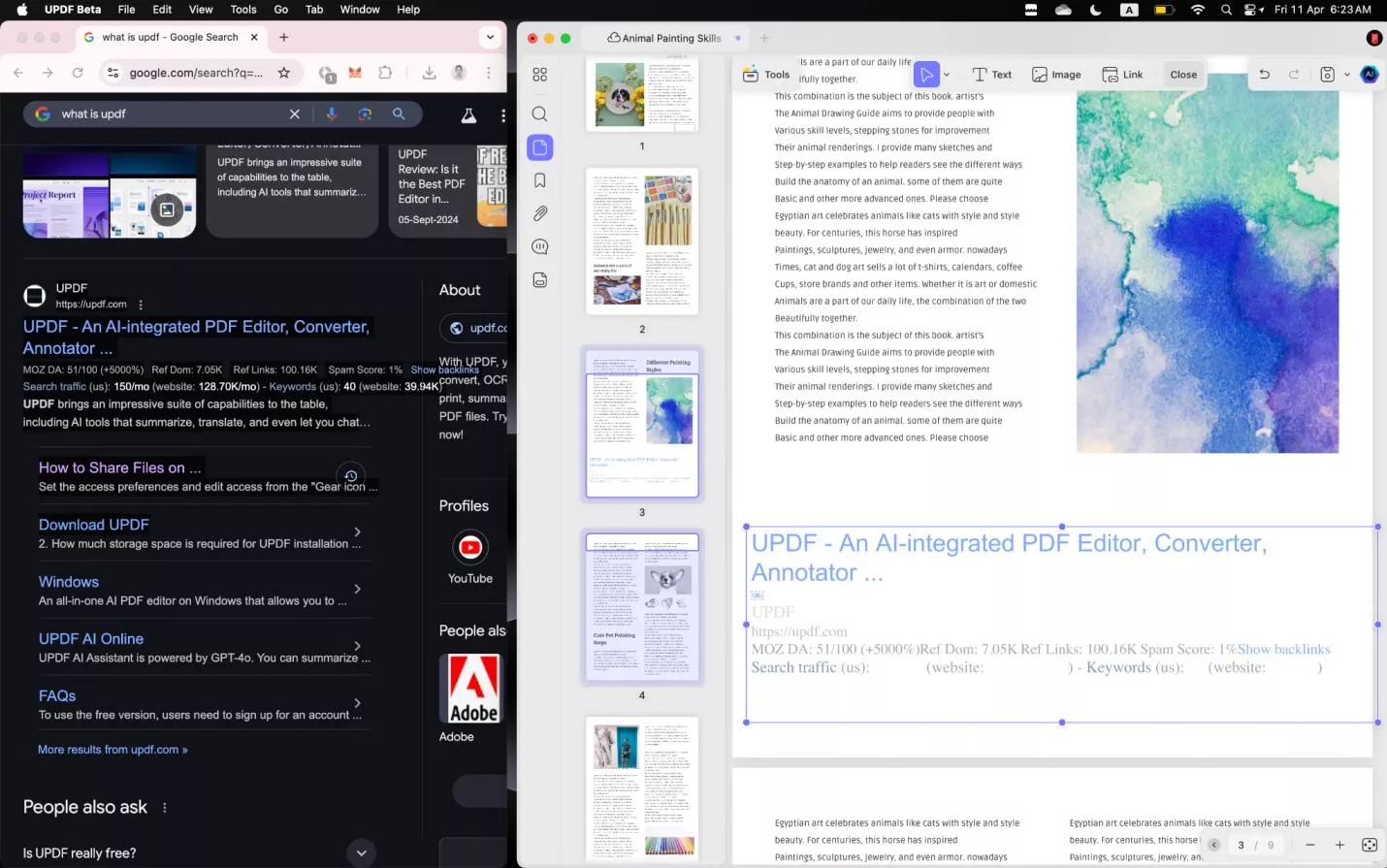
UPDF for Mac supports adding rich text by dragging it from anywhere else, such as Safari, Google Chrome, MS Word, etc.
It is very convenient for you to copy text from other places without losing their style. All you need to do is select the text and drag it into the UPDF interface.
4. Add Text to PDF as a Comment
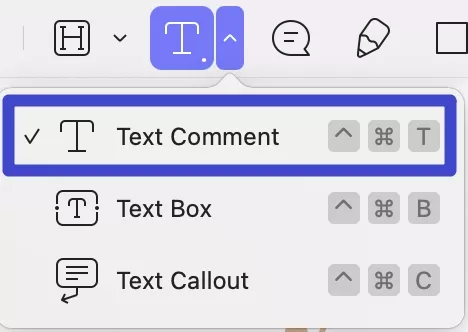
You can also add text via the comment features like text comment and text box. Just follow the below steps to learn how to use them.
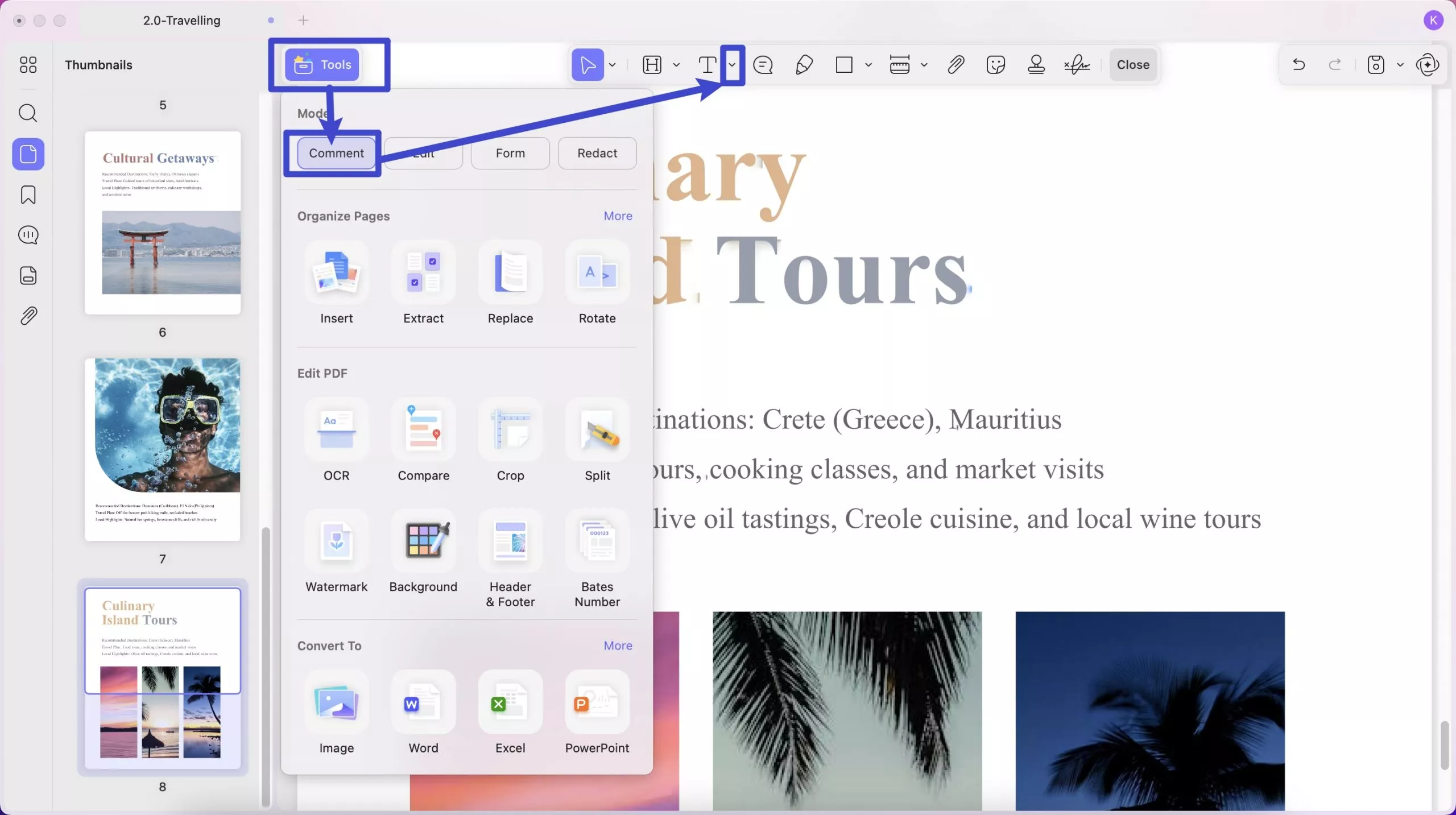
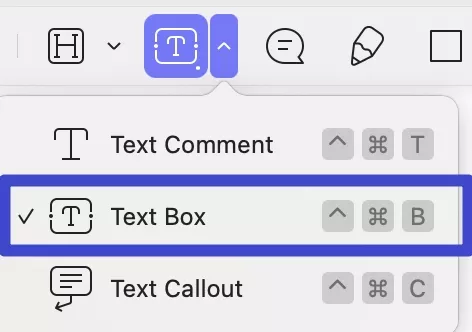
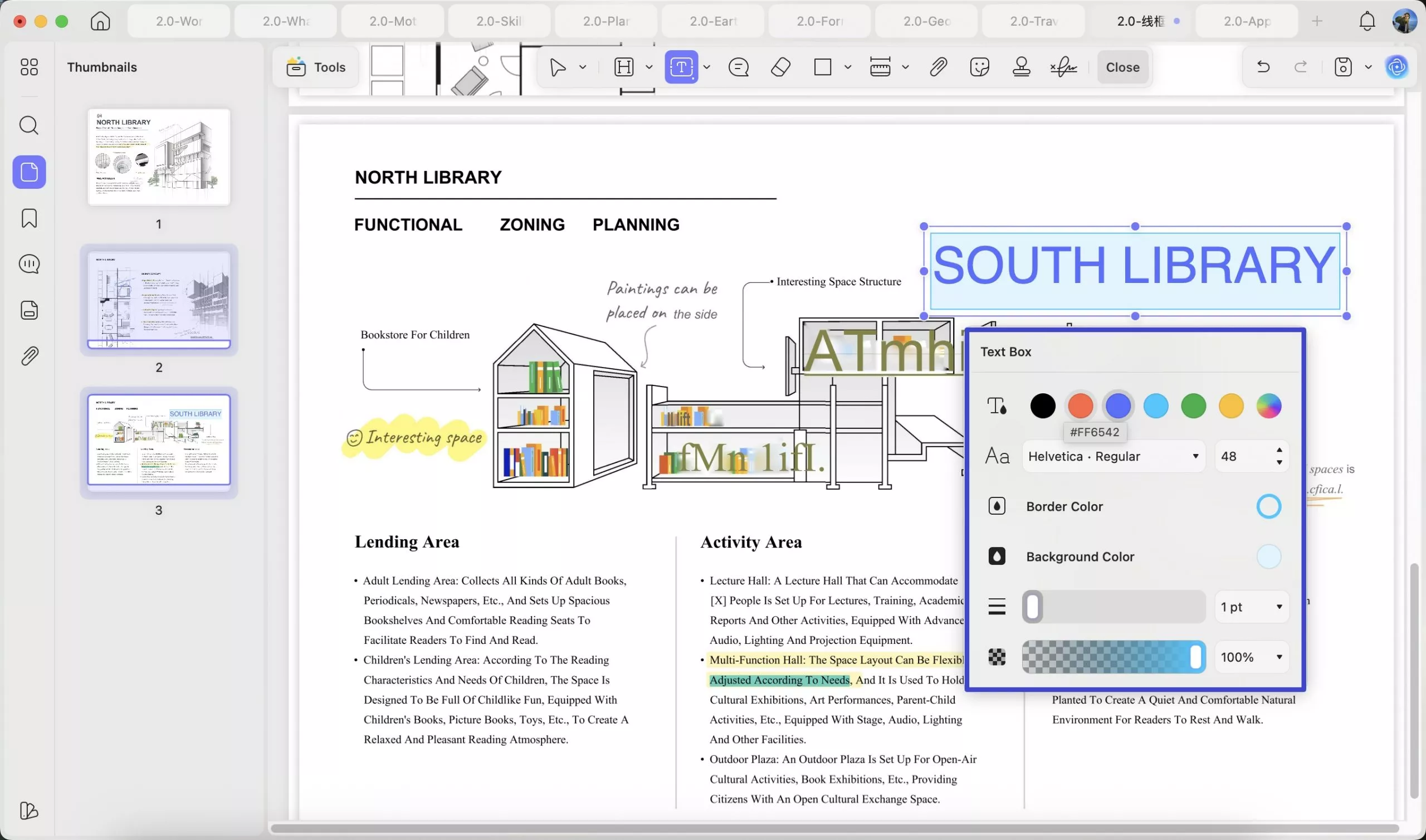
- To use Text Box, click on the Tools > Comment > Text Box icon. Choose the style for the text box, including the color of the box background and border, the font type, color, and size of your text.
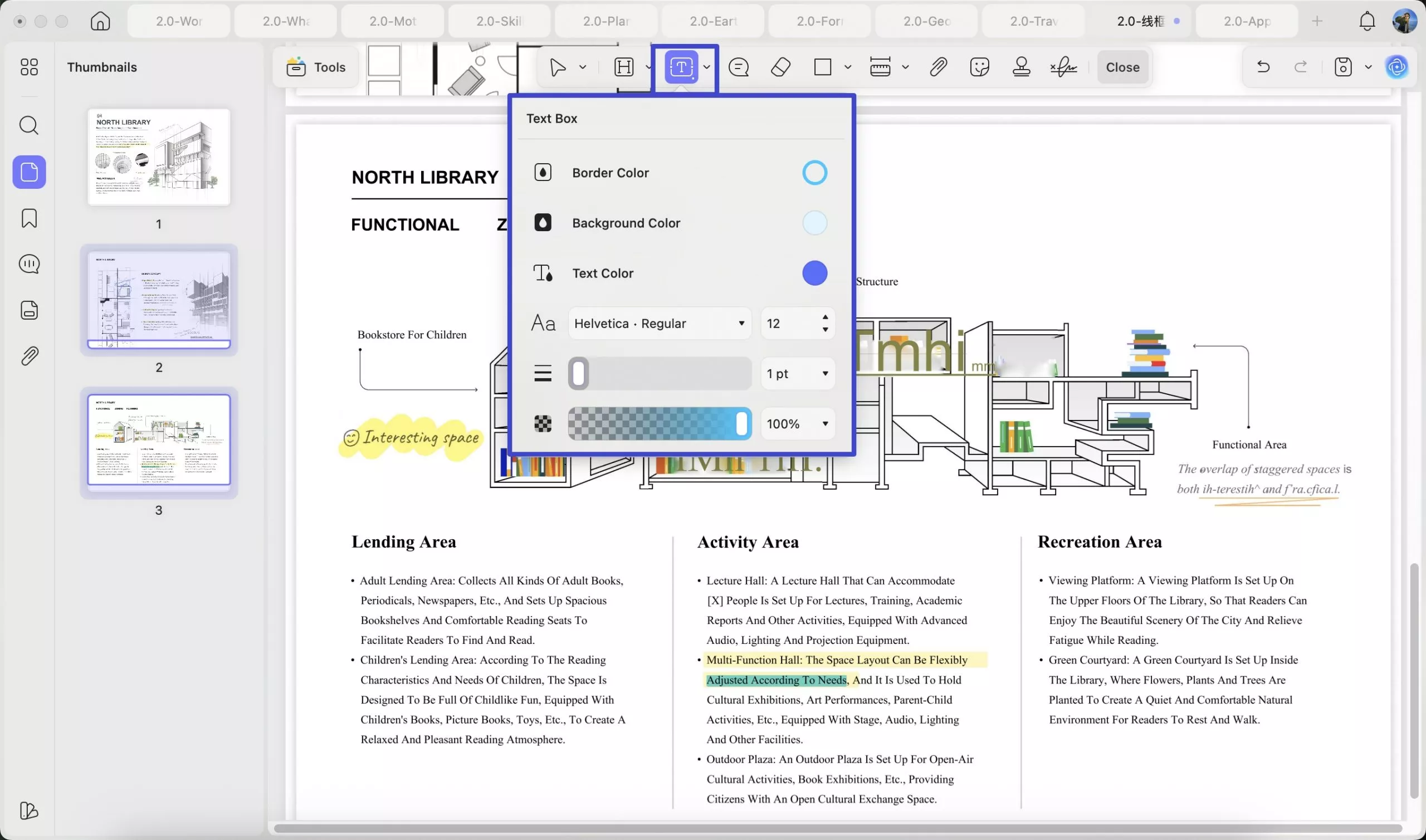
- Click anywhere in the PDF to add the text box and begin typing. Once done, you can click on the box to get the options like Text Color, Font, Font Size, Border Color, Background Color, Border Thickness, Opacity, Copy and Delete.
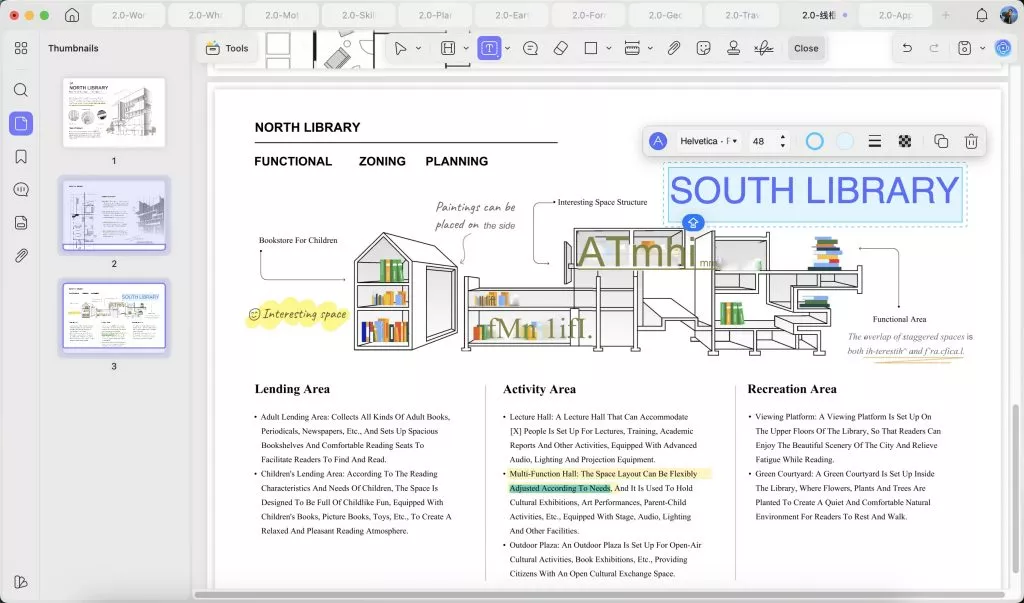
- You can also right-click the box and select Properties to change the text box’s Properties. When clicking on the properties, you can uncover the options to customize the box and text style.
- You can also use the text comment feature to add the text. You need to click on the "Text Comment" icon this time. Select the text color and change the text font type and size.
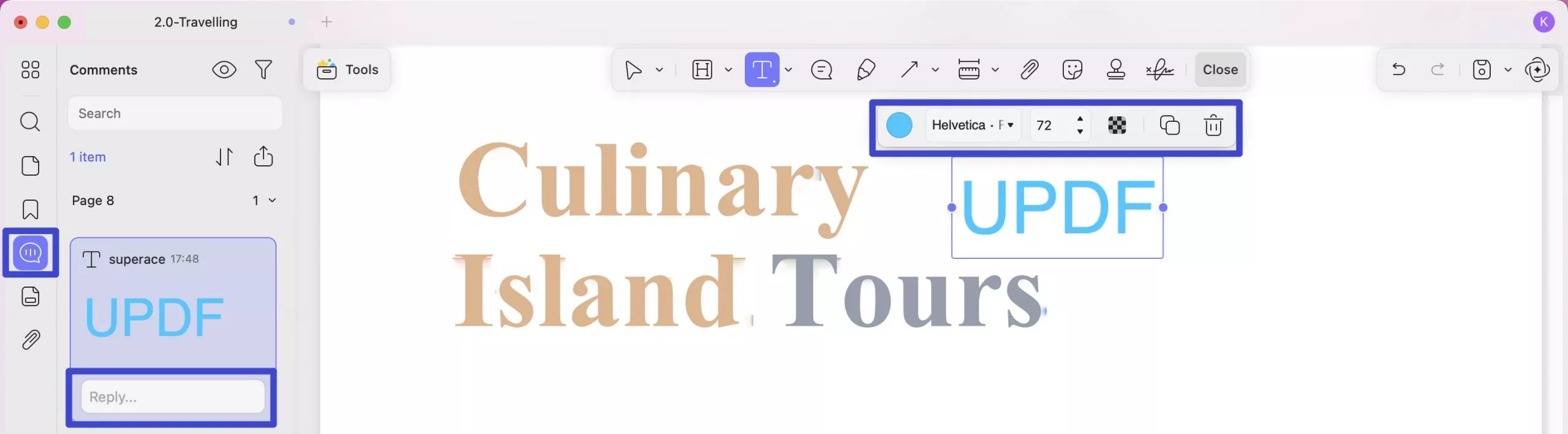
- Click on the place and type the text. When you are done and do not like the content style, you can select the box to change its font style, size, color and more.
- From the left sidebar, a comments section is contained. You can see all your added comments here and search your added comments easily. It is also with an option for you to quickly reply other comments.
- When you finish editing, you can click on the "File" on the top menu > "Save" to save the changes in PDF.
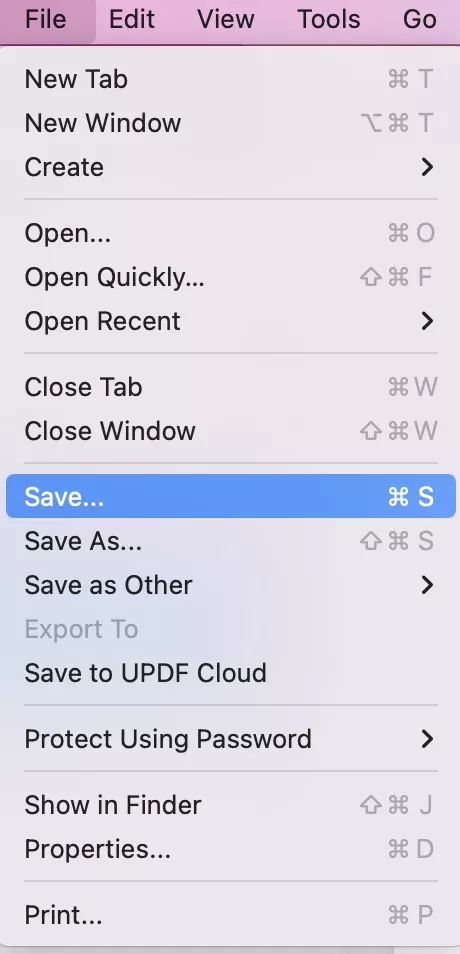
If you are using the free trial version, you will get a PDF with a watermark. To save without a watermark, you can upgrade to the pro version at a very low price here.