UPDF
UPDF
 UPDF for Windows
 UPDF for Mac
 UPDF for iPhone/iPad
 UPDF for Android
 Nomostar
 UPDF AI Online
 UPDF Sign
 IvyCraft
 Edit PDF
 Annotate PDF
 Create PDF
 PDF Form
 Edit links
 Convert PDF
 OCR
OCR PDF to Word
 PDF to Image
 PDF to Excel
 Organize PDF
 Merge PDF
 Split PDF
 Crop PDF
 Rotate PDF
 Protect PDF
 Sign PDF
 Redact PDF
 Sanitize PDF
 Remove Security
 Read PDF
 UPDF Cloud
 Compress PDF
 Print PDF
 Batch Process
 About UPDF AI
 UPDF AI Solutions
 AI User Guide
 FAQ about UPDF AI
 Summarize PDF
 Translate PDF
 Chat with PDF
 Chat with AI
 Chat with image
 PDF to Mind Map
 Explain PDF
 PDF AI Tools
 Image AI Tools
 AI Chat Tools
 AI Writing Tools
 AI Study Tools
 AI Working Tools
 Other AI Tools
 AI Bookmark Generation
 AI Bookmark Summary
 AI Watermark Generation
 AI Background Generation
 AI Sticker Generation
 AI Stamp Generation
 AI Editing Suite
 UPDF Copilot
 AI Page Management
 AI Semantic Search
 PDF to Word
 PDF to Excel
 PDF to PowerPoint
 Enterprise Solution
 Enterprise Sign
 Enterprise AI
 Enterprise Plan
 Enterprise User Guide
 Enterprise Webinar
 IT
IT Education
 Construction
 Financial Service
 Healthcare
 Insurance
 Legal
Legal Manufacturing
 Government
 Researchers & PhDs
 Solopreneurs & Freelancers
 Lawyers & Legal Professionals
 Real Estate Agents & Brokers
 Education Solution
 Customer Stories
 User Guide
 UPDF Tricks
 FAQs
FAQs UPDF Reviews
 Download Center
 Blog
Blog Newsroom
 Tech Spec
 Updates
 UPDF vs. Adobe Acrobat
 UPDF vs. Foxit
 UPDF vs. PDF Expert

Sending an invoice only to spot errors—incorrect amounts, wrong dates, or misspelled client names—creates an urgent, stressful fix for every business owner and freelancer.
Example: When correcting an invoice, update the line item and tax total together, preserve the original invoice number, and compare the final amount with the accounting record before sending it. For a related workflow, see correct a PDF document.
You might overlook that invoice editing varies drastically by file format and storage location. Whether it’s a downloaded PDF, scanned receipt, cloud software record, or reusable template, this guide delivers tailored, step-by-step editing solutions for every scenario.
Tip
Windows • macOS • iOS • Android 100% secure
Part 1. Where Is Your Invoice Right Now?
Searching "edit invoice" falls into two distinct user groups. Understanding which one you belong to is the first step to finding the right solution.
| Your Scenario | What You Need | Recommended Path | Jump to |
|---|---|---|---|
| PDF invoice file (downloaded, emailed, or exported from a system) and need to change amounts, dates, client details | Edit the PDF file directly | Online PDF editor or desktop PDF editor | Part 2 |
| Scanned/photographed paper invoice (JPG/PDF) and need to modify the text inside | OCR first, then edit | Desktop PDF editor with built‑in OCR | Part 2 |
| Created an invoice inside an accounting system (saved but not sent) and need to change it | Edit the invoice record within the system | System‑built editing features | Part 3 |
| Need to customize my invoice template (logo, colors, layout, fields) | Edit template settings | System template customization tools | Part 3 |
| An already‑sent invoice that needs correction (client info, taxes, discounts) | Edit the sent invoice record | Depends on platform rules | Part 3 |
Depending on your answer, you'll either head to Part 2 (for PDF file editing) or Part 3 (for system‑based editing). Let's start with the tool‑seeking path — editing invoice PDF files directly.
Part 2. How to Edit Invoice PDF Files Directly
This section is for users who already have an invoice as a PDF file and need to modify its content directly.
1. Online PDF Editors — Browser‑Based, No Installation
| Tool | Free Access | Edit Text | Edit Images | Scanned Invoices | Best For |
|---|---|---|---|---|---|
| Smallpdf | ✅ (limited) | ✅ | ✅ | ❌ | Quick text edits |
| iLovePDF | ✅ (limited) | ✅ | ✅ | ❌ | Basic PDF editing |
| DocHub | ✅ | ✅ | ✅ | ❌ | Create and edit invoice templates |
| Google Docs | ✅ | ✅ (via Word conversion) | ❌ | ❌ | Template editing → export to PDF |
| Jotform | ✅ | ✅ | ✅ | ❌ | Drag‑and‑drop editing |
Online tools are fast and convenient, and the process to edit an invoice in online tools is basically the same: just upload your editable invoice PDF to the platform, then edit the text you want to change, click to save and download.
But they can't handle scanned invoices or sensitive data. If your invoice contains confidential information, or if it's a scan of a paper document, the next section covers professional desktop solutions.
2. Desktop PDF Editors — Full Control, Local Processing
| Tool | Pricing | Edit Text | Edit Images | OCR | Batch | Platform |
|---|---|---|---|---|---|---|
| Adobe Acrobat Pro | Subscription (~$240/year) | ✅ | ✅ | ✅ | ❌ | Win, Mac |
| UPDF | One‑time ($79.99) | ✅ | ✅ | ✅ (38 languages) | ✅ | Win, Mac, iOS, Android |
| Foxit PDF Editor | Subscription (~$130/year) | ✅ | ✅ | ✅ | ✅ | Win, Mac |
Why UPDF Stands Out for Invoice Editing:
- Double‑click any text to edit amounts, dates, client names — as easy as Word
- Right‑click any image → Replace Image — update logos instantly
- Built‑in OCR (38 languages) — turn scanned paper invoices into editable files
- Batch processing — edit multiple invoices at once
- 100% offline — your files never leave your machine
Step‑by‑step — Edit an Invoice (Scanned Invoice Included) with UPDF:
If you're looking to edit invoices, using UPDF is an ideal solution to proceed with. UPDF is an industry-leading application for editing PDF documents, including e-invoices. To edit an invoice using UPDF, follow the simple steps here:
Windows • macOS • iOS • Android 100% secure
1. Edit The Text on an Invoice
Import your PDF invoice in UPDF by pressing the "Open File" button.
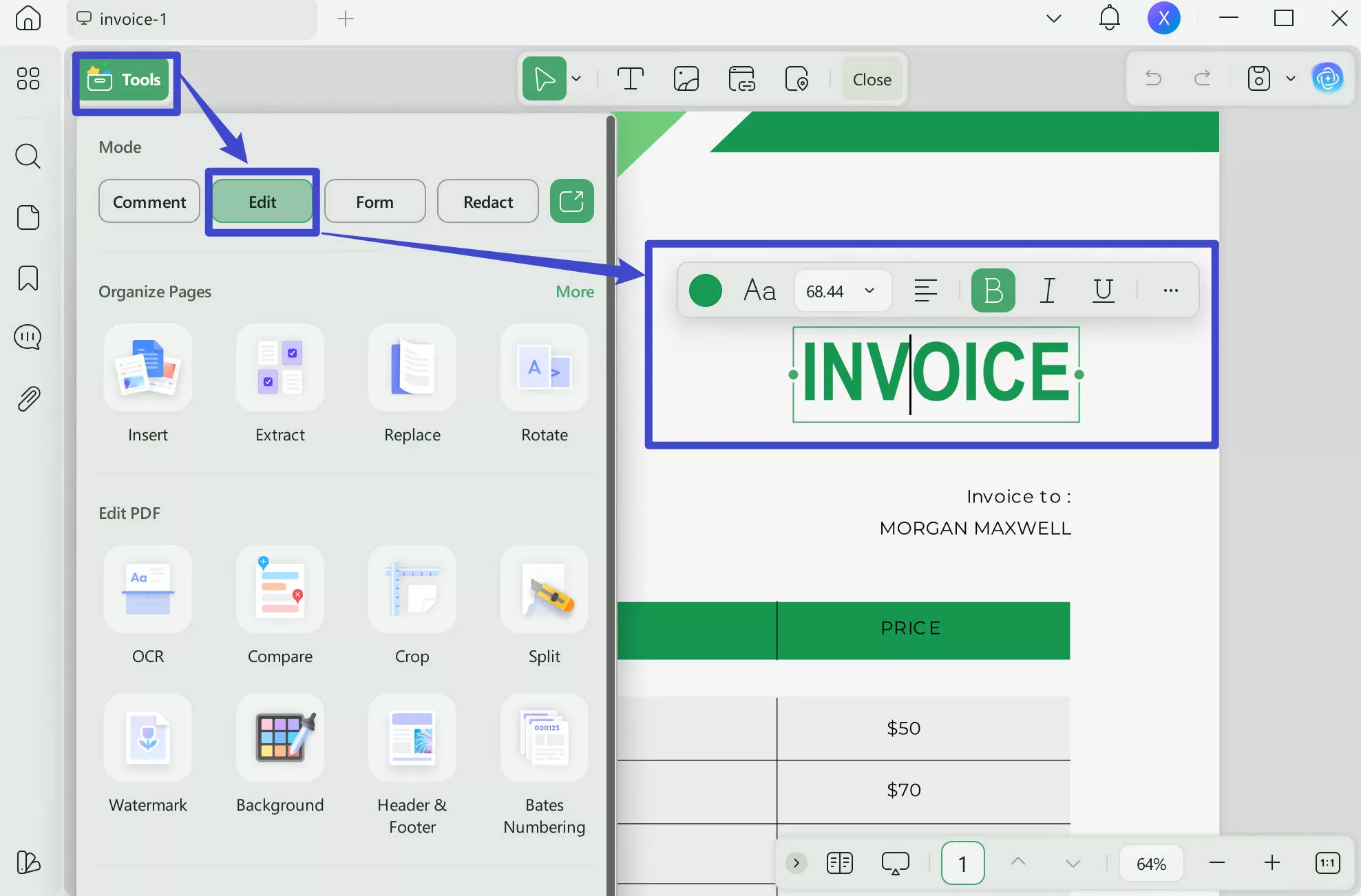
Click the "Edit" icon in "Tools" from the toolbar on the screen's left side.
Double-click on the text of the invoice that you want to change or customize. You can edit the text easily as you are on a word processor and change its size or color.
2. Customize the Logo on the Invoice
Following this, you can also customize the logo of the invoice in editing mode. You can add a logo to the PDF invoice by clicking the "Image" icon on the top toolbar.
If you're using an invoice template and want to change the logo, double-click the image and choose the "Replace Image" icon to replace the logo with yours.
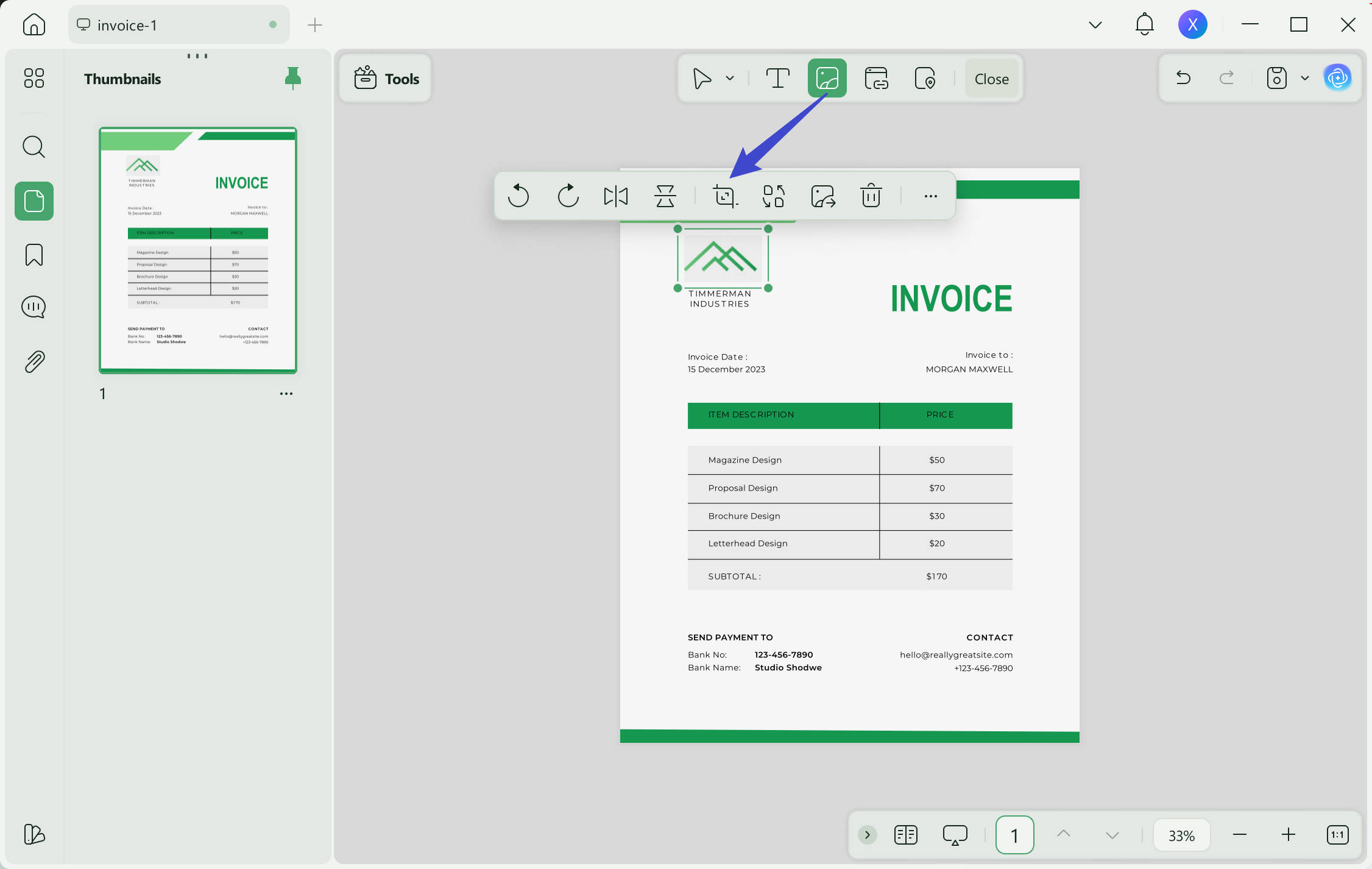
Save the edited invoice by pressing the " Save " button and choosing the "Save as..." icon from the right-side toolbar.
After all, this PDF editor allows you to edit and manage PDF documents simply and easily. You can use UPDF on iOS, Android, Windows, and Mac platforms. The availability of the Cloud facility allows you to collaborate on invoices through all your devices.
Also Read: How to Edit Bill? (3 Easy Methods)
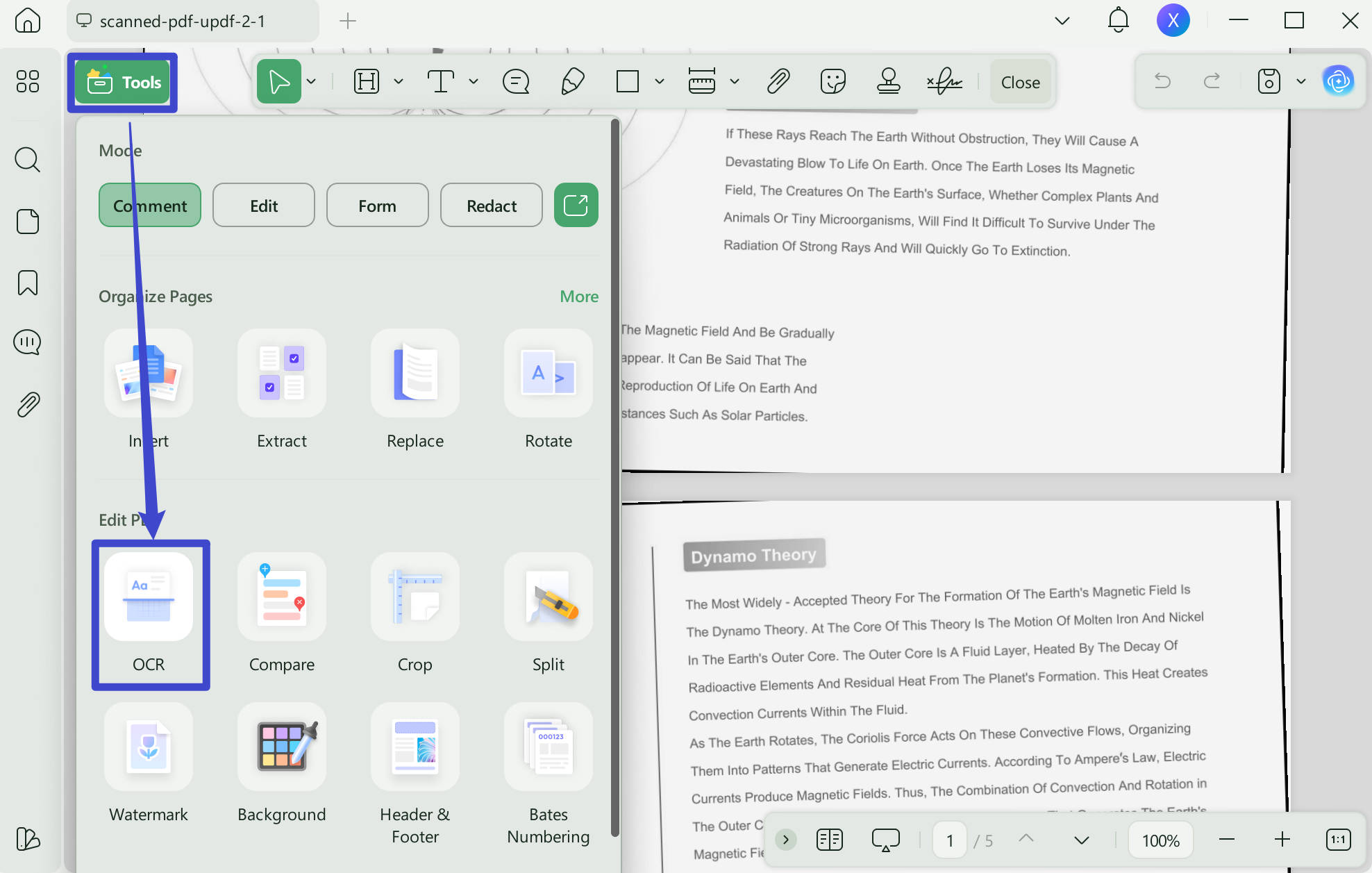
UPDF OCR has AI technology embedded that helps you turn your paper documents, scanned PDFs, and images into editable, readable, and searchable documents. To apply UPDF OCR to your document, follow the easy steps here:
- If your invoice is a paper invoice, please take a picture of it and open it with UPDF.
- Press the OCR icon in Tools.
- Select the document type as "Editable PDF".
- Customize the further parameters (layout, language, and page range) of the selected OCR category.
- Click the "Convert" button to apply and save your OCR file.
- After performing OCR, your invoice becomes editable and will open automatically in UPDF. Now you can edit the scanned PDF by going to the "Edit PDF" mode as we explained in the steps above.
Windows • macOS • iOS • Android 100% secure
Now that we've covered editing PDF files, what about users who need to edit invoices directly inside their accounting system? The next section covers system‑based editing for QuickBooks, Stripe, FreshBooks, Accelo, and Quicken.
Part 3. How to Edit Invoices in Accounting Software
This section is for users who create and manage invoices inside accounting or invoicing systems — not PDF files.
The table below compares the most popular systems based on what users care about most when editing invoices:
| Comparison Dimension | QuickBooks | Stripe | FreshBooks | Accelo | Quicken |
|---|---|---|---|---|---|
| Edit invoice templates | ✅ Powerful | ❌ Limited | ✅ Customizable | ✅ Customizable | ❌ Limited |
| Edit created but unsent invoices | ✅ Direct edit | ✅ Draft revision | ✅ Direct edit | ✅ Editable | ❌ Not supported |
| Edit sent invoices | ❌ Credit note required | ⚠️ Only if open | ❌ Cannot edit | ⚠️ Must resend | ❌ Not supported |
| Batch editing capability | ✅ Up to 150 per batch | ❌ One by one | ⚠️ Per‑invoice | ❌ One by one | ❌ Not supported |
| Mobile support | ✅ App available | ✅ Dashboard | ✅ App available | ✅ App available | ✅ App available |
| Audit trail | ✅ Complete | ✅ Complete | ✅ Audit log | ⚠️ Basic | ⚠️ Basic |
| Best for | SMEs, accounting teams | Online businesses, developers | Freelancers, small teams | Professional service firms | Personal finance, solo operators |
The table above gives you a quick overview. Let's now walk through each platform in detail — including their pros and cons, step‑by‑step instructions, and links to official support for the most up‑to‑date guidance.
1. QuickBooks — Best for SMEs and Accounting Teams
Pros:
- Edit directly within the system — data stays synchronized
- Batch editing support (QBO Advanced: up to 150 invoices at once)
- Mobile app for on‑the‑go editing
- Complete audit trail for every change
Cons:
- Sent invoices cannot be edited directly — requires credit notes
- Batch editing only available in Advanced plans
- Steeper learning curve
Best for: SMEs, accounting teams, businesses with complete financial management needs
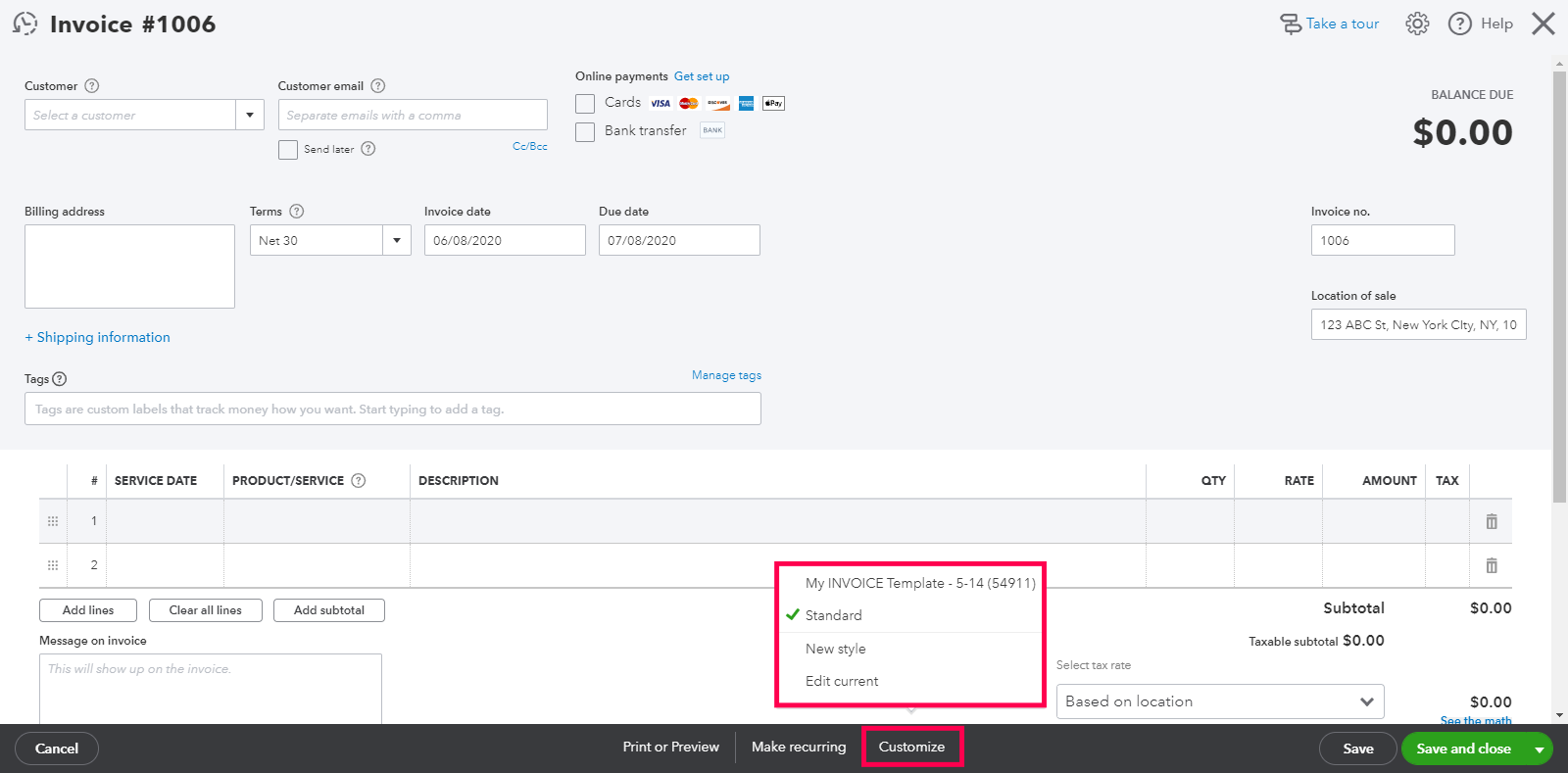
Edit a Single Invoice in QuickBooks Online:
Step 1: Log in to your QuickBooks Online account
Step 2: Go to Sales → Invoices
Step 3: Find and open the invoice you want to edit
Step 4: Click the Edit button in the top right corner
Step 5: Make the necessary changes
Step 6: Click Save and Close or Save and Send
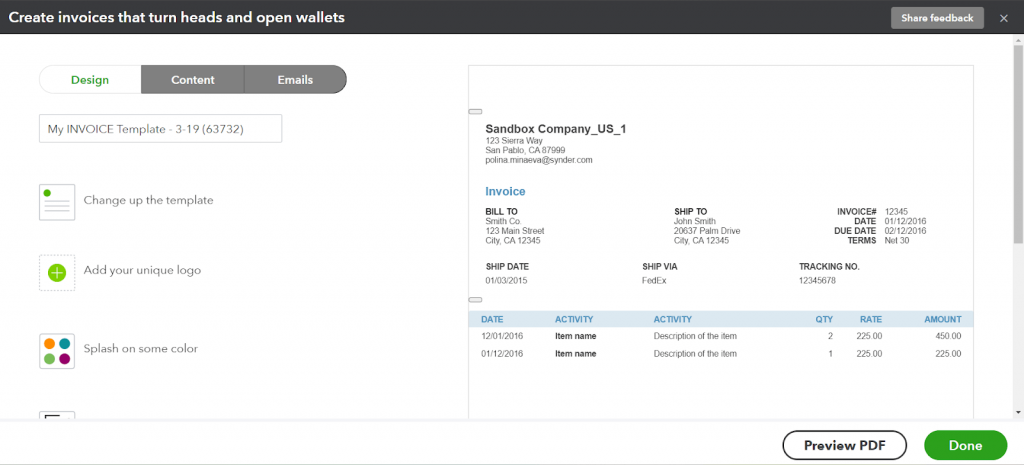
Edit Invoice Templates in QuickBooks (Custom Form Styles):
Step 1: Click the Gear icon in the top right corner
Step 2: Select Custom Form Styles
Step 3: Find your template → click the Edit dropdown → select View/Edit
Step 4: Use the Design, Content, and Emails tabs to customize
Step 5: Save your changes
For detailed instructions: Visit the QuickBooks official support center for the most current guidance, as interfaces vary by version and region.
2. Stripe — Best for Online Businesses and Developers
Pros:
- Supports revision of confirmed invoices (open/uncollectible status)
- Creates a new draft linked to the original — no overwriting
- Complete revision history
- Built for subscription‑based businesses
Cons:
- Cannot revise invoices with paid or void status
- Cannot switch customers or modify products
- Requires familiarity with Stripe Dashboard
Best for: Online businesses, SaaS subscriptions, developers, e‑commerce
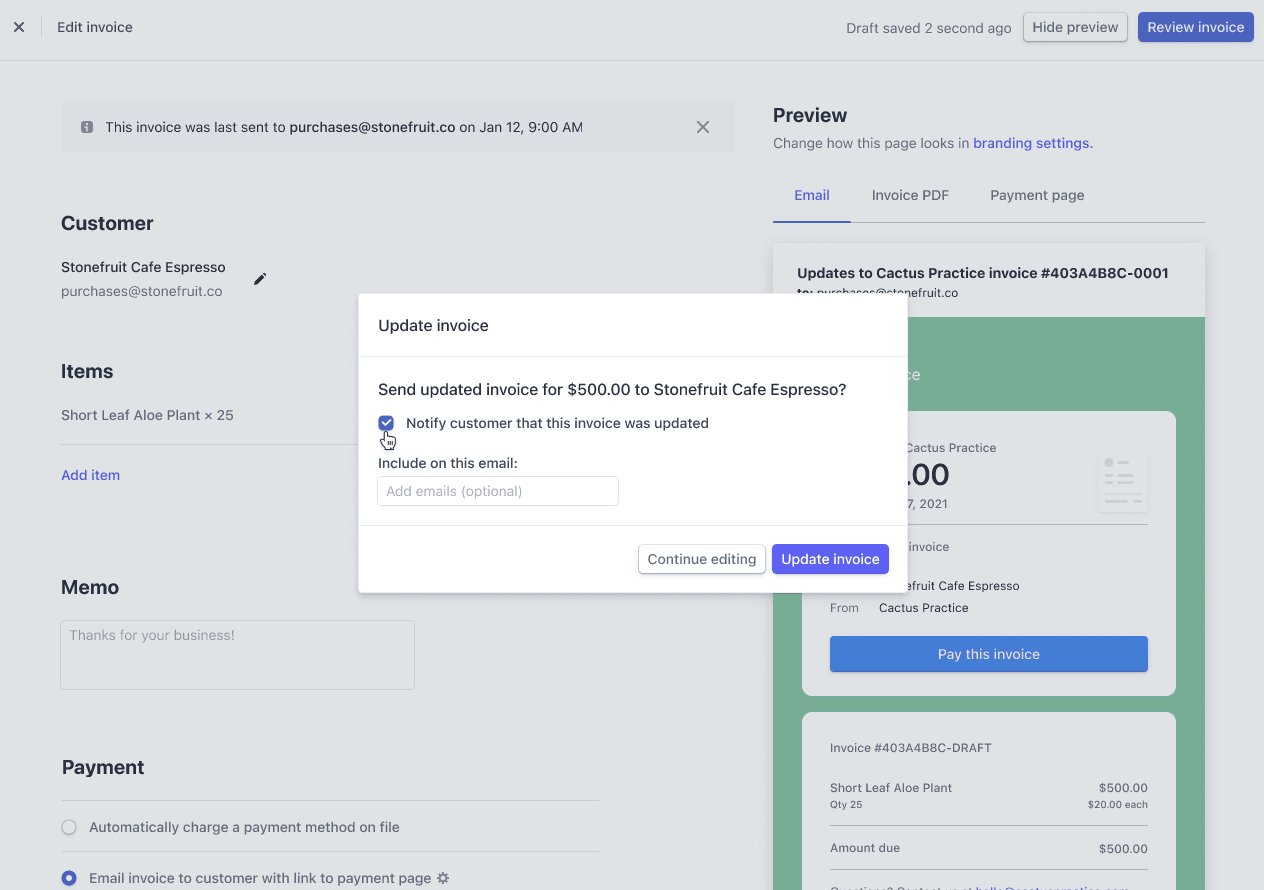
Edit an Invoice in Stripe:
Step 1: Log in to the Stripe Dashboard
Step 2: Go to Invoices
Step 3: Find and open the invoice you want to edit
Step 4: Click Edit invoice → this opens the Invoice Editor and creates a new draft
Step 5: Update the fields you need to change (description, customer info, line items, discounts, taxes)
Step 6: Click Review invoice → choose whether to notify the customer by email
Step 7: Click Update invoice — Stripe finalizes the new invoice and voids the old one
For detailed instructions: Visit the Stripe official documentation for the most current API and UI guidance.
3. FreshBooks — Best for Freelancers and Small Teams
Pros:
- Supports batch operations (up to 150 invoices at once)
- Hover‑based quick actions (edit, copy, add payment)
- Audit log tracks every change
- Clean, intuitive interface
Cons:
- Sent invoices cannot be edited directly
- Batch editing requires selecting invoices one by one
- Fewer features than QuickBooks
Best for: Freelancers, small teams, service‑based businesses
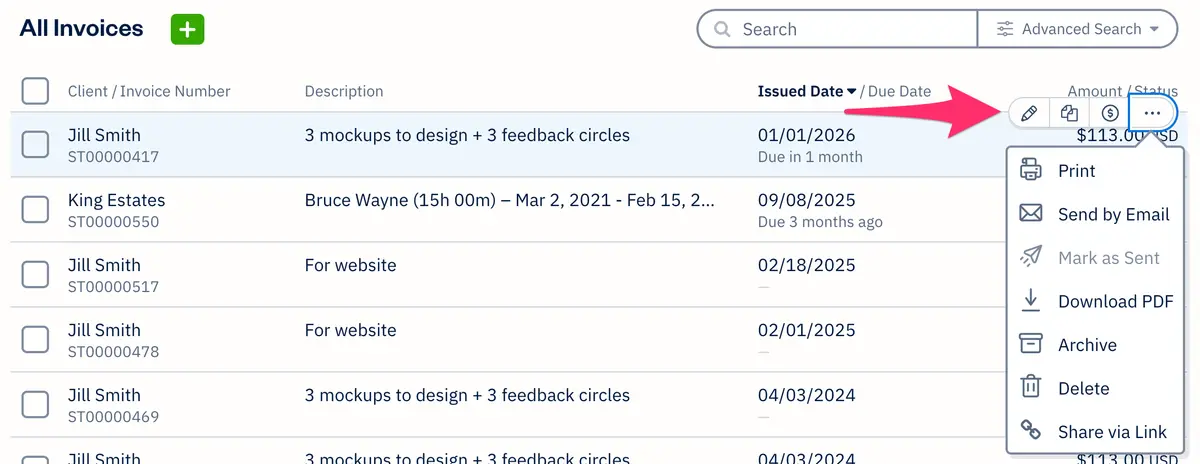
Edit a Single Invoice in FreshBooks:
Step 1: Log in to your FreshBooks account
Step 2: Go to Invoices
Step 3: Hover over the invoice you want to edit → click the pencil icon (Edit)
Step 4: Enter the Edit view → make your changes
Step 5: Save
Edit Invoice Templates in FreshBooks:
Step 1: Go to Invoices
Step 2: Select Customize next to your template
Step 3: Adjust layout, colors, fonts, and other elements
Step 4: Save your changes
For detailed instructions: Visit the FreshBooks official support center for the most current guidance.
4. Accelo — Best for Professional Service Firms
Pros:
- Edit draft/saved invoices before finalizing
- Comprehensive Sales module covering the entire invoice lifecycle
- Robust template customization
- Mobile editing supported
Cons:
- Sent invoices must be resent to customers
- Steeper learning curve
- Designed primarily for professional service firms
Best for: Professional service firms (consulting, legal, IT services), project‑based businesses
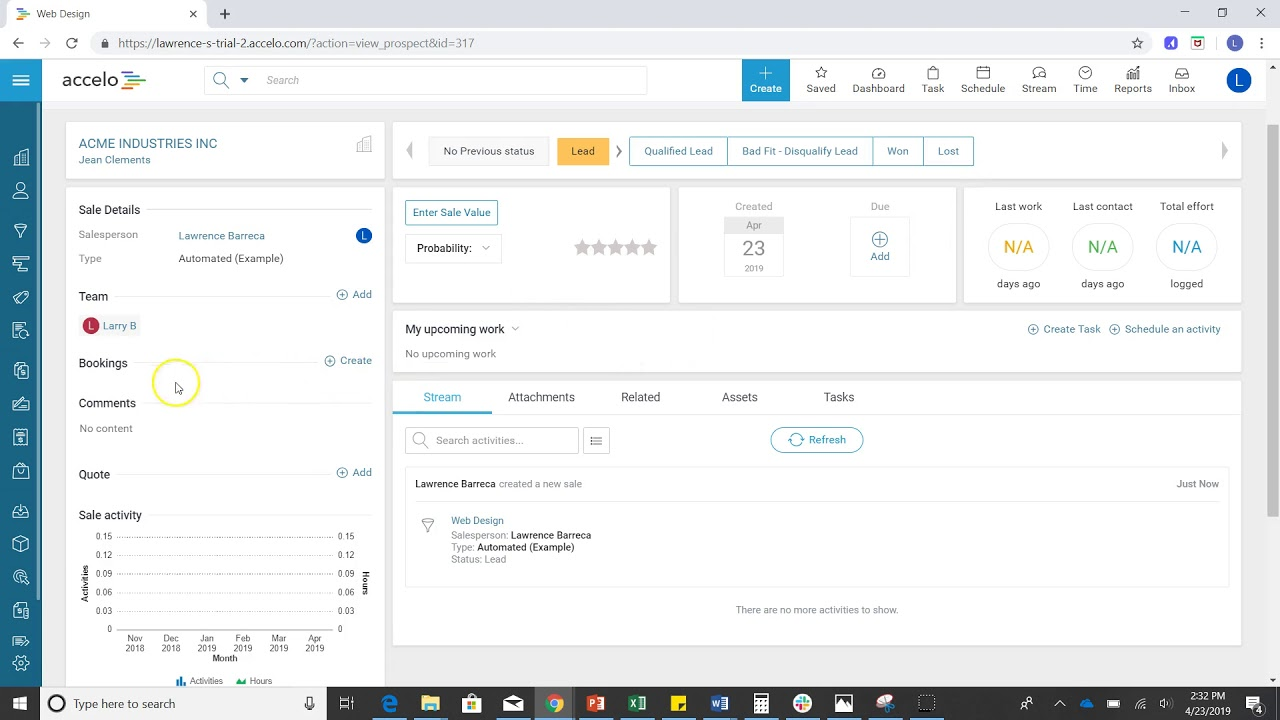
Edit an Invoice in Accelo:
Step 1: Log in to your Accelo account
Step 2: Go to the Sales module
Step 3: Select Invoices → View All
Step 4: Navigate to the invoice's Edit page
Step 5: Make the necessary changes
Step 6: Save the invoice
Step 7: If resending is required, click the Send button
For detailed instructions: Visit the Accelo official support center for the most current guidance.
5. Quicken — Best for Personal Finance and Solo Operators
Pros:
- Simple, straightforward interface
- Suitable for basic personal invoicing needs
- Mobile support available
Cons:
- Cannot edit created invoices directly
- Very limited functionality
- Not suitable for business‑grade invoicing
Best for: Personal finance management, very small solo operators, occasional invoicing
Edit an Invoice in Quicken Desktop:
Step 1: Open Quicken Desktop → go to Invoicing
Step 2: Click Invoices → select View/Edit
Step 3: Find the invoice → right‑click and select Edit Invoice
Step 4: Make your changes
Step 5: Click Save & Close
Step 6: If the invoice has already been sent, Quicken will prompt you to resend it to the customer
⚠️ Important: Quicken does not support editing sent invoices. If you need to correct a sent invoice, consider sending a revised version or using a PDF editor to modify the file directly.
For detailed instructions: Visit the Quicken official support center for the most current guidance.
| Your Situation | Recommended Platform | Why |
|---|---|---|
| Need full financial management + invoicing | QuickBooks | Most comprehensive, ideal for SMEs |
| Online business / SaaS with API integration | Stripe | Developer‑friendly, powerful API |
| Freelancer / small team, want simplicity | FreshBooks | Easy to learn, clean interface |
| Professional services with project management | Accelo | Integrated with projects, time, sales |
| Personal finance, occasional invoicing | Quicken | Simple, enough for basic needs |
Now that we've covered every scenario — PDF file editing and system‑based editing — let's address the free invoice templates you can use and the most common questions users have about editing invoices.
Part 4: Free Invoice Templates for You to Edit
UPDF offers customizable free invoicing templates allowing you to get paid on time for all your services or products. With these featured invoices, you can showcase your brand to give the buyer a clear view of the payment structure with maximum transparency. Find here 3 of the best invoicing templates from UPDF, and you can also edit them as required:
Windows • macOS • iOS • Android 100% secure
1. Professional Invoice for Efficient Billing
Make your billing process simpler and smarter with this invoice that lists the description of all items sold as services or products with their relevant prices. The invoice date can be modified, including the recipient of the invoice. Below, the bank account details are given, where you can enter your bank details for payment. Moreover, you can add your contact details for any confusion.

2. Modern Level Invoice for Streamlined Payments
Streamline all your business payments by using this invoice template from UPDF. This template comes with a simple design that makes it easy for every buyer to understand the applied charges. Hence, it will be easier for the buyer to process payments without queries.
Everything is listed transparently with proper details, including items, quantity, price, and amount. Adding the payment method mode is also available, including a thanks note.

3. Efficient Invoicing for Your Business Payments
This business invoice is precisely what all professionals need. There is the option of adding the recipient's address with the invoice date and number. You can list your services in the table provided with their quantity, price, and total.
The subtotal, tax, and discount (if available) options are also available. You can also add your bank details, payment method, and terms and conditions for this invoice. Furthermore, you can add your contact details to help the seller contact you if any mistake is in the invoice.

Part 5: FAQs on Editing Invoice
Can I legally edit an invoice PDF?
You may correct an invoice you are authorized to issue, but keep an audit trail and follow applicable accounting and tax rules.
How do I edit a scanned invoice?
Run OCR first, then correct the recognized text. Carefully verify invoice numbers, dates, quantities, tax, and totals.
How can I avoid breaking an invoice layout?
Match the existing font and alignment, change related totals together, and reopen the saved PDF to inspect every column.
Wrapping Up
Invoicing is an essential part of a business because it's an official way to get your payment released from the buyer.
Online tools work for quick fixes — but they have limits: files must be uploaded to the cloud, and they can't handle scanned invoices. UPDF gives you everything in one place: edit text, replace logos, OCR scanned invoices, batch processing — all offline, all private, with a one‑time payment that saves you hundreds compared to subscriptions.
This guide covers everything you need to edit invoices. If you're looking for a more comprehensive walkthrough on editing PDFs — including modifying text, replacing images, managing pages, adding annotations, and more — visit our full pillar guide: How to Edit a PDF.
Windows • macOS • iOS • Android 100% secure






 Engelbert White
 Enid Brown

 Enola Davis