 UPDF
UPDF
 UPDF for Windows
 UPDF for Mac
 UPDF for iPhone/iPad
 UPDF for Android
 Nomostar
 UPDF AI Online
 UPDF Sign
 IvyCraft
 Edit PDF
 Annotate PDF
 Create PDF
 PDF Form
 Edit links
 Convert PDF
 OCR
OCR PDF to Word
 PDF to Image
 PDF to Excel
 Organize PDF
 Merge PDF
 Split PDF
 Crop PDF
 Rotate PDF
 Protect PDF
 Sign PDF
 Redact PDF
 Sanitize PDF
 Remove Security
 Read PDF
 UPDF Cloud
 Compress PDF
 Print PDF
 Batch Process
 About UPDF AI
 UPDF AI Solutions
 AI User Guide
 FAQ about UPDF AI
 Summarize PDF
 Translate PDF
 Chat with PDF
 Chat with AI
 Chat with image
 PDF to Mind Map
 Explain PDF
 PDF AI Tools
 Image AI Tools
 AI Chat Tools
 AI Writing Tools
 AI Study Tools
 AI Working Tools
 Other AI Tools
 AI Bookmark Generation
 AI Bookmark Summary
 AI Watermark Generation
 AI Background Generation
 AI Sticker Generation
 AI Stamp Generation
 AI Editing Suite
 UPDF Copilot
 AI Page Management
 AI Semantic Search
 PDF to Word
 PDF to Excel
 PDF to PowerPoint
 Enterprise Solution
 Enterprise Sign
 Enterprise AI
 Enterprise Plan
 Enterprise User Guide
 Enterprise Webinar
 IT
IT Education
 Construction
 Financial Service
 Healthcare
 Insurance
 Legal
Legal Manufacturing
 Government
 Researchers & PhDs
 Solopreneurs & Freelancers
 Lawyers & Legal Professionals
 Real Estate Agents & Brokers
 Education Solution
 Customer Stories
 User Guide
 UPDF Tricks
 FAQs
FAQs UPDF Reviews
 Download Center
 Blog
Blog Newsroom
 Tech Spec
 Updates
 UPDF vs. Adobe Acrobat
 UPDF vs. Foxit
 UPDF vs. PDF Expert

Opening a PDF may bring annoying issues: harsh, blinding white backgrounds, stained yellow scanned pages, or plain layouts mismatching your brand for client proposals.
Example: For a long reading handout that causes eye strain, test the new background on one page first and check the contrast of body text, links, highlights, and images before applying it throughout. For a related workflow, see add a watermark to a PDF.
After searching “change PDF background color” and adjusting shades with a random tool, you may find the custom color reverts to white once shared with others. This frustration arises from two distinct PDF background editing modes most users overlook: permanent file-layer edits visible to all recipients, and temporary viewer-only adjustments only for your reading comfort. This guide explains both solutions clearly.
💡A quick tip: all reliable permanent background tweaks featured in this guide can be completed smoothly within UPDF, bypassing typical layout and compatibility errors.
Windows • macOS • iOS • Android 100% secure
How to Change PDF Background Color Permanently? (File Itself)
This method actually modifies the PDF file — adding a background layer that stays visible on every device and in every viewer. Once you make this change, it's permanent (unless you remove it later). There're online and free solutions for quick, one‑off background changes, non‑sensitive documents, and testing colors before committing, and desktop solutions for professional documents, sensitive files, scanned PDFs, batch processing, full color customization, and frequent use.
Change PDF Background Color Online Free
After testing dozens of online tools, only a few can truly add a background layer without covering content. Here's what we found:
| Tool | Free Access | True Background Layer | Color Options | Scanned PDF Support | Best For |
|---|---|---|---|---|---|
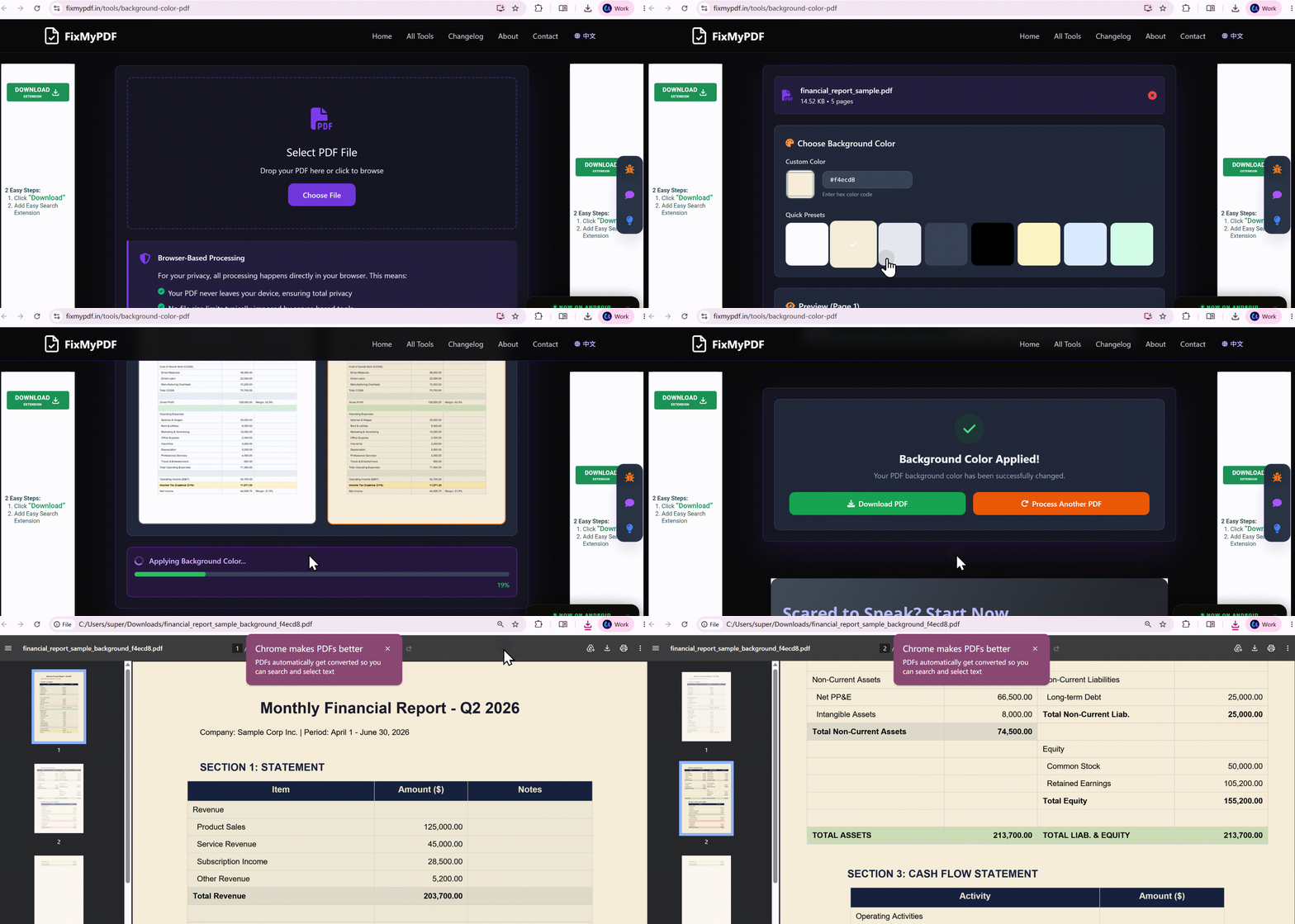
| FixMyPDF | Free | ✅ Yes, but looks like a shape overlay effect | Presets + custom HEX | ❌ No | Quick, reliable background changes |
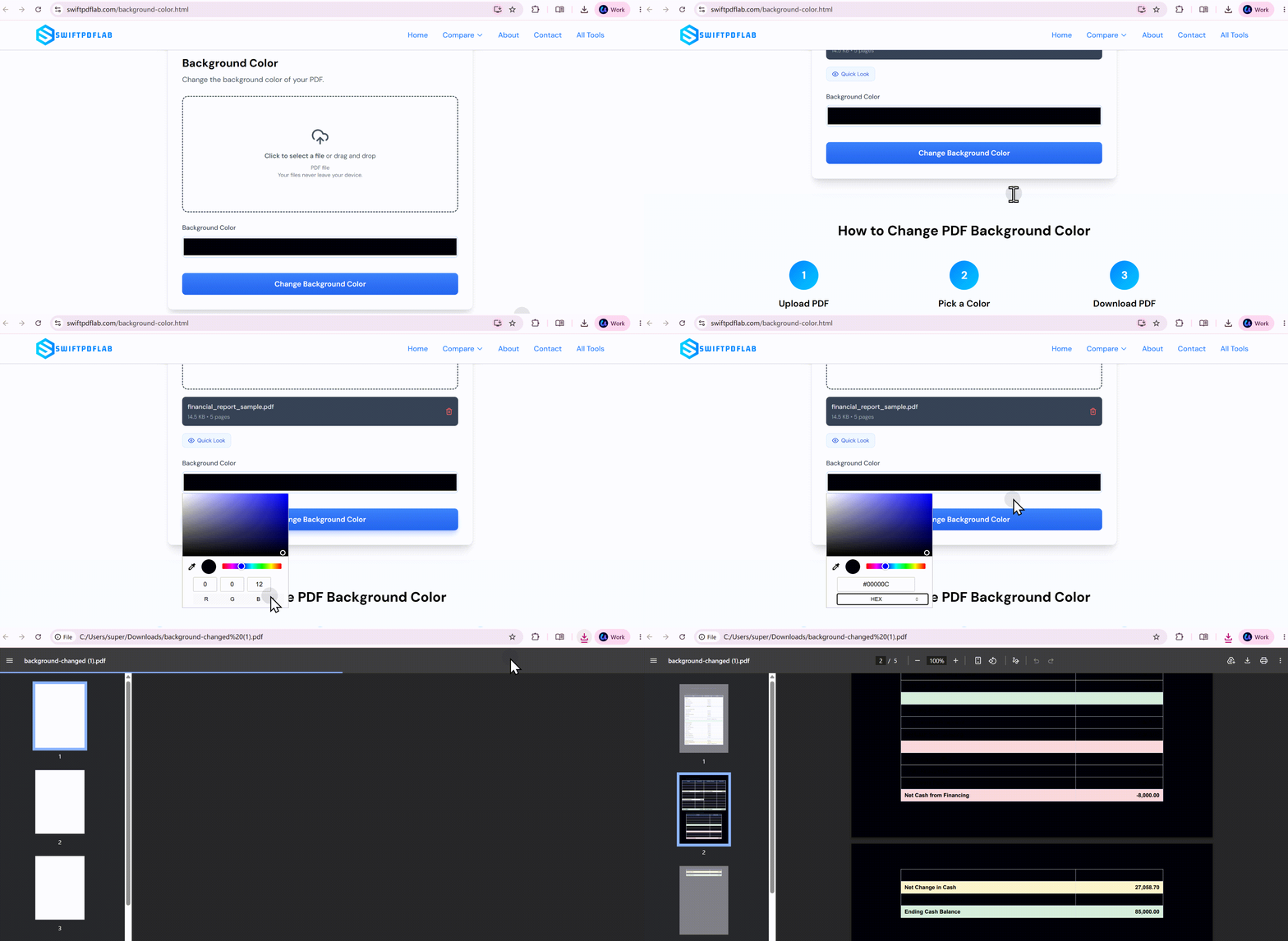
| SwiftPDFLab | Free | ✅ Yes — true background layer | Presets + custom HEX | ❌ No | Quick color changes (light colors only) |
| WorkinTool | Free | ✅ Yes — true background layer | Color picker | ❌ No | Avoid — 0.5MB limit, slow, often fails |
| Online2PDF | Free | ❌ No — converts to image‑only PDF | Grey only | ❌ No | Avoid — outputs image‑only PDF, loses text |
| PDFResizer | Free | ❌ No | Grey only | ❌ No | Avoid — outputs image‑only PDF, loses text |
| Smallpdf | Free (limited) | ❌ No — shape overlay only | Color picker | ❌ No | Not recommended — shape sits on top of text |
Most free online PDF editors (including Smallpdf, iLovePDF, and similar) don't have a dedicated "Background" tool. Instead, they offer shape annotations — which sit on top of content.
Not all online tools can change the opacity of color. The steps to change the background color in a PDF are the same: upload your PDF, choose the color you want, then export it for download.
The first example is from FixMyPDF; you can choose a color as the background, but it seems this effect appears to be applied to the background layer behind the document; testing shows that even if black is selected as the background color, the effect does not obscure the black text content.
However, for applications like SwiftPDFLab where the background sits behind the page content, selecting a different background color avoids the impression of a colored overlay obscuring the text; conversely, choosing a black background would hide the black text.
For anything more complex — scanned PDFs, black backgrounds with text inversion, batch processing, or professional documents — skip online tools and use desktop software.
Change PDF Background Color Offline (OCR, Batch)
| Tool | Pricing | Background Types | Scanned PDF | Batch | Page Range | Platform | Best For |
|---|---|---|---|---|---|---|---|
| Adobe Acrobat Pro | Subscription ($240/year) | Color, image | Limited | ❌ | ✅ | Win, Mac | Industry standard, complex enterprise needs |
| UPDF | One‑time ($79.99) | Color, image | ✅ (OCR built‑in) | ✅ | ✅ | Win, Mac, iOS, Android | Best value — one‑time, full features |
| Foxit PDF Editor | Subscription ($129/year) | Color, image | ✅ | ✅ (plugin) | ✅ | Win, Mac | Batch processing |
| EaseUS PDF Editor | Paid | Color, image | ❌ | ❌ | ✅ | Win | Windows‑only |
| Expert PDF | Paid | Color, image | ✅ (add‑on) | ❌ | ✅ | Win | Simple interface |
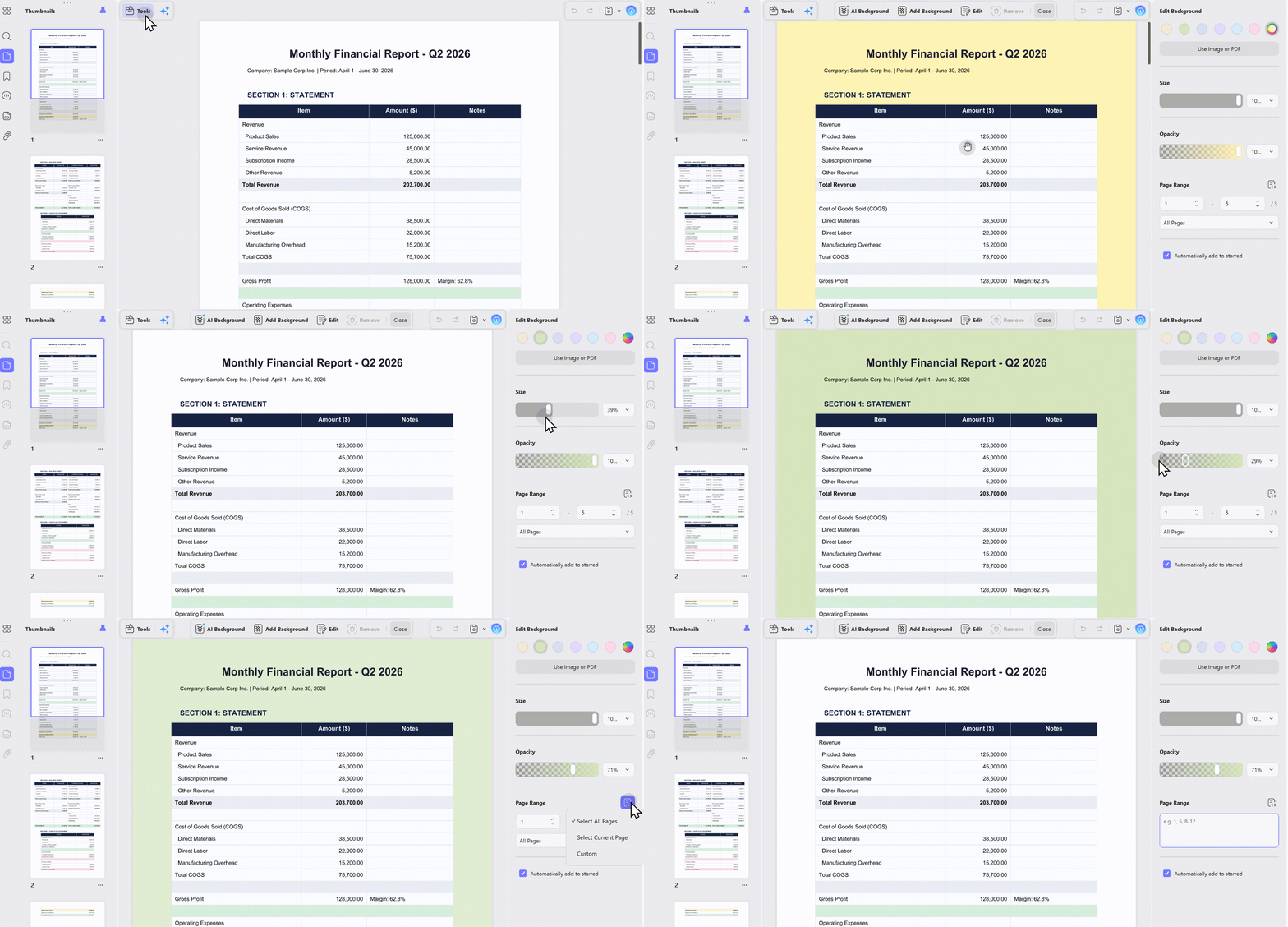
UPDF delivers comprehensive background editing capabilities that address common tool limitations: it fully supports adding, updating and deleting PDF backgrounds, with built-in multi-language OCR enabling edits on discolored scanned files that most online tools cannot handle.
Users gain flexible page customization for full documents, single pages, custom ranges or odd/even pages, adjustable background opacity for clear text display, and time-saving batch processing for multiple PDFs.
All edits run fully offline without cloud uploads to protect confidential contracts and financial records, and the software works seamlessly across Windows, Mac, iOS, and Android. Unlike Adobe Acrobat’s costly $240 annual subscription, UPDF adopts an affordable one-time license at $79.99, cutting long-term expenses significantly.
Windows • macOS • iOS • Android 100% secure
Moreover, UPDF has an AI Background Agent that you can use to generate and customize the background color with patterns.
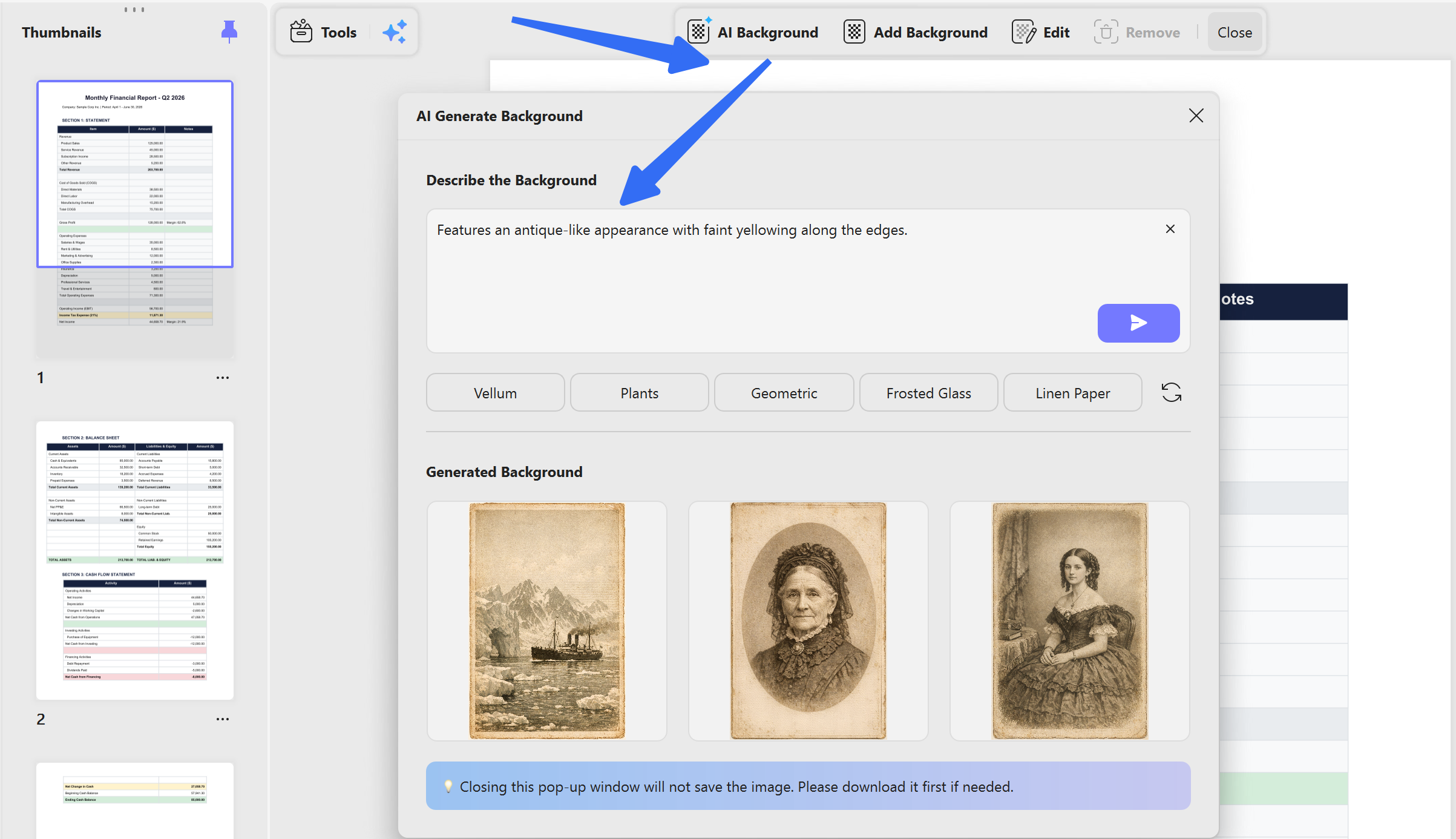
Let's see how to use UPDF to change PDF background color in easy steps with powerful functions. Click the Background button in Tools and then click "Add Background" to edit colors.
A cleaner page background can make the finished document easier to use. The video below offers a closer look at removing a PDF background.
If you want to change the background color on hundreds or thousands of PDFs, then a batch process is necessary.
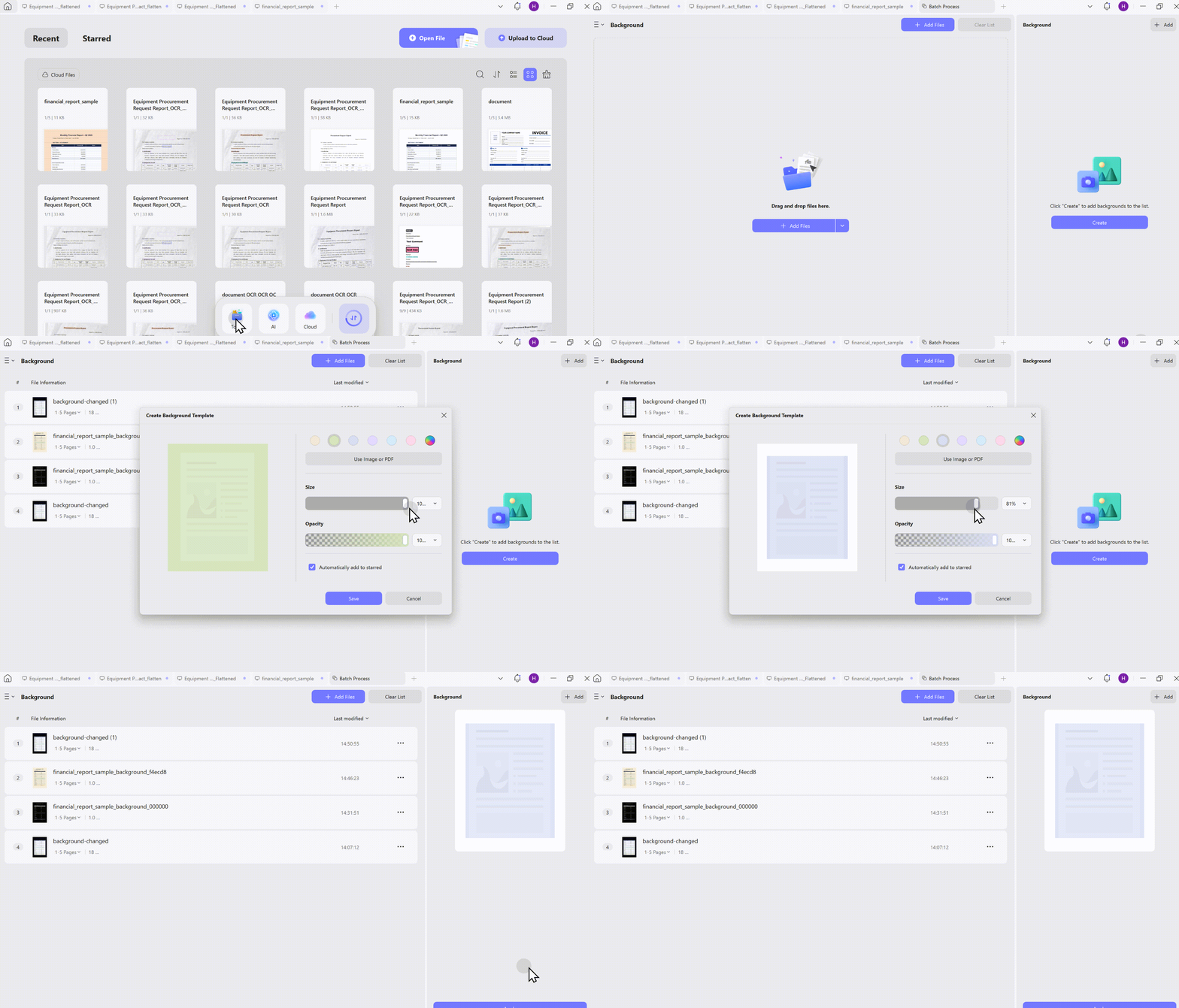
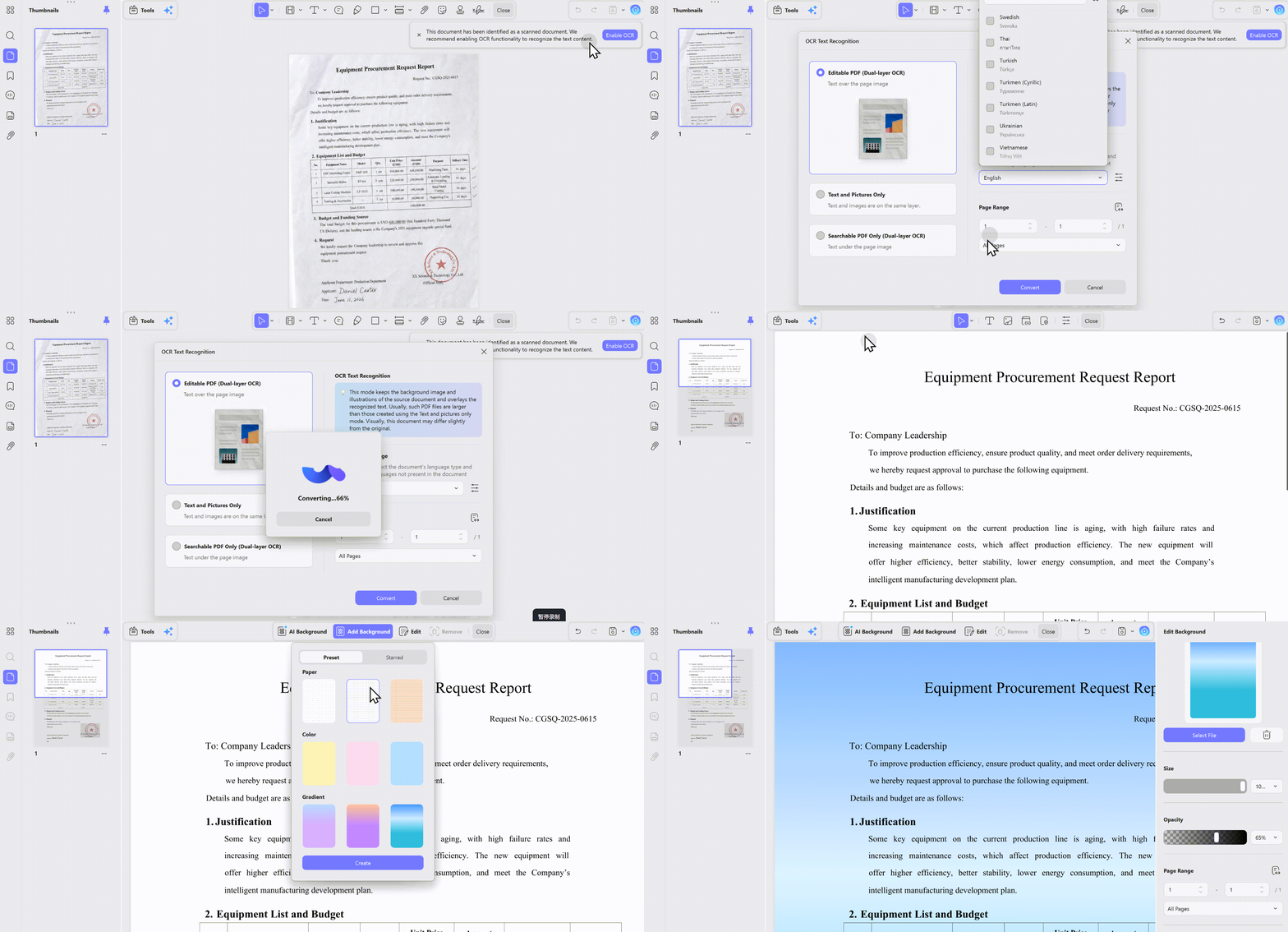
Scanned PDFs are images — the “background” is baked into the page itself, not a separate layer. This is where most users get stuck. But here you can use a professional PDF editor like UPDF to OCR First, then change the background; it supports 38 languages. Rest assured, your text and formatting will not be messed up. Click to enable OCR, and you can delete the scanned page's background to add a new color to it.
Windows • macOS • iOS • Android 100% secure
How to Change PDF Background Color Temporarily? (For Reading)
This method changes how the PDF displays on your screen — but does not modify the actual file. It's free, instant, and reversible.
Where to Find Temporary Background Settings:
| PDF Viewer | How to Change Background | Steps |
|---|---|---|
| Adobe Acrobat Reader (Free) | Accessibility → Replace Document Colors | Edit → Preferences → Accessibility → Custom Color → Choose background |
| Microsoft Edge | Dark mode settings (only for reader) | Settings → Appearance → Dark mode → PDF reader inherits Edge theme |
| Google Chrome | Dark mode via flags or themes | Chrome flags → Auto Dark Mode for Web Contents → Enabled |
| macOS Preview | Adjust Color filters | Tools → Adjust Color → Use sliders to modify brightness and contrast |
⚠️ Important: This change is only visible on your device. If you email the PDF or open it on another computer, the original background returns.
Why Change PDF Background Color?
People change PDF backgrounds for many reasons. Understanding your own motivation helps you choose the right method.
1. Personal Reading Comfort (Largest User Group)
- Eye strain reduction: Bright white backgrounds on screens cause fatigue — softer colors reduce this
- Night reading: Dark backgrounds with light text are easier on eyes in low‑light environments
- Prolonged reading comfort: Sepia/cream backgrounds mimic paper, making long reading sessions more comfortable
- Color sensitivity: Some people find certain backgrounds easier to read due to dyslexia or visual processing differences
2. Business & Branding (Professional Use)
- Brand consistency: Match PDF backgrounds to corporate colors
- Professional appearance: Branded documents look more polished
- Proposal presentation: Colored backgrounds make proposals stand out
- Internal documents: Company‑branded documents create a unified look across teams
3. Scanning Cleanup (Document Management)
- Yellowed pages: Scanned old documents often have yellow or grey backgrounds
- Inconsistent scans: Different pages may have different background colors
- Print quality improvement: Clean backgrounds make printed documents look better
- Archival purposes: Uniform backgrounds are easier to read and store
4. Printing Optimization (Cost & Efficiency)
- Ink conservation: Lighter backgrounds use less ink when printing
- Print readability: Colored backgrounds with appropriate contrast improve print legibility
- Paper selection: Some background colors work better with certain paper types
5. Accessibility & Special Needs
- Dyslexia support: Certain background colors (like cream or sepia) can help with reading
- Visual impairment: High‑contrast backgrounds (black on white or white on dark) aid visibility
- Color blindness considerations: Specific color combinations improve readability
FAQ
Does changing a PDF background color affect images?
It should not replace images, but transparent images and white artwork may look different against the new background.
What background color is easiest to read in a PDF?
Use a light, low-saturation background with strong text contrast. Accessibility needs vary, so test the document with its intended readers.
Why does the PDF background stay white after editing?
The white area may be a full-page image or shape rather than the page background. Edit or remove that object first.
Ending
Unstable temporary color adjustments, uneditable scanned files, obscured content, and privacy risks no longer need to disrupt your PDF workflow.
Editors that cover all core functional requirements—such as UPDF’s offline, fully featured background toolkit—deliver permanent, clean color customization without common compromises.
This guide covers everything you need to change PDF background colors. If you’re looking for a more comprehensive walkthrough on editing PDFs — including modifying text, replacing images, managing pages, adding annotations, and more — visit our full pillar guide: How to Edit a PDF.
Windows • macOS • iOS • Android 100% secure








 Enola Davis
 Enid Brown
 Enrica Taylor
 Enya Moore