UPDF
UPDF
 UPDF for Windows
 UPDF for Mac
 UPDF for iPhone/iPad
 UPDF for Android
 Nomostar
 UPDF AI Online
 UPDF Sign
 IvyCraft
 Edit PDF
 Annotate PDF
 Create PDF
 PDF Form
 Edit links
 Convert PDF
 OCR
OCR PDF to Word
 PDF to Image
 PDF to Excel
 Organize PDF
 Merge PDF
 Split PDF
 Crop PDF
 Rotate PDF
 Protect PDF
 Sign PDF
 Redact PDF
 Sanitize PDF
 Remove Security
 Read PDF
 UPDF Cloud
 Compress PDF
 Print PDF
 Batch Process
 About UPDF AI
 UPDF AI Solutions
 AI User Guide
 FAQ about UPDF AI
 Summarize PDF
 Translate PDF
 Chat with PDF
 Chat with AI
 Chat with image
 PDF to Mind Map
 Explain PDF
 PDF AI Tools
 Image AI Tools
 AI Chat Tools
 AI Writing Tools
 AI Study Tools
 AI Working Tools
 Other AI Tools
 AI Bookmark Generation
 AI Bookmark Summary
 AI Watermark Generation
 AI Background Generation
 AI Sticker Generation
 AI Stamp Generation
 AI Editing Suite
 UPDF Copilot
 AI Page Management
 AI Semantic Search
 PDF to Word
 PDF to Excel
 PDF to PowerPoint
 Enterprise Solution
 Enterprise Sign
 Enterprise AI
 Enterprise Plan
 Enterprise User Guide
 Enterprise Webinar
 IT
IT Education
 Construction
 Financial Service
 Healthcare
 Insurance
 Legal
Legal Manufacturing
 Government
 Researchers & PhDs
 Solopreneurs & Freelancers
 Lawyers & Legal Professionals
 Real Estate Agents & Brokers
 Education Solution
 Customer Stories
 User Guide
 UPDF Tricks
 FAQs
FAQs UPDF Reviews
 Download Center
 Blog
Blog Newsroom
 Tech Spec
 Updates
 UPDF vs. Adobe Acrobat
 UPDF vs. Foxit
 UPDF vs. PDF Expert

PDFescape is a free browser-based PDF tool with a paid Windows desktop upgrade. The free online version lets you annotate, fill forms, add text boxes, and whiteout content on PDFs up to 10MB or 100 pages — but it cannot edit existing text or images in the PDF. The paid desktop version can edit existing text/images, merge, compress, convert, and sign, but it is Windows-only and requires a subscription.
This guide separates what the free online editor actually does, what the desktop upgrade adds, and when a cross-platform alternative like UPDF is the more practical choice.
What PDFescape Free Online Can and Can’t Do
Before the step-by-step, here is the practical boundary most users hit: the free online editor and the paid desktop editor are not the same product. The table below separates what the free browser version covers from what requires the Windows desktop subscription.
| Task | Free Online | Paid Desktop (Premium/Ultimate) |
|---|---|---|
| Annotate, highlight, sticky notes | ✅ | ✅ |
| Fill and save PDF forms | ✅ | ✅ |
| Add text boxes / whiteout existing content | ✅ | ✅ |
| Edit existing text in the PDF | ❌ | ✅ |
| Edit / rotate / crop existing images | ❌ | ✅ |
| Merge / split / extract pages | ❌ | ✅ |
| Compress PDF | ❌ | ✅ |
| Convert to Word / JPEG / PNG | ❌ | ✅ |
| OCR scanned PDF | ❌ | Not documented as free; check plan |
| Electronic / certificate signing | ❌ | ✅ (Ultimate) |
| File size limit | 10MB / 100 pages | 40MB (online limits raised) |
| Platform | Browser | Windows desktop only |
Source: PDFescape official plan comparison and independent review documentation. Confirm current terms on PDFescape’s pricing page before upgrading.
| Features | PDFescape Online | PDFescape Editor Desktop | UPDF | |
|---|---|---|---|---|
| Pricing | US$71.88/Year | US$71.88/year | US$39.99/Year US$59.99/Perpetual | |
| Platforms | Web | Windows | Windows, Mac, iOS, Android | |
| Read PDF | Read, Bookmarks | |||
| Slideshow with speakers note | ||||
| Annotate PDF | Highlight, Strikeout, Underline, Sticky Note, Shapes | |||
| Stamps, signatures | ||||
| Typewriter, Text Box, Callout, Stickers | ||||
| Edit PDF | Add and Edit text in PDF | |||
| Add rich text by dragging and dropping | ||||
| Edit, rotate, crop, and replace images | ||||
| Extract images from PDF | ||||
| Add and edit links | ||||
| Edit watermark, background, header and footer in PDF | ||||
| OCR | Recognize text in scanned PDFs | |||
| Convert PDF | To Word, Excel, PPT, and images | |||
| To Text, RTF, PDF/A, HTML | ||||
| To XML, CSV | ||||
| Organize PDF | Insert, replace, split, and extract pages | |||
| Delete, rotate, and crop pages | ||||
| Protect and Share | Add an Open Password for PDF | |||
| Set a Permissions Password to prevent editing, copying, and printing of PDFs | ||||
| Share PDF through a link | ||||
| Create PDF | Create a blank PDF | |||
| Create PDF from other file formats | ||||
| Print PDF | Print PDFs | |||
| Form | Fill and create PDF Forms | |||
| Compress | Compress PDF file size |
To know more, please check the full comparison between PDFescape and UPDF.
How do I use PDFescape to edit a PDF?
The steps below apply to PDFescape Desktop on Windows. The free online editor uses a different, simpler workflow for annotation and form filling; it does not expose the same in-line text/image editing. If you are on the free online version, use the text box and whiteout tools instead of the desktop editing steps below.
- Step 1: Begin with launching the desktop version of the software on your Windows PC. In the welcome screen, navigate and click on the 'Edit' option on the left. You will enter the editing mode of the tool.
- Step 2: Double-click an empty area to insert a new text box, or use the “Type Text” tool from the Edit toolbar. This adds text on top of the page; it does not edit the underlying existing text (that requires the desktop version). Click inside the box and type.
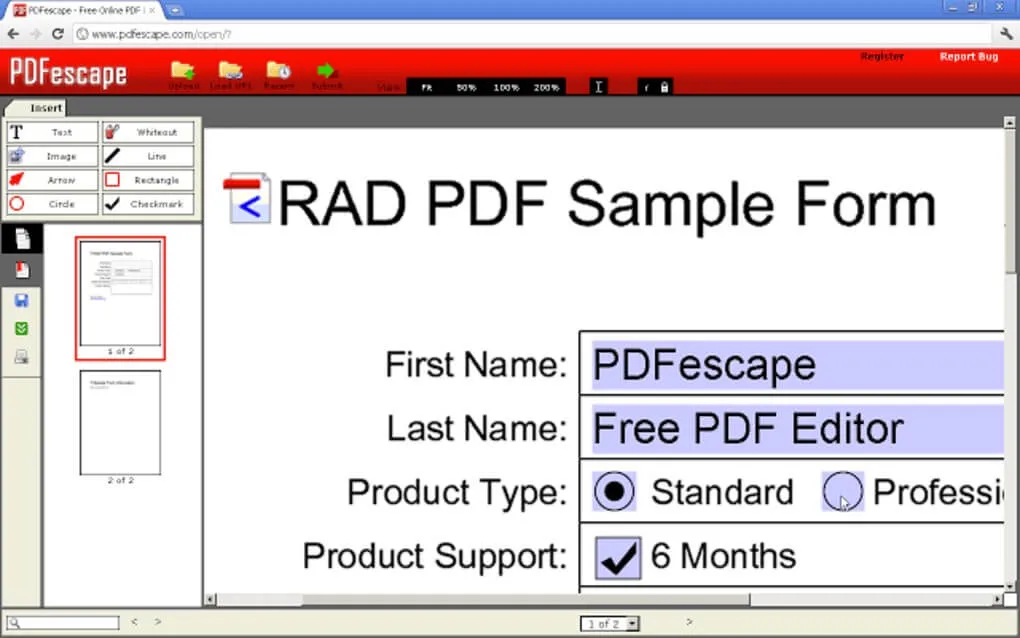
- Step 3: When you are satisfied with your work; click anywhere, except within the text box to finalize your changes. If you wish to continue editing, double-click again on the text.
- Step 4: If you wish to align the text box in a particular direction, drag the cursor to any corner of the text box. The cursor changes to a circular arrow. Hold the left mouse button to rotate the box, and release it to apply the changes.
- Step 5: Hold on to the left mouse button anywhere along the black lines to move the text box anywhere within the document. Select the 'Grid' tool from the left panel to format your document. The snap may sometimes not be visible, but it is always there. Move the text box slowly while keeping a watch over the red lines to check the alignment. Release the cursor when the placement satisfies you.
- Step 6: To resize your text box, hold the left mouse button along the circles surrounding the text box border.
- Step 7: You can format the text within each of the inserted text boxes by selecting appropriate tools from the 'Edit' toolbar.
- Step 8: For deleting a particular text box, start with erasing its contents using the 'Delete' or the 'Backspace' key. When you are done, tap any of the aforesaid keys again to see the text box get vanished.
When UPDF Is the Better Fit: Limits PDFescape Doesn’t Cover
PDFescape is a reasonable fit if your task is form filling, annotation, or adding text boxes on small files and you do not need to edit existing text/images or work offline across platforms. UPDF becomes the more practical alternative in four specific situations:
- You need to edit existing text or images, not just annotate on top. PDFescape Desktop can do this, but only on Windows and only with a subscription.
- You work across Mac, Windows, iOS, or Android. PDFescape desktop is Windows-only; UPDF covers all four.
- You need OCR on scanned PDFs. PDFescape’s free online version does not include OCR, and OCR availability on desktop plans needs confirmation.
- You need one license across devices rather than a Windows-only desktop subscription.
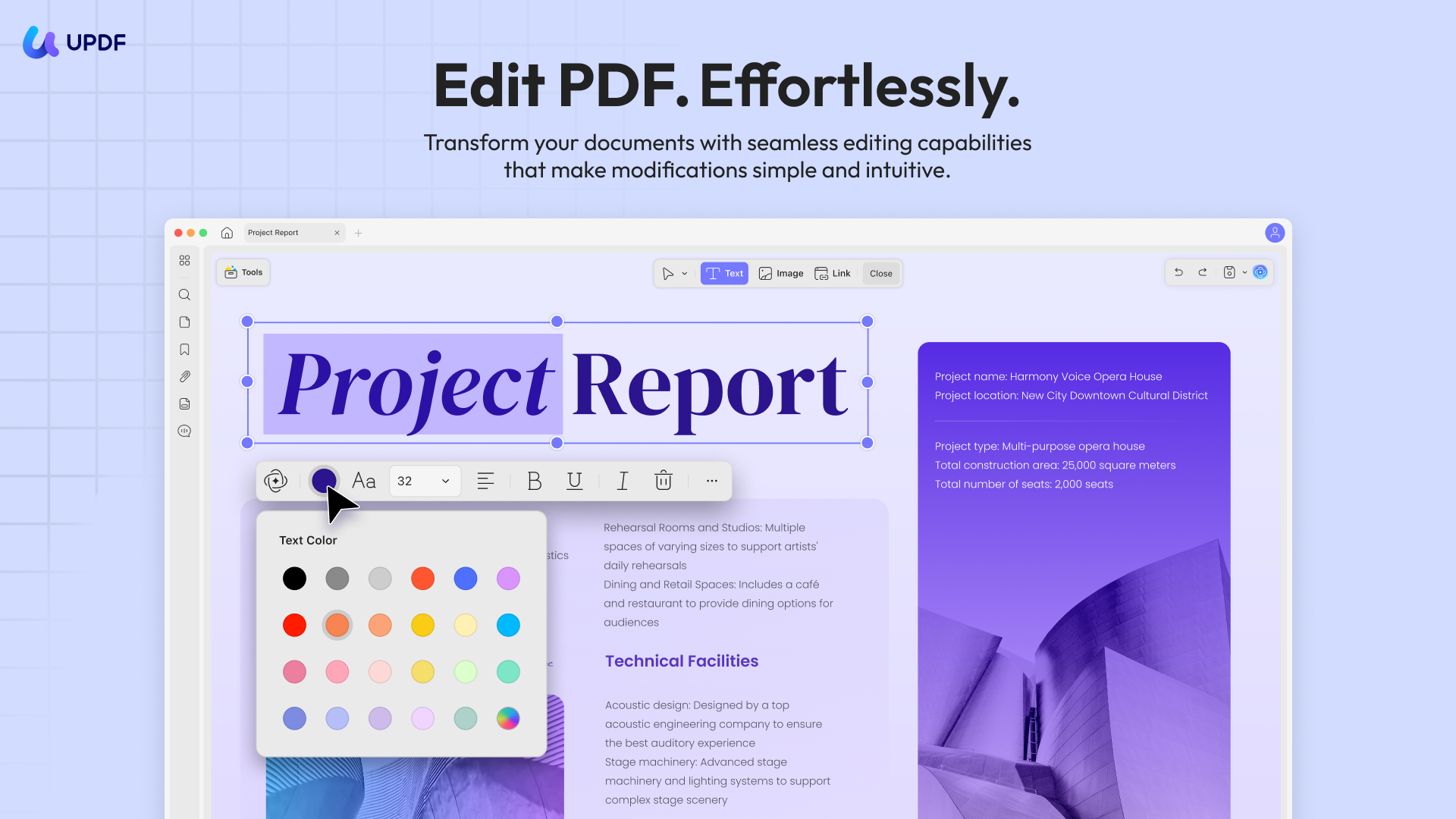
Underscoring the features of the tool, the UPDF editor is a trunk of top-class PDF editing attributes, all set to address any of the diverse PDF modification requirements in the simplest way possible. The tool can open up with a clean and interactive workspace with single-click editing features and high-tech performance that can limit PDF editing within a few minutes.
The following list encompasses some over-the-top features of the UPDF editor that make it a preferred PDF editing utility:
- True text and image editing: Edit existing text, change fonts/size/color, and crop, rotate, extract, or replace images — the editing PDFescape’s free online version does not offer, and its desktop version restricts to Windows.
- Cross-platform coverage: One UPDF license runs on Windows, Mac, iOS, and Android; PDFescape Desktop is Windows-only.
- OCR and broader conversion: OCR scanned PDFs and convert to Word, Excel, Text, XML, images, and specialized formats. PDFescape’s free online editor has no OCR; desktop conversion requires a paid plan.
- Organize, protect, and sign: Merge/split/extract pages, password-protect, and digitally sign. PDFescape gates merging, compression, and electronic signing behind the desktop subscription.
Why is UPDF the Best PDFescape Alternative?
The UPDF editor boasts of being the first globally introduced PDF editor tool, with a clean and intelligent interface, assuring you of quick and efficient task performance. The software additionally supports the high-quality conversion of PDF documents into a series of editable file formats.
| UPDF | PDFescape | |
|---|---|---|
| Free-tier edit capability | Free trial; paid lifetime/annual options | Cannot edit existing text/images online; desktop paid |
| Platform coverage | Windows / Mac / iOS / Android | Windows desktop only (paid); web for annotation |
| OCR | ✅ | ❌ free online; check desktop plan |
| File size limit | No 10MB/100-page cap on paid plans | 10MB / 100 pages free; 40MB paid online |
| Pricing model | Subscription or perpetual | Subscription only |
Steps for Editing PDF with PDFescape Editor Alternative
The section below explains the stepwise procedure to edit PDF files with the UPDF editor:
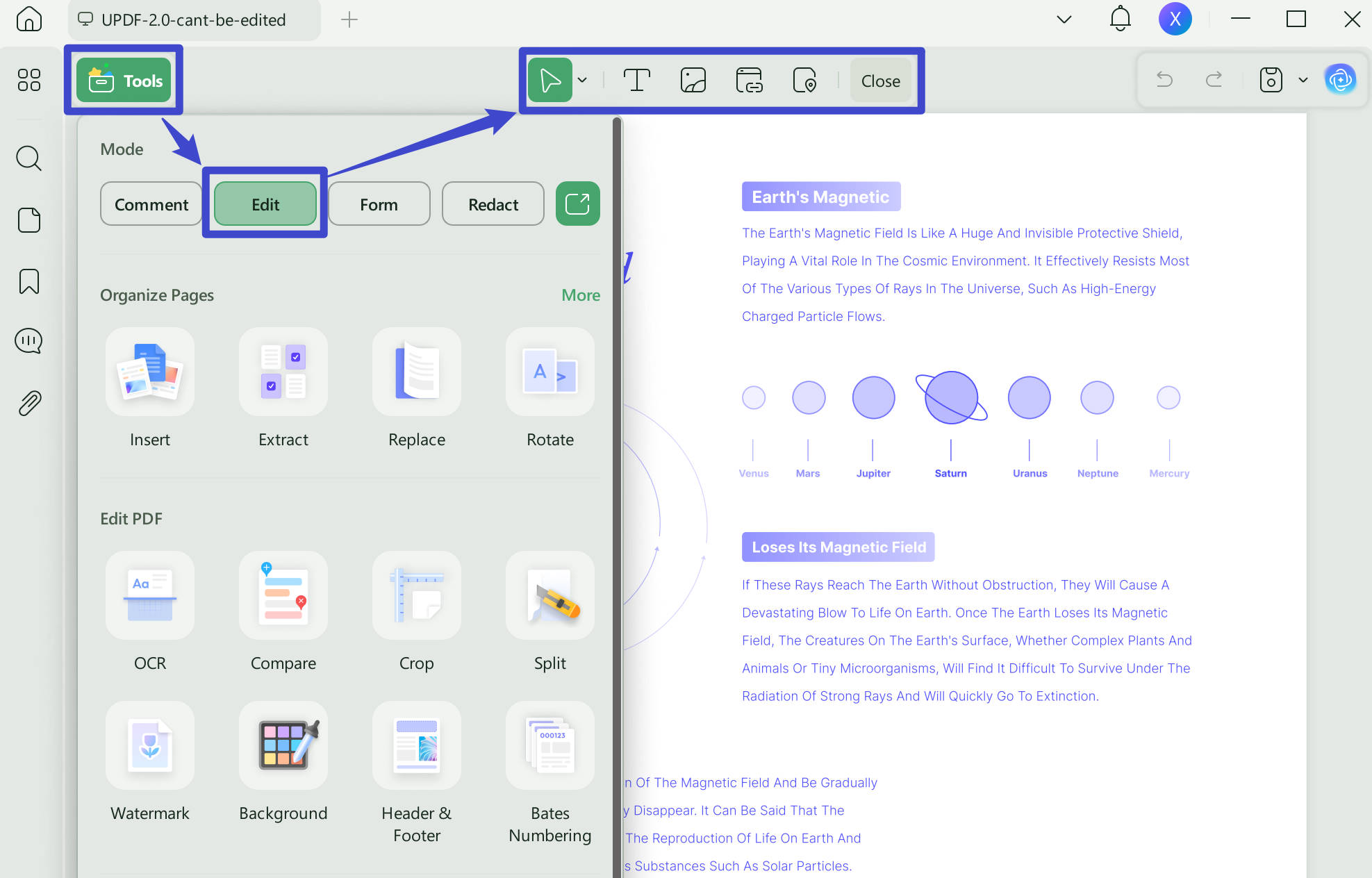
Step 1: Enter the Editing Mode
Start with a launch of the UPDF editor on your preferred device. On being welcomed with the opening interface of the software, enter into its editing mode by reaching to and clicking on the "Edit PDF" option in the menu bar at the left. This will enable the editing mode and you can now work with the editing toolbar.
Step 2: Editing the PDF Document
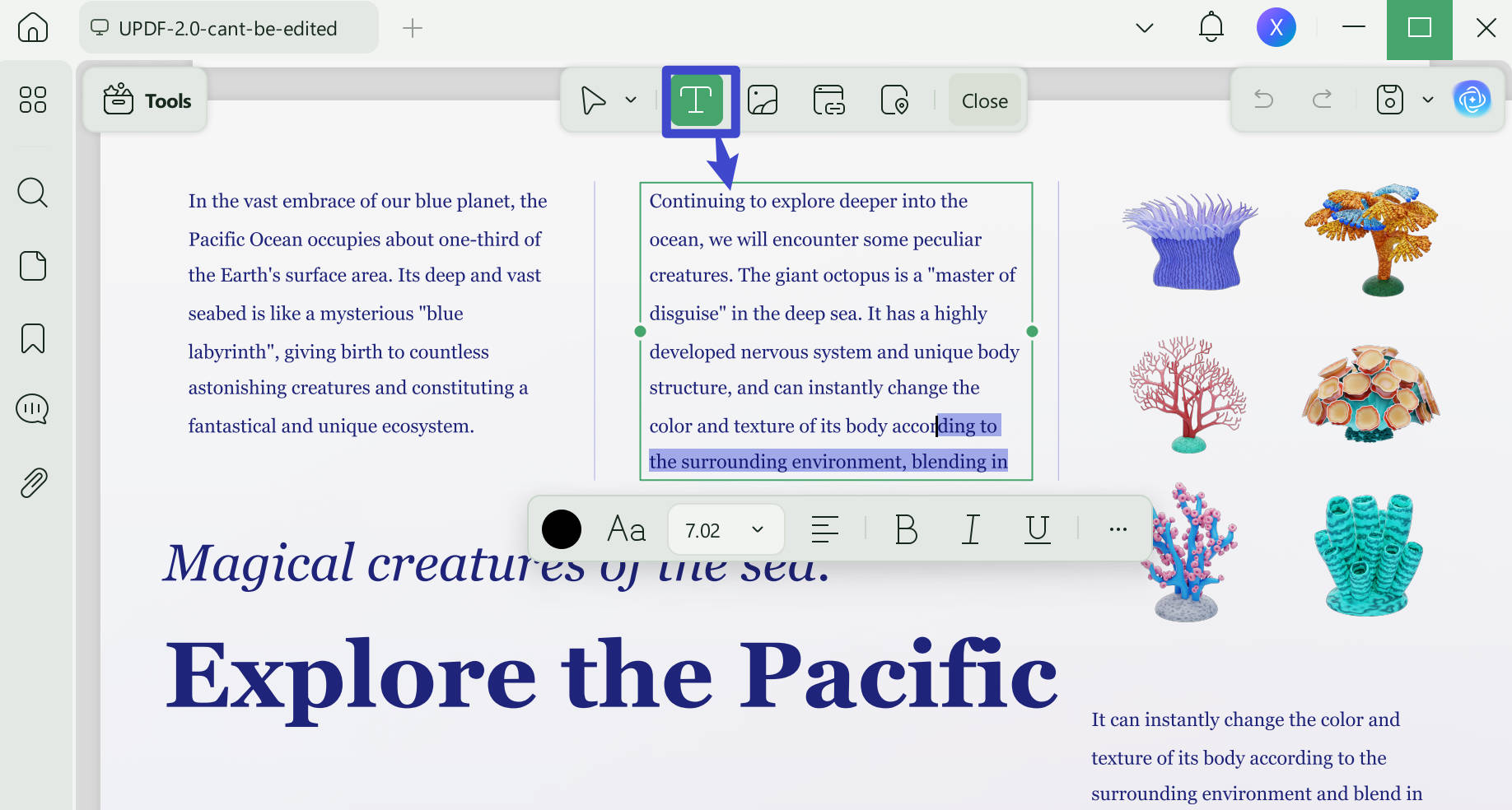
Tap any of the text on the PDF to let the purple-bordered editing box get opened. This is your PDF modification space, where you can introduce changes to the text as well as an image of the PDF file. The software gives you the comfort of editing a Word file throughout the process while allowing you to modify, delete or add paragraphs and text to your document. Using this editor, PDF modification is a task of hardly a few minutes.
You can further enhance your text by altering its font style and size, indentation and color, etc., in the editing toolbar, where all these formatting options are conveniently available.
Editing PDF images within a document is another amazing feature of the UPDF editor. If you wish to edit one in your PDF file, select an image in the document and try hands-on cropping, rotating, extracting, and replacing it as required.
Consider the edits you make most often when comparing the available tools. For a visual introduction to the tools, see the video on editing PDF content in UPDF below.
If you want to learn more about the editing features of this PDFescape editor alternative, please watch the video below.
FAQs
Can PDFescape free edit existing text or images?
No. The free online version only adds text boxes, annotations, and whiteout; it cannot truly edit existing text formatting or images. Full editing requires the paid Windows desktop app.
What are the free online limits?
Free online accepts PDFs up to 10 MB or 100 pages. It also has limited file storage; paid plans raise the size limit to 40 MB.
What’s the difference between Online and Desktop?
Online is browser-based and free for annotation/forms. Desktop is Windows-only and adds in-line text/image editing, merge, compress, convert, encrypt, and e-sign.
Does PDFescape have OCR?
No OCR in the free online version. OCR is not a clearly documented core feature of paid desktop plans; verify before upgrading if OCR is essential.
Does PDFescape work on Mac, iPhone, or Android?
Only via the browser-based online editor. The full desktop app is Windows-only; there is no native Mac or mobile full-editing app.
When should I choose UPDF instead?
Choose UPDF if you need OCR, Mac/iOS/Android support, one cross-platform license, or documented in-line editing without Windows-only limits.
Conclusion
If you only need to annotate, fill forms, or add text boxes on PDFs under 10MB/100 pages, PDFescape’s free online editor is a low-friction option.
If you need to edit existing text/images, OCR, merge/compress, or work on Mac/iOS/Android, the free online version will not cover it, and the Windows-only desktop upgrade may not fit your platform. In those cases, compare UPDF’s cross-platform editing and OCR capabilities before committing to a PDFescape subscription.
Windows • macOS • iOS • Android 100% secure






 Enrica Taylor
 Engelbert White