 UPDF
UPDF
 UPDF for Windows
 UPDF for Mac
 UPDF for iPhone/iPad
 UPDF for Android
 Nomostar
 UPDF AI Online
 UPDF Sign
 IvyCraft
 Edit PDF
 Annotate PDF
 Create PDF
 PDF Form
 Edit links
 Convert PDF
 OCR
OCR PDF to Word
 PDF to Image
 PDF to Excel
 Organize PDF
 Merge PDF
 Split PDF
 Crop PDF
 Rotate PDF
 Protect PDF
 Sign PDF
 Redact PDF
 Sanitize PDF
 Remove Security
 Read PDF
 UPDF Cloud
 Compress PDF
 Print PDF
 Batch Process
 About UPDF AI
 UPDF AI Solutions
 AI User Guide
 FAQ about UPDF AI
 Summarize PDF
 Translate PDF
 Chat with PDF
 Chat with AI
 Chat with image
 PDF to Mind Map
 Explain PDF
 PDF AI Tools
 Image AI Tools
 AI Chat Tools
 AI Writing Tools
 AI Study Tools
 AI Working Tools
 Other AI Tools
 AI Bookmark Generation
 AI Bookmark Summary
 AI Watermark Generation
 AI Background Generation
 AI Sticker Generation
 AI Stamp Generation
 AI Editing Suite
 UPDF Copilot
 AI Page Management
 AI Semantic Search
 PDF to Word
 PDF to Excel
 PDF to PowerPoint
 Enterprise Solution
 Enterprise Sign
 Enterprise AI
 Enterprise Plan
 Enterprise User Guide
 Enterprise Webinar
 IT
IT Education
 Construction
 Financial Service
 Healthcare
 Insurance
 Legal
Legal Manufacturing
 Government
 Researchers & PhDs
 Solopreneurs & Freelancers
 Lawyers & Legal Professionals
 Real Estate Agents & Brokers
 Education Solution
 Customer Stories
 User Guide
 UPDF Tricks
 FAQs
FAQs UPDF Reviews
 Download Center
 Blog
Blog Newsroom
 Tech Spec
 Updates
 UPDF vs. Adobe Acrobat
 UPDF vs. Foxit
 UPDF vs. PDF Expert

Weava is particularly useful for web-based research and collecting information from websites and PDFs. It combines highlighting, notes, folders, cloud synchronization, and research organization in one workflow. Its free plan includes unlimited highlights and notes, while Premium adds features such as unlimited storage, unlimited highlight colors, unlimited subfolders, and collaboration.
However, Weava is not designed to replace a full-featured PDF editor. If your primary goal is to edit PDF content, draw detailed markup, manage pages, perform OCR, sign documents, or work extensively with local PDFs, a dedicated PDF application such as UPDF may be a better fit.
Windows • macOS • iOS • Android 100% secure
This guide reviews Weava's current features, pricing, limitations, real-world use cases, and alternatives so you can decide which tool fits your workflow.
Part 1. What Is Weava Highlighter and How Does It Work?
Weava Highlighter is a browser‑based research & annotation tool for web pages and PDFs. Unlike basic PDF highlighters that leave marks only within original files, it centralizes highlights and notes in a cloud workspace, where users can sort entries into folders, revisit source materials, and auto‑generate citations.
It serves students, academic researchers, business analysts and content creators handling multi‑source research: thesis writing, literature reviews, competitor analysis and source collection. The Chrome extension has ~200,000 users with a 4.0‑star rating from over 2,700 reviews.
Step-by-step Guide to Using Weava Highlighter
Chrome / Edge / Brave: Visit the Chrome Web Store, search "Weava Highlighter," and click "Add to Chrome." Brave users can install it the same way since Brave is Chromium-based.
Firefox: Weava is also available for Firefox (V2 version).
iOS: Available as a mobile app.
The following steps should be abided by to enable the Weava Highlighter extension on your Google Chrome:
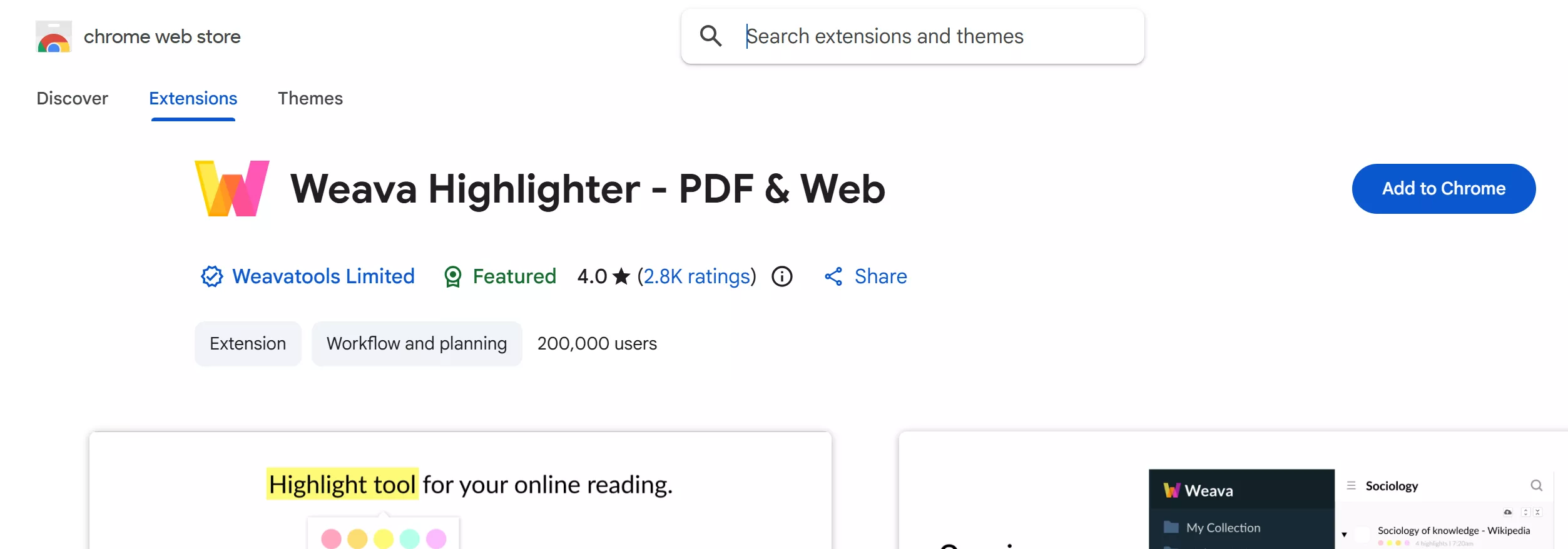
Step 1: Access the Weava Chrome extension from the Google Chrome Web Store. Now, click on the "Add to Chrome" option to easily access the extension from your Google.
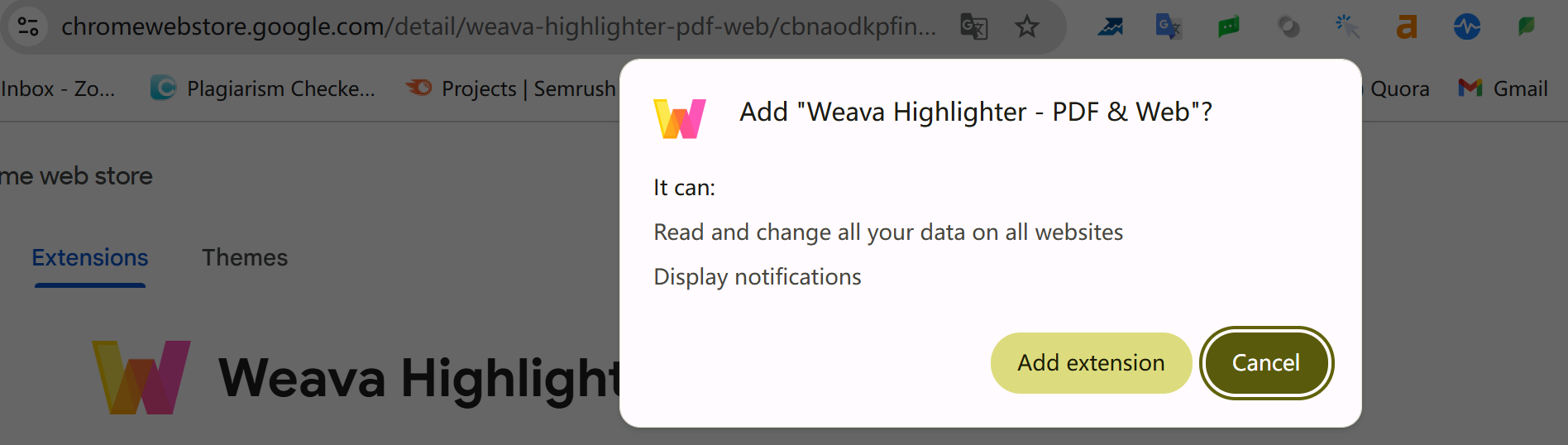
Step 2: A pop-up message will appear on the screen. Allow the process by clicking on "Add extension." The extension will start downloading.
Step 3: After being downloaded, it will appear on the "Extensions" icon in Chrome. Click on the icon and pin the Weava Chrome extension.
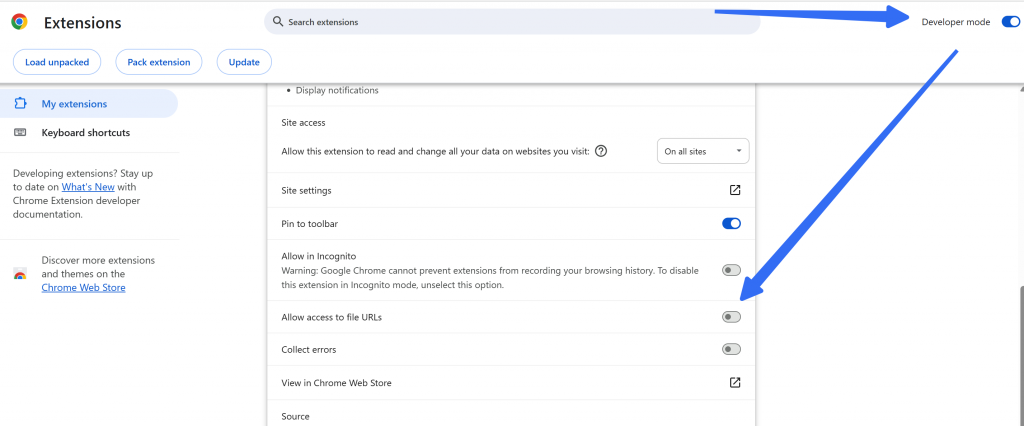
Step 4: Right-click on the Weava Highlighter extension. Click the three-dot icon and press the "Manage Extension" option. Now, enable the "Allow access to file URLs" option toggle.
With the Weava extension, users can both highlight PDFs and websites to make their important notes readable. Here, we will discuss the steps involved in highlighting PDFs and websites through Weava:
Step 1: After you enable the Weava Highlighter Chrome extension on your Chrome, sign-up for your account and open any website on Google.
Step 2: Select the content you want to highlight; it will show different colors that you can use to highlight the selected content.
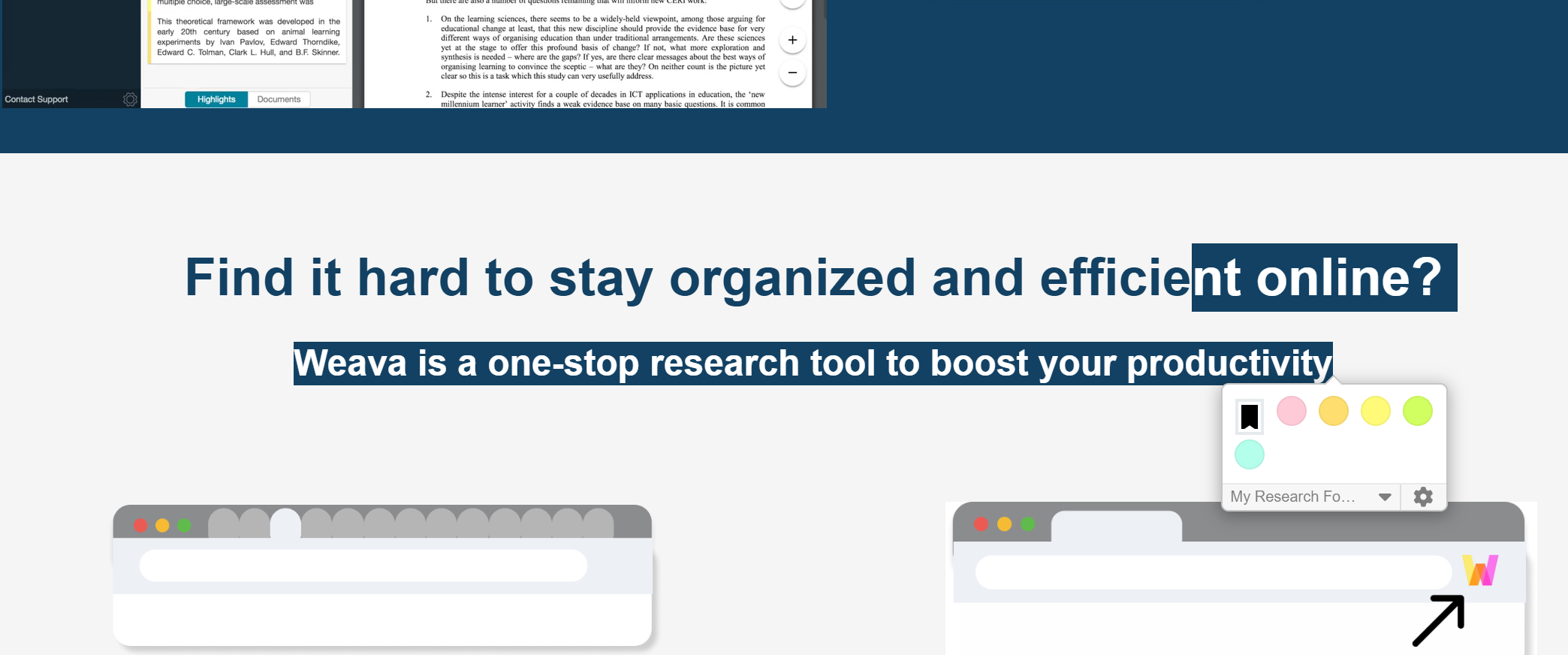
Step 3: You can also click on the "Settings" icon to choose other colors. You can also add notes in addition. There is a folder that will save the highlighted subjects. This way, you can specify your collection folder accordingly.
After logging in to your Weava account, open any PDF in Google Chrome. When you select the content, it will allow you to select colors for highlighting the content.
You can also choose additional colors by clicking on "Settings" and adding notes to your PDF. The "My Folder" option enables you to save the highlighted material that you can specify in the folder in the future.
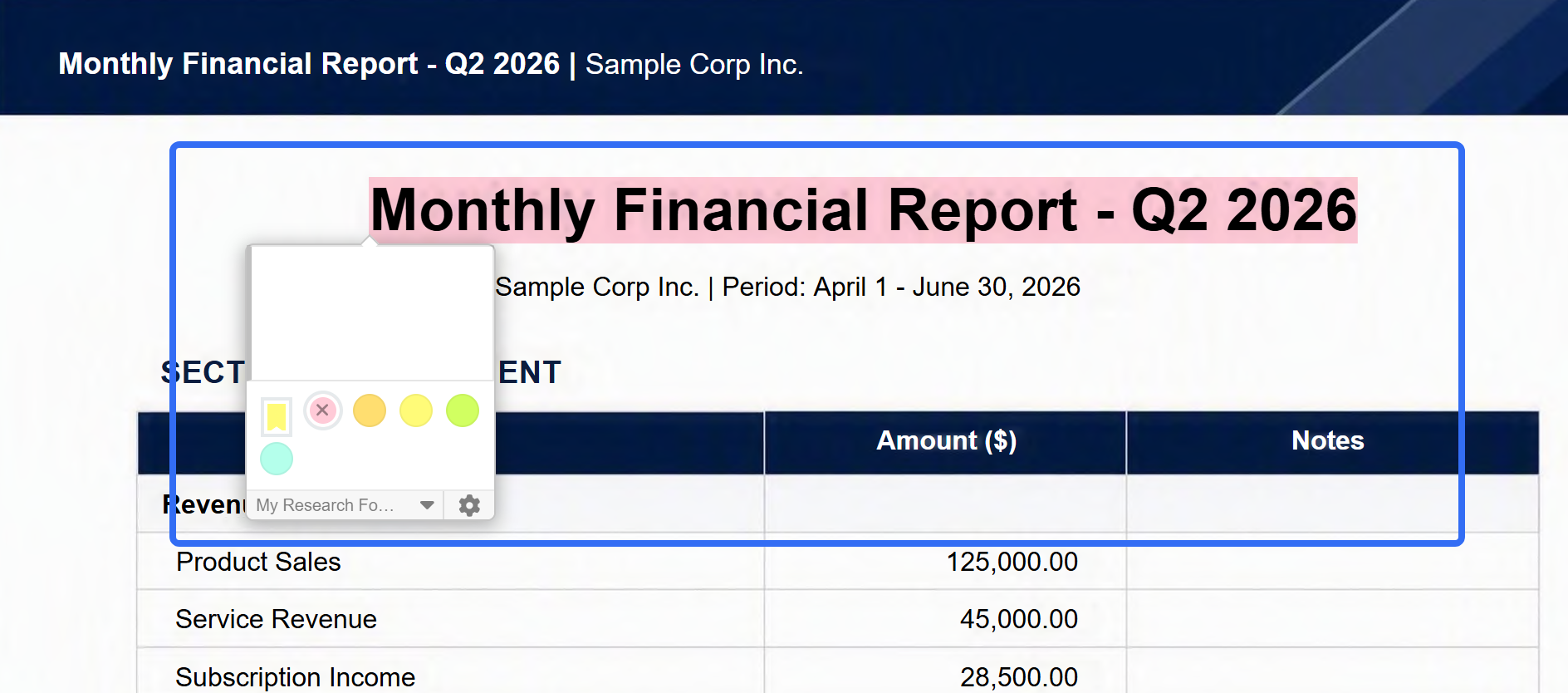
There are the steps to highlight PDFs in Weava. Moreover, if you want to look for other online PDF highlighters, you can also check some easy-to-use PDF highlighters online for free here.
Weava excels at gathering and structuring scattered web and PDF research. It does not deliver full PDF editing capabilities such as page re‑ordering, OCR, or digital signing — these tasks require a dedicated PDF editor in Part 4.
Part 2. How Much Does Weava Highlighter Cost?
Weava currently offers a Free plan and a Premium plan.
| Feature | Free | Premium |
|---|---|---|
| Price | $0/month | $3.99/month |
| Highlights | Unlimited | Unlimited |
| Notes | Unlimited | Unlimited |
| Device sync | Unlimited devices | Unlimited devices |
| Storage | 100 MB | Unlimited |
| Highlight colors | Basic | Unlimited colors |
| Subfolders | Limited | Unlimited |
| Collaboration | — | Yes |
| Image saving | — | Yes |
| Support | Basic email support | Priority support |
Weava's official pricing page currently lists Premium at $3.99/month, compared with the displayed regular price of $7.99/month. The Free plan includes unlimited highlights and notes but limits storage to 100 MB.
Is Weava Really Free?
Yes, but "free" does not mean unlimited storage.
The Free plan gives you:
- Unlimited highlights
- Unlimited notes
- Unlimited device synchronization
But storage is limited to 100 MB.
This distinction matters if you plan to save a large research library or frequently store PDFs and images.
If your research collection grows beyond the free storage allowance, you may need Premium.
Part 3: What Are the Limitations of Weava Highlighter?
Weava delivers powerful research‑oriented highlighting workflows, yet it shows notable drawbacks when used as a primary PDF annotation tool.
1. Built for research, not full‑scale PDF editing
Its core workflow revolves around Highlight → Note → Organize → Research, while standard PDF editors follow Annotate → Edit → Organize → Process.
Weava cannot perform typical PDF‑editing operations:
- Modify original PDF text, resize/replace images
- Add shapes, freehand drawings, stamps, or erase existing annotations
- Sign files, rearrange, crop or split PDF pages
- Run OCR on scanned documents, apply document‑level security protection
Takeaway: Choose Weava for research collection; pick a dedicated PDF editor - UPDF for document modification and management.
Windows • macOS • iOS • Android 100% secure
2. Inconsistent compatibility across websites
Though functional for most web pages, conflicting site‑level code can break highlighting.
Troubles may arise not from your browser or extension, but from the target website itself. This risk grows when researching across many diverse web sources.
3. Broken on‑page highlights after URL changes
Highlights are tied to the original page URL.
If a site updates its URL, saved notes remain in the Weava dashboard, but inline visual highlights disappear. You must manually edit and update the source URL to restore display.
Common risk scenarios: dynamic websites, relocated online articles, search‑result pages.
4. Partial support for popular learning platforms
Direct in‑platform PDF highlighting does not work inside Google Classroom, Blackboard, and Canvas.
Workaround: download target PDFs, then upload or open them within Weava. This mainly impacts student users.
5. Free‑tier storage cap
The free plan allows unlimited highlights but enforces a 100 MB storage limit. Short web articles rarely hit this cap; saving many PDFs, images and large source files will push users toward Premium for unlimited storage.
6. Browser‑locked workflow
Being browser‑native is convenient for online research, yet inefficient for bulk local PDF work. Managing dozens of local PDFs for annotation, editing and export is smoother with a desktop PDF editor, avoiding constant switching between browser tabs, extensions and cloud storage.
Decision check: Are you gathering research materials, or processing PDF documents? This determines whether Weava fits your workflow.
7. Cloud storage privacy considerations
Cloud sync enables cross‑device access, yet it is not suitable for all file types.
| Document Type | Cloud‑based Weava | Suggestion |
|---|---|---|
| Public research, academic papers, public reports | Well‑suited | Safe to use |
| Internal business documents | Proceed with caution | Follow company data policies |
| Confidential contracts, sensitive financial records | Not ideal | Prefer local‑only desktop PDF tools |
Cloud storage is not inherently unsafe. Always evaluate whether your document content permits cloud upload before importing files into Weava.
Part 4. Weava vs. PDF Editor: What's the Difference?
Weava is built for gathering and organizing research information. Dedicated PDF editors focus on modifying and managing PDF files.
A Weava alternative makes more sense when your primary task changes from research collection to document processing.
UPDF delivers a full‑featured PDF toolkit: highlights, underline, strikethrough, squiggly marks, sticky notes, text boxes, pencil, eraser, shapes, stamps and stickers. It also covers text/image editing, OCR, page arrangement, format conversion, document protection and batch processing, with native desktop‑first support.
This PDF Annotator allows you to view, edit, annotate, and organize the pages of PDF. You can add, delete, or edit texts in the PDF. Moreover, you can also mark, erase, highlight, and underline the content in PDF to make it readable and attractive for other readers.
Windows • macOS • iOS • Android 100% secure
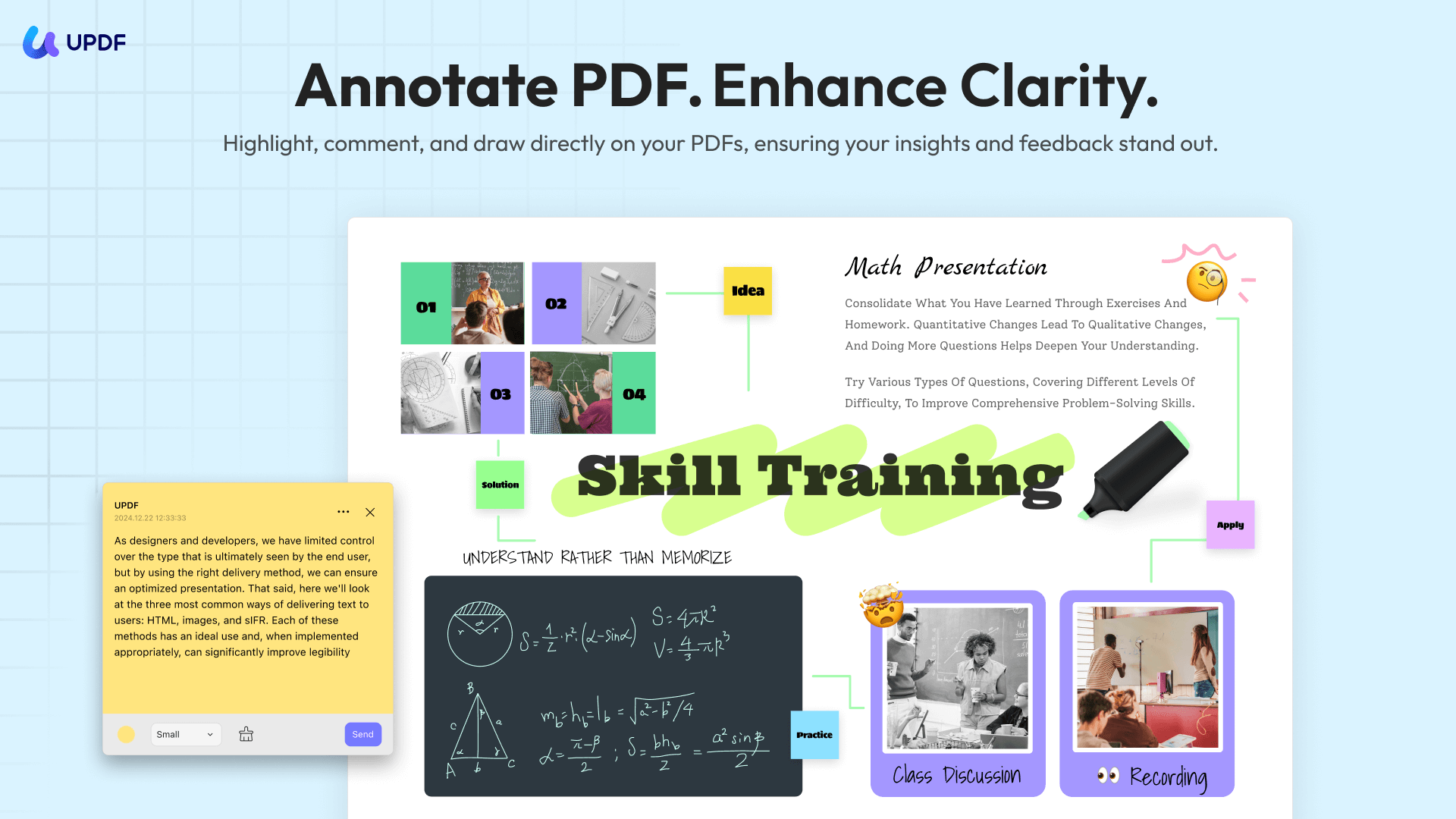
UPDF also offers to add sticky notes in the PDF to mention additional information for the readers. The interface of UPDF is also attractive and easy to use.
As the tool is offline, your work is completely secure with UPDF, as no one will have access to your content. It is compatible with Windows, Mac, iOS, and Android systems.
Compare UPDF with Weava
| UPDF | Weava | |
| Marker | ||
| Underline | ||
| Eraser | ||
| Platforms | Desktop: Win/Mac/iOS/Android | Online |
| Security | All the files will be stored on your local storage, and you don't need to upload any documents to the internet. | You have to upload your documents to the website. |
Windows • macOS • iOS • Android 100% secure
How to Highlight PDFs with UPDF
Step 1: Open your PDF — Launch UPDF and open any PDF file from your computer.
Step 2: Enter Comment mode — Click the "Comment" icon in the left sidebar.
Step 3: Choose your highlighting tool — Select from text highlight, area highlight, underline, strikethrough, or squiggly.
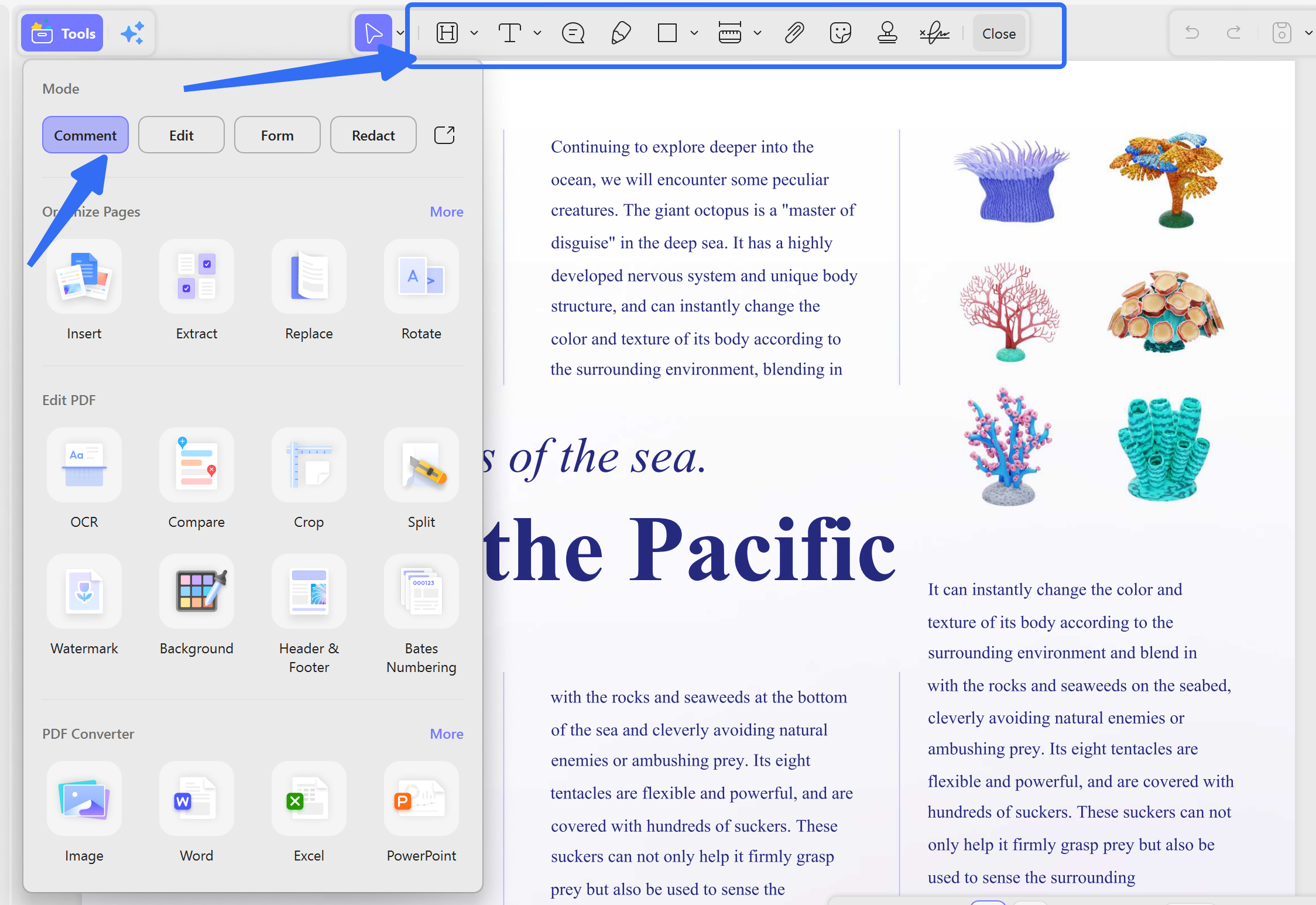
Step 4: Mark your content — Drag to select text for highlighting, or use the area highlight tool for images and diagrams.
Step 5: Add notes (optional) — Add sticky notes or text comments alongside your highlights.
Step 6: Save — All annotations are saved automatically to your local file — no cloud upload required.
Part 5: Useful Tips for Weava Highlighter
Weava Highlighter is a very useful workspace for students and teachers that allow them to highlight, organize, and save their work easily. There are useful tips for users to understand Weava in detail:
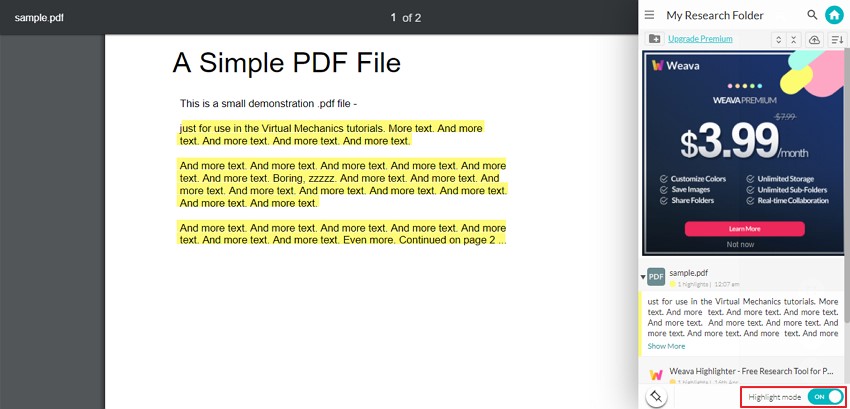
Tip 1: How Can I Turn the Weava Highlighter OFF
To turn the Weava highlighter off for any reason, tap on the cyan toggle button situated at the bottom-right side of the extension sidebar. Now, disable it. Moreover, you can also press "Alt+S" from the keyboard to disable the highlighter quickly.
Tip 2: How to Create a Collection Folder in Weava
If you want to create a collection folder, press the "Weava" icon shown on the right side of Google. It will pop up on the Weava sidebar. Now, click on the "Menu" button to see your collection list. Write any collection title of your choice.
You can edit the collection folder to add color tags for associating various highlight colors in different categories.
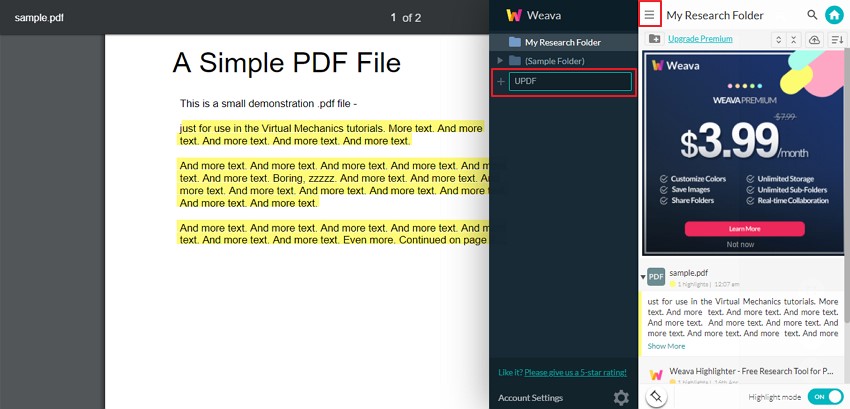
Tip 3: How to Add Notes for Highlights in Weava extension
With Weava, you can also annotate your highlights. Do this by pressing on the highlighter text and writing the additional content in the "Take a note" text box. Now, wait and don't close the highlight until the "Saving" message changes to "Saved."
Tip 4: How to Access and Use the Weava Dashboard
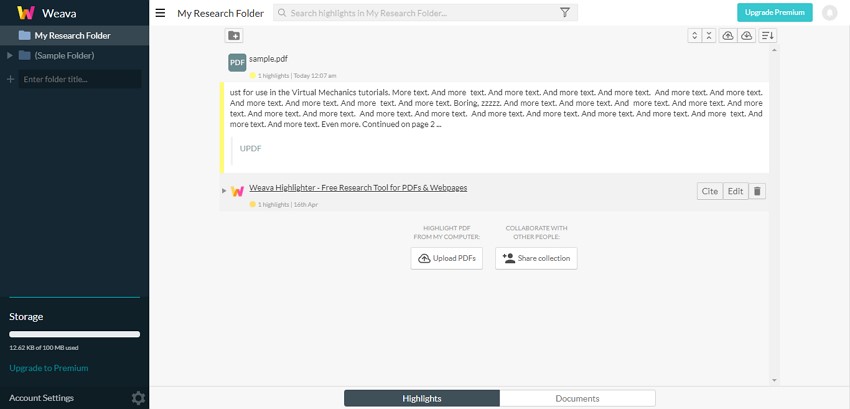
If you want to organize the highlights and want to access the Weava Highlighter dashboard, Press the "Home" button from the chrome extension to reach the web dashboard. Click on any highlight from your dashboard. The original PDF or website will appear in the Weava workspace. Now, you can review the highlighted content or additionally highlight the parts of the material.
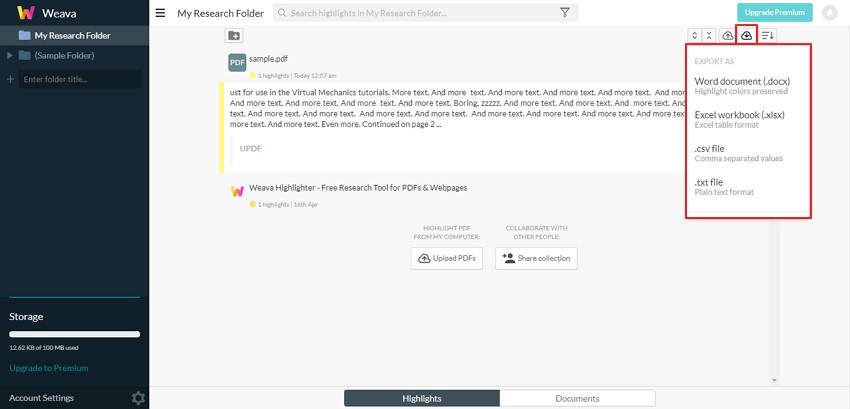
Tip 5: How do I Export Highlighted Content
After you have highlighted the desired content, click on the Weava extension and click on the "Home" icon. Now, click on the specific content from the dashboard. You can export the highlighted work on your computer by clicking on the "Export" button. Now, transfer the work into Microsoft Word, Excel, CSV or Text easily.
Conclusion
The article suggests two tools for highlighting and annotating the content in PDF. Weava Highlighter is a powerful tool that highlights both websites and PDFs, while UPDF can edit and annotate PDFs in offline mode.
If you want to make your notes more understandable and efficient, you should use these tools and make your life easy. The article differentiates between the features offered by both tools and also highlights useful tips for Weava users.
Windows • macOS • iOS • Android 100% secure







 Enola Miller

 Enola Davis
 Delia Meyer