 UPDF
UPDF
 UPDF for Windows
 UPDF for Mac
 UPDF for iPhone/iPad
 UPDF for Android
 Nomostar
 UPDF AI Online
 UPDF Sign
 IvyCraft
 Edit PDF
 Annotate PDF
 Create PDF
 PDF Form
 Edit links
 Convert PDF
 OCR
OCR PDF to Word
 PDF to Image
 PDF to Excel
 Organize PDF
 Merge PDF
 Split PDF
 Crop PDF
 Rotate PDF
 Protect PDF
 Sign PDF
 Redact PDF
 Sanitize PDF
 Remove Security
 Read PDF
 UPDF Cloud
 Compress PDF
 Print PDF
 Batch Process
 About UPDF AI
 UPDF AI Solutions
 AI User Guide
 FAQ about UPDF AI
 Summarize PDF
 Translate PDF
 Chat with PDF
 Chat with AI
 Chat with image
 PDF to Mind Map
 Explain PDF
 PDF AI Tools
 Image AI Tools
 AI Chat Tools
 AI Writing Tools
 AI Study Tools
 AI Working Tools
 Other AI Tools
 AI Bookmark Generation
 AI Bookmark Summary
 AI Watermark Generation
 AI Background Generation
 AI Sticker Generation
 AI Stamp Generation
 AI Editing Suite
 UPDF Copilot
 AI Page Management
 AI Semantic Search
 PDF to Word
 PDF to Excel
 PDF to PowerPoint
 Enterprise Solution
 Enterprise Sign
 Enterprise AI
 Enterprise Plan
 Enterprise User Guide
 Enterprise Webinar
 Banking
 Healthcare
 Insurance
 Legal
Legal Manufacturing
 Government
 Education Solution
 Customer Stories
 User Guide
 UPDF Tricks
 FAQs
FAQs UPDF Reviews
 Download Center
 Blog
Blog Newsroom
 Tech Spec
 Updates
 UPDF vs. Adobe Acrobat
 UPDF vs. Foxit
 UPDF vs. PDF Expert

What is OCR software used for? It is used to convert photos or scanned paper documents into editable documents. After converting, you can use a PDF or word processing application to edit the scanned PDF.
OCR accuracy is decided before you pick a tool. A 300 DPI, straight, high-contrast scan will read cleanly in almost any engine here; a crooked phone photo at 96 DPI will fail in all of them. If your source is poor, deskew and boost contrast first — or use an AI engine that tolerates noise — rather than blaming the software.
This is a selection guide, not a tutorial. Each tool below is judged on the criteria that actually separate OCR engines, with a clear Best for / Skip if line so you can self-route.
Part 1. How We Judged These OCR Tools
Six criteria decide whether an OCR tool is worth your time. Every tool below is rated against the same list:
- Recognition accuracy — clean printed text is easy; the test is handwriting, low-resolution scans, and mixed layouts.
- Language coverage — how many scripts it recognizes, and whether it handles multiple languages in one document.
- Output formats — searchable PDF only, or fully editable Word/Excel/PowerPoint with layout preserved.
- Batch processing — can it OCR dozens of files at once, or one at a time.
- Privacy / offline — does the file stay on your device, or upload to a server. Decisive for contracts, IDs, and medical records.
- Price model — subscription, one-time, or free, and where the free tier breaks.
Part 2. OCR Data Extraction Software Comparison at a Glance
The table states each tool's real limits, including UPDF's, so you can match the tool to the task before reading the detail.
| OCR Tools | Accuracy | Languages | Output | Batch | Main limitation |
| UPDF | High | 38 OCR languages; supports multi-language OCR | Searchable/editable PDF; Word, Excel, PowerPoint | Yes | Free tier/trial limits apply: 5 free OCR uses, trial watermark on export |
| Adobe Acrobat Pro | High | 15 OCR languages | Searchable/editable PDF; Word, Excel, PowerPoint | Yes | Subscription/paid Pro features; heavier and pricey |
| Foxit PDF Editor | High | 41 OCR languages | Searchable/editable PDF; Word, Excel, PowerPoint | Yes (Pro) | Paid; advanced OCR and batch features vary by plan/platform |
| Nitro PDF | Good | 19 OCR languages on Mac: 14 built-in + 5 additional language packs | Searchable/editable PDF; Word, Excel, PowerPoint | Yes | OCR is a paid/pro feature; OCR language support and feature depth vary by platform |
| Soda PDF (WIN) | Moderate | Multiple | Searchable/editable PDF; Word, Excel, PowerPoint | Limited | Not available for macOS; Access to the OCR feature requires a paid Soda PDF plan |
| UPDF Online AI Assistant | High | Global Languages | Word, Excel, PowerPoint; automatic OCR for scanned PDFs | No | Free tier/trial limits apply |
| Google Docs | Moderate | 34 OCR languages | Google Doc; can download as Word | No | No direct Excel/PowerPoint OCR export; recommended file size <=2 MB; formatting may break |
| OnlineOCR | Moderate | 46 OCR languages | Word, Excel, text | No | No PowerPoint export; free guest limit is 15 MB |
| Convertio | Moderate | 76 OCR languages | Word, Excel, PowerPoint and other formats via converter/OCR output selection | Ordinary conversion supports multi-file limits; OCR has separate page-based limits | Free tier/trial limits apply: 10 available pages |
Always confirm current pricing on each vendor's page before buying.
Part 3. Best PDF OCR Software (Offline&Desktop)
Desktop tools process files locally, which matters when the document is sensitive. These five cover the range from full PDF suites to AI-enhanced recognition.
1. UPDF — AI-Powered OCR Scanning Software with All-Round Capabilities
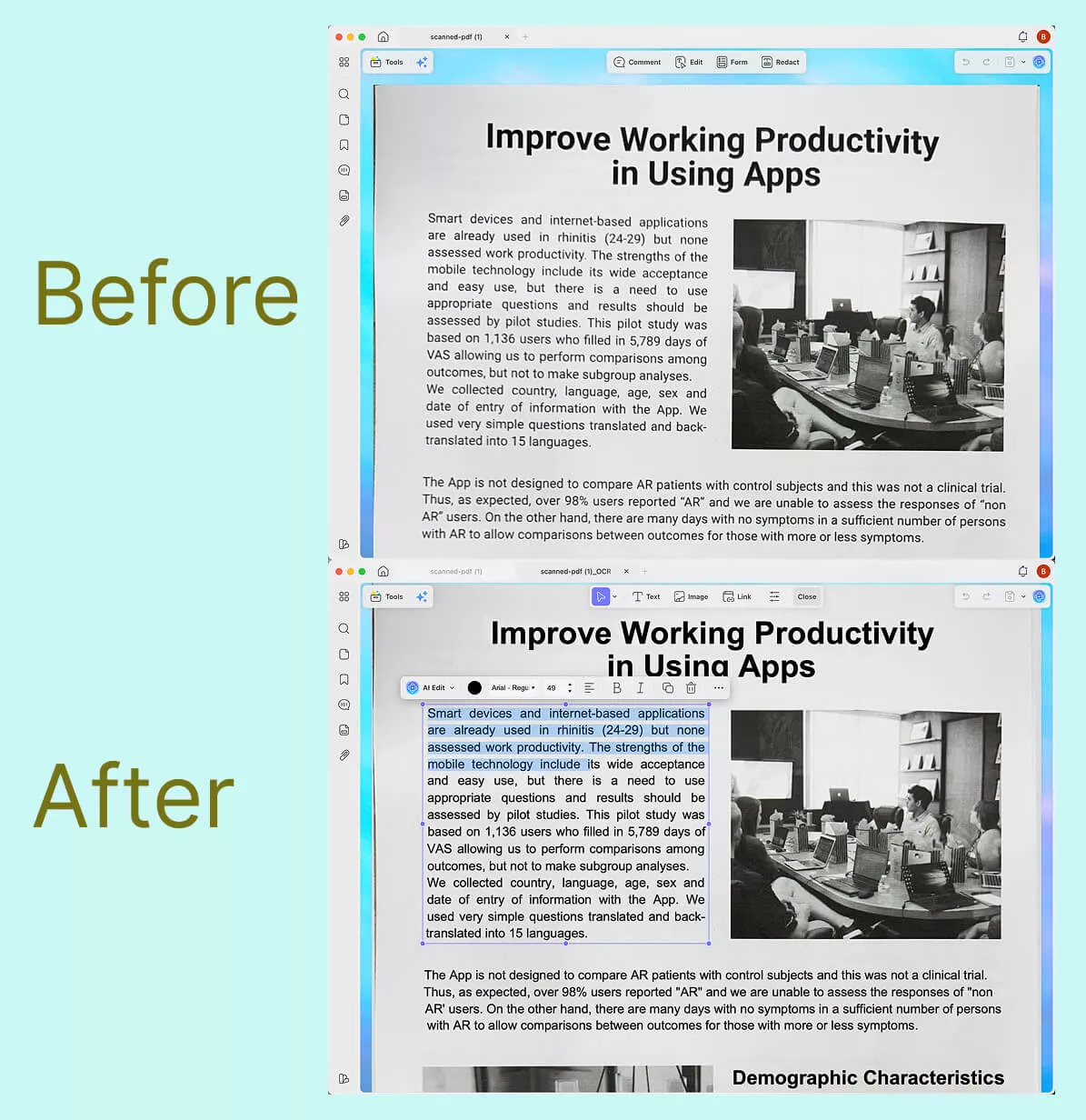
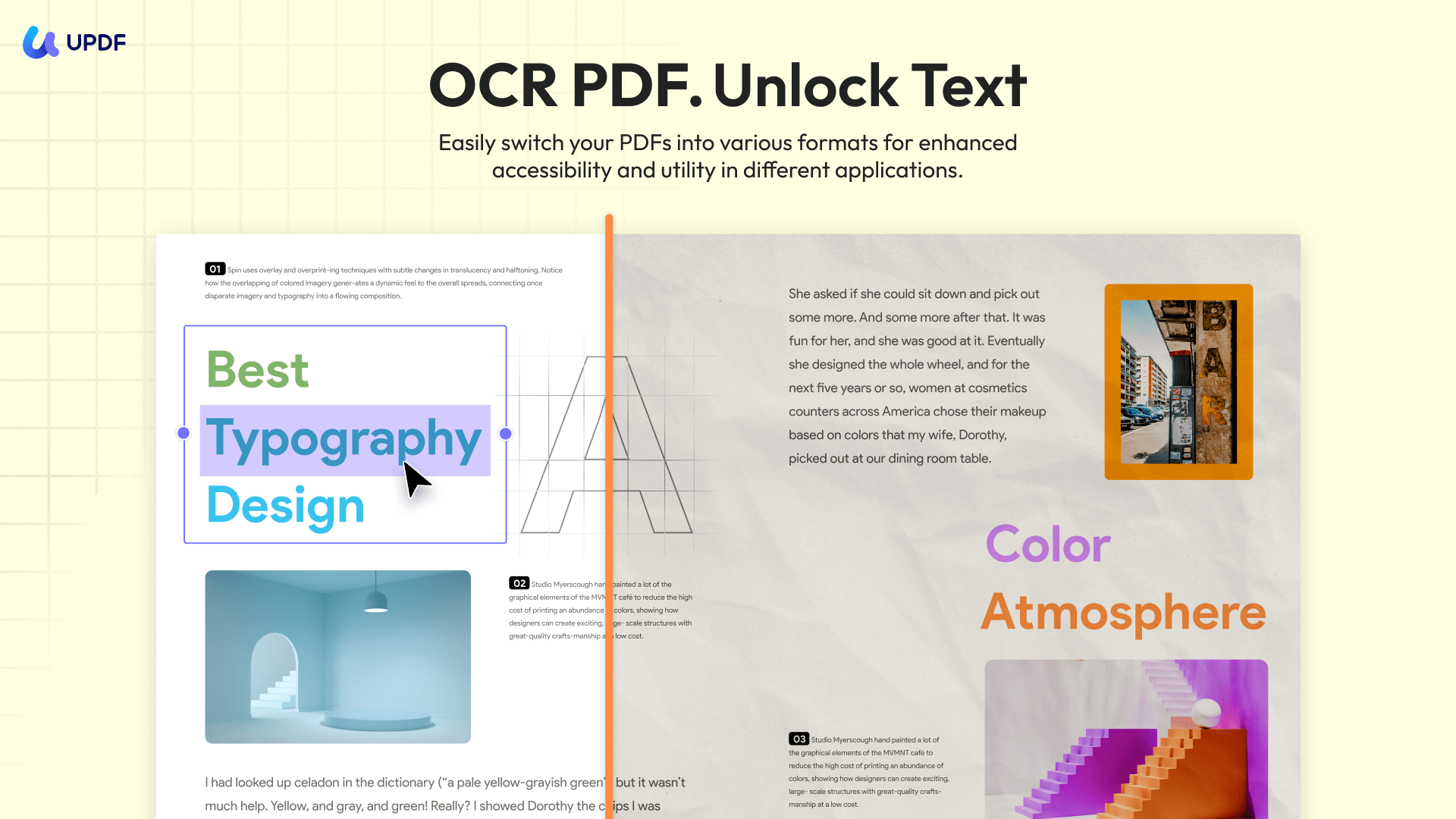
UPDF pairs a standard OCR engine (38 languages, multi-language documents, and three output modes — editable PDF, text-and-pictures-only, or searchable PDF) with an AI fallback for scans that defeat normal OCR. When a page is blurry or handwritten, UPDF's AI image-to-text extraction reads it where a conventional engine would return garbage. It also runs Batch OCR, and can OCR while converting straight to Word, Excel, or PowerPoint in one pass — no separate pre-processing step.
Where it stops being free: the free tier adds a watermark on export and caps OCR/AI uses (5 free OCR uses; 100 free AI uses), so production work needs Pro. That's the honest trade — but at $49.99/year or $79.99 once for all four platforms, it undercuts the subscription-only suites below.
Best for:
- Anyone who wants offline OCR plus an AI safety net for messy or handwritten scans, across desktop and mobile on one license.
Skip if:
- You only ever need to grab a few lines of text from one image and never touch a PDF — a free web tool is enough.
Download UPDF for free to test OCR accuracy on your own scan — installation is free, and Pro features unlock when you need watermark-free export or batch jobs.
Windows • macOS • iOS • Android 100% secure
>> Run OCR in UPDF: convert a scanned PDF to editable • OCR a PDF (feature page) • make a PDF clearer • pdf to word converter ocr
To learn more about how to OCR a PDF, watch the below video guide.
2. Adobe Acrobat Pro — The Best OCR Tool Defining the Enterprise Standard
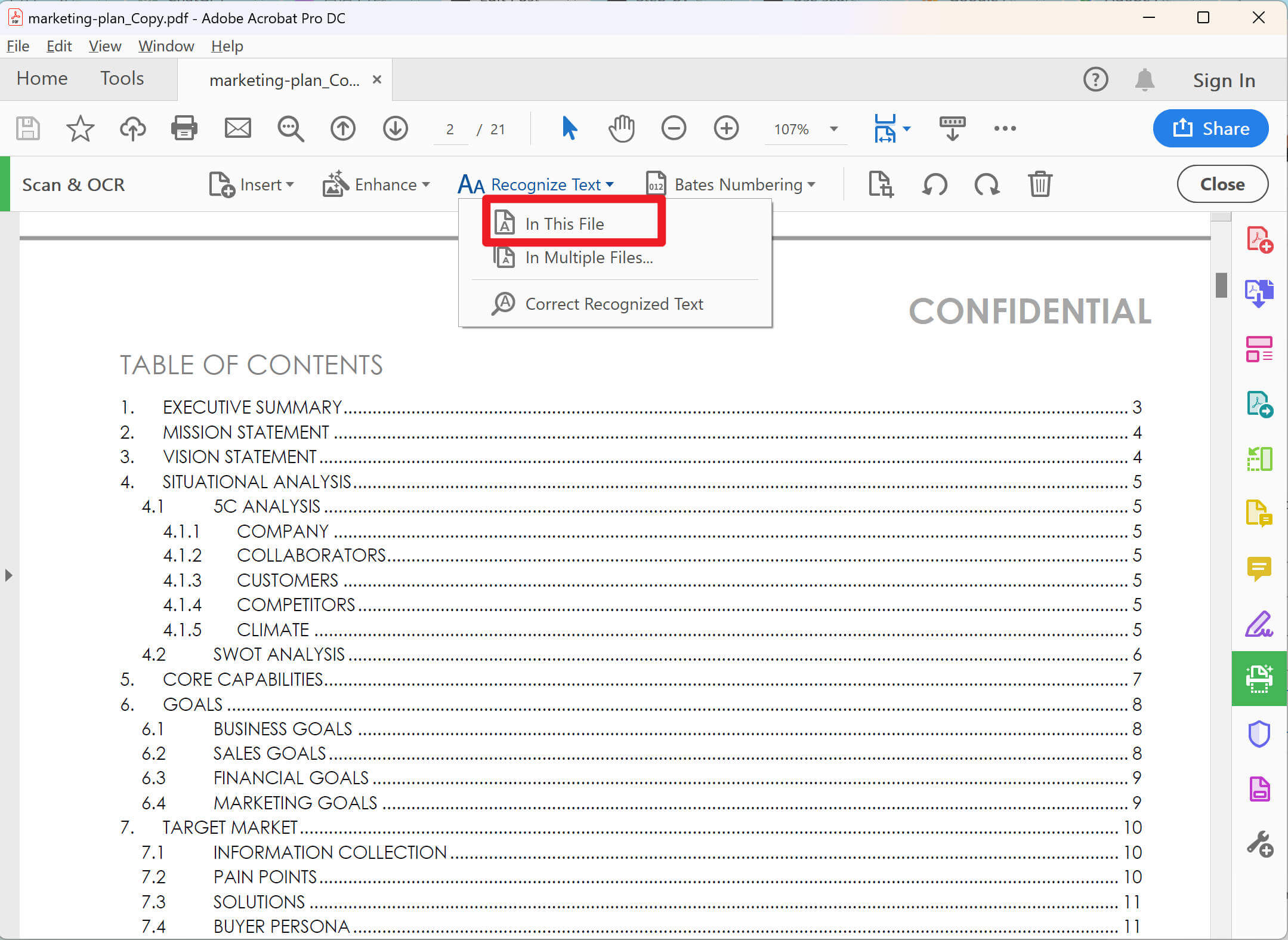
Adobe Acrobat Pro remains the reference-grade OCR suite: reliable recognition, strong layout retention, and deep document tooling (compare, redact, sign, cloud). For teams already inside Adobe's ecosystem, it's the safe default.
The cost is the catch. Acrobat Pro is subscription-only at $239.88/year (prepaid annual) — Adobe discontinued perpetual licensing after the 2025 version. It's also the heaviest app in this list and has a learning curve for occasional users.
Best for:
- Organizations standardized on Adobe that need maximum compatibility and aren't price-sensitive.
Skip if:
- You want a one-time purchase or a lightweight tool — Adobe offers neither
3. Foxit PDF Editor — Office-Style Interface
Foxit PDF Editor offers OCR plus a full editing set in a ribbon interface that mirrors Microsoft Office, which shortens the learning curve for Office users. The Standard and Pro editions cover most needs, with a cloud option for those who don't want desktop optical character recognition software.
Foxit's OCR is strong on paper — 41 OCR languages and full export to Word, Excel, and PowerPoint. The catch is that it's a paid tool, and the depth of advanced OCR and batch features varies by plan and platform, so confirm what your edition actually includes before committing.

Best for:
- Users who want an Office-familiar layout, broad language coverage, and a complete editor, not just OCR.
Cons:
- You want a free option, or need to verify a specific OCR/batch feature is in your plan first.
4. Nitro PDF — Batch-Focused Business Tool
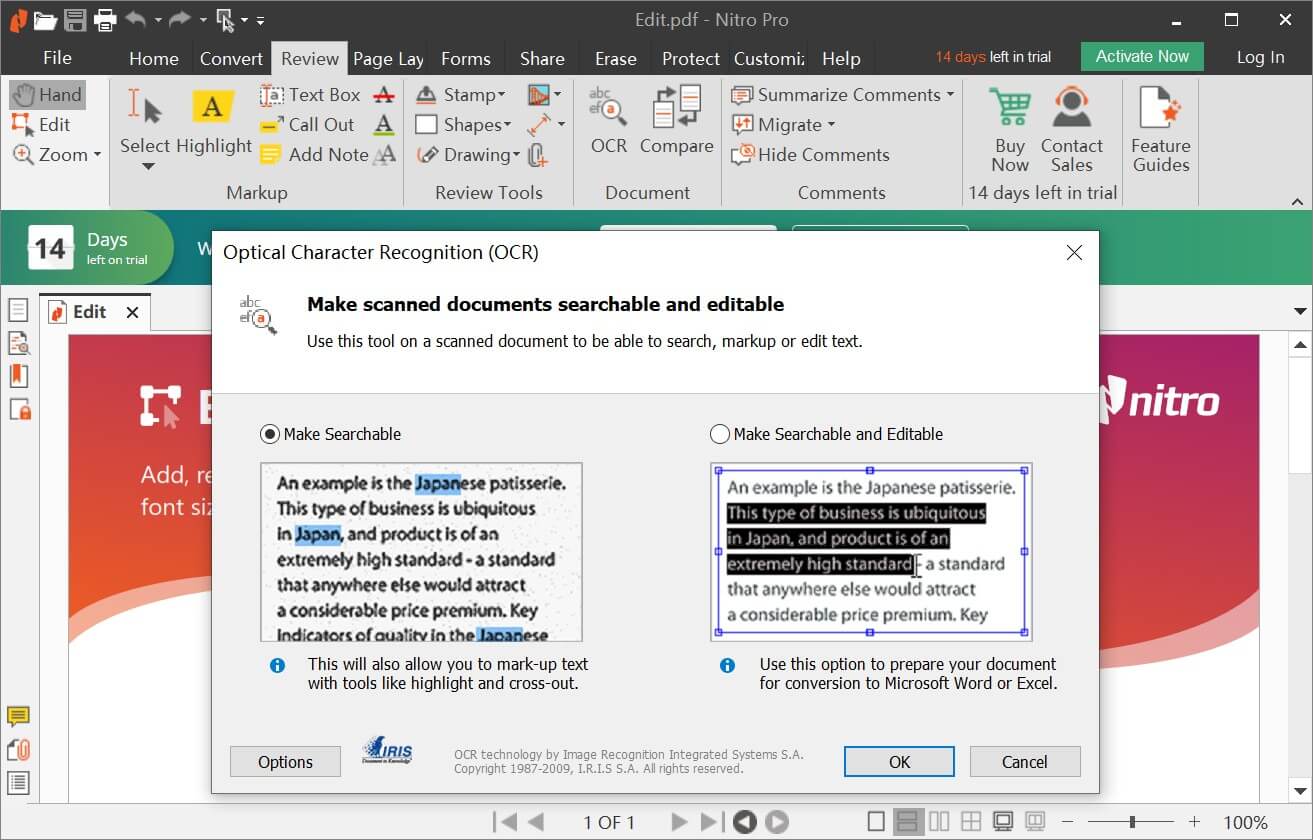
Nitro PDF is built around business document workflows — its batch OCR, print, and conversion automation handle large volumes of files well, alongside form creation and markup. OCR covers 19 languages on Mac (14 built-in plus 5 add-on language packs) and exports to Word, Excel, and PowerPoint.
Two things to weigh: OCR is a paid/Pro feature, and Nitro no longer sells a true perpetual license. Its one-time option is Nitro PDF Classic, a three-year, non-renewing, Windows-only license — so for OCR specifically you're effectively on a subscription. OCR language support and feature depth also vary by platform.
Best for:
- Businesses processing high volumes of PDFs that want batch automation and accept a subscription for OCR.
Skip if:
- You wanted a genuine lifetime license with OCR included — that no longer exists at Nitro.
5. Soda PDF — Full PDF Suite for Windows
Soda PDF is a full PDF suite — view, edit, annotate, and OCR — with searchable/editable PDF output and export to Word, Excel, and PowerPoint. It covers the standard document jobs most users need in one place.
Two real constraints: Soda PDF is not available for macOS, so Mac users are out from the start, and OCR sits behind a paid plan.

Best for:
- Windows users who want a complete PDF suite with OCR and Office export in one app.
Skip if:
- You're on a Mac, or want OCR without paying for a plan.
Part 4. Best Free & Online OCR Tools
Online tools need no install and suit quick, one-off extraction. The trade-off is privacy: your file is uploaded to a server. Most promise to delete data after a window, but for contracts, IDs, or medical records, prefer an offline desktop tool above.
6. UPDF Online AI Assistant — Best for Messy Scans
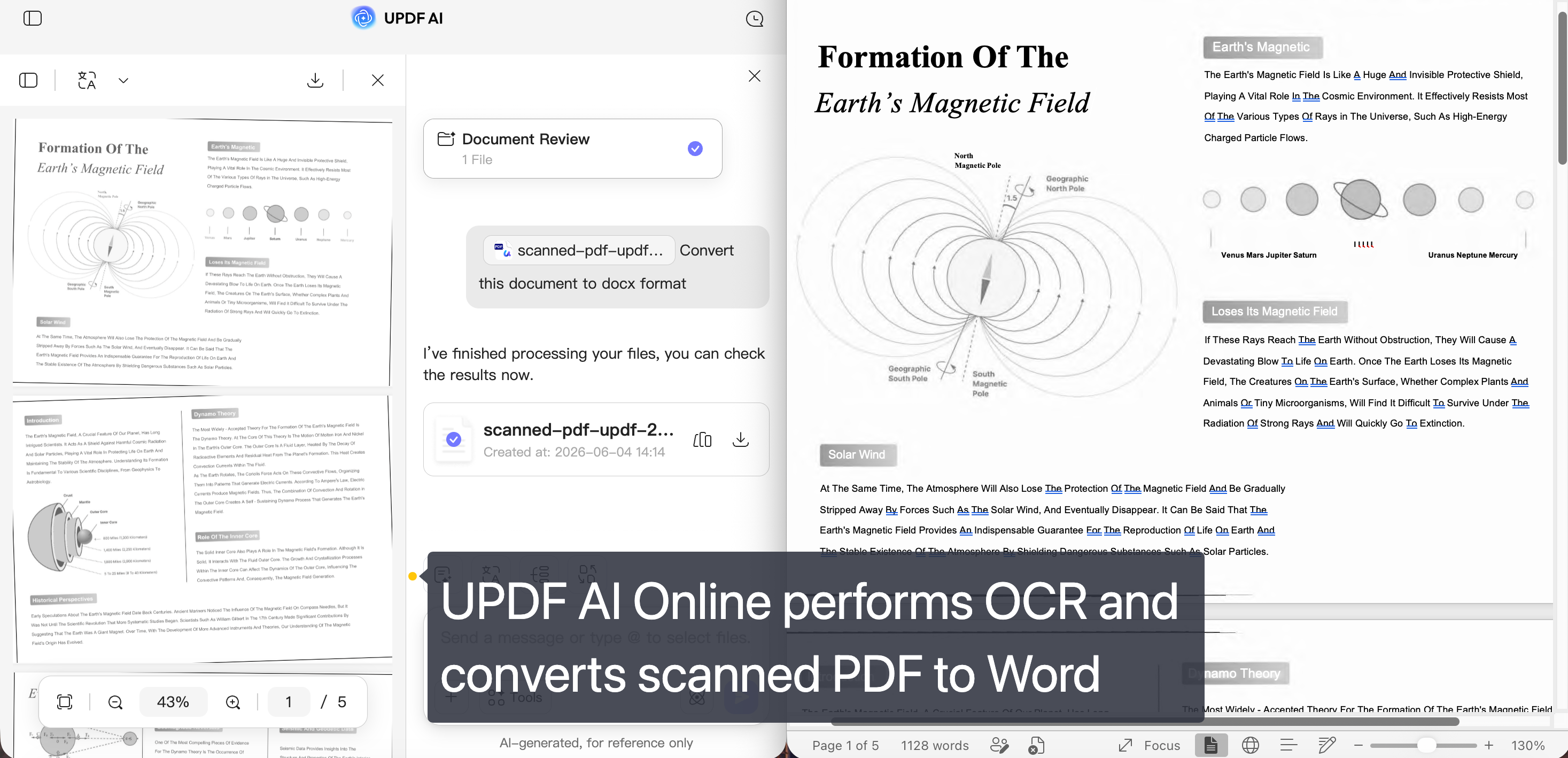
The UPDF Online AI Assistant uses advanced AI models to read images and scanned documents, including blurry or handwritten pages that trip up conventional OCR. It runs OCR automatically on scanned PDFs and can output to Word, Excel, and PowerPoint — all in the browser, no install required.
As an online tool, it processes one file at a time (no batch), and your file is uploaded to be processed — so keep confidential documents on the desktop app instead. Free-tier and trial limits also apply.
Best for:
- Difficult, handwritten, or low-resolution scans where normal OCR fails and you want a quick browser-based result.
Skip if:
- You process files in bulk, or the document is confidential.
7. Google Docs — Free for PDF Text
Google Docs has a quiet OCR feature: upload a PDF to Google Drive, right-click, and open it with Google Docs. The text is converted to an editable document you can copy or re-save. It's free with your existing 15 GB of Drive storage and needs no extra software.
The catch is formatting and scope: Google Docs strips most of the original layout, exports only to a Google Doc (which you can download as Word — there's no direct Excel or PowerPoint OCR export), and works best on files of 2 MB or less. Expect to clean up the result.

Best for:
- Free, occasional text extraction from small PDFs when layout doesn't matter.
Skip if:
- You need Excel/PowerPoint output, a larger file, or preserved formatting.
8. OnlineOCR — Exports to Word and Excel
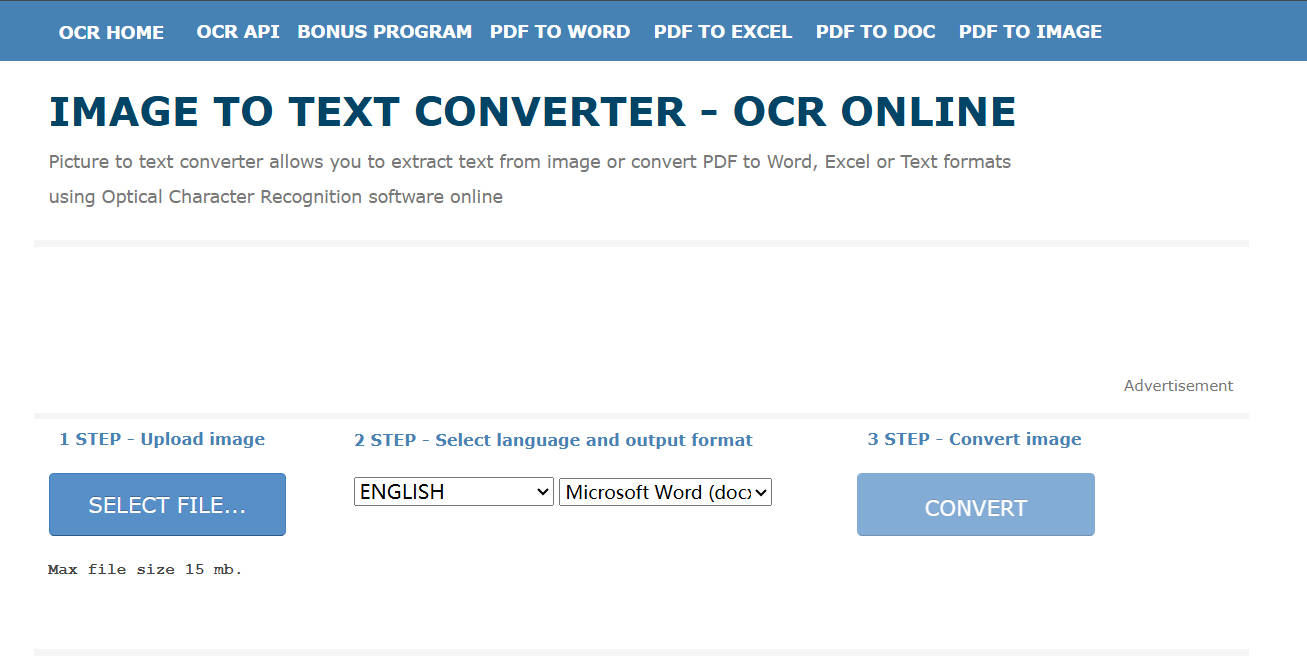
OnlineOCR is one of the few free web tools that exports recognized text into a Word document while keeping layout, tables, and columns reasonably intact. No install, and it opens several image types including GIF.
Downsides: the free guest tier caps files at 15 MB, there's no PowerPoint export (Word, Excel, and text only), and the file is uploaded to its servers. The interface is also dated and ad-supported.
Best for:
- A free, one-off image-to-Word conversion where you want the layout roughly preserved.
Skip if:
- You process files regularly or handle anything confidential.
9. Convertio — Online OCR Tool with Wide Language Support
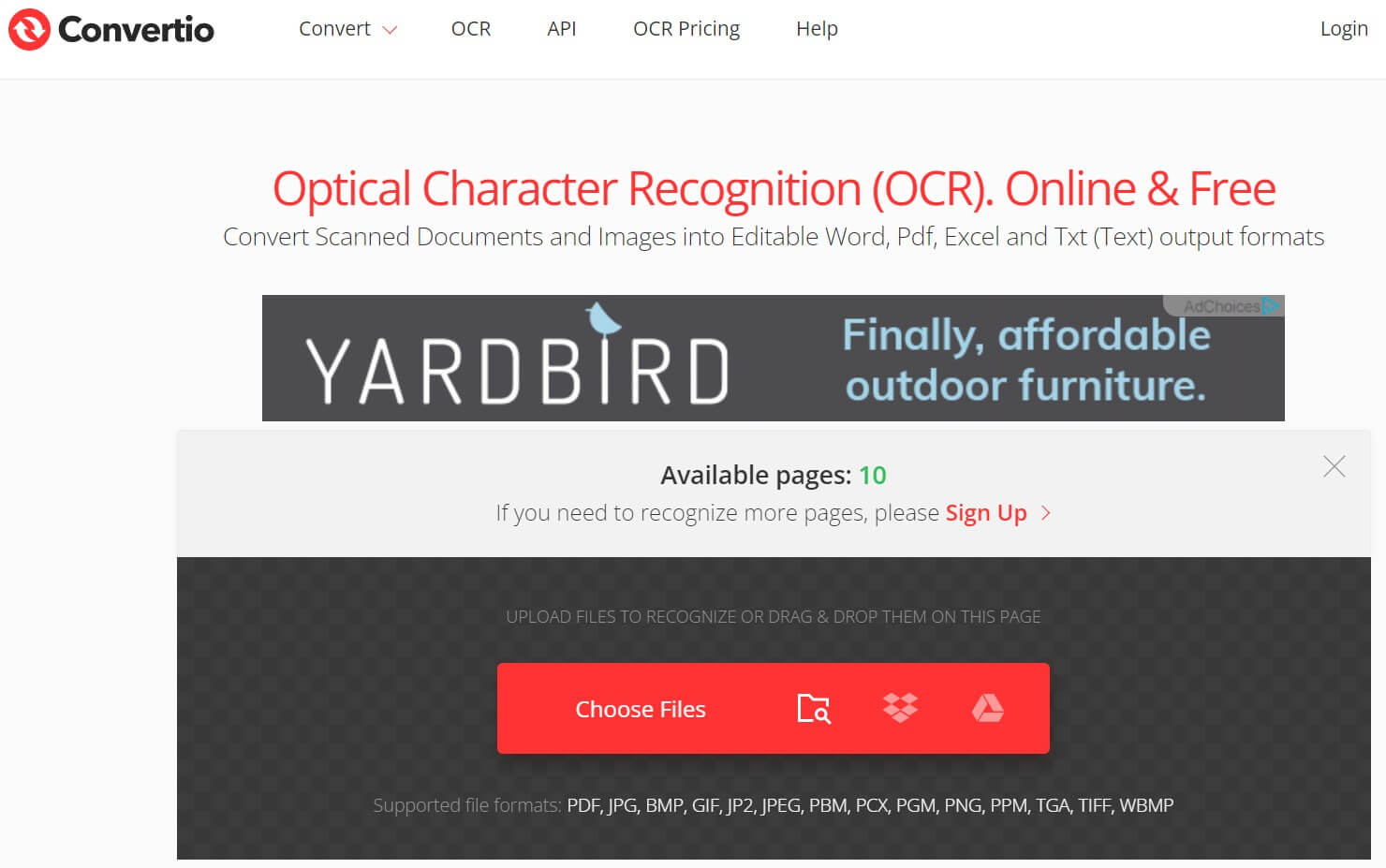
Convertio supports 76 OCR languages and exports to Word, Excel, PowerPoint, and other formats, pulling files straight from Google Drive or Dropbox. A paid plan removes the limits.
The free tier is page-limited (around 10 pages), and, like all online tools, your file is uploaded to its servers. For anything beyond a small one-off job, the cap is restrictive.
Best for:
- A quick, free OCR job needing an unusual language or a specific Office output format.
Skip if:
- You regularly exceed the free page limit, or need local processing for privacy.
Part 5. OCR on Mobile
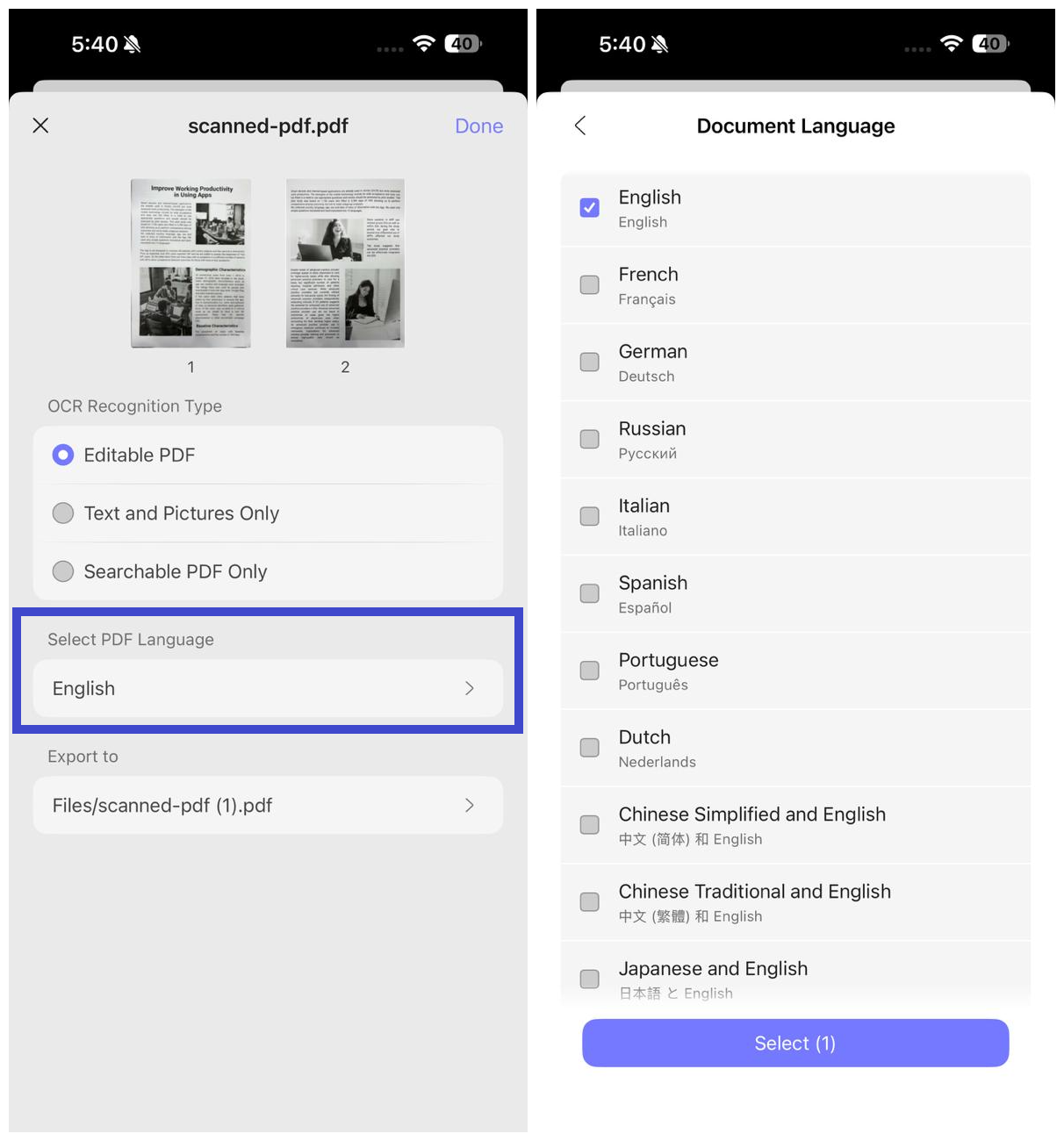
If your scans live on your phone, UPDF for iOS and Android runs the same OCR engine as the desktop app, with the same three recognition modes (editable, text-and-pictures-only, searchable) and multi-language selection. You import the file, choose the mode and language, and export the OCRed PDF to wherever you keep it — useful for capturing a receipt or contract on the spot.
For the full mobile walkthrough, see how to OCR a PDF on your phone. The app is on the App Store and Google Play.
Windows • macOS • iOS • Android 100% secure
Part 6. When OCR Fails: Edge Cases to Know
Picking the right tool only gets you so far. These are the situations that defeat OCR regardless of brand, and what to do about them:
- Handwriting and cursive: conventional OCR is built for printed type and will struggle. Use an AI-based engine (UPDF's AI extraction or the Online AI Assistant) instead of a standard OCR pass.
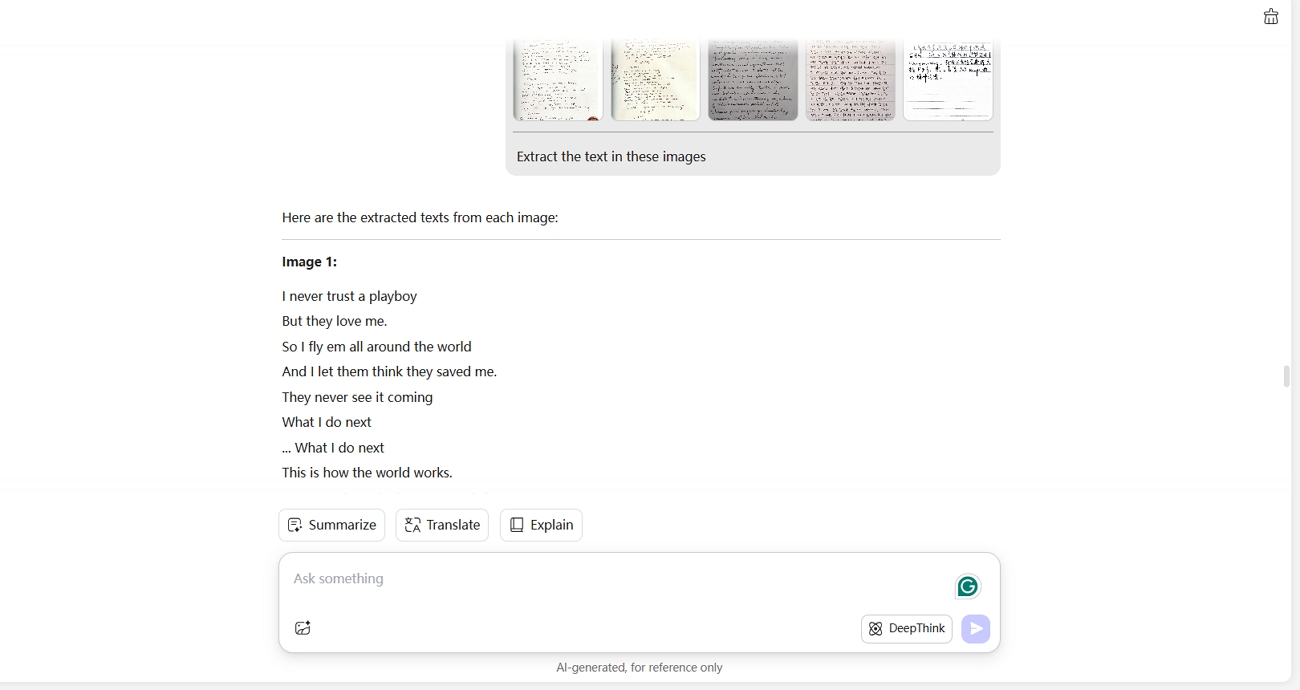
- Low-resolution or crooked scans: below ~300 DPI, or skewed pages, accuracy drops sharply. Rescan at higher DPI, or deskew and sharpen the page before running OCR.
- Text still won't edit after OCR: the file may carry permission protection, or you OCR'd in 'searchable' mode (which adds an invisible text layer but keeps the page as an image). Remove the restriction or re-run in editable mode.
- Complex tables and columns: multi-column layouts often reflow incorrectly. OCR while converting to Word/Excel (UPDF, Acrobat) rather than extracting raw text, and expect light cleanup.
- Mixed-language documents: select every language present, not just the main one — engines that only let you pick one will misread the rest.
Part 7. FAQs
1. What's the difference between searchable and editable OCR output?
Searchable OCR keeps the page as an image and adds an invisible text layer underneath — the document looks identical and becomes searchable, but you still can't edit the text. Editable OCR replaces the image with real, selectable text you can change. Choose searchable for archiving and search; choose editable when you need to rewrite the content.
2. Is it safe to use online OCR for confidential documents?
Generally no. Online OCR uploads your file to a server; even when a provider promises to delete data after a window, the document leaves your device during processing and may be cached. For contracts, IDs, financial papers, or medical records, use an offline desktop tool such as UPDF, Acrobat, or Foxit, where the file is processed locally.
3. Is there a free OCR software online with no watermark or limits?
Yes, for light use. Google Docs does free PDF text extraction with no watermark, and OnlineOCR and Convertio offer free web OCR within page and size limits. The trade-offs are lost formatting, upload-based privacy, and caps that make them impractical for regular or confidential work — where a desktop tool fits better.
Conclusion
The best OCR tool is the one that matches your document and your constraints: an offline suite for sensitive or high-volume work, a free web tool for a quick one-off, and AI recognition when the scan is messy. Among the desktop options, UPDF stands out for pairing a 38-language OCR engine with an AI fallback for handwriting and low-quality scans — across Windows, Mac, iOS, and Android on a single license, without a subscription requirement.
Download UPDF for free to test OCR accuracy on your own scanned file — installation is free, and Pro features are available when you need watermark-free export, batch OCR, or AI extraction.
Windows • macOS • iOS • Android 100% secure



 Enrica Taylor
 Enola Davis
 Delia Meyer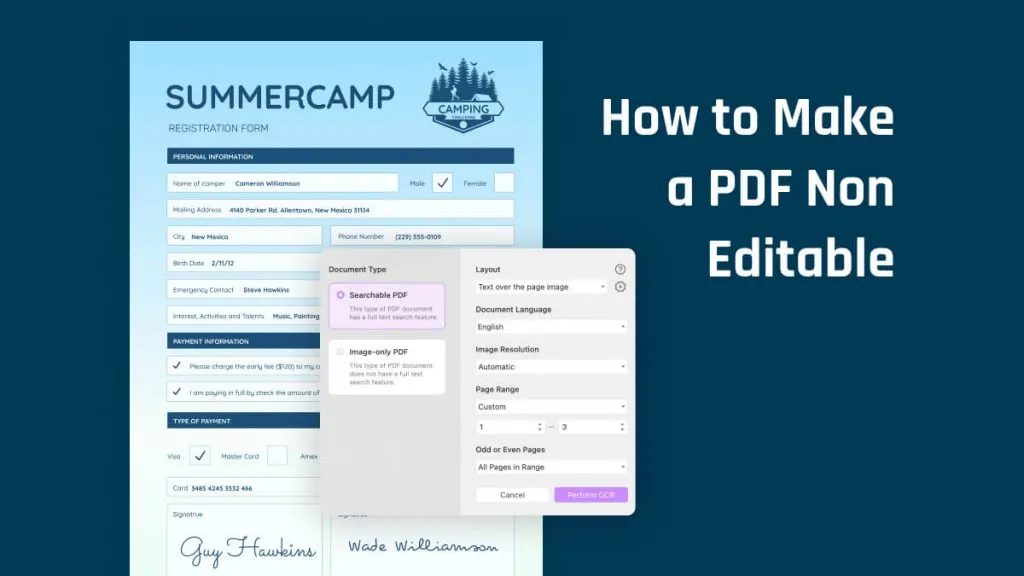
 Enola Miller
 Grace Curry