 UPDF
UPDF
 UPDF for Windows
 UPDF for Mac
 UPDF for iPhone/iPad
 UPDF for Android
 Nomostar
 UPDF AI Online
 UPDF Sign
 IvyCraft
 Edit PDF
 Annotate PDF
 Create PDF
 PDF Form
 Edit links
 Convert PDF
 OCR
OCR PDF to Word
 PDF to Image
 PDF to Excel
 Organize PDF
 Merge PDF
 Split PDF
 Crop PDF
 Rotate PDF
 Protect PDF
 Sign PDF
 Redact PDF
 Sanitize PDF
 Remove Security
 Read PDF
 UPDF Cloud
 Compress PDF
 Print PDF
 Batch Process
 About UPDF AI
 UPDF AI Solutions
 AI User Guide
 FAQ about UPDF AI
 Summarize PDF
 Translate PDF
 Chat with PDF
 Chat with AI
 Chat with image
 PDF to Mind Map
 Explain PDF
 PDF AI Tools
 Image AI Tools
 AI Chat Tools
 AI Writing Tools
 AI Study Tools
 AI Working Tools
 Other AI Tools
 AI Bookmark Generation
 AI Bookmark Summary
 AI Watermark Generation
 AI Background Generation
 AI Sticker Generation
 AI Stamp Generation
 AI Editing Suite
 UPDF Copilot
 AI Page Management
 AI Semantic Search
 PDF to Word
 PDF to Excel
 PDF to PowerPoint
 Enterprise Solution
 Enterprise Sign
 Enterprise AI
 Enterprise Plan
 Enterprise User Guide
 Enterprise Webinar
 IT
IT Education
 Construction
 Financial Service
 Healthcare
 Insurance
 Legal
Legal Manufacturing
 Government
 Researchers & PhDs
 Solopreneurs & Freelancers
 Lawyers & Legal Professionals
 Real Estate Agents & Brokers
 Education Solution
 Customer Stories
 User Guide
 UPDF Tricks
 FAQs
FAQs UPDF Reviews
 Download Center
 Blog
Blog Newsroom
 Tech Spec
 Updates
 UPDF vs. Adobe Acrobat
 UPDF vs. Foxit
 UPDF vs. PDF Expert

Quick Answer:
A PDF has more than one kind of “page number.” The viewer counts each sheet in file order, and a PDF may also contain page labels used by thumbnails or navigation. Neither one necessarily prints on the page. If you need readers to see "1," "Page 1," or "Page 1 of 20," you must add visible numbers to the page content, usually through a header or footer.
Finish content changes before pagination so later edits do not shift the final sequence. If the PDF still needs corrections, use the edit PDF workflow first, then add the page numbers as the final layout step.
Part 1. Choose the Right PDF Page-Numbering Route
| Reader situation | Recommended route | Important limit |
|---|---|---|
| You need automatic page numbers on Windows or Mac | Use UPDF's Header & Footer tool | Saving with the free version adds a trial watermark |
| You opened the PDF in Preview on a Mac | Use a PDF editor for automatic numbering; use Preview text boxes only for a very short file | Preview does not generate an automatic page-number sequence |
| The cover must stay blank and the next content page must display 1 | Set both the page range and starting number in UPDF | The PDF sheet number and the visible number will differ |
| You need unique identifiers across a legal production set | Use Bates numbering instead of ordinary page numbers | Bates numbers identify pages/files; they are not just reading-order numbers |
For most reports, manuals, proposals, and theses, the first route is the practical one: apply one numbering rule across the file, preview representative pages, and save a numbered copy.
Part 2: Add Page Numbers to a PDF on Windows or Mac with UPDF
Best for:
- Handling rigorous academic papers, financial audits, or corporate filings where you need precise margin control, "Page X of Y" formats, and want to save these rules as reusable templates.
Not for:
- Users on temporary public library computers who are restricted from running local desktop installations.
To set up clean, consistent numbering layers across your professional documents, follow these streamlined implementation steps:
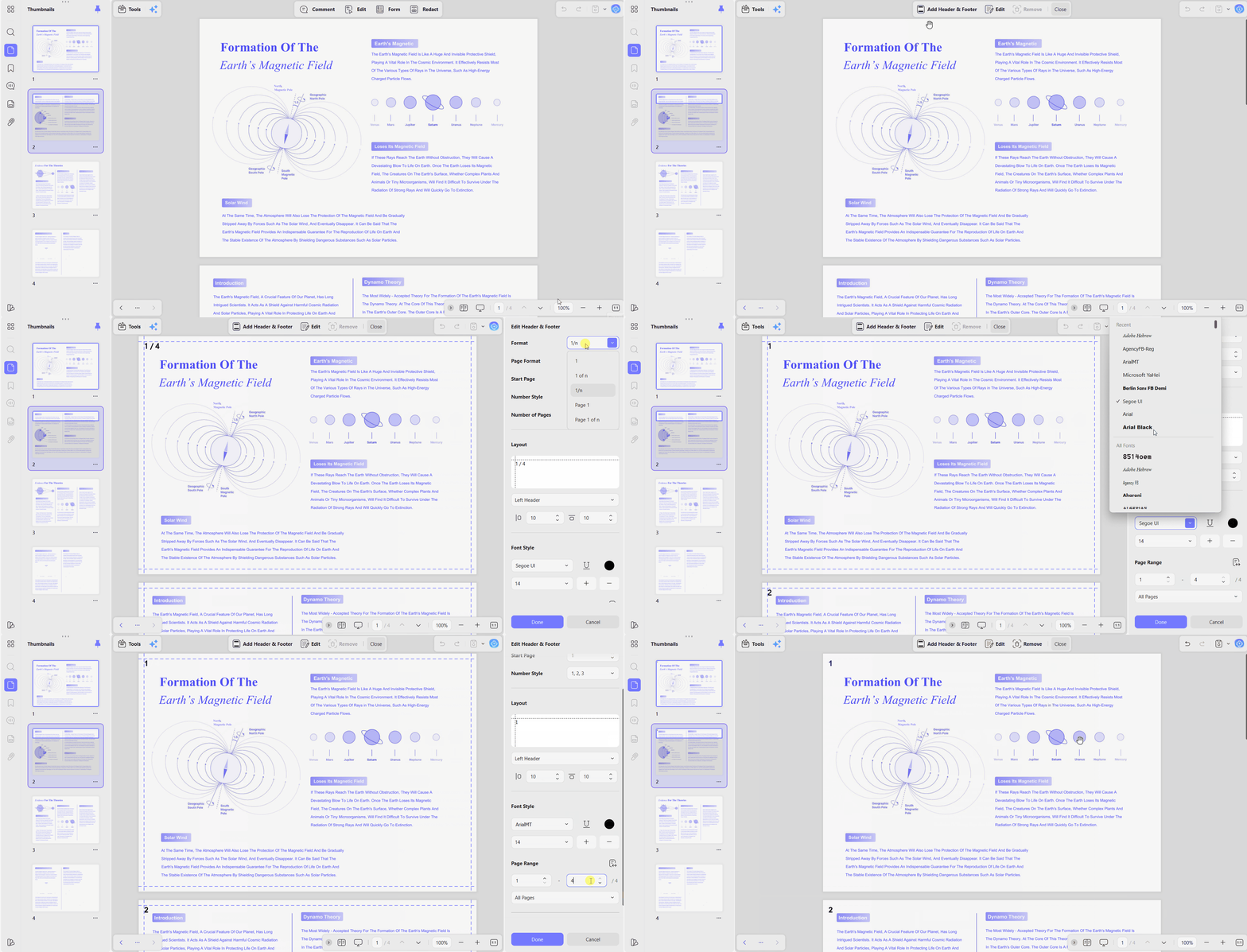
- Open Your Document: Launch the UPDF application on your desktop, click the Open File option, and select your target PDF document from your local folder.
- Locate the Feature Suite: Move your cursor to the left action menu bar, click Page Tools, and select the Header & Footer category along the top workspace screen.
- Choose a Style Layout: Click the blue Add button at the bottom right. A secondary customization pane will slide open, offering three distinct layout presets for page numbers, dates, or titles.
- Fine-Tune Your Pagination Rules: Under the configuration panel, change your text content format macro to display standard digits or structured layouts. Pick your exact font styling, size, text color, and layout margins.
- Configure the Cover Skip Range: Locate the Page Range setting icon at the top right of the pane. Enter your precise starting page (e.g., entering "3 - 50" to leave your cover sheet and table of contents entirely clean, forcing the active numbering sequence to begin on page 3).
- Star Your Template: Toggle the Save to Starred layout switch. This saves your exact font and margin parameters into your account profile so you can instantly reapply them to future uploads via the Starred tab. Click Save to lock in your work.
As an all-in-one professional environment, UPDF extends far beyond simple header placement. The workbench features a built-in AI assistant to summarize massive reference sheets, accurate format conversion tools, and high-precision OCR text scanning to keep your workflows fully integrated.
Windows • macOS • iOS • Android 100% secure
Part 3. Can Preview Add Page Numbers to a PDF on Mac?
Preview offers an alternative way to add page numbers to PDFs on Mac. While it lacks an automatic page numbering tool, you can manually insert page numbers by adding blank text boxes and typing the numbers for each page. Although this method is somewhat tedious and we are not recommend, we still provide step-by-step guidance for those who prefer this approach.
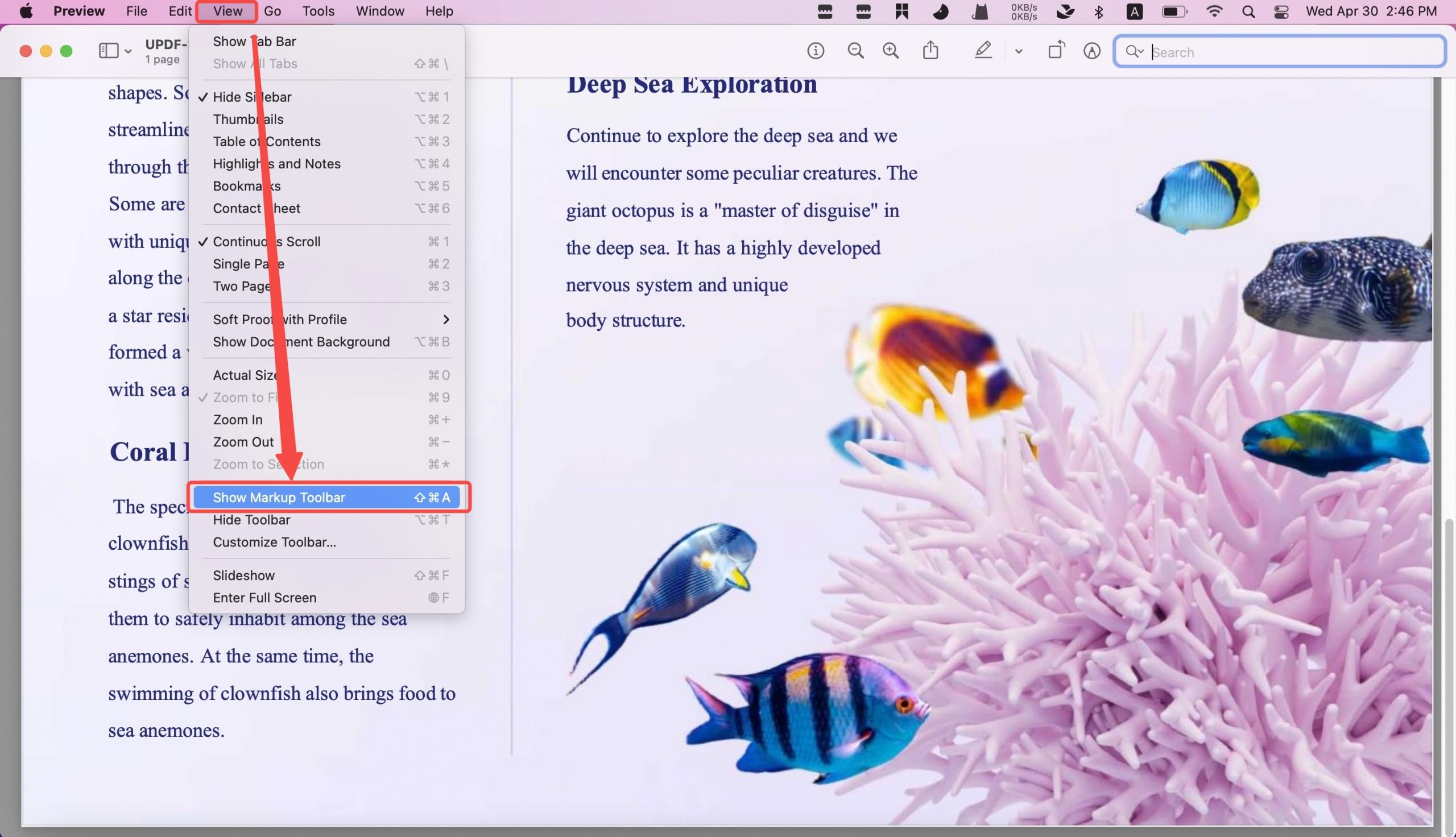
Step 1:
Launch a PDF document using Preview, then navigate to the "View" menu at the top and select "Show Markup Toolbar".
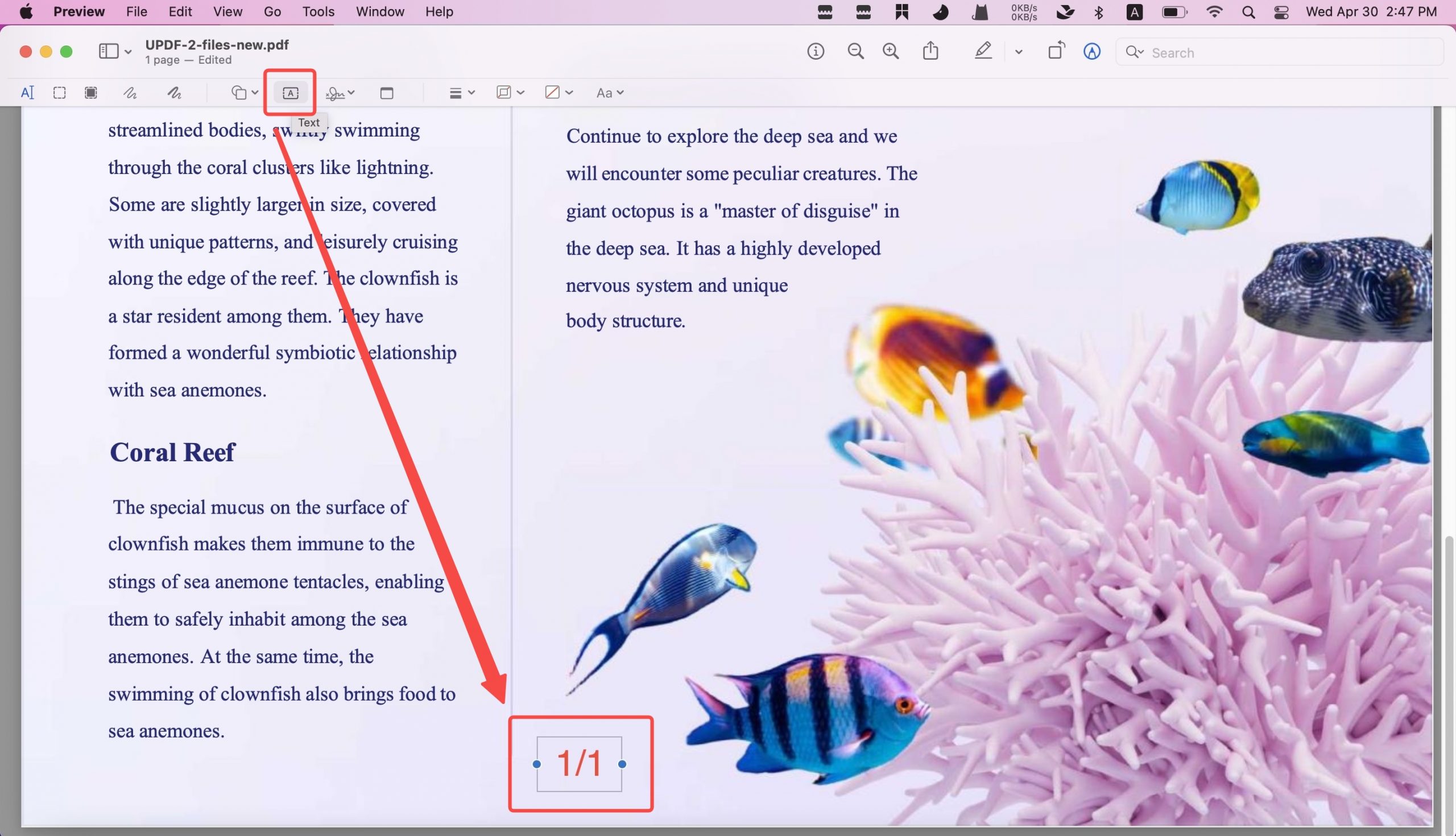
Step 2:
Click "Text" to add a text box to the page. Type your preferred page number format, drag it into place, and repeat for all pages before saving.
For a longer Mac document, use Preview to review the PDF and a numbering tool to apply the sequence consistently. Download UPDF for free to paginate a PDF on Mac with one header or footer rule — installation is free, and Pro removes the trial watermark from exported files.
Windows • macOS • iOS • Android 100% secure
Part 4: Add Page Numbers to a PDF with Online Tools
Best for:
- Quick, one-off adjustments on temporary public devices where security compliance is not a concern and documents contain zero personal or corporate data.
Not for:
- Long-form legal documents, sensitive financial records, or files that require advanced page-skipping rules (such as skipping both opening covers and appendices simultaneously).
Many users searching for an online pdf editor free without watermark expect to handle basic pagination directly inside a standard web browser window. If you are looking for a rapid fix and don't mind uploading files to third-party web cloud servers, here is how to use the three most common web utilities:
Method 1: Using iLovePDF Online
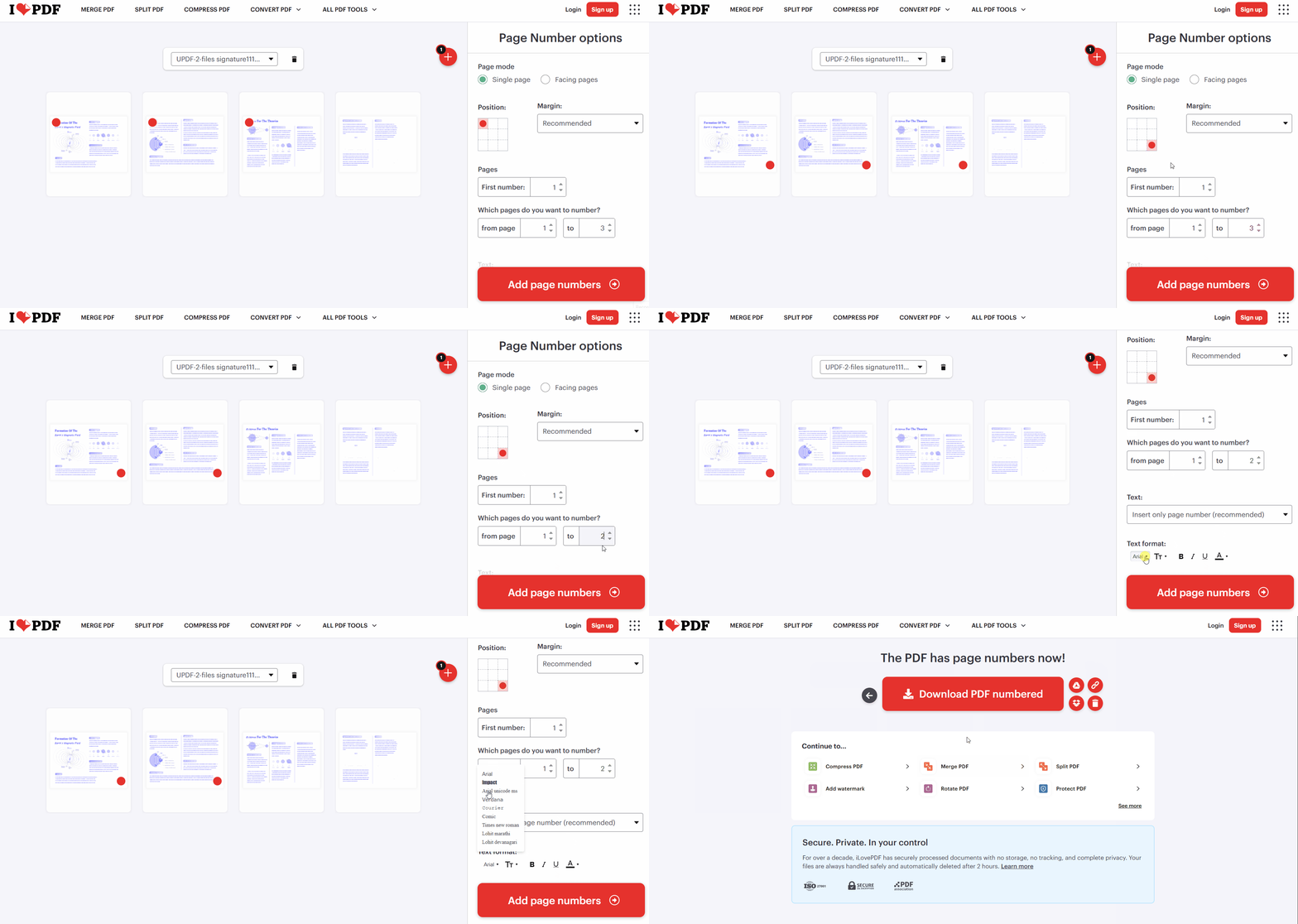
- Navigate to the iLovePDF add page numbers webpage tool and click the central selection area to upload your target document from your local drive.
- In the right-hand options layout block, pick your visual position grid, starting number digit, and define the exact range under the page text fields.
- Click the red Add Page Numbers option at the bottom, allow the server to process the text layers, and save the numbered output back to your computer.
Method 2: Using Smallpdf Online
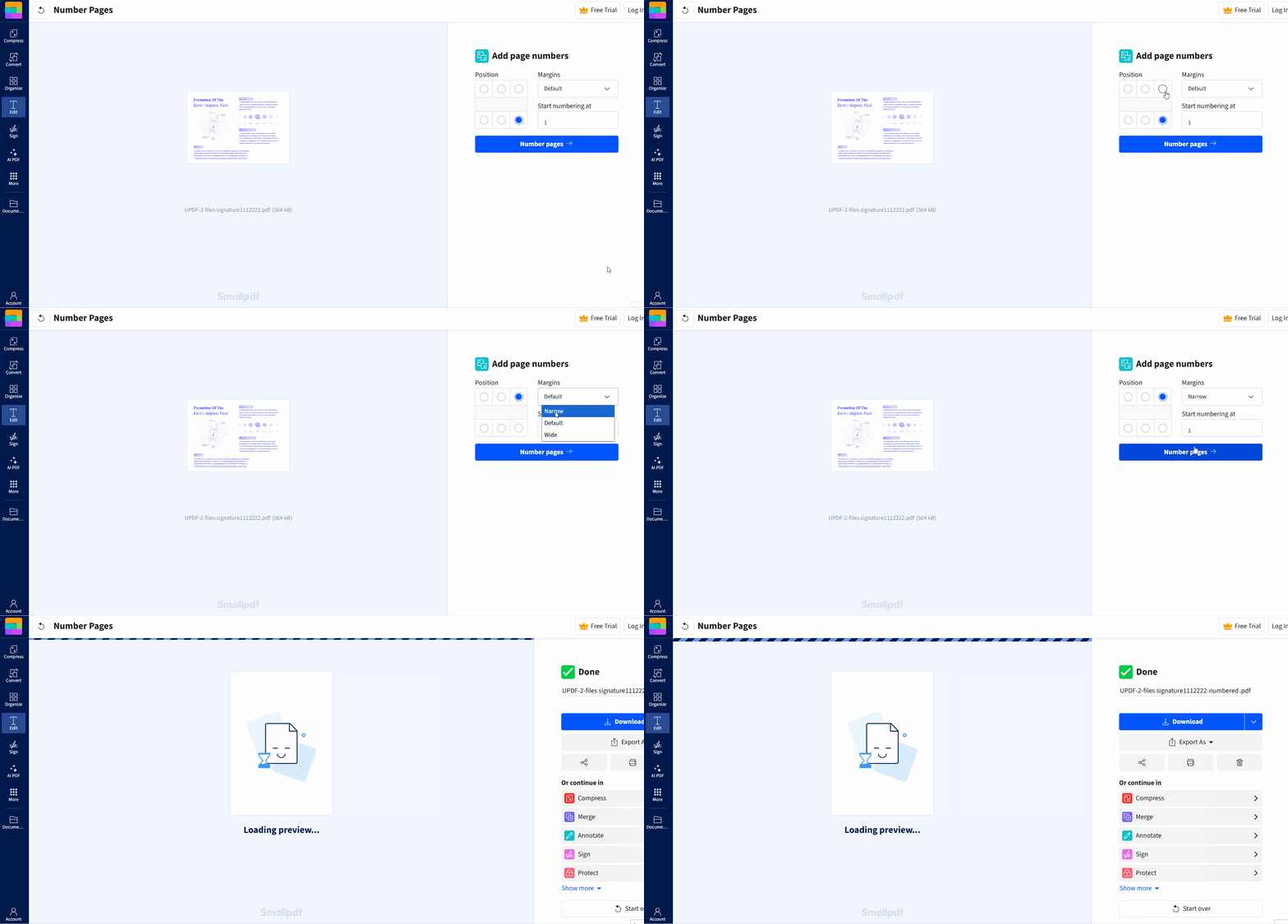
- Open the Smallpdf page numbering browser tool utility and drop your file directly into the blue interface container box.
- Select the desired quadrant position target on the visual preview window to determine where the numbers will sit.
- Choose your margin preferences from the dropdown field settings, click the Number Pages button, and download your updated copy.
Method 3: Using Adobe Acrobat Online
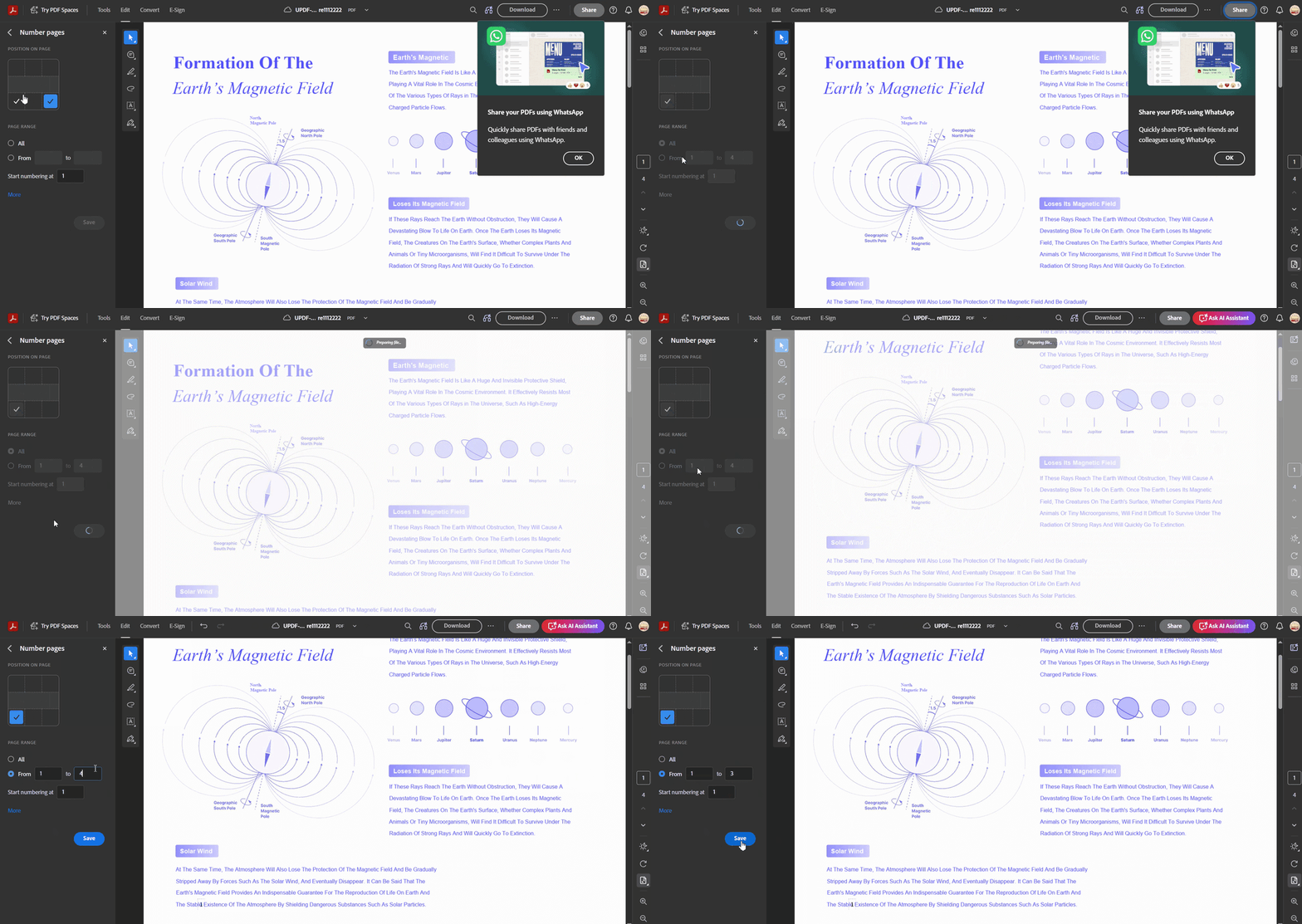
- Access the official Adobe web-based layout platform tool tray and upload your file using the central file browser path.
- Pick your preferred page position coordinates, input your initial number index, and specify the file range options.
- Click Save to apply the digital numbering sequence over the document pages and select the top download action to save it locally.
Part 5: Advanced Scenarios & Extended Reading
Document formatting rarely stops at simply inserting a new page number layer. If you encounter structural problems or layout conflicts during your edit, check out these targeted workarounds:
- Modifying or Removing Messy Pagination: If a colleague passes you a file that already has overlapping digits or incorrect headers, you can learn how to edit/change/remove page numbers from a PDF to wipe out bad layouts and start fresh.
- Quick On-the-Go Wording Tweaks: If you spot a critical spelling typo while reviewing your page count, you don't need to load your heavy software suite. You can explore our guide on how to modify a PDF online to adjust lines directly from your active browser window.
- Preparing Layouts for Hardcopy Printing: When exporting final copies for physical binders, ensuring your digital page count matches your physical sheets is vital. Check out our operational blueprint on how to print a PDF with page numbers to prevent your printed stacks from losing their alignment.
FAQs
Q1: Can I add page numbers to a PDF for free?
Yes, with a trial watermark. UPDF's free version lets you try the Header & Footer workflow and save the result, but the saved document carries a trial watermark. UPDF Pro removes that trial watermark.
Q2: Can I add page numbers to a scanned PDF?
Yes, OCR is not required. A scanned PDF can receive visible header or footer numbers because numbering is applied at the page level. OCR is needed only when you want to recognize and edit text inside the scanned page image.
Q3: Can I number several PDF files at once?
Yes, with batch processing. UPDF lists batch Header & Footer tools for desktop workflows. Use one shared template when the files need the same visible layout. For one continuous legal identifier across several files, use Batch Bates Numbering instead.
The visible page numbers should match the way readers will reference the document. For a visual companion, the video below focuses on editing PDF content in UPDF.
Conclusion
The reliable way to add page numbers to a PDF is to define the sequence before applying it: decide whether to skip a cover, choose the first displayed value, place the number inside a safe margin, and inspect mixed page layouts. UPDF applies that rule automatically on Windows and Mac.
Preview remains useful for viewing, rearranging, and lightly annotating a PDF on Mac, but its text-box workaround is not automatic pagination. Use it only when manually numbering every page is genuinely faster than opening a PDF editor.
For a consistent sequence that can be adjusted before saving, download UPDF for free to add page numbers to your PDF — installation is free, and Pro removes the trial watermark from exported files.
Windows • macOS • iOS • Android 100% secure








 Enid Brown

 Lizzy Lozano

 Enola Davis
— Dr. Alex D., Researcher & Educator