 UPDF
UPDF
 UPDF for Windows
 UPDF for Mac
 UPDF for iPhone/iPad
 UPDF for Android
 Nomostar
 UPDF AI Online
 UPDF Sign
 IvyCraft
 Edit PDF
 Annotate PDF
 Create PDF
 PDF Form
 Edit links
 Convert PDF
 OCR
OCR PDF to Word
 PDF to Image
 PDF to Excel
 Organize PDF
 Merge PDF
 Split PDF
 Crop PDF
 Rotate PDF
 Protect PDF
 Sign PDF
 Redact PDF
 Sanitize PDF
 Remove Security
 Read PDF
 UPDF Cloud
 Compress PDF
 Print PDF
 Batch Process
 About UPDF AI
 UPDF AI Solutions
 AI User Guide
 FAQ about UPDF AI
 Summarize PDF
 Translate PDF
 Chat with PDF
 Chat with AI
 Chat with image
 PDF to Mind Map
 Explain PDF
 PDF AI Tools
 Image AI Tools
 AI Chat Tools
 AI Writing Tools
 AI Study Tools
 AI Working Tools
 Other AI Tools
 AI Bookmark Generation
 AI Bookmark Summary
 AI Watermark Generation
 AI Background Generation
 AI Sticker Generation
 AI Stamp Generation
 AI Editing Suite
 UPDF Copilot
 AI Page Management
 AI Semantic Search
 PDF to Word
 PDF to Excel
 PDF to PowerPoint
 Enterprise Solution
 Enterprise Sign
 Enterprise AI
 Enterprise Plan
 Enterprise User Guide
 Enterprise Webinar
 IT
IT Education
 Construction
 Financial Service
 Healthcare
 Insurance
 Legal
Legal Manufacturing
 Government
 Researchers & PhDs
 Solopreneurs & Freelancers
 Lawyers & Legal Professionals
 Real Estate Agents & Brokers
 Education Solution
 Customer Stories
 User Guide
 UPDF Tricks
 FAQs
FAQs UPDF Reviews
 Download Center
 Blog
Blog Newsroom
 Tech Spec
 Updates
 UPDF vs. Adobe Acrobat
 UPDF vs. Foxit
 UPDF vs. PDF Expert

Extracting images, charts, and logos or editing graphics from PDFs is a common office task. But screenshot quality is poor, direct image saving is often unavailable, and workaround methods are cumbersome and degrade visuals.
Example: If a report contains a chart needed for a presentation, extract the original image first and compare its resolution with a screenshot before choosing which version to reuse. For a related workflow, see remove an image from a PDF.
This article shares how to extract images from PDFs: free & fast online tools and desktop software for batch high-quality extraction. You’ll find suitable options for casual or professional use.
Part 1. Which Extraction Method Suits You Best?
| Your Need | Recommended Solution | Jump to |
|---|---|---|
| Extract a few images from 1-2 PDFs, no software install | Online tools (free, no install) | Part 3 |
| Files contain sensitive info (contracts, drawings) – no cloud upload | Desktop software (local processing) | Part 2 |
| Extract all images from multiple PDFs in one go | Batch extraction (desktop software) | Part 2 |
| Need original resolution (300 DPI+) | Professional desktop software | Part 2 |
| Mac user, want native solution | Preview app (macOS) | Part 4 |
| Extract images on mobile | Mobile apps | Part 2.1 |
Most advanced requirements (batch processing, high resolution, privacy and security) require desktop software. The desktop app UPDF is our top pick. It preserves original resolution and supports JPG/PNG/TIFF output. You can extract one image or all images at once with one click. Unlike online tools, it works offline and keeps your files secure.
Part 2. How to Extract Images from PDF with Desktop Software (Without Losing Quality)
To avoid blurry images and complicated workarounds, a professional desktop PDF tool is well worth trying. Let's check the 4 professional tools to extract images from a PDF.
2.1: UPDF (Professional, Secure, Bulk)
No matter whether you want to extract one/some/all images from a regular or Scanned PDF, UPDF can handle them in one place. It supports Windows/Mac/iOS/Android; if you want to extract images on mobile phones, it's also easy to handle. The steps in these systems are basically the same; below are the steps, using Windows as a reference.
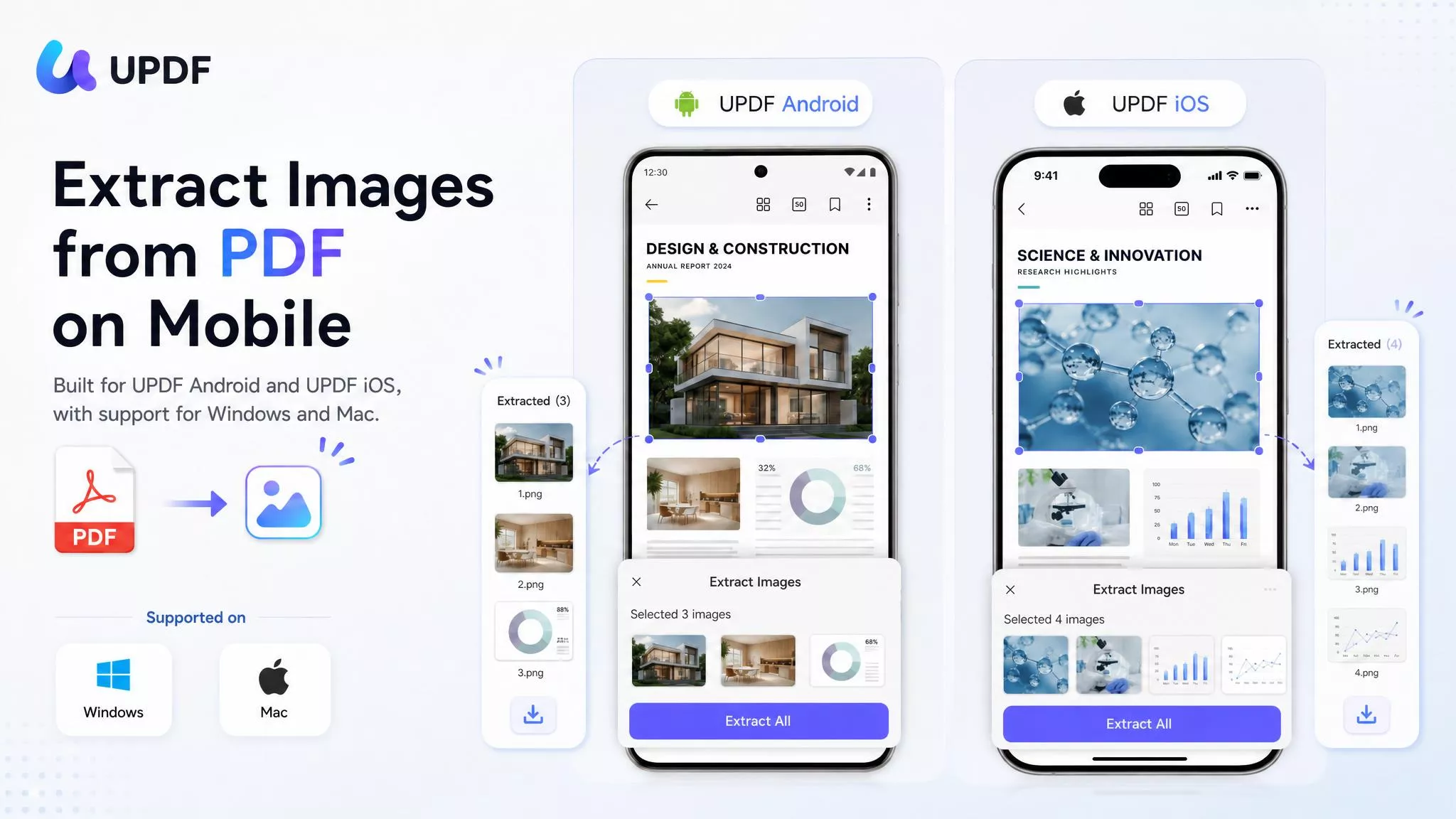
Way 1. Extract One Image from a PDF
With UPDF's image extraction feature, you can swiftly extract a specific image from your PDF. Here's how to do it:
Windows • macOS • iOS • Android 100% secure
Step 1: Open your PDF in UPDF by clicking the "Open File" icon on the home interface. Click the "Edit" button in "Tools".
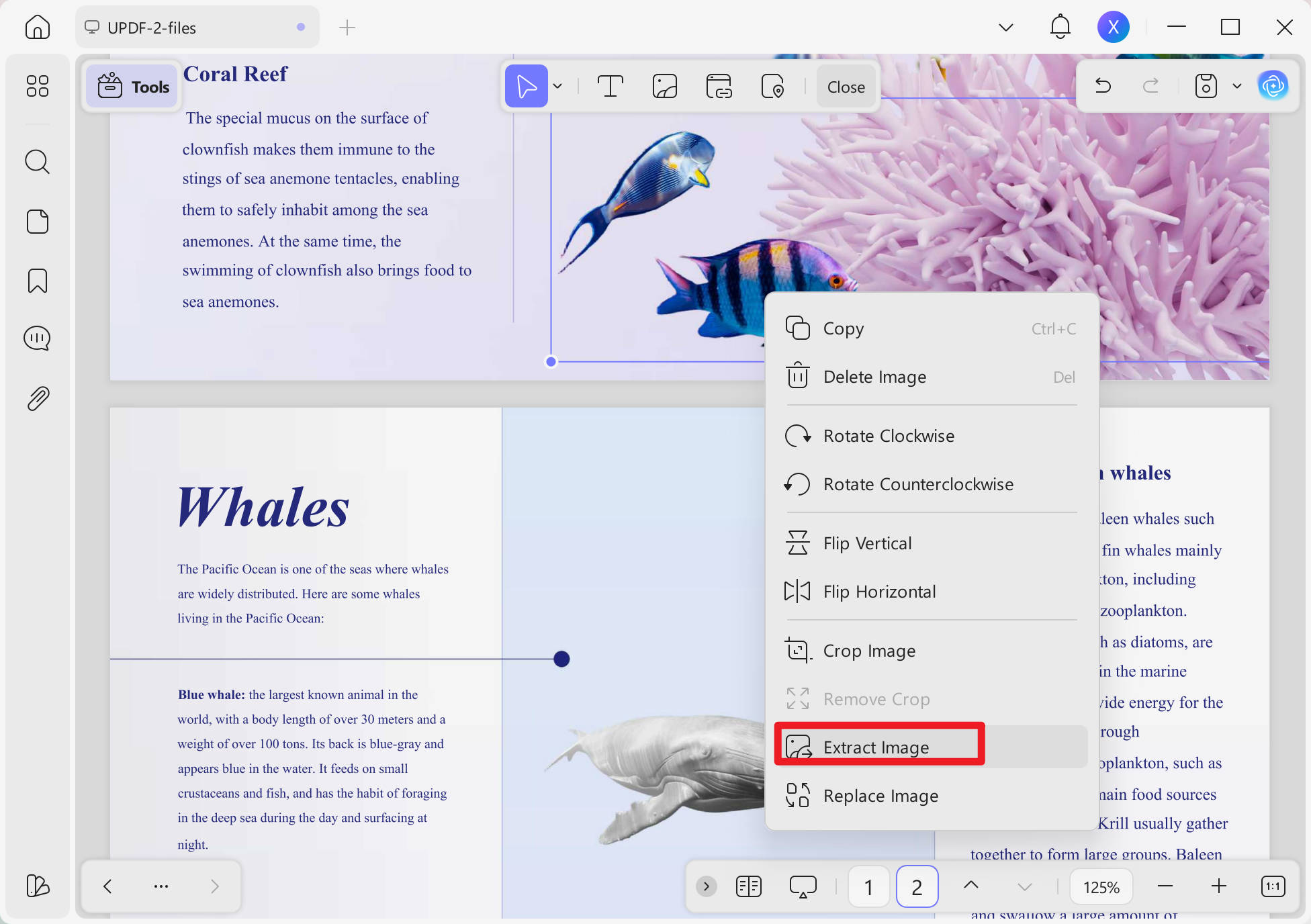
Step 2: Find the image you want to extract and right-click on the image and choose "Extract Image".
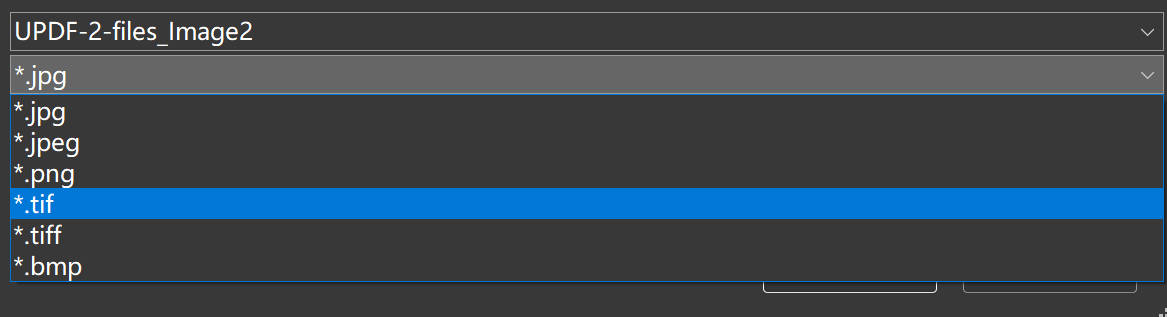
Step 3: When opening the file, you can choose the image format like "PNG", "JPG", "TIFF", etc. Select where you want to save the image and click on "Save".
Cropping or splitting features can also be used to extract images from a PDF, you can download and try UPDF to have more fun!
Way 2: Extract All Images from the PDF
Ever get a PDF overflowing with awesome images, and you just want to extract them all from the PDF? Batch image extraction is your saving grace! And UPDF lets you grab all images from a PDF in seconds. Just click the button below to download UPDF and follow the guides below to extract all images from the PDF.
Windows • macOS • iOS • Android 100% secure
Here's how to use batch image extraction:
Step 1: Fire up UPDF and open your image-filled PDF.
Step 2: Click "Edit PDF" in the left panel.
Step 3: Select any one image and click "More".
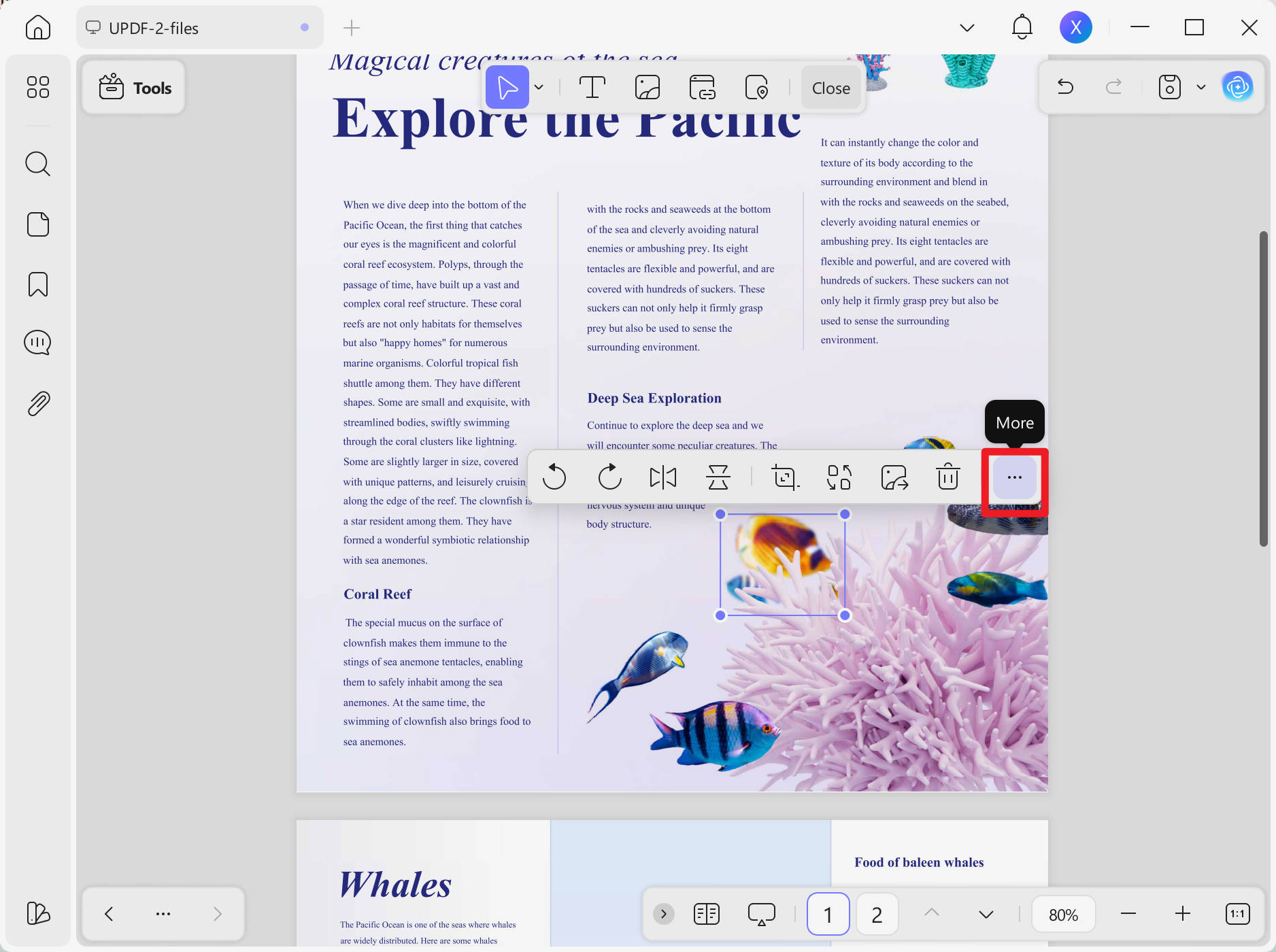
Step 4: In the dialog box that appears, click on "Export Image". Then, click on "Extract All".
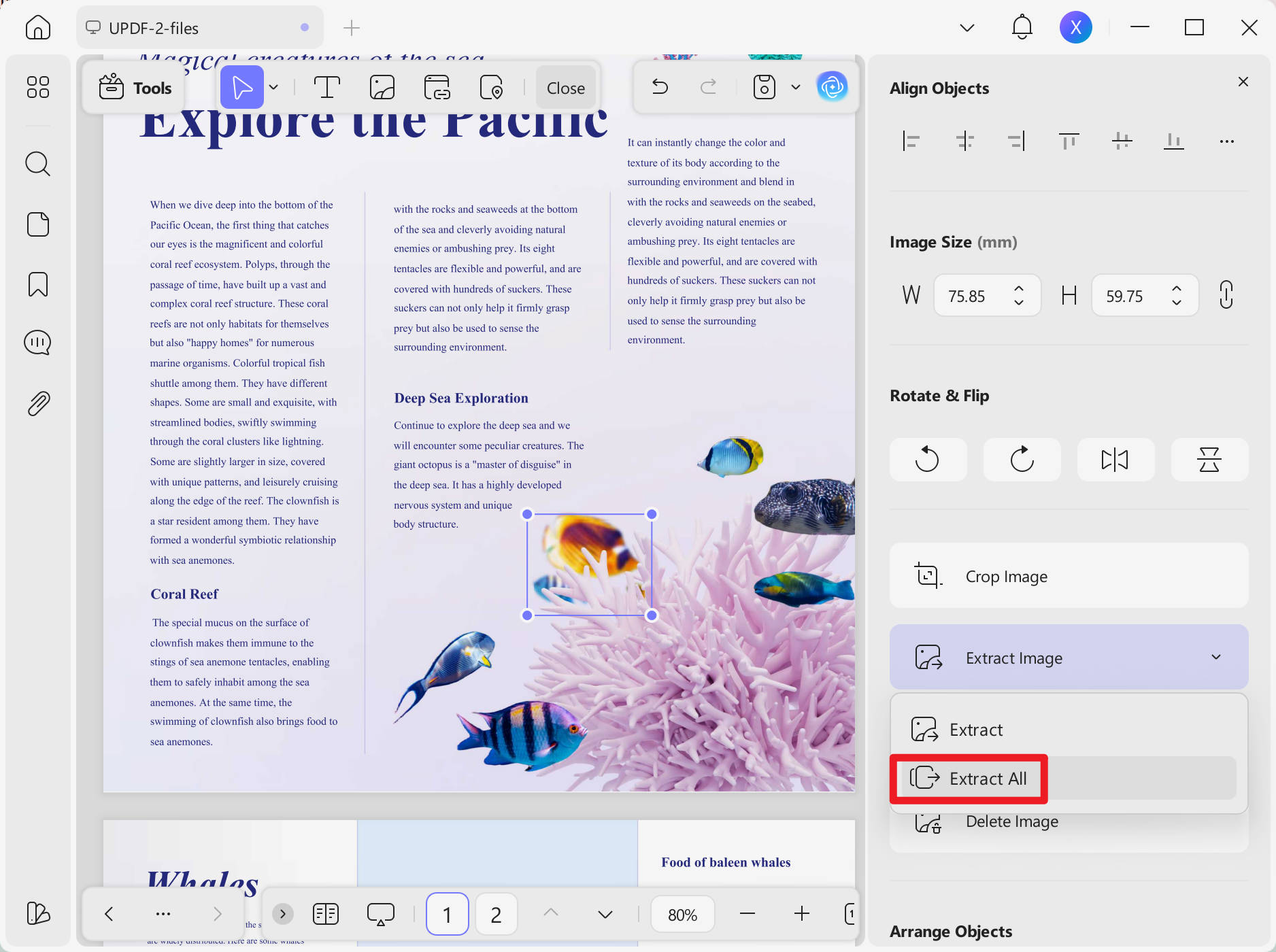
Step 5: Save the extracted image at the desired location.
Way 3: Extract the Image from a Scanned PDF
Scanned PDFs often pack images in a format that's hard to just lift and use. That's where UPDF's OCR feature comes in!
Here's the image extraction game plan for scanned PDFs:
Step 1: Open your scanned PDF in UPDF.
Step 2: Go to the OCR tab in "Tools".
Step 3: In the dropdown menu, you will see three different layouts. Choose the "Text and pictures only".
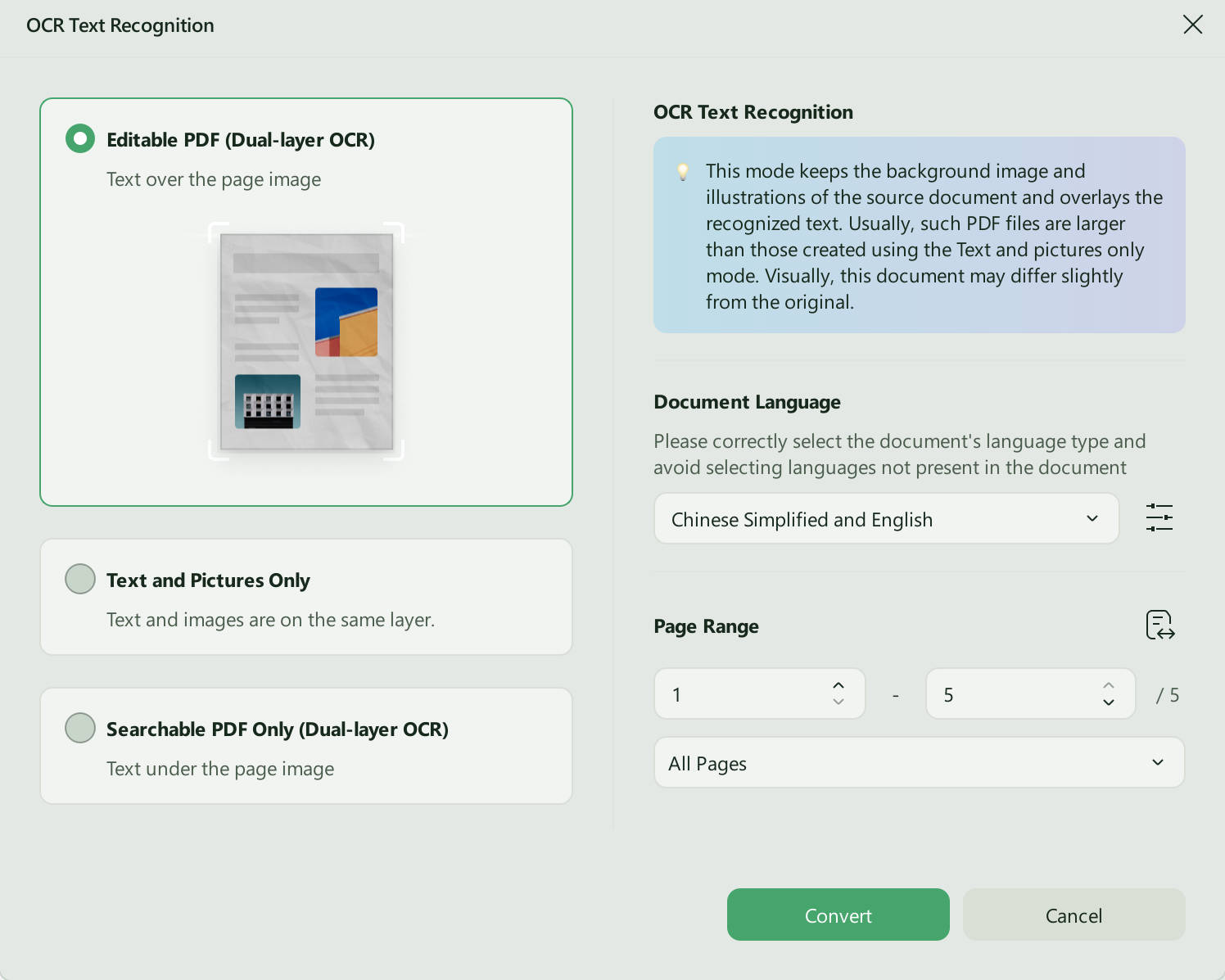
Step 4: Click on "Convert" and wait for the file to convert.
Step 5: Once it's ready, go to the Edit tab in "Tools".
Step 6: Right-click on the image you want within the editable PDF.
Step 7: Choose "Extract Image". Then, save it, and you're done!
Image extraction is super cool, but UPDF is capable of so much more! Let's explore some of its other impressive features that can transform your PDF workflow.
Windows • macOS • iOS • Android 100% secure
Once you’ve extracted the images you need, you might also want to edit the remaining text or adjust the layout. Explore our How to Edit a PDF guide for a full walkthrough of all editing tools
2.2. Extract Images from PDF with Adobe Acrobat
We've seen how UPDF is a total lifesaver for image extraction. But hey, maybe you have Adobe Acrobat on your computer! Adobe Acrobat has image extraction too. However, if image extraction is the only thing you need from it and you do not have its license, we do not recommend using this tool. Its subscription fee is very high.
For those who have Adobe Acrobat, you can follow the guide below to extract images from a PDF.
Here is how you can extract images from PDF with Adobe Acrobat.
Step 1: Open Acrobat Pro and open your PDF.
Step 2: Go to Tools > Edit PDFs.
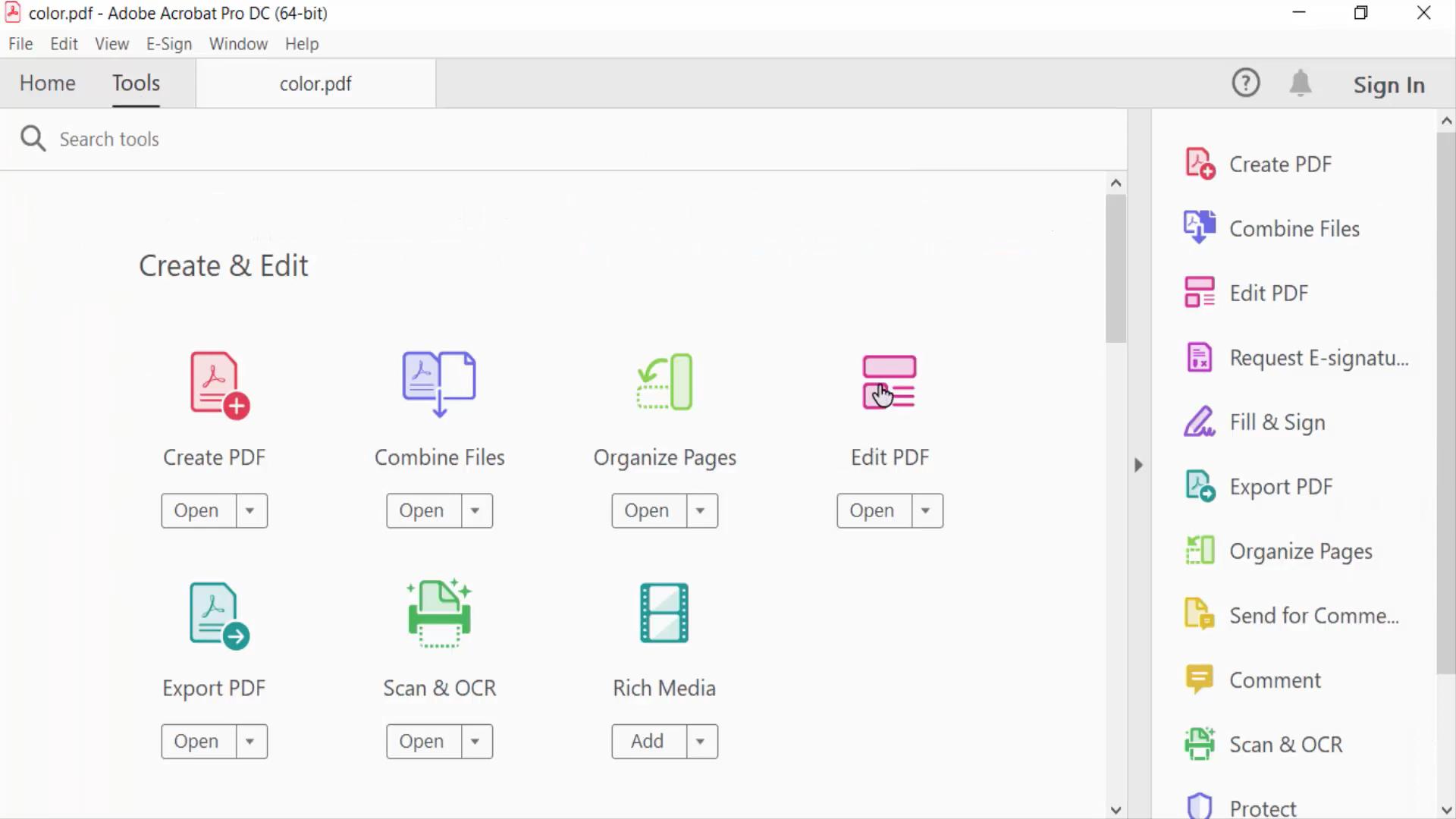
Step 3: Click directly on the image you wish to extract.
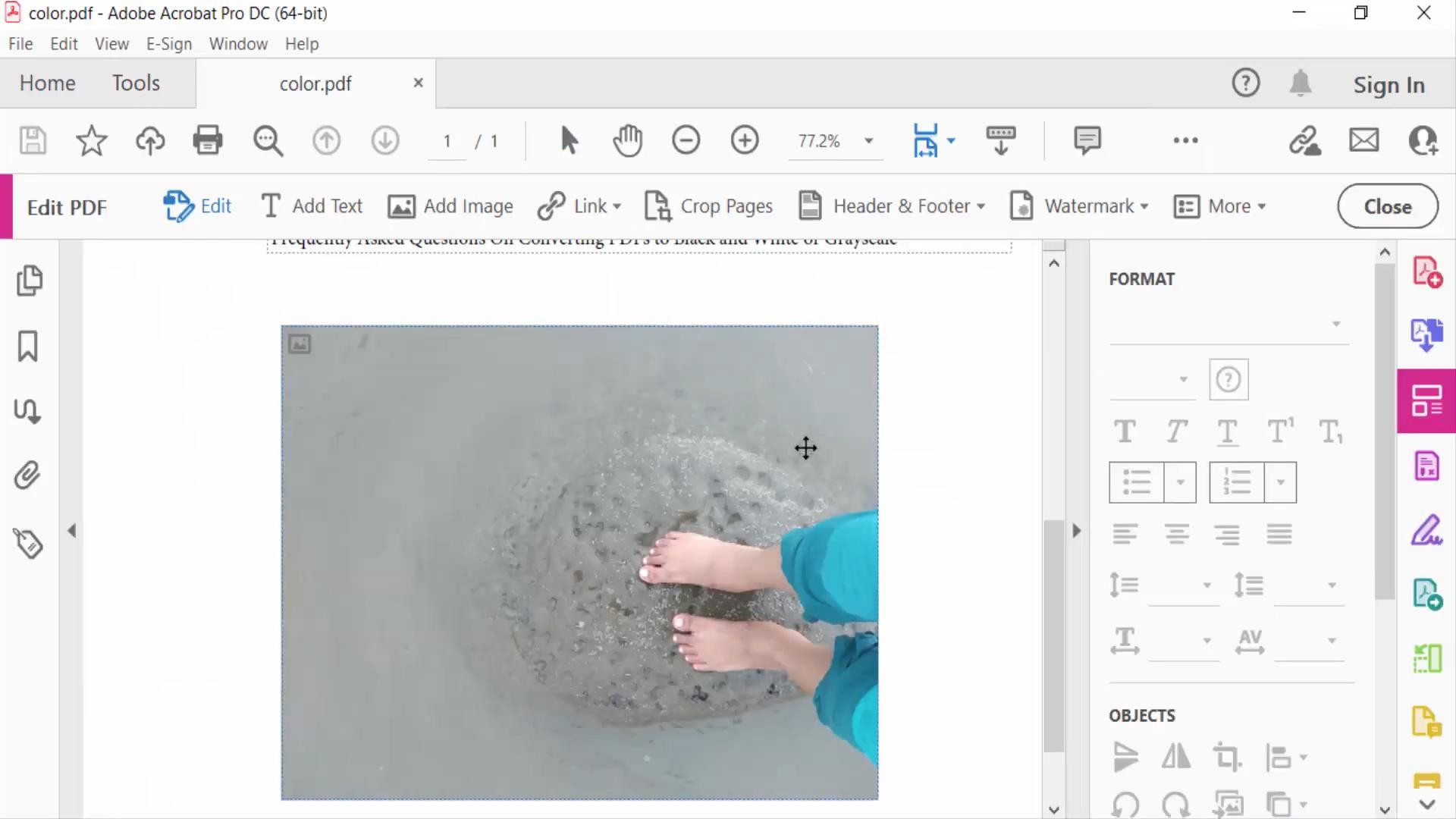
Step 4: Right-click on it and click on "Copy."
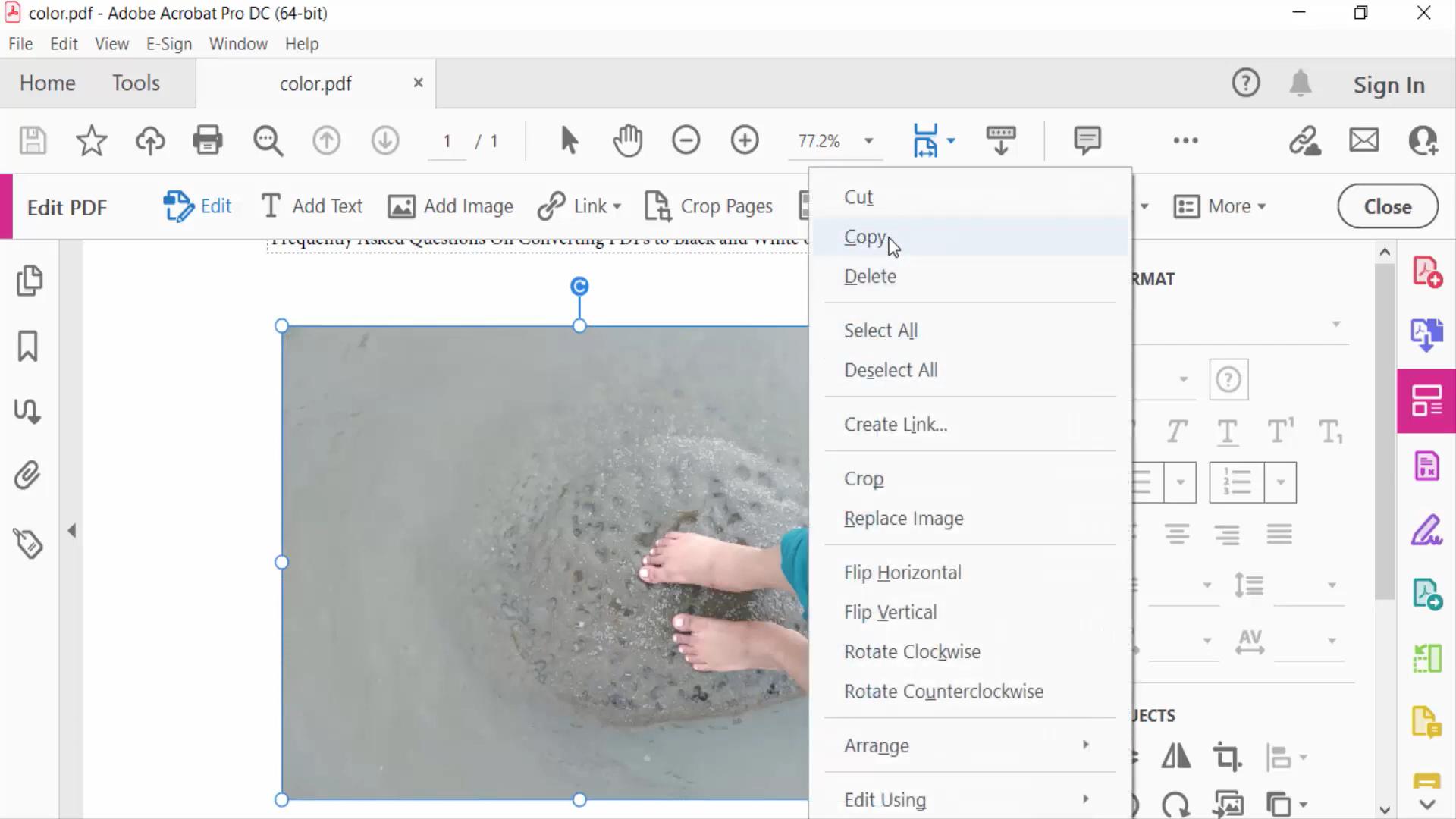
Step 5: Open your preferred image editor (or even a word processor) and paste the copied image (Ctrl+V or right-click, "Paste").
Step 6: Finally, save it as a JPEG, PNG, or any other suitable image format.
Adobe Acrobat is reliable, but honestly, there are faster and easier ways to get those images out if that's all you need.
Also Read: Adobe Acrobat Vs UPDF
2.3. Extract Images from PDF with Bluebeam
Bluebeam is a big name. Their main product Bluebeam Revu is a specialized designing software. It's built for handling those crazy blueprints and stuff. It also has great tool to help you extract them from PDFs.
If such super technical PDFs are your everyday life, Bluebeam might be worth a look.
Just a heads-up though, it's not the easiest thing to use if all you want is a quick image grab.
Step 1: Open your PDF in Bluebeam.
Step 2: Find the Snapshot tool. It's hiding under 'Edit' > 'Snapshot'.
Step 3: Draw a box right around the image you want. The image will be automatically copied.
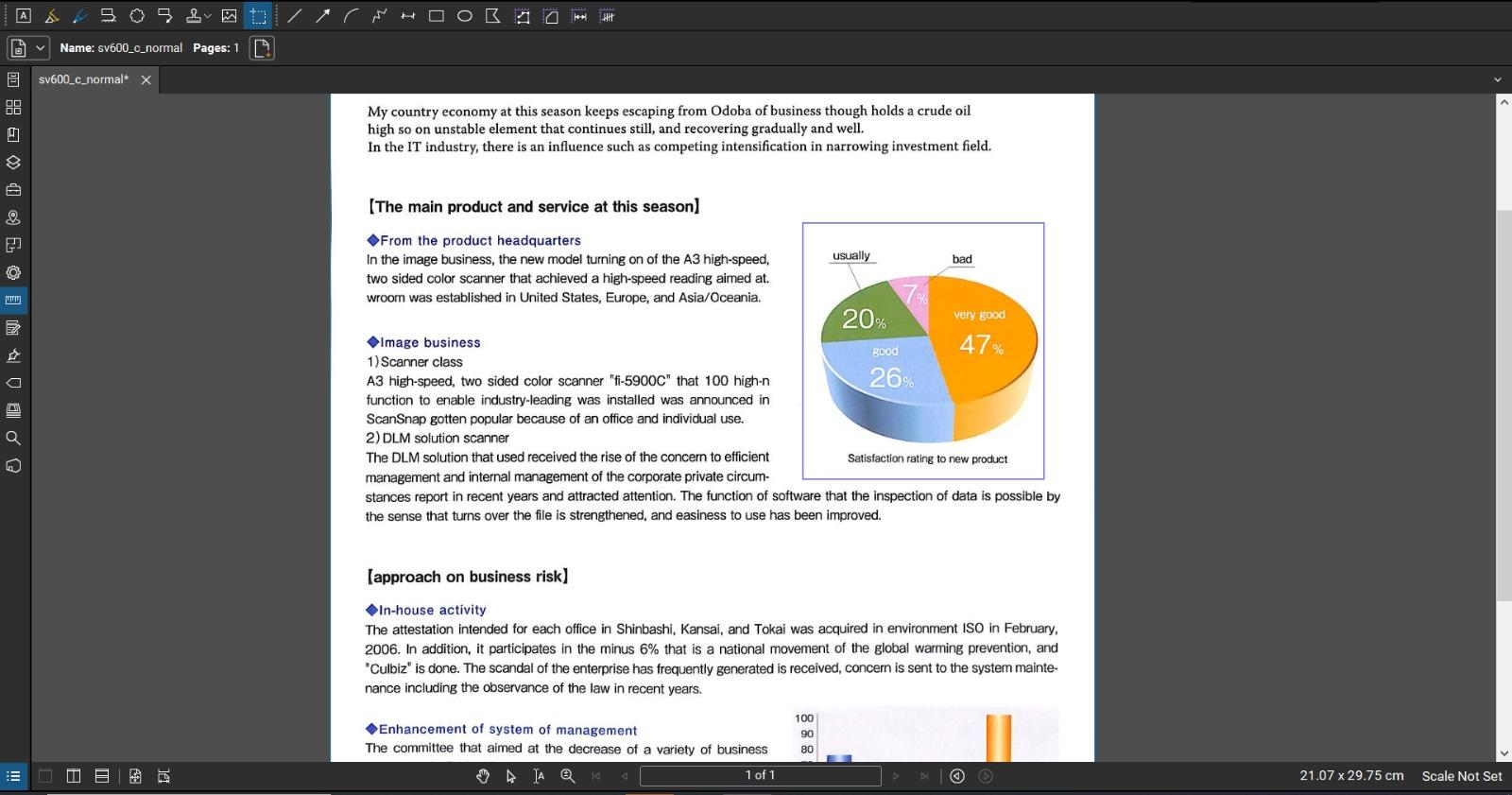
Step 4: Open your favorite image editor (or even Word!) and paste that snapshot in.
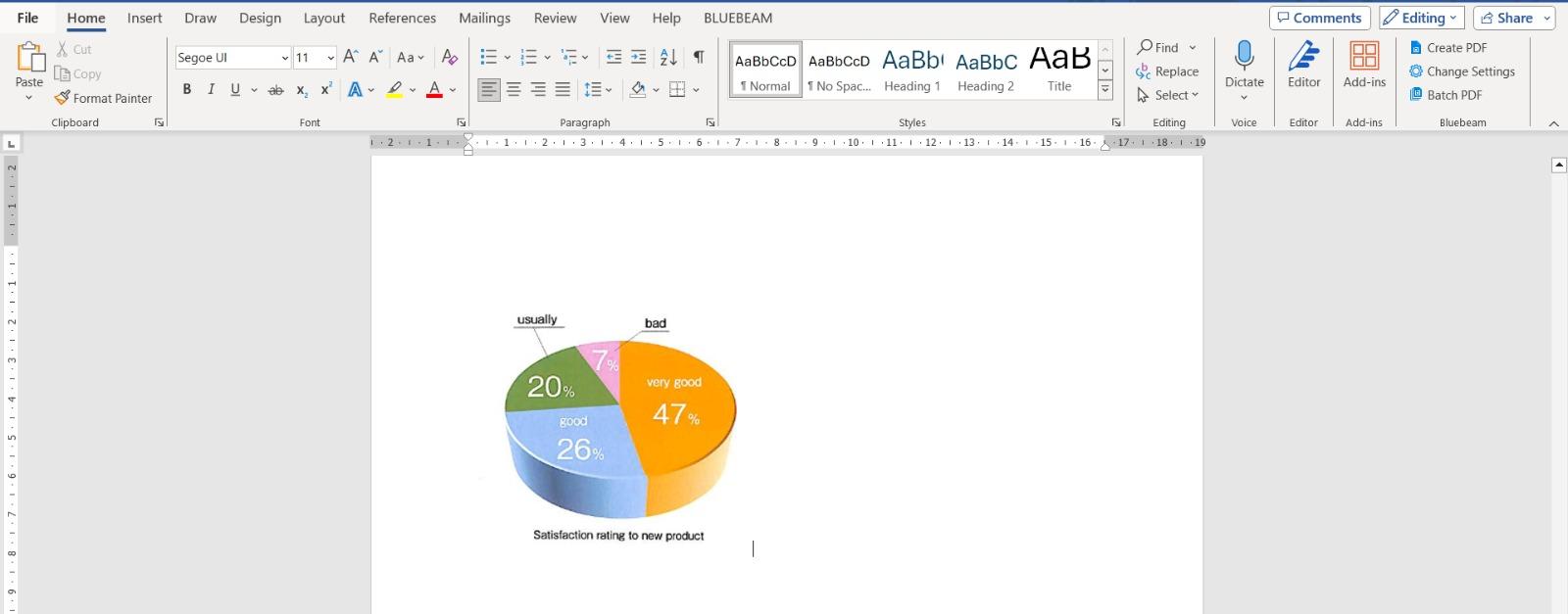
Step 5: Now, you can save it as an image file like a JPG or PNG.
Bluebeam is a powerful tool, but is it the right fit for your needs? Let's explore a tool with a different approach to image extraction – Foxit.
Also Read: Bluebeam Alternatives for Mac
2.4. Extract Images from PDF with Foxit
Foxit is another big name in the PDF world. It offers a variety of tools for working with PDFs, including editing, creating, and signing. Foxit is a popular alternative to Adobe Acrobat and is known for its user-friendly interface and efficient features.
If you already use Foxit for editing PDFs, it is easy to use its image extraction. Just be warned – it's not the absolute easiest to use if you're new to PDF editing.
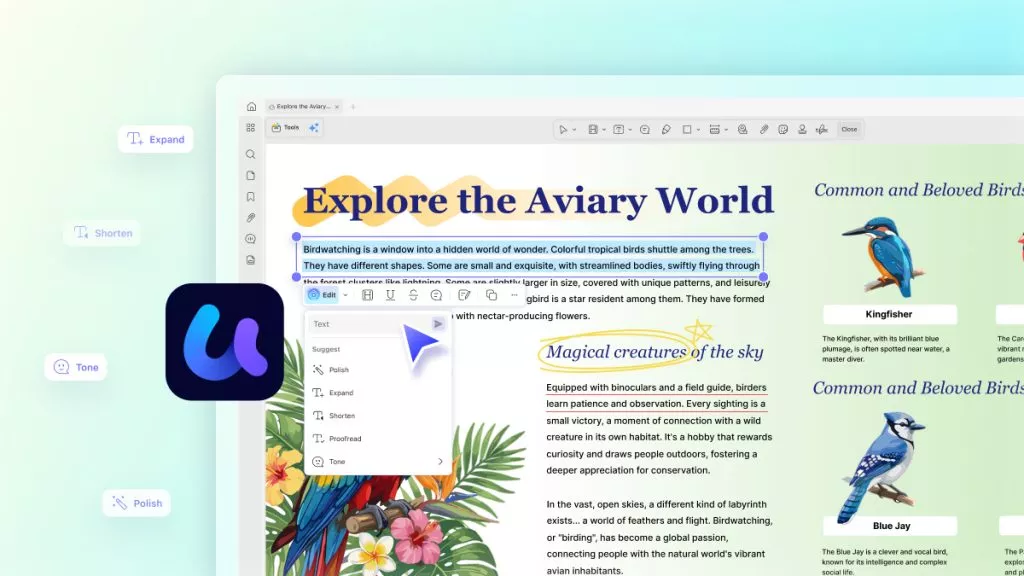
A small adjustment to an image can make the whole page easier to follow. The example below shows the workflow for editing PDF content in UPDF.
Let's check out two ways to extract images from PDF with Foxit:
The first method is to use the "Select Text and Image" tool. Here is how to use it for image extraction:
Step 1: Open your PDF in Foxit.
Step 2: Go to Home > Select > Select Text and Image.
Step 3: Click on the image you want. It'll get highlighted.
Step 4: Right-click on that image and pick "Save Images As."
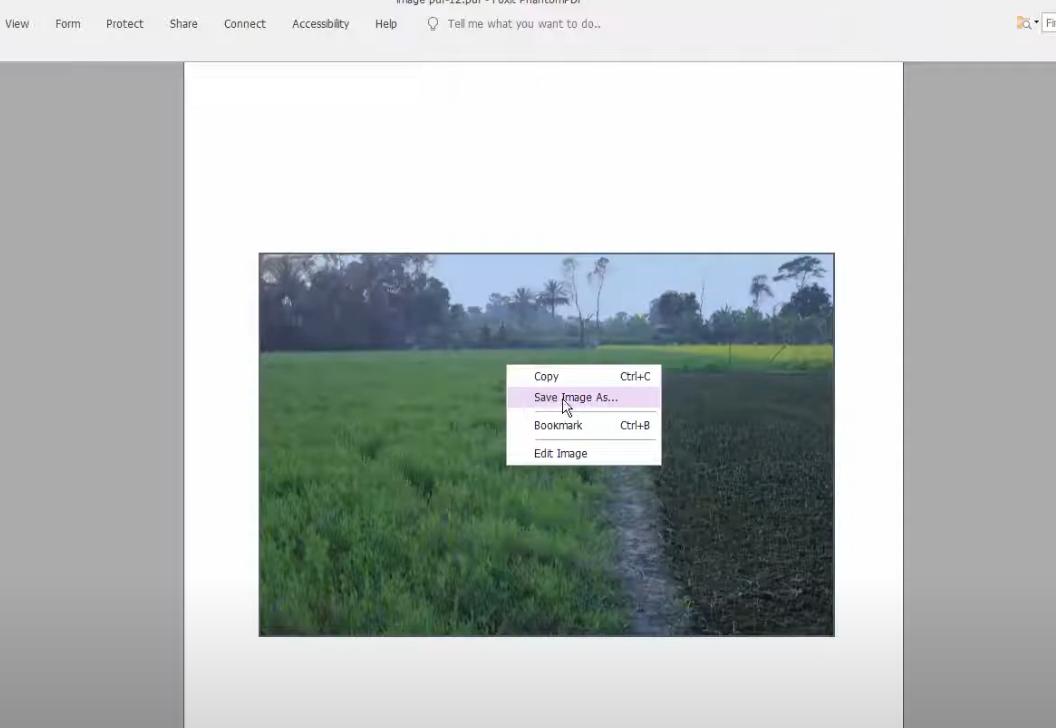
Step 5: Select your favorite image format (JPG, PNG, etc.).
Step 6: Give your image a name and click "Save."
Foxit actually offers more ways to extract images, but these two are pretty easy to get started with.
Should you go with Foxit? If you already have Foxit on your computer, give it a try! If you're looking for a super simple tool just for extracting images from PDF, there are even easier-to-use options like UPDF.
Part 3. How to Extract Images from PDF Online (Fast and Easy)
Online PDF image extractors are ideal for quick, one-off tasks. They require no software installation and feature an extremely straightforward operation process. Let's check how to extract images from PDF online with these 6 tools together. You can click the tool's name and then extract images from PDF at once; we've tested them one by one.
| Dimension | PDF24 | pdfforge | APITemplate.io | PDF Candy | pdf.imagestool | PDFaid |
|---|---|---|---|---|---|---|
| File Size Limit | No explicit limit | ≤250 MB | Not specified | No explicit limit | Not specified | Not specified |
| Output Formats | All embedded image formats (JPG, PNG, etc.) | JPG or PNG (selectable) | JPG, PNG, etc. | JPG, PNG, TIFF (original formats preserved) | JPG, PPM, PBM | JPG, PNG, BMP (selectable) |
| Image Preview | ❌ No | ❌ No | ✅ Yes | ✅ Yes | ❌ No | ❌ No |
| Selective Download | ❌ No (all as ZIP) | ❌ No (all as ZIP) | ✅ Yes (individual or batch) | ✅ Yes (selective) | ❌ No | ❌ No |
| Registration Required | ❌ No | ❌ No | ❌ No | ❌ No | — | ❌ No |
| Watermark | ❌ No | ❌ No | ❌ No | ❌ No | — | ❌ No |
| Processing Method | Cloud server | Cloud server (EU-based, GDPR-compliant) | Cloud server | Cloud server | — | Cloud server |
| Extra Features | 20+ PDF tools | Combine fragmented images | Per‑page image grouping | Google Drive/Dropbox integration | — | Basic PDF modification tools |
| Best Suited For | Fast, no‑limit bulk extraction | Larger files (up to 250MB) | Users who need preview & selective download | Users who want preview + selective download | Specialized image format extraction | Quick, no‑frills extraction |
These online tools follow a simple workflow: upload your PDF, wait for processing, and download extracted images, usually packed in a ZIP file. The whole process takes less than one minute.
ℹ️ Important Notes:
1: Do not upload files containing confidential information such as contracts, ID documents, and financial reports.
2: Free versions generally have limits on file size and daily usage.
3: Image quality matches the original PDF, though some tools may compress files during processing.
Extra: How to Extract Images from PDF in Mac Preview
This method is exclusive for Mac users: use Preview (Free & Built-in). Best for: Mac users who need to extract one or a few selectable images from a PDF.
- Open the PDF in Preview.
- Hold the Command key and click to select images (multiple selections supported).
- Copy with Command+C, or drag images directly to your desktop or folder. Images will be automatically saved as PNG files.
Limitations
- Does not support batch extraction of all images in a PDF.
- Fails with scanned PDFs or non-selectable embedded images.
- No options to customize output format or resolution.
Also Read: How to Extract Images from PDF Mac Here
Frequently Asked Questions
Does extracting an image from a PDF reduce its quality?
Direct extraction can preserve the embedded image data, while screenshots are limited by display resolution.
Why does an extracted PDF image have a black background?
The image may contain transparency that the viewing app renders against black. Export to a format that supports transparency or add a background.
Can I extract all images from a PDF at once?
Yes, with a batch extraction feature. Review the output because logos, icons, masks, and background fragments may also be extracted.
Final Words
We've covered many ways to extract images from a PDF! You can choose any tool you like from the list.
You can use different tools, including online options and some powerhouses like Adobe and Bluebeam. But if you want the easiest experience with tons of PDF features, definitely try UPDF.
Download it today and extract images from PDFs right away!
Want to master all aspects of PDF editing? Check out our complete guide: How to Edit a PDF – covering text editing, image manipulation, annotation, and more.
Windows • macOS • iOS • Android 100% secure





 Lizzy Lozano
 Engelbert White