UPDF
UPDF
 UPDF for Windows
 UPDF for Mac
 UPDF for iPhone/iPad
 UPDF for Android
 Nomostar
 UPDF AI Online
 UPDF Sign
 IvyCraft
 Edit PDF
 Annotate PDF
 Create PDF
 PDF Form
 Edit links
 Convert PDF
 OCR
OCR PDF to Word
 PDF to Image
 PDF to Excel
 Organize PDF
 Merge PDF
 Split PDF
 Crop PDF
 Rotate PDF
 Protect PDF
 Sign PDF
 Redact PDF
 Sanitize PDF
 Remove Security
 Read PDF
 UPDF Cloud
 Compress PDF
 Print PDF
 Batch Process
 About UPDF AI
 UPDF AI Solutions
 AI User Guide
 FAQ about UPDF AI
 Summarize PDF
 Translate PDF
 Chat with PDF
 Chat with AI
 Chat with image
 PDF to Mind Map
 Explain PDF
 PDF AI Tools
 Image AI Tools
 AI Chat Tools
 AI Writing Tools
 AI Study Tools
 AI Working Tools
 Other AI Tools
 AI Bookmark Generation
 AI Bookmark Summary
 AI Watermark Generation
 AI Background Generation
 AI Sticker Generation
 AI Stamp Generation
 AI Editing Suite
 UPDF Copilot
 AI Page Management
 AI Semantic Search
 PDF to Word
 PDF to Excel
 PDF to PowerPoint
 Enterprise Solution
 Enterprise Sign
 Enterprise AI
 Enterprise Plan
 Enterprise User Guide
 Enterprise Webinar
 IT
IT Education
 Construction
 Financial Service
 Healthcare
 Insurance
 Legal
Legal Manufacturing
 Government
 Researchers & PhDs
 Solopreneurs & Freelancers
 Lawyers & Legal Professionals
 Real Estate Agents & Brokers
 Education Solution
 Customer Stories
 User Guide
 UPDF Tricks
 FAQs
FAQs UPDF Reviews
 Download Center
 Blog
Blog Newsroom
 Tech Spec
 Updates
 UPDF vs. Adobe Acrobat
 UPDF vs. Foxit
 UPDF vs. PDF Expert

Tablets are excellent for reading PDFs, but different documents place very different demands on the device. For novels and ordinary ebooks, portability and eye comfort may matter most. Two-column research papers benefit from a larger display and easy zooming. Scanned handouts, contracts, and business reports call for search, OCR, annotation, and split-screen tools.
This guide draws on official product information, current system features, independent hands-on demonstrations, and PDF software experience on compatible devices. We compare the tablets across four everyday tasks:
- Two-column research papers
- Long ebooks and course materials
- Scanned contracts and paper handouts
- Business reports with tables and charts
Every tablet in this guide can open PDFs with a built-in or preinstalled app. On compatible devices, we also considered how UPDF can extend OCR, annotation, file management, and cross-device workflows.
Windows • macOS • iOS • Android 100% secure
Quick Answer: Which Tablet Is Best for You?
| Recommended tablet | Best for | Main strength | Keep in mind |
| iPad Air M4 | Students, researchers, and most users | Balanced screen, performance, weight, and apps | Less restful than E Ink for hours of text |
| Samsung Galaxy Tab S11 | Android and S Pen users | Large display, handwriting, and split-screen work | Screen size and configuration vary by model |
| Microsoft Surface Pro | Business, legal, and professional work | Full Windows environment for deeper PDF work | Usually heavier and more expensive than a standard tablet |
| BOOX Note Max | Long reading sessions | A4-size E Ink display feels close to paper | Limited color, scrolling, and third-party app experience |
| iPad mini | Commuting and short sessions | Lightweight, portable, and supported by the iPad app ecosystem | A4 and two-column PDFs require frequent zooming |
For most people, the iPad Air M4 is the best all-round choice. If you read for hours every day, an E Ink tablet such as the BOOX Note Max may feel more comfortable. If your tablet also needs to handle full desktop work, the Surface Pro is the stronger option.
Are Built-In PDF Apps Good Enough?
You do not have to install another PDF app as soon as you buy one of these tablets.
- The iPad Air and iPad mini can use Preview to read, search, and annotate PDFs.
- Galaxy Tab models can import PDFs into Samsung Notes for writing and markup with the S Pen.
- Microsoft Edge on Surface Pro includes highlighting, inking, and text tools for PDFs.
- BOOX includes NeoReader, which is optimized for E Ink displays.
For occasional reading, signing, or highlighting, these built-in apps are usually enough.
UPDF becomes useful when you also need to run OCR on scans, edit existing PDF content, organize pages, view several documents, present a PDF, or continue working across Windows, macOS, iOS, and Android.
If you already own a tablet, try UPDF on your own papers, scans, and reports before deciding whether new hardware is necessary.
Windows • macOS • iOS • Android 100% secure
Want to see it in action? Watch this short iPad demo of UPDF for iOS. It shows the earlier 1.0 interface, so the current layout may look slightly different. Check the UPDF technical specifications for feature availability by platform. One personal license works on up to four devices—two computers and two mobile devices—across Windows, macOS, iOS, and Android.
1. iPad Air M4: The Best All-Round Experience
Apple introduced the M4 iPad Air in 2026 in 11-inch and 13-inch sizes. For PDF reading, the M4 does not make basic page turns dramatically faster. Its value is the extra headroom when opening large files, researching in split view, running OCR, or keeping a browser and notes app open together. The 11-inch model is easier to carry and hold; the 13-inch model is closer to an A4 page and requires less zooming with two-column papers, scanned handouts, and wide charts.
Screen size matters more than benchmark scores here. Standard text PDFs look sharp on both models. Two-column papers and chart-heavy reports are easier on the 13-inch display in landscape or split view. With scans, the source quality and OCR support matter more. Preview covers search, highlighting, handwriting, and basic form filling, while Apple Pencil works well for classroom notes and quick reviews. Public user feedback also favors the 13-inch model for fixed-layout textbooks and medical journals, although it is less comfortable to hold for long periods.
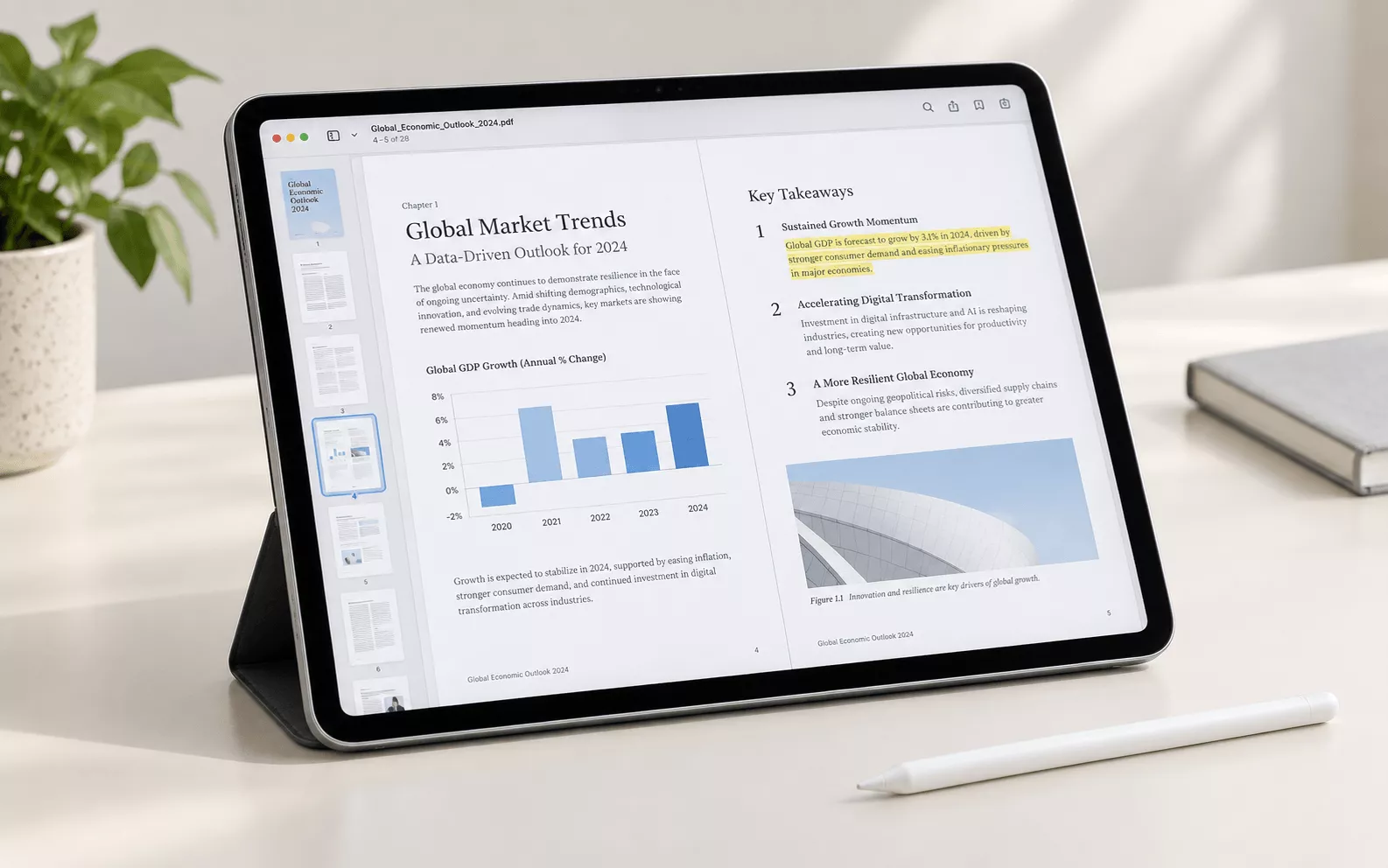
For OCR, side-by-side document comparison, or PDF presentations, UPDF can fill the gaps without replacing the iPad's simpler built-in tools. Teachers can also use its laser pointer to direct attention during a presentation.
See PDF reading, annotation, and presentation on an iPad in this short UPDF walkthrough.
Bonus: Useful AI Tools for Students and Researchers
When reading research papers, AI is most useful for reducing the time spent finding and understanding information—not for writing assignments on your behalf.
UPDF AI includes Paper Search, Scholar Research, paper summaries, chat across multiple PDFs, term explanations, translation, and PDF-to-mind-map tools. Students can use them to discover related studies, map a research topic, or compare sources, but AI-generated summaries, citations, and conclusions should always be checked against the original paper.
Eligible students, teachers, and researchers can also apply for UPDF's education discount. As of September 2026, the official pages list:
- UPDF Pro Education at $39.99 per year
- UPDF AI Education at $59 per year, up to 58% off the listed price
- Adobe Acrobat Pro for students and teachers at $19.99 per month, or $239.88 per year, with AI Assistant priced separately
At these published prices, UPDF Pro Education costs about one-sixth of Adobe Acrobat Pro's education annual price. The products package and bill their features differently, so check current prices and plan coverage before buying.
2. Samsung Galaxy Tab S11: Best for Android and S Pen Users
The Galaxy Tab S11 has an 11-inch display, while the S11 Ultra expands to 14.6 inches. Both include an S Pen and support Samsung DeX. The standard model is easier to carry; the Ultra feels more like a portable document desk, leaving room for an A4 page, its outline, and notes in landscape view. The trade-off is size: the Ultra works best on a desk or lap and is tiring to hold in one hand.
Their high-refresh-rate displays make scrolling, chart zooming, and continuous handwriting feel responsive. Standard PDFs and slides turn smoothly, and color charts look more complete than on E Ink. The Ultra reduces zooming with two-column papers; the 11-inch model relies more on landscape mode, margin cropping, or single-column viewing. Performance is ample for Samsung Notes, a browser, and file management together, although too many windows reduce the usable reading area.
Samsung Notes can import a PDF and add handwriting, drawings, and typed text with the S Pen, making it convenient for lecture slides, meeting materials, and annotation-heavy documents. Its strength is the short path from opening a file to writing on it. Directly editing existing PDF text and navigating complex document structures are less central to the experience, so users of long textbooks should also check how outlines, bookmarks, and exported annotations behave with their files.
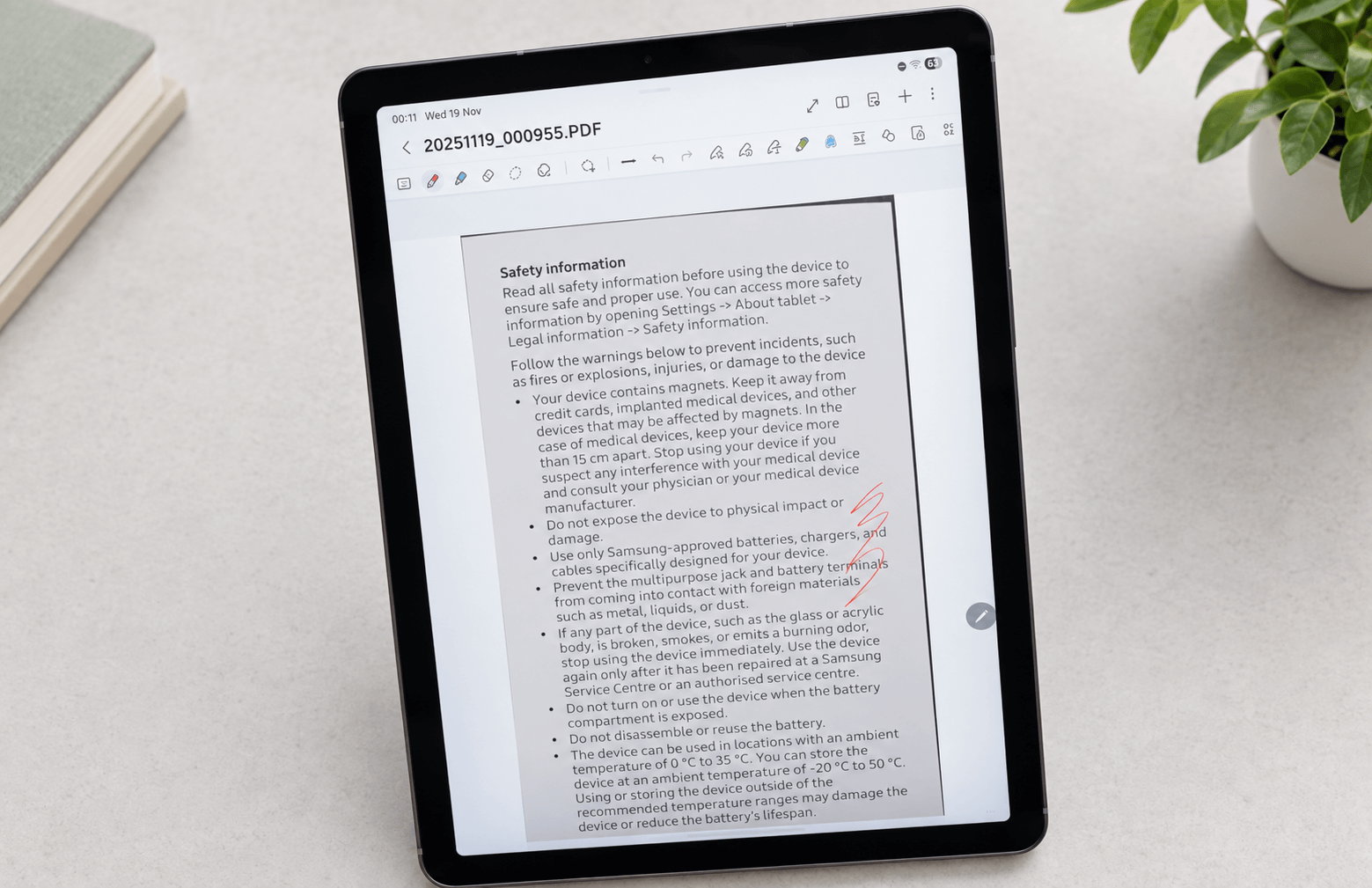
When a PDF also needs existing text edited, scanned pages recognized, or pages reordered, UPDF for Android is a natural next step beyond Samsung Notes. The same document can then be continued on a computer without rebuilding the workflow.
In everyday use, the Galaxy Tab is strongest when handwriting is central: annotating lecture slides, reviewing a two-column paper in landscape, or keeping a PDF beside web research in split view. Before buying, check palm rejection, outline and bookmark access, and whether exported annotations display correctly on your other devices.
3. Microsoft Surface Pro: Best for Professional Work and Complex PDFs
Surface Pro sits between a tablet and a laptop and is available in 12-inch and 13-inch versions. Its main advantage is not that it feels most like an ereader, but that full Windows can run PDFs, Office files, browser research, and business software side by side. The 12-inch model is more portable and lets the pen attach for charging. The 13-inch model provides more document and split-screen space, but the keyboard and Slim Pen are usually sold separately, so their cost and weight belong in the comparison.
Microsoft Edge already lets Surface Pro users:
- Open local and online PDFs
- Search text and use Read Aloud
- Add ink with a pen
- Highlight and insert text
- Complete some basic PDF forms
Edge is sufficient for quick reading, search, and temporary notes. Surface's adjustable kickstand is comfortable for long reports on a desk and can be lowered for writing, but the device is heavier in the hand than an iPad mini or an 11-inch tablet. Windows file management and app choice help with scanned contracts, table-heavy reports, and folders containing hundreds of pages. Battery life and heat vary with processor, brightness, and background workload.
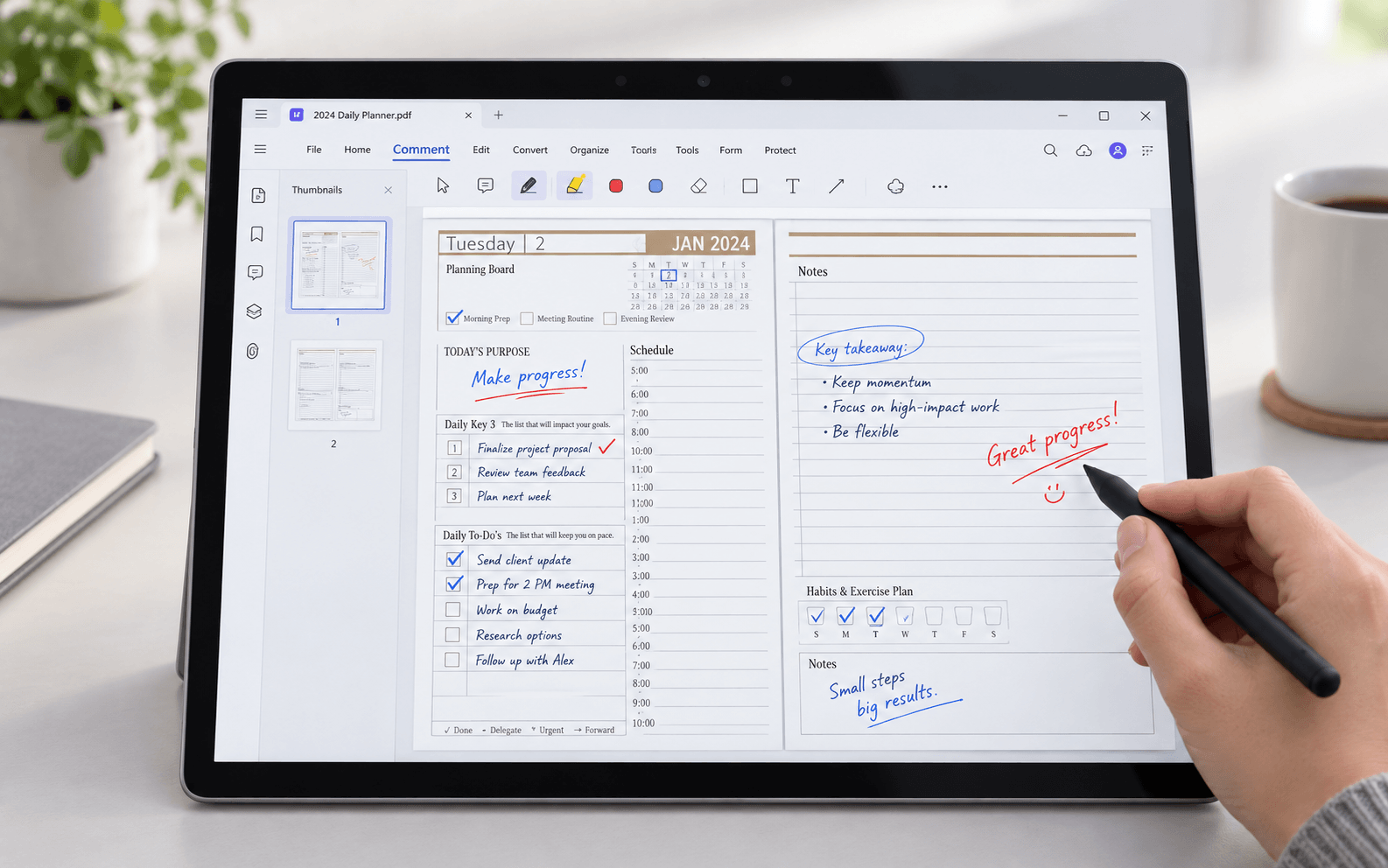
Lawyers, consultants, finance teams, and business users should judge the whole workflow rather than page-turn speed alone. Open a long contract, its attachments, and related web research together, then check switching, search, copying, and saved annotations. Edge's basic markup is convenient, but important files should always be reopened after saving to confirm that pen and highlight annotations were preserved correctly.
If the work also requires editing original content, OCR, splitting or merging files, or continuing on another device, UPDF for Windows adds those deeper tools. Its AI features can help locate passages in long reports, but contractual duties, financial figures, and key conclusions still need to be verified in the source.
Windows • macOS • iOS • Android 100% secure
4. BOOX Note Max: Best for Hours of Daily Reading
For people who spend hours each day with papers, ebooks, or text-heavy documents, the BOOX Note Max stands out for its 13.3-inch A4-size E Ink display. Two-column papers can appear close to their printed size, glare is low in bright rooms, and static pages remain comfortable over long sessions. It works best on a desk or stand rather than in one hand during a commute.
NeoReader supports margin cropping, reflow, bookmarks, highlighting, handwriting, and split-screen notes. Clear academic papers are its sweet spot. Scans, grayscale charts, and complex layouts may require contrast, refresh-mode, or crop adjustments. Independent demonstrations show the value of the large split-screen workspace, while BOOX community reports suggest that very long, heavily annotated PDFs can turn pages more slowly until full-refresh settings are adjusted.
Compared with an iPad or Galaxy Tab, E Ink is generally better for sustained text reading, but the trade-offs are significant:
- Color charts are not reproduced in full color.
- Fast scrolling and zooming are less fluid than on LCD or OLED tablets.
- Video and motion-heavy content are not its strengths.
- Third-party Android apps may not refresh or support handwriting as smoothly as NeoReader.
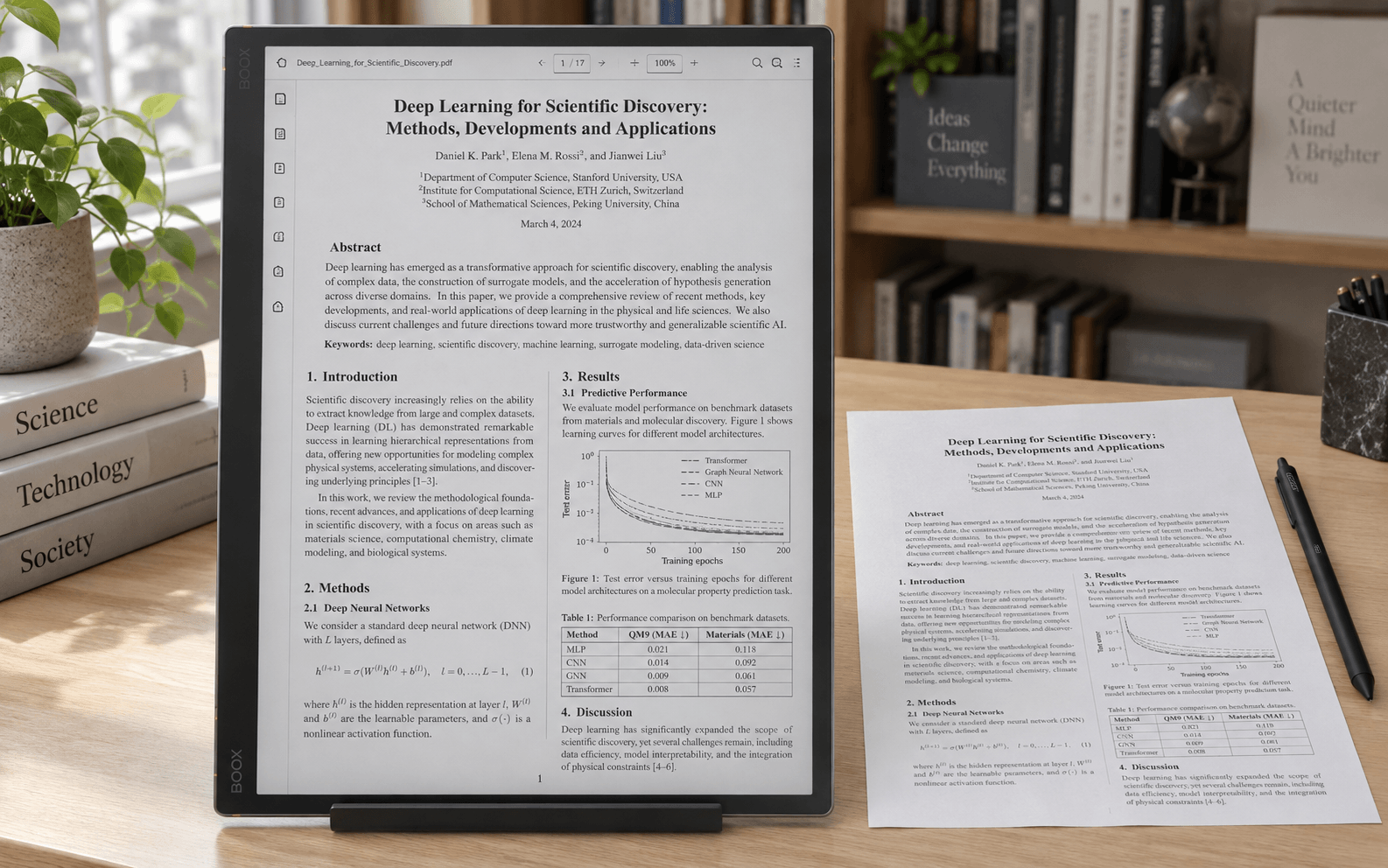
NeoReader should remain the primary reading app on BOOX. A practical workflow is to run OCR, crop, compress, or organize the PDF on a computer or conventional tablet first, then transfer the finished file to BOOX for long reading sessions and handwritten notes.
5. iPad mini: Best for Commuting and Short Reading Sessions
The iPad mini's advantage is not how much it shows, but how little effort it takes to carry and open. It is ideal for commuting, queues, travel, or a quick document check in a meeting. Current performance is more than enough for standard PDFs, search, and annotation. Screen size is the real limitation: single-column ebooks and short documents feel comfortable, while A4 scans, two-column papers, and large tables require repeated zooming and horizontal movement.
It works especially well for:
- Single-column ebooks
- Short PDFs
- Manuals
- Meeting agendas
- Course materials that do not require constant inspection of small details
A4 pages, two-column papers, and wide tables demand more zooming and panning. Software can streamline the controls, but it cannot replace physical screen space.
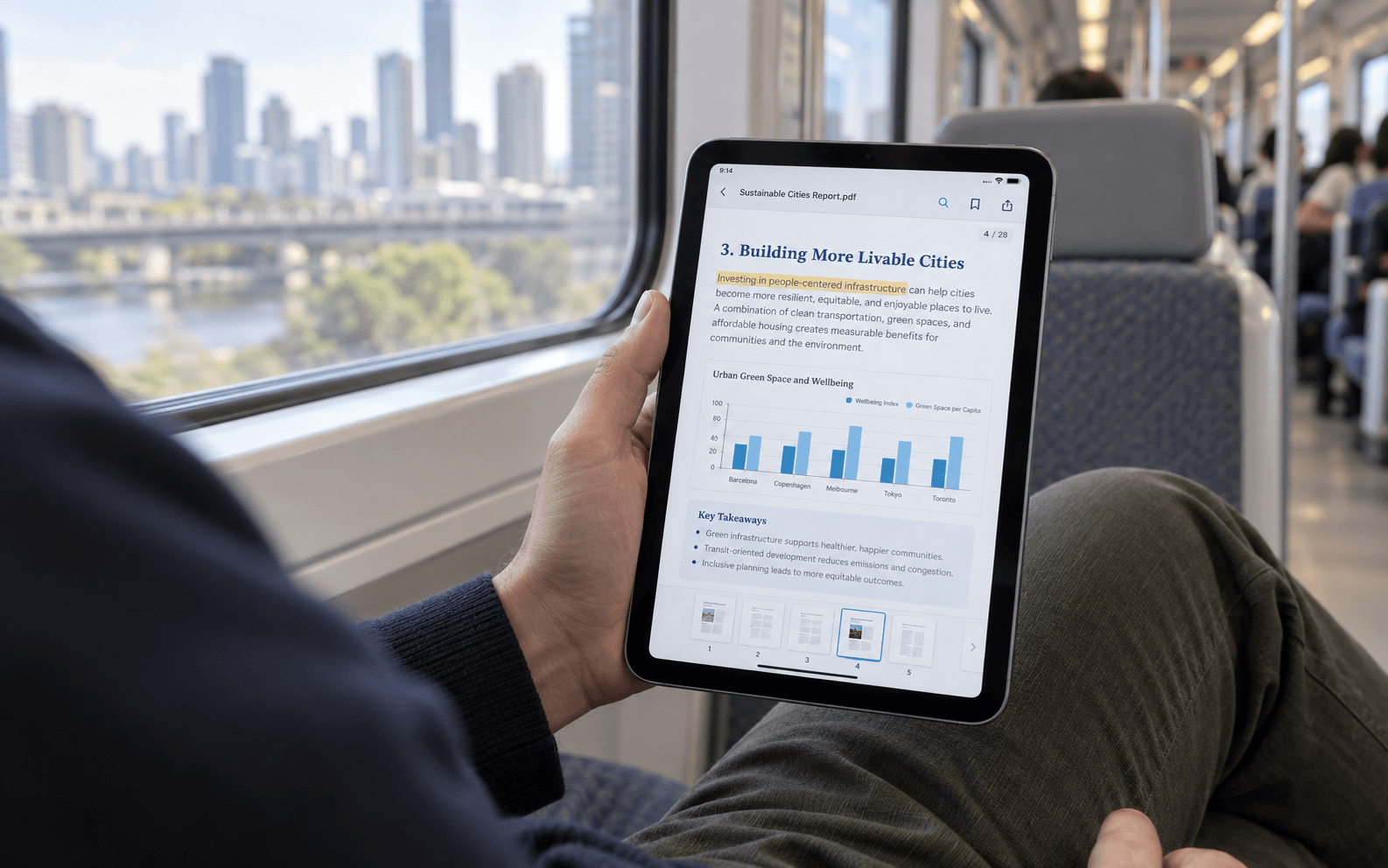
For one-handed reading, Fit Width, keyword search, quick Apple Pencil notes, and effortless portrait-to-landscape switching are the iPad mini's strengths. UPDF can add full-document reading tools, explanations, and cross-device continuity when needed, but the compact display remains best suited to shorter sessions.
Choose a larger iPad Air for long research-paper sessions. Choose the iPad mini when portability clearly matters more than viewing a complete page at once.
Scanned PDFs Make OCR Especially Important
Text in a standard PDF is searchable, but a scanned contract, paper handout, or old book page is essentially an image. A larger screen alone cannot make the words searchable.
OCR adds a text layer so scanned content can be searched, selected, or copied. If scans are part of your routine, look beyond the screen and stylus and check whether the PDF app supports OCR on the tablet itself.
UPDF can recognize scanned PDFs on iOS, iPadOS, and Android. You can choose to:
- Preserve the original appearance while making the file searchable
- Convert the scan into an editable PDF
- Extract text and images into a newly generated document
For step-by-step instructions, see how to recognize text in a PDF and how to make a scanned PDF searchable.
Windows • macOS • iOS • Android 100% secure
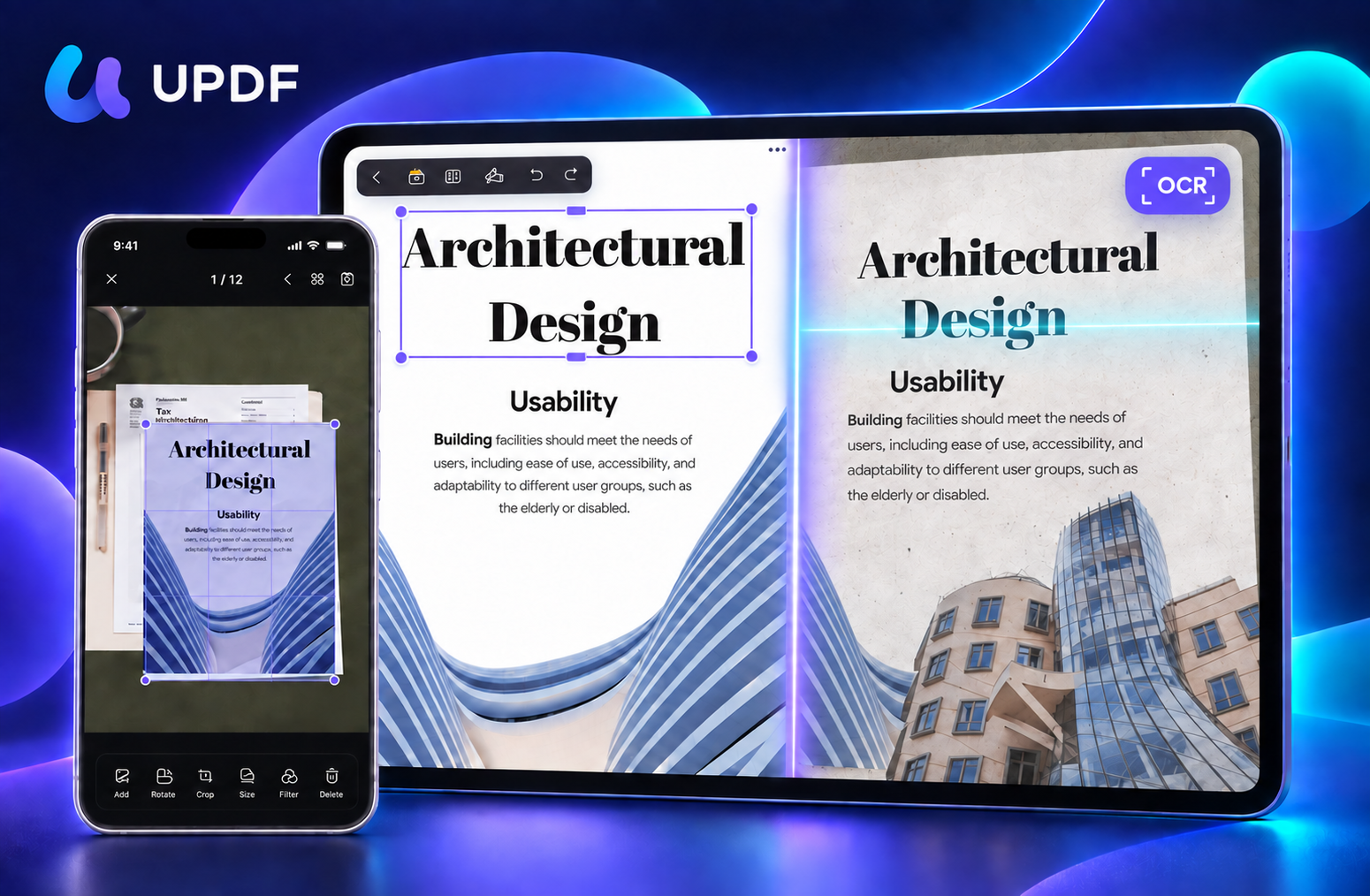
OCR is not perfectly accurate. Contract amounts, invoice numbers, dates, and easily confused characters should still be checked manually.
What Actually Matters When Buying a Tablet for PDFs
1. Screen Size
For A4 pages, contracts, and two-column papers, 10 to 13 inches is usually the most practical range. Smaller tablets travel better but require more zooming.
2. Display Type
E Ink is comfortable for long sessions with mostly text. LCD and OLED displays are better for color charts, scans, split-screen work, and switching among apps.
3. Stylus
Check more than stylus compatibility. Find out whether the pen is included, how easily annotations export, and whether the PDF app saves them reliably.
4. PDF Software
Whether the built-in app is enough depends on your work. Before buying, check for:
- Search and bookmarks
- Handwritten annotation
- OCR for scans
- Page organization
- Split-screen support
- Cross-device access
If you mainly read and highlight, start with these PDF reading guides and PDF annotation tutorials before deciding whether paid software is necessary.
5. Weight, Storage, and Accessories
Large tablets display full PDF pages more comfortably, but they are not always pleasant to hold. Check whether the stylus, keyboard, and case cost extra, and compare the total setup—not just the promotional tablet price.
Should You Wait for Black Friday to Buy a Tablet?
If you already plan to buy an iPad, Galaxy Tab, Surface, or E Ink tablet, late October through November is a sensible time to watch prices. Tablet and app deals often become more visible as Black Friday approaches.
A discount should not override your actual needs. Before buying, confirm:
- The screen can display your typical PDFs comfortably.
- The stylus is included in the advertised price.
- The storage capacity is sufficient.
- The PDF app you need supports the operating system.
- The discounted model is not an older or low-storage configuration that compromises your workflow.
Before replacing your tablet, open one research paper, one scan, and one business report on your current device. If the real problem is search, annotation, or page organization, changing the app may cost far less than changing the hardware.
If UPDF is running a Black Friday offer when you read this, compare the deal and its end date with the regular education or individual plan before purchasing.
Final Recommendation
No tablet is simultaneously the lightest, easiest on the eyes, best for color, most capable for professional software, and cheapest.
- Most students and researchers: iPad Air M4
- Android and S Pen users: Galaxy Tab S11
- Business, legal, and professional work: Surface Pro
- Hours of daily reading: BOOX Note Max
- Commuting and short sessions: iPad mini
For occasional viewing and markup, Preview, Samsung Notes, Edge, or NeoReader will usually cover the basics.
If your routine also includes OCR, editing existing content, managing pages, analyzing research papers, presenting PDFs, or moving among operating systems, test UPDF for free first. Students and educators with an ongoing need can then compare the education plan before subscribing.
Windows • macOS • iOS • Android 100% secure
Frequently Asked Questions
What screen size is best for reading PDFs?
For A4 documents and two-column papers, 10 to 13 inches is usually the most comfortable range. Tablets around 8 inches are easier to carry but require more frequent zooming.
Should I choose an iPad or an E Ink tablet for PDFs?
Choose E Ink if you mainly read text for several hours a day. Choose an iPad if you need color charts, OCR, split-screen work, editing, and a broader app ecosystem.
Can I search and annotate a scanned PDF on a tablet?
You can draw and write on a scanned PDF immediately, but searching the words inside the image requires OCR first. Apps with mobile OCR, including UPDF, can convert scanned pages into searchable content.






 Lizzy Lozano
 Enrica Taylor
 Enid Brown