 UPDF
UPDF
 UPDF for Windows
 UPDF for Mac
 UPDF for iPhone/iPad
 UPDF for Android
 Nomostar
 UPDF AI Online
 UPDF Sign
 IvyCraft
 Edit PDF
 Annotate PDF
 Create PDF
 PDF Form
 Edit links
 Convert PDF
 OCR
OCR PDF to Word
 PDF to Image
 PDF to Excel
 Organize PDF
 Merge PDF
 Split PDF
 Crop PDF
 Rotate PDF
 Protect PDF
 Sign PDF
 Redact PDF
 Sanitize PDF
 Remove Security
 Read PDF
 UPDF Cloud
 Compress PDF
 Print PDF
 Batch Process
 About UPDF AI
 UPDF AI Solutions
 AI User Guide
 FAQ about UPDF AI
 Summarize PDF
 Translate PDF
 Chat with PDF
 Chat with AI
 Chat with image
 PDF to Mind Map
 Explain PDF
 PDF AI Tools
 Image AI Tools
 AI Chat Tools
 AI Writing Tools
 AI Study Tools
 AI Working Tools
 Other AI Tools
 AI Bookmark Generation
 AI Bookmark Summary
 AI Watermark Generation
 AI Background Generation
 AI Sticker Generation
 AI Stamp Generation
 AI Editing Suite
 UPDF Copilot
 AI Page Management
 AI Semantic Search
 PDF to Word
 PDF to Excel
 PDF to PowerPoint
 Enterprise Solution
 Enterprise Sign
 Enterprise AI
 Enterprise Plan
 Enterprise User Guide
 Enterprise Webinar
 IT
IT Education
 Construction
 Financial Service
 Healthcare
 Insurance
 Legal
Legal Manufacturing
 Government
 Researchers & PhDs
 Solopreneurs & Freelancers
 Lawyers & Legal Professionals
 Real Estate Agents & Brokers
 Education Solution
 Customer Stories
 User Guide
 UPDF Tricks
 FAQs
FAQs UPDF Reviews
 Download Center
 Blog
Blog Newsroom
 Tech Spec
 Updates
 UPDF vs. Adobe Acrobat
 UPDF vs. Foxit
 UPDF vs. PDF Expert

Quick answer:
That gap matters more than any feature list, because "erase" is one word covering seven different functions. Deleting a text object, destroying a salary figure so it can't be recovered, covering content with a colour-matched shape, stripping someone else's annotations, rubbing out a pen stroke, removing a watermark and removing a header are seven separate operations with seven separate success conditions. Most roundups treat them as one feature and rank tools on interface polish instead.
This article tests five online PDF erasers — LightPDF, Sejda, iLovePDF, Smallpdf and pdfFiller — against all seven erasing functions, and reports what each one cannot do. If you need all seven in one place without uploading anything, UPDF handles them offline; that comparison sits at the end, after the tested results. For a broader look at erasing text, annotations, and marks in desktop apps, see our PDF eraser comparison.
Part 1. What "Erase" Actually Means in a PDF
Three operations get called "erasing," and picking the wrong one is why sensitive data leaks out of files people believed were clean.
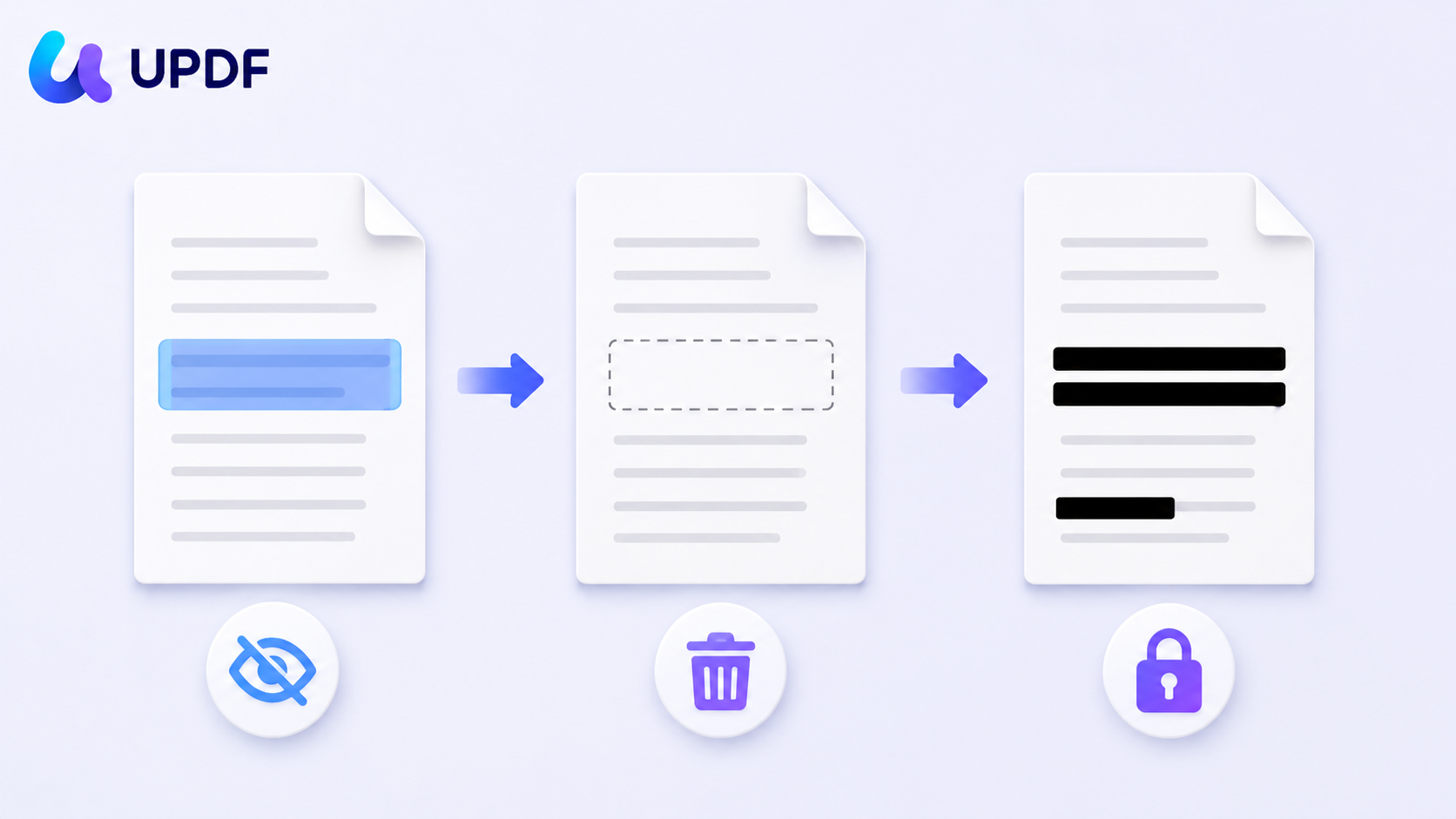
Cover → a shape is drawn on top of the content. The original is untouched underneath. Think of a sticky note on a page: the words are still there, and the note peels off.
Delete → the text object is removed from the page. The characters are gone, but the file may still carry them in an earlier saved state.
Redact → the content stream is rewritten and the characters are destroyed. Copy, search and text extraction all return nothing.
Summary: cover changes what you see, delete changes the page, redact changes the bytes.
All five tools tested perform the middle one — deleting a text object in edit mode is standard. The variation is at the two ends: which tools redact properly, and which can cover a scan with a colour that actually matches the background. Choosing cover when the job needed redact is where sensitive data leaks.
The reason this matters legally as well as practically: NIST SP 800-88 draws the same line between clearing data (making it hard to retrieve with normal tools) and purging it (making recovery infeasible). A whiteout rectangle is not even clearing — the data is fully intact and one click from view. Under GDPR Article 17, improperly removed personal data in a shared document can be a reportable failure, not a formatting mistake.
⚠️ Legal note:
Part 2. Which Online Eraser Fits Your Job
Seven erasing functions, and no single online tool offers all seven. Find your row first.
| What you're erasing | The function it actually needs | Best online pick | Why this one |
|---|---|---|---|
| Salary, ID or account numbers before sending a contract | Redact | Smallpdf or LightPDF | Both offer real redaction with adjustable boundaries, not a black line |
| A wrong line of body text | Edit → delete text object | iLovePDF or Smallpdf | Text deletes cleanly and following lines reflow up without spacing damage |
| Content on a scan, where the background isn't white | Add shape + sampled colour | LightPDF or pdfFiller | Only these two let you eyedropper the background colour before covering |
| Someone else's highlights, stamps and comments | Delete annotations | Sejda | The only tool with a dedicated batch annotation-removal page |
| Part of a handwritten pen stroke | Eraser | LightPDF or pdfFiller | The only two with any eraser; elsewhere a stroke deletes whole or not at all |
| A watermark added by another tool | Remove watermark | LightPDF | The only tested tool with a purpose-built watermark remover — but it spends AI credits |
| A header or footer running across every page | Remove header & footer | None — crop is the workaround | No tested tool removes them as objects; crop only works in the page margin |
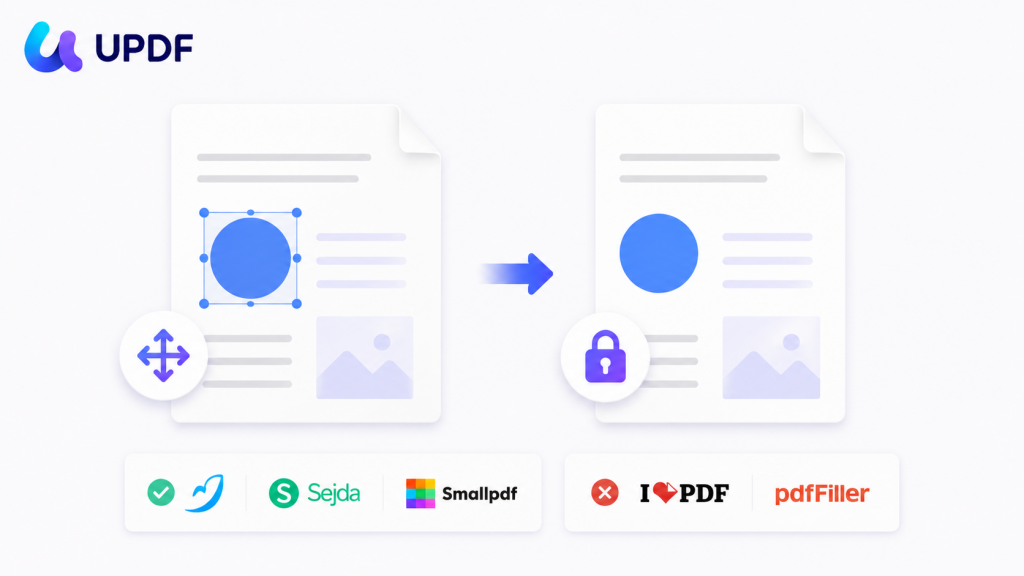
One supporting operation sits behind the third row: flatten. A sampled-colour shape stays a draggable object until it is flattened into the page. LightPDF, Sejda and Smallpdf can flatten; iLovePDF and pdfFiller cannot.
Part 3. How We Tested
Every claim below comes from hands-on testing in July 2026, in-browser, seven capabilities were checked on each tool: redact, delete text, add shape, delete annotations, eraser, remove watermark, remove header/footer, plus flatten as a supporting operation.
The redaction test is the strict one. After erasing a salary figure, the file was saved, reopened, then searched with Ctrl+F, copy-pasted from the erased region, and run through text extraction. Anything that returns the original characters is a cover, not a redaction, regardless of what the button is called.
Part 4. LightPDF — Widest Coverage, But Every Job Lives on a Separate Page
LightPDF covered more of the seven functions than anything else tested, and it is the only tool here with a purpose-built watermark remover.
Best for:
- scanned documents, and any job where you need to sample a background colour rather than accept plain white.
Skip if:
- you want to finish several different erasing tasks in one sitting.
What the test showed
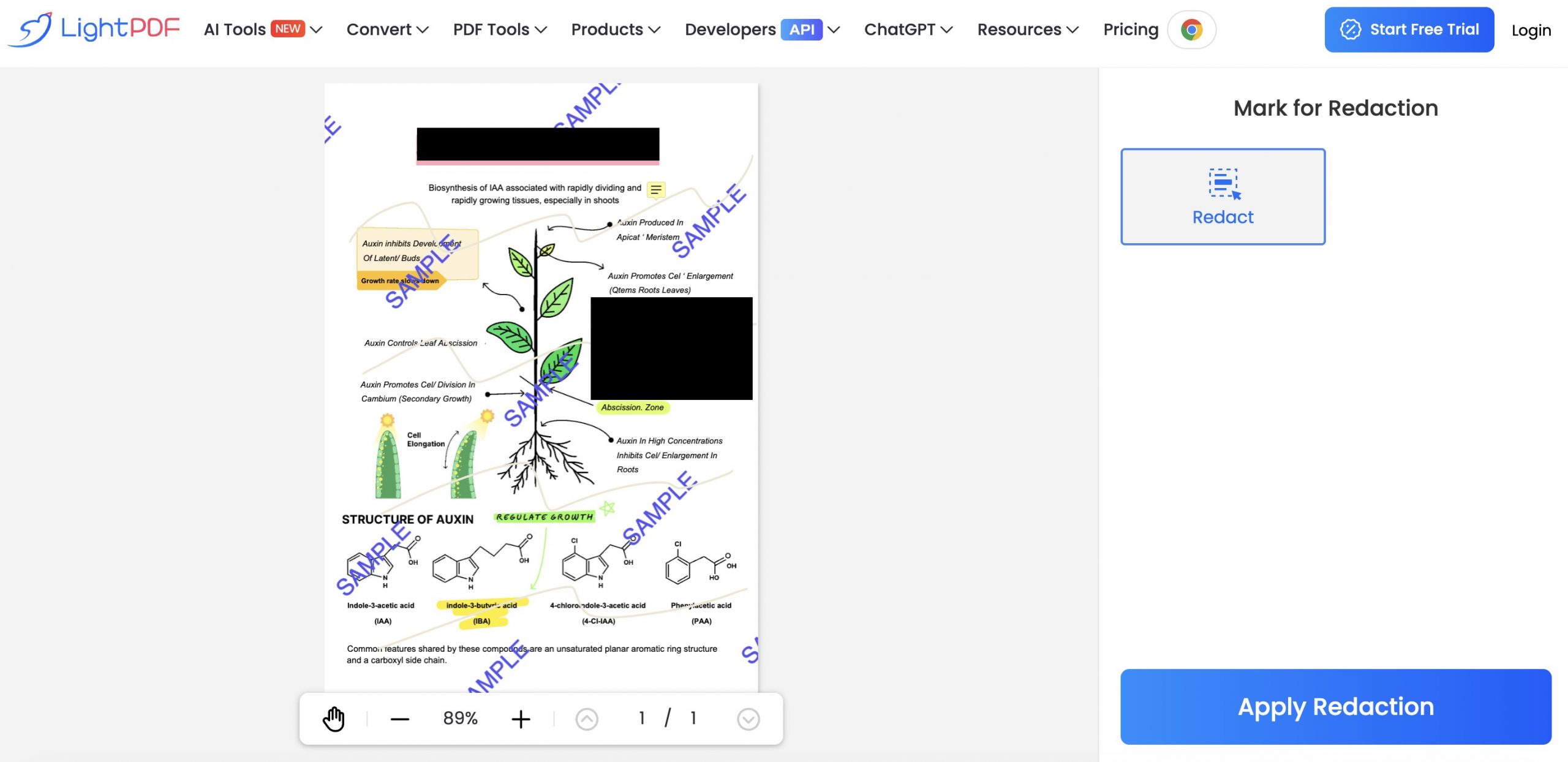
Redaction runs on its own dedicated page. Moving the cursor over a text area switches automatically into text redaction; over blank space it switches to draw-an-area redaction, and the area boundaries can be dragged to fit. There is no colour choice for the redaction mark.
Text deletion behaves properly on the native contract: selecting a text object and deleting a full line lets the following lines move up, with line spacing unchanged.
The shape tool has a real limitation. You can sample a colour with the eyedropper, but shapes accept a border colour only — there is no fill. A shape with no fill cannot cover anything, which rules out the classic "sample the background, cover the content" method.
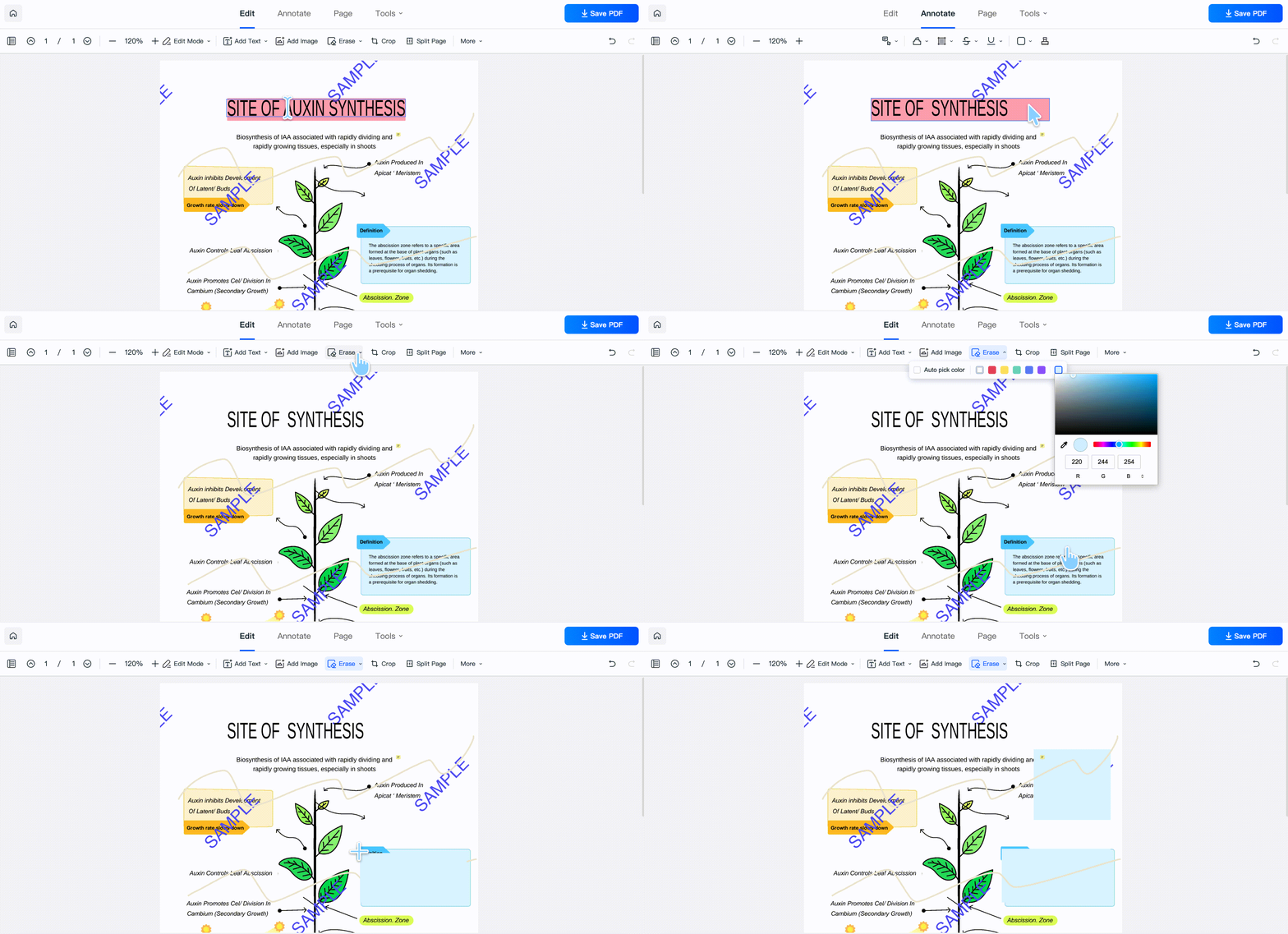
What replaces it is the eraser, which behaves less like an eraser and more like a colour-sampled area cover: drag a region and the content inside disappears under a matched colour. Anything inside that region goes, including a watermark that falls within it — but annotations survive, because the eraser cannot touch them. On a complex background the sampled colour can still show a visible seam. In plain terms, this puts an overlay over the content to hide it rather than removing it.
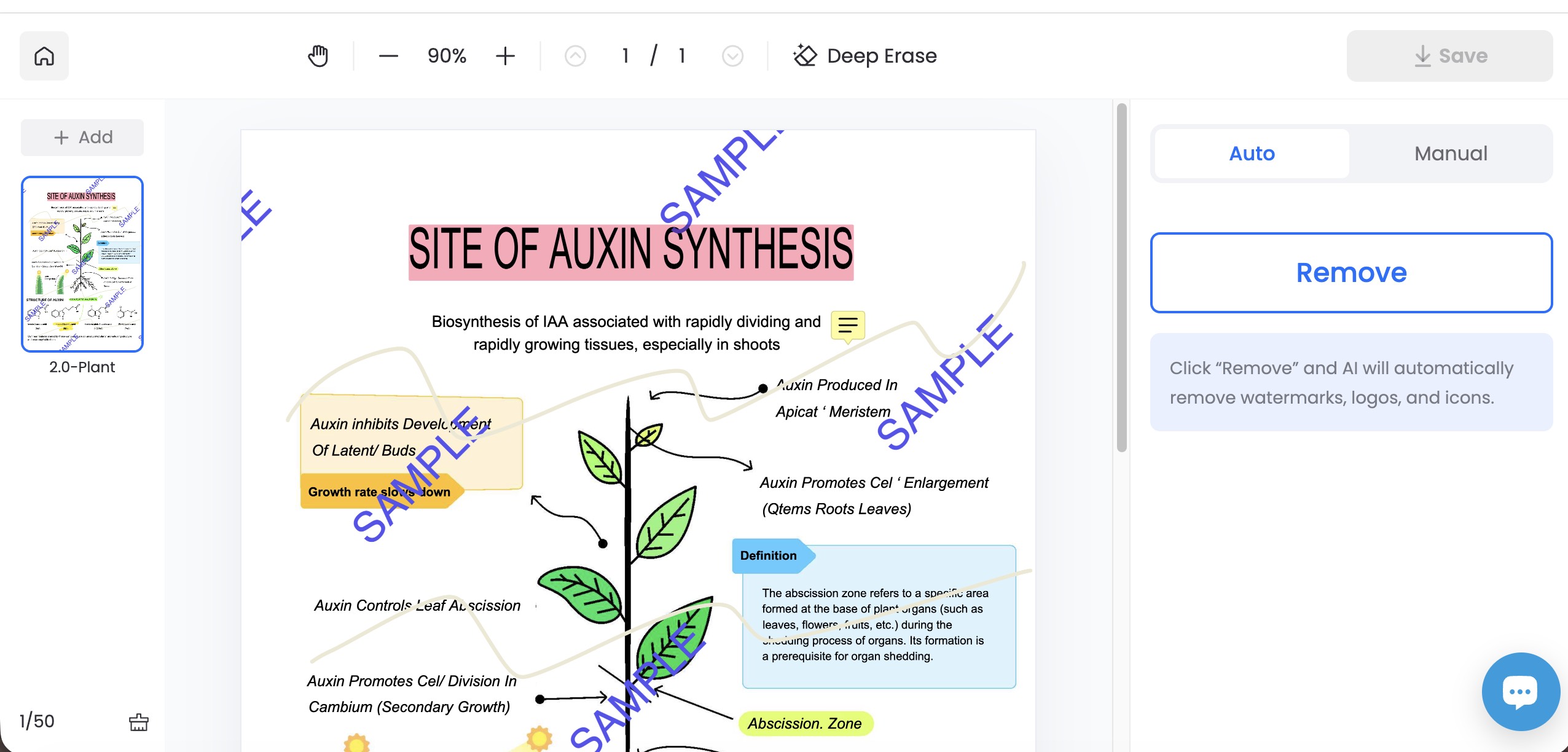
The watermark remover's two modes are not equivalent. Auto mode is AI-driven and produces a genuinely clean result. Manual mode just draws a rectangle over the mark — you can sample a colour, but it cannot remove the watermark precisely.
The trap that costs people an afternoon
The watermark remover will not run inside the editor. It opens a separate page, and your current edits do not travel with it — the new page loads the original file. Edit first and you lose the edits; remove the watermark first and you must save, then re-upload to edit.
So the order is forced: remove the watermark, save, then edit. Or edit, save, then remove the watermark. There is no single pass.
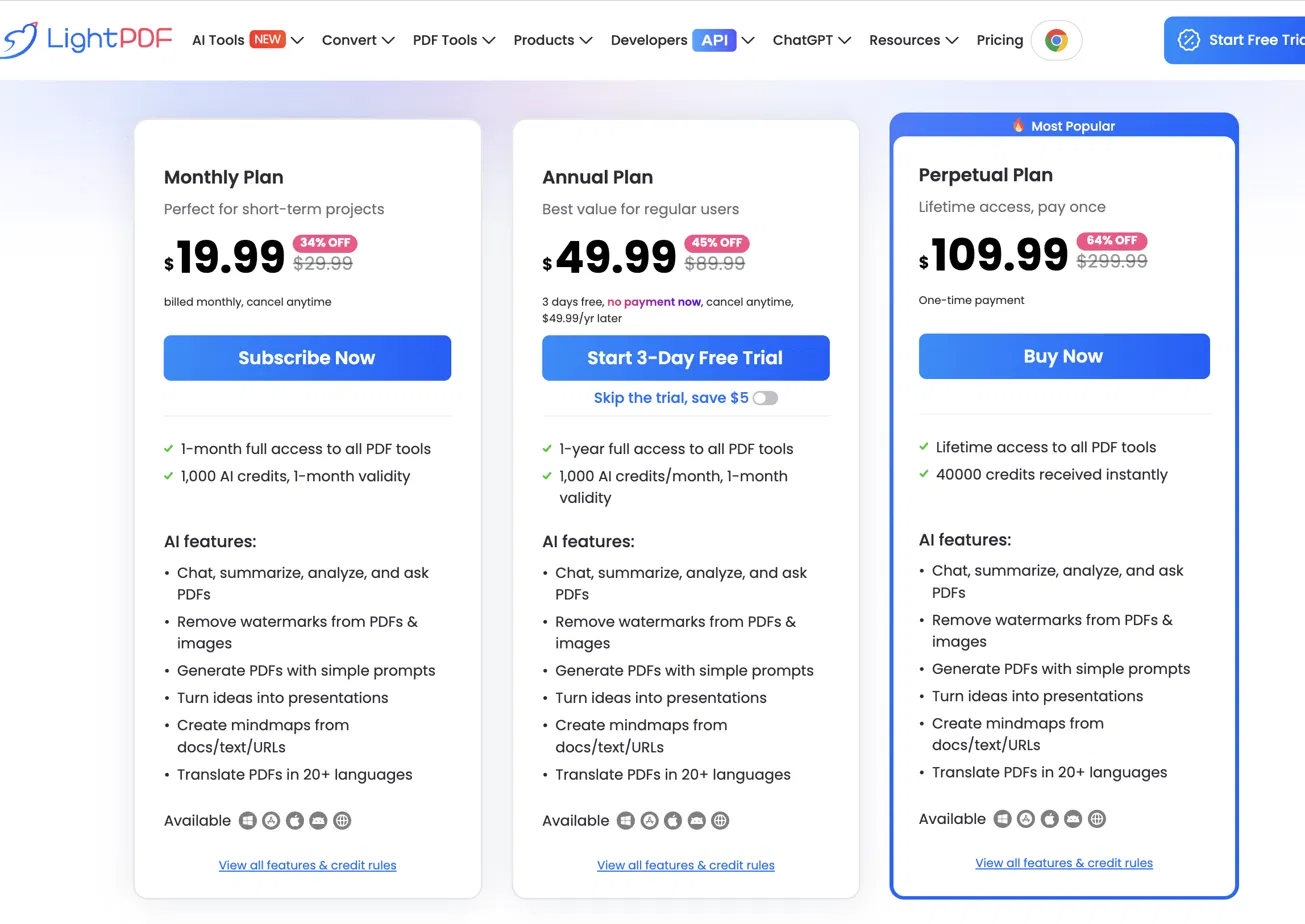
Free access is web-only. Paid plans run $19.99/month, $49.99/year (with a 3-day free trial) or $109.99 one-time for the perpetual licence.
One detail that matters for this article specifically: watermark removal is classed as an AI feature, so it draws on the AI credit allowance — 1,000 credits per month on the monthly and annual plans, or a one-time 40,000 credits on the perpetual plan. LightPDF's single biggest advantage over the other four tools is metered, not unlimited.
Part 5. Sejda — The Only Tool That Deletes Annotations in Bulk, and It Admits It Can't Redact
Sejda is unusual for being straightforward about its own limits, and it solves one problem no other tested tool does.
Best for:
- stripping every highlight, comment and markup out of a reviewed draft in one operation.
Skip if:
- anything in the document is confidential.
What the test showed
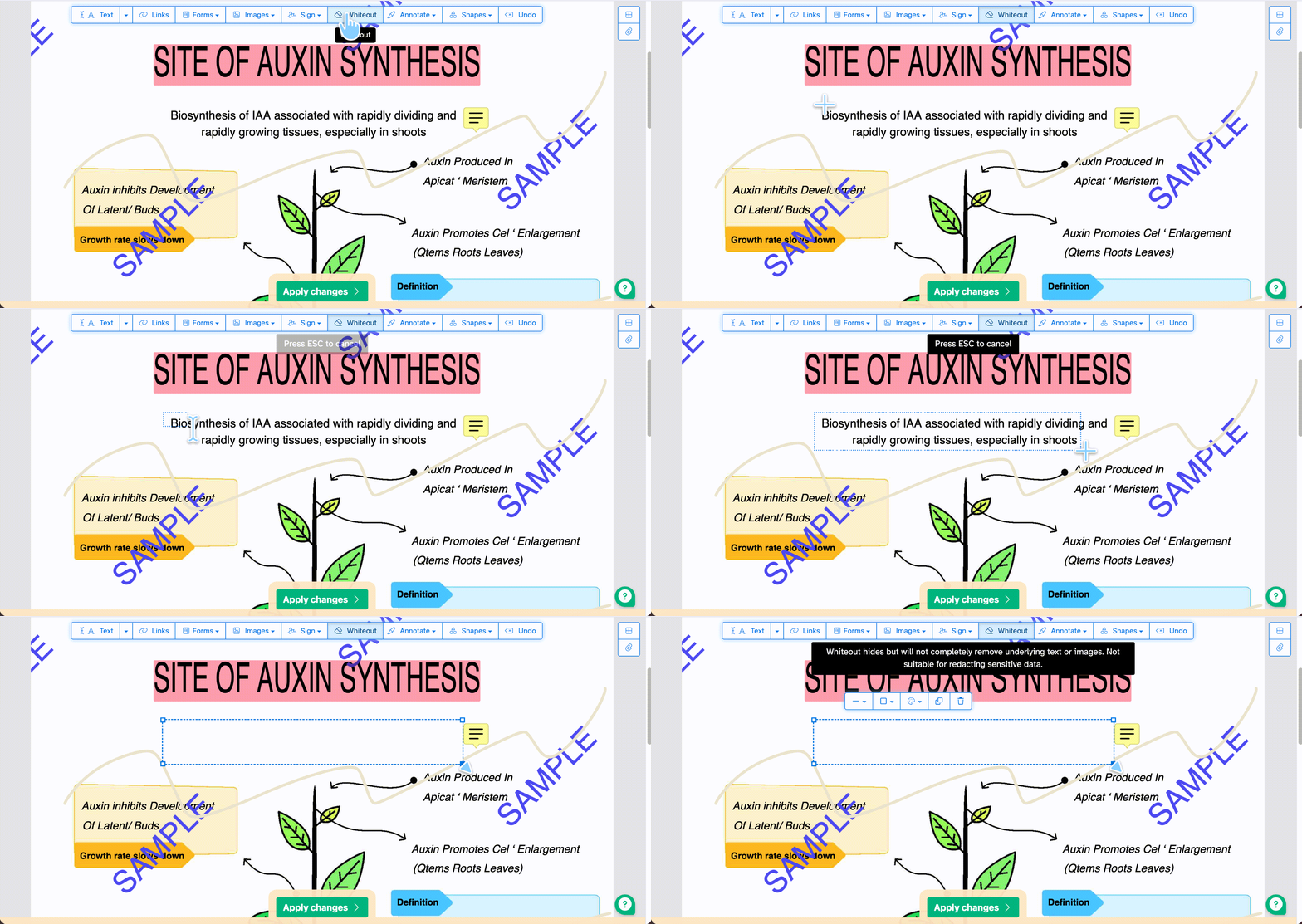
Sejda has no redaction. What looks like redaction is the Whiteout tool, and Sejda states plainly in its own interface that whiteout hides content but does not completely remove the underlying text or images. Taking that at face value: the salary figure survived Ctrl+F, copy-paste and text extraction after whiteout. It is a cover, exactly as advertised.
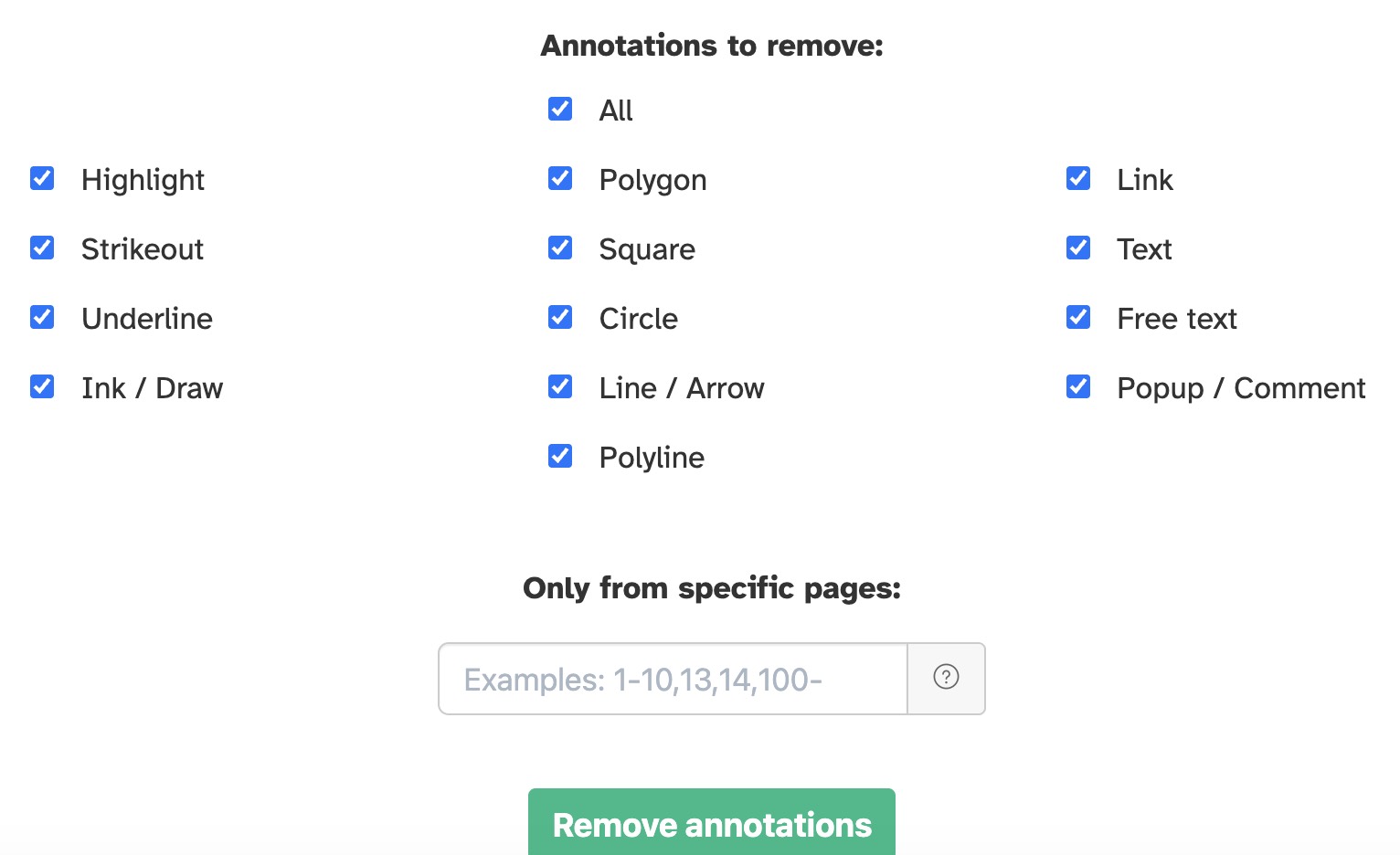
Its dedicated annotation-removal page is the standout. You select which annotation types to remove and they are stripped in one pass — no clicking through markup one item at a time. Nothing else in this test offers batch annotation removal as its own tool.
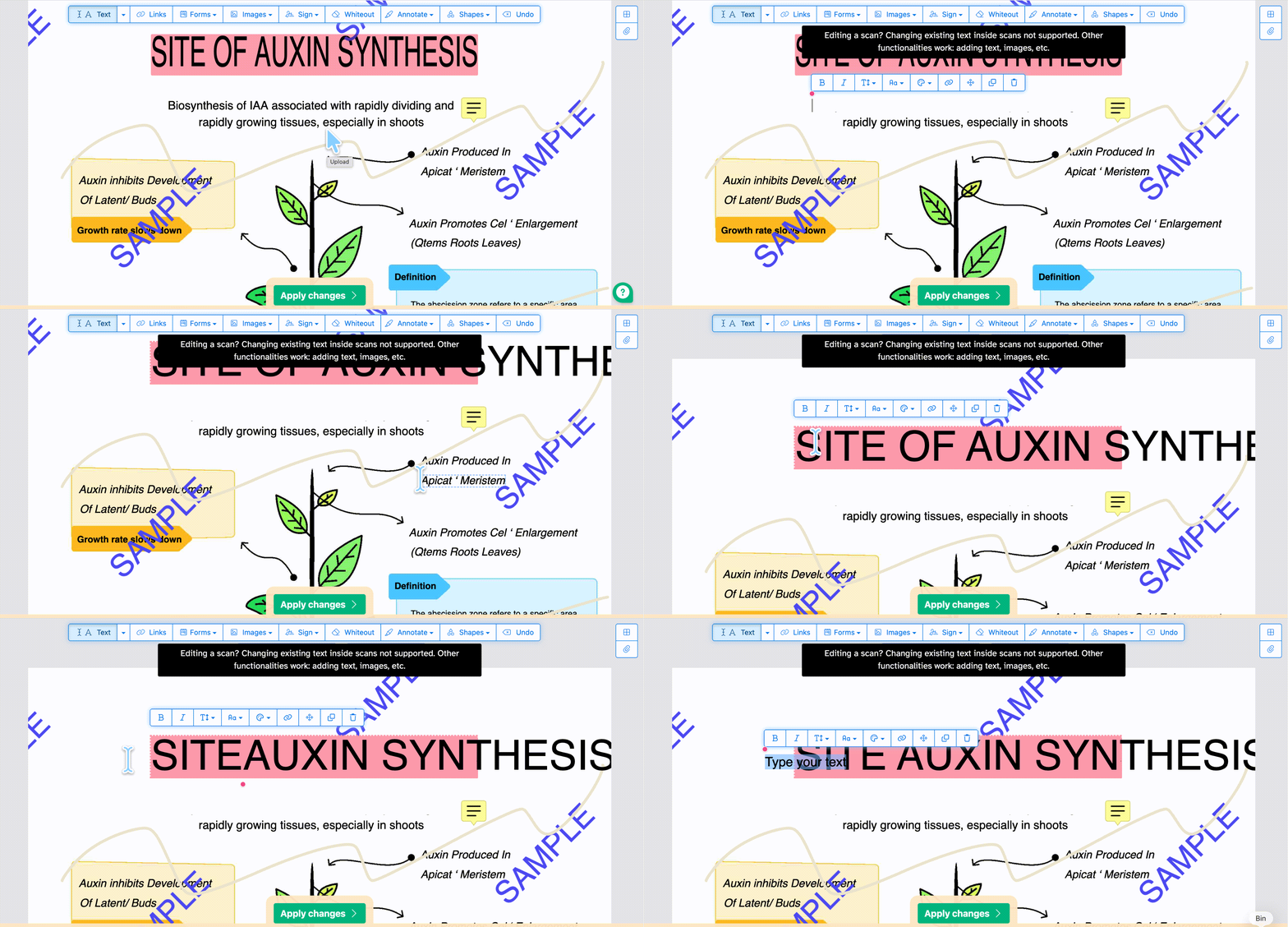
Text deletion works differently here in a way that is worth understanding. Sejda reads a paragraph as a series of independent single-line text blocks, so deleting a whole line does not cause the next line to move up, and line spacing stays fixed. That is an advantage for forms and tables where you need a gap to stay a gap, and a nuisance in flowing body text where you want the paragraph to close ranks. On unsupported fonts, the typeface visibly changes the moment you click into the text to edit it.
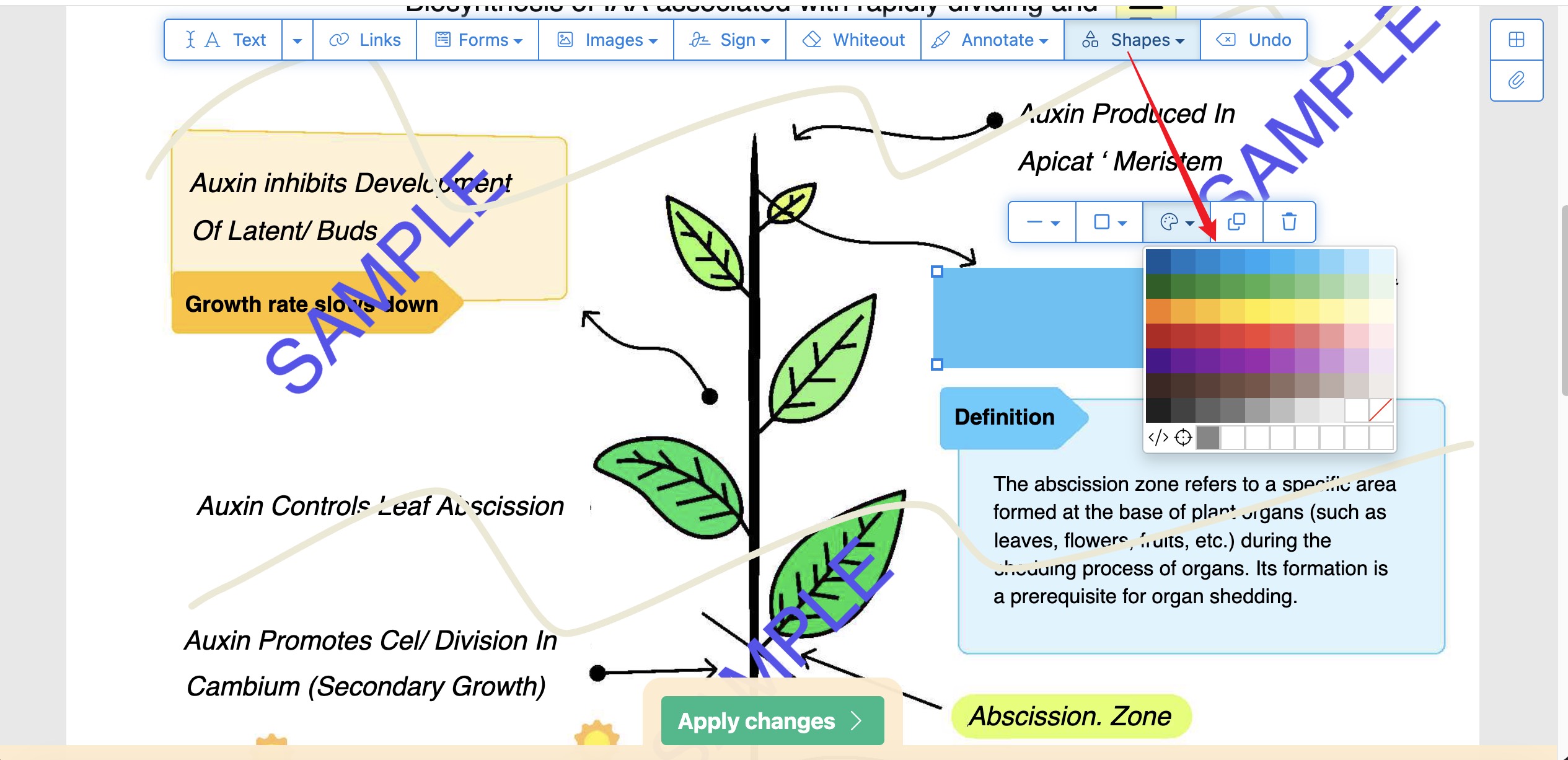
Shapes can be given a colour, but there is no eyedropper — so on a scan with a grey or off-white background you cannot match the existing colour.
Free use covers documents up to 200 pages or 50 MB, at 3 tasks per hour, and uploaded files are deleted automatically after 2 hours. Like LightPDF, editing, redaction and cropping each live on separate pages.
Part 6. iLovePDF — Real Redaction, But It Cannot Cover Selectively
iLovePDF redacts properly and edits text well, but the gap between those two strengths is wider than expected.
Best for:
- removing sensitive text from a native PDF when you don't need to touch scans or annotations.
Skip if:
- the file is a scan, or carries markup you need to strip.
What the test showed
Redaction is genuine: you select or search for text, or select pages, and the marked content is removed. Search-based selection is useful when the same account number recurs across thirty pages.
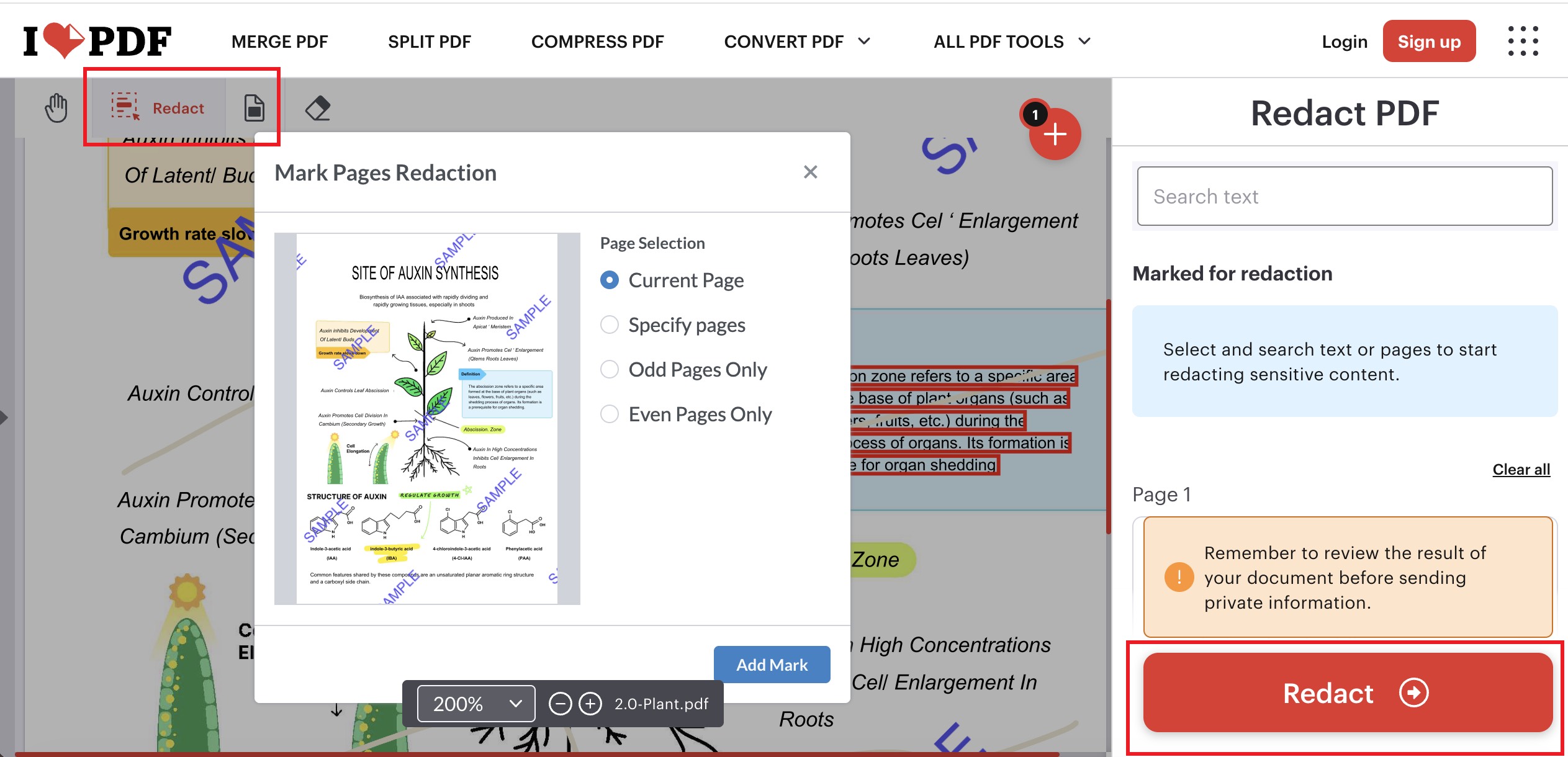
Text deletion matches the expected behaviour — select the text object, delete, and following lines reflow up with spacing intact.
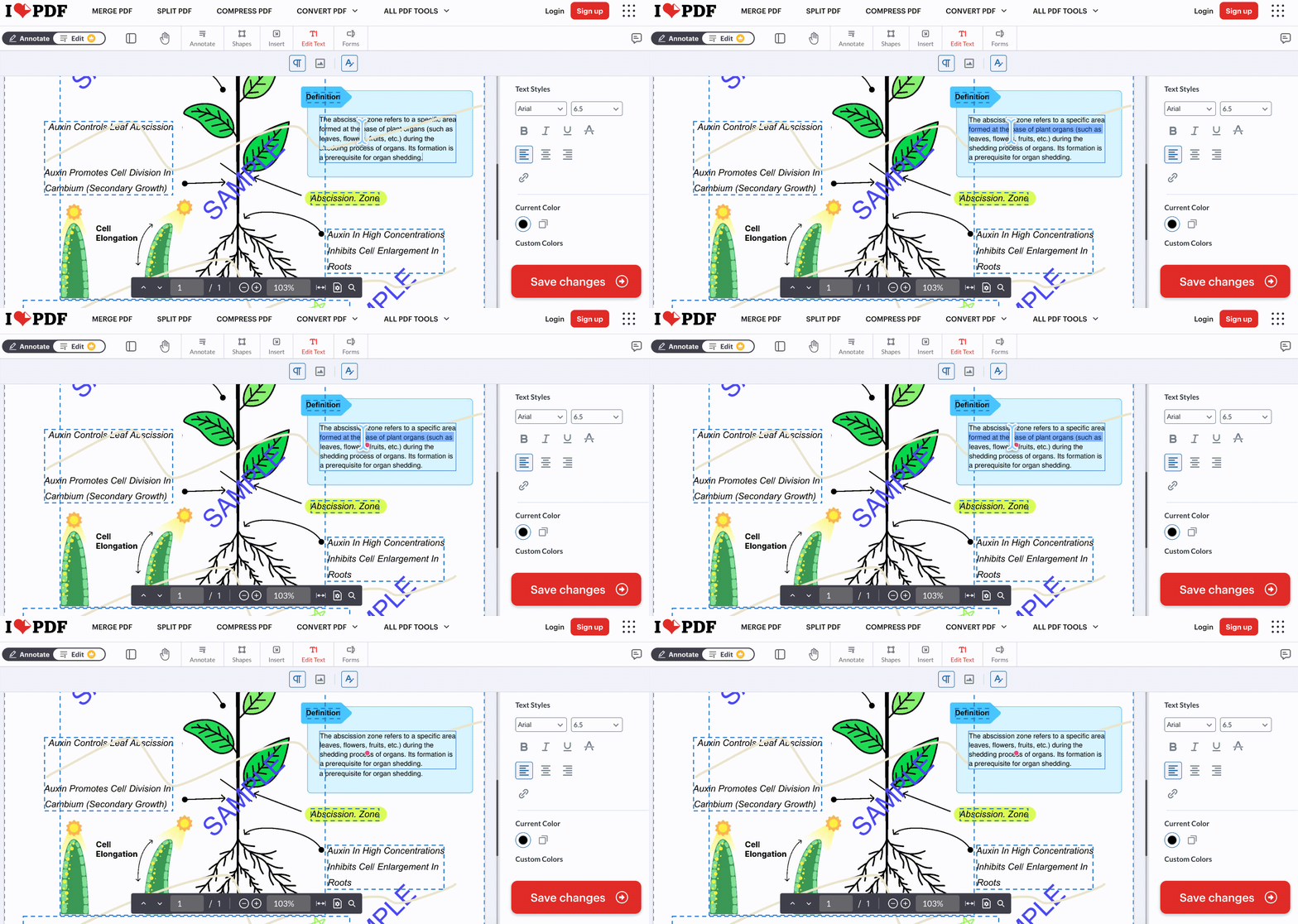
Annotation removal is absent. There is no way to strip someone else's highlights and comments, which puts the reviewed-draft job out of reach entirely.
There is also no flatten function, so a cover you place stays a separate, draggable object in the delivered file.
Each function opens as its own page, in the same pattern as Sejda and LightPDF.
Part 7. Smallpdf — The Most Controllable Redaction, Behind a Pro Gate
Smallpdf has the best redaction ergonomics of the five, and the most awkward paywall placement.
Best for:
- precise redaction where the default boundary doesn't quite fit the sensitive text.
Skip if:
- you were expecting to delete text for free.
What the test showed
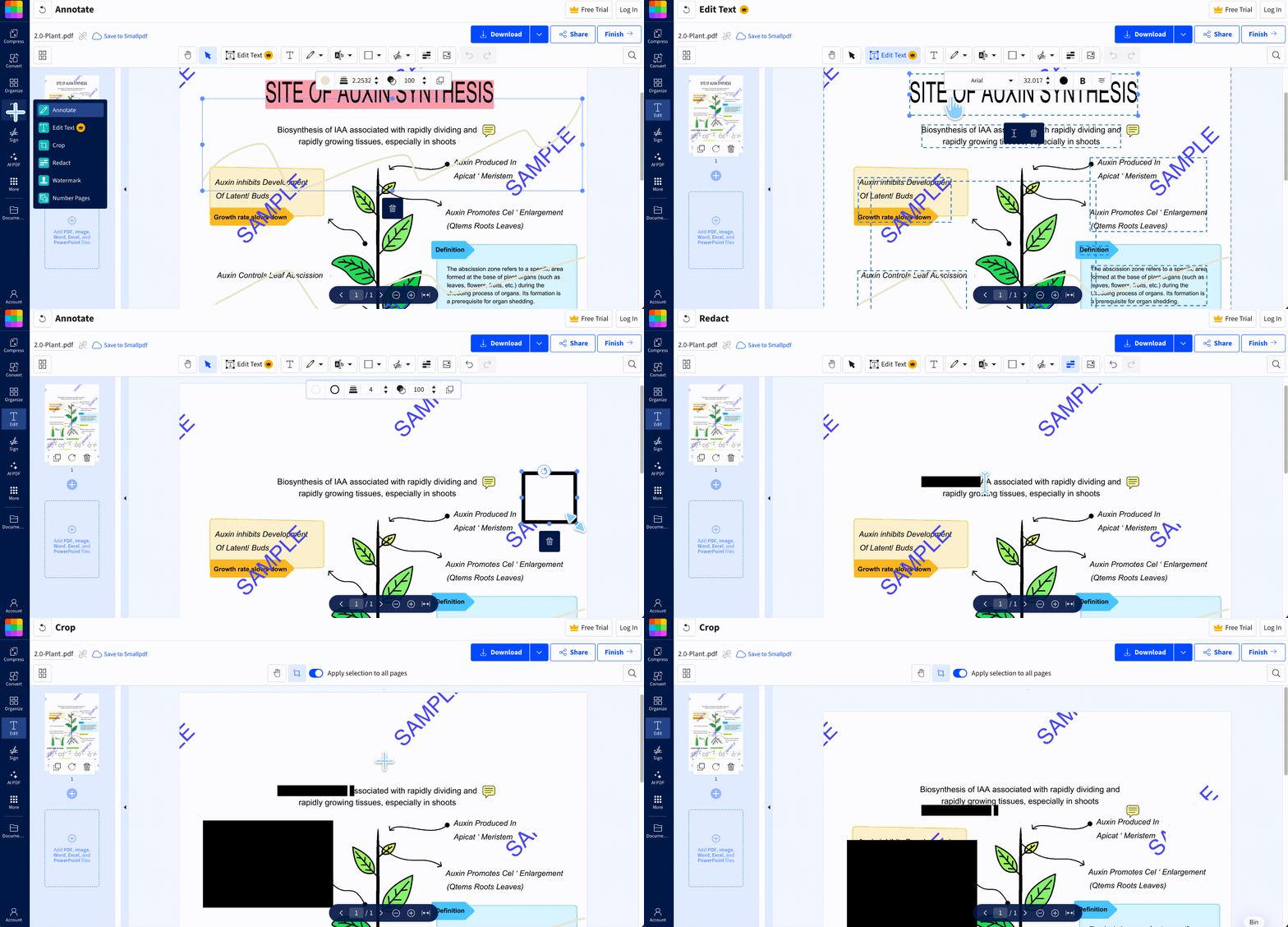
Redaction behaves the way it should: hovering over text switches to text redaction, hovering over blank space switches to area redaction, and both modes let you drag the boundaries afterwards. Neither LightPDF nor iLovePDF gives you adjustable boundaries on both modes. After redaction, the salary figure returned nothing on search, copy or extraction.
Text deletion works cleanly — delete a line and the following text moves up without spacing damage — but editing is a Pro feature. Readers arriving to "erase text from a PDF for free" hit the wall here, not at the redaction step.
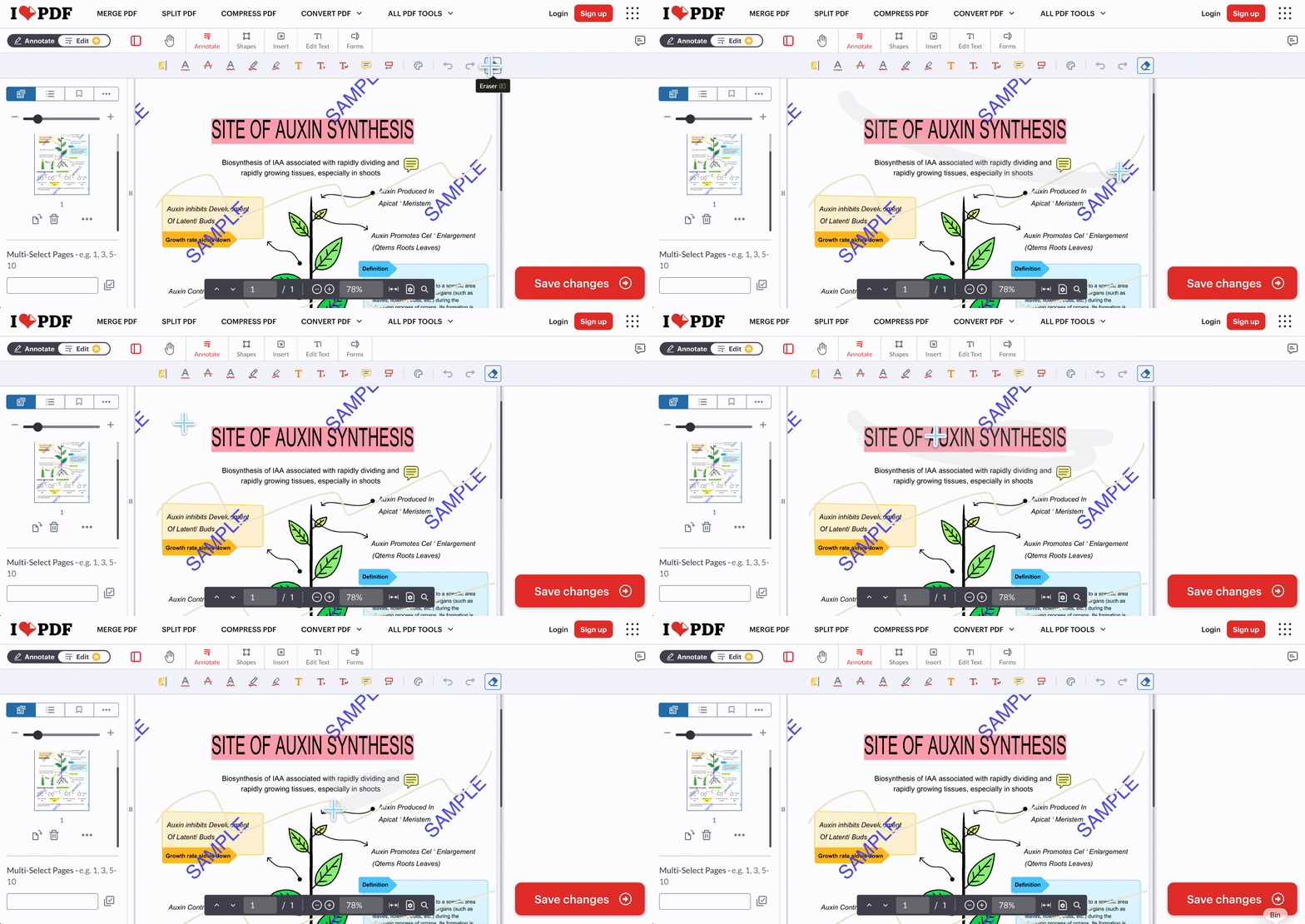
There is no eraser at all. Annotations are still fully removable — in Annotate mode you click any individual highlight, sticky note, arrow or pen stroke and delete it from the selection toolbar, one at a time. What you cannot do is rub out part of a stroke: a pen mark is deleted whole or left alone. For a page carrying dozens of separate markups, that means dozens of clicks, where Sejda clears the lot in one pass.
Shapes take a colour but offer no eyedropper, so the scan job has the same white-patch problem as iLovePDF and Sejda.
Flatten exists but sits on a separate page, and it comes last in the chain: finish all editing, save the file, then upload that saved file to the flatten tool. Forget the save and you flatten the wrong version.
Part 8. pdfFiller — Colour-Sampled Erasing, Undermined by the Blackout Tool
pdfFiller is one of only two tools here that can sample a background colour, but its redaction implementation is the weakest tested.
Best for:
- scans where you need the covered area to blend into a non-white background.
Skip if:
- the erasing has to be precise, or you need the file back without paying.
What the test showed
pdfFiller's blackout is imprecise. It draws a black line rather than snapping to the text area, with thickness control, so marks routinely overshoot or undershoot the length of the text they target, and you cannot resize the stroke after drawing. A rectangular blackout tool is also available. It also requires a paid plan before it will return the finished file.
Text deletion has the same block-independent behaviour as Sejda: delete a full line and following text does not move up, and line spacing holds.
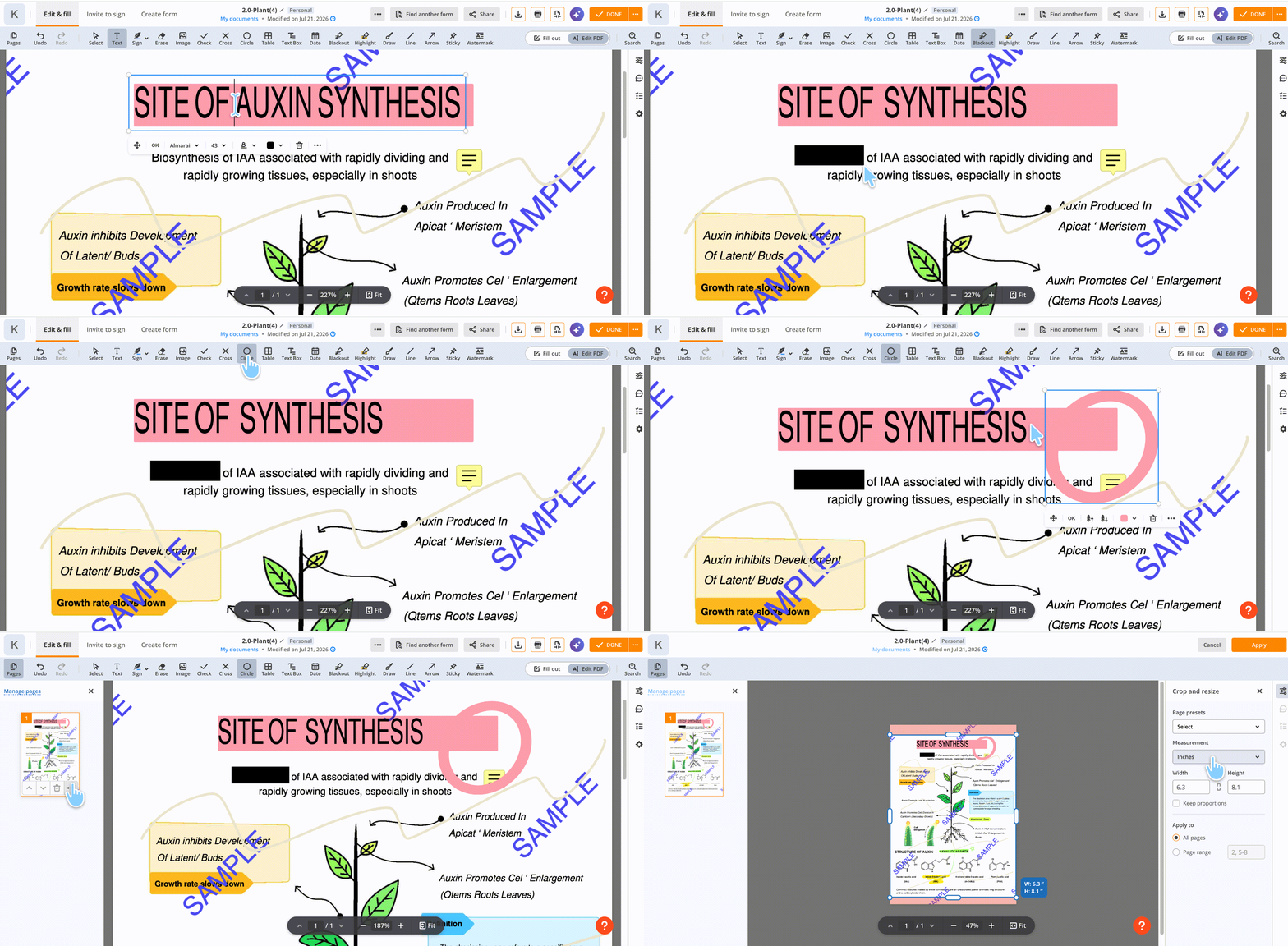
Shapes are limited to circles with no fill — only the border takes a colour, though the border colour can be eyedropped. As with LightPDF, a fill-less shape cannot cover anything.
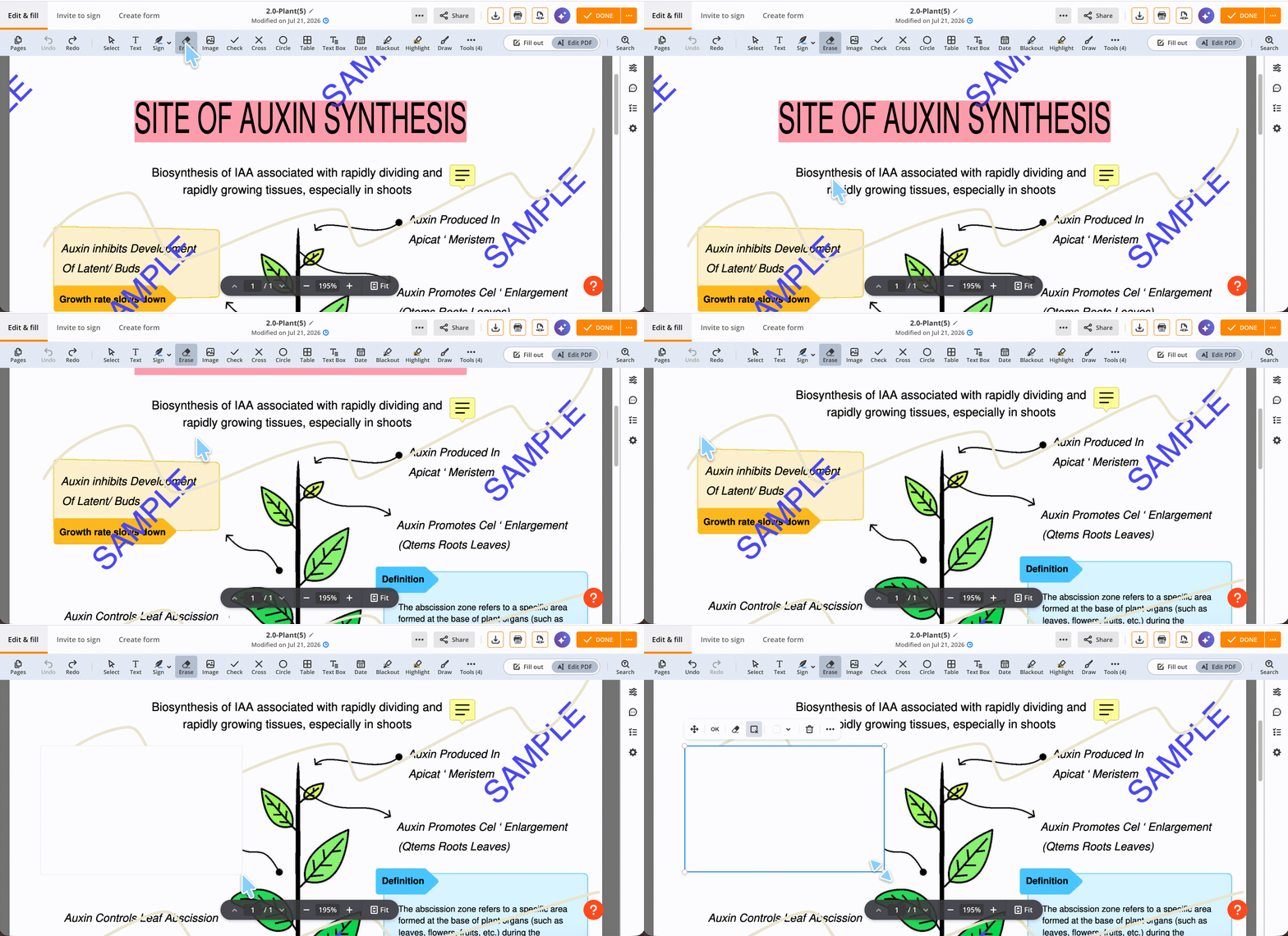
The eraser is a colour-sampled area cover, and its geometry is the thing to watch. Draw a rectangle and the whole rectangle is wiped, not just the object inside it — leaving a conspicuous rectangular patch where the content was. Complex backgrounds produce visible colour mismatch. Anything inside the region, watermark included, disappears.
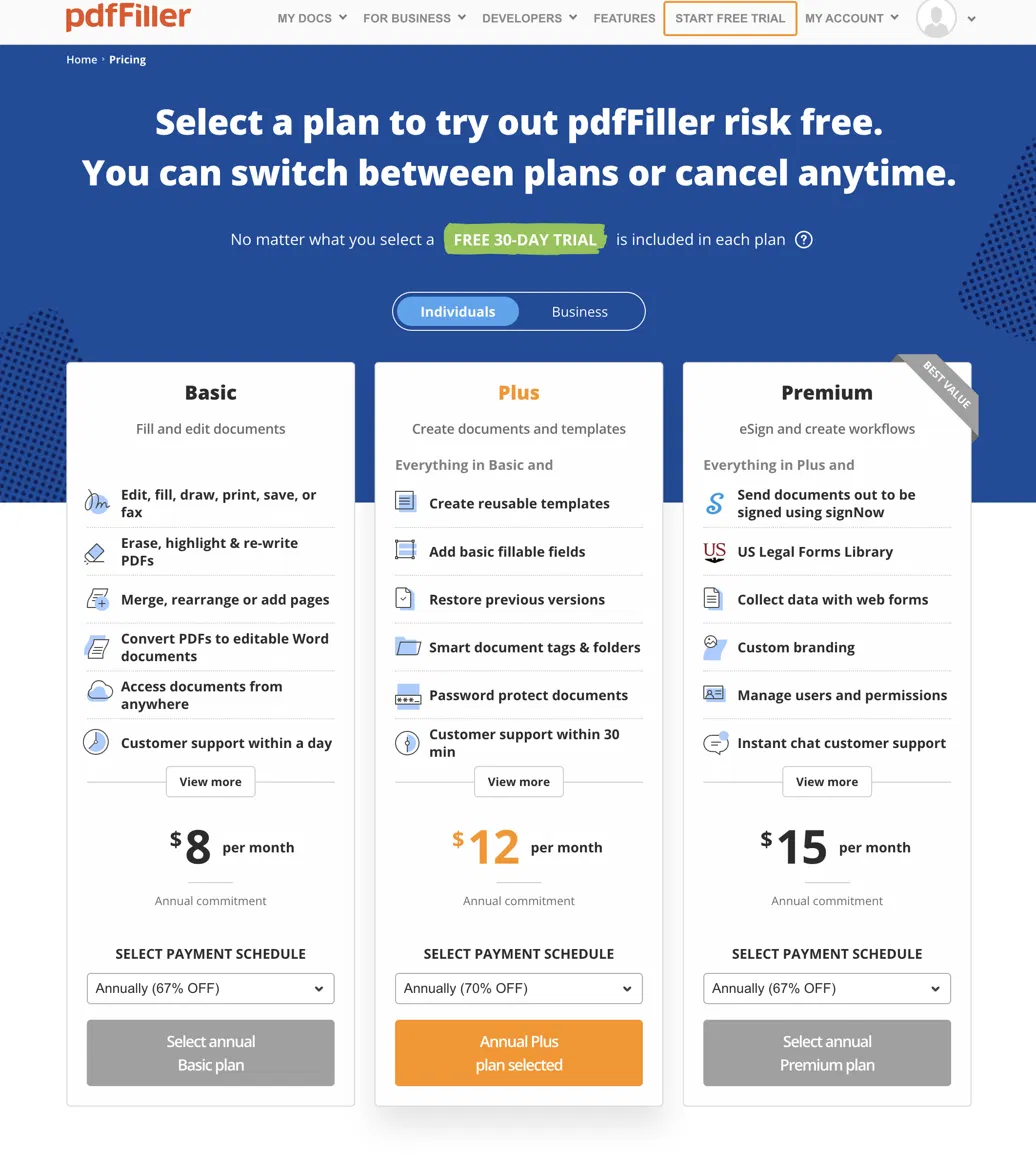
There is no flatten, no annotation removal, and downloading the finished PDF requires a subscription. Plans run $8/month (Basic), $12/month (Plus) and $15/month (Premium), all on annual commitment, and every plan includes a 30-day free trial. Trials convert automatically at the end of the term, so diary the cancellation date if you only need one document.
Part 9. The Comparison Table, Including What's Missing
| Capability | LightPDF | Sejda | iLovePDF | Smallpdf | pdfFiller |
|---|---|---|---|---|---|
| True redaction | ✓ — dedicated page, no colour choice | No — whiteout only, admitted by Sejda | Yes — select or search text | Yes — both modes have adjustable bounds | Weak — imprecise blackout, no thickness control |
| Delete text object | ✓ — following lines reflow up | ✓ — lines do not reflow; font may change on unsupported typefaces | ✓ — following lines reflow up | ✓ but Pro only | ✓ — lines do not reflow |
| Shape with sampled colour | Border colour only, no fill | Colour yes, no eyedropper | Colour yes, no eyedropper | Colour yes, no eyedropper | Circles only, border only, no fill |
| Delete annotations | ✓ | ✓ — batch, dedicated tool | ✗ | ✓ — click any single annotation to delete, but one at a time | ✗ |
| Eraser | Colour-sampled area cover; annotations survive | ✗ | ✓ but could not erase someone else's highlights | ✗ | Whole-rectangle wipe; visible patch |
| Remove watermark | ✓ — auto mode clean, manual mode imprecise | ✗ | ✗ | ✗ | ✗ |
| Remove header/footer | Crop only | Crop only | Crop only | Crop only | Crop only |
| Flatten | ✓ | ✓ | ✗ | ✓ | ✗ |
| Free tier limit | Web only; watermark removal consumes AI credits (1,000/mo) | 200 pages / 50 MB, 3 tasks per hour, files auto-deleted after 2 hrs | Free tier with size and count caps | Editing requires Pro | Download requires a paid plan (from $8/mo, annual) |
Two columns tell the real story. Remove watermark is empty for four of five tools, and remove header/footer is empty for all five — crop is a workaround that only works when the header sits in the page margin. If the header runs through the middle of the page, or the watermark is printed into a scan, no tool in this list can help.
Part 10. Erasing Everything in One Place, Offline, with UPDF
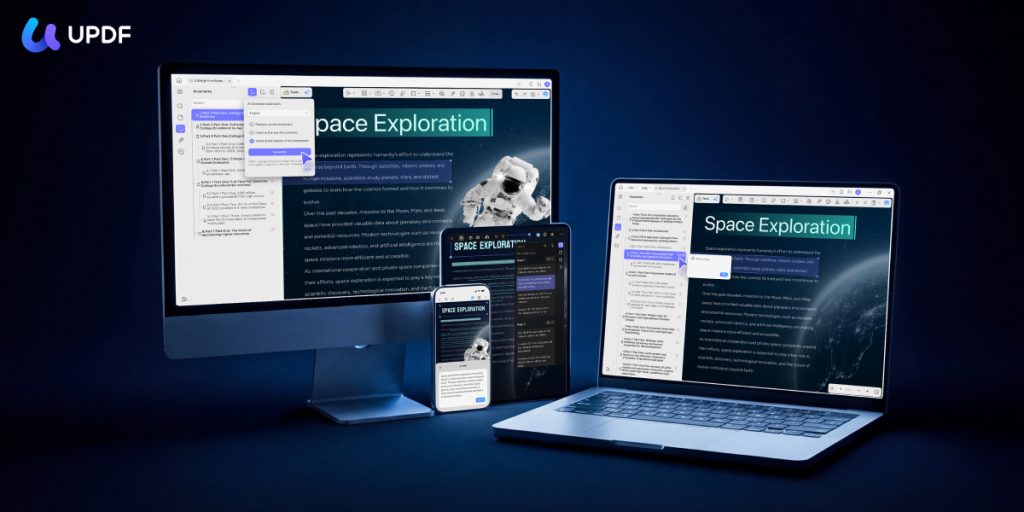
The pattern across all five tools is the same: each erasing function lives on a separate page, and no tool covers all seven. The reviewed draft with a watermark and markup takes three uploads and three saves — and each upload is a copy of your document on someone else's server.
UPDF does all seven locally, in one window, with the file never leaving your device.
Step 1. Open the document in UPDF — if you don't have it yet, download UPDF for free and install it in under a minute.
Windows • macOS • iOS • Android 100% secure
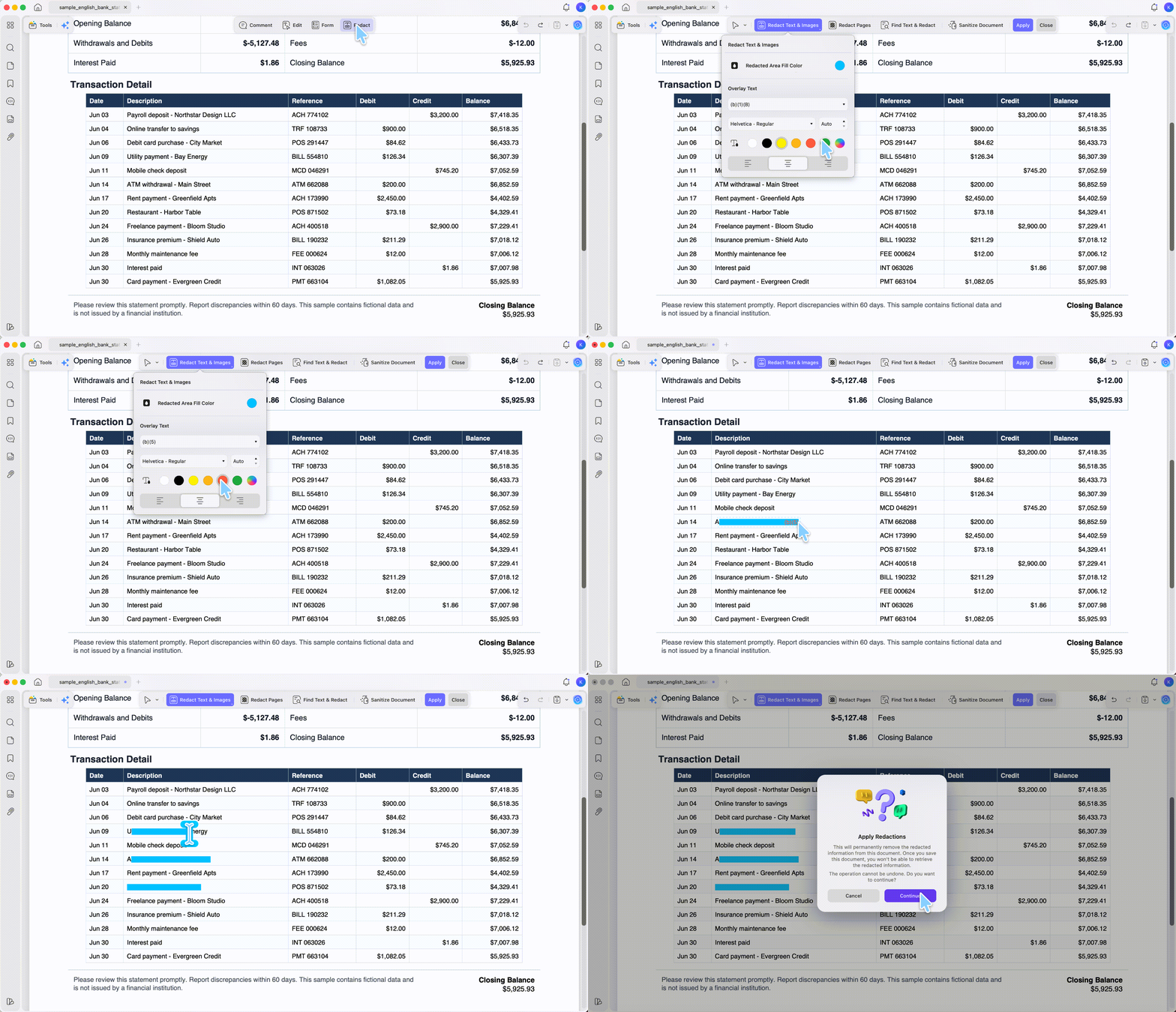
Step 2. For sensitive data, go to Redact, mark the text or area, and apply. UPDF's Search & Redact finds every instance of a string — an account number, a client name — across the whole document, so you are not hunting page by page.
Step 3. For a wrong line of body text, use the top toolbar Edit, select the text object, and delete it.
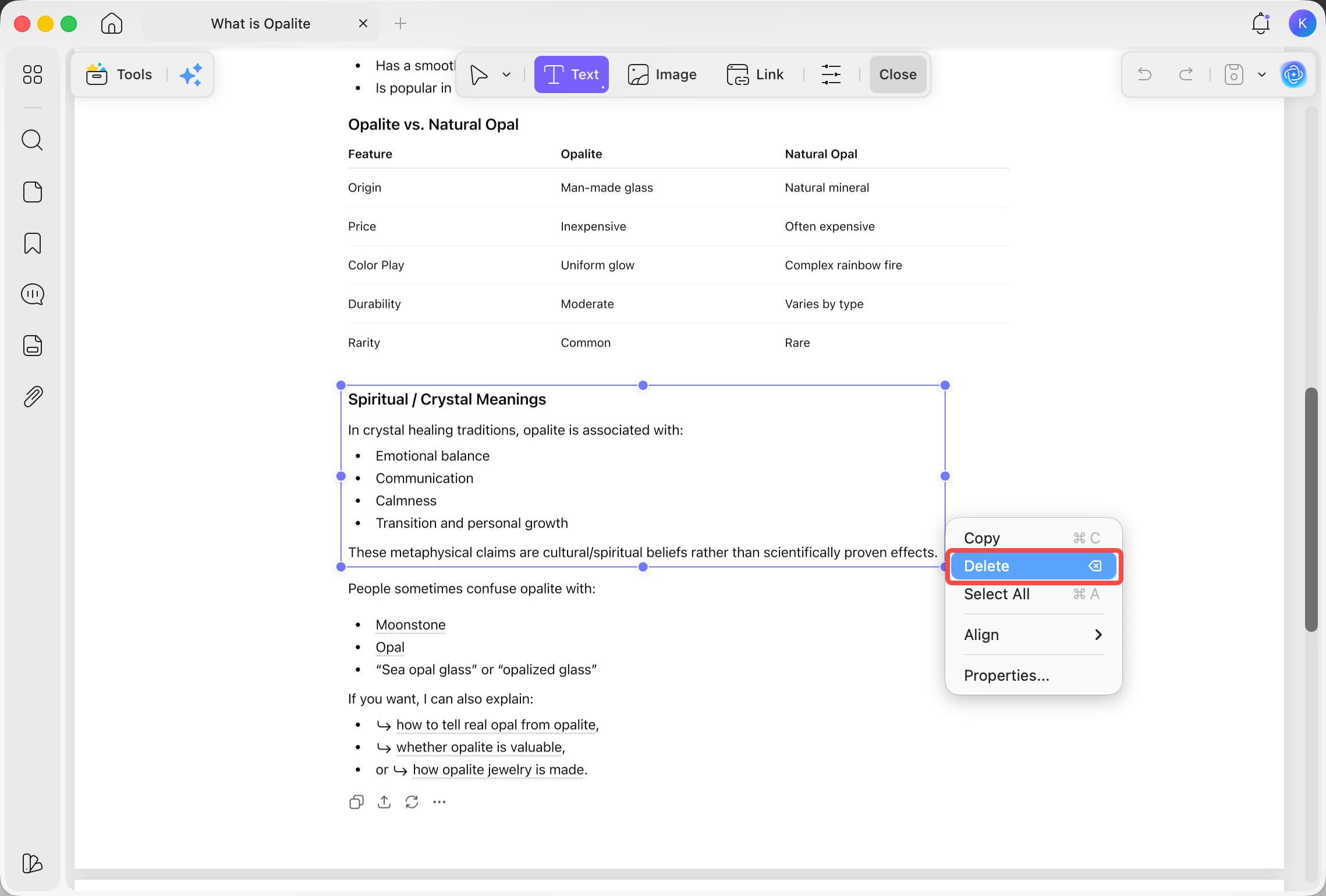
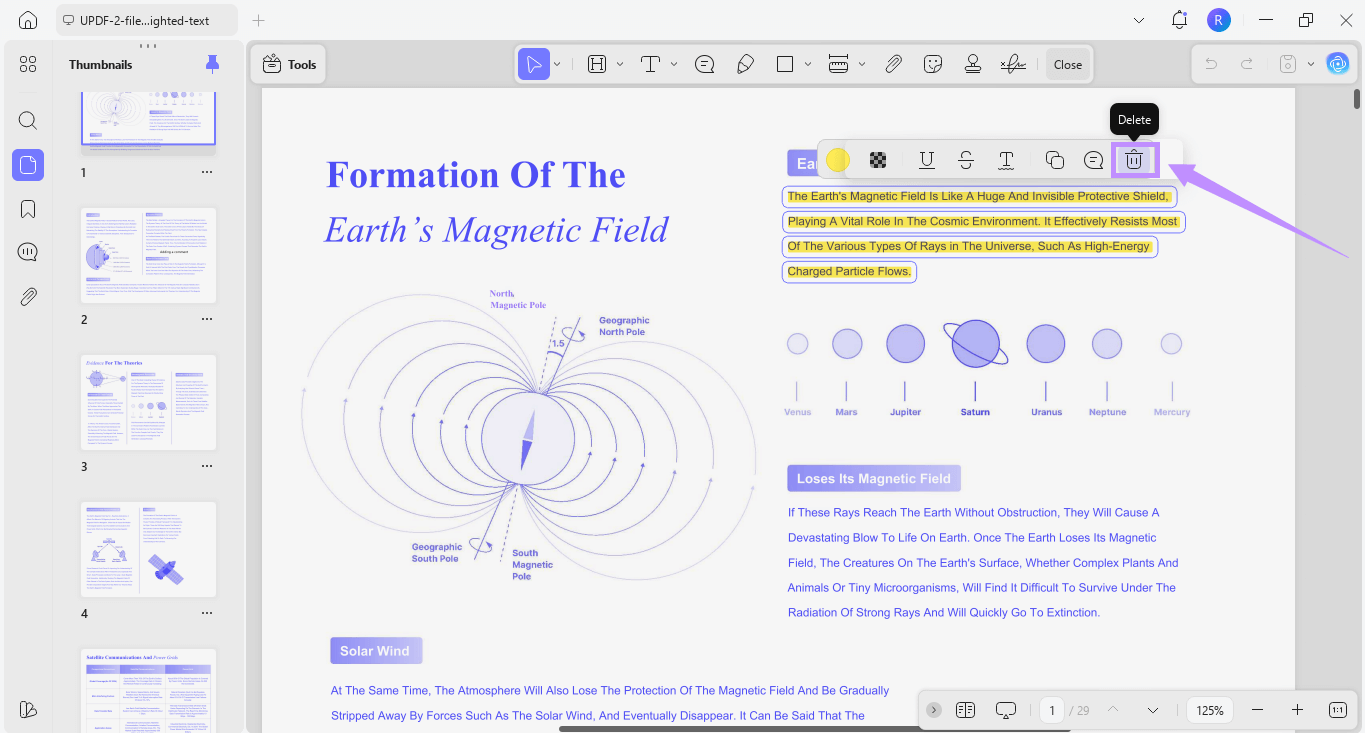
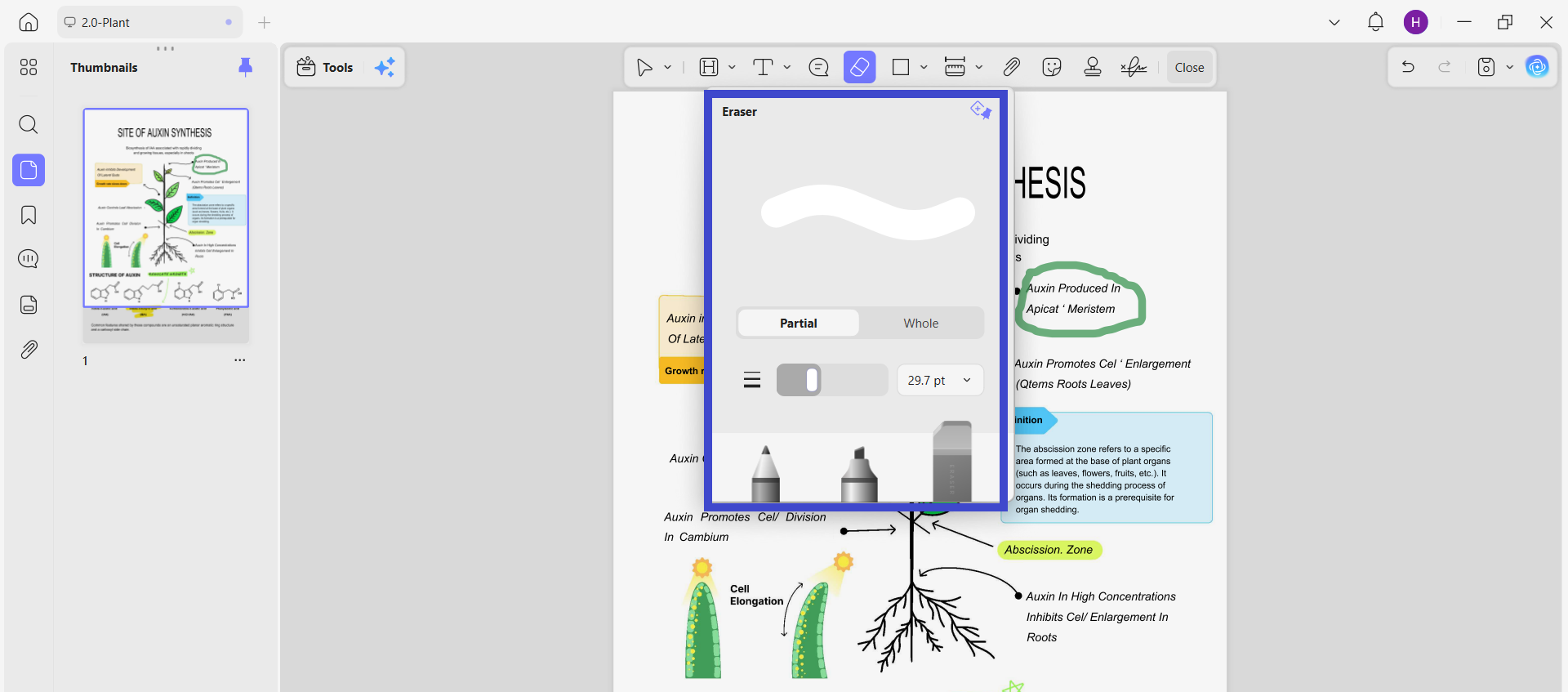
Step 4. For someone else's markup, switch to the top toolbar Comment to remove highlights, stamps and comments; the eraser removes pen strokes, including partial erasing of a single stroke.
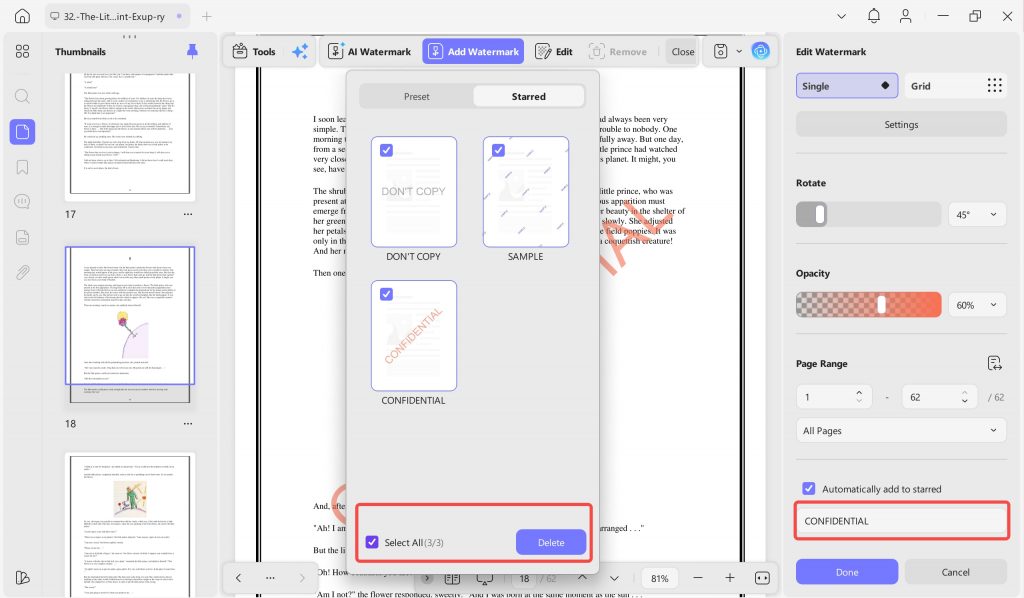
Step 5. For watermarks, headers and footers, use the left sidebar Tools → Header & Footer and the Watermark tool to remove them as objects — no cropping, no rectangle over the top.
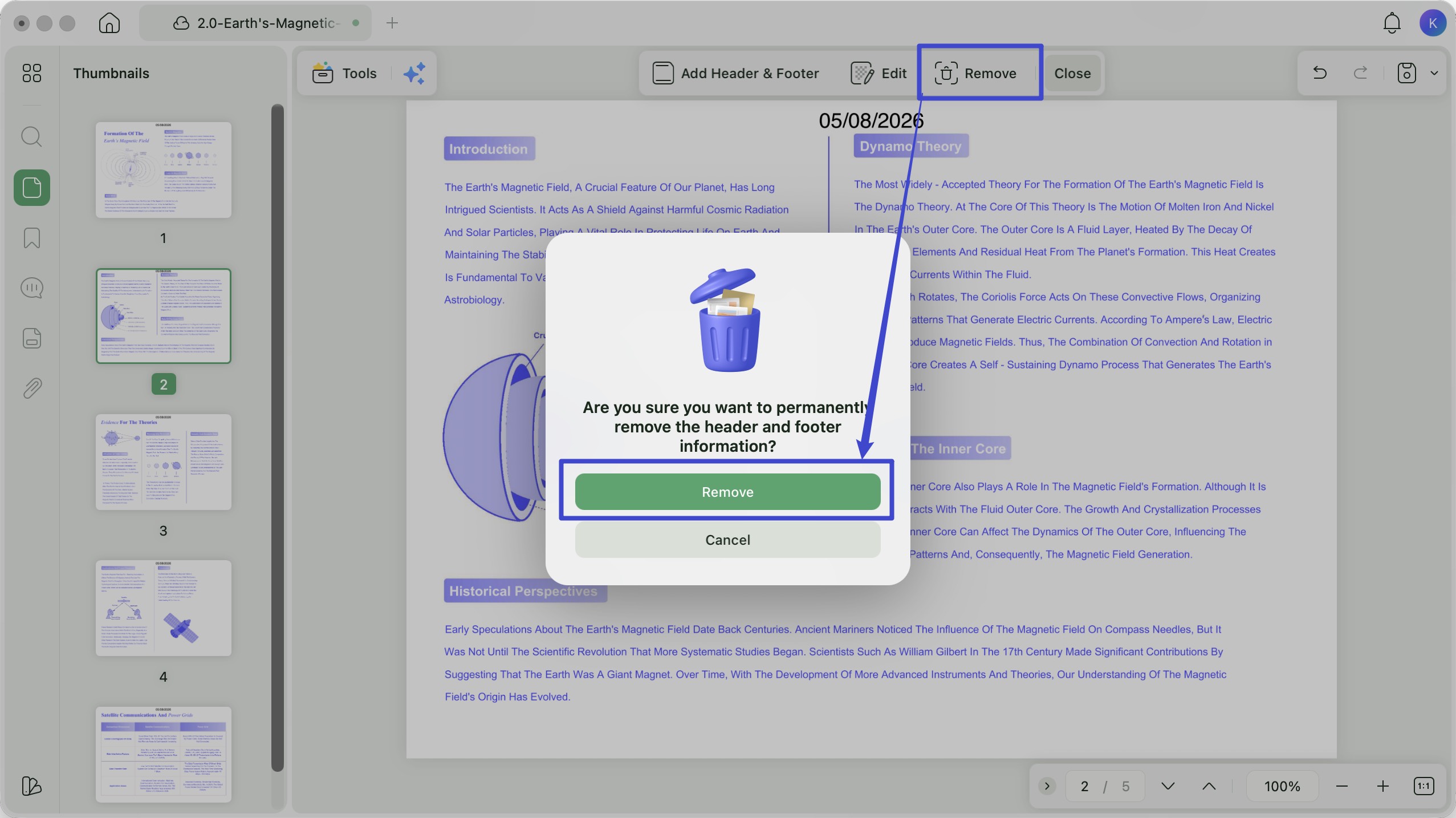
Step 6. Save the file. Nothing was uploaded at any point.
Because everything happens in one document window, the ordering trap disappears: there is no "save, re-upload, and lose your edits" step, because there is no second page to move to.
For heavier cleanup work, AI Page Organizer catches the blank and duplicate pages that appear after heavy page-level deletion in scanned batches.
On free UPDF, redaction, text deletion, annotation removal and watermark removal are all fully usable; exported files carry a trial watermark until you upgrade. Pro Individual runs $49.99/year and Pro Lifetime $79.99 one-time. Two comparisons are worth making with the tested tools: LightPDF's annual plan is the same $49.99, but its watermark removal is metered by AI credits and it still cannot remove headers or footers as objects; and UPDF's $79.99 lifetime undercuts LightPDF's $109.99 perpetual licence. Verify current figures on the official pricing page.
Free download works on Windows, macOS, iOS and Android.
Download UPDF for free to try redaction and annotation removal on a copy of your own file — installation is free, and Pro features are available when you need export or advanced tools.
Windows • macOS • iOS • Android 100% secure
If you're still deciding which editor fits your wider workflow rather than just this task, our guide to choosing a PDF editor compares text-reflow behaviour, privacy handling and licensing across desktop and browser options.
Part 11. Edge Cases: Where Online Erasers Fail Silently
These are the failures that don't announce themselves — the file looks clean and isn't.
"I OCR'd my scan first so I could search it, then covered the sensitive part." This is the most dangerous sequence in the whole workflow. An un-OCR'd scan has no text layer, so a cover shape has nothing underneath to leak. OCR creates an invisible text layer — and now the cover sits on top of searchable, extractable characters. Running OCR before covering turns a safe file into an unsafe one. Redact after OCR, never cover.
"I whited out the salary, saved, and emailed it. The recipient sent back a screenshot of the number." The recipient opened the file, clicked the white rectangle with the select tool, and dragged it aside. Any cover placed by any of these five tools is a separate, selectable object until it is flattened. Sejda, Smallpdf and LightPDF can flatten; iLovePDF and pdfFiller cannot.
"The watermark remover didn't touch my scanned document." LightPDF's remover works on watermarks that exist as separate objects in the file. A watermark printed into a scanned image is just pixels in a photograph — there is no watermark object to find. The only routes are a colour-sampled cover or true pixel-level redaction.
"I cropped off the header and now my page dimensions are wrong." Crop removes page area, so every cropped page is physically smaller. That breaks printing alignment and any document where page size is fixed by a template. Crop also cannot touch a header that sits inside the content area rather than the margin.
"The font changed the moment I clicked on the text." The tool doesn't have the embedded typeface and substituted the closest match. Sejda shows this most visibly. Deleting the line avoids it; editing it does not.
Part 12. FAQs
1. Can someone recover text I erased with an online PDF eraser?
A whiteout or shape is a separate object — the recipient selects it and drags it away. True redaction rewrites the content stream, so search, copy and text-extraction tools all return nothing. Sejda states outright that its whiteout does not remove underlying text; treat any tool that doesn't make that distinction as a cover tool.
2. Is it safe to upload confidential documents to an online PDF eraser?
Upload means a copy leaves your device. Retention policies differ — Sejda auto-deletes after 2 hours, and others vary. For contracts, medical records, ID documents and payroll, the safer route is a desktop tool that processes locally, so there is no third-party processor in the chain and no server-side copy to breach.
3. Why can't online tools remove headers and footers properly?
Because it needs content-stream parsing. Identifying which objects constitute a repeating header across pages requires reading the document structure, which browser-based single-purpose tools generally don't do. Crop is the available workaround, and it only works when the header sits in the page margin.
4. Does erasing a PDF also remove it from the document metadata?
Not automatically. Author names, editing software and revision timestamps live in metadata separately from page content, and most online erasers leave them untouched. If the metadata itself is sensitive, look for a sanitize or metadata-removal step in addition to redaction.
5. Can I erase text from a digitally signed PDF without affecting its signature?
Changing signed content normally invalidates the signature’s verification. Ask the signer for an editable source or a newly signed corrected copy, and keep the original signed file intact for the record.
Conclusion
Across five tested online PDF erasers, the divide that matters is not price or interface — it is how many of the seven erasing functions each one actually offers. Deleting text is table stakes; every tool here does it. Smallpdf and iLovePDF redact properly, LightPDF handles scans and watermarks better than anything else here, Sejda is the only one that strips annotations in bulk, and pdfFiller can sample a background colour but won't return your file without payment. None of them offers all seven, and every one of them requires uploading your document.
UPDF handles redaction, text deletion, annotation and pen-stroke erasing, watermark removal and header/footer removal in a single local window, with AI Page Organizer cleaning up pages left behind by heavy edits.
Download UPDF for free to try erasing on your own file — installation is free, and Pro features are available when you need watermark-free export or advanced tools.
Windows • macOS • iOS • Android 100% secure
Disclaimer
Web tools update frequently, and features, free-tier limits and pricing may have changed since testing — verify current details on each provider's official site before relying on them. Third-party product names and prices are quoted for comparison only. Only erase, redact or remove watermarks from PDFs you own or are authorized to edit; removing content from documents licensed to others may breach copyright or contractual terms. This article is not legal advice — for documents subject to GDPR, HIPAA or similar obligations, confirm your redaction process with a qualified compliance professional before distribution.







 Enrica Taylor
 Lizzy Lozano

 Enya Moore
 Engelbert White