UPDF
UPDF
 UPDF for Windows
 UPDF for Mac
 UPDF for iPhone/iPad
 UPDF for Android
 Nomostar
 UPDF AI Online
 UPDF Sign
 IvyCraft
 Edit PDF
 Annotate PDF
 Create PDF
 PDF Form
 Edit links
 Convert PDF
 OCR
OCR PDF to Word
 PDF to Image
 PDF to Excel
 Organize PDF
 Merge PDF
 Split PDF
 Crop PDF
 Rotate PDF
 Protect PDF
 Sign PDF
 Redact PDF
 Sanitize PDF
 Remove Security
 Read PDF
 UPDF Cloud
 Compress PDF
 Print PDF
 Batch Process
 About UPDF AI
 UPDF AI Solutions
 AI User Guide
 FAQ about UPDF AI
 Summarize PDF
 Translate PDF
 Chat with PDF
 Chat with AI
 Chat with image
 PDF to Mind Map
 Explain PDF
 PDF AI Tools
 Image AI Tools
 AI Chat Tools
 AI Writing Tools
 AI Study Tools
 AI Working Tools
 Other AI Tools
 AI Bookmark Generation
 AI Bookmark Summary
 AI Watermark Generation
 AI Background Generation
 AI Sticker Generation
 AI Stamp Generation
 AI Editing Suite
 UPDF Copilot
 AI Page Management
 AI Semantic Search
 PDF to Word
 PDF to Excel
 PDF to PowerPoint
 Enterprise Solution
 Enterprise Sign
 Enterprise AI
 Enterprise Plan
 Enterprise User Guide
 Enterprise Webinar
 IT
IT Education
 Construction
 Financial Service
 Healthcare
 Insurance
 Legal
Legal Manufacturing
 Government
 Researchers & PhDs
 Solopreneurs & Freelancers
 Lawyers & Legal Professionals
 Real Estate Agents & Brokers
 Education Solution
 Customer Stories
 User Guide
 UPDF Tricks
 FAQs
FAQs UPDF Reviews
 Download Center
 Blog
Blog Newsroom
 Tech Spec
 Updates
 UPDF vs. Adobe Acrobat
 UPDF vs. Foxit
 UPDF vs. PDF Expert

Roman page numbers can appear visibly on PDF pages or inside reader labels. For visible numbering, use a Header and Footer tool within your PDF editor. Choose the Roman numeral format, page range, starting value, and preferred position.
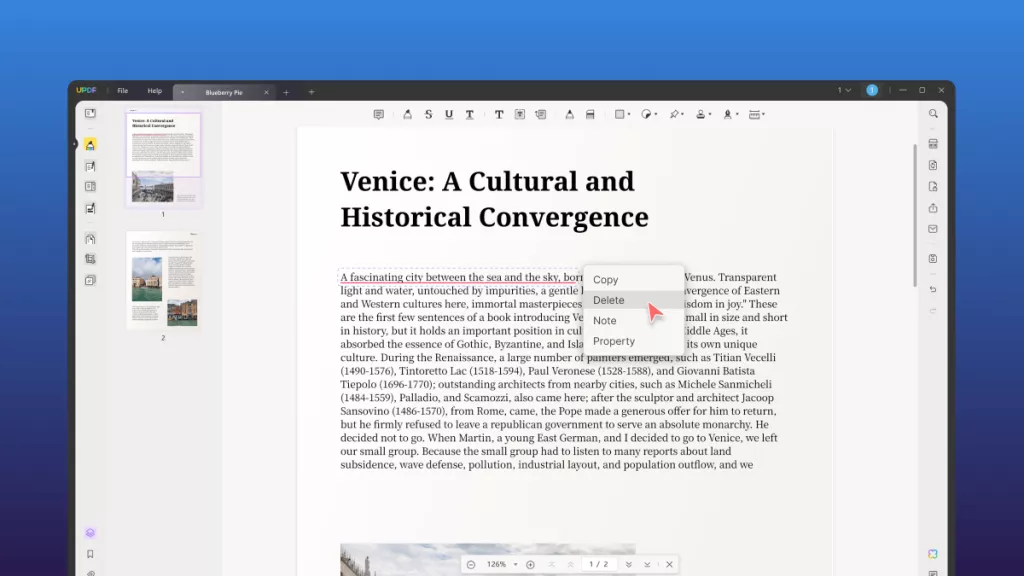
Consistent numbering makes a long document easier to navigate. If a visual example would help, take a look at the video on editing PDF content in UPDF below.
Another requirement is often confused with visible numbering when users manage different PDF sections. To add Roman page numbers to a PDF navigation panel, modify PDF page labels. These labels control page numbers displayed inside thumbnail panels and PDF navigation boxes. They do not change Roman numbers visibly printed on the actual PDF pages. For a thesis, dissertation, or book, the conventional structure is:
- No visible number on the cover.
- Roman numerals "i, ii, iii" for the abstract, preface, and table of contents.
- Arabic numbering restarted from 1 when the main text begins.
Creating this structure may require separate numbering rules and matching page labels. The sections below explain each method clearly, helping you choose your approach.
Part 1. Visible Roman Page Numbers vs. PDF Page Labels
Page numbering often causes confusion because several PDF elements serve different purposes. Understanding these differences helps prevent common numbering problems before editing your PDF document:
| Numbering Type | Where Users See It | Printed With The PDF |
| Physical Page Position | The page's actual order in the PDF file | No |
| Visible Page Number | At the top or bottom of the page | Yes |
| PDF Page Label | In thumbnails, navigation controls, or the page-number box | No |
A practical example can make these three page numbering differences easier to understand. The 5th physical PDF page remains 5th, although its displayed number might differ. It may display iii below while also using iii as its reader label.
These values work independently, so your document may require one or both methods. For broader numbering options, see our guide covering general PDF page numbering methods.
Part 2. Method 1. Add Visible Roman Page Numbers to a PDF with UPDF
Best For:
- Users needing Roman numerals visible when PDFs are printed, shared, or opened elsewhere.
Not For:
- Avoid this method if you only need page labels displayed within the PDF navigation interface.
Visible numbering uses Header and Footer, placing Roman numerals directly within the PDF page content. Use this feature to add Roman numerals to PDF files that remain visible everywhere afterward. Follow the steps below to apply Roman numbering correctly across your selected PDF pages:
Step 1. Once you open a PDF in UPDF, press the "Tools" option and choose the "Header & Footer" tool.
Windows • macOS • iOS • Android 100% secure
Step 2. Next, press "Add Header & Footer" and choose a "Page Numbering" style. In the right side panel, choose "Format," "Page Format," and "Start Page." After that, pick an uppercase or lowercase Roman number style in the "Number Style" section.
Step 3. Then, choose a "Font Style" and "Page Range." After that, press "Done" to apply the format on every page.
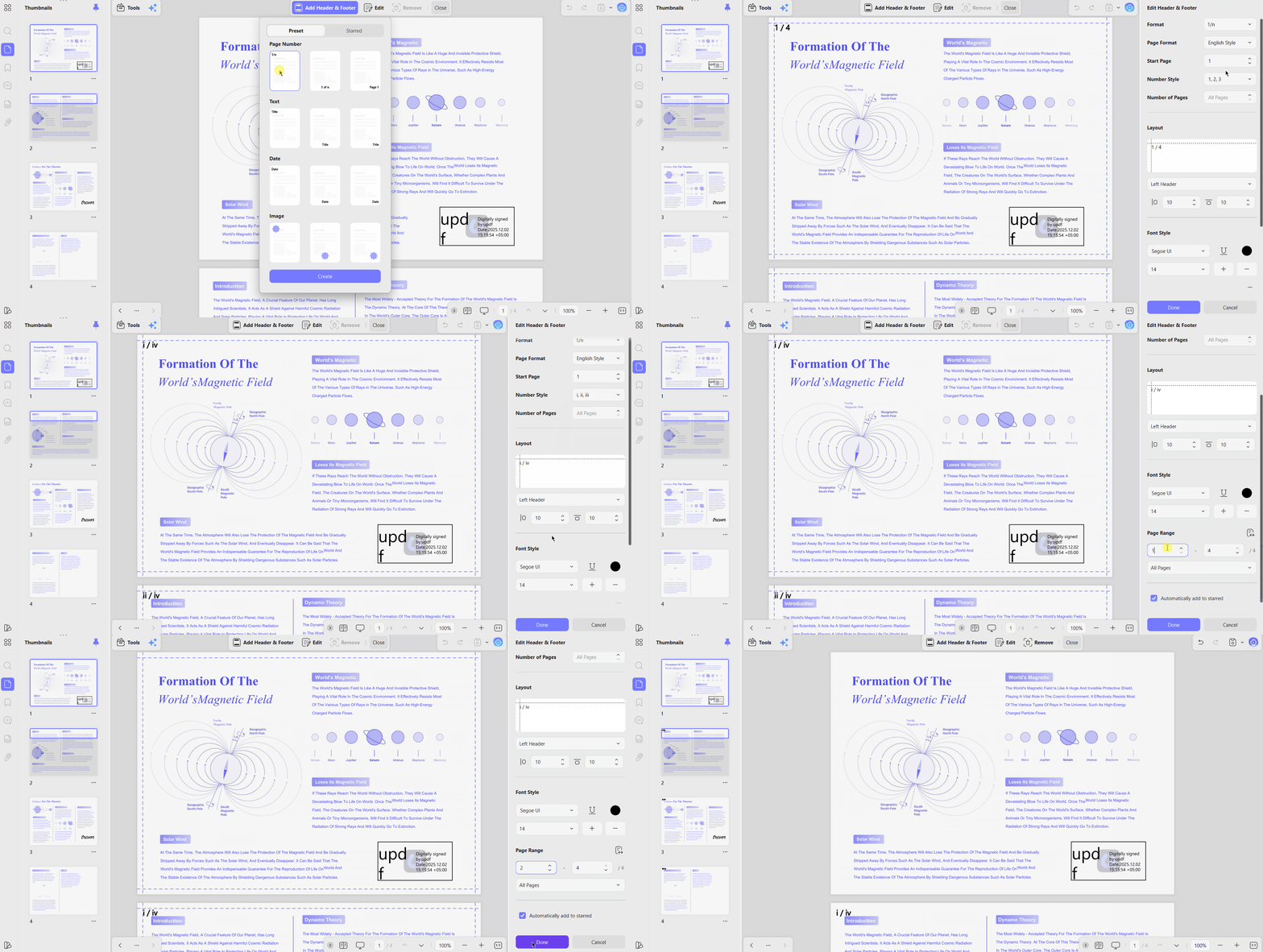
Parameters to Confirm Before You Rely on This
UPDF provides several controls for customizing Roman page numbers before applying them. You can adjust the font style, page range, starting page, and number format. Check these settings carefully before finalizing your PDF:
- Number Style: Choose either lowercase Roman numerals like i, ii, iii or uppercase styles like I, II, III.
- Starting Value: Set where Roman numbering begins according to your document structure and required starting page.
- Page Range: Select the required pages while excluding the cover or other pages that should remain unnumbered.
- Number Placement: Position page numbers within the available header or footer areas based on your document layout.
- Platform Differences: Testing found the same Roman numbering controls available across the current Windows and macOS versions.
UPDF has two published limits users should understand before choosing its free version. Saving through the free version adds a trial watermark, removed with UPDF Pro.
Mac Preview cannot create automatic number sequences and supports manual text boxes instead. Our guide on how to add headers and footers to a PDF covers the wider toolset.
Need to number a thesis, report, or book without breaking the layout? Download UPDF for free and set the format, range, and position in one panel.
Windows • macOS • iOS • Android 100% secure
Part 3. Method 2. Use Roman Numerals for Front Matter and Arabic Numbers for the Main Text
Best For:
- Theses, dissertations, research reports, ebooks, and documents requiring organized front matter.
Not For:
- Avoid documents undergoing frequent content changes, page additions, deletions, or structural adjustments.
Formal documents usually separate preliminary pages from the numbering sequence used throughout their main content. You can use Roman numerals and Arabic numbers in the same PDF for separate sections. Go through the table below to understand how both numbering formats organize different document sections:
| Physical PDF Pages | Document Content | Visible Numbering |
| 1 | Cover | No visible number |
| 2–5 | Abstract, preface, and table of contents | i–iv |
| 6 Onward | Main text | 1 onward |
Physical page positions remain unchanged while Roman numerals for front matter control visible numbering. Follow the steps below to organize both numbering sequences correctly within your final document:
Step 1. Identify the physical page ranges for the cover, front matter, and main text.
Step 2. Apply Roman numerals to the front-matter range while keeping the cover page unnumbered.
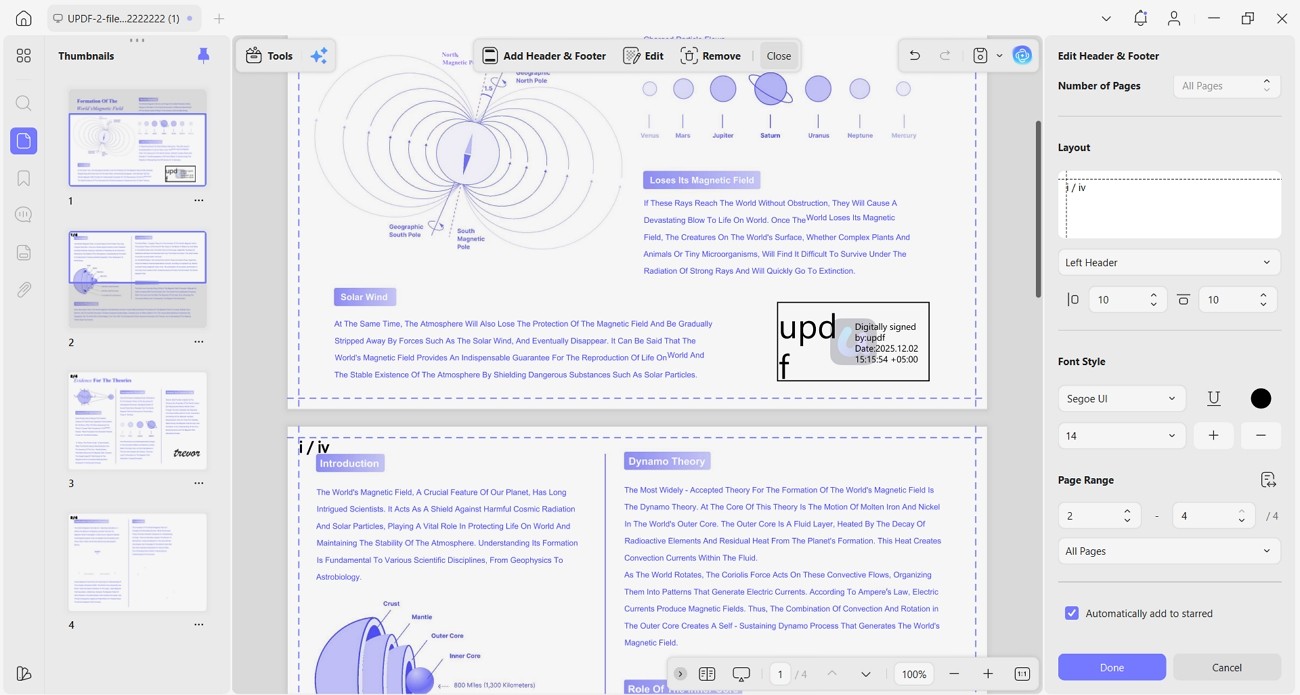
Step 3. Then, apply a separate Arabic numbering rule to the main text, restarting from 1.
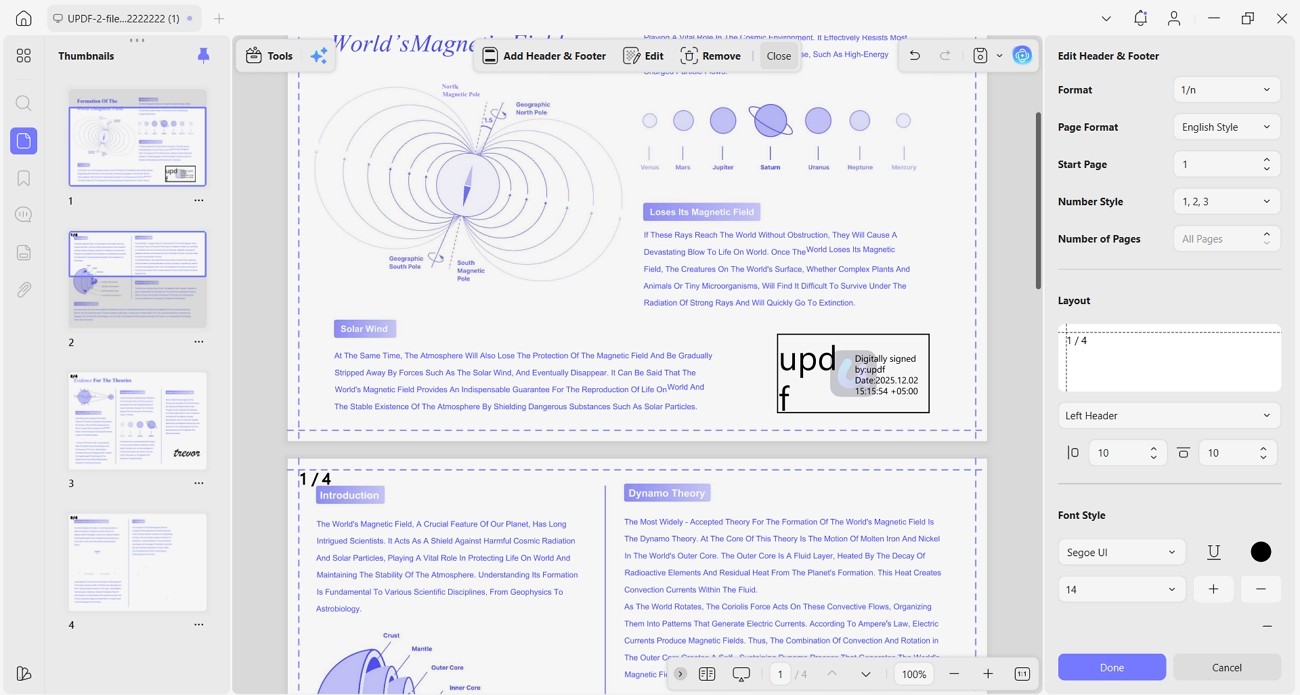
Step 4. Confirm the cover remains unnumbered and check the table of contents against final numbering.
What to Verify When Applying Two Rules
Mixed numbering keeps Roman and Arabic sequences separate across sections. Check both rules to maintain consistent formatting and numbering:
- Multiple Rules: Confirm that the Roman numbering remains intact after applying the separate Arabic numbering rule.
- Separate Formatting: Check whether each numbering rule retains its assigned position, font, and selected page range.
- Page Changes: Review both sequences after inserting or deleting pages because physical page ranges may shift.
- Mixed Numbering Limits: Verify that Roman and Arabic sequences remain correctly applied without overlapping assigned sections.
Matching the contents page to the finished PDF is the step most often skipped. For clickable entries as well as correct numbers, our guide on how to link a table of contents to PDF pages covers that separately.
Part 4. Method 3. Change PDF Page Labels to Roman Numerals with UPDF
Best For:
- People wanting PDF thumbnails, navigation controls, and page fields matching document numbering.
Not For:
- Anyone needing printable Roman numerals visibly placed across their actual PDF pages.
This method changes PDF page labels to Roman numerals displayed within compatible PDF readers only. It does not place printable Roman numerals directly onto your actual PDF page content. Now, go through the steps below to configure logical page labels within UPDF:
Step 1. Open a PDF in UPDF and press the "Organize Pages" feature in the top left corner. Then, choose "More" and press "Page Labels."
Windows • macOS • iOS • Android 100% secure
Step 2. After that, select uppercase or lowercase Roman numerals and configure the starting value.
Step 3. Then, choose a page range for which the rule applies and press the "Apply" button to confirm the application. After that, create a second label rule using Arabic numbers for the main-text section.
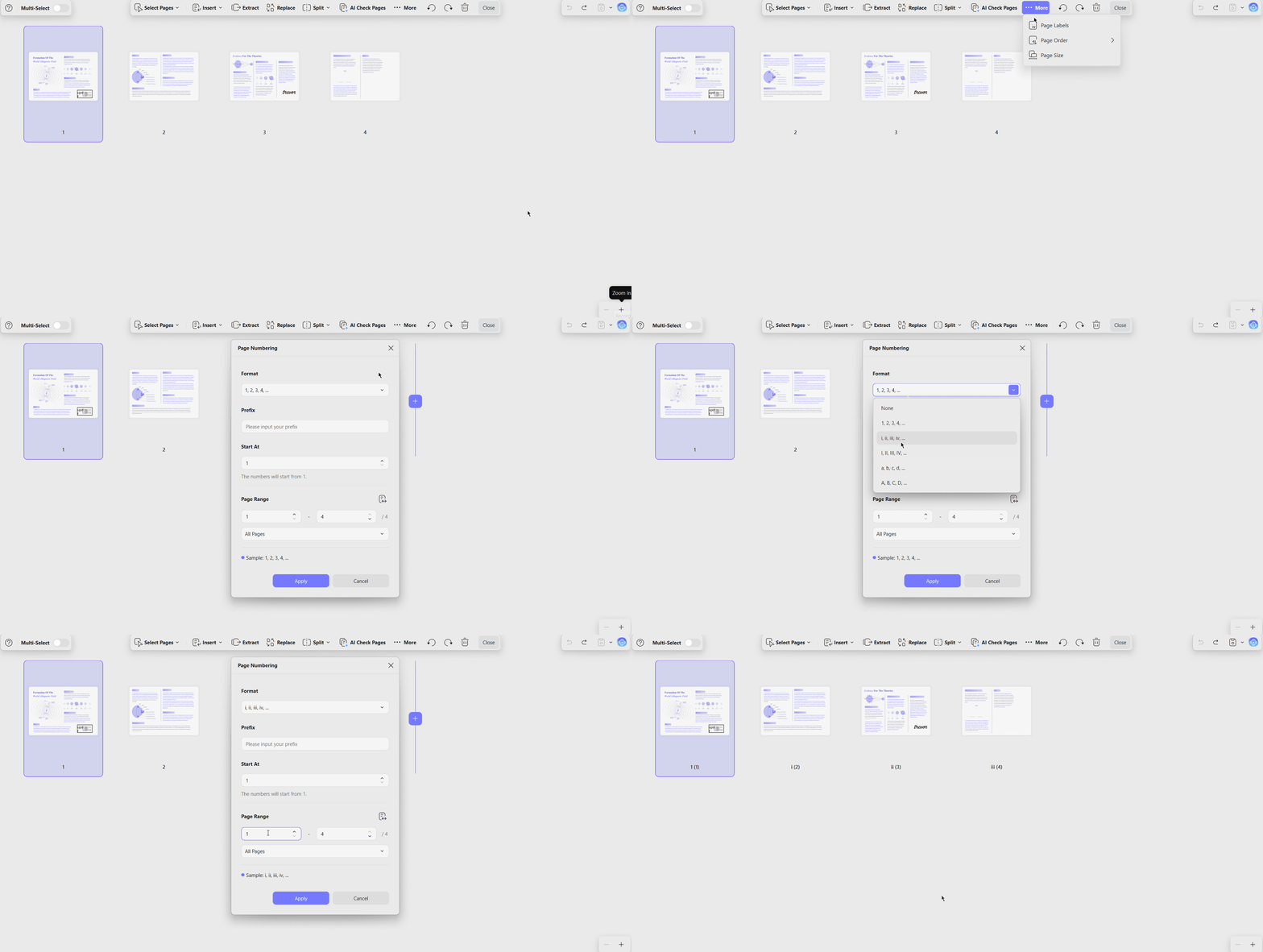
Availability of Page Labels in UPDF: Testing confirms UPDF supports logical page numbering through its Page Labels feature. It provides Roman formats, custom prefixes, starting values, and selectable page ranges.
Parameters to Verify
Check these parameters to understand how UPDF handles logical page labels across documents:
- Label Formats: UPDF supports decimal numbers, uppercase Roman numerals, lowercase Roman numerals, and letters.
- Prefix and Start: Users can add custom prefixes and select their preferred starting value.
- Page Ranges: Selected page ranges can receive separate numbering rules for different document sections.
- Reader Display: Page labels may appear differently across UPDF, Acrobat, browsers, and other readers.
- Printing: Logical page labels control PDF navigation and do not print onto document pages.
Part 5. Method 4. Add Roman Numeral Page Numbers in Adobe Acrobat
Best For:
- Acrobat subscribers managing visible page numbers alongside logical labels across PDF documents.
Not For:
- Occasional users numbering one PDF without purchasing an expensive Acrobat subscription plan.
Acrobat uses separate tools for visible numbering and logical PDF page labels. Use Roman numeral page numbering in Adobe Acrobat for properly formatted documents.
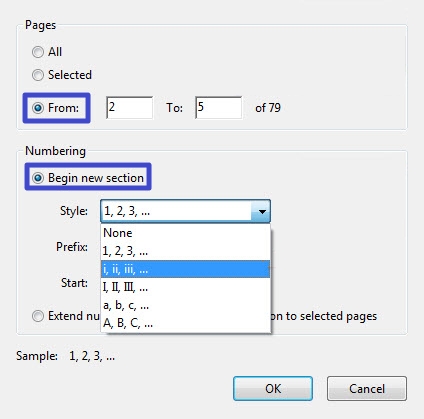
Change Logical Page Labels
Open the "Page Thumbnails" panel, select your pages, and access the "Page Labels" option. Choose Roman numerals for front matter, then create another sequence for main text pages. Set the "Starting Value" and optional "Prefix" using options available within the same dialog. Applied labels appear within page thumbnails and the navigation box for easier document browsing.
Add Visible Roman Page Numbers
Acrobat's Header & Footer tool does not provide a Roman numeral format for visible numbering. Adobe Community Experts repeated this limitation, with recent confirmation appearing in March 2025 discussions online. Page Labels can use Roman numerals, but they remain separate from visible header page numbering.
Adobe's online page-numbering tools provide Arabic numbering without offering a Roman numeral option. Roman page labels are supported, while visible Roman numbering remains unavailable through Acrobat's built-in Header & Footer tool. Users have reported this gap since 2010, with accepted forum answers recommending third-party scripts instead.
For the standard Arabic numbering workflow in Acrobat, including its header and footer settings, see our guide on how to add page numbers in Adobe Acrobat.
Part 6. When You Should Fix the Numbering in Word Instead
Best For:
- People with the original Word document who are still revising its content.
Not For:
-
Anyone having only the final PDF without access to its editable source.
Numbering works best after editing finishes, especially when the original Word document remains available. Managing PDF page labels Roman numerals becomes unnecessary when numbering is corrected before PDF export. Return to Word when these situations apply:
- The document still requires regular content edits.
- Pages are frequently being inserted or deleted.
- The table of contents needs automatic updates.
- Front matter and body require different headers or footers.
- Numbering must change between individual sections or chapters.
The source file follows similar numbering logic while keeping document changes automatically updated afterward. Follow the steps below to configure numbering correctly within your original Word document:
Step 1. Split the Word document into sections so the front matter and body are separate. Next, give the front-matter section Roman numbers such as i, ii, iii.
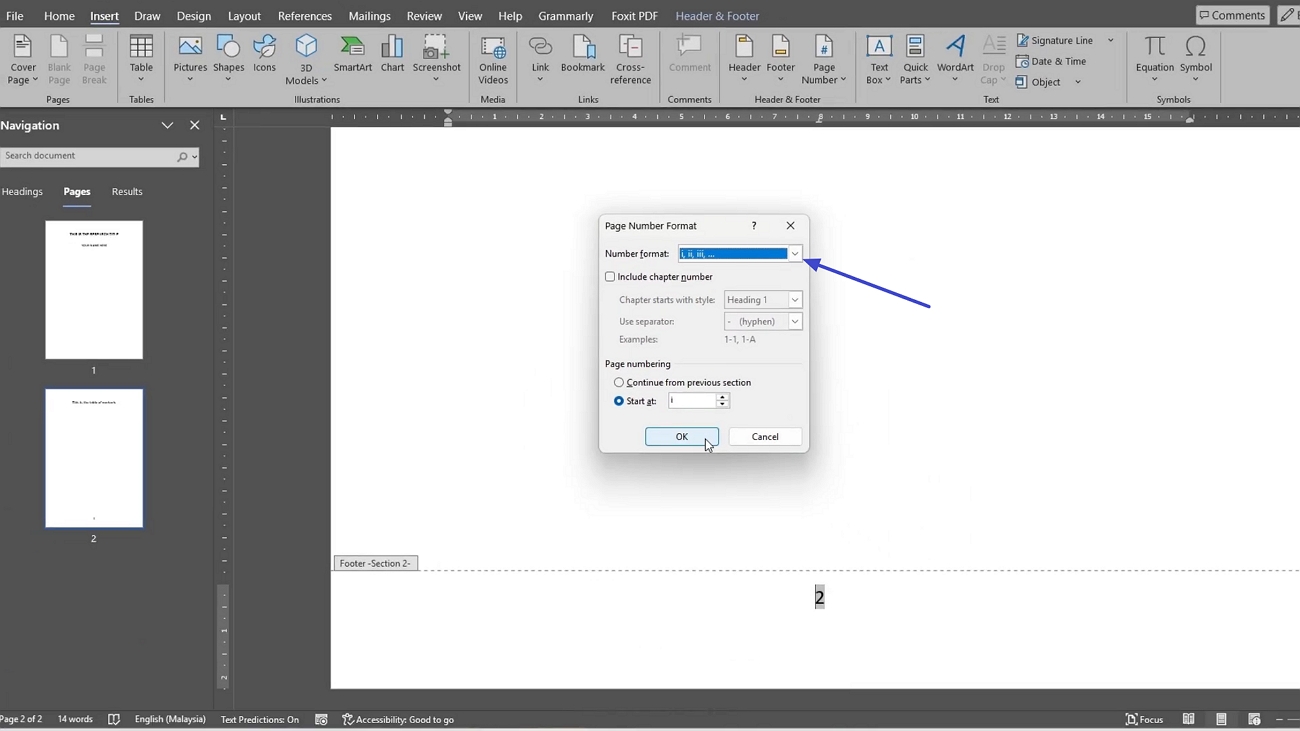
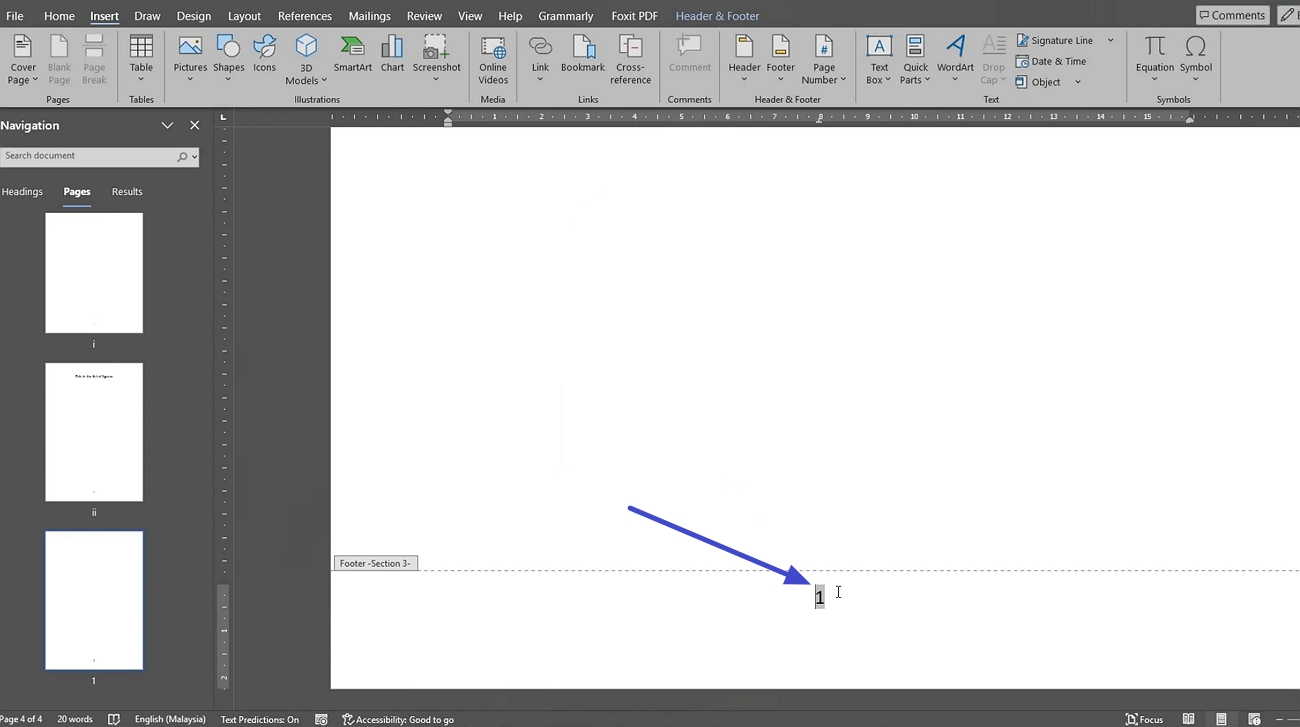
Step 2. Give the body its own numbering and restart it at 1. Then, update Word's table of contents so its page numbers match. Next, press "File" and use the "Save As" option to export the document as a PDF.
Part 7. Which Method Should You Use?
Different methods add Roman page numbers to PDF files by changing specific numbering elements. The table below compares each approach and shows exactly what each method changes:
| Method | Changes visible numbers | Changes PDF page labels | Best For |
| UPDF Header & Footer | Yes, supports Roman numerals | No | Adding printable Roman numerals |
| UPDF Page Labels | No | Yes | Correcting thumbnail and navigation labels |
| Both UPDF features | Yes | Yes | Theses, books, and formal reports |
| Adobe Acrobat | No Roman option in Header & Footer | Yes, via Page Labels | Existing subscribers needing label control |
| Edit the Word Source File | Yes | Requires verification after export | Documents still being edited |
For PDF-only documents, configure Roman front matter alongside Arabic numbering restarted from "1" correctly. Apply matching page labels so PDF navigation reflects the visible numbering throughout every section.
Check the table of contents, navigation labels, and print preview carefully before final submission. Use our guide to remove or change existing PDF page numbers before proceeding.
Part 8. Common Problems and How to Fix Them
After choosing the right numbering method, let's address common problems and their specific solutions:
Roman Numbers Start From the Wrong Value
The starting value and physical page position are separate controls within PDF numbering settings. Beginning the range on sheet two does not automatically make that page display "i." Set the starting value explicitly to "1" so Roman numbering begins correctly there.
The Cover Displays "i"
This problem occurs when the selected numbering range accidentally includes the document cover page. Change the range so numbering begins from the first page containing front matter content. Keep the cover outside every numbering rule to prevent "i" from appearing there.
The Main Text Continues With Roman Numerals
Roman numerals continue because one numbering rule currently covers the entire PDF document range. Create another Arabic numbering rule specifically covering pages where the main text begins. Restart its starting value from "1" to create the correct main-text numbering sequence.
The PDF Viewer Says Page "5," but the Page Displays "iii"
This mismatch occurs because visible page numbers and logical PDF labels work independently here. Update the logical page labels when navigation should match numbers printed on PDF pages. Matching both values keeps thumbnails, navigation controls, and visible numbering consistent throughout documents.
Newly Inserted Pages Make the Numbering Incorrect
Inserted or deleted pages shift numbering because rules remain connected with physical page positions. Complete all page insertion, deletion, and rearrangement before checking your final numbering sequence. Use this print PDF with page numbers guide to verify results through print preview before submission.
FAQs About Roman Page Numbers in PDFs
How do I add Roman page numbers to a PDF?
Open your PDF using an editor that provides Header and Footer tools. Choose Roman numerals, then configure the starting value, range, and position. These visible numerals become page content, remaining printable and shareable everywhere afterward.
How do I use Roman numerals for the first pages and Arabic numbers for the rest?
Apply one Roman numbering rule to the document's selected front matter pages. Create another Arabic numbering rule for main text, restarting numbering from one. Keep the cover outside both ranges when no visible number should appear.
How do I start Roman page numbering from the second page?
Set the numbering range to begin from the second physical PDF page. Then set the starting value to one using its separate numbering control. Changing only the page range may make the second sheet display ii.
Why do my PDF page numbers not match the numbers printed on the pages?
PDF readers may display physical positions or labels instead of visible numbers. Printed numbers come from page content added through headers or footers instead. Change logical page labels when navigation should match the visibly printed sequence.
Can I add Roman numeral page numbers to a PDF for free?
UPDF's free version supports Header and Footer numbering for PDF documents currently. Saved files receive a trial watermark, which upgrading to UPDF Pro removes. Check current plan terms before exporting because free access restrictions may change.
Can Adobe Acrobat add Roman numeral page numbers?
Acrobat supports Roman numerals as logical labels within thumbnails and navigation panels. Its "Header & Footer" feature does not provide visible Roman numeral formatting. Use another editor or third-party script when visible Roman numbers are required.
Should a thesis cover page be counted as page i?
Requirements vary by university, publisher, and institution. Some institutions count the title page as "i" without displaying the number, while others exclude it entirely. Always follow the official formatting requirements provided for your thesis or dissertation.
Final Verdict
To add Roman page numbers to a PDF, choose the method matching your numbering requirements. Visible numbers suit printing, while page labels keep thumbnails and navigation sequences properly organized. Mixed Roman and Arabic numbering works especially well for theses, dissertations, books, and reports. For managing both visible numbering and logical page labels together, UPDF remains the best option.
Windows • macOS • iOS • Android 100% secure
Testing Information: Testing was conducted on September 2, 2026, using the current UPDF build available during testing. The workflow covered visible Roman numbers and PDF page labels separately. Roman and Arabic numbering rules were also tested within the same PDF using an unnumbered cover, Roman-numbered front matter, and main text restarting at Arabic "1." Adobe Acrobat behavior was checked separately against current official Adobe documentation and relevant Adobe Community records.








 Enrica Taylor
 Engelbert White

 Enola Miller