 UPDF
UPDF
 UPDF for Windows
 UPDF for Mac
 UPDF for iPhone/iPad
 UPDF for Android
 Nomostar
 UPDF AI Online
 UPDF Sign
 IvyCraft
 Edit PDF
 Annotate PDF
 Create PDF
 PDF Form
 Edit links
 Convert PDF
 OCR
OCR PDF to Word
 PDF to Image
 PDF to Excel
 Organize PDF
 Merge PDF
 Split PDF
 Crop PDF
 Rotate PDF
 Protect PDF
 Sign PDF
 Redact PDF
 Sanitize PDF
 Remove Security
 Read PDF
 UPDF Cloud
 Compress PDF
 Print PDF
 Batch Process
 About UPDF AI
 UPDF AI Solutions
 AI User Guide
 FAQ about UPDF AI
 Summarize PDF
 Translate PDF
 Chat with PDF
 Chat with AI
 Chat with image
 PDF to Mind Map
 Explain PDF
 PDF AI Tools
 Image AI Tools
 AI Chat Tools
 AI Writing Tools
 AI Study Tools
 AI Working Tools
 Other AI Tools
 AI Bookmark Generation
 AI Bookmark Summary
 AI Watermark Generation
 AI Background Generation
 AI Sticker Generation
 AI Stamp Generation
 AI Editing Suite
 UPDF Copilot
 AI Page Management
 AI Semantic Search
 PDF to Word
 PDF to Excel
 PDF to PowerPoint
 Enterprise Solution
 Enterprise Sign
 Enterprise AI
 Enterprise Plan
 Enterprise User Guide
 Enterprise Webinar
 IT
IT Education
 Construction
 Financial Service
 Healthcare
 Insurance
 Legal
Legal Manufacturing
 Government
 Researchers & PhDs
 Solopreneurs & Freelancers
 Lawyers & Legal Professionals
 Real Estate Agents & Brokers
 Education Solution
 Customer Stories
 User Guide
 UPDF Tricks
 FAQs
FAQs UPDF Reviews
 Download Center
 Blog
Blog Newsroom
 Tech Spec
 Updates
 UPDF vs. Adobe Acrobat
 UPDF vs. Foxit
 UPDF vs. PDF Expert

Does LibreOffice work with PDFs? Yes—but not in the way most users expect.
When you open a PDF in LibreOffice, it doesn't treat it as a normal document. Instead, it converts the file into LibreOffice Draw, where text, images, and layouts become separate graphic elements. This makes even simple edits surprisingly tricky and can easily break your original formatting.
Take Sarah, a marketing manager who only needed to change two words in a 20-page proposal. After editing the PDF in LibreOffice Draw, her text boxes stopped wrapping, columns shifted out of place, and hyperlinks disappeared after saving. What should have been a 2-minute fix turned into hours of manual adjustments.
That's the biggest limitation of LibreOffice PDF editing: it's a workaround, not a dedicated PDF editor. If you need a smoother way to edit PDFs while keeping the original layout intact, a native PDF solution like UPDF can save you from these formatting headaches.
Windows • macOS • iOS • Android 100% secure
Still, if you only need to make basic PDF edits with LibreOffice, this guide will show you exactly how it works—and what problems to watch out for.
If your goal is to edit a PDF with LibreOffice, use it for small text or image changes on simple files. For layout-sensitive or multi-page documents, follow a dedicated PDF editing workflow instead.
Part 1. Step-by-Step Guide: How to Edit PDF with LibreOffice Draw
LibreOffice Draw is handy when you need low‑budget fixes on existing PDFs. Students and small corporate teams use it to correct dates and drop in annotations. You work directly on the page canvas and shapes without reopening the original source file. It feels powerful for small jobs, yet the more changes you stack, the more careful you must be.
Editing PDFs with LibreOffice works well for light PDF editing rather than full redesigns of complex documents. For now, follow the steps below to edit your PDF inside LibreOffice Draw:
Step 1. Once you open LibreOffice, press the "Open File" option in the top left corner to import your PDF document.
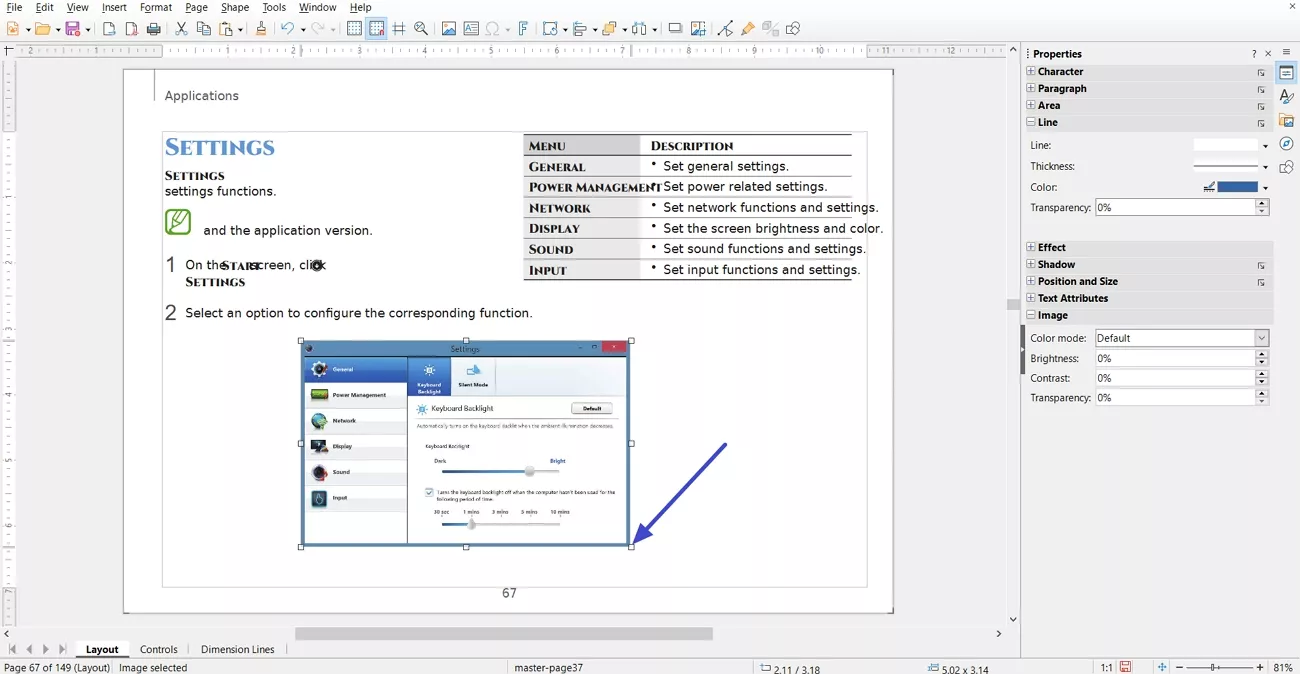
Step 2. After that, double-click any image in the PDF and change its position. To maintain a perfect balance with text and images, manually resize the image in the PDF by adjusting the "Resize" icons.
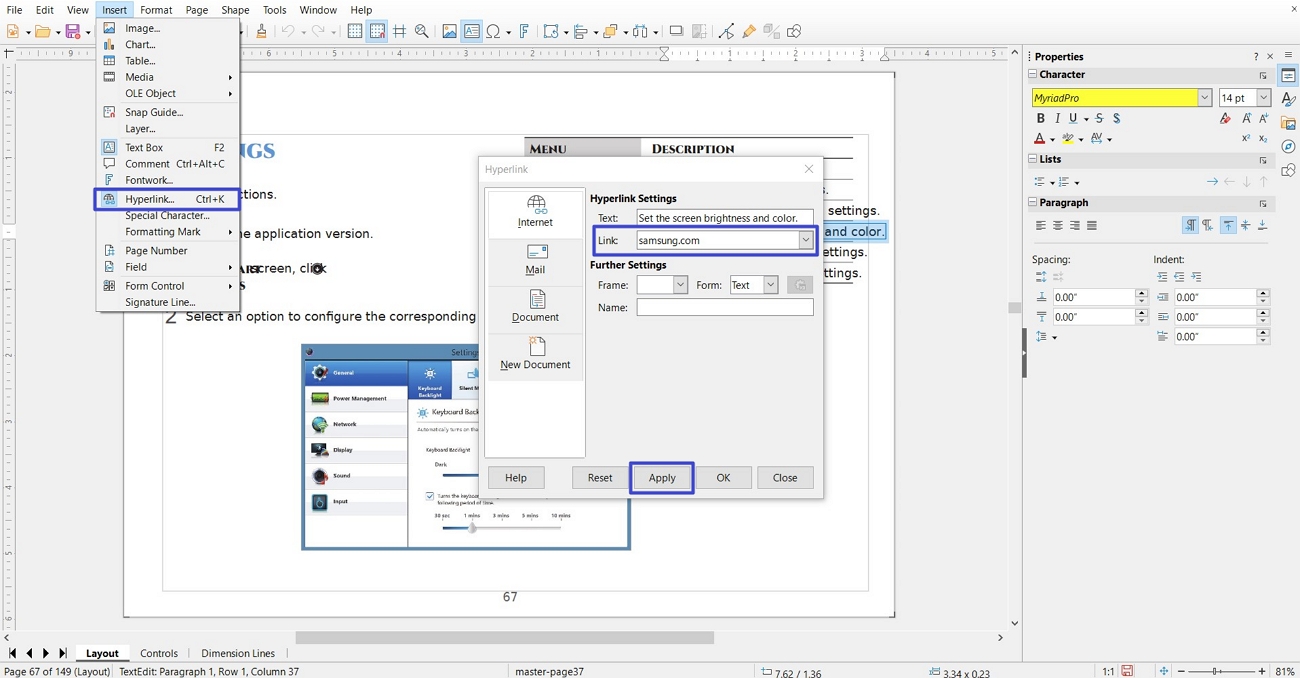
Step 3. Now, select any text, choose the "Insert" option, and press the "Hyperlink" option. Enter the link and click the "Apply" button to proceed. For precise multi‑page navigation, use native tools built to link to PDF pages.
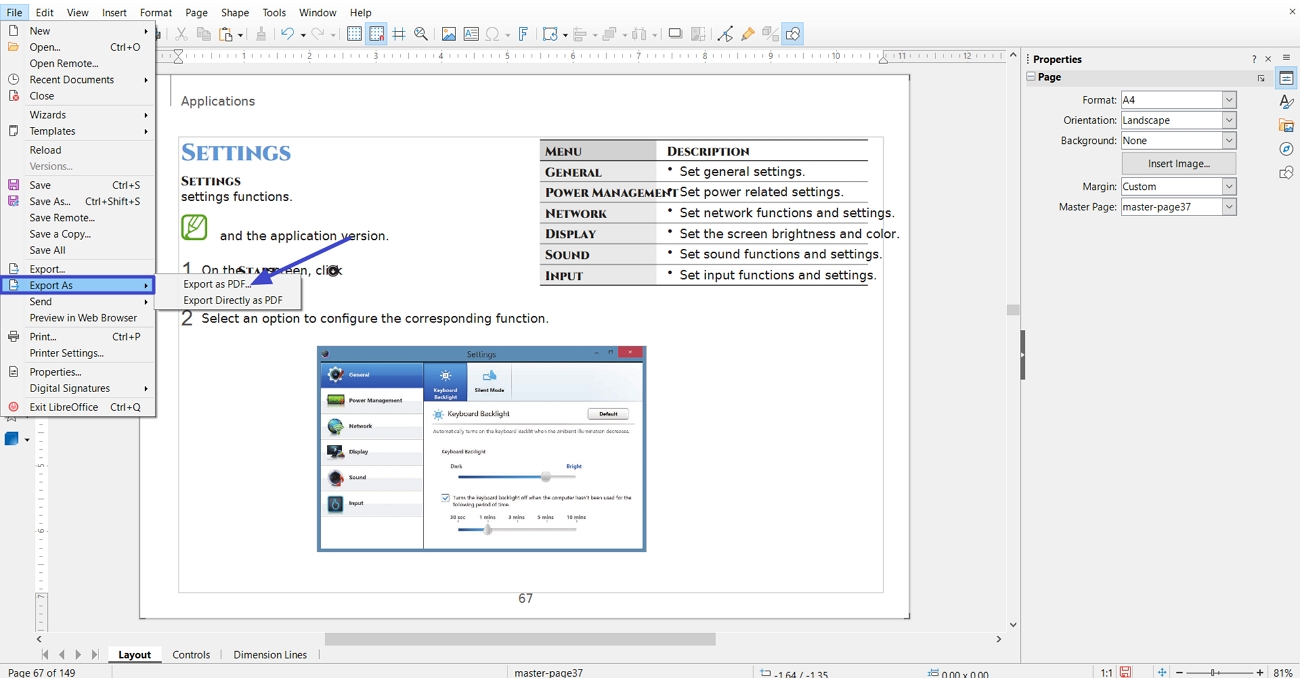
Step 4. Then, make some minor text edits if needed. After that, choose the "Export As" option and press the "Export As PDF" button to save the edited PDF.
Part 2. Deep-Dive Exposure: 4 Critical Flaws Found in Our Real-World Tests
You often run into hidden problems when working on complex PDFs inside LibreOffice Draw. These flaws only show up during real projects, where each change can unexpectedly affect the whole page.
4 Critical Flaws Found in Our LibreOffice Draw PDF Editing Tests
While testing different documents, we saw how LibreOffice behaves when people try to edit PDFs. Each problem comes from real use, not theory, and shows why layouts often fail unexpectedly. Now, let's walk through these four flaws to see where LibreOffice Draw starts struggling.
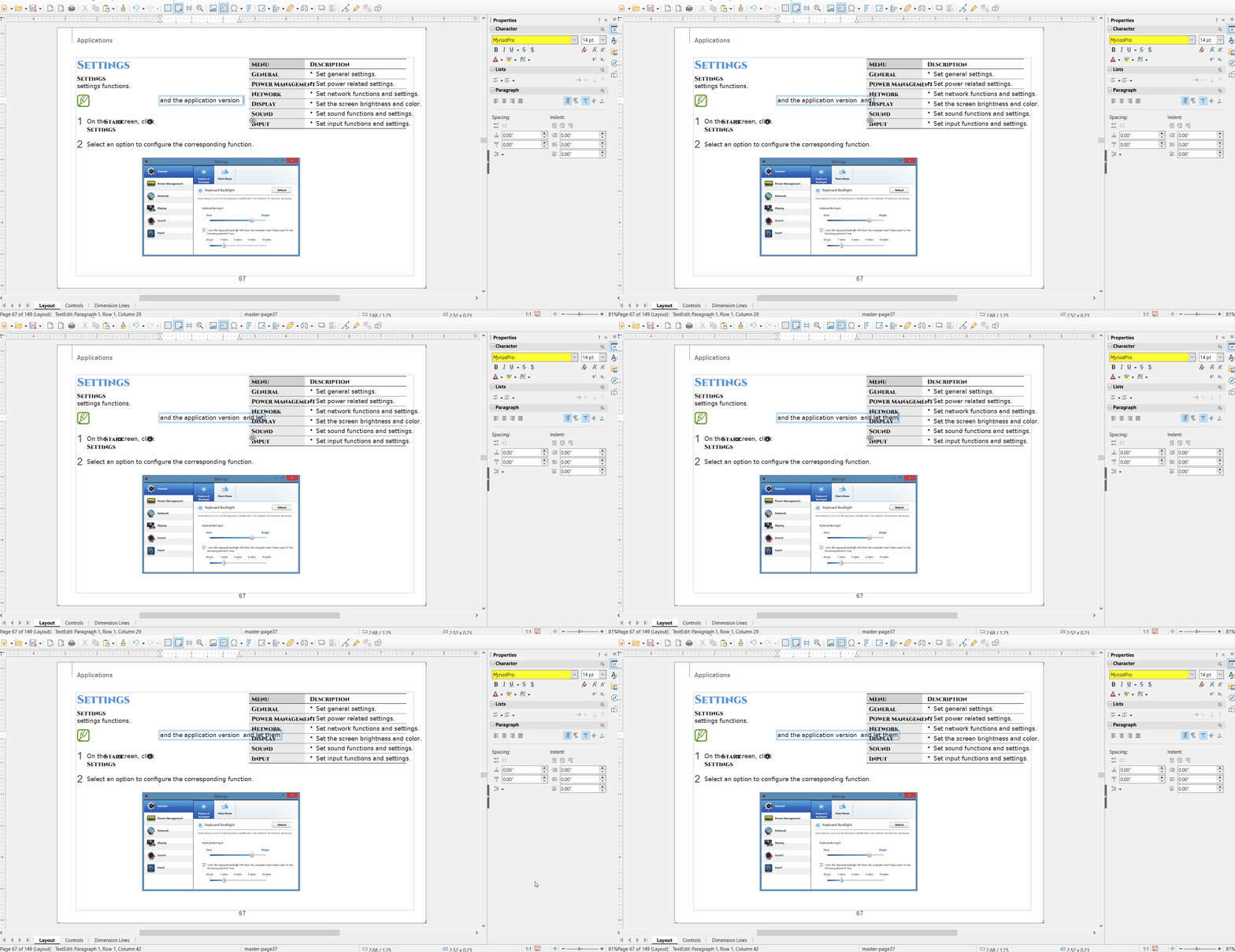
1. Text Boxes Do Not Auto-Adapt (The Text Overlap Bug)
Adding extra words to a line makes the text box stretch sideways rather than wrap. New characters overlap the next column, so old and new text crash into each other. Busy pages become unreadable, with questions, labels, and numbers stacked on top of each other.
How UPDF Caters to This
On the other hand, UPDF detects full text blocks, then grows paragraphs downward so added content never overlaps neighbors. It updates boundaries to keep spacing clean and layouts stable after heavy edits.
Windows • macOS • iOS • Android 100% secure
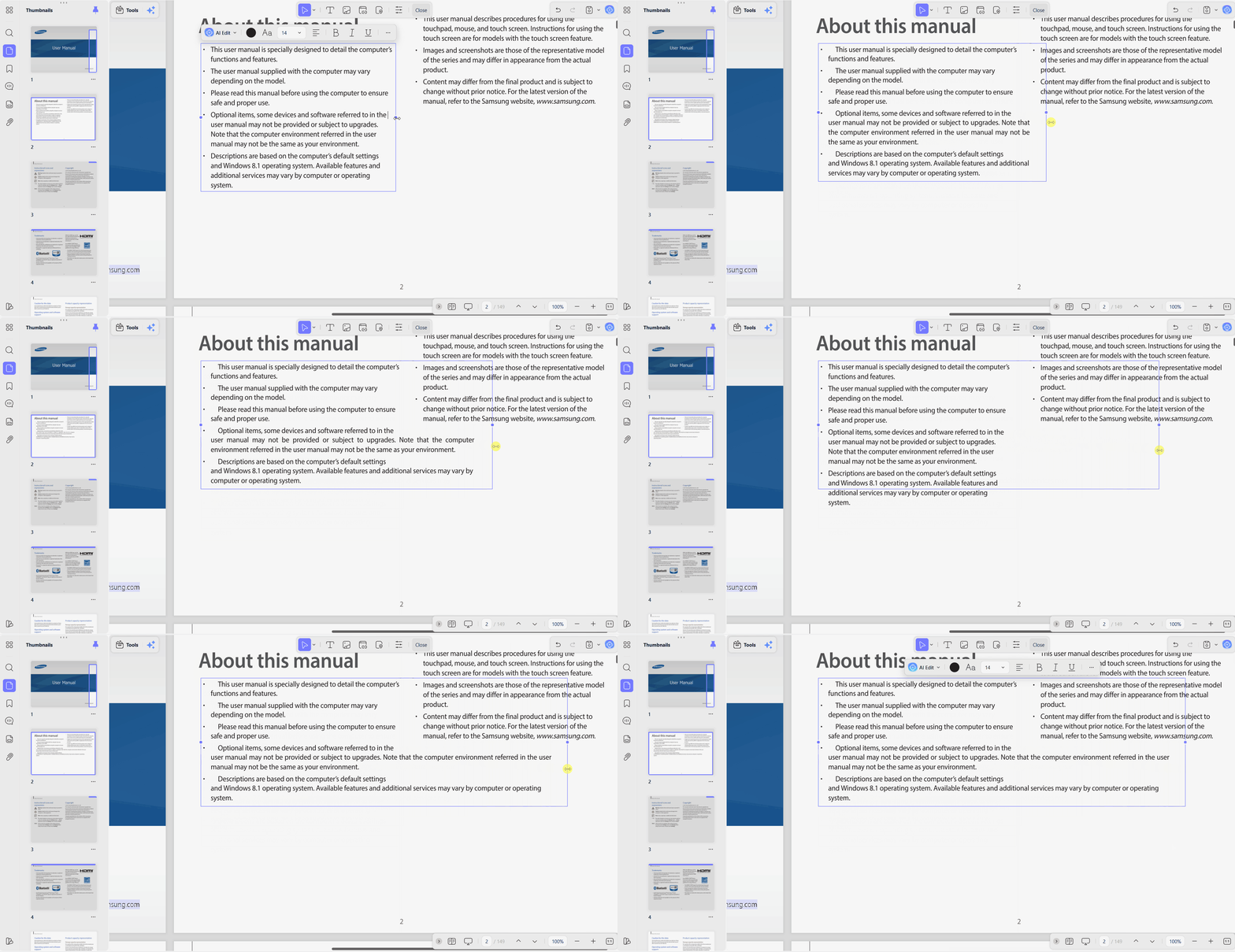
It helps to see how the document responds to a small change before making several revisions. You can use the following video as a visual guide to editing PDF content in UPDF.
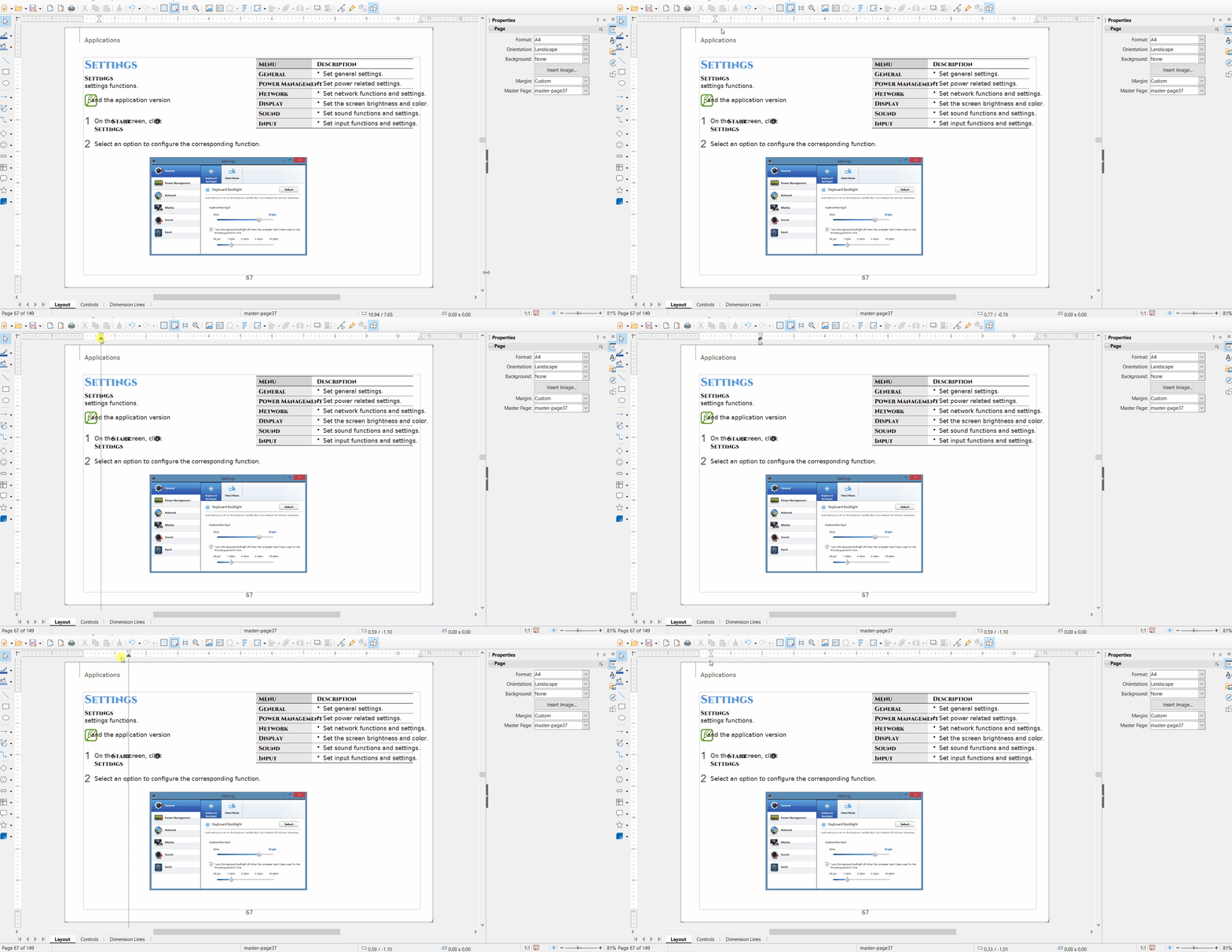
2. Mainstream Alignment Controls Are Completely Defunct
Selecting multiple text boxes and clicking Align Left, Align Right, or Center often does nothing. Blocks stay scattered across the page, so headings and paragraphs refuse to line up. Fixing alignment becomes a manual chore, with users dragging each box rather than using trusted tools.
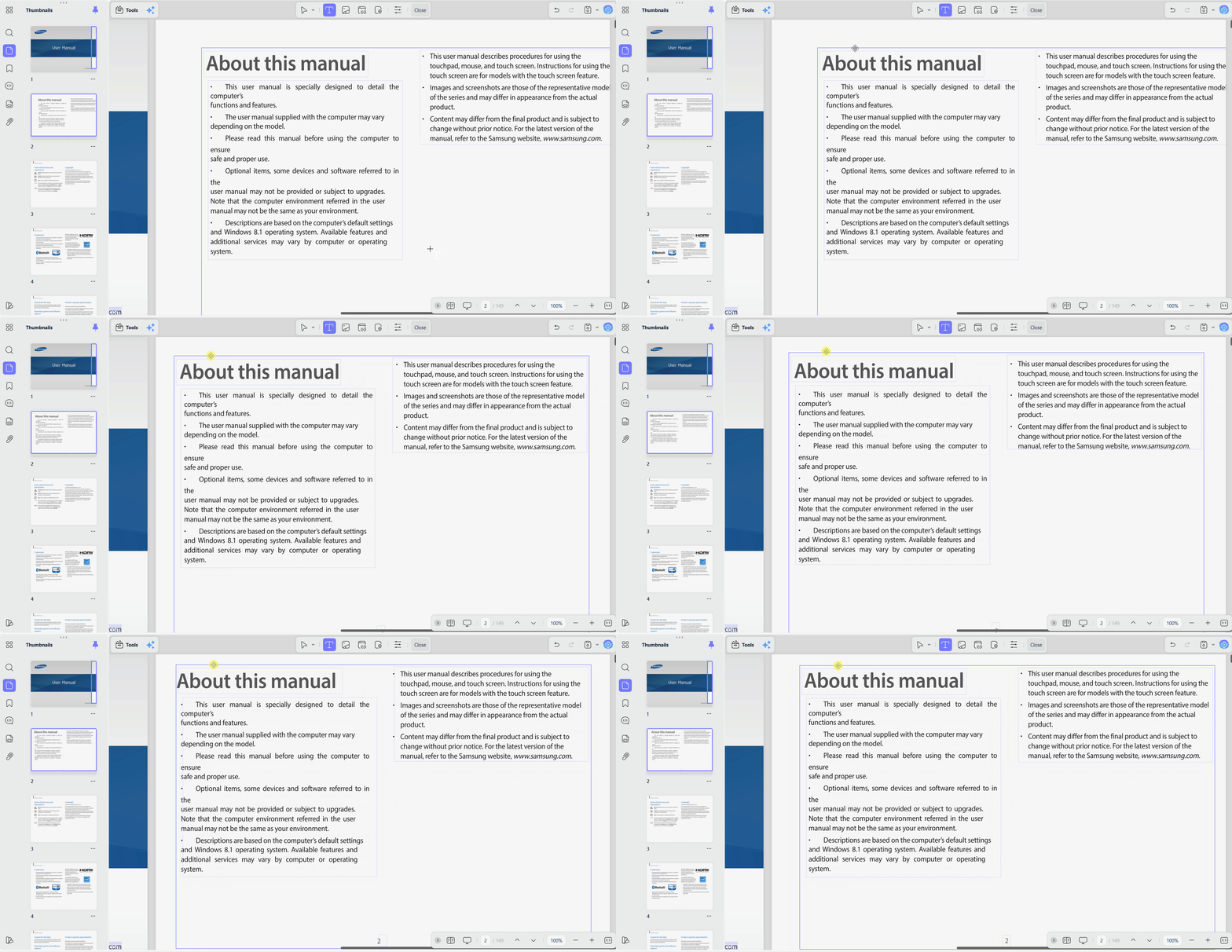
How UPDF Handles Alignment
UPDF grabs all text and graphic elements on the page with a simple Ctrl + A. Assets then respond to alignment commands, snapping into neat rows and balanced columns. Even crowded pages realign in seconds and keep layouts tidy without manual dragging.
3. Crippled: Multi-Media and Hyperlink Features
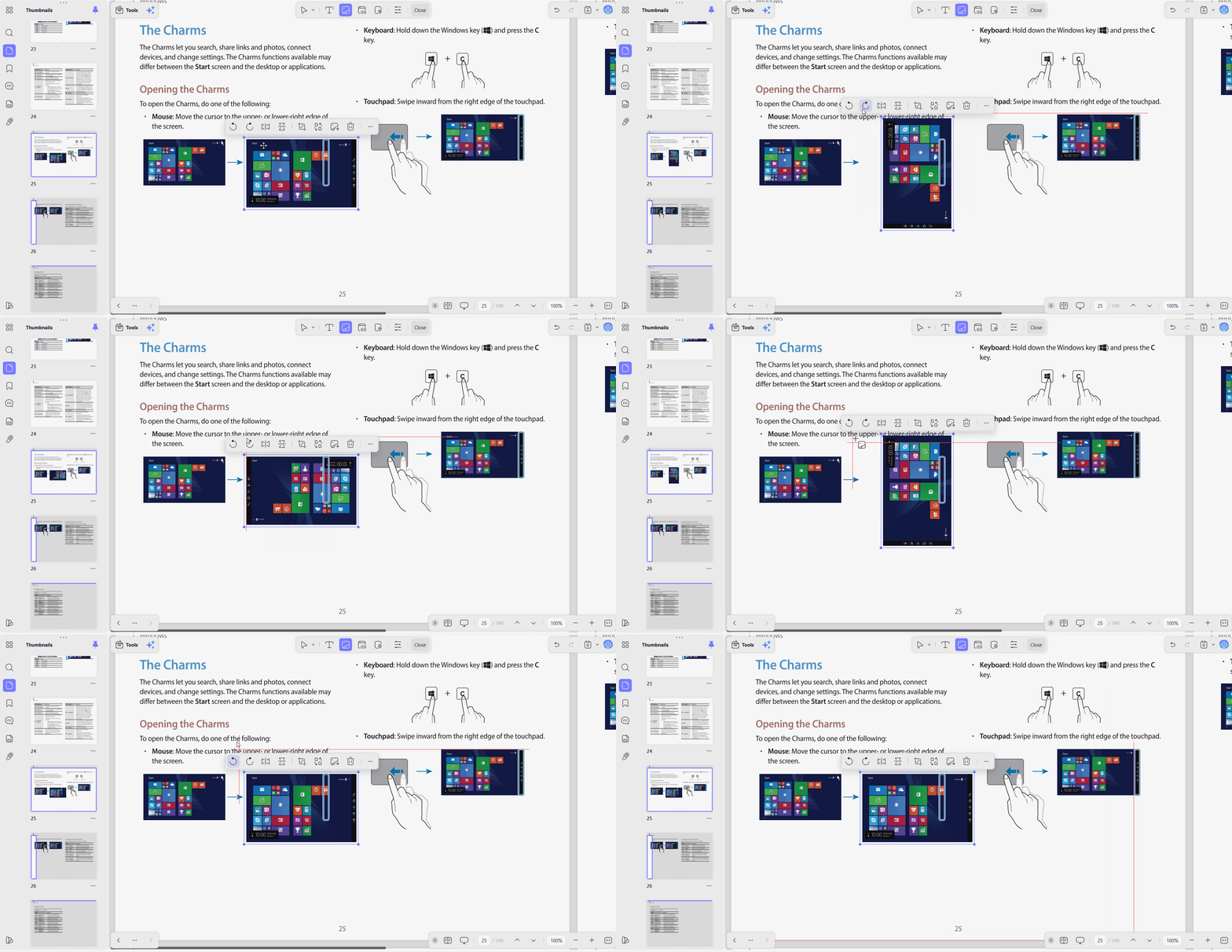
Inside the LibreOffice Draw PDF editor, images from imported PDFs mostly behave like fixed, untouchable objects. In many cases, the only real option is deleting a picture instead of adjusting or reusing it. Simple tasks like cropping, rotating, or replacing a logo become slow manual work or completely impossible.
Hyperlinks also cause trouble, often turning into plain text when the PDF is exported again. UPDF, by contrast, lets users crop, rotate, replace, extract images, and maintain reliable clickable links.
4. Lack of Advanced Layout Automation
Scanned PDFs and print‑ready files need precise margins and cropping that LibreOffice Draw struggles to provide. Manual tweaks become slow and risky when every page must match strict commercial printing requirements. Hiding sensitive names or IDs with shapes only masks them.
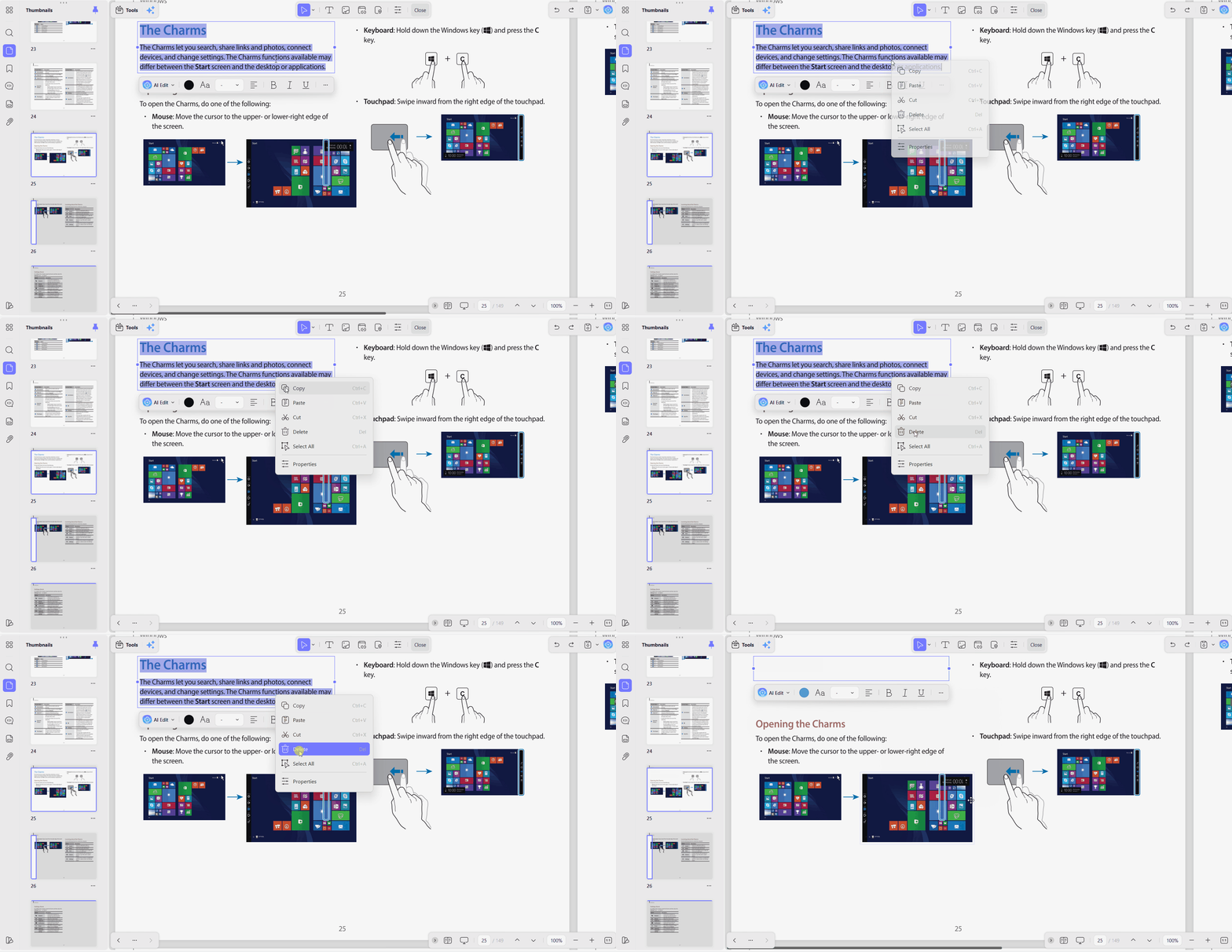
How UPDF Handles Sensitive Tasks
UPDF comes with tools to erase text in PDF without leaving hidden traces. It deletes unwanted text, and removed words no longer appear in the final PDF.
Windows • macOS • iOS • Android 100% secure
Part 3. LibreOffice PDF Editor: When to Use It and When to Avoid It
LibreOffice Draw suits some quick PDF fixes but struggles badly with layout‑sensitive documents. Knowing where it helps and where it causes problems protects important files. Now, look at the table below for quick guidance:
| LibreOffice Draw is best for | LibreOffice Draw is not for |
| 100% free, open‑source editing with no subscription or license costs. | Multi‑page enterprise reports where layout and text integrity must stay perfect. |
| One‑letter fixes, number typos, or tiny date changes on single‑page PDFs. | Legally binding contracts or executive agreements where overlap and misalignment are unacceptable. |
| Quick emergency text edits on Linux machines without access to commercial tools. | Pitch decks or client proposals that rely on polished, consistent formatting across many slides. |
| Managing PDFs on a Chromebook. For extra options, see how to edit a PDF on a Chromebook in UPDF. | Users needing non‑destructive restructuring. For advanced file restructuring, read UPDF's guide on how to edit a PDF document. |
Part 4. Elevating Your Professional Workflow Beyond Open-Source Limitations
Many teams start with open‑source PDF tools to save money, then lose hours repairing layouts. A professional editor changes the workflow from constant troubleshooting to fast updates across every device.
Seamless Enterprise Integration
In busy companies, every hour spent fixing broken text boxes or manual alignment issues hits profitability. Modern teams move past clunky open‑source layouts by using multi‑platform tools that keep formatting stable. To see how this works in practice, explore our deep dive on UPDF for a Pro workflow.
The Cost of Hidden Inefficiency
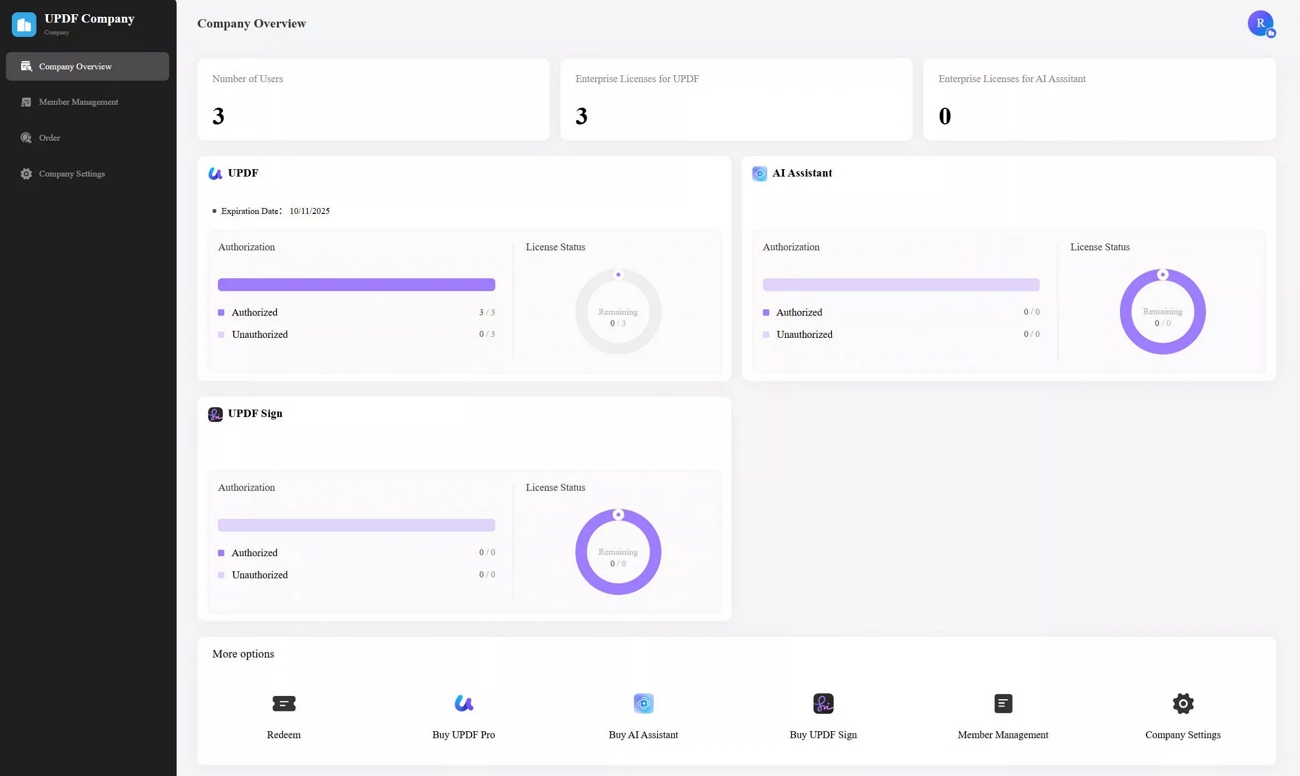
When teams keep patching PDFs with manual shapes and text boxes, small fixes quietly consume big chunks of time. Insights from our PDF Document Efficiency Report show that modern layout engines and batch tools cut this waste dramatically. With UPDF, admins also gain a central dashboard to manage licenses and users to keep high‑volume document work organized rather than chaotic.
Frequently Asked Questions About LibreOffice PDF Editing
Is LibreOffice PDF Editor free?
Yes, LibreOffice is fully free and open‑source, released under the Mozilla Public License. Its PDF tools inside LibreOffice Draw have no paywalls, trial limits, or forced watermarks on exports. The real cost appears in time, because fixing overlaps and broken alignment manually often takes many hours.
What is the easiest way to edit a PDF?
The easiest, most reliable option is using a dedicated native PDF editor like UPDF for everyday document changes. Instead of treating text as static graphics, UPDF wraps paragraphs in smart containers that stay clean while you edit. Compared with editing a PDF in LibreOffice, UPDF makes rewriting text, swapping images, and aligning layouts much smoother.
Conclusion: Stop Fighting Clunky Text Boxes and Upgrade Your Workspace
In conclusion, learning how to edit a PDF with LibreOffice shows clear limits for serious work. LibreOffice Draw stays useful for small, free fixes, but repeated overlap, alignment, and hyperlink issues slow professionals. However, UPDF offers a cleaner editing canvas that keeps layouts stable and respects fonts on every device. Switching now helps important presentations and documents look sharp while everyday PDF editing feels much faster.
Windows • macOS • iOS • Android 100% secure









 Enola Davis
 Grace Curry

 Lizzy Lozano
 Enola Miller