UPDF
UPDF
 UPDF for Windows
 UPDF for Mac
 UPDF for iPhone/iPad
 UPDF for Android
 Nomostar
 UPDF AI Online
 UPDF Sign
 IvyCraft
 Edit PDF
 Annotate PDF
 Create PDF
 PDF Form
 Edit links
 Convert PDF
 OCR
OCR PDF to Word
 PDF to Image
 PDF to Excel
 Organize PDF
 Merge PDF
 Split PDF
 Crop PDF
 Rotate PDF
 Protect PDF
 Sign PDF
 Redact PDF
 Sanitize PDF
 Remove Security
 Read PDF
 UPDF Cloud
 Compress PDF
 Print PDF
 Batch Process
 About UPDF AI
 UPDF AI Solutions
 AI User Guide
 FAQ about UPDF AI
 Summarize PDF
 Translate PDF
 Chat with PDF
 Chat with AI
 Chat with image
 PDF to Mind Map
 Explain PDF
 PDF AI Tools
 Image AI Tools
 AI Chat Tools
 AI Writing Tools
 AI Study Tools
 AI Working Tools
 Other AI Tools
 AI Bookmark Generation
 AI Bookmark Summary
 AI Watermark Generation
 AI Background Generation
 AI Sticker Generation
 AI Stamp Generation
 AI Editing Suite
 UPDF Copilot
 AI Page Management
 AI Semantic Search
 PDF to Word
 PDF to Excel
 PDF to PowerPoint
 Enterprise Solution
 Enterprise Sign
 Enterprise AI
 Enterprise Plan
 Enterprise User Guide
 Enterprise Webinar
 IT
IT Education
 Construction
 Financial Service
 Healthcare
 Insurance
 Legal
Legal Manufacturing
 Government
 Researchers & PhDs
 Solopreneurs & Freelancers
 Lawyers & Legal Professionals
 Real Estate Agents & Brokers
 Education Solution
 Customer Stories
 User Guide
 UPDF Tricks
 FAQs
FAQs UPDF Reviews
 Download Center
 Blog
Blog Newsroom
 Tech Spec
 Updates
 UPDF vs. Adobe Acrobat
 UPDF vs. Foxit
 UPDF vs. PDF Expert

Quick answer:
"Erase" is one word covering seven different functions, and a desktop editor is where the difference actually shows. Online PDF erasers vary in whether they cover, delete, or truly redact content, and they require an upload. Desktop software can strip characters from the file, rub out pen and ink annotations, and clean up a document locally — if the tool is built for it.
One thing the eraser never does, online or desktop: touch content baked into a scanned image, which is pixels in a photograph, not a text object or an annotation. That content can still be erased — by covering it with a colour-matched shape, destroying the area with redaction, or running OCR first to turn the image text into editable objects you can then delete or redact — just never with the eraser tool. This article tests five desktop tools, ranks them by how many of the seven functions they actually cover, and reports what each one can't do.
Part 1. Which PDF Eraser Fits Your Job
Seven erasing functions, and where the tools diverge is which ones they do well. Find your row first.
| What you're erasing | The function it needs | Best pick | Why this one |
|---|---|---|---|
| Salary, ID or account numbers before sending | Redact | UPDF or Adobe | Both redact unrecoverably, with a colour you can eyedropper to match |
| A wrong line of body text | Edit → delete text object | UPDF, Adobe, Foxit or PDF Reader Pro | Following lines reflow up and spacing holds; PDFgear leaves the gap |
| A pen or highlighter stroke someone drew on the page | Eraser (annotation layer) | UPDF, Foxit or PDF Reader Pro | The three with a true eraser; all do partial strokes, UPDF adds whole-stroke |
| A stamp or signature baked into a scanned image | Cover, area redact, or OCR-then-delete | UPDF or Adobe | No eraser reaches image pixels; cover, redaction or OCR-to-text is the route |
| Someone else's highlights, stamps and comments | Delete annotations | Any of the five | All five delete annotations; UPDF, Adobe, Foxit and PDF Reader Pro also range-select |
| A watermark, header or footer | Remove watermark / header & footer | Any of the five | All five remove these as objects — the big advantage over online tools |
| The same word across a whole document | Search & redact | UPDF or Adobe | UPDF uses AI semantic search; Adobe can even scan other PDFs on your device |
| Making a shape cover permanent before you send | Flatten (finishes the cover) | UPDF, Adobe, Foxit or PDF Reader Pro | Genuine flatten fuses the shape in; PDFgear only simulates it by printing to a new PDF |
The takeaway from the last-but-one column: every tool here removes watermarks, headers and footers as objects — the single biggest reason to use desktop software over a browser tool, where those functions barely exist.
Part 2. How We Tested
Seven erasing functions were checked — redact, delete text, add shape, delete annotations, eraser, remove watermark, remove header/footer — plus flatten, which isn't an erasing function in its own right but the finishing step that fuses a shape cover into the page so it can't be dragged off.
The redaction test is the strict one. After erasing a salary figure, the file was saved, reopened, then searched with Ctrl+F, copy-pasted from the erased region, and run through text extraction. Anything that returns the original characters is a cover, not a redaction, regardless of what the button is called.
| Tool | Version tested | Test date |
|---|---|---|
| UPDF | 2.5.4 | July 2026 |
| Adobe Acrobat | 2026.001.21691 | July 2026 |
| Foxit PDF Editor | 2026.1.2 | July 2026 |
| PDF Reader Pro | 5.3.5 | July 2026 |
| PDFgear | 2.26 | July 2026 |
Part 3. UPDF — The Only Tool That Covers All Seven, Including Partial Erasing
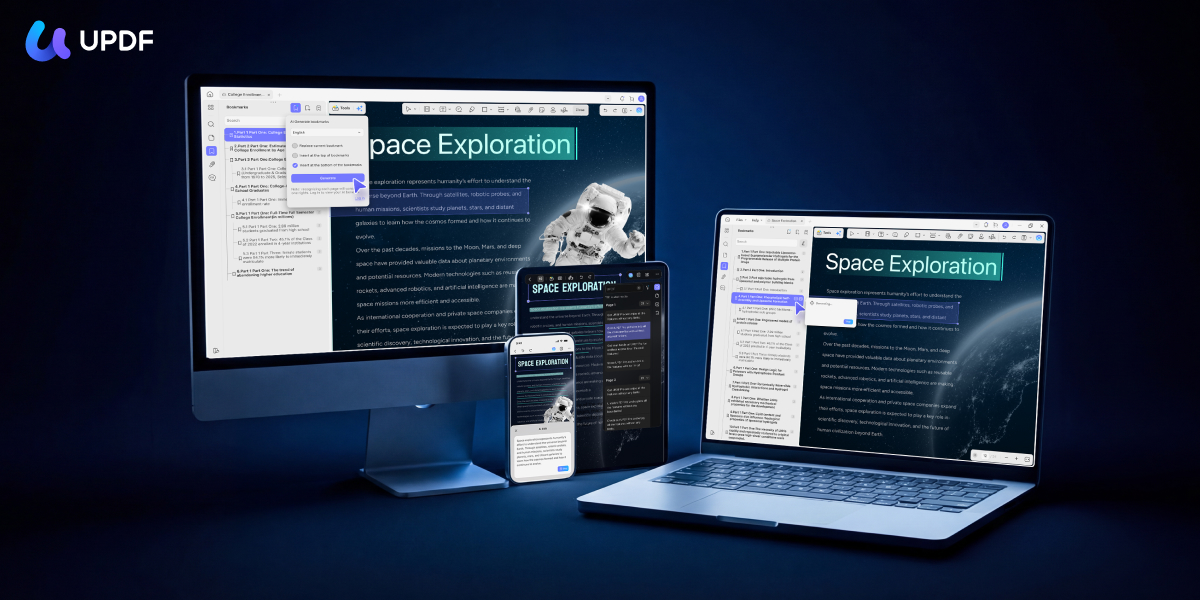
UPDF was the only tool tested that handled every one of the seven functions without a caveat — and the only one whose eraser does both partial and whole-stroke erasing rather than partial alone.
Windows • macOS • iOS • Android 100% secure
Best for:
- anyone who needs more than one kind of erasing on the same document — a redaction, a stroke erase and an annotation strip — without switching tools.
Skip if:
- you only ever need to delete one line of text once, where any free tool would do.
What the test showed
Redaction is genuine and the mark colour is fully controllable — you can pick a colour or eyedropper one to match.
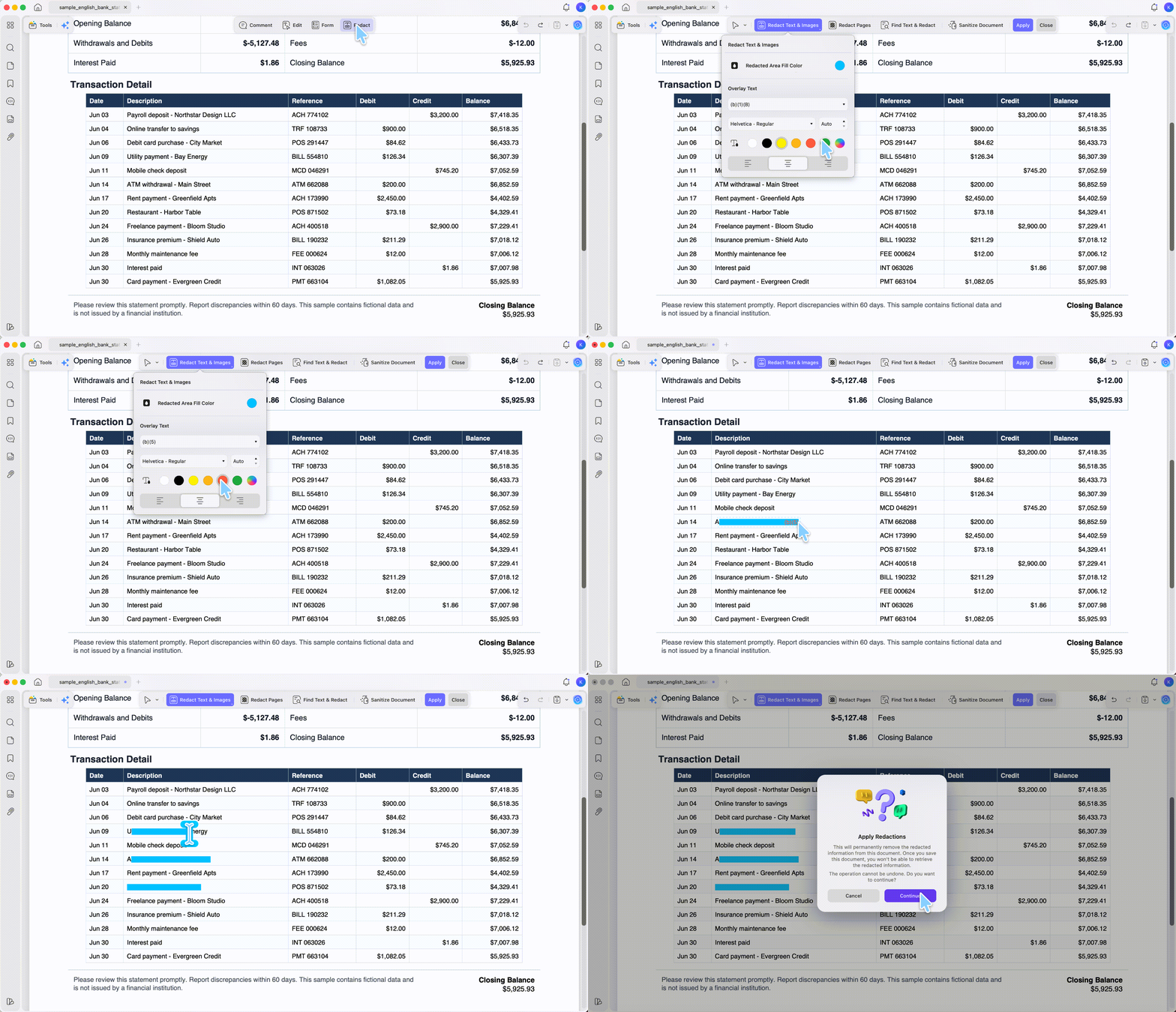
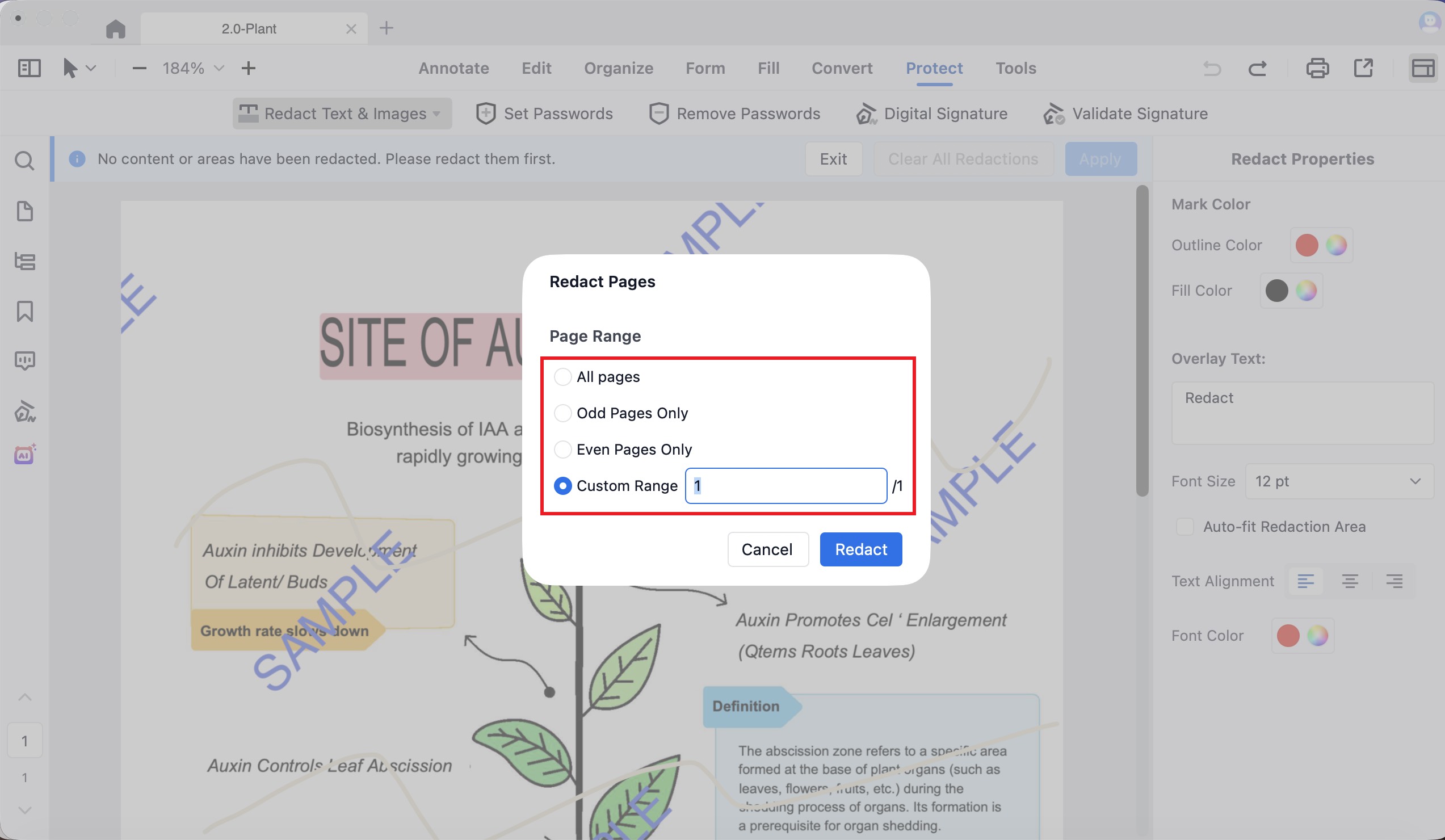
Three modes are available: redact text and images, redact pages, and find & redact. The find & redact mode runs on AI semantic search, so it catches meaning-based matches, not just literal strings — useful when the same sensitive concept appears in different wordings.
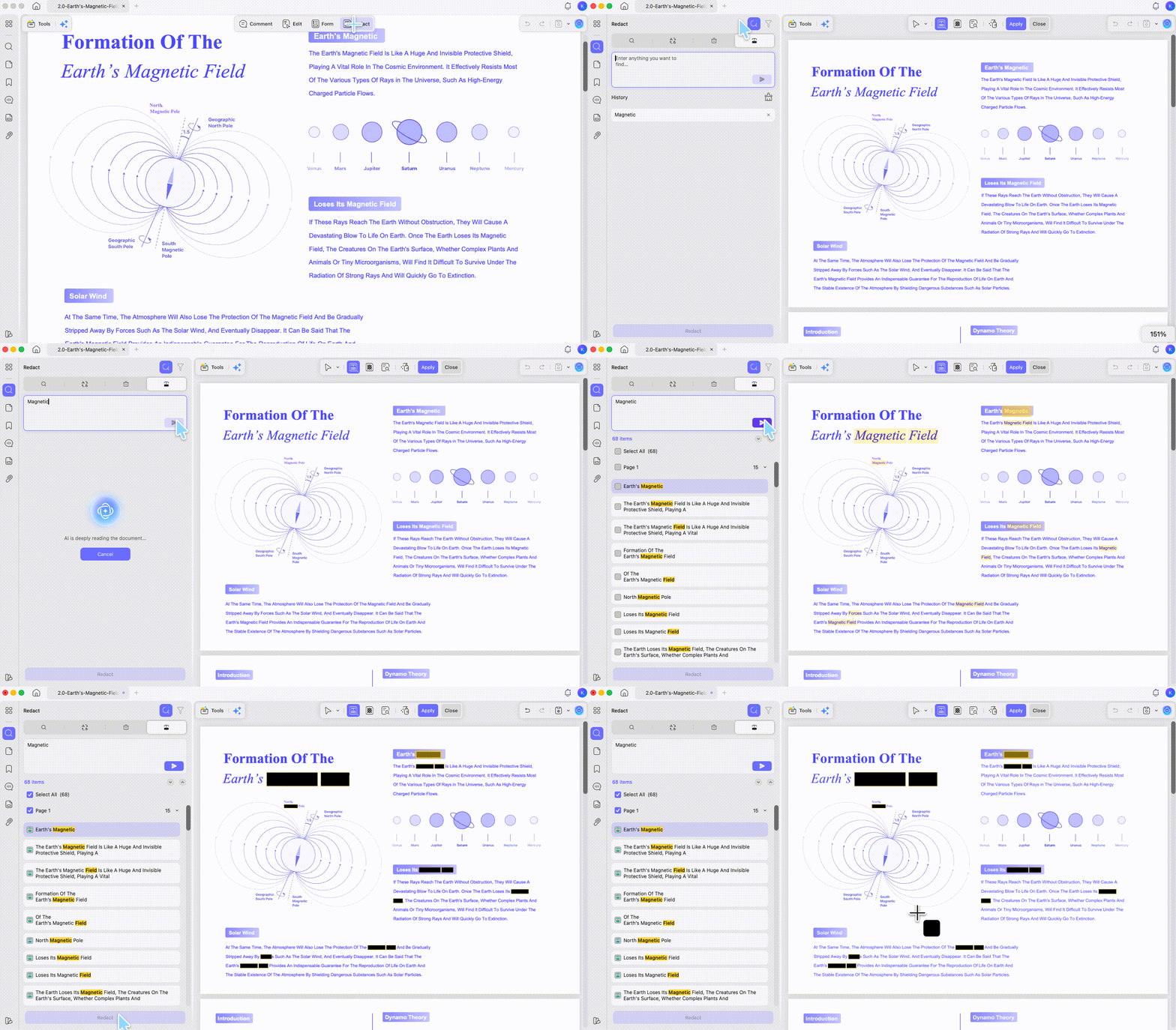
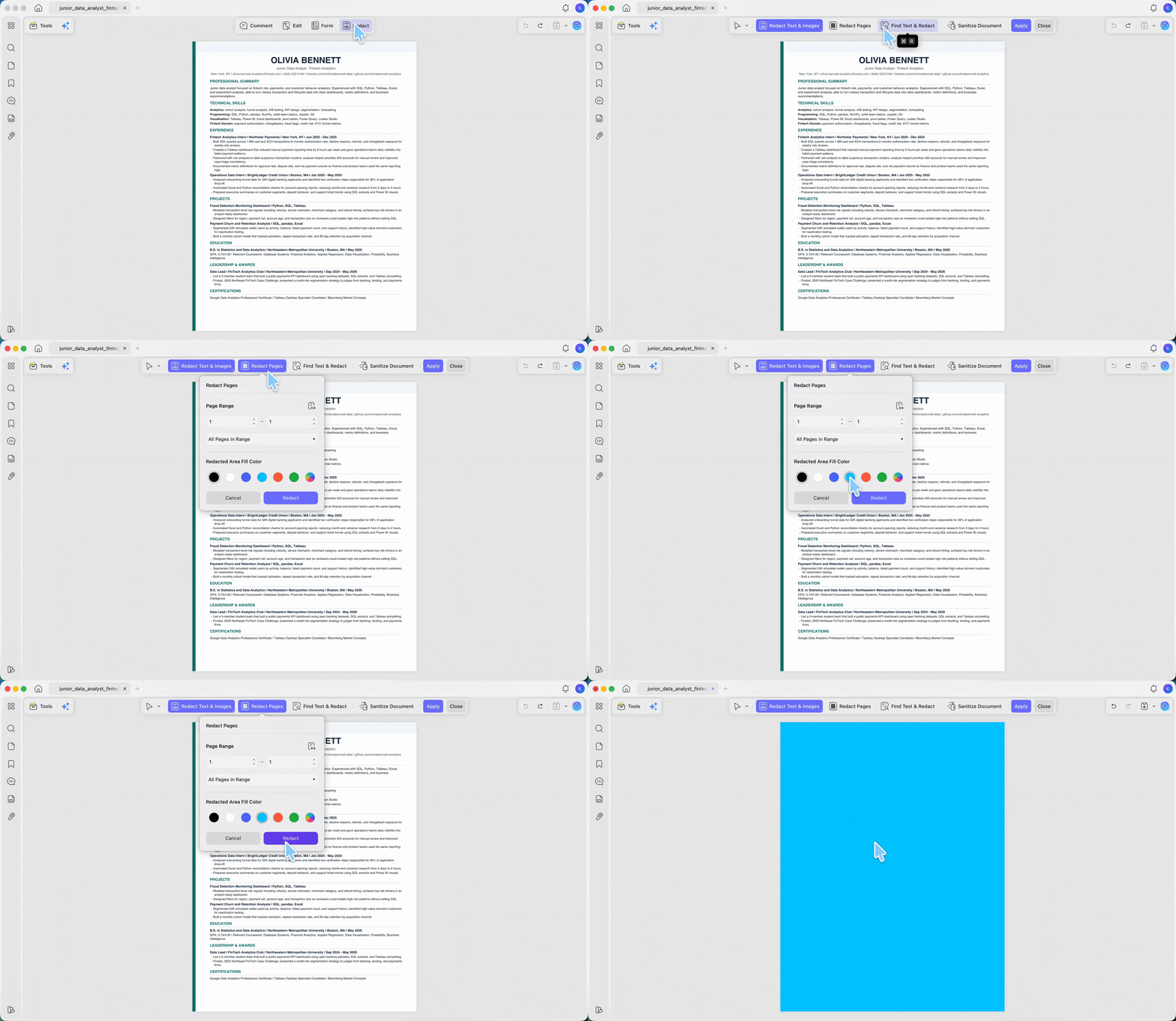
Redact pages offers five scoping options including odd, even, landscape and portrait pages. After redaction, the salary figure returned nothing on search, copy or extraction.
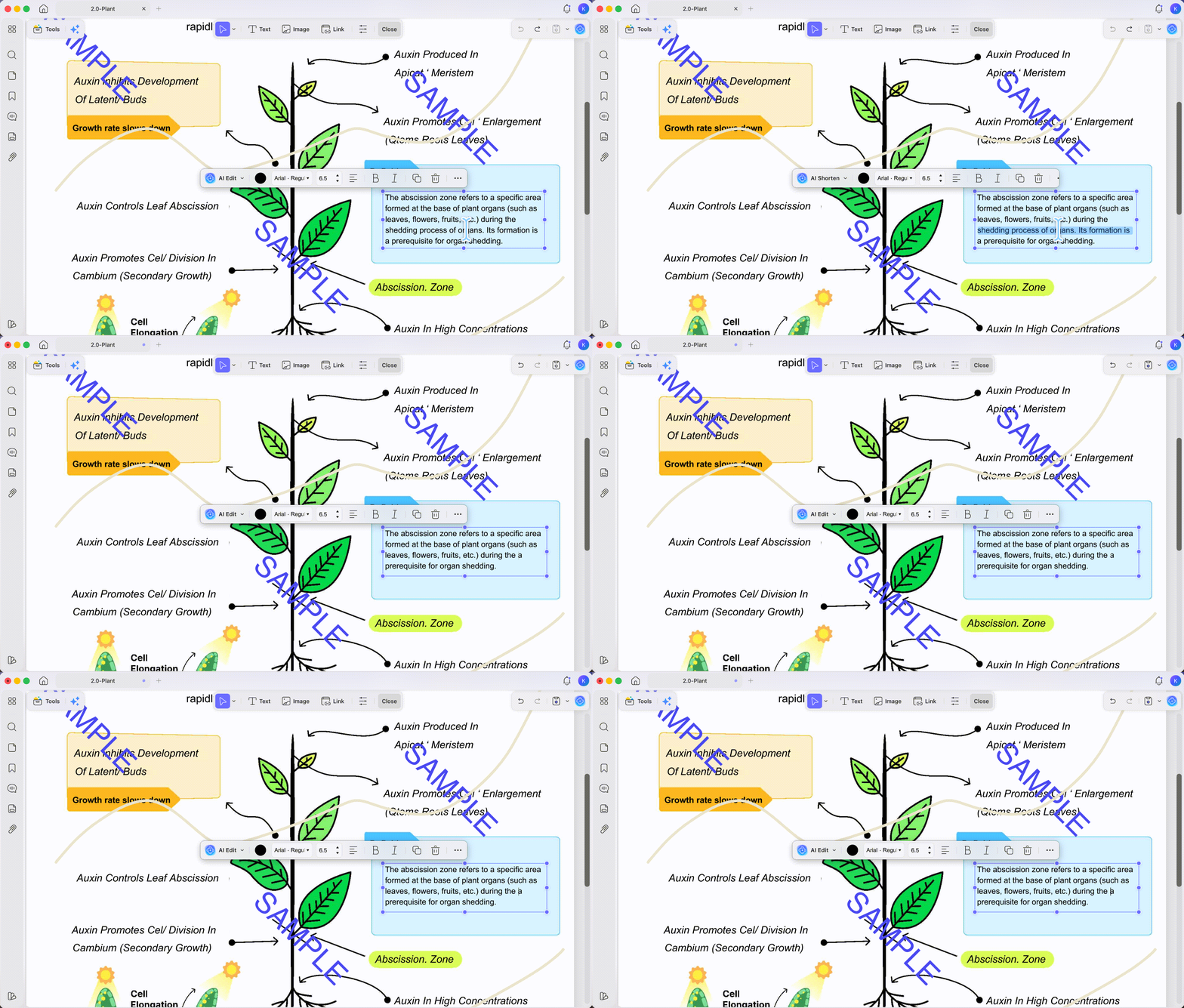
Text deletion behaves correctly on the native contract: delete a full line and the following lines move up, with line spacing unchanged.
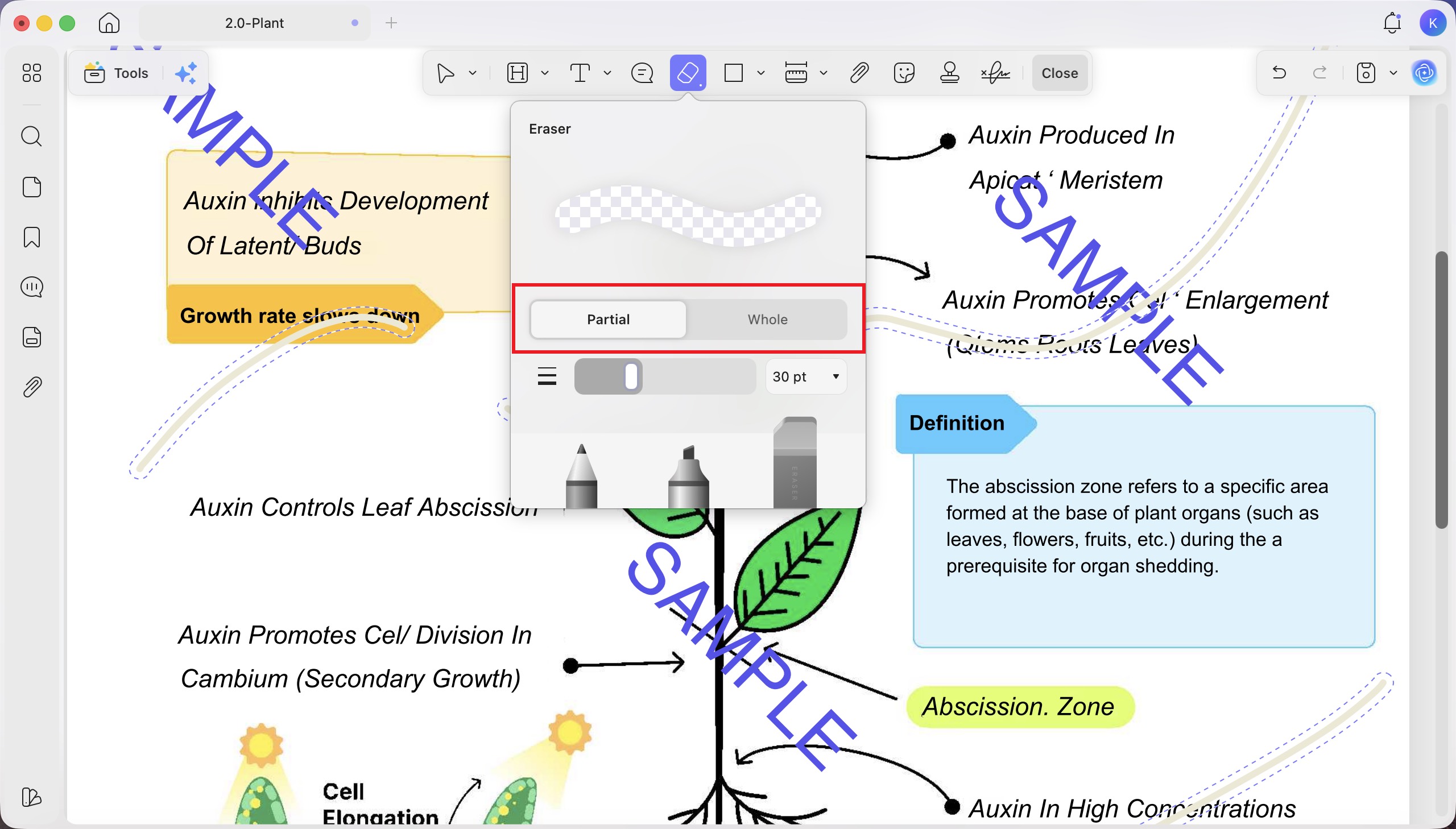
The eraser is the standout. For example, on a site-review drawing, partial erase can remove just the stray tip of a pen arrow without deleting the full annotation. It does both partial and whole erasing on the annotation layer, whereas other tools can only do partial erasing at once. Like every eraser, it works on pen and ink annotations, not on content baked into a scanned image — that still needs a cover shape or area redaction.
Shapes come in many types and can all be eyedropped to a sampled colour, so a cover on a grey-background scan blends in rather than leaving a white patch.
Watermarks, headers and footers all remove as objects. Flatten is a true flatten, fusing cover shapes into the page so they can't be dragged off.
UPDF runs on Windows, macOS, iOS and Android. Pen-mark erasing is available in the mobile annotation tools, but true PDF redaction is a Windows/Mac desktop feature; a shape on mobile is only a visual cover. For permanent removal of sensitive content, see the PDF redaction tool comparison.
Windows • macOS • iOS • Android 100% secure
Part 4. Adobe Acrobat — The Deepest Redaction, No True Eraser
Adobe Acrobat matches UPDF on almost everything and has the most powerful redaction search of any tool tested, but it has no eraser at all and its shapes can't sample colours.
Best for:
- heavy, repeated redaction across many documents where you need to catch every instance of a term.
Skip if:
- you need to rub out hand-drawn pen or highlighter strokes with an eraser.
What the test showed
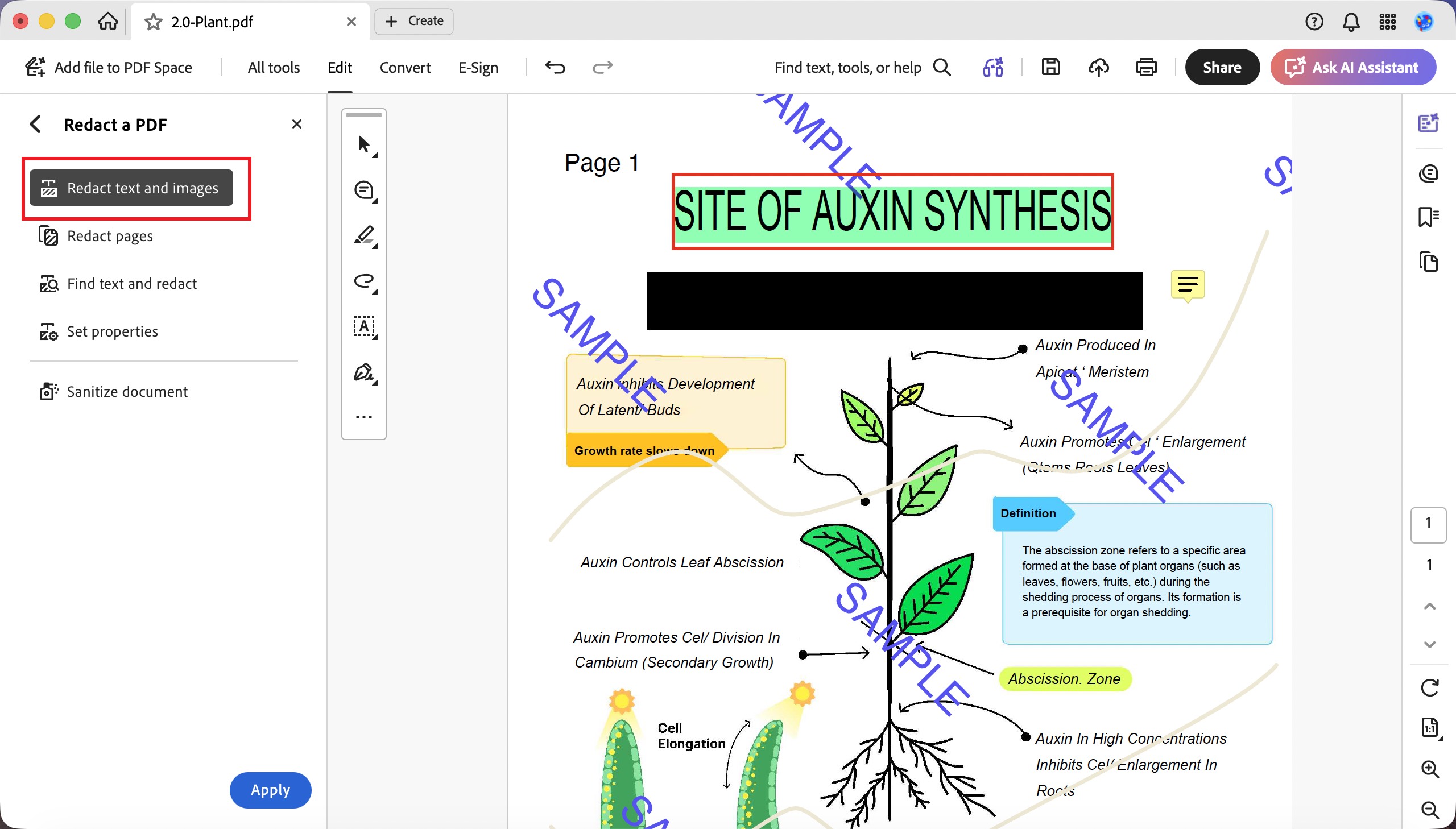
Redaction is thorough. Three modes: redact text and images, redact pages, and find text and redact.
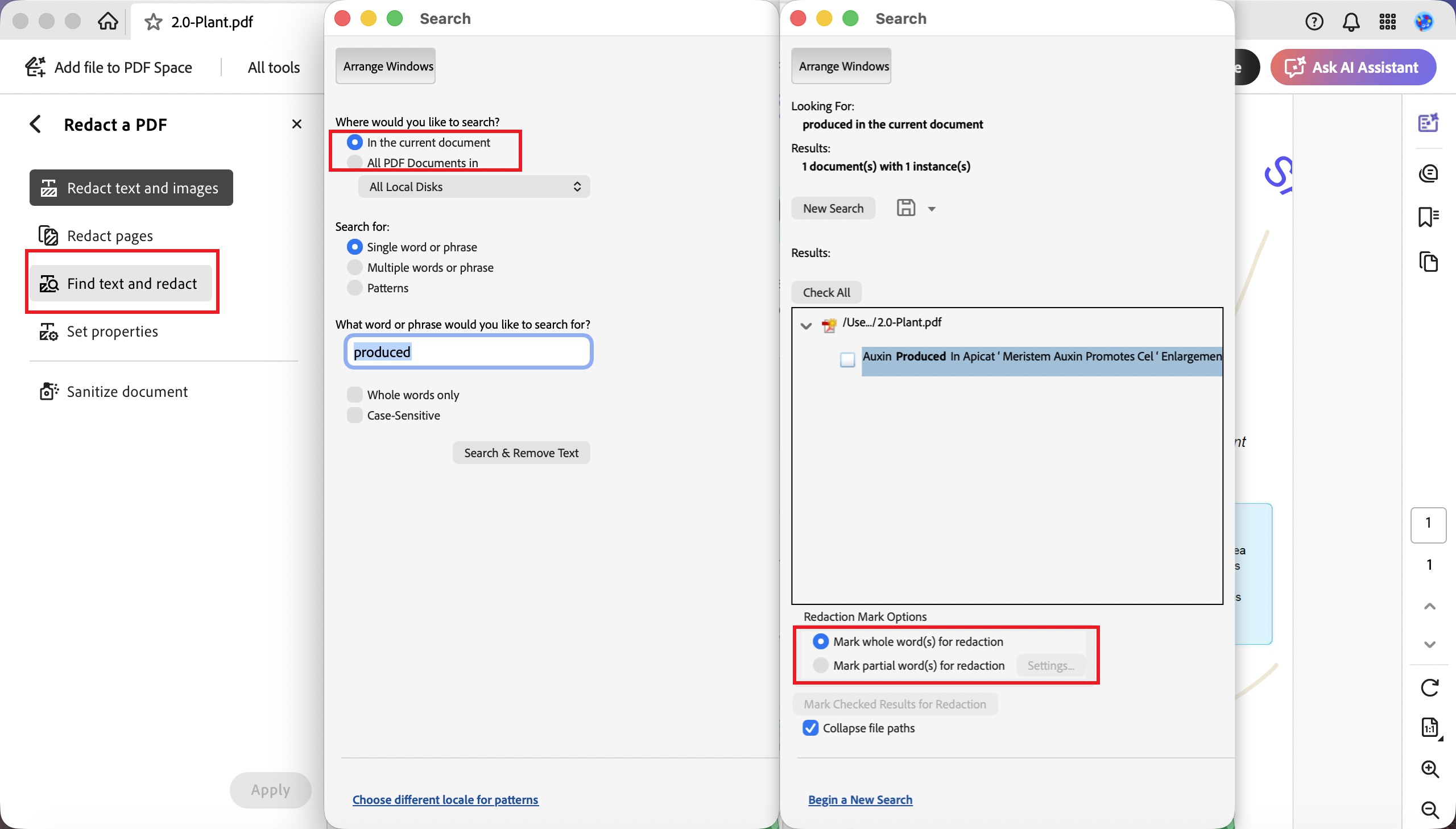
The find-and-redact mode is the most capable here — beyond the current document, it can search every PDF on your device for files containing a term you want to redact, and it gives explicit "mark whole words" and "mark partial words" options.
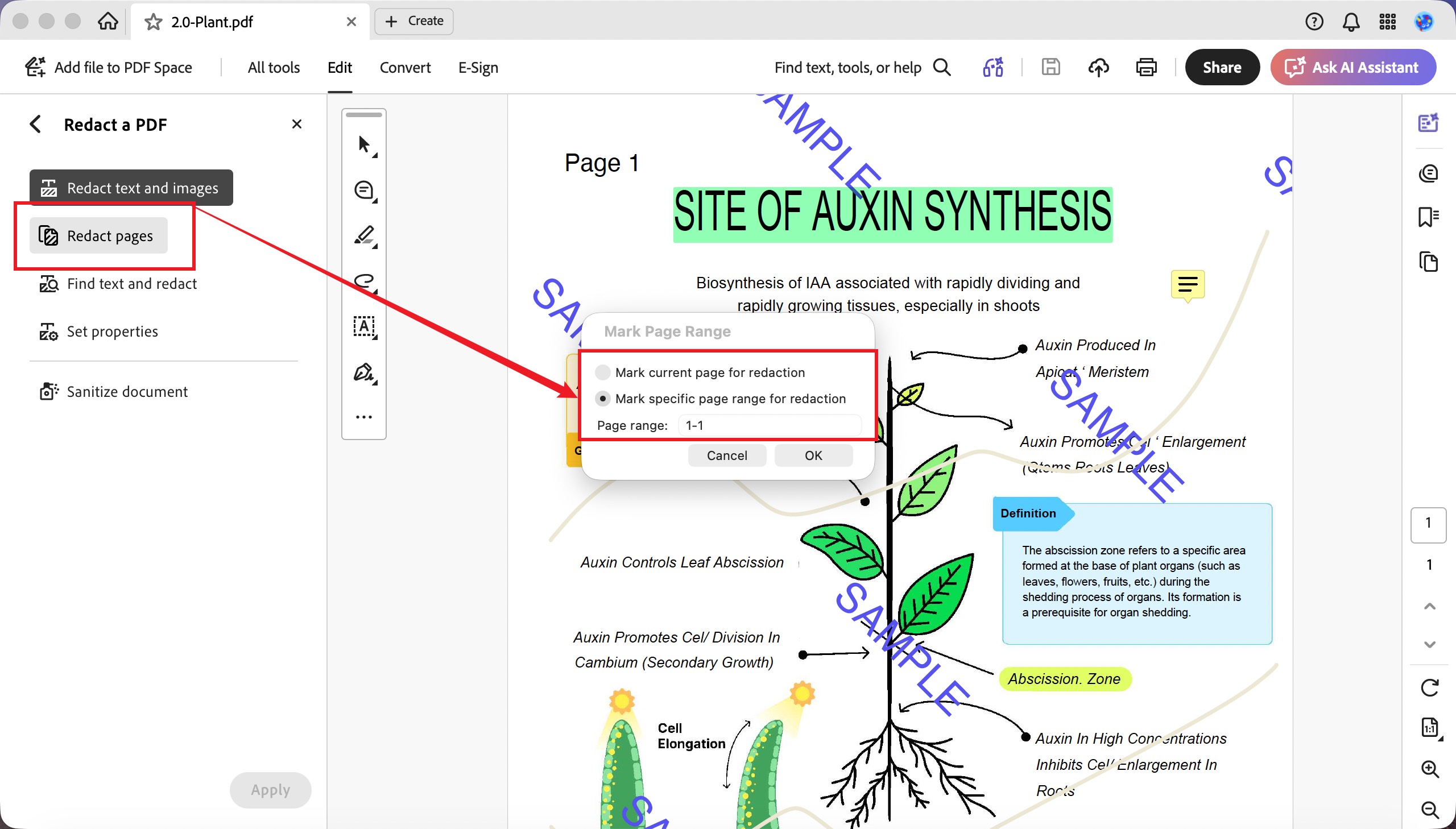
Redact pages can mark the current page or a set page range. The mark colour can be chosen and eyedropped.
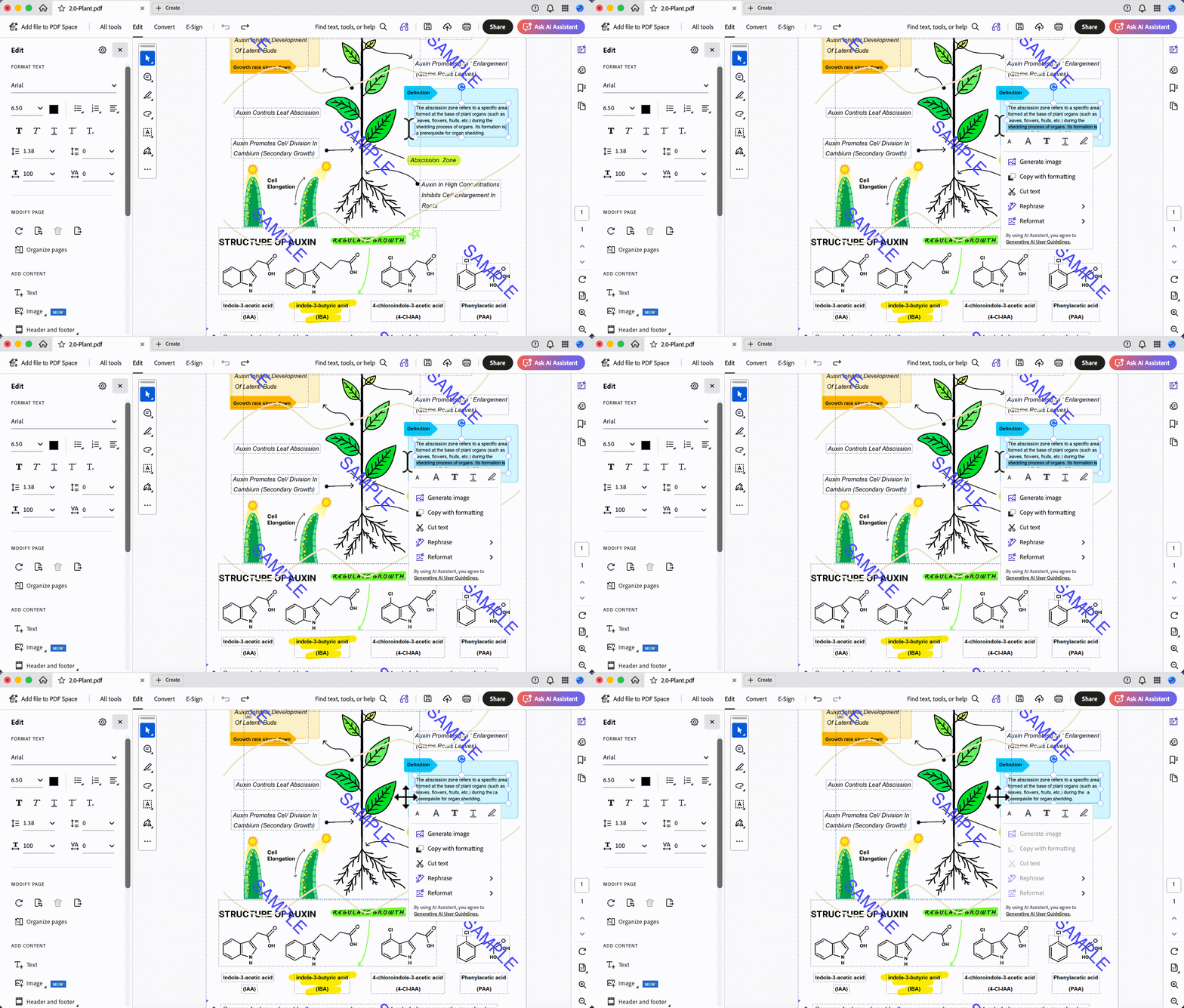
Text deletion works properly — delete a line and following text reflows up, spacing intact.
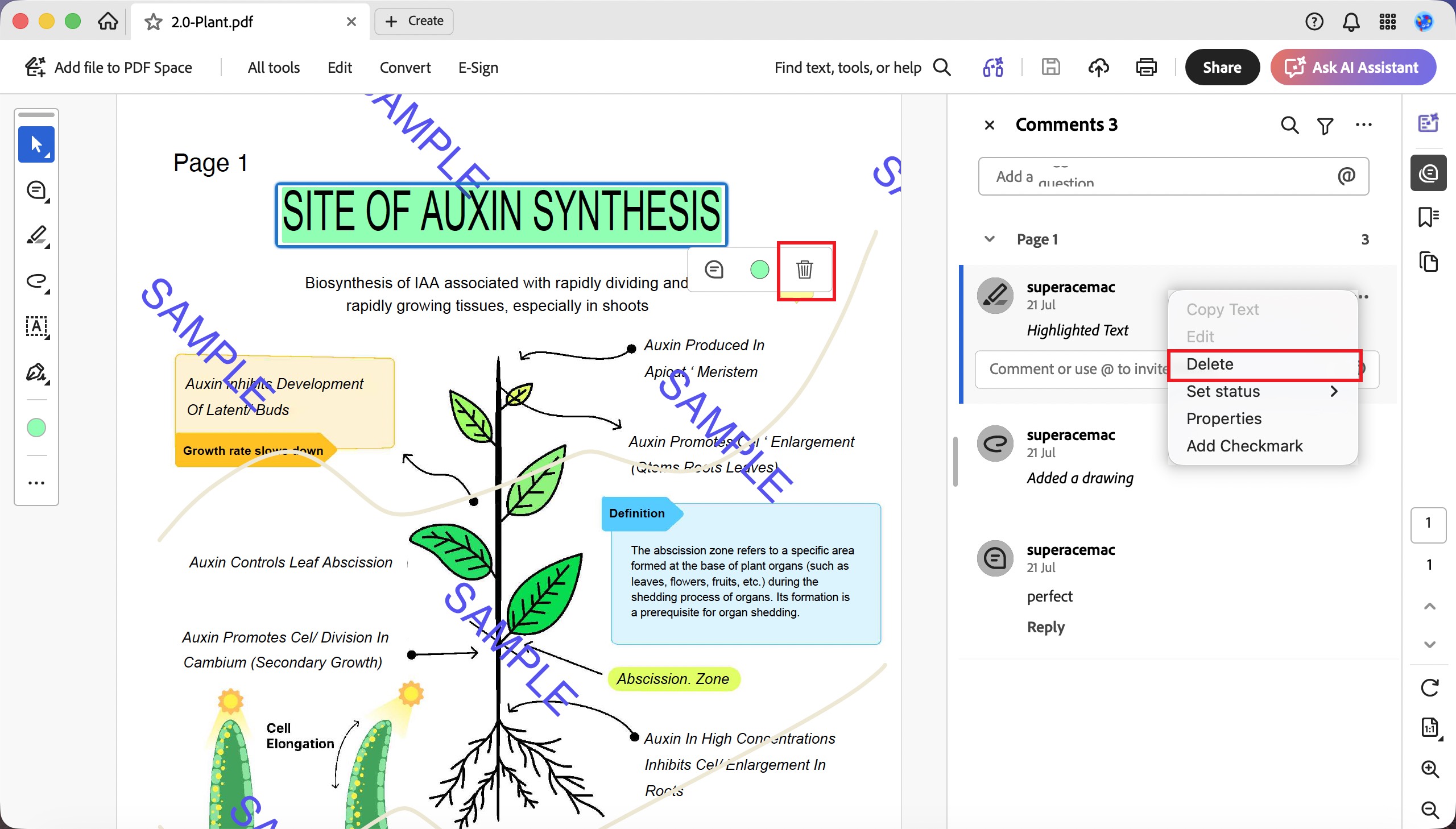
There is no dedicated eraser, so hand-drawn pen and ink strokes can't be partially rubbed out — a stroke can only be deleted as a whole annotation. The right-hand panel lets you Command-click individual items or Shift-select a range.
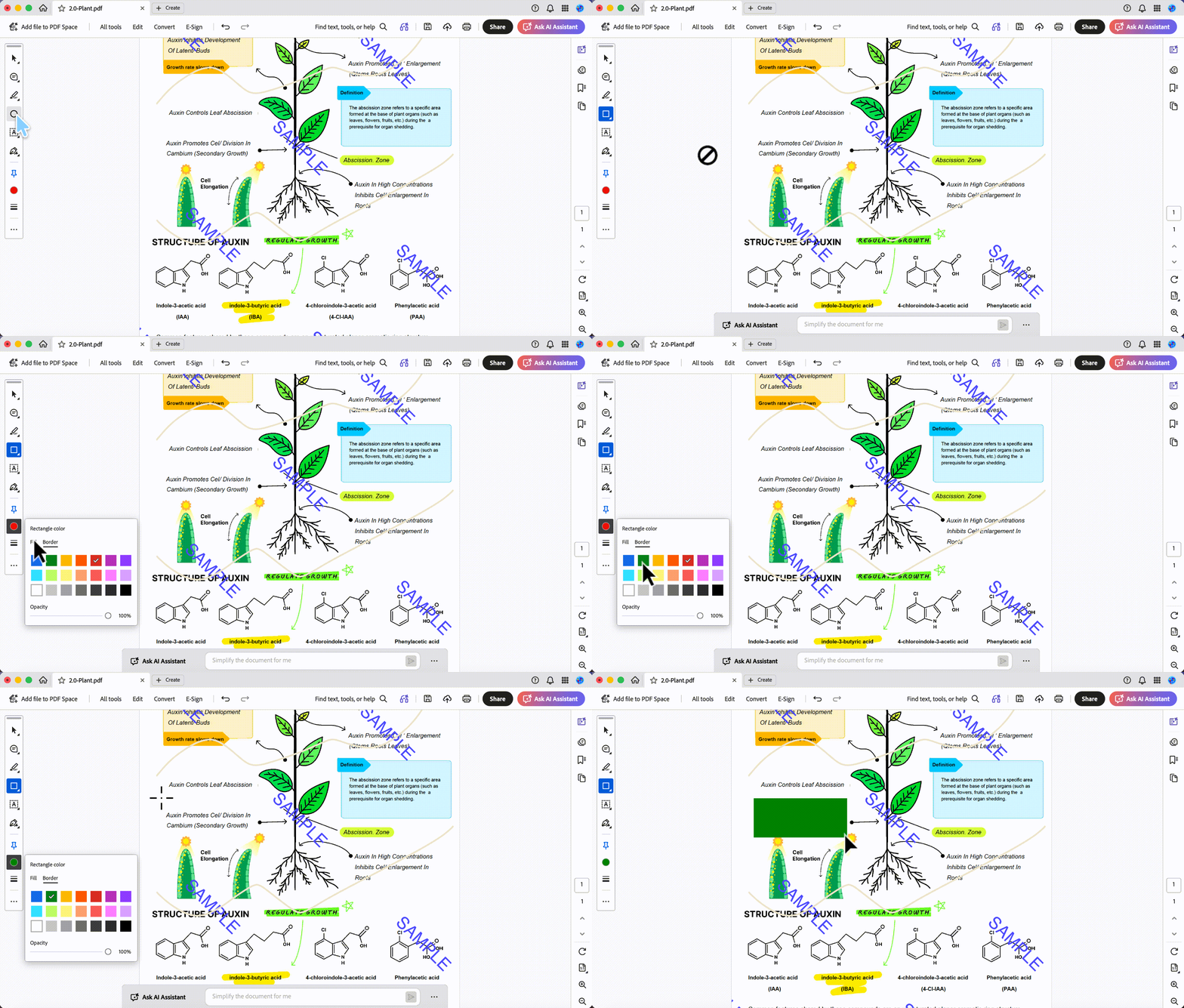
Shapes are the weak spot: fill colour and border colour each offer only 21 fixed swatches, with no eyedropper — so a cover shape can't be matched to a scanned background.
Watermarks, headers, footers and flatten all work. The cost is price: Acrobat is a monthly subscription running $19.99/month on the annual plan, well above the one-time desktop options here.
Part 5. Foxit PDF Editor — Has the Eraser Adobe Lacks, Loses on Redaction Control
PDF Reader Pro ticks all seven boxes and its eraser matches Foxit's, but its shape set is the smallest of the tools that redact well.
Best for:
- all-round erasing on native PDFs — redaction, text, annotations, watermarks — with a real partial-stroke eraser included.
Skip if:
- you need to match the redaction mark to a specific colour precisely, or want more than four shape types.
What the test showed
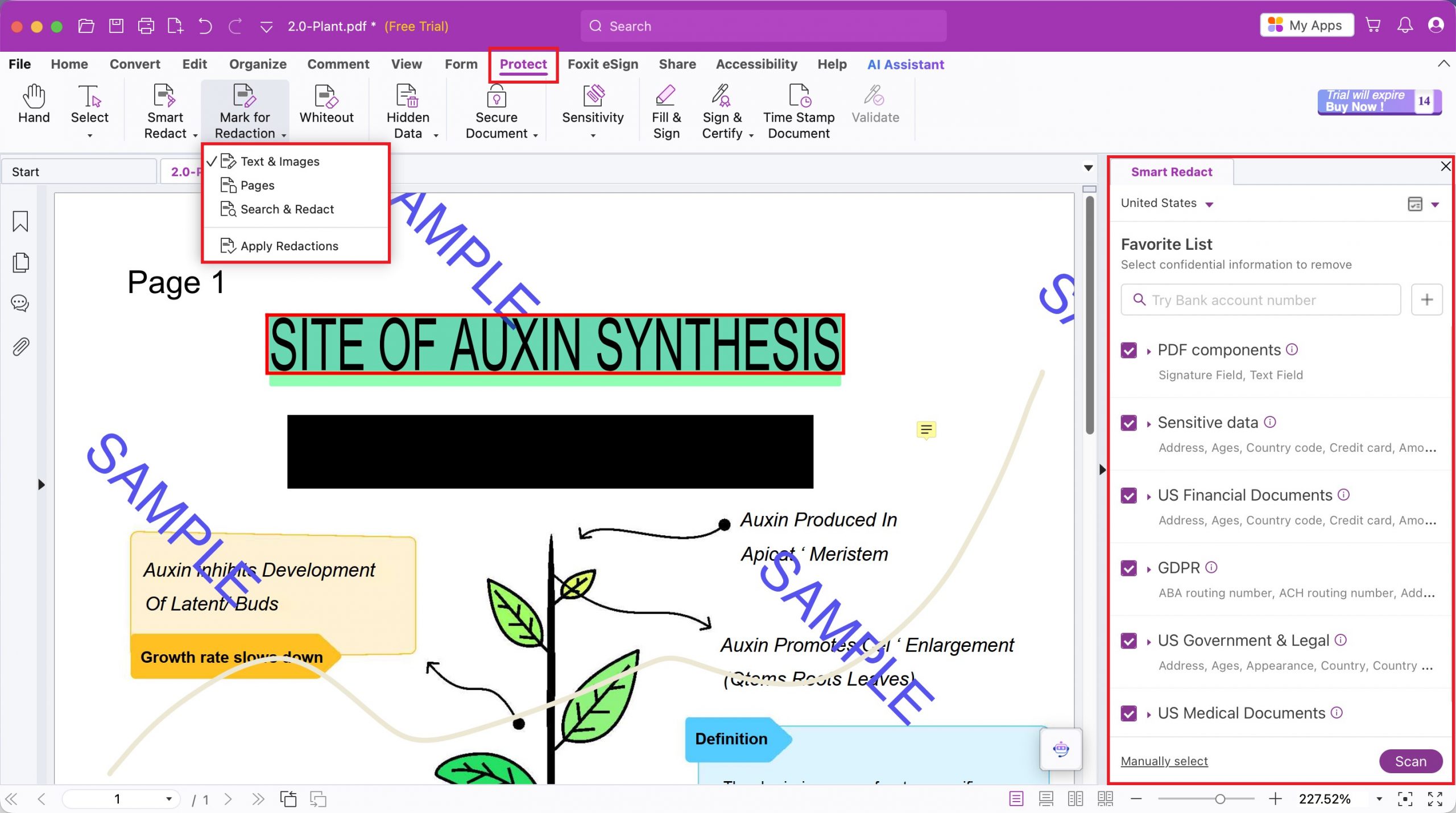
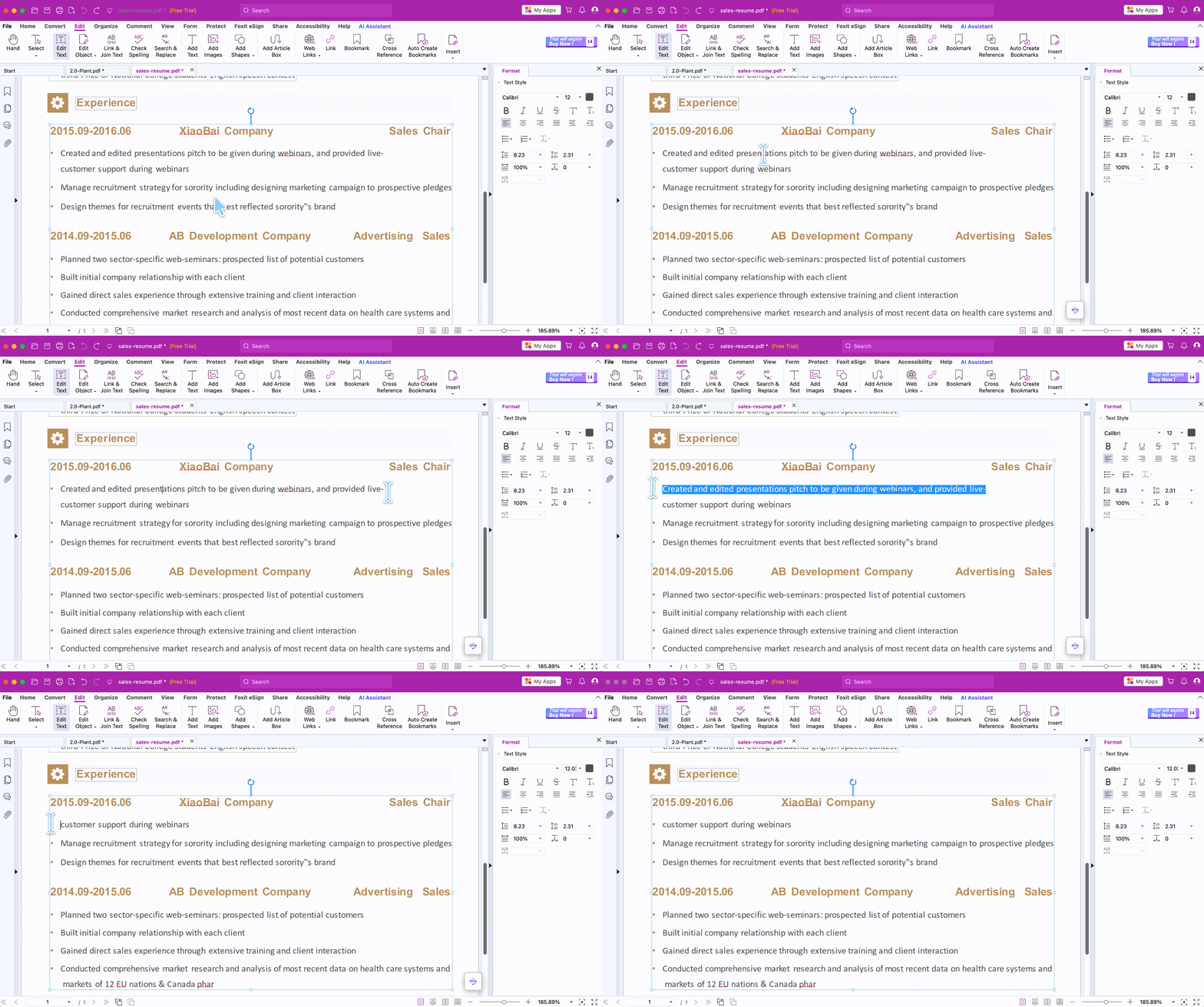
Redaction covers all three tasks and includes an AI-powered Smart Redact mode. But the redaction mark colour cannot be chosen — you take the default.
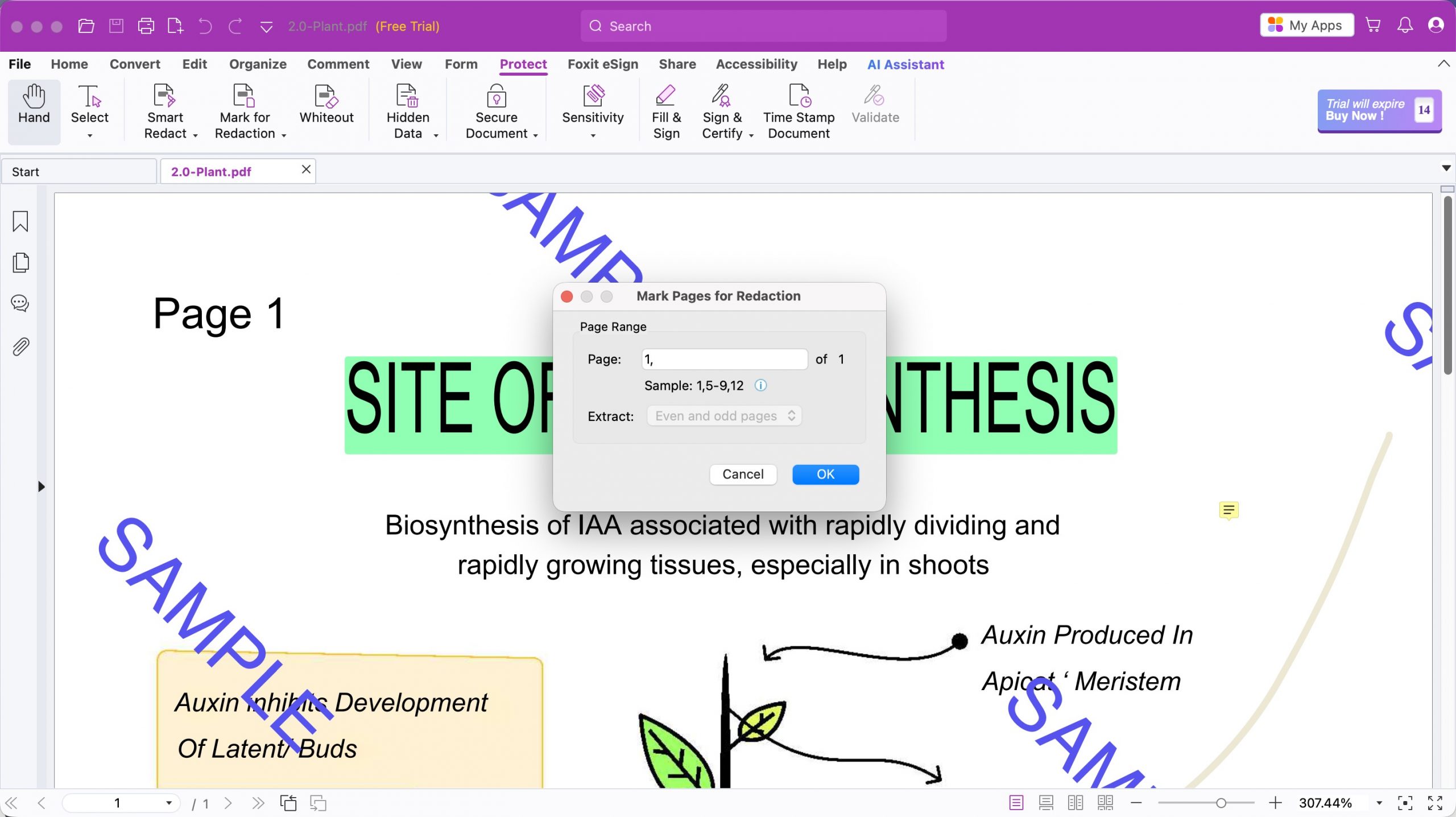
Redact pages only works by setting a page range, without the odd/even/orientation scoping UPDF offers.
Text deletion is clean — delete a line and following text reflows up with spacing intact.
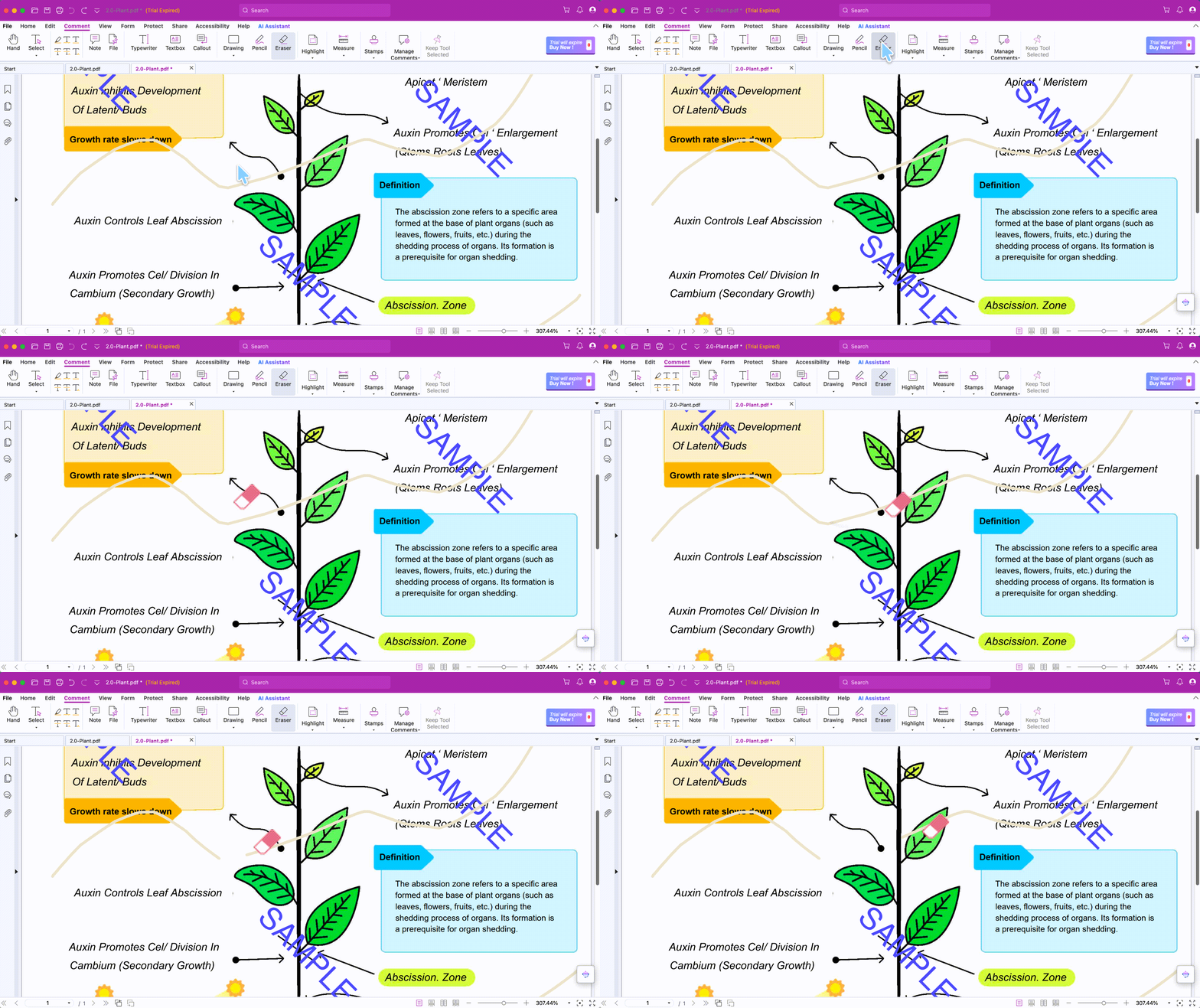
Foxit has a real eraser, the feature Adobe lacks, though it does partial erasing only — it can rub out part of a hand-drawn stroke but is aimed at that rather than whole-object removal. (Like every eraser here, it works on pen and ink annotations, not on content inside a scanned image.)
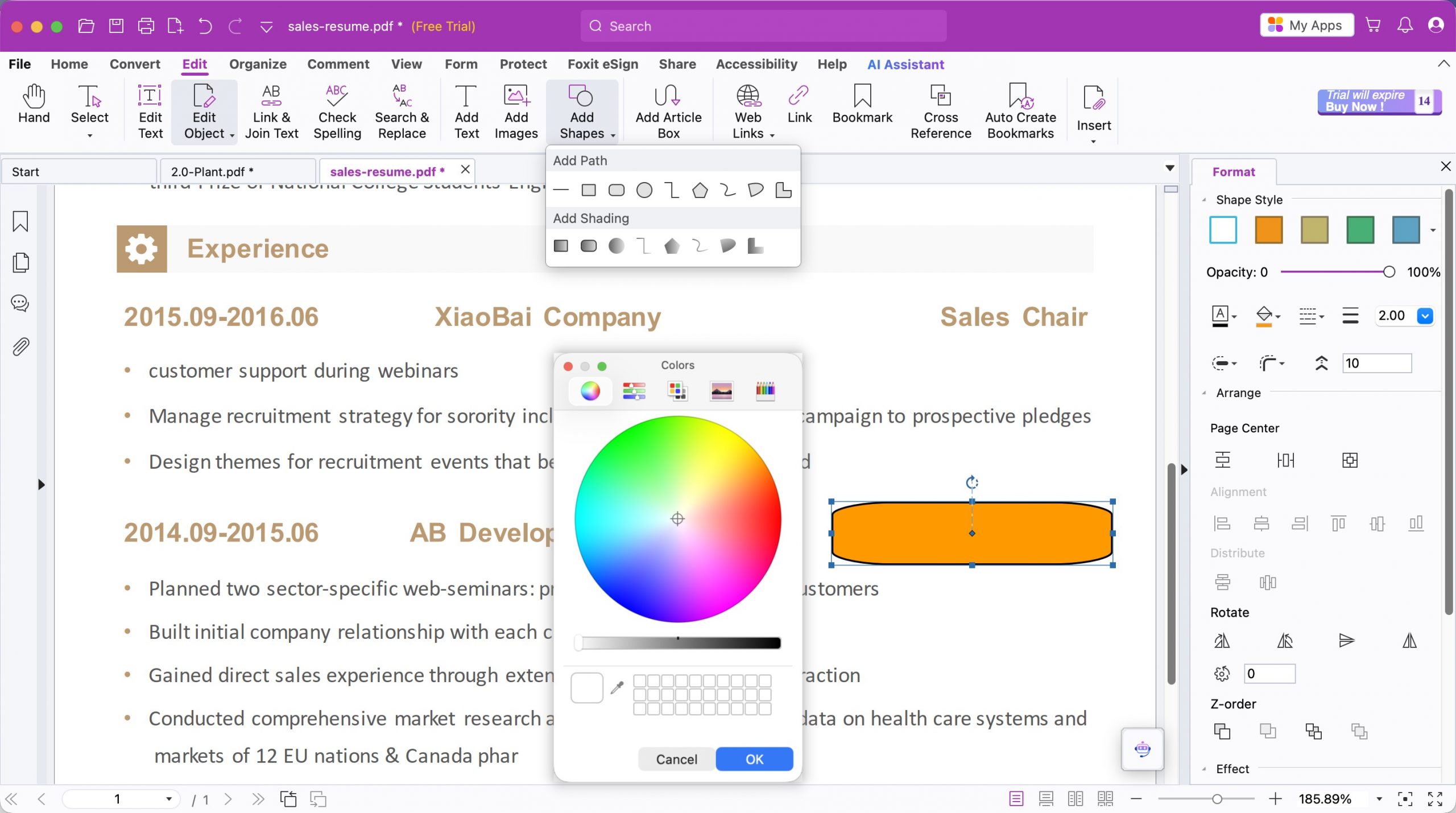
Shapes support many types, take a colour, and can be eyedropped. Annotations delete individually or by range-select in the side panel. Watermarks, headers, footers and flatten all work.
Part 6. PDF Reader Pro — Covers Everything, but the Eraser Only Touches Annotations
PDF Reader Pro ticks all seven boxes on paper, but two of them come with limits that matter for the harder jobs.
Best for:
- anyone who needs more than one kind of erasing on the same document — a redaction, a stroke erase and an annotation strip — without switching tools.
Skip if:
- you only ever need to delete one line of text once, where any free tool would do.
What the test showed
Redaction has three modes — redact text and images, redact pages, and search & redact — and the mark colour can be chosen and eyedropped.
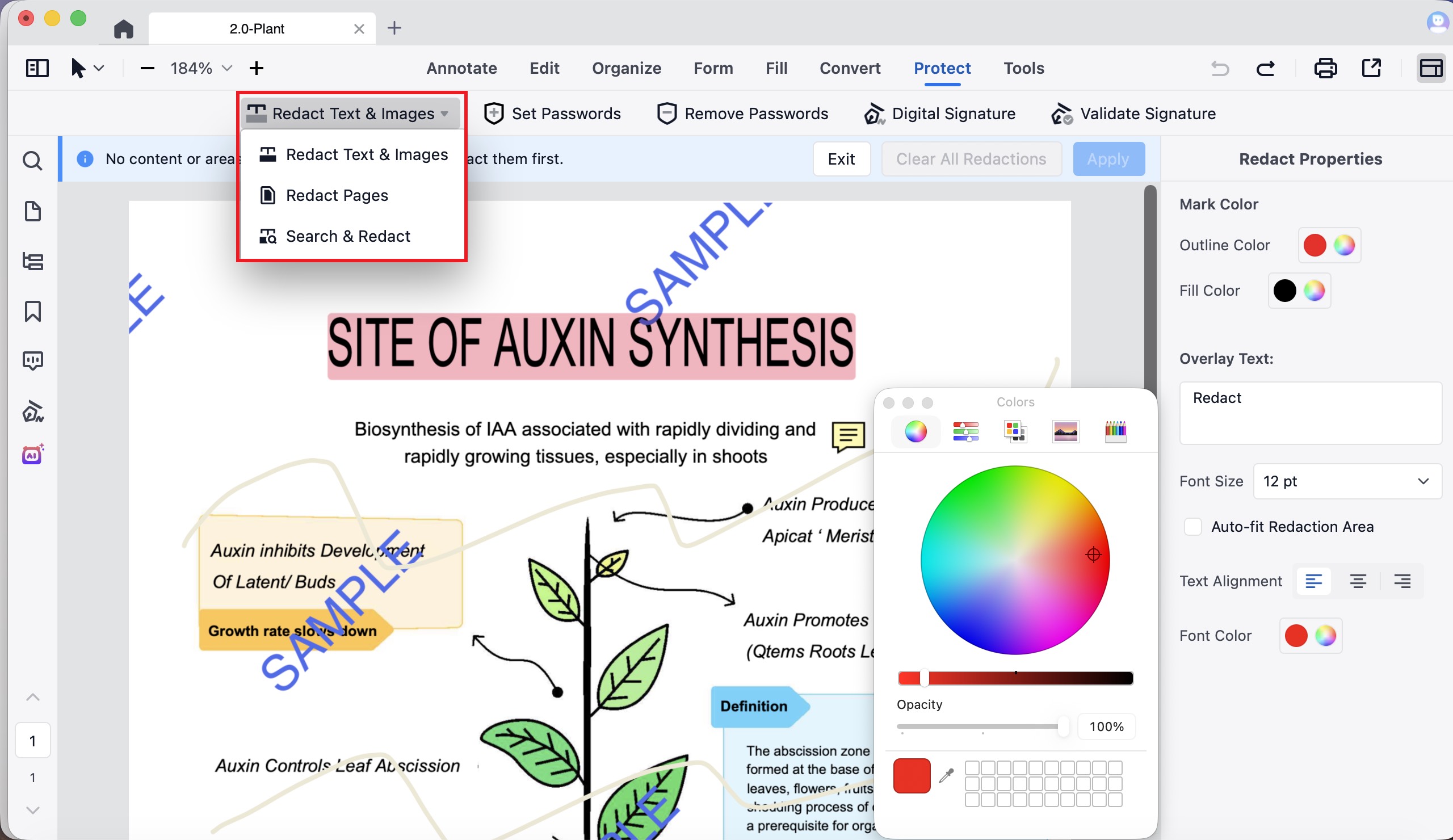
Redact pages offers all/odd/even and a custom range. That's solid redaction control, second only to UPDF and Adobe.
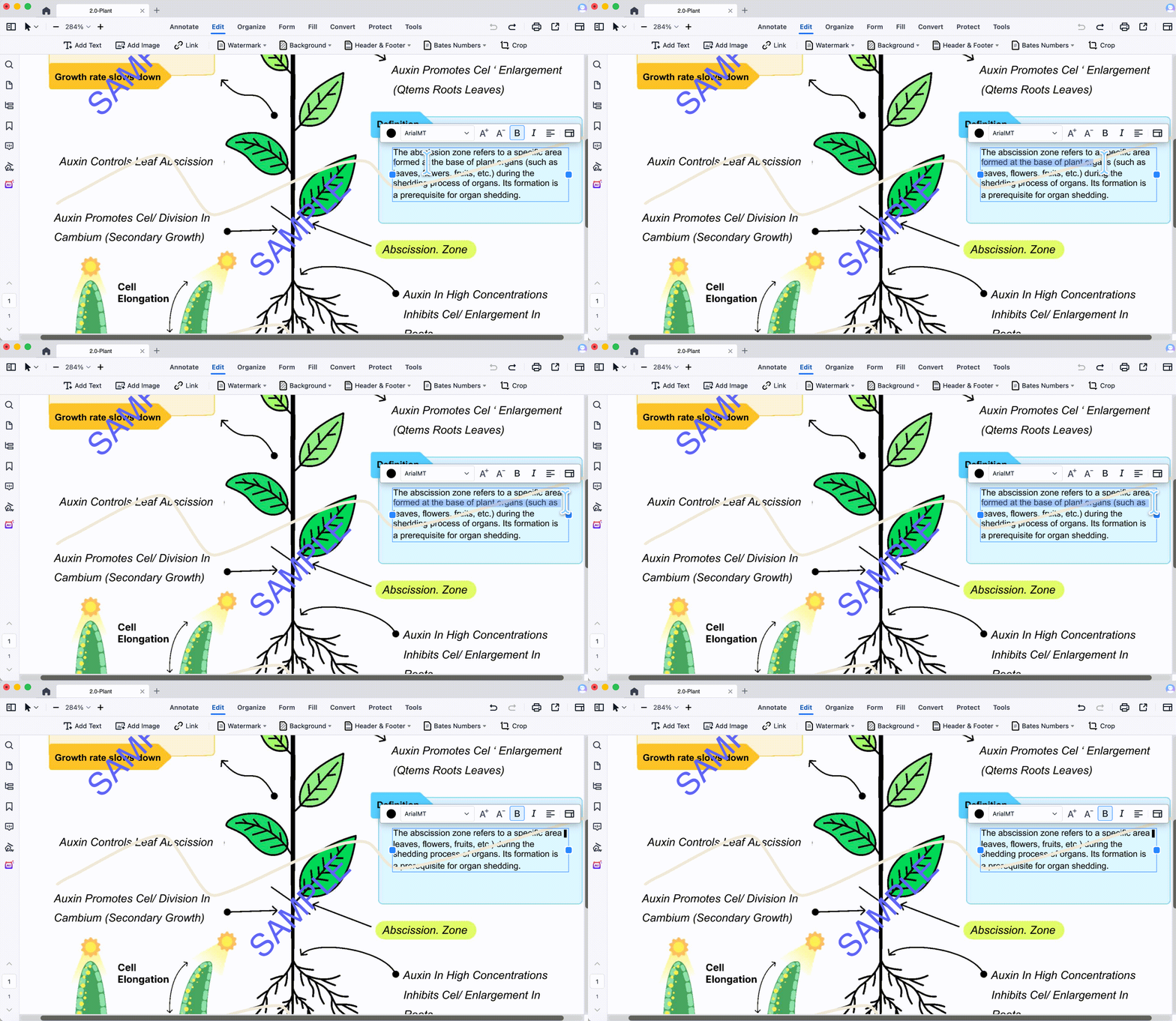
Text deletion works correctly: delete a line and following text reflows up, spacing intact.
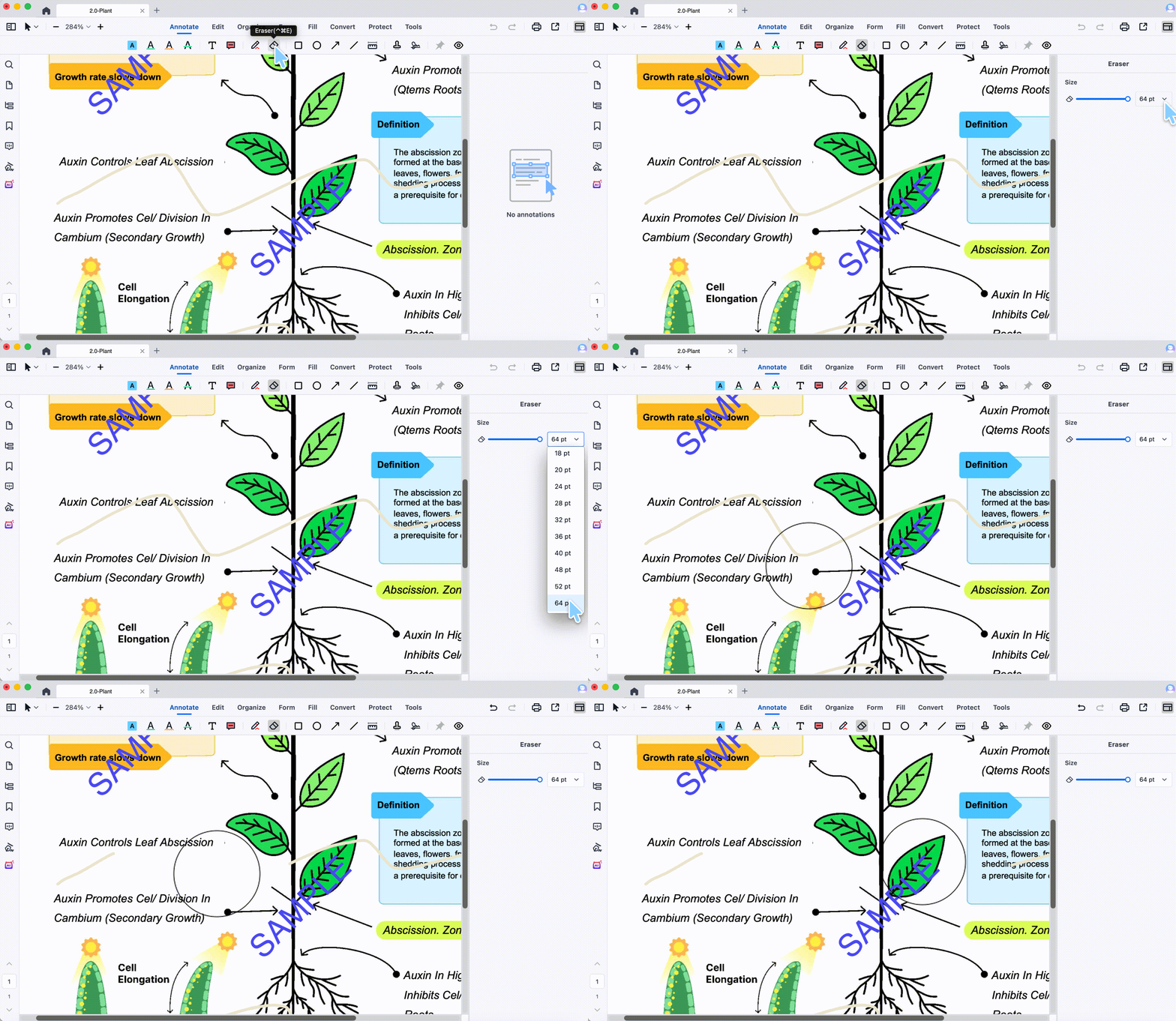
The eraser does partial erasing on hand-drawn strokes, the same as Foxit — you can trim part of a pen mark and keep the rest. Like every eraser here, it works on pen and ink annotations only, not on other annotation types or content baked into a scanned image. It falls short of UPDF only in that UPDF also does whole-stroke erasing in the same tool.
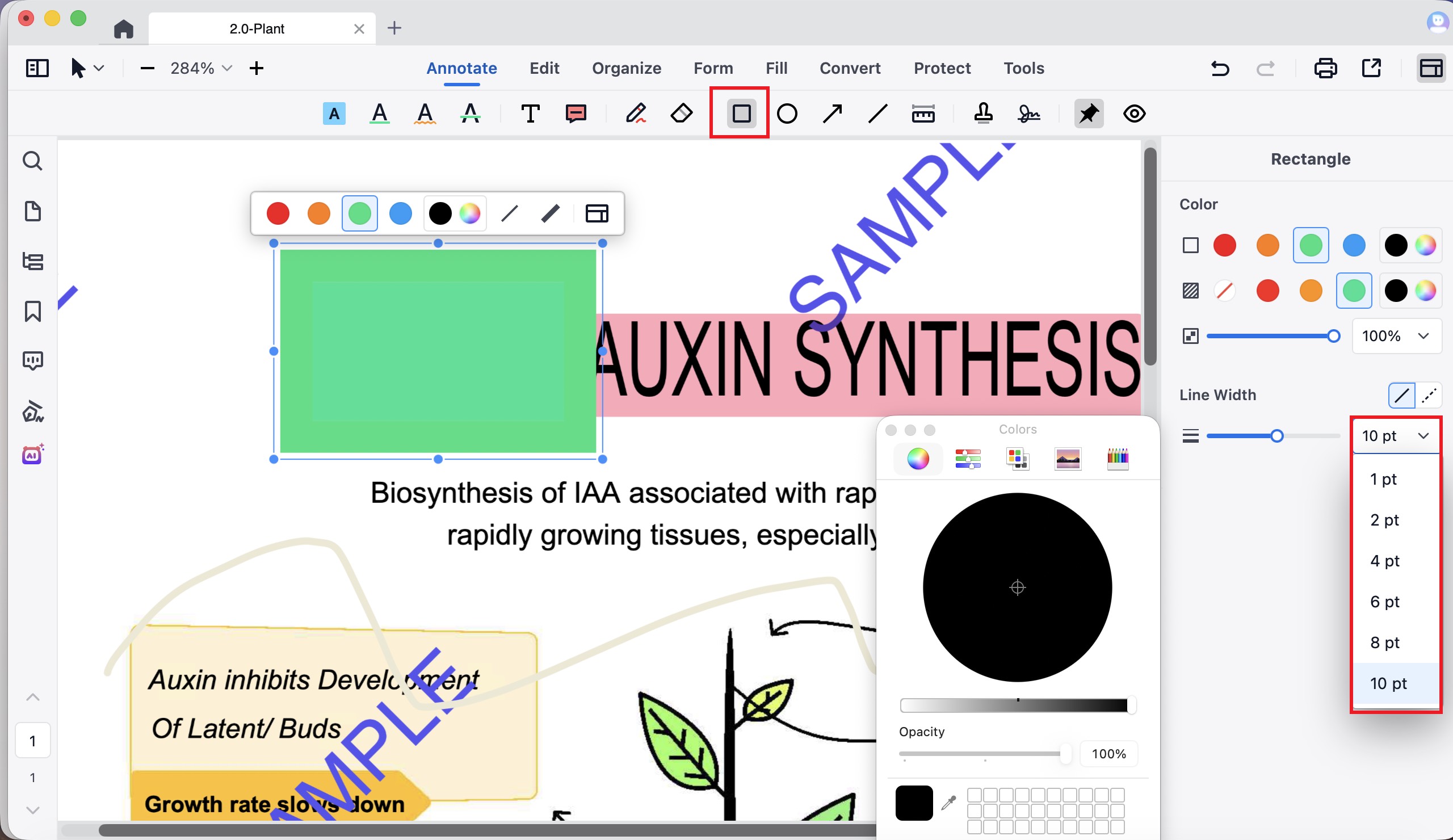
Shapes are limited to four types — rectangle, oval, arrow and line — but they can be eyedropped to a sampled colour.
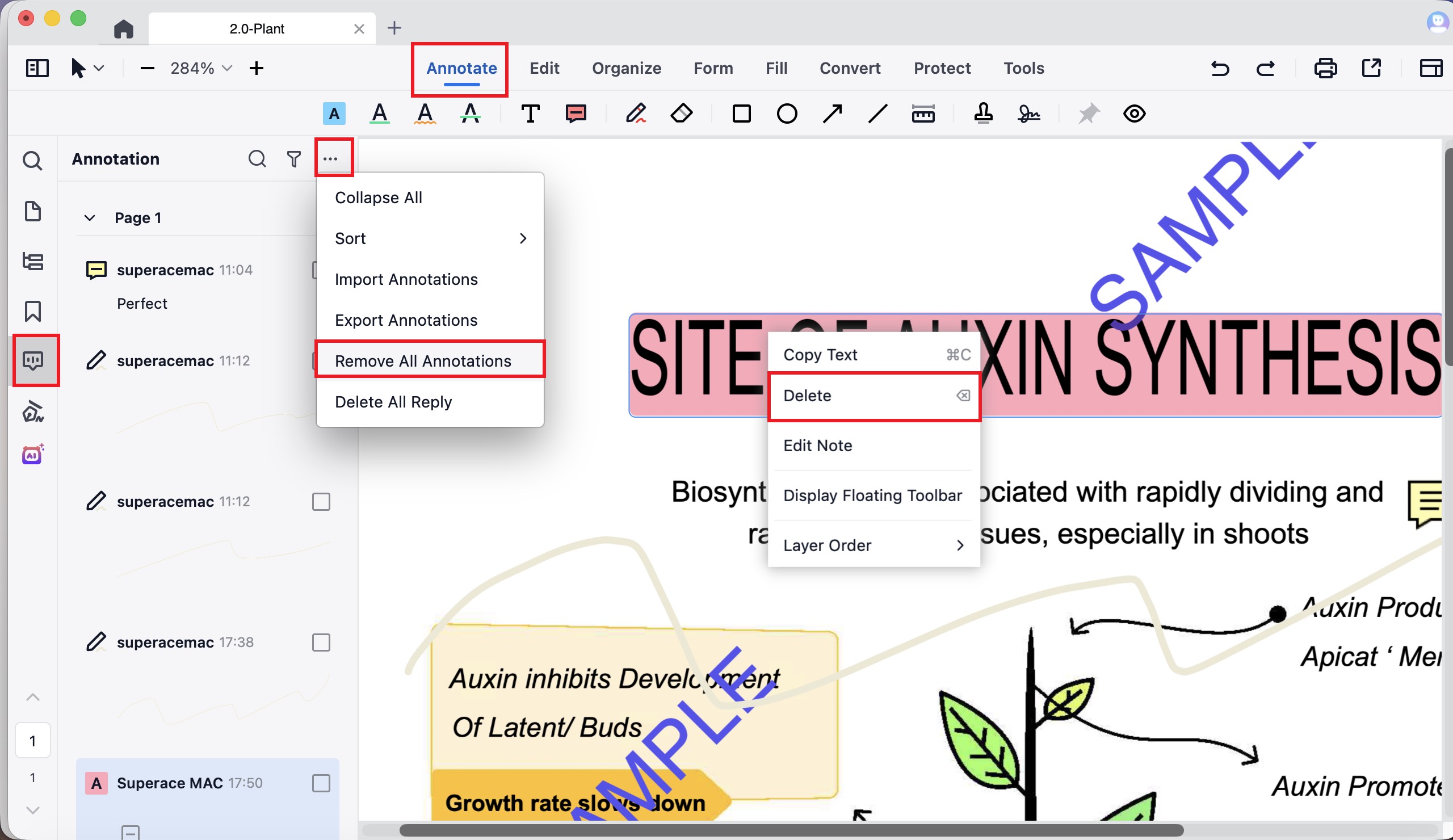
Annotations delete one at a time or via "remove all annotations" in the side panel. Watermarks, headers, footers and flatten all work.
Part 7. PDFgear — Free and Full-Featured, With Three Real Gaps
PDFgear is genuinely free and covers most functions, which is rare — but it has the most caveats of the five, including a redaction that doesn't fully cover the text it's aimed at.
Best for:
- occasional erasing on a budget, where the file isn't confidential.
Skip if:
- the erasing has to be airtight, or you need to rub out a hand-drawn stroke.
What the test showed
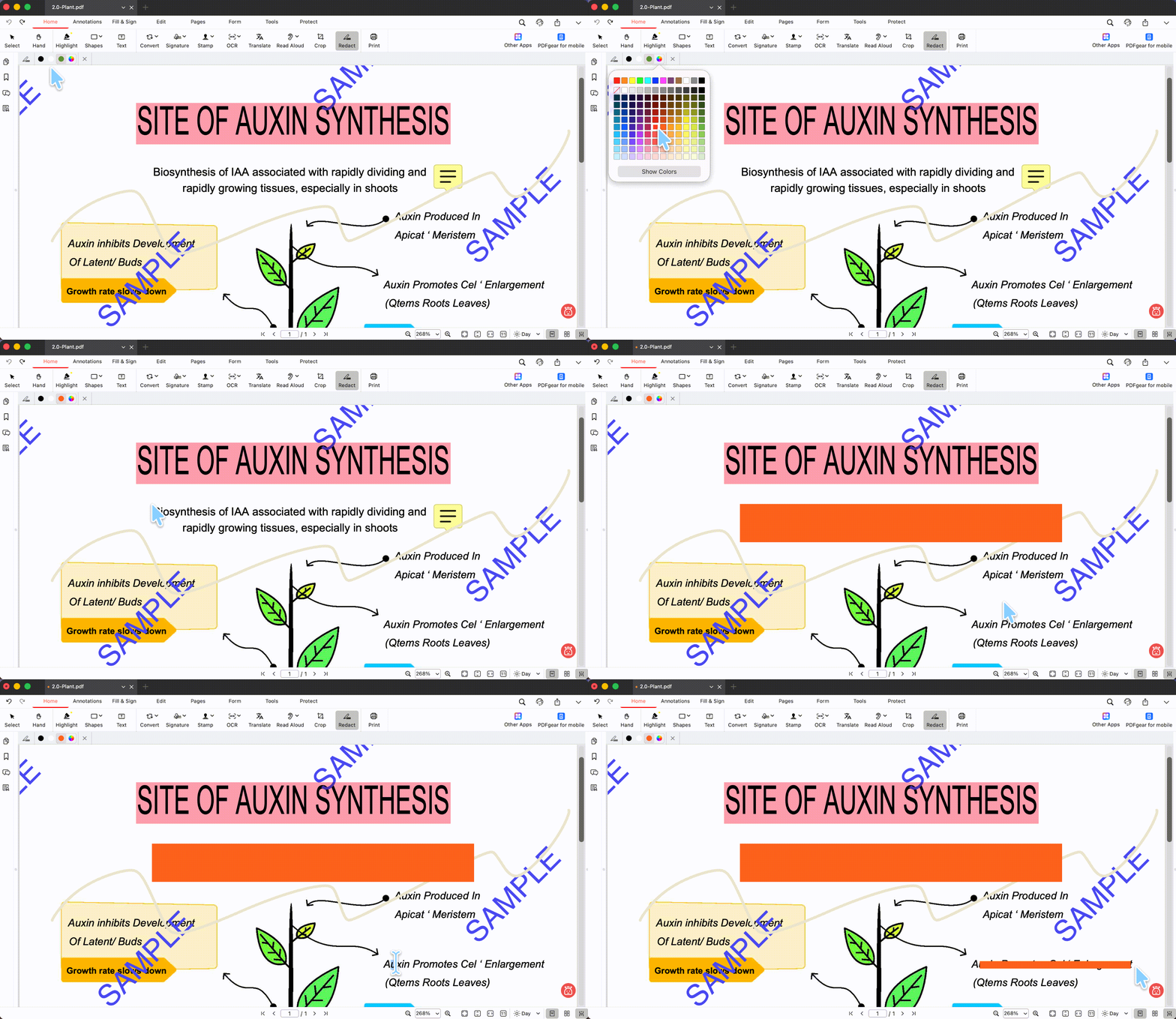
Redaction has a visible flaw. It offers text redaction and draw-an-area redaction, and the colour can be chosen and eyedropped — but the text redaction doesn't fully cover the text: fine slivers of the characters remain visible at the top and bottom of the redaction mark. For a tool whose whole purpose is hiding content, that's a serious limitation, and it means the covered text may still be partly legible.
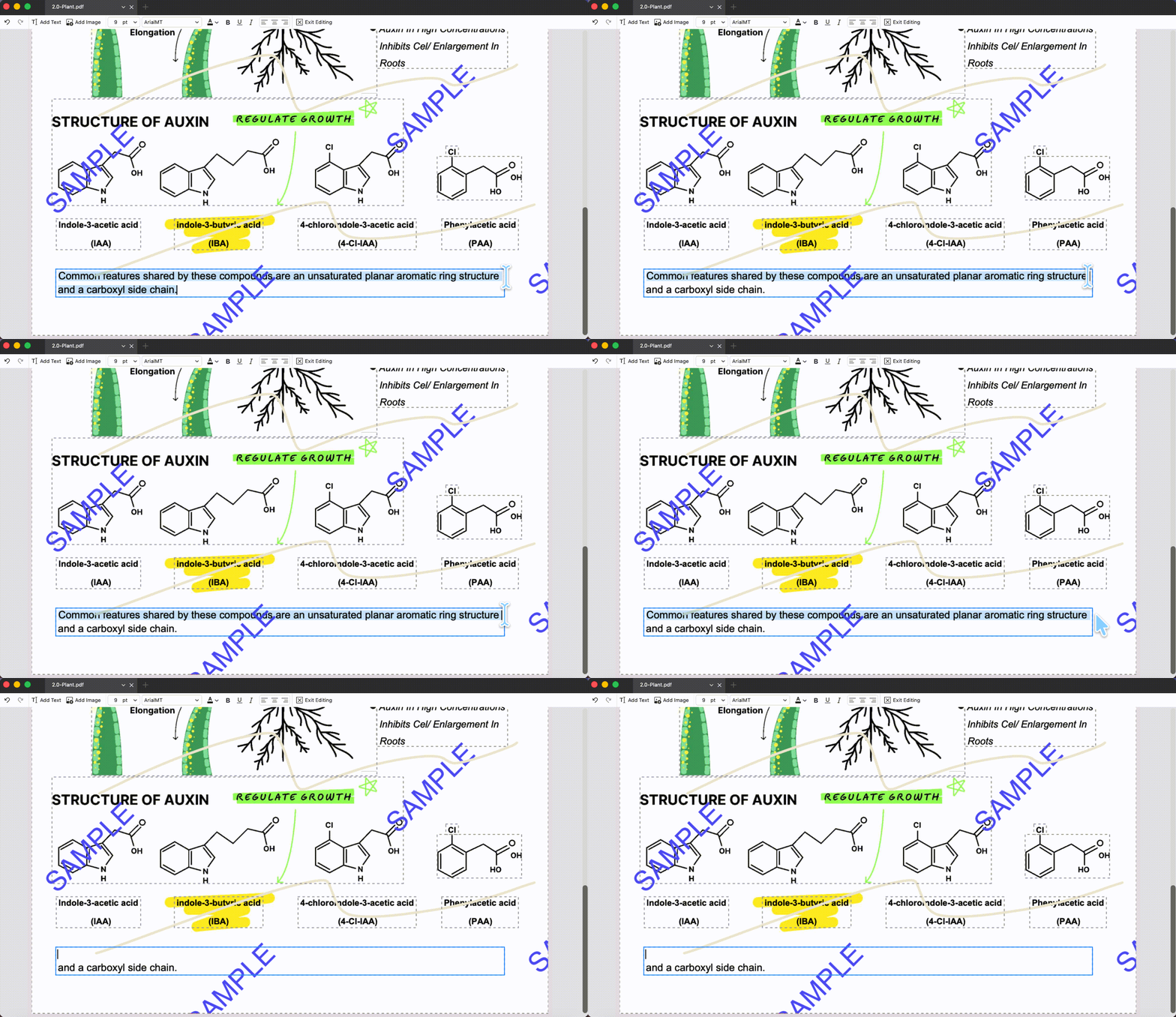
Text deletion has a layout cost: delete a full line and the following text does not move up, though line spacing holds. Fine for forms where you want the gap kept; awkward in flowing body text.
There is no dedicated eraser, so a hand-drawn stroke can only be deleted as a whole annotation, never partially rubbed out.
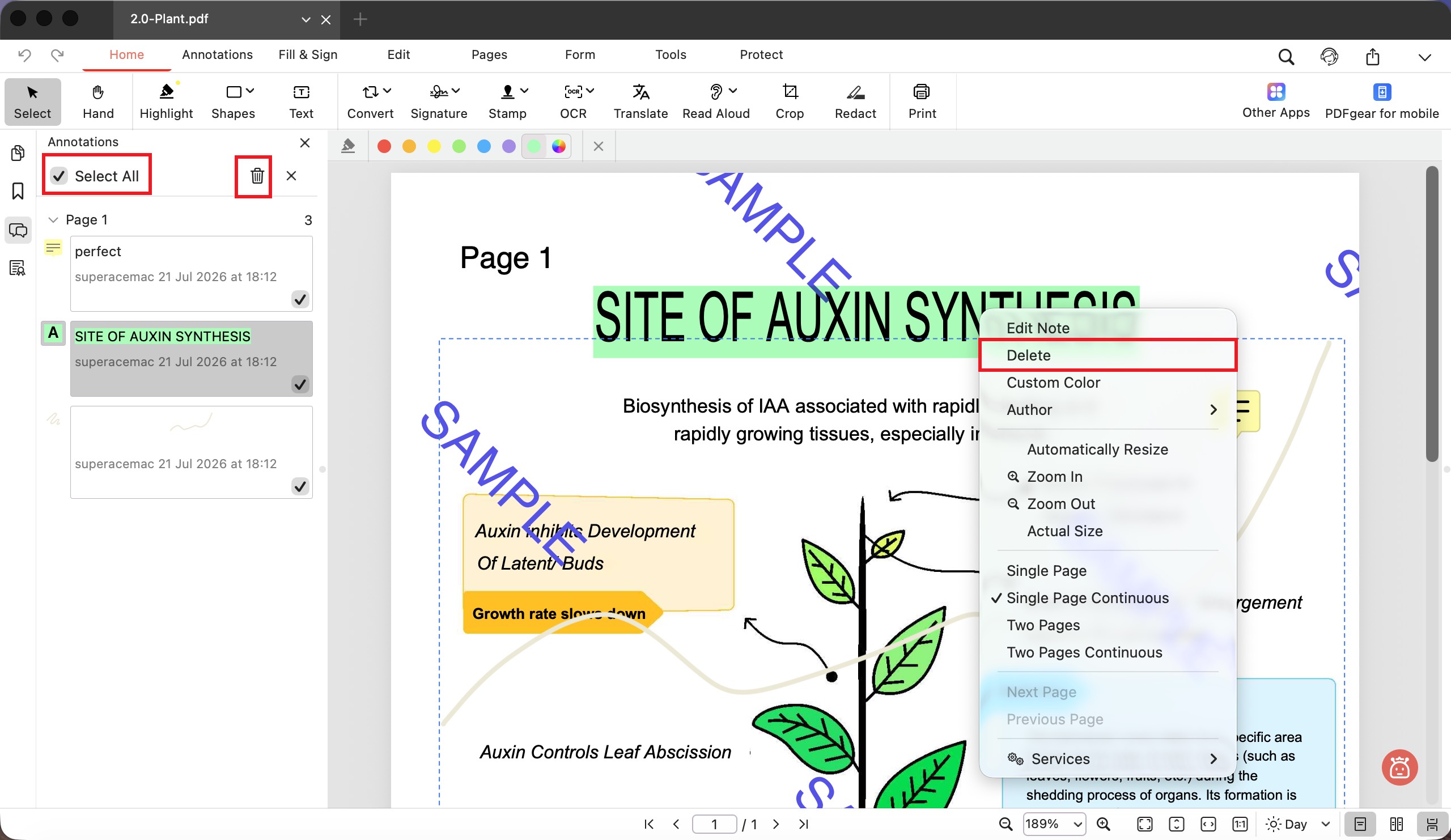
Shapes cover rectangle, oval, line and ink, and can be eyedropped. Annotations delete individually or via "select all" in the side panel. Watermarks, headers and footers remove as objects.
Flatten isn't real flattening. PDFgear produces a flattened-looking file by printing to a new PDF rather than genuinely fusing the layers — the result usually looks right, but it's a print-to-PDF workaround, not a true flatten, and can behave unpredictably.
Part 8. The Comparison Table
| Capability | UPDF | Adobe Acrobat | Foxit | PDF Reader Pro | PDFgear |
|---|---|---|---|---|---|
| Redaction | ✓ — 3 modes, colour + eyedropper, AI semantic search | ✓ — deepest search, scans other PDFs on device; no eyedropper | ✓ — AI Smart Redact; colour not selectable | ✓ — 3 modes, colour + eyedropper | Text redact leaves slivers of the text visible |
| Delete text (reflow) | ✓ — lines reflow up | ✓ — lines reflow up | ✓ — lines reflow up | ✓ — lines reflow up | Lines do not reflow up |
| Shape + sampled colour | Many shapes, eyedropper | Fixed 21 swatches, no eyedropper | Many shapes, eyedropper | 4 shapes only, eyedropper | 4 shapes, eyedropper |
| Delete annotations | Individual + range-select | Individual + range-select | Individual + range-select | Individual + remove-all | Individual |
| Eraser (annotation-layer pen/ink) | ✓ Partial + whole strokes | ✗ | ✓ Partial only | ✓ Partial only | ✗ |
| Remove watermark | ✓ | ✓ | ✓ | ✓ | ✓ |
| Remove header/footer | ✓ | ✓ | ✓ | ✓ | ✓ |
| Flatten (finishing step for shape covers) | True flatten | True flatten | True flatten | True flatten | Print-to-PDF only, not true flatten |
| Platforms | Win, Mac, iOS, Android | Win, Mac, iOS, Android | Win, Mac, iOS, Android | Win, Mac (+ mobile) | Win, Mac |
| Price | $49.99/yr or $79.99 lifetime | $239.88/yr | $129.99/yr | $59.99/yr (Standard) and $79.99/yr (Advanced) | Free |
Want to remove unwanted content instead of simply covering it? Download UPDF to erase drawings, delete PDF text and images, remove annotations, or permanently redact sensitive information. Try it on your own document today.
Windows • macOS • iOS • Android 100% secure
Part 9. Why UPDF Comes First
Across the seven functions, UPDF is the only tool with no caveat in any row. Each competitor is missing at least one thing UPDF has:
- Adobe has no eraser and can't eyedropper a cover colour — UPDF does both, at a fraction of the recurring cost.
- Foxit can't let you choose the redaction colour and has no orientation-based page scoping — UPDF does both, and adds whole-stroke erasing on top of partial.
- PDF Reader Pro's eraser only deletes a stroke whole, never partially — UPDF trims part of a stroke and keeps the rest.
- PDFgear's text redaction leaves the text partly visible and its flatten is a print workaround — UPDF redacts cleanly and flattens for real.
On free UPDF, redaction, text deletion, annotation removal, watermark removal and the eraser are all fully usable; exported files carry a trial watermark until you upgrade. Pro Individual runs $49.99/year and Pro Lifetime $79.99 one-time — the lifetime option matters against Adobe's $19.99/month, which passes UPDF's lifetime cost in well under a year. The same $79.99 makes a sharper point against PDF Reader Pro Advanced, which charges $79.99 per year: identical number, but one is a one-time purchase and the other renews annually. Verify current figures on the official pricing page.
Free download works on Windows, macOS, iOS and Android.
Download UPDF for free to try redaction and the partial-stroke eraser on a copy of your own file — installation is free, and Pro features are available when you need export or advanced tools.
Windows • macOS • iOS • Android 100% secure
If your erasing is limited to surface markup — highlights, pen marks and comments rather than the underlying content — our PDF annotator guide covers which annotations can be erased and which must be deleted, and how the eraser differs from the other cleanup tools.
Part 10. Edge Cases: Where Erasing Fails Silently
These are the failures that don't announce themselves — the file looks clean and isn't.
"I OCR'd my scan first so I could search it, then covered the sensitive part with a shape." An un-OCR'd scan has no text layer, so a cover shape has nothing underneath to leak. OCR creates an invisible text layer — and now the cover sits on top of searchable, extractable characters. Running OCR before covering turns a safe file into an unsafe one. Redact after OCR, never cover.
"I redacted in PDFgear but the number is still faintly readable." PDFgear's text redaction doesn't fully cover the character height — thin slivers remain at the top and bottom of each line. From a distance it looks redacted; up close, or zoomed in, the value can often be reconstructed. Use draw-an-area redaction over the whole region instead, or a tool that covers text fully.
"I covered the signature on my scan but there's a white rectangle where it was." A signature baked into a scanned image isn't an annotation, so the eraser can't touch it — you covered it with a shape, and the shape was plain white instead of the scanned background colour. On a grey or off-white scan that leaves an obvious patch. Eyedropper the cover shape to the surrounding background colour so it blends, or use area redaction if it must be unrecoverable.
"My eraser won't touch the handwriting on my scanned form." No eraser will — in any of these five tools. The eraser works on pen and ink annotations someone added on top of the page, not on handwriting captured inside a scanned image, which is just pixels in a photograph. To remove scanned-in handwriting you have three routes: cover it with a colour-matched shape, use area redaction, or run OCR to turn the image text into editable objects you can then delete or redact. If you go the OCR route, redact rather than cover — OCR adds a searchable text layer, so a cover shape over OCR'd text leaves the words extractable underneath.
Part 11. FAQs
1. Do desktop PDF erasers remove watermarks better than online tools?
Yes, decisively. All five tools here remove watermarks, headers and footers as objects — a function that barely exists in browser-based tools. If a watermark is printed into a scanned image rather than added as an object, though, no tool can "remove" it cleanly; the only routes are a colour-matched cover or area redaction.
2. What's the difference between the eraser and the redact tool?
The eraser works on hand-drawn annotations; redaction works on text objects. Use the eraser to rub out pen strokes or highlighter marks a user added on top of the page. Use redaction to destroy selectable text so it can't be recovered. Neither touches content baked into a scanned image — that needs a colour-matched cover shape, area redaction, or OCR to turn the image text into editable objects first. And the two aren't interchangeable: an eraser won't make selectable text unrecoverable, and redaction can't rub out a pen stroke.
3. Is my file uploaded when I use a desktop PDF eraser?
With a local desktop tool, no. Tools like UPDF process entirely on your device, so contracts, IDs and payroll files never leave your computer. Cloud-based editors upload a copy for processing — check each tool's model before erasing anything confidential.
Conclusion
Across five desktop PDF erasers, deleting text is table stakes — every tool does it. The field separates on the harder functions: clean redaction, colour-matched covers, and a true eraser for hand-drawn strokes. UPDF was the only tool with no caveat in any of the seven functions, and the only one whose eraser does both partial and whole-stroke erasing. Adobe redacts deeply but has no eraser and can't match a cover colour; Foxit has the eraser but no redaction-colour control; PDF Reader Pro covers everything and its eraser matches Foxit's, but its shape set is the smallest and it lacks whole-stroke erasing; PDFgear is free but its redaction leaves text partly visible and its flatten is a workaround.
If your erasing ever touches a hand-drawn mark, a scanned document or a confidential number, UPDF handles all of it in one local window.
Download UPDF for free to try redaction and the partial-stroke eraser on your own file — installation is free, and Pro features are available when you need watermark-free export or advanced tools.
Windows • macOS • iOS • Android 100% secure
Disclaimer
All five tools were tested in July 2026 on the desktop builds and version numbers listed in Part 2. Software updates frequently, and features, platform support and pricing may have changed since testing — verify current details on each vendor's official site before relying on them. Third-party product names, version numbers and prices are quoted for comparison only. Only erase, redact or remove watermarks from PDFs you own or are authorized to edit; removing content from documents licensed to others may breach copyright or contractual terms. This article is not legal advice — for documents subject to GDPR, HIPAA or similar obligations, confirm your redaction process with a qualified compliance professional before distribution.




 Enola Davis

 Enrica Taylor
 Lizzy Lozano