 UPDF
UPDF
 UPDF for Windows
 UPDF for Mac
 UPDF for iPhone/iPad
 UPDF for Android
 Nomostar
 UPDF AI Online
 UPDF Sign
 IvyCraft
 Edit PDF
 Annotate PDF
 Create PDF
 PDF Form
 Edit links
 Convert PDF
 OCR
OCR PDF to Word
 PDF to Image
 PDF to Excel
 Organize PDF
 Merge PDF
 Split PDF
 Crop PDF
 Rotate PDF
 Protect PDF
 Sign PDF
 Redact PDF
 Sanitize PDF
 Remove Security
 Read PDF
 UPDF Cloud
 Compress PDF
 Print PDF
 Batch Process
 About UPDF AI
 UPDF AI Solutions
 AI User Guide
 FAQ about UPDF AI
 Summarize PDF
 Translate PDF
 Chat with PDF
 Chat with AI
 Chat with image
 PDF to Mind Map
 Explain PDF
 PDF AI Tools
 Image AI Tools
 AI Chat Tools
 AI Writing Tools
 AI Study Tools
 AI Working Tools
 Other AI Tools
 AI Bookmark Generation
 AI Bookmark Summary
 AI Watermark Generation
 AI Background Generation
 AI Sticker Generation
 AI Stamp Generation
 AI Editing Suite
 UPDF Copilot
 AI Page Management
 AI Semantic Search
 PDF to Word
 PDF to Excel
 PDF to PowerPoint
 Enterprise Solution
 Enterprise Sign
 Enterprise AI
 Enterprise Plan
 Enterprise User Guide
 Enterprise Webinar
 IT
IT Education
 Construction
 Financial Service
 Healthcare
 Insurance
 Legal
Legal Manufacturing
 Government
 Researchers & PhDs
 Solopreneurs & Freelancers
 Lawyers & Legal Professionals
 Real Estate Agents & Brokers
 Education Solution
 Customer Stories
 User Guide
 UPDF Tricks
 FAQs
FAQs UPDF Reviews
 Download Center
 Blog
Blog Newsroom
 Tech Spec
 Updates
 UPDF vs. Adobe Acrobat
 UPDF vs. Foxit
 UPDF vs. PDF Expert

You can convert a PDF background to white quickly using online tools (like WorkinTool) or dedicated desktop PDF editors (like UPDF).
The right choice depends on what you are actually trying to do. "Converting a PDF background black to white" can mean three different jobs:
- Permanently editing the file, so it looks white for anyone who opens/prints/shares it.
- Inverting a dark or black background, common with scanned documents.
- Adjusting how the PDF looks on your own screen for eye comfort.
Don't mix them up because there are stories where users trying to add a white background to a black PDF end up with a complete white PDF, including invisible white-on-white text. Follow this quick navigator to pick the right method.
- Small file, no installation → Method 1 (WorkinTool, online)
- Black-to-white inversion, printing on a budget → Method 2 (grayscale printing)
- Permanent edits, eye-care reading mode, large files, or AI-assisted whitening → Method 3 (UPDF)
Need to whiten dark PDFs or clean up backgrounds for clear printing? Download UPDF for free or follow the methods below.
Windows • macOS • iOS • Android 100% secure
Method 1: Convert PDF Background to White Online with WorkinTool
Best for:
- Quick web-based edits of small files and for users who prefer not to install software.
WorkinTool is a web-based PDF background converter that helps convert PDF background to white online for free. All you have to do is upload the PDF and select the color to make the changes. In addition to white, it supports 200+ color combinations.
The background should support the content rather than compete with it. A helpful next reference is the following demonstration of converting PDFs in UPDF.
Follow these steps to change PDF background color with WorkinTool:
- Open your web browser and navigate to the WorkinTool online PDF background editing tool.
- Click the "+" icon to upload or drag and drop your PDF file into the designated upload box.
- Select White (#FFFFFF) in the background color picker.
- Click Convert and wait for the file to process. Download your updated PDF with a clean white background.
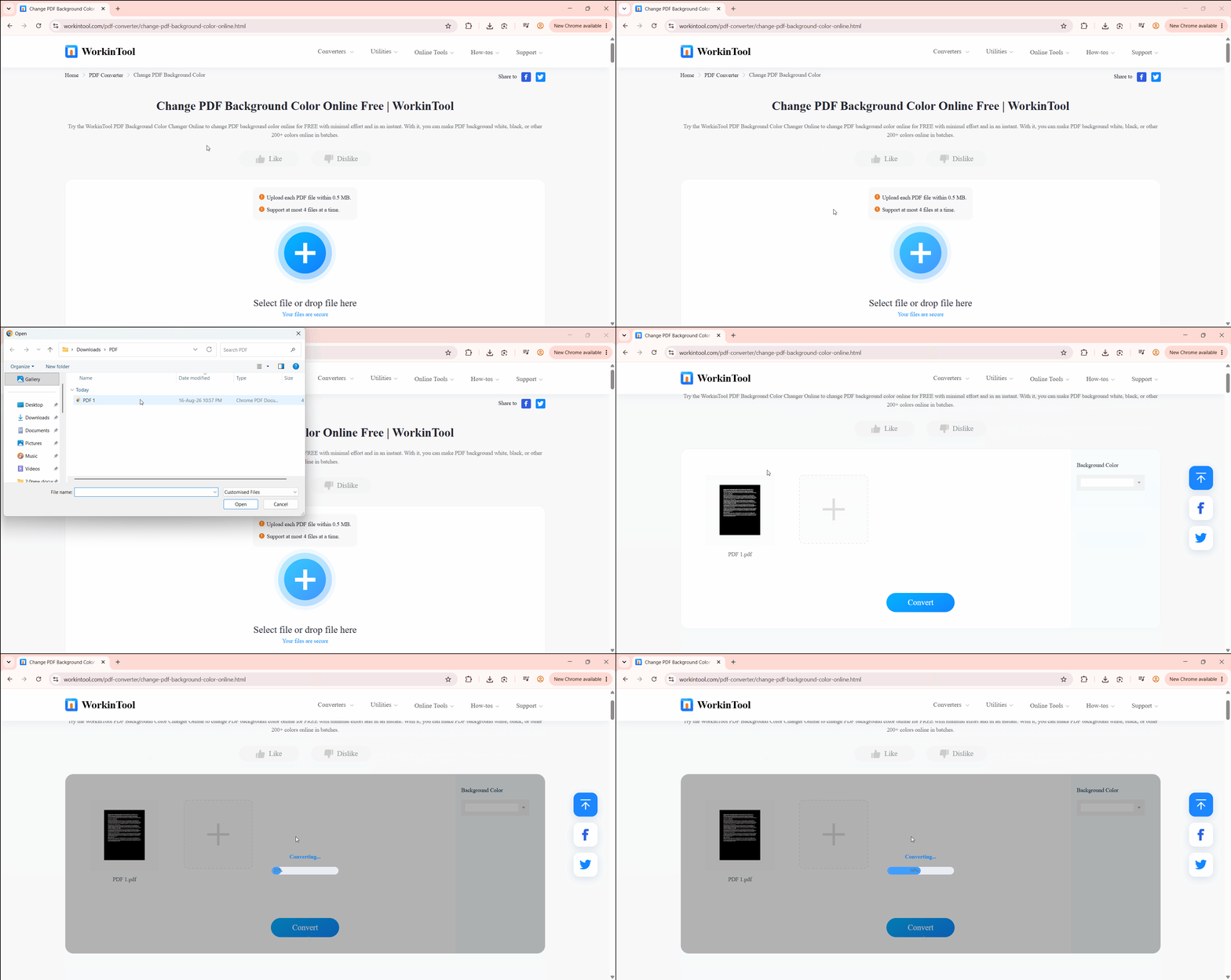
The process to change PDF background color to white online comes with a few constraints. There are always upload file size and batch limits. For example, WorkinTool's free tier caps uploads at 0.5MB per file and four files per batch. There are also privacy risks of uploading sensitive documents to a third-party server. And these tools often struggle handling complex dark scanned PDFs.
Method 2: Convert Black PDF Background to White for Printing and Reading
A PDF with white text and a black/dark background isn't friendly for printing and reading. However, just adding a white background underneath it may not work.
The reason is that the black area may not be a separate background layer. It can be part of the page's actual content. So, a new white background is placed underneath the existing black content and remains hidden.
For users who want to convert a PDF background black to white for printing and reading, they need to change how those existing colors are rendered. You can use Color Inversion to swap dark and light areas, or use Grayscale Printing to create a lighter and more print-friendly version.
The following steps explain how to change PDF background color to white for printing:
- Open your dark PDF in a viewer or browser and open the Print dialog box.
- Change the output color setting to Black and White or Grayscale.
- Preview the pages to confirm dark backgrounds are softened or rendered clear.
- Select Print to PDF or Save as PDF to export a new white-background document.
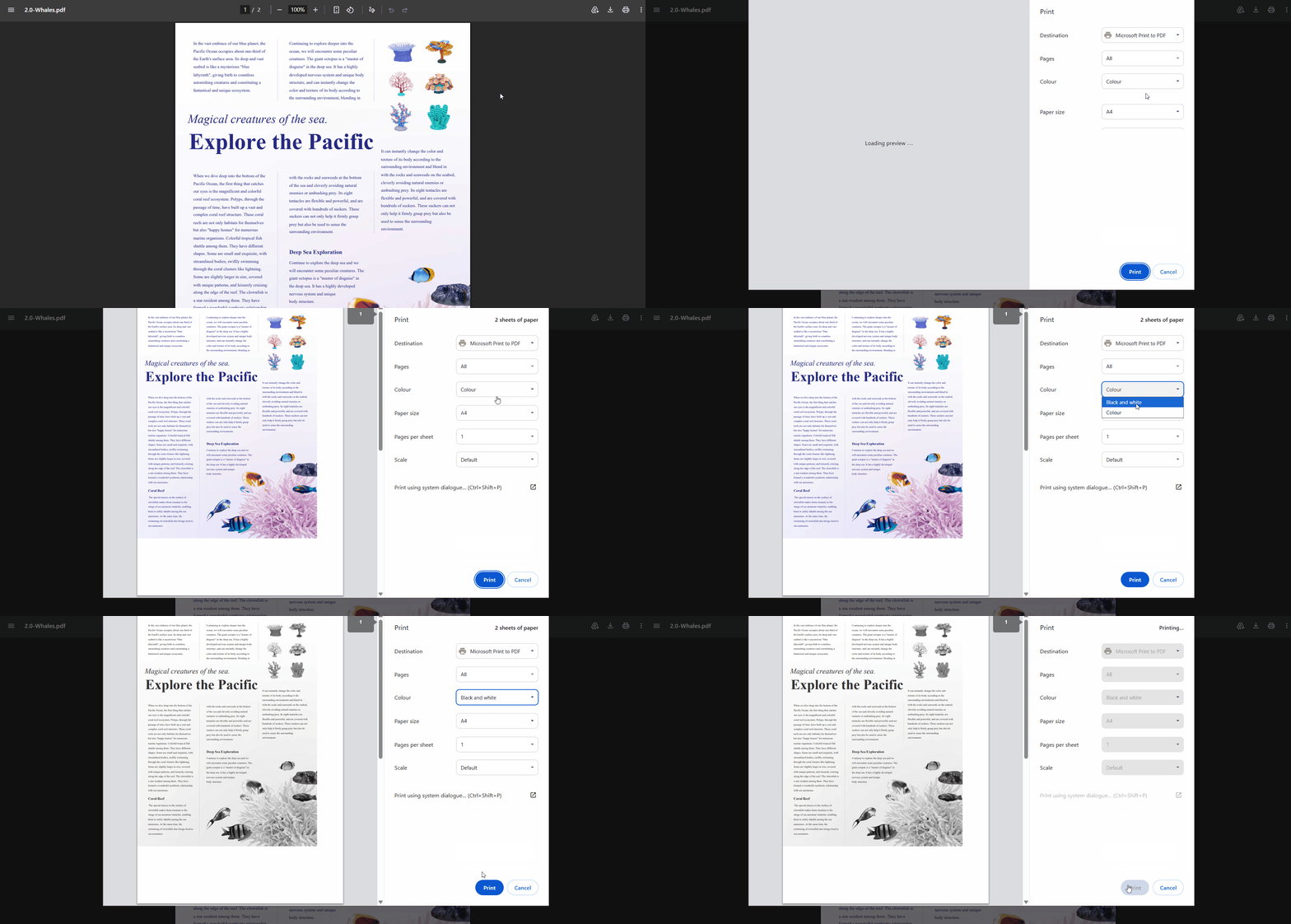
That's how to change black background to white in PDF for smooth printing/reading.
Limitation Note:
- Grayscale printing does not guarantee a pure white background. A dark PDF may still appear light gray, which depends on how its colors and content layers are rendered. If you need to permanently replace the background with solid white, a dedicated PDF editor is a better option.
Method 3: Change PDF Background to White with UPDF (Two Ways)
UPDF is an all-in-one PDF editor that lets you edit, annotate, organize, convert, and manage PDF documents from one place. It provides greater control over how a PDF looks and behaves, including options to permanently change a document's background or adjust its appearance for more comfortable reading.
UPDF's change PDF background color workflow is different from temporary display changes or basic print-to-PDF workarounds. It gives two distinct ways to handle a PDF background:
- Option A: Permanently change the PDF background color when you need the change to appear in the saved file, including when printing or sharing it.
- Option B: Change the background displayed while reading without modifying the original PDF file.
Option A: Permanently Change PDF Background Color (Modifies Actual File)
Best for:
- Permanently editing PDF files for printing, sharing, dark PDF whitening, or applying background changes to selected pages or larger documents.
1. Open your document in UPDF.
Windows • macOS • iOS • Android 100% secure
2. Go to Tools > Background.
3. Check & Remove Existing Background: Check the top menu bar. If the "Remove" option is active (clickable), it means your PDF already has an existing background. Click "Remove"—this will instantly delete the old color/layer and revert your PDF page background to white.
4. After successfully removed the background and change it to white, click on Save to save the changes you've made.
5. (Optional) Add a New Custom Background Color: If the document had no background or you want to set a specific new background color (or image background):
- Click Add Background > Create.
- Choose Color and set it to your desired color. (UPDF also lets you add PDF background in other colors or use an image to add a custom background)
- Adjust opacity and page range (All Pages, Current Page, or a custom range) as needed.
- Click Done, then save to lock in the change.
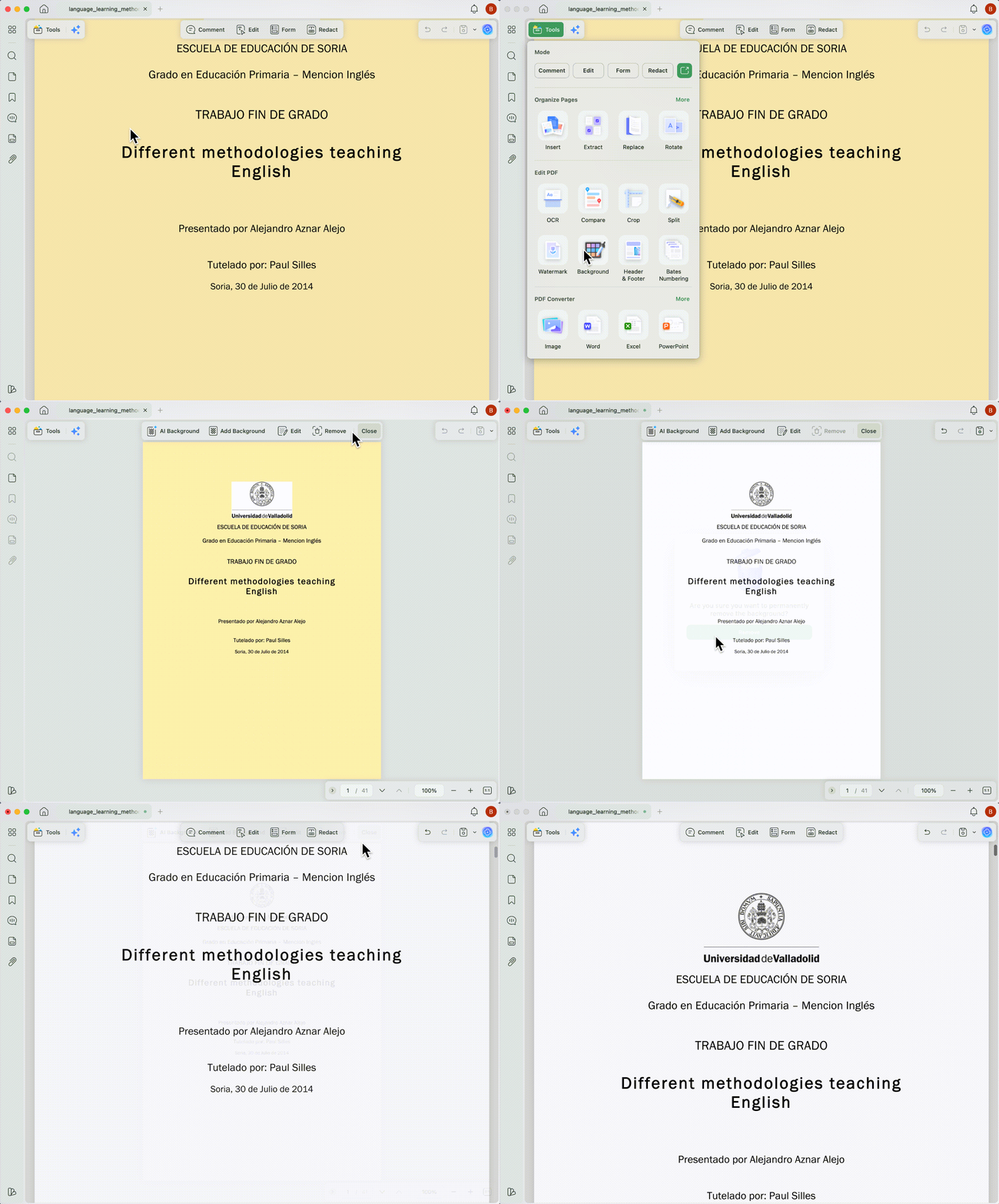
For Custom & Decorative Backgrounds:
For more on general PDF editing, see UPDF's guide on how to edit a PDF, or go deeper on background-specific tools with the PDF background changer and change PDF background color pages.
Option B: Adjust View Mode Background for Eye-Care Reading (Display Only)
Best for:
- Reading comfortably at night, or viewing a dark PDF in a lighter mode without altering the original file.
When a bright white background is hard on your eyes, UPDF lets you set a different eye-friendly background color just for how you view the document. This is a display setting, so switching your view mode won't change the PDF's actual background color.
- Open the PDF with UPDF and click the "Document Propeties" icon from the bottom.
- Pick a display color (White, Warm Yellow, Eye-Care Green, or another option).
- Save your preference.
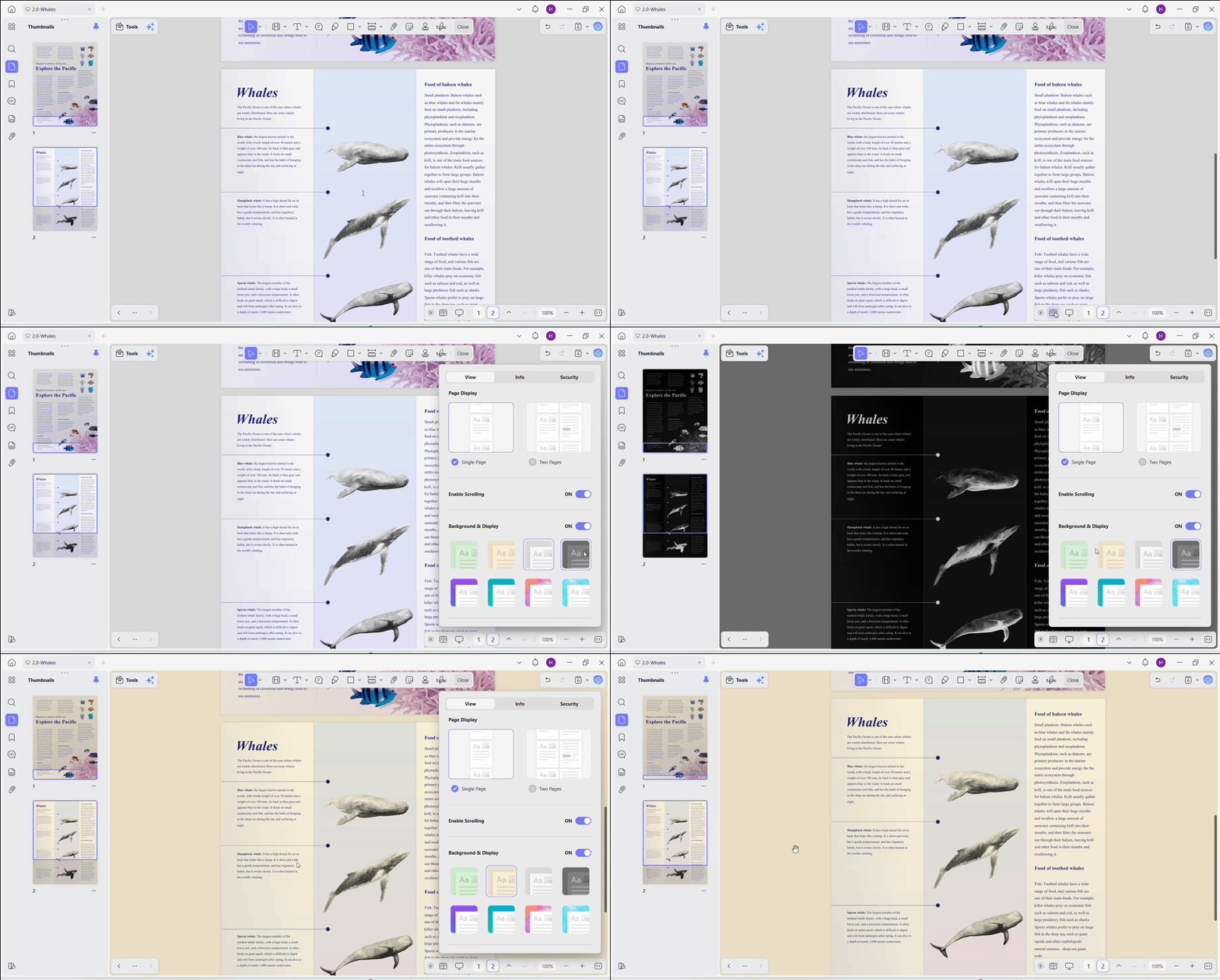
This applies only to your local reading view. The file stays unchanged for printing or sharing.
Whether you need to permanently whiten a PDF for printing or change display settings for comfy reading, UPDF gives you full control. Download UPDF and get the background changed in seconds
Windows • macOS • iOS • Android 100% secure
Comparison: Which Method Fits Your Needs?
| Method / Approach | Modifies Actual File? | Best Used For | Key Considerations |
| WorkinTool Online | Yes | Small, quick online edits without installing software | File size limits and not ideal for sensitive data |
| Print to PDF (Grayscale) | Yes (Saves new file) | Quick print-ready ink saving | Dark backgrounds may turn grey instead of white |
| UPDF Background Tool | Yes | Permanent whitening, batch processing, dark/scanned PDFs (with AI Background Agent) | Edits file directly and requires installing the app |
| UPDF View Mode | No | Eye-care reading, viewing dark PDFs in a lighter mode | Display setting only, doesn't affect printing or sharing |
FAQs
How do I change a PDF background from black to white?
Adding a white background won't work if the text is white. The text will disappear against the new background. Use color inversion, UPDF's AI Background Agent, or grayscale printing, which change the background and text relationship together.
Can I convert a PDF background to white online for free using WorkinTool?
Yes, WorkinTool can handle quick background swaps for small files online for free. Upload your PDF to WorkinTool, select White (#FFFFFF) in the background color picker, and click Convert. However, its upload is capped at 0.5MB per file and four files per batch. For larger or confidential files, desktop processing via UPDF is recommended.
What is the difference between editing a PDF background and changing view mode in UPDF?
Tools > Background permanently changes the file. Anyone who opens or prints/shares it sees the new background. Settings > View > Background & Display only changes what you see on your own screen. The underlying file is untouched.
How do I make a PDF background white for printing?
You can either replace the background with solid white (#FFFFFF) using UPDF's Background tool or select Black & White/Grayscale in your printer settings and save the output as a new PDF.
Can I change only selected PDF pages to white?
Yes. UPDF's Background tool lets you apply the change to all pages, just the current page, or a custom page range.
Bottom Line
A dark or off-color PDF background is usually a quick fix, but which method to use depends on the job. The need to convert PDF background to white online for small and non-sensitive files can go through WorkinTool. Print jobs on a budget can depend on grayscale conversion. For complex backgrounds, batch processing, permanent fixes, and a short reading mode conversion, UPDF handles the job as an all-in-one PDF editor. So, download UPDF for free and take control of your PDF backgrounds.
Windows • macOS • iOS • Android 100% secure









 Enrica Taylor
 Enola Miller
 Delia Meyer

 Enya Moore