UPDF
UPDF
 UPDF for Windows
 UPDF for Mac
 UPDF for iPhone/iPad
 UPDF for Android
 Nomostar
 UPDF AI Online
 UPDF Sign
 IvyCraft
 Edit PDF
 Annotate PDF
 Create PDF
 PDF Form
 Edit links
 Convert PDF
 OCR
OCR PDF to Word
 PDF to Image
 PDF to Excel
 Organize PDF
 Merge PDF
 Split PDF
 Crop PDF
 Rotate PDF
 Protect PDF
 Sign PDF
 Redact PDF
 Sanitize PDF
 Remove Security
 Read PDF
 UPDF Cloud
 Compress PDF
 Print PDF
 Batch Process
 About UPDF AI
 UPDF AI Solutions
 AI User Guide
 FAQ about UPDF AI
 Summarize PDF
 Translate PDF
 Chat with PDF
 Chat with AI
 Chat with image
 PDF to Mind Map
 Explain PDF
 PDF AI Tools
 Image AI Tools
 AI Chat Tools
 AI Writing Tools
 AI Study Tools
 AI Working Tools
 Other AI Tools
 AI Bookmark Generation
 AI Bookmark Summary
 AI Watermark Generation
 AI Background Generation
 AI Sticker Generation
 AI Stamp Generation
 AI Editing Suite
 UPDF Copilot
 AI Page Management
 AI Semantic Search
 PDF to Word
 PDF to Excel
 PDF to PowerPoint
 Enterprise Solution
 Enterprise Sign
 Enterprise AI
 Enterprise Plan
 Enterprise User Guide
 Enterprise Webinar
 Banking
 Healthcare
 Insurance
 Legal
Legal Manufacturing
 Government
 Researchers & PhDs
 Solopreneurs & Freelancers
 Lawyers & Legal Professionals
 Real Estate Agents & Brokers
 Education Solution
 Customer Stories
 User Guide
 UPDF Tricks
 FAQs
FAQs UPDF Reviews
 Download Center
 Blog
Blog Newsroom
 Tech Spec
 Updates
 UPDF vs. Adobe Acrobat
 UPDF vs. Foxit
 UPDF vs. PDF Expert

Many legal teams still reject normal PDFs because old files suddenly show broken fonts or missing graphics. Government archives worry when important contracts fail checks, though the PDF opens fine on desktops. The ISO 19005 PDF/A standard fixes this by embedding fonts, colors, and viewing data directly in the file while blocking scripts. To understand the safer archive standard, read what a PDF/A is before converting important records.
Years later, these outside parts can disappear, so the PDF no longer looks like the original. UPDF supports PDF to PDF/A conversion locally, so sensitive legal files never leave secure office devices. You can use UPDF on a desktop for strict compliance workflows or tools. So, this guide shows how to convert a PDF and how UPDF protects your key documents while keeping long‑term archiving fast and simple.
Windows • macOS • iOS • Android 100% secure
Best PDF to PDF/A Software & Tools (Hands-On Tested)
Desktop tools keep layouts stable across Windows and Mac, so archived files remain consistent in every review environment. Mobile apps do not support creating proper PDF/A-compliant files for archiving. So, desktop hardware is mandatory for any permanent PDF/A conversion process.
1. UPDF — The All-in-One Workspace for Pre- & Post-Archival Workflows
If you handle sensitive business agreements, legal filings, or private records, uploading them to public websites poses serious privacy risks and can mess up your formatting. A local desktop application like UPDF keeps your data completely safe on your own computer.
Instead of just changing the file extension, UPDF covers your entire archiving workflow. It lets you clean and sign documents before locking them, and helps you manage or reuse them years later.
| UPDF Archival Workflow | |
| 1. Before Converting (Prepare) | Black out info ➔ Add Signatures ➔ Shrink |
| 2. Converting (Lock) | Save as PDF/A locally in one click |
| 3. After Converting (Manage) | Fix original PDF ➔ Update ➔ Re-save |
Best For:
The Full Archival Workflow:
Archiving often requires careful desktop handling, as small formatting issues can create long-term compliance problems. Now, follow the steps below to complete the conversion process correctly and preserve your document:
1. Prepare Your Document: Open your PDF in UPDF. Use the Redact tool to permanently black out private details like IDs or credit card numbers. Then, use the Electronic Signature tool to add an official, binding signature or stamp.
Windows • macOS • iOS • Android 100% secure
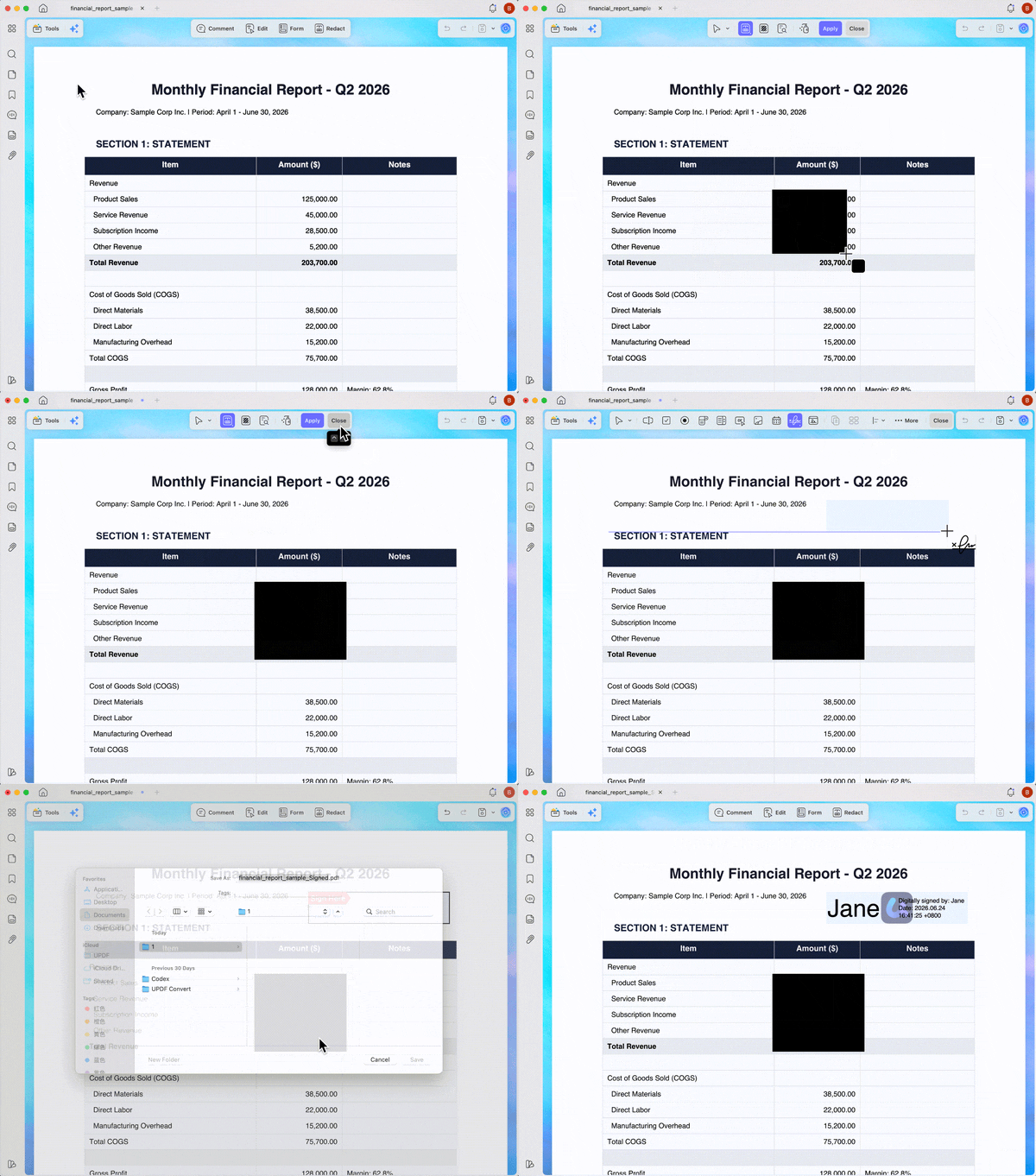
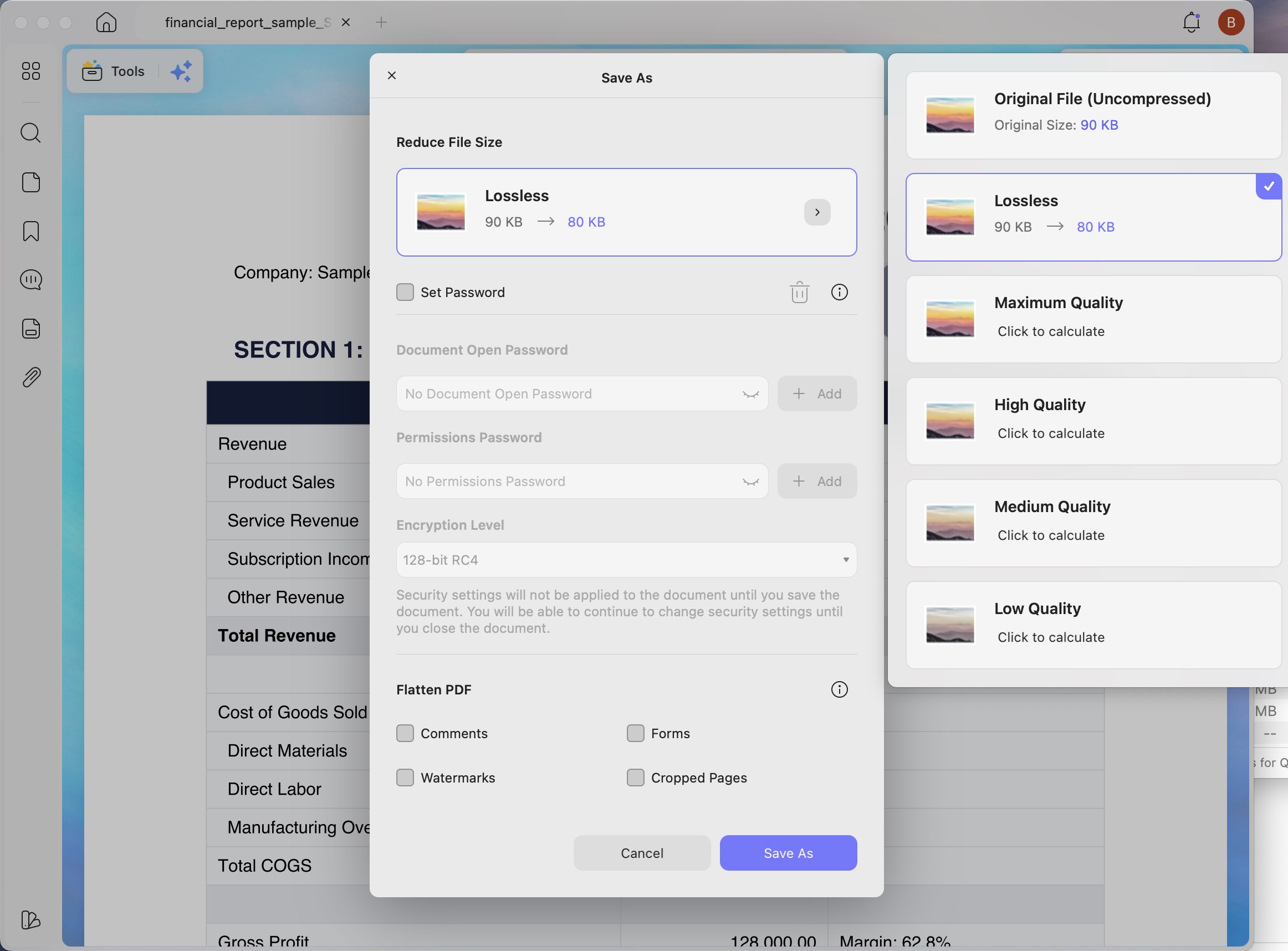
2. Shrink the File Size: Archival storage fills up fast. Use UPDF's Compress PDF feature to shrink heavy images and graphics so the file takes up less disk space.
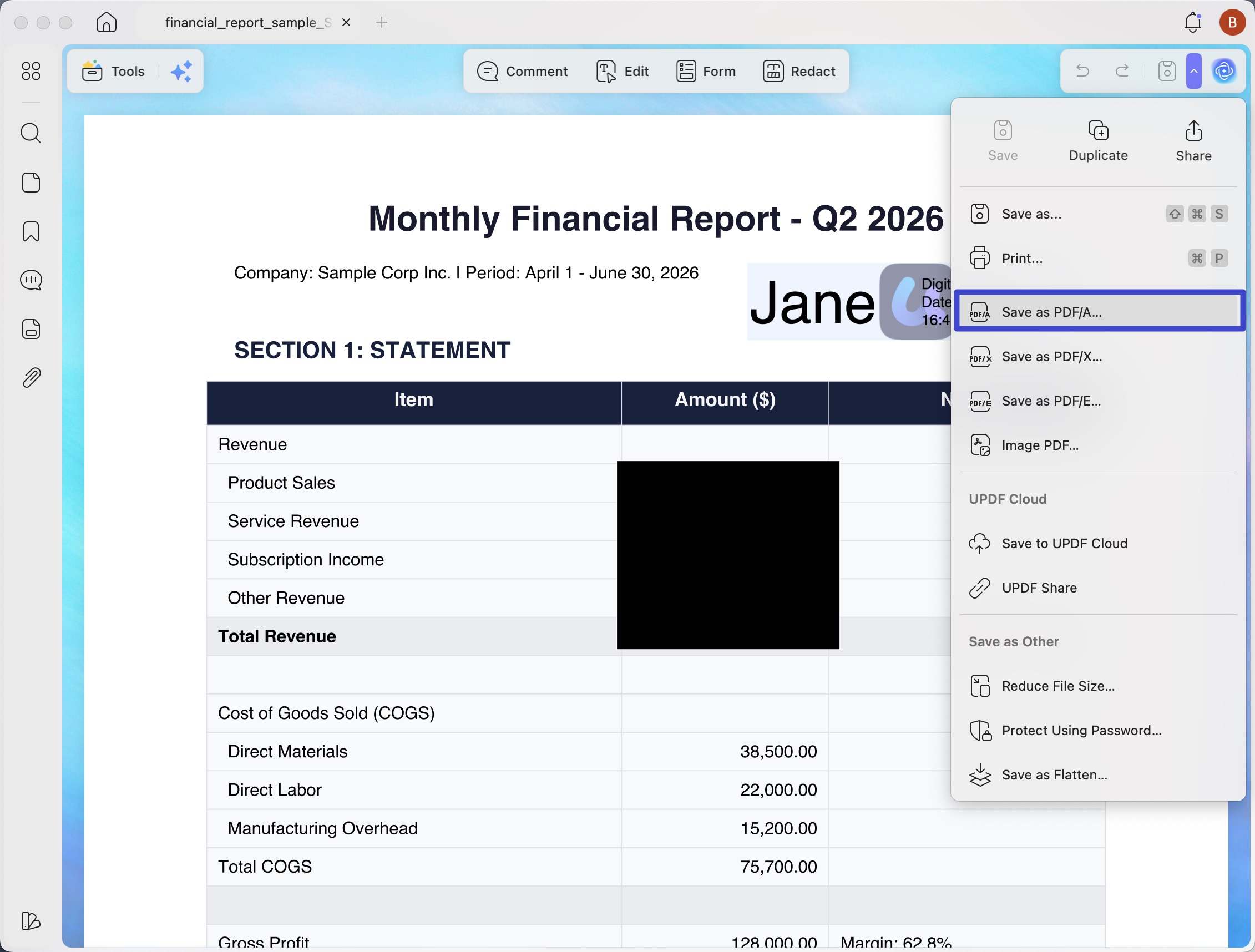
3. Save as PDF/A: Click the Save as Other icon on the right menu, select Save as PDF/A, and pick a folder on your computer.
Why You Need UPDF After Converting
PDF/A files are locked and cannot be edited—this is by design to prevent tampering. If you find a typo later or need to add a new page, you cannot change the PDF/A file directly. With UPDF, you can easily open your original PDF file, use the Edit PDF tool to fix the text, use Organize Pages to add or swap sheets, and then save it as a fresh, updated PDF/A.
Limits
This is designed for careful, high-security individual file preparation; it does not support bulk batch-processing for PDF/A exports at this time.
Browser Workarounds: Cloud-Based Batch PDF to PDF/A Conversion
If you are working on a public computer or a guest terminal where you cannot install software, online conversion tools are a quick backup option. If you need to do more advanced editing inside your web browser, check out our full review of the best pdf to pdf a converter options on the market.
Best For:
The Web Workflow:
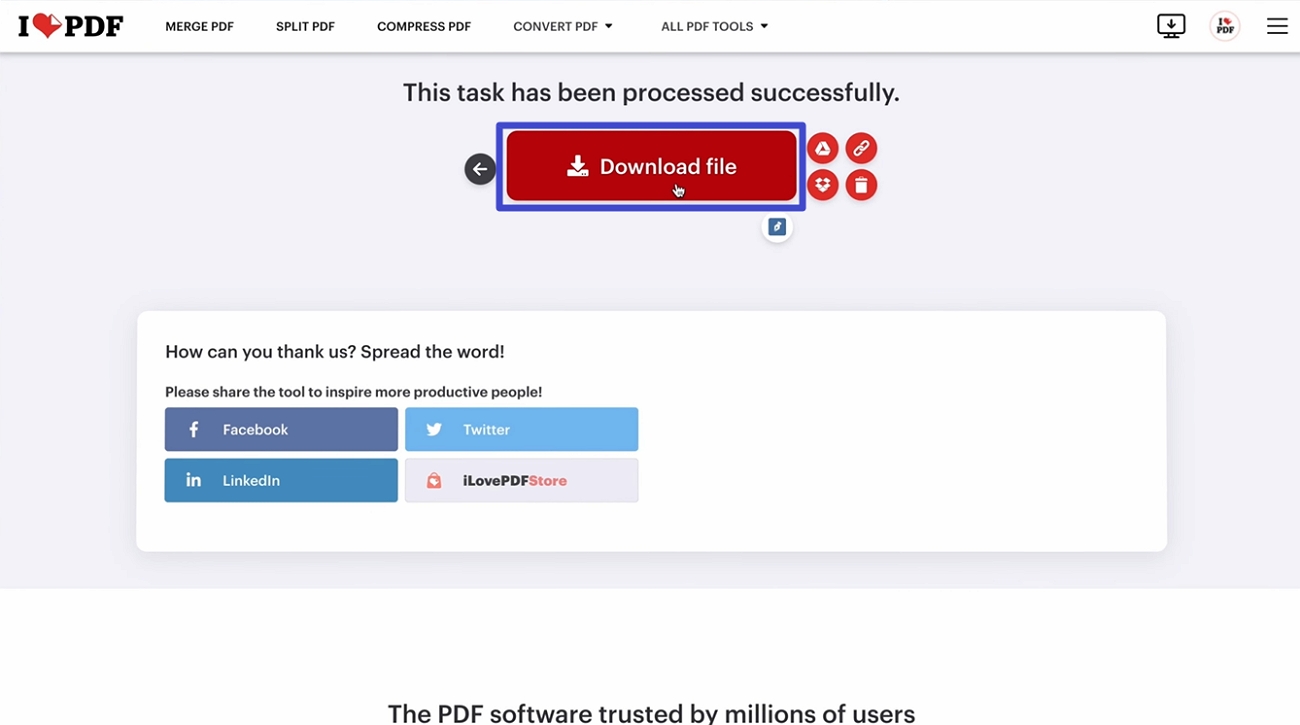
- Go to the iLovePDF website and click Select PDF File to upload your document.
- Choose your PDF/A standard level (like PDF/A-1b or PDF/A-2b), click Convert to PDF/A, and download the finished file.
Limits:
- Free accounts come with strict daily limits and cap your file size. You will also see frequent prompts asking you to upgrade to a paid plan. Most importantly, uploading private contracts to public web servers always carries a data leak risk, and you cannot edit the text or clean metadata online.
Frequently Asked Questions
Why can't I edit a file after converting it to PDF/A?
PDF/A is designed to lock layout and appearance, preventing later edits that could change official records. When you convert a PDF to PDF/A, interactive elements such as forms and dynamic fonts are intentionally stripped out. To fix typos, you must return to the original PDF, edit there, then create a new PDF/A file.
Which PDF/A standard variant should I choose for long-term saving?
Most institutions focus on PDF/A‑1 or PDF/A‑2 because these variants best meet strict archival expectations. Check the requirements of your court, university, or archive before finalizing your long‑term format choice.
- PDF/A‑1 (Legacy Baseline): Best when institutions demand older specifications, yet it cannot handle transparency and advanced layered graphics properly.
- PDF/A‑2 (Modern Default): Supports better image handling and embedded attachments to make it preferred for courts and national archives.
Conclusion
Online converters are fine for basic, non-confidential files that need a quick format swap. However, when you are dealing with official business or legal records, you need a safer approach. You need to hide private information, sign the document, and shrink the file size before you lock it down. For these important tasks, a local desktop program is much safer and more reliable. Download UPDF today to easily prepare, protect, and manage your archives for years to come.
Windows • macOS • iOS • Android 100% secure


 Enola Miller

 Grace Curry
 Enid Brown