Home » Convert PDF » Best Methods to Convert TXT to PDF in 2026: A Layout & Page Size Alignment Guide
In digital document management, plain text (.txt) is our absolute go-to for server logs, quick code snippets, or raw meeting notes. It’s lightweight, universally compatible, and works everywhere.
But let’s be honest—trying to convert a TXT file into a PDF for an official report or printing is usually a total nightmare.
Every time I try to save a text file as a PDF, the page margins disappear, lines cut off awkwardly, and the fonts look completely broken.
— Sound familiar?
Because TXT files contain plain text only—with no page size, margins, fonts, or formatting instructions—many conversion tools simply guess how the content should appear. The result is often broken layouts, inconsistent fonts, and text that spills across pages.
For a single TXT file, a browser converter or your operating system's built-in PDF printer may be enough. But if you need consistent page formatting, batch conversion, or the ability to edit the PDF afterward, a dedicated PDF tool such as UPDF can save significant time and prevent formatting issues from the start.
Whether you're converting archived logs, invoice records, meeting notes, or text-based reports, the right conversion method depends on how many files you're handling and how much control you need over the final PDF.
Windows • macOS • iOS • Android 100% secure
⏱️ Choose Your Conversion Path in 3 Seconds:
Before we dive into the step-by-step native and free web-based methods, select the best route based on your current device layout and document load:
🏛 Market Comparison: Looking for a deep dive into the best authoring utilities available today? Check out our evaluation matrix: best pdf creators2026.
1. TXT to PDF Cross-Platform Intent Router Matrix
To help you make the best decision within 3 seconds based on your active device layout and document load, please consult our quick reference matrix below:
Current Core Requirement / Scenario
Recommended Conversion Path
Core Technical Advantage / Key Limit
💻 Handling tens or hundreds of TXT files needing bulk conversion or automated merging
✓ 100% Free built-in utility ✕ Tedious manual steps with zero batch processing capability
2. Convert TXT to PDF Online or with Built-In Tools
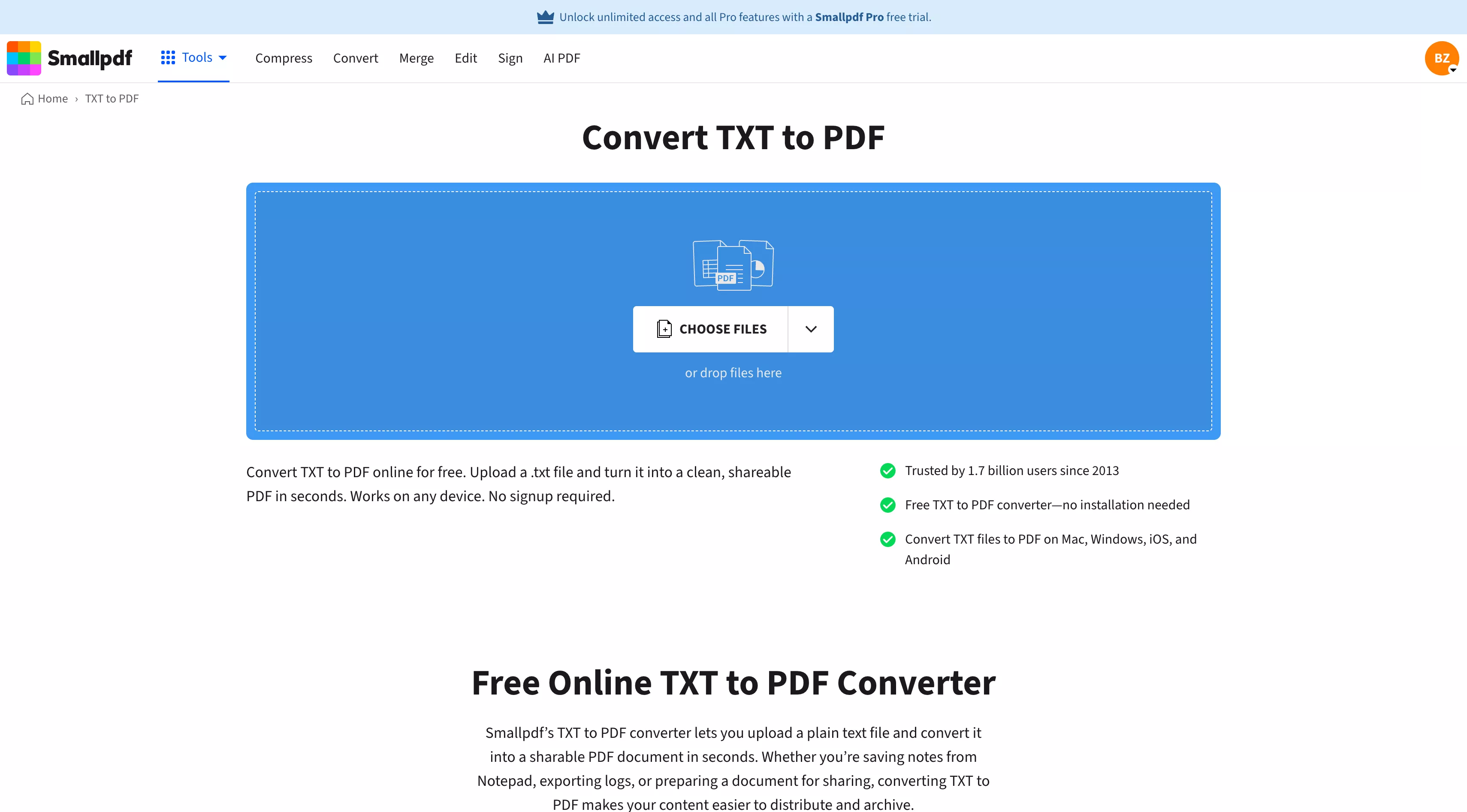
Method 1: Convert TXT to PDF Online with Smallpdf
Scenario Profile: Ideal for users holding 1 or 2 standard text files that contain zero proprietary corporate records, seeking an immediate conversion without installing application layers.
Drag and drop your target TXT file directly into the designated upload zone.
Wait for the cloud script to render the text stream, then click "Download" to retrieve the generated .pdf archive.
Limitations:
The free version only allows you to convert one TXT file at a time. If you need to process multiple text files simultaneously, you'll have to upgrade to a paid plan.
Large batches of TXT files require repeated uploading and downloading, which can become time-consuming for archive management, invoice records, or log files.
An internet connection is required throughout the conversion process.
Files are uploaded to a cloud server, which may not be suitable for sensitive business, financial, legal, or internal company documents.
Layout customization options are limited, making it difficult to fine-tune paper size, margins, orientation, or other print-related settings before conversion.
Method 2: Save a TXT File as PDF on Windows or Mac
Scenario Profile: Best for offline single-file processing using hidden, built-in features native to your operating system.
Steps:
1. On Windows: Right-click the TXT file and open it via Notepad - Press Ctrl + P > Select Microsoft Print to PDF as your printer target > Click "Print" and specify your local storage destination folder.
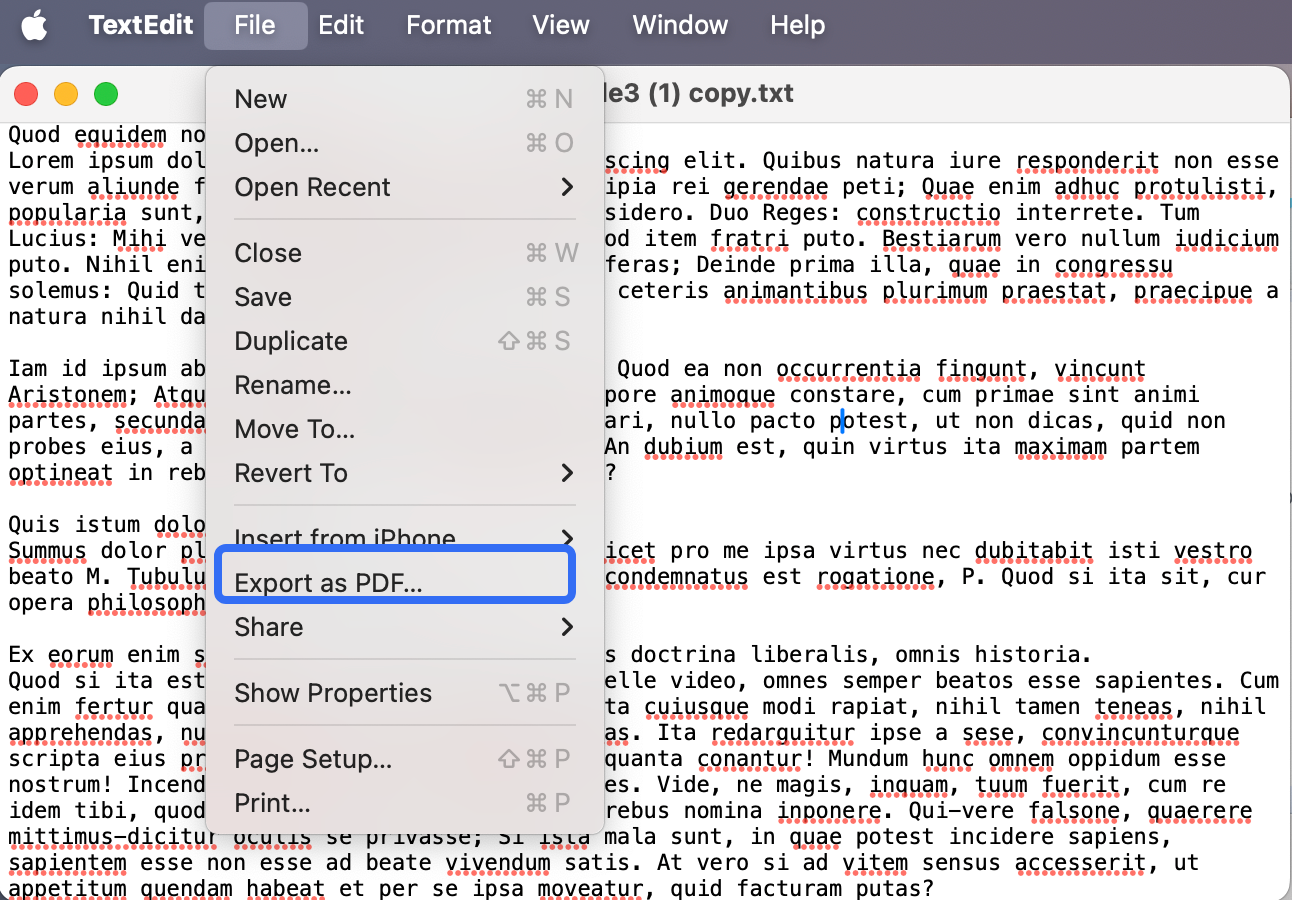
2. On macOS: Double-click the file to open it in TextEdit - Click File in the top taskbar > Select Export as PDF (or press Cmd + P and click the "PDF" dropdown menu in the bottom-left corner to choose "Save as PDF").
Limitations:
Completely incapable of batch processing. Converting 50 separate text files forces you to repeat the file-open, print-dialog, and naming sequences 50 individual times.
It also lacks mechanisms for precise page edge margins or custom typography overrides.
💡 Clipboard-to-PDF Shortcut:
Sometimes, you don't even need to save text into a physical TXT file first. If you just copied a long block of reference material from a website, you can transform that system cache instantly. Read our specialized fast-track tutorial on how to create pdf from clipboard to bypass file generation altogether.
3. Batch Convert TXT to PDF with Full Layout Control
If you're working with multiple TXT files or need more control over page size and document layout, a dedicated PDF application can simplify the process. Unlike basic conversion methods, these tools typically allow you to customize page settings before conversion and continue editing the PDF afterward if needed.
In this example, we'll use UPDF to demonstrate the process. Besides converting TXT files to PDF, it also lets you adjust page settings during conversion and continue working on the PDF after it's created—all within the same application.
See How PDF Creation Works in UPDF
Before we walk through the TXT-to-PDF steps, you may want to watch the short video below. While it isn't specifically focused on TXT files, it demonstrates how UPDF creates PDFs from different file formats and introduces the workflow you'll use throughout the conversion process.
Steps to Convert TXT to PDF
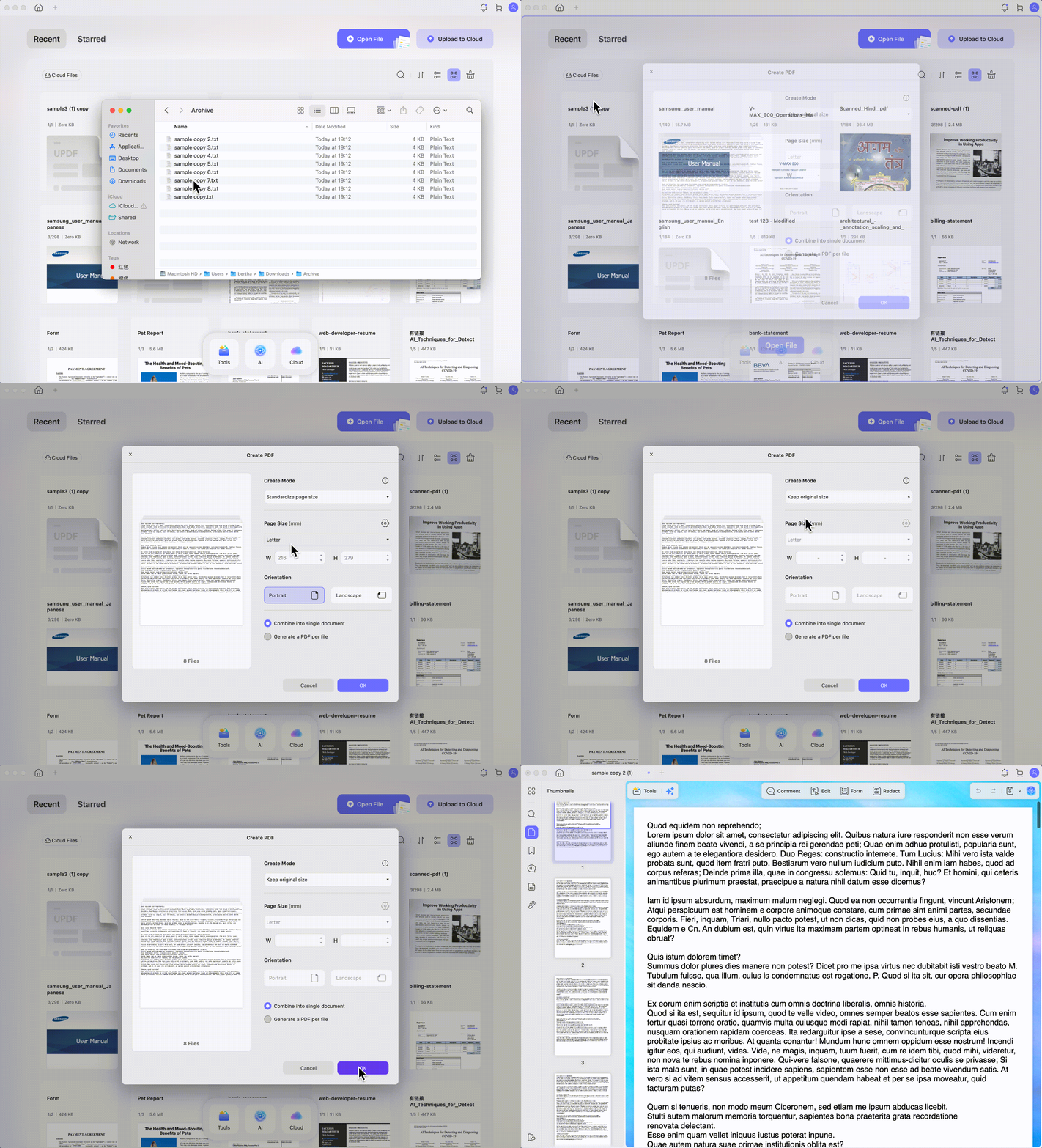
Step 1: Initialization via Drag-and-Drop: Open the UPDF desktop client and drag one or multiple TXT files directly into the active software window.
Windows • macOS • iOS • Android 100% secure
Step 2: Geometry & Layout Alignment: Upon dropping the assets, an advanced configuration dialog window appears immediately. You can now define the following micro-settings:
Keep Original Size: Instructs the conversion layer to preserve the text block coordinates based on the source character configuration.
Standard Paper Size Adaptive Mode: Check this to select standardized presets like Letter, A4, A5, A3, B5, or choose Custom to enter exact dimensional lengths and widths. This prevents clipped text borders or stretched margins.
Orientation Toggle: Switch between a Portrait vertical canvas and a Landscape horizontal layout with a single click.
Step 3: Concurrency Management: If you import multiple TXT records simultaneously, the interface prompts you to make a choice: select "Merge into one PDF" to compile separate text files into a single ebook or journal archive, or choose "Convert to multiple separate PDFs" to batch-generate independent, standalone invoice files for distinct clients.
Edit and Manage Your PDF After Conversion
Converting raw data streams into a PDF archive is merely the beginning of the documentation lifecycle. If you notice a typo in your text immediately after executing the steps above, or need to place corporate logos, electronic signatures, or security watermark protections onto the page, you never need to modify the original TXT file and repeat the conversion process.
By switching to UPDF's "Edit Mode," you can alter PDF text sentences and images natively as if you were working in a standard word processor. If the text sheet needs to become an interactive, fillable document for customer data intake, you can review our layout guide on how to create a fillable pdf. Additionally, if you need to draft an entirely fresh project from scratch, follow our guide on how to create a blank pdf.
4. TXT to PDF FAQs
Why did my TXT file turn into unrecognizable unreadable code characters after PDF conversion?
This happens when the source TXT encoding method (like ANSI) is incompatible with the PDF font embedding engine. To fix this issue, open your TXT file in Notepad, select "Save As," and change the bottom encoding dropdown selector to UTF-8 before running the conversion.
Can I batch-convert and merge 100 raw TXT files into one single PDF simultaneously?
Yes, but standard system print configurations and basic online converters cannot process this workflow. You must utilize a multithreaded desktop layout engine (like UPDF) where importing multi-selected files lets you choose "Combine into one PDF" to automate the task.
How do I prevent converted PDF text fonts from appearing too large or small on mobile screens?
You must enforce a standardized paper format preset (like A4 or Letter) and lock page orientation parameters during initialization. Basic text conversion utilities split pages arbitrarily based on line counts, whereas specialized layout engines run text reflow logic to guarantee a clean appearance across multiple screen sizes.
5. To Wrap Up
[Launch UPDF Desktop to Convert TXT to PDF Now] — Stop cloud browser memory crashes when handling large text strings. Unlock standard A4 canvas scaling and automated batch file merging today.
 UPDF
UPDF
 UPDF for Windows
 UPDF for Mac
 UPDF for iPhone/iPad
 UPDF for Android
 Nomostar
 UPDF AI Online
 UPDF Sign
 IvyCraft
 Edit PDF
 Annotate PDF
 Create PDF
 PDF Form
 Edit links
 Convert PDF
 OCR
OCR PDF to Word
 PDF to Image
 PDF to Excel
 Organize PDF
 Merge PDF
 Split PDF
 Crop PDF
 Rotate PDF
 Protect PDF
 Sign PDF
 Redact PDF
 Sanitize PDF
 Remove Security
 Read PDF
 UPDF Cloud
 Compress PDF
 Print PDF
 Batch Process
 About UPDF AI
 UPDF AI Solutions
 AI User Guide
 FAQ about UPDF AI
 Summarize PDF
 Translate PDF
 Chat with PDF
 Chat with AI
 Chat with image
 PDF to Mind Map
 Explain PDF
 PDF AI Tools
 Image AI Tools
 AI Chat Tools
 AI Writing Tools
 AI Study Tools
 AI Working Tools
 Other AI Tools
 AI Bookmark Generation
 AI Bookmark Summary
 AI Watermark Generation
 AI Background Generation
 AI Sticker Generation
 AI Stamp Generation
 AI Editing Suite
 UPDF Copilot
 AI Page Management
 AI Semantic Search
 PDF to Word
 PDF to Excel
 PDF to PowerPoint
 Enterprise Solution
 Enterprise Sign
 Enterprise AI
 Enterprise Plan
 Enterprise User Guide
 Enterprise Webinar
 Banking
 Healthcare
 Insurance
 Legal
Legal Manufacturing
 Government
 Researchers & PhDs
 Solopreneurs & Freelancers
 Lawyers & Legal Professionals
 Real Estate Agents & Brokers
 Education Solution
 Customer Stories
 User Guide
 UPDF Tricks
 FAQs
FAQs UPDF Reviews
 Download Center
 Blog
Blog Newsroom
 Tech Spec
 Updates
 UPDF vs. Adobe Acrobat
 UPDF vs. Foxit
 UPDF vs. PDF Expert





 Grace Curry
 Engelbert White
 Enola Miller

— Sound familiar?