 UPDF
UPDF
 UPDF for Windows
 UPDF for Mac
 UPDF for iPhone/iPad
 UPDF for Android
 Nomostar
 UPDF AI Online
 UPDF Sign
 IvyCraft
 Edit PDF
 Annotate PDF
 Create PDF
 PDF Form
 Edit links
 Convert PDF
 OCR
OCR PDF to Word
 PDF to Image
 PDF to Excel
 Organize PDF
 Merge PDF
 Split PDF
 Crop PDF
 Rotate PDF
 Protect PDF
 Sign PDF
 Redact PDF
 Sanitize PDF
 Remove Security
 Read PDF
 UPDF Cloud
 Compress PDF
 Print PDF
 Batch Process
 About UPDF AI
 UPDF AI Solutions
 AI User Guide
 FAQ about UPDF AI
 Summarize PDF
 Translate PDF
 Chat with PDF
 Chat with AI
 Chat with image
 PDF to Mind Map
 Explain PDF
 PDF AI Tools
 Image AI Tools
 AI Chat Tools
 AI Writing Tools
 AI Study Tools
 AI Working Tools
 Other AI Tools
 AI Bookmark Generation
 AI Bookmark Summary
 AI Watermark Generation
 AI Background Generation
 AI Sticker Generation
 AI Stamp Generation
 AI Editing Suite
 UPDF Copilot
 AI Page Management
 AI Semantic Search
 PDF to Word
 PDF to Excel
 PDF to PowerPoint
 Enterprise Solution
 Enterprise Sign
 Enterprise AI
 Enterprise Plan
 Enterprise User Guide
 Enterprise Webinar
 IT
IT Education
 Construction
 Financial Service
 Healthcare
 Insurance
 Legal
Legal Manufacturing
 Government
 Researchers & PhDs
 Solopreneurs & Freelancers
 Lawyers & Legal Professionals
 Real Estate Agents & Brokers
 Education Solution
 Customer Stories
 User Guide
 UPDF Tricks
 FAQs
FAQs UPDF Reviews
 Download Center
 Blog
Blog Newsroom
 Tech Spec
 Updates
 UPDF vs. Adobe Acrobat
 UPDF vs. Foxit
 UPDF vs. PDF Expert

Quick answer:
#page=N to an online PDF's URL, or in UPDF go to Edit → Link→ Link to Page.Which one you need depends entirely on where the click starts. If a reader clicks from a webpage, email, or chat to open a hosted PDF at page 12, you append a page number to the URL. If they click a word or image inside a PDF to jump to another page in the same file, you add an internal link that's saved in the document itself. These two mechanisms are not interchangeable, and mixing them up is the usual reason a "specific page" link stubbornly opens page 1. This guide covers both, plus how to do the in-file version on Windows, Mac, and iPhone/iPad. For example, a support email pointing to page 12 of a hosted manual needs a URL ending in #page=12, while a clickable “Troubleshooting” label inside that manual needs an internal link. If readers need a navigable chapter list, see how to add PDF bookmarks.
Part 1. A Page Link Points to a Position, Not a Topic
Before you build anything, know the one trap that catches everyone: a page-number link references a page count, not content. If someone later inserts or deletes pages, #page=12 — or an internal link set to page 12 — now lands on the wrong material. For documents that change often, a named destination (#nameddest=) is more durable because it identifies a saved location rather than a page number. Viewer support for named destinations varies, so always test the final link in the software your recipients actually use.
Part 2. Which Method Should You Use?
The three "link to a page" jobs don't overlap. Match your goal before you start.
| What you want the reader to do | Method | What you need |
|---|---|---|
| Click a link in a webpage, email, or message and open an online PDF at page N | Add #page=N to the direct PDF URL (Method 1) | A publicly reachable HTTP/HTTPS .pdf URL and a compatible viewer |
| Click text or an image inside a PDF and jump to another page in the same file | Create an internal page link (Method 2) | A PDF editor such as UPDF |
| Help readers reach any named section while reading a long PDF | Add bookmarks (Method 3) | A viewer that shows the bookmark panel |
Part 3. Method 1. Open an Online PDF at a Specific Page (#page=N)
This is the fastest way to point someone from outside a PDF straight to a page. The #page= fragment is a standardized part of the PDF media type — its syntax is defined in RFC 8118, Section 3 and Annex O of ISO 32000-2 — so most browsers' built-in viewers honor it.
Best for:
- linking from a webpage, email, learning-management system, or chat message to a page in a hosted PDF.
Not for:
- the moment you try this on a Google Drive or Dropbox preview URL and it dumps the reader on page 1 — cloud-share links usually hide the direct
.pdfaddress, and the preview ignores the fragment. For that, and for any click that starts inside the document, use Method 2.
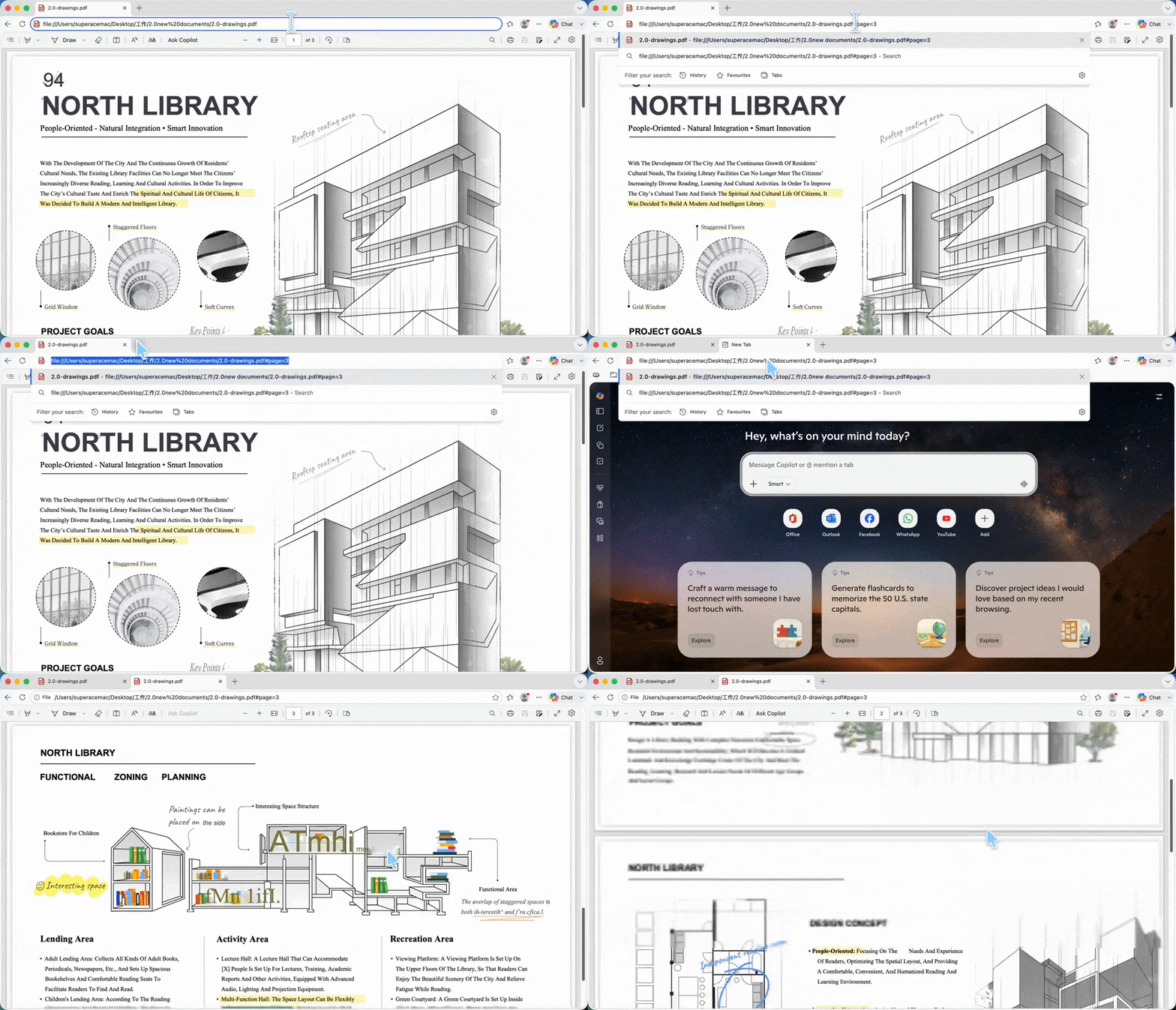
Step 1. Open the PDF in a browser and copy the address that points to the PDF file itself — a direct URL typically ends in .pdf. A local path like C:\Documents\report.pdf won't work; this method needs an HTTP/HTTPS address.
Step 2. Append #page= and the page number to the end of the URL:
https://example.com/report.pdf#page=3If the URL already has query parameters, the fragment goes last:
https://example.com/report.pdf?download=1#page=3Step 3. Test it as a recipient would. Paste the finished URL into a private/incognito window or a second browser and confirm it opens the expected page without relying on your login or cache. If it opens page 1, jump to the fixes section below.
Part 4. Method 2. Create an Internal Page Link with UPDF
When the click starts inside the PDF — a table of contents entry, a "see page 3" reference, a navigation button — you need an internal link annotation saved in the file. UPDF creates these on Windows and Mac, and the link travels with the document wherever it goes.
Windows • macOS • iOS • Android 100% secure
Best for:
- tables of contents, cross-references, indexes, and diagram callouts inside the PDF.
Not for:
- producing a web address that forces every browser to open at a page — an internal link only fires once the file is already open. If you need a pasteable URL, that's Method 1.
On Windows & Mac
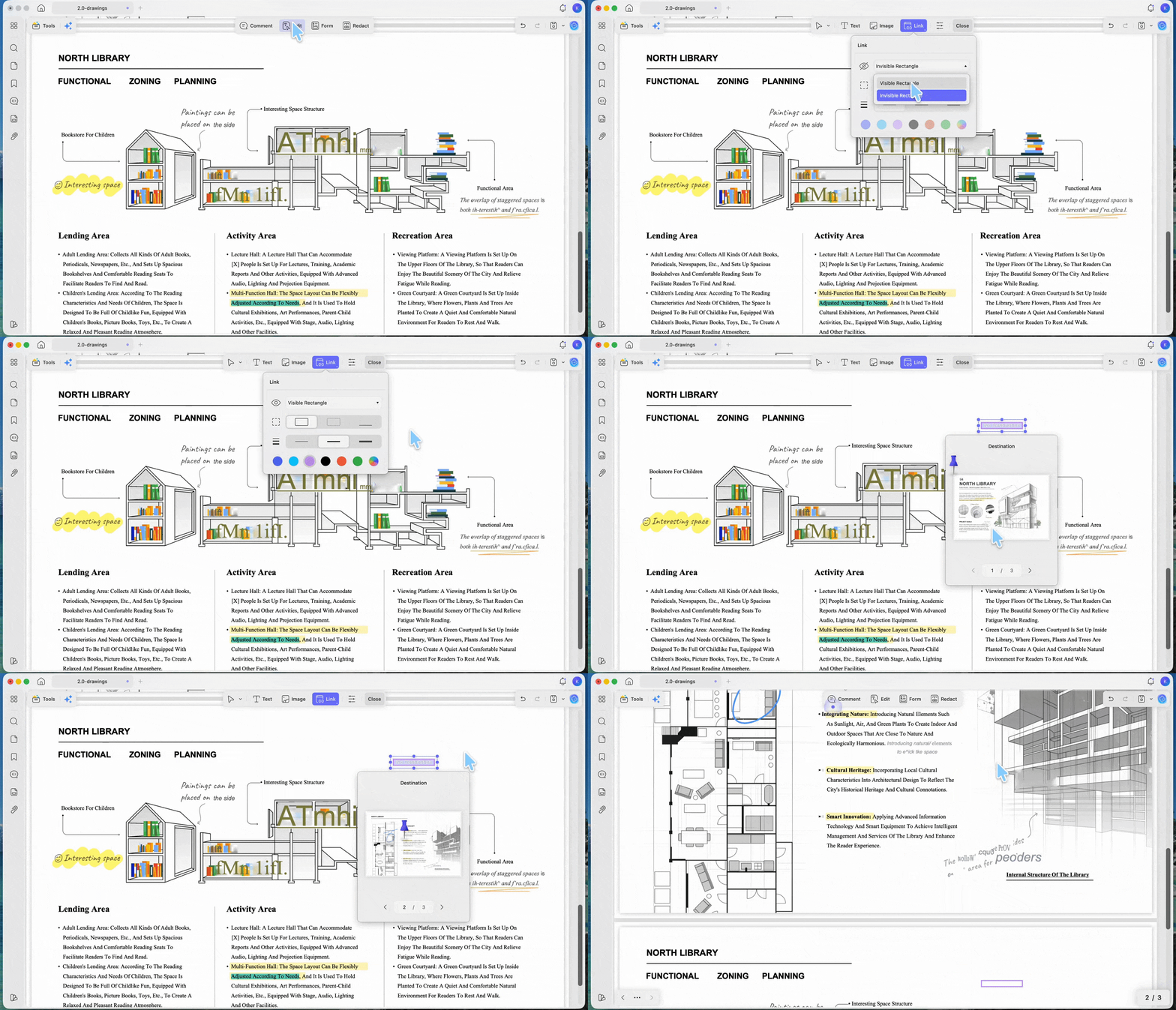
Step 1. Open your PDF in UPDF and enter Edit mode. Click Link on the editing toolbar.
Step 2. Choose Visible or Invisible Rectangle, then set the link's border style, thickness, and color — pick Invisible if you don't want a box showing around the clickable area.
Step 3. Drag over the exact area — a word, an image, or a region — where the clickable link should sit to create the link box.
Step 4. In the Destination window that appears, use the arrows to page to your target, then click the page preview to select it as the jump destination.
Step 5. Click Close to exit edit mode, then click the new link and confirm it jumps to the selected page.
To point a link at a web address instead of a page, choose the web-link option on the same Link toolbar and paste the URL. You don't need to insert a blank page first unless your document genuinely needs a new contents page.
On iPhone & iPad
Adding a page link works right on your phone or tablet — handy when you're reviewing a contract on the go.
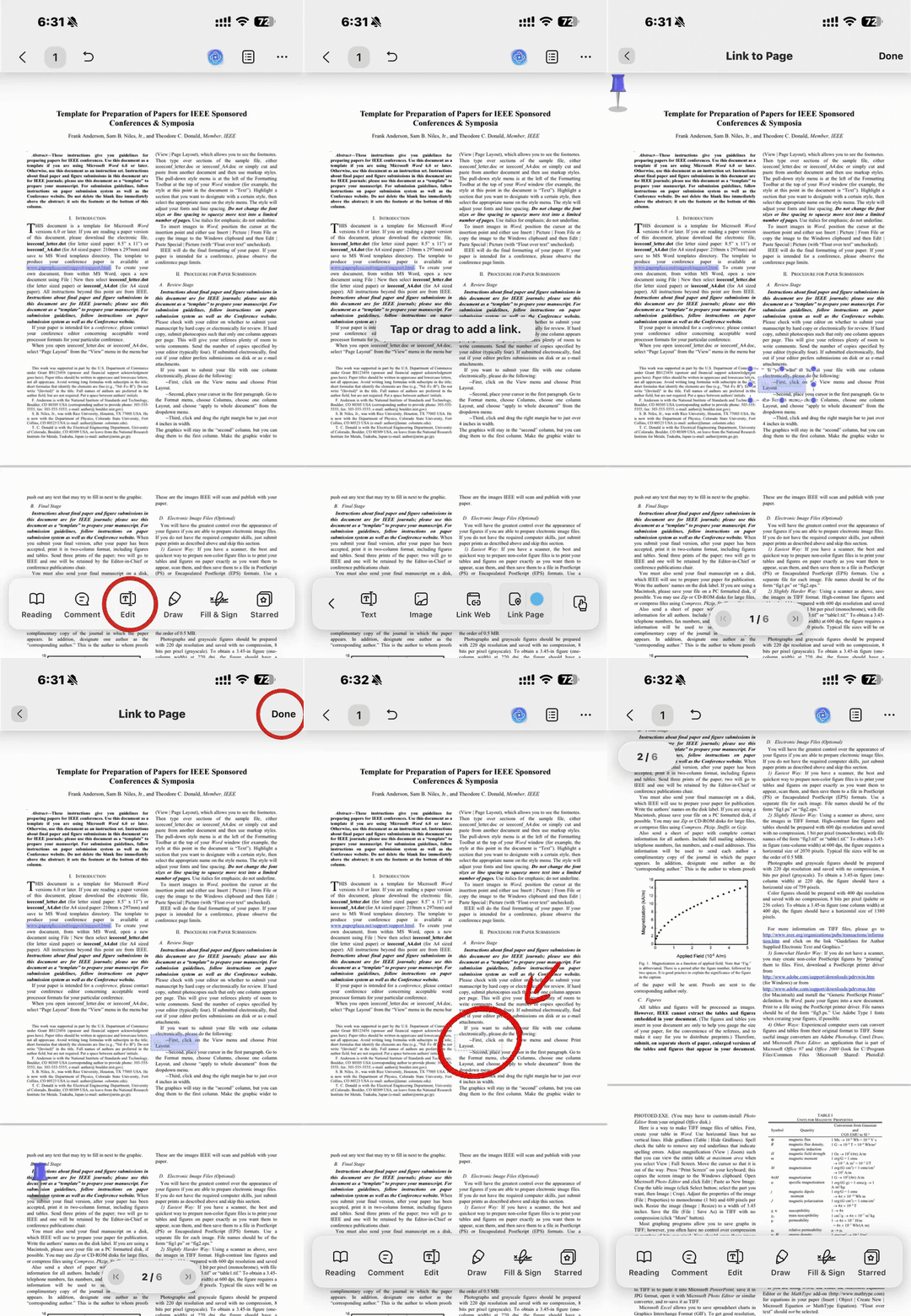
Step 1. Open the PDF in UPDF for iOS and tap the Edit icon at the bottom of the screen.
Step 2. Tap Link to Page, then tap the spot on the page where the clickable link should sit. A nail icon and a No Destination box appear.
Step 3. Tap the nail icon, then tap anywhere on the page you want the link to jump to. The No Destination box updates to show that page number.
Step 4. Tap the finished link box to reach Copy, Properties, Edit, or Delete — use Properties to change the box color, outline, and thickness.
To link to a web address on mobile, choose Link to Web in the same Edit menu and enter the URL.
A note on Android: UPDF for Android covers text and image editing but does not currently include link insertion. If you're on Android, create the page link on the desktop app or on an iPhone/iPad, then open or share the finished file from your Android device.
Download UPDF for free to try adding page links to your own file — installation is free, and Pro features are available when you need watermark-free export or advanced tools.
Windows • macOS • iOS • Android 100% secure
Part 6. Method 3. Build a Clickable Table of Contents with Bookmarks
Bookmarks give a PDF a persistent navigation panel — a clickable list, usually docked on the left, where each entry jumps to a page and stays visible the whole time the reader scrolls. That makes them the right choice when readers need to reach any section, not just one referenced page.
Best for:
- ebooks, textbooks, and long reports where readers navigate freely.
Not for:
- a single cross-reference in body text — a lone bookmark is easy to overlook. Use Method 2 when the jump needs to sit right beside the sentence that mentions it. And note: a bookmark by itself does not guarantee a shared file URL will open at that bookmark — that still depends on Method 1's fragment.
On Windows & Mac
Step 1. Open the PDF and scroll to the page you want to bookmark. Click the Bookmark icon in the left panel, then click the Add Bookmark icon to add that page. Repeat for each section.
Step 2. Rename each bookmark meaningfully ("Pricing," "Appendix B") so the list reads like a table of contents.
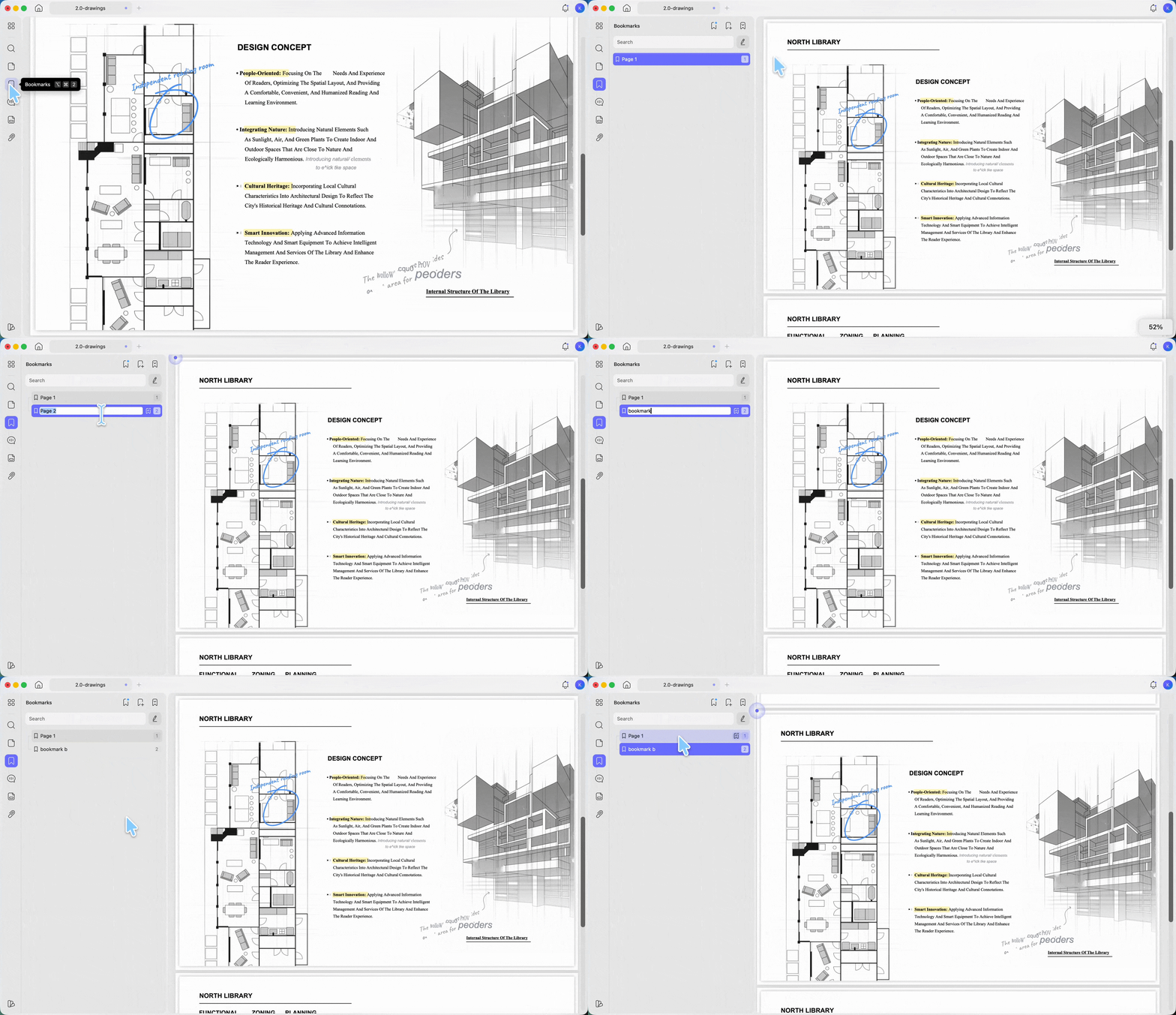
Step 3. Save the file with Save (not export-to-image, which flattens bookmarks). The bookmarks now travel inside the PDF.
If a file arrives with no structure at all, UPDF's AI Bookmark Generator scans it and builds a full chapter outline in one click — useful for a 150-page ebook downloaded without any navigation panel. You can watch the video tutorial below.
On iPhone & iPad & Android
Step 1. Open the PDF in UPDF for iOS or Android and tap the Bookmark icon in the top-right corner.
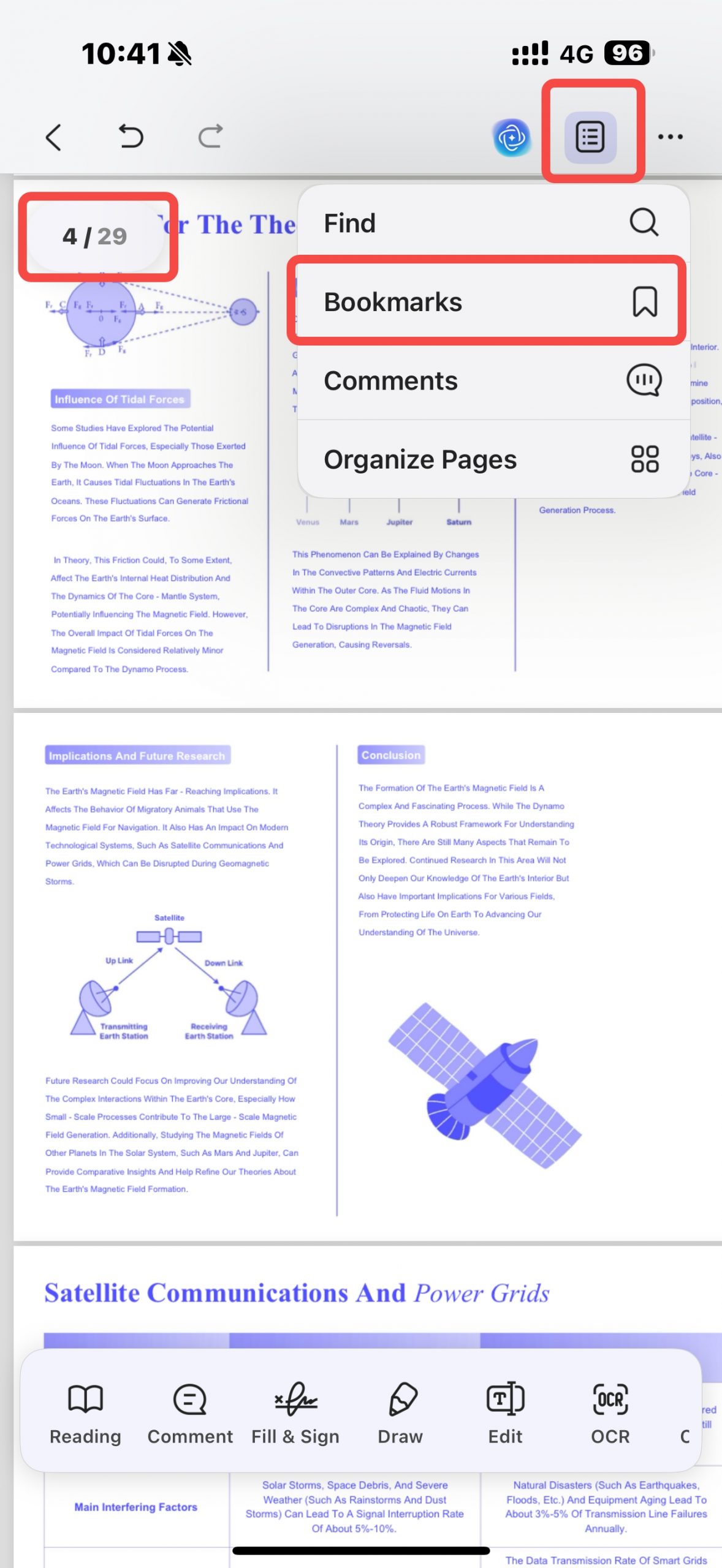
Step 2. Scroll to the page you want to mark, tap + Add Bookmark, and enter a name for that page.
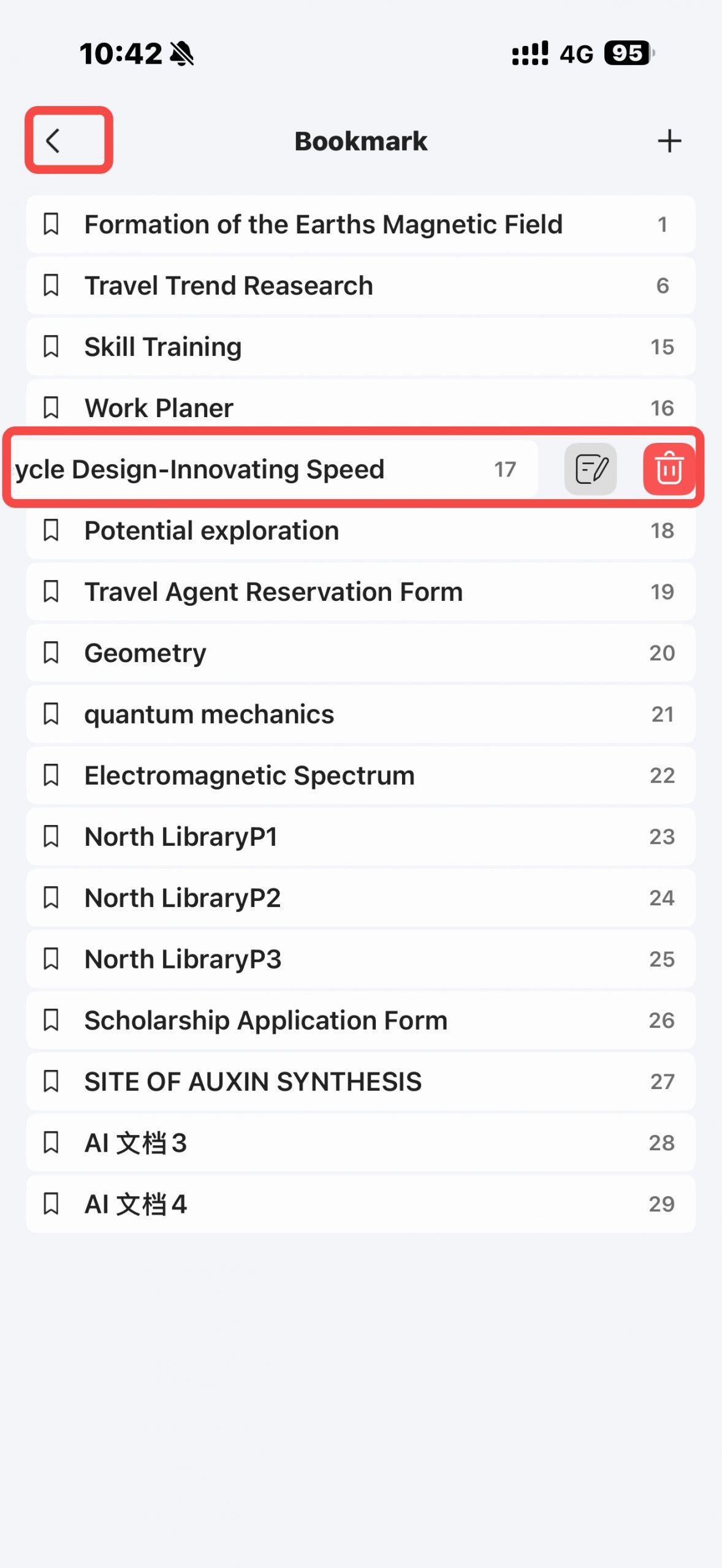
Step 3. To add more, tap the triangle button in the upper-left corner to go back, then repeat. Readers can then tap any bookmark to jump straight to that page.
If you regularly work with long ebooks, manuals, or reports, download UPDF for free and try building a clickable table of contents on one of your files — installation is free, and Pro features are available when you need watermark-free export or advanced tools.
Windows • macOS • iOS • Android 100% secure
Part 7. Page Link vs. Named Destination vs. Bookmark — What's the Difference?
These three get mixed up constantly, so here's the clean split:
#page=Nfragment → added to a URL outside the PDF; opens a hosted file at a page number. Breaks if page order changes.- Named destination (
#nameddest=) → a saved location inside the PDF you can target by name; survives page reordering, but viewer support is uneven. - Internal page link / bookmark → saved inside the file; a page link is a signpost in the body text, a bookmark is the building directory in the lobby.
Put simply: #page= is a street address that gets someone to a page, a named destination is a labeled room that stays labeled even if you renovate, and an internal link or bookmark is a signpost once you're already inside.
Part 8. Comparison: Which Approach Fits Your File
| Method | Where the link lives | Survives page reordering? | Works as a pasteable URL? | Platforms |
|---|---|---|---|---|
#page=N fragment | In the URL, outside the file | ✗ — points to a fixed page number | ✓ (online PDFs only) | Any compatible browser/viewer |
| Named destination | Saved inside the file | ✓ | ✓ via #nameddest= | Viewers that support it (varies) |
| Internal page link | On the page, in body text | ✗ — re-check after reordering | ✗ (opens only in the file) | Windows, Mac, iOS |
| Bookmarks | Left navigation panel | Bookmark stays tied to its page | ✗ but travels in the file | Windows, Mac, iOS |
Part 9. Edge Cases: When a Page Link Doesn't Work
The link opens page 1. Either the viewer doesn't support #page=, or you copied a preview webpage instead of the direct PDF URL. A common culprit: installing the Adobe Reader browser extension can make Chrome, Brave, and Edge ignore #page= entirely — the built-in viewer handles it, the extension often doesn't. Copy the direct .pdf URL, retest in another browser, and always include the page number in the surrounding text as a fallback.
The link goes to the wrong page. Pages were added or removed after the link was made, so the count shifted. Update the page number, or switch to a named destination for documents that change frequently.
The text looks like a link but isn't clickable. Blue or underlined text is only a visual style — a working link needs an actual link annotation. Reopen the PDF in UPDF, use Insert & Edit Link Page, and create the clickable area properly.
It works on your computer but not after uploading. The host may replace the direct URL with its own preview page, strip the fragment, or flatten annotations during conversion. Test the uploaded file from a signed-out browser session and share a direct-download URL where the platform offers one.
The page number differs from the printed number. Viewers count file pages, while the document may use cover pages or Roman numerals up front. Use the viewer's page index when setting #page=N or an internal destination, then confirm visually.
The link tool is greyed out. The PDF likely has permissions protection restricting editing. Remove the restriction first (only on files you own or are authorized to edit), then add your links.
Part 10. FAQ
1. Can I link to a specific page in a PDF from Word or an email?
Yes. Insert the direct PDF URL with #page=N as the hyperlink destination. The PDF must be online, and the recipient's browser or viewer must support the fragment.
2. Does #page=N work with Google Drive, OneDrive, or Dropbox links?
Not reliably. Most cloud-share URLs open a preview page rather than the PDF file itself, and that preview ignores the fragment. Use a direct .pdf URL when the service provides one, and test while signed out.
3. Do page links survive converting the PDF to Word or images?
Page links usually do not survive PDF conversion reliably: when converted to Word, links may be removed or point to the wrong place because the page layout changes, while conversion to images removes clickable links completely. Recreate and test links after converting to Word, or add them in the document or webpage containing the images.
4. Does #page=12 use the printed page number in the document?
It points to the twelfth page of the PDF file, counting from its first page. A cover, preface, or Roman-numeral front matter can make that different from the page number printed on the sheet. Count the actual PDF pages and test the link in the recipient’s viewer.
Conclusion
Use #page=N when the click begins outside an online PDF, and an internal page link (or bookmark) when it begins inside the file — keeping the two mechanisms separate is what makes a page link easy to build, test, and fix. All the in-file methods work across Windows, Mac, and iOS, and UPDF's AI Bookmark Generator can build a clickable outline automatically when a document arrives with no structure.
For every other in-file change — editing text, swapping images, repairing broken links — see the full guide on how to edit a PDF.
Download UPDF for free to try adding page links and bookmarks on a copy of your file — installation is free, and Pro features are available when you need watermark-free export or advanced tools.
Windows • macOS • iOS • Android 100% secure







 Lizzy Lozano
 Enrica Taylor
 Enola Davis