UPDF
UPDF
 UPDF for Windows
 UPDF for Mac
 UPDF for iPhone/iPad
 UPDF for Android
 Nomostar
 UPDF AI Online
 UPDF Sign
 IvyCraft
 Edit PDF
 Annotate PDF
 Create PDF
 PDF Form
 Edit links
 Convert PDF
 OCR
OCR PDF to Word
 PDF to Image
 PDF to Excel
 Organize PDF
 Merge PDF
 Split PDF
 Crop PDF
 Rotate PDF
 Protect PDF
 Sign PDF
 Redact PDF
 Sanitize PDF
 Remove Security
 Read PDF
 UPDF Cloud
 Compress PDF
 Print PDF
 Batch Process
 About UPDF AI
 UPDF AI Solutions
 AI User Guide
 FAQ about UPDF AI
 Summarize PDF
 Translate PDF
 Chat with PDF
 Chat with AI
 Chat with image
 PDF to Mind Map
 Explain PDF
 PDF AI Tools
 Image AI Tools
 AI Chat Tools
 AI Writing Tools
 AI Study Tools
 AI Working Tools
 Other AI Tools
 AI Bookmark Generation
 AI Bookmark Summary
 AI Watermark Generation
 AI Background Generation
 AI Sticker Generation
 AI Stamp Generation
 AI Editing Suite
 UPDF Copilot
 AI Page Management
 AI Semantic Search
 PDF to Word
 PDF to Excel
 PDF to PowerPoint
 Enterprise Solution
 Enterprise Sign
 Enterprise AI
 Enterprise Plan
 Enterprise User Guide
 Enterprise Webinar
 IT
IT Education
 Construction
 Financial Service
 Healthcare
 Insurance
 Legal
Legal Manufacturing
 Government
 Researchers & PhDs
 Solopreneurs & Freelancers
 Lawyers & Legal Professionals
 Real Estate Agents & Brokers
 Education Solution
 Customer Stories
 User Guide
 UPDF Tricks
 FAQs
FAQs UPDF Reviews
 Download Center
 Blog
Blog Newsroom
 Tech Spec
 Updates
 UPDF vs. Adobe Acrobat
 UPDF vs. Foxit
 UPDF vs. PDF Expert

When you're trying to fix a PDF quickly, most online tools feel clumsy. Searching for how to edit on PDF online means you want quick changes with no downloads. You also want to edit PDF documents for free, without watermarks and trial walls.
The internet is packed with professionals hitting the exact same rendering brick wall. As one frustrated user shared on Reddit:
Most browser-based utilities don't actually edit the document; they merely overlay cheap, rigid text elements on top of the original canvas. This guide objectively evaluates 4 browser methods, exposing exactly where they work and where they break your typography. When those online limits appear, we will show you how to edit a pdf using advanced workflows that keep your multi-column layouts perfectly stable.
1. Cloud Workflow Routing Matrix
Many users search for how to edit a PDF for free, but each task needs its own online path. Quick web tools handle surface changes, while others need UPDF Cloud plus the desktop app later in the flow. Look at the table below to match your current goal with a realistic browser-first workflow:
| User Goal | Web-tier Path | Operational Limit & Real-World Fix |
| Fix a small text typo or rewrite a paragraph | Launch the free tier of UPDF on your desktop layout. | Browser Limitation: Online tools cannot reflow text, causing sentences to drop onto a second line. UPDF desktop alters original strings flawlessly with 100% font matching. |
| Overlay quick notes, basic shapes, or signatures | Use iLovePDF's online tool for fast browser-bound additions. | Web-First Utility: Ideal for adding a clean text block or shape overlay directly in the browser with zero software installation. |
| Remove an accidental logo or watermark | Follow the pdf eraser online guide to clear elements. | Focused Cleanup: Erases unwanted canvas objects instantly via web-caching before final document presentation. |
| Edit data fields inside a secure corporate invoice | Secure your workflow by downloading UPDF locally to edit invoice files. | Data Compliance Hazard: Uploading financial records to third-party servers risks leaks. Local sandboxing keeps private corporate assets 100% offline and safe. |
2. Core Browser-Based Methods & Scenario Evaluations
Users try a PDF browser editor expecting quick online fixes, but each method behaves differently under pressure. Some tools only layer text or shapes, while others convert files and quietly change formatting behind the scenes.
Method 1. Edit on PDF Online with iLovePDF
When you need a 100% browser-bound solution to edit pdf documents for free, iLovePDF is one of the most accessible cloud utilities. It requires no account creation for light tasks and allows you to quickly overlay text, add shapes, or place images onto a document directly inside an active browser tab.
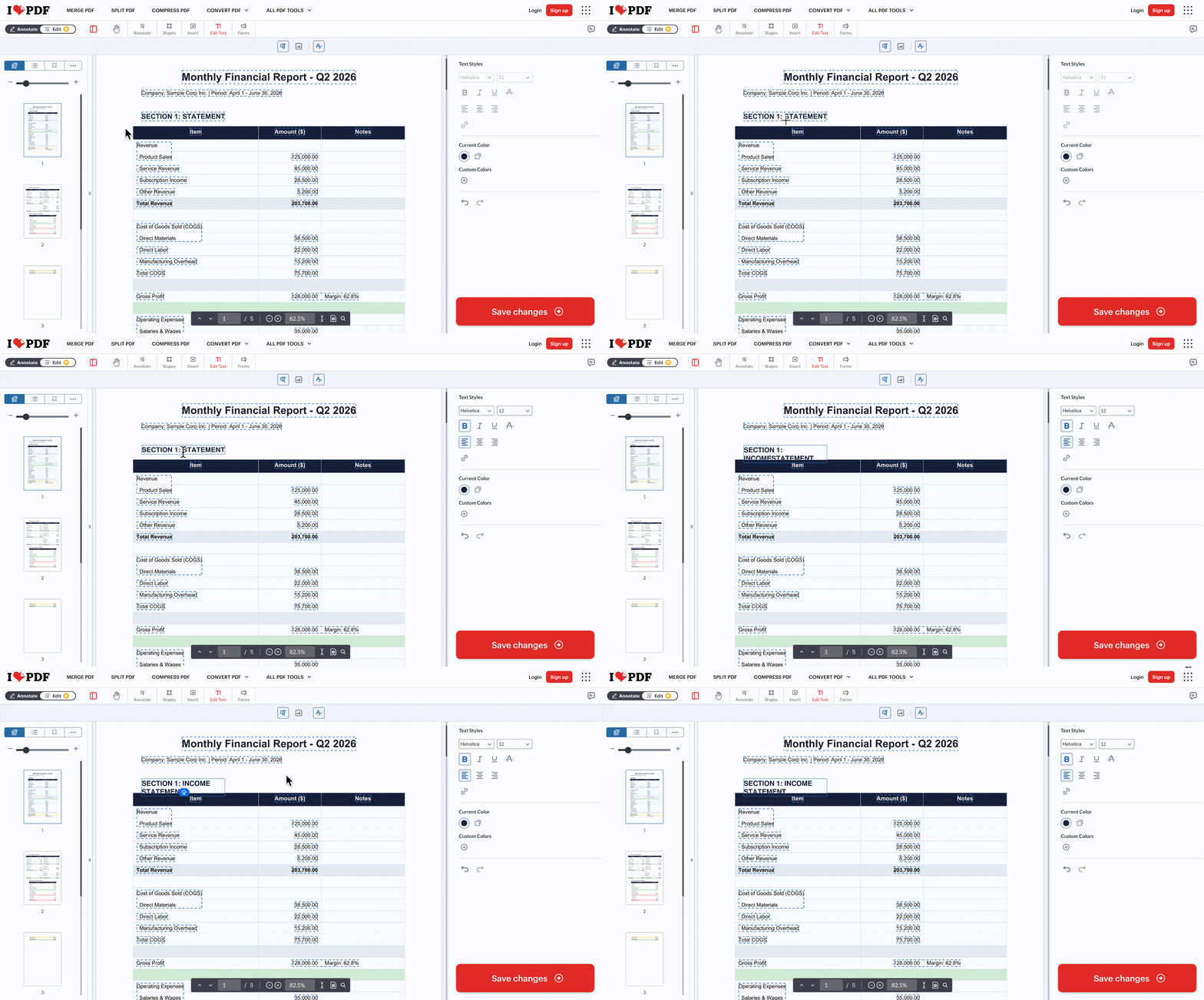
Step 1. First, access iLovePDF's Edit PDF feature and upload your confidential PDF.
Step 2. Next, choose the "Edit" tab and press the "Edit Text" option to enable text editing. Afterward, make the adjustments in the PDF text and click the "Save Changes" option. Following that, you can download the edited PDF and share it with others.
An edit should leave the surrounding content as clear as it was before. To explore the document tools further, see the demonstration of editing PDF content in UPDF below.
The Technical Catch: Why Online Editing Breaks Layouts
To bypass these browser boundaries and gain true typographic control, shifting to a dedicated offline environment with how to edit a pdf via UPDF is the recommended industry standard.
Method 2. Use the Dedicated UPDF Cloud Application
Because standard web browsers cannot compute complex font embedding or coordinate-based paragraph reflow, attempting to deep-edit high-stakes files online will break your typography. While the UPDF Online application ecosystem excels at cloud backup, document sharing, and advanced AI analysis, direct text and image modification must be handled natively within UPDF's high-speed offline desktop engine. By downloading the local architecture, you stop overlaying clumsy web text boxes and instead unlock the power to rewrite original sentences, replace embedded graphics, and alter margins with complete structural safety.
Steps to Seamlessly Edit PDFs Natively with UPDF
1. Download and install the free tier of UPDF on your desktop workspace, then launch the application.
Windows • macOS • iOS • Android 100% secure
2. Click Open File or drag your document directly into the local workspace canvas to instantly load the full layout.
3. Click the Edit icon located on the top menu to unlock the underlying layout layers.
4. Double-click on any existing sentence or header. The interface will instantly wrap the paragraph in a dynamic box, letting you add, delete, or rewrite text with 100% original font matching.
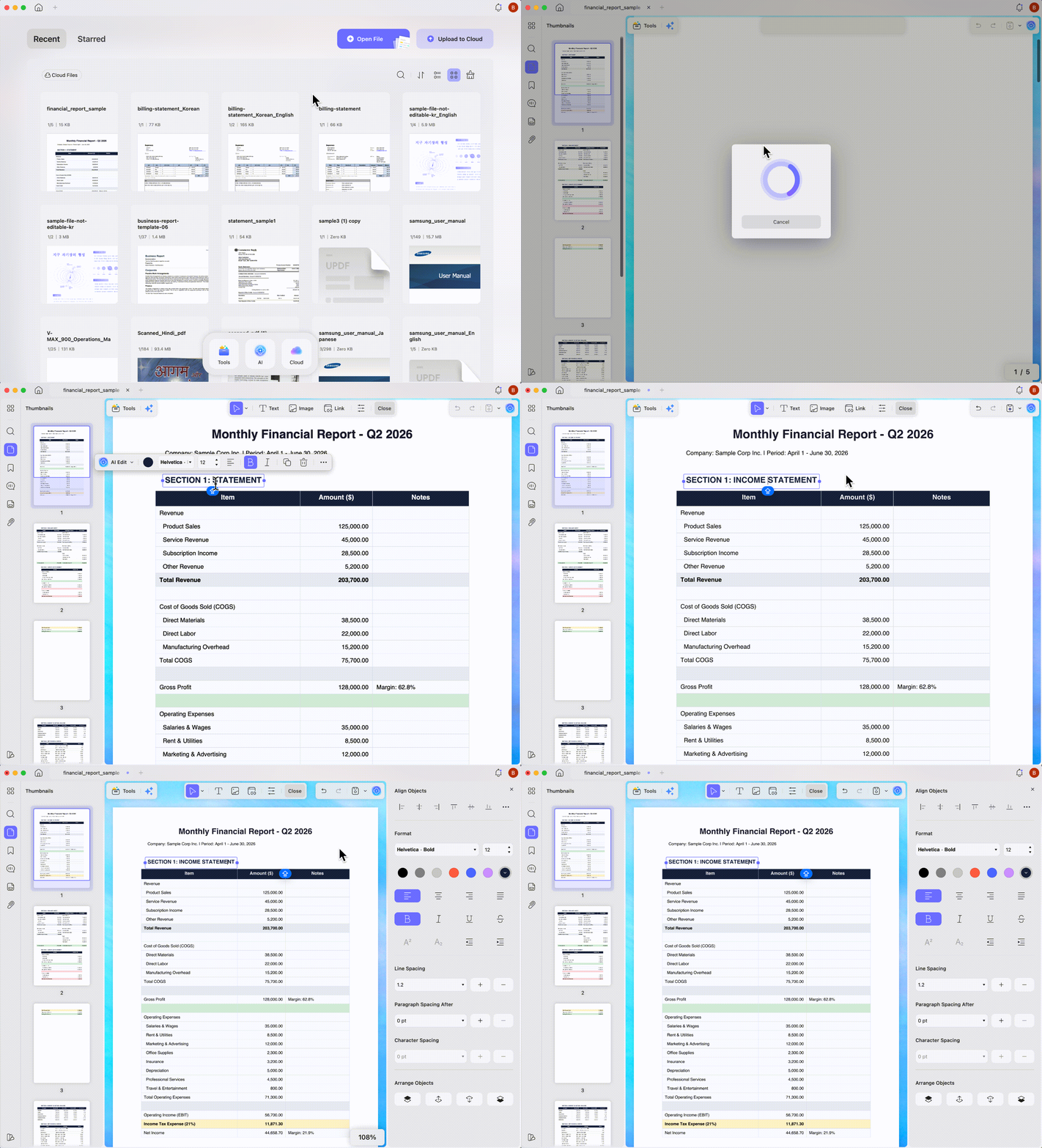
5. To modify visual assets, simply click on any image inside the canvas to crop, replace, or rotate the graphic fluidly without shifting surrounding grids.
Save or Share The PDF
After editing the PDF, simply close it, and the changes will be automatically saved in the UPDF Cloud. To share the PDF via link, press the "UPDF Share" option and copy the link to share with others.
When Online View Meets Offline Power
Tight paragraphs that break in a browser stay stable once you switch to local UPDF editing. Invisible text changes happen cleanly in the desktop engine, which edits real characters instead of stacking boxes. As reviews grow more complex, moving from online into the app feels like a smooth, logical step.
Method 3. Utilize Native Browser Annotations
Many people open PDFs directly in Microsoft Edge or Chrome when they just need a fast signature. Browser tools can add text boxes and drawings on top but cannot edit the original PDF text. To learn how to edit a PDF for free with markups using browsers in emergencies, follow the steps below:
Step 1. First, open a PDF in a browser. We have taken Microsoft Edge as an example here.
Step 2. Afterward, click on the "Add Text" option, adjust the text size, and add the text on your PDF page.
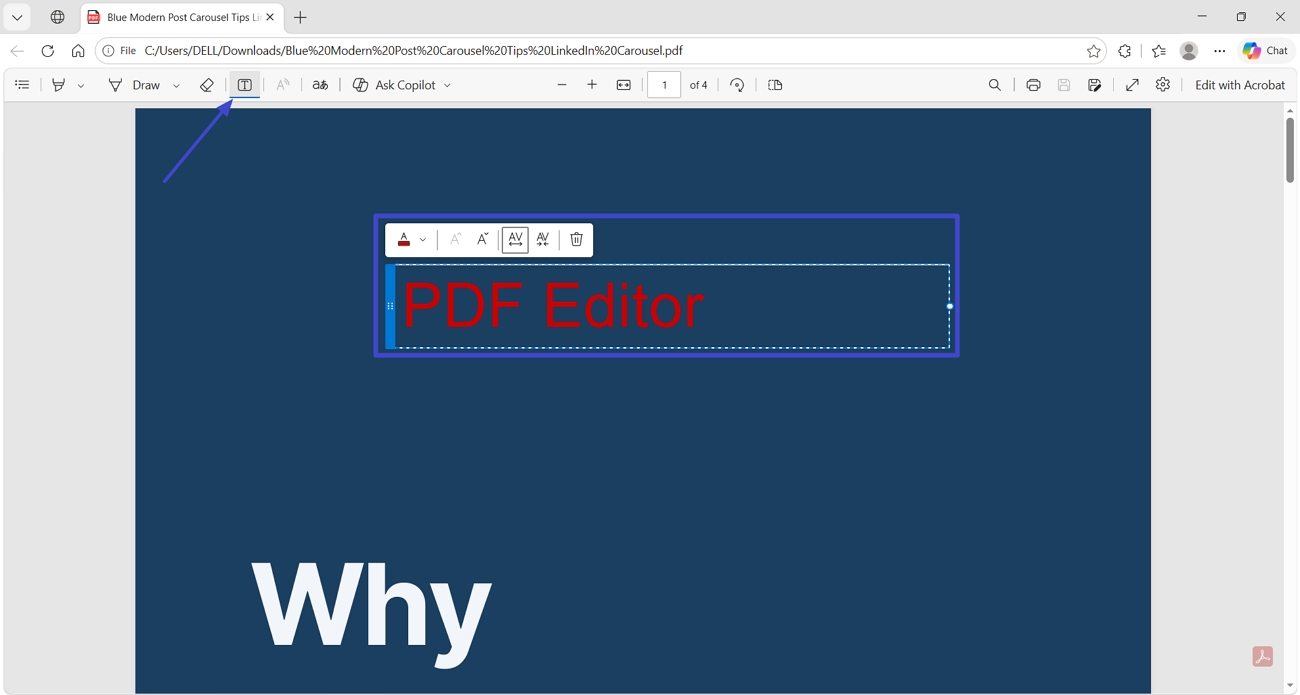
Step 3. Now, choose the "Highlight" tool and highlight the text that should appear first. After that, click on the "Draw" option to draw freehand on the PDF.
Browser annotations in Edge and Chrome work like a clear typewriter placed on top of your PDF. They help when you just need to add text to a PDF online as a quick label. However, these tools cannot erase, modify, or directly select the original embedded text or images.
Method 4. The Word Processing Detour
Some teams live inside Google Docs or Office 365 to collaborate in real time while editing documents. This helps users reuse content and comments in a familiar editor, but layouts can shift badly. So, follow the steps below to test small edits while knowing complex PDF text may break:
Step 1. Save a PDF file in Google Drive. Once done, open the file and click the "Open With Google Docs" button to open it in Docs.
Step 2. After that, make some amendments in the text and fix all the grammatical and other errors.
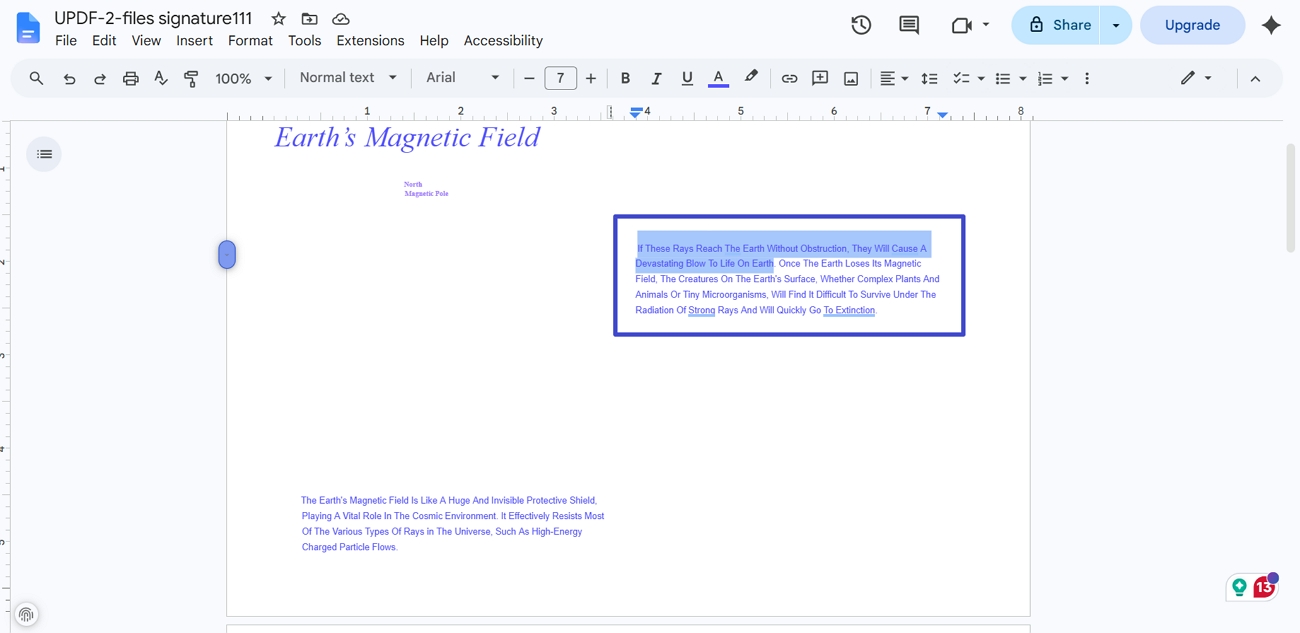
Step 3. Now, click the "File" option and choose the "Download > PDF Document" option to download the file back in PDF format.
Complex files with charts and brand layouts may look completely different after this detour into web word processors. These tools also struggle to edit a scanned PDF, since image-only pages remain effectively locked.
3. Moving From Web Tools to Precise Desktop Control
Independent European tech critic Nicholas Rossis reviews Adobe Acrobat alternatives in his 2026 evaluation. He is a long-time technical analyst and author, so his opinion adds real trust and weight. In that review, he says the UPDF free tier connects fast cloud sync with smooth local PDF editing. He finds this mix of web speed and local control works better than many old, heavy tools.
The official demo video shows a user leaving browser limits and making clean edits to text and images. For now, watch the video below to see this smooth switch from web editing to precise control.
4. Full Feature Inventory & Enterprise Value
UPDF brings everything together so teams can edit PDF documents for free across all main platforms. Now, let's see how this all works in real life for busy teams.
Cross-Platform Synchronization
With one authorized profile, you move smoothly between Windows, macOS, iOS, Android, and the browser. You might start reviewing contracts at your desk, then quickly edit invoice details from your phone. Nothing feels broken, because all your changes sync in seconds, keeping documents fully up to date.
AI-Assisted Operations
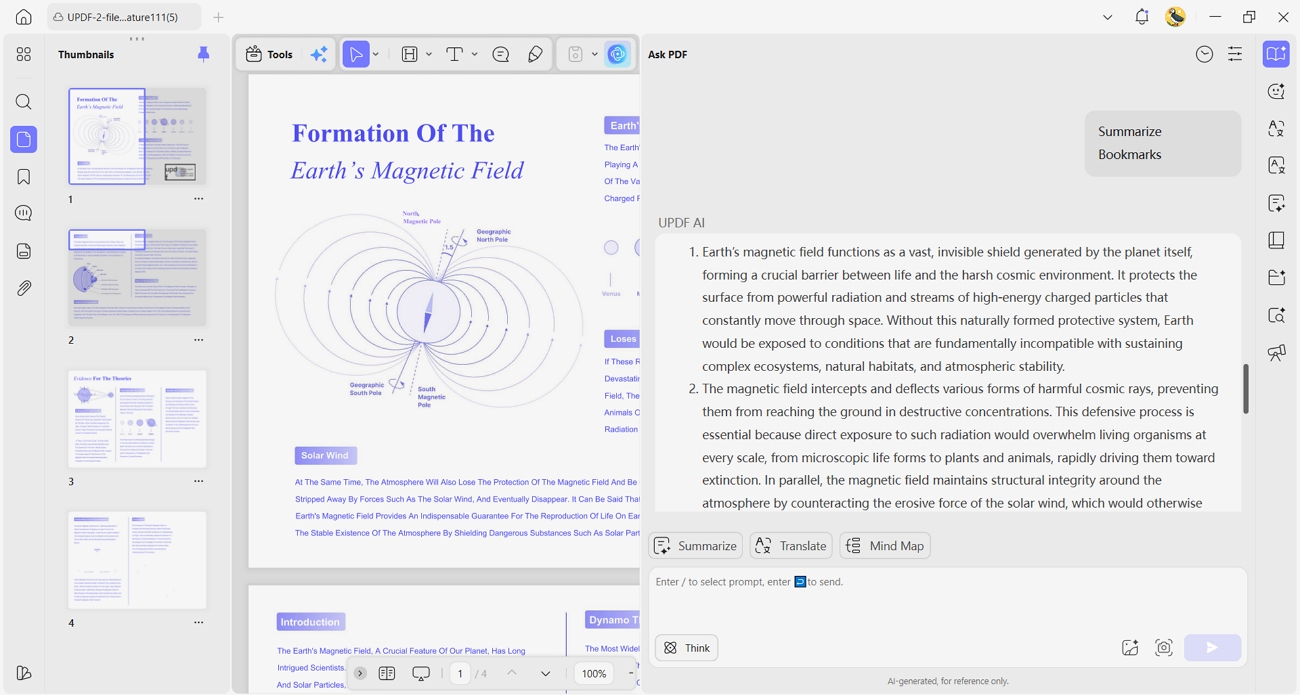
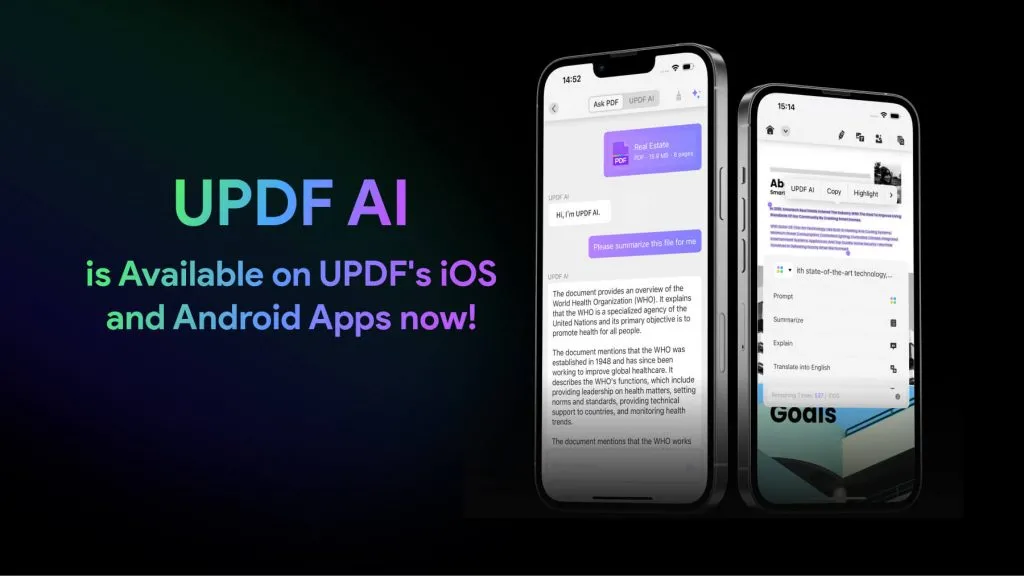
Inside UPDF, the built-in AI assistant reads your pages directly, without extra exports or copying. It can translate tricky passages, fix grammar mistakes, and shorten long sections in real time. You stay focused on meaning, while AI quietly cleans, tightens, and clarifies your document text.
Enterprise Administration Deployment
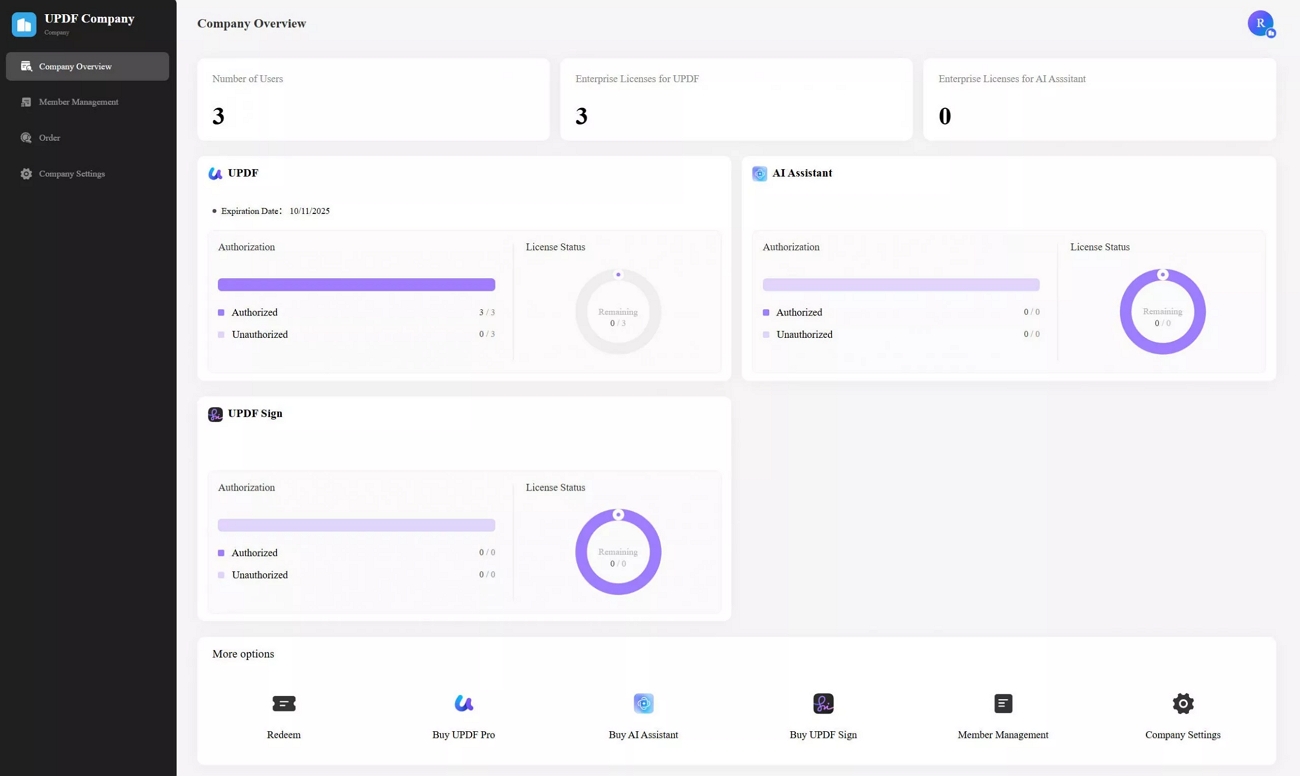
For larger companies, UPDF adds a central Admin Console and Enterprise Dashboard that simplify management across many users. IT can assign seats, enforce data rules, monitor access, and track licenses and assets in one place, so this setup reduces risk and makes every PDF action traceable for the business.
Frequently Asked Questions
How do I stop text from moving onto a second line online?
Reduce the font size slightly or widen the text bounding box within your browser. This immediately recalculates the container margins, stopping automatic text wrapping and keeping your layout perfectly aligned on a single horizontal line.
How can I natively edit a scanned PDF in my browser?
You must run an OCR layer to convert the page images into editable text strings first. Once the OCR deployment completes, you can seamlessly edit a scanned pdf directly within your active browser tab without file reconversion.
What are the data risks of uploading secure PDFs to online tools?
Uploading corporate PDFs to remote servers risks leaks, unauthorized access, and long-term storage you cannot fully verify. Whenever possible, use a trusted UPDF online application or local editor to keep sensitive files on controlled systems.
Final Words
In conclusion, this guide showed why PDF browser editors often break complex layouts and fail serious, multi-column corporate PDFs. You also saw how UPDF keeps structure intact, adds AI help, and syncs work safely between its cloud features and desktop apps. If you want one stable workflow for complex PDFs rather than layout errors, UPDF brings everything into a secure, connected workspace.
Windows • macOS • iOS • Android 100% secure







 Lizzy Lozano