 UPDF
UPDF
 UPDF for Windows
 UPDF for Mac
 UPDF for iPhone/iPad
 UPDF for Android
 Nomostar
 UPDF AI Online
 UPDF Sign
 IvyCraft
 Edit PDF
 Annotate PDF
 Create PDF
 PDF Form
 Edit links
 Convert PDF
 OCR
OCR PDF to Word
 PDF to Image
 PDF to Excel
 Organize PDF
 Merge PDF
 Split PDF
 Crop PDF
 Rotate PDF
 Protect PDF
 Sign PDF
 Redact PDF
 Sanitize PDF
 Remove Security
 Read PDF
 UPDF Cloud
 Compress PDF
 Print PDF
 Batch Process
 About UPDF AI
 UPDF AI Solutions
 AI User Guide
 FAQ about UPDF AI
 Summarize PDF
 Translate PDF
 Chat with PDF
 Chat with AI
 Chat with image
 PDF to Mind Map
 Explain PDF
 PDF AI Tools
 Image AI Tools
 AI Chat Tools
 AI Writing Tools
 AI Study Tools
 AI Working Tools
 Other AI Tools
 AI Bookmark Generation
 AI Bookmark Summary
 AI Watermark Generation
 AI Background Generation
 AI Sticker Generation
 AI Stamp Generation
 AI Editing Suite
 UPDF Copilot
 AI Page Management
 AI Semantic Search
 PDF to Word
 PDF to Excel
 PDF to PowerPoint
 Enterprise Solution
 Enterprise Sign
 Enterprise AI
 Enterprise Plan
 Enterprise User Guide
 Enterprise Webinar
 IT
IT Education
 Construction
 Financial Service
 Healthcare
 Insurance
 Legal
Legal Manufacturing
 Government
 Researchers & PhDs
 Solopreneurs & Freelancers
 Lawyers & Legal Professionals
 Real Estate Agents & Brokers
 Education Solution
 Customer Stories
 User Guide
 UPDF Tricks
 FAQs
FAQs UPDF Reviews
 Download Center
 Blog
Blog Newsroom
 Tech Spec
 Updates
 UPDF vs. Adobe Acrobat
 UPDF vs. Foxit
 UPDF vs. PDF Expert

Annotation is a method of adding notes, ideas, or comments to your text in order to create a dialogue between you and the person with whom you are sharing the document. Annotating PDF on Mac is a small but important step in creating an understandable document.
This article will introduce the different features offered by PDF annotators for Mac on the market and how they can help you create high-quality documents, the first and top pick is UPDF after comparing.
Do You Actually Need a Third-Party Annotator? (Preview vs. Paid Tools)
Every Mac ships with Preview, and for basic highlighting and note-adding, it is genuinely free and fast. But Preview has hard walls that power users hit within a week:
| Task | Preview | Why You Need a Third-Party Tool |
|---|---|---|
| Highlight text | ✅ Yes | Colors are limited; no custom opacity |
| Add sticky notes | ✅ Yes | Notes are basic; no threaded replies |
| Draw arrows/shapes | ⚠️ Basic | No customizable arrow styles; no snap-to-text |
| Sign documents | ✅ Yes | Signature is image-only; no digital certificate |
| Annotate scanned PDFs (OCR) | ❌ No | Preview cannot OCR; you need UPDF/Acrobat |
| Cross-platform compatibility | ❌ Risky | Preview annotations sometimes render incorrectly in Adobe Reader on Windows |
| iCloud sync reliability | ⚠️ Buggy | Annotations occasionally disappear or duplicate across devices |
| Apple Silicon optimization | ⚠️ Rosetta | Preview is native, but lacks advanced GPU-accelerated rendering for 1000+ page files |
| Batch annotation / Bates numbering | ❌ No | Legal and medical workflows require this |
If you annotate fewer than 5 PDFs per month and only highlight text, Preview is enough. If you annotate daily, share with Windows users, or handle scanned documents, you need a dedicated tool.
Which Mac PDF Annotator Fits Your Actual Job?
Don't compare feature lists. Match the tool to your workflow constraints.
Student / Researcher
- Needs: Highlight textbooks, extract citation notes, search across 50+ papers, dark mode for late nights.
- Budget: Low.
- Best picks: UPDF (one-time), PDF Expert (if deep in Apple ecosystem), or Skim (free, academic-focused).
- Avoid: Adobe Acrobat (overpriced for annotation-only use).
Legal / Compliance Professional
- Needs: Redaction, Bates numbering, digital signatures that validate in court, flattening to prevent tampering, PDF/A compliance.
- Budget: High (billable to client).
- Best picks: Adobe Acrobat Pro (industry standard), UPDF (redaction + flatten at lower cost).
- Critical: Must test that annotations survive PDF/A export. Not all tools preserve comment threads in archival format.
Designer / Creative Review
- Needs: Custom stamps ("Approved," "Needs Revision"), precise shape drawing, measurement tools, color-accurate markup on display-P3 Macs.
- Budget: Medium.
- Best picks: PDF Expert (beautiful UI, measurement tools), UPDF (custom stamps + AI).
- Avoid: Preview (no custom stamps).
Medical / Healthcare
- Needs: HIPAA-compliant local processing (no cloud upload), form filling + annotation in one tool, OCR for scanned patient records.
- Budget: Medium.
- Best picks: UPDF (offline, OCR included), PDFpen (Mac-native, good medical office integration).
- Avoid: Any online annotation tool (privacy violation risk).
Most Mac users do not stay in one lane. You annotate research papers in January, sign a lease in March, and review design mocks in June. Buying a separate tool for each job is absurd.
UPDF is built for that reality. It handles student highlighting, legal redaction, design stamps, and medical OCR in the same app—without forcing you into a subscription. One purchase covers Mac, iPad, iPhone, and Windows (if you ever need to jump ecosystems), and it runs natively on Apple Silicon without the Rosetta battery drain.
If you are tired of guessing whether Preview is enough or whether Acrobat is overkill, download UPDF and test it against your actual workflow. The trial is fully functional—no credit card required to see if your annotations survive email to a Windows client or sync correctly to your iPad.
Windows • macOS • iOS • Android 100% secure
Top 5 PDF Annotators for Mac (macOS Ventura Compatible)
Getting started with the best PDF annotator for Mac can be a little overwhelming. There are so many PDF tools available in the market to select from. It can be hard to decide which annotation tool is right for you. In this article, we'll go over the top 5 PDF annotators for Mac, so you can decide which one is right for you.
#1. UPDF - Best All-Round Value (Apple Silicon Native)
Best for:
UPDF for Mac is the most powerful PDF annotator on Mac. UPDF is quite thorough - not only allows you to add sticky notes and text boxes with ease but also provides options for sketching out your thoughts using shapes, stamps, highlights, underlines, strikethrough, pen, eraser, etc. You can also sign your PDF document with the signature tool.
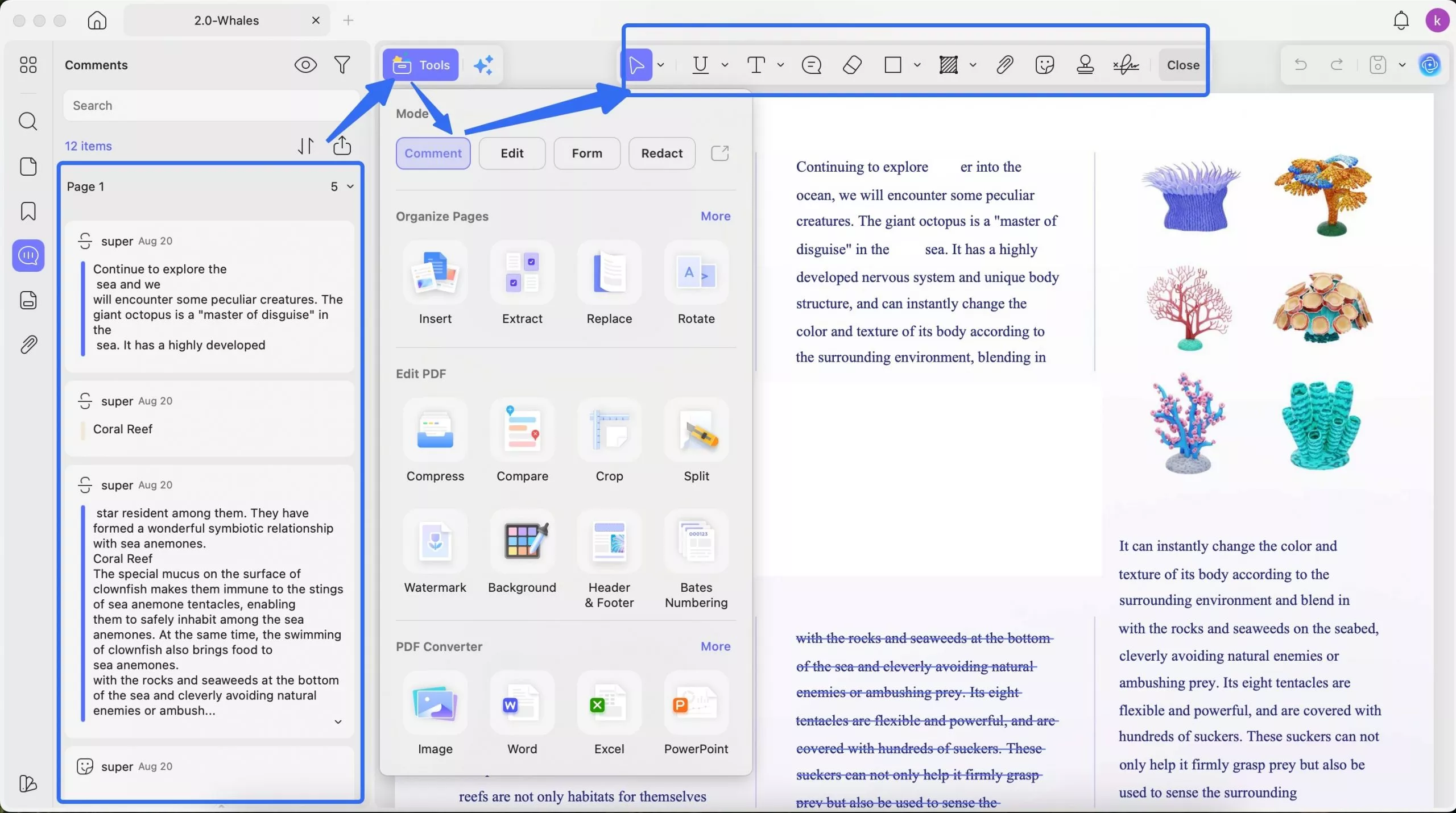
Mac-specific strengths:
- Universal Binary: Runs natively on Intel and Apple Silicon (M1/M2/M3) without Rosetta overhead. Tested on macOS Sonoma with 2,000-page PDFs—no fan spin-up.
- iCloud Handoff: Start annotating on Mac, continue on iPad via UPDF's iOS app. Annotations sync through iCloud Drive, not a third-party server (privacy advantage).
- Display P3 Support: Annotation colors render correctly on wide-gamut Mac displays; exported PDFs maintain color accuracy when opened on standard sRGB monitors.
- One-time purchase: Unlike Adobe's $240/year, UPDF is a single payment. Over 5 years, that is a $1,200+ difference.
Annotation features that matter:
- Threaded comments: Reply to specific annotations in a sidebar thread (like Google Docs).
- AI summary of annotations: Ask UPDF AI to summarize all highlighted passages into bullet points.
- Custom stamp library: Save "Approved by [Name] — [Date]" as a reusable stamp.
- Flatten on export: Lock annotations so recipients cannot delete them (critical for legal submission).
Limitation on Mac: No native Touch Bar shortcuts (if you are on an Intel MacBook Pro with Touch Bar). Keyboard shortcuts only.
Windows • macOS • iOS • Android 100% secure
Pros:
- You can add as many shapes and diagrams in your PDF as you want to relate to your text.
- It allows you to strike out unimportant sentences or words to make your PDF more relevant.
- Add bookmarks and sticky notes to your pages to continue where you left off.
- It is available to add stamps to PDF files with ease.
- You can edit the texts, images, links, and pages in PDF documents. Adding watermarks and backgrounds is also supported.
- The OCR feature allows you to convert scanned PDFs into searchable and editable PDFs.
- You can convert PDF to other file formats and protect PDF with a password.
- The powerful UPDF AI tool allows you to summarize your PDF in seconds, chat with your PDF, and translate your PDF files.
- One-click detection of pages with annotations.
- It is compatible with Mac, Windows, iOS, and Android systems.
Also Read: How to Annotate PDF on Mac with UPDF
Video Tutorial on How to Annotate PDF on Mac
If you want to learn the detailed steps for using it, check how to annotate a PDF on Mac here or watch the dedicated video below.
If you want to know more about other PDF Annotation tools on Windows, here are the top 10 PDF annotators for Windows. You can check them if needed.
Windows • macOS • iOS • Android 100% secure
#2. PDF Expert - Best for Apple Ecosystem Purification
Best for:
PDF Expert is the best PDF annotator Mac that helps its users edit, annotate texts, fill out forms, and make changes on PDFs across all Mac devices. No matter what you want to work with, PDF Expert has got you covered. It is an excellent tool for students and professionals who need a highly functional and secure tool for editing their PDF files from anywhere.
Touch bars on Mac can be used to access annotation tools very easily. Annotations that are made in PDF Expert can be saved in a document and can be shared with colleagues and friends.
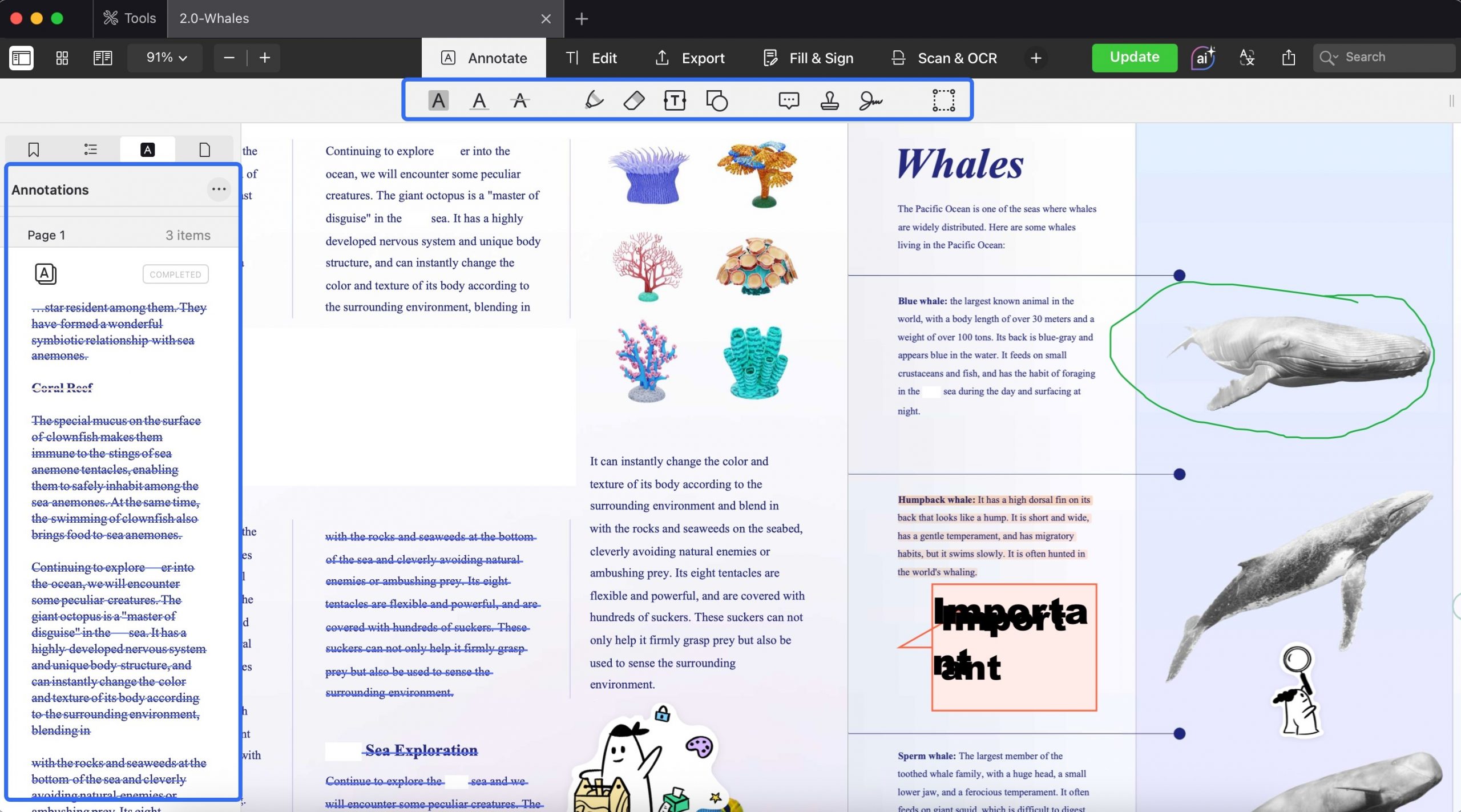
Mac-specific strengths:
- Native SwiftUI interface: Feels like a system app. Trackpad gestures (pinch to zoom, two-finger swipe between pages) are smoother than cross-platform tools.
- Split View / Stage Manager optimized: Drag a PDF to the side of the screen; annotation toolbar auto-collapses to fit narrow windows.
- Tabbed interface: Open 12 research papers in tabs, annotate each, and export annotations to a single summary file.
Platform lock-in warning:
- Annotations use PDF Expert's proprietary extension layer. They display fine in Adobe Reader, but comment threads and custom stamps may not transfer to Windows or Linux PDF readers.
- Subscription-only ($80/year). No one-time purchase option.
Skip if: You share annotated PDFs with Windows users daily, or you refuse subscriptions.
Pros:
- Use the Text markup tool to make your text customized. Use your own colors, fonts, and brush sizes.
- Its clean and intuitive interface is simple to master and will allow you to annotate your PDFs in no time.
- Add shapes and diagrams to make your text reader-friendly and fun.
Cons:
- You can't create multi-line text custom stamps using this PDF annotator.
- You can't make fillable PDF forms using it.
- It is hard to navigate files and the UX design is not very friendly to users.
#3. Adobe Acrobat Pro — Best for Legal & Compliance (The Expensive Standard)
Best for:
Adobe Acrobat Pro is the best PDF annotator on Mac which makes it easier than ever to edit and convert PDFs into file formats like Excel and Word. If you are not sure where you left off reading, just use bookmarks to keep track of your place. You can also use the search tool to find exactly what you're looking for quickly.
Make comments directly on your documents using Adobe Acrobat annotation tools. Draw anything anywhere on your PDF to make it relevant to the text.
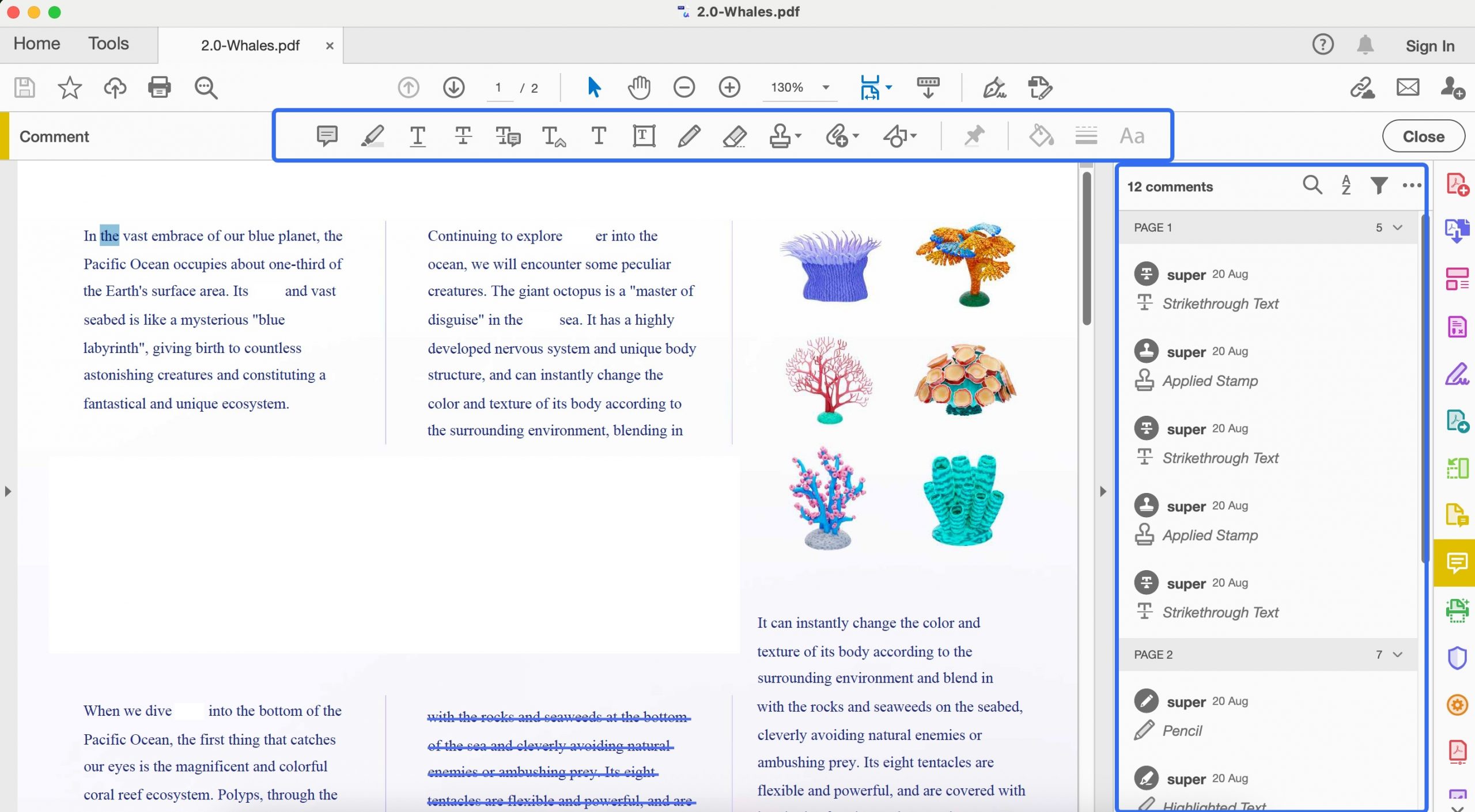
Mac-specific issues:
- Not Apple Silicon optimized (historically): Recent versions improved, but large files still trigger Rosetta translation lag on M-series Macs.
- Subscription lock: $240/year. Over 5 years = $1,200.
- iCloud sync disabled by default: Adobe pushes its own Document Cloud. You must manually disable cloud upload to keep files local (HIPAA concern).
Why it is still #3 despite the cost:
- Only tool with court-admissible digital signature certificates out of the box.
- PDF/A-3b compliance for archival.
- Redaction that actually removes underlying data (not just black boxes).
Skip if: You are a student, designer, or general business user. Overkill and overpriced.
Pros:
- It provides a Redact tool to hide any sensitive information inside your PDF.
- Note-taking can be fun by using sticky notes and highlighters to color important text.
- It uses bookmarks in a way that makes it stand out from the other applications in its category.
Cons:
- It doesn't allow you to use any advanced features without a subscription.
- The subscription plans of Acrobat are very expensive.
- The user interface is quite complex and not friendly to new users.
#4. PDFpen/Nitro PDF — Best for Mac Purists (One-Time Purchase)
Best for:
PDFpen, now is Nitro PDF, is an annotation app for Mac. You won't need to print your PDF files in order to fill out forms and add signatures to them. You can also use this opportunity to make markup changes where necessary or jot down notes that are much easier to read than scribbled handwriting.
Use a trackpad to put up your signatures on the PDF document just by moving your fingers. Using the Redaction selection tool, you can edit or remove the text from your document.
Pros:
- Use your Mac built-in camera, and hold the signature facing the camera to add it to your PDF document.
- Preview allows you to increase or decrease the stroke of the shapes.
- Diverse tools to use to create extra highlights and colors for the text.
Cons from G2:
- Ugly icon.
- It doesn't recognize forms.
- No true Apple Pencil support
- Buggy, hard to maneuver around when it comes to images but that's all
Mac-specific note:
- Now owned by Nitro. Future Mac compatibility is uncertain.
- No Apple Silicon optimization as of early 2024; runs under Rosetta on M-series Macs.
- Good AppleScript support for automation (e.g., auto-apply Bates numbers to a folder of PDFs).
Skip if: You need modern AI features or guaranteed long-term macOS compatibility.
#5. PDF Reader Pro — Budget Cross-Platform
Best for:
If you are looking for an app that is not just a PDF reader but also an easy-to-use annotation app for Mac, then you should try PDF Reader Pro. It's useful for writing PDF documents, creating and editing annotations, and adding various content to PDF files.
It provides Mac users with various annotation tools like pens, shapes, highlights, and sticky notes that make your reading experience delightful. It makes reading and annotating any PDF easier than ever. Insert tables with rows and columns to add text and customize it accordingly.
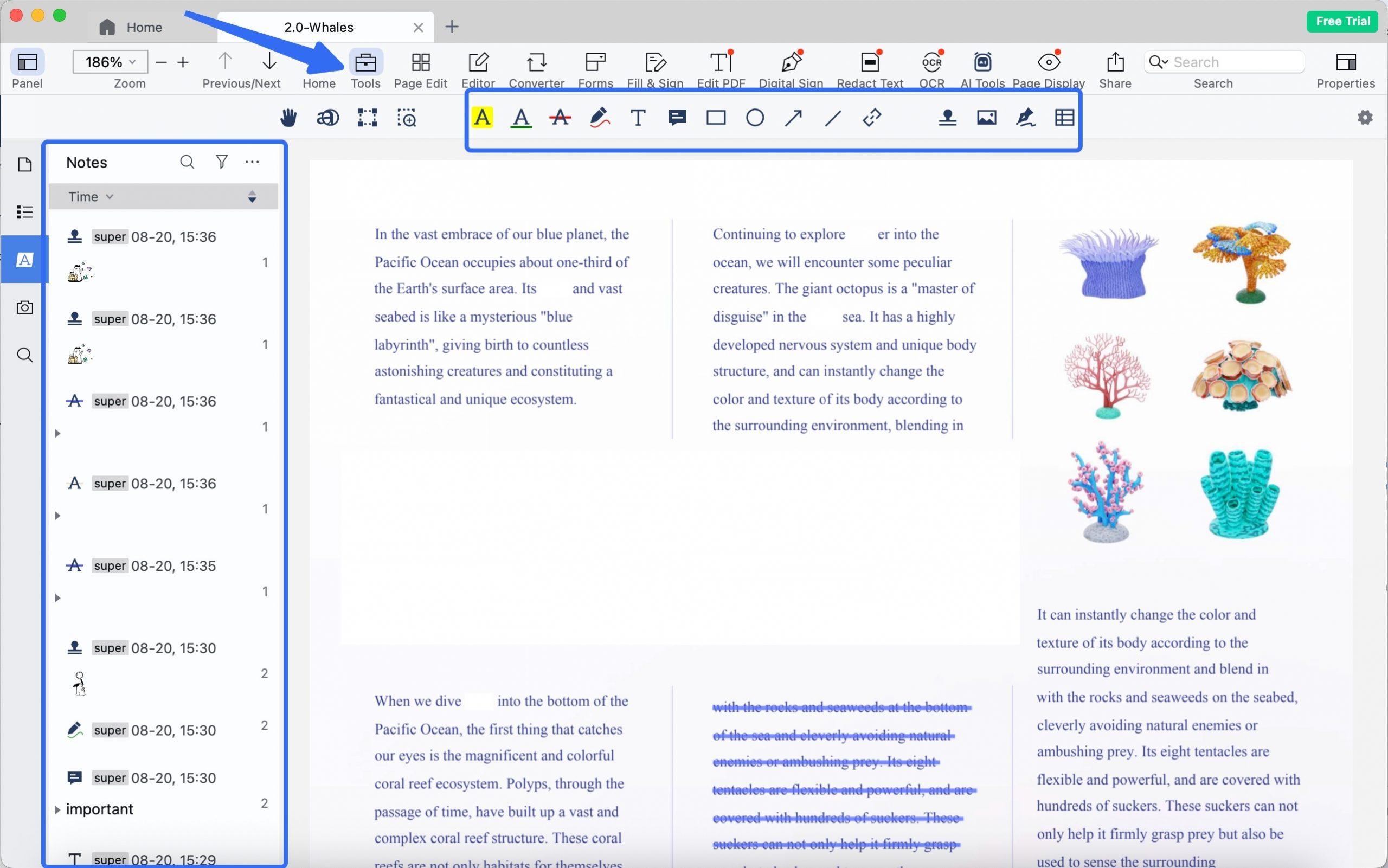
Mac-specific issue:
- Cross-platform Electron framework feels alien on macOS. No native menu bar integration, sluggish trackpad gestures.
- Annotation colors sometimes shift between Mac (Display P3) and Windows (sRGB) exports.
Skip if: You value macOS-native feel over cross-platform consistency.
Pros:
- Use the Markup tool to underline, and highlight sentences or paragraphs with different colors.
- Add various stamps to your PDF document or create customized stamps of your choice.
- Best PDF note-taking app Macwith sticky notes in between the paragraphs with one click.
Cons:
- The size of your PDF file will decrease when you add a note to it.
- It causes compatibility issues when updating the software.
- It is very slow when you load large files.
Which PDF tool would do the best annotation for you? The following table highlights some important points that will help you in your selection:
| Tool | Operating System | Pricing | Learning Curve | Interface Smoothness | Beautiful Stickers |
| UPDF | Windows, Mac, Android, iOS | $64.99 per year $94.99 for lifetime (One premium account can be used on 4 platforms) | Easy | High | Yes |
| Nitro PDF | Mac | US$179/one-time | Medium | Low | |
| PDF Expert | Mac, iOS | Yearly: US$79.99 Lifetime: US$139.99 | Medium | Medium | |
| PDF Reader Pro | Windows, Mac, Android, iOS | Premium: US$59.99 Permanent License: US$79.99 | Medium | Medium | |
| Adobe Acrobat Reader | Windows, Mac, Android, iOS, Online | Monthly: US$29.99 Annual: US$239.88 | Complex | Medium |
UPDF offers the most diverse and distinct annotation features in the market. With all the provided details, you should go for working with UPDF for annotating your documents on Mac. You would not feel any difficulty working with the PDF editor as compared to the other complex tools present for Mac.
Windows • macOS • iOS • Android 100% secure
Bonus: macOS Sonoma / Ventura Annotation Traps
Trap 1: iCloud Sync Conflicts
If you annotate a PDF stored in iCloud Drive on your Mac, then open it on your iPad with a different app (e.g., PDF Expert on iPad vs. UPDF on Mac), annotations may duplicate or disappear. This is not the annotator's fault—it is iCloud's file-versioning conflict.
Fix: Stick to one annotation ecosystem per file. If you start in UPDF Mac, finish in UPDF iPad. Or, use "Download and Keep on This Mac" (right-click in Finder) before annotating.
Trap 2: Apple Silicon vs. Intel Performance
Apps not compiled for Apple Silicon (like older PDFpen versions) run through Rosetta 2. On an M3 MacBook Pro, this causes:
- 2–3x battery drain during annotation
- Fan activation on large PDFs
- Delayed trackpad gesture response
Fix: Check the app's "Get Info" panel in Finder. If "Open using Rosetta" is checked, look for an Apple Silicon update or switch to a native app (UPDF, PDF Expert, modern Adobe).
Trap 3: Sidecar + Apple Pencil Annotation
If you use your iPad as a Sidecar display for your Mac, annotation behavior changes:
- Sidecar mode: Apple Pencil input is treated as mouse input, not Apple Pencil pressure. Your handwriting looks like mouse scribbles.
- Continuity Markup (better option): Right-click a PDF in Finder > Quick Actions > Markup. This opens the file in iPad's native Markup tool, preserving Apple Pencil pressure sensitivity. Save back to Mac when done.
Trap 4: Dark Mode Color Distortion
macOS Dark Mode does not change PDF page color (PDFs are meant to print white). However, some annotators apply a dark theme to the UI only, while others invert the PDF itself (unreadable).
| Tool | Dark Mode Behavior |
|---|---|
| Preview | UI only; PDF stays white ✅ |
| UPDF | UI only; PDF stays white ✅ |
| PDF Expert | UI only; PDF stays white ✅ |
| Adobe Acrobat | Can invert PDF colors (risky for review) ⚠️ |
Trap 5: Export Bloat
Adding 50 highlights and 20 sticky notes can increase file size by 300% if the tool embeds annotations as uncompressed objects.
Fix: In UPDF, use File > Save as > Reduce File Size before sharing. In Acrobat, use Save as Reduced Size PDF.
Windows • macOS • iOS • Android 100% secure
Will Your Annotations Survive Email?
You annotate a contract on your Mac and email it to a client using Windows Adobe Reader. They call back: "I don't see your comments."
This happens because not all annotation types are created equal in the PDF spec.
| Annotation Type | Preview | UPDF | PDF Expert | Acrobat Pro | Adobe Reader |
|---|---|---|---|---|---|
| Text Highlight | ✅ | ✅ | ✅ | ✅ | ✅ |
| Sticky Note | ✅ | ✅ | ✅ | ✅ | ✅ |
| Freehand Ink | ⚠️ | ✅ | ✅ | ✅ | ⚠️ (may pixelate) |
| Custom Stamp | ❌ | ✅ | ⚠️ | ✅ | ⚠️ |
| Threaded Comment | ❌ | ✅ | ❌ | ✅ | ❌ |
| Redaction (true data removal) | ❌ | ✅ | ❌ | ✅ | N/A |
| Digital Signature (certificate) | ❌ | ✅ | ❌ | ✅ | ✅ |
If your annotation must be seen by someone using a different OS or a different app, stick to Text Highlight + Sticky Note. These are the most universally supported. Avoid custom stamps and threaded comments for cross-platform workflows unless you know the recipient uses the same app.
FAQs
Will my Mac annotations show up on Windows?
It depends on the tool and annotation type. Text highlights and standard sticky notes are universally readable. Freehand ink, custom stamps, and threaded comments may not render correctly in Adobe Reader on Windows. If cross-platform compatibility is critical, use UPDF or Adobe Acrobat and stick to standard annotation types.
Which PDF annotator is best for Apple Silicon (M1/M2/M3)?
UPDF and PDF Expert are fully native Apple Silicon apps with no Rosetta overhead. Adobe Acrobat has improved but still shows occasional lag on M-series chips with files over 500MB. PDFpen runs under Rosetta and is not recommended for M-series Macs until a native update is released.
Can I use Apple Pencil to annotate PDFs on Mac?
Not directly on the Mac screen. However, you can use Continuity Markup: right-click a PDF in Finder on Mac > Quick Actions > Markup. This opens the file on your iPad, where Apple Pencil works natively with pressure sensitivity. Save back to Mac when done. Alternatively, use Sidecar, but Apple Pencil input is treated as mouse input (no pressure sensitivity).
Why does my annotated PDF file size explode?
Annotations—especially freehand drawings and image stamps—embed uncompressed vector or raster data. A 5MB PDF can become 50MB after heavy annotation.
What is the difference between a PDF annotator and a PDF editor?
An annotator adds layers on top of the PDF (highlights, notes, stamps) without changing the underlying text. An editor modifies the actual PDF content (changing words, deleting pages, moving images). Most modern tools (UPDF, Acrobat, PDF Expert) do both, but if you only need to mark up documents, an annotator is cheaper and simpler.
Conclusion
Choosing a PDF annotator for Mac is not about counting features—it is about matching the tool to your workflow constraints. Preview handles casual use. PDF Expert wins on native Mac feel but locks you into a subscription. Adobe Acrobat remains the legal standard but costs $1,200+ over five years. UPDF offers the broadest balance of annotation depth, Apple Silicon performance, and one-time pricing.
Whatever you choose, test one critical file first: Annotate it, email it to a Windows user, and confirm they see everything correctly. That single test saves hours of rework.
Windows • macOS • iOS • Android 100% secure



 Enola Miller
 Grace Curry

 Enya Moore