 UPDF
UPDF
 UPDF for Windows
 UPDF for Mac
 UPDF for iPhone/iPad
 UPDF for Android
 Nomostar
 UPDF AI Online
 UPDF Sign
 IvyCraft
 Edit PDF
 Annotate PDF
 Create PDF
 PDF Form
 Edit links
 Convert PDF
 OCR
OCR PDF to Word
 PDF to Image
 PDF to Excel
 Organize PDF
 Merge PDF
 Split PDF
 Crop PDF
 Rotate PDF
 Protect PDF
 Sign PDF
 Redact PDF
 Sanitize PDF
 Remove Security
 Read PDF
 UPDF Cloud
 Compress PDF
 Print PDF
 Batch Process
 About UPDF AI
 UPDF AI Solutions
 AI User Guide
 FAQ about UPDF AI
 Summarize PDF
 Translate PDF
 Chat with PDF
 Chat with AI
 Chat with image
 PDF to Mind Map
 Explain PDF
 PDF AI Tools
 Image AI Tools
 AI Chat Tools
 AI Writing Tools
 AI Study Tools
 AI Working Tools
 Other AI Tools
 AI Bookmark Generation
 AI Bookmark Summary
 AI Watermark Generation
 AI Background Generation
 AI Sticker Generation
 AI Stamp Generation
 AI Editing Suite
 UPDF Copilot
 AI Page Management
 AI Semantic Search
 PDF to Word
 PDF to Excel
 PDF to PowerPoint
 Enterprise Solution
 Enterprise Sign
 Enterprise AI
 Enterprise Plan
 Enterprise User Guide
 Enterprise Webinar
 IT
IT Education
 Construction
 Financial Service
 Healthcare
 Insurance
 Legal
Legal Manufacturing
 Government
 Researchers & PhDs
 Solopreneurs & Freelancers
 Lawyers & Legal Professionals
 Real Estate Agents & Brokers
 Education Solution
 Customer Stories
 User Guide
 UPDF Tricks
 FAQs
FAQs UPDF Reviews
 Download Center
 Blog
Blog Newsroom
 Tech Spec
 Updates
 UPDF vs. Adobe Acrobat
 UPDF vs. Foxit
 UPDF vs. PDF Expert

Imagine reading a massive 200-page financial report, and the table of contents isn’t clickable. You are forced to manually scroll, drag the sidebar, and squint at page numbers just to find a single chart.
This issue becomes even more frustrating when you step outside the PDF environment. Over on Reddit’s r/techsupport community, users have expressed deep frustration with trying to link to a specific PDF page from external documents:
A useful link takes the reader directly to the material they need. The video below offers a closer look at linking to a specific PDF page.
While many search for quick workarounds to add link to pdf online, these web-based tools often fall short. They lack the native structure needed to pinpoint exact coordinates on a page, and standard browser tricks like adding #page=X to the end of a local file path frequently break due to security blocks between Microsoft Office and local PDF readers.
In this guide, we will show you how to use UPDF to solve both scenarios—creating interactive page jumps inside your PDF and setting up a seamless external sharing workflow.
Method 1: Create an Internal "Link to Page" Jump (Anchor Method)
If you are designing an interactive catalog, a resume, or an extensive corporate report, adding clickable internal anchors is the best way to improve reader navigation. UPDF makes this process incredibly visual.
Before you begin setting up your links, ensure your document is fully polished. If you need to make structural adjustments first, such as modifying text or formatting, see our step-by-step master guide on how to edit a PDF.
Step-by-Step Guide:
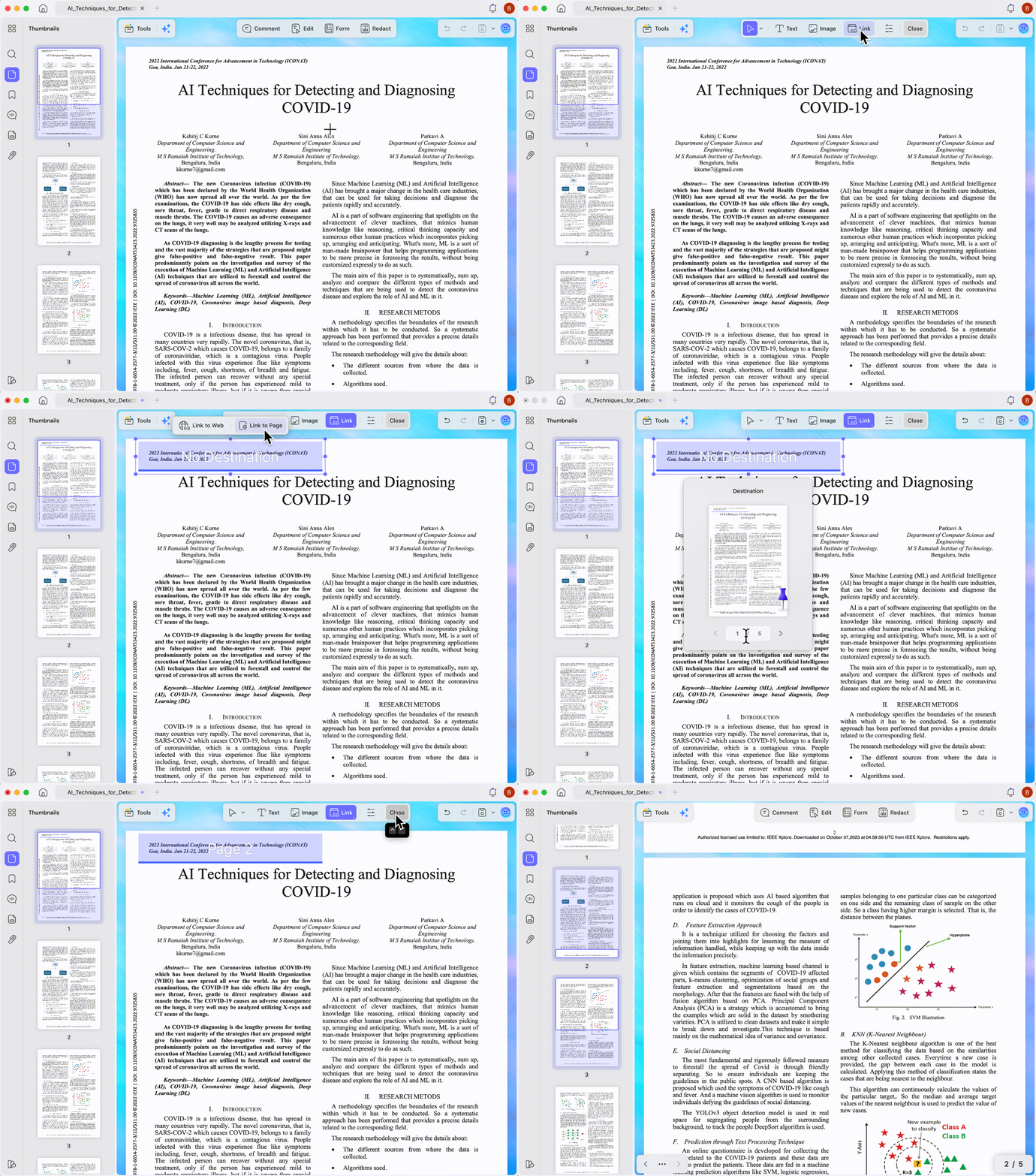
1. Open and Enter Edit Mode: Launch UPDF and open your document. Click the Edit PDF icon on the left panel or top menu to unlock editing capabilities.
Windows • macOS • iOS • Android 100% secure
2. Select the Link Tool: Click Link from the top toolbar. Creating internal page jumps builds on the same simple steps used to add link to a PDF for external websites. Drag your cursor over the specific text, image, or area where you want the reader to click.
3. Set the Page Destination: A pop-up menu will appear. Select Link to Page.
4. Define Your Target: In the destination pop-up, enter your target page number (e.g., page 12). You can even scroll through the visual page thumbnail to pinpoint the exact visual area where you want the viewer's focus to land. Click any blank space on the screen to save the link.
5. Test Your Jump: Exit Edit Mode. Click your newly created link box, and UPDF will instantly transport you to your exact designated page.
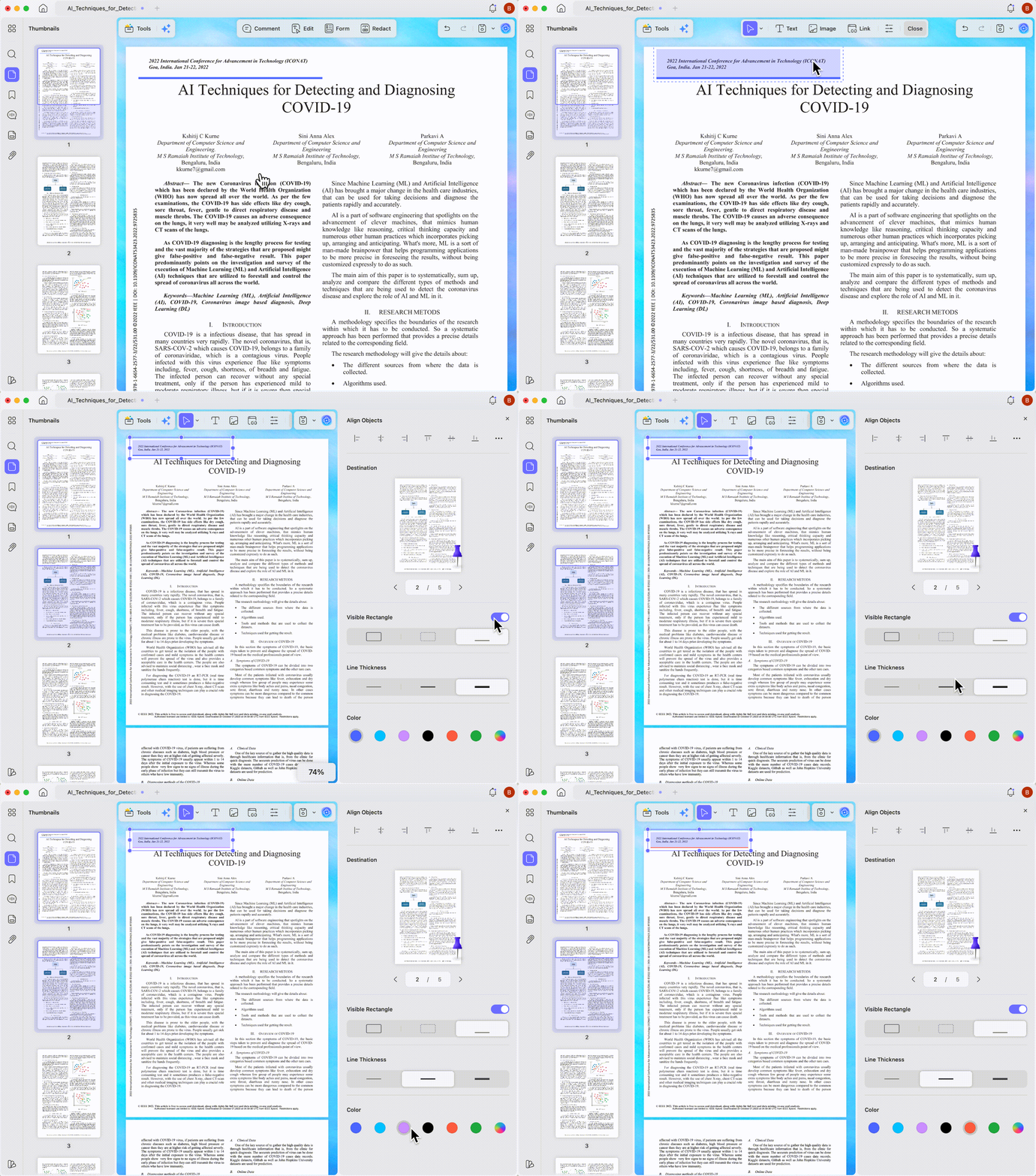
💡 Pro Tip: Make Your Link Box Stand Out
- Double-click your active link box to open its Properties panel on the right.
- Toggle the Visible Rectangle option to On.
- Customize your link boundaries by changing the border color, line thickness, and style (choose from Solid, Dashed, or Underlined) to match your document's design.
Method 2: Link to a Specific PDF Page from Word or Excel (The Cloud Workaround)
If you have posted in forums trying to link a local Word file directly to page 50 of an offline PDF, you probably know that standard HTML tricks like C:\file.pdf#page=50 rarely work outside of local web browsers.
While there is no direct local command line that can bypass Microsoft Office’s security protocols, UPDF offers an elegant Cloud Share workaround that guarantees your recipient can open the file and find the exact page instantly.
Note: To prevent confusion, ensure your target page numbers align perfectly with the actual document structure. If your document lacks page footers, use UPDF to add page numbers to PDF files before generating your share links.
Step-by-Step Guide:
1. Upload and Share: Open your PDF in UPDF. Click the Share this file with others button on the right-hand side.
2. Generate a Web Link: In the sharing panel, click Create Link. UPDF will instantly generate a highly secure, web-accessible URL for your document. Copy this link.
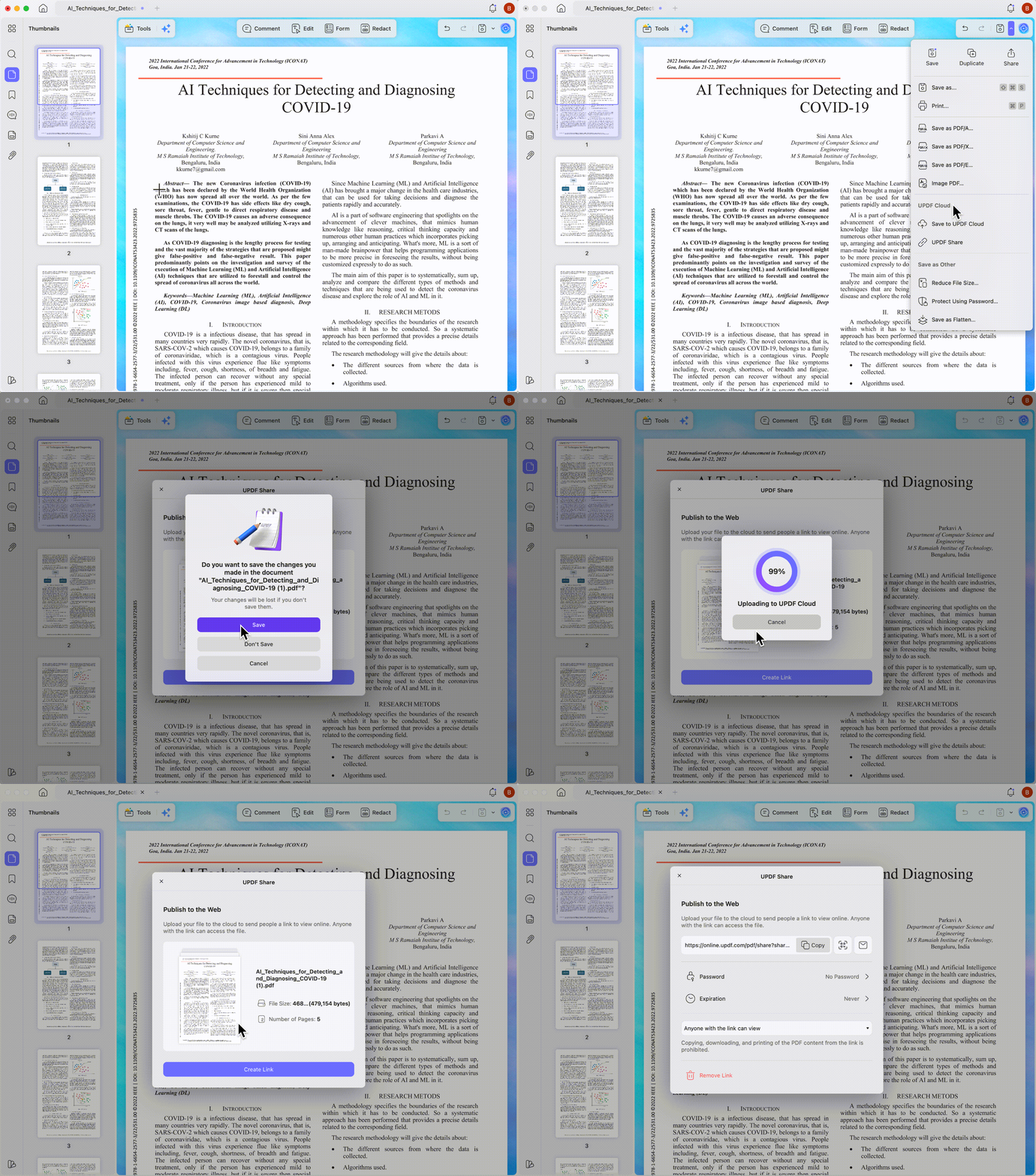
3. Add a Visual Navigation Anchor on Page 1: Before sharing, go to Page 1 of your PDF.
- Use Method 1 to create a highly visible link box on the very first page (e.g., a bright red, dashed box around text that reads: "Click here to jump straight to the Appendix on Page 88").
- Make sure to customize the properties so the boundary is impossible to miss.
- Paste in Word/Excel: Go to your Word document or Excel sheet and insert the copied cloud link.
- The Reader Experience: When your client or teammate clicks the link in Word, the PDF will open instantly in their web browser. Since they land on Page 1, they will immediately see your customized navigation button, click it, and jump straight to the targeted content without scrolling.
Frequently Asked Questions
How do I make a link to a PDF page?
To make an internal page jump, open your document in UPDF, click Edit PDF > Link, draw a box over your text, select Link to Page, and enter the target page number.
Can you hyperlink to a specific page in a PDF in Excel?
Directly linking a local Excel sheet to a local PDF page is unreliable due to application restrictions. The most reliable method is to upload the PDF to UPDF Cloud, generate a share link, paste that link into Excel, and place a visual navigation button on the first page of the PDF.
How do I create a PDF and keep hyperlinks active?
When you save, export, or share a document using UPDF, all internal "Link to Page" connections and external web URLs are fully preserved, ensuring a seamless experience for your readers.
Conclusion: Take Control of Your Document Navigation
Whether you are looking to simplify internal reading with custom anchor links or trying to bridge the gap between Microsoft Word and a local PDF, you no longer have to settle for endless scrolling or broken file paths. While basic web tools offer quick patches, they frequently struggle with custom formatting and deep layout logic.
By switching to a dedicated local workspace, you can design highly interactive, secure, and professional PDFs that guide your readers exactly where they need to go.
Ready to make your documents truly interactive and effortlessly navigate between pages? Try it yourself today—download UPDF for free and experience seamless document editing first-hand.
Windows • macOS • iOS • Android 100% secure







 Enola Miller
 Engelbert White
 Enya Moore
 Estrella López