UPDF
UPDF
 UPDF for Windows
 UPDF for Mac
 UPDF for iPhone/iPad
 UPDF for Android
 Nomostar
 UPDF AI Online
 UPDF Sign
 IvyCraft
 Edit PDF
 Annotate PDF
 Create PDF
 PDF Form
 Edit links
 Convert PDF
 OCR
OCR PDF to Word
 PDF to Image
 PDF to Excel
 Organize PDF
 Merge PDF
 Split PDF
 Crop PDF
 Rotate PDF
 Protect PDF
 Sign PDF
 Redact PDF
 Sanitize PDF
 Remove Security
 Read PDF
 UPDF Cloud
 Compress PDF
 Print PDF
 Batch Process
 About UPDF AI
 UPDF AI Solutions
 AI User Guide
 FAQ about UPDF AI
 Summarize PDF
 Translate PDF
 Chat with PDF
 Chat with AI
 Chat with image
 PDF to Mind Map
 Explain PDF
 PDF AI Tools
 Image AI Tools
 AI Chat Tools
 AI Writing Tools
 AI Study Tools
 AI Working Tools
 Other AI Tools
 AI Bookmark Generation
 AI Bookmark Summary
 AI Watermark Generation
 AI Background Generation
 AI Sticker Generation
 AI Stamp Generation
 AI Editing Suite
 UPDF Copilot
 AI Page Management
 AI Semantic Search
 PDF to Word
 PDF to Excel
 PDF to PowerPoint
 Enterprise Solution
 Enterprise Sign
 Enterprise AI
 Enterprise Plan
 Enterprise User Guide
 Enterprise Webinar
 IT
IT Education
 Construction
 Financial Service
 Healthcare
 Insurance
 Legal
Legal Manufacturing
 Government
 Researchers & PhDs
 Solopreneurs & Freelancers
 Lawyers & Legal Professionals
 Real Estate Agents & Brokers
 Education Solution
 Customer Stories
 User Guide
 UPDF Tricks
 FAQs
FAQs UPDF Reviews
 Download Center
 Blog
Blog Newsroom
 Tech Spec
 Updates
 UPDF vs. Adobe Acrobat
 UPDF vs. Foxit
 UPDF vs. PDF Expert

Quick Answer
If you only need to view PDFs on your Chromebook, use the built-in Chrome PDF viewer or a lightweight extension like PDF Viewer. If you need to edit, annotate, convert, or OCR PDFs, use UPDF — it is the most complete PDF viewer and editor for Chromebook, and reading is free.
- Best free option: Built-in Chrome PDF viewer (already on your Chromebook)
- Best lightweight extension: PDF Viewer Extension (4.8/5 on Chrome Web Store)
- Best all-in-one tool: UPDF (4.5/5 on G2) — free for reading, paid for editing
- Best online tool: Soda PDF (14-day free trial)
- Best for printing: PrintFriendly PDF Viewer
Let's see these 5 options one by one and choose the one suits you best.
Part 1. Does Chromebook Have a Built-in PDF Viewer?
Yes. Chromebooks have a built-in PDF viewer — Chrome's native PDF renderer, plus the "View" option in the Files app.
Here is what you can do with the built-in viewer:
- Open PDFs directly in Chrome or Files
- Scroll, zoom, and navigate pages
- Search for text within the PDF
- Download and save PDFs
- Print PDFs
Here is what you cannot do with the built-in viewer:
- Edit text or images
- Annotate (highlight, underline, strikethrough, add notes)
- Convert to other formats
- OCR scanned documents
- Batch print multiple PDFs
- Organize pages
- Add or remove passwords
Step 1: Open the Files app → Downloads, and double-click your PDF (or right-click → "View").
Step 2: It opens in a Chrome tab. Use the sidebar for thumbnails, zoom controls for readability.
Step 3: If Chrome downloads the PDF instead of opening it, go to chrome://settings/content/pdfDocuments and turn OFF "Download PDF files instead of automatically opening them in Chrome".
Warning
PDF Won't Open on Your Chromebook? Quick Fixes!
- Update Chrome (chrome://settings/help)
- Clear cache/cookies
- Disable extensions one by one — especially the Acrobat extension, which is a known cause of PDFs stuck loading
Part 2. Choosing the Ultimate PDF Reader for Chromebook: Our Top Pick
Now let's look at the top PDF viewers for Chromebook, starting with our overall best pick.
| Tool | Free | Offline | Annotate | Edit | Dark mode | Best for |
|---|---|---|---|---|---|---|
| Built-in Chrome viewer | ✅ | ✅ | ❌ | ❌ | ❌ | Quick reads |
| UPDF | ✅ (read) | ✅ | ✅ | ✅ | ✅ | All-in-one |
| PDF Reader Extension | ✅ | ❌ | Limited | ❌ | ✅ | Light annotating |
| Soda PDF | Free trial | ❌ | ✅ | ✅ | ✅ | Online editing |
| PDF Viewer Extension | ✅ | ⚠️ | ❌ | ❌ | ✅ | Read-aloud |
| PrintFriendly | ✅ | ❌ | ❌ | ❌ | ❌ | Clean printing |
1. UPDF | Best All-in-One PDF Viewer & Editor for Chromebook
Rating: 4.5/5 on G2 | Price: Free for reading, Pro version for editing
Best for
UPDF kicks off our lineup as the go-to PDF reader that covers all the basics. This software is like the Swiss Army knife of PDFs, loaded with all the features you could want. And guess what? You can try out its reading feature for free! Just click the button below.
As a free PDF reader, UPDF makes it super easy to read PDFs on your computer or phone, including Chrombook. It's got a simple and comfy interface, and you can switch up the view to fit your style single-page, two-page, scrolling, you name it. Plus, you can even tweak the background to make reading even easier.
A comfortable reading setup makes a long document easier to work through. The video that follows gives you a practical view of reading PDFs in UPDF.
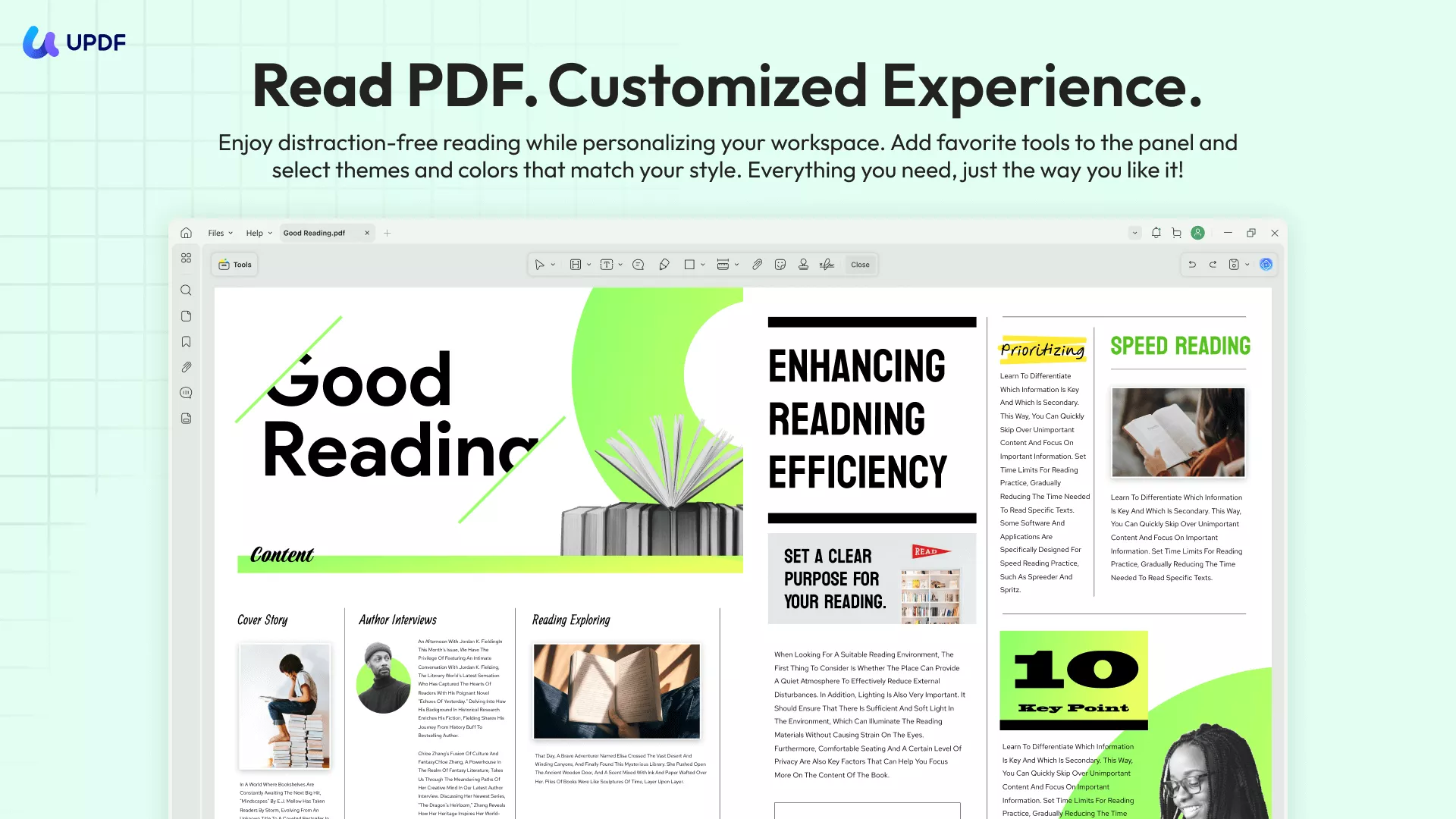
But wait, there's more! UPDF isn't just about reading it's also a breeze to navigate and edit your PDFs. As an ideal Chrome PDF editor and reader, you can use UPDF to annotate, convert, and even organize with simple instructions. And get this it's got AI tech built right in! That means it can summarize, translate, and rewrite stuff in your document on the fly.
Why UPDF is the best PDF viewer for Chromebook:
Comprehensive Reading Features:
- Single-page, two-page, and scrolling view modes
- Dark mode for comfortable reading in low light
- Bookmark pages for easy navigation
- Zoom in and out with precision
- Split view to compare two PDFs side by side
- Read aloud feature on mobile apps
Editing Features Most Extensions Do Not Have:
- Edit text directly in the PDF, just like in Word
- Add, remove, or modify images
- Insert links and attachments
- Redact sensitive information
- Add watermarks
- Create forms and fill them
AI Features Built In:
- Summarize long documents with one click
- Translate PDFs to over 38 languages
- Explain complex terms and concepts
- Chat with your PDF to find information quickly
- Convert PDF to mind map for better understanding
- Semantic search to find content by meaning
Organization and Conversion:
- Convert PDFs to Word, Excel, PowerPoint, and more
- Merge multiple PDFs into one file
- Split PDFs into separate documents
- Rotate, delete, or rearrange pages
- Compress PDFs to reduce file size
- OCR scanned documents to make them editable
Security Features:
- Password-protect your PDFs
- Add digital signatures
- Redact sensitive information permanently
- Control permissions for viewing and editing
Cross-Platform Support:
- Windows, Mac, iOS, Android, and Web
- One license covers up to four devices
- Cloud storage for accessing files anywhere
- Seamless sync across devices
The reading and viewing features in UPDF are completely free. You only need to upgrade to Pro if you want to edit, convert, or use AI features. This makes UPDF the best free PDF viewer for Chromebook users who occasionally need advanced features.
Ready to try UPDF? Click the button below to download UPDF and start reading PDFs on your Chromebook for free.
Windows • macOS • iOS • Android 100% secure
2. PDF Reader Extension | Lightweight Browser-Based Viewer
Rating: 4.6/5 on Chromebook Store | Price: Free
Best for
PDF Reader Extension is a handy extension that brings PDF reading capabilities right to your Chromebook browser, making it convenient to access and view PDF files without the need for additional software downloads. It features both light and dark theme options, allows customization of the PDF viewer's appearance, enables text and image insertion, as well as drawing functionality.
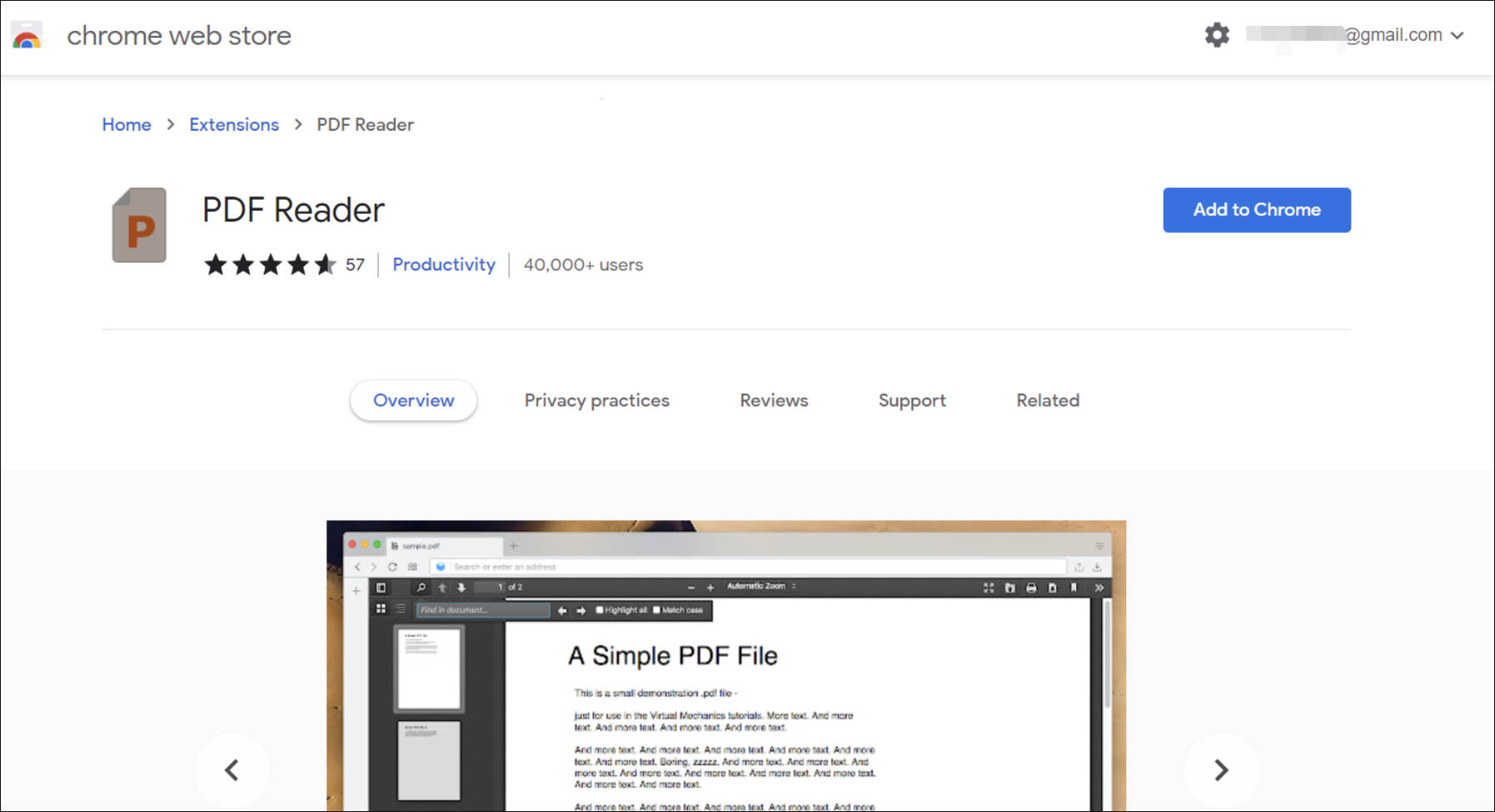
Pros:
- Easy page navigation
- Light and dark theme options
- Basic drawing tools for annotation
- No software installation required
- Works directly in Chrome browser
Cons:
- No offline mode; requires internet connection
- Only supports basic reading and simple annotating
- Cannot edit text or images in PDFs
- Limited to browser functionality; no desktop experience
When to Choose This Over UPDF: If you only need to view PDFs and add simple annotations without leaving your browser, this extension is a solid choice. However, for any serious PDF work, UPDF offers significantly more functionality.
3. Soda PDF | Online and Desktop PDF Solution
Rating: 4/5 on Trustpilot | Price: Free trial, then subscription
Best for
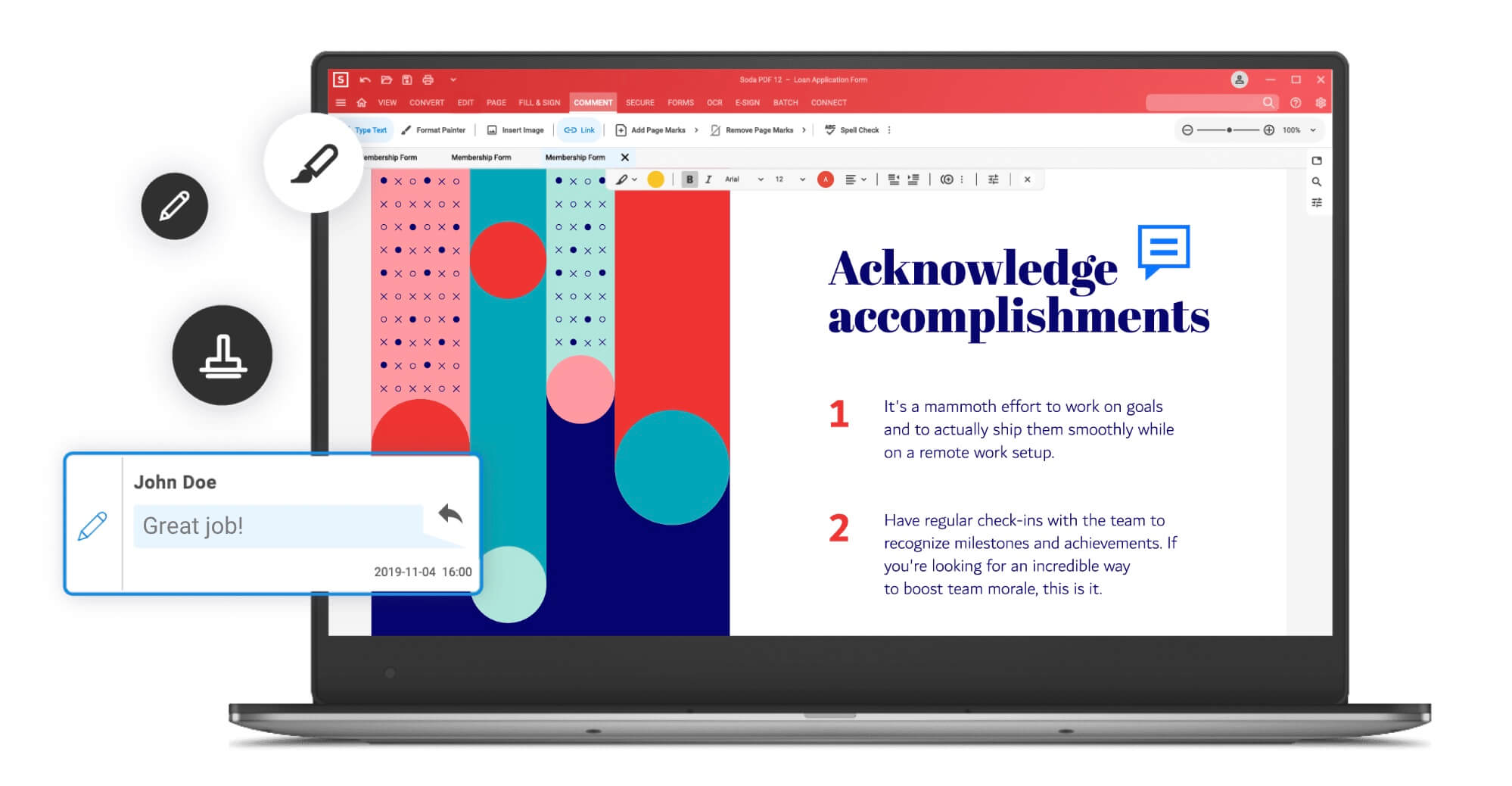
Next is Soda PDF, which is a software suite offering a range of tools for working with PDF documents. It comes in both desktop and online versions, catering to users with varying needs and preferences. Soda PDF is a good choice for users who need a basic and affordable PDF reader and editor. It's easy to use, offers a good range of features, and has various pricing options. However, if you require more advanced features, then softwares such Adobe Acrobat might be a better fit.
Pros:
- Offers a 14-day trial
- User-friendly interface for both the desktop and online versions
- Wide range of features
- Platform compatibility
- Has a mobile app
Cons:
- Subscription / license based
- Limited features compared to Adobe Acrobat
- Sometimes, when printing files in batches, the software freezes, requiring me to reopen the documents.
- Takes longer to load compare to other Chrombook PDF readers
4. PDF Viewer Extension | Offline-Capable Browser Viewer
Rating: 4.8/5 on Chrome Web Store | Price: Free
Best for
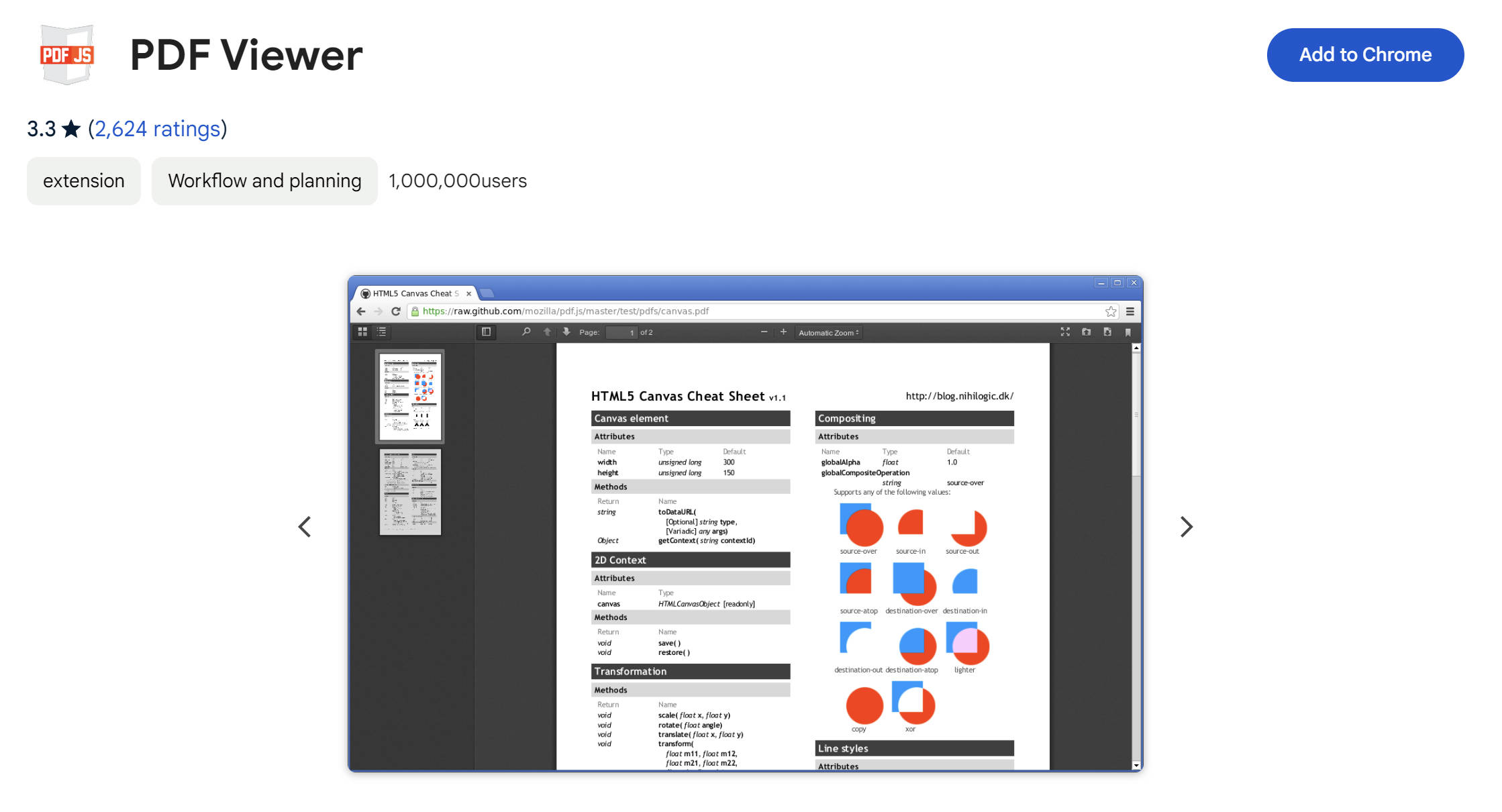
PDF Viewer for Chrome is a free and very useful tool that allows you to view and edit files directly in your browser. With this extension, you can quickly and easily open and view PDF files without the need for additional software downloads, streamlining your workflow and enhancing productivity. It also suits your offline needs, making this extension provide more flexibility to users.
Pros:
- Features a dark and light mode
- Read aloud option for documents
- Offline mode available
Cons:
- Doesn't offer PDF editing
- Offline mode not supported
- Outdated, it hasn't been updated since 2019.
Warning: This extension has not been updated since 2019. While it may still work, outdated extensions can pose security risks and may not be compatible with newer ChromeOS updates. Use with caution.
5. PrintFriendly PDF Viewer/Reader | Best for Printing from Web Pages
Rating: 4.1/5 | Price: Free
Best for
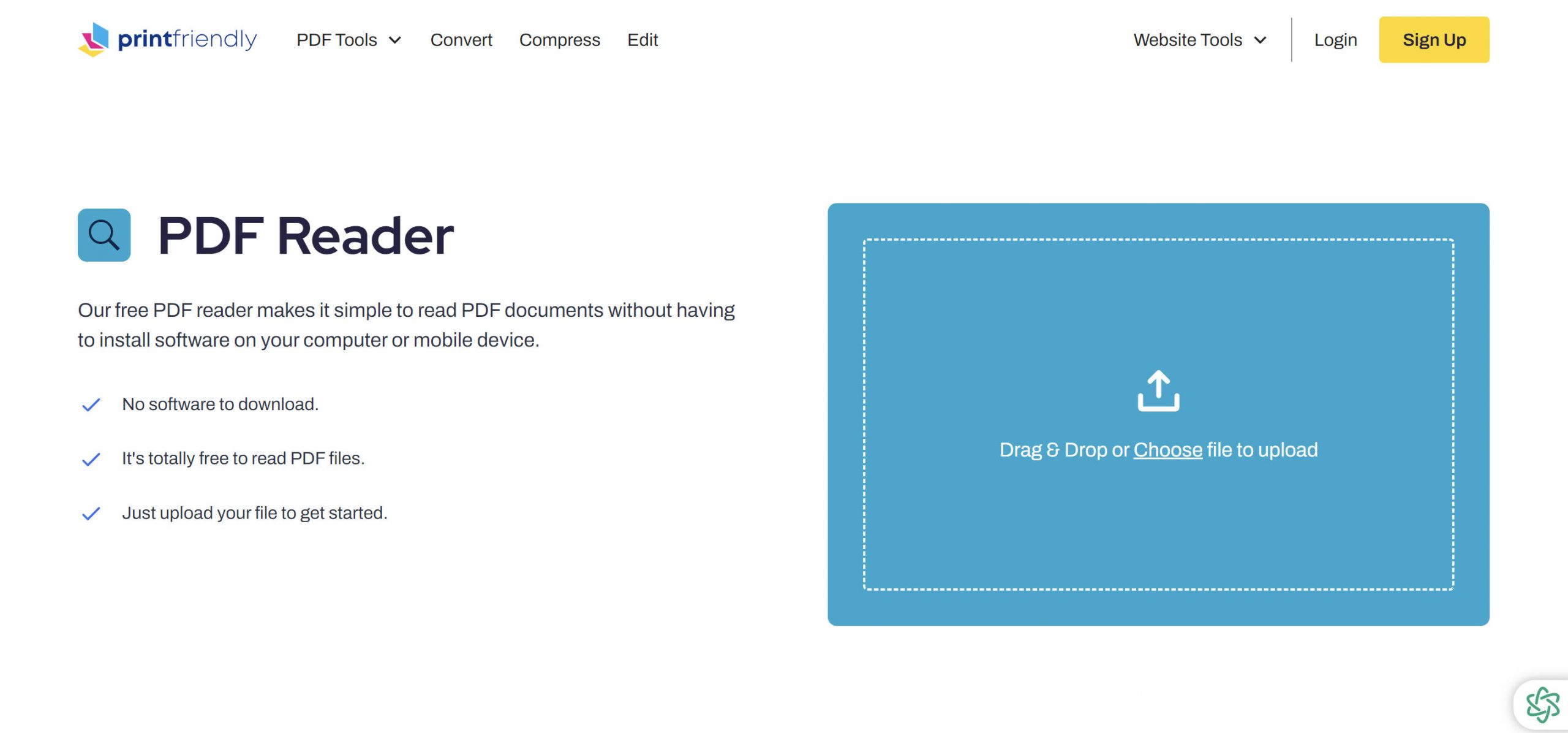
PrintFriendly PDF Viewer/Reader is another versatile tool designed to streamline your PDF viewing experience on Chromebook. With this tool, you can easily open, view, and interact with PDF documents without having to install software on your computer or mobile device, making it a convenient solution for students, professionals, and casual users alike!
Pros:
- Streamlined PDF viewing experience
- User-friendly interface for easy navigation
- No software to download
- 100% free
Cons:
- Occasional performance issues
- Does not support offline use
- Does not provide different reading modes
When to Choose This Over UPDF: If your primary need is printing web pages as clean, readable PDFs, PrintFriendly is a good choice. For document management, editing, and annotation, UPDF is the clear winner.
Part 3. Introducing UPDF Your All-in-One PDF Viewer & Editor for Chromebook
While the Chrome PDF readers mentioned earlier serve their purpose in some cases, they may lack certain features, requiring users to rely on multiple Chrome extensions for extensive document tasks.
Since the built-in Chrome viewer can't annotate or edit PDFs at all. UPDF fills exactly that gap on Chromebook.
With UPDF, you can unlock a plethora of features that streamline your PDF editing experience. Here's why UPDF stands out:
- Edit Text and Images: Easily modify text and images within your PDF document, with a smooth editing experience reminiscent of working in MS Word.
- Annotation Options: Annotate your PDF document in various ways, enhancing your reading and viewing experience.
- PDF Page Organization: Effortlessly organize your PDF pages using UPDF's intuitive tools, ensuring a well-structured document layout.
- Bookmarking Capabilities: Add bookmarks to your PDF documents for easy navigation while reading.
- Integrated AI: Enjoy enhanced document efficiency with AI integration, allowing for translation, summarization, paper search and more.
- OCR PDF Functionality: Convert scanned PDF files into editable ones with UPDF's OCR capabilities without changing their layout.
- PDF Creation: Effortlessly create stunning PDFs from Word, images, or even clipboard content. You can also merge files or create a PDF Portfolio.
- Accessibility: With 10GB UPDF Cloud storage, you can access files on any device anytime you like.
- Multi-Platform Compatibility: Whether you're using computers or mobile phones, UPDF is available across various platforms, ensuring accessibility and convenience.
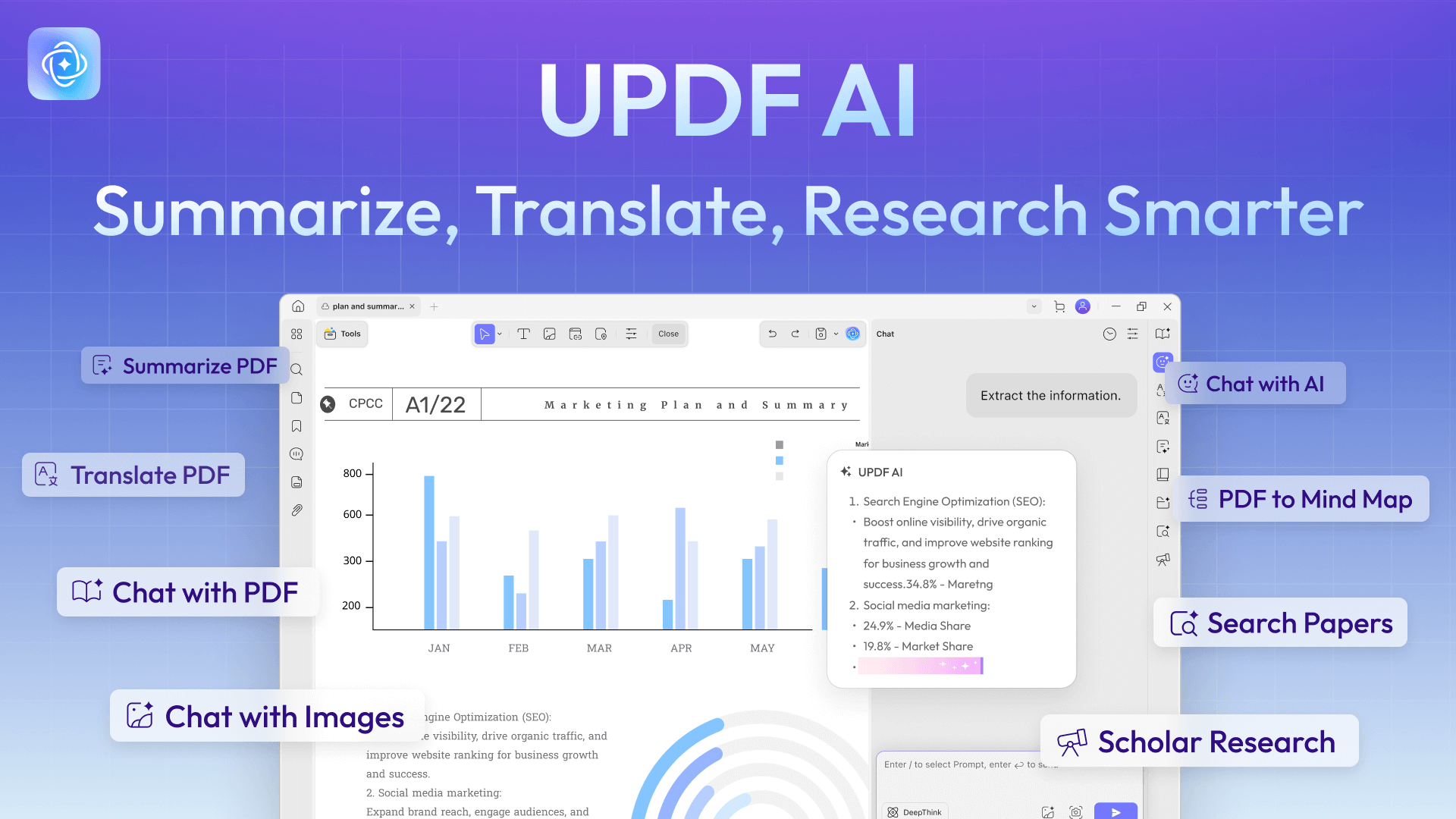
Ready to experience the power of UPDF for yourself? Click here to download UPDF and elevate your PDF editing game on Chromebook!
Windows • macOS • iOS • Android 100% secure
Explore More Features!
Part 4. FAQs About PDF Viewer for Chromebook
Q1. Why won't my Chromebook open PDF files?
If your Chromebook is having trouble opening PDF files, there could be several reasons for this issue. Some common troubleshooting steps include checking your internet connection, ensuring that your Chromebook is up to date, and verifying that the PDF file isn't corrupted. Additionally, you can try clearing your browser cache or using a different PDF viewer to see if that resolves the issue.
Q2. How do I stop Chrome from downloading PDFs and open them instead?
Go to chrome://settings/content/pdfDocuments and turn OFF "Download PDF files instead of automatically opening them in Chrome."
Q3. What is the best free PDF viewer for Chromebook?
The best free PDF viewer depends on your needs. For basic viewing, the built-in Chrome PDF viewer is sufficient. For viewing with additional features like dark mode and read aloud, PDF Viewer Extension is a good choice. For free reading plus the option to edit with a Pro upgrade, UPDF is the best overall choice.
Q4. Can I edit PDFs on a Chromebook?
Yes, but not with the built-in viewer. You need a dedicated PDF editor. UPDF offers full editing capabilities on Chromebook, including text editing, image manipulation, and page organization. Browser extensions generally do not support true PDF editing.
Q5. Does the Chromebook built-in PDF viewer work offline?
Yes, the built-in Chrome PDF viewer works offline once the PDF is downloaded to your device. However, some browser extensions require an internet connection. UPDF also works offline for viewing and editing downloaded PDFs.
Final Words
In conclusion, navigating the world of PDF viewers for Chromebook can be overwhelming, but finding the right one can greatly enhance your PDF reading and editing experience. While there are several options available, UPDF stands out as the ultimate PDF viewer and editor for Chromebook users. With its comprehensive features, user-friendly interface, and cross-platform compatibility, UPDF offers everything you need to effortlessly manage your PDF documents.
If the built-in viewer covers your needs, you're all set — it costs nothing. But if you've hit its limits (no annotation, no editing, no offline AI tools), UPDF is the single download that replaces a handful of extensions.
Windows • macOS • iOS • Android 100% secure






 Enid Brown
 Enola Miller