 UPDF
UPDF
 UPDF for Windows
 UPDF for Mac
 UPDF for iPhone/iPad
 UPDF for Android
 Nomostar
 UPDF AI Online
 UPDF Sign
 IvyCraft
 Edit PDF
 Annotate PDF
 Create PDF
 PDF Form
 Edit links
 Convert PDF
 OCR
OCR PDF to Word
 PDF to Image
 PDF to Excel
 Organize PDF
 Merge PDF
 Split PDF
 Crop PDF
 Rotate PDF
 Protect PDF
 Sign PDF
 Redact PDF
 Sanitize PDF
 Remove Security
 Read PDF
 UPDF Cloud
 Compress PDF
 Print PDF
 Batch Process
 About UPDF AI
 UPDF AI Solutions
 AI User Guide
 FAQ about UPDF AI
 Summarize PDF
 Translate PDF
 Chat with PDF
 Chat with AI
 Chat with image
 PDF to Mind Map
 Explain PDF
 PDF AI Tools
 Image AI Tools
 AI Chat Tools
 AI Writing Tools
 AI Study Tools
 AI Working Tools
 Other AI Tools
 AI Bookmark Generation
 AI Bookmark Summary
 AI Watermark Generation
 AI Background Generation
 AI Sticker Generation
 AI Stamp Generation
 AI Editing Suite
 UPDF Copilot
 AI Page Management
 AI Semantic Search
 PDF to Word
 PDF to Excel
 PDF to PowerPoint
 Enterprise Solution
 Enterprise Sign
 Enterprise AI
 Enterprise Plan
 Enterprise User Guide
 Enterprise Webinar
 IT
IT Education
 Construction
 Financial Service
 Healthcare
 Insurance
 Legal
Legal Manufacturing
 Government
 Researchers & PhDs
 Solopreneurs & Freelancers
 Lawyers & Legal Professionals
 Real Estate Agents & Brokers
 Education Solution
 Customer Stories
 User Guide
 UPDF Tricks
 FAQs
FAQs UPDF Reviews
 Download Center
 Blog
Blog Newsroom
 Tech Spec
 Updates
 UPDF vs. Adobe Acrobat
 UPDF vs. Foxit
 UPDF vs. PDF Expert

You may need to update repeated text across long PDF documents without editing every occurrence manually. Searching every page for outdated names, typos, or phrases wastes valuable time and increases editing mistakes. A reliable find and replace in PDF feature updates every matching word throughout your document within seconds.
Desktop software like UPDF and Adobe Acrobat offers precise formatting, bulk file handling, and stronger offline privacy protection. Online tools provide quick browser access but often limit exact match filters, file sizes, and document quantity limits.
Need to accurately search and replace text across single or multiple PDFs instantly? Download UPDF for free today. You can use UPDF on Windows, Mac, iOS, and Android to get started with accurate PDF editing.
Windows • macOS • iOS • Android 100% secure
Method 1: Find and Replace in PDF with UPDF (Desktop & Bulk Files)
Best for:
- Users needing precise replacements, offline privacy, AI-assisted searches, and bulk PDF editing across documents.
Not for:
- Anyone who wants an instant browser-only tool and refuses to install software.
UPDF offers 3 different methods, making find and replace in PDF flexible for every editing situation. Learn about additional editing features in how to edit a PDF for complete guidance.
Approach A: Standard Exact Find & Replace (With Advanced Filters)
This method handles everyday text replacements with precise filters for accurate editing results every time. Now, follow the steps below to replace text using advanced matching filters:
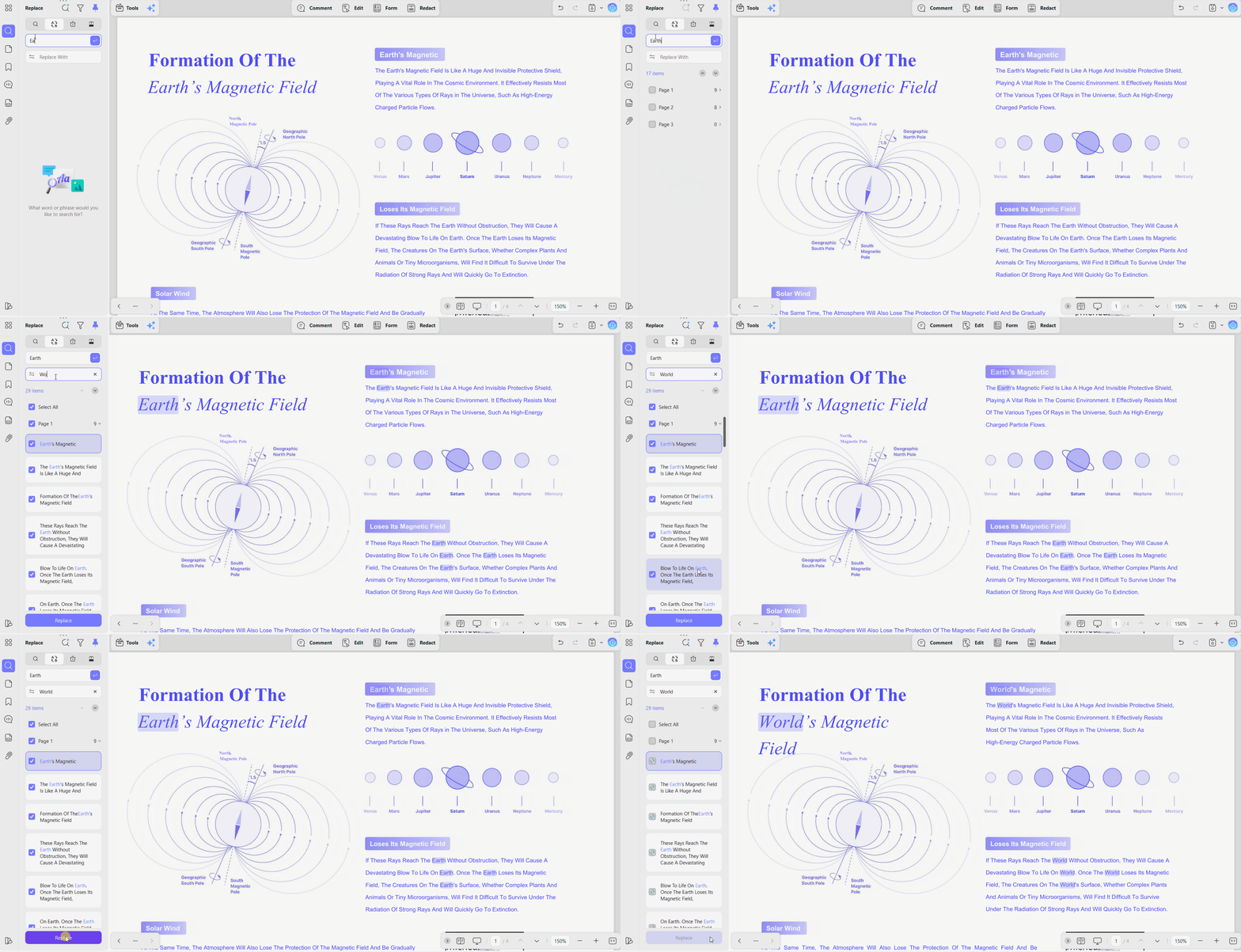
Step 1. Once you open UPDF, click "Open File" and select the PDF you need to change.
Step 2. Next, press the "Search" icon, and a panel opens along the side of the document. There, press the "Find Text & Replace" option. Type the text and press "Enter."
Step 3. Choose the "Filter" icon and select from 2 options:
- Case Sensitive: Prevents accidental partial replacements.
- Whole Words Only: Blocks partial hits, so searching for cat leaves category untouched.
Step 4. Next, type the new wording into the "Replace With" box. Tick individual results to change them one or click "Select All" to update every match. Once done, press "Replace."
Approach B: Bulk Find and Replace Across Multiple PDFs
This workflow lets you perform find and replace in PDF across multiple documents using one process. Adhere to the steps below to combine, replace, and separate your PDF files:
Step 1. On UPDF's home screen, press the "Tools" option and choose "Merge" under the Multi-File Operations section. Then, add multiple files and press "Apply" to save the merged file.
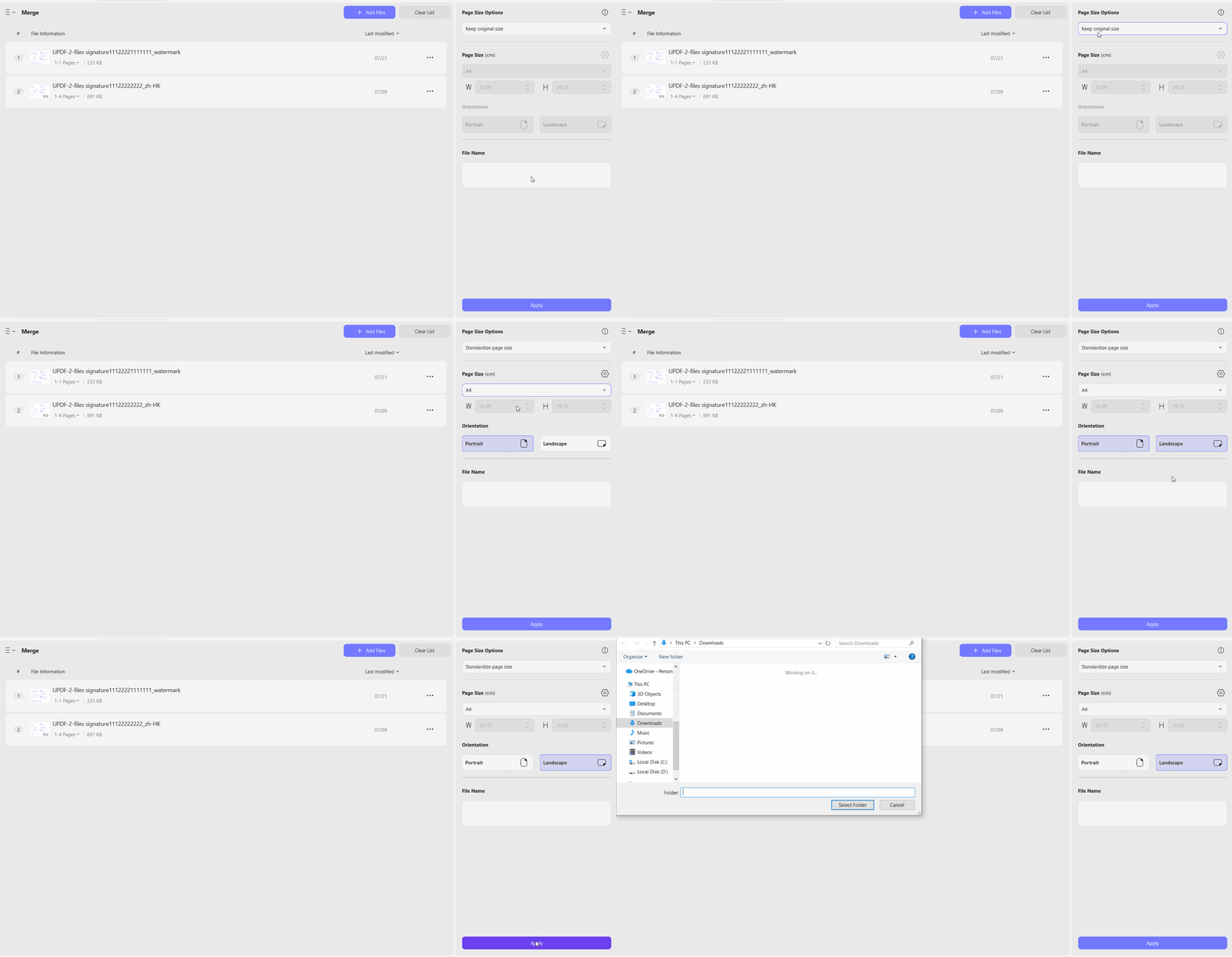
Step 2. Import the merged PDF in UPDF and repeat the same steps as Approach A shows and choose the "Select All" option to replace all.
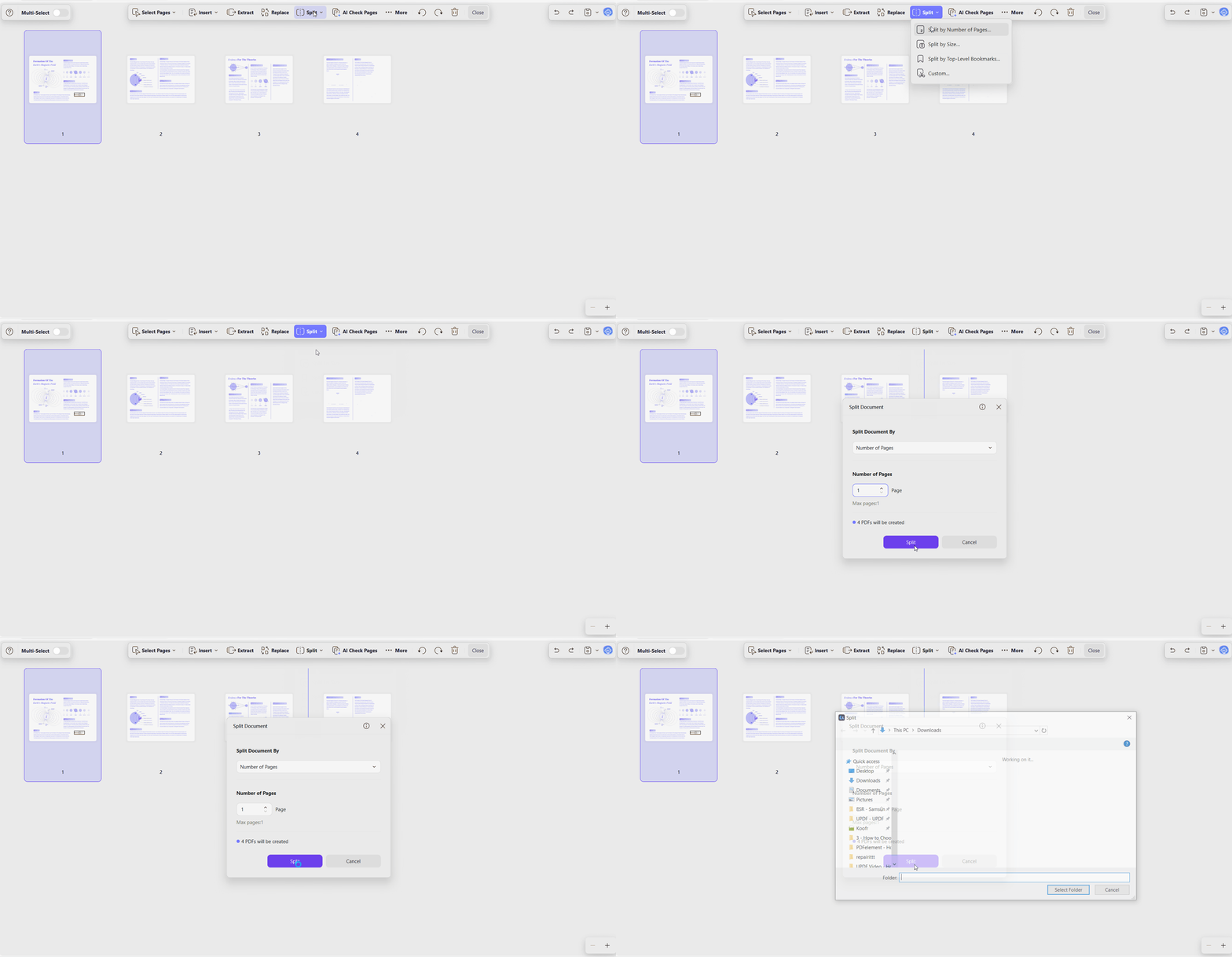
Step 3. Once replaced, enter the "Organize Pages" feature and use the "Split by Page Count" or "Split by Bookmark" tool to separate and save PDFs separately.
Approach C: AI-Powered Search and Replace (Smart Contextual Search)
See the steps below to use AI-powered contextual search for smarter PDF text replacements:
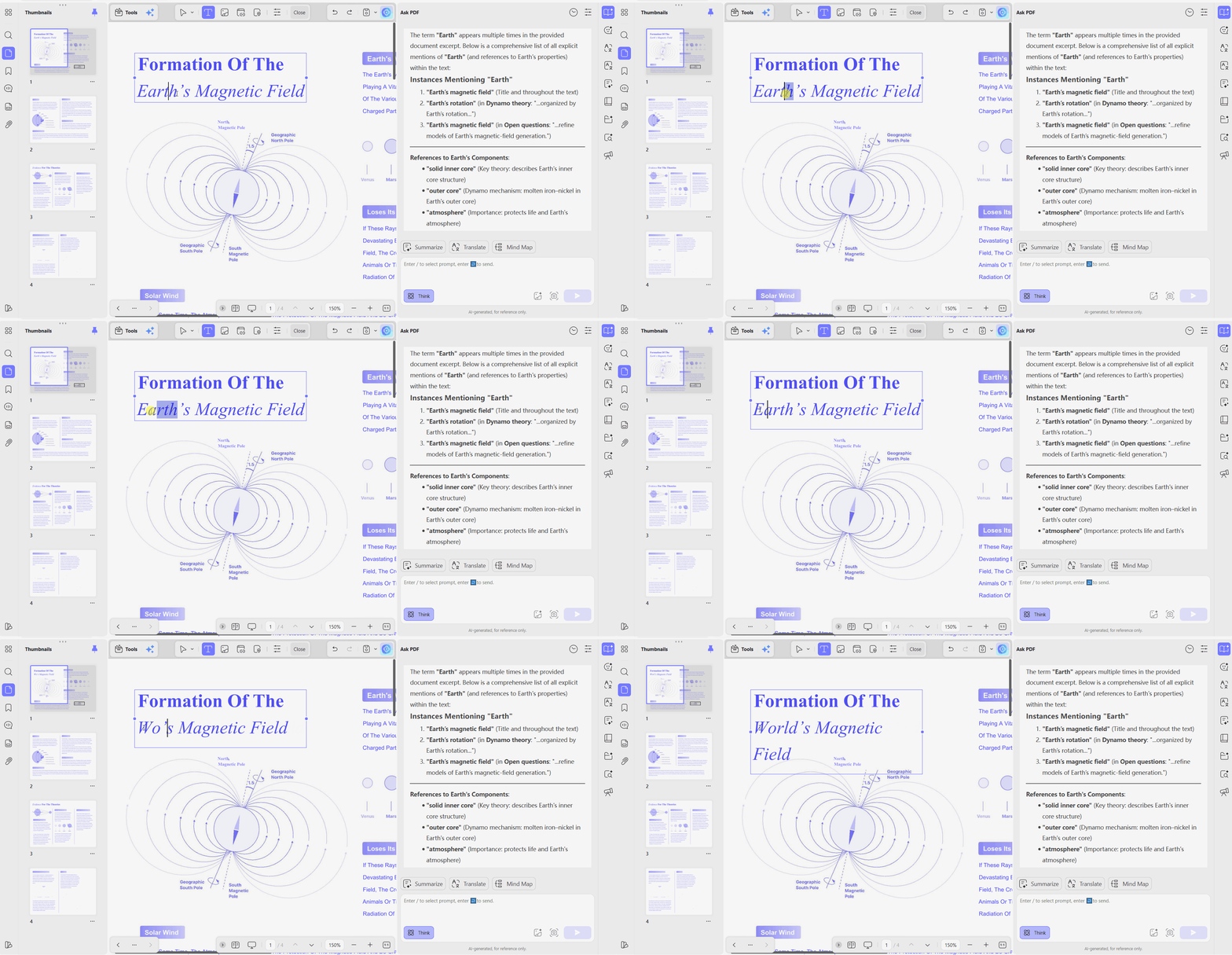
Step 1. First, press the "UPDF AI" icon and click "Chat With PDF."
Step 2. Type a prompt like "Find all instances mentioning Earth" and press the "Send" button.
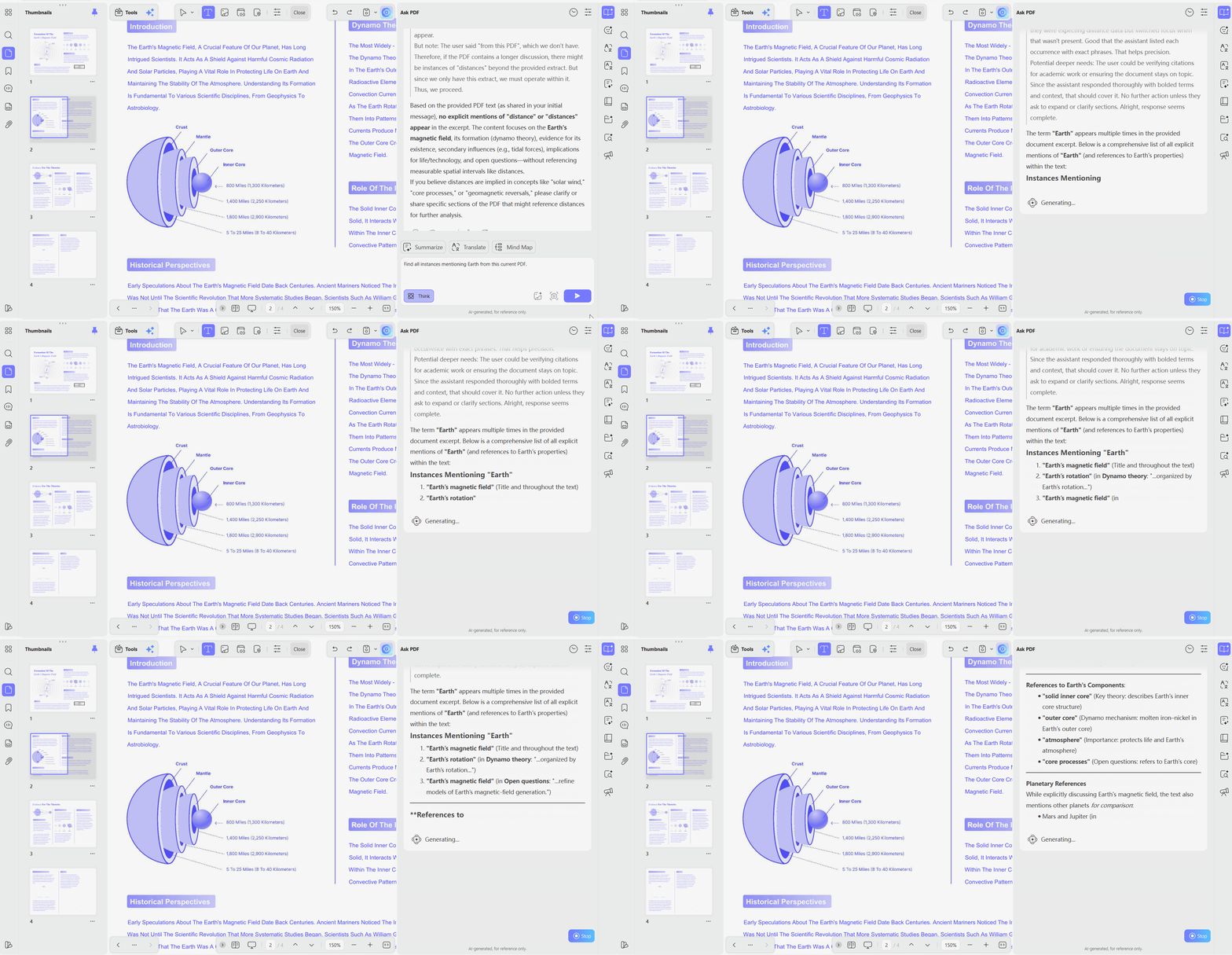
Step 3. Jump to the identified text and use the "Edit" feature to replace.
If you only need to locate terms without changing them, our guide on how to find a word in a PDF covers searching on its own.
Method 2: Find and Replace in PDF with Adobe Acrobat
Best for:
- Users with an active Acrobat Pro subscription already working within Adobe's document editing ecosystem.
Not for:
- Budget-conscious users, slower computers, or anyone needing AI-assisted semantic search capabilities for PDF editing.
Adobe Acrobat offers one straightforward method for finding and replacing text inside PDF documents. The feature is easy to access when Acrobat is already open on your computer. Follow the simple steps below to complete the replacement process:
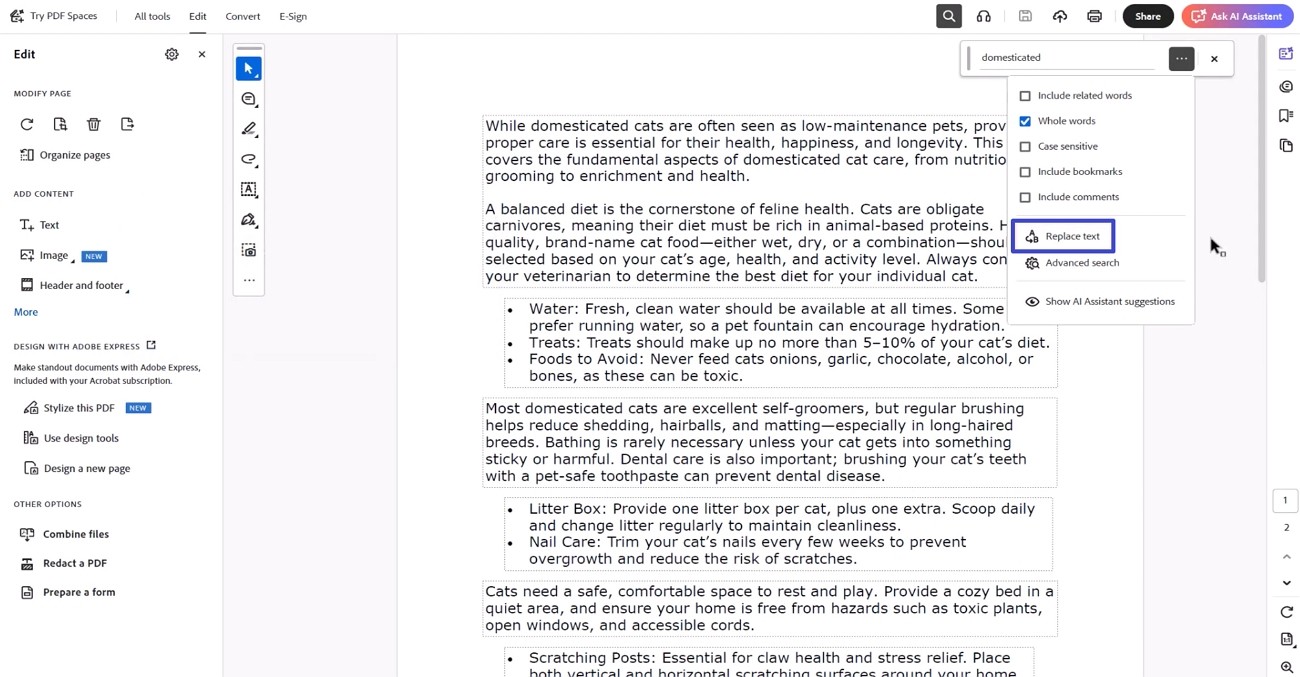
Step 1. First open a PDF in Adobe Acrobat and press "Ctrl + F" to open the search bar. Type the keyword and click the "Replace Text" option.
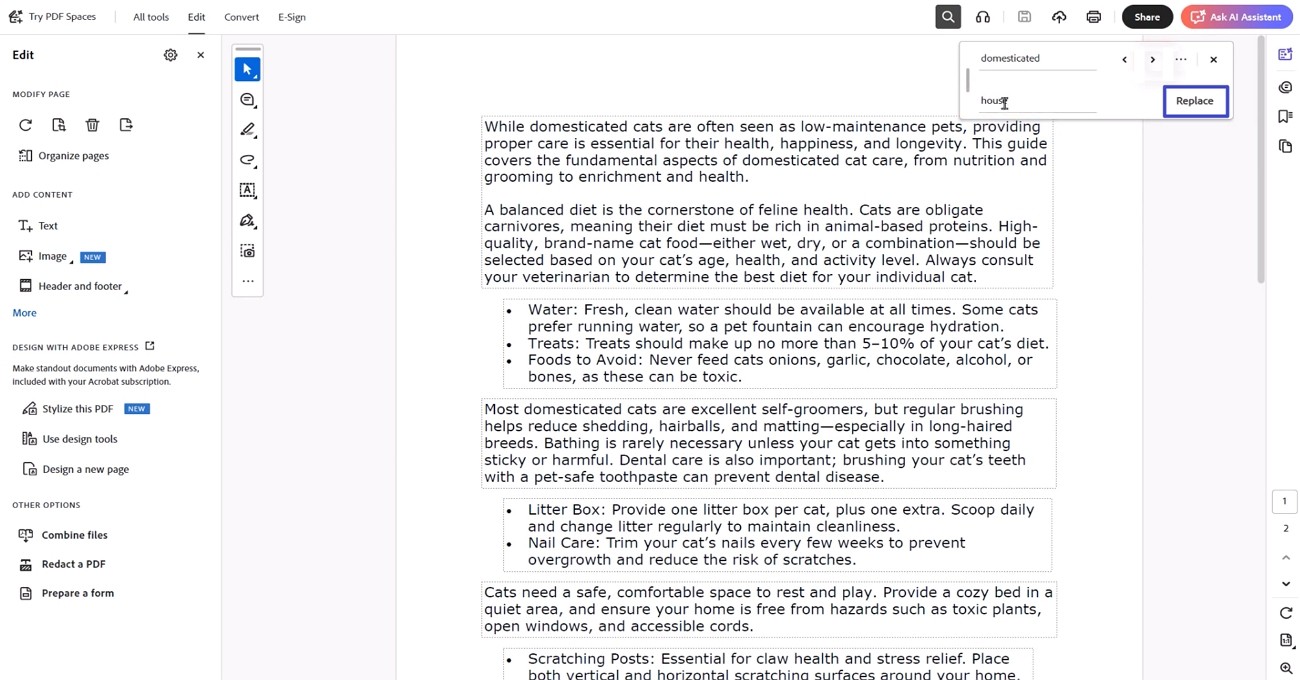
Step 2. After that, enter the new text and press "Replace" to complete the process.
Having learned how to replace text in Adobe Acrobat, let's examine 3 important limitations before deciding.
- High Subscription Cost: Acrobat Pro costs$239.88/year, making it expensive if you mainly need to find and replace text in PDFs.
- No Natural Language Search: Matching is strictly character by character, with no understanding of context or synonyms.
- No Native Multi-file Replacement: Adobe community threads have documented this gap for years. The Action Wizard can search and delete text, but it cannot substitute one string for another across a folder.
For Acrobat-specific workflows and a closer look at where its native tool stops, see our guide on find and replace in Adobe Acrobat.
Method 3: Find and Replace in PDF Online via PDF4Me
Best for:
- Users making one-time edits to non-sensitive PDF documents without installing software on their computers.
Not for:
- Confidential files, large document batches, or replacements requiring precise whole-word matching options.
Browser-based tools become useful when installing software is impossible for your current editing needs. Go through the simple steps below to find and replace in PDF online:
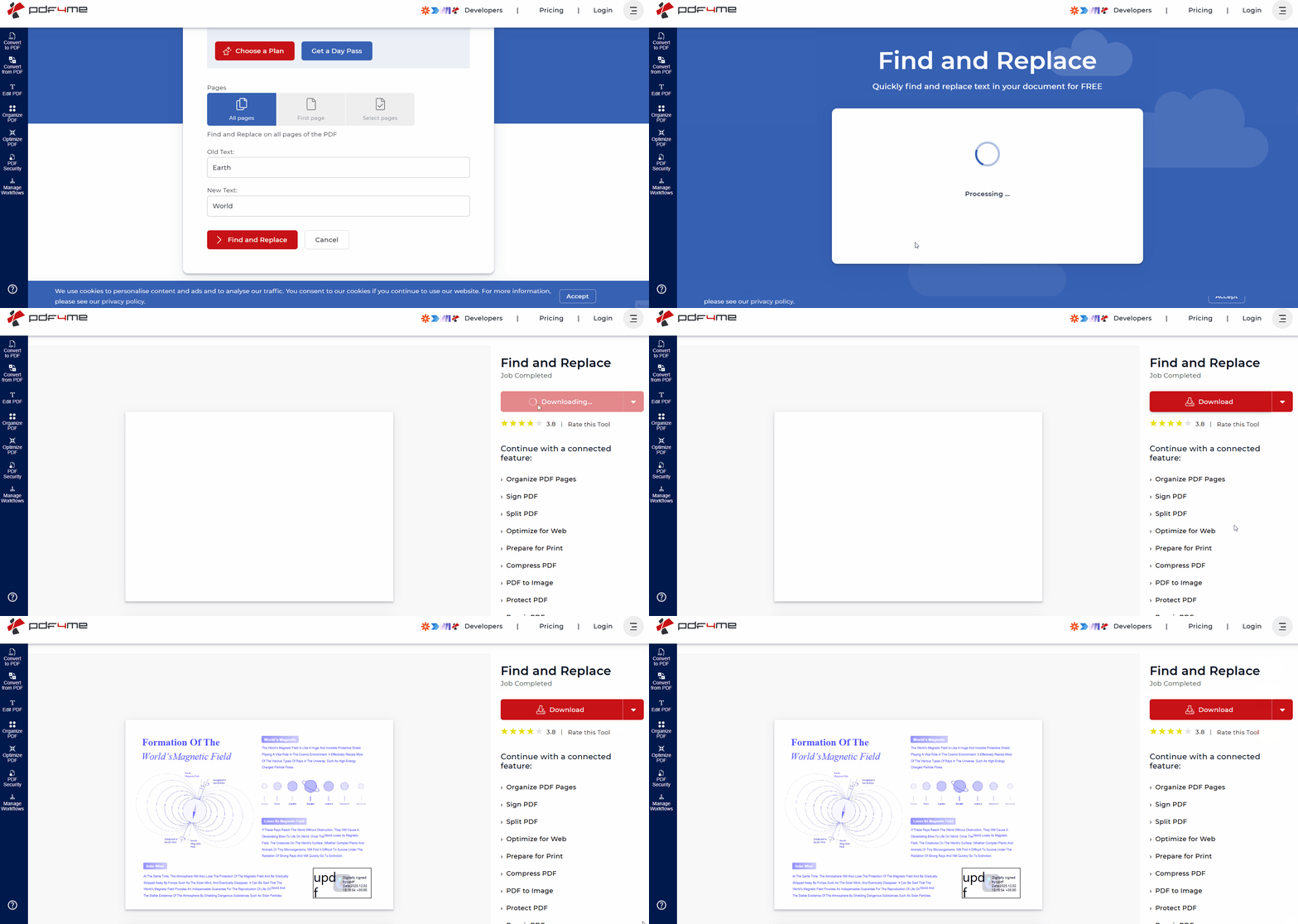
Step 1. First, upload your PDF and choose the pages that you want to include in the search. In both text boxes, type your old and new text. Once done, press the "Find and Replace" button.
Step 2. Once done, press the "Download" button to save the file.
Before using this method, consider these important limitations that may affect your editing experience:
- Tight Free-tier Quotas: PDF4Me's own help pages put free accounts at four documents per job, with the 20-document allowance reserved for Pro subscribers.
- Narrower Filtering: The browser tool documents a "Match case" toggle. Whole-word matching appears in its API rather than the web interface, so partial matches remain a risk.
- Files Leave Your Machine: Every upload is processed on PDF4Me's servers and held there for up to an hour before deletion. That is a poor fit for contracts or financial records.
Avoid word matching errors, file upload limits, and security risks. Download UPDF for accurate, unlimited, and offline PDF replacements.
Windows • macOS • iOS • Android 100% secure
Quick Comparison: Which PDF Find and Replace Tool Should You Choose?
Now, let's compare these PDF find and replace tools side by side in the table below:
| Feature/Scenario | UPDF | Adobe Acrobat | PDF4Me (Online) |
| Exact Match Filters (Case/Whole Word) | Supported (case sensitive + whole words only) | Supported | Match case only |
| Bulk Replace Across Multiple Files | Supported (Batch Combine, Replace All, Split) | No native support (redaction or scripting workaround) | Limited (4 files per job free, 20 on Pro) |
| AI Contextual & Semantic Search | Supported (built-in UPDF AI) | Not supported | Not supported |
| Data Privacy & Security | 100% local and offline | Local processing | Cloud upload required |
| Platform Support | Windows, Mac, iOS, Android (Direct replace available on Windows and macOS) | Windows, Mac | Web browser |
Bulk editing and privacy are the biggest differences when choosing the right PDF text replacement method. If you need to locate text with specific formatting, read how to search for a word in a PDF for detailed guidance. To search text inside highlighted annotations, see how to find highlighted text in a PDF for complete instructions.
Frequently Asked Questions
Why did find and replace fail in my PDF?
Most replacement failures happen because scanned PDFs, strict filters, or online limitations block accurate text matching. Run OCR first, adjust matching filters, or use reliable desktop software for better replacement results.
Can I find and replace text in a scanned PDF document?
No, scanned PDFs contain images instead of editable text that replacement tools cannot process directly. Run OCR first to recognize text, then replace words normally within the converted PDF document.
Is it safe to use online PDF find and replace tools?
Online tools work well for public documents but require uploading files to external processing servers first. Choose desktop software instead when editing confidential contracts, financial records, or sensitive personal documents securely.
Can I find and replace text across multiple PDF files at once?
Yes, merge multiple PDFs, replace text once, then split them into updated individual documents afterward easily. This workflow updates multiple PDF files efficiently because most editors cannot replace text across separate documents.
Conclusion
To conclude, choosing the right tool depends on your editing needs, privacy, and document size requirements. UPDF makes find and replace in a PDF easier with precise matching, AI search, and bulk editing features. It also keeps your documents on your device for better privacy and secure editing every time.
Ready to replace text across single or multiple PDFs with total precision? Download UPDF now and streamline your document workflows!
Windows • macOS • iOS • Android 100% secure






 Enrica Taylor

 Enid Brown
 Enola Davis