 UPDF
UPDF
 UPDF for Windows
 UPDF for Mac
 UPDF for iPhone/iPad
 UPDF for Android
 Nomostar
 UPDF AI Online
 UPDF Sign
 IvyCraft
 Edit PDF
 Annotate PDF
 Create PDF
 PDF Form
 Edit links
 Convert PDF
 OCR
OCR PDF to Word
 PDF to Image
 PDF to Excel
 Organize PDF
 Merge PDF
 Split PDF
 Crop PDF
 Rotate PDF
 Protect PDF
 Sign PDF
 Redact PDF
 Sanitize PDF
 Remove Security
 Read PDF
 UPDF Cloud
 Compress PDF
 Print PDF
 Batch Process
 About UPDF AI
 UPDF AI Solutions
 AI User Guide
 FAQ about UPDF AI
 Summarize PDF
 Translate PDF
 Chat with PDF
 Chat with AI
 Chat with image
 PDF to Mind Map
 Explain PDF
 PDF AI Tools
 Image AI Tools
 AI Chat Tools
 AI Writing Tools
 AI Study Tools
 AI Working Tools
 Other AI Tools
 AI Bookmark Generation
 AI Bookmark Summary
 AI Watermark Generation
 AI Background Generation
 AI Sticker Generation
 AI Stamp Generation
 AI Editing Suite
 UPDF Copilot
 AI Page Management
 AI Semantic Search
 PDF to Word
 PDF to Excel
 PDF to PowerPoint
 Enterprise Solution
 Enterprise Sign
 Enterprise AI
 Enterprise Plan
 Enterprise User Guide
 Enterprise Webinar
 IT
IT Education
 Construction
 Financial Service
 Healthcare
 Insurance
 Legal
Legal Manufacturing
 Government
 Researchers & PhDs
 Solopreneurs & Freelancers
 Lawyers & Legal Professionals
 Real Estate Agents & Brokers
 Education Solution
 Customer Stories
 User Guide
 UPDF Tricks
 FAQs
FAQs UPDF Reviews
 Download Center
 Blog
Blog Newsroom
 Tech Spec
 Updates
 UPDF vs. Adobe Acrobat
 UPDF vs. Foxit
 UPDF vs. PDF Expert

Quick answer:
Before converting, decide whether you need a DjVu file for a specific archive or just a smaller file. For example, a scanned book going into an existing DjVu collection needs that format; a report emailed to colleagues is usually easier to share as a compressed PDF. DjVu can compress image-heavy scans well, but recipients may need a compatible viewer. If the goal is a lighter file you can still share and open anywhere, compressing the PDF is usually the smarter path. This guide covers three working DjVu converters, then shows exactly when to skip DjVu and compress instead — with UPDF handling the compression side on Windows, Mac, iOS, and Android.
Part 1. First, Decide: DjVu or a Smaller PDF?
DjVu earns its place in a narrow set of jobs. For everything else, a compressed PDF gives you the size savings without the "what opens this file?" problem. Match your situation to the right column before you convert anything.
| What you're actually doing | Your real goal | Right move |
|---|---|---|
| Archiving hundreds of scanned book pages for an e-reader or digital library | Maximum compression, format-agnostic | Convert to DjVu (built for exactly this) |
| Emailing a scanned contract that's too big to send | Smaller file the recipient can open | Compress the PDF — keep it a PDF |
| Storing scanned manuscripts long-term where readers already use DjVu viewers | Smallest possible archive | Convert to DjVu |
| Uploading a heavy PDF to a portal with a size cap | Under the limit, still universally readable | Compress the PDF |
| Sharing a document with colleagues on mixed devices | Openable everywhere, no extra apps | Compress the PDF |
If your row says "convert to DjVu," Part 2 has three tools. If it says "compress the PDF," jump to Part 4 — you'll save the compatibility headache.
Part 2. How to Convert PDF to DjVu (3 Tools)
All three tools below are browser-based, so they work on any operating system. One shared caveat first: online converters upload your file to a third-party server. Don't use them for contracts, medical records, IDs, or anything confidential — for sensitive scans, use an offline desktop tool like DjVuLibre or Pdf To DjVu GUI instead.
1. PDF2DJVU — Fastest for a Single File
PDF2DJVU is a single-purpose web tool with no format menu to navigate — you upload a PDF and it returns a DjVu.
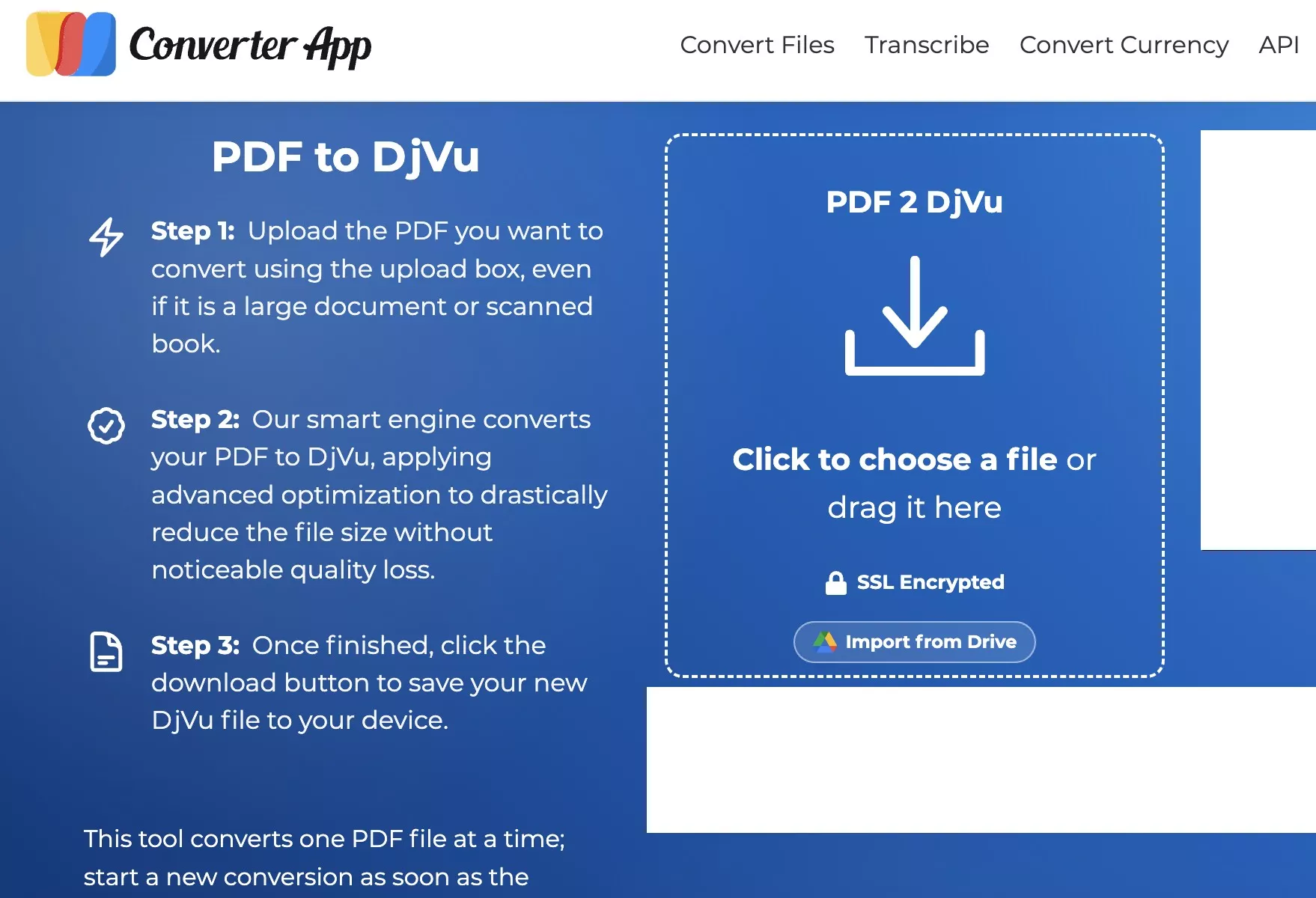
Step 1. Open PDF2DJVU and select the PDF from your device.
Step 2. Conversion starts automatically once the upload finishes; there are no settings to configure.
Step 3. Download the DjVu file.
Best for:
- one scanned document you need compressed and out the door quickly.
Not for:
- batch jobs or files where you need control over the compression profile — there are no output options to adjust.
2. Convertio — Best for Cloud Files and Batches
Convertio is a general-purpose converter, so DjVu is one output among many. It pulls files from Google Drive and Dropbox, which helps when the PDF isn't on the device in front of you.
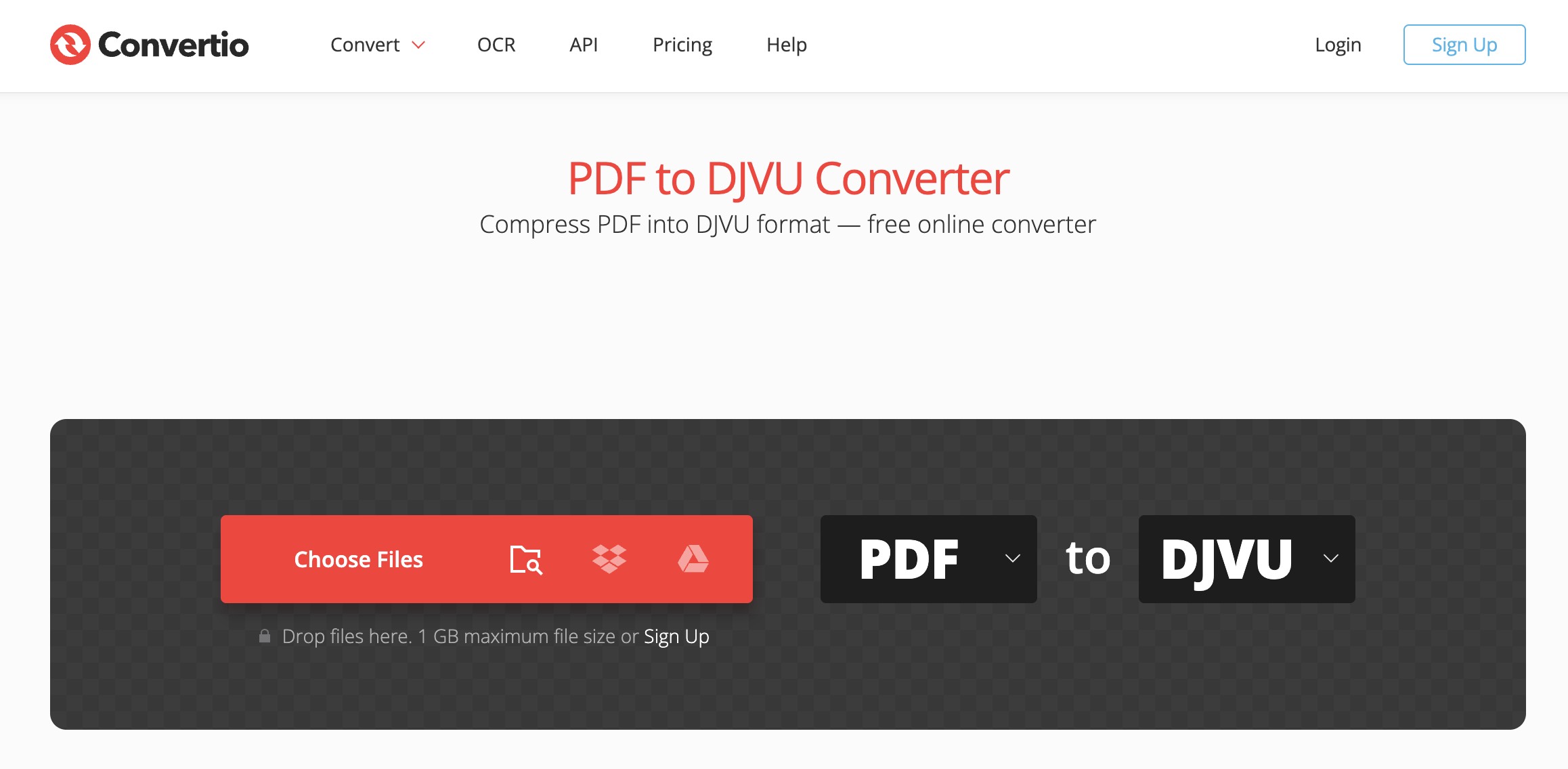
Step 1. Upload the PDF(s) from your computer, Google Drive, Dropbox, or by dragging them onto the page.
Step 2. Set the output format to DjVu from the dropdown.
Step 3. Run the conversion and download the result.
Best for:
- converting straight from cloud storage, or queuing several files at once.
Not for:
- large or private files — the free tier caps file size, and everything routes through Convertio's servers.
3. 2PDF — Best When You Need Output Settings
2PDF exposes conversion settings the other two hide, so you can shape the DjVu before downloading.
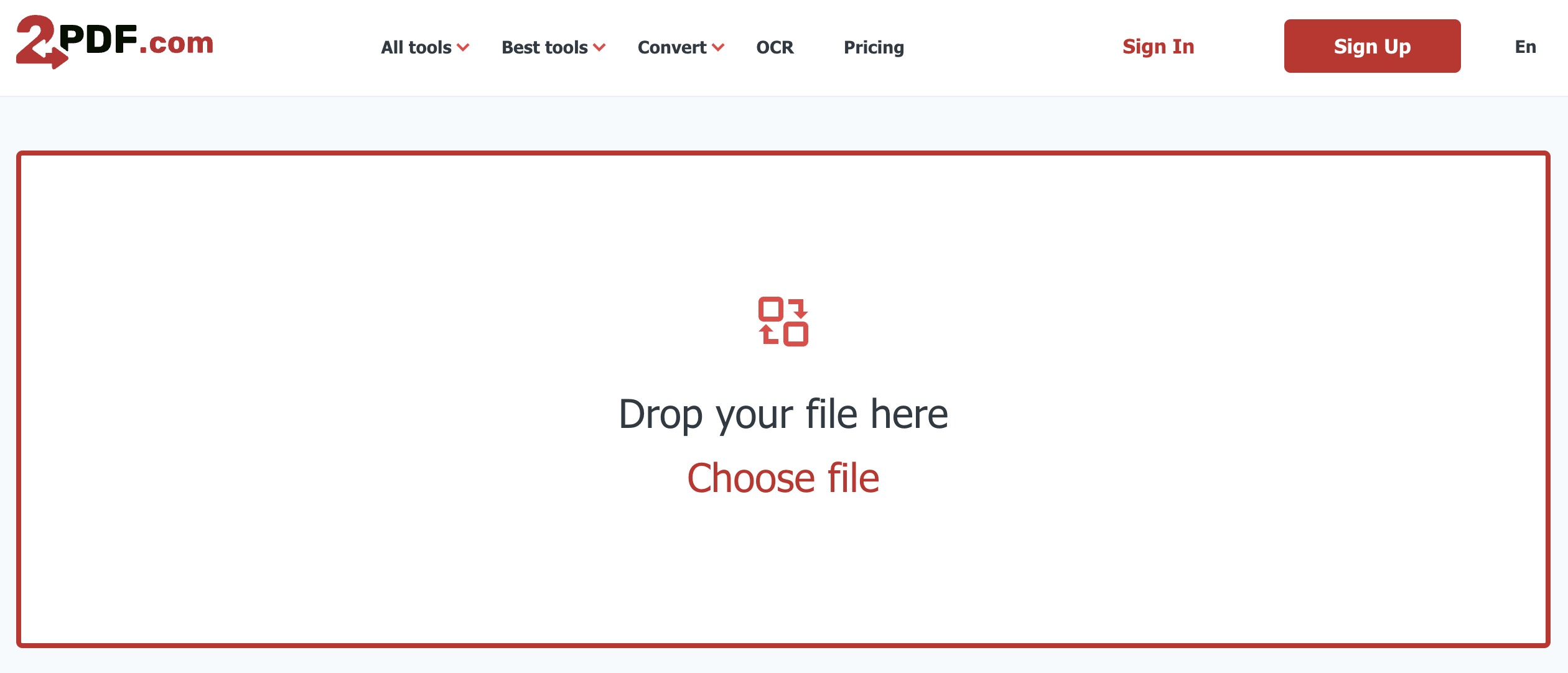
Step 1. Select the PDF or drag it onto the page.
Step 2. Choose DjVu as the output format.
Step 3. Adjust orientation, page size, and other options if the default output isn't what you want.
Step 4. Download the DjVu, or export it to Dropbox or Google Drive.
Best for:
- users who want to tune the output rather than accept a fixed conversion.
Not for:
- anyone who just wants one click — the extra settings add steps you may not need.
Part 3. DjVu vs PDF vs Compressed PDF — What's the Difference?
These three get conflated constantly, and picking wrong means either an unreadable file or a wasted conversion.
DjVu: a format built specifically to compress scanned images and photographed pages to a fraction of their size. Think of it as a vacuum-seal bag for scans — brilliant compression, but you need the right software to open the bag.
PDF: the universal document container — opens on virtually every device and app, but scanned pages inside it stay large.
Compressed PDF: the same universal PDF, run through size reduction — noticeably smaller, still opens everywhere.
The one-line rule: DjVu wins on raw compression for scans; PDF wins on compatibility; a compressed PDF is the middle ground most people are actually looking for.
Part 4. The Smaller-File Route: Compress the PDF with UPDF
If your row in Part 1 pointed here, this is the path that keeps your file openable everywhere. UPDF compresses PDFs without converting them to a niche format, so the output is still a normal PDF your recipient can open in any reader — no DjVu viewer required. It runs on Windows, Mac, iOS, and Android, and files are processed on your own device rather than uploaded to a server, which matters for scanned contracts, invoices, and IDs.
Step 1. Open your document in UPDF — if you don't have it yet, download UPDF for free and install it in under a minute.
Windows • macOS • iOS • Android 100% secure
Step 2. Click the expand arrow (∨) at the top-right of the toolbar, then choose Reduce File Size.
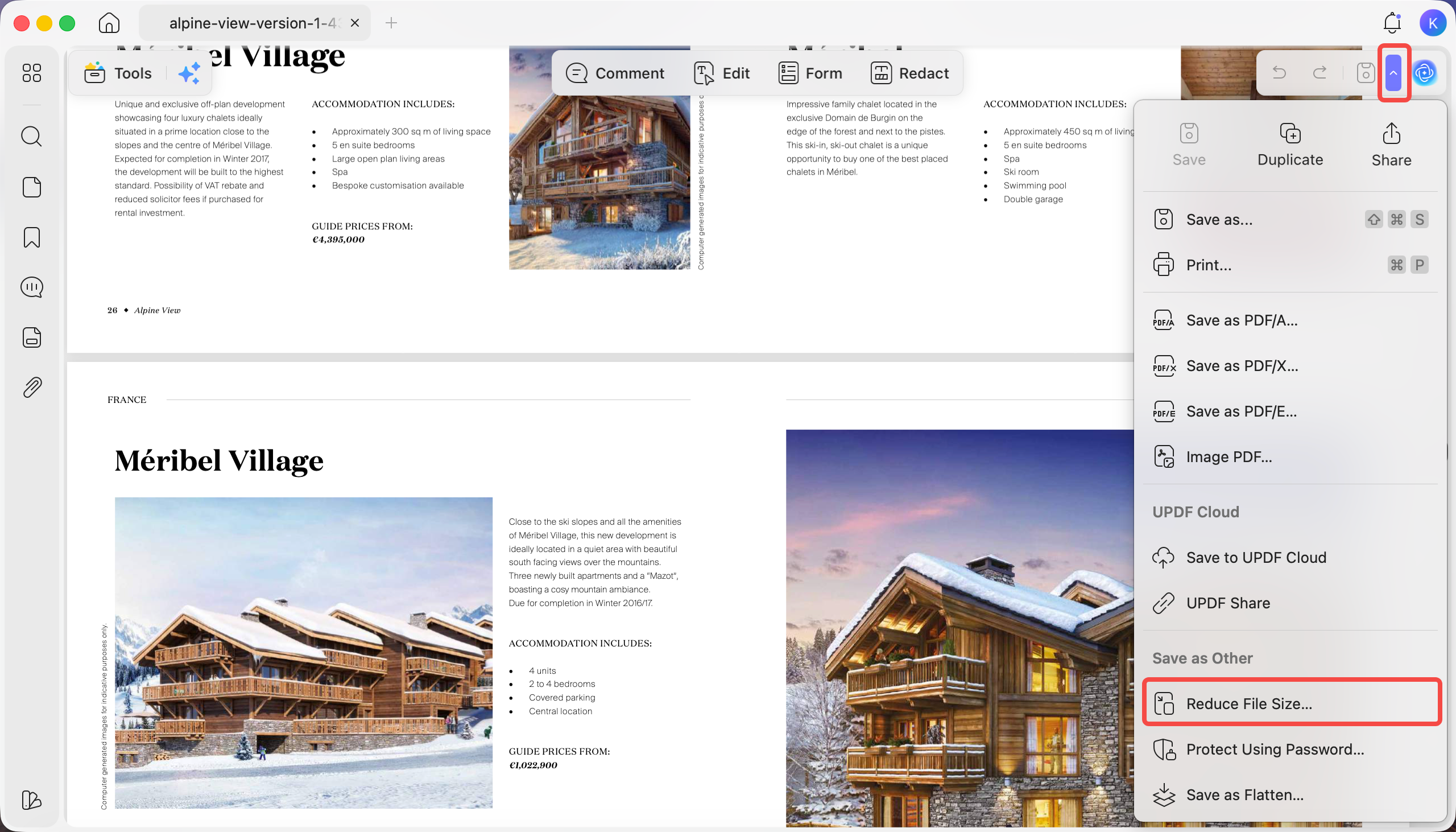
Step 3. In the Save As window, click the > arrow next to Original File (Uncompressed) to open the quality options: Lossless, Maximum Quality, High Quality, Medium Quality, and Low Quality. Select one and click Click to calculate to preview its compressed size before committing.
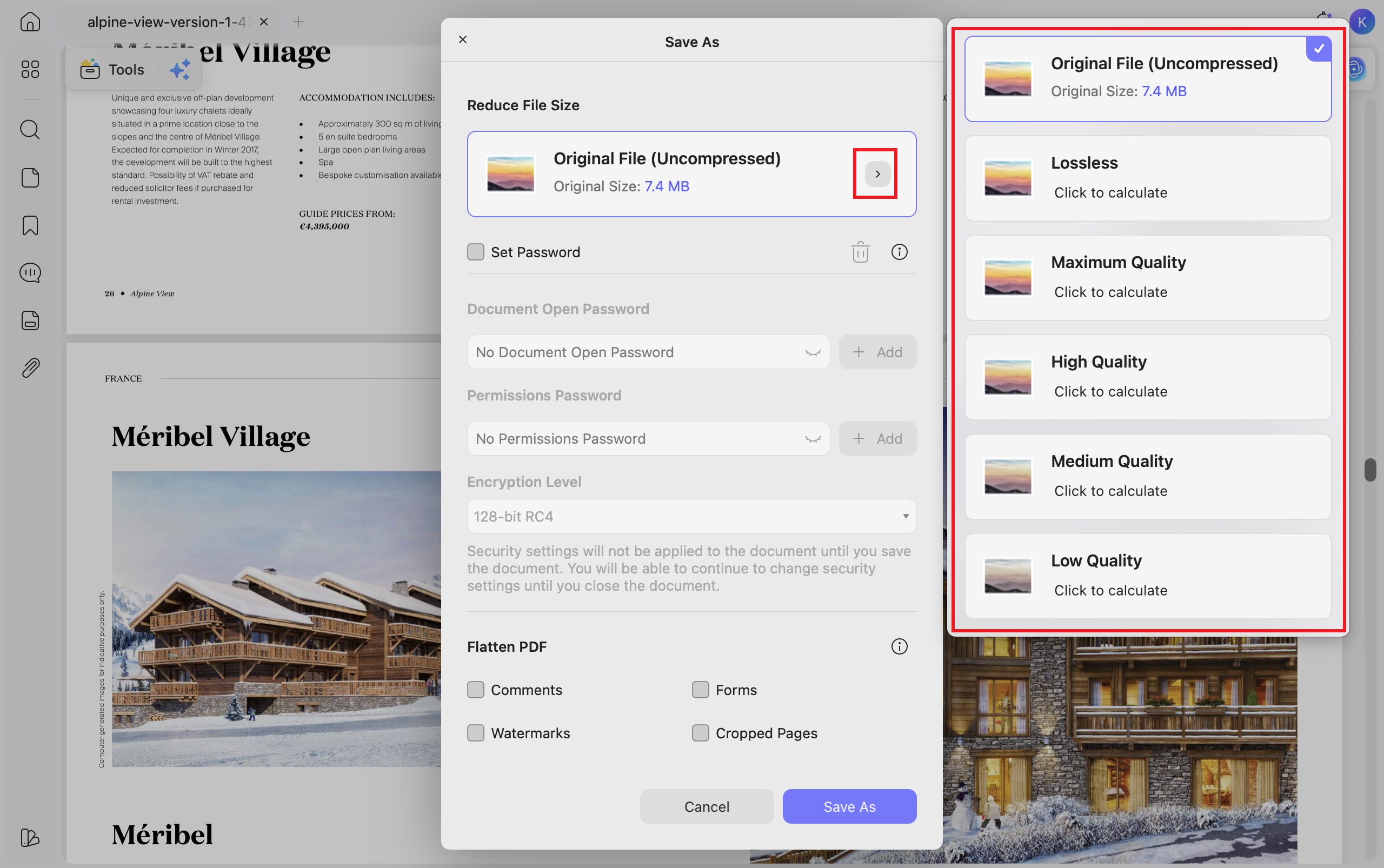
Step 4. Pick the level that fits the job — a lower quality setting for email, a higher one for archiving where sharpness matters — then click Save As. For image-heavy scans, a heavier setting gets you close to DjVu-style size savings while the file stays a PDF.
For image-heavy scans, this often lands within reach of DjVu's file size while sidestepping the compatibility problem entirely. Download UPDF for free to compress a scanned document on your own file — installation is free, and Pro features are available when you need watermark-free export or advanced tools.
Windows • macOS • iOS • Android 100% secure
Part 5. Edge Cases — When the Standard Method Fails
The DjVu converter output is blank or garbled. This usually means the source PDF is a scan (pure image with no text layer) and the tool tried to extract non-existent text. Some converters, including pdf2djvu, need language data installed to handle Chinese, Japanese, or Korean scans correctly — a plain online tool may skip those pages silently.
You converted to DjVu and now nothing opens it. DjVu isn't natively supported by Preview, most browsers, Word, or phone photo apps. You'll need a dedicated viewer — WinDjView on Windows, DjView on Mac and Linux — or you'll have to convert the DjVu back to PDF. If you keep hitting this wall, that's the signal you wanted a compressed PDF, not DjVu.
You only need the file smaller, and DjVu broke something. Convert the DjVu back to PDF and compress that PDF instead — you'll get most of the size benefit and lose none of the compatibility.
Part 6. FAQs About PDF to DjVu
1. How do I open a DjVu file?
Use a dedicated viewer: WinDjView on Windows, DjView on macOS and Linux. Browser extensions can also render DjVu, but a standalone reader is more reliable for large scanned files.
2. How do I convert DjVu back to PDF?
Convertio and Zamzar handle it online; DjVuLibre and Calibre do it offline. Upload the DjVu, set PDF as the output, and convert. Calibre is the better choice if the DjVu is an e-book you also want to read or re-format.
3. Does UPDF convert PDF to DjVu?
No — UPDF doesn't export to DjVu, and neither do mainstream PDF editors, because DjVu relies on a separate tooling ecosystem. UPDF's role here is the alternative most people actually need: compressing the PDF so it stays universally openable while getting smaller.
4. Is DjVu smaller than a compressed PDF?
For heavily scanned, image-only documents, DjVu is usually smaller. For typed or mixed text-and-image PDFs, a compressed PDF often matches it closely — and stays readable on every device without extra software.
5. Why do people still use DjVu?
DjVu is still used for some scanned-book collections and archives. If the receiving system or existing collection expects DjVu, converting to it makes sense; otherwise, a compressed PDF is often easier for readers to open.
Conclusion
Converting a PDF to DjVu makes sense in a specific case: image-heavy scans headed for an archive or e-reader where the smallest possible size matters more than universal compatibility. PDF2DJVU, Convertio, and 2PDF all handle that conversion, with 2PDF giving you the most control and PDF2DJVU the fastest single-file run. But if what you really want is a lighter file you can still send and open anywhere, compressing the PDF is the better move — and you can learn the full range of conversion options in our guide on how to convert PDF files. Try UPDF's compression on a scanned document first; for most "my file is too big" problems, it solves the issue without pushing you into a format only special software can read.
Windows • macOS • iOS • Android 100% secure




 Engelbert White
 Enola Miller
 Enrica Taylor
 Delia Meyer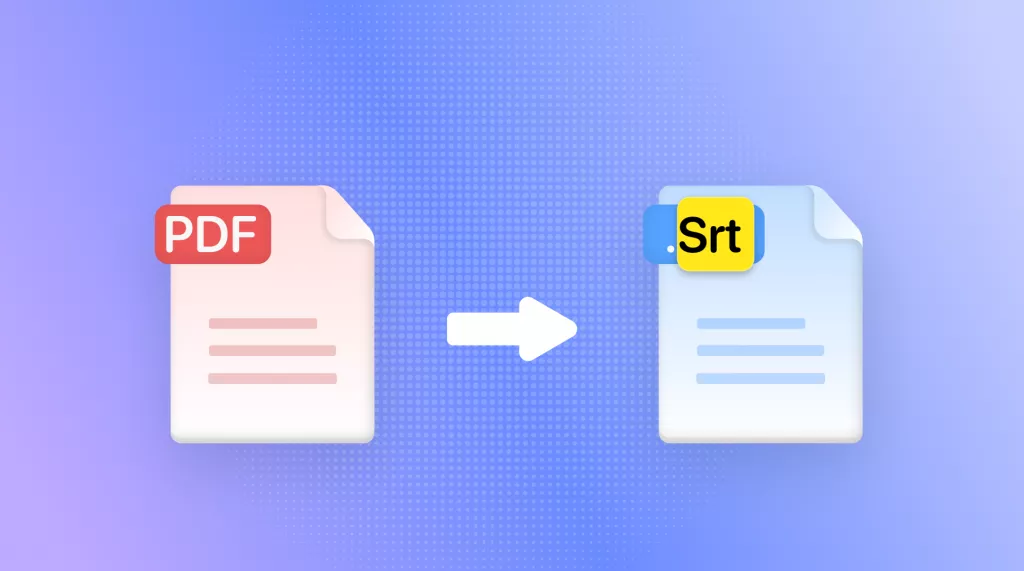
 Enola Davis