UPDF
UPDF
 UPDF for Windows
 UPDF for Mac
 UPDF for iPhone/iPad
 UPDF for Android
 Nomostar
 UPDF AI Online
 UPDF Sign
 IvyCraft
 Edit PDF
 Annotate PDF
 Create PDF
 PDF Form
 Edit links
 Convert PDF
 OCR
OCR PDF to Word
 PDF to Image
 PDF to Excel
 Organize PDF
 Merge PDF
 Split PDF
 Crop PDF
 Rotate PDF
 Protect PDF
 Sign PDF
 Redact PDF
 Sanitize PDF
 Remove Security
 Read PDF
 UPDF Cloud
 Compress PDF
 Print PDF
 Batch Process
 About UPDF AI
 UPDF AI Solutions
 AI User Guide
 FAQ about UPDF AI
 Summarize PDF
 Translate PDF
 Chat with PDF
 Chat with AI
 Chat with image
 PDF to Mind Map
 Explain PDF
 PDF AI Tools
 Image AI Tools
 AI Chat Tools
 AI Writing Tools
 AI Study Tools
 AI Working Tools
 Other AI Tools
 AI Bookmark Generation
 AI Bookmark Summary
 AI Watermark Generation
 AI Background Generation
 AI Sticker Generation
 AI Stamp Generation
 AI Editing Suite
 UPDF Copilot
 AI Page Management
 AI Semantic Search
 PDF to Word
 PDF to Excel
 PDF to PowerPoint
 Enterprise Solution
 Enterprise Sign
 Enterprise AI
 Enterprise Plan
 Enterprise User Guide
 Enterprise Webinar
 IT
IT Education
 Construction
 Financial Service
 Healthcare
 Insurance
 Legal
Legal Manufacturing
 Government
 Researchers & PhDs
 Solopreneurs & Freelancers
 Lawyers & Legal Professionals
 Real Estate Agents & Brokers
 Education Solution
 Customer Stories
 User Guide
 UPDF Tricks
 FAQs
FAQs UPDF Reviews
 Download Center
 Blog
Blog Newsroom
 Tech Spec
 Updates
 UPDF vs. Adobe Acrobat
 UPDF vs. Foxit
 UPDF vs. PDF Expert

Quick answer:
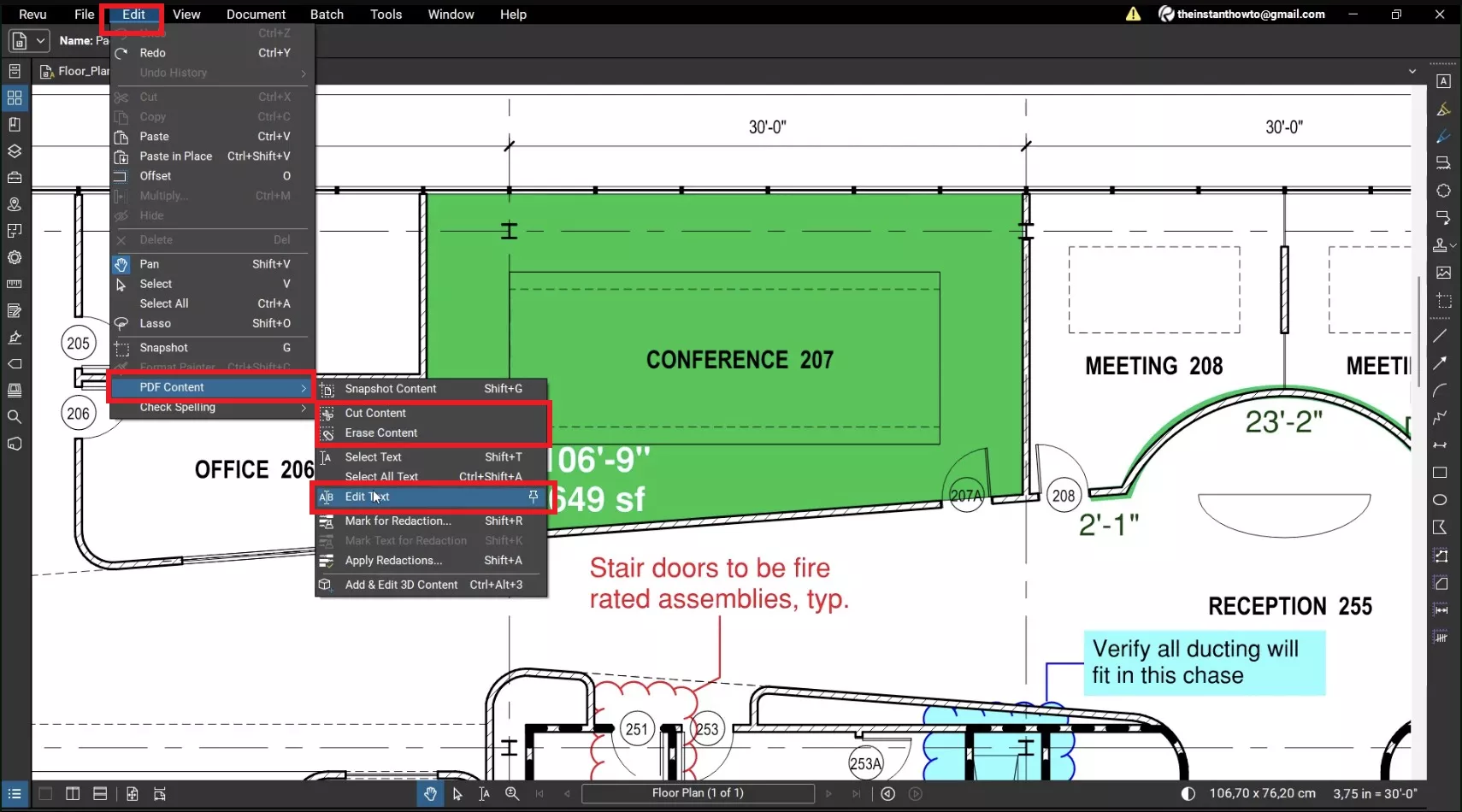
The difficult part is identifying what the visible words are. Selectable text, flattened content, and a scan can look identical, but Bluebeam treats them differently. For example, on an exported floor plan, test one label before editing the whole sheet: if the text is only a scan, run OCR first; if it is live text, try Edit Text.
Think of a PDF as three surfaces: page content is printed ink, markups are transparent notes above it, and a scan is a photograph. Revu is built around AEC review, measurement, takeoffs, and collaboration, while Edit Text is intended for minor corrections. For images, links, pages, forms, and scans, see how to edit a PDF with UPDF.
Keep a clear view of the original page while you revise the content. For a practical example of editing PDF content in UPDF, watch the walkthrough below.
“Select Text lets me select within the text, but it does not let me delete or edit it.” — a Revu user with an AutoCAD-exported floor plan.
The symptom reflects the PDF layer, not a missing button: Select Text copies words, Edit Text changes live characters, and OCR adds a recognition layer.
Part 1. Which Bluebeam Editing Method Do You Need?
| What happens when you click the PDF | Use this workflow | Best for |
|---|---|---|
| A cursor appears inside the existing words | Edit > PDF Content > Edit Text | Correcting a name, date, label, or short phrase |
| You need to remove or relocate a rectangular or polygonal region | Cut Content or Erase Content | Moving a detail, clearing an old label, or deleting page content |
| The page behaves like one image and no text can be selected | Document > OCR, then choose a visual correction or source-file rewrite | Scanned drawings, photographed forms, and raster PDFs |
| You only need to propose a correction | Review Text or another markup tool | Proofreading and collaborative review |
| You need routine text, image, or link editing across devices | UPDF Edit mode | Everyday documents on Windows, Mac, iOS, or Android |
Revu 21 is the Windows desktop application. A Bluebeam subscription also includes web and mobile access, but those surfaces focus on markup and collaboration rather than the same page-content editing workflow available in Revu. See Bluebeam's subscription FAQ.
Part 2. Method 1: Edit Existing Text in Bluebeam
Use Edit Text only with live, selectable text.
Best for:
- correcting a room label, date, sheet number, or short note.
Not for:
- rewriting a paragraph and expecting later lines to reflow. Bluebeam states that added text does not wrap, so a longer replacement can collide with nearby content.
Step 1. Open the PDF and confirm the page.
Choose File > Open, select the PDF, and zoom in enough to target the correct word.
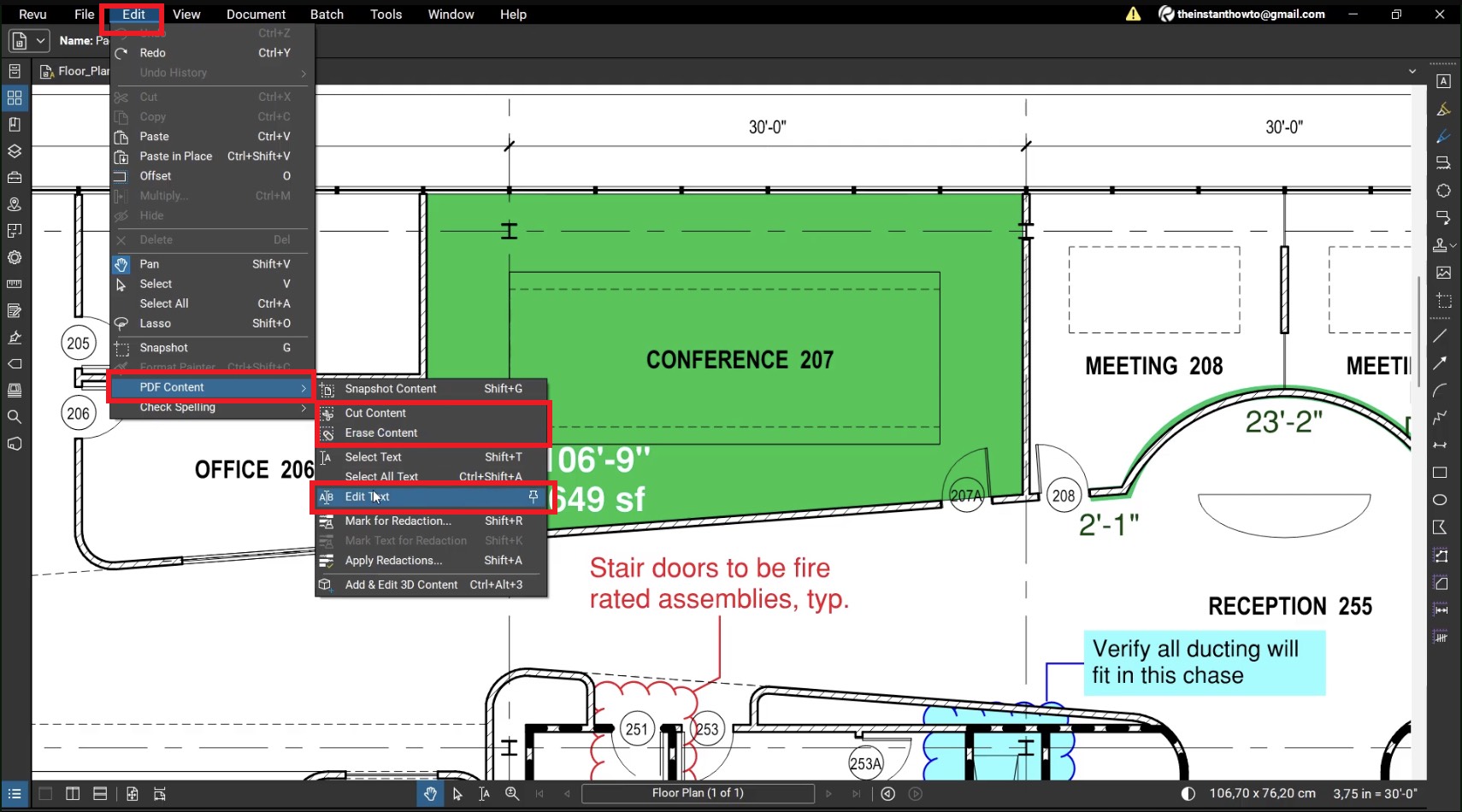
Step 2. Start Edit Text.
Choose Edit > PDF Content > Edit Text. Do not use Select Text when you need to modify the words; that tool is for selection and copying.
Step 3. Make the correction.
Click the text, then add, replace, or delete characters. Press Insert to switch between insert and overwrite behavior. Use Properties to change the font, style, or size.
If the original font is not installed, Revu asks you to choose an available replacement. Match the surrounding type, then inspect spacing and alignment at 100% zoom.
Step 4. Exit and review the entire text block.
Press Esc or choose another tool. Check the complete line or paragraph because a longer replacement will not automatically wrap.
Step 5. Save a copy.
Use File > Save As. Keep the original until fonts, spacing, and references have been checked.
Part 3. Method 2: Cut, Move, or Erase PDF Content
Cut Content and Erase Content act on an area of the page, including text, vectors, and images.
Best for:
- moving a small plan detail, removing an outdated label, or clearing an area before adding corrected content.
Not for:
- concealing confidential information with a white box. A white markup can leave the original data underneath; use a proper redaction workflow when sensitive content must be permanently removed.
Option A. Cut and Move Content
- Choose Edit > PDF Content > Cut Content.
- Drag a rectangle around the target, or click points to create a polygonal selection.
- Paste the cut content into Revu or another application and move it into position.
- Inspect the surrounding linework at close zoom, then save the result as a new file.
Option B. Erase Content Permanently
- Choose Edit > PDF Content > Erase Content.
- Draw a rectangle or polygon around the area to remove.
- Inspect visible and hidden layers. Erase Content removes everything inside the selection, including content on a hidden layer.
- Save a copy. After the PDF is saved, the erased content cannot be pasted back.
The distinction is mechanical: Cut Content removes the selected data from the PDF content stream and places it on the clipboard. Erase Content removes the selected text, vector, and image data without creating something you can paste back.
Part 4. Method 3: Handle a Scanned PDF in Bluebeam
A scan is a picture, so it may contain no live characters. Every current Revu 21 plan includes OCR, but the result is searchable and selectable text—not a reflowable reconstruction of the source.
Best for:
- making scans searchable before choosing a correction method.
Not for:
- recreating the original CAD, Word, or design file. OCR recognizes characters; it does not restore the source application's objects or layout logic.
Step 1. Confirm that the page is image-based.
Try to select a sentence and search for a known word. If neither works and the whole page behaves like one image, treat it as a scan.
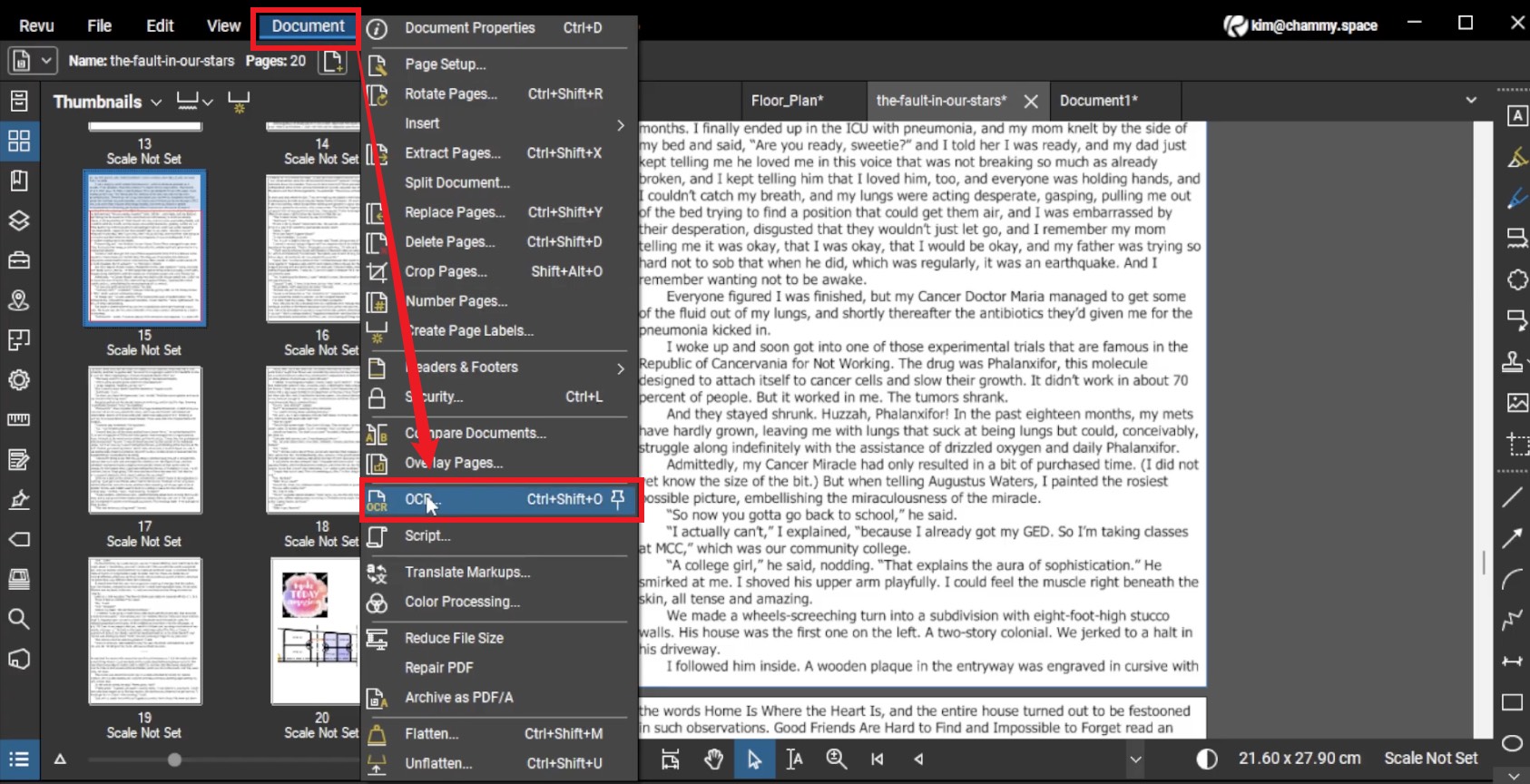
Step 2. Open OCR.
Choose Document > OCR for the open file or Batch > OCR for several files.
Step 3. Set the recognition options.
Choose the pages and language. Set Document Type to CAD Drawing for plans or Text Document for reports. Use Correct Skew or Detect Orientation for tilted pages and Accuracy when correctness matters more than speed.
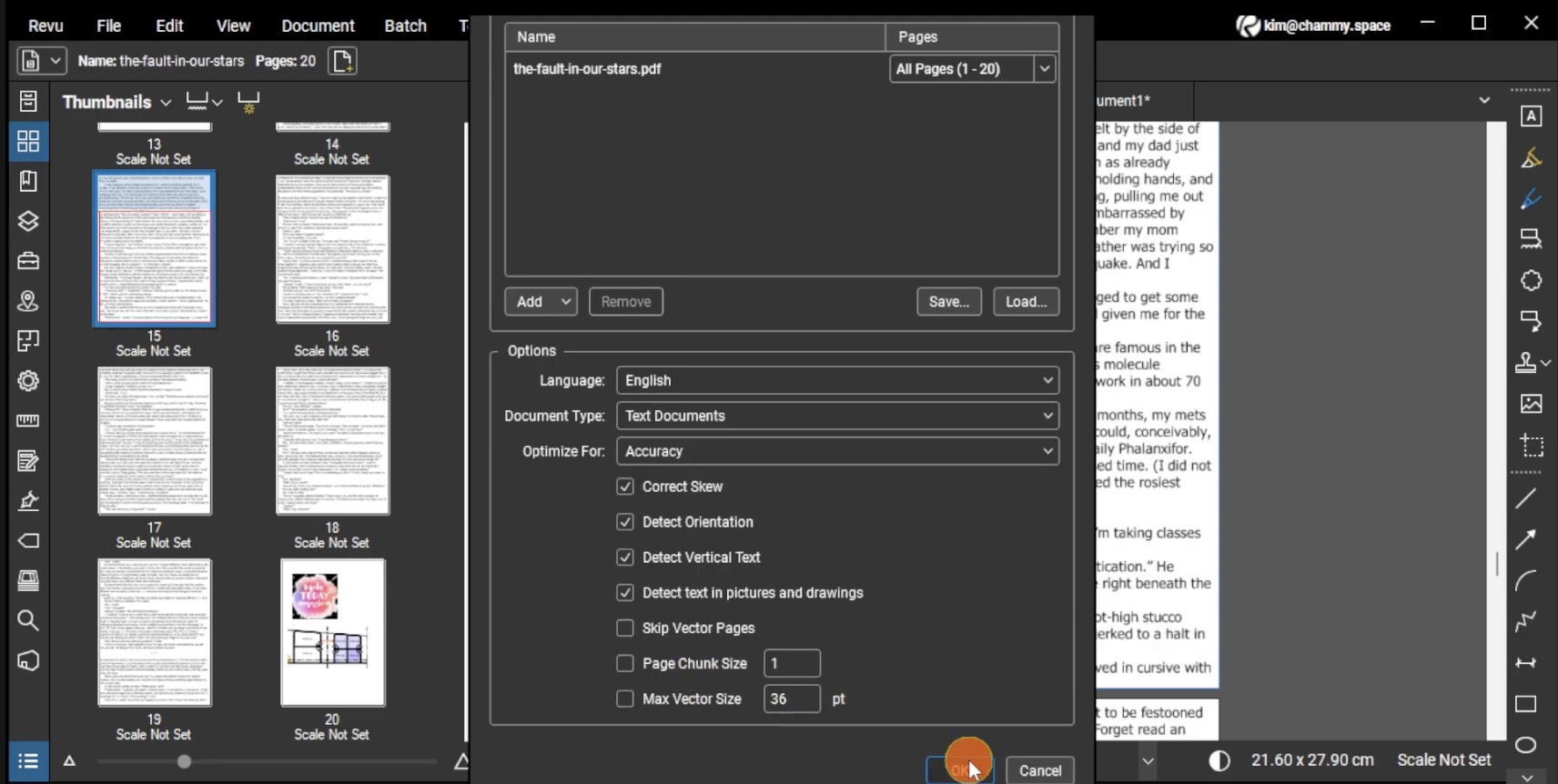
Step 4. Run OCR and test the result.
Click OK, search for a known word, and try selecting it. If a large or complex file returns no useful text, Bluebeam recommends running OCR again with Page Chunk Size set to 1.
Step 5. Match the correction to the result.
| What you need | Next action |
|---|---|
| Search or copy only | Keep the OCR result; no visual change is required. |
| One small visible correction | Erase the raster area, then add the replacement as a Text Box markup. This changes the appearance, not the scanned pixels into live text. |
| Substantial rewriting or paragraph flow | Edit the source Word/CAD file, or export to an editable Microsoft format and rebuild the PDF after review. |
The related guide on how to make a PDF editable explains the difference between a searchable OCR layer and an editable OCR layout.
Part 5. Edit Text, Images, and Links with UPDF Instead
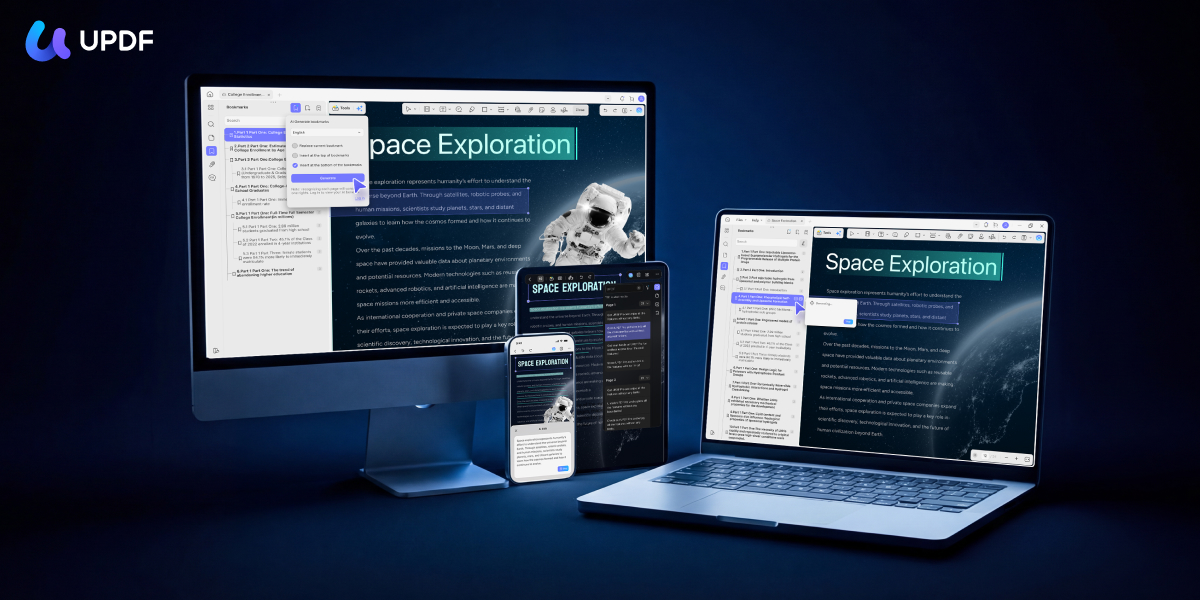
Bluebeam fits AEC review, measurement, takeoff, and Studio workflows. For ordinary corrections, UPDF focuses on document objects such as text, images, and links across Windows, Mac, iOS, and Android. The steps below cover Windows and Mac; mobile interfaces use touch controls.
Best for:
- reports, contracts, resumes, images, links, and forms across devices.
Not for:
- calibrated takeoffs, Studio hosting, or specialist AEC automation. UPDF does not recreate Bluebeam's construction workflow.
Step 1. Open the PDF.
Open the document in UPDF — if you don't have it yet, download UPDF for free and install it in under a minute — then drag the file in or open it from the home screen.
Windows • macOS • iOS • Android 100% secure
Step 2. Enter Edit mode.
Choose Tools > Edit. Existing text blocks, images, and links become selectable editing objects.
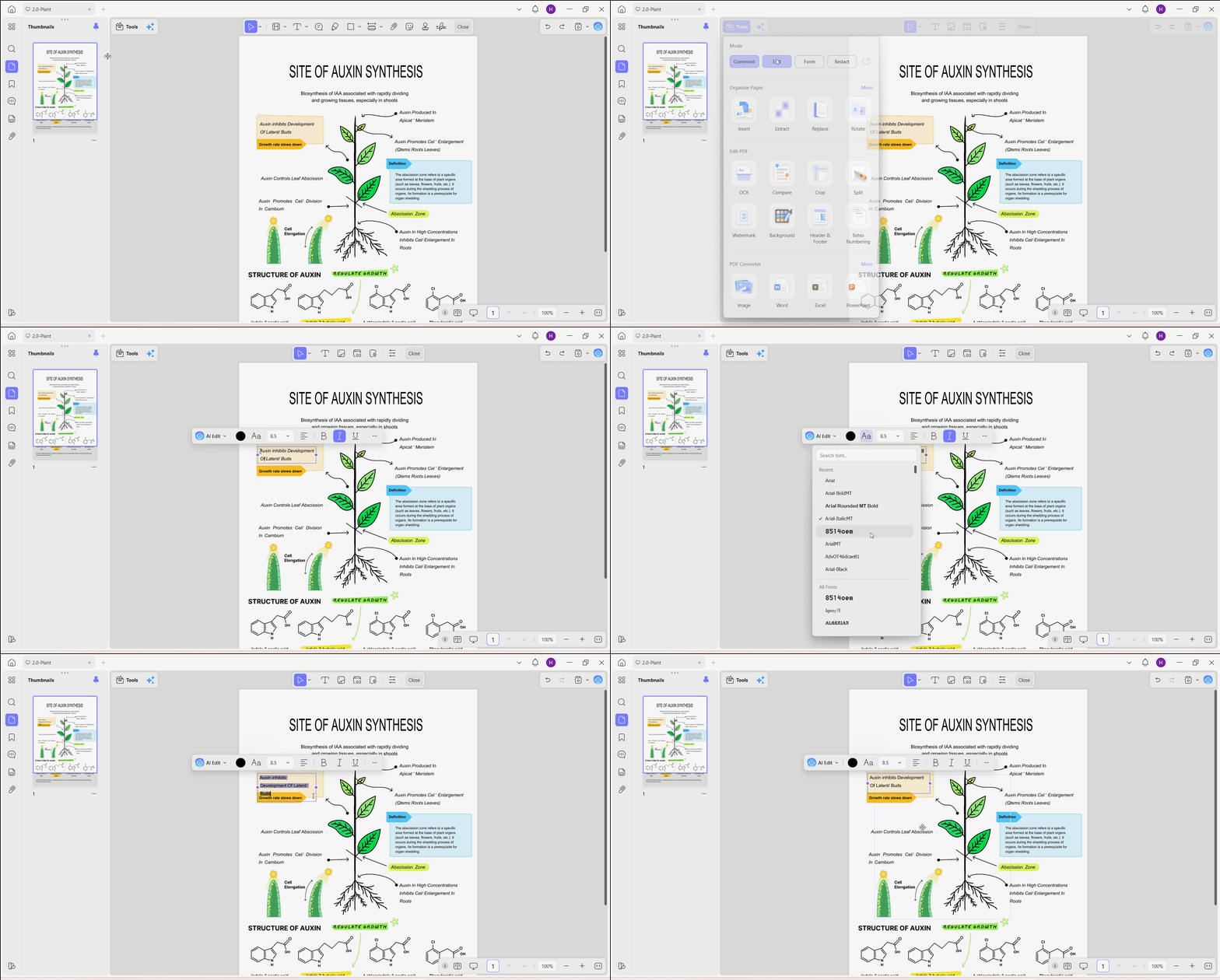
Step 3. Edit the required object.
| PDF object | Action in UPDF Edit mode |
|---|---|
| Text | Select a line or paragraph and type. Use the properties controls to adjust font, size, color, alignment, spacing, and style. See the edit text in PDF guide. |
| Image | Select the image, then rotate, flip, crop, replace, extract, or delete it. |
| Web or page link | Choose Insert & Edit Link for a web destination or Insert & Edit Link Page for an internal destination. See how to edit links in a PDF. |
Step 4. Save the PDF.
Choose Save to update the current file or Save > Save As... to preserve the original. UPDF's free version can save edited PDFs, but the output carries a trial watermark; UPDF Pro removes it.
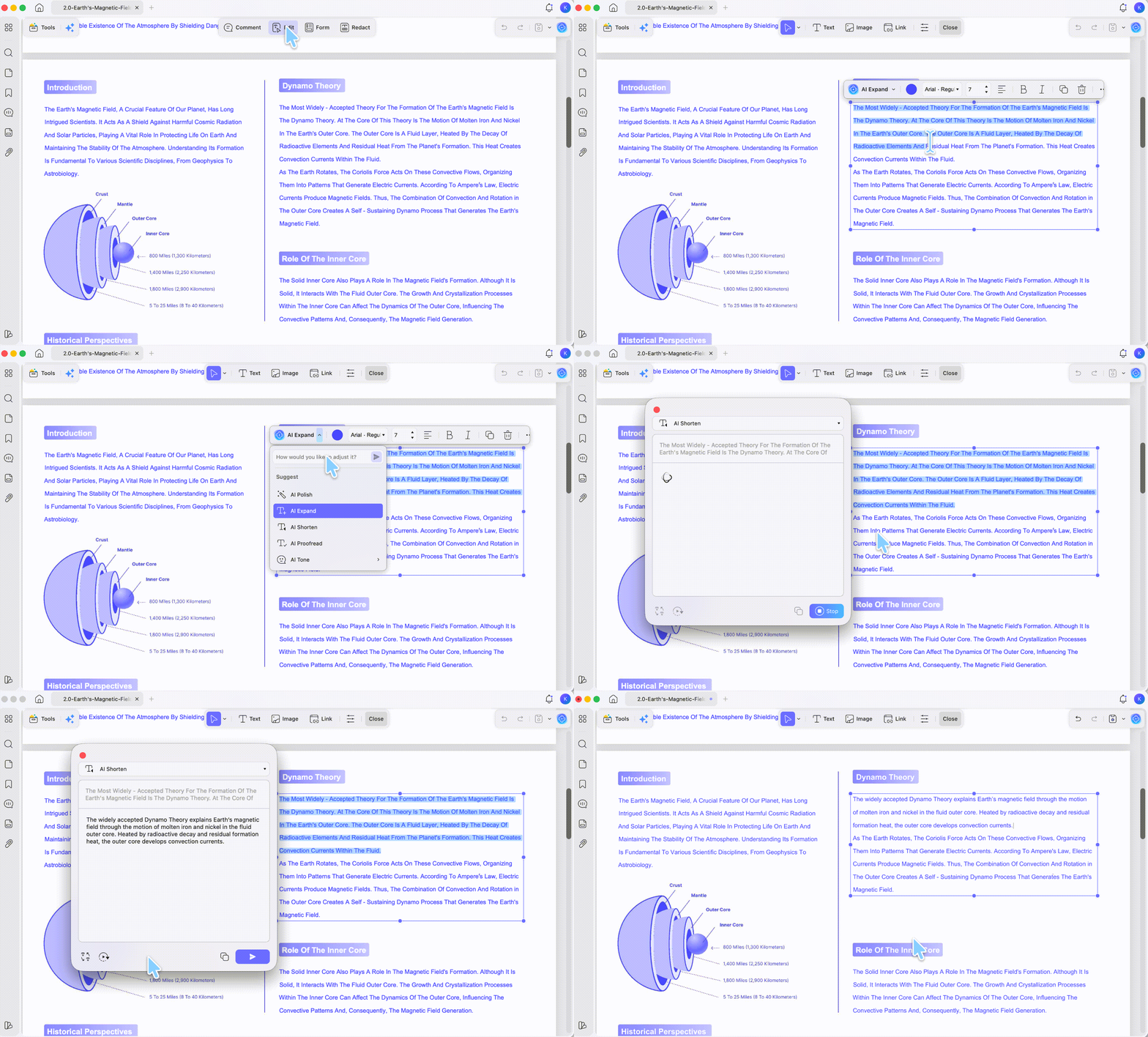
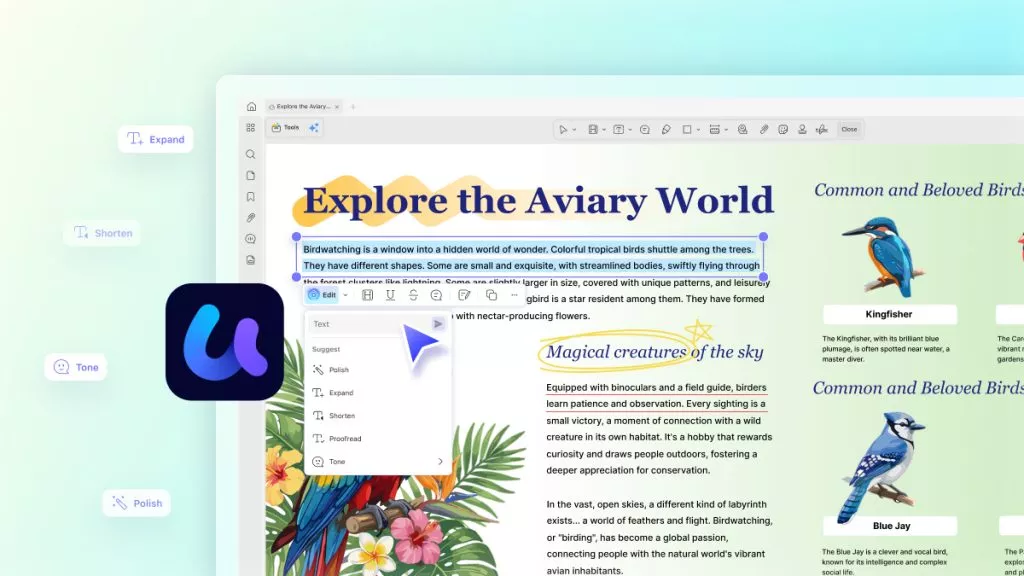
UPDF's AI Editing Suite can polish, shorten, expand, or retone selected text, then replace that selection after review. It works on a sentence or paragraph, not the whole document at once.
If the document is a form, use the dedicated workflow in how to create a fillable PDF so fields and tab order remain interactive.
When AEC-specific tools are unnecessary, test the same correction in a document-focused editor.
Download UPDF for free to try editing text, images, and links on your file — installation is free, and Pro removes the trial watermark from exported files.
Windows • macOS • iOS • Android 100% secure
Part 6. Edit Text vs. Cut Content vs. Erase Content vs. Markup
These actions may look similar but alter different PDF layers.
| Bluebeam action | What it changes | Use it when | Hard limit |
|---|---|---|---|
| Edit Text | Live characters | A selectable label or sentence needs a minor correction | Added text does not wrap |
| Cut Content | A selected page-content region | You need to relocate or reuse an area | Not object-by-object source-file editing |
| Erase Content | All content inside a selected region | An area must be cleared | Hidden content in the region can also be removed |
| Review Text | A proposed change stored as markup | A reviewer should suggest rather than apply a change | Source text remains unchanged |
| Text Box | A markup above the page | A scan needs a visible patch | It remains a markup unless flattened |
Physically, Edit Text changes print; Cut Content lifts a page piece; Erase Content removes it; Review Text adds a non-destructive correction note; Text Box overlays a transparent label.
Part 7. Bluebeam Pricing Plans for PDF Editing in 2026
Bluebeam's US page lists four named-user plans. The following prices were verified on August 11, 2026, and are billed annually per user.
| Plan | Current US price | Editing relevance | Main reason to upgrade |
|---|---|---|---|
| Basics | US$260/year | Includes PDF creation, editing, markups, OCR, Cut Content, Erase Content, and Edit Text | Entry plan for straightforward markup and document management |
| Core | US$330/year | Includes the Basics editing tools | Adds advanced measurements, comparison/overlay, Studio hosting, and CAD workflows |
| Complete | US$440/year | Includes the same core editing tools | Adds Dynamic Fill, Quantity Link, Batch Link, Batch Slip Sheet, batch signatures/seals, and scripting |
| Max | US$590/year introductory price | Includes Complete plus premium AEC and AI workflows | Adds AI drawing review/comparison, advanced markup actions, Stitching, and Connected Sessions with Revit |
All plans include Revu for Windows plus Bluebeam web and mobile. Each includes core editing and OCR. Bluebeam says the US$590 Max introductory price is locked through the purchaser's 2027 renewal; a later standard price is unannounced. Check the live pricing page before buying.
Bluebeam also offers a 14-day full-feature trial for testing Edit Text, OCR, and content removal on file copies. See the trial documentation.
Part 8. Bluebeam or UPDF: Match the Editor to the Job
This is a task-fit comparison, not a scorecard.
| Editing requirement | Bluebeam Revu 21 | UPDF |
|---|---|---|
| Minor selectable-text correction | Edit Text; added text does not wrap | Select a line or paragraph in Edit mode |
| Move or clear a drawing region | Cut Content and Erase Content | Text, images, and links are handled as editing objects |
| Scanned page | OCR makes text searchable/selectable; visible changes can require an overlay or source rebuild | OCR and editable conversion workflows are available |
| Desktop OS | Windows only | Windows and macOS |
| Mobile content editing | Web/mobile focuses on markup and collaboration | Text and image editing is available; controls differ from desktop |
| Construction measurement and takeoff | A core strength, with plan-dependent automation | Not a substitute for specialist AEC takeoff workflows |
| Free access | 14-day full-feature trial | Editing and saving with a trial watermark on exported PDFs |
| Paid-plan shape | Annual named-user subscription from US$260/year | Annual and lifetime options; verify the current UPDF plans |
Choose Bluebeam for plan review, measurement, takeoff, or Studio. Choose UPDF for everyday text, image, link, form, or scan editing across devices.
If your team does not need AEC measurement or Studio, test the everyday editing route on a representative file before committing to a Windows-only Revu seat.
Download UPDF for free to try cross-platform PDF editing on your file — installation is free, and Pro removes the trial watermark from exported files.
Windows • macOS • iOS • Android 100% secure
Part 9. Edge Cases: When Bluebeam Still Will Not Edit the PDF
“I chose Edit Text, and the whole document turned gray.”
This mirrors a real Revu report. Revu does not see gray objects as editable text. If search fails, run OCR. If search works but editing still fails, use the source document or make a controlled correction with Erase Content and a Text Box.
“I edited the page, and now Unflatten no longer works.”
Page-content editing can change the stream Revu uses to recover flattened markups. A user reported this in r/Revu. Unflatten recoverable markups before editing page content, and keep an unflattened master copy.
“Edit Text is available, but it is gray inside my Studio Session.”
Studio Sessions permit review markups but disable page-content editing. If allowed, save the document outside the Session, edit locally, and upload a new version through the approved workflow. Some existing or attendee-owned markups can remain locked.
“The text is selectable, but every content-editing command is disabled.”
Check Window > Panels > Signatures. A signature or certification can lock content. Return to the unsigned source or request an authorized editable version; printing a copy can discard signature evidence.
Part 10. FAQ About Editing PDFs in Bluebeam
1. Can Bluebeam create or edit fillable PDF forms?
Yes, with Complete or Max. Revu can fill supported forms more broadly, but Bluebeam limits form creation and form-field editing to Complete and Max. Open Window > Panels > Forms and see the Forms panel guide.
2. Can someone open my edited PDF without Bluebeam?
Yes, after you save the PDF. A standard PDF saved locally can open in another compatible reader. Studio access rules are separate, so send the saved PDF when the recipient only needs the final document.
3. What happens when the Bluebeam trial expires?
Revu switches to Read-only. You can still open, view, and print PDFs, but editing requires an assigned paid plan. Bluebeam says Studio data is retained for 120 days after the account becomes Read-only.
Conclusion
Use Edit Text for a small correction to live characters, Cut Content to move or reuse a selected region, and Erase Content to remove a region permanently. For a scan, run OCR first and then decide whether searchable text is enough, a visual patch is acceptable, or the source file needs a real rewrite.
Bluebeam fits Windows-based AEC review, measurement, takeoff, and Studio. UPDF focuses on everyday editing across Windows, Mac, iOS, and Android.
For tasks beyond Bluebeam, continue with how to edit a PDF and match the workflow to the PDF layer.
Download UPDF for free to try the full PDF editing workflow on your file — installation is free, and Pro removes the trial watermark from exported files.
Windows • macOS • iOS • Android 100% secure





 Enrica Taylor
 Enola Miller