UPDF
UPDF
 UPDF for Windows
 UPDF for Mac
 UPDF for iPhone/iPad
 UPDF for Android
 Nomostar
 UPDF AI Online
 UPDF Sign
 IvyCraft
 Edit PDF
 Annotate PDF
 Create PDF
 PDF Form
 Edit links
 Convert PDF
 OCR
OCR PDF to Word
 PDF to Image
 PDF to Excel
 Organize PDF
 Merge PDF
 Split PDF
 Crop PDF
 Rotate PDF
 Protect PDF
 Sign PDF
 Redact PDF
 Sanitize PDF
 Remove Security
 Read PDF
 UPDF Cloud
 Compress PDF
 Print PDF
 Batch Process
 About UPDF AI
 UPDF AI Solutions
 AI User Guide
 FAQ about UPDF AI
 Summarize PDF
 Translate PDF
 Chat with PDF
 Chat with AI
 Chat with image
 PDF to Mind Map
 Explain PDF
 PDF AI Tools
 Image AI Tools
 AI Chat Tools
 AI Writing Tools
 AI Study Tools
 AI Working Tools
 Other AI Tools
 AI Bookmark Generation
 AI Bookmark Summary
 AI Watermark Generation
 AI Background Generation
 AI Sticker Generation
 AI Stamp Generation
 AI Editing Suite
 UPDF Copilot
 AI Page Management
 AI Semantic Search
 PDF to Word
 PDF to Excel
 PDF to PowerPoint
 Enterprise Solution
 Enterprise Sign
 Enterprise AI
 Enterprise Plan
 Enterprise User Guide
 Enterprise Webinar
 IT
IT Education
 Construction
 Financial Service
 Healthcare
 Insurance
 Legal
Legal Manufacturing
 Government
 Researchers & PhDs
 Solopreneurs & Freelancers
 Lawyers & Legal Professionals
 Real Estate Agents & Brokers
 Education Solution
 Customer Stories
 User Guide
 UPDF Tricks
 FAQs
FAQs UPDF Reviews
 Download Center
 Blog
Blog Newsroom
 Tech Spec
 Updates
 UPDF vs. Adobe Acrobat
 UPDF vs. Foxit
 UPDF vs. PDF Expert

Unwanted blue underlined text, outdated dead URLs, and invisible hidden links ruin document readability, spoil printing effects, and make professional deliverables look unpolished. Worse, hidden embedded links on images or blank areas may cause unintended data leaks when sharing confidential files.
Many users struggle with inefficient manual deletion, leftover blue underlines, or online tools that fail to clear hidden links. This ultimate guide covers all working methods to remove links from PDF, including free online solutions for quick edits, secure offline desktop tools for bulk and confidential files, and a no-tool workaround. We also clarify common misconceptions to help you erase every visible and invisible hyperlink permanently.
Revealing the final solution in advance
Windows • macOS • iOS • Android 100% secure
How to Remove Links from PDF?
Removing links from PDF effectively optimizes document appearance, professionalism, and data security. For casual, non-sensitive edits, free online PDF editors offer a fast browser-based solution. For emergency scenarios, the print-to-PDF workaround can quickly disable all link functions. However, for bulk processing, hidden link cleanup, and confidential file editing, a secure offline desktop tool is the most reliable choice, delivering permanent, clean, and safe results.
Method 1: Remove Links from PDF Online Free (Quick & No Installation)
Best for one-time edits, casual users, and non-sensitive documents. Free online PDF editors allow you to delete hyperlinks directly in a browser without downloading desktop software. But they don't have batch support, and some tools keep the link styling features.
| Tool | Free Access | File / Page Limits | Extra Watermark? | Best For |
|---|---|---|---|---|
| AvePDF | Free (5 tasks/day) | 128MB / 200 pages | ❌ No | One‑click removal of all links |
| Sejda | Free (3 tasks/hour) | 50MB / 200 pages | ❌ No | Removing a single link selectively |
| Smallpdf (Flatten) | Free (limited) | — | ❌ No | Fastest way to disable all interactive content |
| PDF Candy | Free | 50MB | ❌ No | Basic link removal with additional editing |
| Xodo | Free (1 file/day) | — | ❌ No | Privacy‑conscious users who want online convenience |
| iLovePDF | Free (limited) | — | ❌ No | Clean interface for basic removal |
| PDFescape | Free | 10MB / 100 pages | ✅ Subtle watermark | Small, simple files only |
Step-by-Step Guide (Universal for Smallpdf, iLovePDF, Sejda)
1. Open a trusted online PDF editor and upload your editable PDF file.
2. Access the Edit PDF tool to activate the text and link editing function.
A useful link takes the reader directly to the material they need. For a visual companion, the video below focuses on editing PDF content in UPDF.
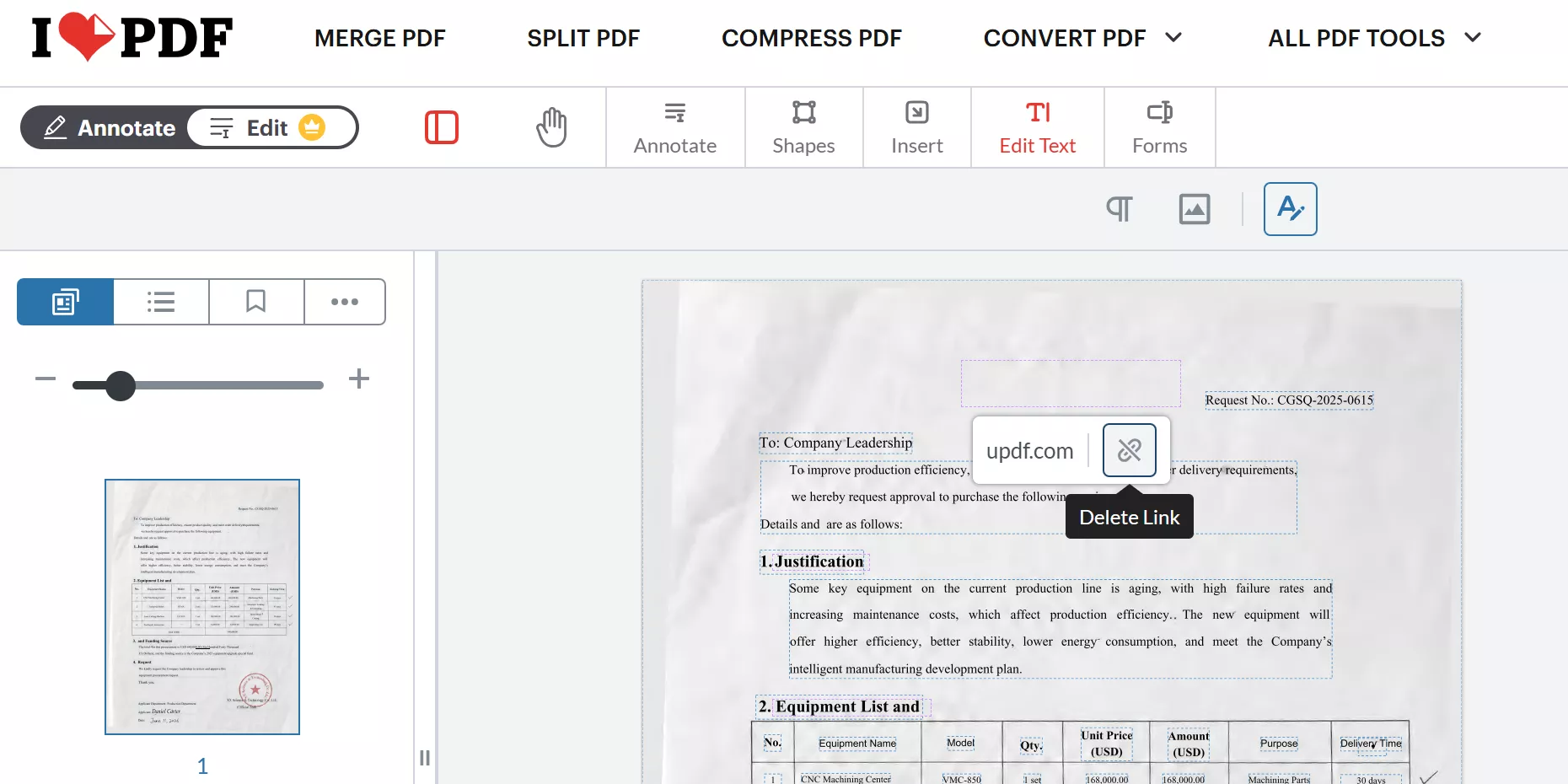
3. Manually click and remove single hyperlinks or use the tool’s “remove all links” feature for one-click cleanup.
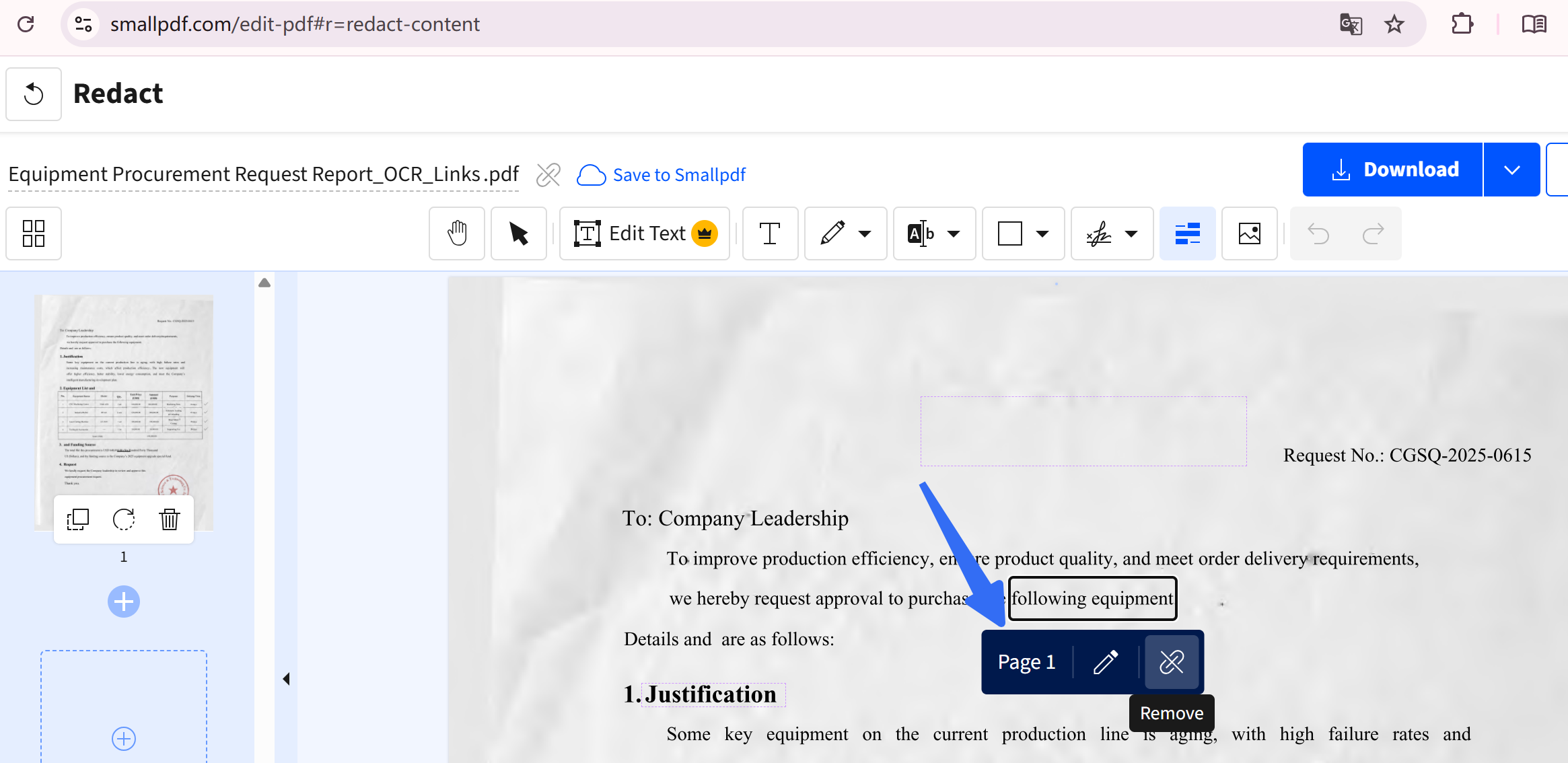
4. Preview the file to confirm no jumpable links remain, then download the revised PDF.
Method 2: Permanent & Bulk Link Removal (Offline Desktop Tool)
For business users, bulk file processing, and sensitive PDFs, offline desktop editors are the safest and most reliable choice. We recommend UPDF, which offers a perfect balance of security, functionality, and cost compared to expensive Adobe Acrobat subscriptions. They all support removing links and link styling, and batch removal.
| Tool | Pricing Model | Detect Hidden Image Links | OCR Support | Platform | Learning Curve | Best For |
|---|---|---|---|---|---|---|
| UPDF | One‑time ($94.99) | ✅ | ✅ (38 languages) | Win, Mac, iOS, Android | Low — intuitive UI | Best overall value — professional features at a fair price |
| Adobe Acrobat Pro | Subscription (~$240/year) | ✅ | ✅ | Win, Mac | Steep — complex UI | Enterprise‑grade, industry standard |
| Foxit PDF Editor | Subscription (~$130/year) | ✅ | ✅ | Win, Mac | Moderate — Word‑like | Enterprise integration, Word‑familiar UI |
| PDFgear | Completely free | ❌ | ✅ | Win, Mac | Low — simple UI | Budget $0 — basic needs |
| EaseUS PDF Editor | Paid | ❌ | ✅ | Win | Moderate | Windows‑only professional use |
UPDF supports full local offline processing, meaning your files never leave your device or upload to third-party clouds. It can detect and delete all visible and hidden hyperlinks without damaging original text, fonts, or layout. The batch processing feature allows one-click link removal for dozens of PDFs at once. Unlike Adobe’s $240 annual subscription, UPDF offers a one-time lifetime license for permanent use across Windows, Mac, iOS, and Android.
Step-by-Step Offline Removal
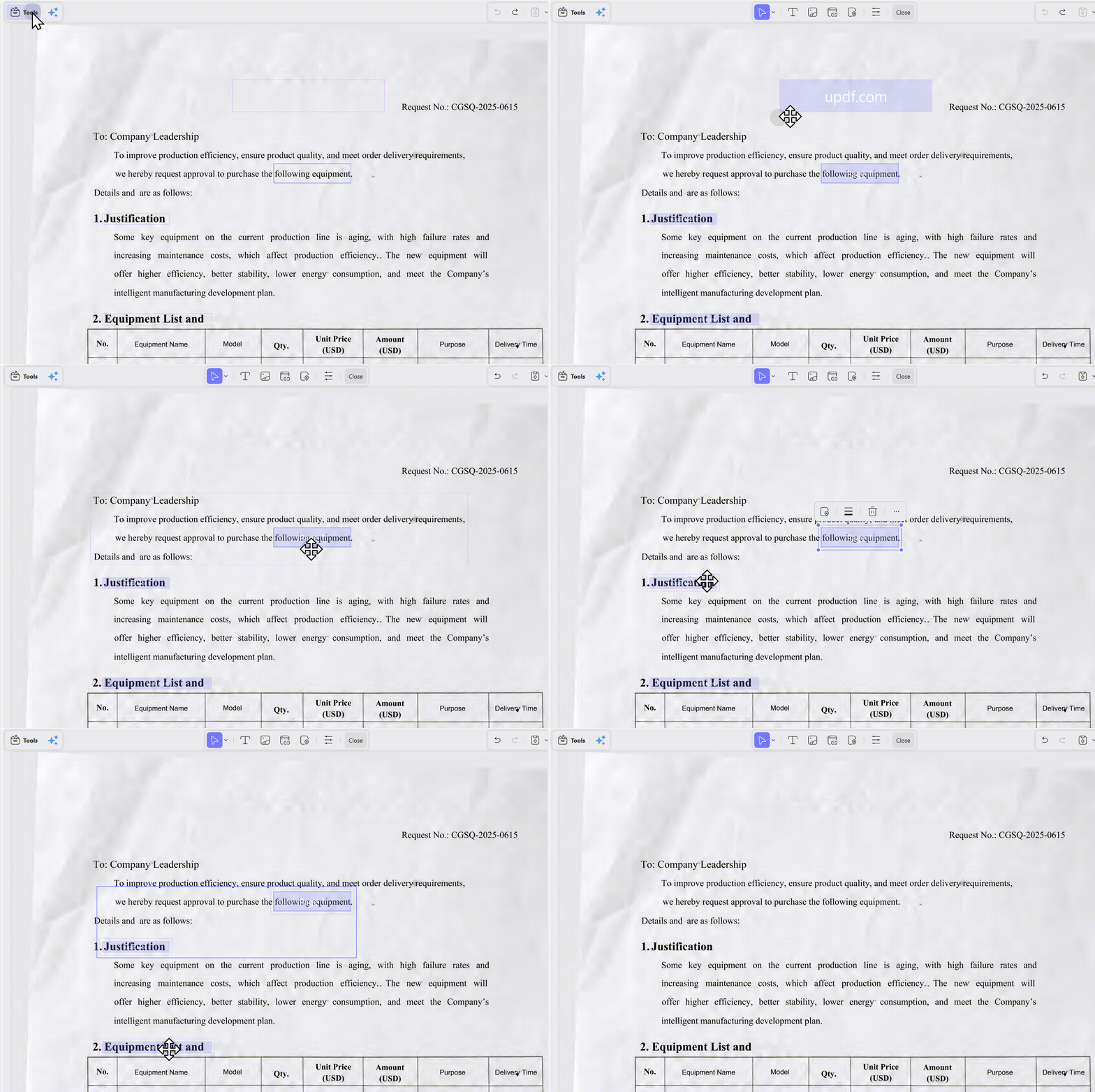
Now click on the "Edit" button in "Tools" that appears on the left sidebar. We will use this section to remove links from PDFs. Select the link you want to remove, right-click, and select "Delete" to remove the link.
As you select the respective section, the links will become visible to you. You will have to select multiple hyperlinks by holding the "Ctrl" key for Windows and the "Command" key for Mac and selecting the links with your cursor. Then press the Delete key on your keyboard; all links will be removed.
Windows • macOS • iOS • Android 100% secure
Method 3: No-Tool Workaround (Instant Emergency Fix)
If you have no access to any PDF editor, you can use the print-to-PDF workaround to disable all hyperlinks instantly. Simply open your PDF, select the print option by pressing Ctrl+P (Windows) or Command+P (Mac) to open the print dialog, and choose “Save as PDF” as the output format. This generates a new static PDF where all clickable jump functions are disabled.
Printing to PDF rasterizes the page, removing all interactive elements including links.
Limitations:
- Blue underlined text may still appear (it's part of the visual content)
- Complex layouts may shift
- Hidden links embedded in images may remain if not fully rasterized
- Not suitable for batch processing
Benefits of Removing Hyperlinks from PDF
Unnecessary PDF hyperlinks create various practical and professional issues across personal, academic, and business scenarios. Removing them ensures cleaner, safer, and more formal PDF files for all usage purposes.
1. Clean Layout for Reading and Printing
Persistent blue underlined links distract from formal content and waste printer ink. Removing hyperlinks delivers a plain, tidy page layout suitable for offline reading, homework submission, and physical printing.
2. Professional Client and Business Deliverables
Outdated, invalid, or third-party external links appear unprofessional in business proposals, reports, and official documents. Clearing all redundant URLs standardizes file formatting and improves brand credibility.
3. Avoid Privacy and Security Risks
Many PDFs contain hidden hyperlinks embedded in images or blank spaces that are invisible to the naked eye. These covert links may lead to internal backend pages or sensitive websites, causing information leakage during external file sharing.
4. Batch File Standardization
For teams processing large batches of PDFs, manual single-link deletion is extremely time-consuming. Bulk link removal unifies file styles and greatly improves office efficiency.
Two PDF Types: Which Files Have Removable Links?
Not all PDFs contain clickable hyperlinks. Identifying your PDF type helps you avoid unnecessary operations and solve problems accurately.
Editable Native PDF
Generated from Word, PowerPoint, or official editors, native PDFs have independent text layers. They support visible text hyperlinks and hidden image-based links. All links in this file type can be detected and completely removed with professional tools.
Scanned & Image-Only PDF
Scanned documents, photo-merged PDFs, and flattened files are essentially static images with no editable text layers. These PDFs contain no clickable hyperlinks at all. If you see text that looks like a URL, it is merely printed content instead of an active jump link and does not require link removal.
FAQS About Removing Links from PDF
Q1: How to Remove Hyperlinks in PDF Online?
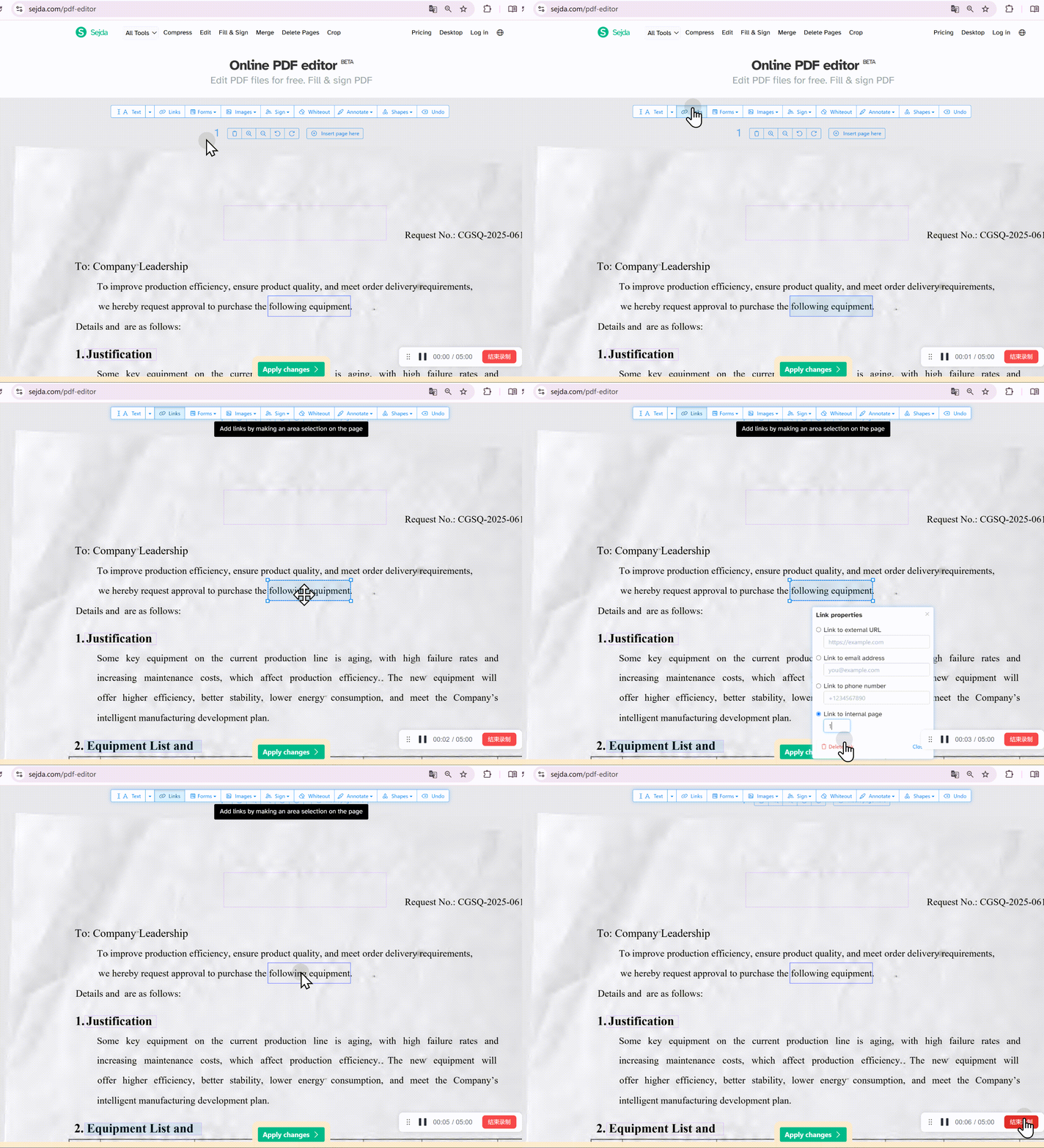
To remove Hyperlinks in PDF online, you need to choose one online PDF editor with a link editing feature. Take Sejda Online PDF Editor as an example. Visit its website via Sejda, click "Upload PDF file", click on "Links" on the top menu, find the link you want to delete, click on it, and hit "Delete Link" at the bottom of the pop-up window. Then, "Apply" the changes and save it.
Q2: How to Remove Hyperlinks from PDF Mac Via Preview?
To remove hyperlinks from PDF on Mac via Preview, you need to open PDF with links on Preview. Now, navigate to "Tools" > "Show Inspector" at the top menu. Then, click on the "Pencil" icon, select the links you want to delete, and hit the "delete" keyboard to delete it.
Q3: How to Remove Hyperlinks from PDF Via Adobe?
To remove hyperlinks from PDF on Adobe, you can open PDF on Adobe. Then, go to tools, find "Edit PDF" and click on it. Select "Links" at the top menu, and choose "Add/Edit Web or Document Links", right-click on the link you want to delete, and select "Delete" to delete it.
Q4: How to Remove All Hyperlinks from PDF Via Adobe?
Adobe can also help you remove all Hyperlinks from PDFs. The steps are: Open PDF > "Tools" > "Edit PDF" > "Links", hit "Remove Web Links", and choose "All" to remove all hyperlinks from PDF on Adobe.
Q5: How to Remove Hyperlinks from PDF via Foxit?
If you are using Foxit, you can also remove hyperlinks from PDFs. Just open a PDF with hyperlinks on Foxit. Just go to "Edit" > "Web Links" > "Remove All Links" to remove links from PDF.
Conclusion
If you just need links to stop working — flatten the PDF or use a free online tool. If you need the blue underlined styling gone too, use the Word workaround or a desktop editor with text formatting tools.
But if privacy matters, or you're handling multiple files:
Online tools mean uploading your documents to unknown servers — and they can't detect hidden image links. That's where UPDF comes in. One‑click link removal, batch processing, hidden link detection, and full styling control — all offline, all private, with a one‑time payment that saves you hundreds over subscriptions.
This guide covers everything you need to remove links from PDFs. If you're looking for a more comprehensive walkthrough on editing PDFs — including modifying text, replacing images, managing pages, adding annotations, and more — visit our full pillar guide: How to Edit a PDF.
Windows • macOS • iOS • Android 100% secure







 Enid Brown
 Enola Davis
 Enola Miller