 UPDF
UPDF
 UPDF for Windows
 UPDF for Mac
 UPDF for iPhone/iPad
 UPDF for Android
 Nomostar
 UPDF AI Online
 UPDF Sign
 IvyCraft
 Edit PDF
 Annotate PDF
 Create PDF
 PDF Form
 Edit links
 Convert PDF
 OCR
OCR PDF to Word
 PDF to Image
 PDF to Excel
 Organize PDF
 Merge PDF
 Split PDF
 Crop PDF
 Rotate PDF
 Protect PDF
 Sign PDF
 Redact PDF
 Sanitize PDF
 Remove Security
 Read PDF
 UPDF Cloud
 Compress PDF
 Print PDF
 Batch Process
 About UPDF AI
 UPDF AI Solutions
 AI User Guide
 FAQ about UPDF AI
 Summarize PDF
 Translate PDF
 Chat with PDF
 Chat with AI
 Chat with image
 PDF to Mind Map
 Explain PDF
 PDF AI Tools
 Image AI Tools
 AI Chat Tools
 AI Writing Tools
 AI Study Tools
 AI Working Tools
 Other AI Tools
 AI Bookmark Generation
 AI Bookmark Summary
 AI Watermark Generation
 AI Background Generation
 AI Sticker Generation
 AI Stamp Generation
 AI Editing Suite
 UPDF Copilot
 AI Page Management
 AI Semantic Search
 PDF to Word
 PDF to Excel
 PDF to PowerPoint
 Enterprise Solution
 Enterprise Sign
 Enterprise AI
 Enterprise Plan
 Enterprise User Guide
 Enterprise Webinar
 IT
IT Education
 Construction
 Financial Service
 Healthcare
 Insurance
 Legal
Legal Manufacturing
 Government
 Researchers & PhDs
 Solopreneurs & Freelancers
 Lawyers & Legal Professionals
 Real Estate Agents & Brokers
 Education Solution
 Customer Stories
 User Guide
 UPDF Tricks
 FAQs
FAQs UPDF Reviews
 Download Center
 Blog
Blog Newsroom
 Tech Spec
 Updates
 UPDF vs. Adobe Acrobat
 UPDF vs. Foxit
 UPDF vs. PDF Expert

Quick Answer
Windows • macOS • iOS • Android 100% secure
In this guide, you'll learn how to convert black and white PDF to color using two methods: a free online tool for quick one-off tasks, and UPDF — an offline editor that gives you full control over colors, backgrounds, and print-ready output without uploading sensitive files.
Whether you need to convert black and white PDF to color online free for a single document, or want a professional solution to turn PDF black and white to colour locally on your computer, both methods are covered below.
Part 1. How Do I Change a PDF from Black and White to Color: Method 1
For users who want to convert black and white PDF to color PDF online without installing software, i2PDF offers a browser-based solution. It works well for non-sensitive documents, though you will need to upload your file to an external server. If you prefer to keep files on your device, skip to Method 2 below.
Pro Tip
Windows • macOS • iOS • Android 100% secure
Using i2PDF to Convert Black and White PDF to Color Online Free
Visit the i2PDF Website: Begin by navigating to the i2PDF website where you'll find an intuitive interface for converting your PDFs.
Select the Color PDF Option: Scroll down and select the Color PDF option. (Tip: Look for the tool with the paintbrush icon!)
Upload Your PDF: Click on the "Choose Files" button to select the black and white PDF you wish to convert. Alternatively, you can drag and drop the file directly onto the website's interface.
Customize Color Options: Once your PDF is uploaded, you'll be presented with various color enhancement options. Tailor settings such as content color and background color to achieve your desired output.
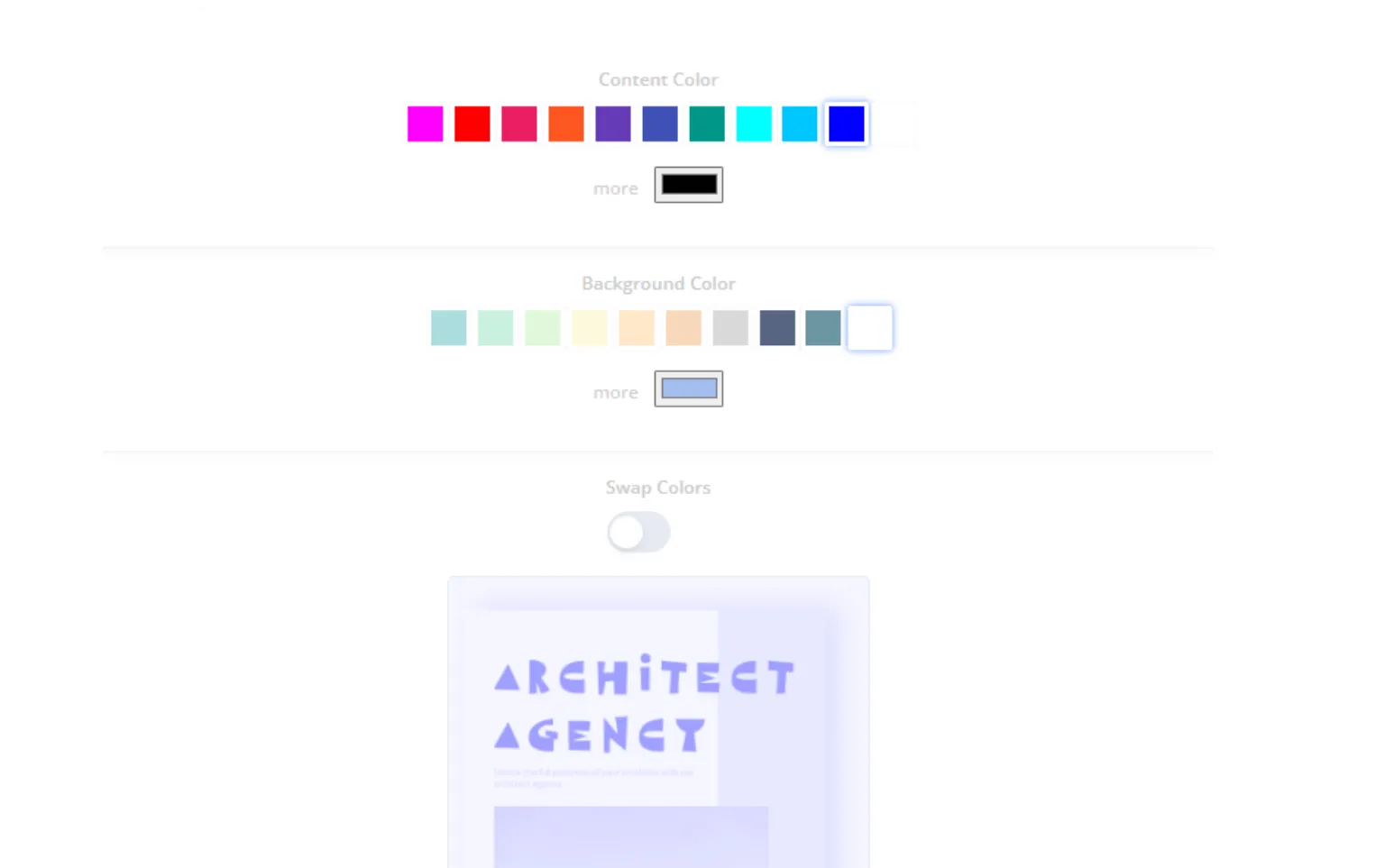
Initiate Conversion: After adjusting the settings, click on the "Color PDF" button. It will kickstart the conversion process and direct you to a new page where you can download your colorized PDF.
Download Your Color-Enhanced PDF: Upon completion, simply click on "Download" and your transformed document will be ready for use.
Part 2. How to Turn Black and White PDF to Color: Method 2
For a more reliable and private way to turn PDF black and white to color, UPDF provides a desktop solution that works offline. Unlike online converters, your files never leave your computer, and you get precise control over background colors, opacity, and page range. Download UPDF and follow the steps below to convert black and white PDF to color with professional results.
Using UPDF to Turn Black and White PDF to Color on Mac/Windows
Step 1: Open UPDF Software: Begin by launching the UPDF software on your computer. If you haven't already installed UPDF, you can download it for free here.
Windows • macOS • iOS • Android 100% secure
Step 2: Import Your Black and White PDF: Within the UPDF interface, click on the "Open File" button and select the black and white PDF you wish to convert. The document will be displayed within the UPDF editor.
Step 3: Click on "Tools": Navigate to the "Tools" icon located on the left side of the panel.
Step 4: Click on the "Background" Button: Afterwards, click on the "Background" button in "Edit PDF".
Step 5: Customize Color Options: To add a new background color, simply click on the "Add Background" button. Within the "Color" section, adjust the color according to your preferences.
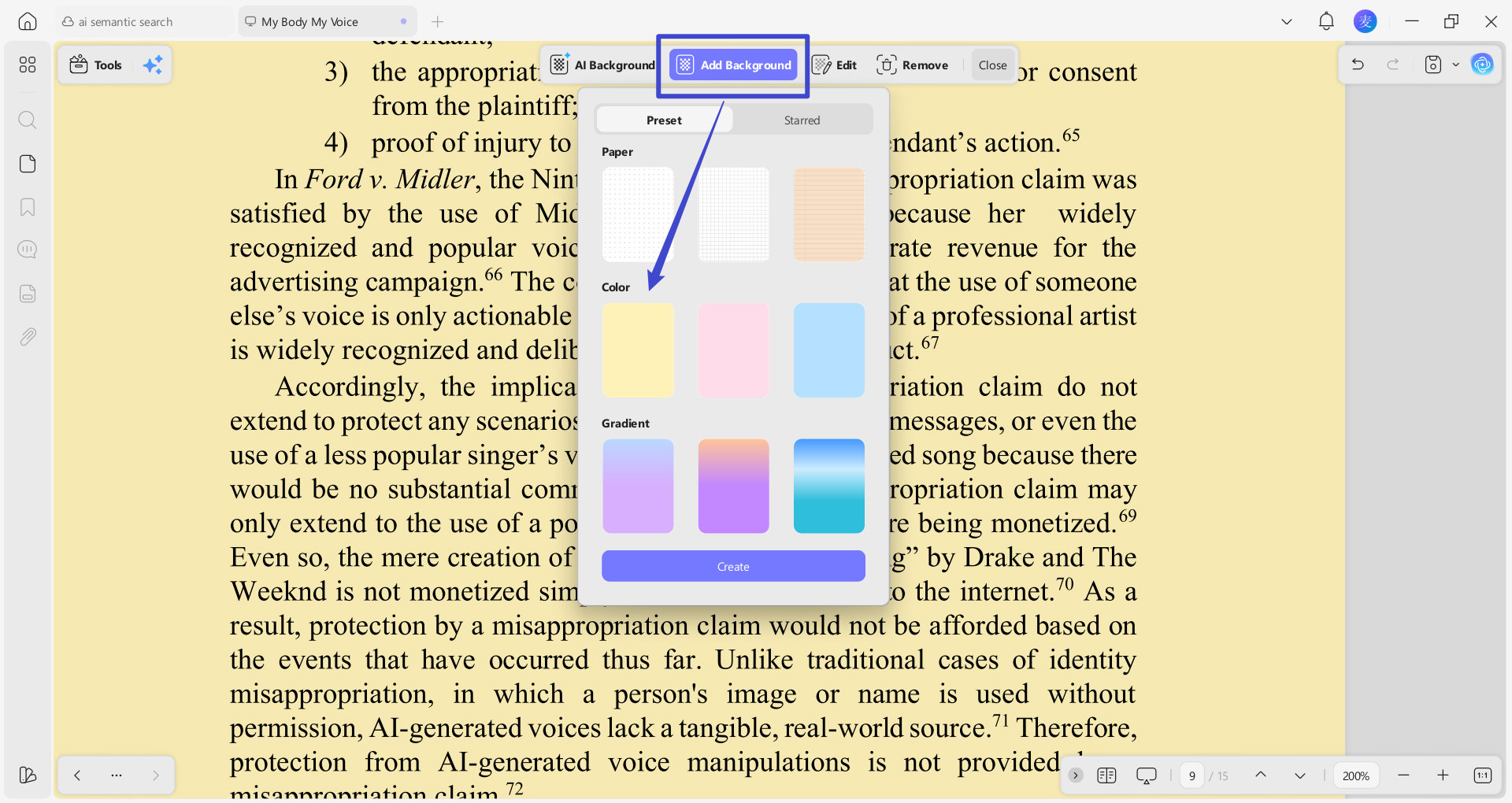
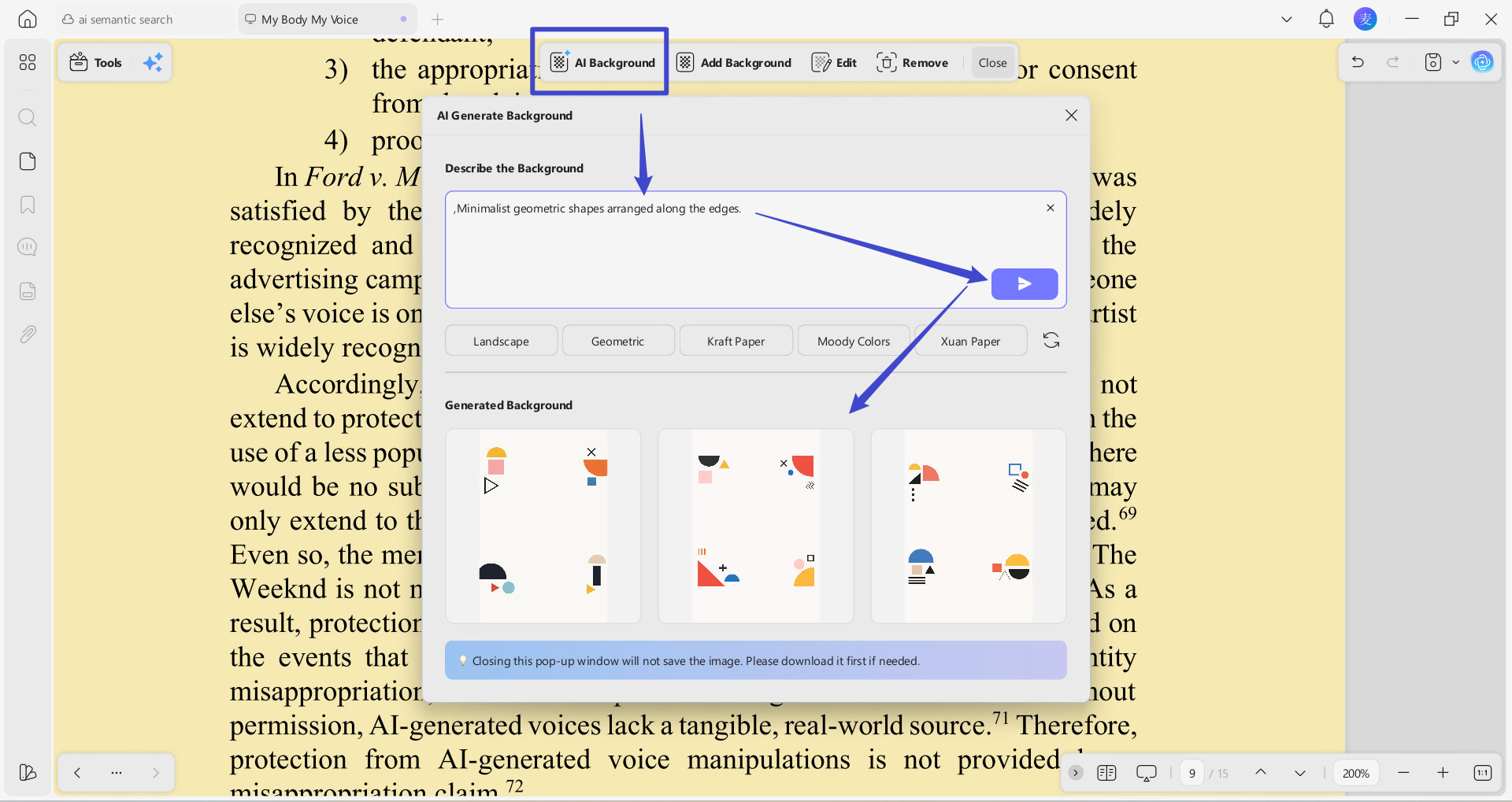
Step 6 (Optional): Design Your Own Background: Since you have turned the PDF in black-and-white into color you want, you may try AI Background, a new feature in UPDF 2.5.
Just tap on "AI Background", type in descriptions or choose a preset one. UPDF will generate three options each time automatically in a second.
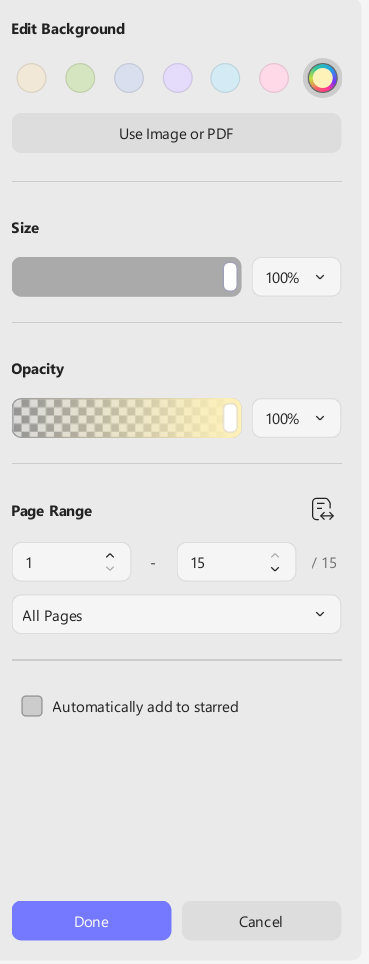
Step 7: Applying Changes: Once you're happy with the hues you have chosen, simply click on the "Save" button to apply the color to the background.
Tip
AI Background is just the start of UPDF 2.5. The newest version 2.5 unlocks 10 powerful AI Agents in total, including AI Bookmark Summary for automatic summary, AI Page Management for intelligent check and detection on pages in files, AI Semantic Search for meaning- rather than keywords-based search, and other advanced features!
Curious about the latest UPDF? The video has you covered.
Part 3: Exploring UPDF's Features Beyond Black and White PDF Conversion
When you upgrade to UPDF Pro after trying the free download, you unlock the full value behind the color conversion workflow:
- No watermark on saved or exported files
- Access to all tools (editing, annotating, converting, AI, and more)
- Edit PDF text, images, and links
- Batch convert, compress PDF files, OCR and so on to save your time
- OCR feature can convert scanned files to editable and searchable PDFs
- Ability to extract, insert, replace, split, merge, and compress pages
- Lifetime free updates
- Minimum 2GB of UPDF Cloud storage with a maximum file size of 2GB per file
This means after you install UPDF and convert your first black and white PDF to color, you can immediately continue editing text, running OCR on scanned pages, or batch-processing entire folders — all within the same app. No need to switch tools.
Now that you've glimpsed into the world of PDF color customization with UPDF, it's time to take your editing game to the next level. So what are you waiting for? Seize the power to create, collaborate, and captivate with UPDF Pro today!
Windows • macOS • iOS • Android 100% secure
Part 4. FAQs About Black and White PDF to Color
Q1. How do I change a black PDF to blue?
To change a black PDF to blue, you can utilize UPDF's feature to alter the background color. Here's how:
1.Open your PDF document in UPDF.
2.Navigate to the "Background" in "Tools".
3.Click the "Add Background". Choose the shade of blue you desire for the background color.
4.Apply the changes, and your PDF will now feature a blue background.
Q2. How do I make sure my PDF prints in color?
Ensuring that your PDF prints in color requires adjusting printer settings. Here's how you can do it:
1.Before printing, access your printer settings.
2.Make sure you haven't clicked on "Print in grayscale (black and white)", which is the color printing setting
3.Once configured, proceed with printing your PDF document, which should now print in color.
Q3. Why is my PDF not saving in color?
If your PDF is not saving in color, there could be several reasons:
1.Check your software or application settings to ensure color settings are enabled.
2.Verify that your document contains color elements that should be preserved.
3.Ensure that the file format you're saving to supports color (e.g., PDF).
4.If using UPDF, ensure that color settings are configured correctly before saving.
Q4. Can I use PDFSimpli to colorize black and white PDFs?
PDFSimpli and similar online tools can add color elements to PDFs, but most work through browser uploads with limited customization. For pdfsimpli colorize black and white style results with full privacy and offline control, UPDF gives you native background color editing, AI Background generation, and precise opacity settings — all without uploading your file to a third-party server.
Q5. What is the best way to convert black and white PDF to color online free?
For a quick, no-installation option, i2PDF lets you convert black and white PDF to color online free by adjusting background and content colors in your browser. However, for documents containing sensitive information, or if you need to edit the color output later, UPDF's offline editor is the safer and more flexible choice.
Closing Words
For a seamless, private, and comprehensive PDF editing experience, we recommend UPDF. It handles everything from background color changes to full text editing, OCR, and batch conversion — all on your local machine. Download UPDF today to unlock a world of possibilities and take your PDF documents to new heights of creativity and professionalism.
Windows • macOS • iOS • Android 100% secure







 Enrica Taylor
 Delia Meyer
 Enid Brown

 Enola Miller