UPDF
UPDF
 UPDF for Windows
 UPDF for Mac
 UPDF for iPhone/iPad
 UPDF for Android
 Nomostar
 UPDF AI Online
 UPDF Sign
 IvyCraft
 Edit PDF
 Annotate PDF
 Create PDF
 PDF Form
 Edit links
 Convert PDF
 OCR
OCR PDF to Word
 PDF to Image
 PDF to Excel
 Organize PDF
 Merge PDF
 Split PDF
 Crop PDF
 Rotate PDF
 Protect PDF
 Sign PDF
 Redact PDF
 Sanitize PDF
 Remove Security
 Read PDF
 UPDF Cloud
 Compress PDF
 Print PDF
 Batch Process
 About UPDF AI
 UPDF AI Solutions
 AI User Guide
 FAQ about UPDF AI
 Summarize PDF
 Translate PDF
 Chat with PDF
 Chat with AI
 Chat with image
 PDF to Mind Map
 Explain PDF
 PDF AI Tools
 Image AI Tools
 AI Chat Tools
 AI Writing Tools
 AI Study Tools
 AI Working Tools
 Other AI Tools
 AI Bookmark Generation
 AI Bookmark Summary
 AI Watermark Generation
 AI Background Generation
 AI Sticker Generation
 AI Stamp Generation
 AI Editing Suite
 UPDF Copilot
 AI Page Management
 AI Semantic Search
 PDF to Word
 PDF to Excel
 PDF to PowerPoint
 Enterprise Solution
 Enterprise Sign
 Enterprise AI
 Enterprise Plan
 Enterprise User Guide
 Enterprise Webinar
 IT
IT Education
 Construction
 Financial Service
 Healthcare
 Insurance
 Legal
Legal Manufacturing
 Government
 Researchers & PhDs
 Solopreneurs & Freelancers
 Lawyers & Legal Professionals
 Real Estate Agents & Brokers
 Education Solution
 Customer Stories
 User Guide
 UPDF Tricks
 FAQs
FAQs UPDF Reviews
 Download Center
 Blog
Blog Newsroom
 Tech Spec
 Updates
 UPDF vs. Adobe Acrobat
 UPDF vs. Foxit
 UPDF vs. PDF Expert

Looking up PDF strikethrough tips online only leads to fragmented, single-tool tutorials. These scattered guides fail to address real troubleshooting pain points: why the strikethrough tool stays hidden in your PDF editor, stops working unexpectedly, or varies drastically across devices.
Example: During contract review, strike through an obsolete sentence and add a short comment explaining the proposed change so the author can evaluate it without losing the original wording. For a related workflow, see add a comment to a PDF.
While many tools only serve single systems or carry strict feature limits, UPDF stands out as a unified cross-platform solution for reliable PDF strikethrough editing. This guide cuts through the chaos to match you with the best method for your device.
Which Method Fits You for Strikethrough in PDF?
Pick your workflow below and jump to the right method.
| Your Scenario | What You Need | Best Method | Why This Fits |
|---|---|---|---|
| You use Windows | Quick, free, no installation | Microsoft Edge (built-in PDF reader) | Free, pre-installed, works instantly |
| You use Mac | Native, free, no extra apps | Mac Preview (built-in annotation) | Free, pre-installed, simple |
| You want cross-platform – Windows + Mac + mobile | One tool that works everywhere | UPDF | One license covers all devices, best value |
| You need online/free | No software, browser only | Smallpdf or Sejda | Free tier available, no installation |
| You have Adobe Acrobat (paid) | Professional-grade annotation | Adobe Acrobat Comment tool | Industry standard, full feature set |
| You only need it occasionally | Completely free, no sign-up | Google Docs (via Google Drive) | Free, uses your existing Google account |
| Your strikethrough isn't working | Troubleshoot and fix | See Troubleshooting | Diagnose why your method failed |
PDF strikethrough solutions vary by device and usage. Windows users can use the built-in Edge reader, while Mac users rely on native Preview. Occasional edits work with Google Docs or free online tools like Smallpdf and Sejda, and professionals can use fully featured Adobe Acrobat.
UPDF outperforms all these alternatives as a versatile, budget-friendly cross-platform tool. Covering Windows, Mac and mobile with one license, it packs reliable strikethrough annotation, precise OCR and stable processing in one lightweight app. With better cost performance than Acrobat, it suits all daily and professional PDF editing scenarios.
Windows • macOS • iOS • Android 100% secure
Part 2: Method-by-Method Guide – Choose Your Strikethrough Tool
Below are tailored step-by-step methods for mainstream PDF tools, helping you pick the perfect fit for your device.
Category 1: Free Built-in Solutions (No Installation Required)
Method 1: Mac Preview (macOS Built-in)
This method is best for Mac users who need a quick, free annotation.
Step-by-step:
- Open your PDF in the Preview app on your Mac
- If the Markup toolbar isn't showing, click the pen icon to show it
- Select the text you want to strikethrough
- Click the Highlight button (pen icon), then choose Strikethrough from the dropdown menu
- To view all annotations: go to View > Highlights and Notes
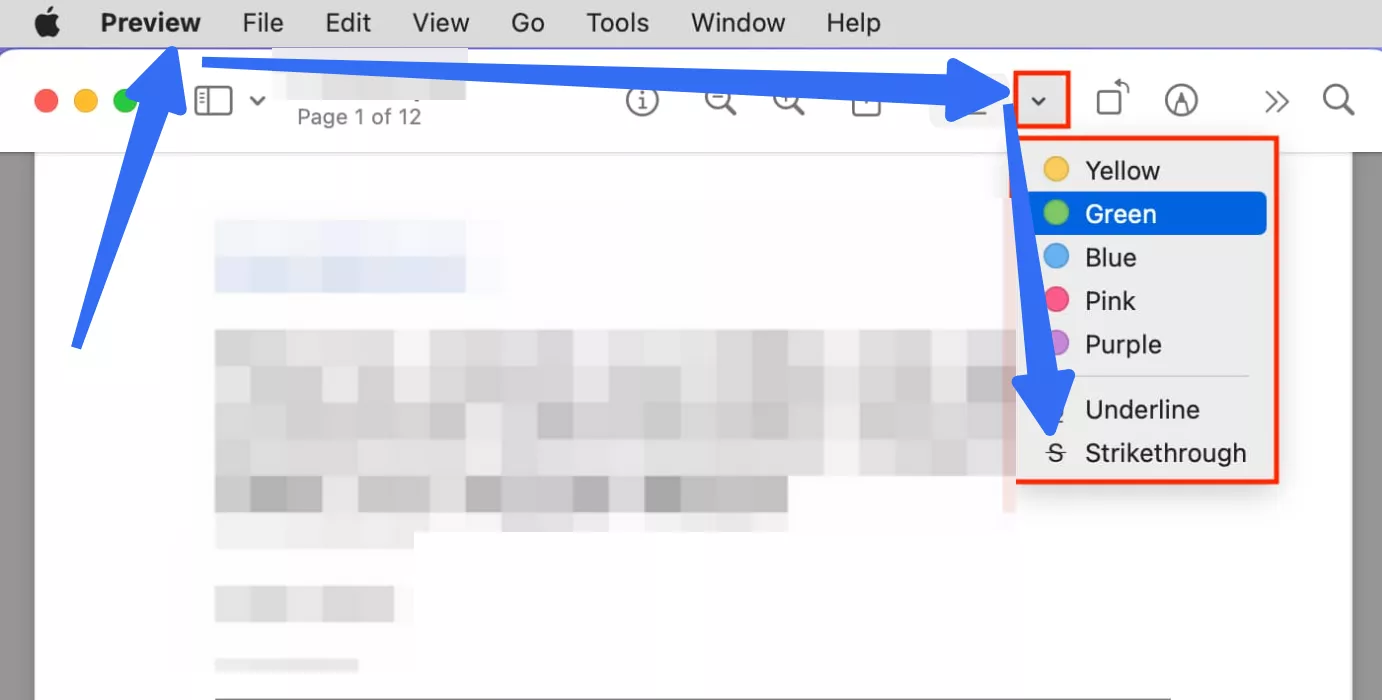
To remove: Control-click the text and select Remove item
Pros: Free, built-in, no installation, supports keyboard shortcuts
Cons: Basic only – no custom colors, no batch processing, Mac only
Method 2: Microsoft Edge (Windows Built-in)
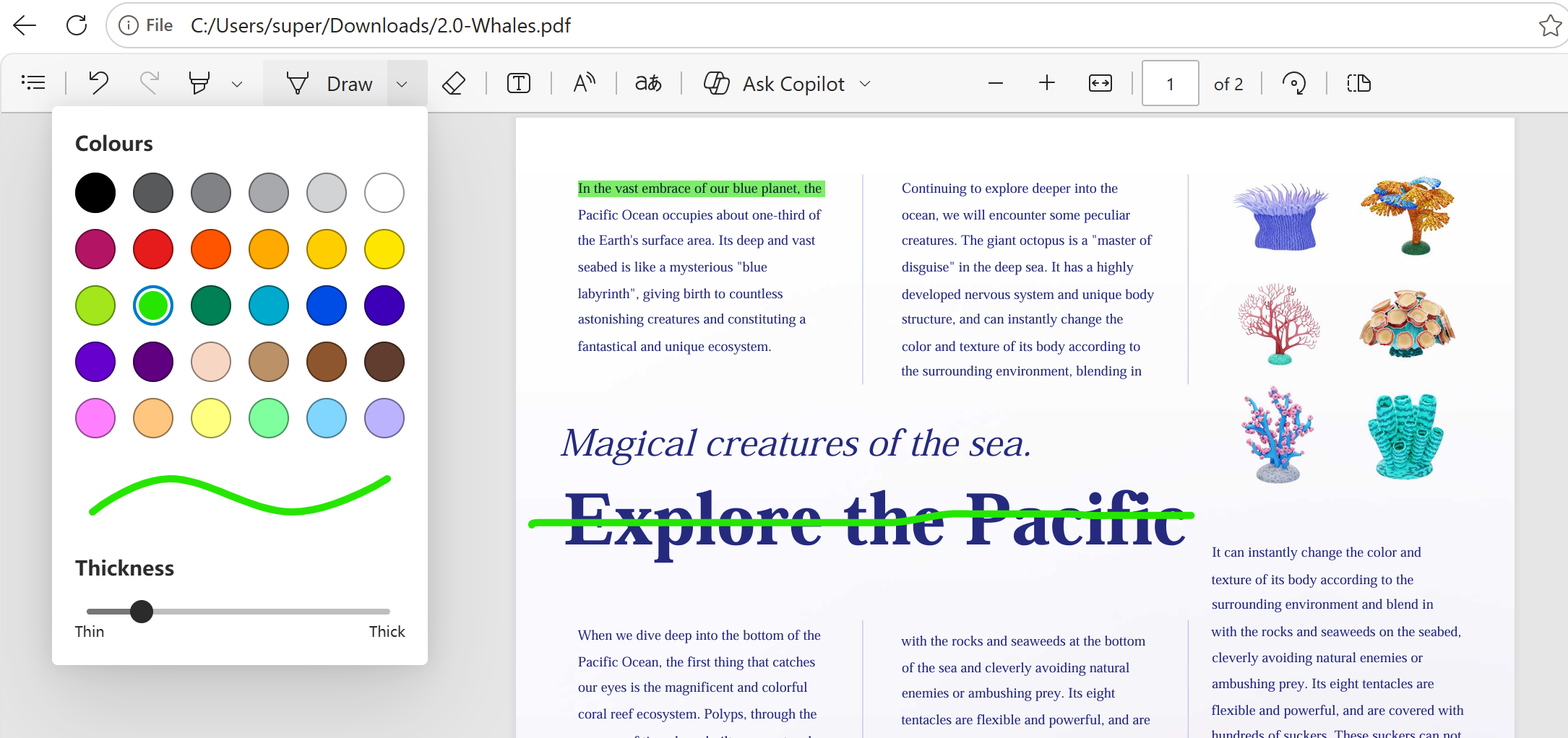
Microsoft Edge doesn't have a native strikethrough or cross-out text tool, but we can use the Draw pen tool to manually cross out words.
Step-by-step:
- Open your PDF in Microsoft Edge (drag and drop, or right-click > Open with)
- Click the pen/highlight icon in the top-right toolbar
- Select the text you want to mark
Pros: Free, built-in on Windows
Cons: Limited features, no native strikethrough
Category 2: Online Free Tools (Browser Only, No Installation)
Method 3: Smallpdf PDF Annotator
Smallpdf is best for quick one-off annotations, with no software installation.
Step-by-step:
- Go to Smallpdf's PDF Annotator tool
- Upload your PDF (from device, Google Drive, OneDrive, or Dropbox)
- Select the text you want to strikethrough
- Change the strikethrough color or opacity
- Download the edited PDF or save it back to the cloud
Pros: Free (with daily limits), no registration required, cloud storage support
Cons: Usage limits on free tier, files uploaded to cloud (not for sensitive docs), internet required
Method 4: Sejda
Sejda: Free online annotation with a clean interface.
Step-by-step:
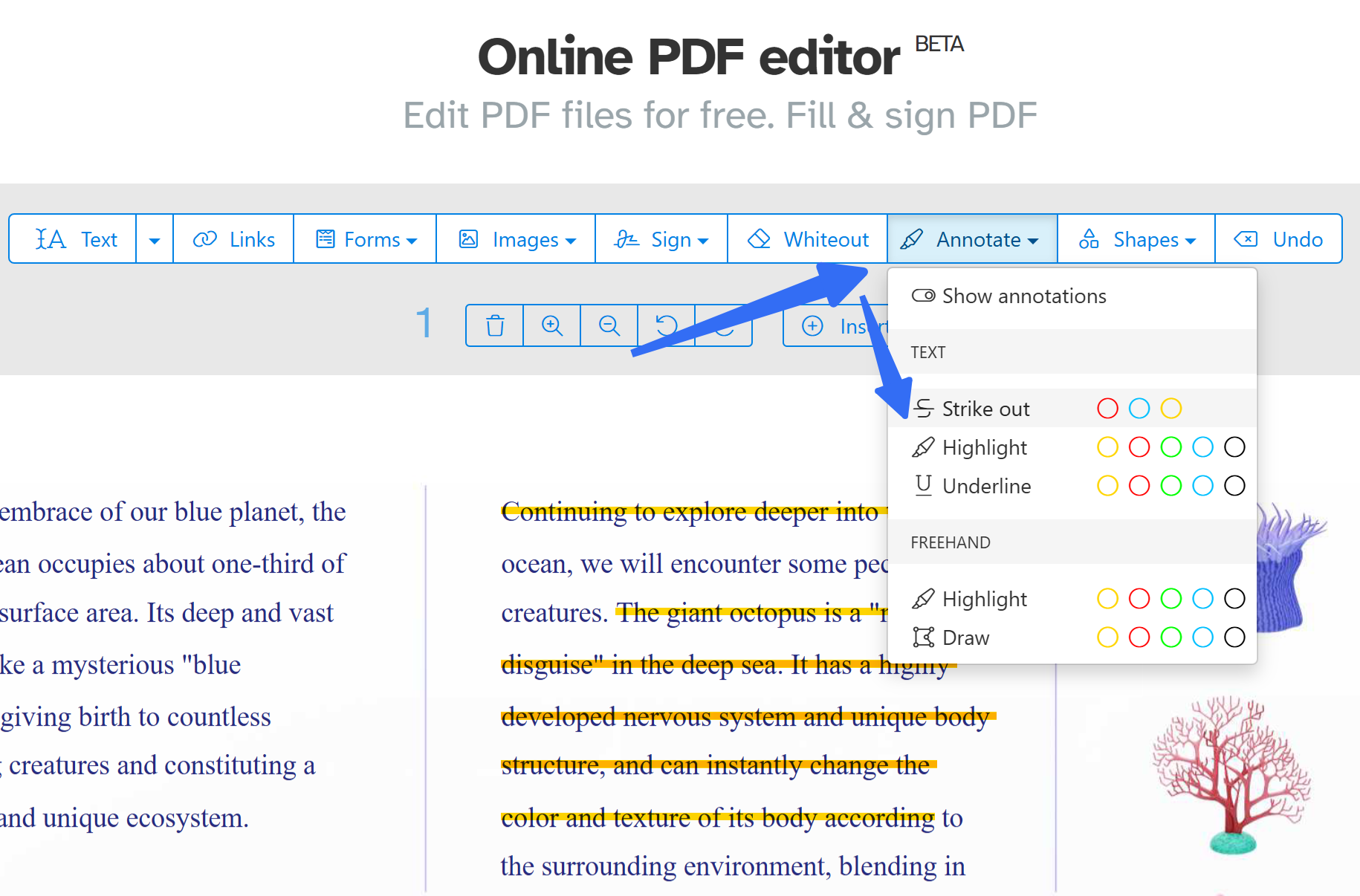
- Go to Sejda's website and upload your PDF
- Click the "Annotate" section on the right toolbar
- Click the Strike out and choose the text you want
Pros: Free, clean interface, supports multiple annotation types
Cons: File size and task limits on free tier
Category 3: Professional PDF Editors (Full Features)
Method 5: Adobe Acrobat (Paid Subscription)
This method is best for users who already have an Acrobat subscription and need professional-grade tools.
⚠️ Critical: In Acrobat, strikethrough is a Commenting tool – not an Editing tool. Do NOT look for it in "Edit PDF" mode.
Step-by-step:
- Open your PDF in Adobe Acrobat
- Select Tools > Comment – this opens the Comment toolbar
- Select the Strikethrough Text tool – the "T" with a line through it
- Drag your cursor over the text you want to mark
- You can add a comment explaining the strikethrough
- Save your PDF
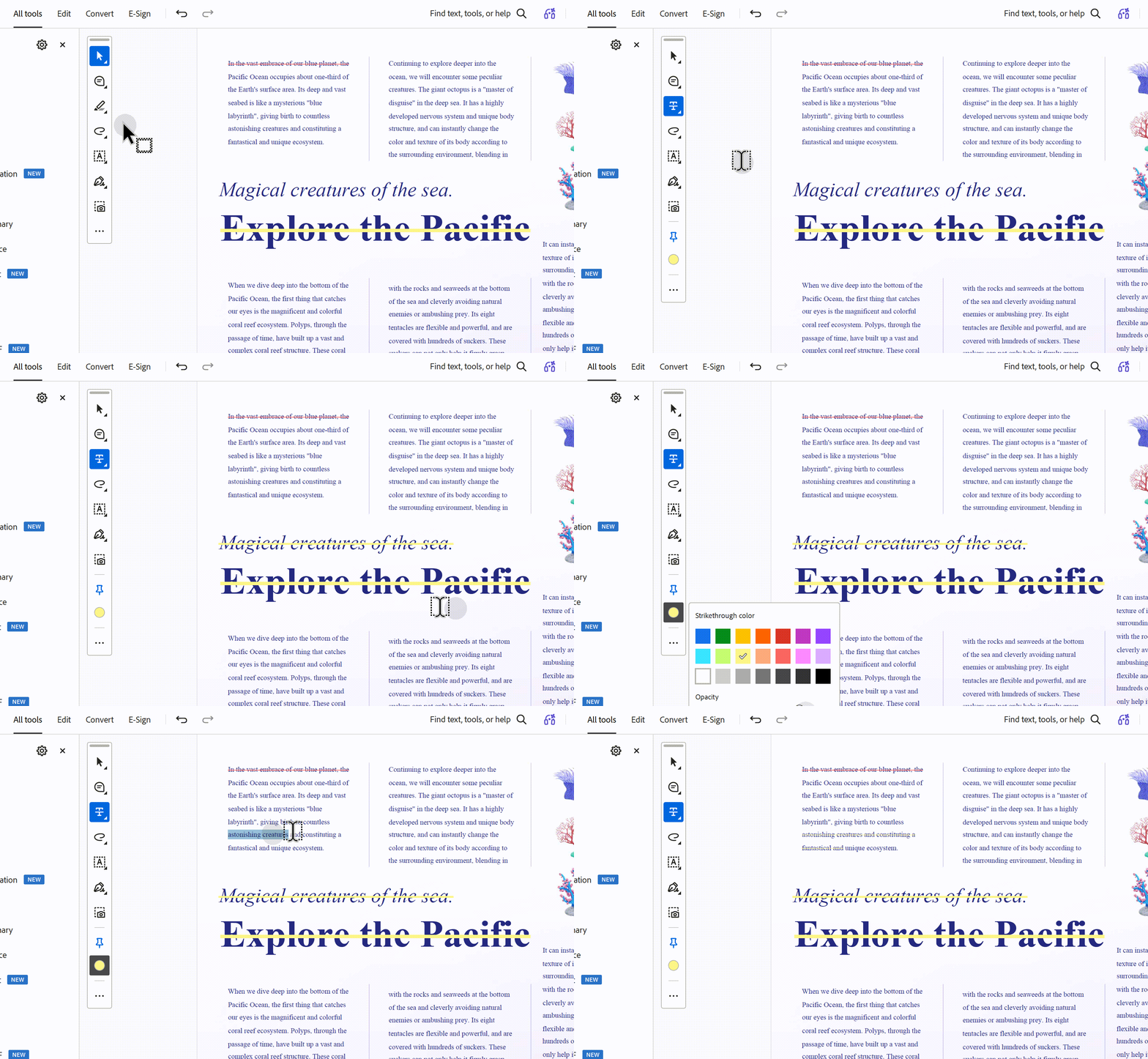
To add replacement text: The strikethrough tool supports adding comments with replacement text
Pros: Industry standard, most comprehensive features, collaboration-ready
Cons: Expensive (subscription required ~$240 per year), confusing tool location (Comment vs. Edit), heavy software
Method 6: UPDF – Best Cross-Platform Value
UPDF is best for users who need a professional PDF editor across Windows, Mac, iOS, and Android – without the subscription cost.
Why UPDF stands out: One license covers all your devices ($94.99) – desktop and mobile. No other tool in this category offers this level of cross-platform coverage at this price point.
Step-by-step (Desktop – Windows/Mac):
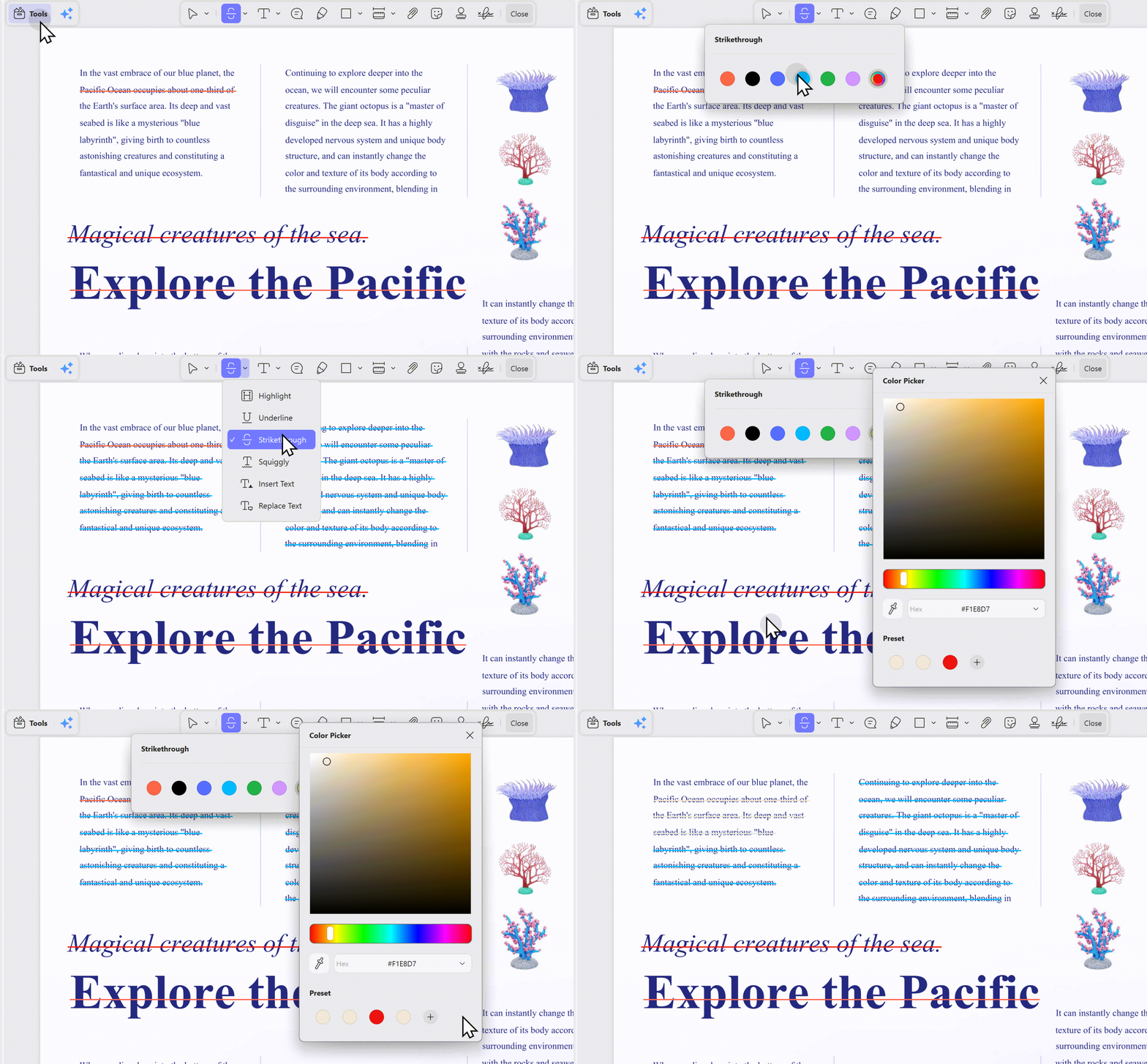
- Open UPDF and click "Open File" to import your PDF
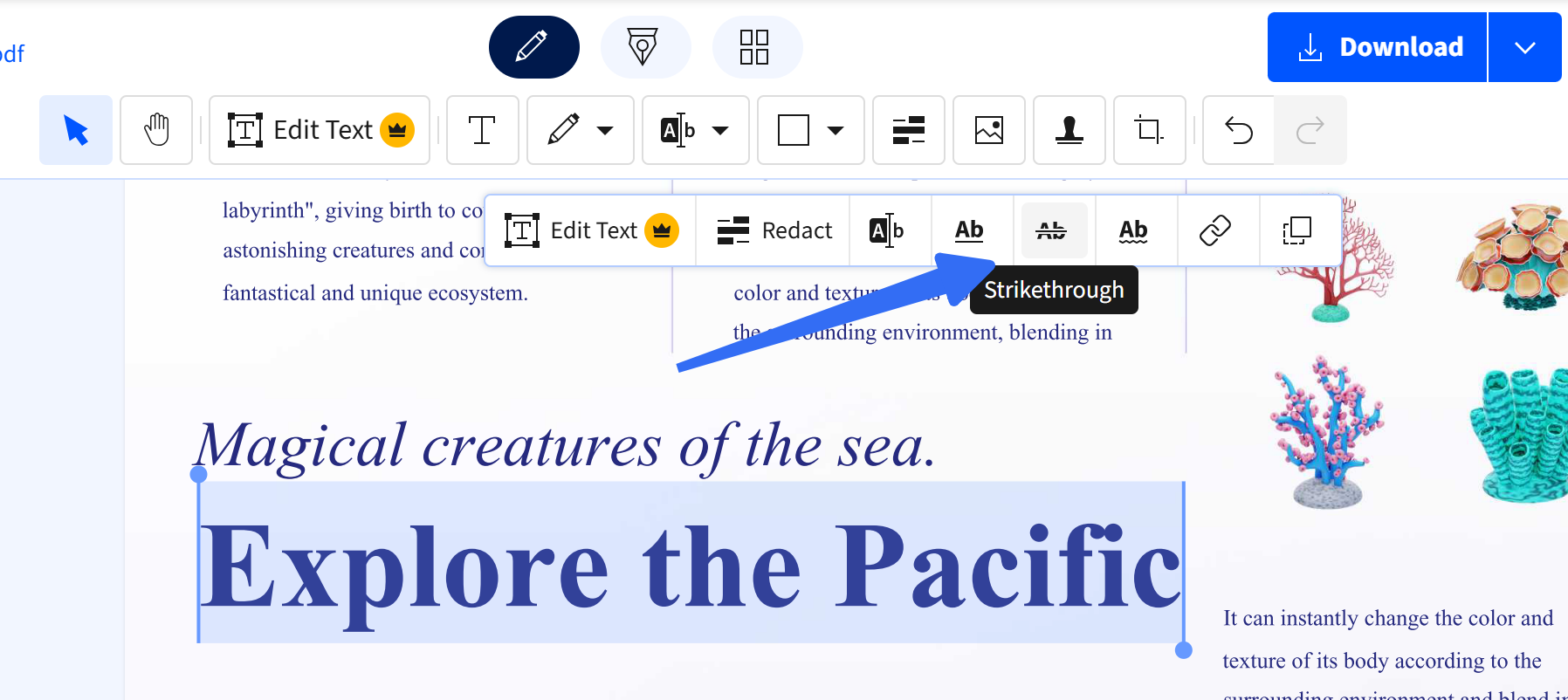
- Enter Comment mode – click the "Comment" option in the menu
- In the annotation toolbar, click the Markup Tool
- Select Strikethrough from the dropdown menu
- Click and drag over the text you want to mark
- The strikethrough is applied immediately when you release the mouse
- To adjust color and opacity, click the "Color" option
- If you make a mistake, press Ctrl+Z to undo
Step-by-step (Mobile – iOS/Android):
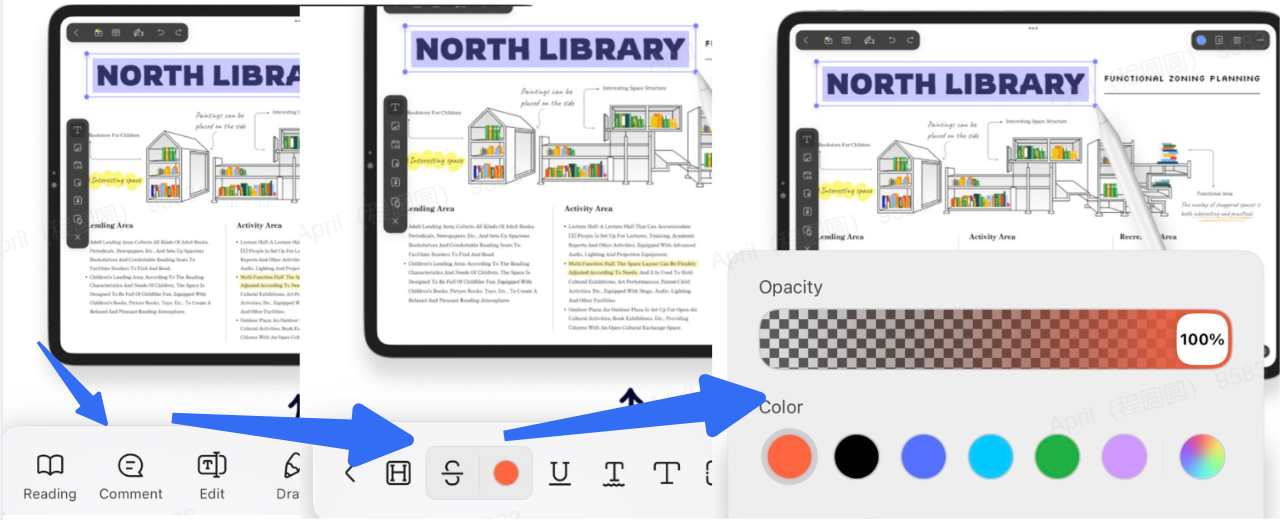
- Open your PDF in the UPDF mobile app
- Tap the "Comment" button
- Select "Strikethrough" from the markup tools
- Swipe over the text to apply the strikethrough
- Tap "Color" to choose your preferred color and opacity
Cross-page annotation: UPDF allows you to continuously add and manage highlights, strikethroughs, and other annotations across multiple pages.
Pros:
- True cross-platform – one license covers Windows, Mac, iOS, and Android
- Excellent value – one-time purchase option, no ongoing subscription
- Customizable colors and opacity – not available in free tools
- Modern, intuitive UI – easier to find tools than Adobe
- Mobile support – annotate on the go, not just desktop
- Batch processing – handle multiple documents efficiently
- AI-powered features – beyond just annotation
Cons: Some advanced features require paid version; newer to market than Adobe
To proceed with more thoroughness, you must have a clear understanding of the tool you are using. UPDF is a trendy and in-demand PDF annotator. The strikethrough is just a glimpse of the unique features of UPDF; there are plenty more, including view, edit, organize, annotate, convert, cloud, and OCR PDFs. We bet you would not find all these features in other PDF applications besides UPDF.
The video below places strikethrough in UPDF's wider annotation workflow, alongside highlights, comments, and drawing tools.
Windows • macOS • iOS • Android 100% secure
OCR is a remarkable feature that allows you to convert your scanned PDFs and images to editable and searchable PDF documents. The OCR technology in UPDF is supported by up to 38 languages with insane accuracy.
Here's how to use the OCR to turn scanned PDFs into editable format;
- Step 1: Launch the scanned PDF file in UPDF and guide to the "Recognize Text using OCR" option located in the right toolbar.
- Step 2: From the dropdown menu that appears, choose "Searchable PDF" as the "Document Type" and proceed to the subsequent settings to specify the factors for the OCR function.
- Step 3: Select the parameters/factors like layout properties, language, and resolution accordingly and proceed to the next step of saving the document.
- Step 4: After specifying the page range, click the "Perform OCR" button and choose the destination where you wish to export the editable PDF document.
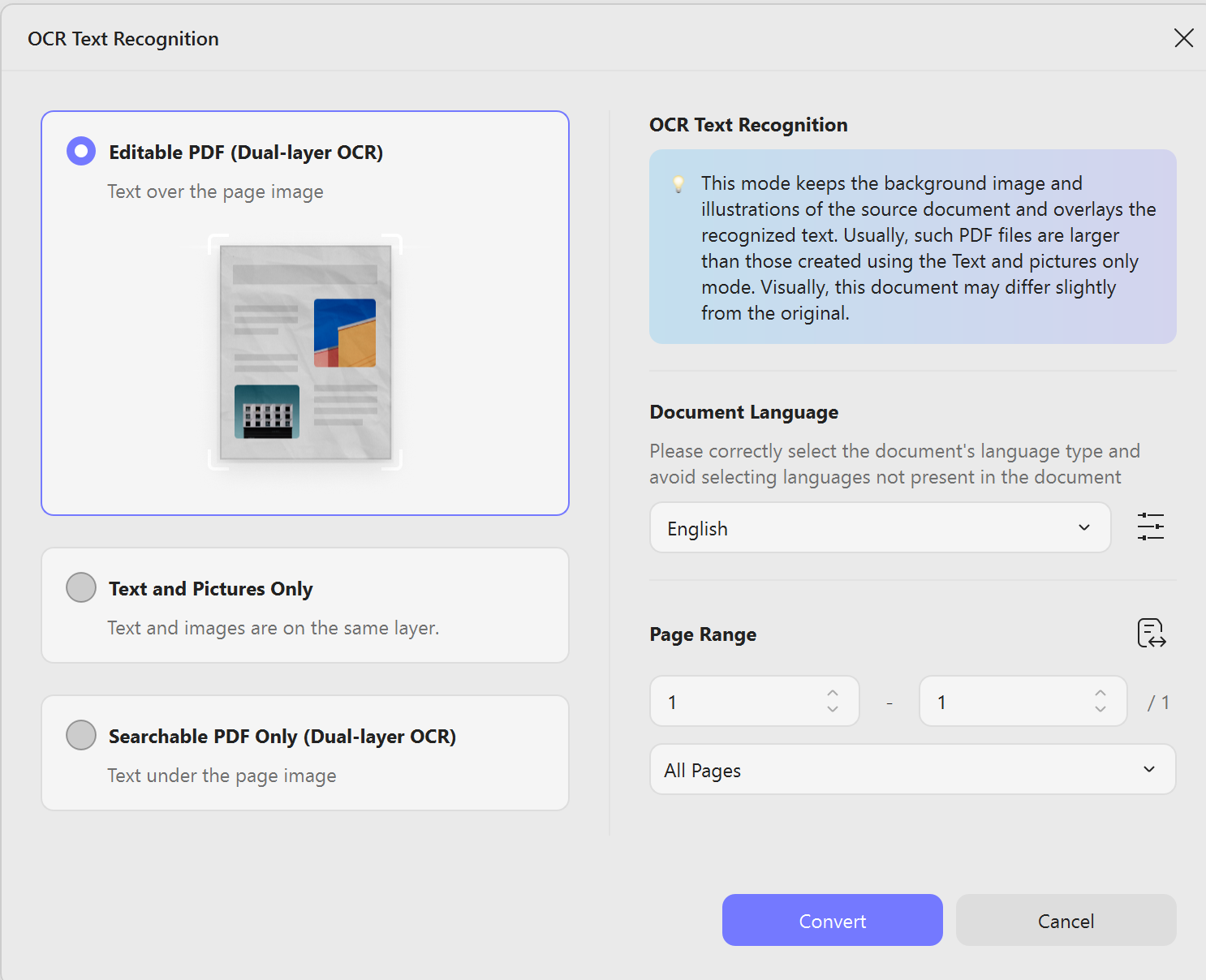
Once your scanned documents turn into an editable format, adding a strikethrough will not be a problem anymore. You can easily strikethrough a scanned PDF by following the above-mentioned steps. Received a PDF with strikethroughs but unsure how to respond? "How to Annotate PDF" covers the entire review and collaboration workflow—from marking up the document to providing feedback—all in one place.
Windows • macOS • iOS • Android 100% secure
Category 4: Workaround Methods via Google Drive
Method 8: Google Docs (via Google Drive)
This is best for occasional use if you already have a Google account.
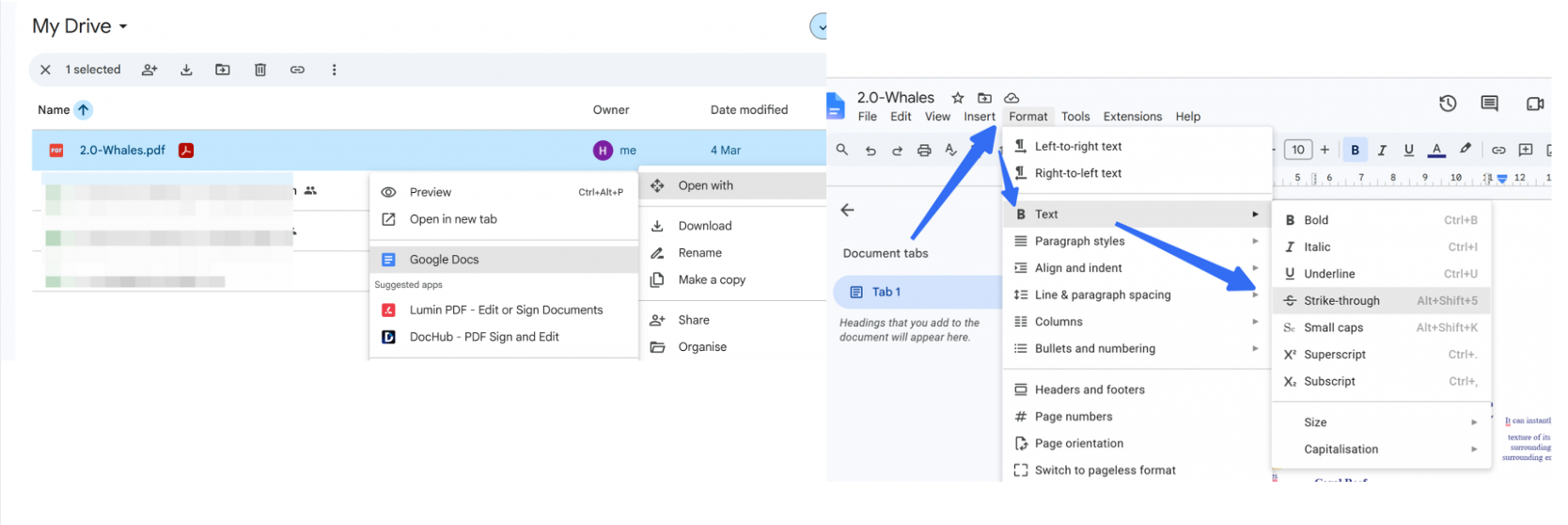
Step-by-step:
- In Google Drive, right-click your PDF
- Select "Open with" > "Google Docs"
- Google Docs converts the PDF to an editable document
- Highlight the text you want to mark
- Click "Format" > "Text" > "Strikethrough"
- When done, click "File" > "Download" > "PDF Document (.pdf)"
Pros: Free, no extra tools needed, uses existing Google account
Cons: Complex layouts may break, not suitable for batch processing, converts PDF to Docs format first
When Do You Need to Strikethrough Text in PDFs?
Strikethrough text in PDF or other document formats is typically used to address wrongly added words or sentences that need to be deleted from the documents, which we already mentioned in the introductory part.
Some other aspects describe why and when you need to strikethrough text in PDFs, including:
- Editing & Revision: When reviewing and editing a PDF document, strikethrough is used to indicate text that needs to be deleted or removed.
- Corrections & Updates: Strikethrough is useful when updating or correcting information in a PDF document. It shows the previous content that has been superseded or replaced by newer information.
- Highlighting Errors or Mistakes: By applying strikethrough, errors or mistakes in the text can be visually marked for attention. It helps draw attention to incorrect content.
- Document Collaboration: In collaborative work environments, strikethrough text can be used to indicate suggestions or changes made by different contributors.
- Legal & Contractual Documents: Strikethrough is often employed in legal and contractual documents to show removed or amended clauses, terms, or conditions.
Whether for editing and revision, collaborative work, or legal documents, the ability to strikethrough text adds a human touch to the digital realm, allowing for seamless collaboration and enhanced document management.
Why Is Strikethrough So Confusing?
This is the single most important thing to understand. Most people search in the wrong place because they don't know this.
In PDFs, strikethrough is almost always a Comment/Annotation – not a text formatting option like in Word. There are three types of "Strikethrough" in PDFs.
| Type | What It Is | How to Identify | How to Remove |
|---|---|---|---|
| Comment Strikethrough (most common) | A PDF annotation object | Visible in the Comments panel | Delete from Comments panel |
| Line Object | A drawn shape/line | Selectable in "Edit Objects" mode | Select and press Delete |
| Text Format Strikethrough (rare) | A property of the text itself | Only visible in text-editing mode | Remove formatting in text edit mode |
- The strikethrough is a line drawn over the text, not a property of the text itself
- It can be added, modified, or deleted independently of the text
- The original text remains unchanged and fully readable
- You manage strikethroughs in the Comments panel, not the Edit panel
Why this matters:
- If you're looking in "Edit PDF" mode in Acrobat – you'll never find it
- You must use "Comment" mode to add strikethroughs
- Strikethrough colors and properties are comment properties, not text properties
💡 UPDF makes this distinction clear: Its annotation tools are intuitively grouped under the "Comment" tab, so you never get lost looking in the wrong place.
Windows • macOS • iOS • Android 100% secure
Why Isn't Your Strikethrough Working?
Many common strikethrough failures stem from misunderstood PDF tool logic and file limitations. A frequent issue is failing to locate the strikethrough option in Adobe Acrobat’s Edit PDF mode, as this function belongs to comment tools rather than basic editing tools—users simply need to navigate to Tools > Comment to access it. If added strikethroughs fail to display properly, the file is likely protected by editing restrictions, which requires users to verify and unlock PDF permissions first.
Text selection issues also block strikethrough usage entirely. In most cases, unselectable text means the PDF is a scanned image file without editable text layers. To add valid strikethrough annotations, users must run OCR recognition first, a feature supported by both Adobe and UPDF. Even after successful addition, strikethroughs may appear overly faint due to default high transparency settings, which can be easily fixed by adjusting color and opacity in the annotation properties panel.
Other sporadic but troublesome errors include unremovable strikethroughs, occasional feature failures, and file corruption. Un deletable strikethroughs are usually line objects instead of standard comment annotations, requiring users to switch to “Edit Objects” mode for deletion. If strikethroughs only work intermittently, the PDF may have disabled commenting permissions. Meanwhile, file corruption triggered by strikethrough editing typically results from software compatibility issues, and switching to reliable tools like Adobe or UPDF can effectively resolve the problem.
FAQ
Is strikethrough the same as deleting PDF text?
No. Strikethrough is an annotation that leaves the original text in place, while editing deletes or replaces the page content.
Can struck-through PDF text still be searched or copied?
Usually yes, because the underlying text remains. Flattening or scanning can change how search and copy behave.
How do I remove a strikethrough mark from a PDF?
Select the annotation and delete it, then save the file. If it was flattened, you may need to edit the page content instead.
Conclusion
Using strikethrough text to indicate content for removal or revision serves as a clear signal during the review process. Switching to reliable tools like UPDF can effectively resolve the problem.
If you are unsure about the respective roles of strikethrough and underlining, the "How to Annotate PDF" homepage provides a detailed comparison.
Windows • macOS • iOS • Android 100% secure






 Engelbert White

 Enola Miller