 UPDF
UPDF
 UPDF for Windows
 UPDF for Mac
 UPDF for iPhone/iPad
 UPDF for Android
 Nomostar
 UPDF AI Online
 UPDF Sign
 IvyCraft
 Edit PDF
 Annotate PDF
 Create PDF
 PDF Form
 Edit links
 Convert PDF
 OCR
OCR PDF to Word
 PDF to Image
 PDF to Excel
 Organize PDF
 Merge PDF
 Split PDF
 Crop PDF
 Rotate PDF
 Protect PDF
 Sign PDF
 Redact PDF
 Sanitize PDF
 Remove Security
 Read PDF
 UPDF Cloud
 Compress PDF
 Print PDF
 Batch Process
 About UPDF AI
 UPDF AI Solutions
 AI User Guide
 FAQ about UPDF AI
 Summarize PDF
 Translate PDF
 Chat with PDF
 Chat with AI
 Chat with image
 PDF to Mind Map
 Explain PDF
 PDF AI Tools
 Image AI Tools
 AI Chat Tools
 AI Writing Tools
 AI Study Tools
 AI Working Tools
 Other AI Tools
 AI Bookmark Generation
 AI Bookmark Summary
 AI Watermark Generation
 AI Background Generation
 AI Sticker Generation
 AI Stamp Generation
 AI Editing Suite
 UPDF Copilot
 AI Page Management
 AI Semantic Search
 PDF to Word
 PDF to Excel
 PDF to PowerPoint
 Enterprise Solution
 Enterprise Sign
 Enterprise AI
 Enterprise Plan
 Enterprise User Guide
 Enterprise Webinar
 IT
IT Education
 Construction
 Financial Service
 Healthcare
 Insurance
 Legal
Legal Manufacturing
 Government
 Researchers & PhDs
 Solopreneurs & Freelancers
 Lawyers & Legal Professionals
 Real Estate Agents & Brokers
 Education Solution
 Customer Stories
 User Guide
 UPDF Tricks
 FAQs
FAQs UPDF Reviews
 Download Center
 Blog
Blog Newsroom
 Tech Spec
 Updates
 UPDF vs. Adobe Acrobat
 UPDF vs. Foxit
 UPDF vs. PDF Expert

Quick answer:
This guide walks through both Nitro paths, then shows where a cross-platform alternative — UPDF — does the same job for less and, on scanned files, keeps the original's look instead of flattening it to plain text. If you convert clean PDFs occasionally, the free online route below is all you need; if you handle scans, batches, or want a one-time purchase that works everywhere, skip to Part 4.
Part 1. Convert PDF to Word Online — Nitro vs UPDF AI Online
Neither of these needs a download. Both run in any browser on Windows, Mac, or mobile. The difference shows up on scanned files, which is covered in Part 2 — for now, here are the steps for each.
Convert PDF to Word with Nitro's online converter
Nitro's free online tool skips the install and, unlike some older write-ups suggest, no longer requires you to enter an email or wait for the file to arrive in your inbox — the download is immediate.
Step 1. Go to Nitro's PDF to Word tool.
Step 2. Confirm the conversion tool is set to PDF to Word in the "Select conversion tool" dropdown.
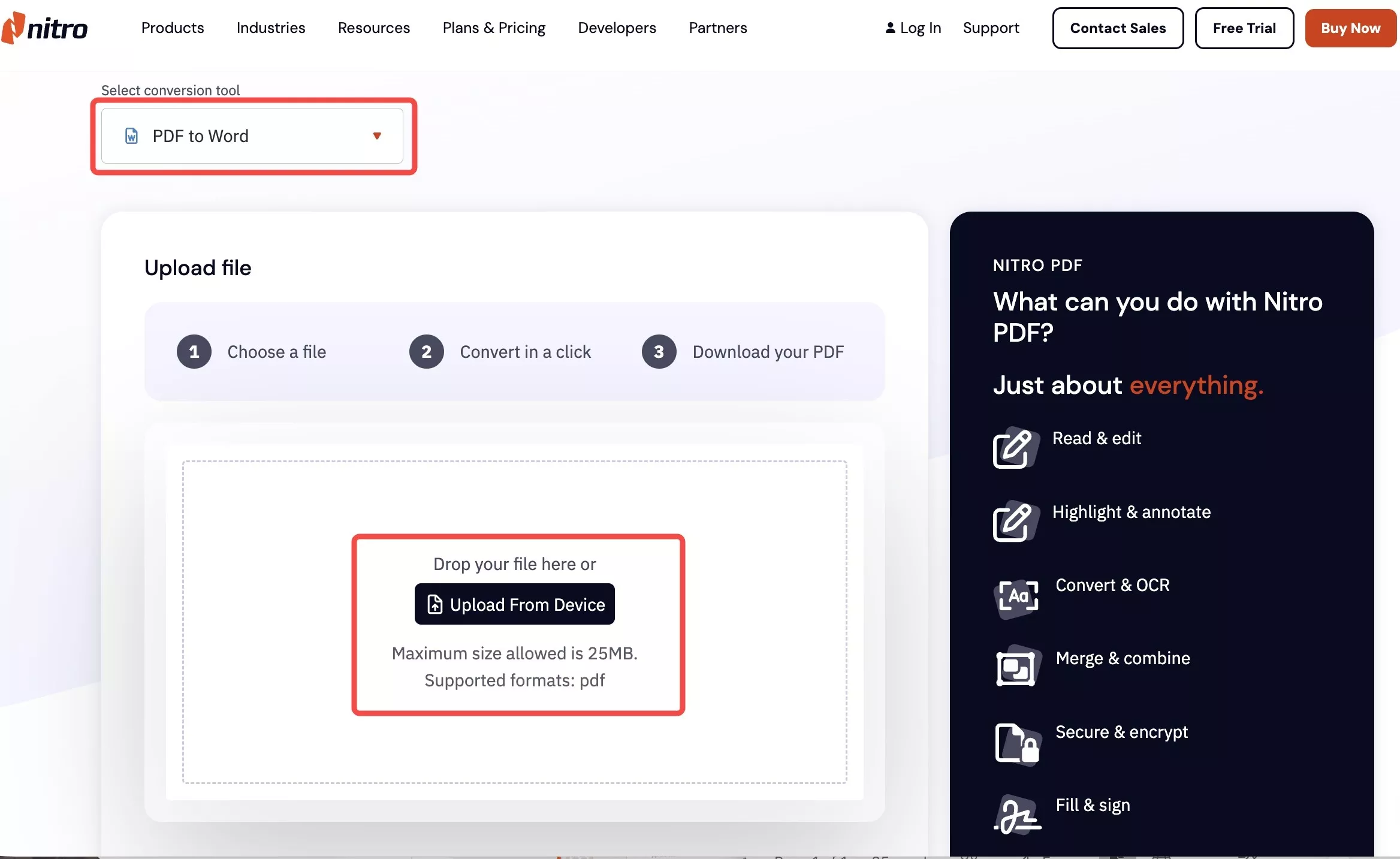
Step 3. Click Upload From Device (or drag your file into the drop zone). The maximum size is 25 MB and only PDF input is accepted.
Step 4. Wait a few seconds while Nitro converts the file.
Step 5. When you see "Your document is ready!", click Download to save the Word file.
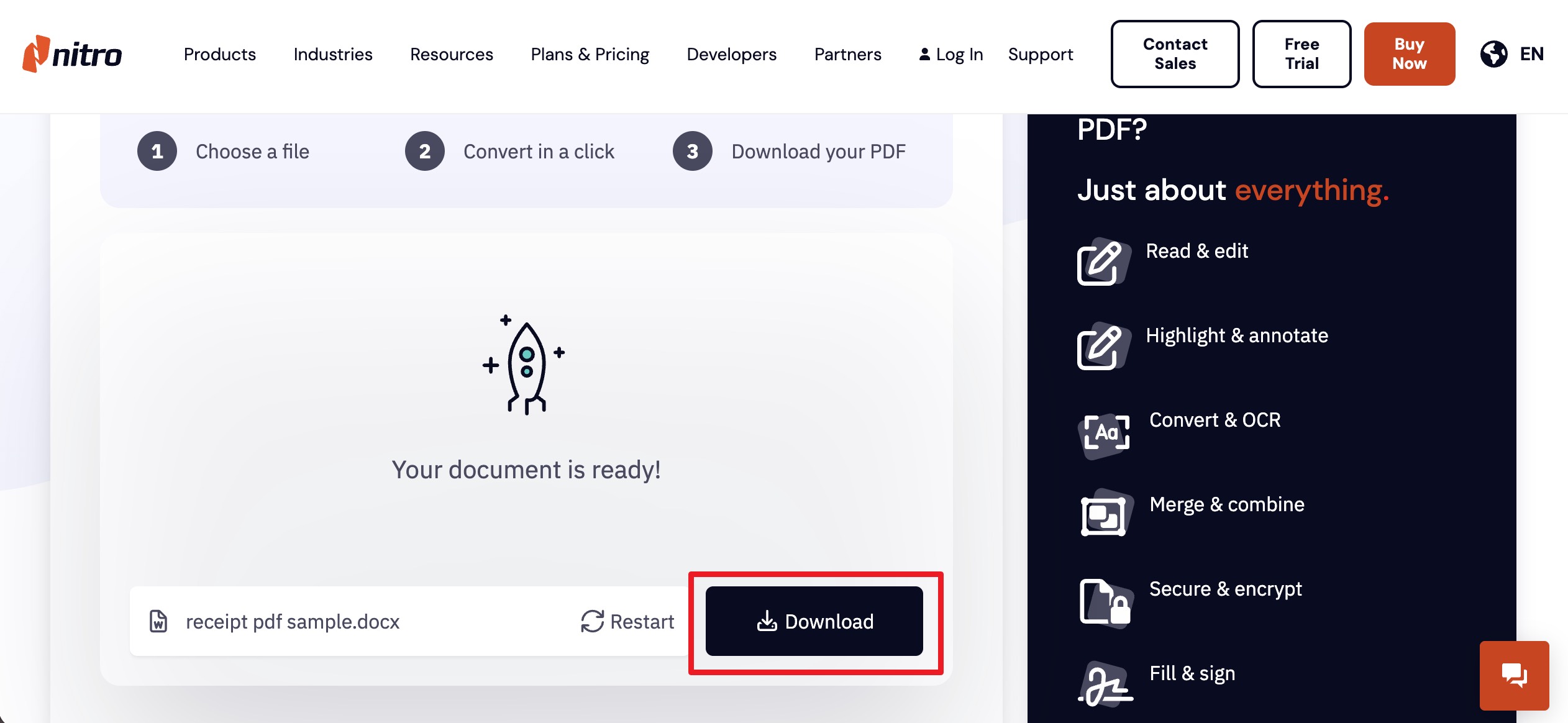
Step 6. Open it in Microsoft Word to review the result.
Best for:
- a single, text-based PDF under 25 MB when you don't want to install anything.
Watch for:
- no batch conversion online, a hard 25 MB ceiling, and — since the file uploads to Nitro's servers — a privacy consideration for anything confidential.
Convert PDF to Word with UPDF AI Online
UPDF AI Online converts in the browser too, and it's the one to reach for when your PDF is scanned (see Part 2 for why). The steps:
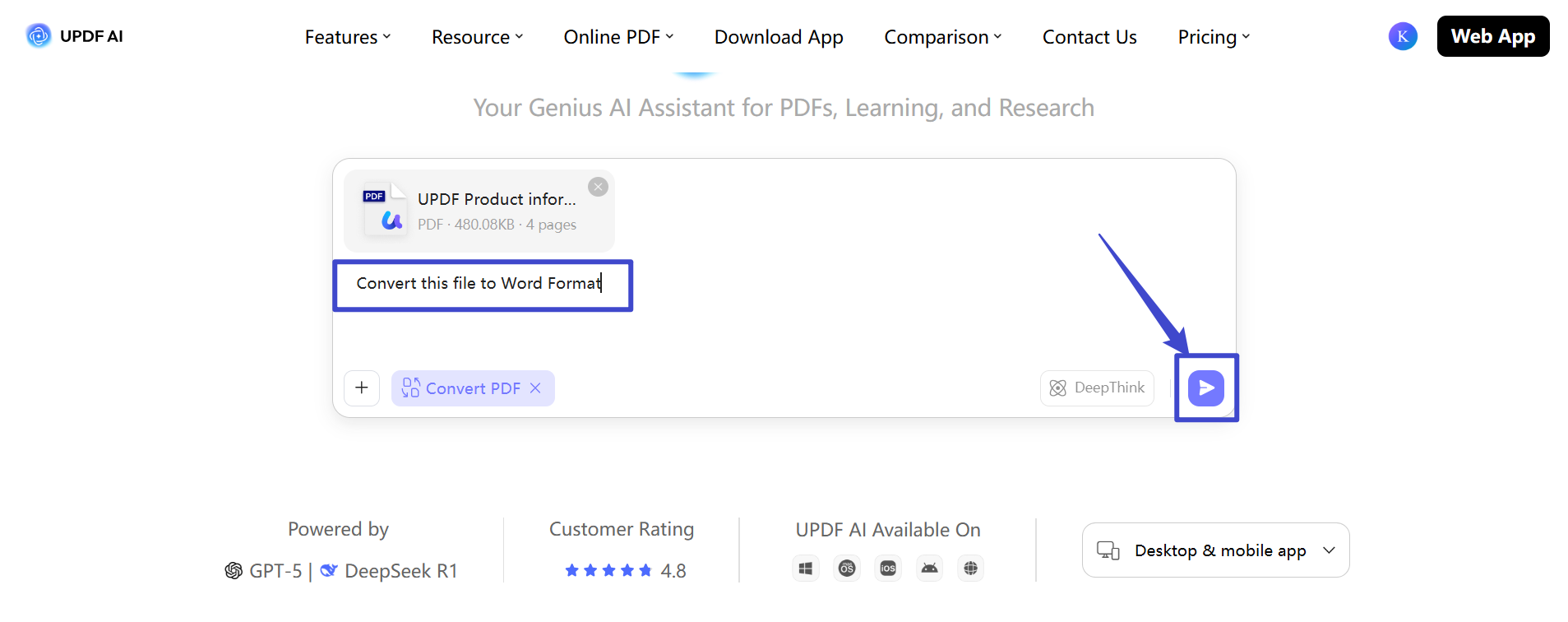
Step 1. Go to UPDF AI Online, click Convert PDF, and use the "Click, drag, or paste PDF / Image here" button to import your document.
Step 2. Type a prompt like "Convert this file to Word format" and click the Send icon.
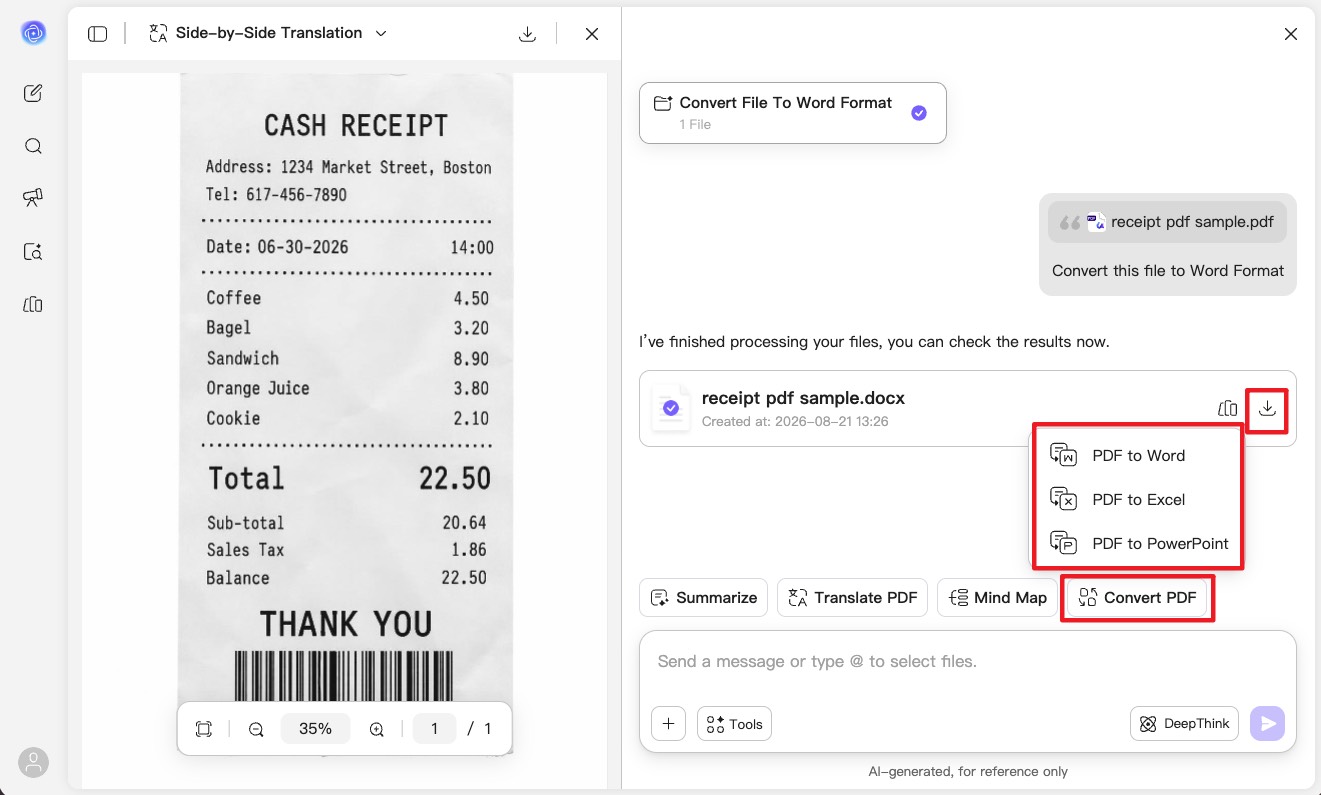
Step 3. When the converted file appears, click the Download icon to save it. (The same Convert PDF icon can export to Excel or PPT instead.)
Free-tier note: UPDF AI Online's free plan covers 5 PDF files, 100 questions, and up to 100 pages / 10 MB per PDF. For scanned files, automatic OCR is a paid feature.
Prefer to stay online but want to compare more browser tools? See the roundup of the best free PDF converters, and the sibling guide on converting PDF to Word with Soda PDF for another online option.
Part 2. Scanned PDF: Nitro PDF Online vs UPDF AI Online (Same File, Different Result)
Here's where the two online tools diverge. Nitro's online converter does handle a scanned PDF and does return editable text — it's not producing a flat image the way some free tools do. But look closely at what it keeps versus what UPDF AI Online keeps.
Same scanned cash receipt, both run through each tool's online converter:
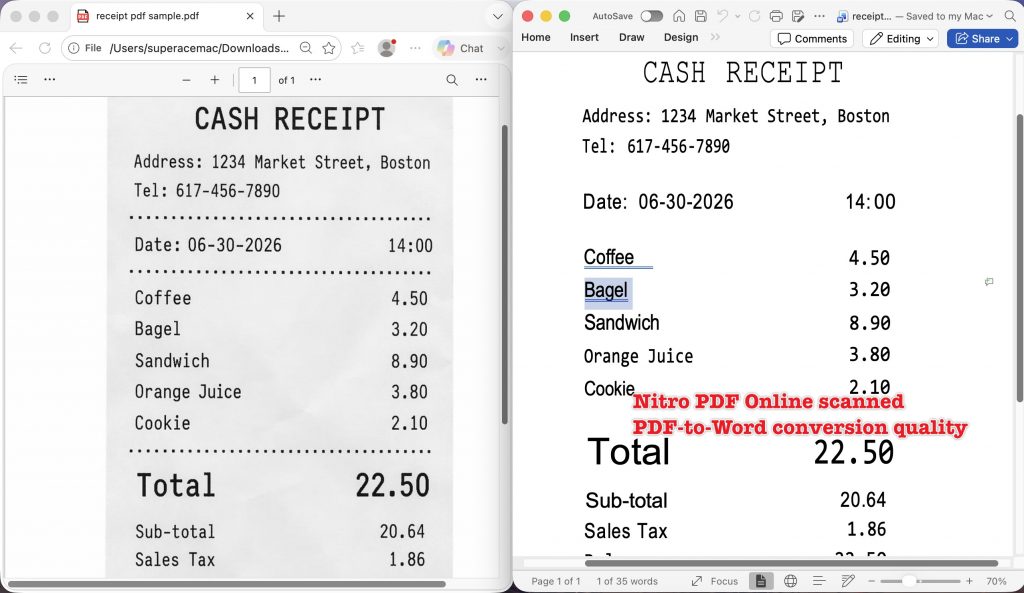
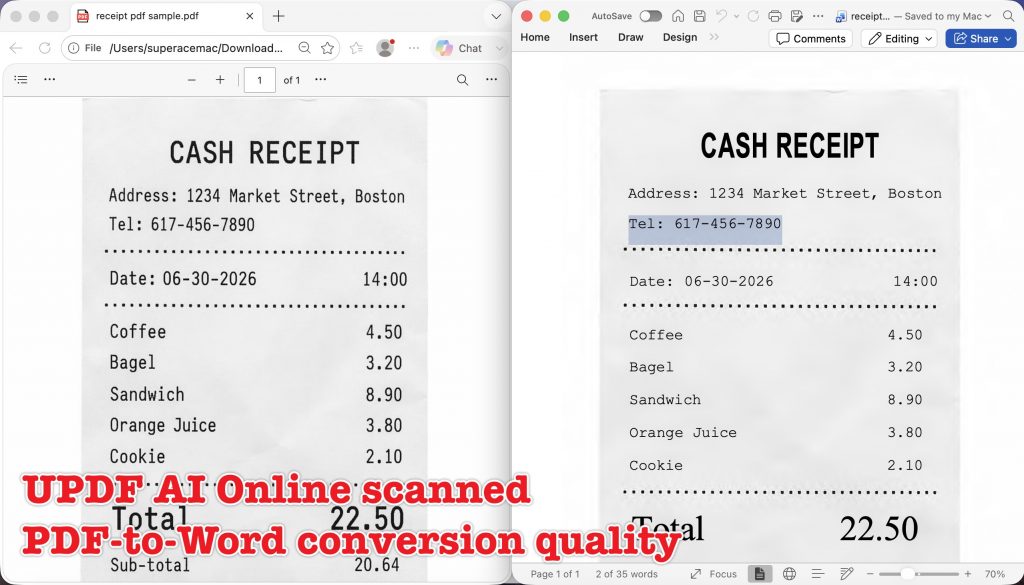
Both give you selectable, editable text. The difference is fidelity: Nitro reproduces only the text inside the layout — the receipt's dotted separator lines and paper-textured background are gone, so it reads as a plain Word document. UPDF AI Online keeps those details, so the converted file still looks like the receipt it came from while remaining fully editable. For receipts, forms, and any document where the visual layout carries meaning, that fidelity is the deciding factor.
Part 3. Convert PDF to Word on the Desktop with Nitro PDF Pro
For offline work, batches, or files over 25 MB, Nitro's answer is its desktop app, Nitro PDF Pro. One thing to know up front: Word export on the desktop app is available to registered (paid) users only. Nitro offers a 14-day free trial to test it, after which conversion requires a subscription or license.
Step 1. Open Nitro PDF from your desktop or taskbar.
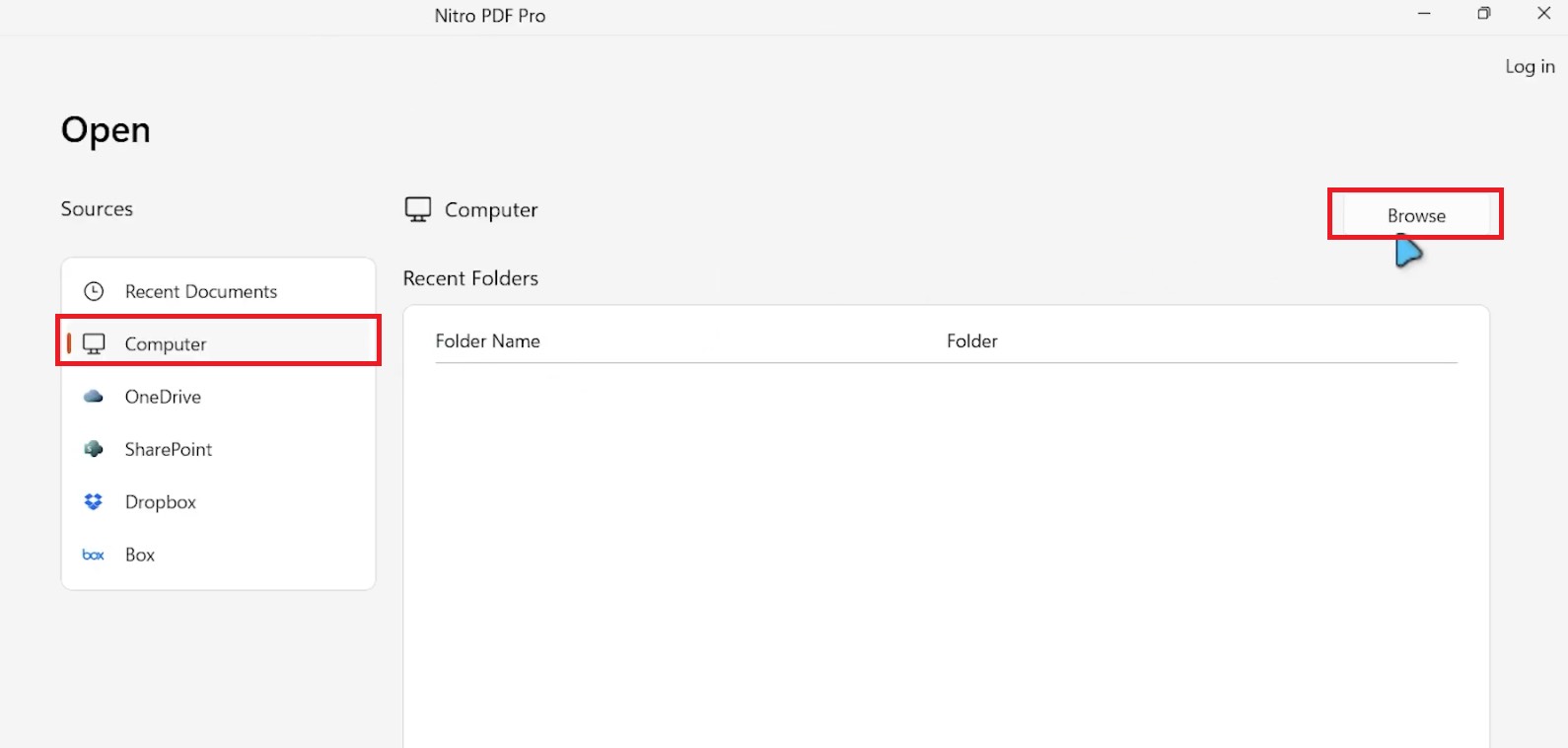
Step 2. Click Open → Computer → Browse.
Step 3. Locate the PDF you want to convert, select it, and click Open.
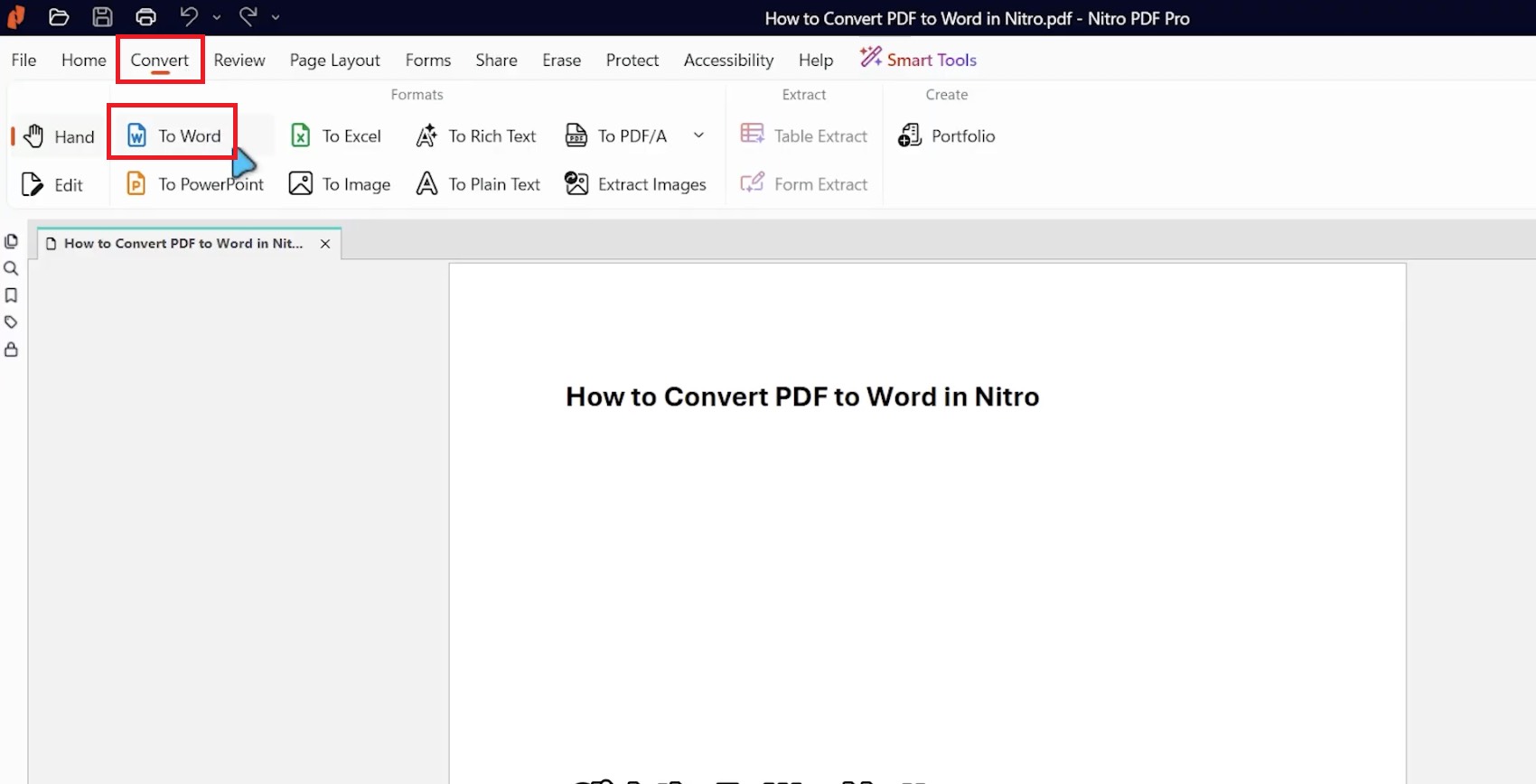
Step 4. In Nitro's top ribbon, select the Convert tab.
Step 5. Click To Word.
Step 6. In the conversion dialog, confirm the correct PDF appears in the Files for conversion list.
Step 7. Under Output, choose the folder where you want to save the Word document.
Step 8. Click Convert in the lower-right corner.
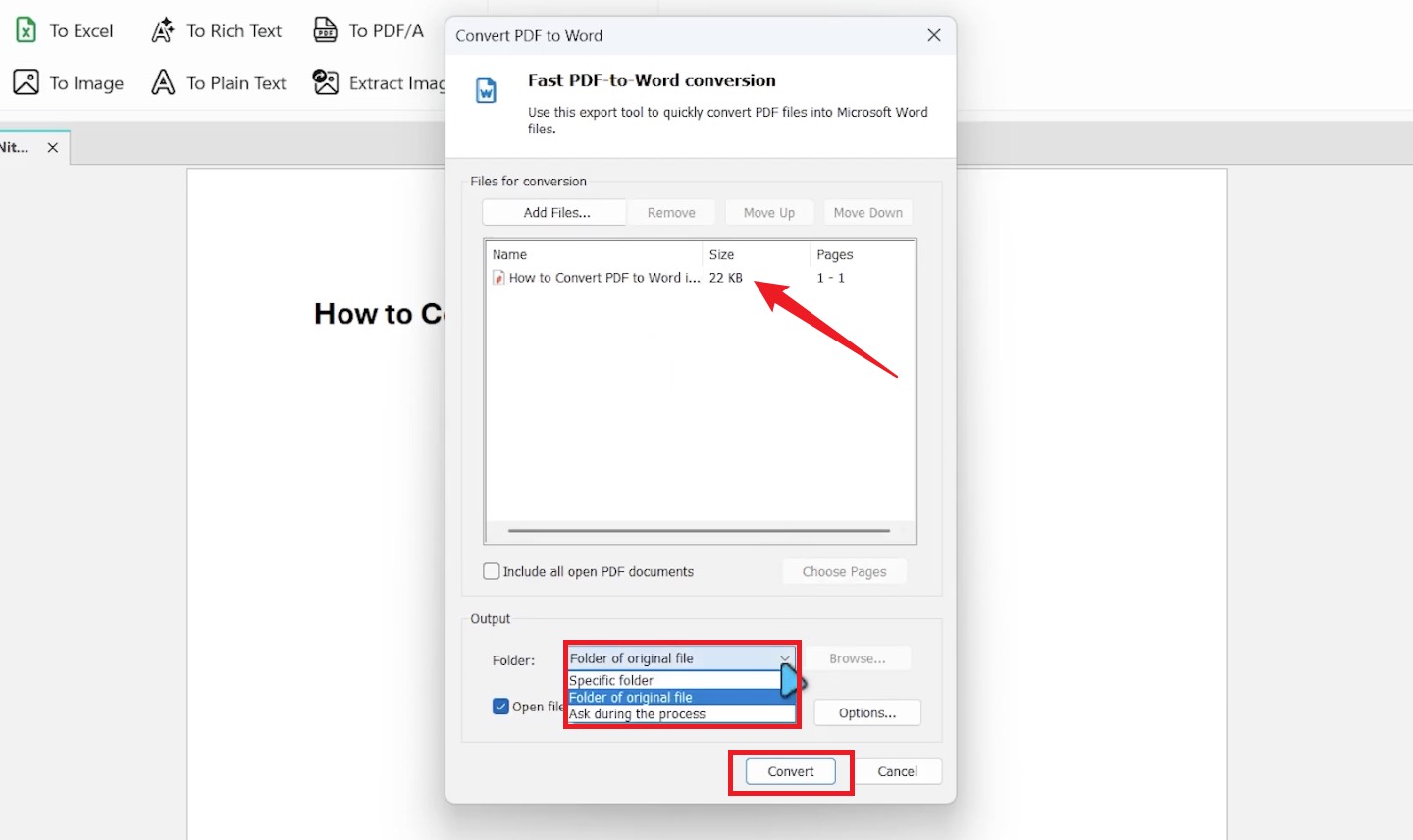
Step 9. Wait for the conversion to finish. Nitro opens the resulting document in Microsoft Word automatically.
That covers offline conversion, but it comes at a cost — both literally (the paid gate) and in flexibility (the license terms differ by plan). The next section is where UPDF makes its case.
Part 4. Convert PDF to Word with UPDF (Desktop & Mobile) — the Cross-Platform Alternative
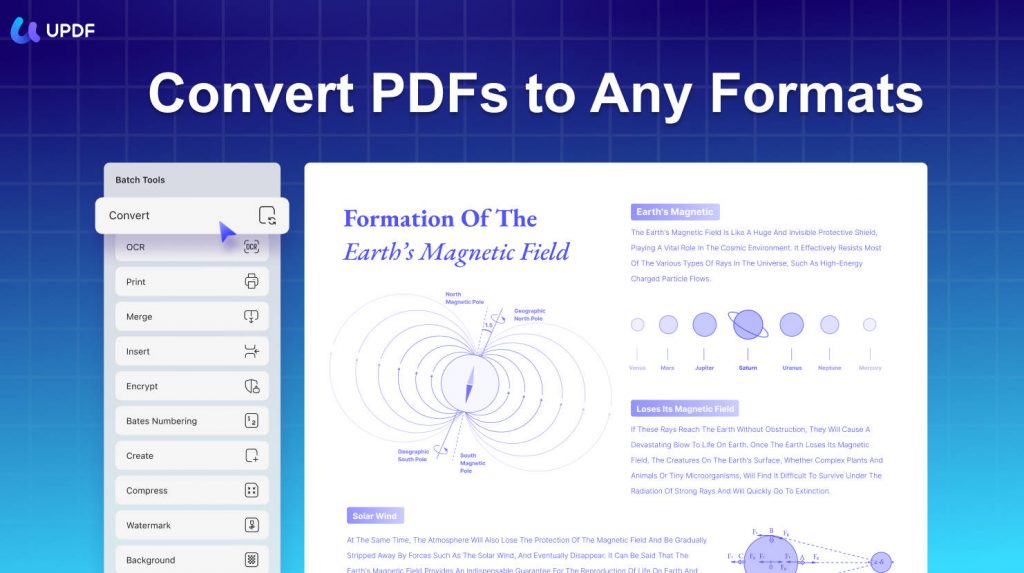
UPDF runs on Windows, Mac, iOS, and Android from a single license, converts to 14+ formats (Word, Excel, PPT, CSV, RTF, HTML, image, and more), and — the part that matters most for scans — can run OCR and conversion together in one pass, turning an image-only PDF into editable Word text. On the free tier you get 2 conversions a day and 5 OCR runs (shared across your devices), with a trial watermark on exports until you upgrade.
Windows • macOS • iOS • Android 100% secure
On desktop (Windows & Mac)
Open your PDF in UPDF, click Tools on the right panel, choose Word as the output format, set a page range if you only need part of the file, then click Convert and pick a save folder. For a scanned PDF, turn on OCR Text Recognition inside the same panel and select the document language(s) first — UPDF recognizes 38+ languages — so OCR and the Word export happen in a single step.
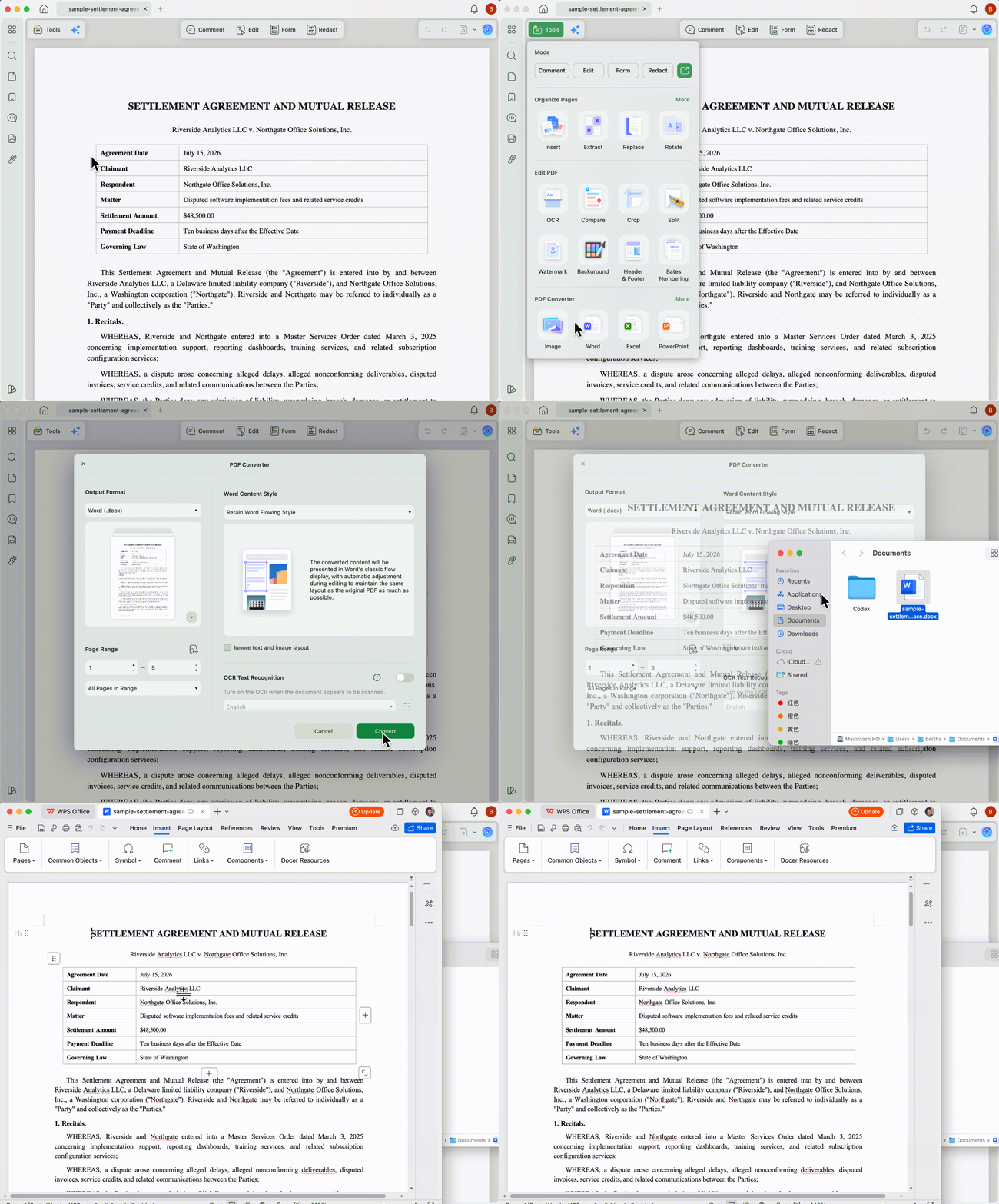
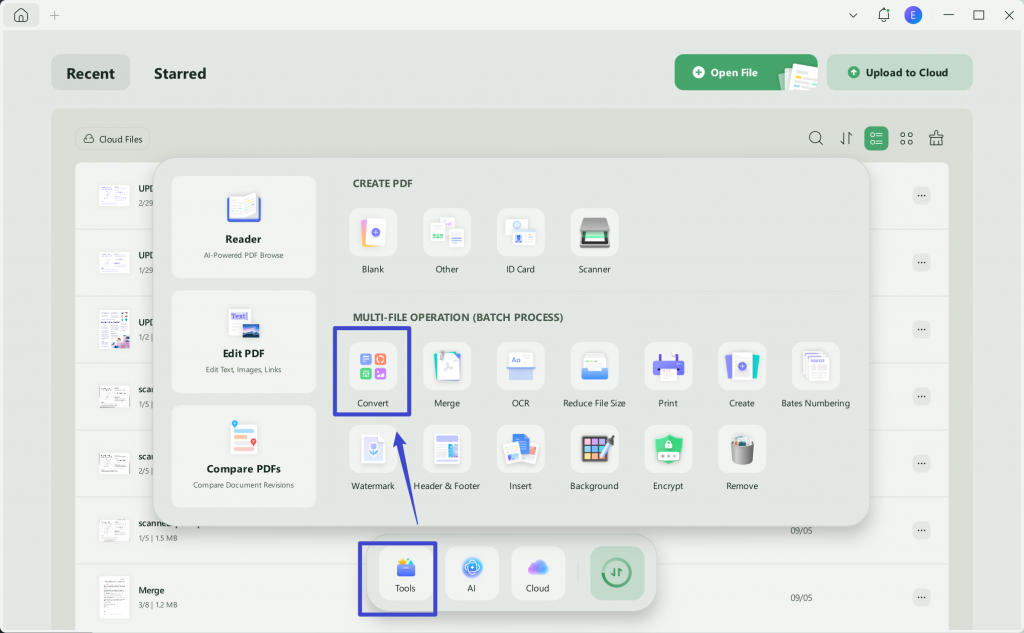
For multiple files at once, use Tools → Convert on the UPDF home screen, add your PDFs, pick Word from the "Convert to" menu, and apply.
On mobile (iOS & Android)
Open the PDF in the UPDF app, tap Convert, choose Word, adjust the settings (including OCR on the platforms that support it), and export. The converted file keeps layout and formatting close to the original while making the text fully editable.
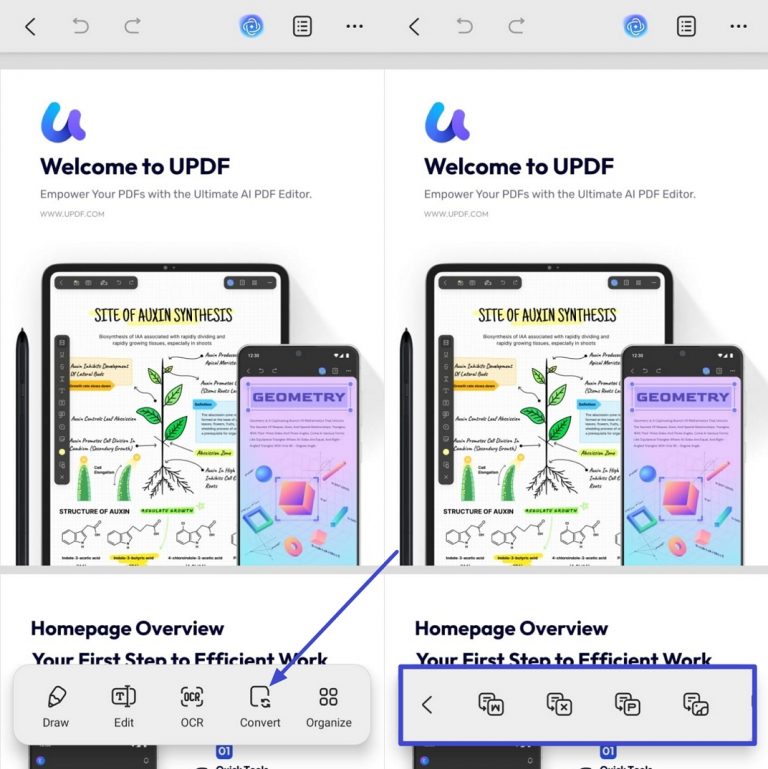
Both platforms are covered step by step, with screenshots, in the full how to convert a PDF guide — worth a look if you want the detailed walkthrough for every format and device.
Windows • macOS • iOS • Android 100% secure
Part 5. Nitro vs UPDF: Price and Capability
Nitro and UPDF price their plans differently, so the fair comparison is like-for-like: subscription against subscription, one-time purchase against one-time purchase. Figures below are from each vendor's site as of August 2026 — always check the official pages for the latest.
| Nitro PDF | UPDF | |
|---|---|---|
| Subscription | Nitro PDF Standard — $15/user/month ($180/year) | UPDF Pro — $49.99/year |
| One-time purchase | Nitro PDF Classic — $270 (3-year license, Windows only) | UPDF Pro — $79.99 lifetime (pay once, use forever) |
| Platforms (one license) | Windows, Mac, iOS | Windows, Mac, iOS, Android — 4 devices |
| Output formats | Word, PowerPoint, Excel, Rich Text, PDF/A, TXT, image... | 14+ (Word, PPT, Excel, CSV, RTF, TXT, image, HTML, XML, PDF/A…) |
| OCR + convert in one pass | Desktop (paid) | Desktop & mobile (free to try: 5 OCR runs) |
| Free desktop trial | 14 days | Free tier (2 conversions/day; watermark on export) |
The gap is clearest on the one-time option: UPDF's lifetime license costs less than Nitro's three-year Classic term, works on four platforms instead of Windows only, and doesn't expire. On subscriptions, UPDF's yearly Pro comes in well under Nitro Standard's annual price while covering more formats and platforms. (Official pricing: Nitro · UPDF.)
Windows • macOS • iOS • Android 100% secure
Part 6. Edge Cases: When Nitro Conversion Fails
- "Word export is greyed out in the desktop app." Nitro's desktop Word export only works for registered users; the 14-day trial has likely ended. Either start the trial, buy a plan, or convert with a tool whose free tier includes export.
- "Some Adobe features stopped working after installing Nitro Pro." A known conflict when both are set as default PDF handlers. Set one app as the default and reopen the other, or keep only the one you actively use.
- "The converted tables broke into loose text boxes." Bordered tables sometimes rebuild as separate frames rather than a native Word table. Converting to Excel first often preserves the grid better; paste that range back into Word as a table.
- "My scanned PDF converted but lost all its formatting." Text-only OCR output strips visual structure. If the layout matters, use a converter that preserves it during OCR — the fidelity difference shown in Part 2 is exactly this problem.
Part 7. FAQs
1. Does Nitro's online converter require an email or sign-up?
No. Nitro's free online PDF-to-Word tool works without registration or email — you upload, wait a few seconds, and download the Word file directly.
2. Is Nitro's desktop free trial enough to convert a few files?
The 14-day trial unlocks desktop conversion temporarily, so a handful of files is fine. For ongoing use without a subscription, a tool with a permanent free tier or a cheaper lifetime license is more economical.
Conclusion
Nitro converts PDF to Word two ways: a free online tool that's genuinely handy for a single file under 25 MB, and a capable desktop app whose Word export is paid after a 14-day trial. Both work — but for scans, Nitro flattens the look to plain text, and for cost, its licensing runs higher than the alternatives. UPDF covers the same ground on four platforms from one license, converts to multiple formats, preserves scanned layouts through OCR, and offers a lifetime option that costs less than Nitro's multi-year license. To go further, see the best free PDF converters for more browser options, or the full how to convert a PDF walkthrough for every format and device.
Download UPDF for free to convert your own file — installation is free, and Pro features unlock when you need watermark-free export or batch conversion.
Windows • macOS • iOS • Android 100% secure




 Enid Brown

 Lizzy Lozano
Testing disclaimer: