 UPDF
UPDF
 UPDF for Windows
 UPDF for Mac
 UPDF for iPhone/iPad
 UPDF for Android
 Nomostar
 UPDF AI Online
 UPDF Sign
 IvyCraft
 Edit PDF
 Annotate PDF
 Create PDF
 PDF Form
 Edit links
 Convert PDF
 OCR
OCR PDF to Word
 PDF to Image
 PDF to Excel
 Organize PDF
 Merge PDF
 Split PDF
 Crop PDF
 Rotate PDF
 Protect PDF
 Sign PDF
 Redact PDF
 Sanitize PDF
 Remove Security
 Read PDF
 UPDF Cloud
 Compress PDF
 Print PDF
 Batch Process
 About UPDF AI
 UPDF AI Solutions
 AI User Guide
 FAQ about UPDF AI
 Summarize PDF
 Translate PDF
 Chat with PDF
 Chat with AI
 Chat with image
 PDF to Mind Map
 Explain PDF
 PDF AI Tools
 Image AI Tools
 AI Chat Tools
 AI Writing Tools
 AI Study Tools
 AI Working Tools
 Other AI Tools
 AI Bookmark Generation
 AI Bookmark Summary
 AI Watermark Generation
 AI Background Generation
 AI Sticker Generation
 AI Stamp Generation
 AI Editing Suite
 UPDF Copilot
 AI Page Management
 AI Semantic Search
 PDF to Word
 PDF to Excel
 PDF to PowerPoint
 Enterprise Solution
 Enterprise Sign
 Enterprise AI
 Enterprise Plan
 Enterprise User Guide
 Enterprise Webinar
 Banking
 Healthcare
 Insurance
 Legal
Legal Manufacturing
 Government
 Researchers & PhDs
 Solopreneurs & Freelancers
 Lawyers & Legal Professionals
 Real Estate Agents & Brokers
 Education Solution
 Customer Stories
 User Guide
 UPDF Tricks
 FAQs
FAQs UPDF Reviews
 Download Center
 Blog
Blog Newsroom
 Tech Spec
 Updates
 UPDF vs. Adobe Acrobat
 UPDF vs. Foxit
 UPDF vs. PDF Expert

Many students upload a file and see Turnitin reject it without a clear, helpful message. A Turnitin PDF sounds simple, but small issues like scanned pages, fonts, and size can quietly break everything. These problems waste time and create panic when a deadline is approaching, and grades are important.
This guide helps students fix PDF submission problems before submitting, using simple, clear steps.
Part 1. What is “Turnitin PDF”?
Some assignments ask you to upload a PDF, yet not every file works well with the Turnitin platform. A valid file must contain real, selectable text so Turnitin can read and check it properly. It also has to follow limits on file size, page count, and basic formatting so the upload does not fail.
If your document breaks these quiet rules, the so‑called simple upload can suddenly show confusing errors and warnings. We treat the tool like a Turnitin PDF checker, clearly showing what a safe, upload-ready file needs.
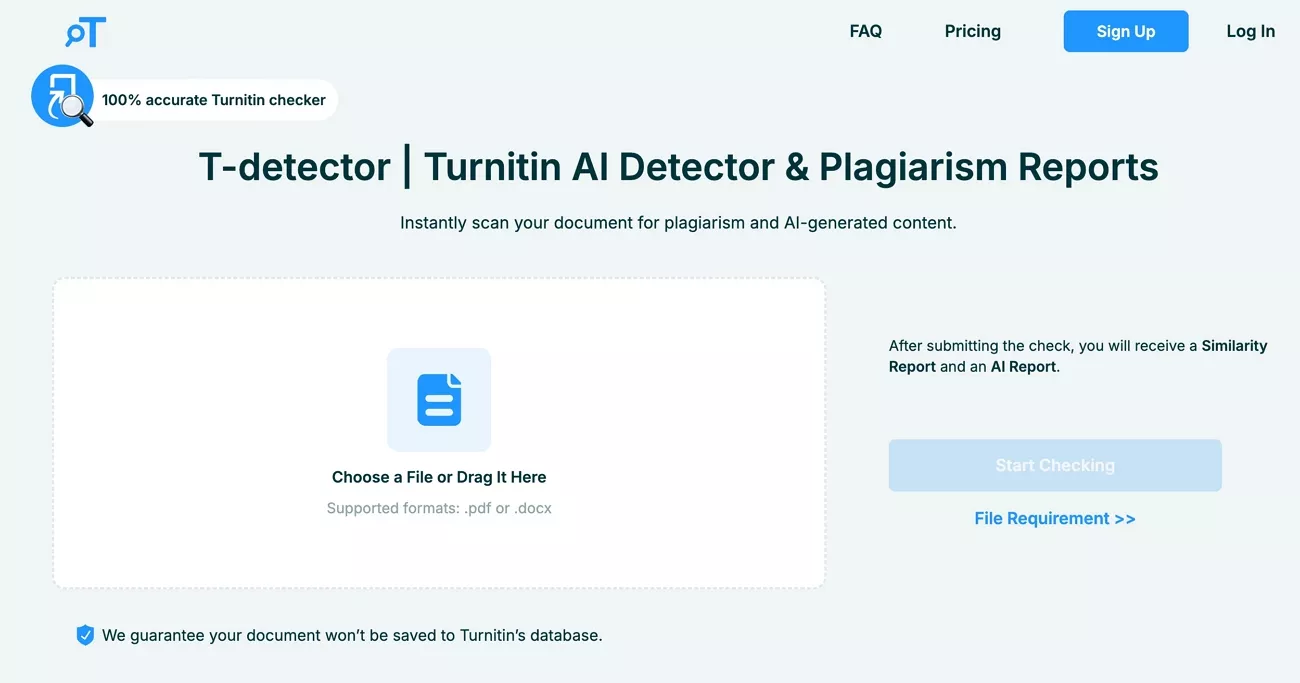
Next, you will see the main technical reasons PDFs are rejected and how to avoid them.
Part 2. Core Requirements for Turnitin PDFs
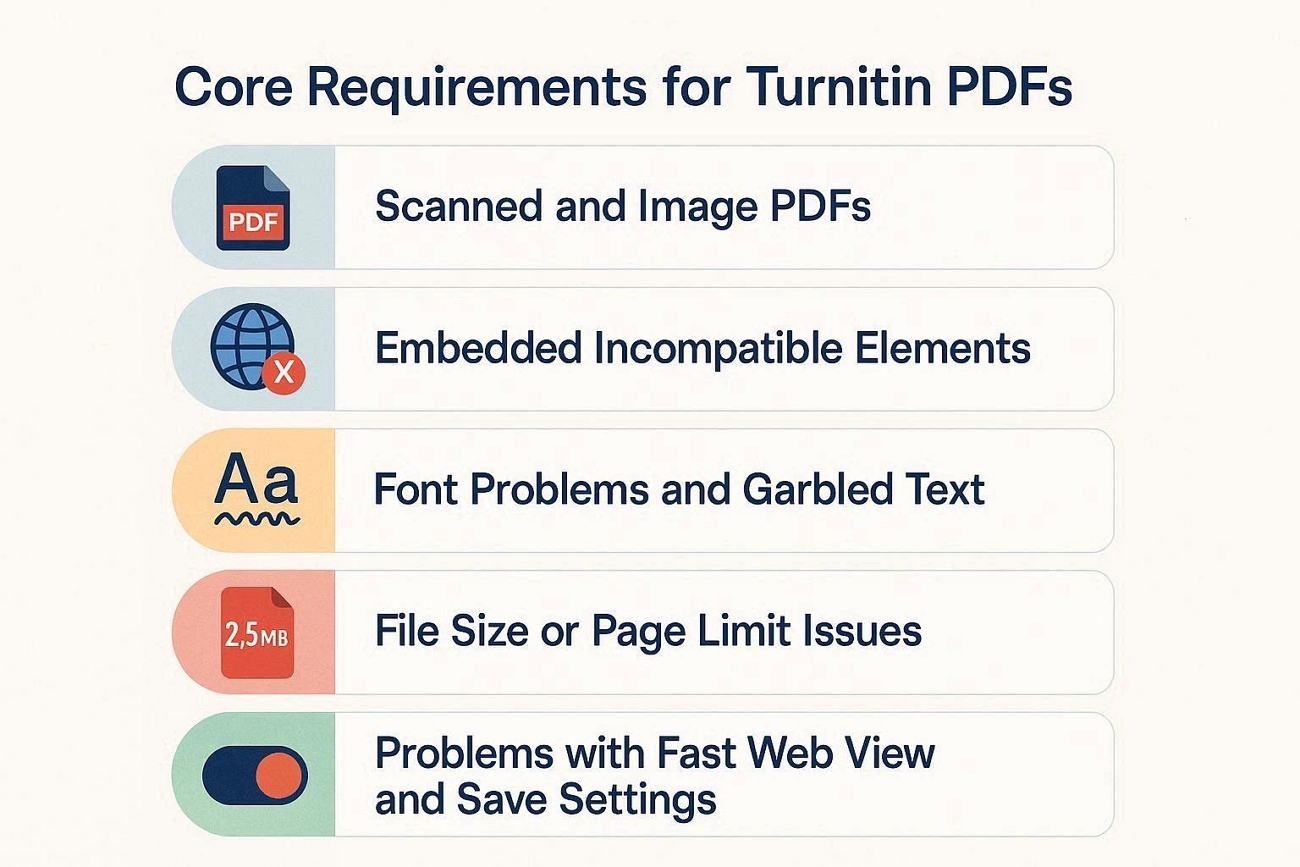
Some PDFs follow the rules and upload smoothly, and others cause confusing errors and wasted time. The Turnitin PDF format needs clear text and a simple structure. Now, we will look at the 5 main problems and the easy ways you can fix them.
1. Scanned and Image PDFs
Many students upload scanned pages, and Turnitin cannot read the text within those images. You can fix this via OCR tools to turn scanned pages into editable text. After OCR, save the file again as a normal PDF and then submit it to Turnitin.
2. Embedded Incompatible Elements
Some PDFs include forms, audio, video, or attached files that Turnitin simply cannot process. Removing extra elements and keeping only normal pages with text and basic images makes the file safer. If needed, copy the content into Word, export a fresh, clean PDF, and then upload that.
3. Font Problems And Garbled Text
Unusual or damaged fonts can make your text appear as boxes or strange symbols inside the PDF. Change everything to a common font, such as Times New Roman, before exporting to resolve this. You should also open the final PDF and check a few pages to confirm every word looks normal.
4. File Size Or Page Limit Issues
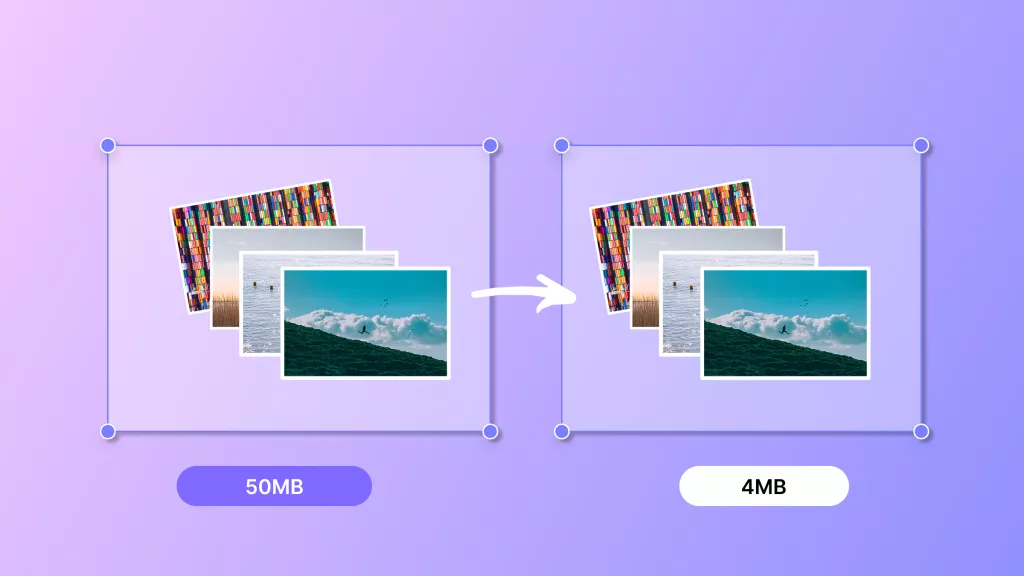
Large files can fail as Turnitin has limits for file size and page count. Compress images and split a long document into smaller parts. Moreover, aim for under 100 MB and under 800 pages to make uploading easier for the system.
5. Problems with “Fast Web View” And Save Settings
Some PDF creators enable “Fast Web View”, which can produce files that Turnitin struggles to read properly. You can open the PDF in Adobe and turn off Fast Web View before saving a new copy. If the errors persist, create a new PDF from your original document and resubmit it.
Extra Tips For Text And Style
- Keep font sizes normal and avoid heavy effects like shadows and 3D styles.
- Limit special symbols and unusual characters that might confuse Turnitin’s text reading.
- Check your PDF once to confirm everything looks clear, clean, and easy to read.
Part 3. How to Help All Pre-Turnitin Submissions in One Place
Many students fix their essay text but still lose marks because the PDF file fails quietly. This is where UPDF steps in and helps you prepare a clean, safe Turnitin PDF. UPDF can turn scanned pages into real text, so your file counts for word checks and reports.
It can also shrink large files, remove passwords, and clean up pages to match Turnitin rules. For extra guidance on AI checks alongside Turnitin, UPDF also offers a helpful Turnitin AI Detector guide.
How to Prepare A Safe PDF With UPDF
UPDF gives you a simple way to fix your file to ensure a safe Turnitin PDF format. Follow the steps below to clean your document and avoid upload errors or hidden problems:
Windows • macOS • iOS • Android 100% secure
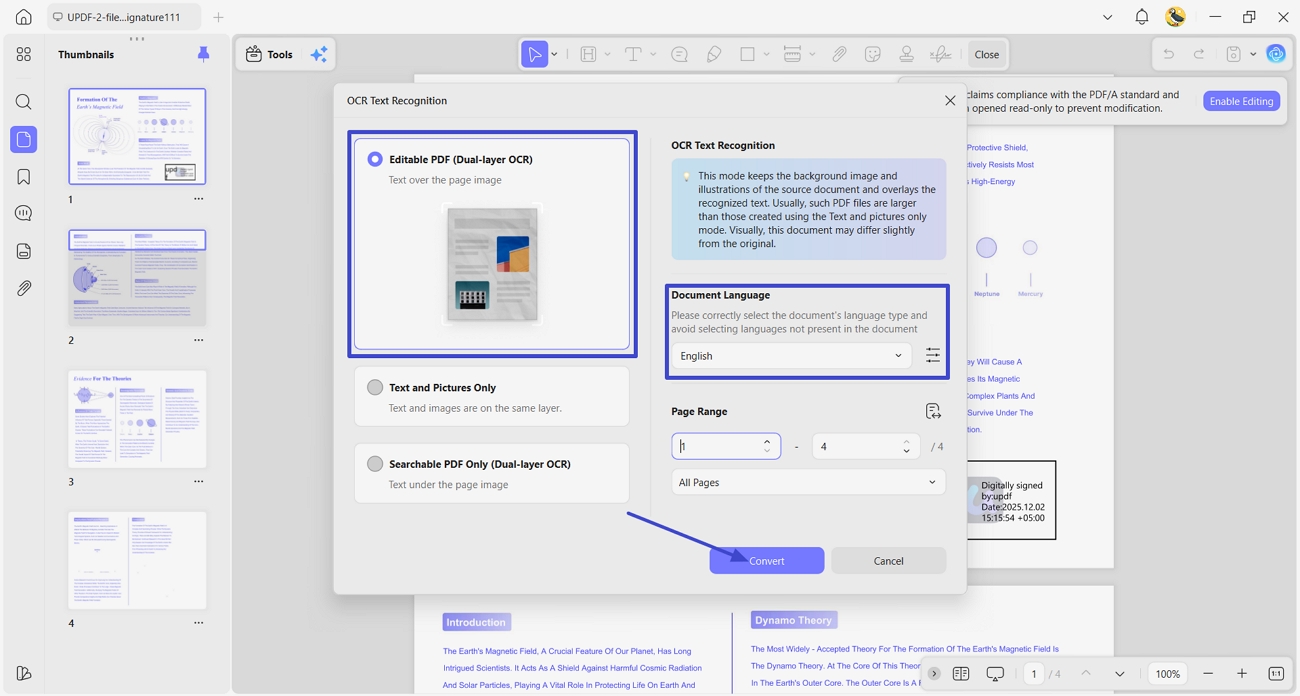
Step 1. Perform OCR PDF in UPDF
Once you open a scanned PDF in UPDF, access the OCR feature. Next, choose the “Editable PDF” option and select the language. This will make your PDF text searchable for Turnitin checks. Now, click the “Convert” button to begin OCR.
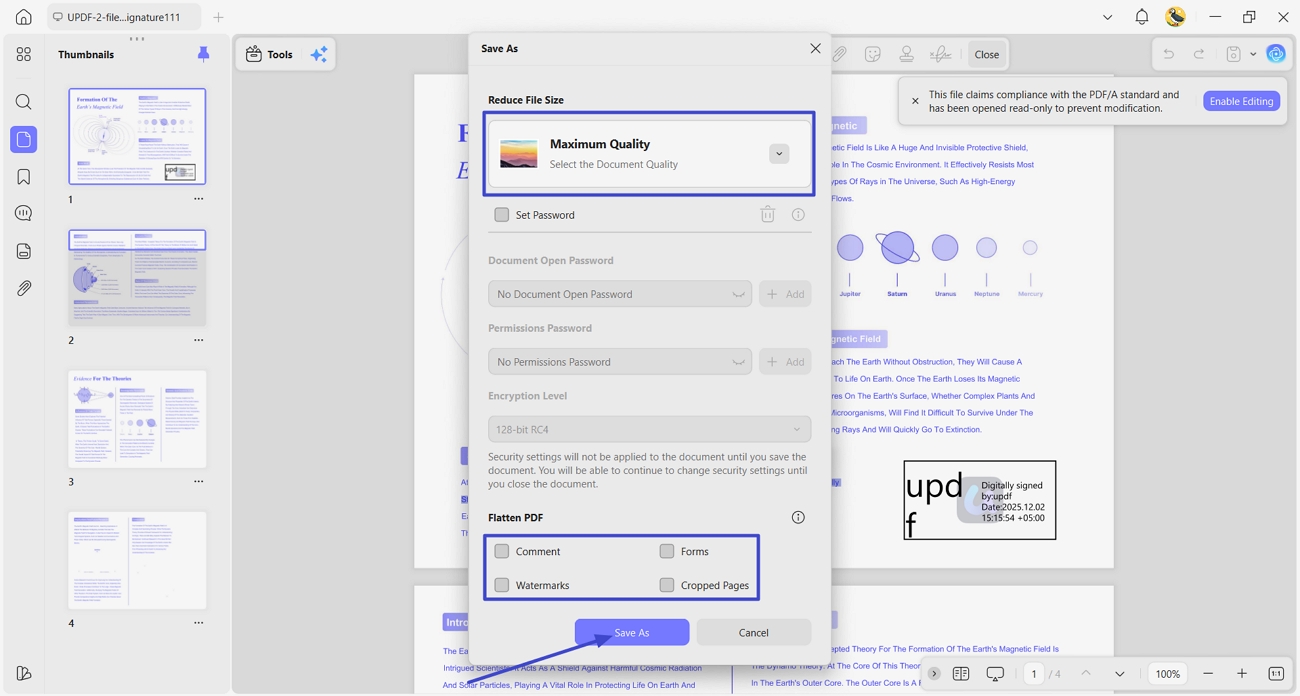
Step 2. Compress The PDF
After the OCR is done, open the “Reduce File Size” feature. Next, choose a compression option and tick the elements that need to be flattened. Click the “Save as” button to save the compressed copy of the PDF.
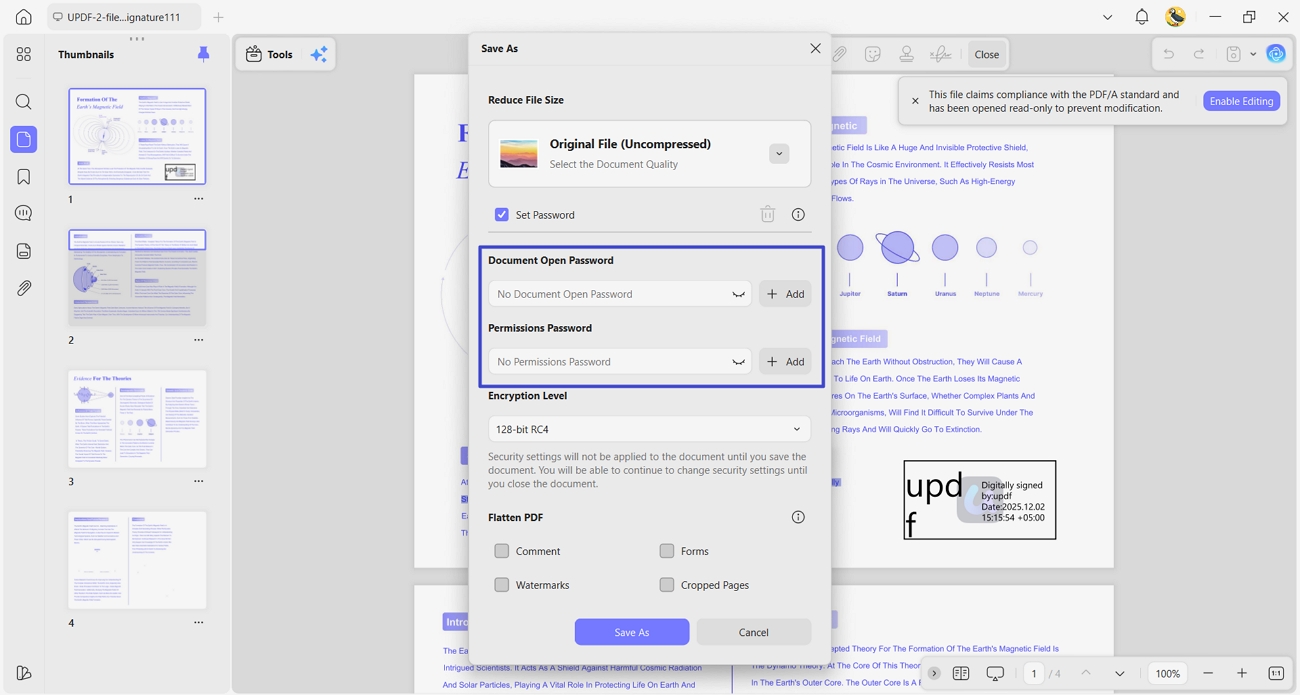
Step 3. Check Security Settings
Now, open the “Password Protection” feature and make sure your PDF is not password-protected. Password protection can hide the PDF content from the Turnitin system.
Step 4. Generate Compliance Report
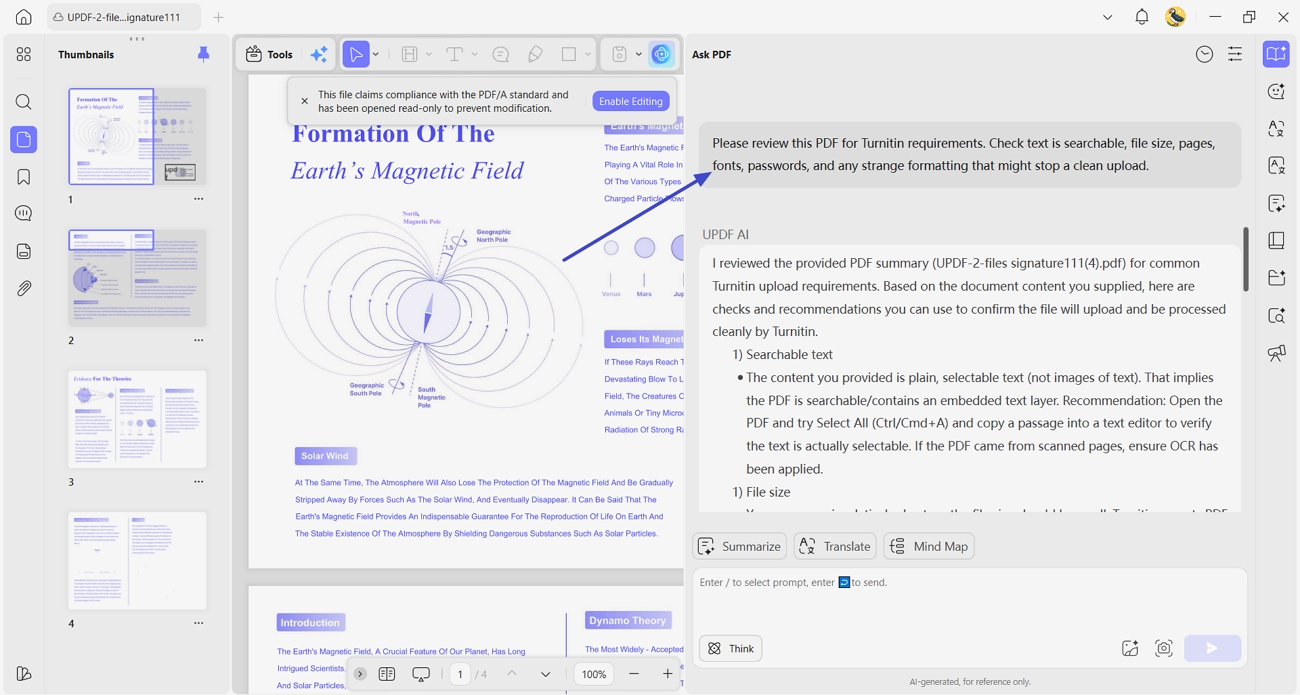
Next, open the “Ask PDF” option in UPDF AI. Now ask the chat to check the PDF against the Turnitin requirements. UPDF AI will provide you with a detailed report of the amendments needed.
Final Checklist Before You Upload
Before you submit, make sure your PDF matches Turnitin’s basic file rules and limits. Look at the checklist below and confirm each item is fully covered:
- Text is selectable and searchable, not just page images from a scanner.
- File size stays under 100 MB, with under 30 MB as safer.
- Total page count is 800 pages or fewer for every submission.
- Document contains at least 20 clear words that Turnitin can read.
- PDF has no password or encryption blocking Turnitin from opening the file.
- All text uses regular fonts that display correctly on every page.
- The file is not only a scanned copy; the scanned pages are also converted.
- PDF includes no extra embedded files or complex interactive forms.
When all items on this checklist are met, your Turnitin PDF upload is almost always successful.
Final Words
In summary, Turnitin PDF issues are not only about content quality but also about simple technical file rules. With basic checks for text, size, pages, and structure, most upload errors can be prevented. For easier scanning, editing, and final checks before submission, UPDF and its Turnitin alternative toolkit offer a strong all‑in‑one workspace.
Windows • macOS • iOS • Android 100% secure




 Enola Miller
 유경은
유경은 
 Enrica Taylor
 Engelbert White