 UPDF
UPDF
 UPDF for Windows
 UPDF for Mac
 UPDF for iPhone/iPad
 UPDF for Android
 Nomostar
 UPDF AI Online
 UPDF Sign
 IvyCraft
 Edit PDF
 Annotate PDF
 Create PDF
 PDF Form
 Edit links
 Convert PDF
 OCR
OCR PDF to Word
 PDF to Image
 PDF to Excel
 Organize PDF
 Merge PDF
 Split PDF
 Crop PDF
 Rotate PDF
 Protect PDF
 Sign PDF
 Redact PDF
 Sanitize PDF
 Remove Security
 Read PDF
 UPDF Cloud
 Compress PDF
 Print PDF
 Batch Process
 About UPDF AI
 UPDF AI Solutions
 AI User Guide
 FAQ about UPDF AI
 Summarize PDF
 Translate PDF
 Chat with PDF
 Chat with AI
 Chat with image
 PDF to Mind Map
 Explain PDF
 PDF AI Tools
 Image AI Tools
 AI Chat Tools
 AI Writing Tools
 AI Study Tools
 AI Working Tools
 Other AI Tools
 AI Bookmark Generation
 AI Bookmark Summary
 AI Watermark Generation
 AI Background Generation
 AI Sticker Generation
 AI Stamp Generation
 AI Editing Suite
 UPDF Copilot
 AI Page Management
 AI Semantic Search
 PDF to Word
 PDF to Excel
 PDF to PowerPoint
 Enterprise Solution
 Enterprise Sign
 Enterprise AI
 Enterprise Plan
 Enterprise User Guide
 Enterprise Webinar
 Banking
 Healthcare
 Insurance
 Legal
Legal Manufacturing
 Government
 Researchers & PhDs
 Solopreneurs & Freelancers
 Lawyers & Legal Professionals
 Real Estate Agents & Brokers
 Education Solution
 Customer Stories
 User Guide
 UPDF Tricks
 FAQs
FAQs UPDF Reviews
 Download Center
 Blog
Blog Newsroom
 Tech Spec
 Updates
 UPDF vs. Adobe Acrobat
 UPDF vs. Foxit
 UPDF vs. PDF Expert

For a long time, I have used Kindle as a primary tool for eBook reading. It was good for casual reading, yet it struggled when I needed to read research or professional materials. The small screen and restricted control made longer and more complex reading sessions less efficient.
My daily reading demands grew, so I searched for better ways to use Kindle on a computer. In this guide, I’ll explain how to read books from Kindle on computer using practical methods. As a bonus point, I’ll show how UPDF can make reading and annotating Kindle books on a computer easier. You can click the button below for a free download.
Windows • macOS • iOS • Android 100% secure
Part 1. Can You Read Kindle Books On PC?
Reading Kindle books on a PC is possible and gives a bigger screen for better control. Different methods work depending on the task, from casual reading to detailed study. Using the right approach helps me annotate, organize, and manage my books while keeping the process smooth and productive. Before learning how to read Kindle books on PC, look at the main methods I use.
- Kindle for PC App: The application allows you to download Kindle books and read them without any hassles.
- Kindle Cloud Reader: Users can open a web browser to access their Kindle electronic books without any software or application.
- Exporting and using PDFs: Converting Kindle books to PDFs allows advanced reading, annotation, and detailed study options.
Part 2. Method 1 — How I Read Kindle Books on PC with Kindle App for PC
I often prefer reading on a bigger screen, and the ordinance of Kindle with PC applications makes this easy and convenient. This method is perfect when I want to access my library offline and keep my reading organized. Using the app regularly gives me a seamless experience without relying on a browser or extra tools. Follow the steps below to learn how you can read Kindle books on a PC:
Step 1. First off, download the Kindle for PC app from Amazon’s official website.
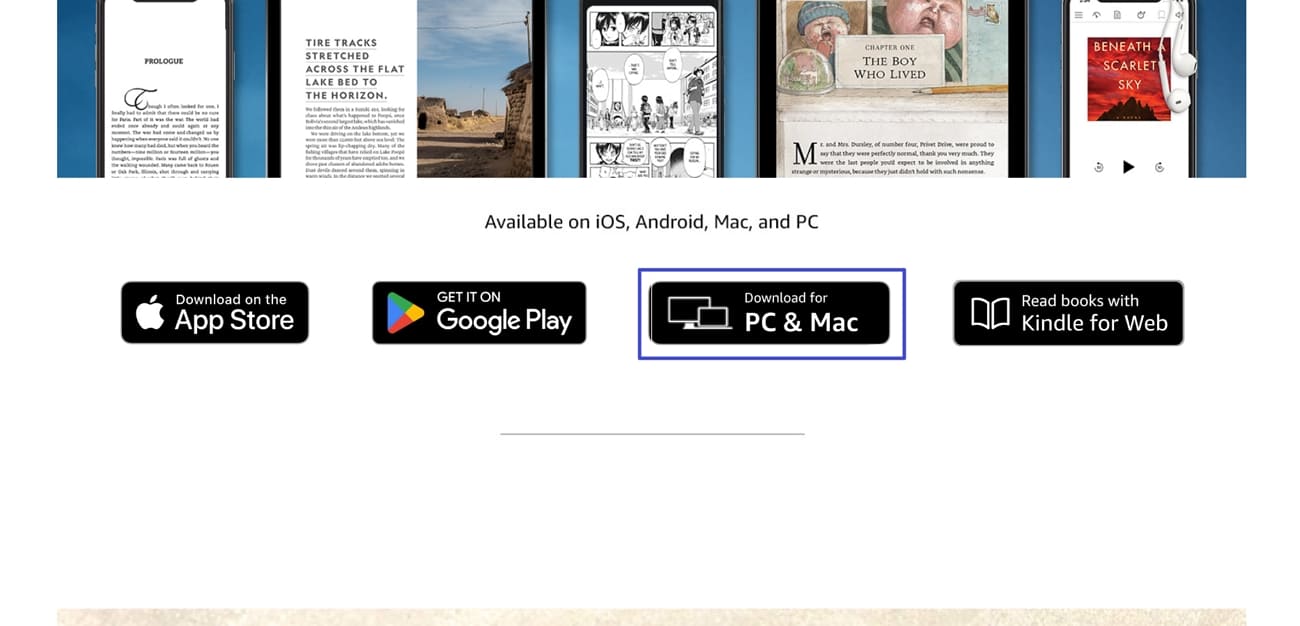
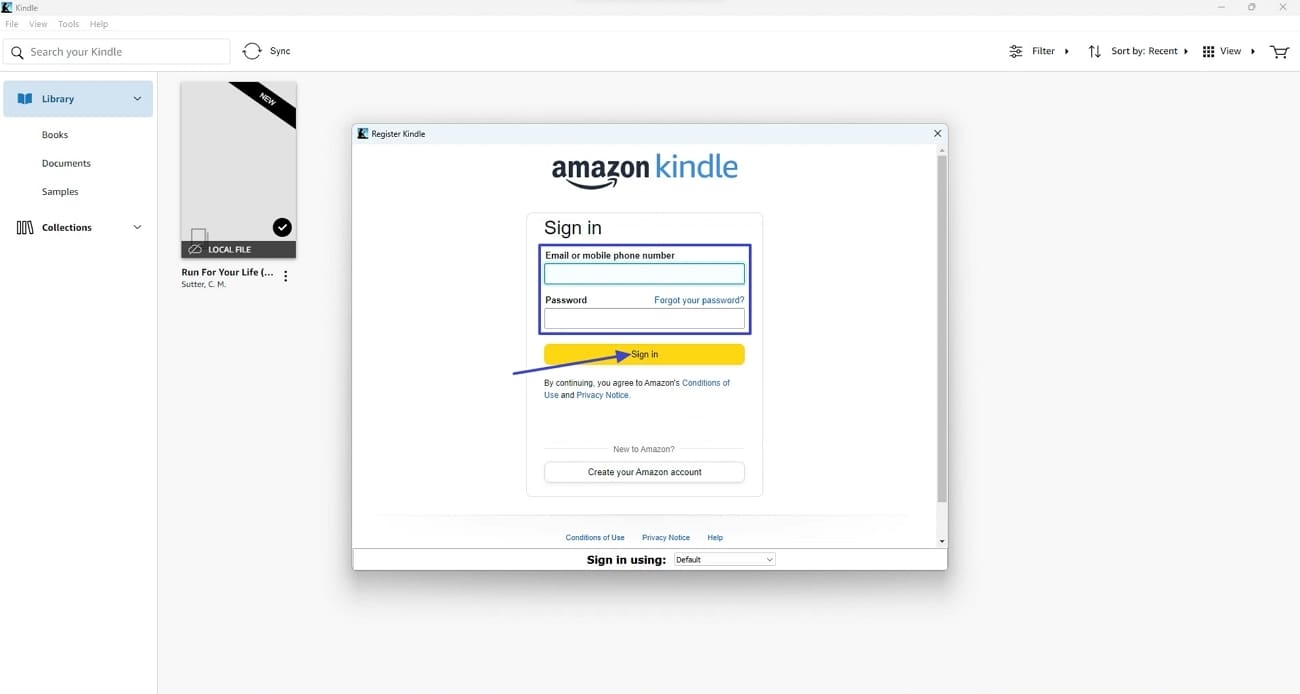
Step 2. Once downloaded, access the “Setup” file and install the app on your Windows or Mac computer. After the app is installed, enter your credentials and press the “Sign In” button to log in to your Amazon account.
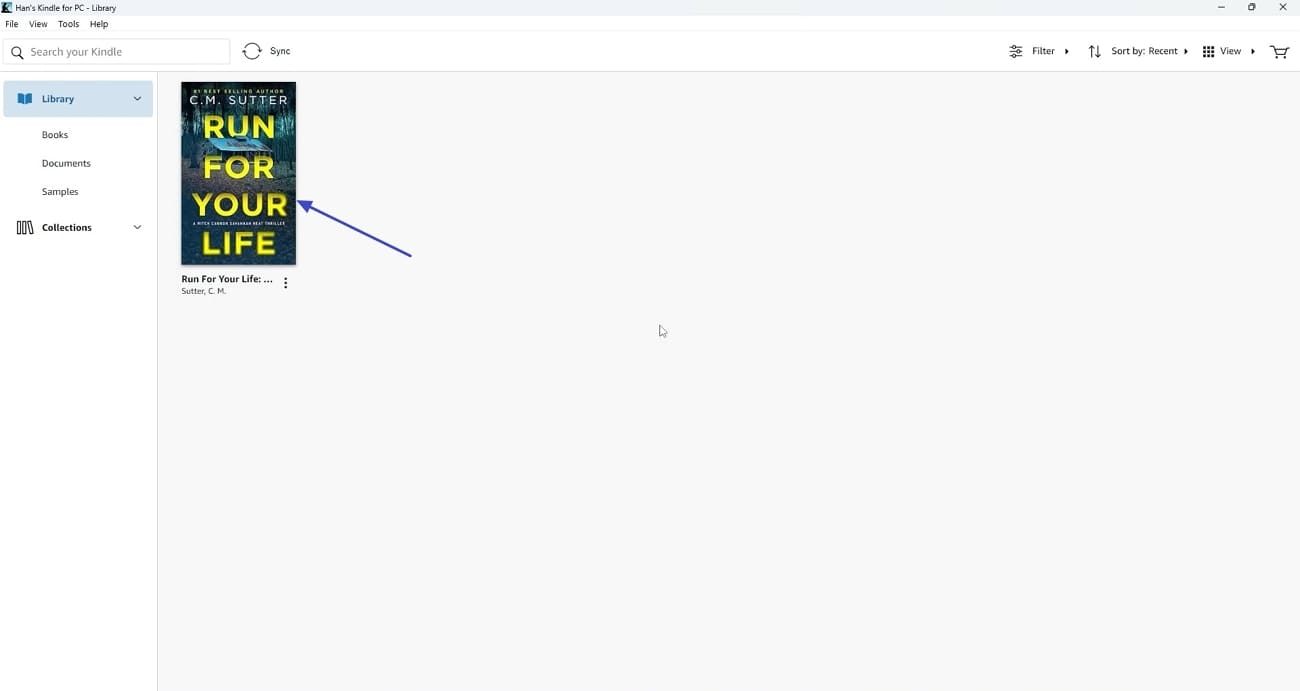
Step 3. Afterwards, you’ll be able to see your Kindle Library with your saved books. Here, you can read Kindle books without downloading them.
Part 3. Method 2 — How I Read Kindle Books in a Browser (Kindle Cloud Reader)
Sometimes I ask myself, can you read Kindle books on PC without installing any apps, and the Kindle Cloud Reader makes it simple. Using a browser allows me quickly access my library from anywhere while keeping my reading synced. This method is perfect when I want to read books from Kindle via browser. Next, adhere to the steps below to see how to read Kindle books without any software:
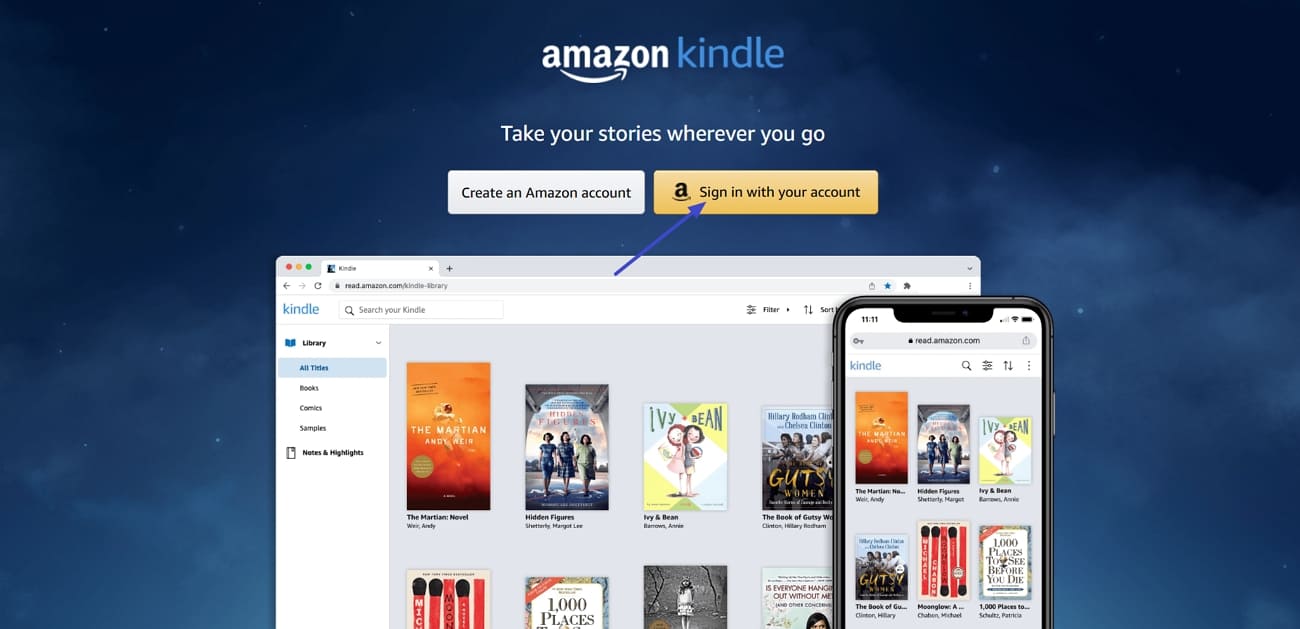
Step 1. Once you access the Read Amazon landing page, press the “Sign in With Your Account” button. Afterwards, you’ll be asked to enter your credentials, where you need to enter your email and password to log in to your Amazon account.
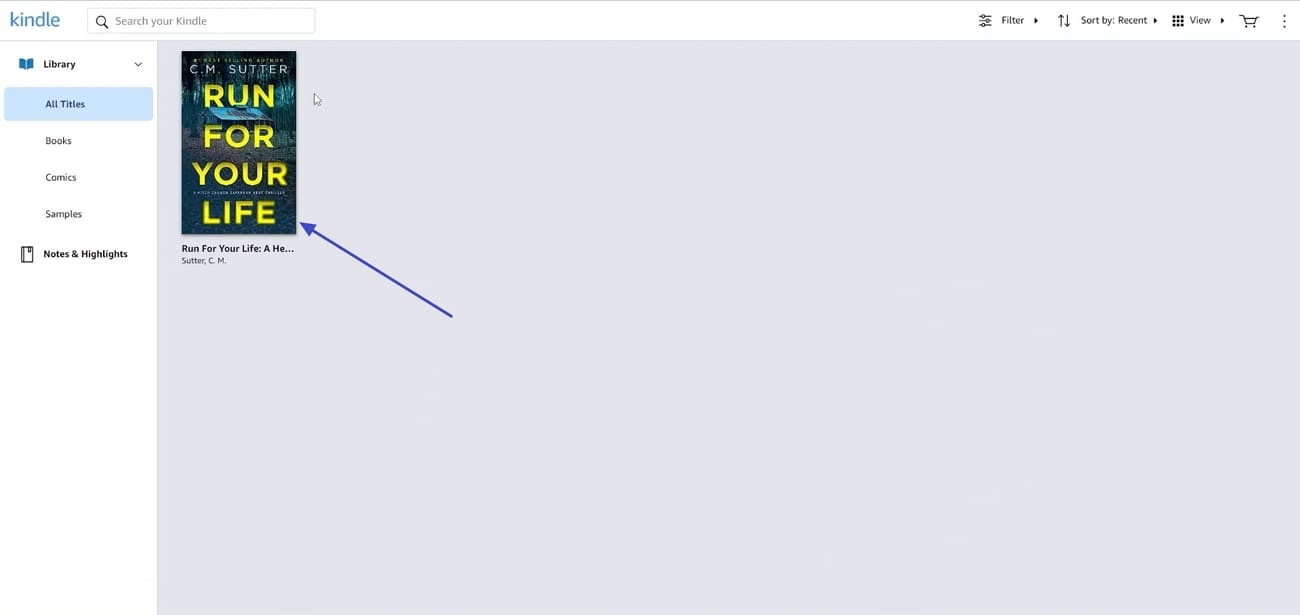
Step 2. After your account is logged in, you’ll be able to see and read your Kindle book directly via your browser.
Part 4. My Problem — When Kindle isn’t Enough for Serious Reading
After learning how to read books from Kindle on computer, I realized that casual reading is easy, but studying complex materials is harder. Sometimes I struggle with difficult phrases or concepts and want quick explanations. Other times, I find sentences worth marking for later reference, yet Kindle’s basic tools aren’t enough for serious study. These limitations eventually slowed my workflow and made studying less efficient.
That’s when I began exploring alternatives that could give me more control over my reading and notes. This is where UPDF steps in with advanced PDF reading and editing controls to help me work with my Kindle books in PDF format. Exporting my books to UPDF gives me the flexibility I need for deeper study and a more productive reading experience.
Windows • macOS • iOS • Android 100% secure
Why UPDF Became My Main Reading Tool
After turning to UPDF, I discovered several powerful features that transformed my reading experience. Look at the following features that made it my primary reading tool.
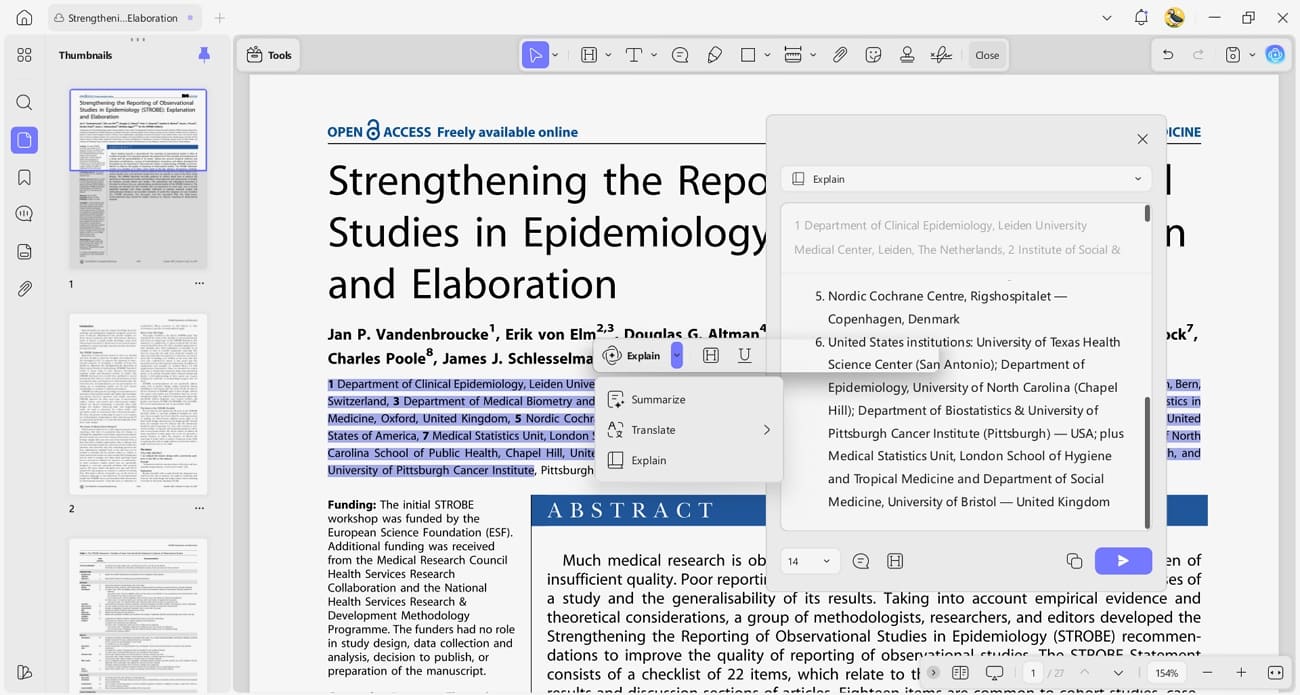
1. UPDF AI: It helps me understand and interact with my Kindle books more. I can select any text and ask UPDF AI to summarize, explain, or translate it. Afterwards, I can add the explanation as a comment.
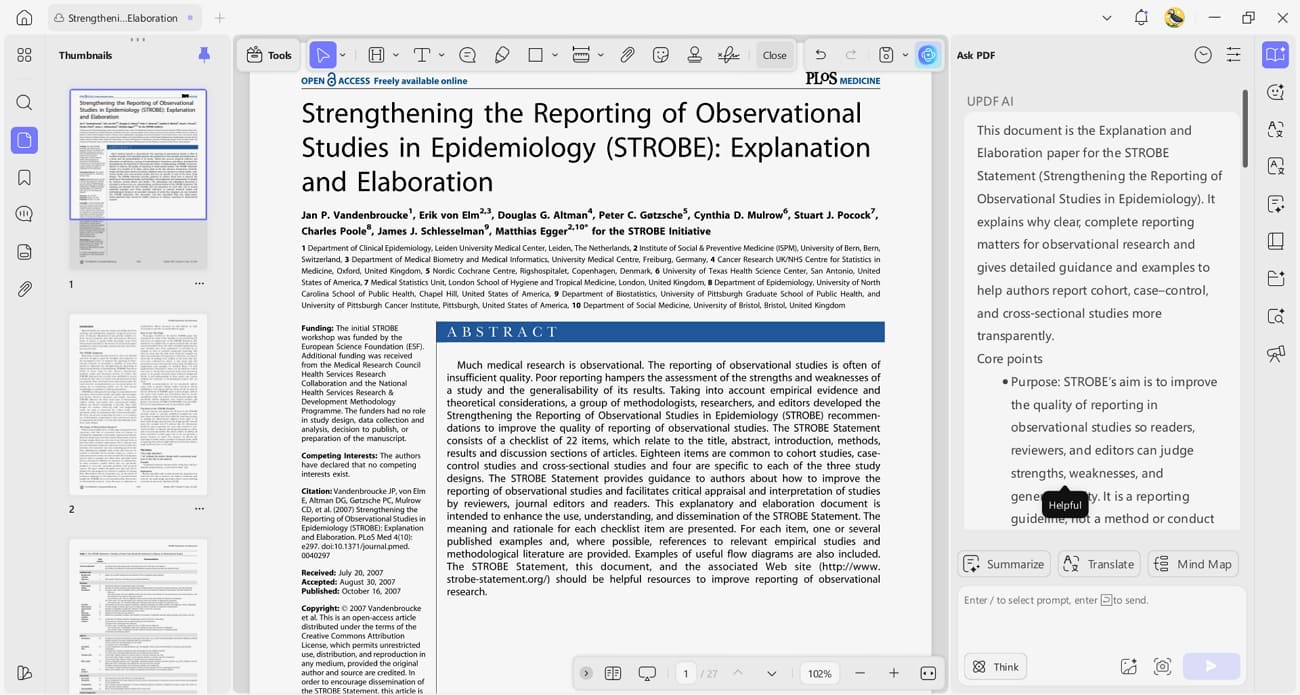
Additionally, I can chat with UPDF AI to ask questions about the book’s content, all powered by GPT-5 and DeepSeek R1.
2. Mind Map Generation: UPDF can generate a mind map for any book, giving me a clear visual overview of the content. This helps me quickly understand the structure and main ideas without reading every detail.
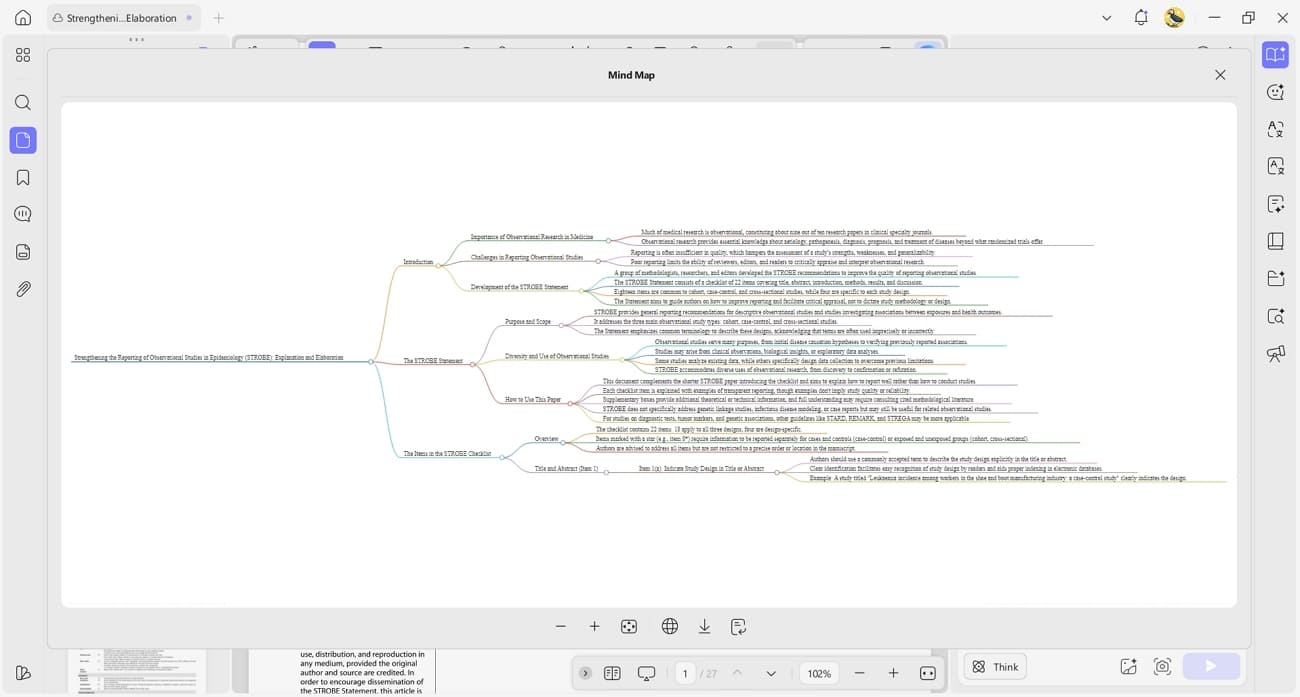
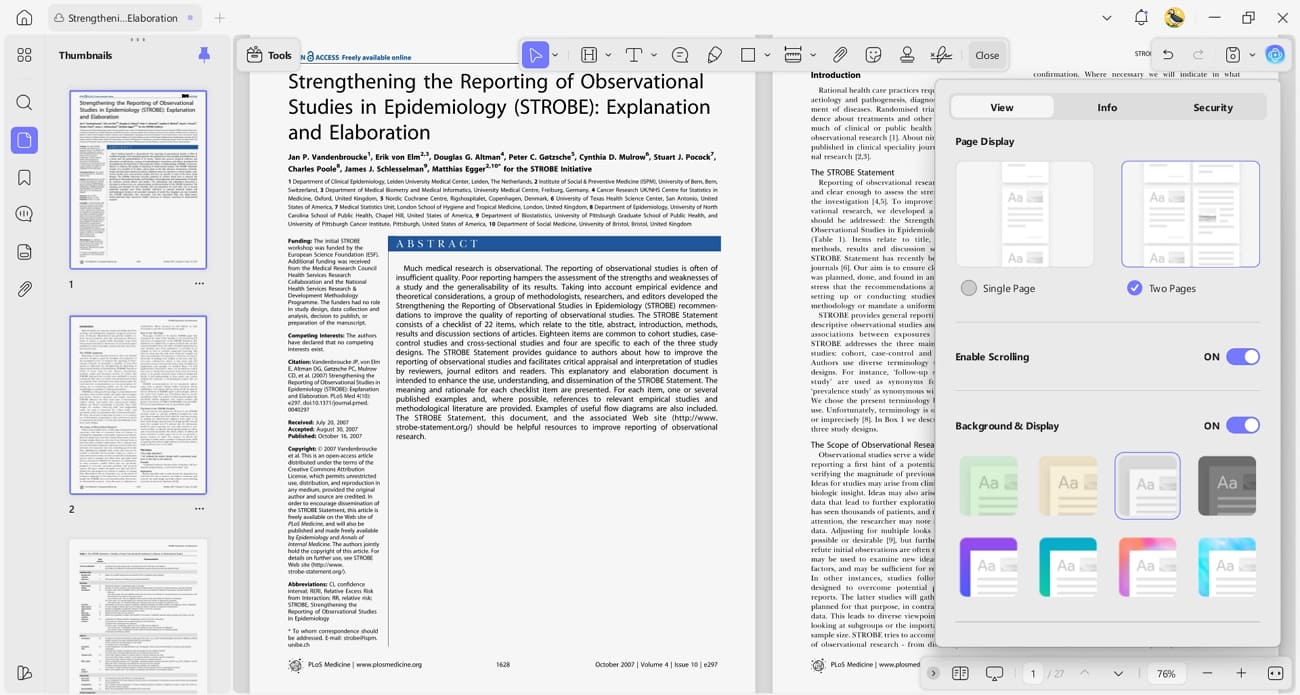
3. Improved Reading Experience: I can switch between single-page and double-page modes and use continuous scrolling for a seamless experience. The app also allows me to enable and disable the divider line and customize the zoom ratio.
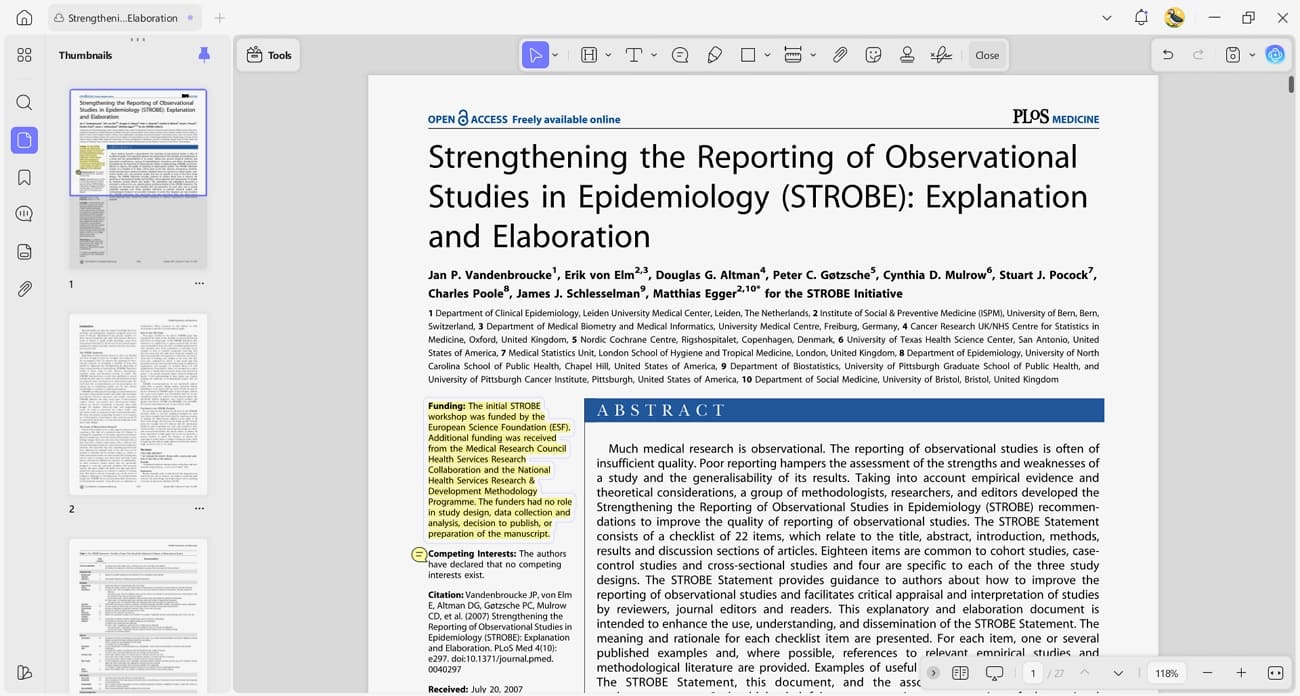
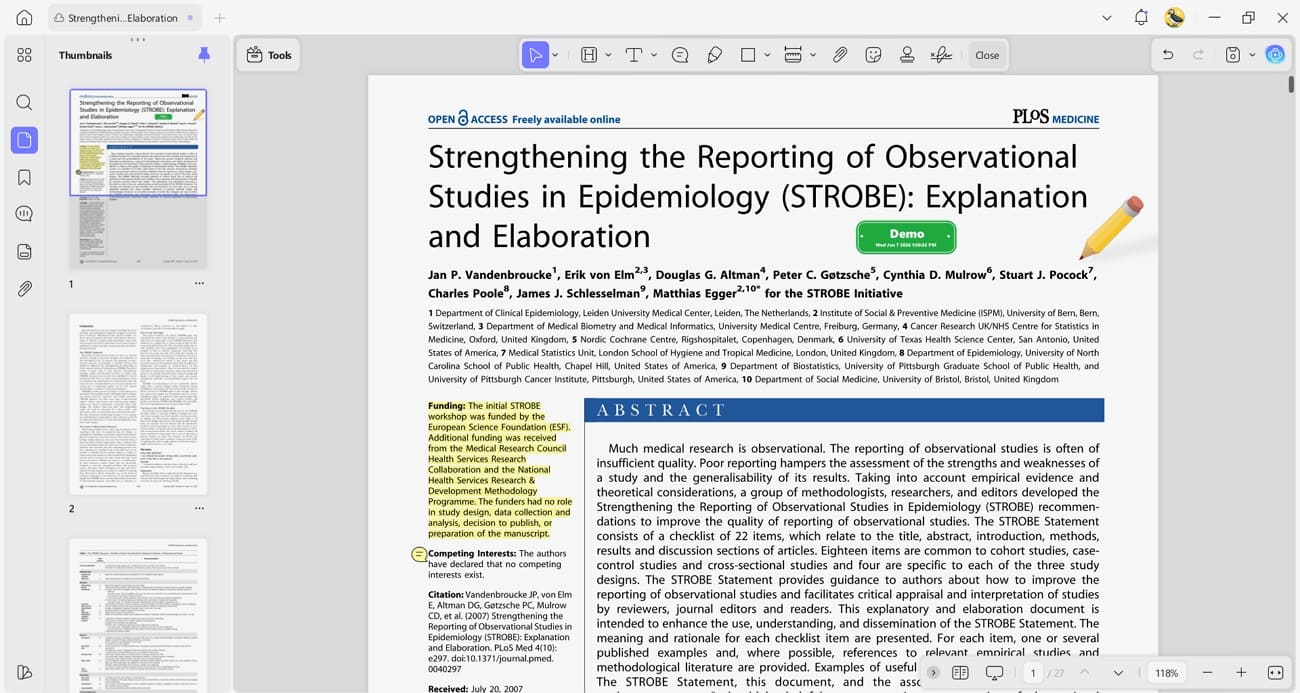
4. Annotation Tools: This tool offers a wide range of annotation options that go beyond basic highlights. I can add highlights, comments, and underline text to highlight specific information.
It also allows me to use stamps and stickers for better organization.
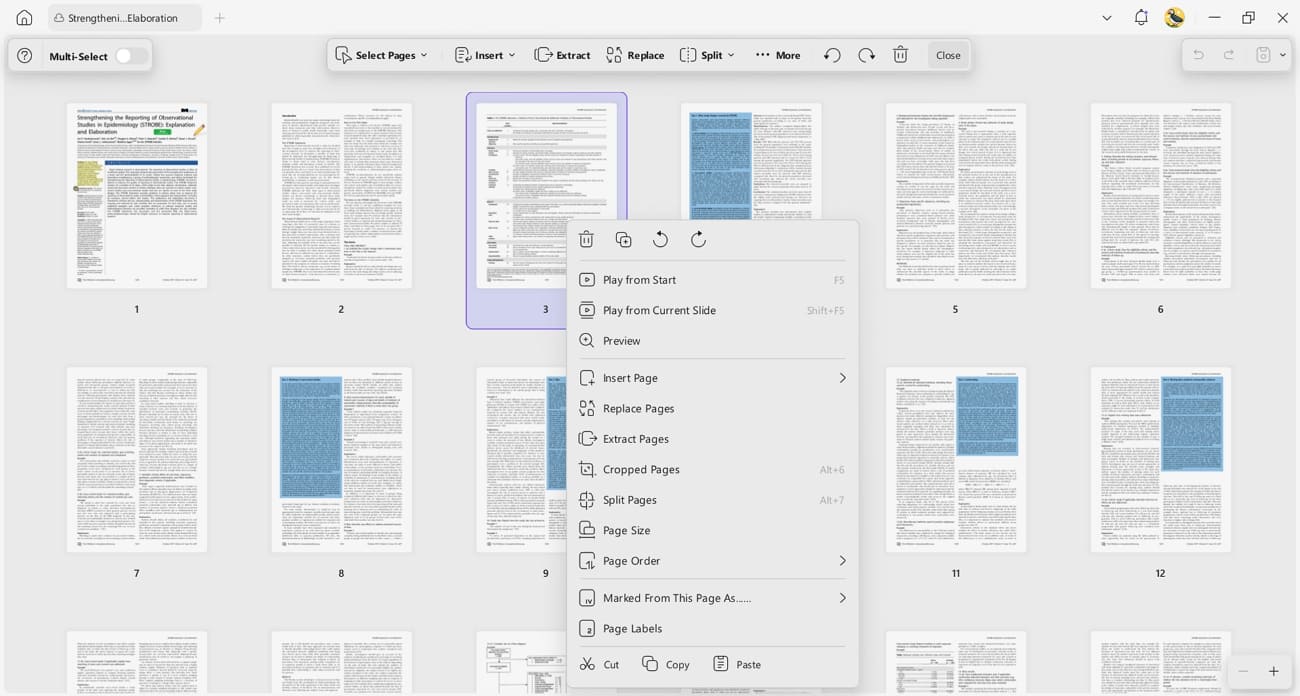
5. Organized Reading: With UPDF, I can control how I manage my eBooks. I can split a book into smaller sections and extract only the pages I need. This flexibility allows me to customize my study materials to suit my workflow.
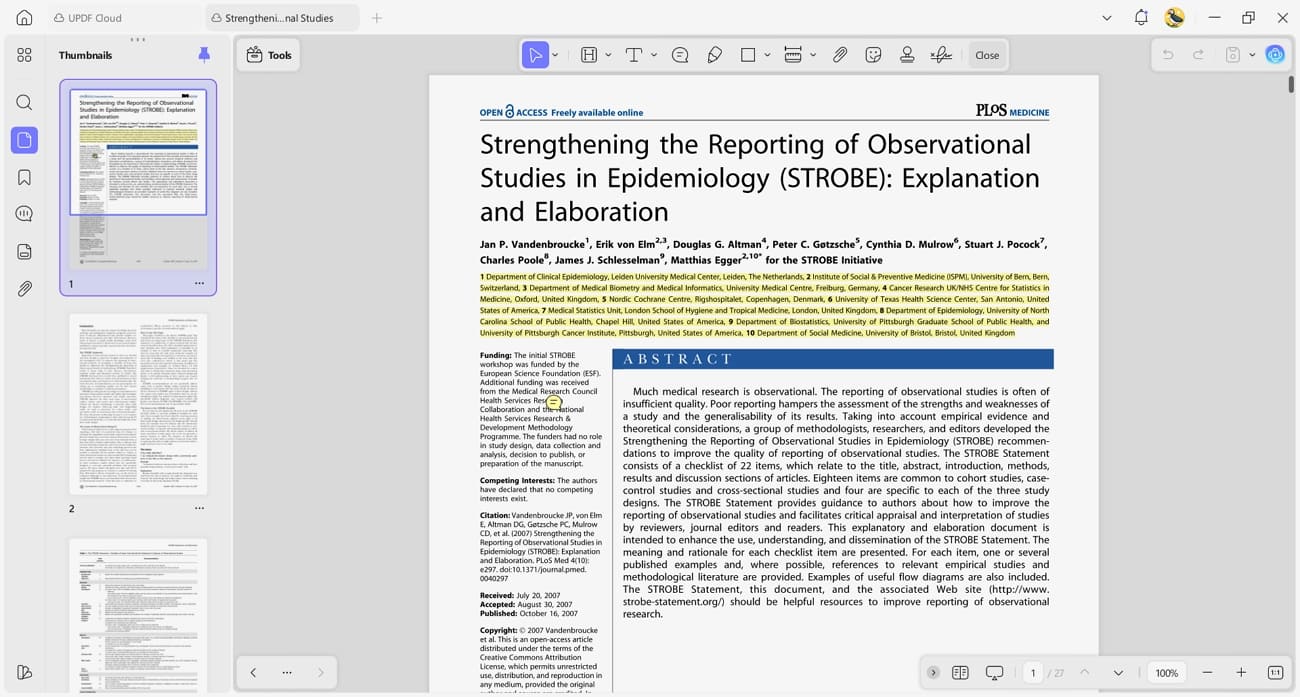
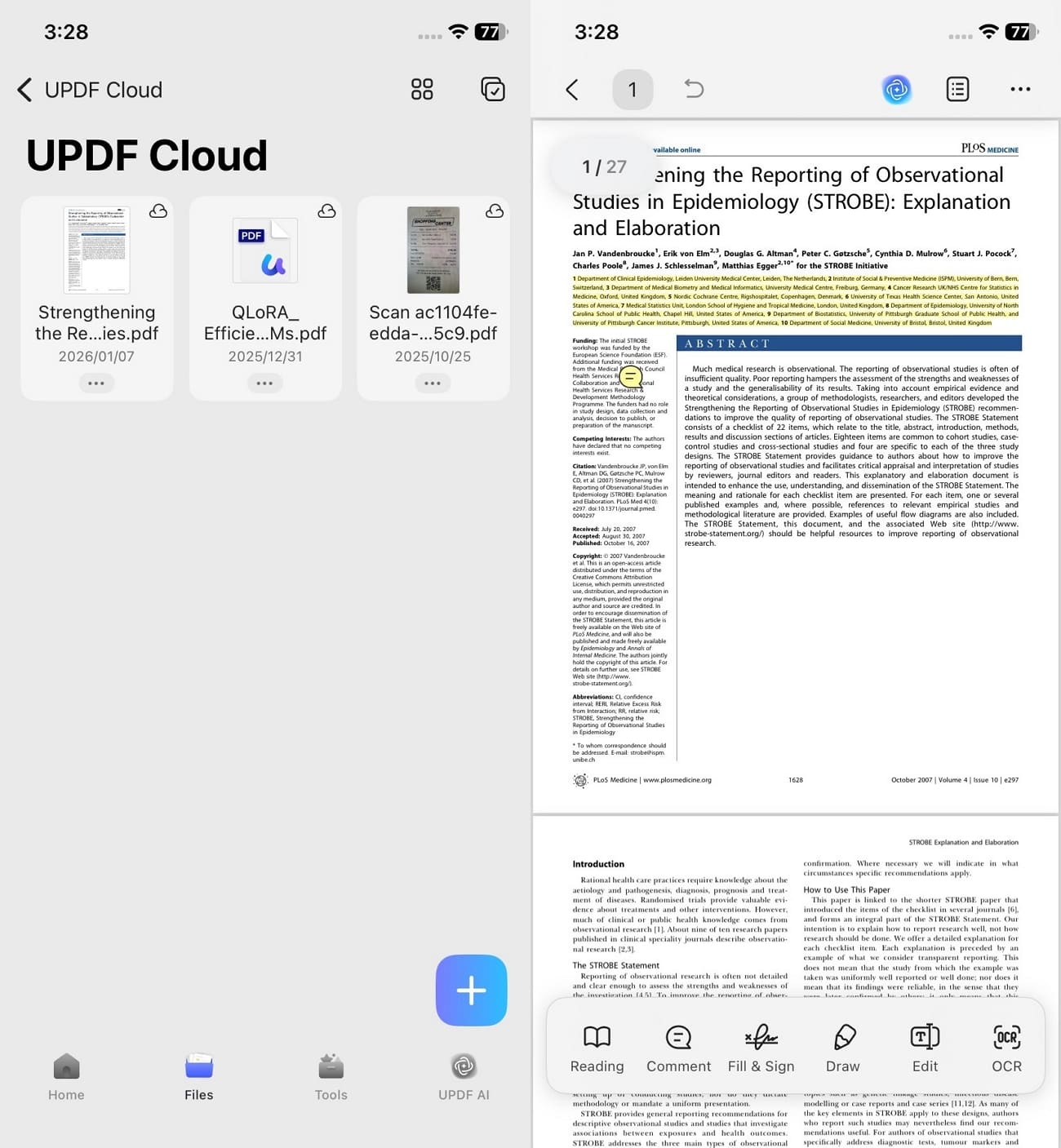
6. UPDF Cloud: It ensures all my eBooks and annotations are synced across devices. I can access my markups and notes instantly on another PC with the same UPDF account logged in.
On mobile devices like my tablet or phone, I can continue reading and reviewing my notes with markups. You can download UPDF for mobile on App Store or Google Play.
Windows • macOS • iOS • Android 100% secure
UPDF Free Version Limitations and Pricing
While UPDF’s free version offers a good range of basic features, it has some limitations that can affect serious reading and study. For example, advanced annotation tools and AI-powered features are restricted in the free version.
To unlock the full potential, UPDF offers several paid plans. Visit the pricing plans official page to check out the premium version. Below is a clear breakdown of UPDF’s individual pricing plans so you can see which option fits your needs best:
| Plan | Price | Key Notes |
| Free Tier | $0 | Basic features with limited tools |
| UPDF Pro (Yearly) | $59.99/year | Full PDF features |
| UPDF Pro (Lifetime) | $89.99/lifetime | Permanent access to core features |
| UPDF Pro + AI (Yearly) | $138.99/year | AI tools included with PDF features |
Part 5. How to Download a Kindle eBook as PDF?
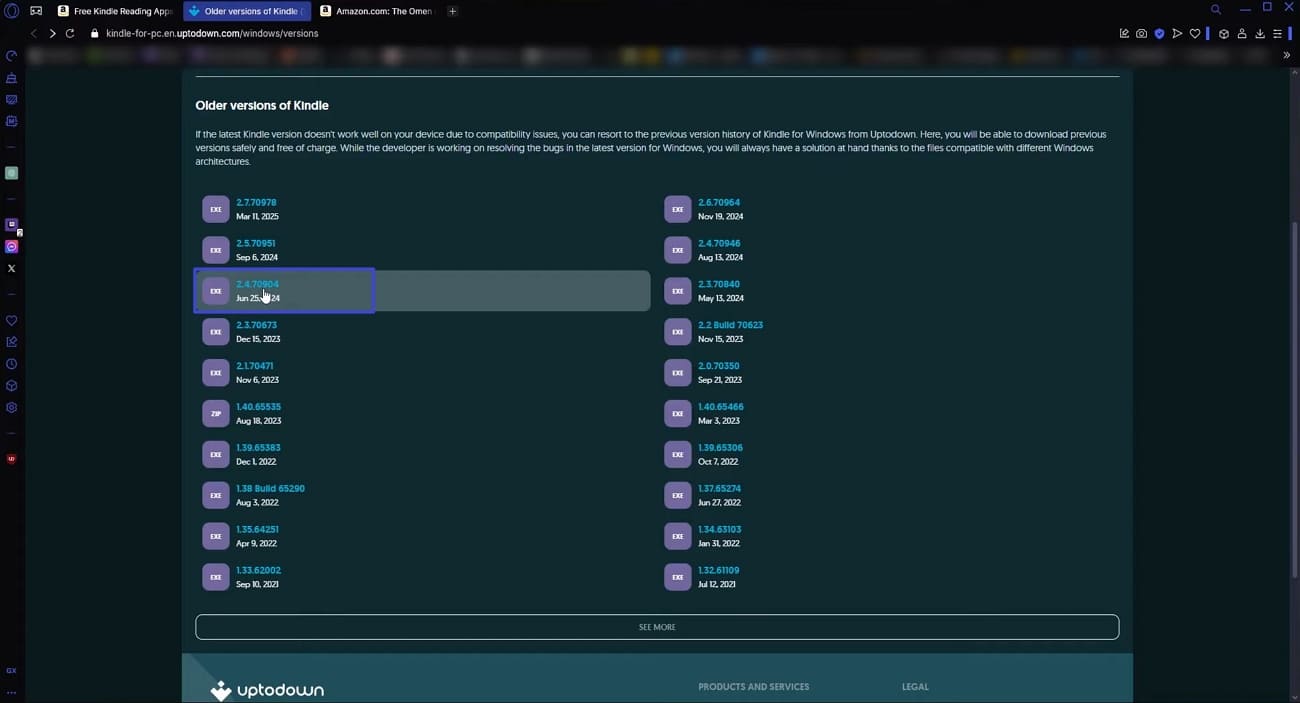
After getting the question, “Can you read Kindle books on PC?”, users enquired about downloading them. I noticed that Amazon removed downloading of eBooks functionality in their February 26, 2025, update. To continue downloading, Kindle for PC version 2.4.0 was required, as it is the last version allowing downloads in a usable format. Follow the steps below to see how you can download a Kindle eBook:
Step 1. First off, go to a trusted app downloader and download the 2.4.0 version of the Kindle for PC app.
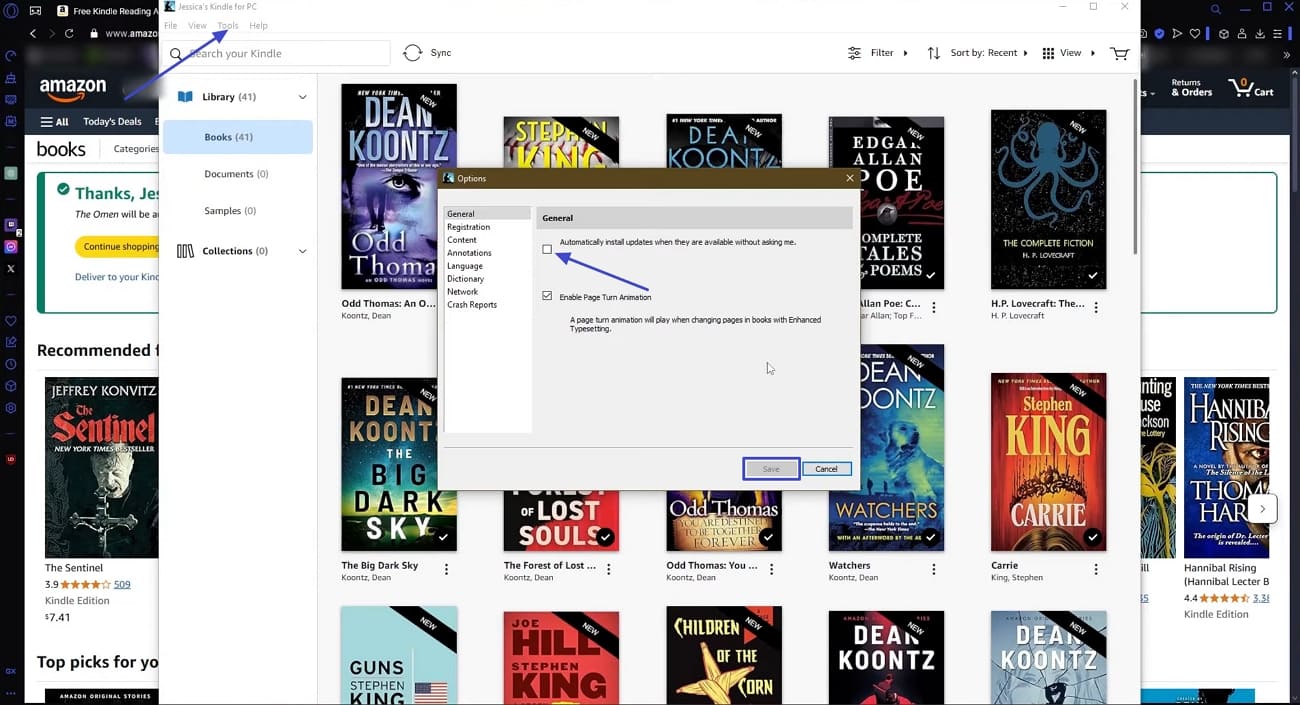
Step 2. Once the Kindle for PC app is installed, press the “Tools” tab and click the “Options” option. Next, uncheck the “Automatically Install Updates” option and press the “Save” button to disable automatic updates.
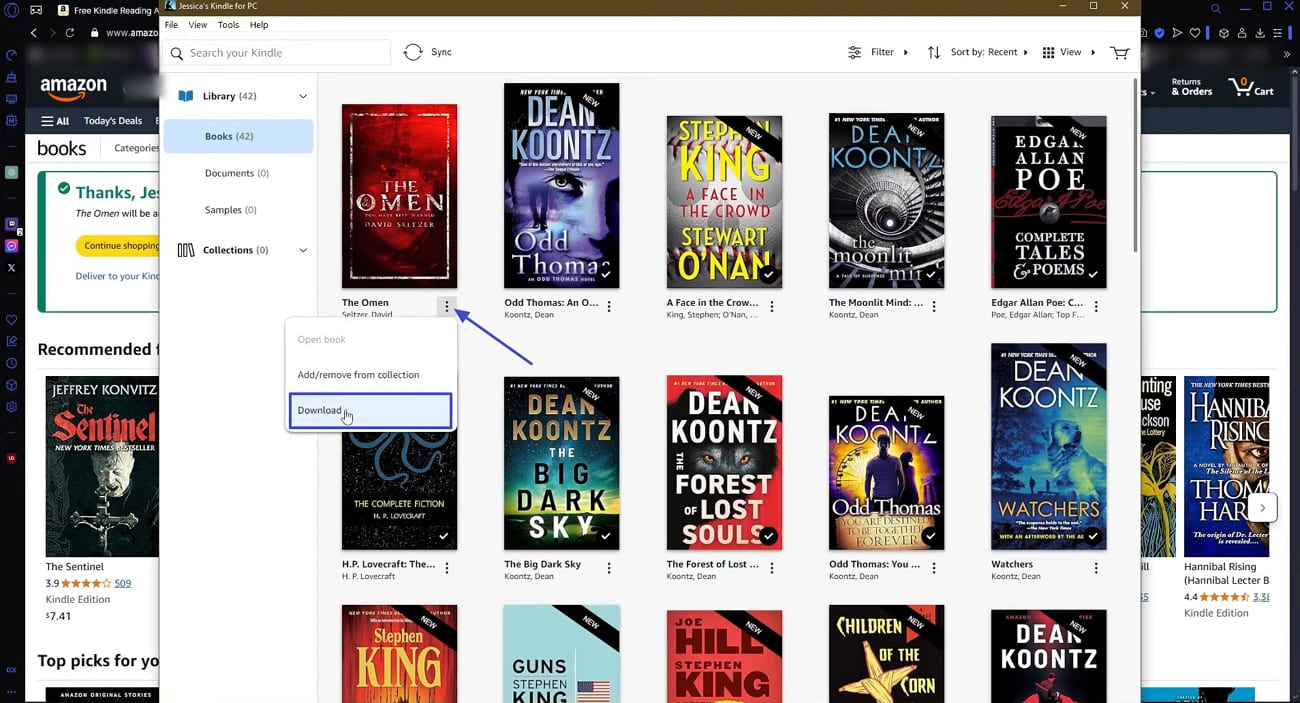
Step 3. Afterwards, press the “Three-Dots” icon on your favorite book and press the “Download” button to download the book for offline viewing.
Removing DRM from Kindle Books
Most Kindle books are now DRM-protected, which prevents copying or converting them freely. DRM, or Digital Rights Management, restricts how eBooks can be used. Readers can remove DRM using Calibre or Epubor Ultimate before reading or converting Kindle books. After removing DRM, go through the guide below to open PDF eBooks on UPDF:
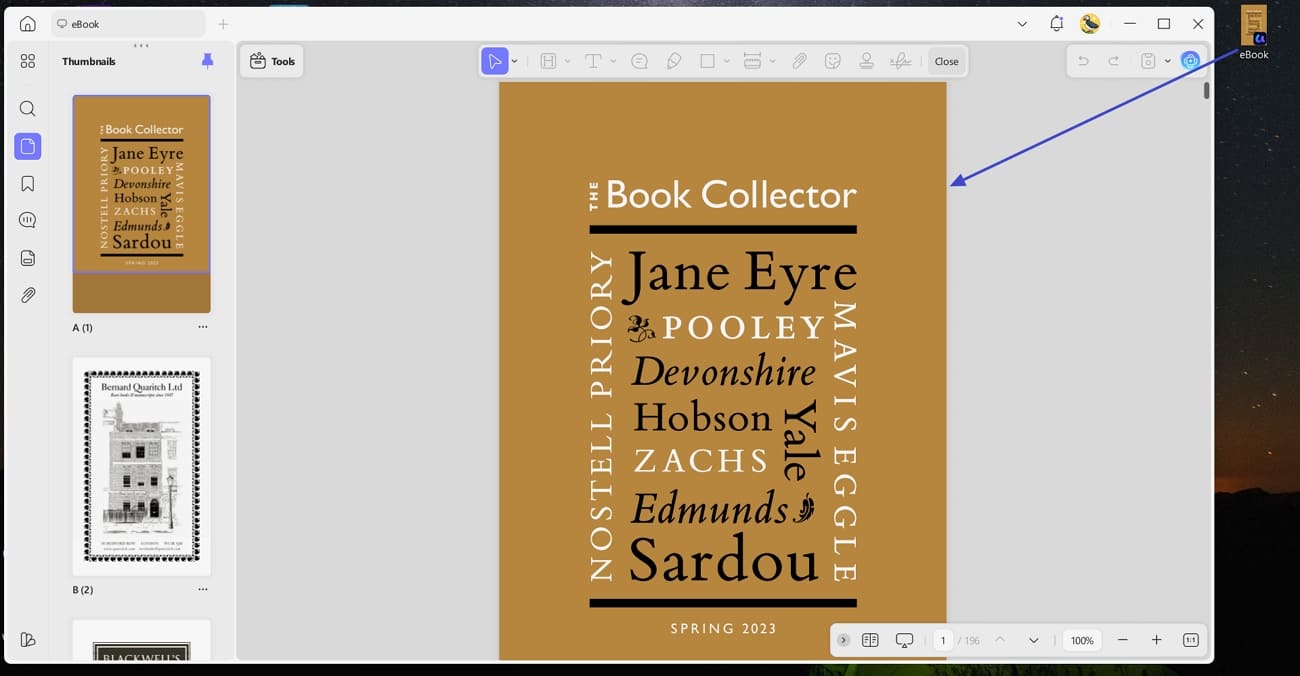
Instructions. Drag and Drop PDF eBook into UPDF
Once you reach the main interface, drag the PDF eBook and drop on the UPDF interface. This way, the book will be automatically opened in UPDF.
Windows • macOS • iOS • Android 100% secure
Conclusion
In conclusion, this guide explained how to read books from Kindle on computer using different practical methods. Kindle apps are suitable for basic reading, but advanced study requires more flexibility. If you regularly study complex materials or need stronger annotation, organization, and cross-device access, UPDF is the ideal tool to choose.
Windows • macOS • iOS • Android 100% secure





 Enola Miller
 Lizzy Lozano

- marginwalker__