 UPDF
UPDF
 UPDF for Windows
 UPDF for Mac
 UPDF for iPhone/iPad
 UPDF for Android
 Nomostar
 UPDF AI Online
 UPDF Sign
 IvyCraft
 Edit PDF
 Annotate PDF
 Create PDF
 PDF Form
 Edit links
 Convert PDF
 OCR
OCR PDF to Word
 PDF to Image
 PDF to Excel
 Organize PDF
 Merge PDF
 Split PDF
 Crop PDF
 Rotate PDF
 Protect PDF
 Sign PDF
 Redact PDF
 Sanitize PDF
 Remove Security
 Read PDF
 UPDF Cloud
 Compress PDF
 Print PDF
 Batch Process
 About UPDF AI
 UPDF AI Solutions
 AI User Guide
 FAQ about UPDF AI
 Summarize PDF
 Translate PDF
 Chat with PDF
 Chat with AI
 Chat with image
 PDF to Mind Map
 Explain PDF
 PDF AI Tools
 Image AI Tools
 AI Chat Tools
 AI Writing Tools
 AI Study Tools
 AI Working Tools
 Other AI Tools
 AI Bookmark Generation
 AI Bookmark Summary
 AI Watermark Generation
 AI Background Generation
 AI Sticker Generation
 AI Stamp Generation
 AI Editing Suite
 UPDF Copilot
 AI Page Management
 AI Semantic Search
 PDF to Word
 PDF to Excel
 PDF to PowerPoint
 Enterprise Solution
 Enterprise Sign
 Enterprise AI
 Enterprise Plan
 Enterprise User Guide
 Enterprise Webinar
 IT
IT Education
 Construction
 Financial Service
 Healthcare
 Insurance
 Legal
Legal Manufacturing
 Government
 Researchers & PhDs
 Solopreneurs & Freelancers
 Lawyers & Legal Professionals
 Real Estate Agents & Brokers
 Education Solution
 Customer Stories
 User Guide
 UPDF Tricks
 FAQs
FAQs UPDF Reviews
 Download Center
 Blog
Blog Newsroom
 Tech Spec
 Updates
 UPDF vs. Adobe Acrobat
 UPDF vs. Foxit
 UPDF vs. PDF Expert

When people search for a "PDF cleaner," they usually aren't trying to erase text. They are trying to fix a scanned PDF that's dark, blurry, shadowed, surrounded by black borders, or difficult to read.
A Reality Check on "Blurred" PDFs
A dedicated PDF editor uses OCR and AI-powered image enhancement to improve readability while preserving the document's layout. UPDF combines these capabilities into an all-in-one PDF companion. It makes it easy to clean up scanned documents and convert them into searchable PDFs.
After cleaning the scan, you may still need to correct text, remove objects, or adjust the layout. Use this PDF editing guide for the next step.
Find Your Perfect PDF Cleanup Method in 3 Seconds
| Your PDF's Issue (Scenario) | Best For | What You Need | Recommended Solution (Click to Jump) |
| Dark background, shadows, black borders, and speckles | Students, researchers, accountants, professionals | Clean up scan artifacts and improve readability | UPDF Scanned PDF Cleaner |
| Low-resolution, blurry, or pixelated text | Designers, legal teams, publishers, businesses, educators | Increase the overall image/page resolution and sharpen character edges | UPDF AI OCR Tool |
| Need to clean a small, non-confidential PDF quickly | Casual or one-time users | Basic online scan cleanup without installing software | Online PDF Cleaner Tools (LightPDF & AvePDF) |
| Financial, legal, or confidential scanned documents | Businesses, HR, legal professionals | Secure offline PDF enhancement with better privacy | UPDF Desktop PDF Cleaner |
Tool 1: UPDF — The Intelligent AI Scanned & Low-Quality PDF Enhancer
Best for:
- Professional users, businesses, educators, and legal teams who need to restore scanned PDFs while maintaining document quality and privacy.
UPDF is an AI-powered PDF cleaner and editor that combines OCR text recognition, AI image enhancement, and page-cropping tools in a single offline workspace. You can take a scan from dark and skewed to sharp and searchable without ever uploading the file to a browser. It simplifies the scanned PDF cleaning process for contracts, invoices, books, reports, or archived paperwork.
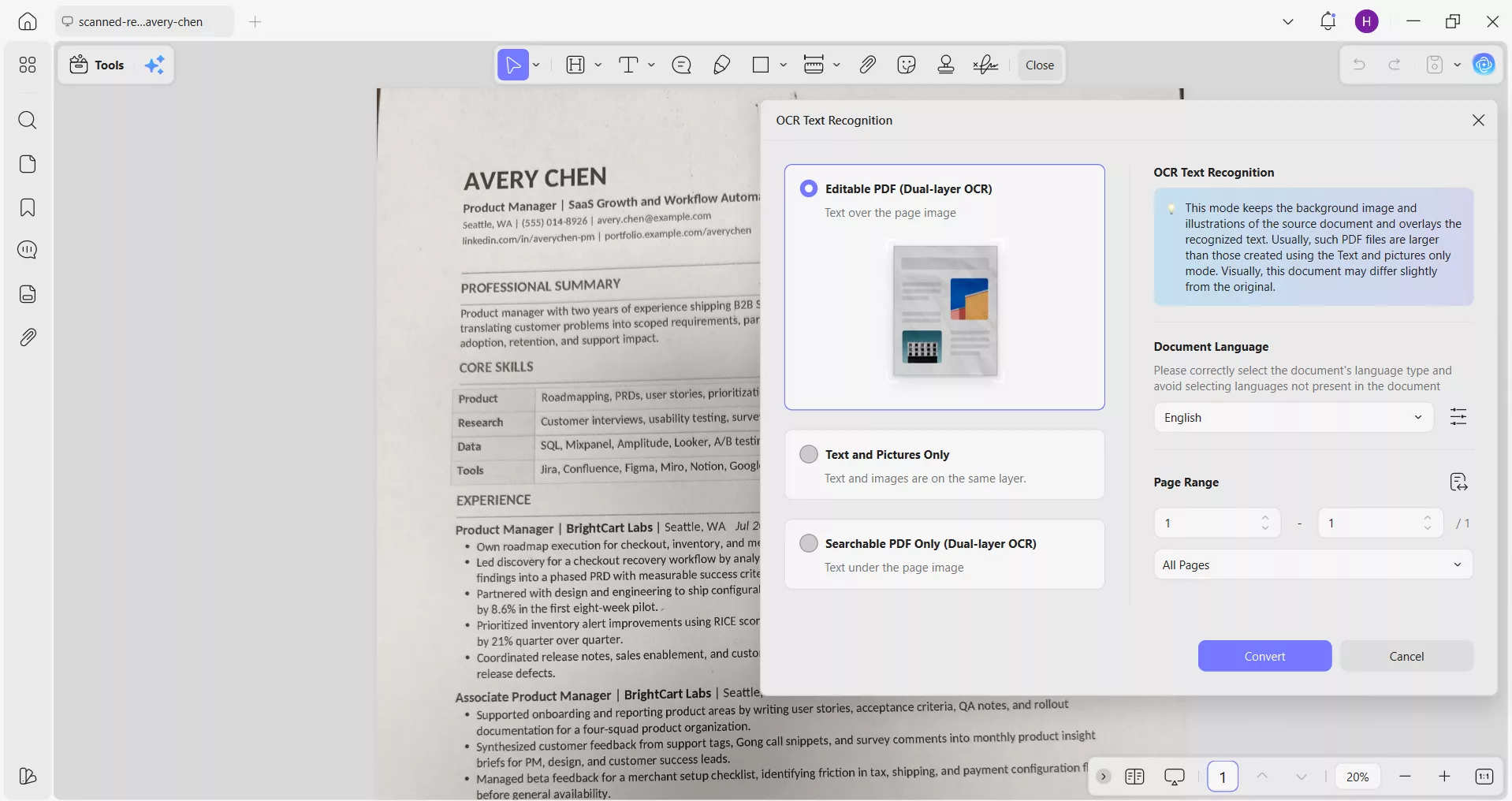
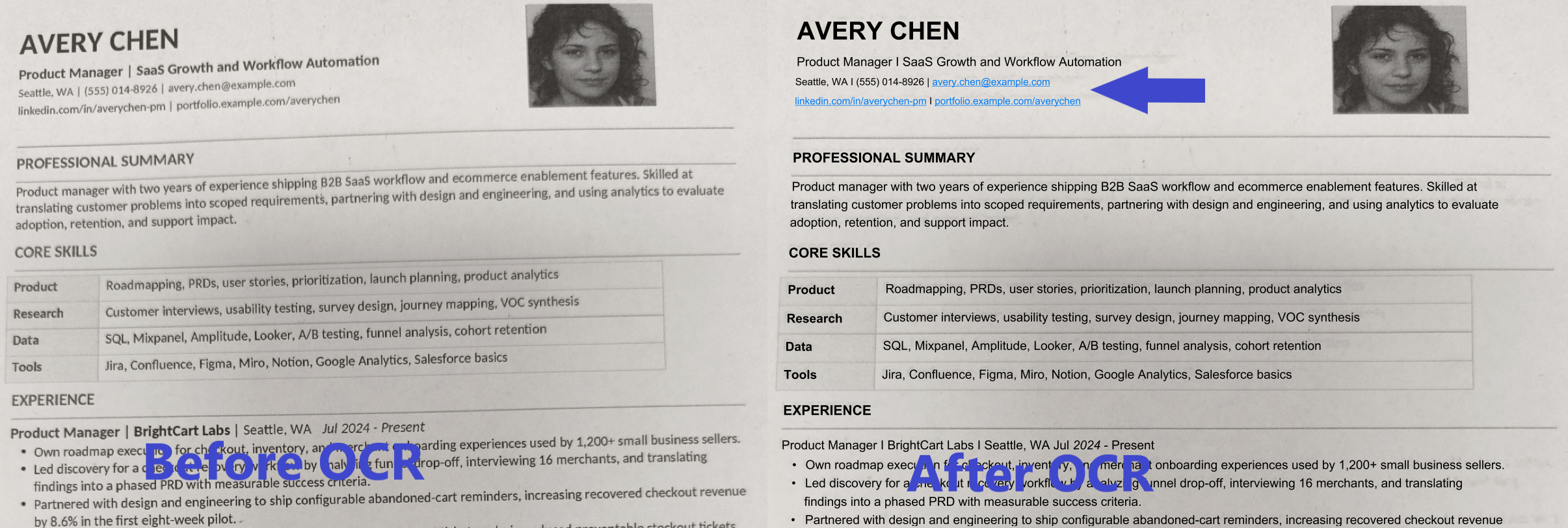
OCR Cleanup with Intelligent Link Reconstruction
One feature you will find only with UPDF is automatic hyperlink reconstruction during OCR. Unlike other tools that treat website addresses as plain text, UPDF detects URLs and automatically converts them into clickable hyperlinks in the output PDF. This preserves document functionality and eliminates the need to manually recreate links, which is especially useful when digitizing manuals, brochures, reports, and educational materials.
Feel impressed? Download UPDF and follow the steps below to learn how to clean up a PDF document.
Windows • macOS • iOS • Android 100% secure
How to Clean Up Scanned PDFs with UPDF
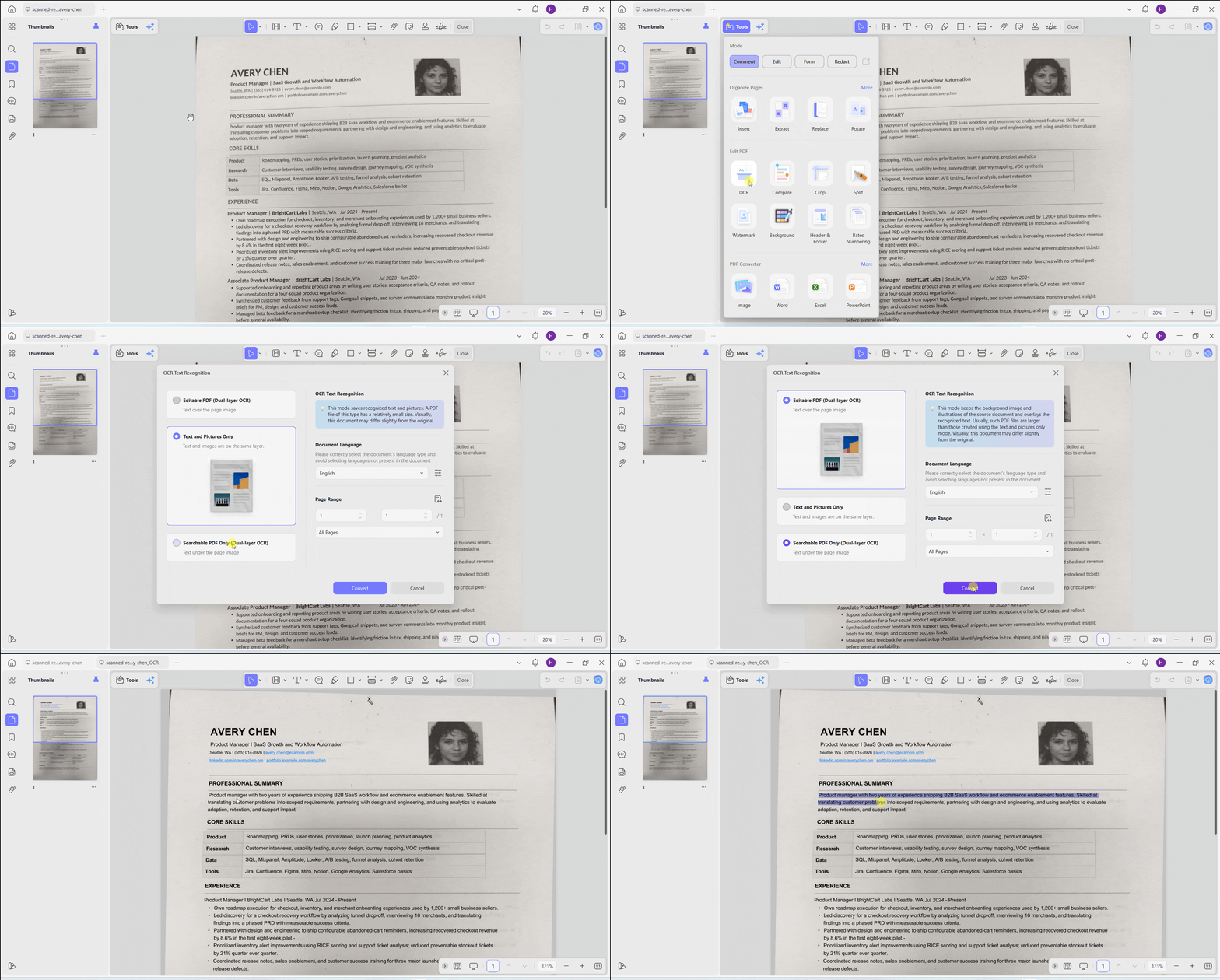
- Open the File: Launch UPDF and open your cluttered or dark scanned PDF.
- Run OCR: Click "Tools" from the top left and select "OCR" under the "Edit PDF" section.
- Adjust OCR Settings: Set the layout to match your document (Editable PDF, Searchable PDF Only, or Text and Pictures Only). Choose the right document language and page range.
- Execute OCR: Click "Convert" and access your clean-up PDF in the next few seconds.
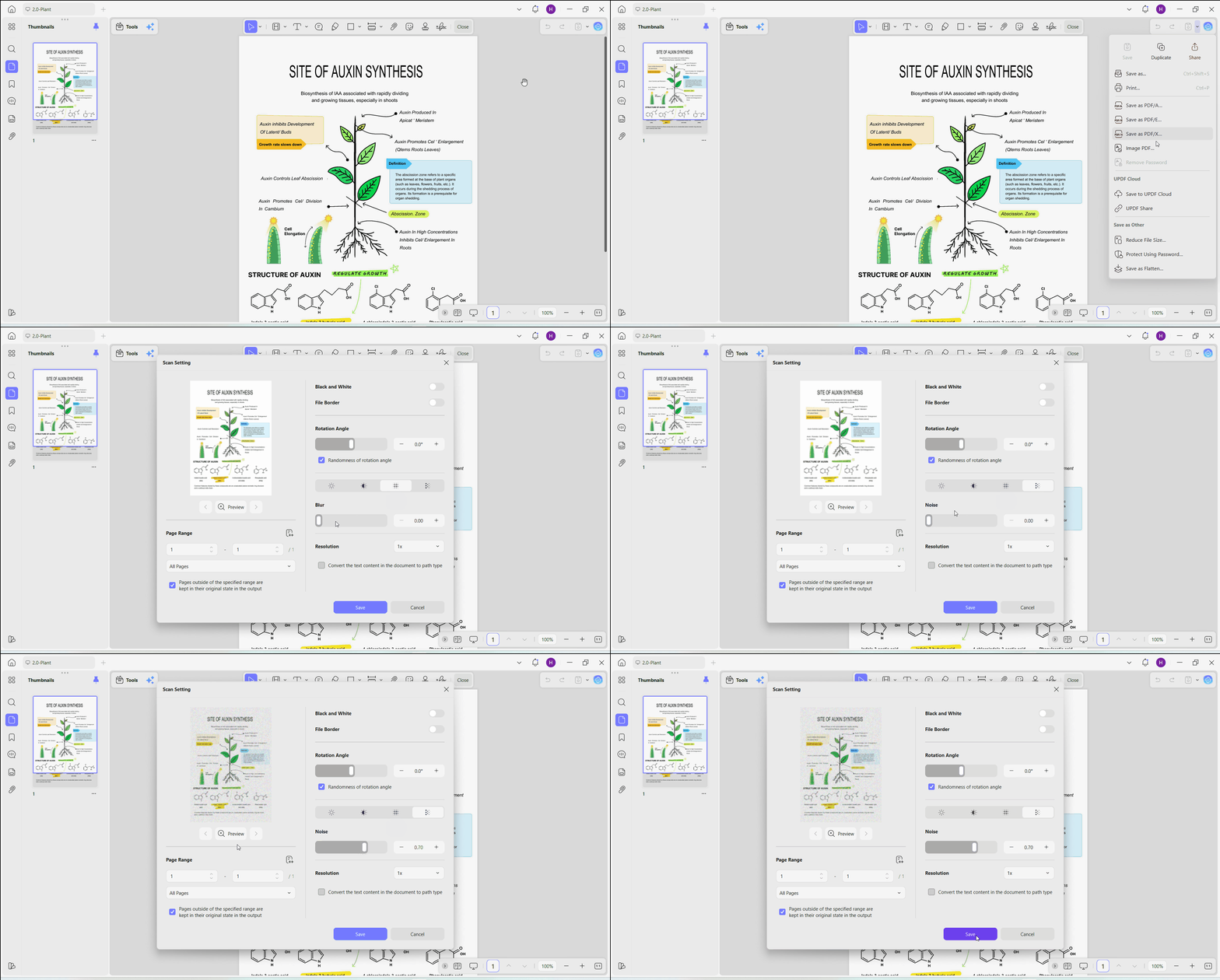
Bonus Tip: How to Blur Clean PDFs for Privacy Protection
Click the drop-down button next to the Save icon in the top right corner and select Image PDF. Under this menu, choose Blur and Noise options and adjust their levels as desired. Customize the other settings you want and click Save.
To better understand its capabilities, explore how UPDF supports professional document workflows, or watch the following UPDF YouTube video guide for a quick visual walkthrough.
Tool 2: Online PDF Cleaner Tools (LightPDF & AvePDF)
Best for:
- Quick, basic scan cleanup on small, non-confidential files.
Just search "online PDF cleaner," and you will get a long list of web-based tools that can help clean blurry PDFs without installing any software.
LightPDF Scanned PDF Cleaner and AvePDF Online Cleaner are two useful options. The general steps to clean a scanned PDF with these online PDF cleaners are:
- Go to the online PDF cleaner website and upload the PDF.
- Wait for the cleaning to complete. Give directions if asked about what you want to fix, such as erase black borders, remove punch holes, etc.
- Download the processed file.
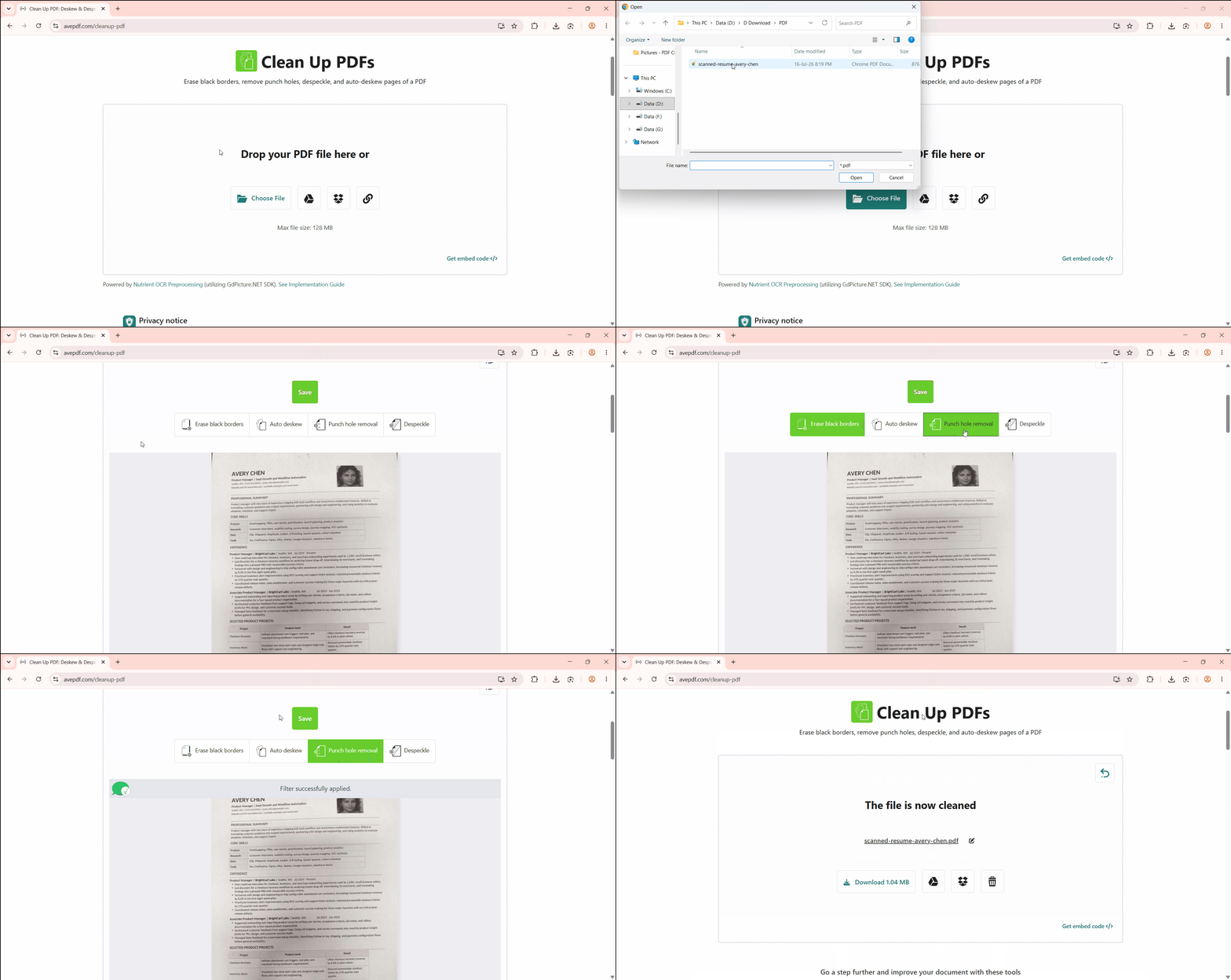
Although online PDF cleaners are convenient for occasional use, our testing found that they have noticeable limitations compared to a dedicated desktop PDF editor.
LightPDF offers an easy online cleanup module. However, its free tier does not support documents larger than 10MB. This is highly restrictive since high-DPI scans are usually large.
Similarly, in our tests trying to remove black scanner borders with AvePDF, the tool's performance was poor. The dark margins remained uncropped, and the text contrast barely improved. This made the final output look almost as messy as the original.
What's Next After Cleaning Your PDF
Cleaning up a scanned PDF is just the first step toward a professional document workflow. Many users also want to edit specific content, improve image quality, and protect sensitive information before sharing files. These related guides can help you take it further:
- Need to remove handwritten notes or unwanted markings? Learn how to erase text in PDF documents without affecting the rest of the page.
- Still not satisfied with your document quality? Discover how to turn a low-quality PDF into a high-quality PDF or explore the best PDF quality enhancer for improving blurry documents.
- Working with scanned paperwork? Follow our guides on how to enhance scanned PDFs and how to sharpen PDF text to make printed documents easier to read and archive.
- Sharing confidential files? Before sending your document, learn how to blur a PDF to hide sensitive information and protect private content from unauthorized viewers.
FAQs
Can a PDF cleaner reverse or unblur a heavily blurred document?
No. If a PDF has been intentionally blurred or pixelated to hide sensitive information, the original image data cannot be recovered. A PDF cleaner or AI can improve the appearance of low-quality scans, but it cannot restore content that has been permanently obscured for privacy or security reasons.
Why are links in my scanned PDF clickable after running UPDF's OCR?
This is due to UPDF's advanced text reconstruction engine. It detects URL patterns during the OCR process and automatically converts them into clickable hyperlinks, so you don't have to recreate them manually.
Is it safe to use online tools to clean up confidential documents?
It is generally not recommended. Online PDF cleaners require you to upload your files to external servers, which may not be suitable for sensitive information. If you are working with legal contracts, financial records, medical documents, or personal IDs, using an offline PDF editor like UPDF offers better privacy and security.
Conclusion
Poor-quality scans filled with shadows or blurry text can even make the most important documents difficult to read. While online PDF cleaners are convenient for small, non-sensitive files under 10MB, they struggle with heavy borders and lack data privacy. UPDF provides an offline and comprehensive solution with AI-powered OCR, intelligent scan enhancement, and comprehensive PDF editing in a secure desktop application.
Download UPDF today to clean up your scanned PDFs faster and simplify your PDF workflow with an AI-backed experience in an all-in-one application.
Windows • macOS • iOS • Android 100% secure








 Enrica Taylor
 Engelbert White

 Lizzy Lozano
 Enola Miller