UPDF
UPDF
 UPDF for Windows
 UPDF for Mac
 UPDF for iPhone/iPad
 UPDF for Android
 Nomostar
 UPDF AI Online
 UPDF Sign
 IvyCraft
 Edit PDF
 Annotate PDF
 Create PDF
 PDF Form
 Edit links
 Convert PDF
 OCR
OCR PDF to Word
 PDF to Image
 PDF to Excel
 Organize PDF
 Merge PDF
 Split PDF
 Crop PDF
 Rotate PDF
 Protect PDF
 Sign PDF
 Redact PDF
 Sanitize PDF
 Remove Security
 Read PDF
 UPDF Cloud
 Compress PDF
 Print PDF
 Batch Process
 About UPDF AI
 UPDF AI Solutions
 AI User Guide
 FAQ about UPDF AI
 Summarize PDF
 Translate PDF
 Chat with PDF
 Chat with AI
 Chat with image
 PDF to Mind Map
 Explain PDF
 PDF AI Tools
 Image AI Tools
 AI Chat Tools
 AI Writing Tools
 AI Study Tools
 AI Working Tools
 Other AI Tools
 AI Bookmark Generation
 AI Bookmark Summary
 AI Watermark Generation
 AI Background Generation
 AI Sticker Generation
 AI Stamp Generation
 AI Editing Suite
 UPDF Copilot
 AI Page Management
 AI Semantic Search
 PDF to Word
 PDF to Excel
 PDF to PowerPoint
 Enterprise Solution
 Enterprise Sign
 Enterprise AI
 Enterprise Plan
 Enterprise User Guide
 Enterprise Webinar
 IT
IT Education
 Construction
 Financial Service
 Healthcare
 Insurance
 Legal
Legal Manufacturing
 Government
 Researchers & PhDs
 Solopreneurs & Freelancers
 Lawyers & Legal Professionals
 Real Estate Agents & Brokers
 Education Solution
 Customer Stories
 User Guide
 UPDF Tricks
 FAQs
FAQs UPDF Reviews
 Download Center
 Blog
Blog Newsroom
 Tech Spec
 Updates
 UPDF vs. Adobe Acrobat
 UPDF vs. Foxit
 UPDF vs. PDF Expert

Many PDF managers do much more than rotating, deleting, or rearranging document pages today. A complete tool helps organize both individual pages and entire document collections efficiently. Understanding this difference helps you choose software matching your daily document management needs.
Micro page-level management controls everything happening inside one PDF document with advanced organization features. It includes smart page selection, interleaving insertion, advanced cropping, and accurate page extraction tools. Macro file-level management organizes multiple files through portfolios, cloud indexing, and cross-platform syncing features.
If you need a complete software overview, explore our master guide on choosing a PDF organizer. Look at the table below to compare the 3 PDF managers before choosing the right solution. The comparison highlights important features that separate each tool for different document management needs:
| PDF Manager | Core Strength | Smart Page Selection (Odd/Even/Orientation) | Interleaving Insertion & Advanced Extract | Multi-Format Portfolio & Cloud Sync | Pricing & Limits |
| UPDF | All-in-one page and multi-format asset manager | Supported | Supported | Supported (UPDF Cloud + Portfolio) | Free Trial |
| iLovePDF | Quick web-based page manager | Manual only | Basic merge only | ✗ | Free/Paid |
| PDF Manager (Windows App) | Lightweight local page rearranger | Manual only | Not supported | ✗ | Free/In-App Purchases |
If you need complete page and file management, download UPDF free across Windows, Mac, iOS, and Android.
Windows • macOS • iOS • Android 100% secure
Top 1: UPDF – The Most Advanced PDF Page & File Manager
Best For:
- Perfect for advanced page organization, scanned documents, secure cloud syncing, and multi-format file management.
Not For:
- Better avoided when needing browser-only access or quick single-page edits without software installation.
UPDF combines advanced page organization with complete file management across Windows, Mac, iOS, and Android platforms. It includes smart page selection, interleaving insertion, PDF Portfolio, and secure UPDF Cloud synchronization features. These tools simplify organizing scanned documents, large PDFs, and multiple file formats without unnecessary manual work.
Page management and file organization remain together inside one application for faster everyday document workflows. This combination makes UPDF the strongest choice for advanced PDF page and file management today.
Micro-Page Management: The Page Organizer in Practice
Micro page management handles every page task inside one document using a powerful PDF manager. Smart selection, page insertion, and precise extraction make large documents much easier to organize.
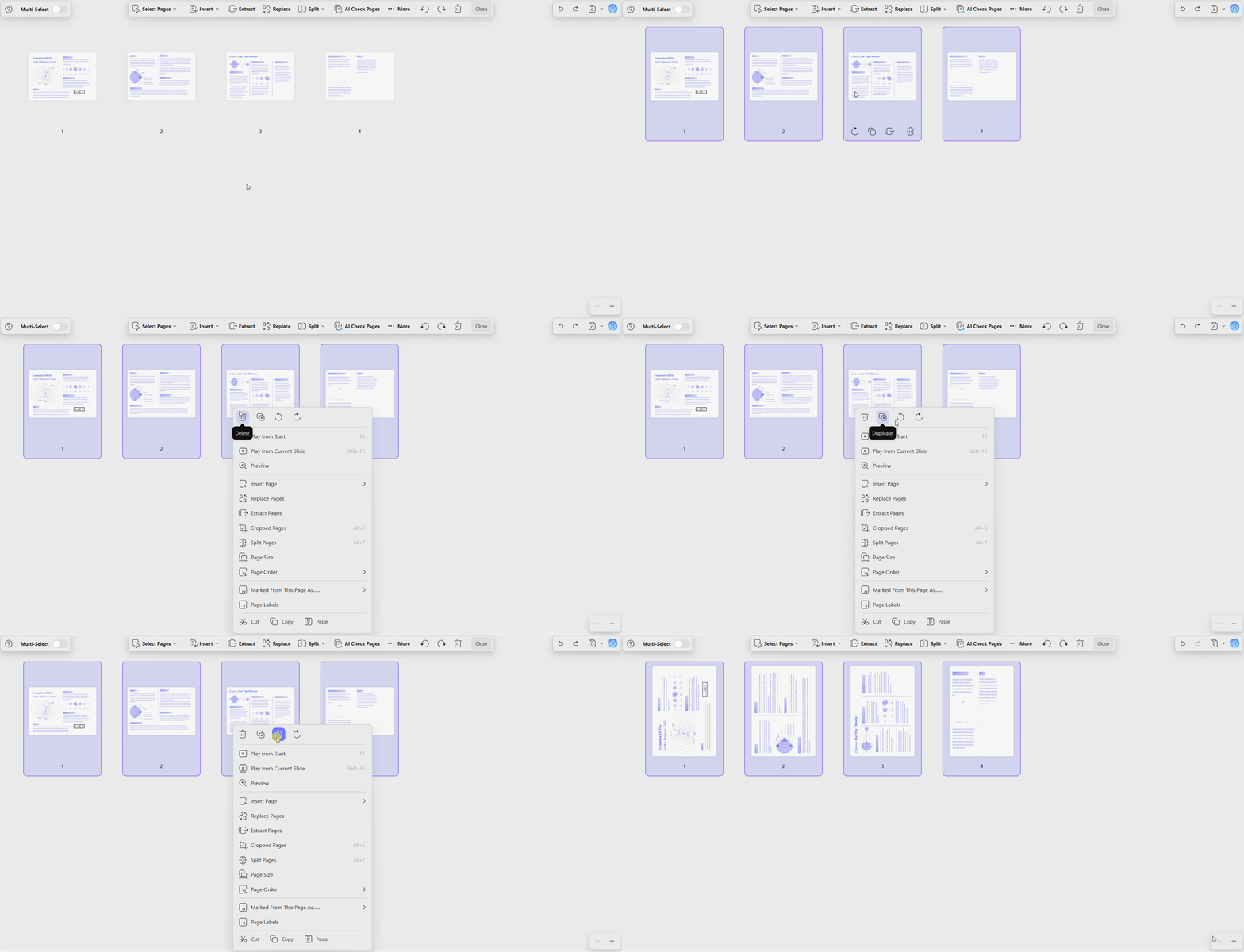
Smart Batch Selection
UPDF selects matching pages instantly using one click without holding any modifier keys during selection. Bulk rotation, deletion, and extraction apply across selected pages, saving significant time on large documents.
- Select odd, even, landscape, portrait, all pages, or custom page ranges with one click.
- Smart page filters simplify organizing duplex scans, tables, wide diagrams, and standard report pages efficiently.
- Apply rotation, deletion, or extraction to every selected page without repeating individual editing tasks manually.
- Correcting sideways landscape pages across 200-page scans requires one action instead of dozens manually.
Advanced Insertion Modes
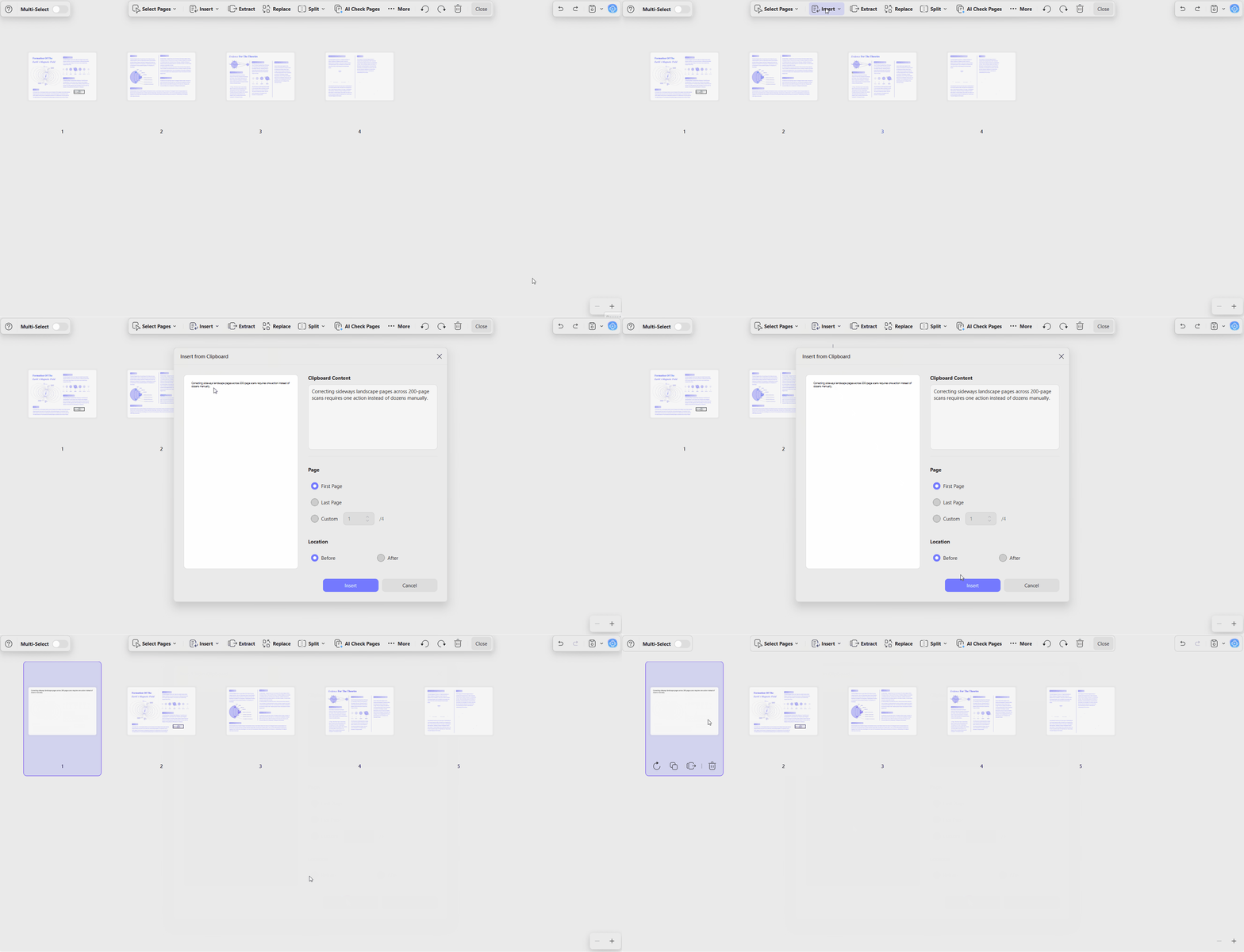
UPDF provides 5 insertion methods instead of the limited options available in most PDF tools. Interleaving Insertion automatically combines two scanned files without manually arranging every page together.
- Insert pages from another PDF, image, clipboard, or create blank pages with flexibility.
- Blank pages support A1 through A5, custom sizes, plus portrait and landscape orientations together.
- Clipboard insertion creates new PDF pages directly from copied content without saving files first.
- Interleaving Insertion alternates pages automatically, solving double-sided scan organization much faster than manual methods.
Precision Extraction and Splitting
Extraction offers multiple output options, reducing extra conversion work across common PDF management tasks.
- Save selected pages together as one new PDF document for easier file organization always.
- Export selected pages directly as image files without requiring another conversion process afterward.
- Create separate PDF documents automatically by saving every selected page into individual files independently.
- Split documents by page count, file size, or top-level bookmarks for better organization efficiently.
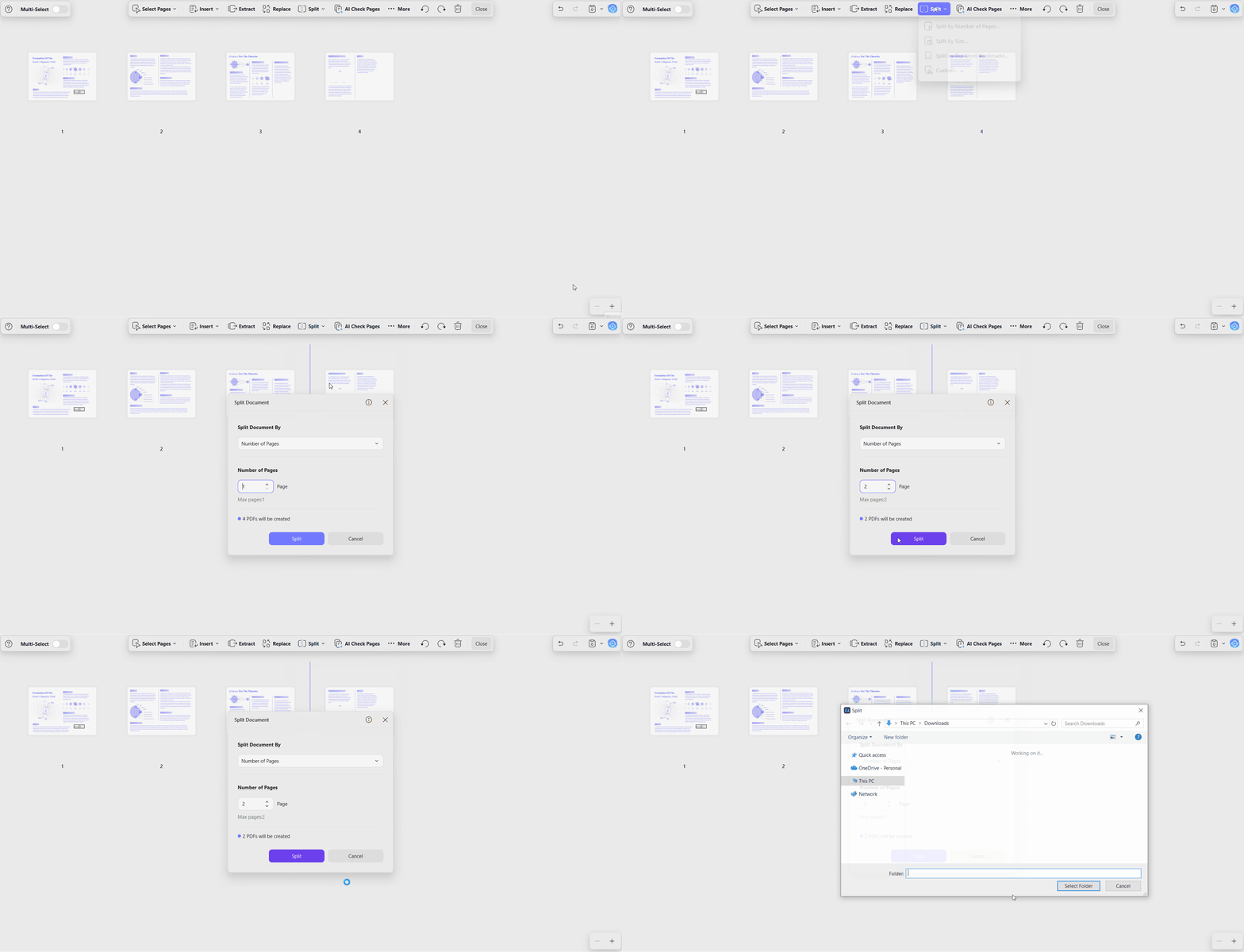
For basic page sequence adjustments, see our guide on how to rearrange pages in PDF files.
Macro-File Management: Portfolios and Cloud Access
Page tools organize content inside individual documents for faster editing and better document control. File management keeps multiple formats together while providing seamless access across all connected devices.
PDF Portfolio: Multi-Format Packaging
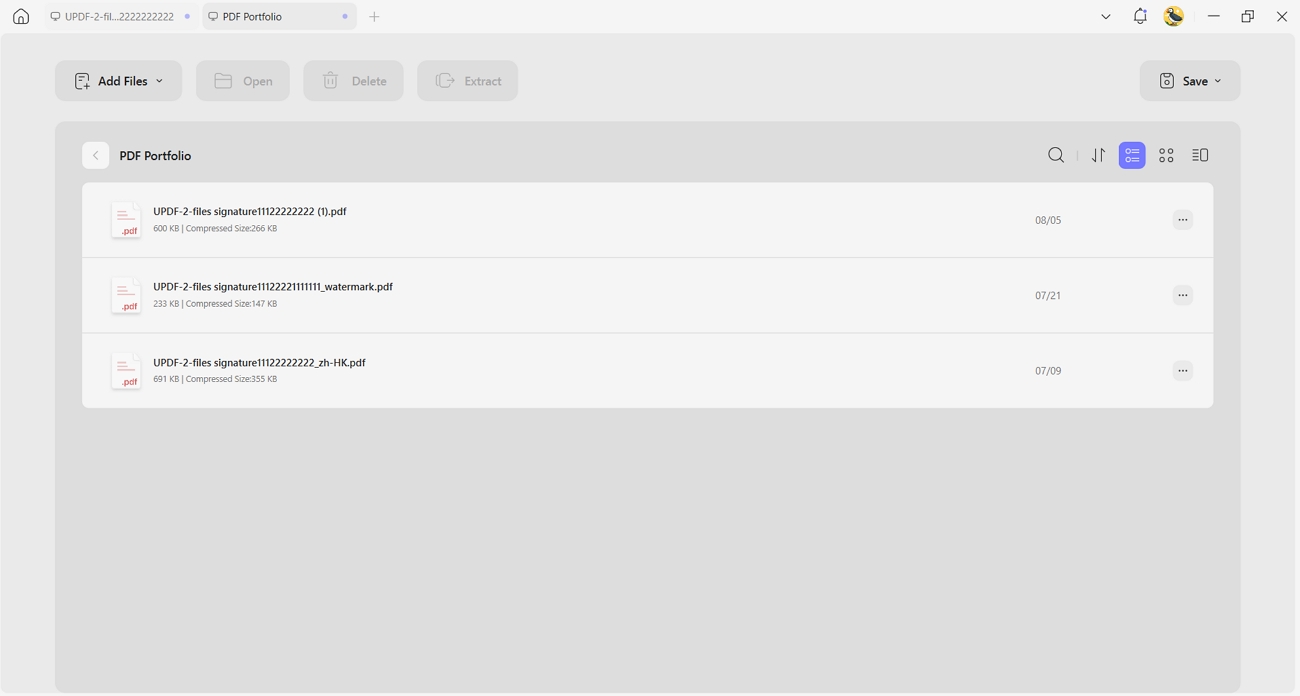
This stores different file types together without merging or changing their original file formats. Word, Excel, PowerPoint, images, and PDFs remain organized inside one structured Portfolio container together. Every file keeps its original format instead of converting into standard PDF pages during packaging. Created portfolios open with "List" and "Thumbnail" views for simple browsing and file management tasks.
Note:
UPDF Cloud: Cross-Device Asset Management
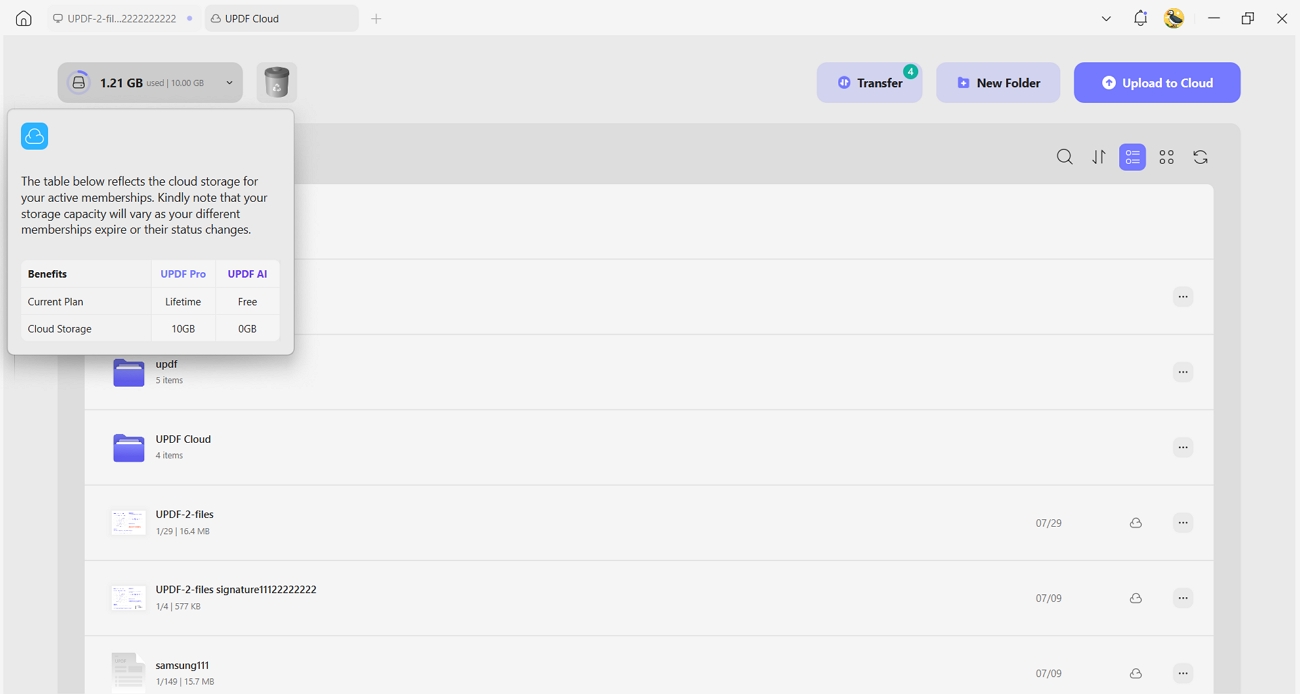
Files stored in UPDF Cloud stay accessible across Windows, Mac, iOS, and Android devices seamlessly. Annotations automatically sync between devices, ensuring everyone always opens the latest document version available.
Cross-Platform Mobile Management (iOS and Android)
Mobile page management includes the same powerful organization features available across the desktop application. Extract, insert, reorder, and rotate PDF pages directly from your phone or tablet. This flexibility helps people manage documents efficiently during meetings, travel, inspections, or everyday remote work. For complete instructions, see the iOS Page Organization User Guide or Android Page Organization User Guide.
Top 2: iLovePDF – Convenient Web-Based Page Organizer
Best For:
- Ideal for quick single-file edits when software installation is unavailable or completely unnecessary.
Not For:
- Better avoided for confidential documents, batch processing, or advanced page organization requiring smart automation.
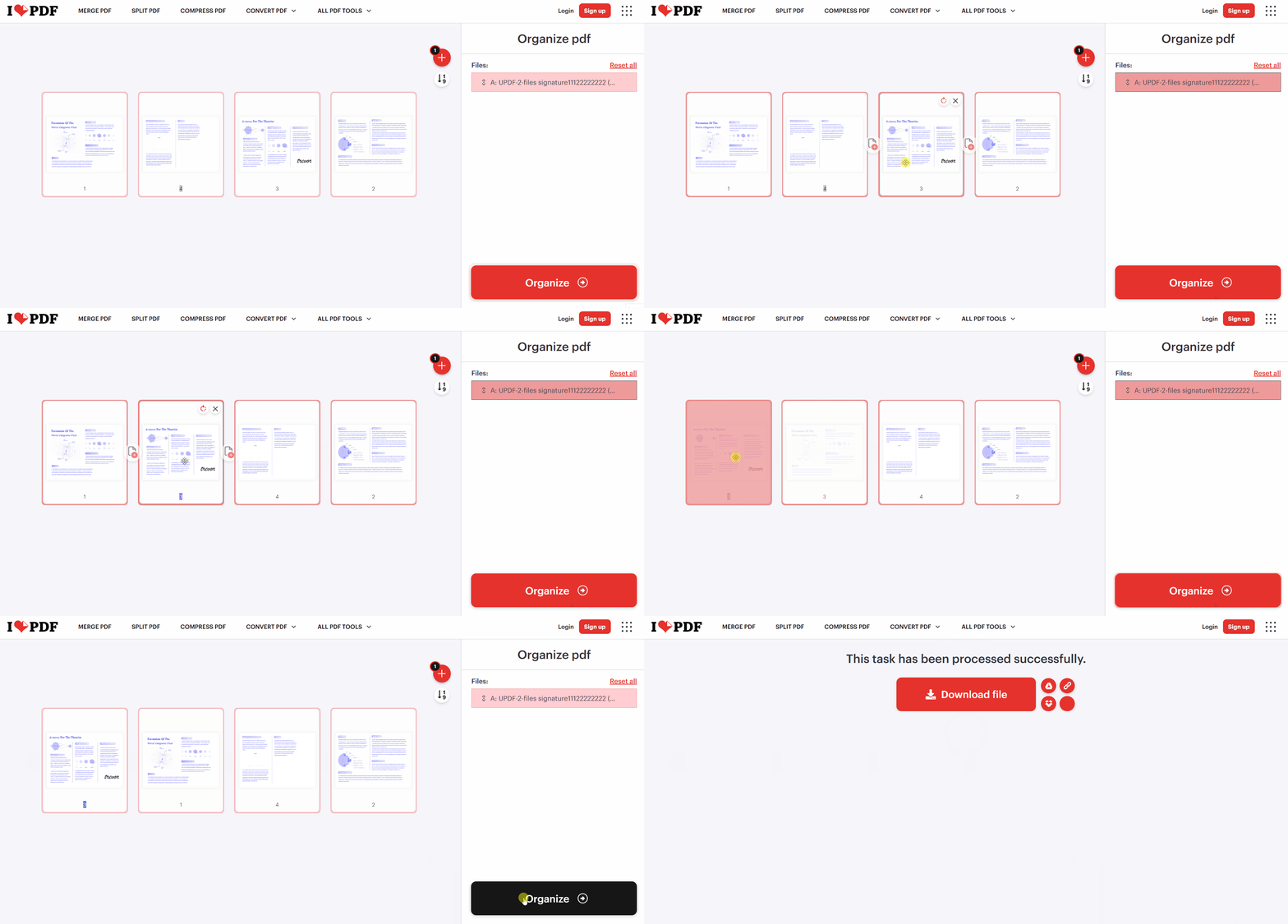
iLovePDF provides browser-based page organization without requiring software installation or creating an account first. Its "Organize PDF" tool handles simple page rearrangement through an easy drag-and-drop card interface. Blank pages and external PDF files can be added directly without leaving the current workspace view. This convenience in this PDF manager works best for quick document edits instead of advanced page organization.
Practical Strengths
Instant browser access makes quick PDF editing possible without installing software first. The modular card interface supports drag-and-drop sorting, blank page insertion, and appending external PDF files.
Tested Pain Points & Hard Limits
- Inflexible Insertion Logic: Files append only sequentially after selected pages or document endings without Interleaving Insertion.
- No Smart Selection Engine: Odd, even, landscape, and portrait pages require manual thumbnail selection throughout large documents.
- Privacy & Upload Restrictions: Files upload to cloud servers, while free plans include strict file-size and batch limits.
If you want advanced page editing and cropping features, explore the PDF page editor guide.
Top 3: PDF Manager (Microsoft Store App) – Lightweight Windows Page Rearranger
Best For:
- Perfect for offline Windows page organization, merging documents, and simple local document management tasks.
Not For:
- Less suitable for cross-platform teams, cloud workflows, or managing multiple file formats together.
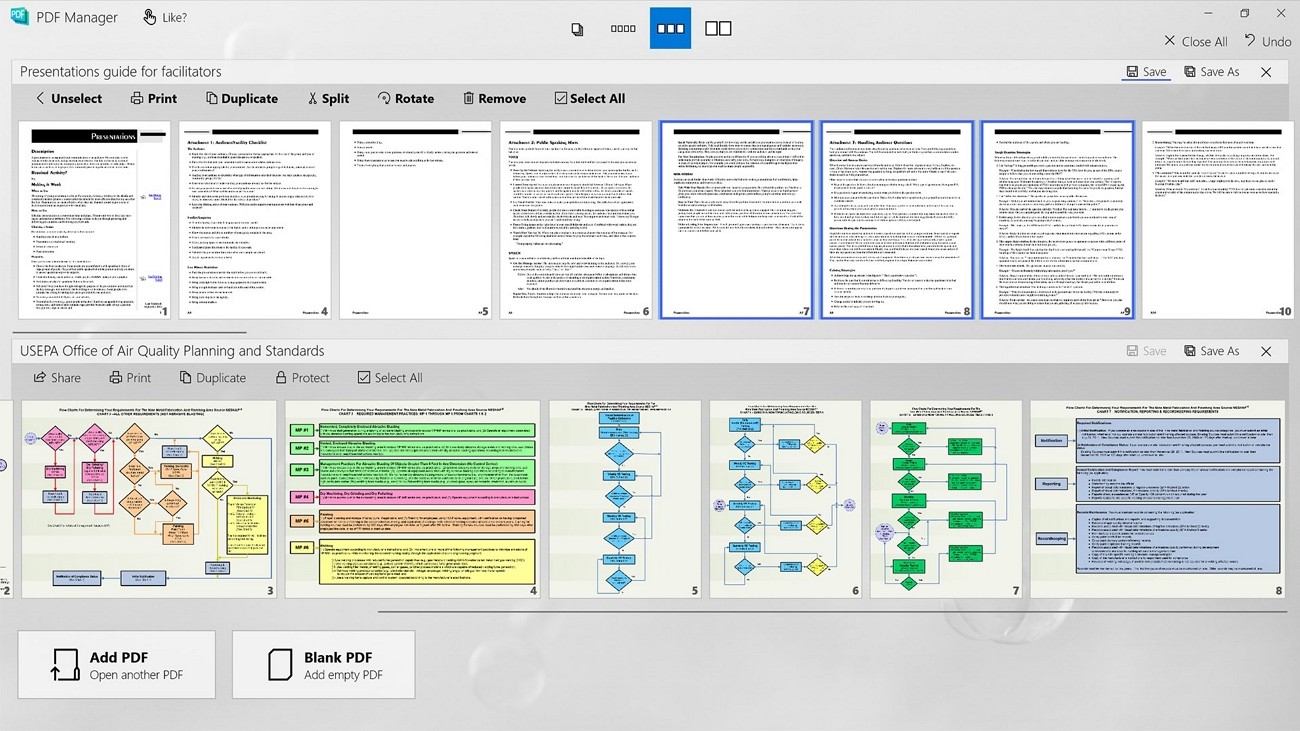
This Windows PDF manager focuses on simple offline PDF page organization without requiring internet access afterward. Microsoft lists this application as an Essential App for lightweight local PDF management. Clear page previews and quick page reordering make everyday document organization simple on Windows. Its features remain limited because advanced cloud management and cross-platform support are unavailable.
Practical Strengths
Fast Microsoft Store installation provides quick offline access without complicated setup or browser dependence. Lightweight local processing, clear page previews, and simple page reordering improve everyday Windows document management.
Tested Pain Points & Hard Limits
- Windows Only: Works only on Windows because Mac, iPhone, and Android versions are currently unavailable.
- Basic Features: Supports merging, reordering, splitting, extracting, rotating, and deleting without advanced editing capabilities included.
- Manual Selection: Long documents still require thumbnail-by-thumbnail page selection because smart filters remain unavailable.
- No Cloud Support: Lacks synchronization, Portfolio management, and requires purchasing a paid license through the Microsoft Store.
If you only need upside-down page corrections, explore the PDF rotators for simple document fixes. Neither alternative removes manual page selection, making large documents slower to organize and manage.
When you need smart page organization without upload limits or privacy risks, download UPDF for smart page interleaving and multi-format portfolios.
Windows • macOS • iOS • Android 100% secure
How to Choose the Right PDF Manager for Your Workflow?
Choosing the right PDF manager depends on your workflow, document frequency, and privacy requirements together. Let's explore 3 common workflows and identify the best choice for each situation:
- Quick Online Edits: Choose iLovePDF for simple, non-sensitive PDF changes without installing desktop software first.
- Windows Page Sorting: Choose Microsoft PDF Manager for basic offline page reordering and merging on Windows.
- Advanced Document Management: Choose UPDF for smart page organization, cross-platform access, and multi-format file management.
To learn more about best practices for organizing PDF documents, read our guide on Organize PDF Pages.
The finished file should contain the pages readers need in a clear order. The video below offers a closer look at organizing PDF pages in UPDF.
Frequently Asked Questions
What is the difference between a PDF Organizer and a PDF Manager?
A PDF Organizer handles rotating, reordering, and deleting pages within individual PDF documents. Meanwhile, a PDF Manager adds automated page management, cloud indexing, PDF Portfolios, and cross-platform access.
How do I interleave odd and even pages in a PDF?
Most traditional tools require manually dragging pages into alternating positions during double-sided document organization tasks. Instead, UPDF automates Interleaving Insertion by placing front and back pages into the correct sequence.
Can I manage non-PDF files such as Word, Excel, and images inside a PDF Manager?
Supported PDF Portfolio tools package different file types inside one structured container without changing original formats. Each component keeps its original format and opens using the same file type afterward.
Is it safe to use free online PDF managers?
Free online tools work well for simple, non-sensitive document editing and organization tasks without concerns. However, offline desktop applications with encrypted cloud capabilities better protect confidential contracts and financial records.
Conclusion
To conclude, choosing the right PDF manager depends on your document workflow and organization requirements. Basic online tools and Windows applications handle simple page rotation and reordering tasks efficiently.
UPDF simplifies advanced page organization with smart filters, interleaving insertion, and Portfolio file packaging together. Cross-platform cloud synchronization keeps documents organized and accessible across Windows, Mac, iOS, and Android.
Streamline your PDF pages and document assets today. Download UPDF for free and enjoy effortless management across all devices!
Windows • macOS • iOS • Android 100% secure




 Lizzy Lozano
 Enola Miller