UPDF
UPDF
 UPDF for Windows
 UPDF for Mac
 UPDF for iPhone/iPad
 UPDF for Android
 Nomostar
 UPDF AI Online
 UPDF Sign
 IvyCraft
 Edit PDF
 Annotate PDF
 Create PDF
 PDF Form
 Edit links
 Convert PDF
 OCR
OCR PDF to Word
 PDF to Image
 PDF to Excel
 Organize PDF
 Merge PDF
 Split PDF
 Crop PDF
 Rotate PDF
 Protect PDF
 Sign PDF
 Redact PDF
 Sanitize PDF
 Remove Security
 Read PDF
 UPDF Cloud
 Compress PDF
 Print PDF
 Batch Process
 About UPDF AI
 UPDF AI Solutions
 AI User Guide
 FAQ about UPDF AI
 Summarize PDF
 Translate PDF
 Chat with PDF
 Chat with AI
 Chat with image
 PDF to Mind Map
 Explain PDF
 PDF AI Tools
 Image AI Tools
 AI Chat Tools
 AI Writing Tools
 AI Study Tools
 AI Working Tools
 Other AI Tools
 AI Bookmark Generation
 AI Bookmark Summary
 AI Watermark Generation
 AI Background Generation
 AI Sticker Generation
 AI Stamp Generation
 AI Editing Suite
 UPDF Copilot
 AI Page Management
 AI Semantic Search
 PDF to Word
 PDF to Excel
 PDF to PowerPoint
 Enterprise Solution
 Enterprise Sign
 Enterprise AI
 Enterprise Plan
 Enterprise User Guide
 Enterprise Webinar
 Banking
 Healthcare
 Insurance
 Legal
Legal Manufacturing
 Government
 Researchers & PhDs
 Solopreneurs & Freelancers
 Lawyers & Legal Professionals
 Real Estate Agents & Brokers
 Education Solution
 Customer Stories
 User Guide
 UPDF Tricks
 FAQs
FAQs UPDF Reviews
 Download Center
 Blog
Blog Newsroom
 Tech Spec
 Updates
 UPDF vs. Adobe Acrobat
 UPDF vs. Foxit
 UPDF vs. PDF Expert

Are you tired of keeping your eye on screens all day for your tasks but still having PDFs needed to read? In this digital era, we spend almost all day in front of screens, which causes vision fatigue. As a solution, one can use software to read their PDFs aloud. In this article, we will discuss 4 proven ways to read PDF aloud using tools and easily get productive. If you want a powerful and accurate PDF voice reader with advanced features like OCR and full-text read aloud, click the button below to try UPDF today and turn your PDFs into an effortless listening experience.
Windows • macOS • iOS • Android 100% secure
Part 1. How to Get a PDF to Read Aloud With UPDF?
UPDF is a life-saving tool because it can read PDF aloud and assist you in pronunciation of difficult words on desktop and iOS. Full-text read aloud is also supported for easier listening on iOS. You can also use UPDF to read the PDF files by playing in a slideshow and highlighting important text with underline, strikethrough, and highlighter options.
Moreover, UPDF can convert scanned documents into editable PDF with its OCR technology to read it aloud.
This tool can also convert MS Word, Excel, PowerPoint, CAJ, Visio, and image format files into PDF which allow you to read most your document aloud with it. If you need cross-platform, in-depth PDF processing, UPDF is the top choice.
Now let's head to the following steps to learn how to read aloud PDF on desktop and mobile:
Read PDF Aloud on Desktop (Mac/Win)
Step 1: Launch UPDF on PC and Access File
First, click the "Free Download" button to install UPDF on your computer, launch it on your Mac or Win and hit the "Open File" option to import the required PDF file you want to read aloud.
Windows • macOS • iOS • Android 100% secure

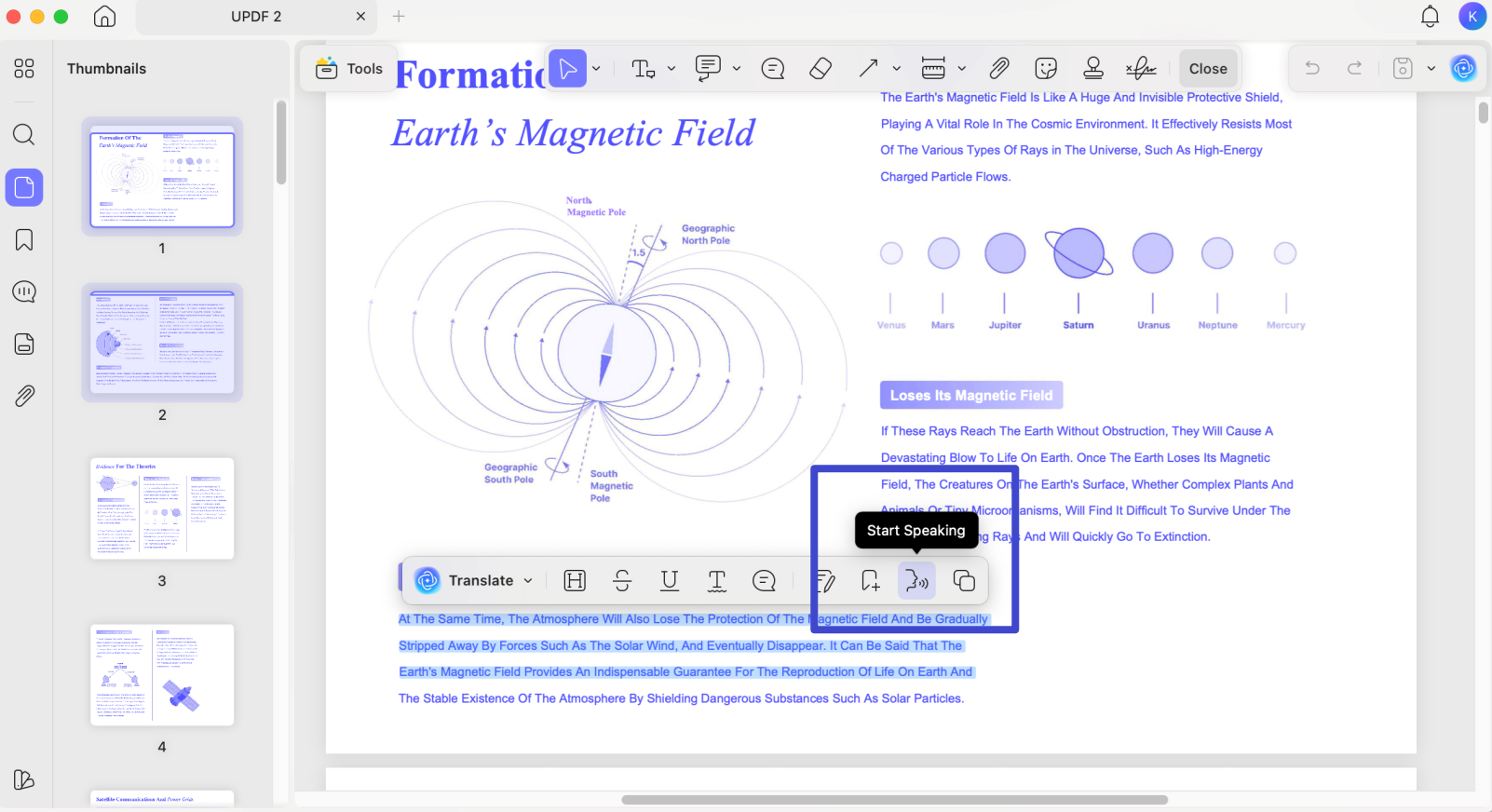
Step 2: Select the Text in Read Mode to Read Aloud
Next, select the specific content you wish to have read aloud. Perform a right-click on the chosen text, and from the ensuing dropdown menu, opt for "Start Speaking."
Read PDF Aloud on iOS
Step 1: Launch UPDF on iOS and Access File
First, go to App store to install UPDF on your iPhone or iPad, launch it and hit the "+" option to import the required PDF file you want to read aloud.
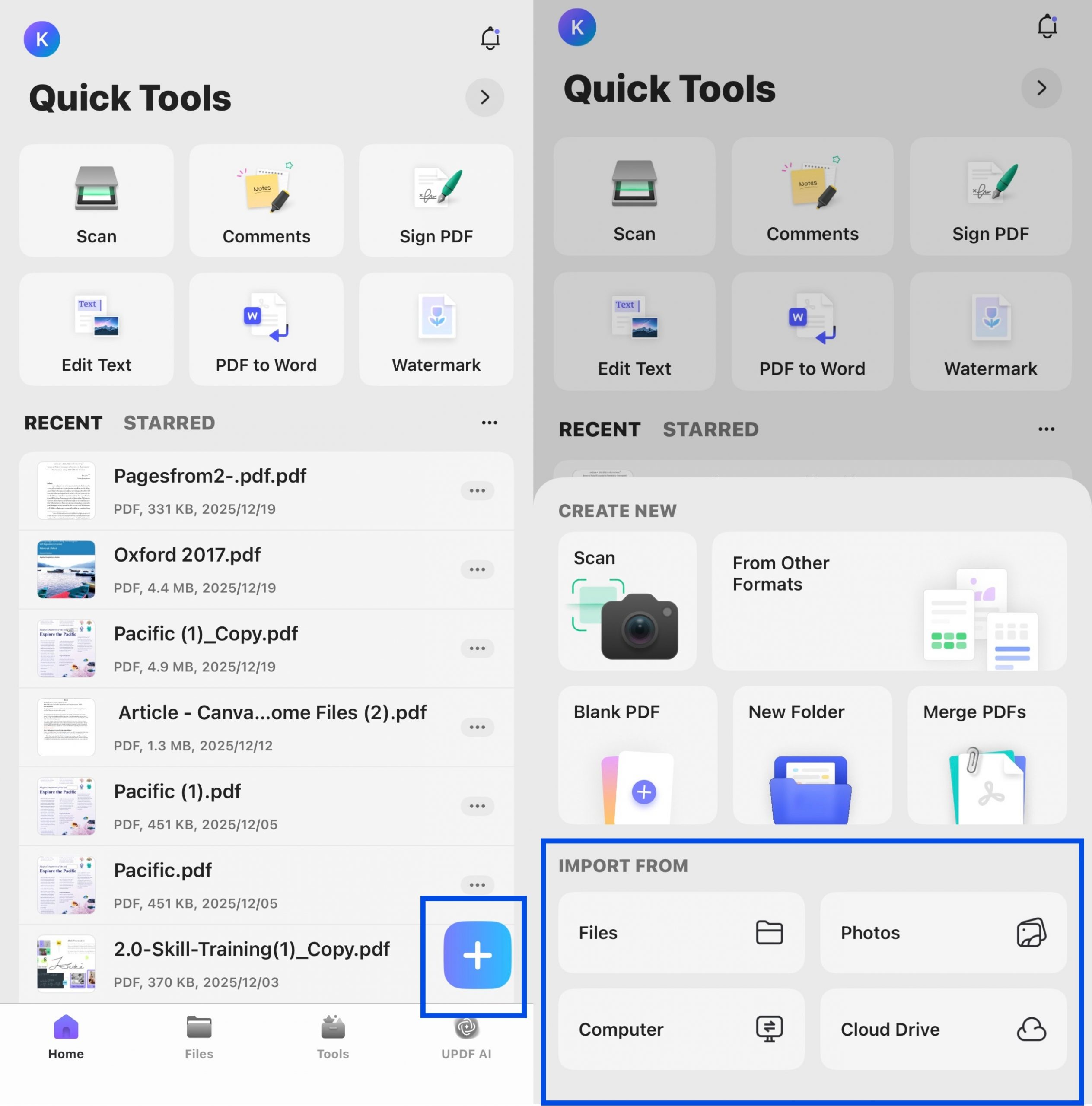
Step 2: Select the Text to Read Aloud
Next, select the specific content you wish to have read aloud. Select Listen Here from the floating toolbar, and UPDF will start reading aloud.
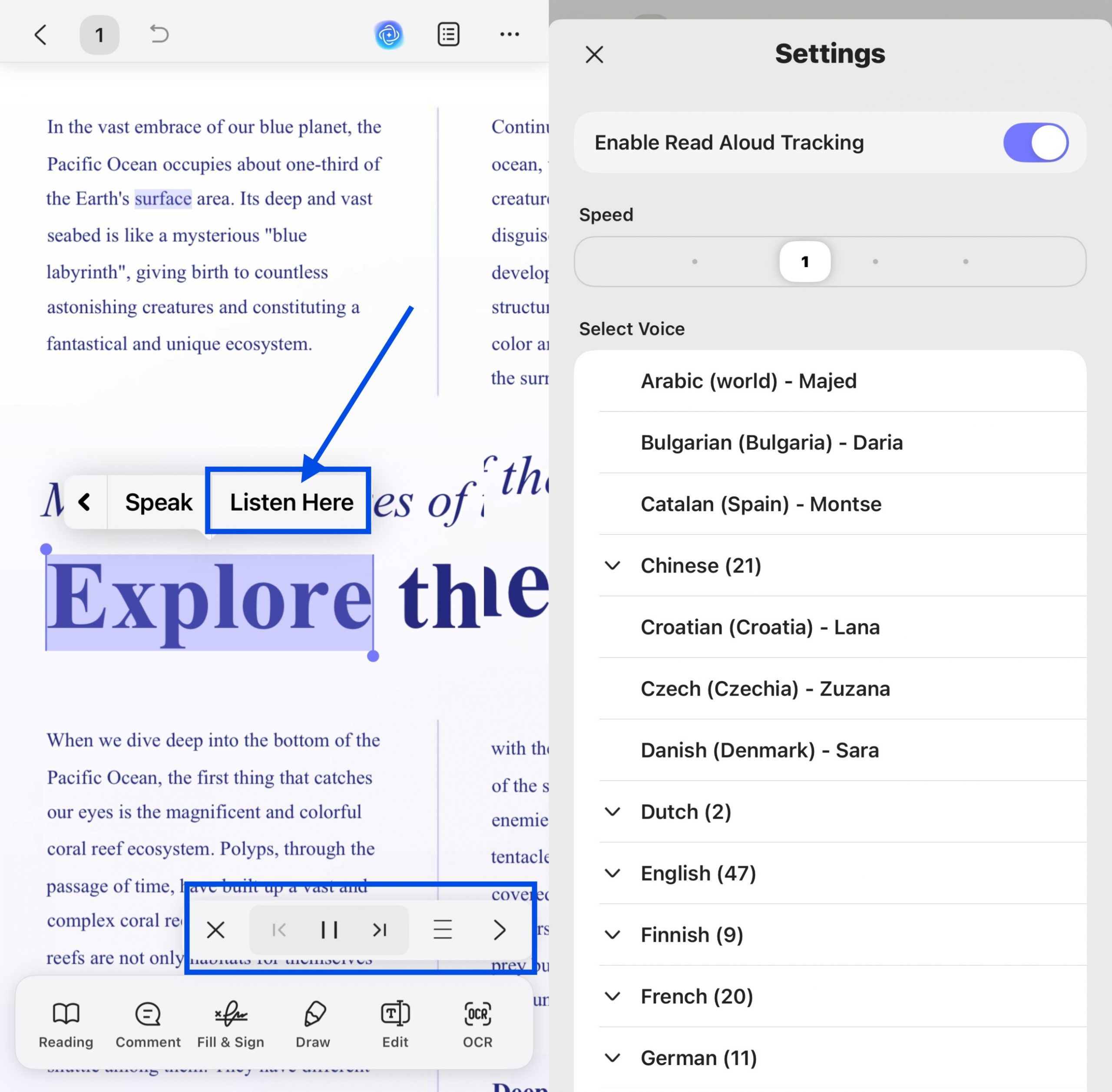
In the pop-up toolbar, you can click X to stop reading, click |< to start reading from the beginning of the previous page, click || to pause the reading and ▶ to resume, and click >| to start reading from the beginning of the next page. By clicking the ≡ icon, users can enable the Read Aloud Tracking feature, adjust the reading speed, and choose a preferred voice from a wide range of languages, including various regional accents (such as Arabic, Bulgarian, Chinese, English, French, German, and more).
During reading, the corresponding text will be highlighted, making it easier for you to locate the current content being read aloud.
Read Scanned PDF Aloud on Desktop and iOS
UPDF's OCR feature can help you convert scanned documents into searchable and selectable text. UPDF OCR supports recognition of over 38 languages in scanned documents, covering most of your document needs. However, to activate this feature, you will need to upgrade to UPDF‘s Pro plan. You can consider purchasing UPDF’s exclusive plan and get an official 10% discount with the coupon code “ENARTICLE” upon purchasing.
Step 1: Launch UPDF on PC or iOS and Access File
Based on the steps mentioned above, launch UPDF on your computer or iOS device and open your scanned document.
Windows • macOS • iOS • Android 100% secure
Step 2: Perform OCR on PC or iOS
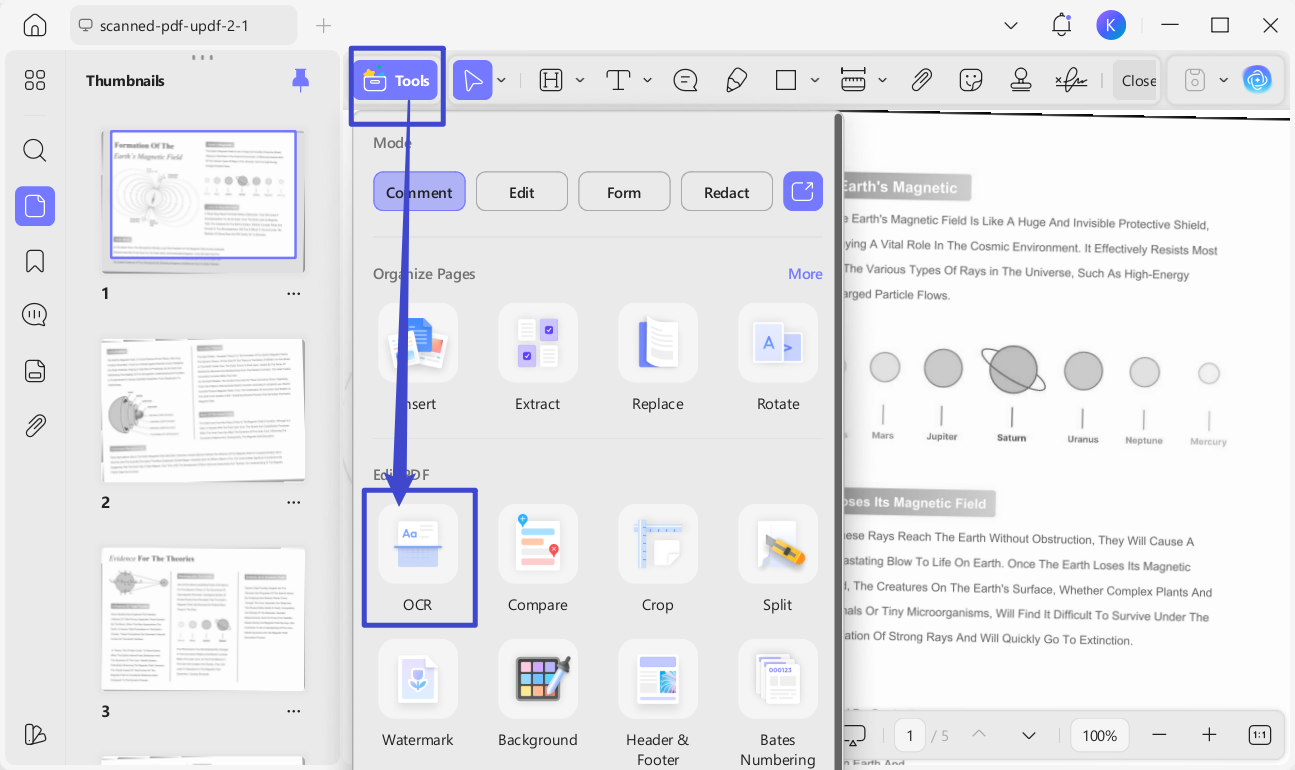
For computer users, click OCR in Tools.
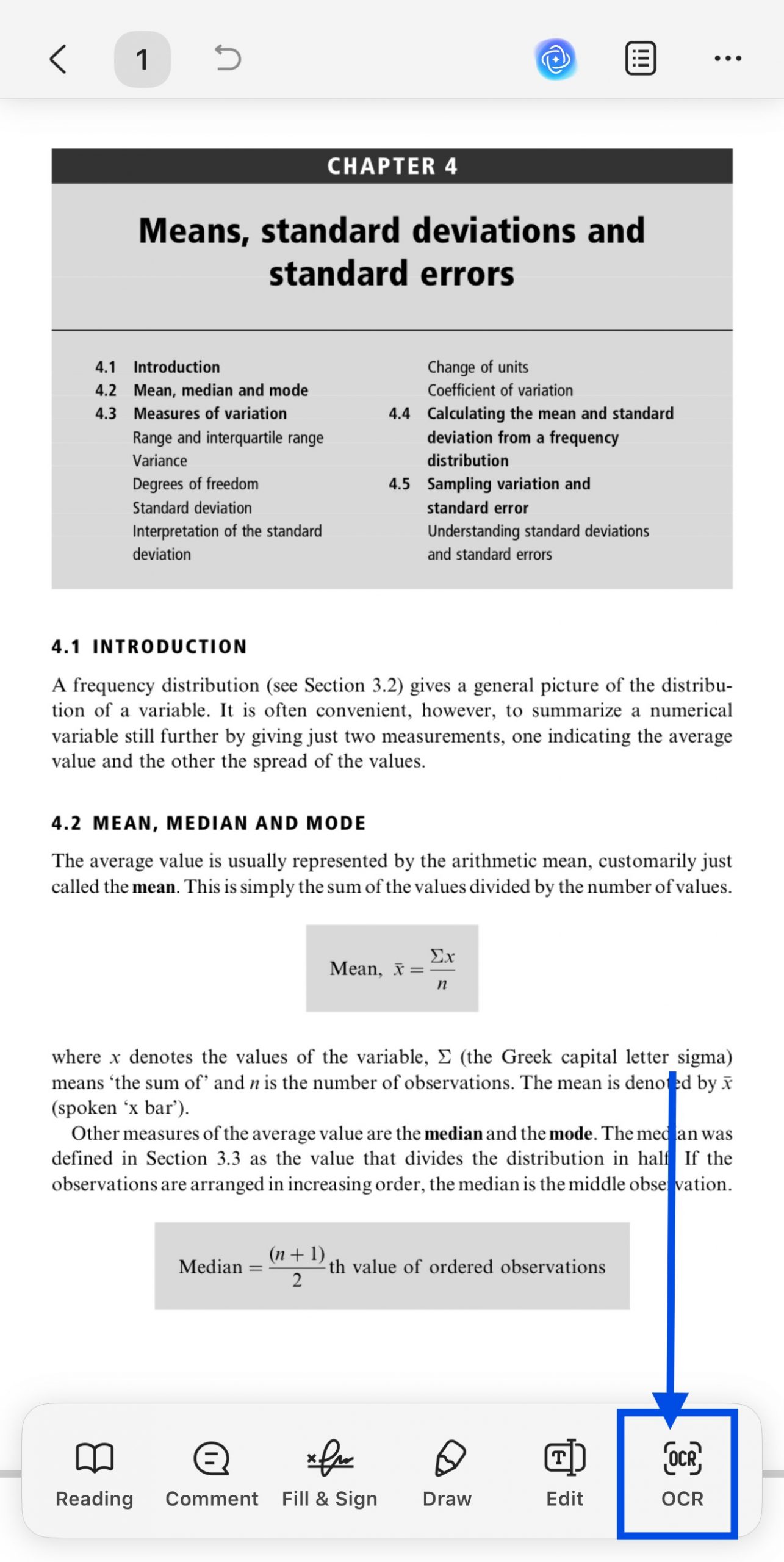
For iOS users, select OCR from the bottom toolbar.
Step 3. Customize OCR settings (Mode, Language, Page Range)
As it opens up, it will provide you with 3 different options of Document Type, which include Editable PDF, Text and Picture Only, and Searchable PDF Only.
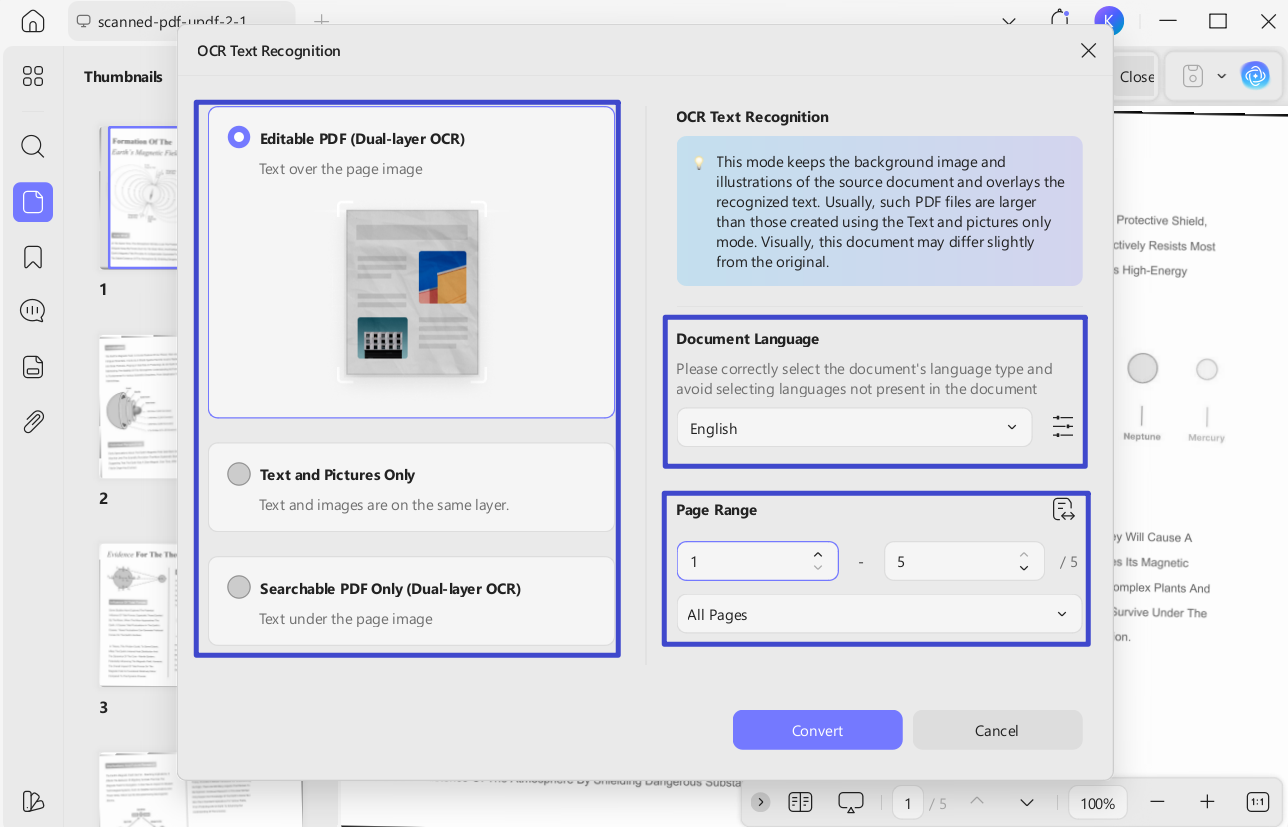
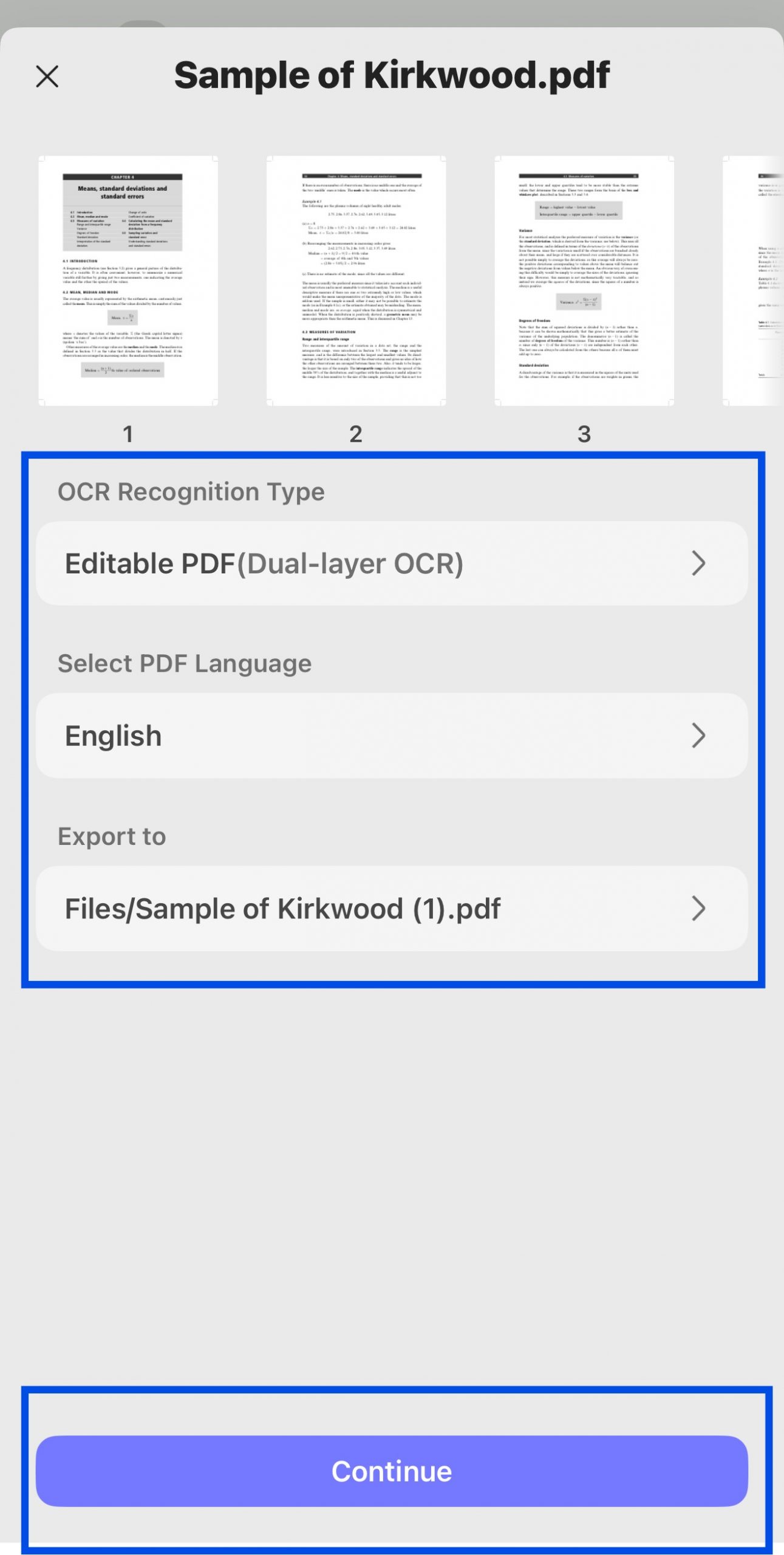
Define a proper Document Language with the option of 38 different languages across the extended menu and choose the page range. Once done, press the Convert/Continue button to execute OCR across.
Step 4. Open the OCRed File and Select Text to Read Aloud
Once the OCR is completed, open the newly-generated OCRed PDF and use the methods mentioned above to read PDF aloud.
Why Recommend Using UPDF?
There are several reasons for using UPDF to read PDF aloud. Read further and learn the motives that make UPDF recommended and widely usable:
- Read PDF aloud easily for a range of languages and it supports reading scanned PDF.
- UPDF for iOS supports full-text read aloud and allows tracking of spoken content.
- Adjust reading speed and select from a variety of voices and languages, including regional accents.
- With the UPDF AI feature, users can summarize lengthy documents.
- Allows PDF compression across four different levels, diversified according to user preferences.
- Edit PDF per your requirements. You can edit exiting texts, links and images, add new texts, links and images.
- The cost-effectiveness of UPDF enables you to use UPDF on all platforms with a single license.
Having these many features, UPDF is surely the best tool to use to read PDFs aloud. You can also read PDF aloud on your desktop and iOS devices by using UPDF. For that, download this tool on your devices right away via the button below and purchase the best plan that suits your requirements.
Windows • macOS • iOS • Android 100% secure
Video about UPDF
Part 2. How to Have PDF Read Aloud with Adobe Acrobat
Adobe Acrobat sets itself in the market as a platform for editing, creating, signing, and converting PDFs to other formats. In this software, you can read aloud the current page or the entire document. Now, let's head to the instructions to use Adobe read PDF aloud feature comprehensively:
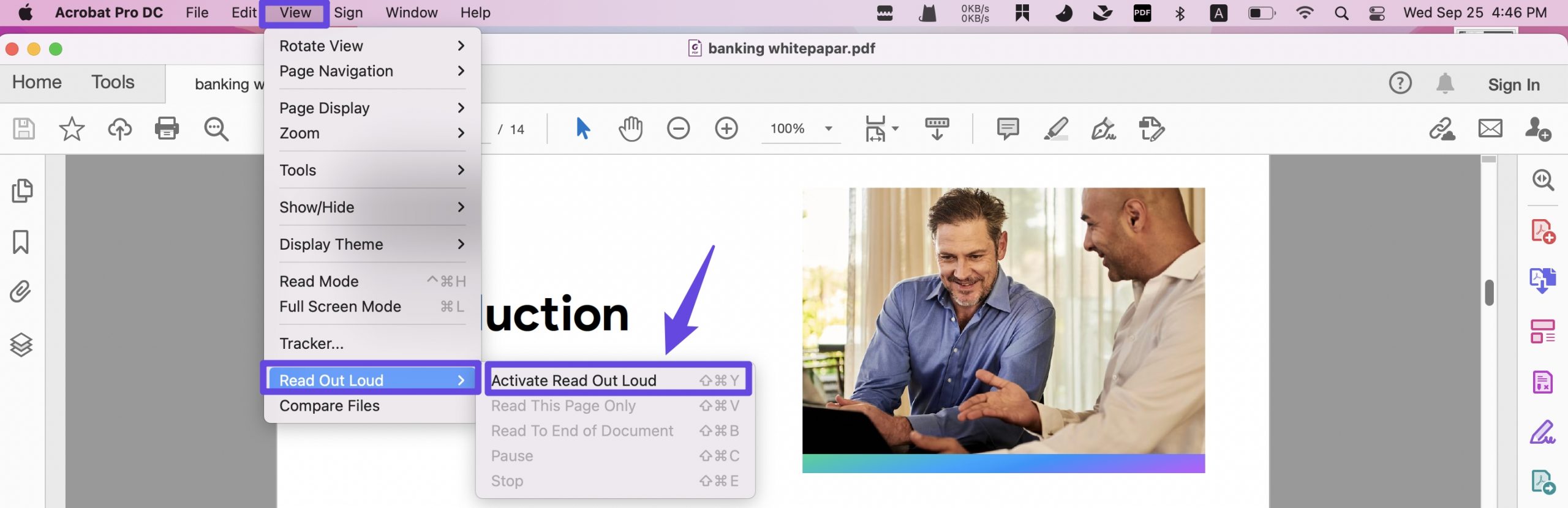
Steps: On your system, access Adobe and import the PDF document you wish to read aloud. Select the "View" button from the left top. From the dropdown menu, hover over "View" and then select "Read Out Loud." To enable the Read Aloud feature, click on "Activate Read Out Aloud." You can also customize your preferred reading options by revisiting the same menu. Now, it will start reading your PDF aloud.
Part 3. How to Read Aloud PDF With Chrome Extension?
If you are keen on trying the reading aloud PDF function through online options, Read Aloud: A Text to Speech Voice Reader can be a good option to go with. It supports over 40 languages.
You can find different options, such as changing the voice, setting the reading speed, and managing the pitch of the audio. You can also highlight the text while using the read aloud from PDF feature. Look through the steps to use this extension properly:
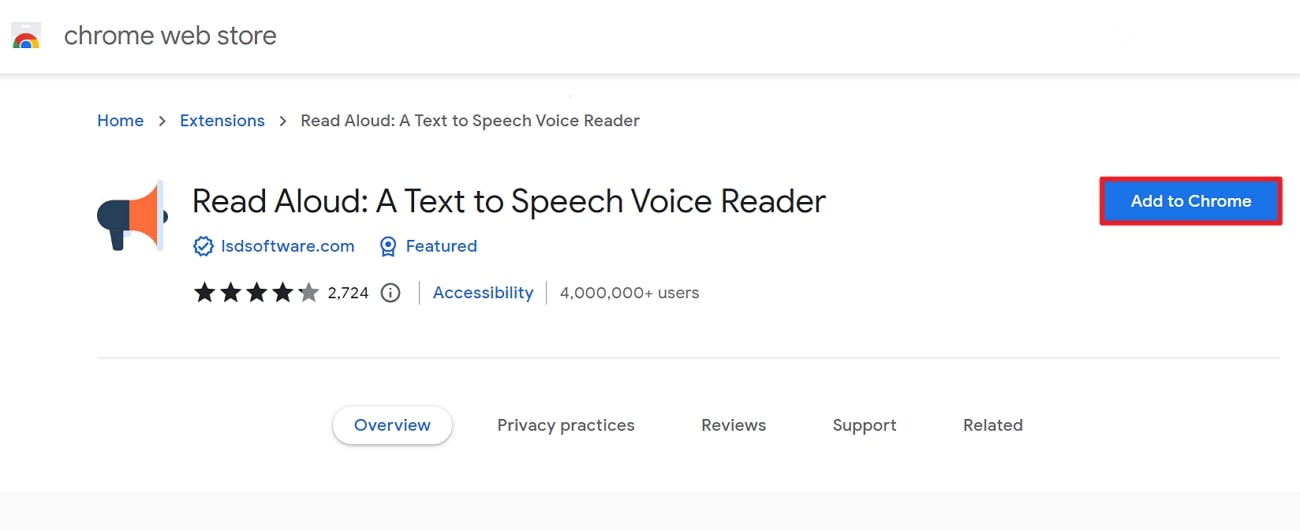
Step 1: Access the Chrome Web Store from a browser and look for the "Read Aloud: A Text to Speech Voice Reader" extension. As you access it, click the "Add to Chrome" button and select "Add Extension" across the pop-up that appears.
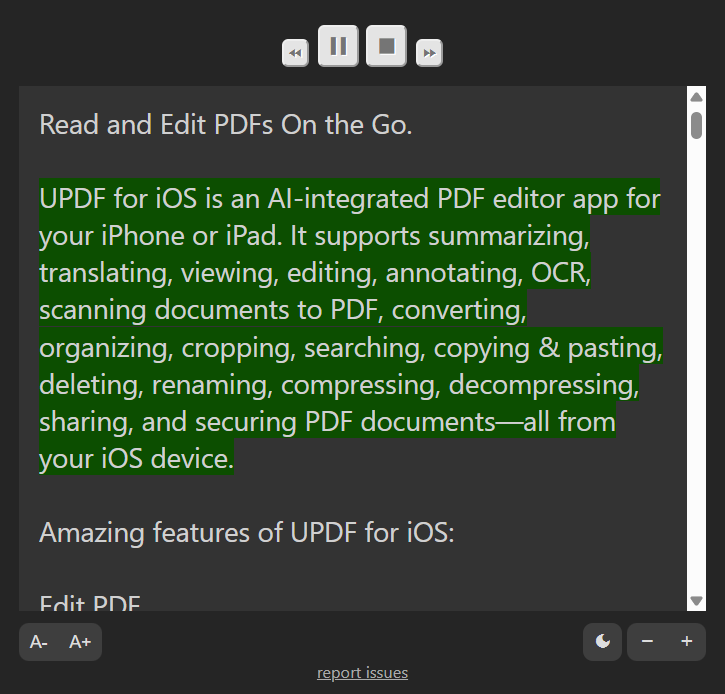
Step 2: Once added, you need to open PDF with your chrome. Now, click to enable the extension in the extension list, you can see a pop up window to let you upload the PDF file and upload the file you want to read aloud by clicking "Choose File". Now, click to open the Read Aloud Extension again, it will automatically recognize the contents, click the "Play" button to read them out.
Also Read: Your Comprehensive Manual on How to Read a PDF File
Part 4. How to Read PDF Aloud Online Free
TTSReader, an online software, works as a text player and proves highly beneficial for children with dyslexia and learning disabilities. Simply type, paste, and upload a file or eBook and get professional-sounding MP3 audio files. Users can turn their audio into podcasts and upload it to any popular podcast player app to listen conveniently. We will now look into the detailed steps on how to use it:
Step 1. At first, access the TTSReader site on your browser and open it. Then, hit the "Start Text Player & Synthesizer" button to explore this tool.
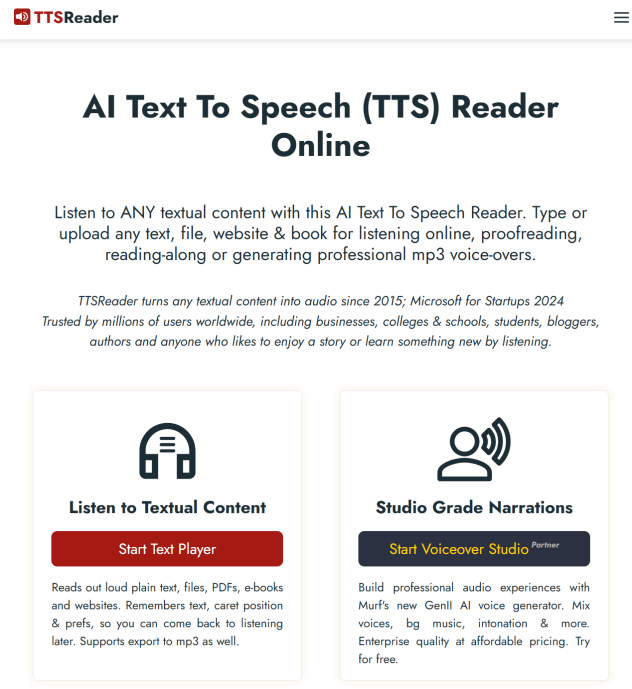
Step 2. Open PDF in one PDF reader like UPDF, then, copy the test from PDF, and paste the content you wish to read aloud to the online platform. Once you add it, click the "Play" button to read the text aloud.

Let’s summarize the differences among the four tools mentioned above.
| Tools | Platform Support (Text-to-speech) | Ease of operation | Voice customization | Multilingual support | Read scanned documents aloud |
| UPDF | Mac, Win, iOS | Select specific text content to read aloud. | (OCR required first) | ||
| Adobe Acrobat | Windows, Mac, Android, iOS | Click to read aloud. | (OCR required first) | ||
| Read Aloud | Chrome Extension | PDF file needs to be uploaded before it can be read aloud. | |||
| TTSReader | Online, iOS, Android | Text needs to be copied and pasted before it can be read aloud. |
FAQs About Reading PDF Aloud
Q1. Can Google Assistant Read PDF Aloud?
Google Assistant can read PDFs aloud in more than 40 languages. It is preferable for auditory learners as it translates the text from a PDF into a generic voice. To enable it, install the Google Chrome extension from the Chrome Web Store.
Q2. Can Foxit Read PDF Aloud?
Yes, Foxit offers a PDF read-aloud feature to give users an efficient PDF reading experience. It makes it beneficial for those who have visual impairments.
Q3. How can Microsoft Edge Read PDF Aloud?
For this, open the required PDF in the Microsoft Edge browser. You will see the u0022Read Aloudu0022 speaker icon on the top of the toolbar. Simply click, and it will begin to read the file from the beginning and provide highlighted text as it reads.
Q4. What to Do If Microsoft Edge PDF Read Aloud is Not Working?
If Microsoft Edge PDF Read Aloud is not working or the browser keeps hanging up, you should update to the latest available version. If the problem still remains, you can refresh the website and remove junk files by clearing cache and cookies from the browser.
Final Words
Understanding about how to read PDF aloud is important as it is not always comfortable to read PDF with your eyes. We introduced different ways here. But UPDF is a highly recommended tool because of its read-aloud feature on PC and mobile, with many powerful features like editing, annotating, OCR, compressing, etc.. In addition, its pricing plans is much cheaper than Adobe Acrobat.
To use all the high-end features of this tool, download it right away from your system and start reading PDFs while also managing them altogether.
Windows • macOS • iOS • Android 100% secure
Disclaimer





 Enola Miller
 Engelbert White
 Enid Brown