 UPDF
UPDF
 UPDF for Windows
 UPDF for Mac
 UPDF for iPhone/iPad
 UPDF for Android
 Nomostar
 UPDF AI Online
 UPDF Sign
 IvyCraft
 Edit PDF
 Annotate PDF
 Create PDF
 PDF Form
 Edit links
 Convert PDF
 OCR
OCR PDF to Word
 PDF to Image
 PDF to Excel
 Organize PDF
 Merge PDF
 Split PDF
 Crop PDF
 Rotate PDF
 Protect PDF
 Sign PDF
 Redact PDF
 Sanitize PDF
 Remove Security
 Read PDF
 UPDF Cloud
 Compress PDF
 Print PDF
 Batch Process
 About UPDF AI
 UPDF AI Solutions
 AI User Guide
 FAQ about UPDF AI
 Summarize PDF
 Translate PDF
 Chat with PDF
 Chat with AI
 Chat with image
 PDF to Mind Map
 Explain PDF
 PDF AI Tools
 Image AI Tools
 AI Chat Tools
 AI Writing Tools
 AI Study Tools
 AI Working Tools
 Other AI Tools
 AI Bookmark Generation
 AI Bookmark Summary
 AI Watermark Generation
 AI Background Generation
 AI Sticker Generation
 AI Stamp Generation
 AI Editing Suite
 UPDF Copilot
 AI Page Management
 AI Semantic Search
 PDF to Word
 PDF to Excel
 PDF to PowerPoint
 Enterprise Solution
 Enterprise Sign
 Enterprise AI
 Enterprise Plan
 Enterprise User Guide
 Enterprise Webinar
 IT
IT Education
 Construction
 Financial Service
 Healthcare
 Insurance
 Legal
Legal Manufacturing
 Government
 Researchers & PhDs
 Solopreneurs & Freelancers
 Lawyers & Legal Professionals
 Real Estate Agents & Brokers
 Education Solution
 Customer Stories
 User Guide
 UPDF Tricks
 FAQs
FAQs UPDF Reviews
 Download Center
 Blog
Blog Newsroom
 Tech Spec
 Updates
 UPDF vs. Adobe Acrobat
 UPDF vs. Foxit
 UPDF vs. PDF Expert

Quick Answer:
HTML and HTM files use the same basic web format; the different extension usually does not change the conversion process. What matters is the input you have and the output you need. A browser is fastest for a page you can already open, while a dedicated converter is more useful when you need to paste code, upload related CSS and JavaScript files, capture several webpage levels, or convert an HTML table.
After conversion, inspect the PDF for clipped columns, missing images, incorrect page breaks, and unwanted headers or footers. UPDF can then help you annotate, edit, crop, organize, compress, or protect the finished PDF.
Windows • macOS • iOS • Android 100% secure
Part 1: Which HTML-to-PDF Method Should You Choose?
| What you have or need | Recommended method | Main limitation |
|---|---|---|
| A webpage or local HTML/HTM file that opens correctly | Browser Print | Limited control over complex layouts |
| An HTML file already stored in Google Drive | Google Drive and Google Docs | HTML formatting may change during import |
| A URL, local HTML file, or multiple webpage levels | Adobe Acrobat | Requires Acrobat and careful capture settings |
| A URL, HTML text, or a package containing HTML/CSS/JS | iLovePDF | Online upload may not suit private content |
| A URL, HTML file, or pasted code with page settings | Sejda | Free-use and file limits can change |
A local .html or .htm document | Convertio | Fewer webpage-specific layout controls |
| A public webpage URL | Soda PDF | Not ideal for login-protected or local pages |
| An HTML table that needs editing before export | TableConvert | Complex table styling may not carry over exactly |
Part 2: Convert HTML to PDF Without a Dedicated Converter
These methods use tools that are already available to many readers: a browser's print function or Google Drive. Start here when you need a quick PDF and do not require advanced capture settings
Method 1. Print HTML or HTM to PDF in a Browser
Browser printing is the simplest way to convert a live webpage or a local .html or .htm file. Chrome, Edge, Firefox, and Safari can all send a rendered page to a PDF destination.
Best for:
- a single webpage, receipt, article, reference page, or local HTML file that already looks correct in a browser.
Not for:
- a private web app that has not finished loading or a wide table that is already clipped in print preview.
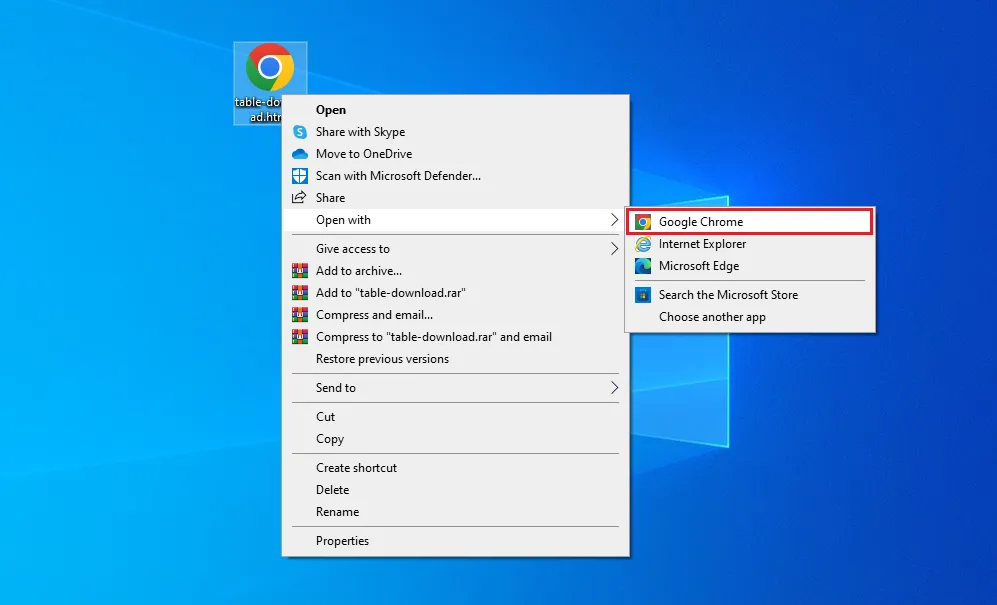
Step 1: First, right-click on the HTML file and click "Open with" to open it with any browser.
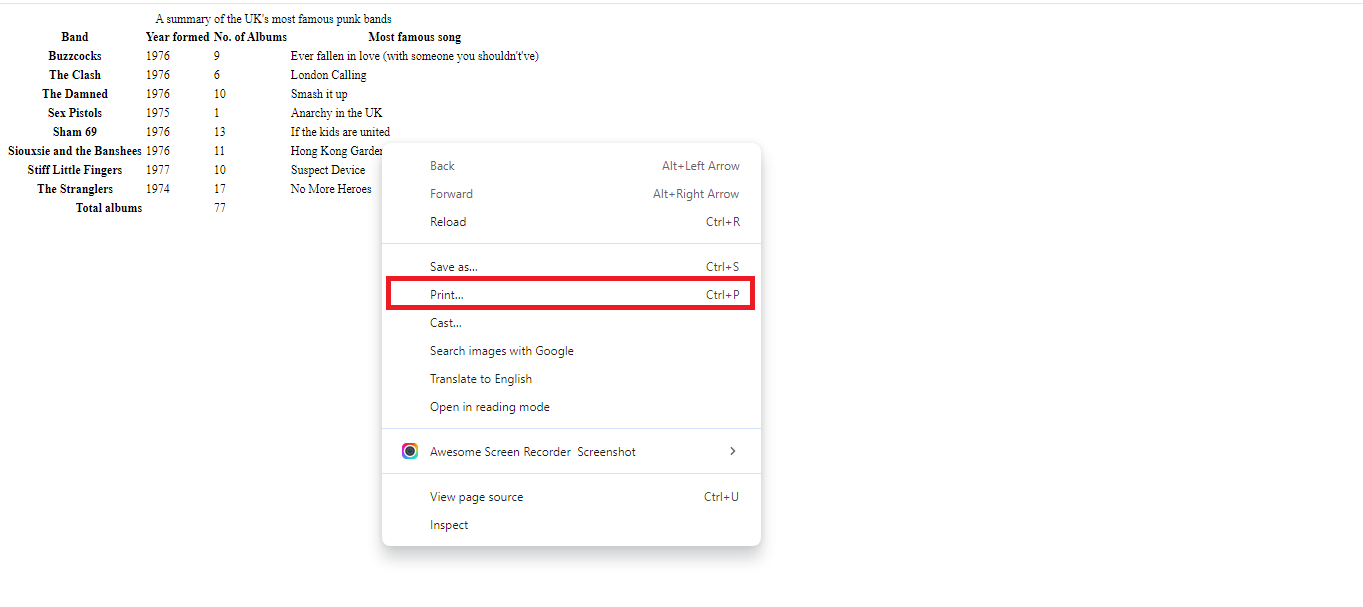
Step 2: Once the HTML file is opened in the browser, right-click again on the screen and click the "Print" button.
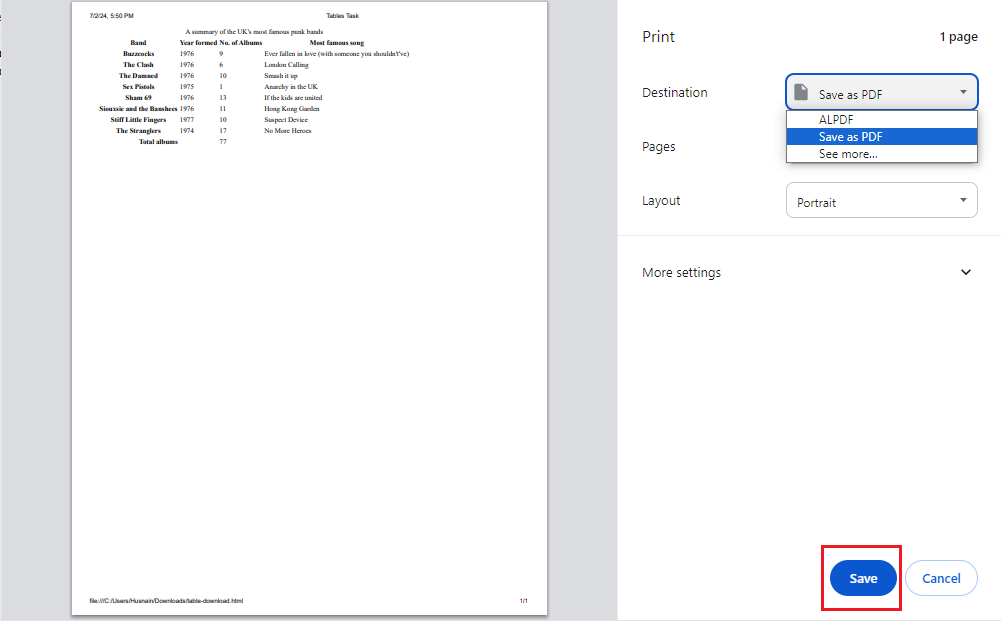
Step 3: Next, select "Save as PDF" and click the "Save" button.
Once the browser creates the file, check that no content was cut off. Download UPDF for free to review page edges, add comments, and crop unnecessary margins—the free installation lets you test the workflow, while exported trial files may include a watermark.
Windows • macOS • iOS • Android 100% secure
Method 2. Convert HTML to PDF with Google Drive
Google Drive can be convenient when the HTML file is already in cloud storage and Google Docs is available as an Open with option. This method imports the HTML content into a document and then exports that document as PDF.
Best for:
- simple, text-focused HTML files that you want to access and export through a Google account.
Not for:
- pixel-accurate webpages, complex CSS, JavaScript content, or wide HTML tables whose original layout must remain unchanged.
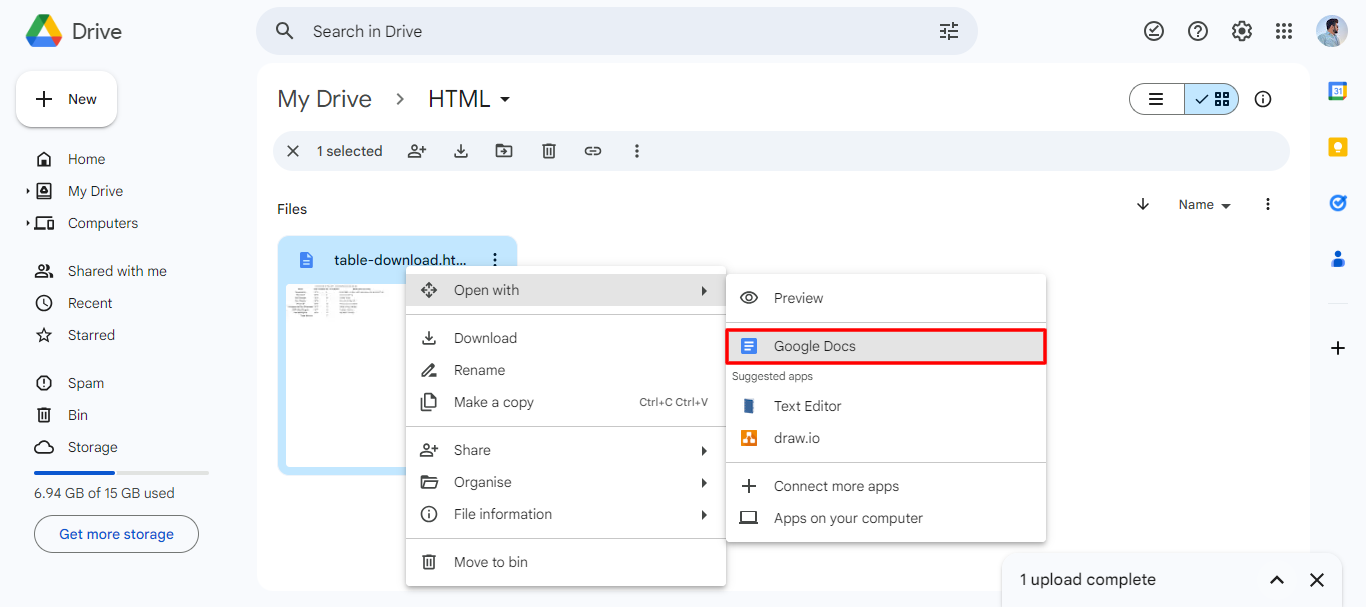
Step 1: Open your Google Drive. Drag and drop your HTML file into Google Drive.
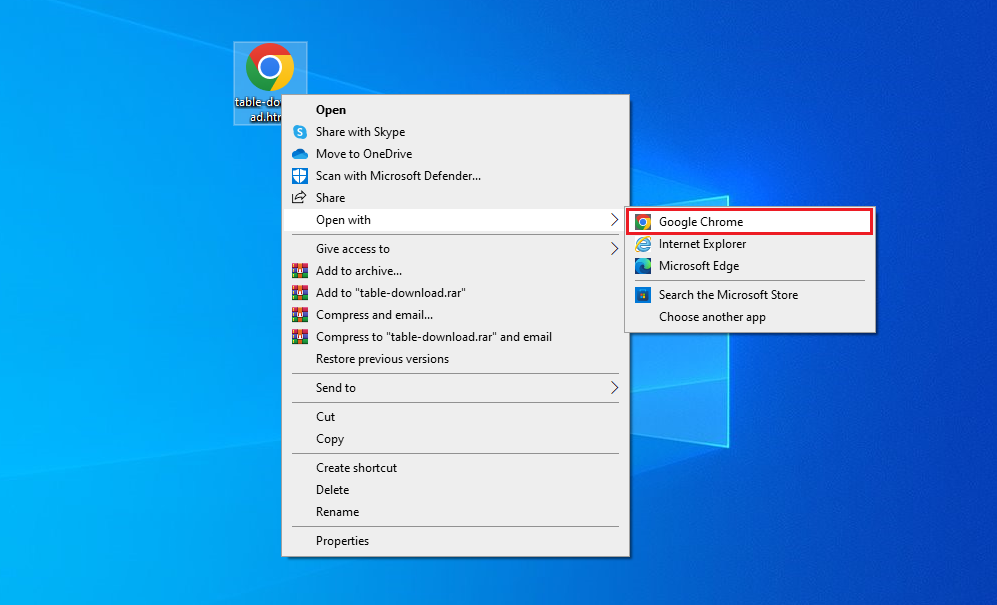
Step 2: Right-click on the HTML file, click "Open with," and choose "Google Docs."
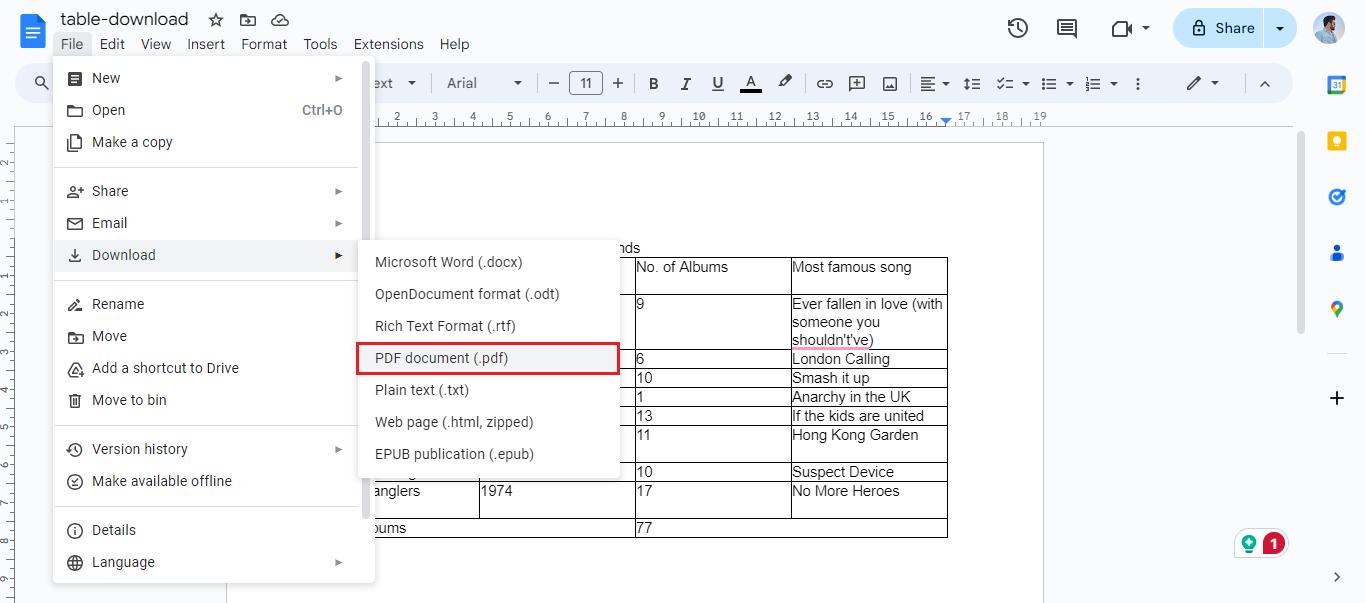
Step 3: Click "File" in the top-left corner once the file is opened. Then, click the "Download" button and select "PDF Document (.pdf)."
If Google Docs is unavailable under Open with, or the imported file loses too much formatting, use browser printing instead. Google Drive is a cloud-document route, not a layout-preserving webpage renderer.
Part 3: Convert HTML to PDF with Dedicated Tools
Dedicated converters support different inputs and controls. Some accept a public webpage URL, some accept local HTML files or pasted code, and some focus on tables. Choose the tool based on the input—not simply on which homepage appears first in search results.
Method 3. Convert HTML to PDF with Adobe Acrobat
Embark on a hassle-free journey of converting HTML to PDF with the versatile Adobe Acrobat. Seamlessly compatible with both Mac and Windows systems, Acrobat offers a user-friendly desktop app and a handy browser extension. Now, let's explore the step-by-step process to transform your HTML files effortlessly into polished PDFs.
Best for:
- documentation pages, local HTML files, or a small website section that needs controlled multi-level capture.
Not for:
- an entire large website without a carefully limited capture scope.
Instructions for Converting HTML to PDF in Adobe Acrobat
- Open Adobe Acrobat and navigate to the "File" section. Select "Create" and then choose "PDF from Web Page."
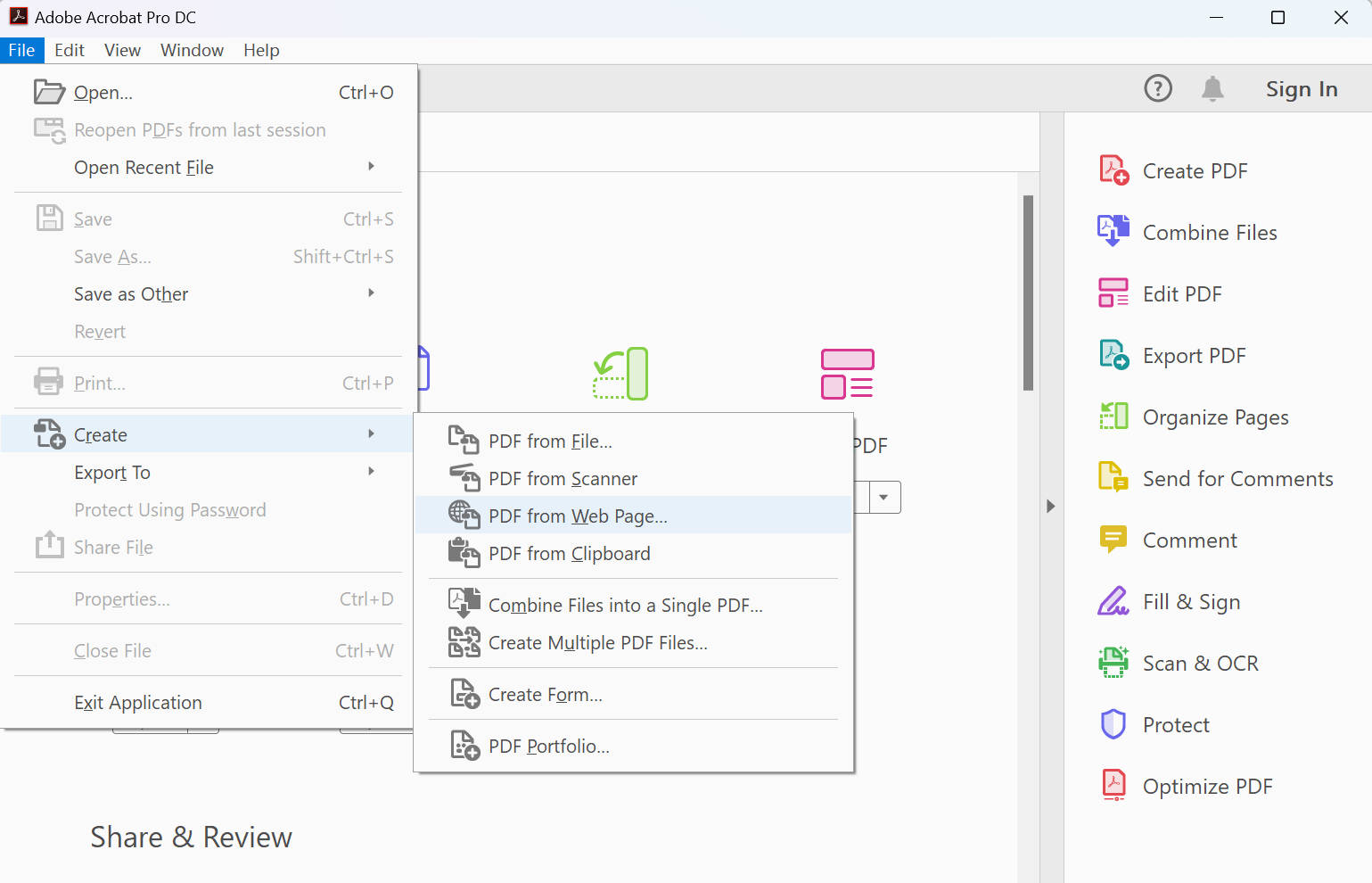
- Enter the full path to the webpage or click 'Browse' to locate the HTML file on your computer.
- Click on 'Capture Multiple Levels' and enter the number of levels you want to include. Be mindful not to convert more levels than necessary to avoid using excess hard drive space and slowing down your system.
- If you choose 'Get Only N Level(s),' you can opt for 'Stay on Same Path' to download only web pages subordinate to the specified URL. Alternatively, you can select 'Stay on Same Server' to download only web pages stored on the same server.
- Access Settings/Advanced Settings, modify the selected options in the Web Page Conversion Settings dialog box according to your requirements and then click OK.
- Lastly, click 'Create' and your PDF will be ready.

Method 4. Convert HTML to PDF Online with iLovepdf
In a world dominated by digital content, finding efficient ways to convert HTML to PDF becomes essential. Among the array of online tools, iLovePDF stands out for its user-friendly interface and versatility. To harness its capabilities:
Best for:
- readers who need an online converter that accepts more than one HTML input type.
Not for:
- confidential pages or local assets that are missing from the uploaded package.
Instructions for Converting HTML to PDF with iLovepdf
- Navigate to iLovePDF's HTML to PDF converter.
- Upload your HTML file by clicking the 'Add HTML' button.
- Paste the website URL and click 'Add.'
- Once the file has been converted, click 'Download PDF.'

When uploading a multi-file webpage, include the CSS, JavaScript, fonts, and images that the HTML references. A standalone HTML file cannot reproduce assets that the converter cannot reach.
Method 5. Convert HTML to PDF Online with Sejda
Now, let's dive into another powerhouse for HTML to PDF conversion: Sejda. Embracing the digital era means embracing tools like Sejda that bring simplicity and efficiency to the forefront.
Best for:
- choosing between URL, file, and code input while retaining useful page controls.
Not for:
- a sensitive page that should not be uploaded to a third-party service.
Instructions for Converting HTML to PDF with Sejda
- Access Sejda's HTML to PDF converter.
- Sejda gives you options when converting your HTML to PDF. You can select from 'URL to PDF,' 'HTML files,' and 'HTML code.'
- Select according to your desire, and then click the green button below to convert.
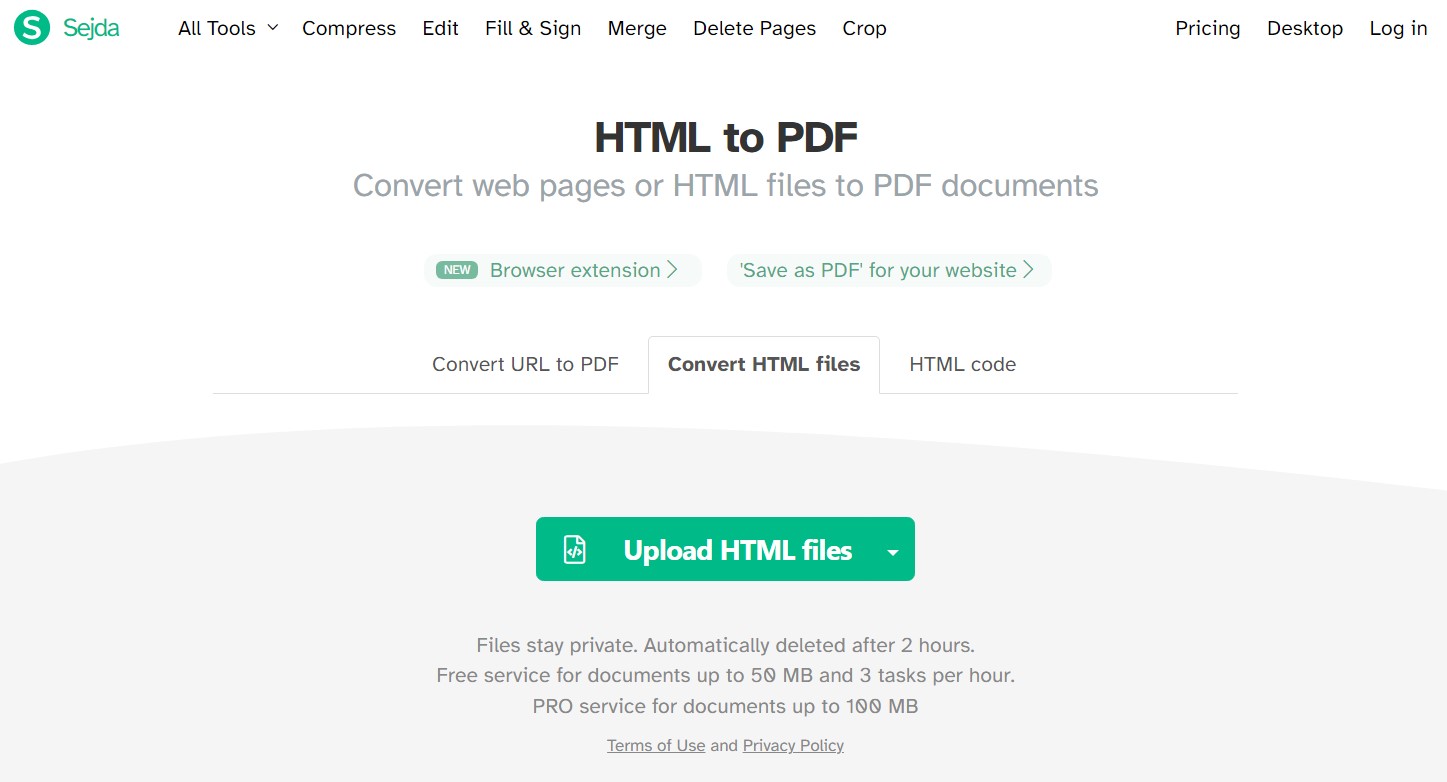
Sejda publishes current usage limits on the tool page. Check them when you convert because online quotas and file limits can change.
Method 6. Convert HTML to PDF with Convertio
Embarking on your HTML to PDF conversion journey, Convertio stands out as an accessible and user-friendly online tool.
Best for:
- a simple local HTML/HTM file that does not need webpage-level capture controls.
Not for:
- a dynamic URL, an authenticated page, or a webpage that depends on several missing local assets.
Instructions
- Convert HTML to PDF with Convertio by clicking 'Choose Files.'
- Browse and upload the HTML file.
- Hit "Convert" and watch your HTML seamlessly transform into a polished PDF.
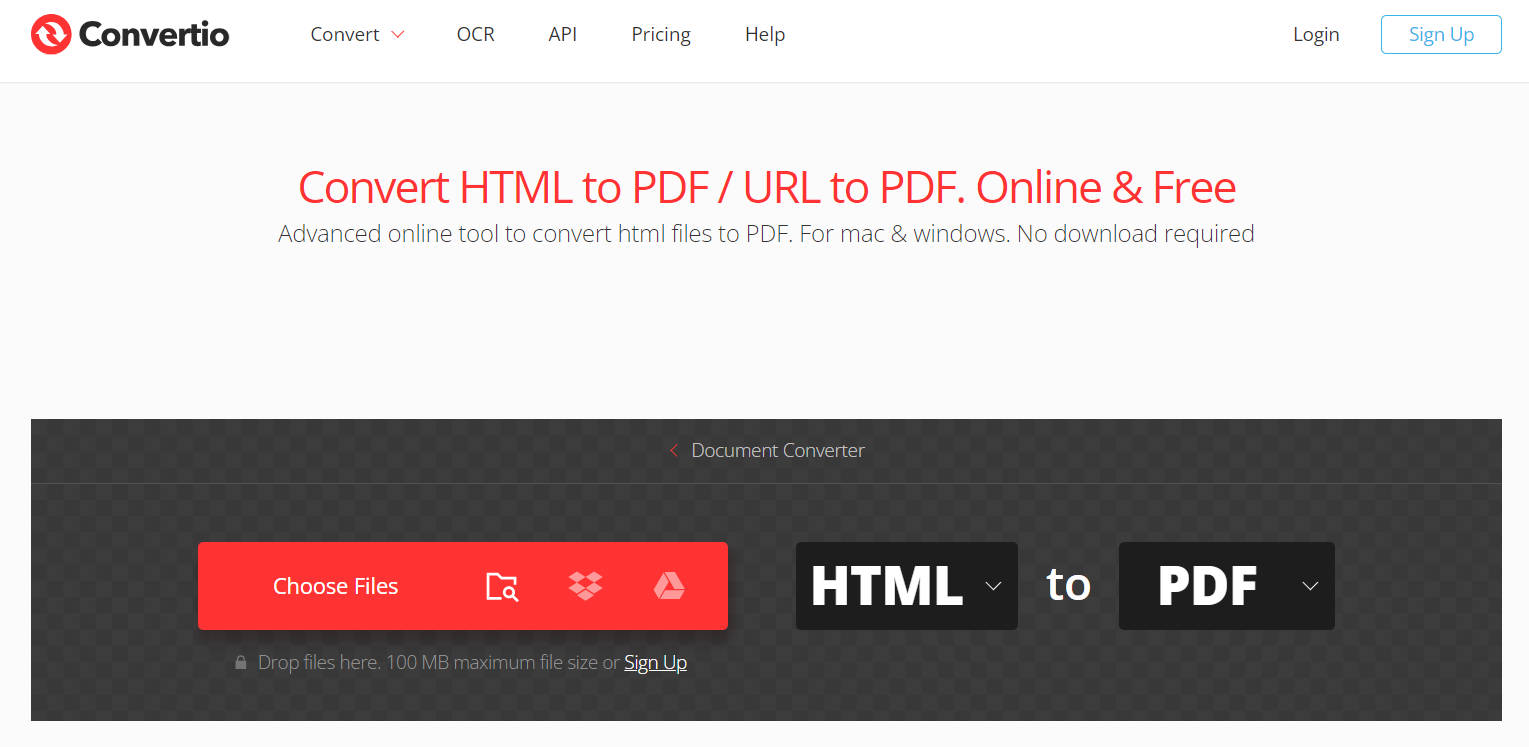
If images or styles disappear, the uploaded HTML probably depends on files that were not included or URLs the service could not access. Browser printing or a converter that accepts a complete web package may work better.
Method 7. Convert HTML to PDF with Soda PDF
Last on the list, Soda PDF offers a convenient online solution for converting HTML to PDF effortlessly. With its user-friendly interface, even those with limited technical expertise can navigate the process smoothly.
Best for:
- a public webpage that loads without an account, local files, or special permissions.
Not for:
- login-protected pages, private dashboards, or local HTML files that cannot be reached through a URL.
Instructions
- Visit the Soda PDF and locate and choose the "HTML to PDF" tool.
- Enter your URL on the provided option and click 'Get PDF.'
- Once the conversion is done, click the 'Download File' button.
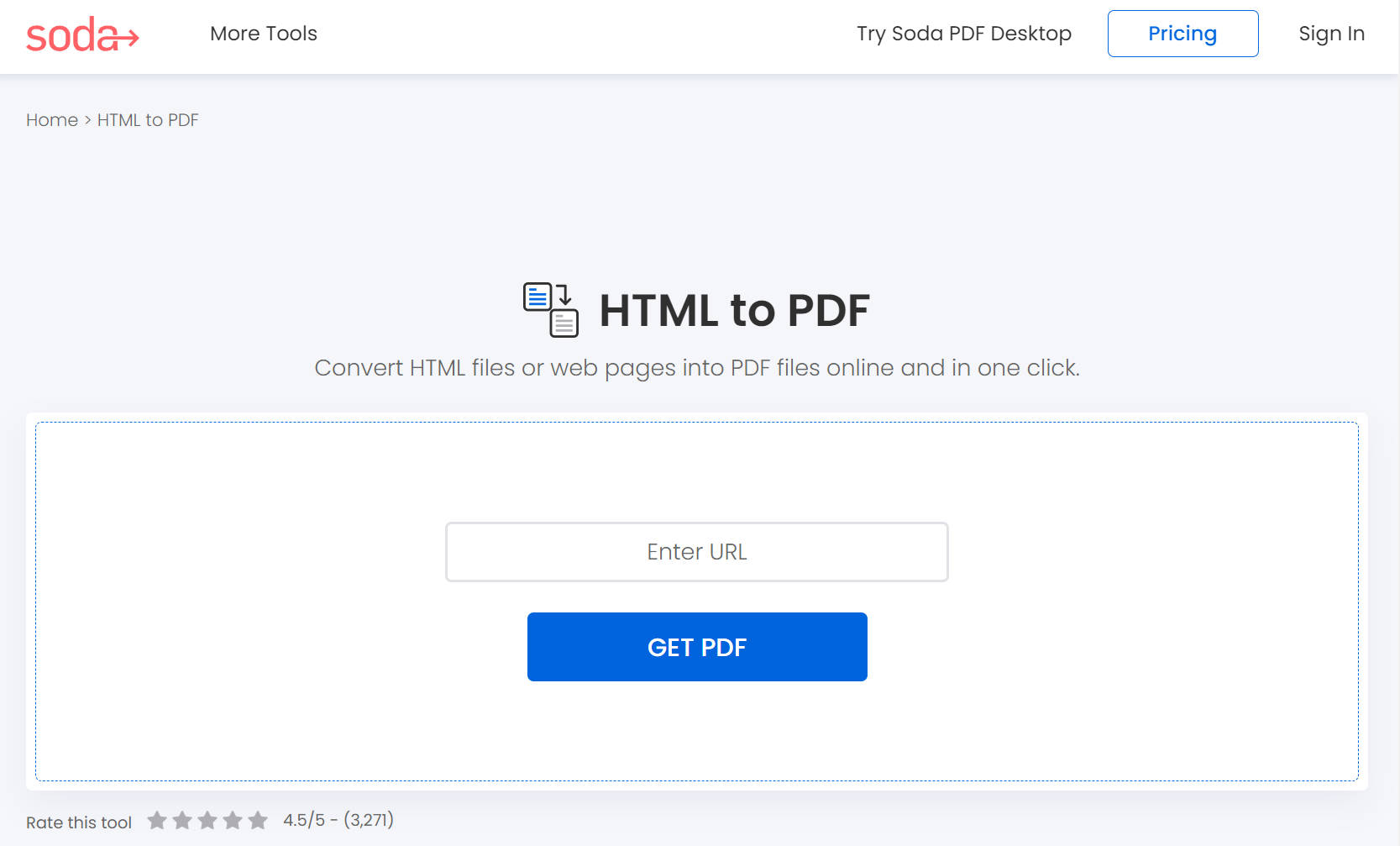
Before using any URL-based converter, close cookie banners and make sure the public page already displays the content you want. The converter cannot access information that requires your browser's private login session.
Method 8: Convert an HTML Table to PDF with TableConvert
TableConvert focuses on structured table data. It is useful when the main object is an HTML table rather than a complete webpage, especially if you want to adjust the table before exporting it.
Best for:
- copying or uploading an HTML table, editing table data, and exporting the result as a PDF.
Not for:
- preserving a complete webpage with complex branding, scripts, navigation, and responsive layouts.
For a wide table, check whether landscape orientation, shorter headings, wrapped text, or fewer columns will improve readability. If the converter cannot preserve the original CSS, browser printing from the source page may produce a closer visual match.
Part 4: Annotate, Edit, and Manage PDF after Converting from HTML
Now that you've seamlessly converted your HTML to PDF, the journey doesn't end there! Enter UPDF, your ultimate companion for annotating, editing, and managing PDF files.
UPDF is a versatile tool that goes beyond mere PDF conversion, offering robust features for annotation, editing, and efficient PDF management. UPDF offers an intuitive interface and a collection of tools to enhance your PDF experience. Download UPDF now and begin to annotate, edit, and manage your PDF file easily.
Windows • macOS • iOS • Android 100% secure
Annotate PDF with Precision:
UPDF provides a range of annotation tools, allowing you to add comments, highlights, and shapes to your PDF documents. Whether you're collaborating on a project, reviewing a report, or simply personalizing your study materials, UPDF's annotation features offer precision and ease of use. To access the comments menu, click on the "Comment" option located on the left toolbar.
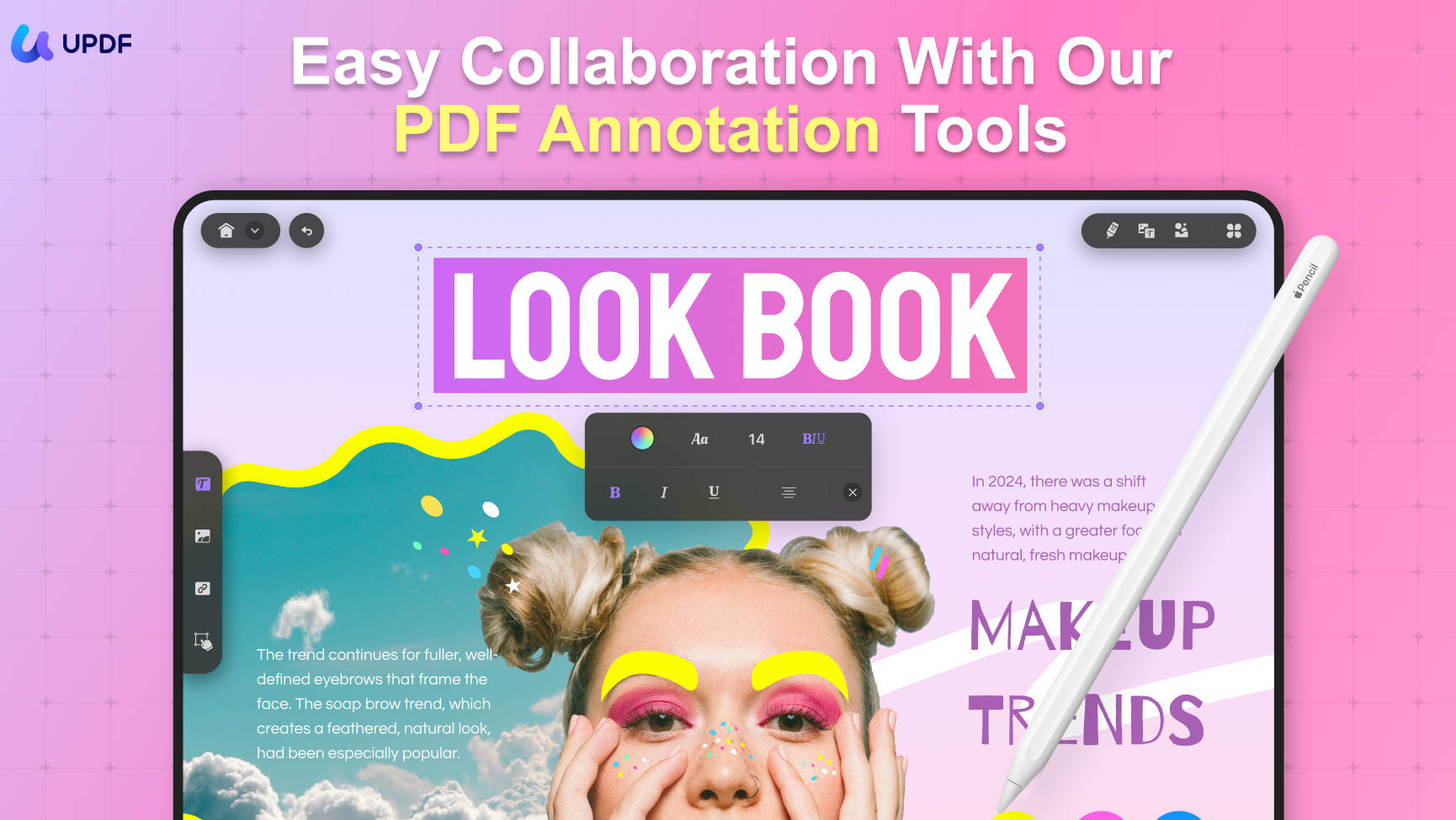
- Text Comment (Typewriter): Click the T icon, then click where you want to place the typewriter comment and start typing.
- Text Box: Click the T icon with a box, choose the text box style, and click where you want to place it.
- Sticky Notes: Click the note icon, then click on your PDF to place it. Double-click the note icon to type in the note area.
- Add Shapes: Click the Shapes icon and select the drawing tools in the drop-down menu.
- Add Stickers: Select the "Sticker" icon. Choose a category and a specific sticker from the menu. Click on the PDF to place the sticker and adjust the dimensions.
Edit PDFs Seamlessly:
Say goodbye to the hassle of extensive editing. UPDF simplifies the process with intuitive editing tools. You can modify text, adjust images, and even rearrange pages effortlessly. This functionality ensures a smooth editing experience, making complex alterations a breeze. Go to the "Edit" mode in "Tools" and begin to make modifications to your PDF document now:
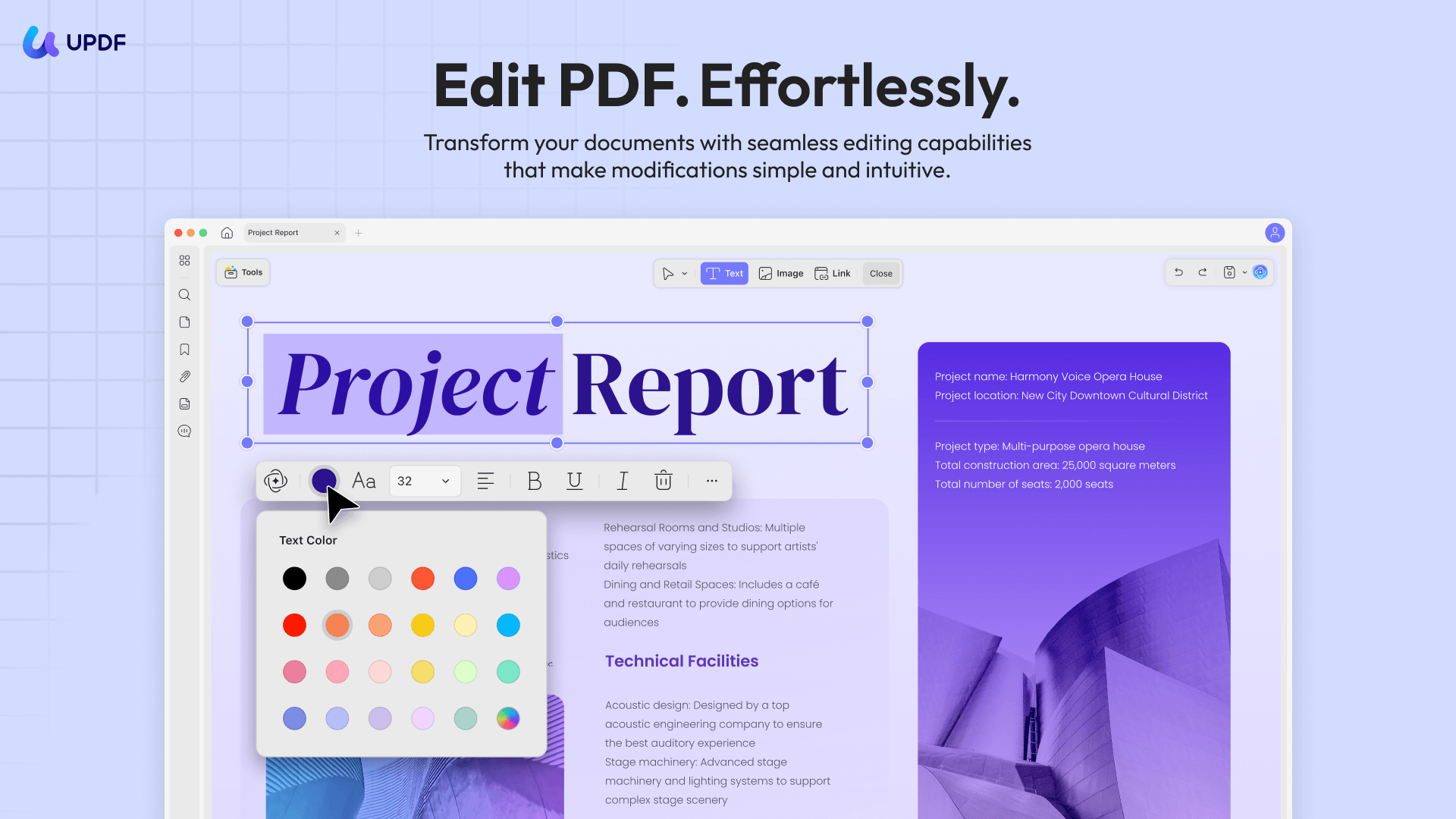
- Edit Text: Add, edit, or remove content, controlling text properties like font, style, and color.
- Edit Images: Add or remove images and perform edits like cropping, extracting, replacing, and deleting.
- Add Links: Insert links to webpages or connect pages within a PDF using the link editing function.
Manage with Ease:
UPDF introduces a user-friendly approach to PDF management. Merge multiple PDFs into a cohesive document, split large files into manageable sections, and sync files across devices effortlessly.
- UPDF AI: With the help of AI technology, you can summarize a lengthy PDF file to get the main points quickly. You can translate your PDF into any language and even ask any questions about your PDF document.
- Watermarking: Add text, image, or PDF file watermarks, managing ratios, opacity, and visual properties.
- Background Color: Add or change PDF background color, controlling ratio, and opacity with interactive sliders.
- Protect PDF: In the case of PDF files that contain sensitive information, you can use UPDF to protect your PDF and make it secure. Encrypting your PDF will help you ensure that anyone you share your PDFs with will not be able to change any of the information and content of your document.
- Create, Fill, Sign PDF Forms: PDF forms are becoming more and more common. If the HTML document you converted was a form that is usually filled by hand, with UPDF you can convert it to a PDF form that can be filled without having to be printed. This includes adding a digital signature for convenience.
- Compress PDF: Depending on the size and images, annotations, and illustrations in your PDF you might find that the overall size of your PDF is too large to share with others. However, with UPDF this is something you will never have to worry about since you will always have the option to Compress your PDFs and make it a smaller size. The different quality settings for the compression will also mean that you are in complete control of the quality of the final document.
UPDF's commitment to user-friendly design and powerful features makes it an indispensable tool for anyone dealing with PDF documents. Whether you're a student, professional, or casual user, UPDF elevates your PDF experience, turning it into a dynamic and interactive process. Download it now and you can enjoy all the features.
Windows • macOS • iOS • Android 100% secure
Part 5: Benefits of Converting HTML to PDF
Have you ever wondered why some web content needs to break free from the browser? Let's explore the compelling reasons why people are choosing to convert HTML to PDF.
Preserving Web Content
Converting HTML to PDF ensures the preservation of web content in a format that retains the original layout and styling. This is particularly beneficial for archiving or sharing web pages without worrying about discrepancies.
Enhanced Readability
PDFs offer a consistent reading experience across devices, making it easier for users to view content without the need for specific browsers or internet connections. It's a portable, universally readable format.
Offline Accessibility
By converting HTML to PDF, you create a snapshot of the webpage that can be accessed offline. This is especially handy for reference materials, research, or any content you might need when an internet connection isn't readily available.
Professionalism in Documentation
PDFs present a more professional image compared to HTML files. Whether you're sharing reports, resumes, or presentations, PDFs maintain a polished appearance, free from the potential variability associated with HTML rendering.
Easy Printing and Sharing
PDFs make printing easy and ensure document consistency. Additionally, sharing PDFs guarantees that recipients see your content exactly as intended, regardless of their device or browser.
Security and Control
PDFs are the ideal solution for controlling access and editing of sensitive documents. With their added layer of security, they provide peace of mind when handling proprietary content or confidential information.
Optimized File Size
Converting HTML to PDF often results in optimized file sizes, making it easier to store, share, and manage documents without compromising on quality.
In essence, the decision to convert HTML to PDF is a strategic move towards a more versatile, accessible, and professional representation of your digital content. Experience these benefits firsthand by incorporating the simple yet powerful conversion process into your digital workflow.
FAQs
Q1: Are HTML and HTM files converted in the same way?
Yes, the conversion process is normally the same. .htm is a shorter extension historically used by systems with three-character filename limits; modern browsers and converters generally handle both formats alike.
Q2: Can I convert HTML to PDF without installing software?
Yes. Use a browser's Save as PDF function, Google Drive, or an online converter. Avoid uploading confidential HTML to an unknown service.
Q3: Which method is best for an HTML table?
Start with browser printing or TableConvert. Browser printing is better for preserving the source page's styling, while TableConvert is useful when you want to edit the table data before export.
Conclusion
To convert one webpage or local HTM file, begin with Browser Print. Use Google Drive for simple HTML documents already stored in the cloud. If you need a different input type or more conversion controls, choose among Adobe Acrobat, iLovePDF, Sejda, Convertio, Soda PDF, and TableConvert according to the comparison table.
After conversion, download UPDF for free to inspect the PDF, annotate layout problems, edit existing content, crop margins, and organize the final pages—the free installation lets you test the workflow, while exported trial files may include a watermark.
Windows • macOS • iOS • Android 100% secure






 Enid Brown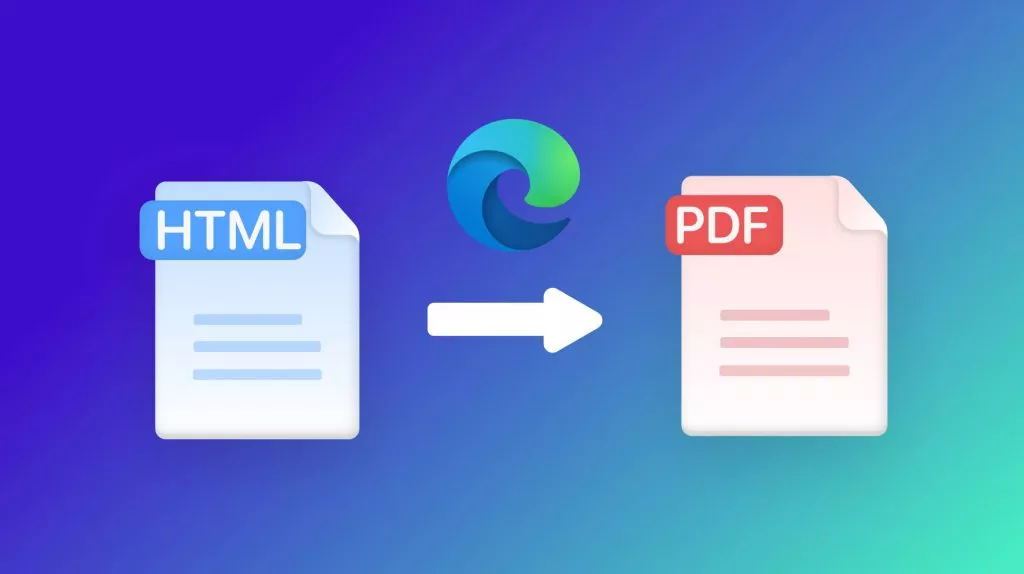
 Enola Miller
 Engelbert White
