 UPDF
UPDF
 UPDF for Windows
 UPDF for Mac
 UPDF for iPhone/iPad
 UPDF for Android
 Nomostar
 UPDF AI Online
 UPDF Sign
 IvyCraft
 Edit PDF
 Annotate PDF
 Create PDF
 PDF Form
 Edit links
 Convert PDF
 OCR
OCR PDF to Word
 PDF to Image
 PDF to Excel
 Organize PDF
 Merge PDF
 Split PDF
 Crop PDF
 Rotate PDF
 Protect PDF
 Sign PDF
 Redact PDF
 Sanitize PDF
 Remove Security
 Read PDF
 UPDF Cloud
 Compress PDF
 Print PDF
 Batch Process
 About UPDF AI
 UPDF AI Solutions
 AI User Guide
 FAQ about UPDF AI
 Summarize PDF
 Translate PDF
 Chat with PDF
 Chat with AI
 Chat with image
 PDF to Mind Map
 Explain PDF
 PDF AI Tools
 Image AI Tools
 AI Chat Tools
 AI Writing Tools
 AI Study Tools
 AI Working Tools
 Other AI Tools
 AI Bookmark Generation
 AI Bookmark Summary
 AI Watermark Generation
 AI Background Generation
 AI Sticker Generation
 AI Stamp Generation
 AI Editing Suite
 UPDF Copilot
 AI Page Management
 AI Semantic Search
 PDF to Word
 PDF to Excel
 PDF to PowerPoint
 Enterprise Solution
 Enterprise Sign
 Enterprise AI
 Enterprise Plan
 Enterprise User Guide
 Enterprise Webinar
 IT
IT Education
 Construction
 Financial Service
 Healthcare
 Insurance
 Legal
Legal Manufacturing
 Government
 Researchers & PhDs
 Solopreneurs & Freelancers
 Lawyers & Legal Professionals
 Real Estate Agents & Brokers
 Education Solution
 Customer Stories
 User Guide
 UPDF Tricks
 FAQs
FAQs UPDF Reviews
 Download Center
 Blog
Blog Newsroom
 Tech Spec
 Updates
 UPDF vs. Adobe Acrobat
 UPDF vs. Foxit
 UPDF vs. PDF Expert

To duplicate PDF pages, open a PDF inside UPDF and select the required page thumbnail first. Right-click the page thumbnail and choose Duplicate to create an identical copy within your document. To move pages between documents, copy and paste them through page management mode instead.
Free online tools and Microsoft Word provide alternatives when no dedicated PDF editor is installed. The task sounds trivial until you try it and encounter unexpected problems along the way. This Reddit discussion on PDF page duplication highlights broken layouts, cumbersome workarounds, and software limitations users encounter.
Understanding how to duplicate a page in PDF properly helps prevent issues with fillable forms. This guide covers 4 practical methods, ranging from reliable editors to more improvised workarounds.
Need to duplicate single or multiple PDF pages without losing formatting? Download UPDF for free and copy pages in a couple of clicks!
Windows • macOS • iOS • Android 100% secure
Way 1. How to Duplicate PDF Pages with UPDF (Most Efficient)
Best for:
UPDF handles page duplication directly instead of relying on complicated copy-and-rebuild workarounds for users. It preserves original page text, images, formatting, and layout throughout the duplication process. Users get 2 separate methods for duplicating pages within or across different PDF documents.
Option A: Duplicate Pages Within the Same PDF
This method lets you duplicate PDF page content within your currently opened document. Follow the simple steps below using both Thumbnail and Organize Pages mode:
Using the Thumbnail Panel
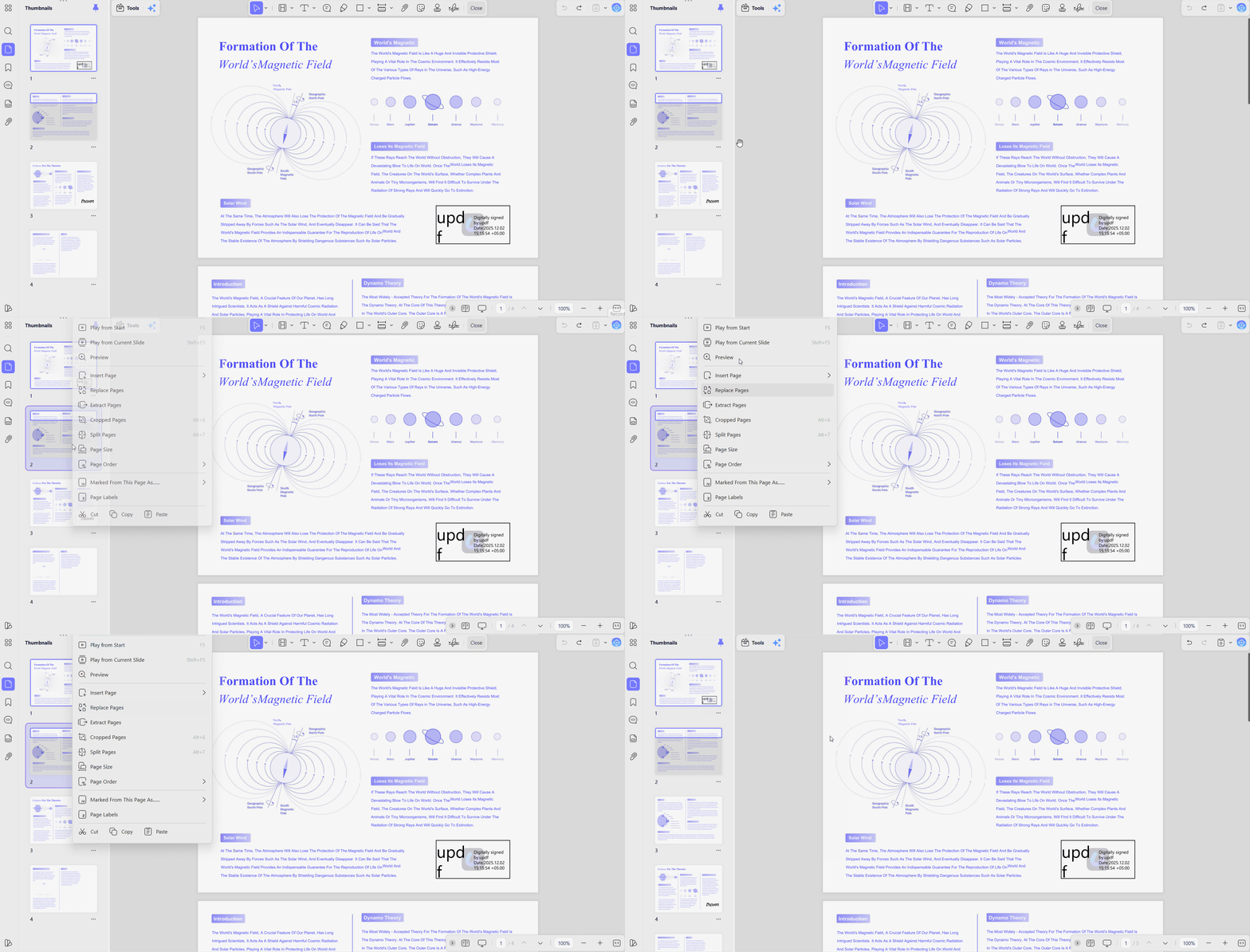
Step 1. Once you open a PDF in UPDF, press the "Thumbnail" option in the left -side panel.
Step 2. After that, right-click any page and press the "Duplicate" icon. The page copy appears immediately below the original version.
Using Organize Pages Mode
Step 1. First, access the "Organize Pages" mode from the left side panel.
Step 2. Next, right-click any page thumbnail and click the "Duplicate" icon. Once the page copy appears, save the document.
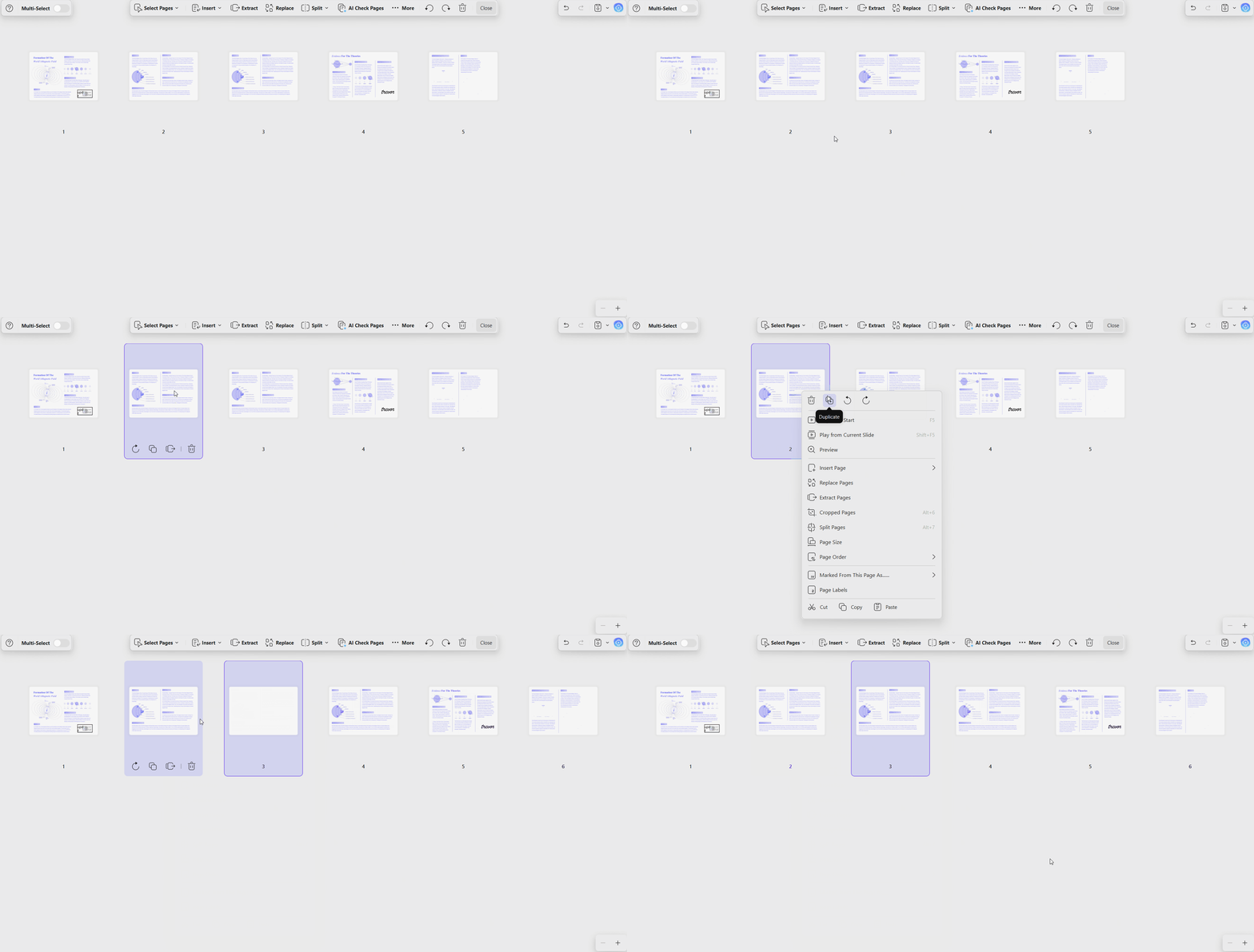
Organize Pages is the better route for multi-page work. The grid view makes it easier to select several pages at once and to see exactly where each copy lands.
Option B: Duplicate Pages Across Different PDFs (From Doc A to Doc B)
You can duplicate pages in PDF documents by copying content between separate files when needed. This method uses clipboard controls, while the paste position determines where copied pages appear. Adhere to the steps below to copy pages between different PDF documents without confusion:
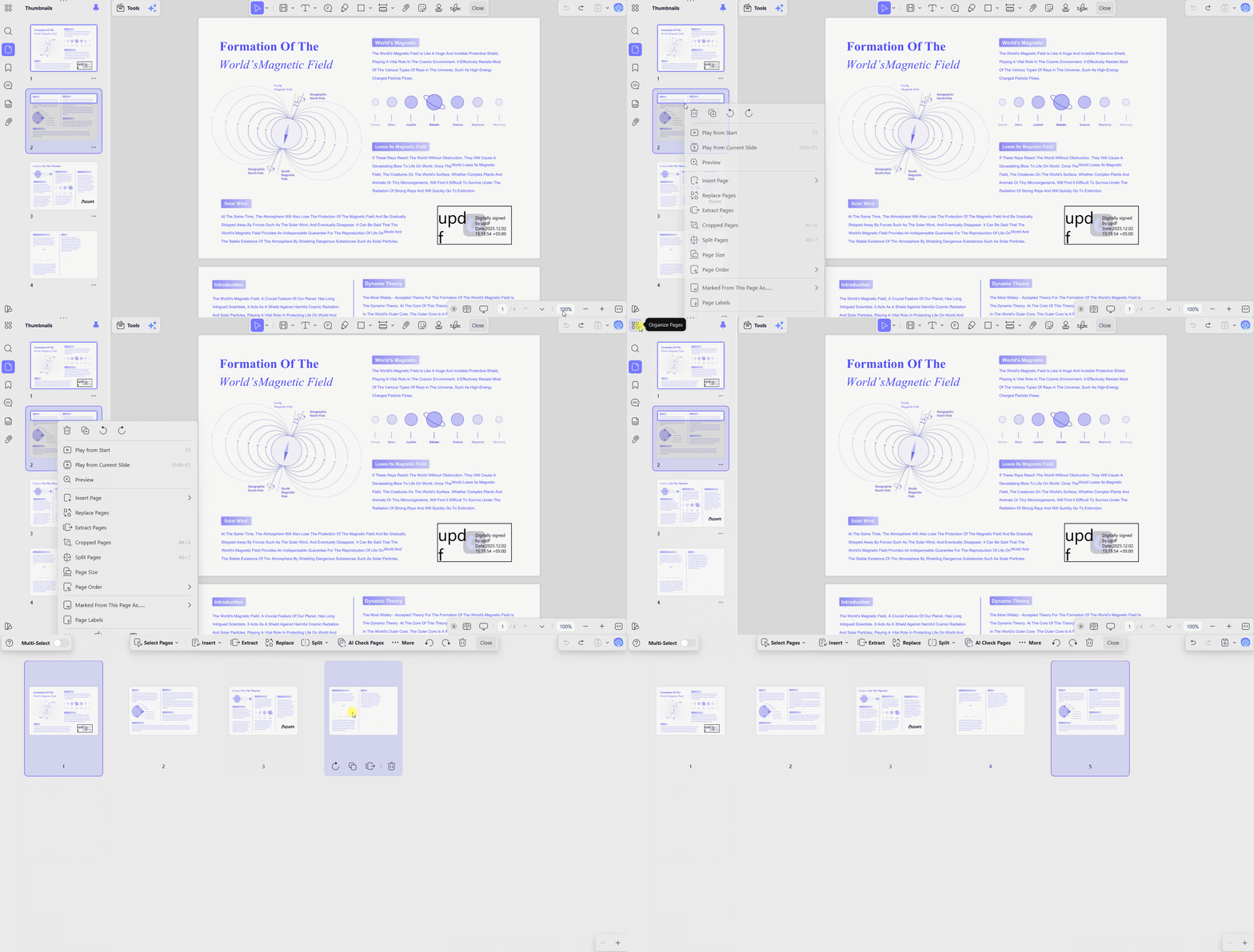
Step 1. Import both documents in UPDF. Open Document A, access the "Thumbnails" panel, press "Ctrl," and select the pages you want to copy. Use the keyboard shortcut or right-click and click the "Copy" icon to copy the pages.
Step 2. Next, open Document B and access the "Organize Pages" mode. Select the page after which you want to paste the pages. After that, press "Ctrl+V" on Windows or "Command+V" on Mac to paste the pages.
Bonus: Complete Page Management & All-in-One AI Features
Duplication sits inside a broader set of page tools. The same workspace handles adding pages to PDF, whether that means blank pages, specific pages, or page ranges pulled from another file. It also covers removing pages from PDF and editing PDF pages directly, alongside rotation, extraction, and splitting. Our pillar guide on how to organize PDF pages maps the full toolkit.
Check the page sequence after making changes to the document. The demonstration below gives some context for organizing PDF pages in UPDF.
Longer documents benefit from a faster route than manual thumbnail work. The AI Page Management Agent takes natural language prompts to organize, extract, summarize, and restructure pages. That removes the click-by-click effort on files running to hundreds of pages.
Way 2. How to Duplicate a PDF Page Online for Free
Online tools work well when you need to duplicate pages without installing additional software first. A PDF page duplicator is useful for quick, one-time edits on smaller documents. The online PDF page duplicator lets you complete the entire process directly in your browser.
You can upload your file, select the required page, and quickly create a copy. Now, go through the steps below to duplicate your required PDF page online:
Step 1. Open an online PDF tool like Smallpdf and upload your PDF file.
Step 2. Next, select the page and press the "Duplicate" icon. After that, download the edited PDF version.
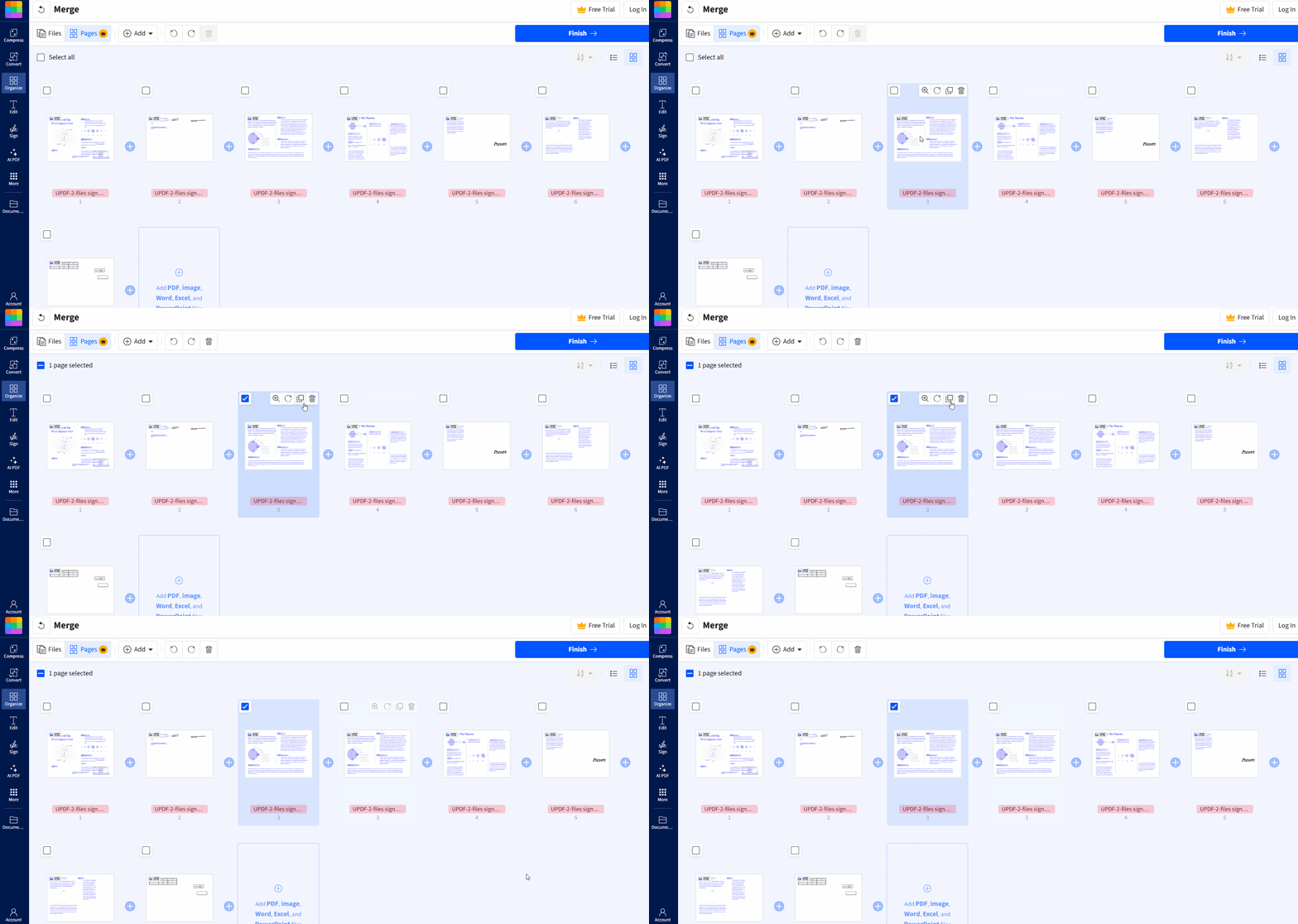
Browser-based tools have 2 important limitations to consider before uploading. Your document goes to an external server, so this method isn't suitable for confidential files. You need a stable internet connection throughout the upload and download process.
Way 3. How to Duplicate PDF Pages Using MS Word (Free Workaround)
Anyone without a PDF editor may already have a partial solution installed through Microsoft Word. Word converts documents into editable content, letting users copy pages in PDF files with ease. The main appeal is cost, although document conversion can introduce formatting and layout problems. Follow the steps below to duplicate your required PDF page using Microsoft Word:
Step 1. Import a PDF file in MS Word and press "OK" in the conversion prompt.
Step 2. Next, select the text and tables you want to duplicate and copy them using the keyboard shortcut keys.
Step 3. At the bottom of the PDF pages, press "Enter" to create a new blank page and paste the copied content. Once done, export the document as PDF using the "Save As" option.
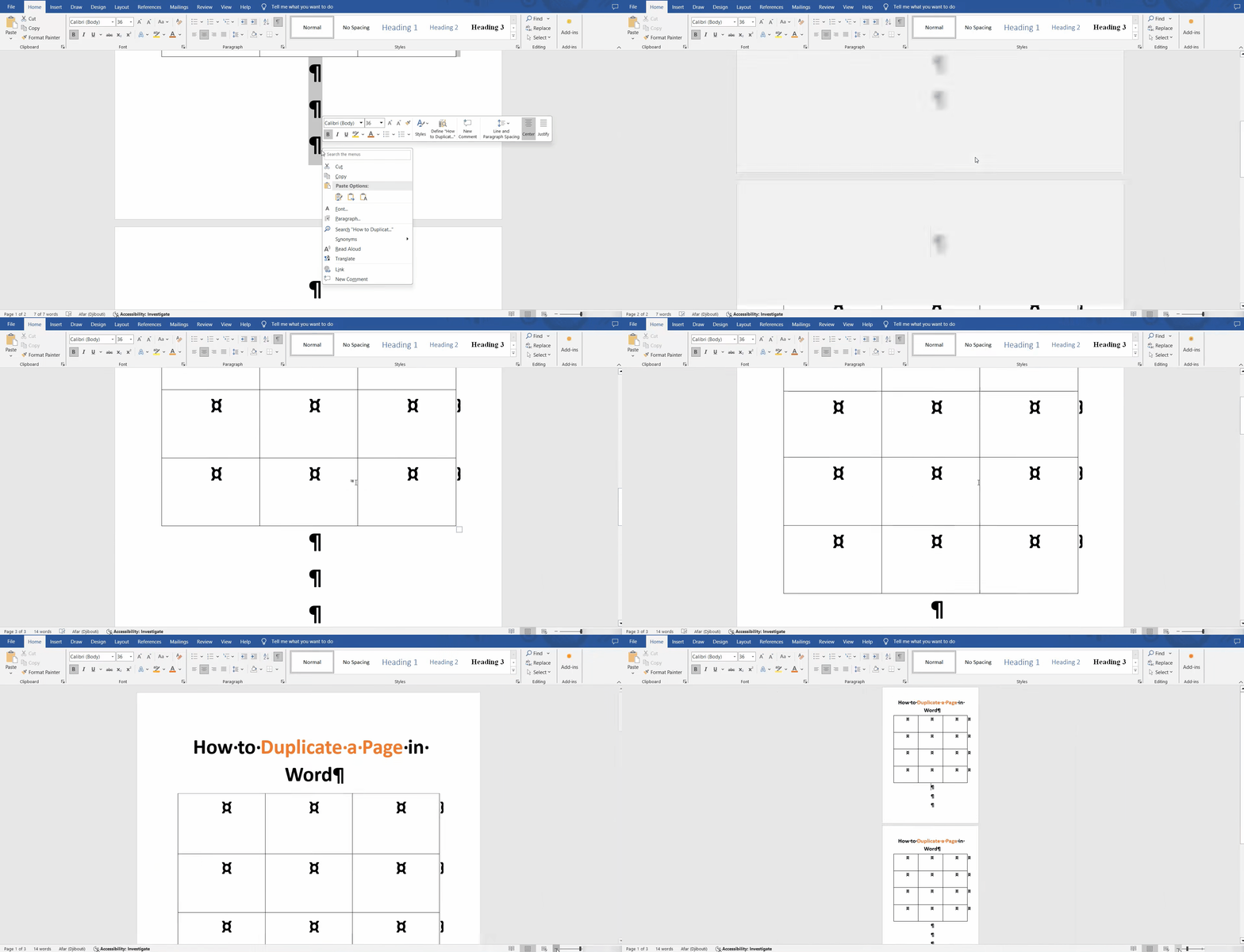
This method is a workaround rather than a dedicated duplication feature, so conversion can cause problems. Common issues include:
- Layout Changes: Tables, page borders, footnotes, columns, and complex formatting may shift during conversion.
- Vector Graphic Distortion: Charts, logos, and line art may lose their original position or sharpness.
- Loss of Interactive Elements: Form fields, checkboxes, and dropdown menus may become non-interactive after conversion.
- Scanned Page Issues: Scanned pages without a text layer may require OCR before Word recognizes content.
Way 4. How to Duplicate Pages in PDF with Adobe Acrobat
Adobe Acrobat subscribers can duplicate PDF page content without adding another tool to their workflow. The method differs because Acrobat does not provide a labeled Duplicate command within its menus. Instead, copying pages requires a modifier-key gesture performed inside the page thumbnail grid during organization. The steps below show how to copy and place pages using Adobe Acrobat:
Step 1. Once you open a PDF, select the "Organize Pages" feature from the "Tools" section.
Step 2. Choose the thumbnail you want to copy and hold "Shift+Ctrl" to add more pages to the selection.
Step 3. Next, hold "Ctrl" on Windows or "Options" on Mac and drag the selection to its new position. This way, Acrobat makes a duplicate copy of the PDF page.
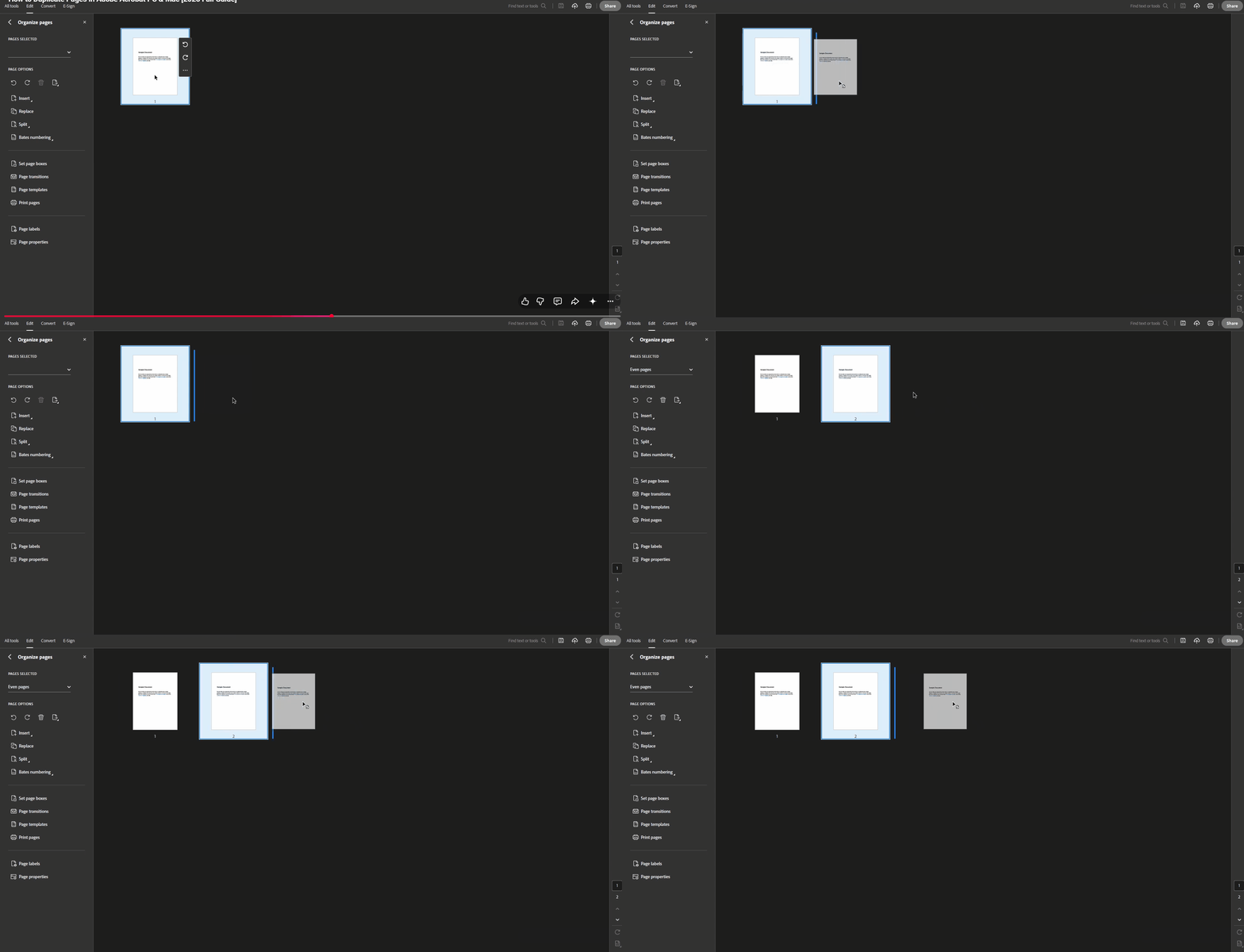
The gesture works well, but releasing the modifier key early moves the page instead. Acrobat requires a recurring subscription, while its page tools appear across several nested menus. UPDF offers a labeled right-click command, lower cost, and a simpler learning curve.
FAQs About Duplicating PDF Pages
Can I duplicate a page in a PDF for free?
Yes, free online PDF tools handle the task in a browser, and Microsoft Word works as a workaround if you already have it installed. Dedicated editors such as UPDF preserve formatting far more reliably, since they copy the page as a page rather than rebuilding its contents.
How to duplicate a PDF page multiple times quickly?
Use "Organize Pages" mode instead of reading view when working with multiple pages together. Hold "Shift" for continuous pages, or "Command/Ctrl" to select separate page thumbnails at once. Choose "Duplicate" for selected pages or paste one page repeatedly for identical copies faster.
How do I duplicate a PDF page in Mac Preview?
Open the file in "Preview" and enable the thumbnail sidebar through the "View" menu first. Select your page, hold the "Option" key, then drag it toward your preferred position. Release the page while holding "Option" to create a copy without moving the original page.
Why is duplicating a page in PDF changing the field names or formatting?
Duplicating a page also copies form fields, which may retain identical names and shared values. Entering data into copied fields can update originals because both fields use matching names. You have 3 fixes: rename fields, flatten them, or assign fresh field names. Layout shifts can occur when overlapping annotation and content layers get copied together again.
Conclusion
In short, duplicating PDF pages is easier when your tool supports page-level operations. Word may alter content, while browser tools require uploads and Acrobat uses modifier-key gestures instead. UPDF provides a right-click "Duplicate" command in Reading View or "Organize Pages" for easier access.
Understanding how to duplicate a page in PDF helps preserve formatting, images, and layout. Clipboard paste also transfers pages between separate documents without rebuilding their original content from scratch.
Ready to duplicate, insert, and reorganize PDF pages without formatting headaches? Download UPDF for free today!
Windows • macOS • iOS • Android 100% secure





 Enid Brown
 Enrica Taylor

 Enola Miller
 Enya Moore