 UPDF
UPDF
 UPDF for Windows
 UPDF for Mac
 UPDF for iPhone/iPad
 UPDF for Android
 Nomostar
 UPDF AI Online
 UPDF Sign
 IvyCraft
 Edit PDF
 Annotate PDF
 Create PDF
 PDF Form
 Edit links
 Convert PDF
 OCR
OCR PDF to Word
 PDF to Image
 PDF to Excel
 Organize PDF
 Merge PDF
 Split PDF
 Crop PDF
 Rotate PDF
 Protect PDF
 Sign PDF
 Redact PDF
 Sanitize PDF
 Remove Security
 Read PDF
 UPDF Cloud
 Compress PDF
 Print PDF
 Batch Process
 About UPDF AI
 UPDF AI Solutions
 AI User Guide
 FAQ about UPDF AI
 Summarize PDF
 Translate PDF
 Chat with PDF
 Chat with AI
 Chat with image
 PDF to Mind Map
 Explain PDF
 PDF AI Tools
 Image AI Tools
 AI Chat Tools
 AI Writing Tools
 AI Study Tools
 AI Working Tools
 Other AI Tools
 AI Bookmark Generation
 AI Bookmark Summary
 AI Watermark Generation
 AI Background Generation
 AI Sticker Generation
 AI Stamp Generation
 AI Editing Suite
 UPDF Copilot
 AI Page Management
 AI Semantic Search
 PDF to Word
 PDF to Excel
 PDF to PowerPoint
 Enterprise Solution
 Enterprise Sign
 Enterprise AI
 Enterprise Plan
 Enterprise User Guide
 Enterprise Webinar
 IT
IT Education
 Construction
 Financial Service
 Healthcare
 Insurance
 Legal
Legal Manufacturing
 Government
 Researchers & PhDs
 Solopreneurs & Freelancers
 Lawyers & Legal Professionals
 Real Estate Agents & Brokers
 Education Solution
 Customer Stories
 User Guide
 UPDF Tricks
 FAQs
FAQs UPDF Reviews
 Download Center
 Blog
Blog Newsroom
 Tech Spec
 Updates
 UPDF vs. Adobe Acrobat
 UPDF vs. Foxit
 UPDF vs. PDF Expert

Quick answer:
The catch worth knowing up front: "change paper size" actually means two different jobs, and picking the wrong one is why so many resized PDFs come out with cut-off content or blank borders. Scaling in the Print dialog re-renders your content onto a chosen sheet. Cropping trims or extends the page edge without touching the content inside. If you print an A5 layout onto A4 by cropping, you get an A5 design floating in a big white margin — not a real A4 document. This guide separates the two so you resize once and get it right. For example, a scanned invoice with uneven white borders needs margin trimming, while a Letter-size invoice destined for an A4 printer needs scaling. If the page size is fine and only the borders are distracting, see how to remove PDF margins.
Which Method to Use — Match the Job to the Tool
Find your actual goal in the left column, then jump to the method that does that job. Don't reach for Crop when you mean to scale, or you'll be redoing it.
| What you're trying to do | Method | Best for |
|---|---|---|
| Make the page fit a standard sheet (A4, Letter, A3) so it prints cleanly | Print → Paper Size (Part 1) | A résumé built at Letter that has to print A4 in Europe; a slide deck exported oversized |
| Shrink oversized content so nothing gets clipped at the printer | Print → Custom Scale / Fit (Part 1) | An engineering drawing wider than the tray; a poster proof on a home printer |
| Trim white margins or dead space off the edges | Crop Pages (Part 2) | A scanned contract with a black border; a screenshot PDF with wasted margins |
| Extend the page edge to add breathing room | Crop Pages (Part 2) | Making room for a binding gutter or stamp area |
| Resize a whole folder of PDFs to one uniform size | Batch Print (Part 3) | Standardizing 40 quotes before sending a client packet |
A quick reality check before you start: a PDF's page size is baked in when the file is created, so there's no single "default size" toggle that rewrites it in place. What these methods do is produce a correctly sized new PDF — which is exactly what you want to send or print.
Part 1: Change Paper Size with the Print Method (Windows & Mac)
This is the method for the sentence most people mean by "change paper size": take the document and make it fit A4, Letter, A3, or a custom sheet. It re-renders every page onto the size you pick and saves a fresh PDF, so text and images scale together instead of getting clipped.
On Windows:
Step 1. Open your file in UPDF. If you don't have it yet, download UPDF for free and install it in under a minute, then open the document.
Windows • macOS • iOS • Android 100% secure
Step 2. Click the dropdown arrow (▼) next to Save in the top-right, then choose Print. (You can also press Ctrl + P.)
Step 3. In the top-right of the Print window, set the printer to Microsoft Print to PDF — this is what saves the resized document as a new PDF instead of sending it to a physical printer.
Step 4. Open the Paper Size dropdown on the left and pick your target size (A4, ISOA1, North America 4x6, Credit Card, and more are listed). To handle content that doesn't fit, select the Size tab in the lower-right, then choose Fit to pull everything onto the sheet, Shrink oversized pages to reduce only pages that are too big, or Custom Scale (%) to enter an exact percentage.
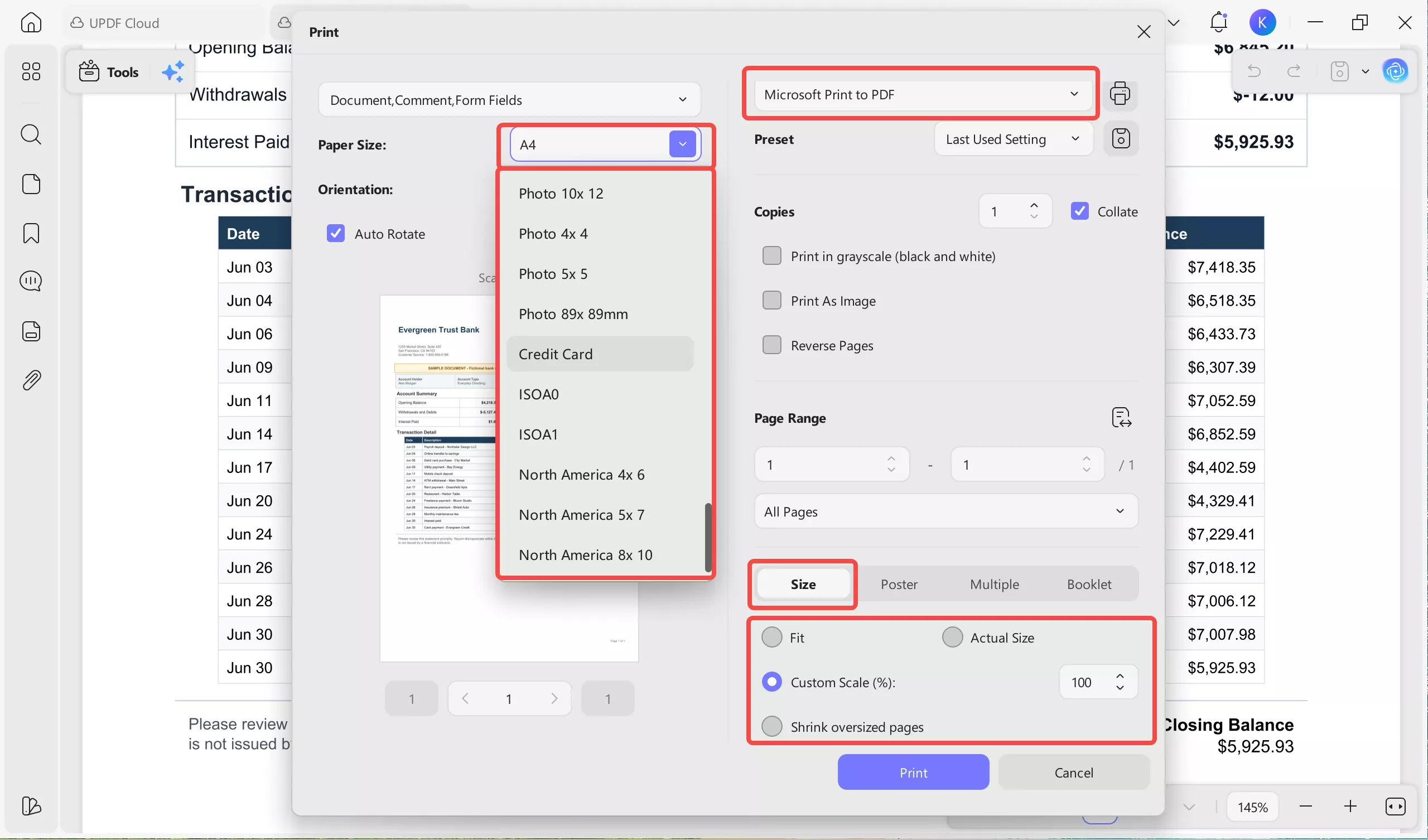
Step 5. Click Print, name the new file, and save it. That saved file is now a true A4 (or whatever size you chose) PDF.
On Mac:
The flow is the same until you save — but Microsoft Print to PDF does not exist on macOS, which is the single most common point where Mac users get stuck following Windows guides.
Step 1. Open the PDF in UPDF for Mac.
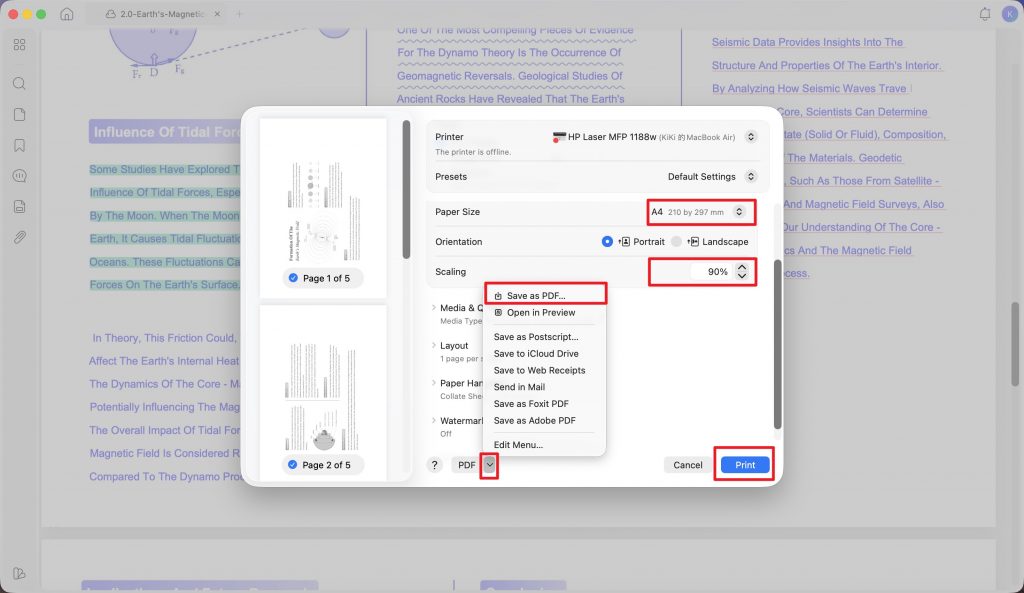
Step 2. Go to File → Print, or press Command + P.
Step 3. Set Paper Size to your target sheet, and adjust scaling or Custom Scale the same way.
Step 4. Instead of a "Print to PDF" printer, click the PDF dropdown at the bottom-left of the system dialog and choose Save as PDF. Name it and save.
Best for:
- fitting a document to a standard sheet so it prints without clipping or scaling surprises.
Not for:
- trimming a stubborn black margin off a scan — scaling shrinks the whole page including the border, so the margin just gets smaller, not gone. That's a Crop job (Part 2).
Download UPDF for free to try resizing your own file to A4 or Letter — installation is free, and Pro features are available when you need watermark-free export.
Windows • macOS • iOS • Android 100% secure
Part 2: Change the Actual Page Dimensions with Crop Pages (Windows & Mac)
Crop is the method people reach for when the page itself is the wrong shape — too much white space around a scan, uneven margins across a merged document, or a page that needs a wider edge for binding. Crop changes the page boundary directly. It does not scale the content, which is exactly why it's the right tool for margins and the wrong tool for "make this fit A4."
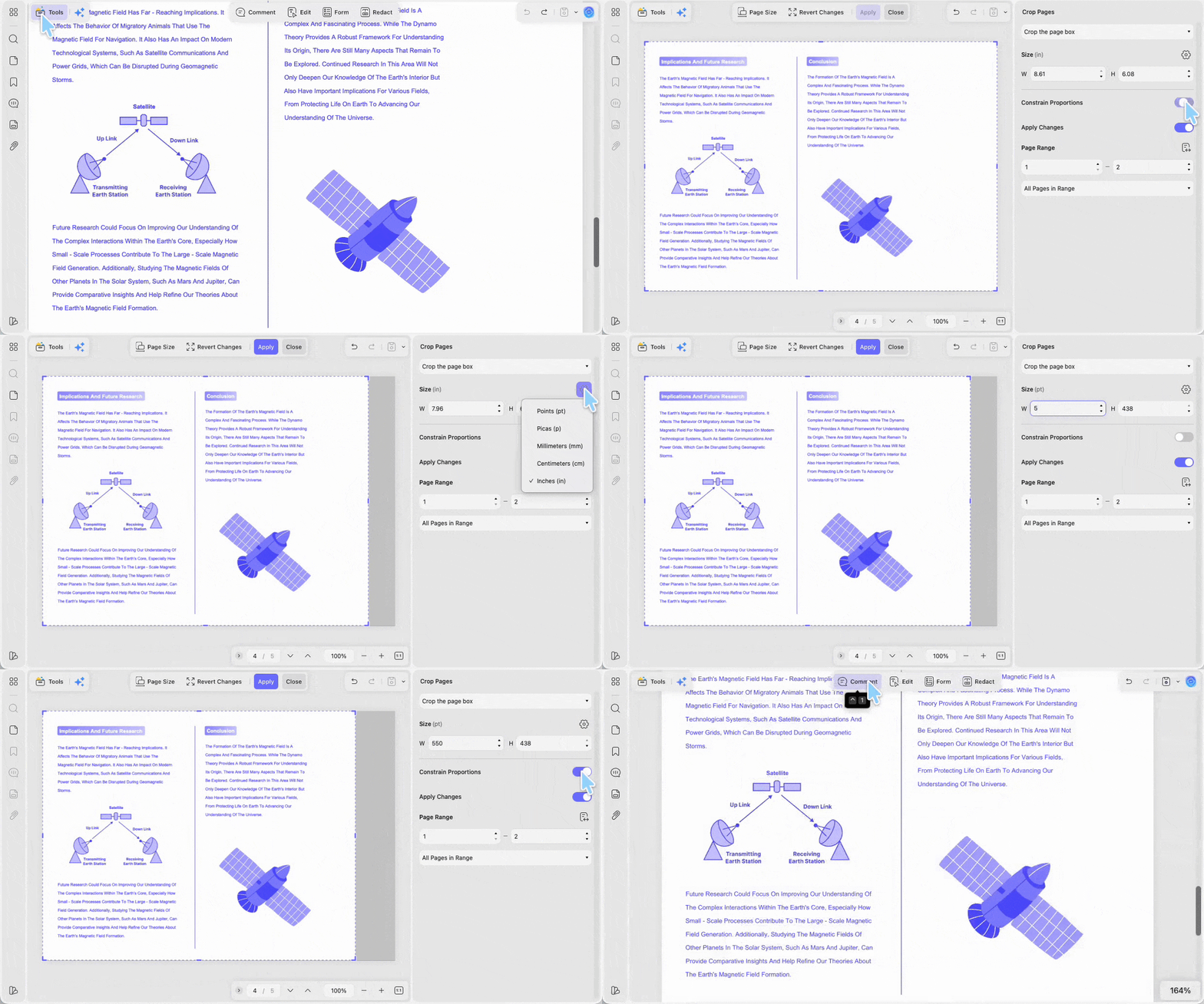
Step 1. Open the PDF in UPDF. On the left toolbar under Tools, click Crop. The page shows a blue crop box you can drag to reshape by eye.
Step 2. For exact dimensions, use the Size panel on the right: type a W (width) and H (height). Click the gear icon (⚙️) beside it to switch units — Points, Picas, Millimeters, Centimeters, or Inches. Turn on Constrain Proportions if you want width and height to scale together.
Step 3. Click Apply in the top toolbar to apply the crop, then Close. Save the file. If you need to undo, Revert Changes resets the page box before you save.
Best for:
- removing dead margins from scans, squaring up inconsistent page edges, or setting a precise page box in mm/inches.
Not for:
- conforming a document to a named sheet size like A4 for printing — cropping to A4's dimensions leaves the content at its original scale, so a small design ends up marooned in white space. Use Print (Part 1) for that.
Scale vs. Crop vs. Resize File — What's the Difference?
These three get muddled constantly, and the confusion is the root cause of most botched resizes. One line each:
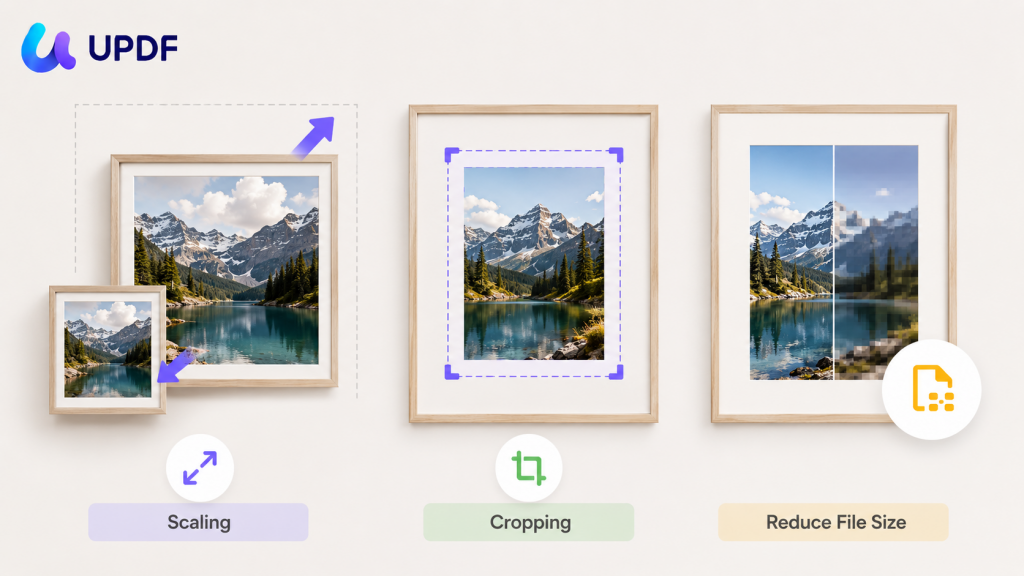
- Scale (Print method): re-renders content onto a chosen sheet size. The document now fits A4/Letter. Content and page change together.
- Crop: moves the page edge in or out. Margins change; the content inside keeps its original size and position.
- Reduce File Size: shrinks the megabytes, not the dimensions. The page stays A4; the file just weighs less.
Think of it like a framed photo: scaling reprints the photo bigger or smaller to fit a new frame, cropping trims the mat around it, and reducing file size compresses the image data without changing the frame at all. Reach for the one that matches what you actually want to change — the sheet, the margins, or the megabytes.
Part 3: Resize Multiple PDFs at Once with Batch Print
When you need a whole stack of files at one uniform size — say, standardizing a folder of quotes or scanned forms to A4 before sending — resizing them one by one is the slow path.
Step 1. On the UPDF home screen, click Tools, then under Batch PDFs select Print.
Step 2. Add all the files you want to standardize.
Step 3. Set the Paper Size (or Custom Scale) once — it applies to every file — choose Microsoft Print to PDF on Windows (or Save as PDF on Mac), and click Print. UPDF outputs a resized copy of each file.
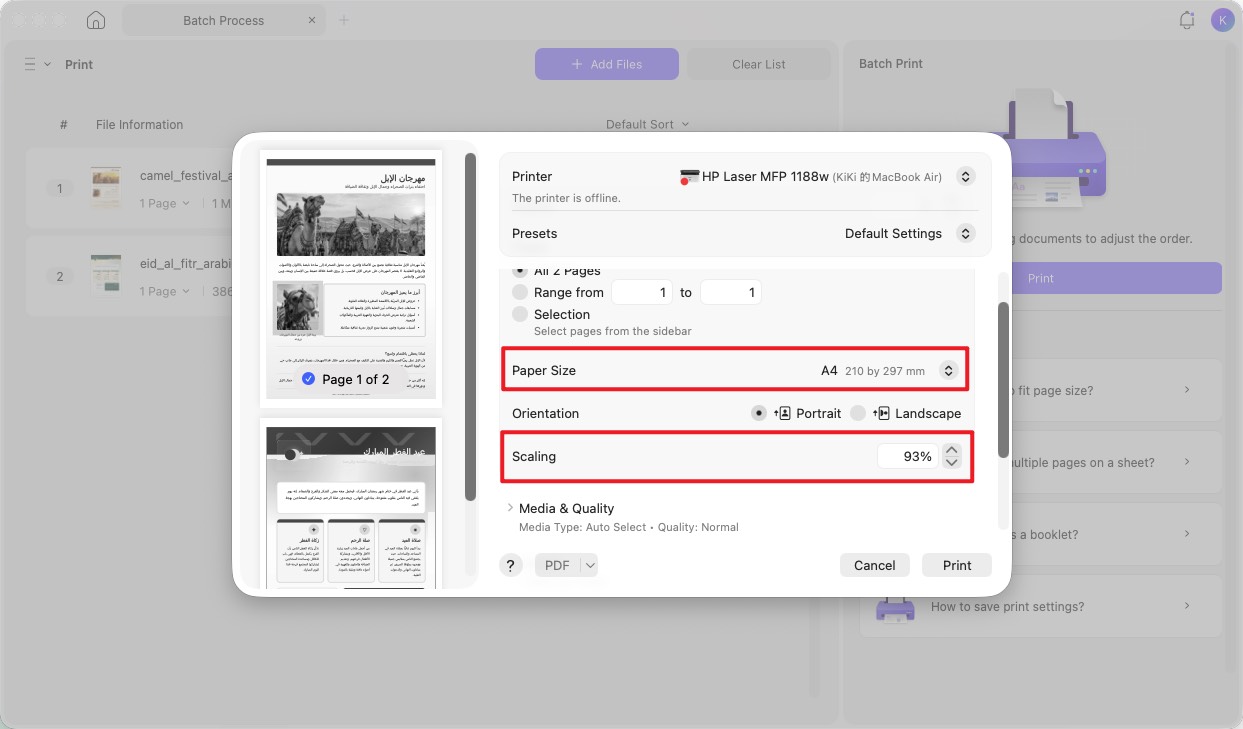
Batch Print is a Pro feature; the free tier lets you process a limited number of files so you can test the workflow before upgrading.
Best for:
- enforcing one page size across many documents in a single pass.
Not for:
- a one-off single file — Part 1 is faster for that.
Part 4: Change Paper Size in a PDF on iPhone, iPad & Android
If you're resizing on the go, UPDF's mobile apps handle the two core jobs — but they map to the same distinction as desktop, so pick deliberately.
Windows • macOS • iOS • Android 100% secure
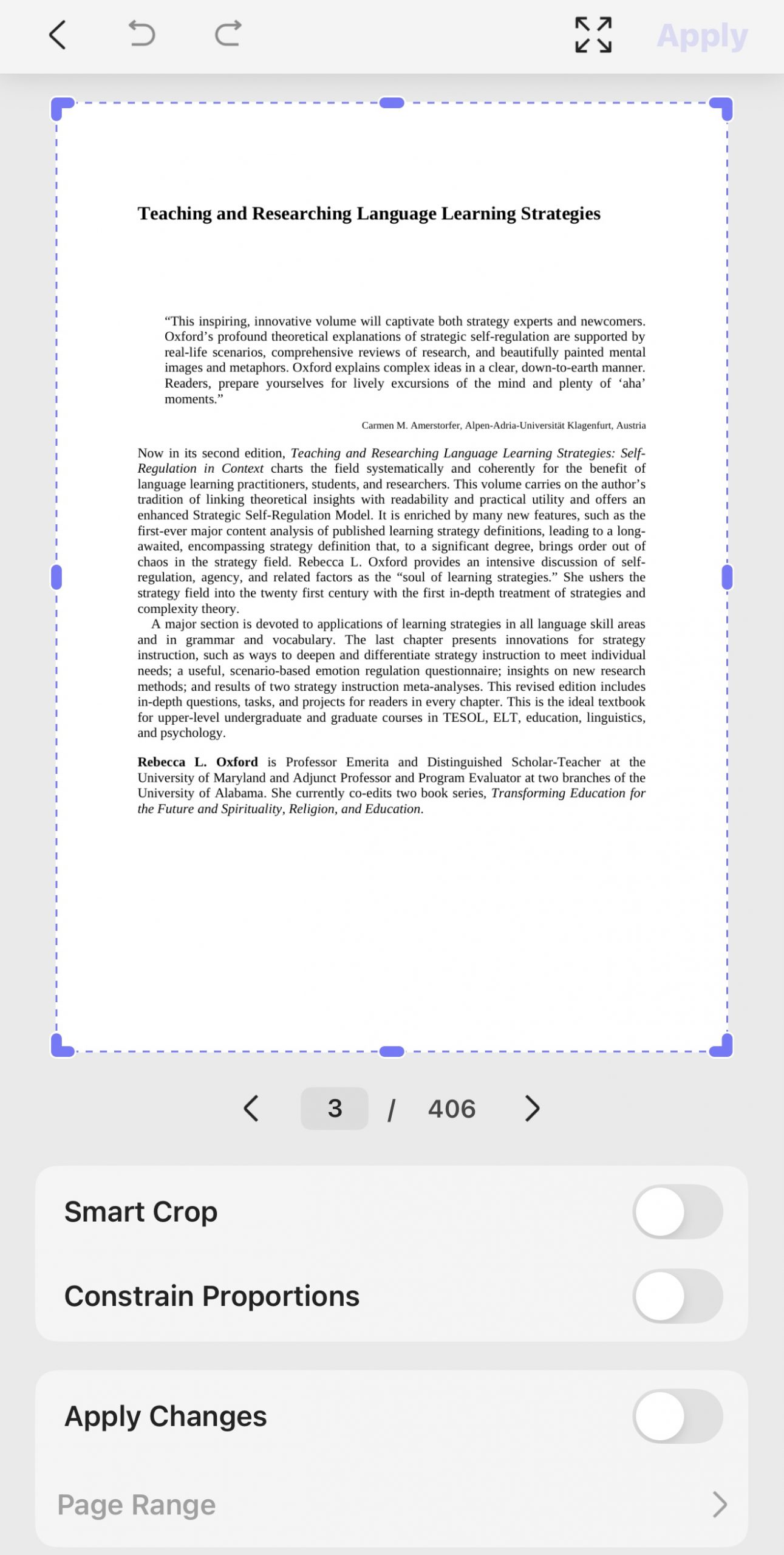
- To trim or extend page edges: open the PDF in UPDF, go to Organize Pages option in the thumbnail icon at the top right corner > Crop, and adjust the margins by dragging or entering values. This is the mobile equivalent of Part 2.
- To fit a sheet for printing: use the app's Print flow and choose the paper size through your device's print dialog (AirPrint on iOS, the system print service on Android), then save back to PDF.
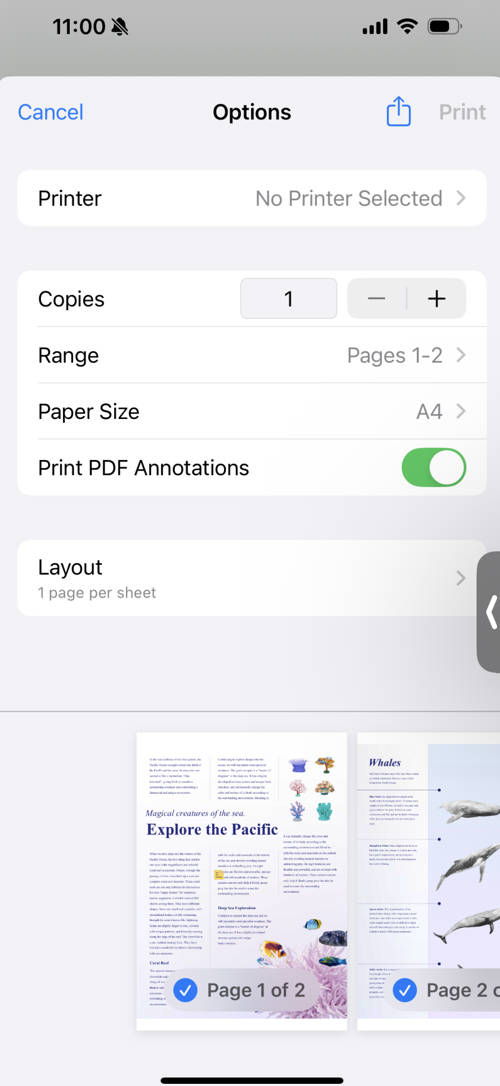
The dimension-changing logic is identical to desktop; only the gestures differ — you tap and drag instead of clicking. On a phone, Crop is the one people use most, since fixing a lopsided scan is the common on-the-go task.
Part 5: Edge Cases: When Resizing Doesn't Behave
These are the situations that send people back to search a second time. Handle them here.
- You scaled to A4 but content still gets clipped when printing. The scale fit the PDF to A4, but your physical printer has a non-printable border. In the printer's own dialog, also select Fit or Shrink oversized pages so the content pulls in from the paper edge.
- Cropped to A4 dimensions, but it doesn't look like A4. Crop changed the boundary without scaling the content — so a small layout now sits in a large empty page, or a large one gets its edges chopped. Undo, and use the Print method (Part 1) to actually scale content to the sheet.
- The PDF won't let you crop or resize. The file likely has a permissions password restricting editing. You'll need the right to edit it first; only remove restrictions on PDFs you own or are authorized to change.
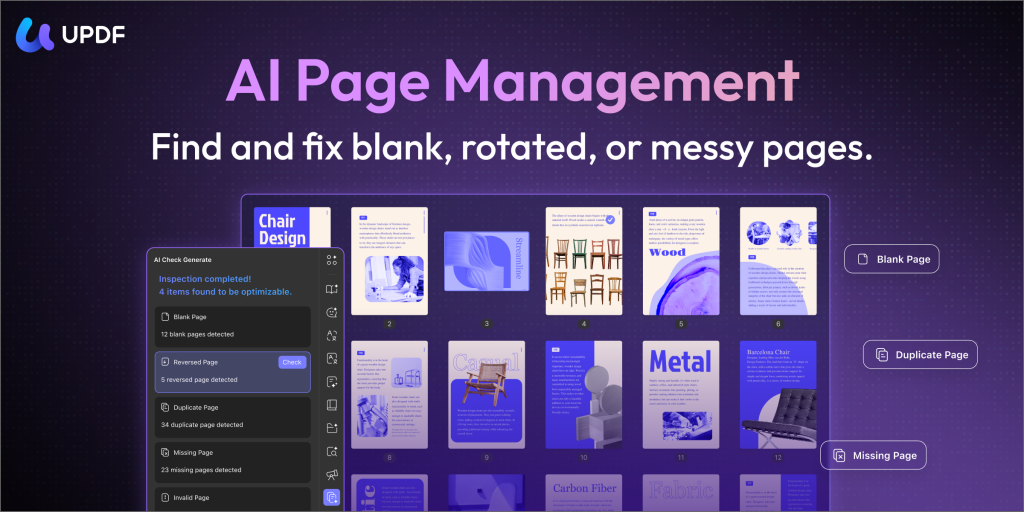
- Mixed page sizes in one merged file. If a document was stitched together from different sources, individual pages may be different sizes. UPDF's AI Page Organizer can detect pages with inconsistent dimensions across the file and flag them in one pass, so you're not eyeballing 80 thumbnails to find the odd ones.
Part 6: Frequently Asked Questions
1. Can I change a PDF's paper size without changing the content size?
Yes — that's what Crop does. It moves the page edge in or out while leaving the content at its original size. If you instead want the content to scale with the sheet, use the Print method.
2. Does changing paper size reduce the file size?
Not reliably. Page dimensions and file weight are separate. To make the file lighter, use Save As Other → Reduce File Size instead.
3. Why does my A4 PDF open as US Letter after saving?
This usually happens when the print/save dialog defaults to your region's paper setting. Set Paper Size explicitly to A4 in the dialog before saving, rather than leaving it on the default.
Conclusion
Changing paper size in a PDF comes down to one decision: are you fitting the document to a sheet (scale it in Print) or reshaping the page edge itself (crop it)? Get that right and the resize works the first time; get it backwards and you fight clipped content or empty margins. UPDF puts both methods in one app across Windows, Mac, iOS, and Android, adds Batch Print for whole folders, and uses AI Page Organizer to catch inconsistent page sizes automatically. For the full set of page tools — reorder, merge, split, rotate, extract, and more — see the complete guide on how to organize PDF pages.
Check the preview before committing to the final page settings. If a visual example would help, take a look at the video on organizing PDF pages in UPDF below.
Download UPDF for free to try changing paper size on your own file — installation is free, and Pro features are available when you need watermark-free export or batch tools.
Windows • macOS • iOS • Android 100% secure





 Enola Miller
 Enid Brown