 UPDF
UPDF
 UPDF for Windows
 UPDF for Mac
 UPDF for iPhone/iPad
 UPDF for Android
 Nomostar
 UPDF AI Online
 UPDF Sign
 IvyCraft
 Edit PDF
 Annotate PDF
 Create PDF
 PDF Form
 Edit links
 Convert PDF
 OCR
OCR PDF to Word
 PDF to Image
 PDF to Excel
 Organize PDF
 Merge PDF
 Split PDF
 Crop PDF
 Rotate PDF
 Protect PDF
 Sign PDF
 Redact PDF
 Sanitize PDF
 Remove Security
 Read PDF
 UPDF Cloud
 Compress PDF
 Print PDF
 Batch Process
 About UPDF AI
 UPDF AI Solutions
 AI User Guide
 FAQ about UPDF AI
 Summarize PDF
 Translate PDF
 Chat with PDF
 Chat with AI
 Chat with image
 PDF to Mind Map
 Explain PDF
 PDF AI Tools
 Image AI Tools
 AI Chat Tools
 AI Writing Tools
 AI Study Tools
 AI Working Tools
 Other AI Tools
 AI Bookmark Generation
 AI Bookmark Summary
 AI Watermark Generation
 AI Background Generation
 AI Sticker Generation
 AI Stamp Generation
 AI Editing Suite
 UPDF Copilot
 AI Page Management
 AI Semantic Search
 PDF to Word
 PDF to Excel
 PDF to PowerPoint
 Enterprise Solution
 Enterprise Sign
 Enterprise AI
 Enterprise Plan
 Enterprise User Guide
 Enterprise Webinar
 IT
IT Education
 Construction
 Financial Service
 Healthcare
 Insurance
 Legal
Legal Manufacturing
 Government
 Researchers & PhDs
 Solopreneurs & Freelancers
 Lawyers & Legal Professionals
 Real Estate Agents & Brokers
 Education Solution
 Customer Stories
 User Guide
 UPDF Tricks
 FAQs
FAQs UPDF Reviews
 Download Center
 Blog
Blog Newsroom
 Tech Spec
 Updates
 UPDF vs. Adobe Acrobat
 UPDF vs. Foxit
 UPDF vs. PDF Expert

Quick Answer:
The important distinction is not simply online versus offline. A normal PDF contains selectable text, while a scanned PDF may contain only a page image. Text-bound highlighting works on the first type; a scan may require freehand marking, an area highlight, or OCR before individual words can be selected.
If the document is a contract, medical record, ID, financial statement, or confidential report, check the service's current privacy and retention terms before uploading the file. For a broader tool-selection view, see the hands-on comparison of the best PDF highlighters.
Part 1: Top 5 Online PDF Highlighters
Your teacher rejects your science project because it lacks different colors and texts that would change the outlook. What will you do in such a situation? Do you know about any efficient PDF online highlighter free that can do the job for you? Here are a few PDF text highlighters online that you can use to enhance your document:
1. PDF Bob - Online Free PDF Highlighter
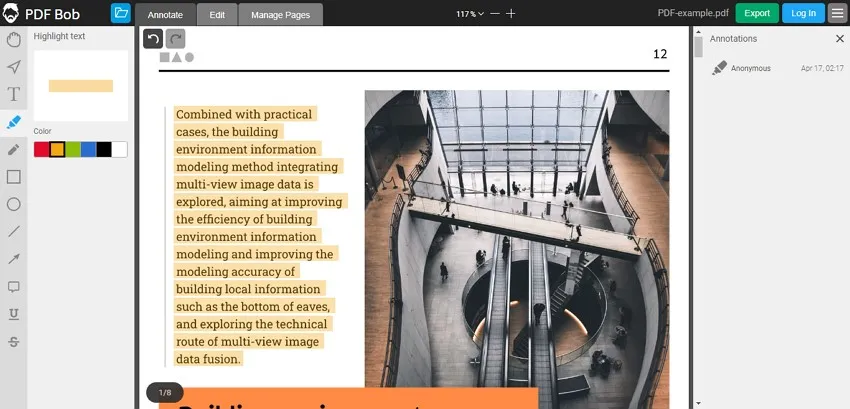
PDF Bob is an online PDF highlighter free with several options to alter PDF documents, the finest of which is annotated PDF. This mode might help you improve your project and make it more appealing. Different shapes, like circles and rectangles, are available as annotation tools in PDF Bob. You can use a circle to create many diagrams, while a rectangle can be utilized to hold a considerable amount of data in that diagram.
Best for:
- A quick markup job that needs highlights plus simple shapes or sticky notes.
Not for:
- PDF Bob is browser-based, so the PDF leaves the device during the workflow. Image-only text may not support line-snapped highlighting.
2. pdfFiller - Free Online PDF Highlighter
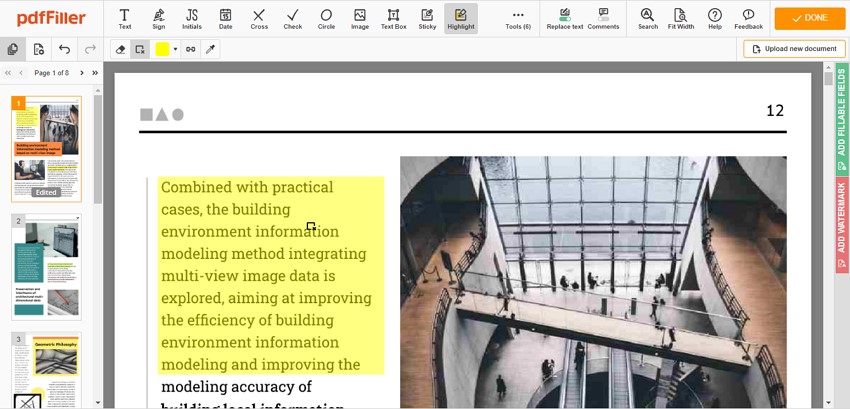
Have you lost track of an important document that you modified with pdfFiller and saved to your computer? Don't worry; pdfFiller is a PDF online highlighter for PDF files that saves your edited documents. It's a simple PDF highlighter with a variety of editing features for your business papers. If you're sending the document to a corporation, you can use the "Highlight" option of this great PDF text highlighter online to bring attention to important context components.
Best for:
- Forms that need highlighting, dates, text entries, or a signature in one browser session.
Not for:
- "Free to start" does not always mean unrestricted free export. Confirm the current save conditions before marking a long document.
3. PDF4me - PDF Online Highligter
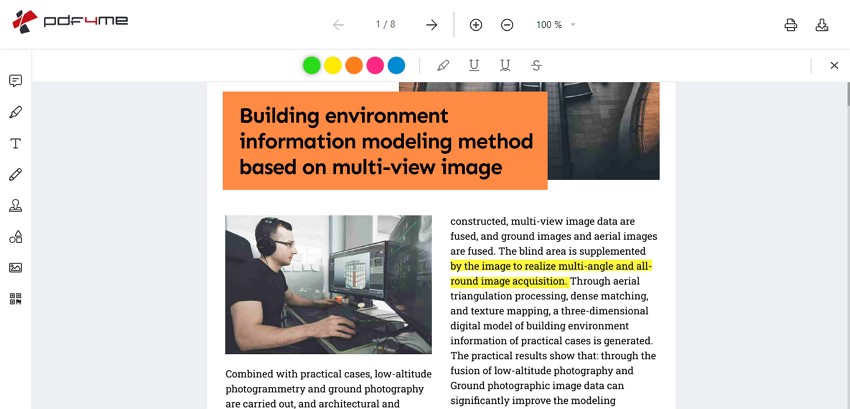
If you're looking for a powerful yet easy-to-use PDF online highlighter free, go no further than PDF4me. It comes with all of the capabilities you'll require for your documents. Let's assume your supervisor didn't approve the dealer's quotations; thus, you can return the document with a "Not Approved" stamp. This can be performed by using the "Stamp" and "Watermark" tool, which includes 12 unique stamps with which you can update the status of your document.
Best for:
- Browser-based reviews that also need cloud import or simple visual markup.
Not for:
- The standard editor is designed for manual annotation. Automated keyword highlighting is a separate PDF4me integration workflow, not the same free editor experience.
4. Smallpdf - Free Online Highlighter
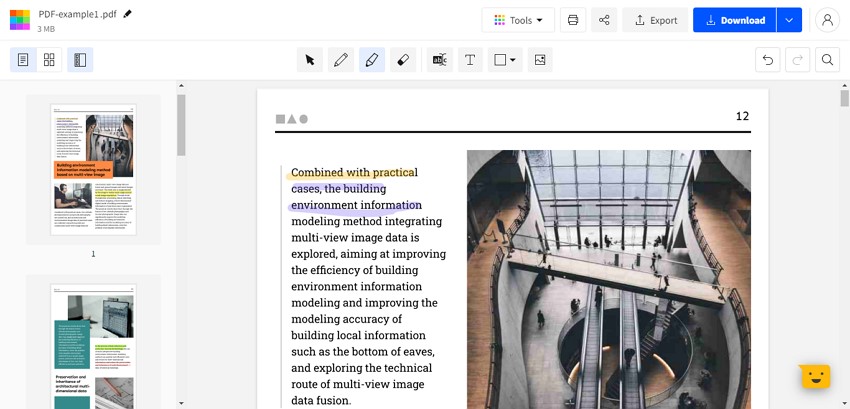
This is the free PDF text highlighter online that you should use to edit your documents. The interface offers powerful yet simple-to-use tools to assist you in improving your work. If you need a highlighter to highlight key aspects, Smallpdf offers two different highlighters. One is a text highlighter, while the other is a freehand highlighter in which you can highlight the text in any direction.
Best for:
- A fast browser workflow that may need both text-bound and freehand highlighting.
Not for:
- Free-use allowances and account requirements can change. A freehand mark is visual ink; it does not create searchable text in a scanned PDF.
5. Sejda - PDF Online Highlighter
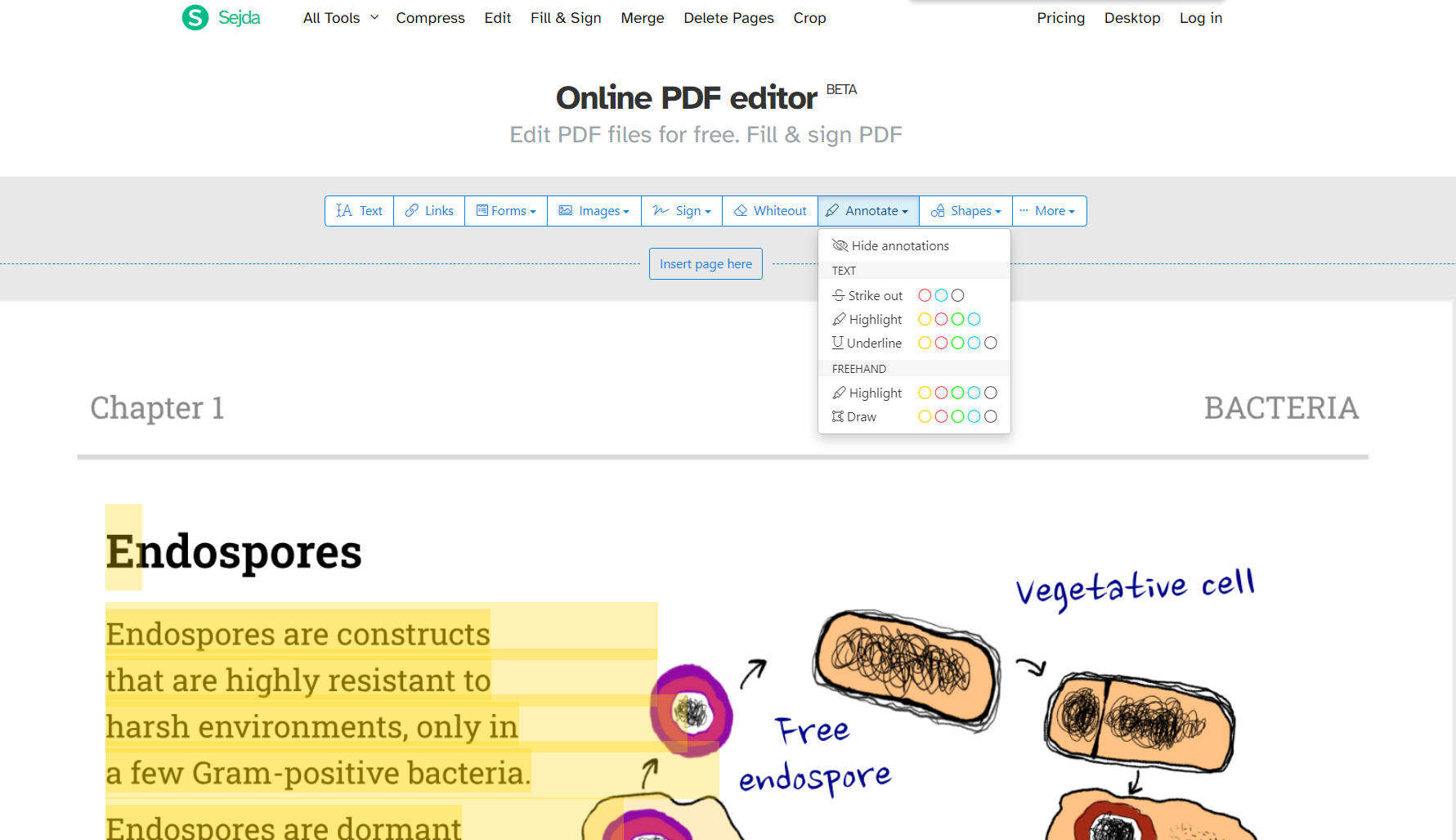
Unlike other PDF highlighters online for free, Sejda allows users to edit pre-existing documents and make use of it by using its OCR feature. The Text tool is so helpful and has a variety of font styles, sizes, and colors; this can be used to fill out forms as well. The annotate feature opens up many great options for you, like using the "Strike Out" tool to cancel or delete any false information that will negatively impact the future of your business.
Best for:
- Short, occasional browser edits that combine highlights with other basic annotations.
Not for:
- Online free limits are subject to change. Text selection can fail when a PDF is scanned, protected, or built with an irregular text layer.
Part 2: Limitations of Online PDF Highlighters
Online PDF highlighters are widely available all across the internet, and people tend to use them on a daily basis because they can be accessed from any device. But due to some limitations, there are still many people who prefer offline PDF highlighters. Some of the limitations are discussed in this section.
- Let's say your internet connection is bad, then it becomes hard for you to work online. This results in slow speed, and there is a high chance for you to lose track of the data.
- Also, if the internet is causing a problem or is working slowly, then you won't be able to upload large files. With that, most PDF highlighters online have file size issues; you cannot upload a file larger than a specified size.
- The major concern of online PDF highlighters is safety. You will have to upload your document to third-party websites and there may be an information leak.
- Most online PDF highlighters only have simple annotation tools without variety. And there are no advanced features, for example, if you want to edit the text or perform OCR, most online tools can't help you.
- Lastly, all online tools claim that they are free. However, there are always many limitations, such as the file size, the file number per day, etc. They are not really free if you want to upload more documents or large documents.
Part 3: A Better Alternative to Online PDF Highlighters
After learning the disadvantages of online PDF highlighters, you may want to seek an alternative. Offline PDF highlighters are used and preferred by most people in this digital age. Offline PDF highlighters are more versatile and easier to use as they are compatible with Mac and Windows, and you can use them without any limitations.
One of them is UPDF, a wonderful tool for all business professionals or people of any profession. This tool is easy to use with robust highlight features. It allows you to highlight PDFs with various colors and tools. You can download it now to use all the dedicated tools.
Windows • macOS • iOS • Android 100% secure
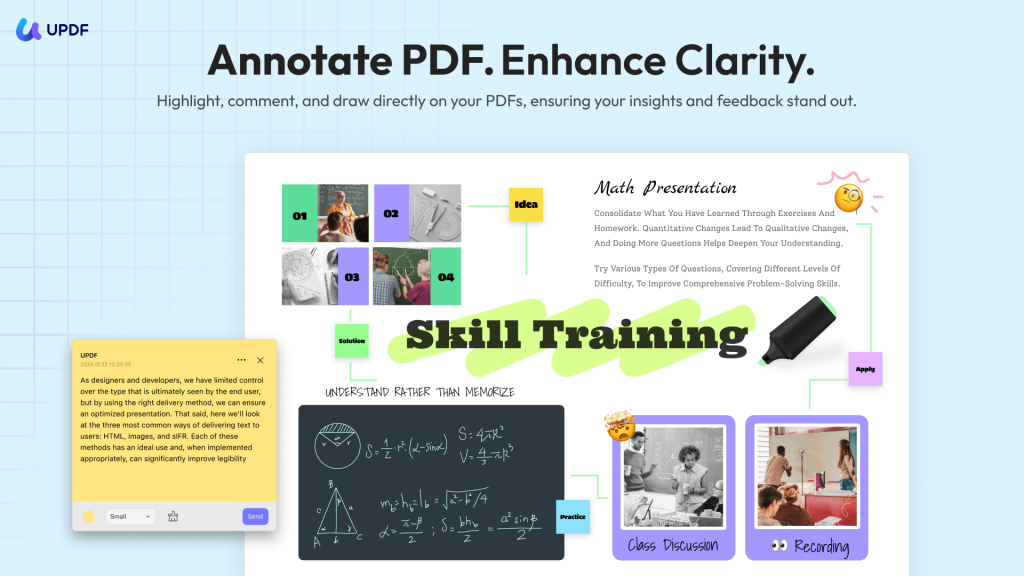
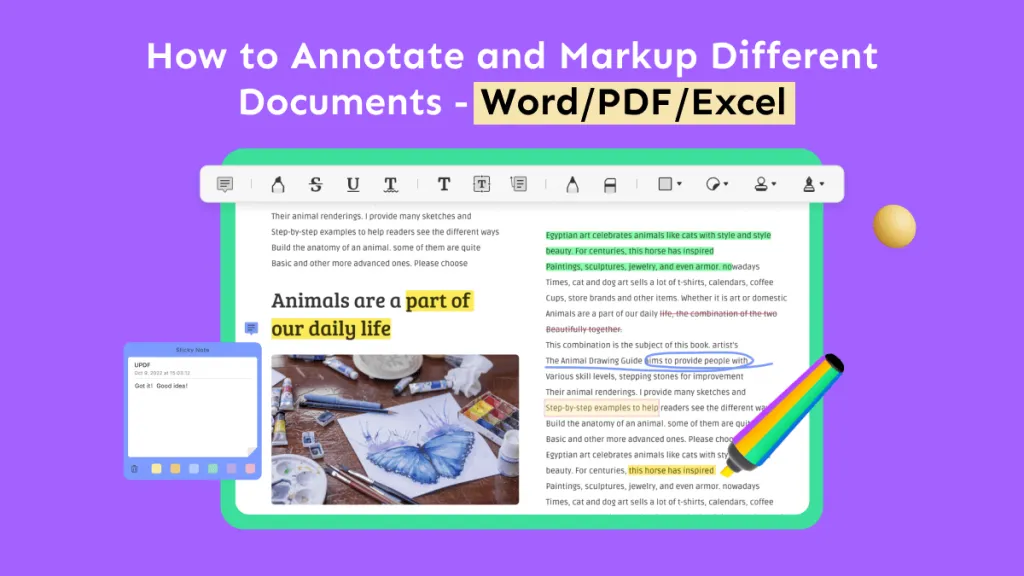
Once you download this PDF highlighter, you'll instantly begin to enjoy the most delightful interface design with multiple options. You can easily highlight, underline, strikethrough, squiggly, and add a text box, callout, sticky note, stamp, or signature to your PDF file.
To make your content look fascinating, you can add shapes of different colors like rectangles and ovals; this will help you draw the reader's attention. You can also fill these colored shapes with suitable text; the text can be highlighted, strikeout, and underlined as per the demand of the document.
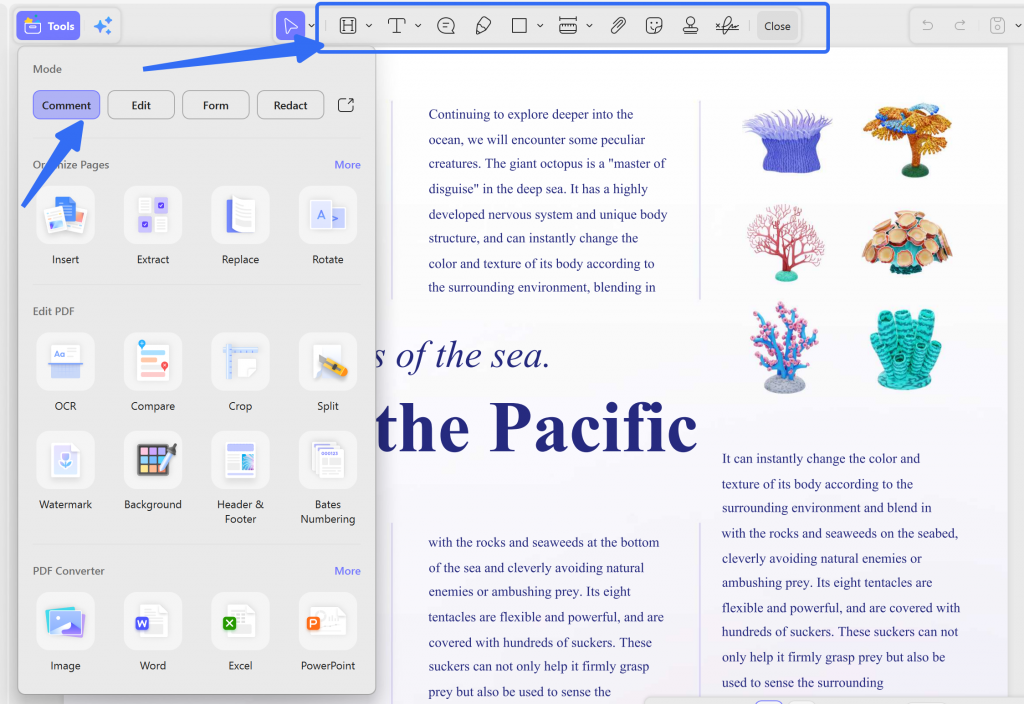
The advanced interface lets you open multiple tabs and view as many PDF files as you need to in a go. With that, you can use the page layout options to adjust the page views according to the fit of your screen.
Adding bookmarks to the document by using UPDF will make it look more presentable, just as you do your books in real life. You can also use this tool to edit, convert, OCR, protect, and share PDF documents.
If you want to learn detailed instructions on how to use this software, please watch the video below.
Part 4. Comparison of UPDF and Online PDF Highlighters
| UPDF | Online PDF Highlighters | |
|---|---|---|
| Internet | Not need | Need |
| Security | Safe | Unsafe |
| Highlight Color | 100+ Colors and customizable | 1-6 Colors |
| Other Annotation Features (Text Box, Stamps, Sticky Notes, etc.) | Yes, UPDF provides all kinds of annotation tools. | Only a few tools are supported. |
| Manage Annotation List | ||
| Advanced Features | ||
| OCR Feature | ||
| Stability | Very stable | Not stable due to the internet situation. |
After comparing UPDF with online PDF highlighters, you may find that UPDF provides more options for highlighting and other advanced tools. It is the best choice if you want to make your PDF documents attractive and fascinating. What's more exciting? It now offers a big discount if you purchase UPDF with the AI add-on, and you can upgrade now to enjoy the exclusive discount.
FAQs
Q1. Can other people remove my PDF highlights?
Yes, if the highlights stay editable. Flattening a copy makes annotations harder to change, but flattening also limits later editing. Keep the original annotated PDF and share a flattened copy only when the review workflow requires fixed marks.
Q2. Does highlighting a PDF change the original text?
No, highlighting is an annotation. A standard highlight sits over or attaches to the text without rewriting the words. Freehand and area highlights are visual marks rather than text edits.
Q3. Can I extract all highlights into a separate file?
Yes, with a comment-export tool. UPDF can filter the comment list by annotation type and export the selected highlights for review. Follow the guide to extract highlights from a PDF rather than copying passages manually.
Conclusion
Use an online PDF highlighter for a quick, low-sensitivity file; use UPDF when privacy, offline access, scanned-page handling, or long-term annotation management matters. Always identify whether the PDF contains selectable text before choosing text-bound, freehand, area, or OCR-assisted highlighting.
For a reusable workflow across Windows, macOS, iOS, and Android, UPDF keeps highlighting, notes, and related PDF tools in one application.
Download UPDF for free to try highlighting your PDF on a copy of the original file — installation is free, and Pro removes the trial watermark from exported files.
Windows • macOS • iOS • Android 100% secure




 Engelbert White
 Delia Meyer
 Grace Curry
 Enola Miller
 Enya Moore