UPDF
UPDF
 UPDF for Windows
 UPDF for Mac
 UPDF for iPhone/iPad
 UPDF for Android
 Nomostar
 UPDF AI Online
 UPDF Sign
 IvyCraft
 Edit PDF
 Annotate PDF
 Create PDF
 PDF Form
 Edit links
 Convert PDF
 OCR
OCR PDF to Word
 PDF to Image
 PDF to Excel
 Organize PDF
 Merge PDF
 Split PDF
 Crop PDF
 Rotate PDF
 Protect PDF
 Sign PDF
 Redact PDF
 Sanitize PDF
 Remove Security
 Read PDF
 UPDF Cloud
 Compress PDF
 Print PDF
 Batch Process
 About UPDF AI
 UPDF AI Solutions
 AI User Guide
 FAQ about UPDF AI
 Summarize PDF
 Translate PDF
 Chat with PDF
 Chat with AI
 Chat with image
 PDF to Mind Map
 Explain PDF
 PDF AI Tools
 Image AI Tools
 AI Chat Tools
 AI Writing Tools
 AI Study Tools
 AI Working Tools
 Other AI Tools
 AI Bookmark Generation
 AI Bookmark Summary
 AI Watermark Generation
 AI Background Generation
 AI Sticker Generation
 AI Stamp Generation
 AI Editing Suite
 UPDF Copilot
 AI Page Management
 AI Semantic Search
 PDF to Word
 PDF to Excel
 PDF to PowerPoint
 Enterprise Solution
 Enterprise Sign
 Enterprise AI
 Enterprise Plan
 Enterprise User Guide
 Enterprise Webinar
 IT
IT Education
 Construction
 Financial Service
 Healthcare
 Insurance
 Legal
Legal Manufacturing
 Government
 Researchers & PhDs
 Solopreneurs & Freelancers
 Lawyers & Legal Professionals
 Real Estate Agents & Brokers
 Education Solution
 Customer Stories
 User Guide
 UPDF Tricks
 FAQs
FAQs UPDF Reviews
 Download Center
 Blog
Blog Newsroom
 Tech Spec
 Updates
 UPDF vs. Adobe Acrobat
 UPDF vs. Foxit
 UPDF vs. PDF Expert

Quick answer:
The catch most guides skip: extracting is only half the job — what you actually want is a clean list you can drop into Word, Excel, or your notes tonight, and whether you get that depends entirely on how the highlights were made and which tool you export with.
There are two very different people searching for this, and they hit different walls. If you made the highlights, the pain is recovery — you spent hours marking a 150-page report and now can't pull that work back out. If someone else sent you a highlighted PDF, the pain is filtering — the file is too long and you only want to read the marked parts. This guide covers both, shows the exact UPDF workflow, and flags the traps in Adobe Acrobat and Sumnotes before you waste time on them.
Part 1. Which Method Fits Your Situation?
| If you are… | You want… | Best method |
|---|---|---|
| A student consolidating study notes from your own highlights | Highlighted text + page numbers in one list | UPDF — Export Summary of Notes |
| A reviewer who was sent a highlighted contract or paper | Only the marked passages, nothing else | UPDF — filter to Highlights, then export |
| Someone who needs highlights in a spreadsheet | Data you can sort and tag | UPDF export → Word/Excel, or Sumnotes |
| An existing Adobe Acrobat Pro subscriber | A comment summary inside Acrobat | Adobe Acrobat (see the preference trap first) |
| Someone who won't install anything, with a non-sensitive file | Quick highlight text in the browser | Sumnotes (highlights and notes only) |
One workflow covers the first three rows. Start there.
Part 2. Method 1: Extract Highlights with UPDF (Windows, Mac, iOS, Android)
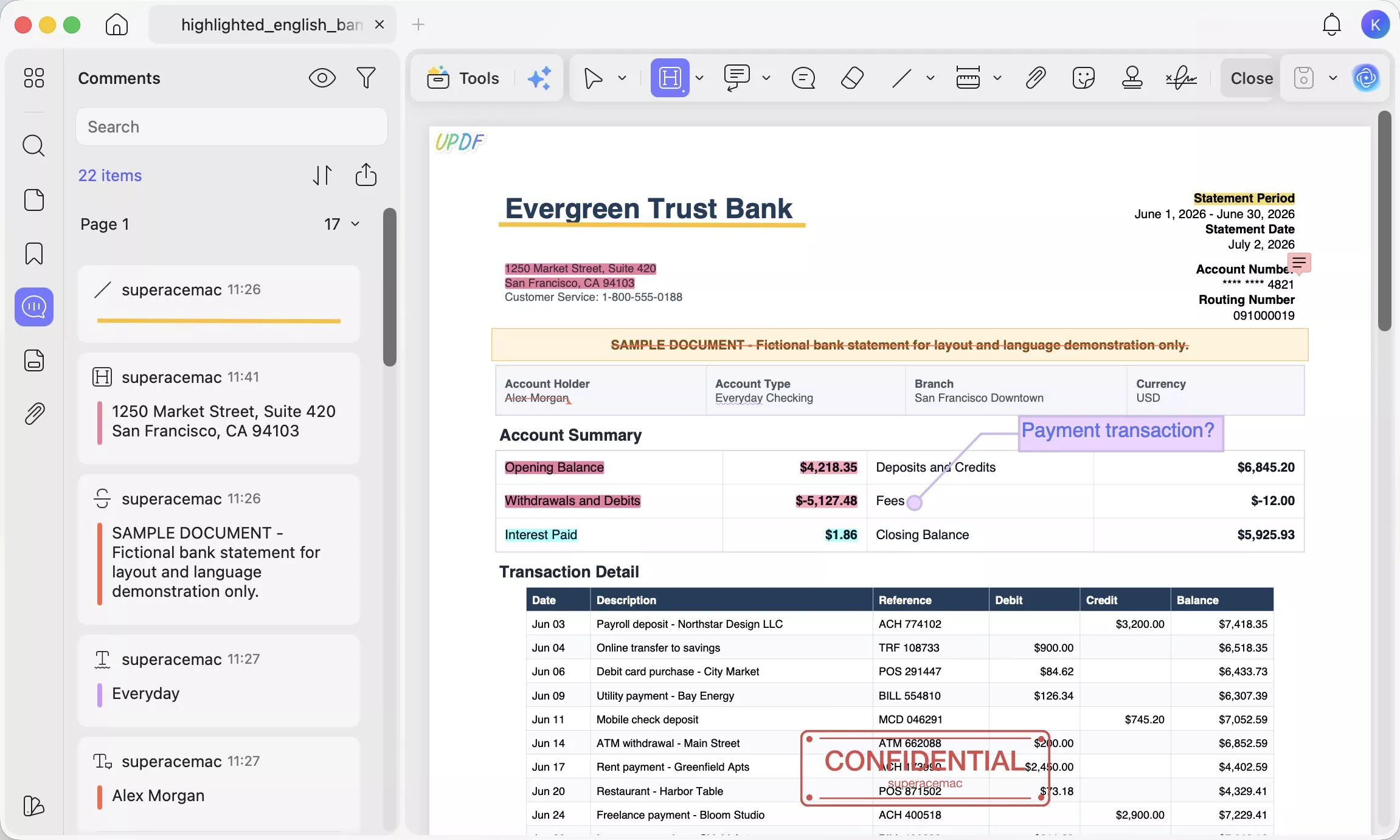
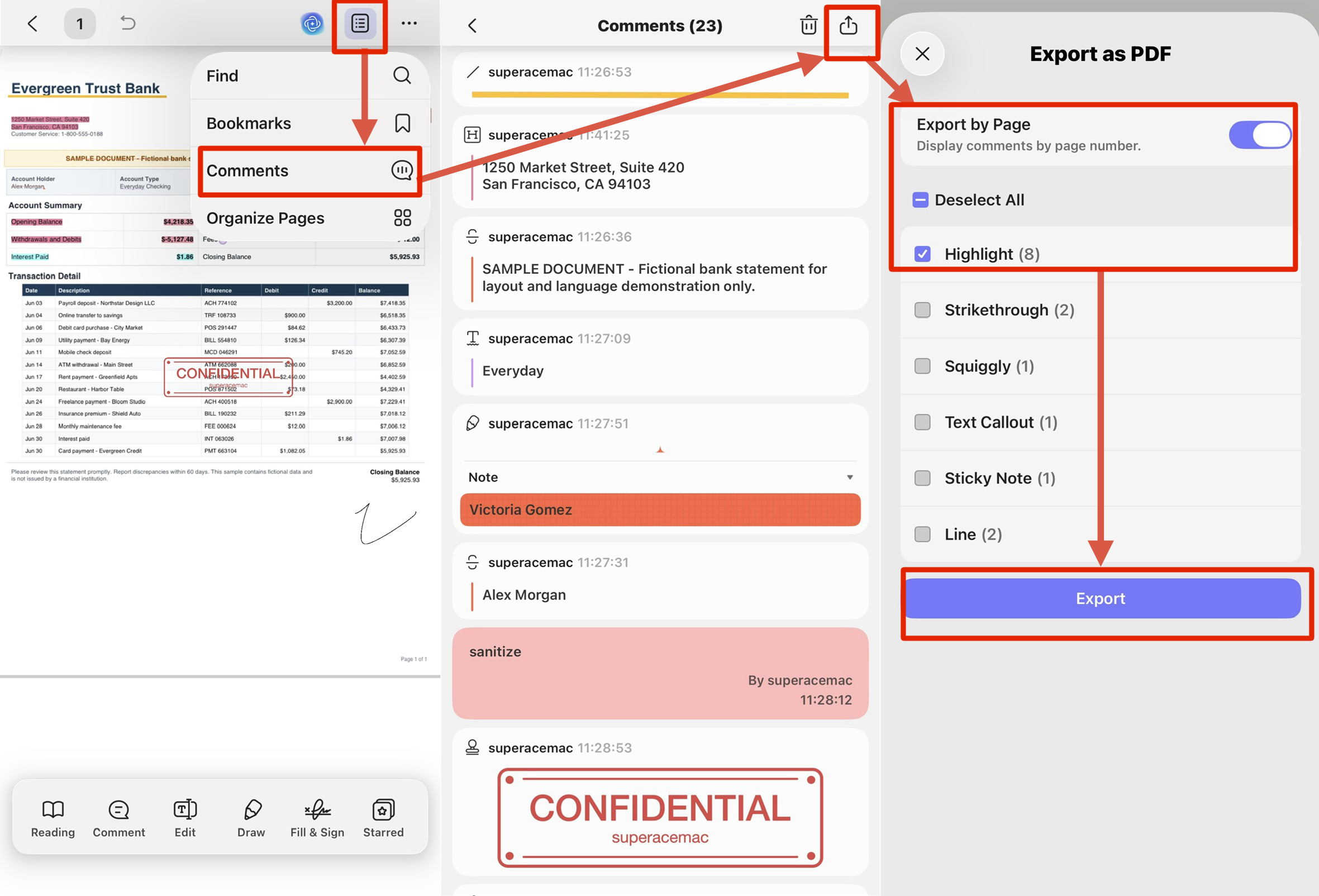
UPDF keeps every highlight in a searchable Comment list, and its export panel lets you filter to only highlights, keep page numbers, and choose the output format. This is the fastest path whether the highlights are yours or someone else's.
Before extracting highlights, the video below gives a broader view of UPDF's annotation workspace, including the markup types that appear in its Comment list.
Step 1. Open the document in UPDF — if you don't have it yet, download UPDF for free and install it in under a minute — then click Comment in the top toolbar to open the comment list on the left.
Windows • macOS • iOS • Android 100% secure
Step 2. Every highlight in the file appears in the list, each tagged with its page number. Click any entry to jump straight to that spot in the document, so you can confirm you're pulling the right marks.
Step 3. If the PDF also contains sticky notes, strikethroughs, or shapes and you want highlights only, click the Filter icon at the top of the panel. Under Types, check Highlight (leave the rest unchecked). You can also filter by Color — useful when you highlighted "key facts" in yellow and "questions" in blue — or by Comment By to isolate one reviewer's marks. Click Apply.
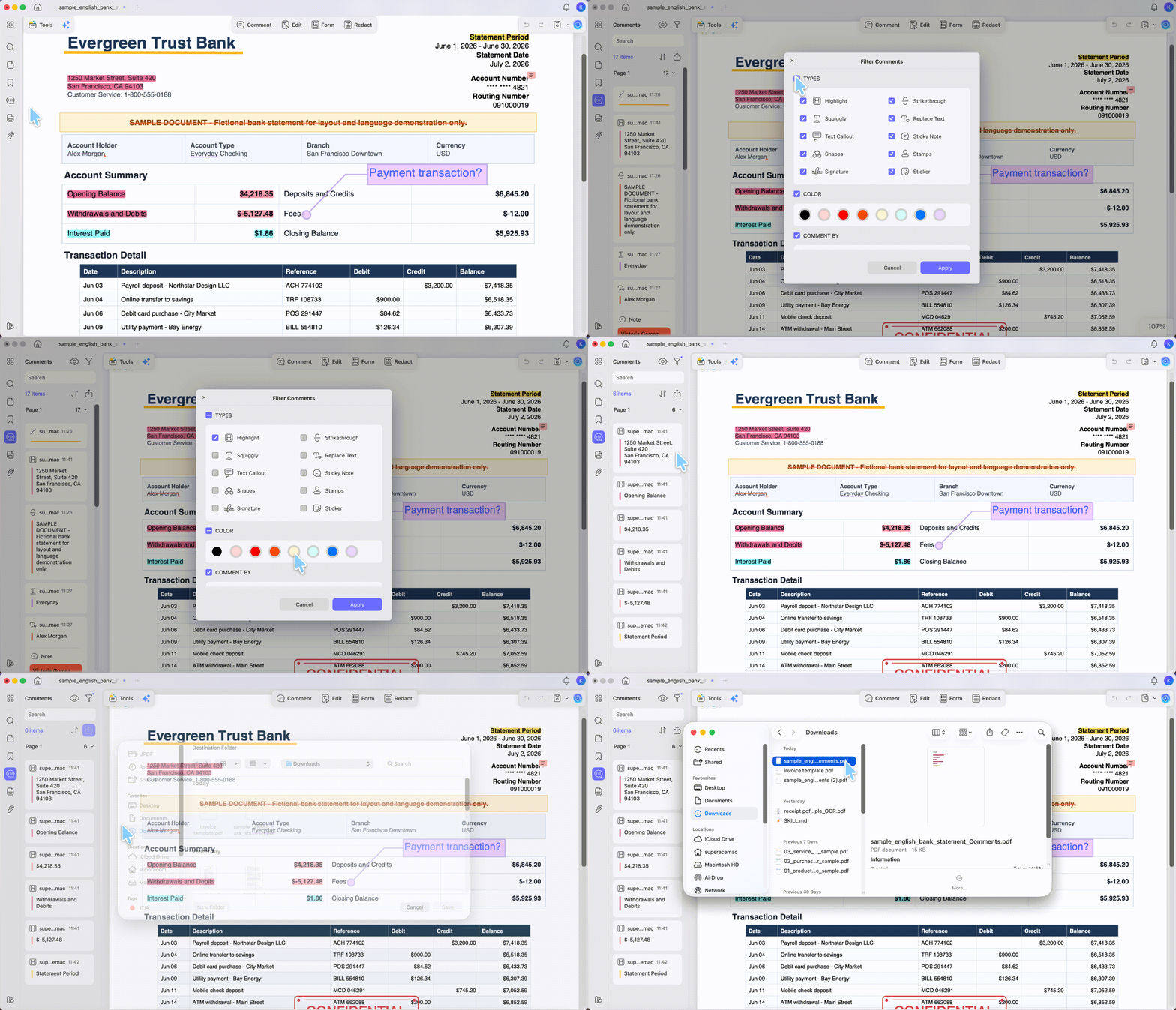
Step 4. Click the Export PDF icon at the top of the comment list. In the Export to PDF panel:
- Turn on Export Filtered Comments to export only what your filter is showing (your highlights).
- Turn on Export by Page if you want the output organized page by page — this preserves context and keeps page numbers attached to each highlight.
Step 5. Choose your output:
- Export Summary of Notes → a clean PDF listing each highlight with its page number and any attached comment. This output keeps the original highlight color on every entry, so if you color-coded while reading, the summary still shows yellow as yellow and pink as pink — your visual system survives the export.
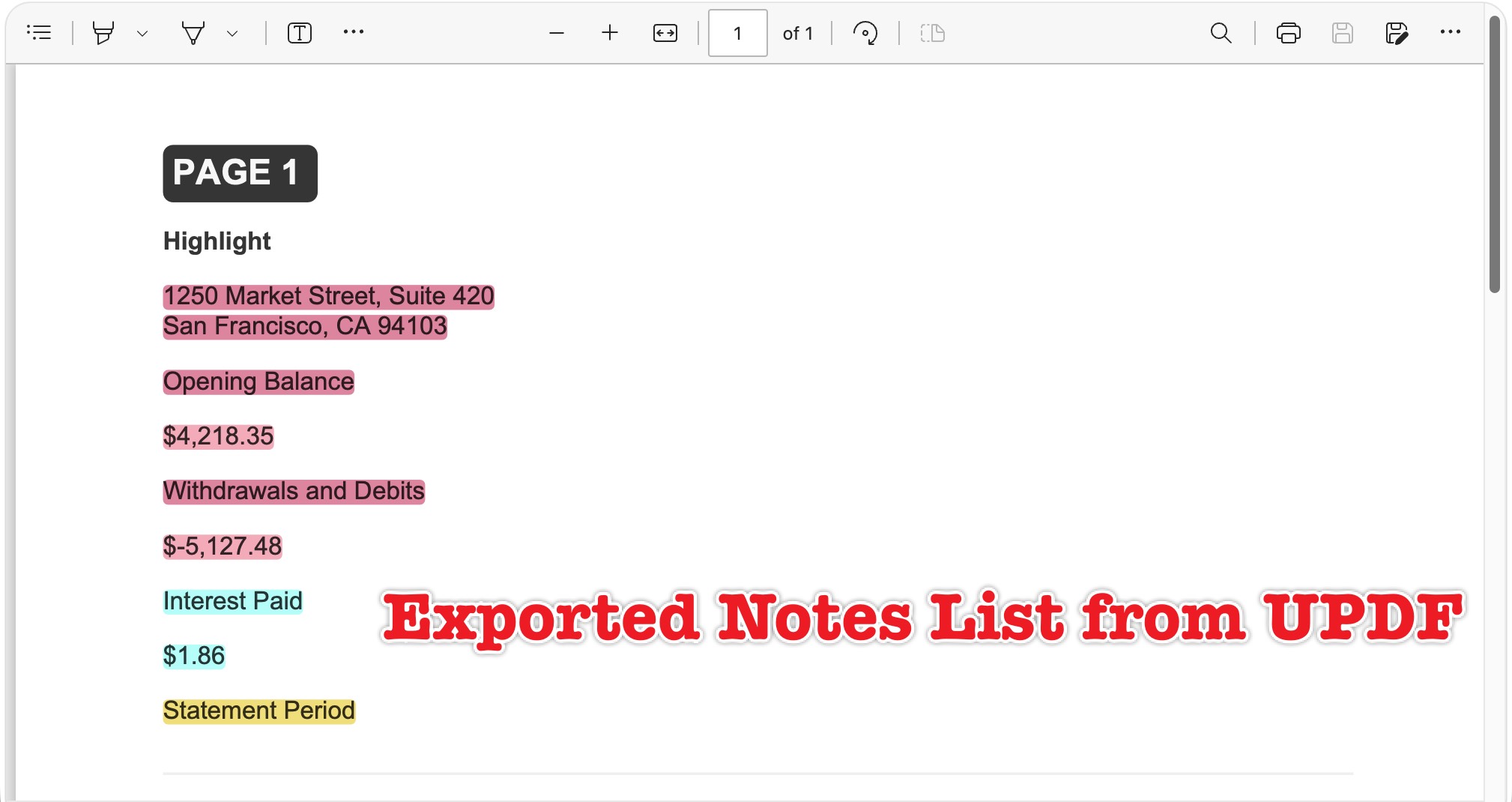
- Export as Text → a plain
.txtlist you can paste directly into Word, Notion, Obsidian, or a spreadsheet.
On mobile: UPDF for iOS and Android carry the same comment list. Open the file, tap into the comment list, and export — handy when you highlighted a PDF on an iPad during a commute and want the notes on your laptop later. Highlights sync across devices under one account, so you don't re-do the work per device.
Best for:
- turning your own or a received highlighted PDF into a usable notes list with page numbers, in one pass.
Not for:
- scanned or image-only PDFs where the highlight sits over a picture — those need OCR first (covered in Edge Cases).
Download UPDF for free to try extracting highlights on your own file — installation is free, and Pro features are available when you need watermark-free export or advanced tools.
Windows • macOS • iOS • Android 100% secure
What to Do After You Extract: Highlights → Word, Excel, or Notes
Extraction is step one; the reason you searched is step two — getting the highlights somewhere you can use them. This is where most guides stop and readers stay stuck.
- To Word or a doc: use Export as Text, then paste into your document. Because page numbers travel with each line (when Export by Page is on), you keep the citation trail for essays and reports.
- To Excel or a spreadsheet: export as text, then paste into a column and split on the page-number delimiter — you get a sortable, taggable table of every highlight.
- By color: filter the comment list by color before exporting, and run one export per color. That gives you separate "definitions," "action items," and "questions" lists instead of one undifferentiated dump.
- Highlights plus notes together: leave the filter on Highlight and Sticky Note / Text Callout to export the marked text next to the comment you wrote about it — the version researchers actually want for citations.
If you also need to reshape those pages afterward — see how to highlight PDF text, images, and scanned documents for the full markup workflow.
Windows • macOS • iOS • Android 100% secure
Part 3. Method 2: Extract Highlights with Adobe Acrobat (Read the Trap First)
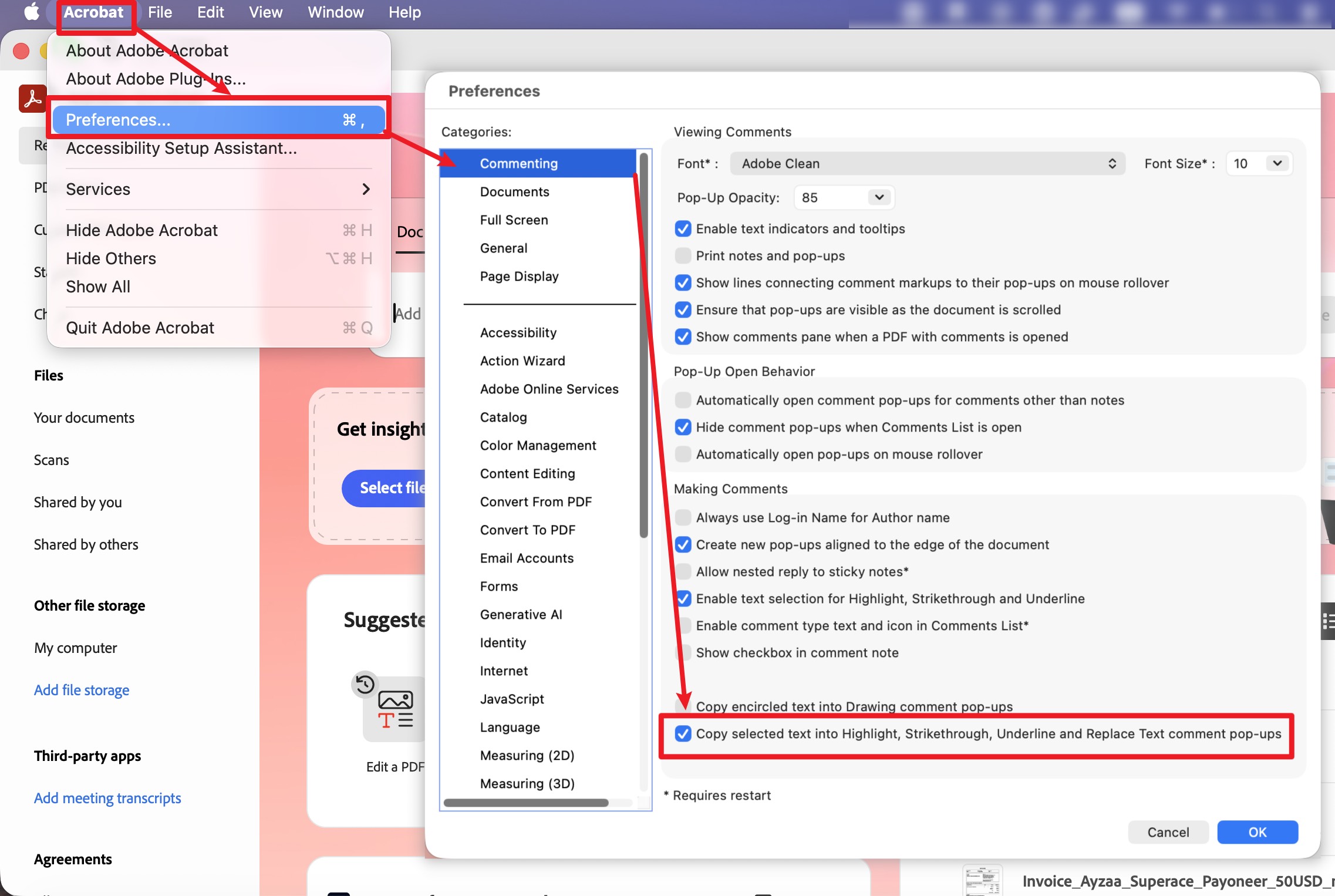
Adobe Acrobat can extract highlights, but there is a trap that sends most people to a support forum: Acrobat does not capture the highlighted text unless a preference was turned on before you highlighted.
The preference: go to Edit → Preferences → Commenting (Windows) or Acrobat → Preferences → Commenting (Mac) and enable "Copy selected text into Highlight, Cross-Out, and Underline comment pop-ups." With this on, each new highlight stores the text beneath it. With it off — the default — your existing highlights contain no text, and a "comment summary" will list your name, date, and color but not a single word you marked.
Once the preference is set (and only for highlights made after that):
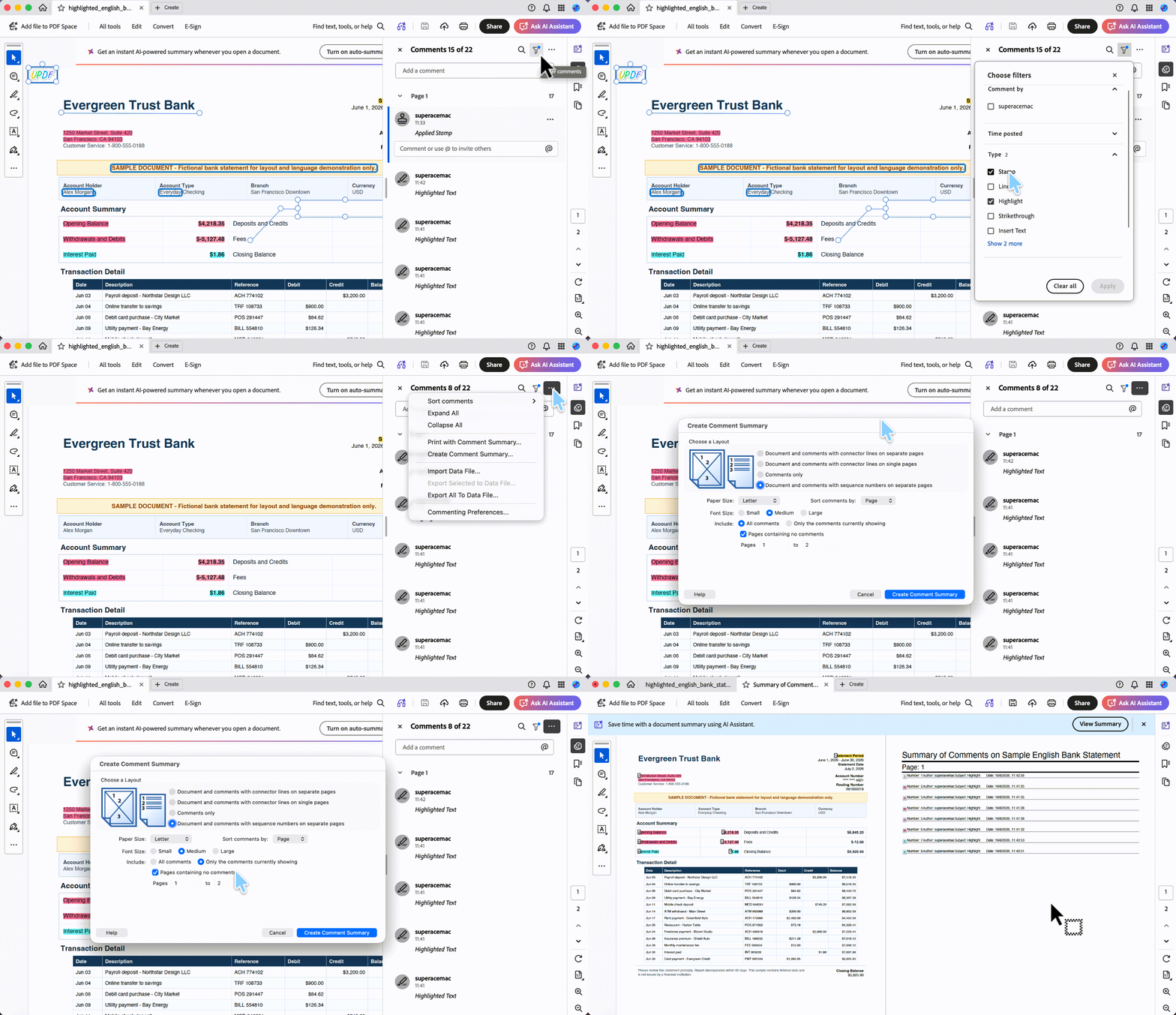
- Open the document and open the Comments pane.
- To isolate highlights, click the Filter icon at the top of the pane, open the Type section, check Highlight (leave the rest unchecked), and click Apply. Acrobat now shows only the highlight comments.
- Click the options menu (three dots) and choose Create Comment Summary.
- In the dialog, pick a layout, then — this is the step most people miss — under Include, select "Only the comments currently showing." If you leave it on All comments, your filter is ignored and the summary dumps all annotations back in, not just your highlights. Click Create Comment Summary to generate the PDF.
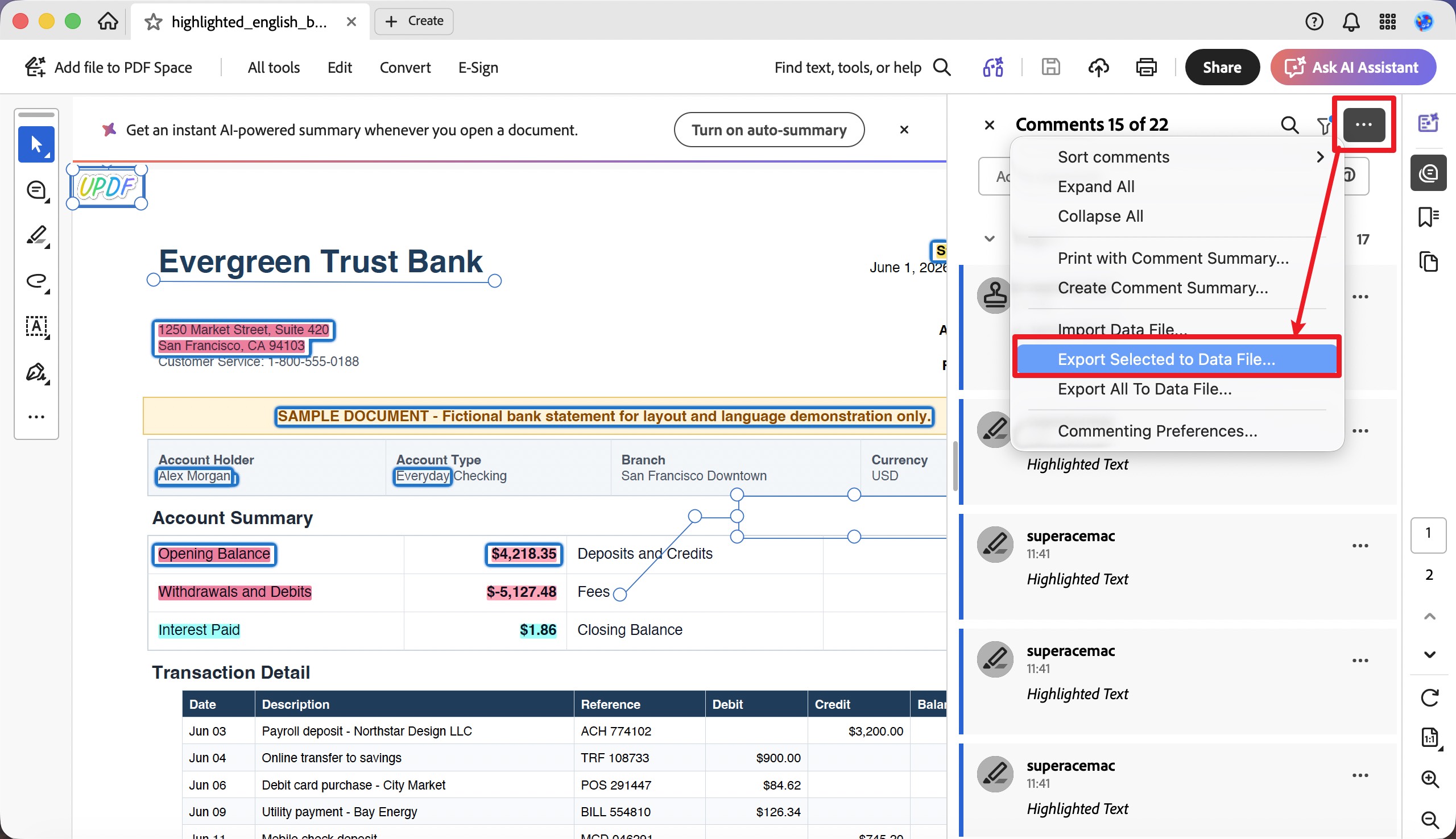
- To get the data into a spreadsheet instead, first select the highlights you want in the filtered Comments pane — hold Ctrl (Windows) or Cmd (Mac) to pick individual ones, or Shift to select a range — then right-click and choose Export Selected to Data File to save an FDF/XFDF file. That file then has to be converted, an extra format-juggling step that isn't beginner-friendly.
Cons vs. UPDF:
- The critical "Copy selected text" preference is off by default, and it only applies to highlights made after you turn it on — so highlights you already made "the normal way" have no text attached and can't be summarized into words retroactively. Your only real fix is to re-highlight the passages with the preference on.
- Create Comment Summary and comment export are Acrobat Pro features, not in the free Reader.
- Getting highlights into Word or Excel means converting FDF/XFDF or routing through a summary PDF — more steps, more room for broken formatting.
Best for:
- existing Acrobat Pro users who turned the preference on before highlighting.
Not for:
- anyone extracting highlights they already made without that setting, or free-Reader users.
Part 4. Method 3: Extract Highlights with Sumnotes (Online)
Sumnotes is a browser-based tool built specifically to pull highlights out of PDFs and Kindle books, with export to Word, Excel, or plain text.
- Go to Sumnotes and upload your PDF (from your computer or Google Drive).
- On the file row, click View or Extract annotations — the badge next to it shows how many annotations it found.
- In the extract panel, open the Include dropdown and choose Highlights only. Set Page numbers to Display, choose an Order, and tick which colors to include.
- Click the format you want — Clipboard, .TXT, EMAIL, .DOC, .XLS, or Evernote — to download or copy the result.
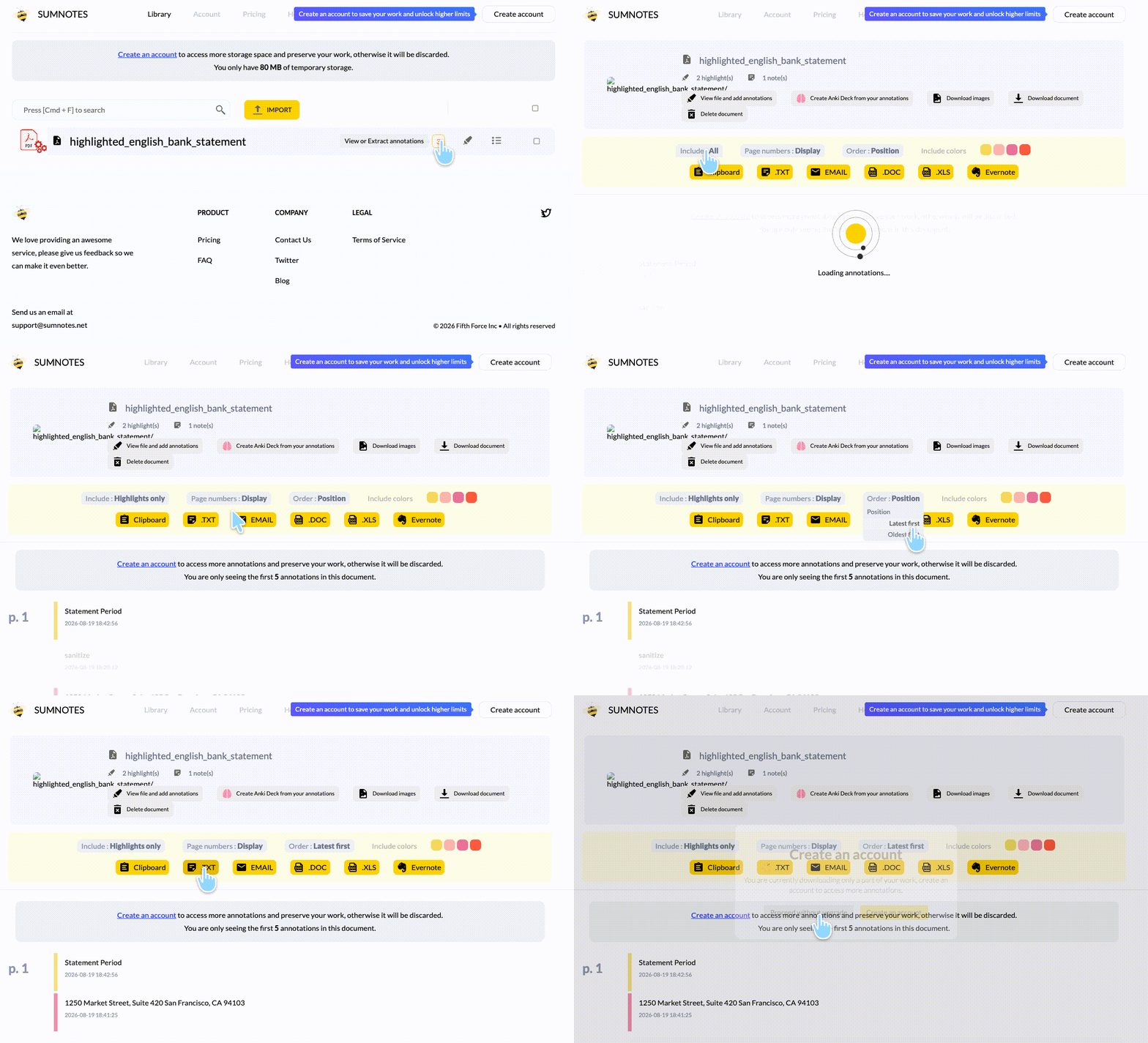
To eyeball the actual comment list before extracting, click View file and add annotations instead — that opens the document with its markup, separate from the extract/download panel.
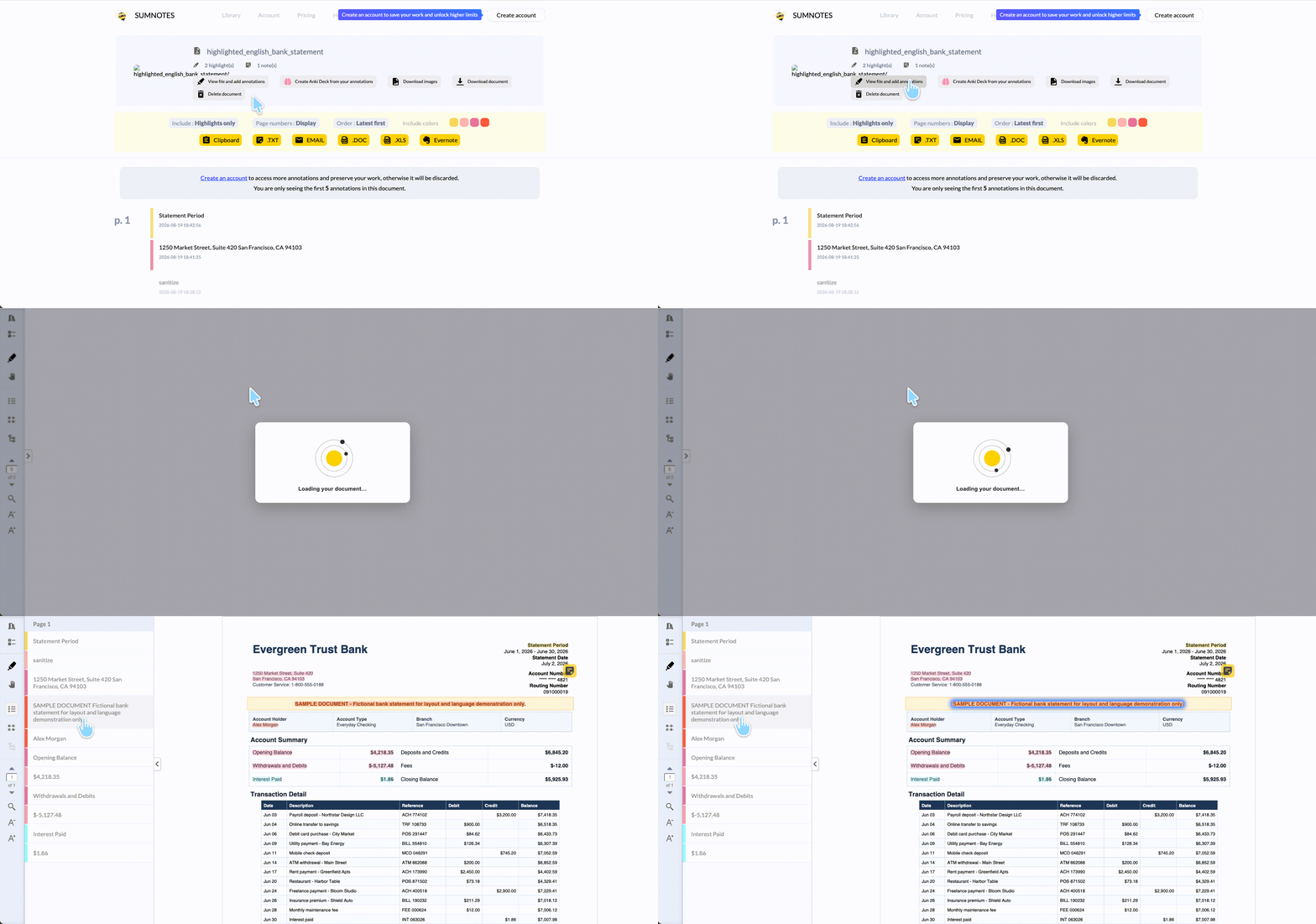
Cons vs. UPDF:
- It misreads the annotation type. Testing the same file in both tools, Sumnotes flattened a strikethrough line and a Replace Text mark into ordinary "highlight" entries — so the extracted list said a passage was highlighted when it was actually struck through. If you rely on the markup type to mean something (struck = delete, highlight = keep), that distinction is lost.
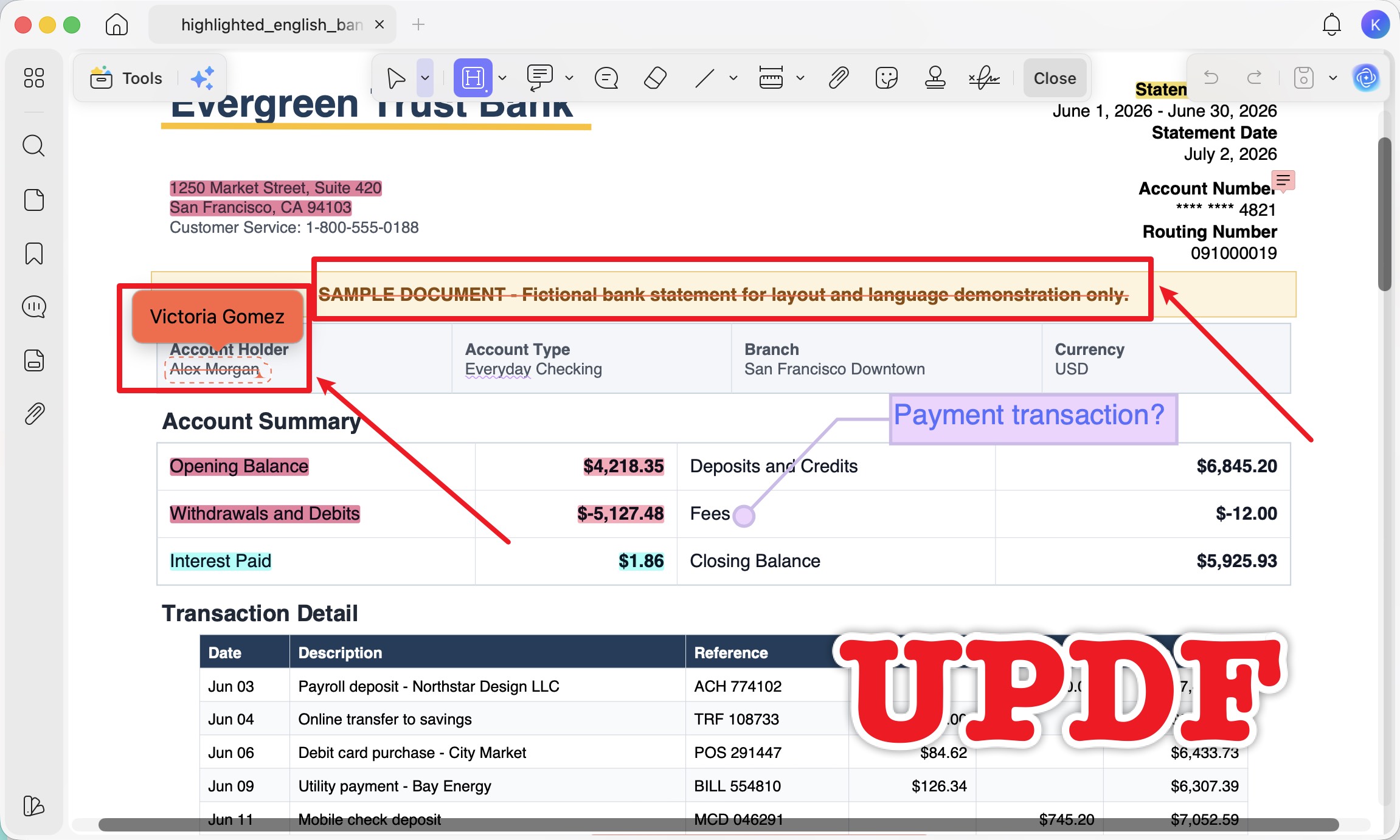
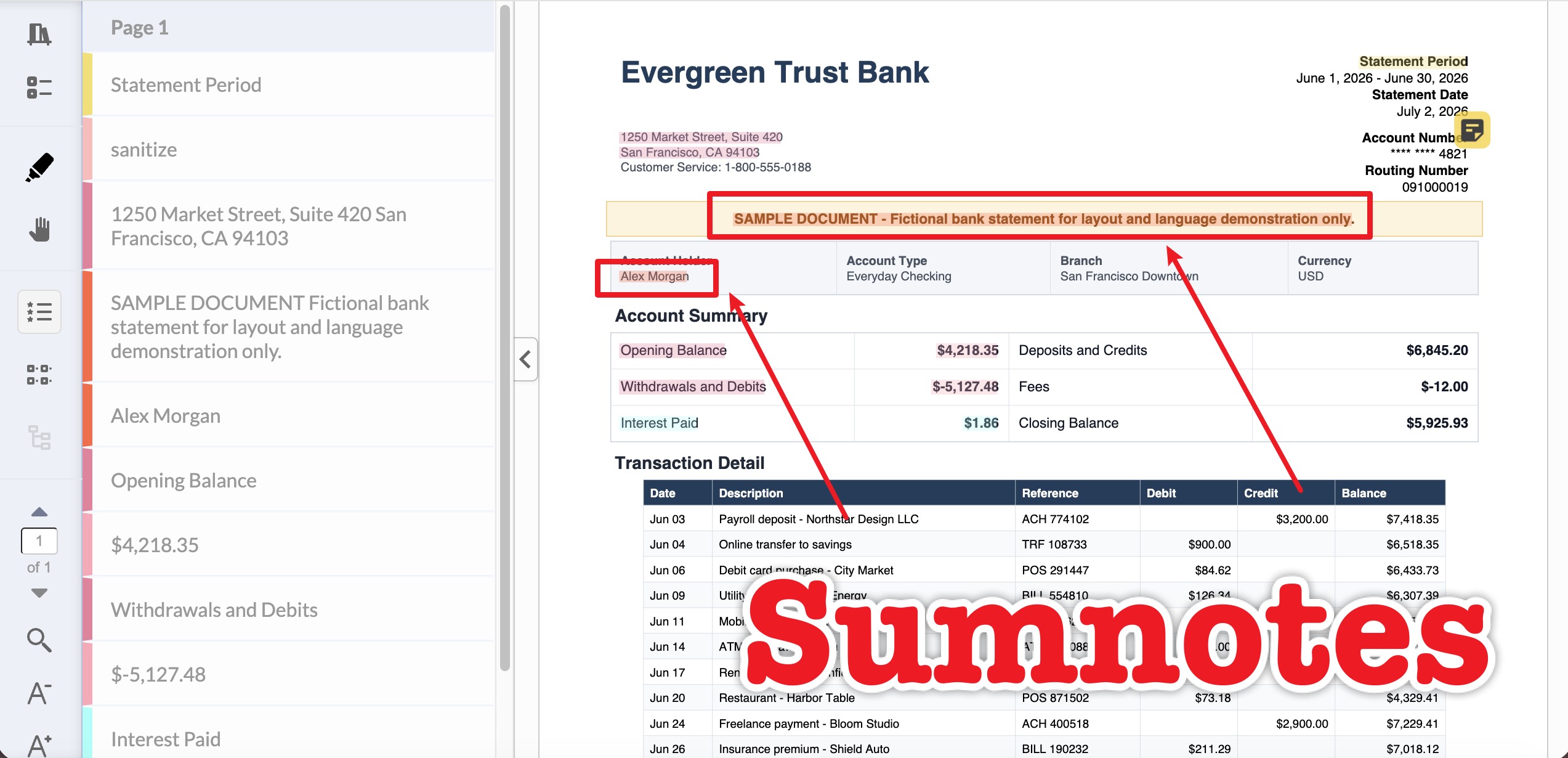
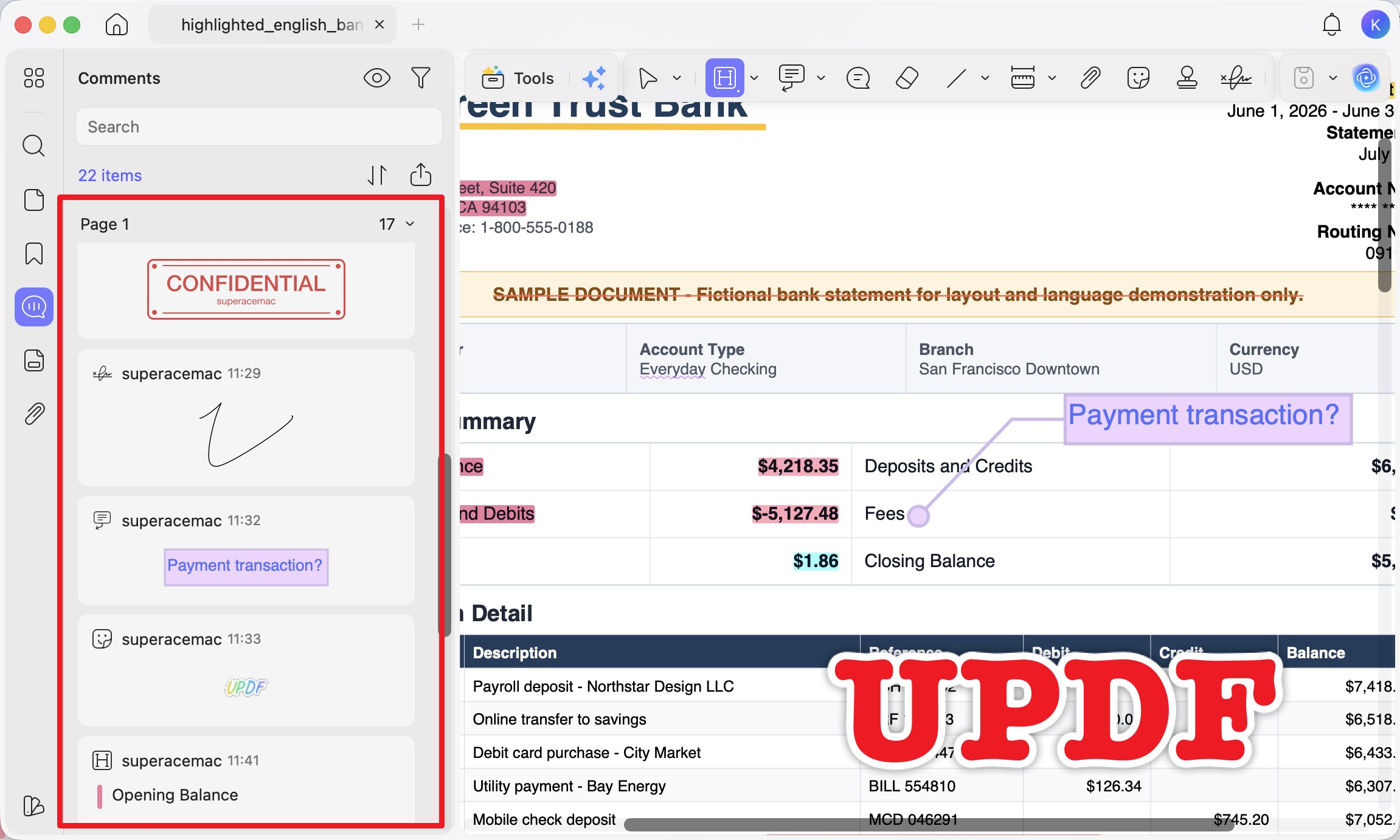
- It only sees highlights and notes — other markup vanishes. The same document had a stamp (CONFIDENTIAL), a text callout, a line, a sticker, and a signature. None of them appeared in the Sumnotes output. UPDF's comment list carried all of them, because it reads the full annotation layer, not just highlights.
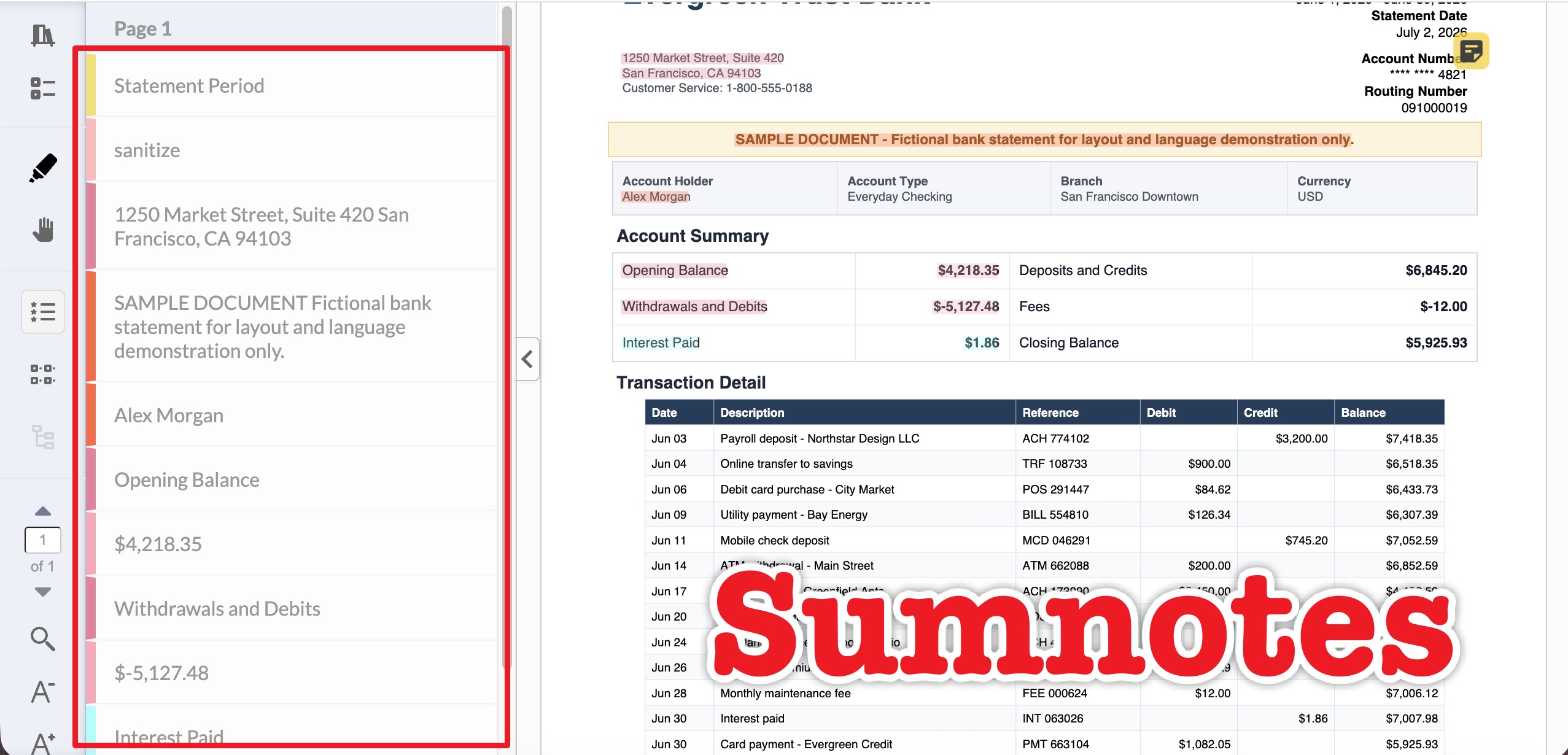
- The color is gone. UPDF's summary kept every highlight's color; Sumnotes returned a plain-text file with no highlighting — just the words, stripped of the pink/yellow coding used to separate figures from questions. If your color system carries meaning, Sumnotes discards it.
- It's web-based, so your PDF is uploaded to a third-party server. For contracts, financial statements, or anything confidential, that's a privacy trade-off UPDF's local processing avoids.
- The free plan caps extraction at roughly 50 annotations per download; heavier use needs the Pro plan (about $19.99/year — verify current pricing on the Sumnotes site).
Best for:
- occasional, non-sensitive files where you only need the highlighted text and don't care about color, type, or other markup.
Not for:
- confidential documents, or any file where strikethroughs, underlines, text callouts, or shapes also matter — Sumnotes will either mislabel or silently drop them.
Part 5. Extract Highlights Comparison
| Method | Platforms | Keeps page numbers | Keeps highlight color | Extracts other markup* | Export to Word/Excel | Free tier |
|---|---|---|---|---|---|---|
| UPDF | Windows, Mac, iOS, Android | ✓ (Export by Page) | ✓ | ✓ (all types) | ✓ (via text export) | Full annotation + extract; export adds a trial watermark |
| Adobe Acrobat | Windows, Mac | ✓ | Summary PDF only | ✓ (Pro only) | Via FDF/XFDF conversion | × (Pro only) |
| Sumnotes | Web (any OS) | Optional toggle | × (plain text) | × (and can mislabel type) | ✓ (DOC/XLS/TXT) | ~50 annotations/download |
*Other markup = strikethrough, underline, replace-text, insert-text, text callouts, shapes. UPDF's free tier lets you highlight, filter, and extract fully; the only free-tier limit relevant here is a trial watermark added on export, removed with Pro. Note that Sumnotes uploads your file to a server, while UPDF and Acrobat process locally.
Windows • macOS • iOS • Android 100% secure
Part 6. Edge Cases: When Extraction Fails (and the Fix)
These are the failure scenarios that don't show up in the step lists but do show up in real files.
- "I can see the highlights but the extracted file is empty." The highlight sits over a scanned image, not real text. Run OCR on the PDF first to build a text layer, then re-highlight (or the highlight will finally have text to export). UPDF's OCR supports 38+ languages and offers a "Searchable PDF Only" mode that adds selectable text under the page image without changing how it looks.
- "The text wasn't highlighted in a PDF editor." If the "highlight" is actually a shape or a color box drawn with a drawing tool, there's no text bound to it. It exports as a blank marker. Re-mark the passage with the real highlight tool, then extract.
- "I can open the PDF but can't highlight or extract at all." The file likely has a permissions password restricting commenting. You'll need the right to edit it before UPDF (or any tool) can add or pull annotations.
Part 7. FAQ
1. How do I extract highlights without coding?
Use UPDF, Adobe Acrobat Pro, or Sumnotes — all are point-and-click. The "three lines of Python" answers you'll see require PyMuPDF and a script; none of the tools here need any code.
2. Can I extract highlights from a Kindle book or EPUB?
Not directly as a PDF workflow. Kindle notes live in your Amazon account (read.amazon.com → Notebook), and EPUB highlights stay in the reader app that made them. Convert the EPUB to PDF first if you want to pull marks with a PDF tool.
3. Why can't I extract highlights I made in Preview on Mac or in a browser?
Some viewers store highlights in their own format rather than as standard PDF annotations, so another app may not see them. Re-save or "print to PDF" from that viewer to flatten the marks into the file, then extract.
4. Can I combine highlights from several PDFs into one list?
Not in a single click. Extract each file's highlights to text, then paste them into one document or spreadsheet — keeping page numbers on lets you label which file each line came from.
5. What's the fastest way to turn highlights into study notes in Notion or Obsidian?
Export as plain text, which pastes cleanly into either app without stray formatting. Because the text carries page numbers, you keep a citation back to the source while you study.
Conclusion
Extracting highlights is really two jobs: pulling the marks out and landing them somewhere you can use — Word, Excel, or your notes — with page numbers intact. UPDF handles both in one pass with its filterable Comment list and Export Summary of Notes / Export as Text options, keeps each highlight's color, reads the full annotation layer, works the same across Windows, Mac, iOS, and Android, and keeps your file local. Adobe Acrobat can do it too, but only if you set the right preference before highlighting; Sumnotes is fine when you only need the highlighted text from a non-sensitive file and don't care about color or other markup.
For choosing the right highlighting tool in the first place, see the roundup of the best PDF highlighter apps.
Download UPDF for free to try extracting your highlights into a usable notes list — installation is free, and Pro features are available when you need export or advanced tools.
Windows • macOS • iOS • Android 100% secure







 Enola Miller
 Lizzy Lozano
  Enid Brown