 UPDF
UPDF
 UPDF for Windows
 UPDF for Mac
 UPDF for iPhone/iPad
 UPDF for Android
 Nomostar
 UPDF AI Online
 UPDF Sign
 IvyCraft
 Edit PDF
 Annotate PDF
 Create PDF
 PDF Form
 Edit links
 Convert PDF
 OCR
OCR PDF to Word
 PDF to Image
 PDF to Excel
 Organize PDF
 Merge PDF
 Split PDF
 Crop PDF
 Rotate PDF
 Protect PDF
 Sign PDF
 Redact PDF
 Sanitize PDF
 Remove Security
 Read PDF
 UPDF Cloud
 Compress PDF
 Print PDF
 Batch Process
 About UPDF AI
 UPDF AI Solutions
 AI User Guide
 FAQ about UPDF AI
 Summarize PDF
 Translate PDF
 Chat with PDF
 Chat with AI
 Chat with image
 PDF to Mind Map
 Explain PDF
 PDF AI Tools
 Image AI Tools
 AI Chat Tools
 AI Writing Tools
 AI Study Tools
 AI Working Tools
 Other AI Tools
 AI Bookmark Generation
 AI Bookmark Summary
 AI Watermark Generation
 AI Background Generation
 AI Sticker Generation
 AI Stamp Generation
 AI Editing Suite
 UPDF Copilot
 AI Page Management
 AI Semantic Search
 PDF to Word
 PDF to Excel
 PDF to PowerPoint
 Enterprise Solution
 Enterprise Sign
 Enterprise AI
 Enterprise Plan
 Enterprise User Guide
 Enterprise Webinar
 IT
IT Education
 Construction
 Financial Service
 Healthcare
 Insurance
 Legal
Legal Manufacturing
 Government
 Researchers & PhDs
 Solopreneurs & Freelancers
 Lawyers & Legal Professionals
 Real Estate Agents & Brokers
 Education Solution
 Customer Stories
 User Guide
 UPDF Tricks
 FAQs
FAQs UPDF Reviews
 Download Center
 Blog
Blog Newsroom
 Tech Spec
 Updates
 UPDF vs. Adobe Acrobat
 UPDF vs. Foxit
 UPDF vs. PDF Expert

Quick Answer
Windows • macOS • iOS • Android 100% secure
Have you ever needed to circle a key clause in a contract, draw an arrow to point out a mistake in a student’s essay, or sketch a quick layout idea on a design PDF? Printing, handwriting, and scanning back is tedious and wasteful. Drawing directly on the PDF is the smarter way.
Example: When marking up a floor plan, use a consistent color for each review category and add a short note beside every arrow so the drawing still makes sense to someone who was not in the meeting. For a related workflow, see annotate a PDF on Mac.
But with so many tools out there – free browser‑based options, open‑source software, and professional suites – which one should you pick? This guide gives you a clear, side‑by‑side comparison of 6 popular solutions. Whether you use Windows, Mac, iPad, or Android, and whether you need a quick free markup or advanced measurement tools, you’ll find the right fit here.
How to Choose the Right Drawing Method?
The table below will help you pair your needs with practical plans, tools, and drawing styles:
| Tool | Platform | Price | Drawing Features | Best For |
|---|---|---|---|---|
| Microsoft Edge / Chrome | Win/Mac | Free | Basic pen, highlighter | Quick, one‑off markups without installing anything |
| macOS Preview | Mac | Free | Shapes, lines, simple pen | Mac users doing occasional annotations |
| LibreOffice Draw | Win/Mac/Linux | Free (Open Source) | Vector drawing, shape editing, text modification | Users who need to edit the original text as well |
| Smallpdf / iLovePDF (Online) | Browser | Free | Pen, arrows, shapes, no file upload to server | Privacy‑conscious users needing a fast online tool |
| Xodo | Web, iOS, Android | Paid (~$15 per month for Document Suite) | Pen, shapes, handwriting support | Students and tablet users who annotate on the go |
| UPDF | Win, Mac, iOS, Android | Paid (from $49.99/yr or $79.99 for liftime use) | Pressure‑sensitive pen, shapes, measurement tools, batch processing | Professionals who need a unified experience across all devices |
| Adobe Acrobat Pro | Win, Mac | Paid (~$240/yr) | Full drawing suite, distance/perimeter measurement | Enterprise users with complex PDF workflows |
| Drawboard PDF | Windows, iPad | Paid (starts from~$50 per year in Pro Lite Plan) | Advanced ink, layers, bookmarks | Architects, engineers sketching floor plans |
Your drawing needs are now clearer, and do not have to guess tools anymore. Next, we will walk through specific methods and tutorials that match your situation and chosen drawing style.
How to Draw on a PDF? (Scenario‑Based Plans)
Drawing lines on PDF documents becomes easier once after knowing which method fits different workflows. Now, let's explore the practical methods and tools that fit different drawing needs:
Plan 1. Draw on PDF - Free & No Installation
Scenario A – “I just need to draw a few lines quickly, no installation”
- Recommended: Microsoft Edge / Chrome built‑in PDF viewer, or online tools.
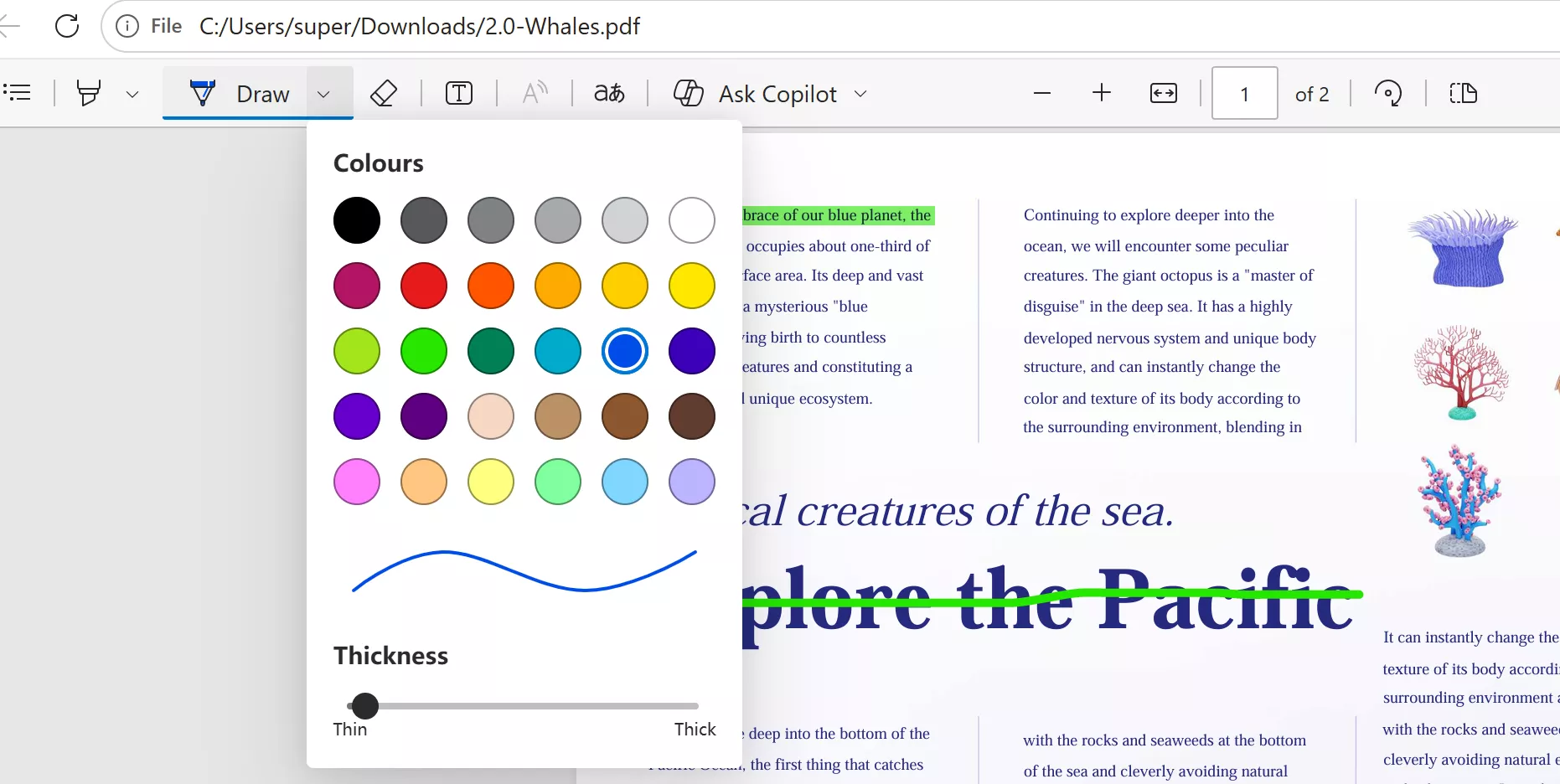
Microsoft Edge supports drawing tools with different colors and thickness choices. Steps are easy and simple: Open PDF file with Microsoft Edge, choose Draw and select the colours and thickness you prefer, hit the target texts or images to fix how to mark in PDF.
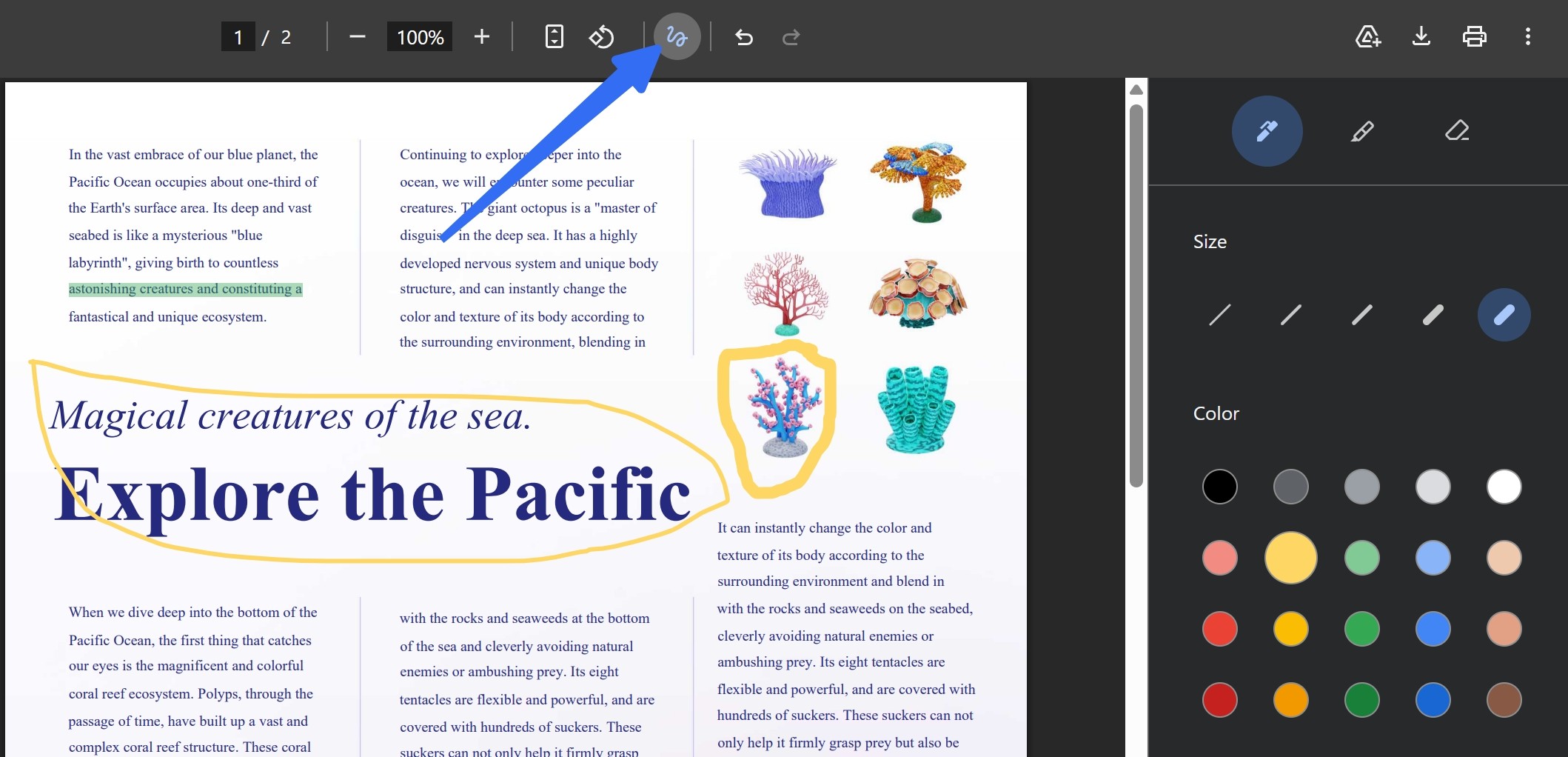
Chrome built-in PDF viewer is also the same process with Edge: Right-click the PDF file and choose to open with Chrome, then click Draw icon on the topbar, after customizing the size and color, you can draw on the PDF.
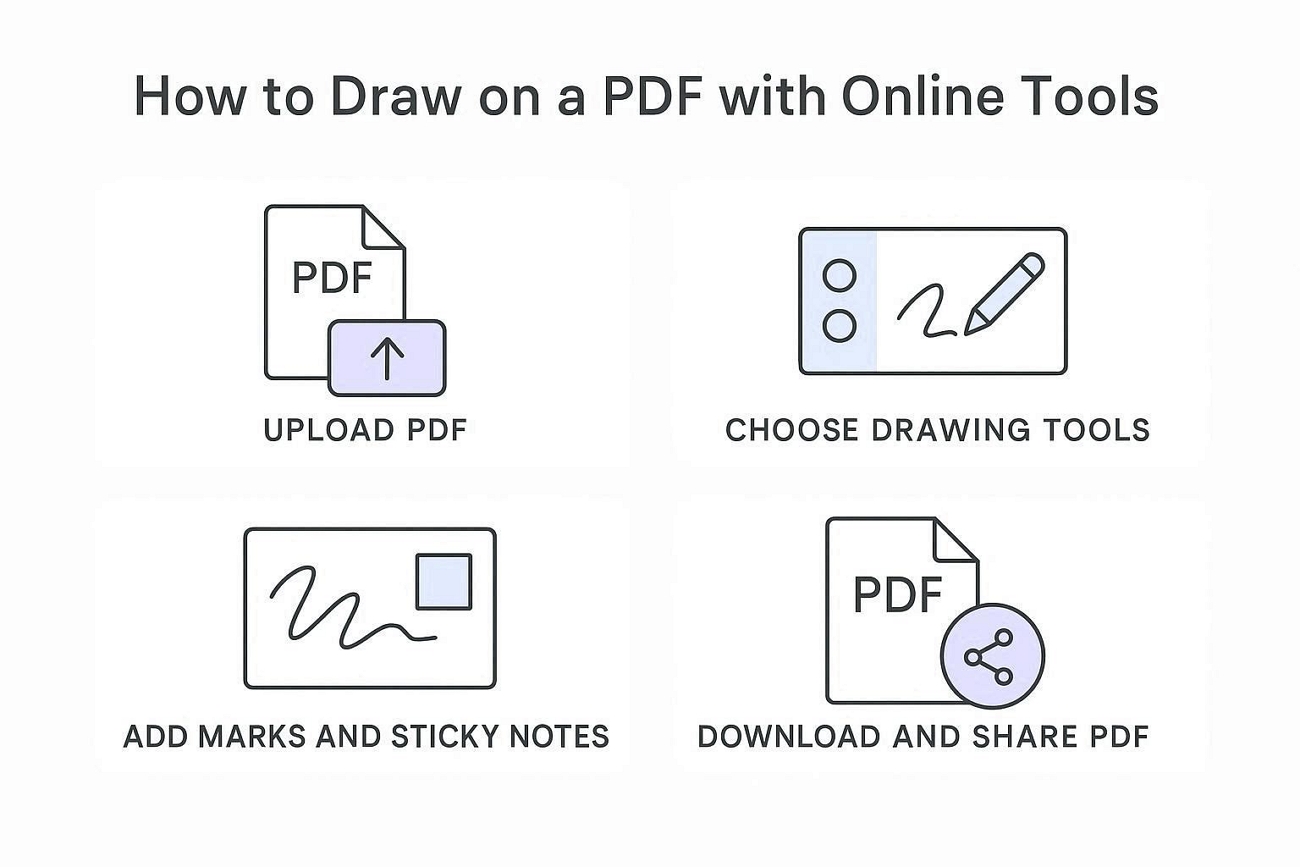
Most online editors follow almost the same simple steps to help users draw on a PDF. Look at the steps below to understand the basic flow before choosing any online tool:
- Upload a PDF file from your computer or Cloud drive.
- Open the drawing or annotate tools and pick a pen or arrows.
- Add your marks, sketches, or sticky notes on PDF pages that need attention most.
- Download the updated PDF, then share it or store it with your other files.
Suitable Scenarios for Online Drawing
- Student With Shared Laptop: Mark multiple exam pages during a library study session.
- Freelancer Reviewing Client Draft: Add fast arrows and circles before sending comments back through email.
- Teacher Updating Handouts: Highlight PDF mistakes on a worksheet right inside the browser before printing copies.
- Team Member Fixing Slides: Sketch simple changes on a project PDF stored in a shared drive.
Limitations
- Large research PDFs fail to upload because of strict file size limits.
- Frequent daily edits become slow when every change depends on the internet speed.
- Sensitive contracts feel unsafe when uploaded to third‑party servers for editing.
Having these limitations in mind, power users will feel boxed in and frustrated. That is where they need a stable desktop tool to draw on a PDF on Mac or Windows.
Plan 2. Draw on PDF with Desktop Software – Full Control
Scenario B – “I need full desktop control: arrows, shapes, measurements, and batch work”
- Recommended: UPDF, Adobe Acrobat, or LibreOffice Draw.
Desktop apps give more stable performance, better privacy, and stronger tools when users draw on PDF files.
The tools discussed above help with drawing, but UPDF balances power, price, and an easy interface. Compared with heavier editors, it stays fast for daily markups while still handling longer review sessions. That makes it a strong choice when online tools feel too limited or unreliable. So, follow the steps below to see how to add an arrow or other drawings to a PDF:
The steps below focus on drawing in UPDF. This video first gives a broader view of its annotation workspace, including highlighting, comments, and other markup tools that can be combined with drawing.
Windows • macOS • iOS • Android 100% secure
Step 1. Access Comment Tool in UPDF
Once you open a PDF in UPDF, click the “Tools” option and press the “Comment” option to access the drawing tools.
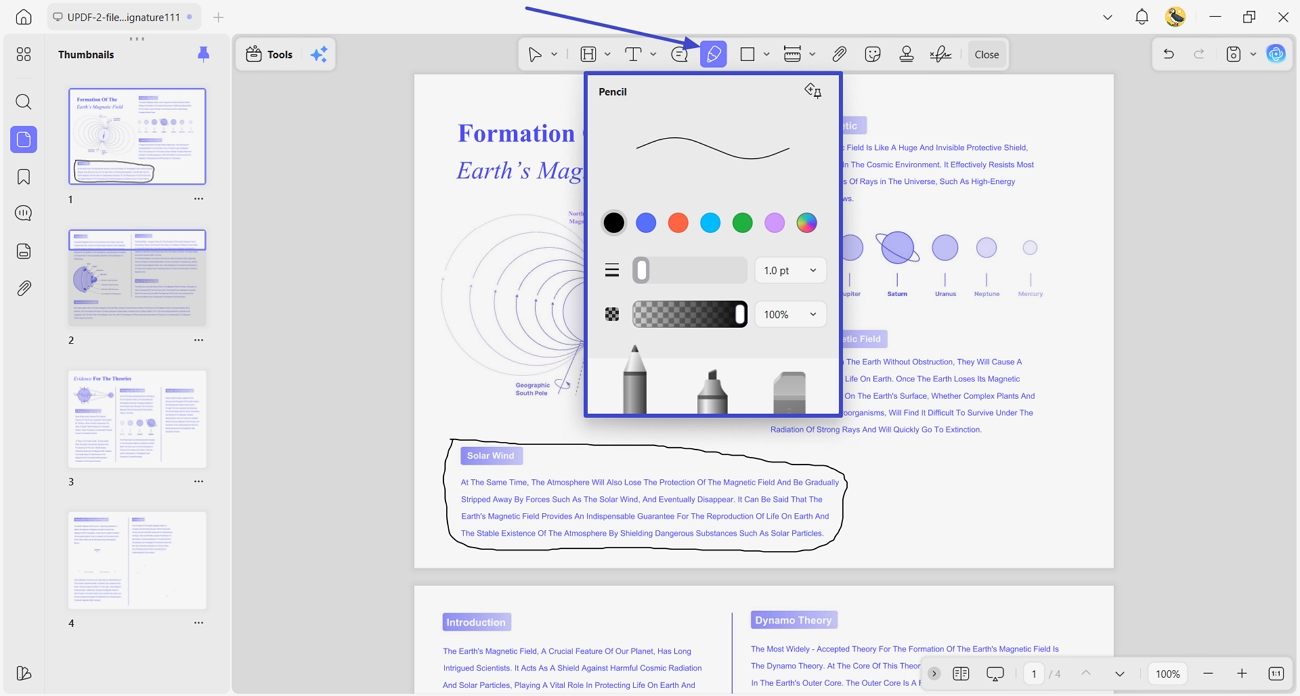
Step 2. Select The Pen Tool
For freehand drawing, click the “Pencil” icon in the toolbar and set the color and thickness. Then, draw on the PDF page.
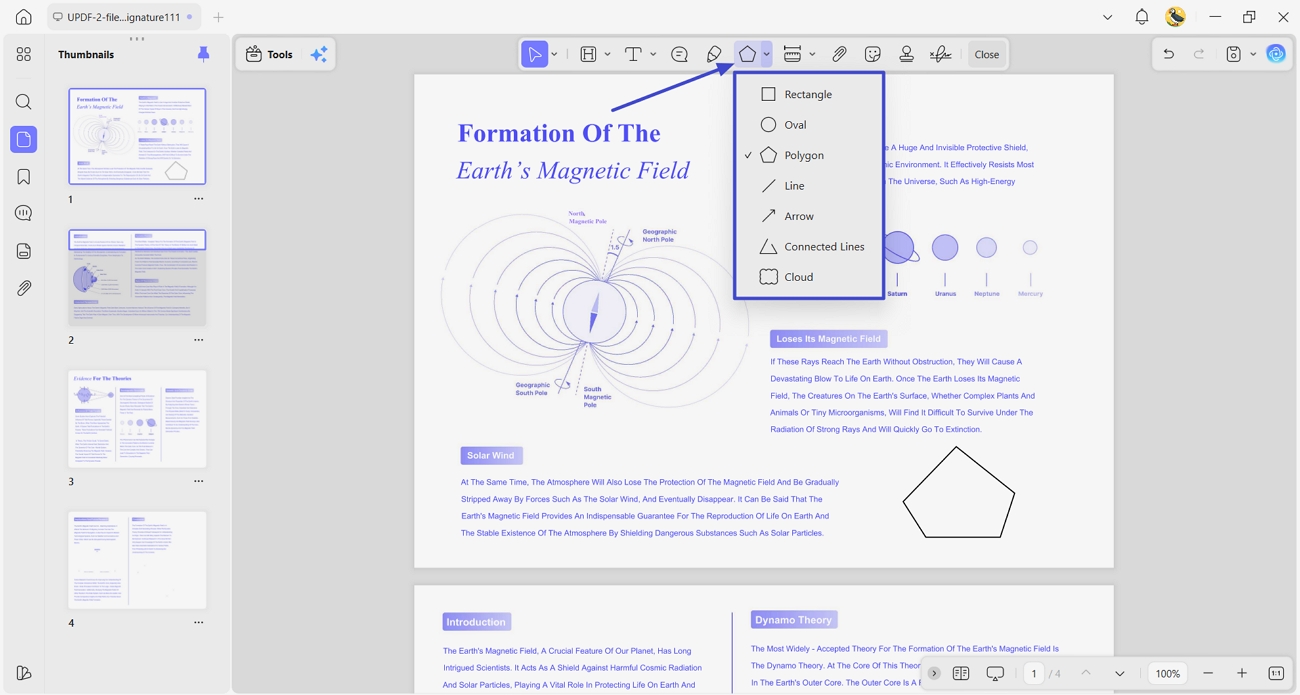
Step 3. Draw a Shape on PDF
Afterward, press the “Shapes” icon and select the shape from Rectangle or Circle. After picking the tool, drag over the page to draw a shape.
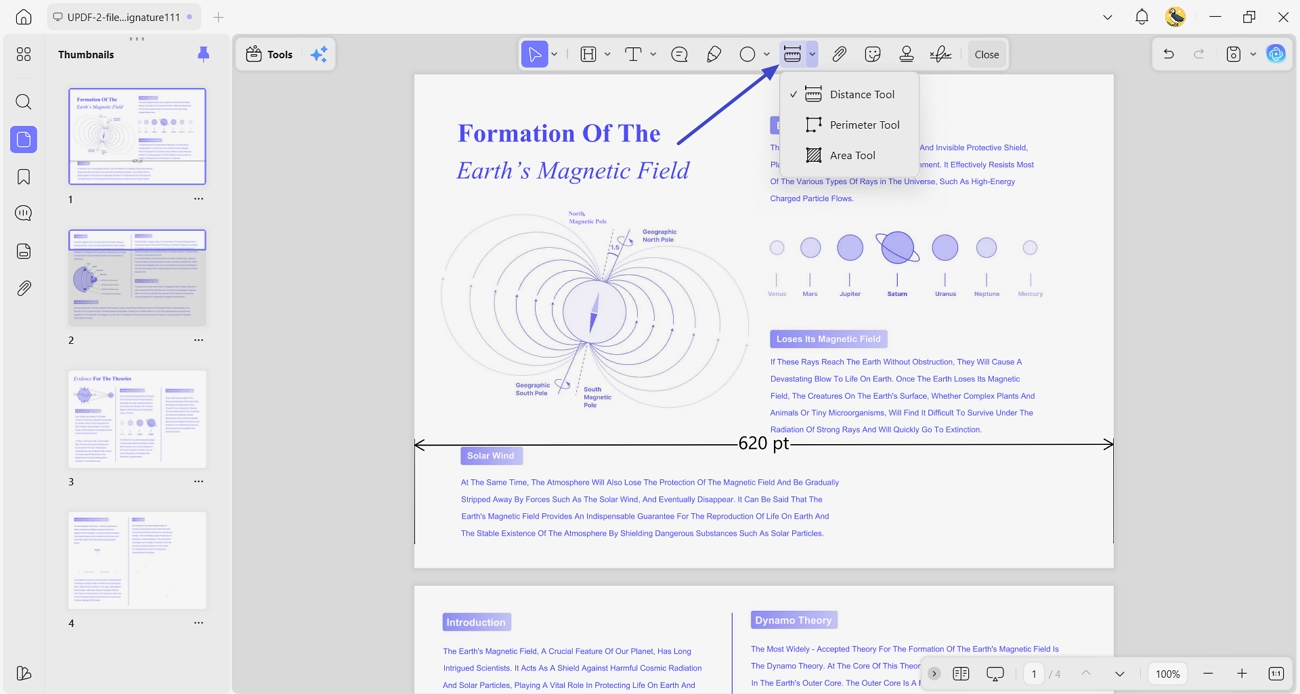
Step 4. PDF Measurement Annotation
Now, choose a “Distance Measurement” tool and start measuring the distance along the line.
If you use Acrobat, the tools are under ‘Comment’ → ‘Drawing Markups’; for LibreOffice, use the ‘Drawing’ toolbar.”
Plan 3. Draw on PDF on Mobile (iPad/Android/iPhone)
Scenario C – “I use an iPad/Android tablet with a stylus for handwriting”
- Recommended: UPDF mobile, Xodo, or Drawboard PDF.
Students and field professionals now draw on PDF files directly from phones and tablets. Stylus setups like iPad with Apple Pencil or Galaxy devices with S Pen make handwriting natural. Take UPDF mobile as an example, open your PDF file on UPDF iOS/Android, click Draw to choose drawing tools and setup the color or opacity, then you can draw freely in your PDF. The process is the basically same in different devices.
Windows • macOS • iOS • Android 100% secure
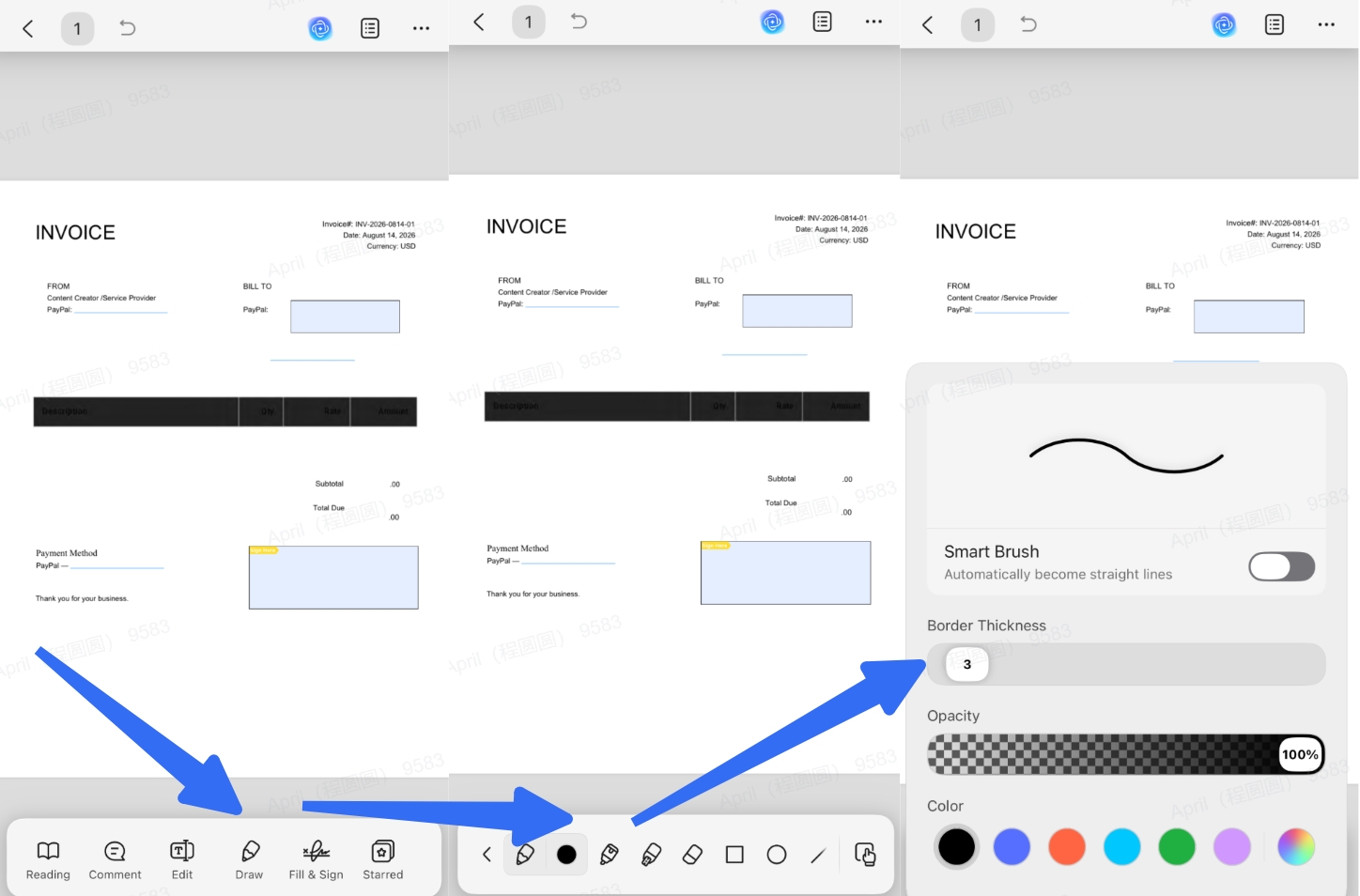
Xodo and Drawboard have similar interfaces.
Pro Tips for Cleaner, More Effective Drawings
Universal Tips (apply to any tool):
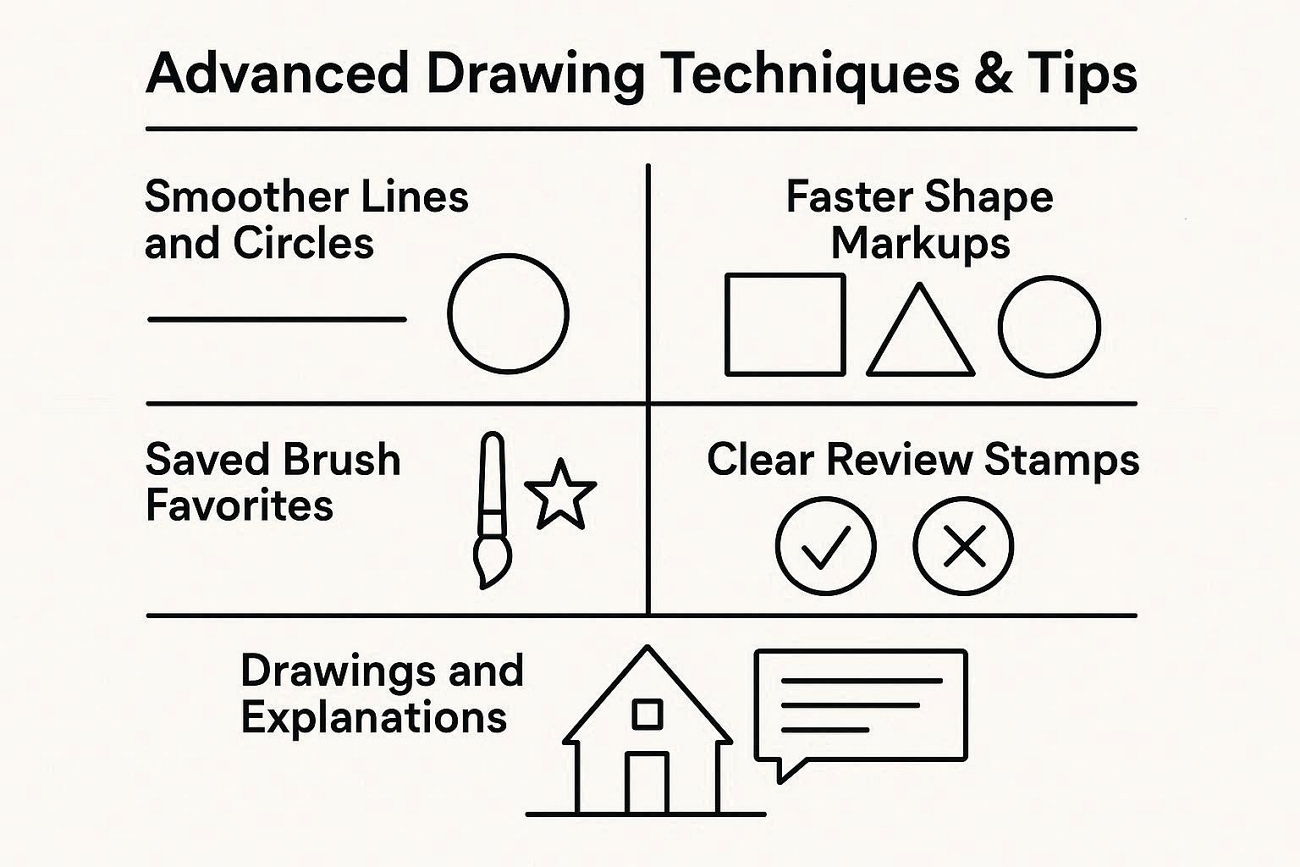
• Smoothing lines – after drawing a rough line/circle, long‑press or right‑click to auto‑straighten (works in Edge, Acrobat, UPDF).
• Colour coding – use red for errors, green for approvals, blue for comments.
• Combine with sticky notes – place a text note next to your drawing to explain “why”.
UPDF‑specific advanced tips:
• Save your favourite brush presets.
• Use review stamps (Reviewed, Approved).
• Use measurement tools for distance/area.
Windows • macOS • iOS • Android 100% secure
Small changes in tools and settings can upgrade every drawing made inside a PDF. These tips make markups easier to understand without extra effort.
Bonus: Which Drawing Method Fits Your Workflow?
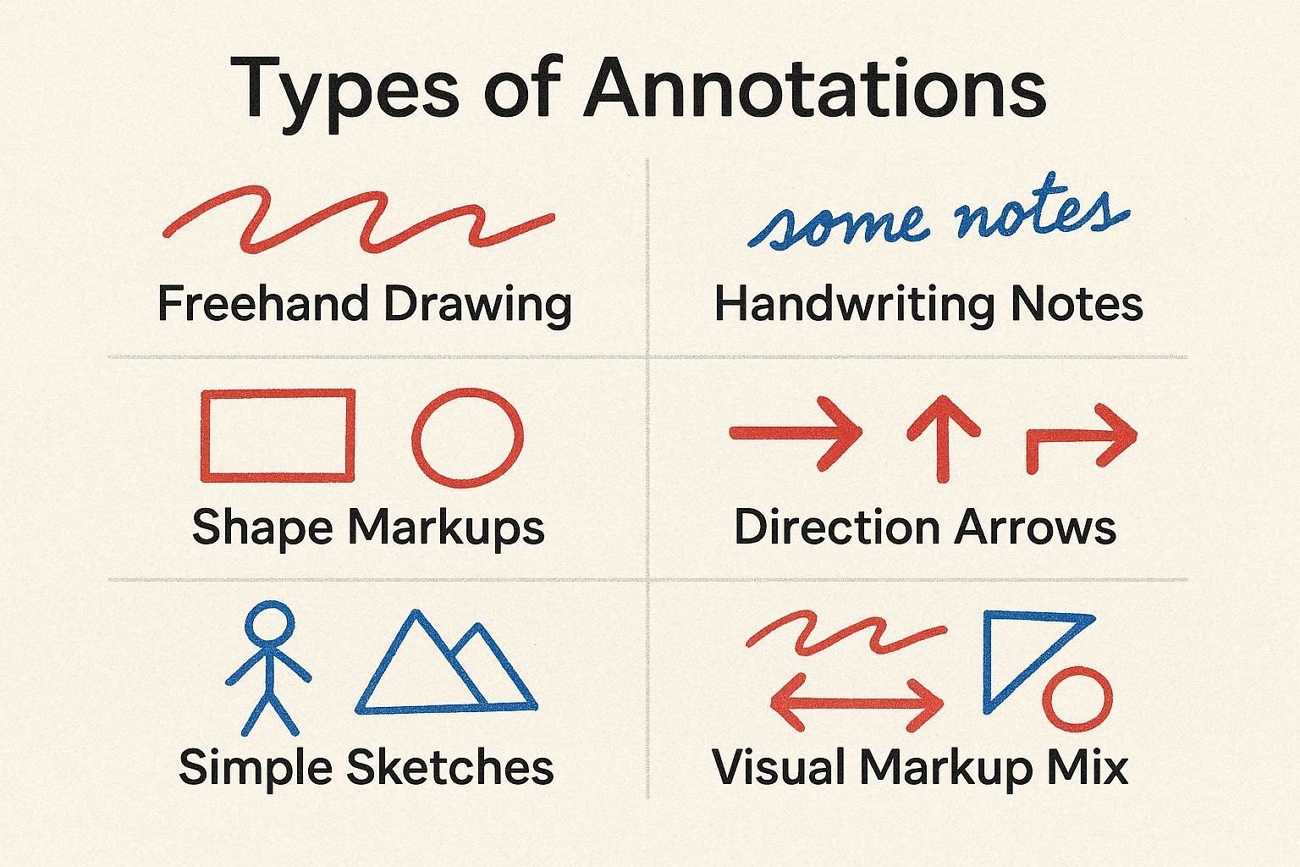
Different professionals draw on PDFs for different reasons and devices, so choices should feel clear. The types of annotations shared below help users match their real‑world tasks with the right style.
- Freehand Drawing: Loose lines to circle numbers or mark rough ideas during quick reviews.
- Handwriting Notes: Write short thoughts by hand, like margin notes on lecture slides or ebooks.
- Shape Markups: Add shapes to PDF to group related clauses, figures, or important slide content visually.
- Direction Arrows: Arrows pointing from short comments to exact words, values, or design elements.
- Simple Sketches: Mini diagrams showing flows, page layouts, or feature ideas beside the original text.
- Visual Markup Mix: Combine lines, shapes, and arrows when a single style cannot show everything clearly.
FAQs
Can I draw on a PDF without changing the original text?
Yes. Drawing tools add annotations on top of the page and do not rewrite the underlying PDF text.
How do I keep freehand PDF drawings neat?
Zoom in, reduce the pen width, use a stylus when available, and choose shapes or arrows for precise callouts.
Why do PDF drawings disappear when printed?
The print settings may exclude annotations. Enable comments or markups in the print dialog, or flatten a copy after keeping an editable original.
Final Words
In conclusion, online tools suit quick, one‑off edits on shared files, while desktop software fits longer review work. However, mobile apps help tablet note‑takers and on‑site teams sketch, sign PDFs, and draw on PDFs while moving. If more powerful features are needed, choosing one main editor across devices keeps drawing and comments consistent. To explore more markup options beyond drawing, continue with the main annotate PDFs guide.
UPDF is a better choice when choosing a drawing tool whether you want to circle, sketch, or write handwritten notes as the workflow we've mentioned above, or whether you use laptop, computer or mobile phone on different systems, it can support you all the time. Download and try to draw on your PDF now!
Windows • macOS • iOS • Android 100% secure






 Enya Moore
 Enid Brown

 Lizzy Lozano