UPDF
UPDF
 UPDF for Windows
 UPDF for Mac
 UPDF for iPhone/iPad
 UPDF for Android
 Nomostar
 UPDF AI Online
 UPDF Sign
 IvyCraft
 Edit PDF
 Annotate PDF
 Create PDF
 PDF Form
 Edit links
 Convert PDF
 OCR
OCR PDF to Word
 PDF to Image
 PDF to Excel
 Organize PDF
 Merge PDF
 Split PDF
 Crop PDF
 Rotate PDF
 Protect PDF
 Sign PDF
 Redact PDF
 Sanitize PDF
 Remove Security
 Read PDF
 UPDF Cloud
 Compress PDF
 Print PDF
 Batch Process
 About UPDF AI
 UPDF AI Solutions
 AI User Guide
 FAQ about UPDF AI
 Summarize PDF
 Translate PDF
 Chat with PDF
 Chat with AI
 Chat with image
 PDF to Mind Map
 Explain PDF
 PDF AI Tools
 Image AI Tools
 AI Chat Tools
 AI Writing Tools
 AI Study Tools
 AI Working Tools
 Other AI Tools
 AI Bookmark Generation
 AI Bookmark Summary
 AI Watermark Generation
 AI Background Generation
 AI Sticker Generation
 AI Stamp Generation
 AI Editing Suite
 UPDF Copilot
 AI Page Management
 AI Semantic Search
 PDF to Word
 PDF to Excel
 PDF to PowerPoint
 Enterprise Solution
 Enterprise Sign
 Enterprise AI
 Enterprise Plan
 Enterprise User Guide
 Enterprise Webinar
 IT
IT Education
 Construction
 Financial Service
 Healthcare
 Insurance
 Legal
Legal Manufacturing
 Government
 Researchers & PhDs
 Solopreneurs & Freelancers
 Lawyers & Legal Professionals
 Real Estate Agents & Brokers
 Education Solution
 Customer Stories
 User Guide
 UPDF Tricks
 FAQs
FAQs UPDF Reviews
 Download Center
 Blog
Blog Newsroom
 Tech Spec
 Updates
 UPDF vs. Adobe Acrobat
 UPDF vs. Foxit
 UPDF vs. PDF Expert

Quick answer:
If you're asking "how do I add a page to a PDF without messing up the order," the answer depends on where the new page comes from. An empty page you'll fill in later, pages that already exist in another PDF, or an image or screenshot you want as a page — each uses a different Insert source (Blank Page, From File, From Image). Picking the right one first saves you from inserting in the wrong spot and re-doing the order.
This guide covers the five ways that actually matter: adding a blank page, inserting pages from another PDF, turning an image or screenshot into a page, the quick thumbnail right-click, and merging whole files — plus how to do it on your phone. Adding pages is one piece of the bigger picture; for reordering, deleting, rotating, and extracting, see the full guide on how to organize PDF pages.
The best output format depends on what you need to do with the document next. For a visual companion, the video below focuses on organizing PDF pages in UPDF.
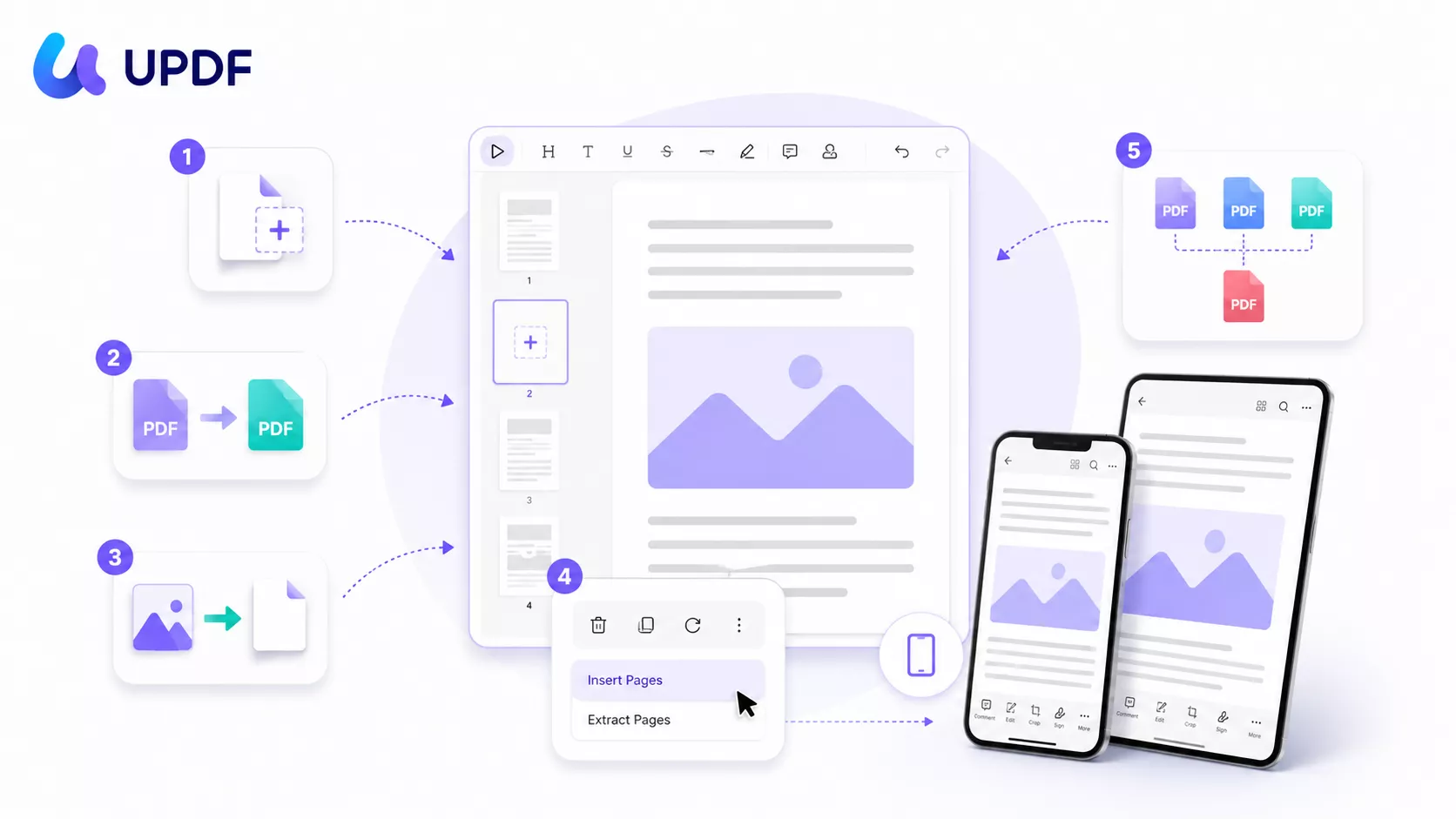
Part 1. Which Method Do You Need?
The most common reason to add a page to a PDF isn't building something from scratch — it's fixing an incomplete file. You scanned a 20-page contract and realized page 21 (the signature page) is still sitting on the scanner; you filled out a form and need to attach a screenshot of the receipt; or you merged two chapters and need a divider between them. Match your goal to the right method before you open the file.
| What you want to do | Method | Because you... |
| Add an empty page to fill in later | Insert a blank page | need a cover, divider, or signature page you forgot to include |
| Pull pages from another PDF | Insert from File | scanned the last page separately and need to stitch it back in |
| Turn an image or screenshot into a page | Insert from Image | took a photo of a receipt or ID and need it inside the document |
| Add one page in a hurry | Thumbnail right-click | just need to slip one page in without menus |
| Join whole documents end to end | Merge files | have five reports that need to become one deliverable |
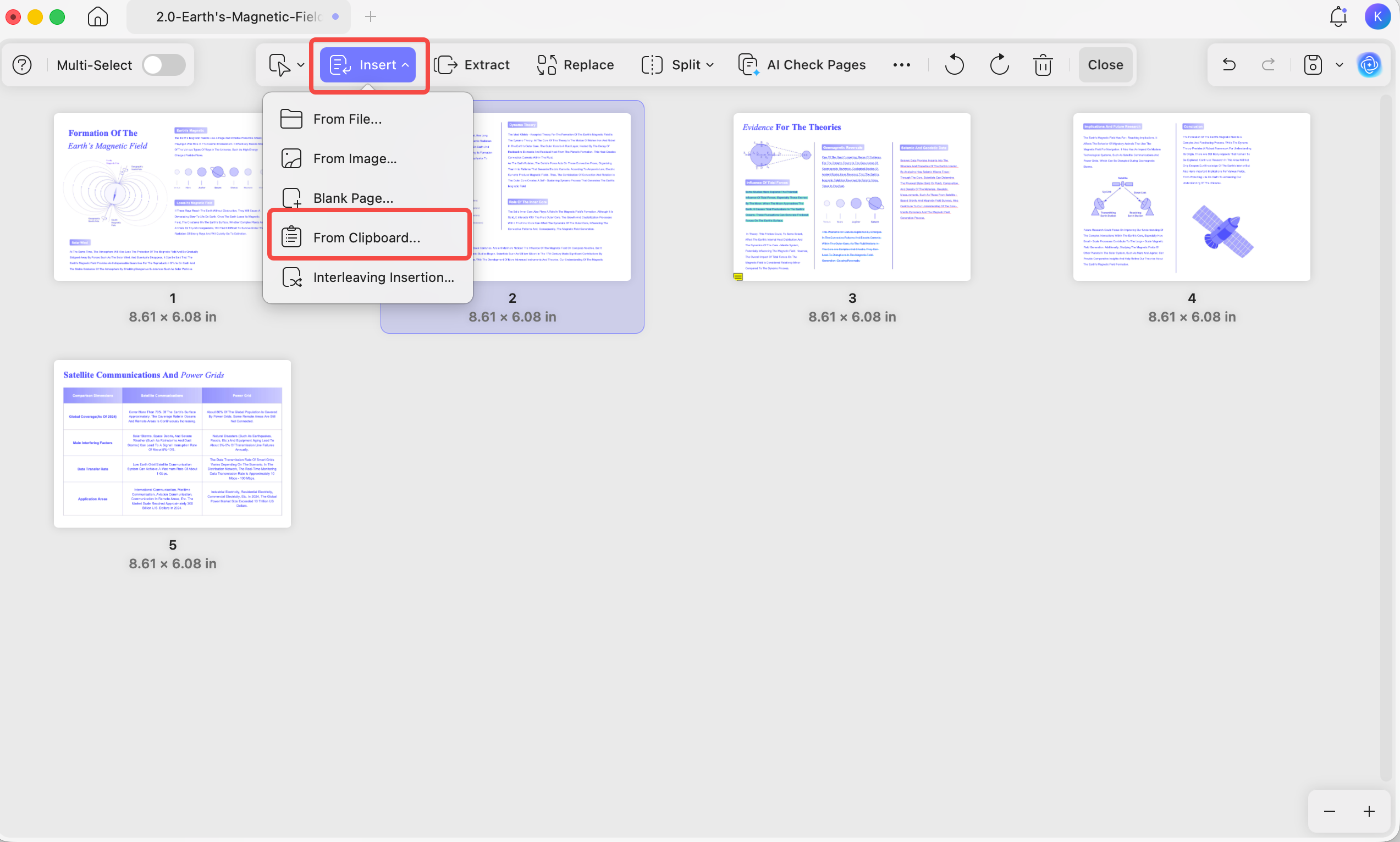
Inside UPDF's Organize Pages view, the Insert menu holds five sources: From File, From Image, Blank Page, From Clipboard, and Interleaving Insertion (which alternates pages from two documents — handy for merging separately scanned fronts and backs). The methods below cover the ones you'll reach for most.
Part 2. How to Add a Blank Page to a PDF
A blank page is what you want when the content doesn't exist yet — a cover sheet, a section divider, or space to add a signature later. Open the document in UPDF — if you don't have it yet, download UPDF for free and install it in under a minute — then follow these steps.
Windows • macOS • iOS • Android 100% secure
Step 1. Click Open File and select your PDF.
Step 2. Click Organize Pages on the left toolbar to open the page management view.
Step 3. Click Insert on the top toolbar and choose Blank Page.
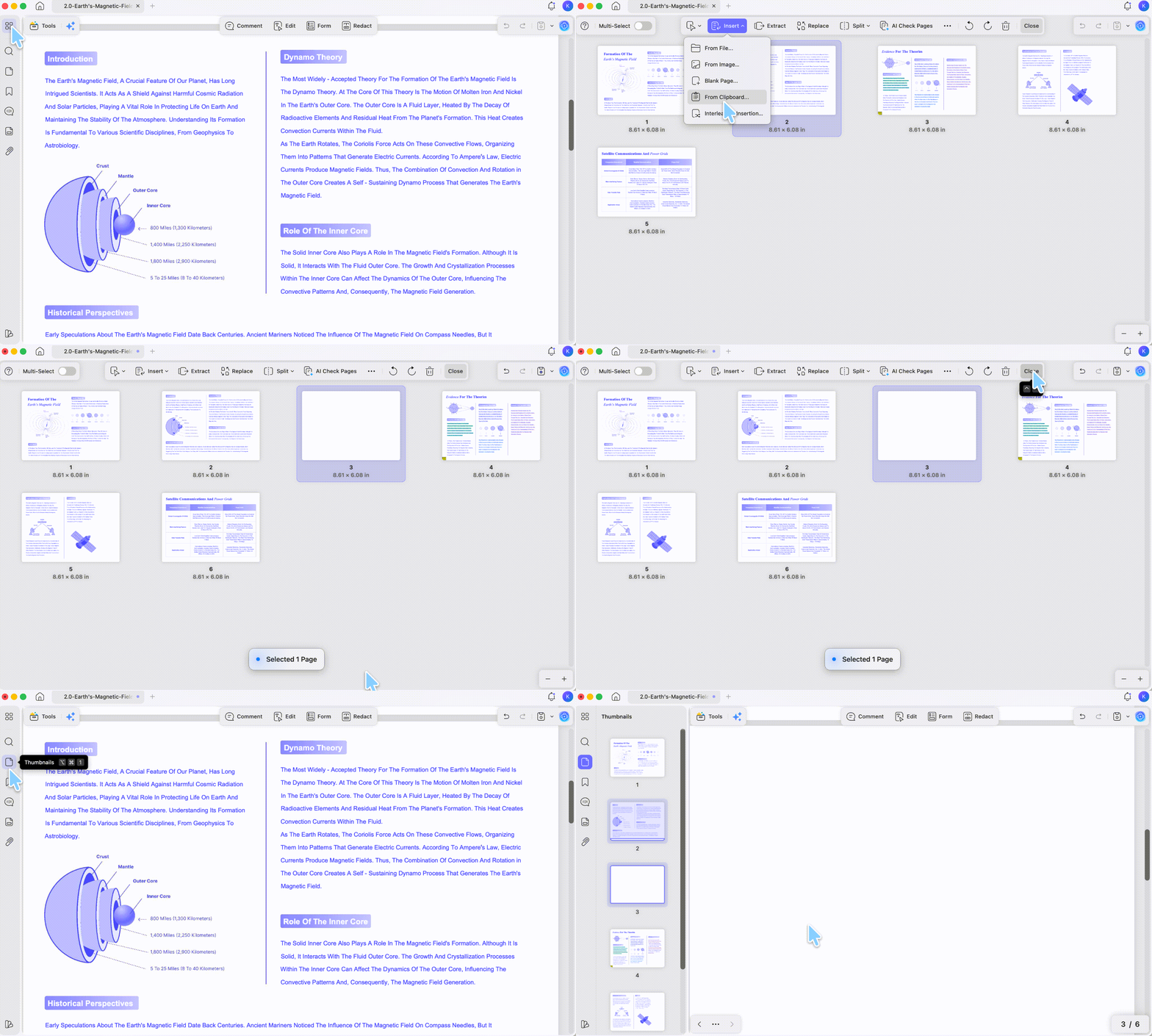
Step 4. In the pop-up, set the page size, how many pages, and the position (front, end, or after a specific page), then click Insert. Click Save when done.
If you only need an empty page and want more detailed instructions for Windows, Mac, mobile, online tools, or Adobe Acrobat, see the complete guide on how to insert a blank page in a PDF.
Best for:
- Adding empty space you'll fill in afterward — covers, dividers, signature pages.
Not for:
- Bringing in content that already exists — use Part 3 to insert from a file instead.
Part 3. How to Add a Page to a PDF from Another File
When the pages you need already live in another document — a signed page, an appendix, a chapter from a separate file — Insert from File drops them into the exact position you choose, no copy-paste.
Step 1. In Organize Pages mode, click the page where you want the new pages to land.
Step 2. Click Insert and choose Insert from File.
Step 3. Select the source PDF, then set the page range to pull and where to place it — first page, last page, or a custom location.
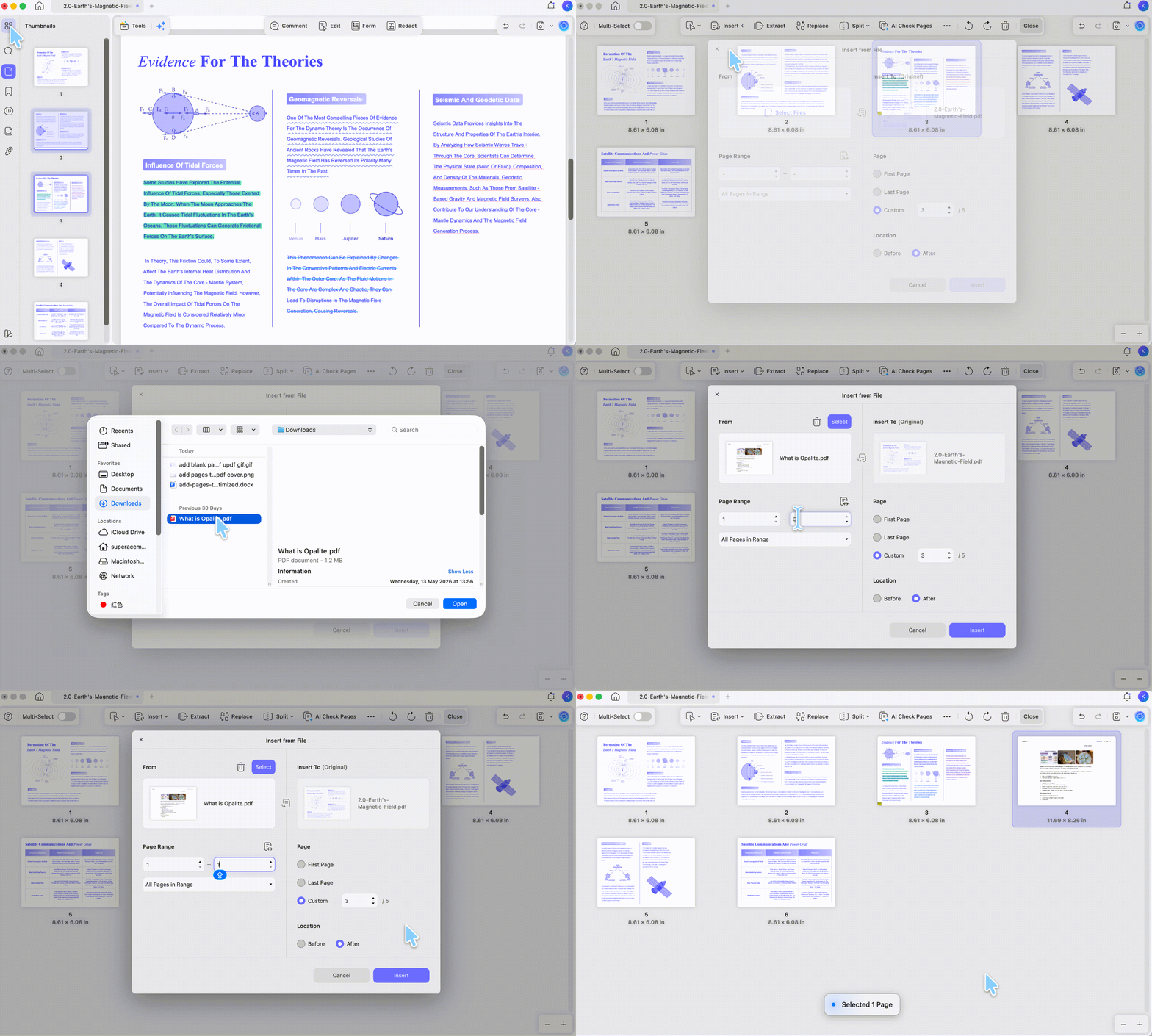
Step 4. Click Insert. The pages drop in, and you can reorder or edit them right away.
When you insert pages in the middle of a document, UPDF pushes the existing pages forward automatically — page numbers in the footer or header of the original pages do not break. If you need the entire document to have continuous page numbering afterward, use the Header & Footer tool to renumber once the insertion is complete.
Tip:
Video Tutorial on Organize Pages
Best for:
- Adding pages that already exist in another PDF at a precise position.
Not for:
- Joining whole documents end to end with no positioning — Part 6 is faster for that.
Part 4. How to Add a Page from an Image or Screenshot
When the page you need is a photo, a screenshot, or a scanned figure rather than a PDF, Insert from Image turns that image into a full page without converting it first.
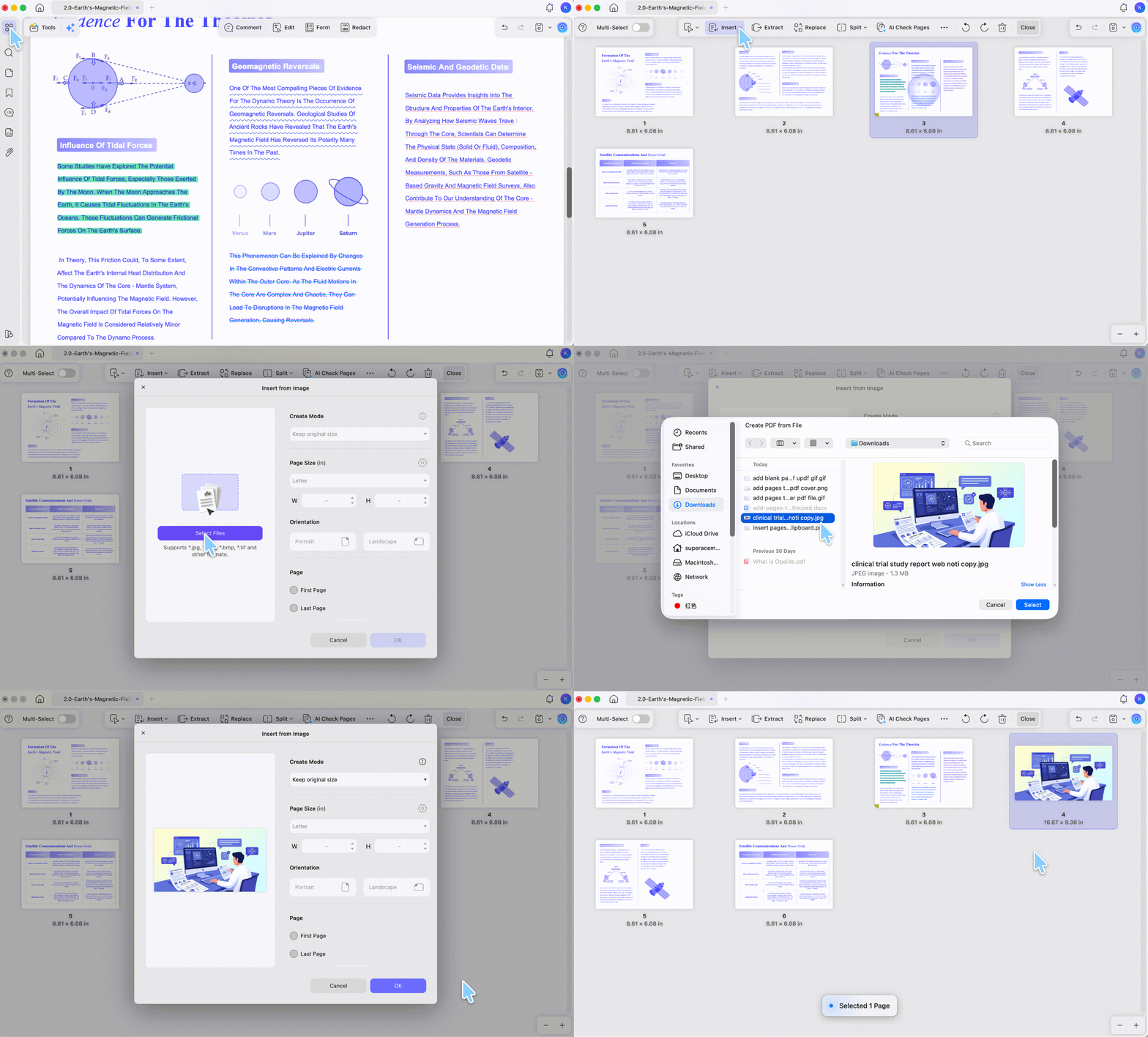
Step 1. In Organize Pages mode, click the page you want the image to follow.
Step 2. Click Insert and choose From Image.
Step 3. Select the image file (JPG, PNG, and similar) and click OK to insert. If the source file is a different size (for example, a Letter-size appendix going into an A4 report), use the Standardize page size option to adjust and match the destination document before inserting.
Tip: Scan the missing page straight in
Best for:
- Dropping a photo, chart, screenshot, or scanned figure in as a page
Not for:
- Editing editable text — an image page is a picture, so run OCR afterward if you need to edit it.
Part 5. How to Insert a Page by Right-Clicking the Thumbnail
If you only need to add a single page to a PDF, the thumbnail right-click method is fastest: skip the top menu and work straight from the page thumbnails on the left.
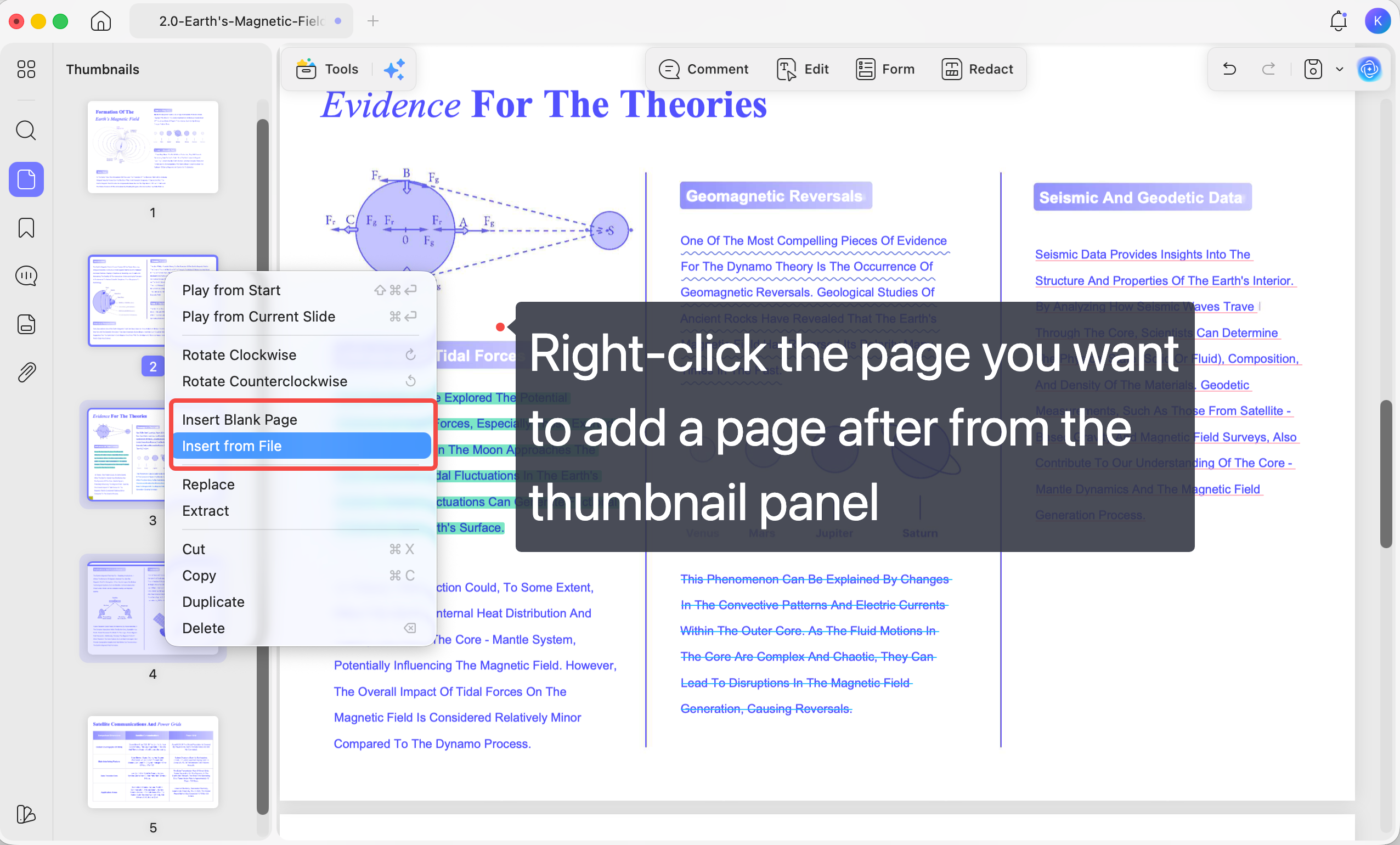
Step 1. With the PDF open, make sure the thumbnail panel is showing. If not, click the Thumbnails icon in the bottom-left corner.
Step 2. Right-click the page you want to add a page after.
Step 3. Choose Insert Blank Page — or Insert from File to pull in pages from another document.
Best for:
- A fast one-off insert without opening the Organize Pages toolbar.
Not for:
- Batch work across many files — use Part 6 or Batch Process.
Part 6. How to Add Pages by Merging Whole PDFs
When you're not inserting a few pages but joining entire documents — say, three finished sections into one deliverable — Merge handles all of them at once.
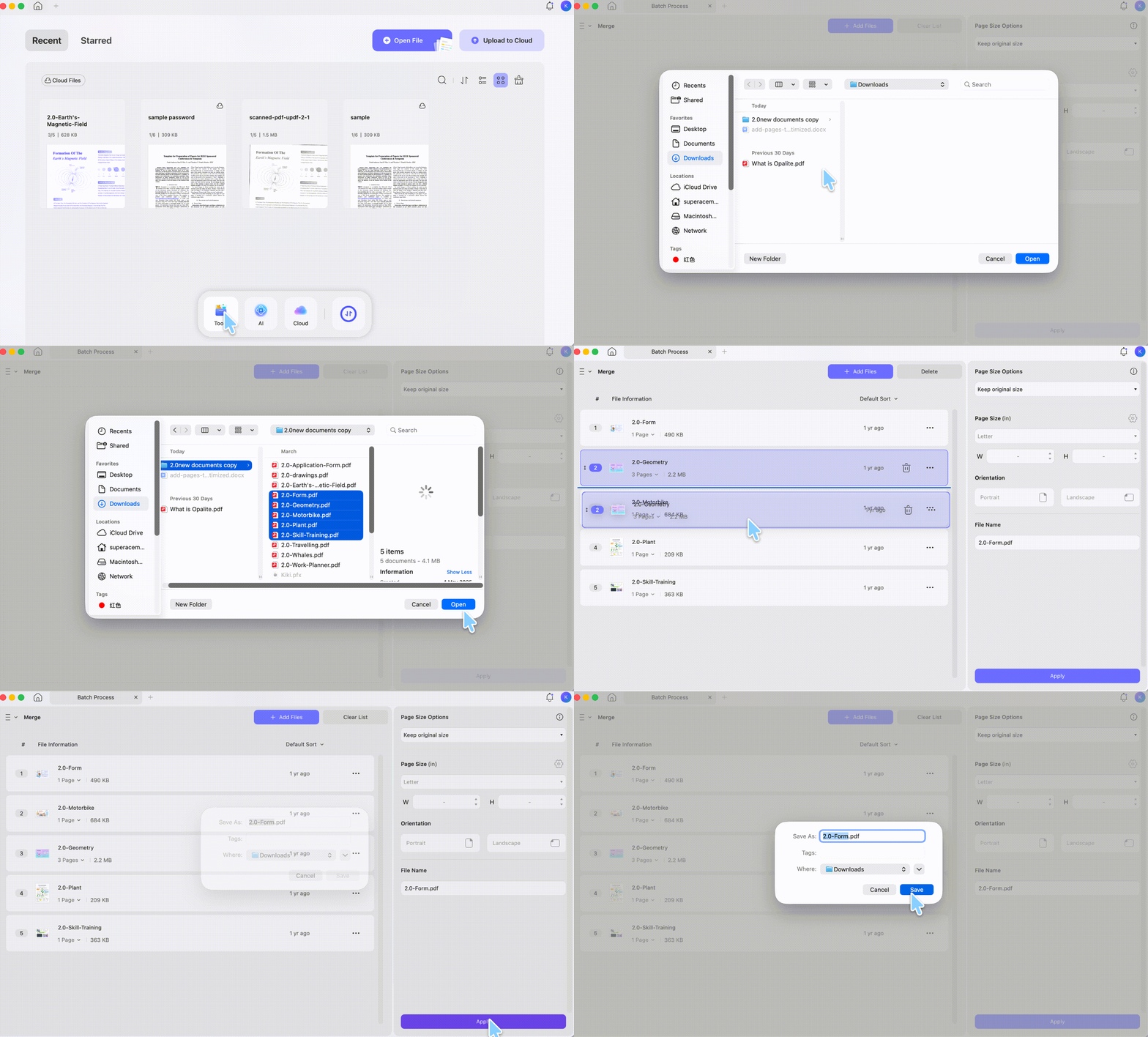
Step 1. On the UPDF home screen, click Tools.
Step 2. Under the Batch PDFs section, select Merge.
Step 3. Add the PDF files you want to combine, drag them into the order you want, and click Apply. When merging files of different formats or sizes, enable Standardize page size to adjust the page size and keep the output consistent — especially useful when combining scans, spreadsheets, and standard PDFs into one deliverable.
After merging, you can rearrange the pages or extract any you don't need.
Best for:
- Combining several complete PDFs into a single file.
Not for:
- Inserting a few pages at a specific point — Part 3 keeps the rest of the document untouched.
Tip:
Part 7. How to Insert One File into Multiple PDFs at Once
When the same page or file needs to go into many PDFs — a cover sheet onto a batch of reports, a disclosure page into every contract — UPDF's batch Insert adds it to all of them in one pass, instead of opening each file separately.
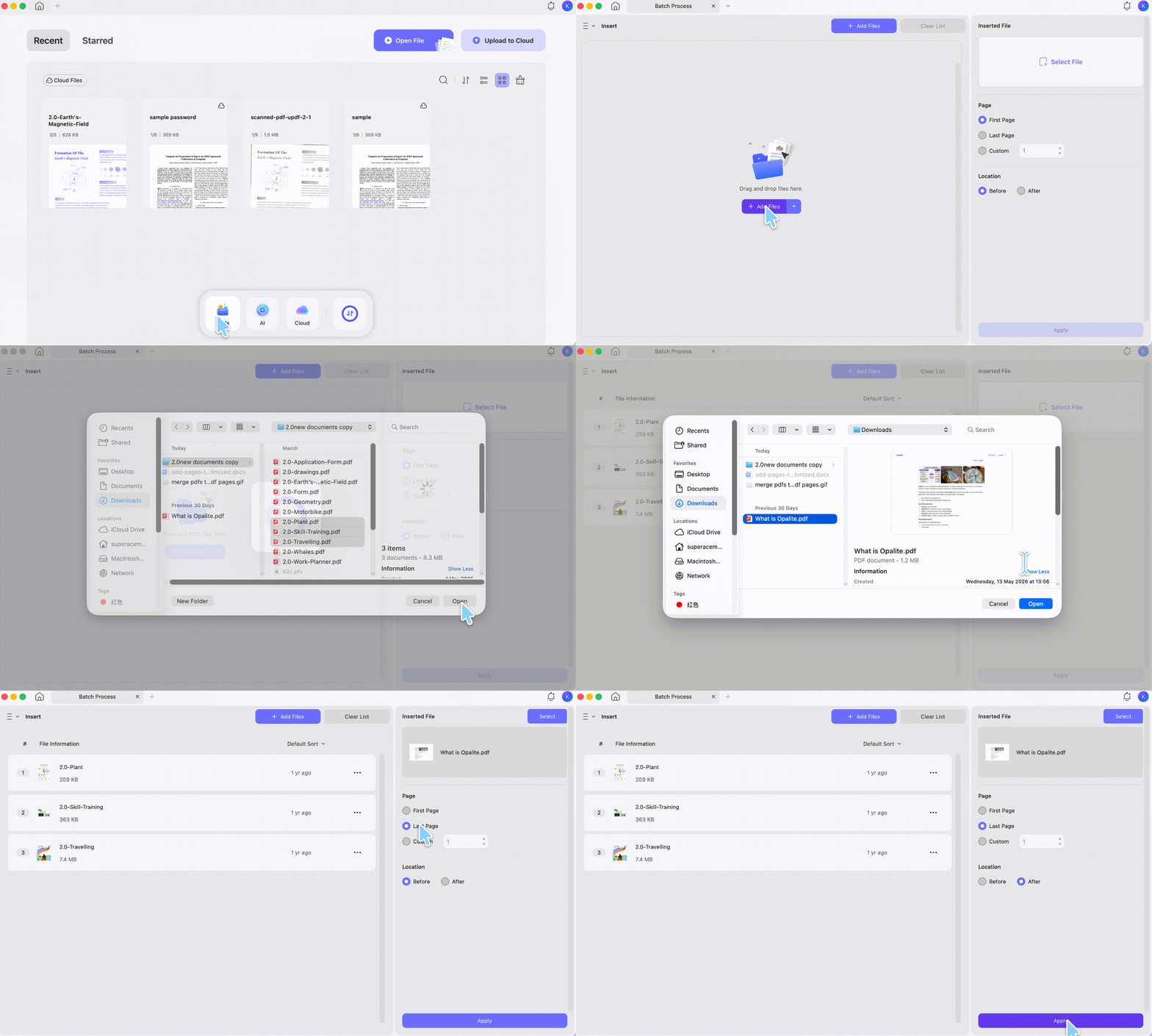
Step 1. On the UPDF home screen, click Tools > Insert option.
Step 2. On the right, select the single file you want to insert, and set its location — at the front, at the end, or after a specific page.
Step 3. On the left, add all the PDF files you want that file inserted into.
Step 4. Click Apply. UPDF inserts the file into every document in the list at once.
Best for:
- Putting the same page into many PDFs in one operation.
Not for:
- Combining different documents into a single file — that's Merge (Part 6).
Part 8. How to Add Pages to a PDF on iPhone & Android
You don't need a computer to add a page — the UPDF mobile app handles inserts and merges too, and the change syncs to your other signed-in devices.
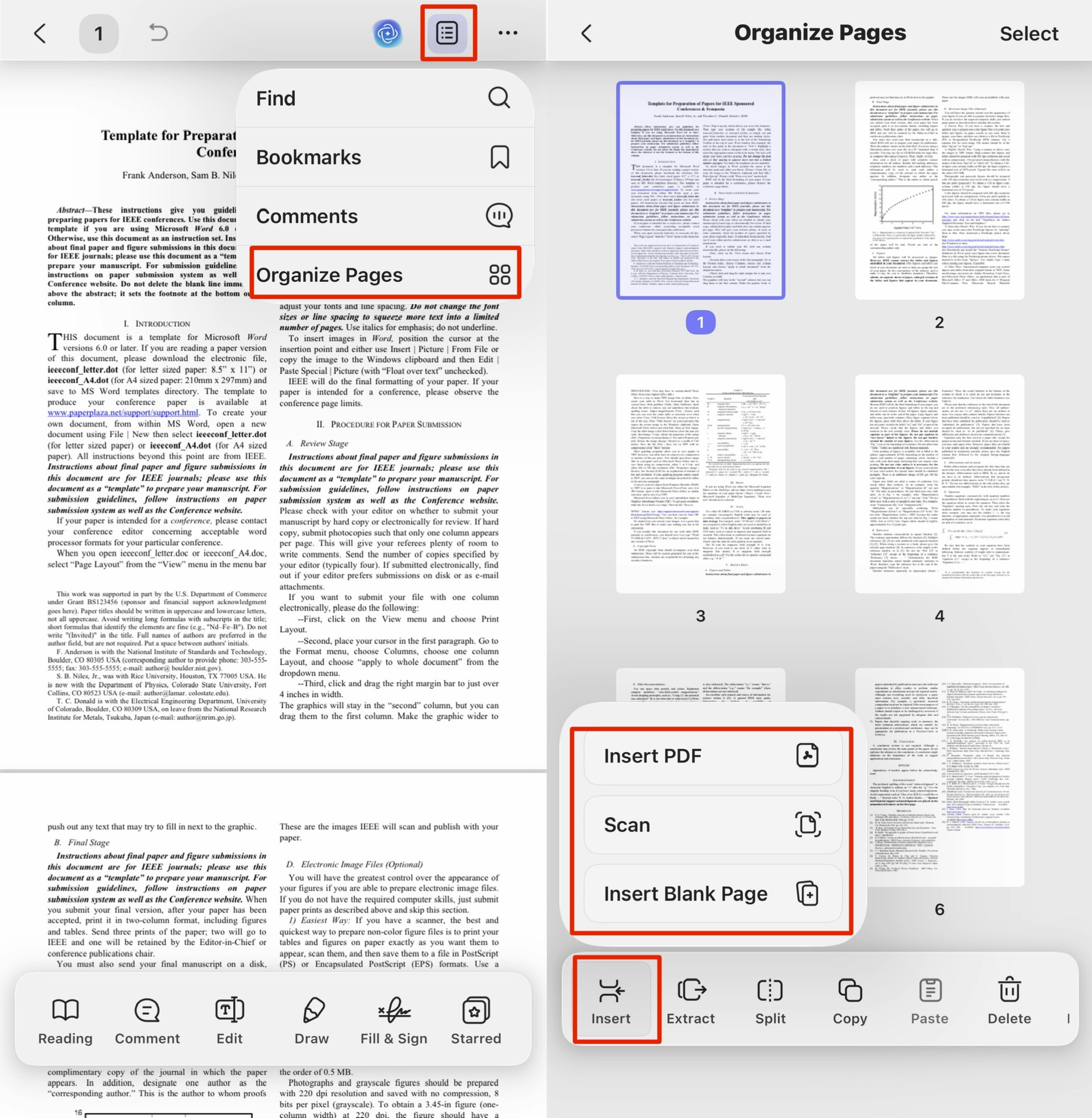
On iOS / Android: open the PDF in the UPDF app and tap the Organize view. Tap Insert, then choose Insert Blank Page, Insert PDF, or Scan. Tap Done to continue.
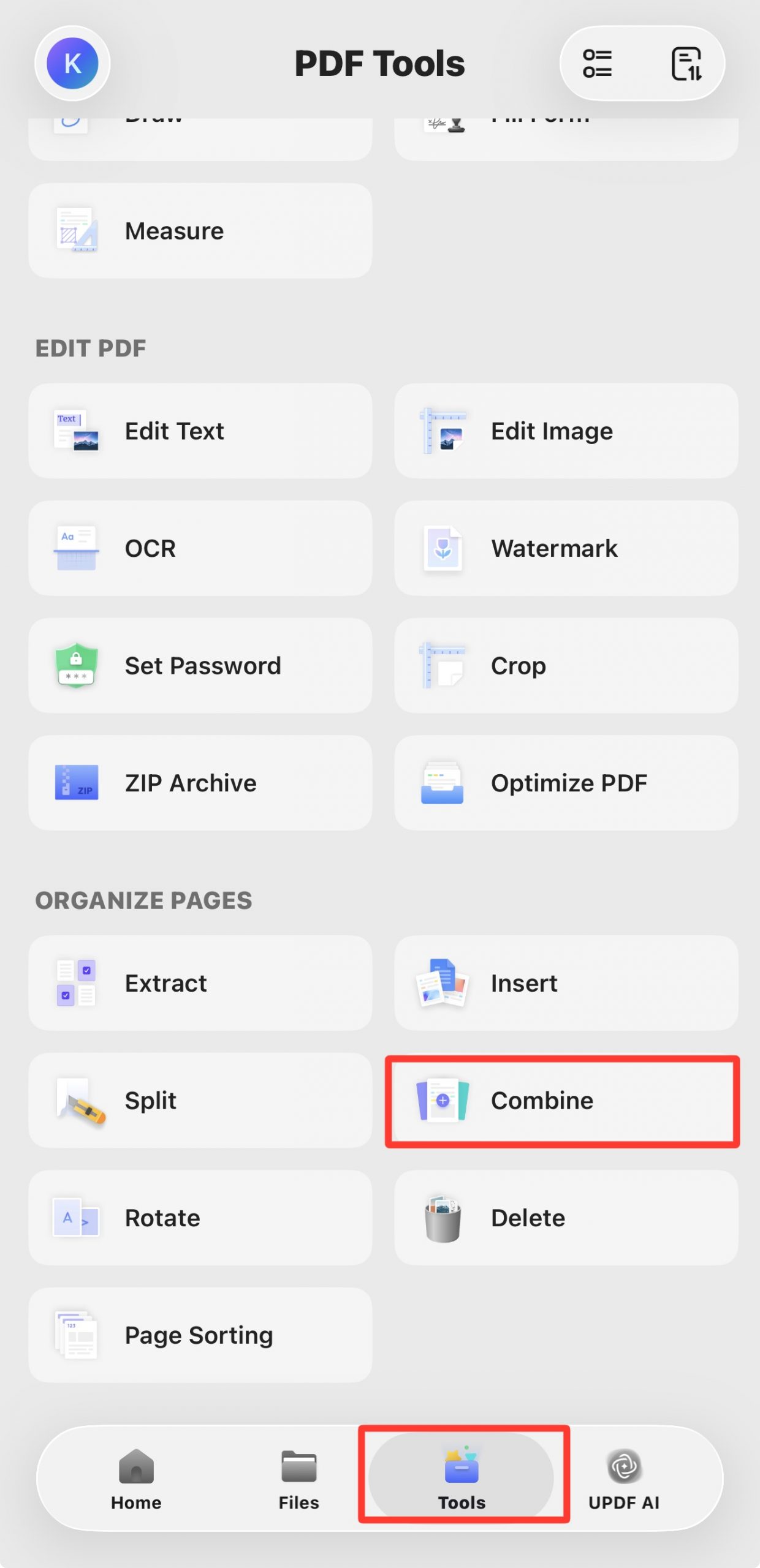
To join whole documents, use Combine from the app's tools menu.
Part 9. How to Add Pages Online
Online tools (iLovePDF, Smallpdf, pdfFiller) can add pages in a browser, which is convenient when you can't install anything. But they come with trade-offs worth knowing before you upload a sensitive file. This table compares the real limits — including UPDF's own.
Method 1: Smallpdf
Smallpdf lets users add pages to PDF online freeto effortlessly update their PDFs without requiring complicated software installations. Users can upload their files to the tool through various means, including Dropbox and Google Drive, and from the system. Moreover, it provides you with a preview of your whole document to choose where you want to add the desired page or delete the rest of the pages. Let's discuss the easy-to-follow steps of integrating pages into the document files using Smallpdf:
Step 1. To get started, visit the Smallpdf website and access its main interface for the users. Now, hit the "Tools" drop-down menu to access the multiple features for PDF organization. Under the "Organize" section, choose the "Merge PDF" option that will lead you to a new window.

Step 2. In the upcoming window, hit the "CHOOSE FILES" button in the middle. This action will direct you to find the required file from the system and upload it to the server.

Step 3. Afterward, the uploaded file will open on a new screen from where you can turn on the "Show pages" option to get a preview of your whole document. Now, navigate to the preferred page and press the "Add documents" icon to add a new file after browsing.

Step 4. After adding a PDF file, if you want to delete any wanted PDF page from the document, place your cursor over that page thumbnail. Then, select the "Delete" icon located at the upper-right corner of the thumbnail to keep only the necessary pages.
Also Read: How to Interleave Pages? (Tested Ways)
Method 2: iLovePDF
iLovePDF provides an accessible and user-friendly solution to organize documents swiftly. After uploading the PDF file to the tool, you can add new PDF pages after the desired page on your document. Moreover, it offers other organizational features to make PDF handling easier for you. The following section takes you through adding a page to PDF online using iLovePDF:
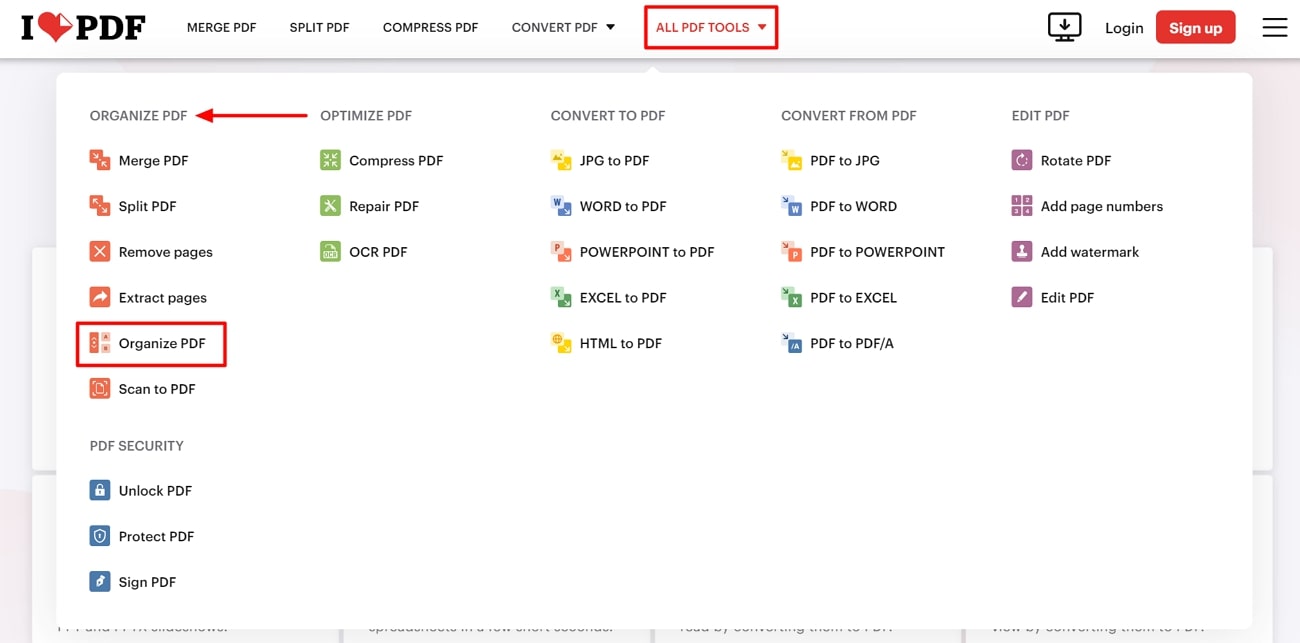
Step 1. Open your preferred web browser and visit the iLovePDF website. Once you have accessed the main window of the online tool, hover over "ALL PDF TOOLS", and a drop-down menu will appear in front of you. Within the menu, under the "ORGANIZE PDF" category, choose the "Organize PDF" button that will move you to a new window.
Step 2. On the new window, choose the "Select PDF file" button in the center of the screen or drop your files. Now, find the file in which you want to insert PDF pages online and upload it on the tool.
Step 3. Once the uploaded file is opened on a new window, view the thumbnails and reorganize already added pages if you want. Then, click the "Add More Files" icon on the right side and add a file to the existing document.
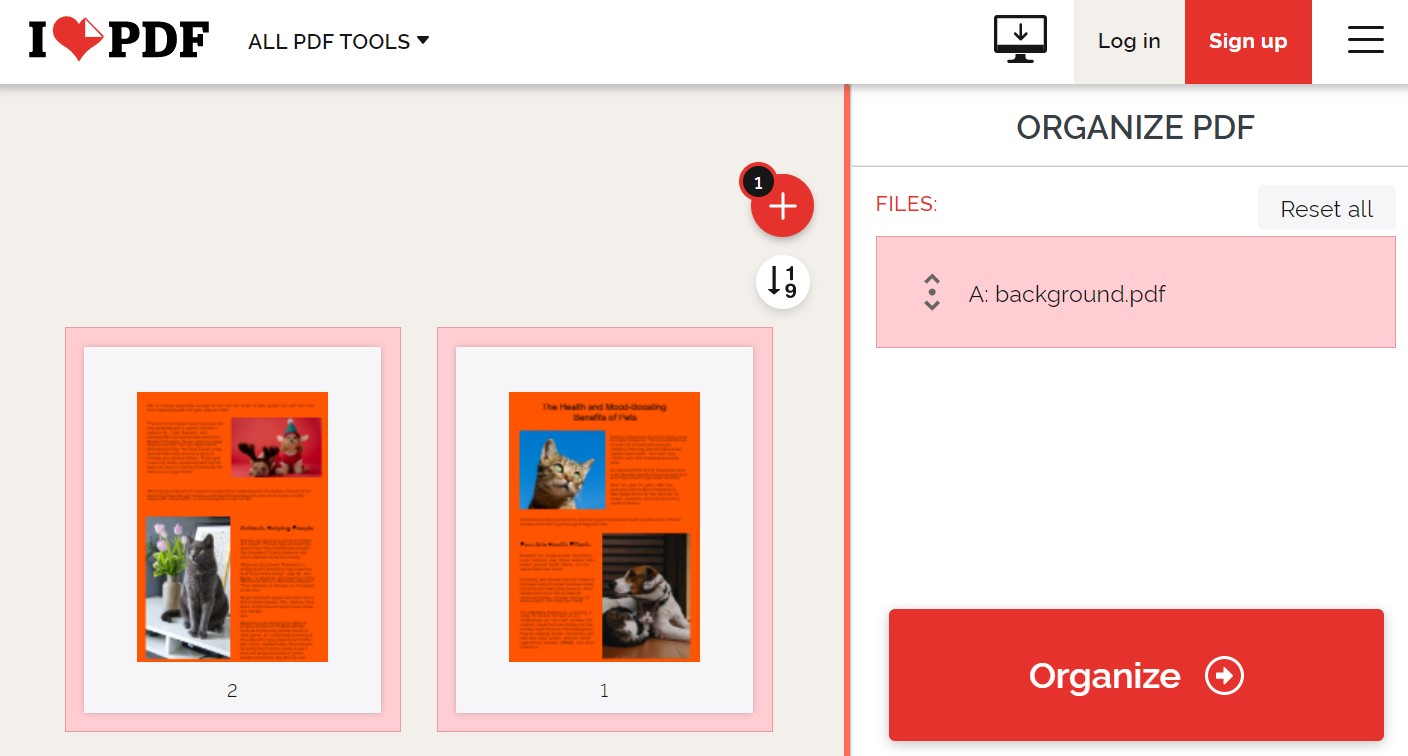
Step 4. Afterward, retain the important pages only and send the rest into the trash by clicking the "Delete" icon shown above the thumbnail of the page. Moreover, you can choose the "Add a Blank Page' button to start adding blank pages by confirming your choice. Once you have made all the page organization changes, hit the "Organize" button to save the changes.

Method 3: pdfFiller
pdfFiller offers a friendly solution for efficient document organization. Users can upload files through PDF library, email, Box, OneDrive, Dropbox, and from URLs according to their ease. Plus, it allows the addition of blank pages for inserting additional information to the existing content. This section will lead you through the effortless process of adding pages to PDF online for free with the pdfFiller platform.
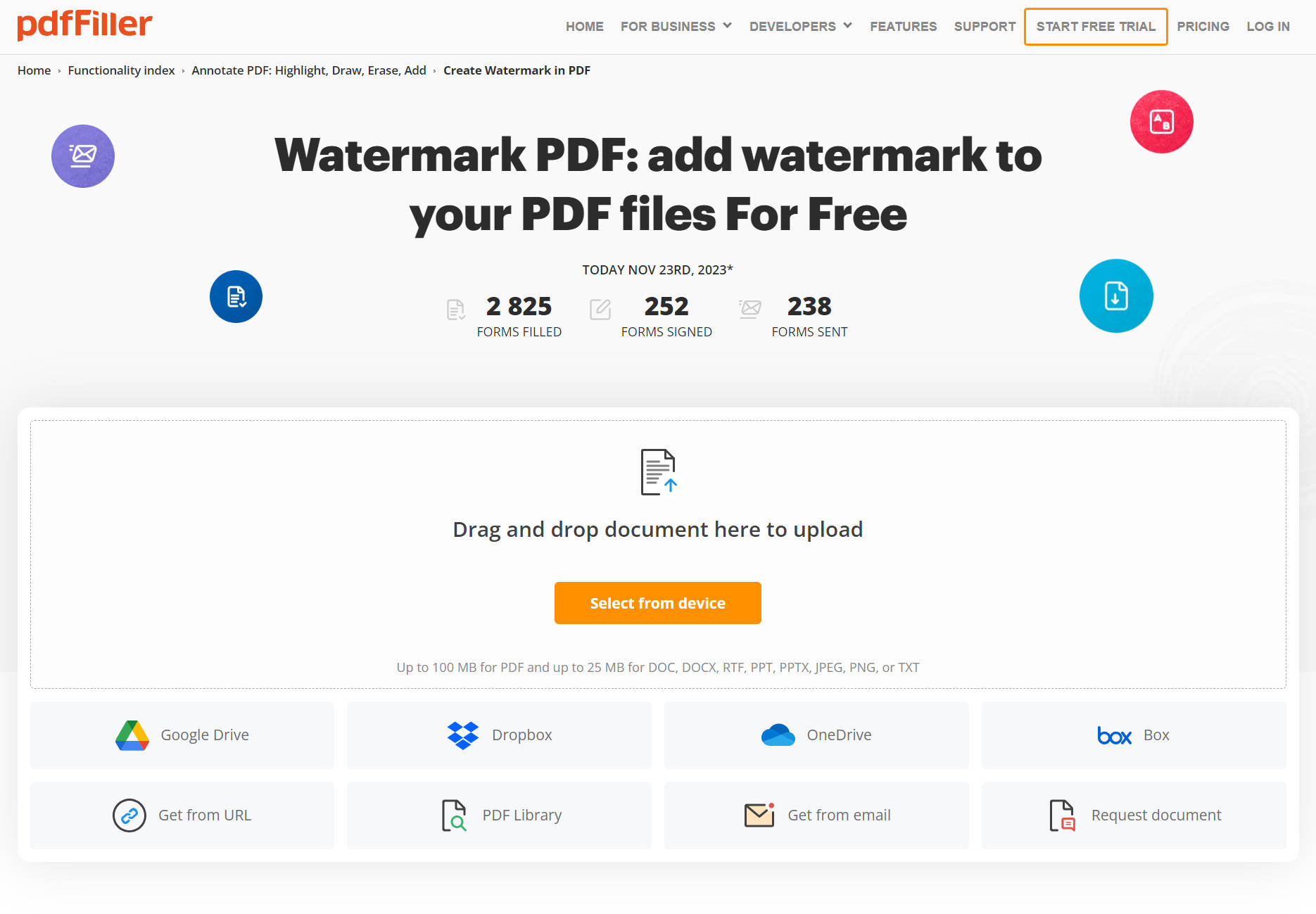
Step 1. Search for the tool pdfFiller online and get the main interface of the tool. On the main window, select the "Select from device" button from the center and locate the file from the system to upload it on the online tool.
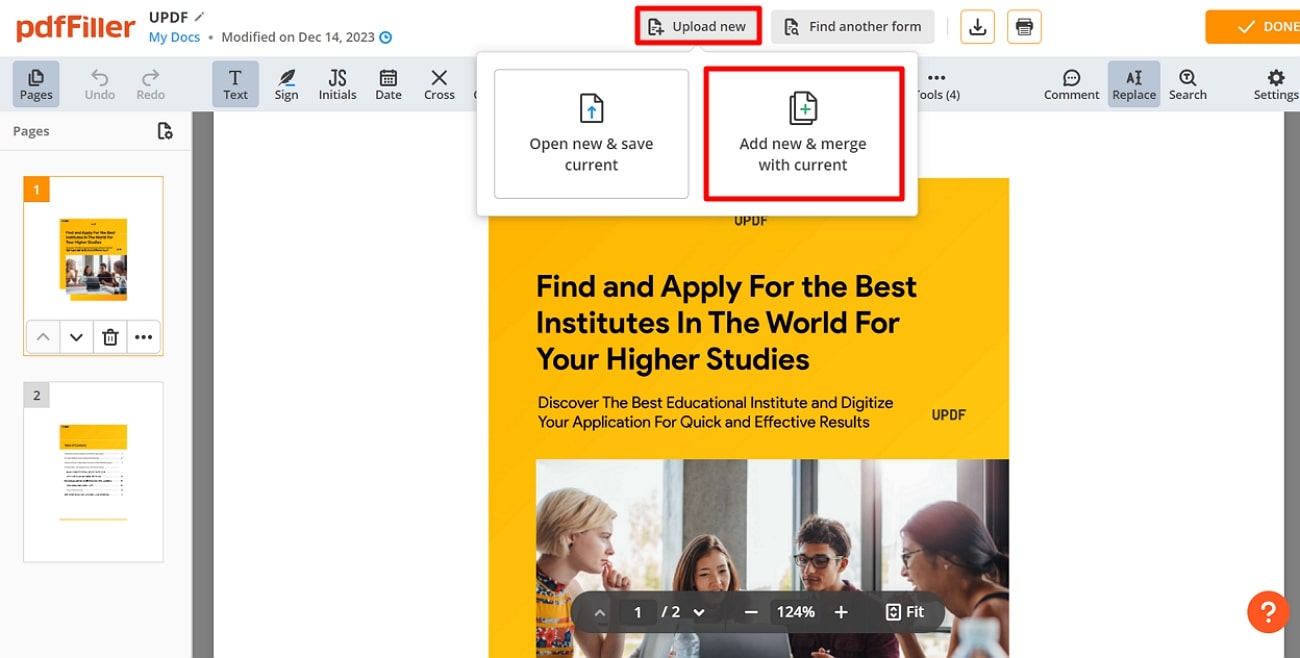
Step 2. The uploaded document will open on a new window from where you need to navigate to the top of the window and select the "Upload new" button. Then, choose the "Add new & merge with current" button from its options.
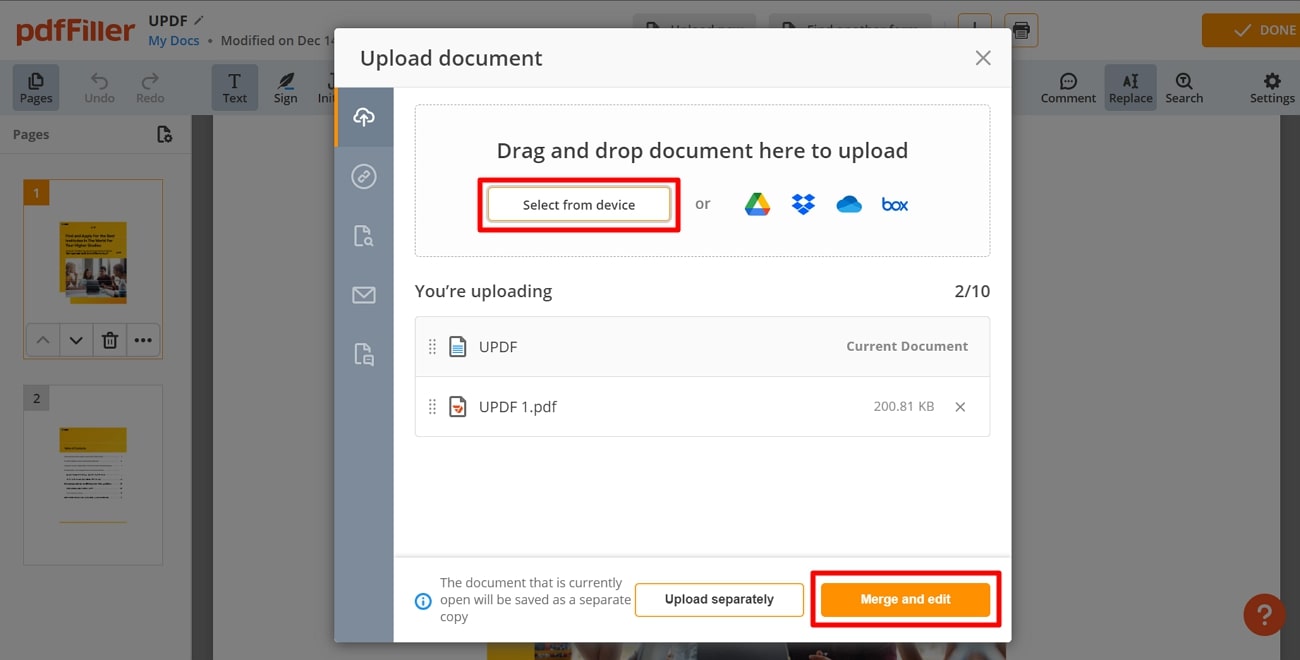
Step 3. Now, a mini window will appear to allow you to add a new PDF file after hitting the "Select from device" button. Once it is uploaded, press the "Merge and edit" button located at the bottom of the mini window to add new PDF pages to existing ones.
Step 4. Afterward, the new file will be added to the end of the existing file, and you can organize them with the "Move Up" and "Move Down" icons. Moreover, you can delete the unnecessary pages of the document by hitting the "Delete" icon.
Part 10. Troubleshooting: When Adding Pages Doesn't Work as Expected
The inserted pages landed in the wrong place
Insert position is set in the pop-up before you confirm — if pages went to the end instead of mid-document, you likely left the default position. Undo, re-run Insert, and set the position to “After page X” explicitly. You can also drag thumbnails to reorder afterward.
Insert is greyed out or blocked
The PDF is probably permission-protected — protected files block page changes. Remove the restriction first, and only on files you own or are authorized to edit.
The new page is a different size than the rest
Pages inserted from another file keep their original dimensions. Set the blank-page size to match your document in the Insert dialog, or crop the inserted pages to the same size afterward.
Part 11. FAQ
1. Can I add pages to a PDF after it has been digitally signed?
Adding pages changes the signed document and may invalidate a certificate-based digital signature; a locked signed PDF may block the insertion entirely. Add the missing pages before signing. If the file is already signed, request an unsigned copy, insert the pages, and have the finished PDF signed again.
2. Can I add a page from a Word, Excel, or PowerPoint file?
Yes — convert it to PDF first, which UPDF does on drop. Dragging a Word, PowerPoint, or Excel file into the UPDF desktop app turns it into a PDF automatically; then insert it like any other file. For a photo or screenshot, use Insert from Image instead — no conversion needed.
3. Why did my PDF file get much bigger after I added pages?
The inserted pages were probably high-resolution scans or images. Pages pulled from a scanned document or an image carry their full pixel data, which inflates the file. Run UPDF's Compress after inserting to bring the size back down without redoing the work.
4. How do I merge separately scanned front and back pages in the right order?
Use Interleaving Insertion. In the Insert menu, Interleaving Insertion weaves the second file's pages between the first file's pages, so a fronts-only scan and a backs-only scan merge into the correct front-back-front-back order in one step instead of manual reordering.
Conclusion
Adding pages to a PDF comes down to one choice — where the page comes from. A blank page to fill in, pages that already exist in another PDF, or an image or screenshot as its own page: UPDF's Organize Pages handles all of them, on desktop and mobile, and keeps your file local instead of uploading it. For joining whole documents, Batch Process merges them in one pass.
Download UPDF for free to try adding pages on your own file — installation is free, and Pro features are available when you need export or advanced tools. For reordering, deleting, rotating, and extracting pages, see the full guide on how to organize PDF pages.
Windows • macOS • iOS • Android 100% secure






 Delia Meyer
 Lizzy Lozano
 Enola Miller