 UPDF
UPDF
 UPDF for Windows
 UPDF for Mac
 UPDF for iPhone/iPad
 UPDF for Android
 Nomostar
 UPDF AI Online
 UPDF Sign
 IvyCraft
 Edit PDF
 Annotate PDF
 Create PDF
 PDF Form
 Edit links
 Convert PDF
 OCR
OCR PDF to Word
 PDF to Image
 PDF to Excel
 Organize PDF
 Merge PDF
 Split PDF
 Crop PDF
 Rotate PDF
 Protect PDF
 Sign PDF
 Redact PDF
 Sanitize PDF
 Remove Security
 Read PDF
 UPDF Cloud
 Compress PDF
 Print PDF
 Batch Process
 About UPDF AI
 UPDF AI Solutions
 AI User Guide
 FAQ about UPDF AI
 Summarize PDF
 Translate PDF
 Chat with PDF
 Chat with AI
 Chat with image
 PDF to Mind Map
 Explain PDF
 PDF AI Tools
 Image AI Tools
 AI Chat Tools
 AI Writing Tools
 AI Study Tools
 AI Working Tools
 Other AI Tools
 AI Bookmark Generation
 AI Bookmark Summary
 AI Watermark Generation
 AI Background Generation
 AI Sticker Generation
 AI Stamp Generation
 AI Editing Suite
 UPDF Copilot
 AI Page Management
 AI Semantic Search
 PDF to Word
 PDF to Excel
 PDF to PowerPoint
 Enterprise Solution
 Enterprise Sign
 Enterprise AI
 Enterprise Plan
 Enterprise User Guide
 Enterprise Webinar
 IT
IT Education
 Construction
 Financial Service
 Healthcare
 Insurance
 Legal
Legal Manufacturing
 Government
 Researchers & PhDs
 Solopreneurs & Freelancers
 Lawyers & Legal Professionals
 Real Estate Agents & Brokers
 Education Solution
 Customer Stories
 User Guide
 UPDF Tricks
 FAQs
FAQs UPDF Reviews
 Download Center
 Blog
Blog Newsroom
 Tech Spec
 Updates
 UPDF vs. Adobe Acrobat
 UPDF vs. Foxit
 UPDF vs. PDF Expert

Finding the best PDF annotation app for iPad is not simply about picking the software with the longest feature list. Different users require distinct toolsets:
- Students: Need smooth Apple Pencil responsiveness, quick color switching, and fast text search.
- Legal & Finance Teams: Demand rock-solid export reliability, encryption, and local privacy guarantees.
- Researchers: Require intuitive page navigation, flexible excerpt extraction, and cross-reference note organization rather than decorative stickers or templates.
This comprehensive guide evaluates the top ways to mark up and review PDF documents on iPad and iPhone. While a lightweight note-taking tool may suffice for casual handwriting, UPDF stands out as the premier all-in-one solution when you need robust markup capabilities paired with real PDF text editing, OCR, AI document summaries, and seamless cross-platform syncing.
Windows • macOS • iOS • Android 100% secure
Using This Workflow on iPadOS 27
Recheck the Files, Preview or Markup, multitasking, and Apple Pencil steps on iPadOS 27. Current devices such as iPad Pro with M5 and iPad Air with M4 can use the same core PDF workflow, but tool names and placement may differ between the built-in apps and UPDF.
Quick Picks: Top iPad PDF Annotation Tools
| Use case | Best app | Why |
|---|---|---|
| Annotate and edit PDFs in one place | UPDF | Combines highlights, notes, drawing, signatures, text/image editing, OCR, AI, and file management. |
| Quick built-in markup | Apple Markup | No install needed for simple highlights, handwriting, signatures, and shapes. |
| Polished professional PDF review | PDF Expert | Strong annotation tools, comments, stamps, audio notes, forms, and editing options. |
| Handwritten study notes | Goodnotes | Notebook-style PDF markup, handwriting, typed notes, export, and search. |
| Research-heavy reading | LiquidText | Good for excerpts, connections across pages, and workspace-style review. |
What Makes a PDF Annotation App Good on iPad?
When choosing an application, evaluate how these core features align with your specific review workflow:
- Apple Pencil response: handwriting should feel smooth, with easy color and tool switching.
- PDF accuracy: highlights and comments should export cleanly for other readers.
- File handling: importing from Files, iCloud, Dropbox, or a computer should be simple.
- Beyond markup: decide whether you also need editing, OCR, signatures, forms, or AI summaries.
- Device fit: iPad is best for writing; iPhone is better for quick review, signing, or emergency edits.
💡 Workflow Navigation:
Best PDF PDF Annotators for iPad and iPhone
1. UPDF: Best for Annotation Plus Full PDF Editing
UPDF is the ideal choice when marking up a document is only one step in your broader management process. It bridges the gap between lightweight annotators and heavy corporate editors. Beyond offering comprehensive pencil, text box, sticky note, and shape tools, UPDF lets you modify the underlying PDF text, swap images, organize page layouts, and run OCR on scanned paper documents.
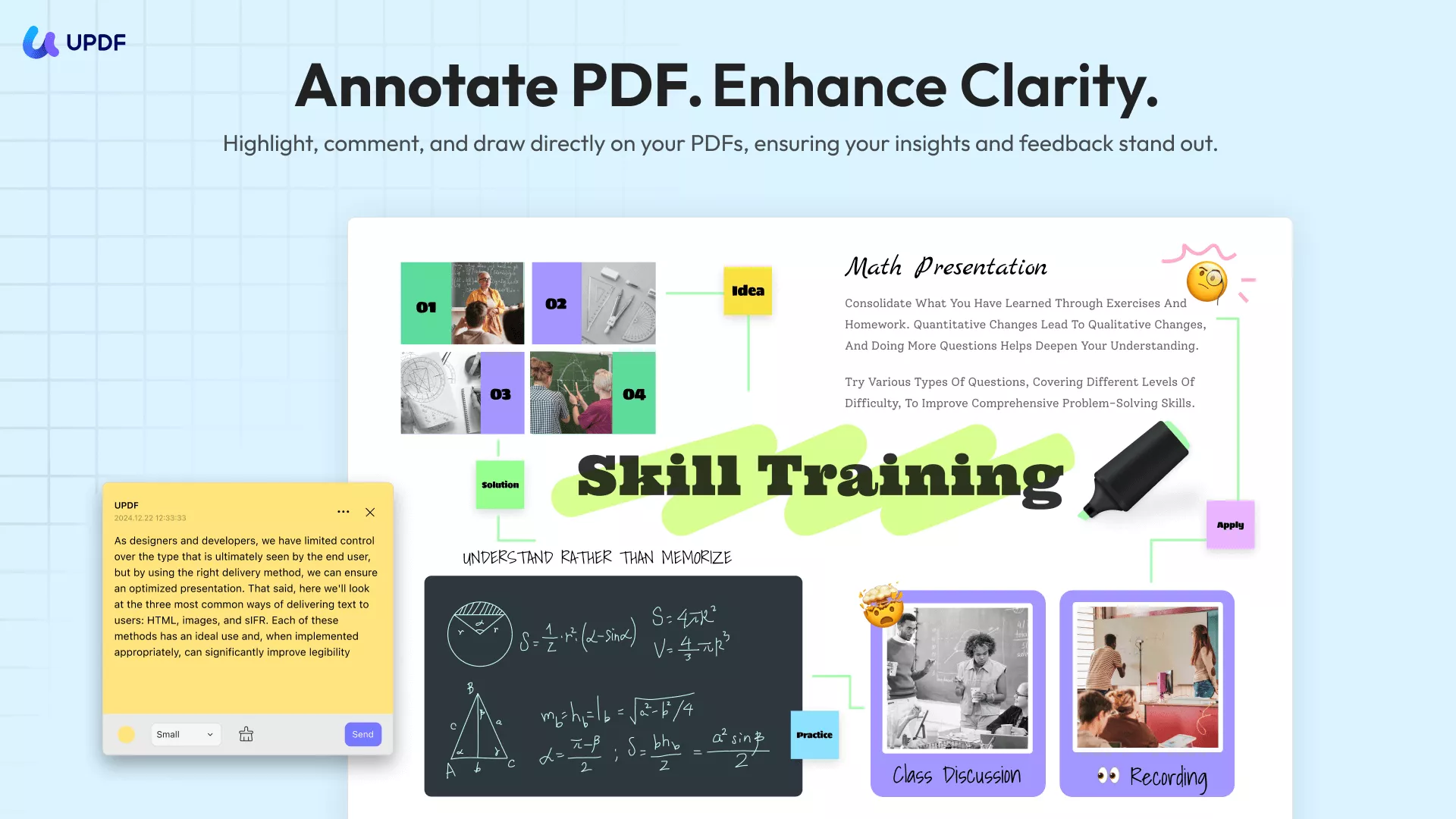
- Best Used For: Students, legal professionals, and business analysts who need to annotate, edit original content, manage page structures, and review files seamlessly across iPad, iPhone, Mac, and Windows.
- When to Choose an Alternative: Users who strictly want a basic digital bullet-journal notebook with no structural PDF editing requirements.
- Recommended Workflow: Import your file from iCloud or the Files app. Use the PDF highlighter to mark key metrics. If you catch a typo or need to remove outdated markup, easily highlight PDF sections or remove highlight from PDF elements directly, then switch to Edit mode to update the text natively.
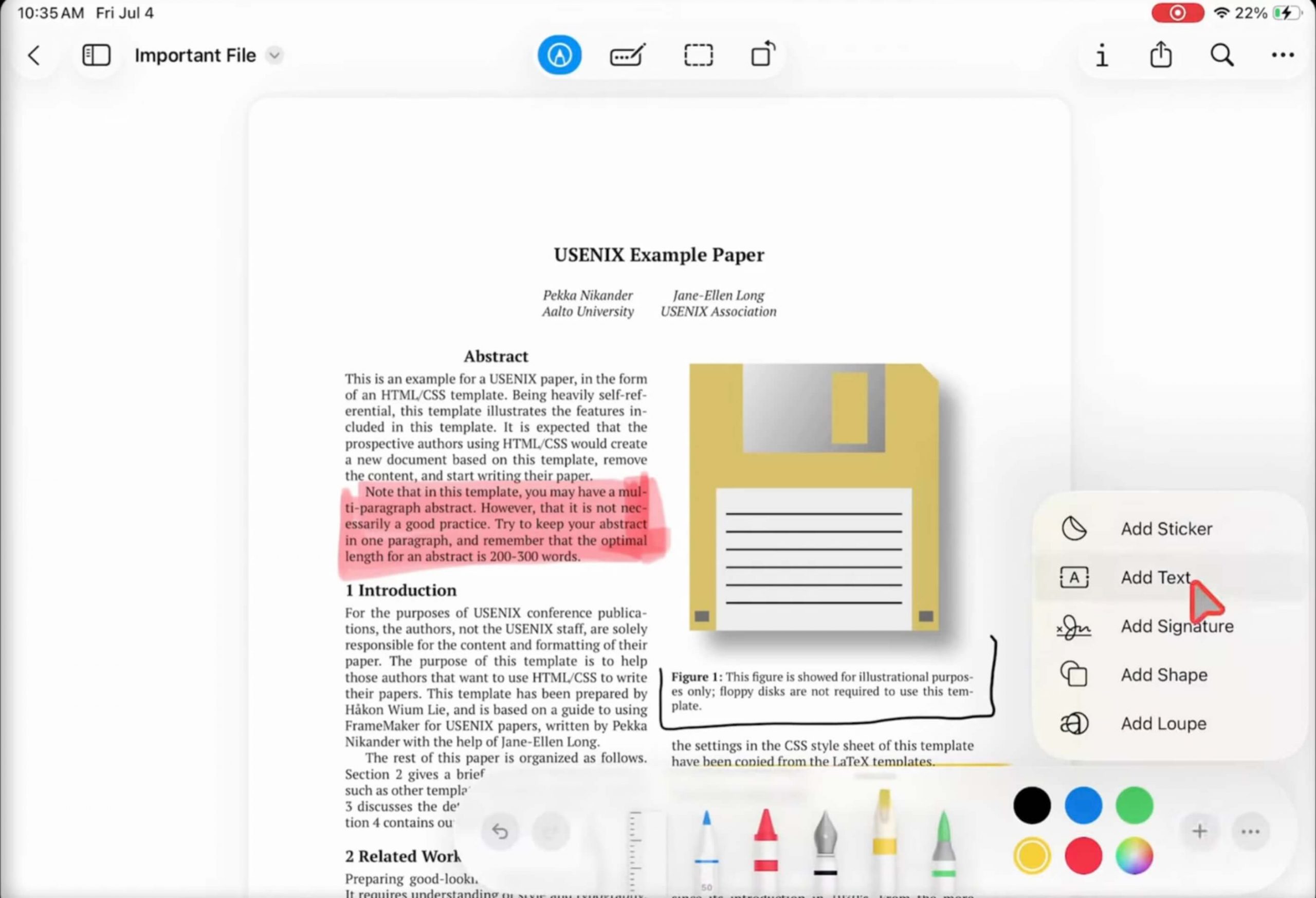
2. Apple Markup: Best Built-In Option
Best for:
Occasional, no-cost PDF markup when you want to stay inside Apple's built-in apps.
In everyday use, I find Apple Markup the quickest option when I only need to circle a line, add a short note, or sign a PDF and send it back. There is no separate app or account to set up, and Apple's current tools cover freehand drawing, text, signatures, shapes, highlighting, underlining, and strikethrough. That simplicity is also the boundary: Markup annotates the document but does not provide OCR or edit the PDF's original text. Some iPad users also report that Pencil markup can make an annotated PDF substantially larger, so I would test it on a copy before using it for a long textbook or image-heavy file.
Pros:
- Built into iPadOS, with no extra download, account, or subscription required.
- Supports Apple Pencil or finger input plus text, signatures, shapes, highlights, underlines, and strikethrough.
- Good for fast, low-complexity tasks such as signing a form or marking a few pages.
Cons:
- Not a full PDF editor: it does not replace original PDF text or provide OCR.
- Reddit users have reported large increases in file size after extensive Pencil annotation; the result can vary by PDF.
- Lacks the deeper navigation, annotation summaries, and project organization offered by dedicated PDF apps.
3. PDF Expert: Best Polished Third-Party Annotator
Best for:
Professionals who review, sign, organize, and export PDFs across iPhone, iPad, and Mac.
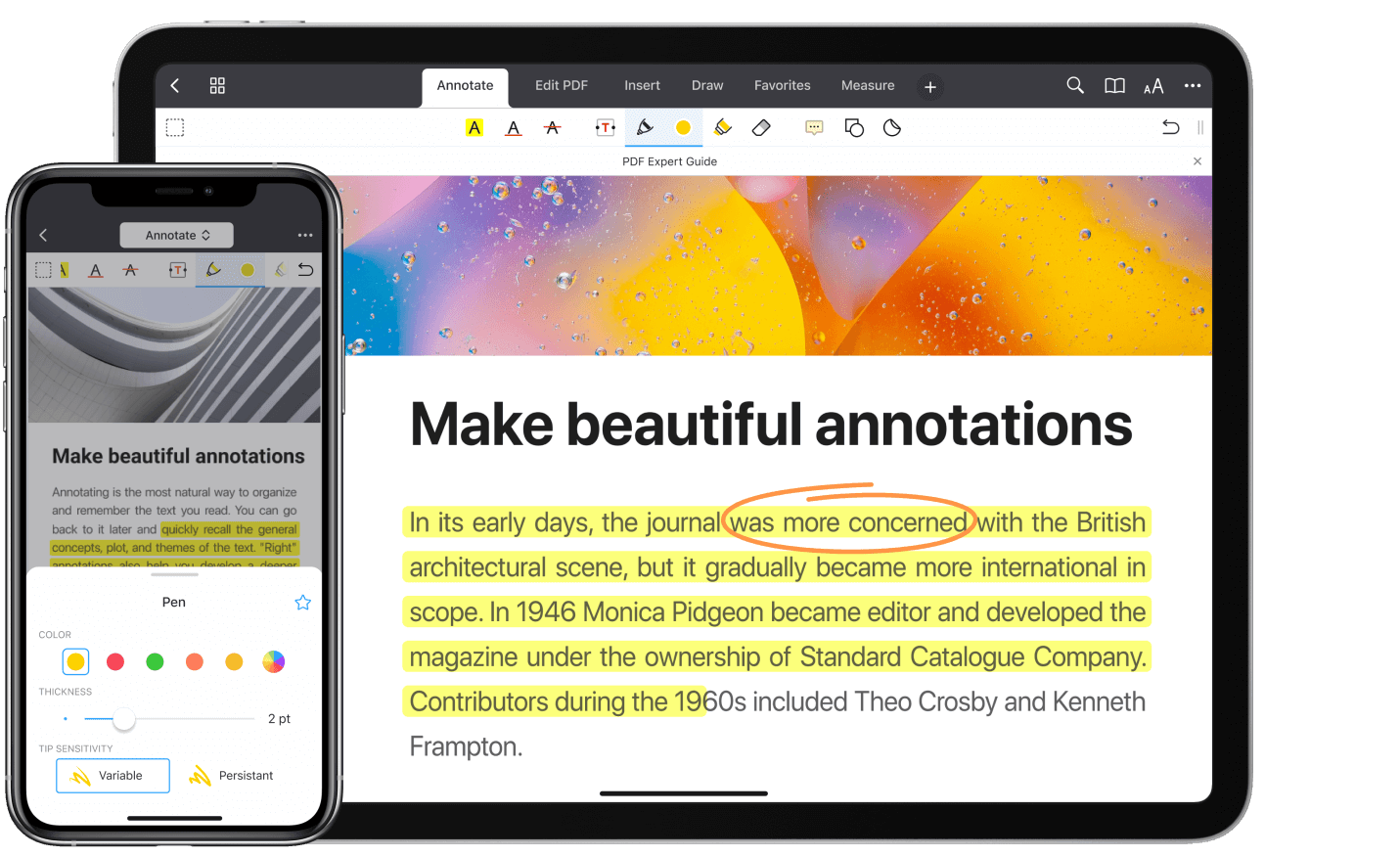
PDF Expert feels closer to a conventional document-review tool than a digital notebook. I like that I can open a PDF, mark it up, export an annotation summary, or create a flattened copy without rebuilding the document elsewhere. Reddit feedback is mixed but useful: some users praise its iCloud Drive integration, predictable exports, and smaller annotation overhead than Apple Markup, while others find the annotation mode requires too many taps or consider the subscription expensive. The current official feature set includes highlights, drawings, comments, stamps, shapes, audio notes, forms, signatures, and PDF editing; OCR, conversion, editing, and the full cross-device feature set are included in paid Premium plans.
Pros:
- Broad annotation set, including text markup, freehand drawing, comments, stamps, shapes, audio notes, and annotation export.
- Can export a flattened PDF, which is useful when recipients should see but not easily alter the markup.
- Reddit users often single out its Files/iCloud workflow and predictable PDF export as practical strengths.
Cons:
- Full editing, OCR, conversion, and Premium use across iPhone, iPad, and Mac require a paid plan; the official site currently lists weekly and annual subscriptions, while its lifetime plan is Mac-only.
- Some users find switching among pen, highlighter, and other annotation tools more tap-heavy than notebook-style apps.
- Its traditional PDF workflow is less suited to building handwritten notebooks or visual research maps.
4. Goodnotes: Best for Study Notes and Handwriting
Best for:
Students and teachers who want Apple Pencil handwriting, imported course PDFs, and notebooks in one organized library.
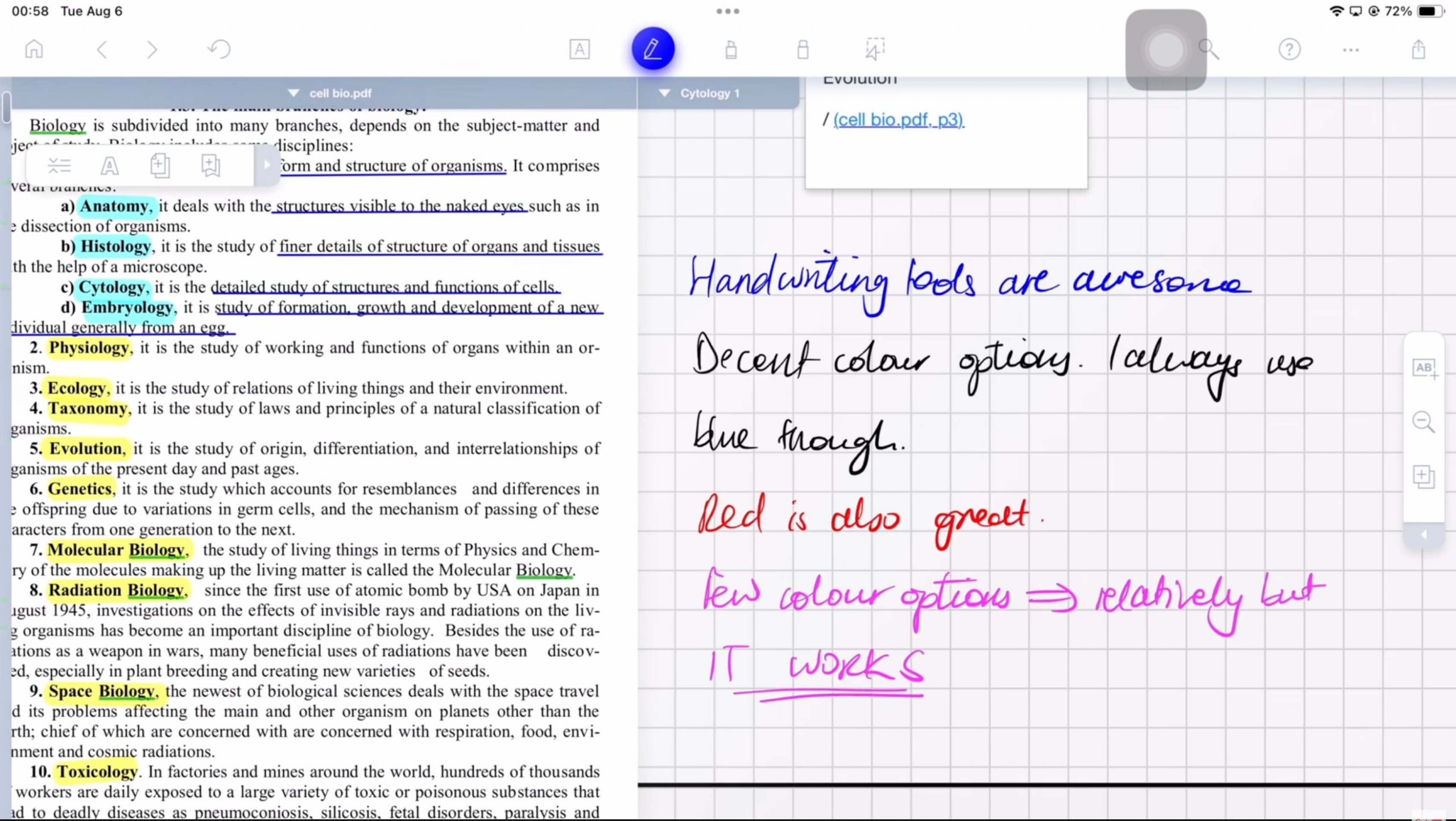
Goodnotes is the option I would pick when an imported PDF needs to live beside lecture notes, worksheets, and handwritten study material. The notebook-style pen experience and library organization make repeated annotation feel natural, and several Reddit users say they have handled large or numerous PDFs smoothly for years. The trade-off is that Goodnotes remains an annotation and note-taking environment rather than a true PDF content editor. Other users report heavy battery use, lag, or unreliable sync, and Goodnotes itself documents that some complex PDFs may render slowly or incorrectly. Its current free tier is limited to three notebooks, 5 MB imports, and watermarked exports; on Android, Windows, and Web, subscribed users can import PDFs up to 1 GB, while Goodnotes does not publish the same numeric limit for iOS.
Pros:
- Strong handwriting and notebook workflow for annotating slides, textbooks, worksheets, and study notes.
- Imports PDFs and exports either editable or flattened PDFs; folder exports can preserve the library structure.
- Many Reddit users report smooth, reliable daily use even with numerous or relatively heavy PDFs.
Cons:
- Annotates the PDF but is not designed to edit its original text or rearrange page content like a full PDF editor.
- The free tier limits users to three notebooks and 5 MB per imported file, and exported documents are watermarked.
- Performance is document- and device-dependent: Goodnotes acknowledges slow or incorrect rendering with some PDFs, while Reddit users also report battery drain, lag, and sync problems.

5. LiquidText: Best for Research and Long Documents
Best for:
Researchers, graduate students, lawyers, and other readers who need to compare sources and connect evidence visually.
LiquidText makes the most sense to me when reading is an analytical task rather than a linear one. I can pull excerpts into a workspace, connect evidence from different pages or documents, and jump back to the source context—something a standard highlighter does not reproduce well. Reddit users who think visually value this approach, especially for research papers and textbooks, but they also describe a learning curve, a workspace that can become unwieldy, inconsistent exports, and lag with large files or projects. LiquidText's official site confirms PDF and DOCX export plus support for iPadOS, Windows, and macOS; real-time synchronization and continuous cloud backup are part of its LIVE cloud subscription.
Pros:
- Distinctive excerpt-and-workspace model connects ideas across pages and multiple documents while retaining source context.
- Supports touch, pen, mouse, and trackpad on iPadOS, Windows, and macOS.
- Exports notes and excerpts to standard PDF and DOCX formats.
Cons:
- More complex than necessary for simple highlighting, signing, or form filling.
- Reddit users report that large documents or dense workspaces can lag and that exports do not always match the on-screen arrangement.
- Real-time multi-device sync and continuous cloud backup depend on the LIVE cloud subscription; user reports about sync reliability are mixed.
How to Annotate PDF on iPad
Annotating PDFs on an iPad doesn't have to be complicated. Modern cross-platform PDF tools make markup intuitive whether you are using an Apple Pencil or touch gestures. Below is a streamlined walkthrough on how to annotate PDF on iPad step-by-step using UPDF as a practical example.
A visual review is easier to follow when notes and markings work together. You can start with the video below for an introduction to using the PDF annotation tools in UPDF.
To get started, launch UPDF on your iPad and tap the "+" icon in the bottom-right corner to import your PDF, or select any pre-existing document from your local list.
Windows • macOS • iOS • Android 100% secure
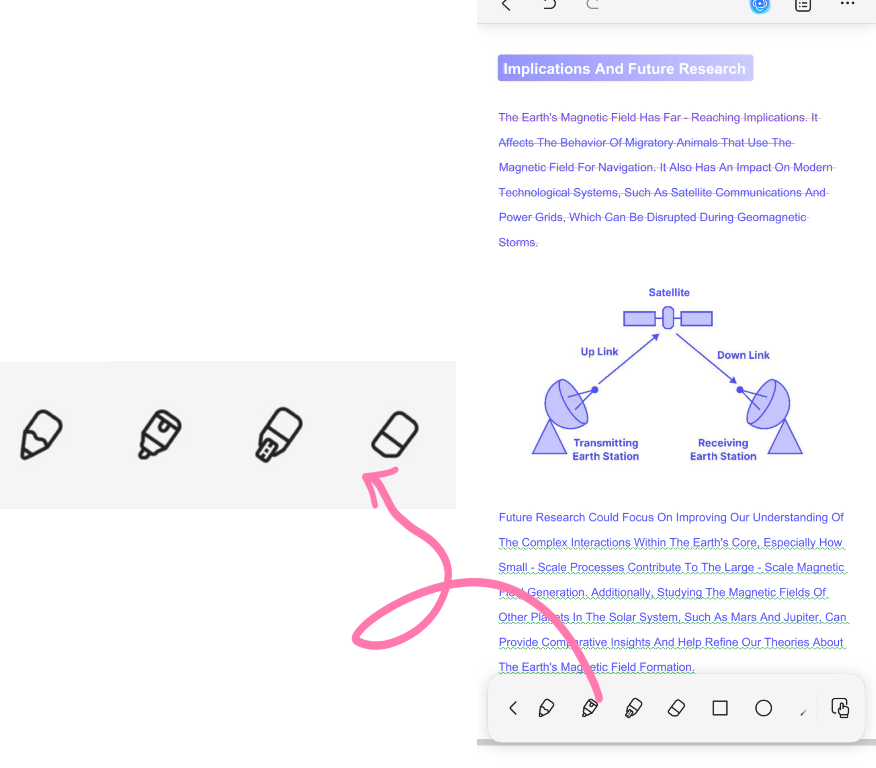
1. Drawing Tools (Pen, Highlighter & Smart Brush)
- Tap the Draw icon on the bottom toolbar to open the drawing menu.
- Choose from the pen marker, highlighter, dotted line marker, or eraser. Tap the tool's color icon to customize stroke thickness, opacity, or open the color palette for a custom grid palette.
- Pro Tip (Smart Brush): Enable the Smart Brush toggle so your freehand marks automatically snap into clean, straight lines for professional-looking markups.
- If you need to apply text contrast or clean up mistake areas, easily highlight PDF sentences or remove highlight from PDF elements using the eraser or batch selection.
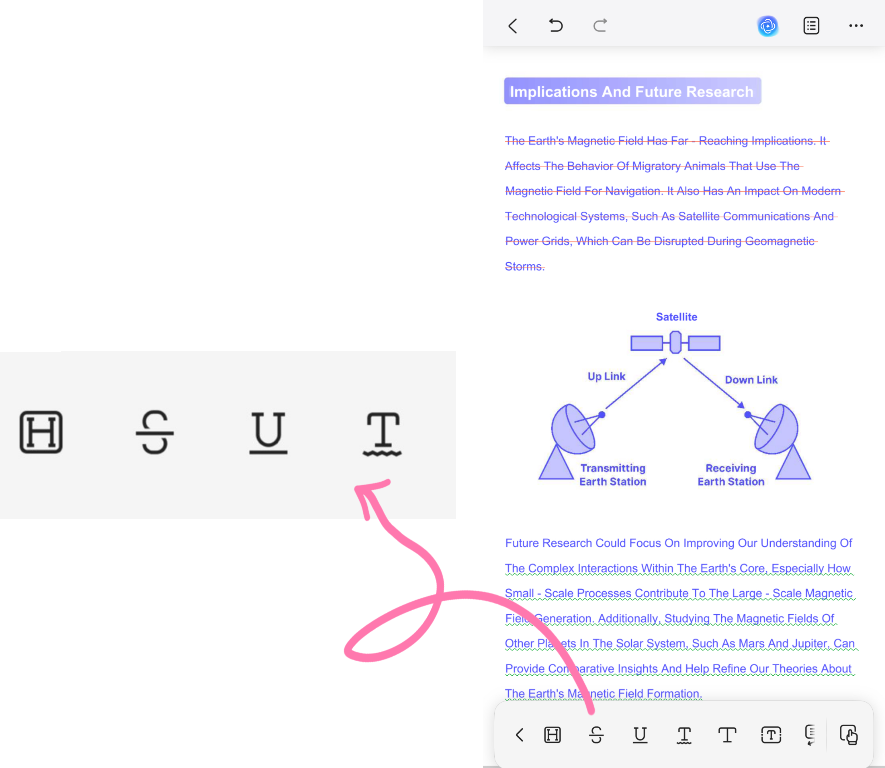
2. Markup & Text Tools (Comments, Text Boxes & Callouts)
- Text Markups: Tap the Comment icon on the bottom-left menu to access highlight, strikethrough, underline, and squiggly line tools. Tap any tool to adjust its color and opacity.
- Text Additions: Under the same Comment menu, choose Text Comment, Text Box, or Text Callout. Tap the tool icon to configure font family, size, border thickness, opacity, background fill, and text colors before typing.
3. Shapes, Notes, Stickers & Stamps
- Shapes & Line Measurement: Tap the Draw icon and choose a circle, square, straight line, or arrow. Select your color and stroke style, then tap anywhere on the page—UPDF automatically inserts the shape without requiring tedious manual alignment.
- Sticky Notes: Tap the Comment menu, select the Sticky Note icon, pick your preferred note style/color, and tap the document to type contextual review comments.
- Stickers & Custom Stamps: Tap Sticker under the Comment menu to place visual icons, or tap Fill & Sign on the bottom toolbar to insert built-in or custom imported stamps onto the page.
💡 Batch Management Tip:
FAQ
What is the best PDF annotation app for iPad?
UPDF is the best choice if you want annotation plus PDF editing, OCR, AI, signatures, and file management. If you only need handwriting in a study notebook, Goodnotes may be enough.
Can I annotate PDF on iPad for free?
Yes. Apple Markup can handle basic notes, drawings, signatures, and highlights. A dedicated app is better when you need reliable export, editing, OCR, or organized document review.
Do I need Apple Pencil to annotate PDFs on iPad?
No, but Apple Pencil makes handwriting, highlighting, and drawing more precise. You can still type comments, add text boxes, fill forms, and sign with your finger or keyboard in many apps.
Is iPad better than iPhone for PDF annotation?
Yes for long reading, handwriting, and detailed review. iPhone is better for quick signatures, short comments, and emergency changes when you are away from your iPad.
Conclusion
Choosing the right PDF annotation app for iPad ultimately depends on your specific workflow requirements, device preferences, and security needs.
- For Light & Native Annotations: Built-in tools like Apple Markup offer a convenient, zero-cost solution for quick handwriting, simple shapes, and basic signatures without installing extra software.
- For Notebook & Study Workflows: Dedicated apps like Goodnotes excel at organizing handwritten lecture notes and digital planners into structured notebook systems.
- For Advanced Research & Mapping: Specialized platforms like LiquidText provide infinite canvas workspaces tailored for extracting excerpts and linking complex data across long documents.
- For All-in-One Document Workflows: Modern platforms like UPDF bridge the gap between annotation and full document management, combining versatile markups with native PDF text editing, OCR scan conversion, AI-powered reading, and cross-device syncing.
Evaluating your daily tasks—whether you prioritize handwriting fluidity, deep research analysis, or comprehensive PDF editing—will help you select the most efficient tool for your iPadOS workflow.







 Enrica Taylor
  Enola Davis

