UPDF
UPDF
 UPDF for Windows
 UPDF for Mac
 UPDF for iPhone/iPad
 UPDF for Android
 Nomostar
 UPDF AI Online
 UPDF Sign
 IvyCraft
 Edit PDF
 Annotate PDF
 Create PDF
 PDF Form
 Edit links
 Convert PDF
 OCR
OCR PDF to Word
 PDF to Image
 PDF to Excel
 Organize PDF
 Merge PDF
 Split PDF
 Crop PDF
 Rotate PDF
 Protect PDF
 Sign PDF
 Redact PDF
 Sanitize PDF
 Remove Security
 Read PDF
 UPDF Cloud
 Compress PDF
 Print PDF
 Batch Process
 About UPDF AI
 UPDF AI Solutions
 AI User Guide
 FAQ about UPDF AI
 Summarize PDF
 Translate PDF
 Chat with PDF
 Chat with AI
 Chat with image
 PDF to Mind Map
 Explain PDF
 PDF AI Tools
 Image AI Tools
 AI Chat Tools
 AI Writing Tools
 AI Study Tools
 AI Working Tools
 Other AI Tools
 AI Bookmark Generation
 AI Bookmark Summary
 AI Watermark Generation
 AI Background Generation
 AI Sticker Generation
 AI Stamp Generation
 AI Editing Suite
 UPDF Copilot
 AI Page Management
 AI Semantic Search
 PDF to Word
 PDF to Excel
 PDF to PowerPoint
 Enterprise Solution
 Enterprise Sign
 Enterprise AI
 Enterprise Plan
 Enterprise User Guide
 Enterprise Webinar
 IT
IT Education
 Construction
 Financial Service
 Healthcare
 Insurance
 Legal
Legal Manufacturing
 Government
 Researchers & PhDs
 Solopreneurs & Freelancers
 Lawyers & Legal Professionals
 Real Estate Agents & Brokers
 Education Solution
 Customer Stories
 User Guide
 UPDF Tricks
 FAQs
FAQs UPDF Reviews
 Download Center
 Blog
Blog Newsroom
 Tech Spec
 Updates
 UPDF vs. Adobe Acrobat
 UPDF vs. Foxit
 UPDF vs. PDF Expert

Converting PDF to HTML is the process of transforming a fixed-layout PDF document into a web format. Once converted, the content can be fully indexed by search engines, displayed responsively on mobile devices, and read aloud smoothly by screen readers, all while loading much faster than the original PDF file.
Example: For a PDF brochure moving to a website, convert one representative page first and inspect headings, reading order, images, and links before processing the full document. For a related workflow, see convert PDF to an editable RTF file.
This article introduces 2 mainstream conversion methods that require no technical proficiency; you can choose the one best suited.
How to Choose the Right Method for Conversion?
Not all PDF-to-HTML conversion methods are created equal. The right choice depends on your technical comfort level, how often you need to convert, and the complexity of your documents. Use the comparison below to quickly zero in on the approach that fits your specific situation.
| Dimension | Online Tools | Desktop Software | Command‑Line Tools | Programming Libraries / SDKs |
|---|---|---|---|---|
| Difficulty | ⭐ Extremely Low | ⭐⭐ Low | ⭐⭐⭐⭐ High | ⭐⭐⭐⭐⭐ Very High |
| Fidelity | ⭐⭐⭐ Moderate | ⭐⭐⭐⭐⭐ Excellent | ⭐⭐⭐⭐ Good | ⭐⭐⭐⭐⭐ Excellent |
| Batch Processing | ❌ Usually not supported | ⚠️ Partial support | ✅ Native support | ✅ Full support |
| Cost | Free / Low‑cost | One‑time / Subscription | Free (Open‑source) | Commercial license required |
| Privacy & Security | ⚠️ Files uploaded to cloud | ✅ Local processing | ✅ Local processing | ✅ Local processing |
| Best For | Casual users, occasional use | Business users, frequent use | Developers, DevOps teams | Developers, product integration teams |
Quick Selection Guide:
- Just need to convert a file or two once in a while? Go with an online tool.
- Handling complex documents and need high‑quality output? Choose desktop software (UPDF or Adobe Acrobat are solid picks).
- Processing hundreds of files or automating a workflow? Turn to command‑line tools like pdf2htmlEX.
- Building your own application or service? A programming SDK gives you full control to convert PDF to HTML using Python.
Looking at the comparison, desktop software clearly offers the sweet spot for most business users: it delivers excellent fidelity, keeps your files secure and local, and requires minimal technical skill. Online tools may be convenient, but they compromise on privacy and layout accuracy. Command‑line tools and SDKs are powerful, yet they demand coding expertise and are overkill for everyday tasks.
Among desktop solutions, UPDF stands out as a practical, cost‑effective alternative to Adobe Acrobat. It preserves original fonts, tables, and images during conversion—so your HTML looks just like the PDF. And with batch processing support, it handles large workloads without breaking a sweat.
Plus, UPDF offers a one‑time purchase option, saving you from expensive subscriptions. Ready to convert your PDFs to HTML with confidence? Download UPDF and try it free.
Windows • macOS • iOS • Android 100% secure
How to Convert PDF to HTML?
Let's start with professional desktop software and online tools.
As the third and fourth methods, like converting PDF to HTML on Linux, involve complex operations and a very steep learning curve, they will not be explained in detail here; please refer to the tool's user manual if needed.
Method 1: Desktop Software—Most Powerful, Highest Fidelity
If you need high-fidelity results, handle complex layouts, or work with sensitive documents, desktop software is your best bet. Here's how the top four solutions compare:
| Dimension | Adobe Acrobat Pro | UPDF | Foxit PDF Editor | Nitro PDF Pro |
|---|---|---|---|---|
| Pricing Model | Subscription ($14.99/mo) | Perpetual License $79.99 / Yearly Subscription $49.99 | Subscription ($10.99/mo) | Perpetual License / Subscription |
| Platform Support | Windows + Mac | Windows + Mac + iOS + Android | Windows + Mac | Windows + Mac |
| HTML Output Quality | ⭐⭐⭐⭐⭐ Industry benchmark | ⭐⭐⭐⭐ High fidelity | ⭐⭐⭐⭐ High fidelity | ⭐⭐⭐⭐ High fidelity |
| Batch Conversion | ✅ Supported | ✅ Supported | ✅ Supported | ✅ Supported |
| OCR Support | ✅ Powerful | ✅ 10+ languages supported | ✅ Supported | ✅ Supported |
| Accessibility Output | ✅ Full support (tagged PDF) | ⚠️ Basic support | ⚠️ Basic support | ⚠️ Basic support |
| Learning Curve | Moderate | Low — Very intuitive | Moderate | Moderate |
| Best For | Enterprise users needing maximum fidelity | Budget-conscious users, individuals, SMBs | Enterprise teams needing deployment tools | Business users preferring one-time purchase |
For most individuals, freelancers, and small-to-medium teams, UPDF delivers 90% of what Acrobat offers — at a fraction of the cost.
Why UPDF stands out:
- ✅ High-fidelity HTML output — preserve fonts, tables, and layouts
- ✅ One-time purchase — no recurring subscriptions
- ✅ Cross-platform — Windows, Mac, iOS, and Android
- ✅ Built-in OCR — convert scanned PDFs to HTML
- ✅ Batch processing — handle multiple files at once
How to Convert PDF to HTML with UPDF?
Click the "Free Download" button below to install the UPDF PDF converter successfully.
Windows • macOS • iOS • Android 100% secure
Start by importing the PDF file into the UPDF interface. Import by dragging from your computer and dropping the file into the interface. You can also click the "Open File" button to open the PDF file. Then you can choose Converter in Tools and then convert to HTML.
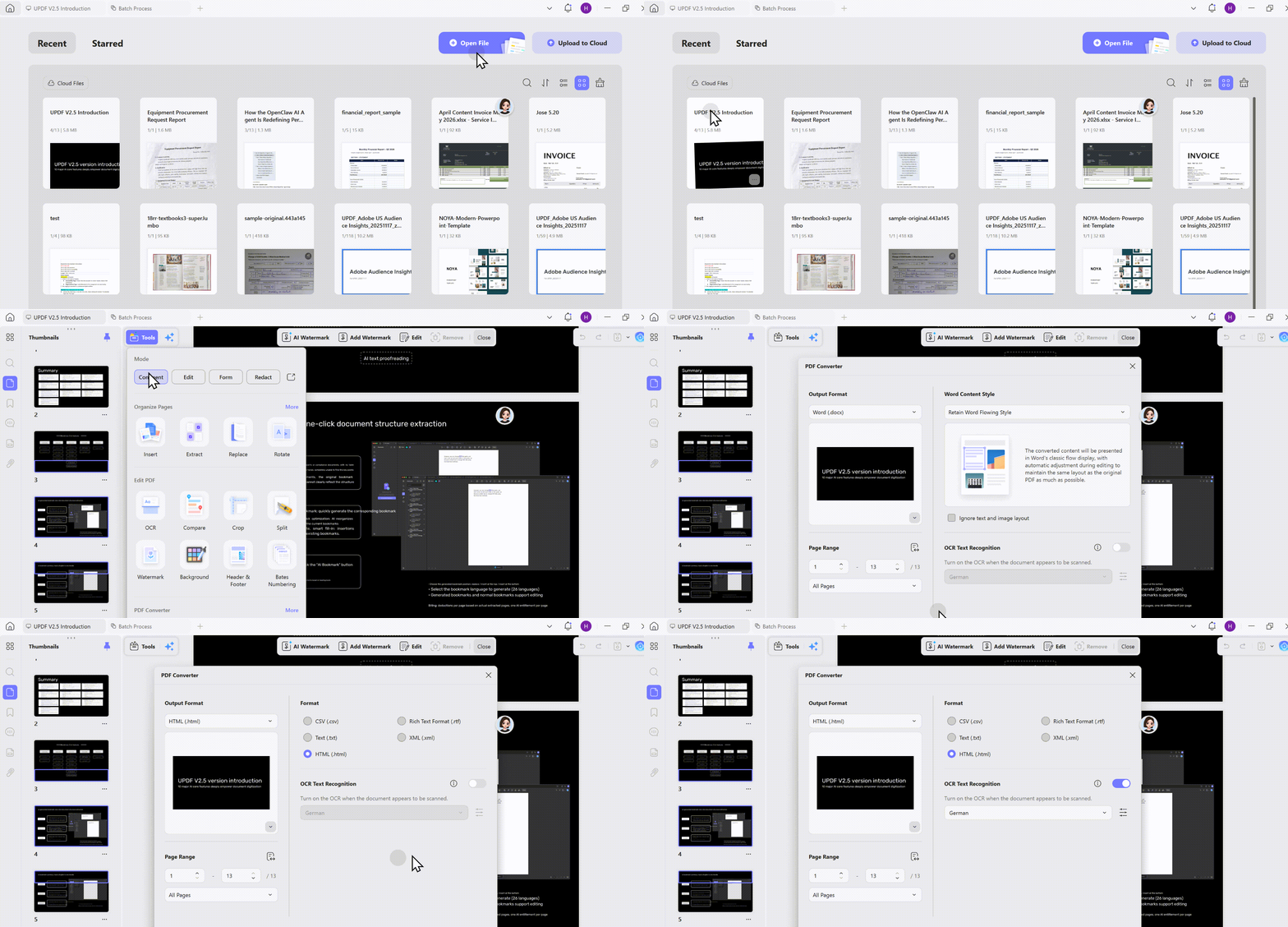
If your PDF is a scanned PDF file, you can open the "OCR". It is better if you select the correct language for the OCR. Then perform OCR to make PDF editable and searchable. In a few minutes, the OCR file will automatically reopen in UPDF. Now, you can use the export feature to convert scanned PDFs to HTML files. You will get a perfect HTML file.
For those who have completed the UPDF walkthrough and wish to learn how to perform the same task in Adobe Acrobat, we have prepared a separate tutorial on how to convert PDF to HTML on Adobe.
Video Tutorial on How to Convert PDF to HTML on Windows
Method 2: Online Tools (Suitable for All Users)
If you need a quick solution to convert PDF to HTML online without installing anything, online tools are the most accessible option. They work directly in your browser — upload, convert, download. But not all online tools are created equal. Here's how the top free options compare:
If you’re looking for a reliable, high-quality online PDF to HTML converter that handles both text-based and scanned PDFs, Soda PDF Online delivers the most complete package.
How to Convert PDF to HTML Online?
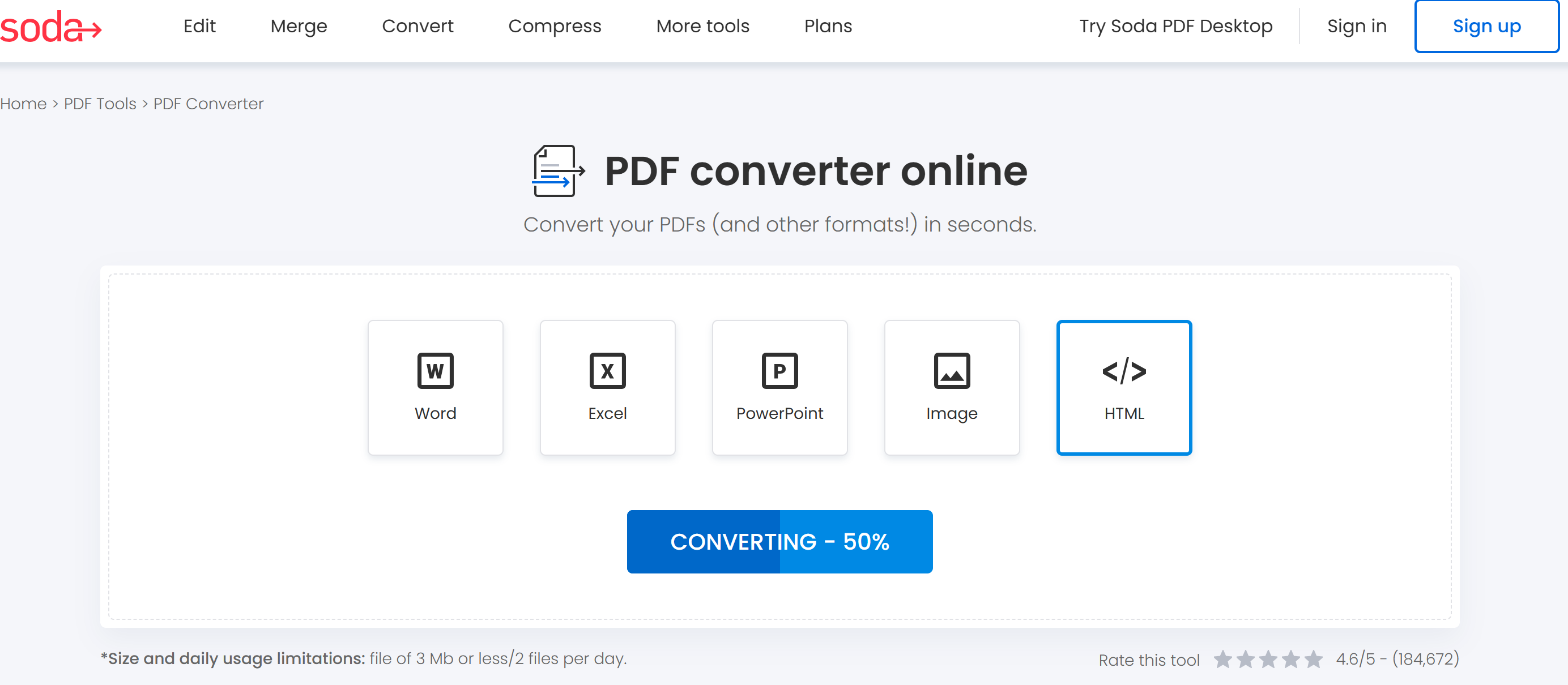
Based on the comparison above, Soda PDF Online delivers the best balance of conversion quality and feature completeness among free online converters. You can just go to the website and then click "Converter", upload your PDF, and choose HTLM option, wait for seconds, and then you can get what you want.
Extra Tips about HTML Conversion
HTML, or Hypertext Markup Language, refers to a markup language for the web defining the web pages' structure. It is the primary building block of all websites. This is a coding language that creates pages that web pages can display. Most of the pages you find online are usually stored in HTML file format. Thus, a website is a bunch of related HTML pages that are stored on a server somewhere. This makes HTML the backbone of the web.
When you visit a page on the internet, you are requesting an HTML file that is stored on the server. Then the browser you use usually parses the HTML and then displays it to you the way it should. HTML usually determines web pages' structure. The structure alone cannot make a web page interactive or look good. This is why assistive technologies such as JavaScript and CSS are used to make HTML beautiful and add the level of its interactivity.
PDF vs. HTML Format
It's easy to see the similarities and differences between the PDF and HTML formats in a variety of everyday situations.
For instance, viewing PDFs in your browser or embedding them in a blog or website are viable alternatives to installing a PDF viewer, but they aren't ideal if you don't already have one.
The PDF file format is not ideal for displaying information on the web. Making it available in HTML improves its accessibility, usability, and responsiveness.
HTML format is the ideal option if you want your information to be presented online effectively and for search engines to locate and index your site.
If a user doesn't want to wait to download a PDF document, they should view a webpage directly in their browser.
When and Why Need to Convert PDF to HTML?
For what reason, then, should you make the switch from PDF to HTML? Some of the reasons are as follows:
- The PDF format makes it difficult to share information over social media (Facebook, Twitter)
- You may maintain the PDF's formatting and presentation within the HTML file format.
- PDF documents are more difficult to navigate than easily editable online information.
If you want to convert a PDF document into a webpage rapidly, you should use a PDF to HTML converter. Menus, trip plans, and policy statements can all be easily converted into clickable online content.
Things that would previously have needed a formal document are now more easily realizable. The internet makes it simple for aspiring programmers to begin creating their own content.
Converting PDFs to HTML is a breeze with the right tools, and it's a smart move from a usability standpoint.
The Benefits of Exporting PDF to HTML
When it comes to sharing documents online, PDF has long been the standard format. However, there are some clear advantages to converting PDFs to HTML on Mac or other systems. For one thing, HTML is much more lightweight than PDF, so it can be loaded and displayed more quickly.
In addition, HTML is more accessible than PDF, which can be important for people who are not familiar with PDF.
Moreover, HTML is more searchable than PDF, making it easier to find the information you need. As a result, there are clear benefits to converting PDFs to HTML.
You have learned the situations when you need to convert PDF to HTML; here are some advantages of doing so:
- Search engines will have an easier time finding your content.
- It's simple to navigate, especially on mobile devices.
- The use of Google Analytics makes monitoring site traffic and pageviews much simpler.
- The easier and faster content editing process
- Now that the website has content, it can truly be considered complete (not a separate file)
- There is no need to download any other software in order to see your files.
- Everyone, at any time, can view the content.
So, these are some of the benefits of converting PDF to HTML format.
Frequently Asked Questions
Does PDF-to-HTML conversion preserve the exact layout?
Not always. HTML is responsive while PDF uses fixed pages, so columns, fonts, and positioned elements may change.
Can a scanned PDF be converted to searchable HTML?
Yes, but run OCR first so the page images become recognized text before conversion.
What should I check after converting a PDF to HTML?
Check heading structure, reading order, links, image alt text, tables, and mobile display before publishing the page.
Conclusion
In this article, you have learned the differences between PDF and HTML format, the reasons why you want to convert PDF to HTML, the benefits of turning into HTML format, and the dedicated instructions on how to convert PDF to HTML.
Now, we are sure you have no issues with converting PDF to HTML. To convert PDF to HTML, we recommend you use UPDF. It is an all-in-one PDF converter that also offers the features to edit, annotate, organize, protect, and OCR PDFs. You can click the button below to test all its features on your own.
If you want to learn more about PDF conversion, not only to convert to HTML, but also to other rich text formats or images, this pillar page about How to Convert PDF is exactly what you need.
Windows • macOS • iOS • Android 100% secure