 UPDF
UPDF
 UPDF for Windows
 UPDF for Mac
 UPDF for iPhone/iPad
 UPDF for Android
 Nomostar
 UPDF AI Online
 UPDF Sign
 IvyCraft
 Edit PDF
 Annotate PDF
 Create PDF
 PDF Form
 Edit links
 Convert PDF
 OCR
OCR PDF to Word
 PDF to Image
 PDF to Excel
 Organize PDF
 Merge PDF
 Split PDF
 Crop PDF
 Rotate PDF
 Protect PDF
 Sign PDF
 Redact PDF
 Sanitize PDF
 Remove Security
 Read PDF
 UPDF Cloud
 Compress PDF
 Print PDF
 Batch Process
 About UPDF AI
 UPDF AI Solutions
 AI User Guide
 FAQ about UPDF AI
 Summarize PDF
 Translate PDF
 Chat with PDF
 Chat with AI
 Chat with image
 PDF to Mind Map
 Explain PDF
 PDF AI Tools
 Image AI Tools
 AI Chat Tools
 AI Writing Tools
 AI Study Tools
 AI Working Tools
 Other AI Tools
 AI Bookmark Generation
 AI Bookmark Summary
 AI Watermark Generation
 AI Background Generation
 AI Sticker Generation
 AI Stamp Generation
 AI Editing Suite
 UPDF Copilot
 AI Page Management
 AI Semantic Search
 PDF to Word
 PDF to Excel
 PDF to PowerPoint
 Enterprise Solution
 Enterprise Sign
 Enterprise AI
 Enterprise Plan
 Enterprise User Guide
 Enterprise Webinar
 IT
IT Education
 Construction
 Financial Service
 Healthcare
 Insurance
 Legal
Legal Manufacturing
 Government
 Researchers & PhDs
 Solopreneurs & Freelancers
 Lawyers & Legal Professionals
 Real Estate Agents & Brokers
 Education Solution
 Customer Stories
 User Guide
 UPDF Tricks
 FAQs
FAQs UPDF Reviews
 Download Center
 Blog
Blog Newsroom
 Tech Spec
 Updates
 UPDF vs. Adobe Acrobat
 UPDF vs. Foxit
 UPDF vs. PDF Expert

Working with PDFs often brings a familiar frustration: you need text to edit or repurpose, yet lack the source file. Direct copy-paste only yields garbled text, fractured tables, and disjointed paragraphs.
Example: If a policy PDF must be edited in an older word processor, convert one page with a table first and confirm that headings, cells, and paragraph breaks survive in the RTF output. For a related workflow, see convert a PDF to HTML.
Searching for PDF-to-RTF tools floods you with countless free and paid options, all promising perfect results—only for formatting to break upon conversion.
These troubles stem from fundamental design differences: PDFs act as fixed digital prints, while RTF prioritizes easy editing. This guide filters out misleading hype and helps you pick a suitable converter matching your real requirements.
After comparing the leading online and desktop tools, we've identified UPDF as the top desktop choice for most users — UPDF combines affordable one‑time pricing, cross‑platform polish, and reliable RTF conversion. Here's how to choose the right tool for your actual needs.
Windows • macOS • iOS • Android 100% secure
PDF to RTF Converter: Online or Desktop?
Before comparing specific tools, ask yourself one question: Where should my files be processed — in the cloud or on my machine?
The table below matches your common scenarios to the right tool category. Find your situation and start there.
| Your Scenario | Recommended Tool Type | Why |
|---|---|---|
| Occasional use, simple text‑heavy docs, formatting not critical | ✅ Online | Fast, free, no install. Good enough for basic extraction. |
| Sensitive content — contracts, NDAs, financials, HR data | ✅ Desktop | Files never leave your machine. Zero upload risk. |
| Scanned PDFs (paper documents turned into images) | ✅ Desktop | Online tools lack OCR. Desktop has built‑in OCR to read scanned text. |
| Complex layouts — tables, multiple columns, charts, footnotes | ✅ Desktop | Online tools mangle complex formatting. Desktop preserves structure. |
| Zero budget, docs not sensitive or complex | ✅ Online | Free tools like PDF24 handle basic tasks well. No cost. |
| Batch conversion — multiple PDFs at once | ✅ Desktop | Most desktop tools support batch. Free online tools usually don't. |
| One‑time use — this is your only conversion ever | ✅ Online | Use a free online tool. No need to buy software for a single task. |
| Frequent user — converting multiple files weekly | ✅ Desktop | Desktop is faster, more reliable, and cheaper long‑term. |
| Need to edit the PDF itself, not just convert it | ✅ Desktop | Desktop offers full editing. Online tools are conversion‑only. |
One‑time use, simple file, nothing sensitive? → Go online.
Everything else? → Go desktop.
Now let's look at how specific tools in each category actually perform on how to convert PDF to RTF.
Top 5 PDF to RTF Converters Online (Free Included)
Finding a reliable online PDF-to-RTF converter can be tricky. Many tools ruin formatting or hide functional limits behind marketing claims. Below we’ve tested and rounded up the top 5 options, including trustworthy free services, to help you convert PDFs to editable RTF smoothly.
| Comparison Dimension | Zamzar | CloudConvert | PDF24 | PDF Candy | FreeConvert |
|---|---|---|---|---|---|
| Free Tier Limits | 2 files per 24 hours | ~10–25 conversions per day | ✅ No limits | ~1 tool use per hour (free account) | ~10 conversions/day (large files may reduce to ~4) |
| OCR Support (Online) | ❌ No | ❌ No | ❌ No (online only) | ❌ No (online only) | ✅ Yes (online OCR available) |
| Batch Conversion | ✅ Paid only | ✅ Yes | ✅ Yes | ❌ No (free version) | ✅ Yes |
| Paid Plans | Starting from $12 per month | From $10/month | ✅ 100% free | Premium from $4/month or lifetime | Starting from $13 per month |
Let's take a closer look at these 5 online tools.
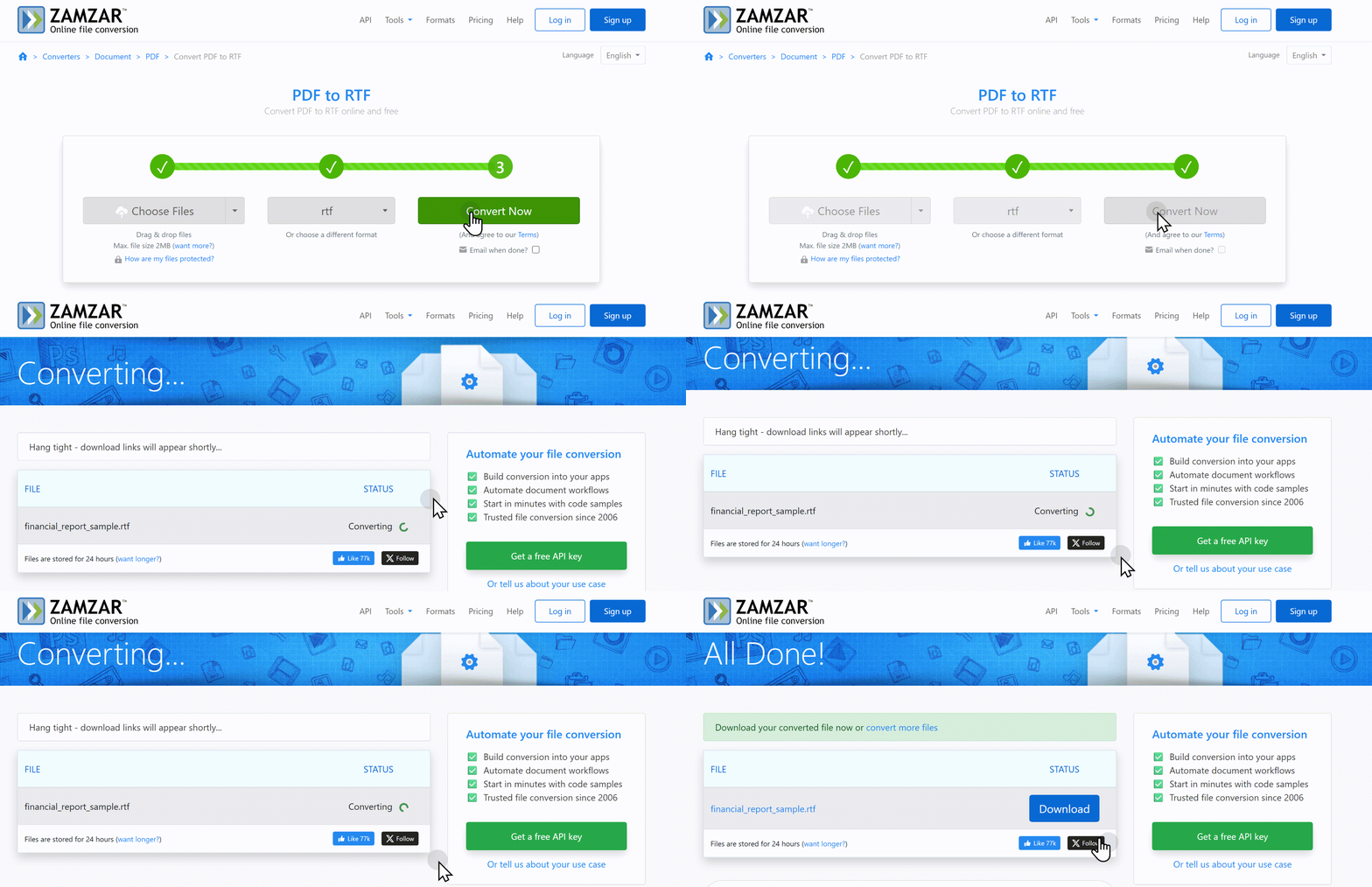
Zamzar
A veteran platform since 2006, Zamzar supports a staggering 1,100+ formats—the widest coverage of any online converter. It offers cloud storage integration and automatically deletes uploaded files after 24 hours.
Pros:
- Supports 1,100+ formats – unmatched variety
- Cloud storage integration (Google Drive, Dropbox)
- Clean, straightforward interface
- Files auto-deleted after 24 hours
Cons:
- Free tier: just 2 files per 24 hours
- File size cap: only 2MB on free tier
- No OCR support
- Free tier too restrictive for regular use
Best for format variety, but the free tier is so limited it's really only useful for testing. Paid plans make sense for users who need to convert rare file types.
CloudConvert
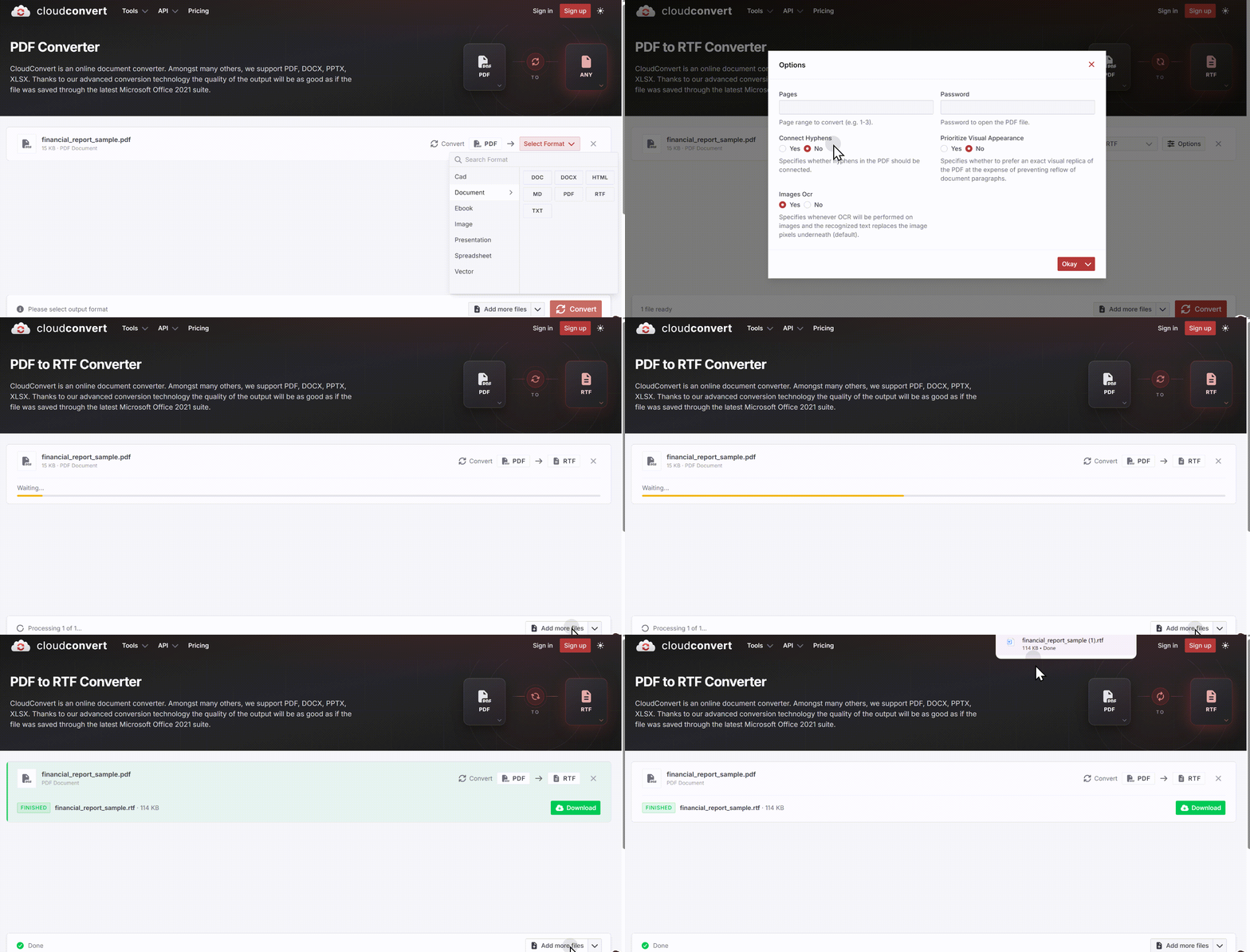
CloudConvert is a developer-friendly platform supporting 200+ formats with robust API integration. Files can be imported via URL, Google Drive, Dropbox, and OneDrive. Conversion quality is reliable, and 256-bit encryption protects your data.
Pros:
- Supports 200+ formats with reliable quality
- 1GB file size limit – generous for online tools
- Cloud storage integration across major platforms
- API available for developers
Cons:
- Credit-based free tier can be confusing
- Free quota: ~10–25 conversions/day, runs out fast
- No OCR support
- Better suited for developers than casual users
A reliable, developer-oriented platform with generous file size limits. Best for technical users who need API integration and don't mind the credit-based pricing model.
PDF24
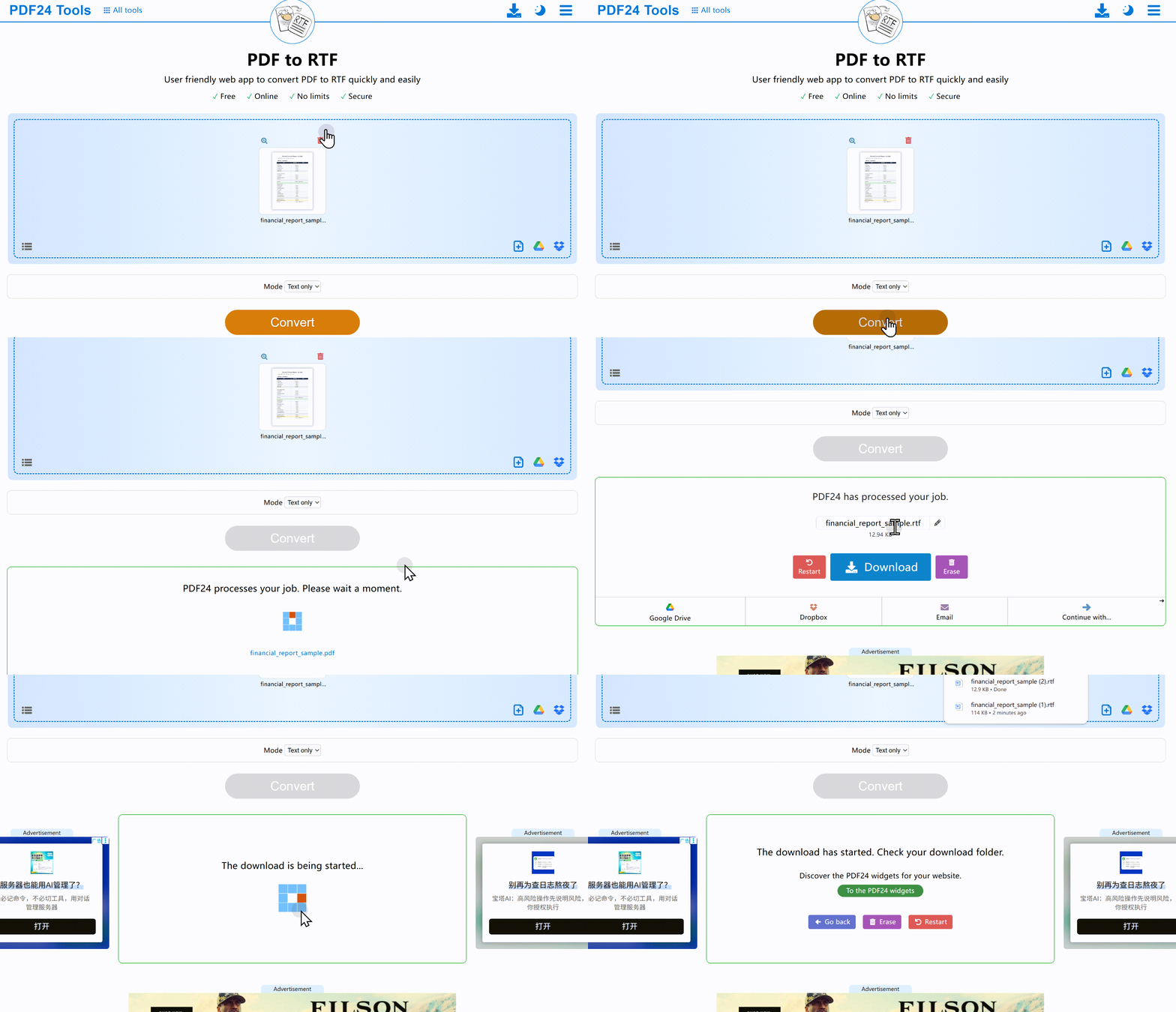
PDF24 is a rare offering: completely free with zero restrictions—no daily limits, no watermarks, no paywalls, and no account required. Files are encrypted during transfer and auto-deleted within an hour. Developed by a German company since 2006, it's a trustworthy, zero-cost option.
Pros:
- 100% free – no limits, no watermarks, no account required
- Encrypted file transfer, auto-deleted within 1 hour
- Covers all major formats
- Clean, straightforward interface
Cons:
- Conversion quality is the weakest of all tools
- Complex layouts, tables, and columns often break
- 256MB file cap
The ultimate budget choice—completely free and unlimited. Best for simple, text-heavy documents where perfect formatting isn't critical. If you have zero budget, start here.
PDF Candy
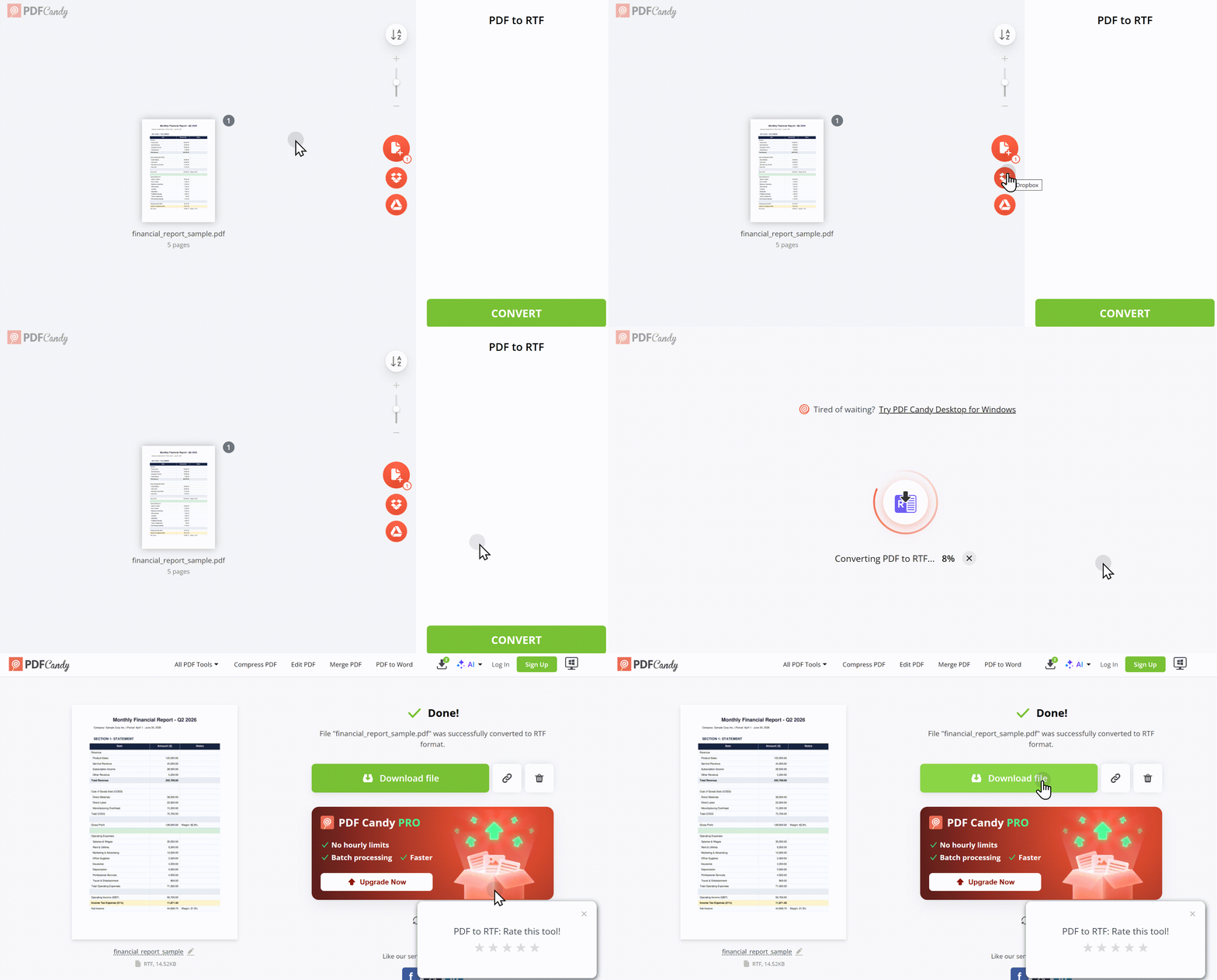
PDF Candy is a well-established service from Icecream Apps with 90+ tools supporting 20+ formats. It offers cloud storage integration and 256-bit SSL encryption.
Pros:
- 90+ PDF tools – a full suite, not just conversion
- Supports 20+ formats
- Cloud storage integration (Google Drive, Dropbox)
- 256-bit SSL encryption
Cons:
- Free tier: ~1 tool use per hour – very restrictive, need sign up
- File size cap: ~50MB
- Watermarks on free output – major drawback
- Hourly cap makes free version barely usable
A full-featured suite with great tool variety, but the free tier is heavily restricted by hourly limits and watermarks. Only worth considering if you're willing to pay for the premium version.
FreeConvert
FreeConvert supports 500+ formats with a generous 1GB file size limit—the most permissive among online tools. It's the only online tool in this list with OCR capability, making it the go-to choice for scanned PDFs without installing software. Files are protected with 256-bit SSL encryption and automatically deleted within hours.
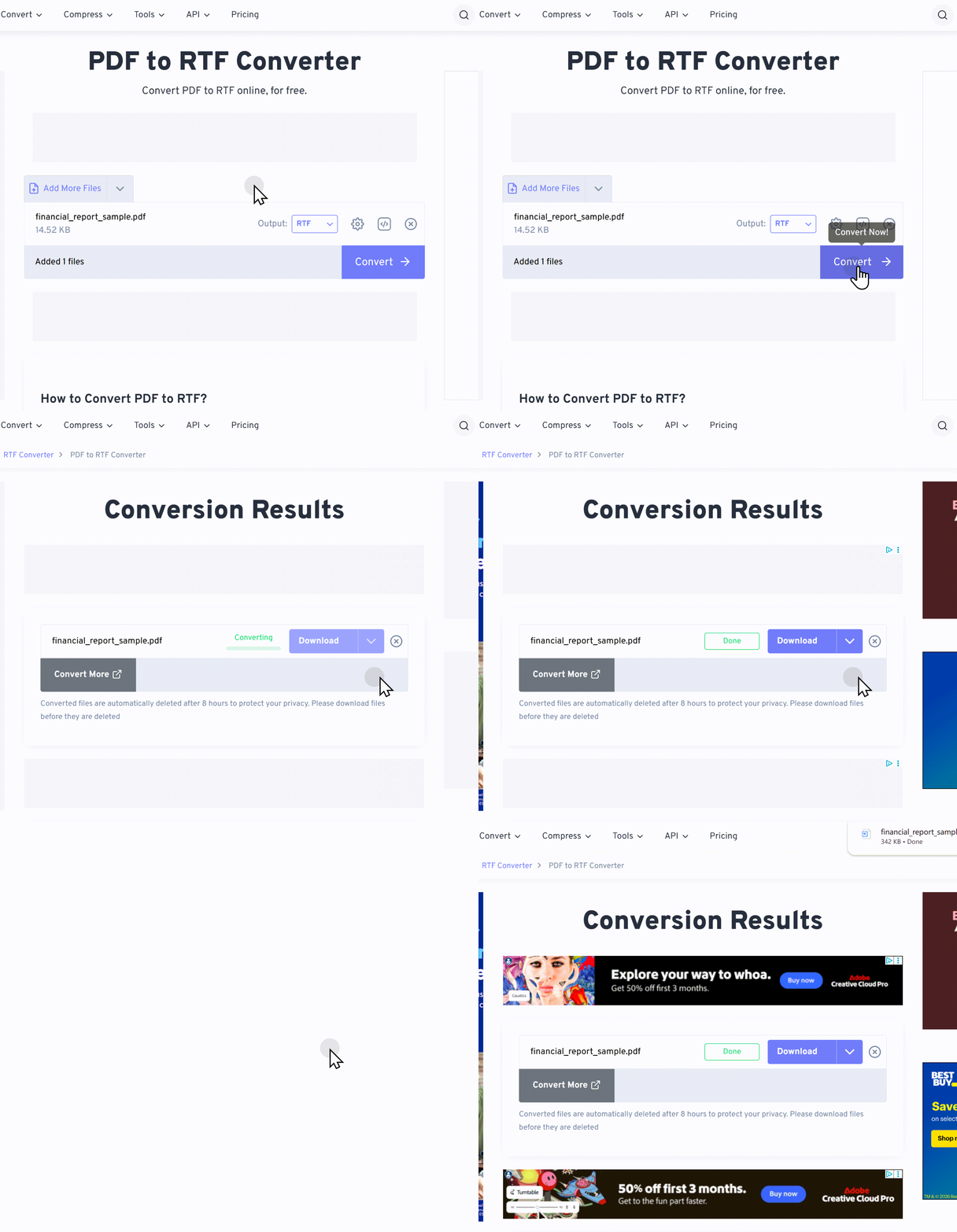
Pros:
- 500+ formats supported
- 1GB file size – most generous free cap
- 256-bit SSL encryption, auto-deleted within hours
- Batch conversion supported
Cons:
- Free tier: ~10 conversions/day (large files reduce to ~4)
- Daily limit may be tight for power users
- Too many ads
The best choice if you need to convert scanned PDFs online and work with large files. The daily limit is reasonable for occasional users, and the 1GB cap is the most generous among free online converters.
Top 4 PDF to RTF Offline Converters (Professional Desktop Tools)
When it comes to desktop PDF editors, four names dominate the conversation. But after a close look at pricing, features, and long‑term value, UPDF emerges as the clear winner for most users. Here’s why: it delivers a modern, cross‑platform experience with a one‑time purchase option at a fraction of Adobe’s subscription cost, while matching or exceeding the core capabilities of its competitors.
| Feature | UPDF | Adobe Acrobat Pro | PDF‑XChange Editor | Foxit PDF Editor |
|---|---|---|---|---|
| Pricing Model | One‑time ($79.99) or annual ($49.99) | Subscription (~$240/year) | Subscription (~$62–79/year) | Subscription (~$130–160/year) |
| RTF Conversion | ✅ Yes (14 export formats) | ✅ Yes | ✅ Yes | ✅ Yes |
| OCR Support | ✅ 38 languages | ✅ Yes | ✅ Pro version | ✅ Yes |
| Batch Processing | ✅ Yes | ✅ Yes | ✅ Yes | ✅ Yes |
| Cross‑Platform | Win + Mac + iOS + Android | Win + Mac | Windows only | Win + Mac |
| AI Features | AI summarization, translation, mind maps | Limited AI | ❌ No | AI assistant |
| UI Experience | Clean, modern, tab‑based | Feature‑rich but complex | Comprehensive but dated | Office‑style interface |
| Free Trial | ✅ Fully functional | Limited | ✅ Rich free version | Limited |
Now let’s dive into each tool’s strengths and weaknesses.
🏆 #1 Pick: UPDF – The Best Overall Value
UPDF’s standout advantage is its one‑time purchase model – you can own the Pro version for roughly $79.99, while Adobe costs **$240 per year. It offers a polished, modern interface that works identically across Windows, Mac, iOS, and Android – something no other tool in this lineup fully achieves.
Pros:
- One‑time purchase option – pay once, own forever (also offers annual plan)
- Cross‑platform sync – consistent experience on desktop and mobile
- Modern, intuitive UI – easy to learn, with a tab‑based layout
- Full feature set – RTF export, 38‑language OCR, batch processing, AI summarization, translation, and mind‑map generation
- Free trial – fully functional, no feature lockouts
Cons:
- Less brand recognition than Adobe
UPDF is the sweet spot between cost, features, and user experience. It’s the ideal choice for professionals who want a powerful PDF editor without the subscription trap.
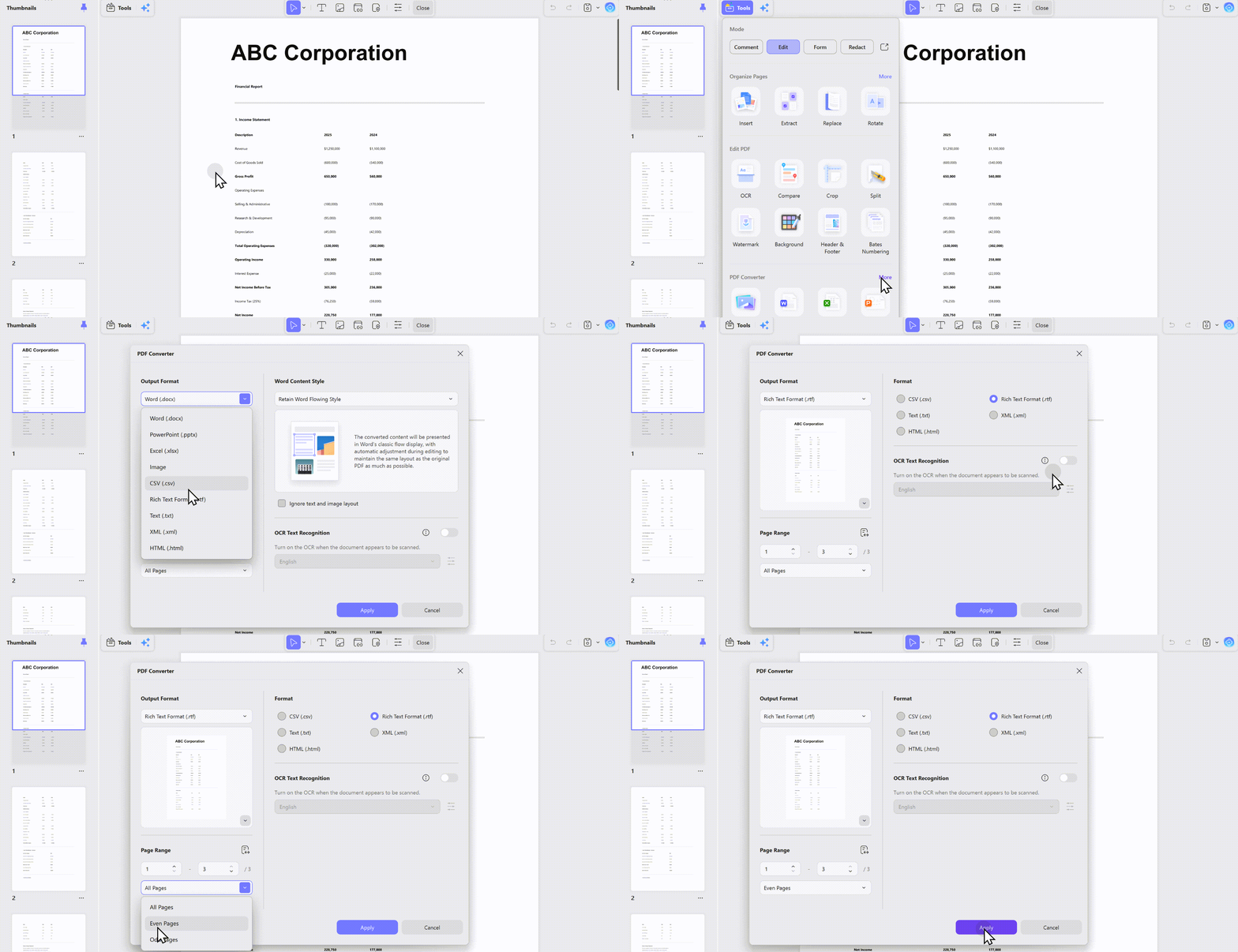
1. Single PDF to RTF:
Converting a single PDF to RTF using UPDF is a straightforward process:
- Open UPDF: Start by launching the UPDF application on your computer.
- Import Your PDF: Click on "Open File" to select and upload the PDF document you wish to convert.
- Choose RTF Format: Navigate to the "Export PDF" tool on the right sidebar, then select "To RTF" from the available format options.
- Convert and Save: Once you've selected RTF, specify your desired save location. Click "Export" to initiate the conversion. UPDF will convert your PDF to an RTF file while preserving the original layout and formatting, ready to be used or edited as needed.
2. Multiple PDFs to RTF:
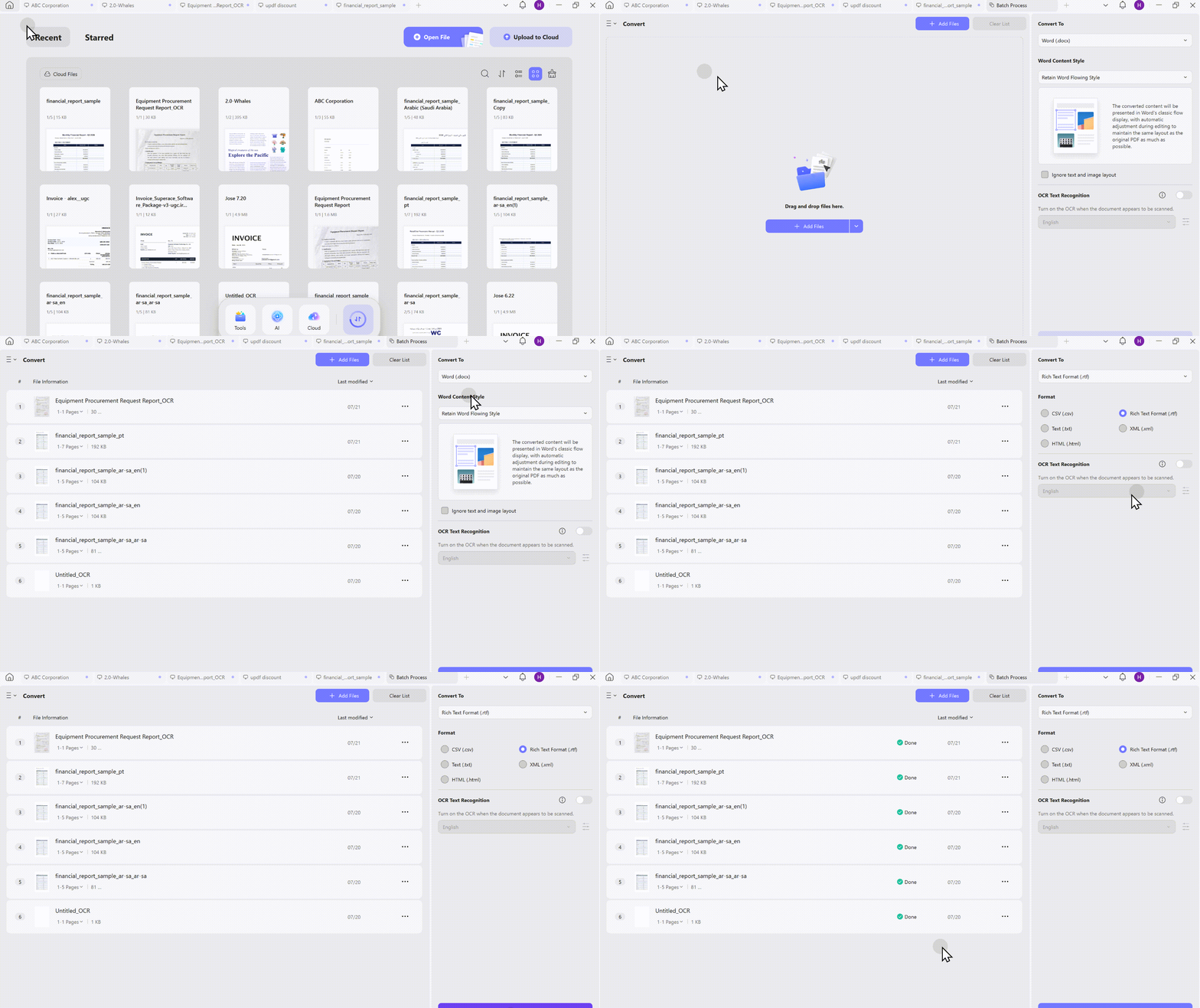
Converting multiple PDFs to RTF using UPDF involves a few simple steps:
- Open UPDF: Launch the application and navigate to the "Batch PDF" section.
- Add PDF Files: Click on "Add PDFs" to select and upload the multiple PDF documents you want to convert.
- Choose Output Format: Select "RTF" from the list of available output formats in the batch processing menu.
- Customize Settings: Before converting, adjust the customizable settings to tailor the output according to users' preferences. You can specify page ranges, choose whether to include images, and set other preferences to ensure the output meets your requirements.
- Convert and Save: Click "Apply" to start the batch conversion. UPDF will process all the selected files simultaneously, saving them in the specified format to your chosen location.
3. Scanned PDF to RTF:
Converting a scanned PDF to RTF using UPDF requires enabling text recognition to ensure accuracy.
- Open UPDF: Launch the application and open your scanned PDF document.
- Select Output Format: Choose "To RTF" from the export options available in the "Export PDF" section.
- Enable UPDF OCR: Before converting, turn on Text Recognition Settings to enable OCR, which is crucial for scanned documents to detect and convert text accurately. In this step, you have choose the document language and select the page range that you want to apply the OCR.
- Convert and Save: After setting up OCR, proceed to export. UPDF will apply OCR to recognize text within the scanned PDF, then convert and save it as an RTF file, preserving the layout and content accurately.
Take the first step towards more efficient document management with UPDF! Download UPDF now and experience the ease of converting PDFs to RTF, whether individually or in batches. Don't let cumbersome file conversions hold you back. Try UPDF today and see how simple and effective document conversion can be!
Windows • macOS • iOS • Android 100% secure
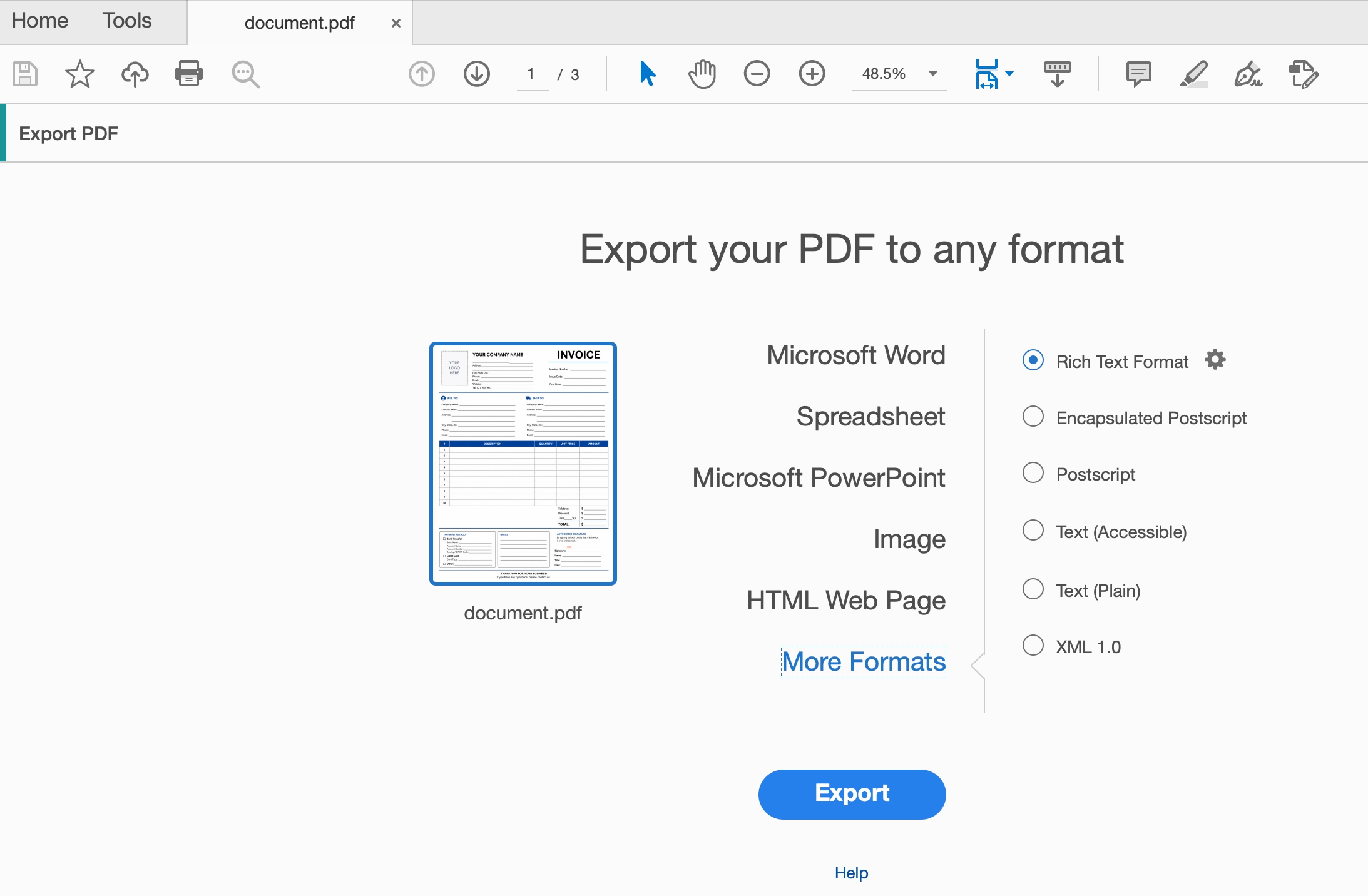
Adobe Acrobat Pro – The Industry Gold Standard
Adobe Acrobat Pro is the benchmark against which all others are measured. It offers unmatched compatibility, the most robust OCR, and enterprise‑grade security features. If you need the absolute best and your budget allows, it’s hard to beat.
Pros:
- Industry standard – works flawlessly with every PDF variant
- Best‑in‑class OCR – supports extensive language sets and complex scripts
- Full advanced features – redaction, validation, accessibility tools, and more
- Unlimited RTF conversion – on annual subscription
Cons:
- Subscription‑only – no one‑time purchase, expensive over time (~$720+ over 3 years)
- Steep learning curve – feature overload for casual users
- Heavy resource usage – can be sluggish on older hardware
The ultimate tool for enterprises and power users who require the highest level of compatibility and don’t mind paying a premium. Overkill for most individual users.
PDF‑XChange Editor – The Windows‑Only Bargain
PDF‑XChange Editor is a long‑time favorite among Windows users. It offers a generous free version and a Pro upgrade for an annual fee of $62–79, making it extremely cost‑effective. Its speed and reliability are legendary in the Windows community.
Pros:
- Fast performance – lighter and quicker than Adobe
- Rich free version – includes annotations, basic editing, and conversion
- No watermarks – even in the free version
Cons:
- Windows only – no Mac or mobile support
- Dated interface – looks like a tool from the 2010s
- OCR and advanced conversion require Pro – free version lacks these
If you’re a Windows user on a tight budget and don’t need mobile access, this is a fantastic choice. But for Mac users or those who value a modern UI, look elsewhere.
Foxit PDF Editor – Enterprise‑Friendly with AI
Foxit PDF Editor positions itself as a strong enterprise alternative to Adobe. It offers a familiar Office‑style ribbon interface, built‑in AI assistant, and solid cross‑platform support. However, its subscription pricing adds up over time.
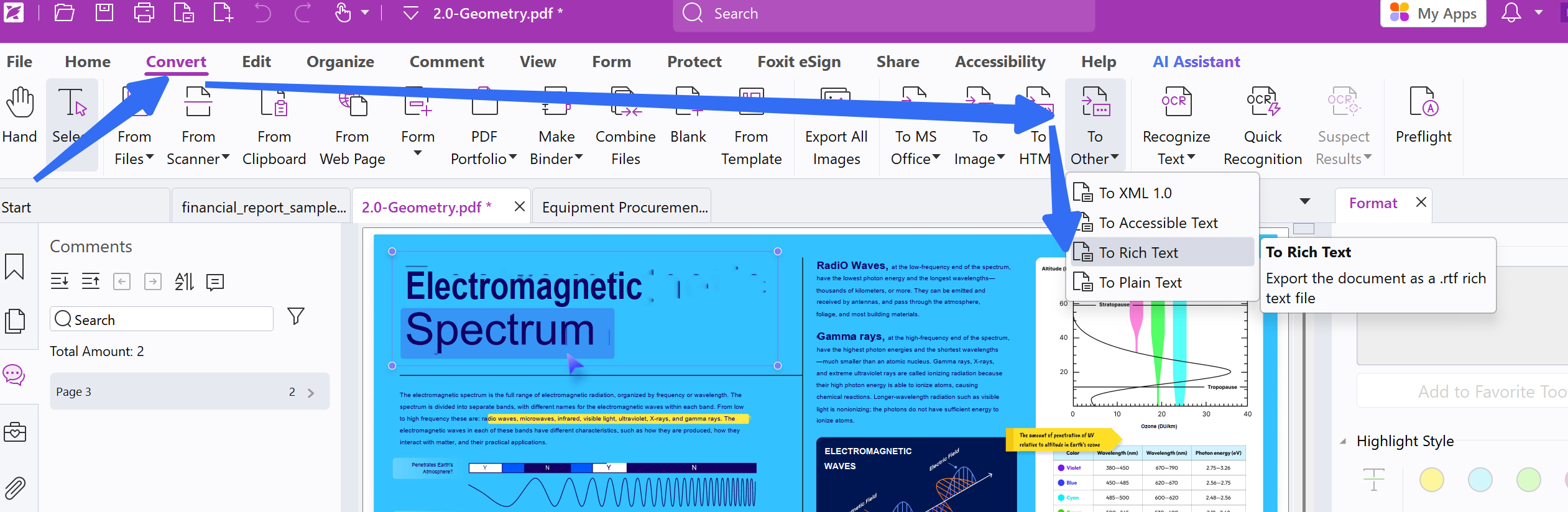
Pros:
- Office‑like interface – easy transition for Microsoft users
- AI‑powered assistant – can summarize and extract insights
- Cross‑platform – Windows, Mac, and web versions
- Strong collaboration features – built for teams
Cons:
- Subscription‑only – ~$130–160/year, expensive over 3 years (~$390–480)
- RTF conversion is supported but quality may vary in complex layouts
- Free trial is limited – many features locked after a 14-day trial
A solid enterprise solution with AI, but the recurring cost and less polished conversion quality make it less attractive than UPDF for individuals and smaller teams.
For the vast majority of users – freelancers, students, professionals, and small businesses – UPDF offers the strongest combination of features, price, and user experience. It’s our top pick.
Windows • macOS • iOS • Android 100% secure
Frequently Asked Questions
Why do online tools produce such messy RTF formatting?
PDF stores text with precise coordinate positions (x/y for each character), not as a structured document with paragraph flow. The converter has to "reverse‑engineer" where paragraphs and tables begin and end. Online tools are limited by computational resources and simpler algorithms, so they perform poorly on complex layouts.
Are free online converters safe to use?
It depends on your document. Free online converters process files on their servers — you have no control over what happens to your data afterward. For non‑sensitive documents, they're generally fine. For contracts, financial data, or internal reports, you must use a local‑processing desktop tool like UPDF.
Windows • macOS • iOS • Android 100% secure
Can I convert a scanned PDF to RTF?
Yes, but only with a tool that supports OCR. Scanned PDFs are essentially "images of text" — without OCR, the converter can't read any text at all. Among desktop tools, Adobe Acrobat, UPDF, and Foxit all support OCR.
What's the difference between RTF and DOCX — which should I choose?
RTF is older but far more widely compatible — nearly every word processor can open it. DOCX is Microsoft's modern format with more advanced features but narrower compatibility. If you're unsure what software the recipient uses, RTF is the safer choice. If you're editing in Word and need advanced formatting, DOCX is better.
What should I do if converted text appears garbled?
Garbled text is usually a font encoding issue. Try: 1) Re‑convert using a desktop tool with OCR capability; 2) Make sure you've selected the correct document language before conversion; 3) If the PDF's text layer is corrupted, try converting each page to an image first, then running OCR on those images.
Frequently Asked Questions
Does converting PDF to RTF keep the original formatting?
It keeps basic text formatting, but complex columns, tables, fonts, and positioned elements may change.
Can a scanned PDF be converted to RTF?
Yes, after OCR converts the page images into recognized text. Proofread the result before editing.
When should I use RTF instead of DOCX?
Use RTF when you need broad compatibility with older or different word processors; choose DOCX for richer modern formatting.
Conclusion
As we've explored throughout this article, converting PDFs to RTF doesn't have to be a daunting task. With tools like UPDF, the process becomes smooth and efficient, allowing you to handle your document management needs with ease.
UPDF not only simplifies the conversion process but also enhances your overall productivity by providing a suite of editing tools. Whether you're converting single files or managing batch conversions, UPDF is designed to meet all your PDF needs. Don't let document conversion slow you down—choose UPDF and experience a seamless transition from PDF to RTF today.
Windows • macOS • iOS • Android 100% secure





 Enola Miller

 Enid Brown
 Enrica Taylor