 UPDF
UPDF
 UPDF for Windows
 UPDF for Mac
 UPDF for iPhone/iPad
 UPDF for Android
 Nomostar
 UPDF AI Online
 UPDF Sign
 IvyCraft
 Edit PDF
 Annotate PDF
 Create PDF
 PDF Form
 Edit links
 Convert PDF
 OCR
OCR PDF to Word
 PDF to Image
 PDF to Excel
 Organize PDF
 Merge PDF
 Split PDF
 Crop PDF
 Rotate PDF
 Protect PDF
 Sign PDF
 Redact PDF
 Sanitize PDF
 Remove Security
 Read PDF
 UPDF Cloud
 Compress PDF
 Print PDF
 Batch Process
 About UPDF AI
 UPDF AI Solutions
 AI User Guide
 FAQ about UPDF AI
 Summarize PDF
 Translate PDF
 Chat with PDF
 Chat with AI
 Chat with image
 PDF to Mind Map
 Explain PDF
 PDF AI Tools
 Image AI Tools
 AI Chat Tools
 AI Writing Tools
 AI Study Tools
 AI Working Tools
 Other AI Tools
 AI Bookmark Generation
 AI Bookmark Summary
 AI Watermark Generation
 AI Background Generation
 AI Sticker Generation
 AI Stamp Generation
 AI Editing Suite
 UPDF Copilot
 AI Page Management
 AI Semantic Search
 PDF to Word
 PDF to Excel
 PDF to PowerPoint
 Enterprise Solution
 Enterprise Sign
 Enterprise AI
 Enterprise Plan
 Enterprise User Guide
 Enterprise Webinar
 IT
IT Education
 Construction
 Financial Service
 Healthcare
 Insurance
 Legal
Legal Manufacturing
 Government
 Researchers & PhDs
 Solopreneurs & Freelancers
 Lawyers & Legal Professionals
 Real Estate Agents & Brokers
 Education Solution
 Customer Stories
 User Guide
 UPDF Tricks
 FAQs
FAQs UPDF Reviews
 Download Center
 Blog
Blog Newsroom
 Tech Spec
 Updates
 UPDF vs. Adobe Acrobat
 UPDF vs. Foxit
 UPDF vs. PDF Expert

Quick answer:
I hit this the first time I dropped a signed contract into a Word report. I wanted to fix one clause, double-clicked it, and Word just opened the PDF in a separate viewer — because I'd inserted it as an object, not as editable text. The word "import" hides two completely different jobs, and Word doesn't warn you which one you're choosing.
This guide sorts that out first, then walks through three methods across Windows and Mac.
First, decide: editable text or a frozen copy?
Before opening any menu, match your goal to the right method. "Import" can mean either of these, and they behave very differently inside Word.
| What you actually want | What to do | Result in Word |
|---|---|---|
| Edit or reformat the PDF's text in Word | Convert PDF → Word with UPDF (Method 1) | Fully editable paragraphs, tables, and headings |
| Convert several PDFs to Word at once | Batch convert with UPDF (Method 2) | Multiple editable .docx files in one pass |
| Keep the PDF exactly as-is, as a reference | Insert as an object (Method 3) | A frozen copy you can't edit; opens in a PDF viewer on click |
| Show the PDF as a picture, not editable | Insert it as an image | A flat image — see our dedicated guide below |
If your goal is the third row — placing the PDF as a picture rather than editable content — the cleaner route is covered step by step in how to insert a PDF as an image into Word. This article focuses on the editable and embedded-object paths.
Method 1. Convert PDF to Word with UPDF (for editable content)
This is the right method when you want the PDF's actual text inside your document — to rewrite a paragraph, merge it into a longer report, or restyle it to match your formatting. Converting turns the PDF into native Word paragraphs and tables instead of a locked block.
The risk with conversion is formatting drift: a weak converter scrambles columns, fonts, and tables. UPDF converts in seconds while keeping the original layout, fonts, and table structure intact, so you spend time editing rather than rebuilding the page.
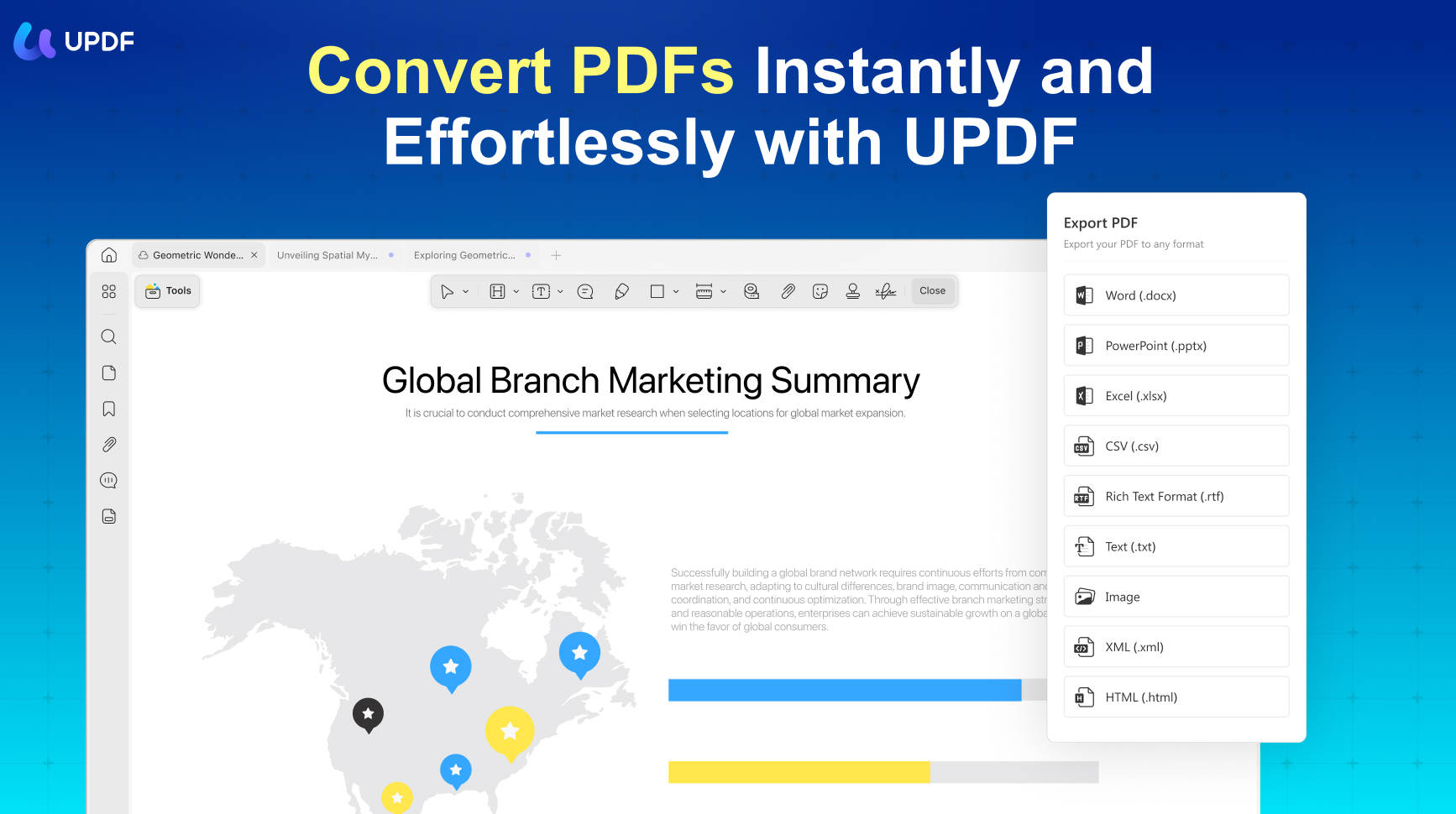
Best for:
- pulling a PDF's text into a report, reworking wording, or reusing tables and headings.
Not for:
- a signed or final document you must preserve exactly — converting makes it editable, which means it can be altered. For those, use Method 3.
On Windows and Mac
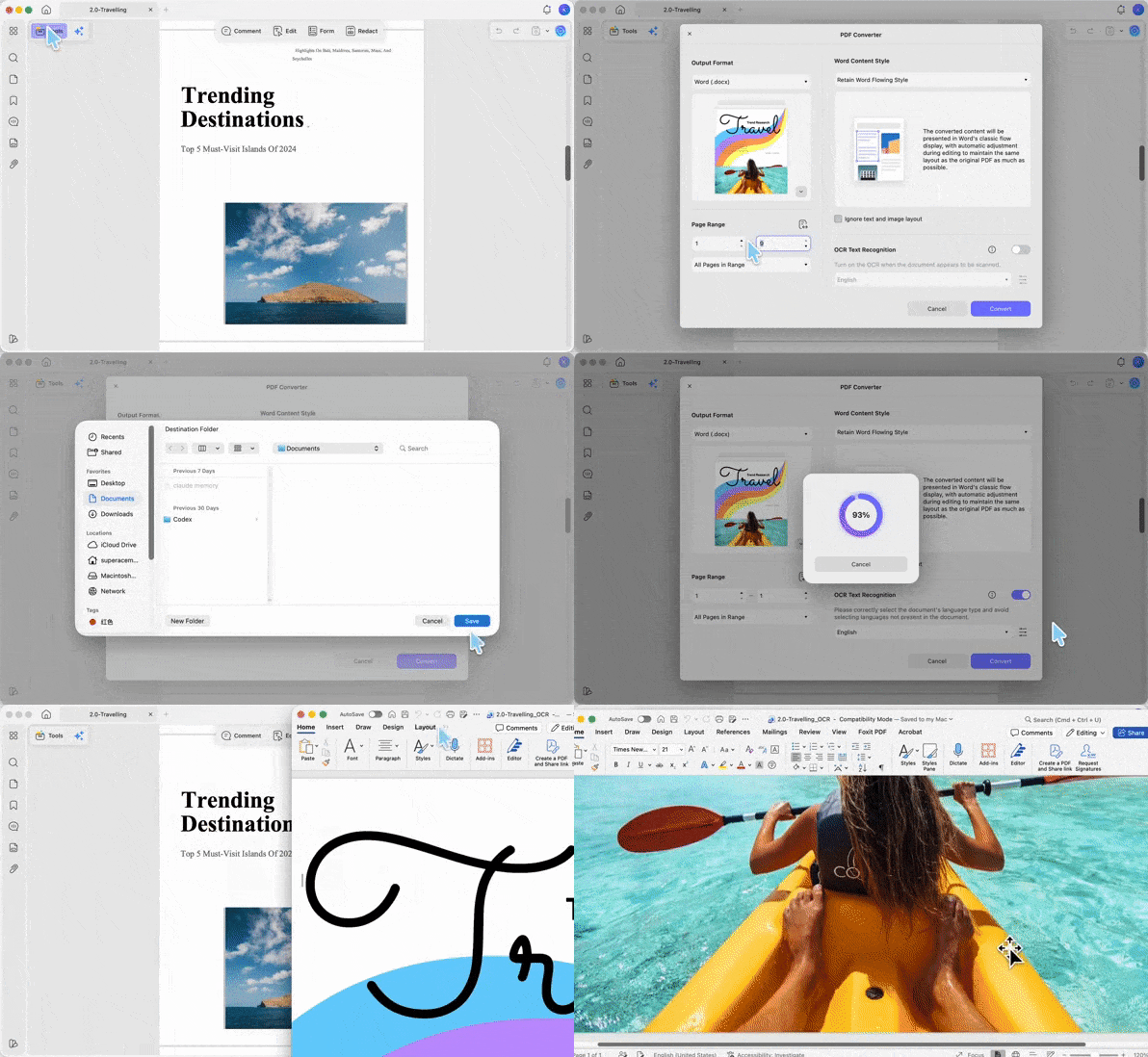
Step 1. Open the document in UPDF — if you don't have it yet, download UPDF for free and install it in under a minute — then click Open File, or drag the PDF straight onto the UPDF window.
Windows • macOS • iOS • Android 100% secure
Step 2: Click Tools (top-left), then under PDF Converter choose Word.
Step 3. In the PDF Converter dialog, set Output Format to Word (.docx). Pick a Word Content Style — Retain Word Flowing Style keeps Word's natural flow and is best for editing text, while Retain Word Textbox Style preserves the original PDF layout more rigidly. To convert only part of the file, set the Page Range; leave it on All Pages in Range for the whole document. If the PDF is scanned or photographed, switch on OCR Text Recognition and choose the document's language so the text becomes editable instead of locked inside an image.
Step 4. Click Convert. UPDF processes the file in seconds regardless of page count. Open the new .docx, then copy the parts you need into your project — or work in the converted file directly.
On mobile (iOS & Android)
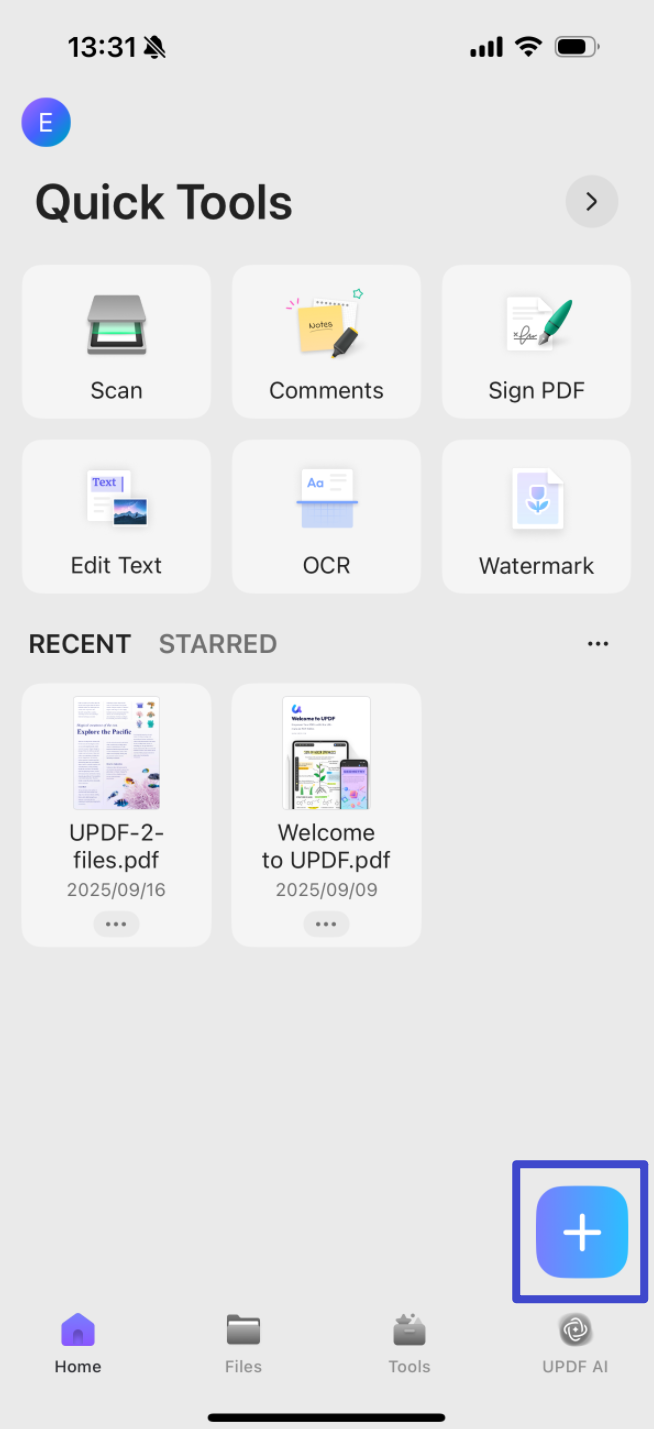
Step 1. Install UPDF from the App Store or Google Play, open it, and tap the + button in the bottom-right corner to upload your PDF.
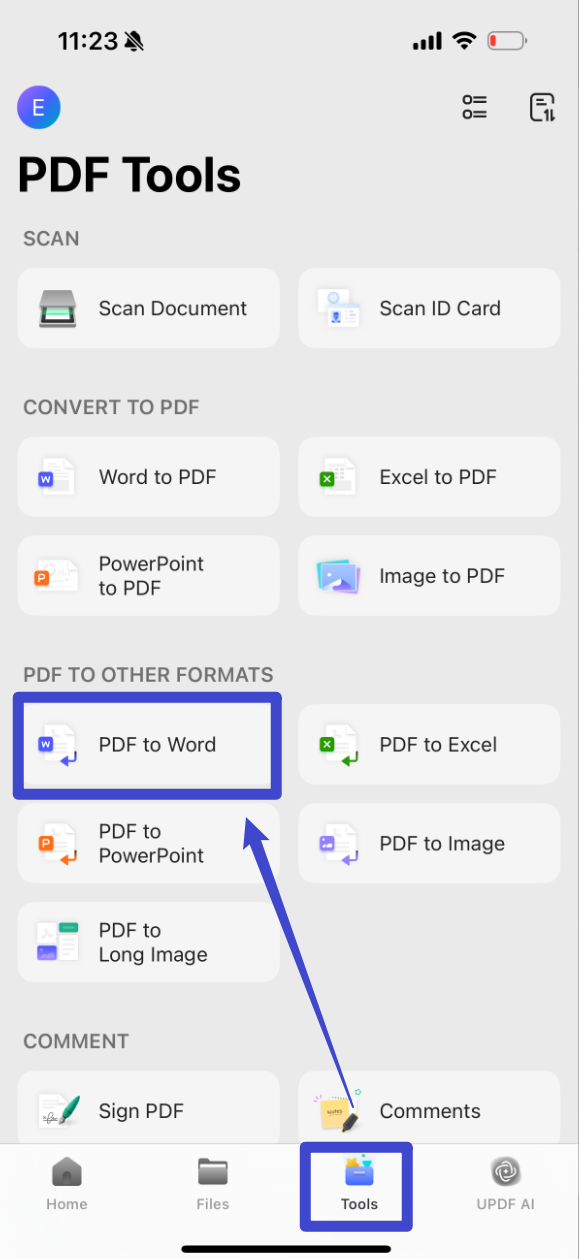
Step 2. Tap Tools, choose PDF to Word, select your file, adjust the settings, and tap Continue. The converted file keeps formatting and layout close to the original while letting you edit the text.
A note on the free version:
Windows • macOS • iOS • Android 100% secure
Method 2. Batch convert multiple PDFs to Word (desktop)
When you have a folder of PDFs to bring into Word — a stack of reports, invoices, or chapters — converting them one at a time is the slow way. UPDF's desktop Batch Process turns the whole set into Word files in one pass, so you import them all together instead of repeating Method 1 for each file.
Best for:
- several PDFs that all need to become editable Word documents at once.
Not for:
- a single file (Method 1 is quicker) or merging several PDFs into one Word document — for that, merge them first, then convert.
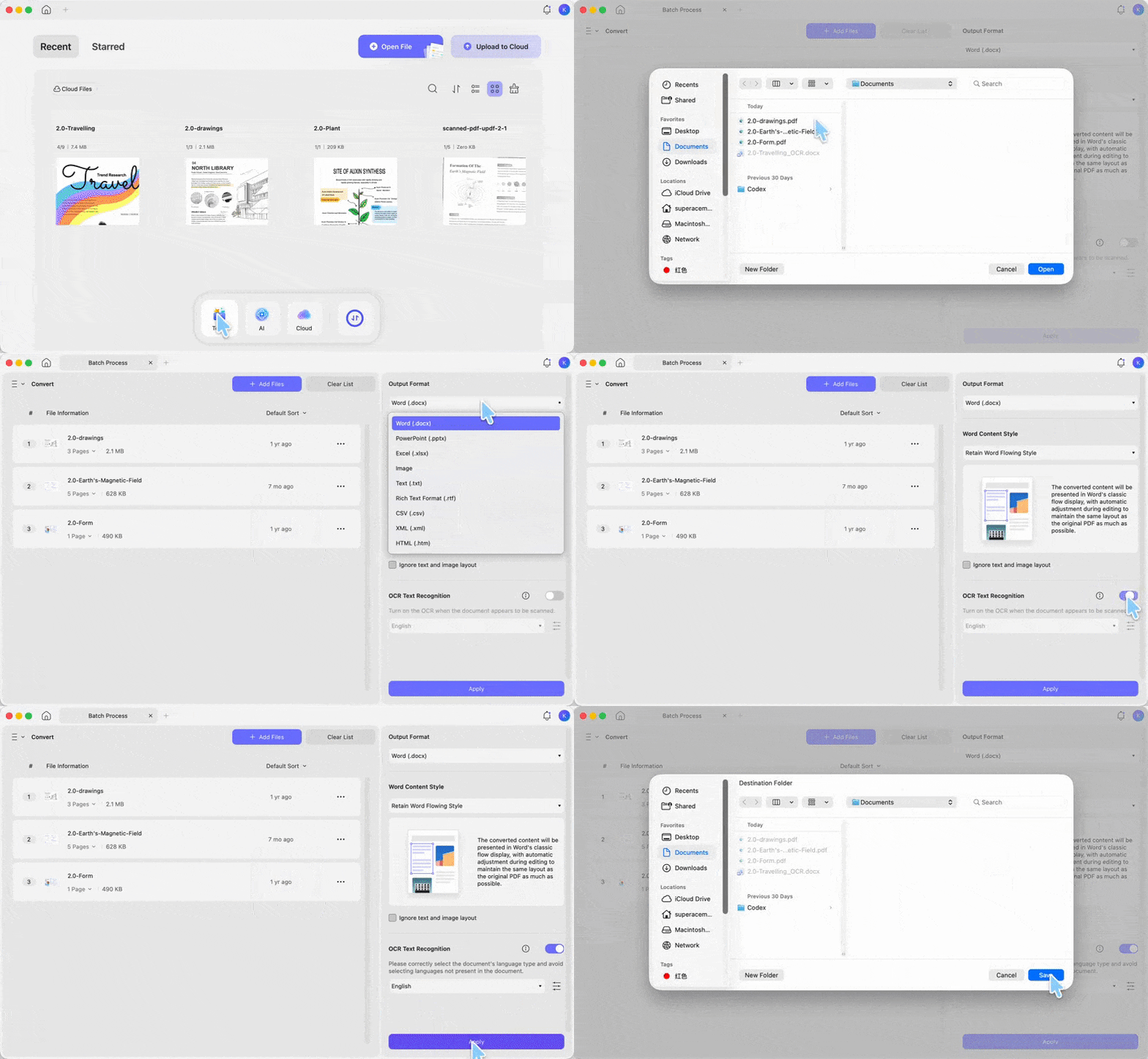
Step 1. In UPDF, click Tools in the top-left toolbar, then choose Convert.
Step 2. Click Add Files to load your PDFs.
Step 3. Open the Convert To dropdown and select Word. For control over the result, set the Word Content Style — Retain Word Flowing Style for easy text editing, or Retain Word Textbox Style to hold the original layout. Switch on OCR Text Recognition with the right document language if any files are scanned.
Step 4. Click Apply, then pick a destination folder. UPDF converts every file in the queue and saves the Word documents there, ready to drop into your project.
Method 3. Insert the PDF into Word as an object (to keep it intact)
Use this when the PDF should stay exactly as it is — a signed agreement, a certificate, an invoice — and you only need it to live inside the Word file for reference. Inserting it as an object embeds the whole PDF; the content can't be edited in Word, which is the point.
One important platform difference most guides skip: Insert > Object behaves differently on Windows and Mac.
On Windows
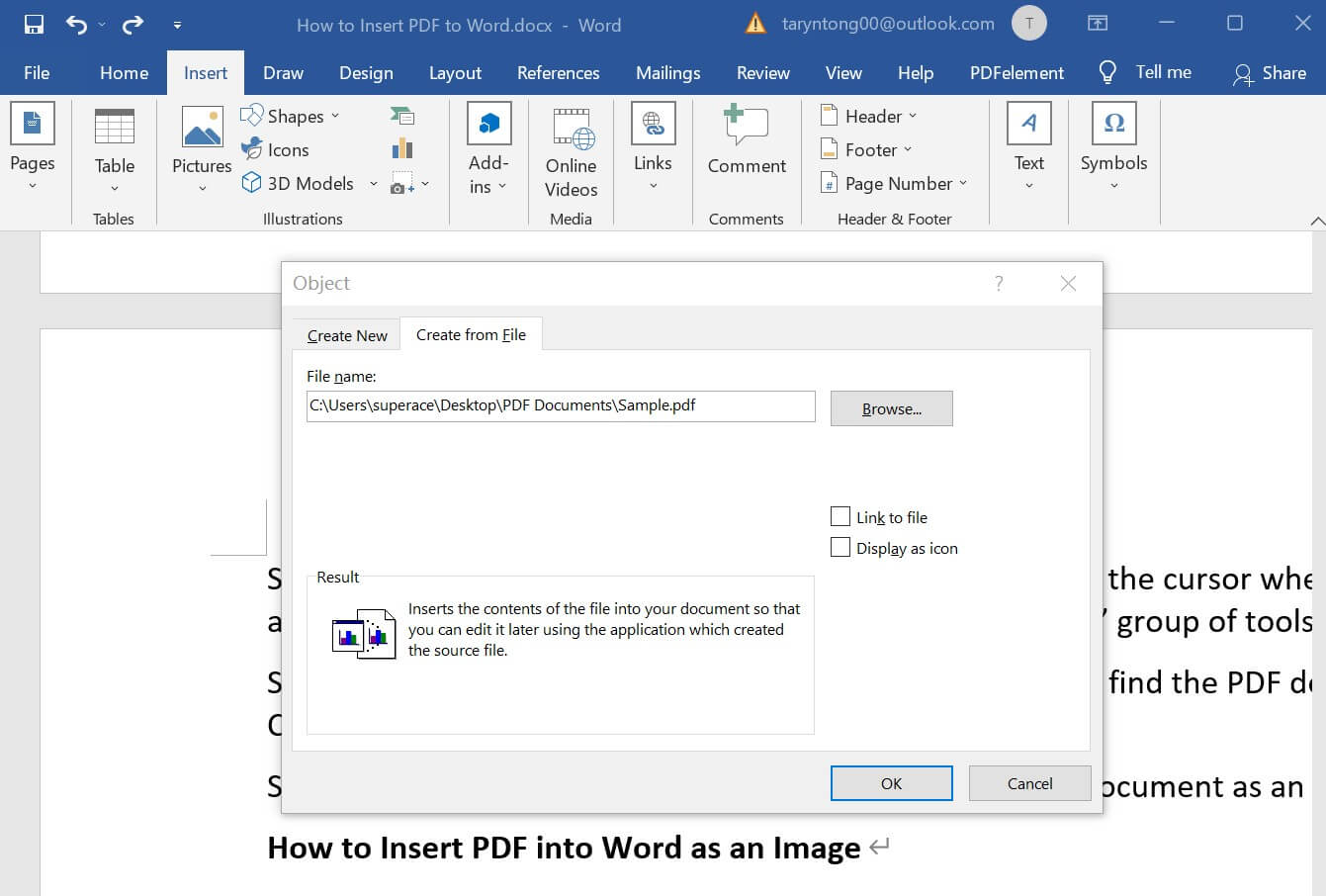
Step 1. In Word, place your cursor where the PDF should go and click Insert in the ribbon.
Step 2. In the Text group, click Object.
Step 3. In the dialog, choose Create from File, then Browse to your PDF.
Step 4. Select the file, click OK to embed it. It appears as a clickable icon or a first-page preview; double-clicking opens the full PDF in your default viewer.
On Mac
Step 1. In Word for Mac, click Insert in the menu bar, then Object.
Step 2. In the Object box, select From File and choose your PDF.
Step 3. Click Insert.
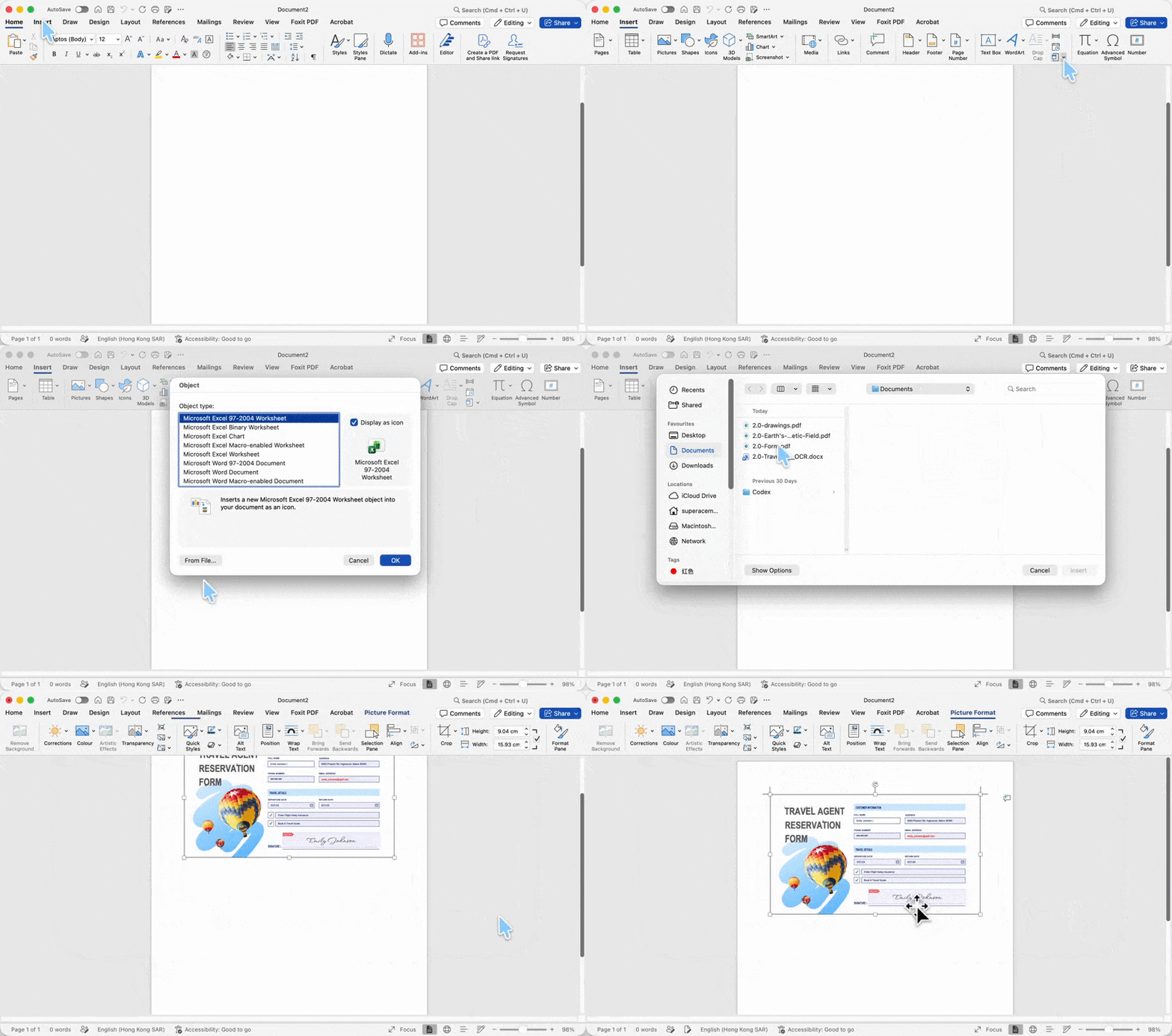
On Mac, Word renders only the first page of the PDF as a static image rather than embedding a clickable multi-page object — so if your PDF has several pages, the others won't appear. For a multi-page reference on Mac, convert each page to an image and place them individually; that route is covered in how to insert a PDF as an image into Word.
Best for:
- attaching a finished, unchangeable document inside a Word file.
Not for:
- any case where you'll need to edit the content later on Word, or a multi-page PDF on Mac.
Import (convert) vs. Insert (object) vs. Insert (image) — the difference
These three are easy to confuse because Word lumps them under similar menus. The distinction is what happens to the content:
- Convert to Word → the PDF becomes editable text. You can change every word.
- Insert as object → the PDF becomes a frozen file inside Word. It opens on click but can't be edited directly on Word.
- Insert as image → the PDF becomes a flat picture. It can't be edited or clicked open.
Think of it this way: converting pours the PDF's contents into your document, inserting as an object staples the whole PDF behind a page, and inserting as an image takes a photo of it.
Edge cases: when import doesn't behave
"I converted it but the text won't edit in Word." The PDF was likely scanned or image-based, so the conversion preserved pictures of text, not real text. Re-run Method 1 with OCR turned on in UPDF before exporting — that recognizes the characters and produces editable Word text.
"Word says it can't insert the file / the object is blank." The PDF may be password-protected or permission-restricted. Word can't embed a PDF it can't open. Remove the restriction in UPDF (only for files you own or are authorized to edit) before inserting.
"My layout fell apart after converting." Multi-column PDFs and complex tables are the usual culprits. Converting with UPDF preserves structure far better than a screenshot-and-retype, but for heavily designed pages, embedding as an object (Method 3) keeps the original look untouched.
FAQs
1. Does converting change or delete my original PDF?
No. UPDF creates a separate .docx and leaves the source PDF untouched, so you always keep the original. The same is true for inserting as an object — Word copies the file in, it doesn't move or alter the PDF on your drive.
2. What happens to images and charts when I import a PDF into Word?
With conversion, UPDF carries images, charts, and tables into the .docx as editable or movable objects. With an inserted object, the PDF's visuals stay exactly as they looked but become part of one uneditable block.
3. Can I import a PDF into Google Docs the same way as Word?
Google Docs has no native PDF object insert; you upload the converted file or add the PDF as an image instead.
Conclusion
Importing a PDF into Word comes down to one decision: do you need the content editable, or preserved? Convert with UPDF when you want editable text, batch-convert when you have a folder of files, and insert as an object when the document must stay exactly as it is — keeping the Windows-versus-Mac behavior in mind. If you only need the PDF to appear as a picture, the dedicated insert a PDF as an image into Word guide has the cleanest route.
Download UPDF for free to try converting your PDF to editable Word on your own file — installation is free, and Pro features are available when you need watermark-free export or OCR.
Windows • macOS • iOS • Android 100% secure








 Engelbert White
 Enola Davis
 Delia Meyer
 Enya Moore