UPDF
UPDF
 UPDF for Windows
 UPDF for Mac
 UPDF for iPhone/iPad
 UPDF for Android
 Nomostar
 UPDF AI Online
 UPDF Sign
 IvyCraft
 Edit PDF
 Annotate PDF
 Create PDF
 PDF Form
 Edit links
 Convert PDF
 OCR
OCR PDF to Word
 PDF to Image
 PDF to Excel
 Organize PDF
 Merge PDF
 Split PDF
 Crop PDF
 Rotate PDF
 Protect PDF
 Sign PDF
 Redact PDF
 Sanitize PDF
 Remove Security
 Read PDF
 UPDF Cloud
 Compress PDF
 Print PDF
 Batch Process
 About UPDF AI
 UPDF AI Solutions
 AI User Guide
 FAQ about UPDF AI
 Summarize PDF
 Translate PDF
 Chat with PDF
 Chat with AI
 Chat with image
 PDF to Mind Map
 Explain PDF
 PDF AI Tools
 Image AI Tools
 AI Chat Tools
 AI Writing Tools
 AI Study Tools
 AI Working Tools
 Other AI Tools
 AI Bookmark Generation
 AI Bookmark Summary
 AI Watermark Generation
 AI Background Generation
 AI Sticker Generation
 AI Stamp Generation
 AI Editing Suite
 UPDF Copilot
 AI Page Management
 AI Semantic Search
 PDF to Word
 PDF to Excel
 PDF to PowerPoint
 Enterprise Solution
 Enterprise Sign
 Enterprise AI
 Enterprise Plan
 Enterprise User Guide
 Enterprise Webinar
 Banking
 Healthcare
 Insurance
 Legal
Legal Manufacturing
 Government
 Education Solution
 Customer Stories
 User Guide
 UPDF Tricks
 FAQs
FAQs UPDF Reviews
 Download Center
 Blog
Blog Newsroom
 Tech Spec
 Updates
 UPDF vs. Adobe Acrobat
 UPDF vs. Foxit
 UPDF vs. PDF Expert

"Why is editing a simple typo in a PDF such a nightmare? It's 2026, and I still can't just click and type like I do in Microsoft Word." If you've ever lost your patience trying to fix a document, you are not alone.
One operations manager recently posted a viral vent on Reddit that sums it up perfectly:
The truth is, most software treats PDFs like flat images rather than dynamic text. When you modify a sentence, the lines don't automatically wrap, fonts break, and layouts fall apart. Fixing this requires an engine designed specifically for true text reflow.
To help you find the right tool for your specific workflow, we've put together a transparent breakdown of the best PDF editors in 2026, comparing their formatting capabilities, performance limits, and hidden constraints. If you are looking to skip the manual troubleshooting and immediately fix these layout glitches with fluid, Word-like text editing, you can get started right away with UPDF.
Windows • macOS • iOS • Android 100% secure
1. Quick Workflow Routing Table
Some readers only want a fast way to match their workflow with the right tools to edit PDF files. The table below points each common need to a specific tool path based on operational constraints, security, and budget, so decisions take seconds, not minutes:
| Your Objective | Data Sensitivity | Budget Constraint | Recommended Editor | Why This is the Best Fit |
| Fix typos or update text in branded layouts (Contracts, proposals, brochures) | Medium to High (Requires local processing) | Cost-conscious (Avoids ongoing SaaS billing) | UPDF Desktop or Mobile | True Text Reflow: Modifies live text blocks and recalculates line spacing without breaking layouts or font consistency. |
| Deploy and manage PDF software across a team | High (Needs seat tracking) | Enterprise Procurement (Prefers upfront cap-ex) | UPDF Enterprise (with Admin Console) | Centralized Licensing: IT managers add/revoke seats instantly; the Lifetime Plan eliminates multi-year budget bloat |
| Enforce legacy ISO standards / Edit 500+ page blueprints | Maximum (Strict corporate compliance) | Enterprise Budget (Can sustain premium SaaS) | Adobe Acrobat Pro | Corporate Legacy Standard: The industry pioneer built for heavy architectural schematics and deep legal infrastructure. |
| Sign a one-page form or run a quick one-off merge | Low (Public or non-confidential data) | Zero Budget (Needs immediate access) | Browser-Based Tools (iLovePDF / Smallpdf) | Instant Utility: Ideal for zero-cost, temporary tasks where layout reflow and upload security are not priorities. |
2. Core Capability Comparison: Top PDF Editors of 2026
Many readers feel lost choosing between heavy desktop suites, cheap web tools, and new AI options. Picking wrong wastes hours, breaks layouts, and risks privacy when documents drive daily business decisions. Now, we will explore where the best PDF editors clearly outperform or fail in real workflows:
Tool 1: UPDF — Best for Seamless Text Reflow & Team Licensing
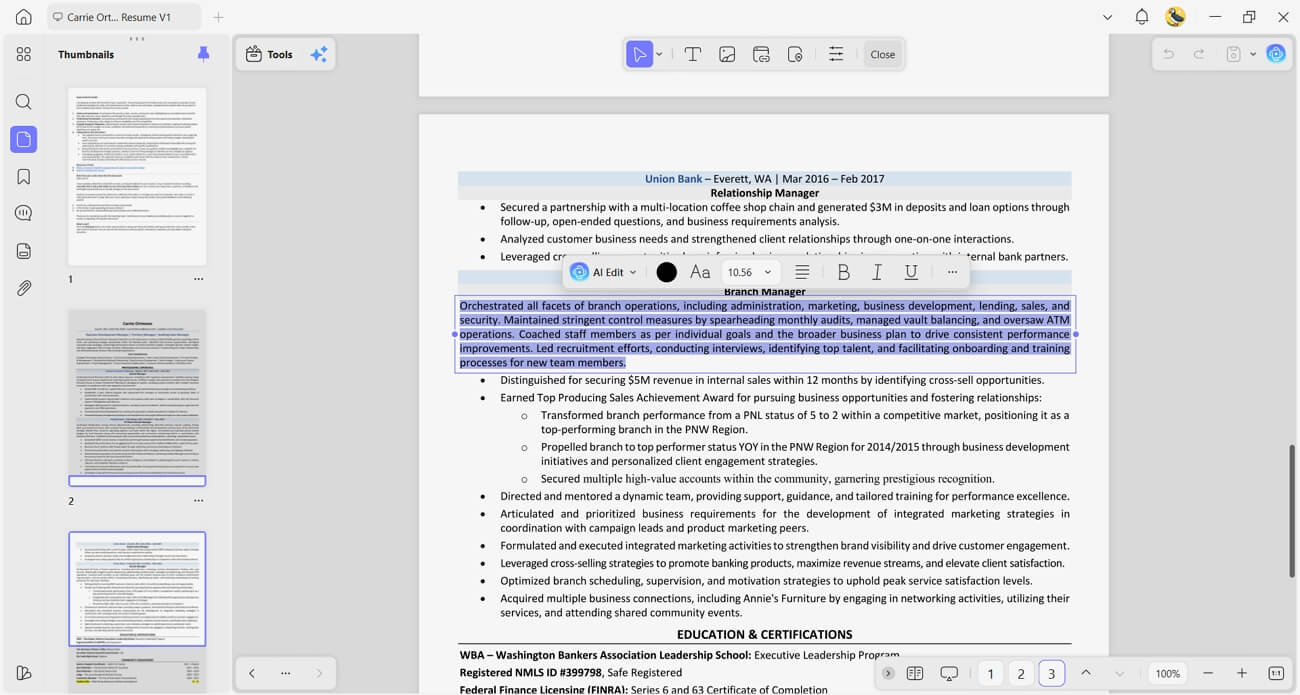
UPDF treats PDF text editing like a modern word processor. Its Dynamic Typography Engine completely bypasses the limitations of traditional PDF layouts by automatically expanding text box frames as you type. If you insert a word or change a number, the text box scales in real-time to keep your content on a single line instead of forcing an accidental line drop.
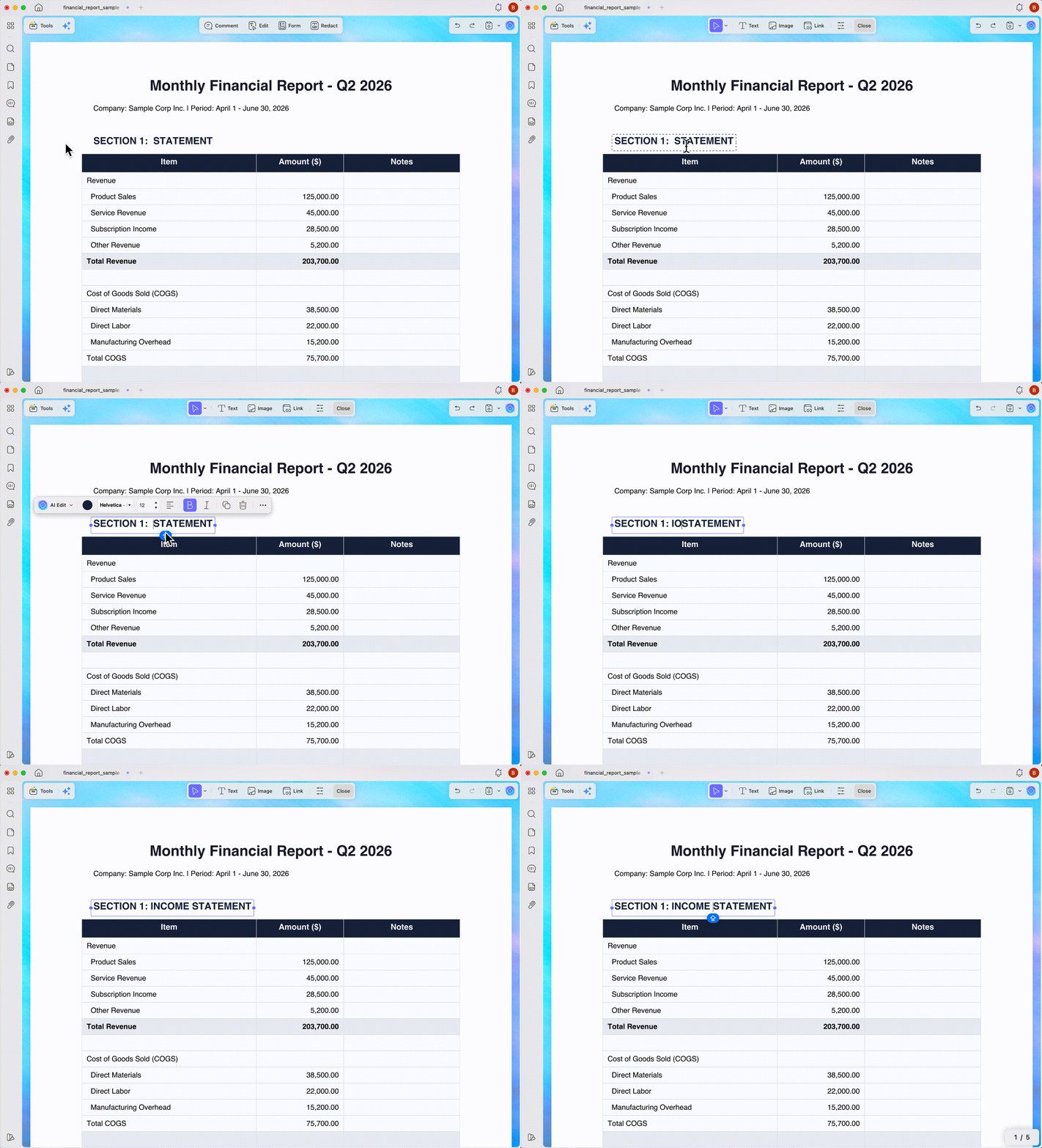
For messy layouts, UPDF allows you to select multiple independent text boxes simultaneously and snap them into perfect alignment with a single click. Furthermore, it features context-aware AI Edit tools directly inside the bounding box selection menu. By highlighting a paragraph or capturing a screenshot of a specific section, users can immediately access options like AI Polish, AI Expand, AI Shorten, or AI Proofread to refine copy instantly without leaving the document layer.
Windows • macOS • iOS • Android 100% secure
Enterprise Controls and Lifetime Economics
Admin Console lets IT add or revoke seats from one dashboard without touching each user device. License limits and active users are visible in real time, so unused seats stop quietly burning budget. The Lifetime Plan replaces endless renewals with one upfront purchase, flattening long‑term SaaS costs for finance. For a deeper breakdown of these efficiencies, see the detailed PDF Efficiency Report.
Independent reviewer Nicholas Rossis describes UPDF as a modern alternative to Adobe's long‑standing PDF stack. His 2026 analysis highlights UPDF's lighter footprint and editing behavior across business documents.
User Ratings
- G2 : 4.5/5
To see how these formatting and text reflow engines handle live adjustments in real-time, it is helpful to look at an interactive workflow breakdown. The independent tech review video below demonstrates how standard document layouts react during heavy editing cycles, mapping out the functional differences between complex enterprise suites and agile alternatives:
Tool 2: Adobe Acrobat Pro — Best for Legacy Corporate Standards
Many enterprises still treat Acrobat Pro as their default PDF creation and editing software for complex documents. It remains the pioneer tool where policies and contracts have depended on Adobe workflows for decades. However, users report high RAM usage when rendering 500‑page blueprints or technical schematics.
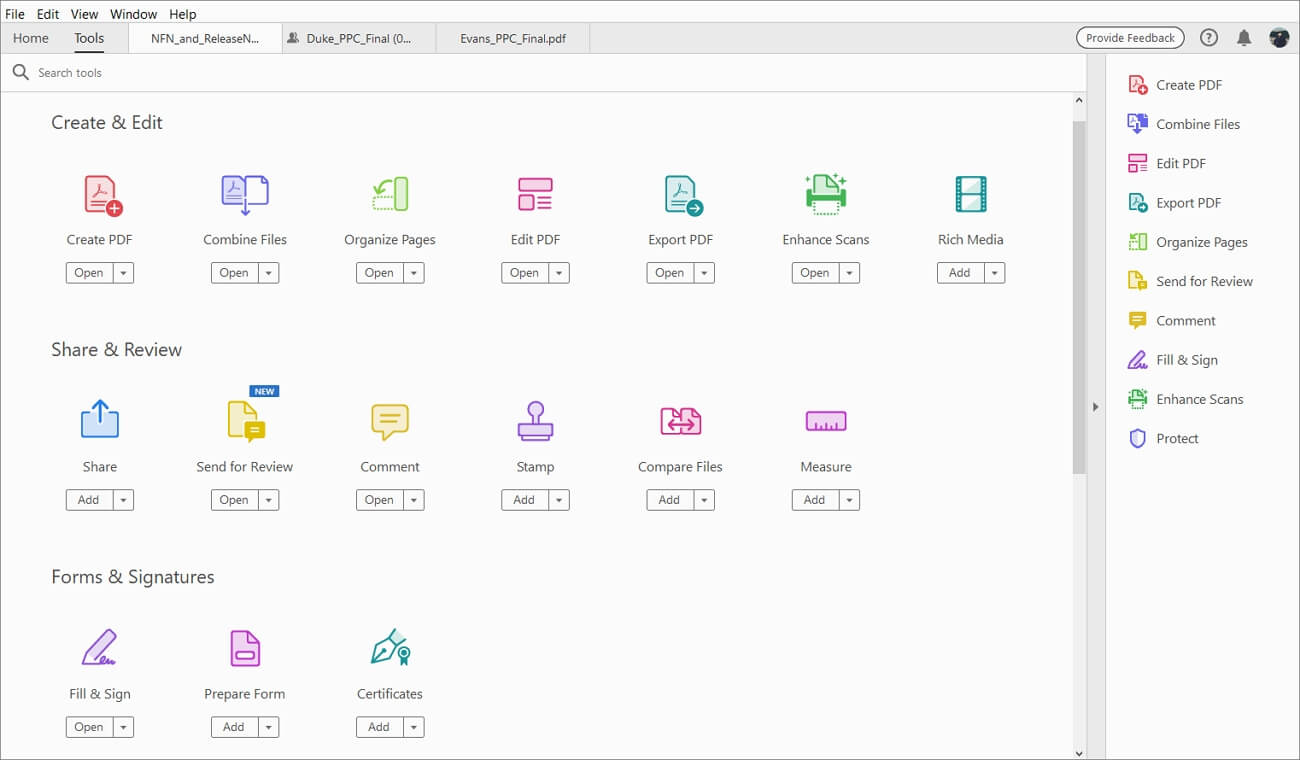
As the industry's heavy-duty suite, Adobe Acrobat Pro provides robust typographical control, but its editing engine operates on a much older architectural framework. When editing text, content flows within strictly designated blocks; if you expand a sentence too much, you must manually manage the frame boundaries to prevent awkward column breaks.
Acrobat does support multi-object alignment, allowing you to select several text boxes and align them left, right, or center. However, this feature is buried deep within the engineering tools—typically requiring you to switch over to the "Prepare Form" mode or navigate complex right-click sub-menus to access object alignment panels. It is powerful and mathematically precise, but the workflow is noticeably slower and more rigid for fast-paced, day-to-day text updates.
User Ratings
- Trustpilot: 3.7/5
Tool 3: Free Online PDF Editors
Sometimes you might just want to change a single number in a PDF document or quickly merge a few standard meeting files, and in those cases, web-based tools can perfectly solve your immediate needs. For on-the-go freelancers, students using lightweight devices like Chromebooks, or teams handling low-frequency, non-confidential tasks, these platforms eliminate the hassle of software installations and let you finish basic edits straight from your browser. To help you handle these quick, light-duty workflows efficiently, I will introduce two of the most popular and practical online editors below:
1. iLovePDF
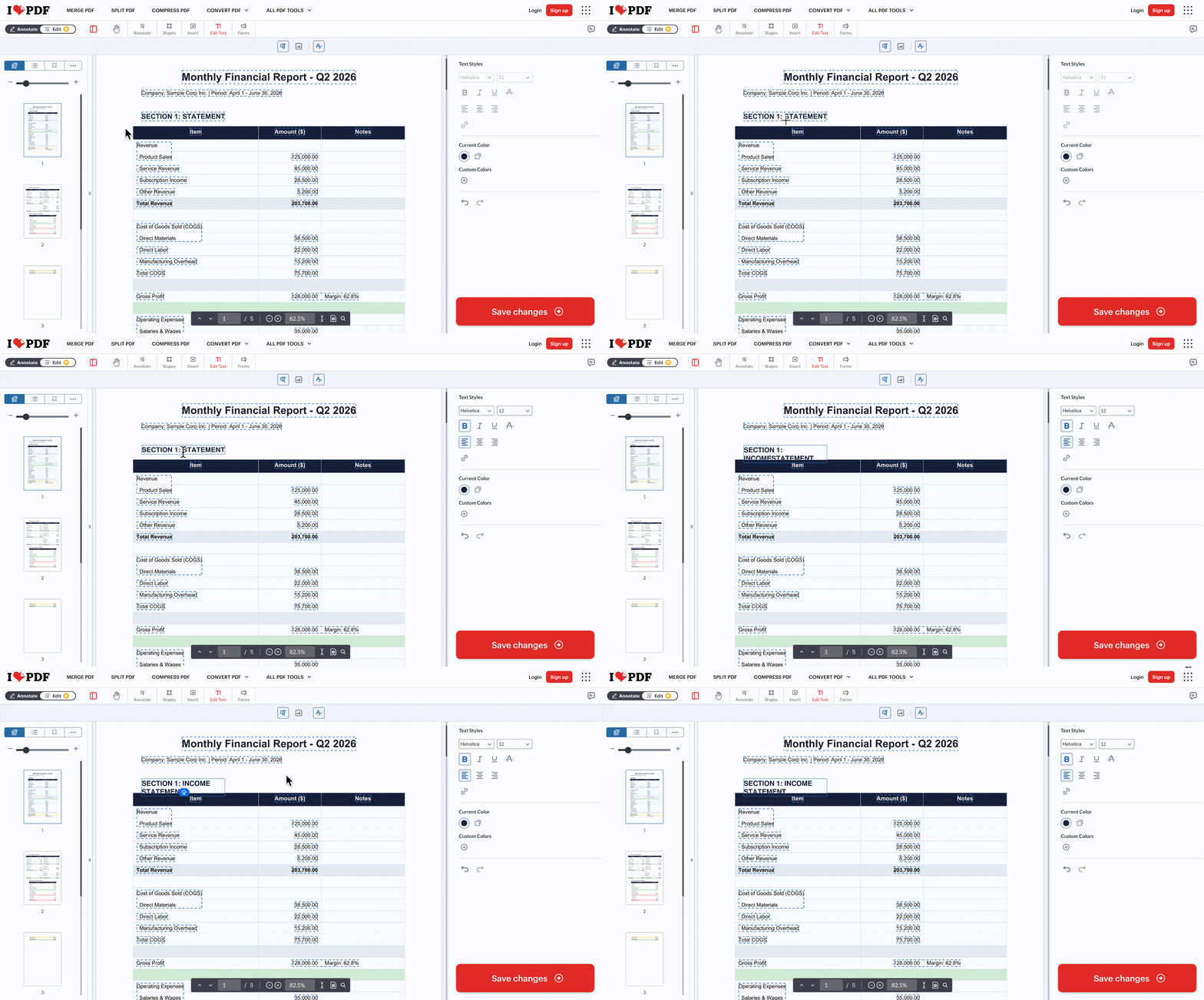
If you just need to handle quick file logistics, iLovePDF is highly efficient. It excels at batch processing tasks like turning a PDF into a Word doc, compressing heavy attachments, or merging loose meeting files in seconds. The editing workspace is essentially a lightweight annotation layer where you drop text, stamps, or shapes on top of your existing page layout.
How it handles text: The platform uploads your file to a temporary cloud server to process your changes. Because it uses fixed text boxes rather than a dynamic typography engine, you might hit a frustrating layout snag: adding even a single word to a sentence can cause that word to prematurely drop to a second line. You then have to manually click, drag, and stretch the box to make it look right. It is a perfect, zero-cost choice for signing forms or swapping out individual numbers, but it gets tedious for serious rewrites.
User Ratings
- G2 : 4.6/5
2. Smallpdf
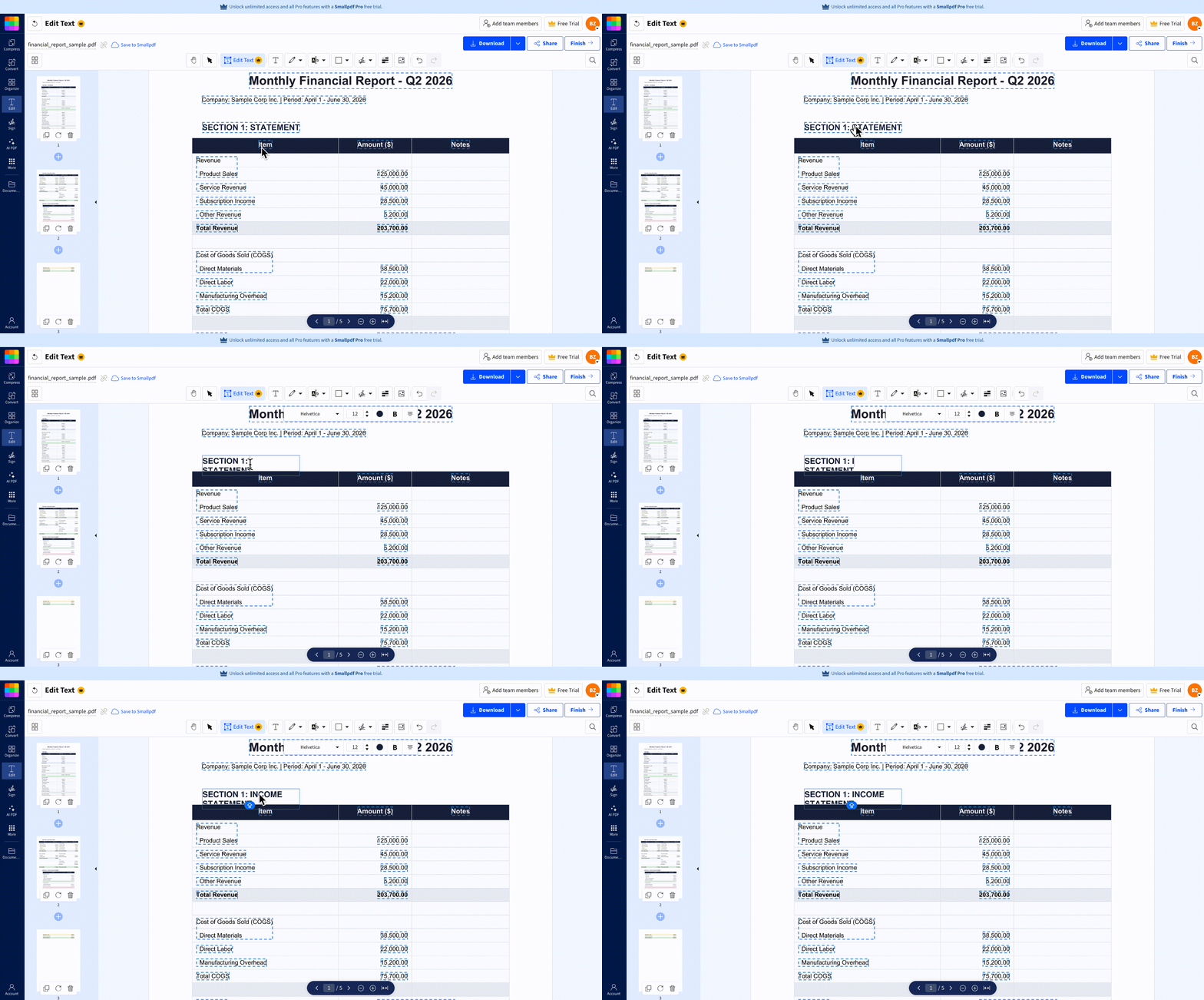
Smallpdf features a clean, highly intuitive interface built for fast-paced administrative tasks and quick team collaboration. It is a great browser-based option for e-signing a contract, password-protecting a file, or making quick, direct tweaks on the fly without bogging down your computer's RAM.
How it handles text: Smallpdf processes your files via cloud servers for instant turnaround. It lets you interact with the document by floating editable text boxes over the original static layout. Much like iLovePDF, these editing frames operate completely independently from the document’s original spacing and do not dynamically scale to your typing. If you expand a sentence or add a word, the rigid boundaries often force the text to prematurely break into a second line. This means you will need to manually drag, stretch, and reposition the box yourself to fix broken line breaks and keep the page looking clean. For standard business paperwork that only needs light touch-ups or quick numeric swaps, however, it feels incredibly snappy and responsive right in your browser.
User Ratings
- G2 : 4.5/5
3. Hard-Data Decision Matrix (The Capability vs. Constraint Table)
Some readers want a clear grid of limits instead of long paragraphs and opinions. Here, every capability uses simple symbols and numbers rather than vague marketing phrases or adjectives. Check out the table below to see which document editing software is best for creating and editing PDFs:
| Feature | Adobe Acrobat Pro | UPDF | Web Tools |
| Typographic Behavior | Text flows inside legacy blocks; heavy rewrites require manual frame overrides. | Dynamic Engine: Bounding boxes automatically self-resize and auto-wrap to match typing. | Rigid Overlay: Boxes do not self-adapt; text drops lines unless frames are manually pulled. |
| Multi-Box Alignment | Supported, but buried within form-preparation workflows or specialized sub-menus. | Native 1-Click: Easily select multiple independent text frames and snap them into alignment. | Not Supported: Objects must be dragged and aligned individually by eye. |
| Contextual AI Text Tools | Available via broad sidebar panels or cloud plugins. | In-Line AI Edit Menu: Quick-click commands (AI Polish, Expand, Proofread) built into the text box frame. | Basic or non-existent text intelligence inside the free editing layer. |
| Image & Link Editing | Standard baseline tools (resize, replace, rotate, crop). | Standard baseline tools (resize, replace, rotate, crop). | Standard baseline tools (basic resizing and link placement). |
4. Related Workflows & Advanced Features
Sometimes you need focused workflows, not another long feature list from a top PDF editor. Let's jump into 4 scenarios that link to the right UPDF tools:
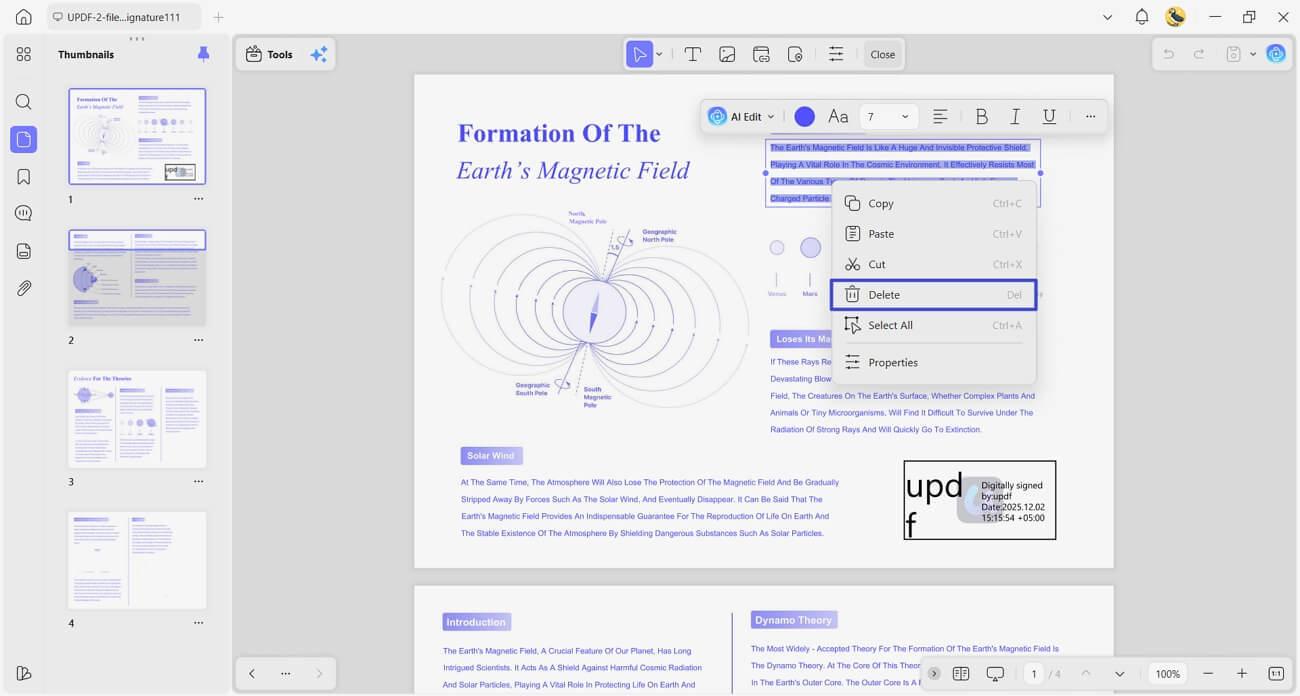
1. Content Clean‑up
Compliance teams strip old prices or brand names, then finish with UPDF's dedicated PDF text remover. This removes visible lines and hidden fragments, reducing the chance of leaking sensitive details. One cleaned master file replaces multiple half‑redacted copies floating around shared drives.
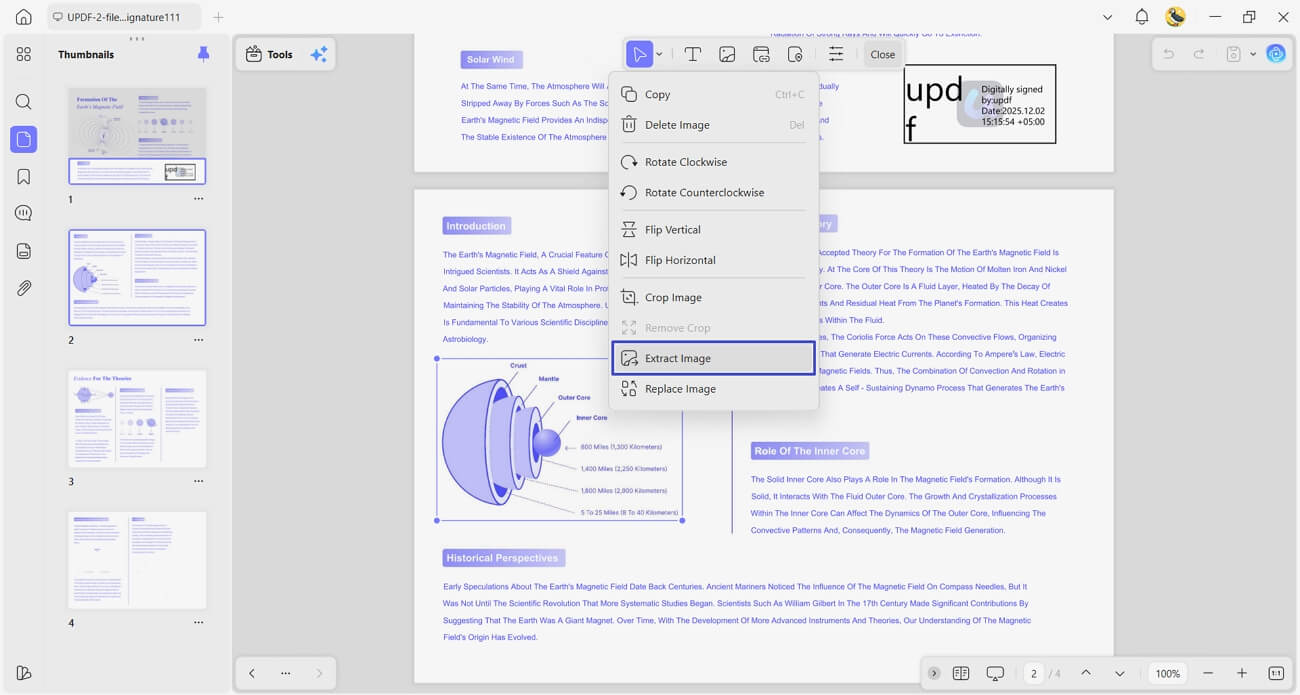
2. Asset Management
Designers open long brochures and mark pages that contain product shots or diagrams. From there, they run UPDF's PDF image extractor to pull full‑resolution assets. Marketing maintains a single source of truth instead of re‑exporting blurry PowerPoint images.
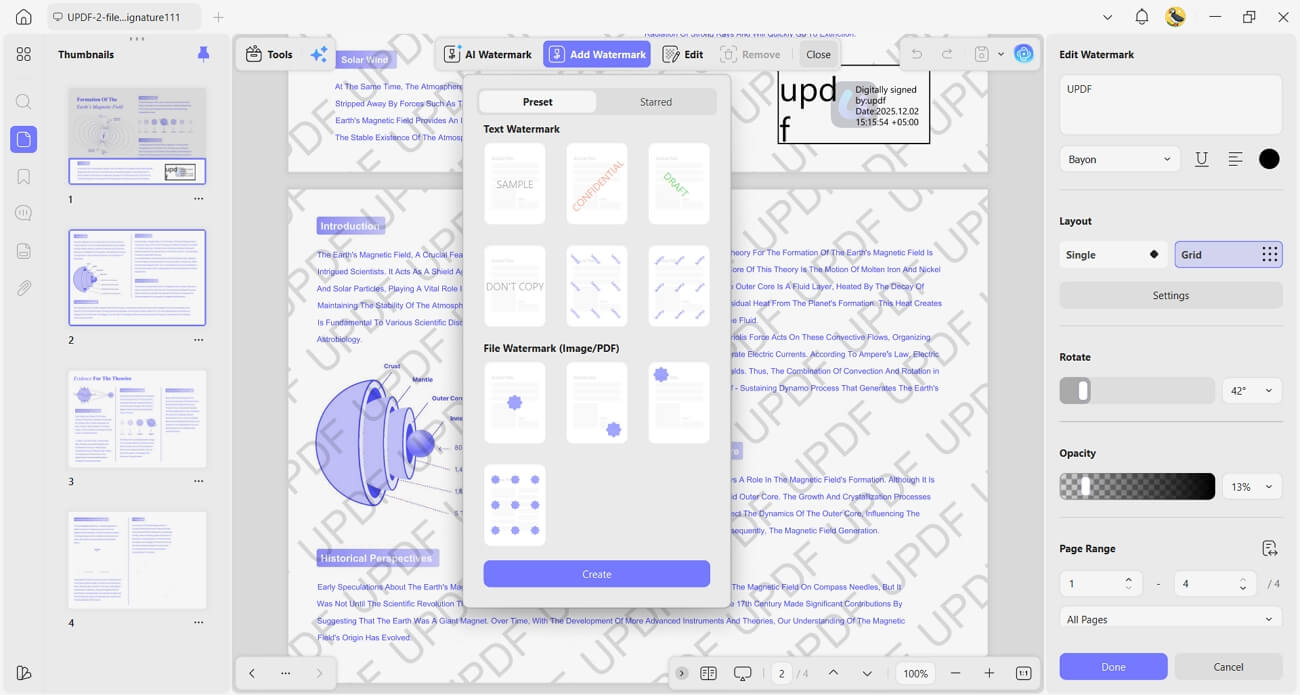
3. Professional Branding
Security teams first agree on which documents require visual ownership marks for external sharing. They then apply a consistent logo or label using UPDF's PDF watermark adder. Watermarked drafts are easy to spot, while clean finals stay reserved for clients and regulators.
4. Career Documents
Candidates maintain one base CV file that stays aligned with recruiter formatting rules. UPDF's resume editor PDF lets them tweak sections without breaking ATS layouts. Each revision keeps headings, bullet spacing, and section order readable for both humans and screening systems.
Frequently Asked Question
1. Can I edit existing text in a PDF completely free without downloading software?
No, fully changing the original PDF text for free online usually means overlaying annotations, not real edits. To preserve layout while editing text blocks, you need to install PDF creation and editing software on your desktop.
2. What is the difference between an online PDF editor and a desktop editor regarding data privacy?
Online editors upload documents to remote servers, so third parties technically process your financial or medical files. Desktop editors keep every operation local, which avoids extra processors and simplifies GDPR compliance obligations.
3. Why do fonts break or change automatically when editing a text box in a PDF?
Fonts often switch because the editor cannot access the original typeface or its embedded license. Advanced tools map font properties against system libraries, then substitute exact weights and metrics automatically.
Conclusion
Choosing a PDF editor depends on your file size, document complexity, and how strictly you require font stability. When you are ready to test a stable setup or roll it out to a team, guide readers with these clear next steps:
Download UPDF — Experience flawless font reflow and layout preservation on your own documents.
Windows • macOS • iOS • Android 100% secure
Choose UPDF Enterprise — Scale UPDF across your organization with centralized licensing and an Admin Console.





 Enrica Taylor
 Lizzy Lozano