UPDF
UPDF
 UPDF for Windows
 UPDF for Mac
 UPDF for iPhone/iPad
 UPDF for Android
 Nomostar
 UPDF AI Online
 UPDF Sign
 IvyCraft
 Edit PDF
 Annotate PDF
 Create PDF
 PDF Form
 Edit links
 Convert PDF
 OCR
OCR PDF to Word
 PDF to Image
 PDF to Excel
 Organize PDF
 Merge PDF
 Split PDF
 Crop PDF
 Rotate PDF
 Protect PDF
 Sign PDF
 Redact PDF
 Sanitize PDF
 Remove Security
 Read PDF
 UPDF Cloud
 Compress PDF
 Print PDF
 Batch Process
 About UPDF AI
 UPDF AI Solutions
 AI User Guide
 FAQ about UPDF AI
 Summarize PDF
 Translate PDF
 Chat with PDF
 Chat with AI
 Chat with image
 PDF to Mind Map
 Explain PDF
 PDF AI Tools
 Image AI Tools
 AI Chat Tools
 AI Writing Tools
 AI Study Tools
 AI Working Tools
 Other AI Tools
 AI Bookmark Generation
 AI Bookmark Summary
 AI Watermark Generation
 AI Background Generation
 AI Sticker Generation
 AI Stamp Generation
 AI Editing Suite
 UPDF Copilot
 AI Page Management
 AI Semantic Search
 PDF to Word
 PDF to Excel
 PDF to PowerPoint
 Enterprise Solution
 Enterprise Sign
 Enterprise AI
 Enterprise Plan
 Enterprise User Guide
 Enterprise Webinar
 IT
IT Education
 Construction
 Financial Service
 Healthcare
 Insurance
 Legal
Legal Manufacturing
 Government
 Researchers & PhDs
 Solopreneurs & Freelancers
 Lawyers & Legal Professionals
 Real Estate Agents & Brokers
 Education Solution
 Customer Stories
 User Guide
 UPDF Tricks
 FAQs
FAQs UPDF Reviews
 Download Center
 Blog
Blog Newsroom
 Tech Spec
 Updates
 UPDF vs. Adobe Acrobat
 UPDF vs. Foxit
 UPDF vs. PDF Expert

Adobe Acrobat remains one of the best solutions when it comes to creating, editing, and managing PDF documents. However, not everyone can afford this expensive PDF editor. For this reason, there are a lot of more cost-effective Adobe Acrobat alternatives in the market to choose from.
We have analyzed as many as we could get our hands on and the following are our top recommendations.
The way the tools fit together can matter as much as the individual features. For a closer look at the tools, the next video covers editing PDF content in UPDF.
Quick Picks by Scenario:
- Best overall value and one time purchase: UPDF — one license covers Windows, Mac, Android, and iOS at $64.99/year or $94.99 one time payment
- Best free / open-source: Stirling PDF — fully self-hosted, no cloud dependency
- Best online-only (no install): Smallpdf — browser-based, ideal for quick edits
Part 1. 5 Best Alternatives to Adobe Acrobat
1. UPDF - The Most Cost-Effective Adobe Acrobat Alternative for Windows, Mac, Android and iOS
UPDF is a low-cost, but highly functional PDF editor that has all the features you would find on Adobe Acrobat. Pricing at only 1/5 of the cost of Acrobat, UPDF allows users to use one license on 4 devices, across all platforms including Windows, Mac, Android, and iPhone. It has a free trial version. We recommend you download it via the below button to test all features on your own.
Windows • macOS • iOS • Android 100% secure
Although the price is low, it does not reduce its features. It combines all the editing, PDF reading, annotating, combining, batch, OCR, protecting, sharing, and more features you would need into a single user-friendly user interface. There are no limits on the size or the number of pages that your PDF can have and whatever function you need.
To have a better understanding of what UPDF can work for you, here are some of the key features except those mentioned above for you to check:
Core editing compared to Acrobat: UPDF supports text and image editing, font/color modification, and link management — functionally equivalent to Acrobat Pro's editing suite. OCR is available for scanned documents, and the form editor can convert non-fillable PDFs into fillable forms.
Best for: Users who need a full Acrobat Pro replacement across multiple devices without paying $239.88/year.
- It is one of the best PDF readers in the market, allowing you to open and view PDFs. Powerful annotation features allow you to add highlights, underline text, and even add notes and comments as you read. What makes it different is that it can play the PDF in a slideshow.
- It has an OCR feature to help you edit scanned PDFs. Moreover, it offers an advanced way to extract information, understand images, and ask questions about the screenshots of scanned documents - with AI OCR through UPDF AI online
- You can fill, create, and edit PDF forms. It allows you to convert non-fillable PDF forms into fillable ones.
- It is also one of the best ways to convert from or to popular formats.
- UPDF has a batch process that can help you proceed with PDF quickly.
- UPDF also includes an AI assistant (UPDF AI) for summarizing long documents, translating PDFs, and extracting information from scanned pages. While this goes beyond Acrobat's native capabilities, it is a bonus rather than a replacement for core editing features.
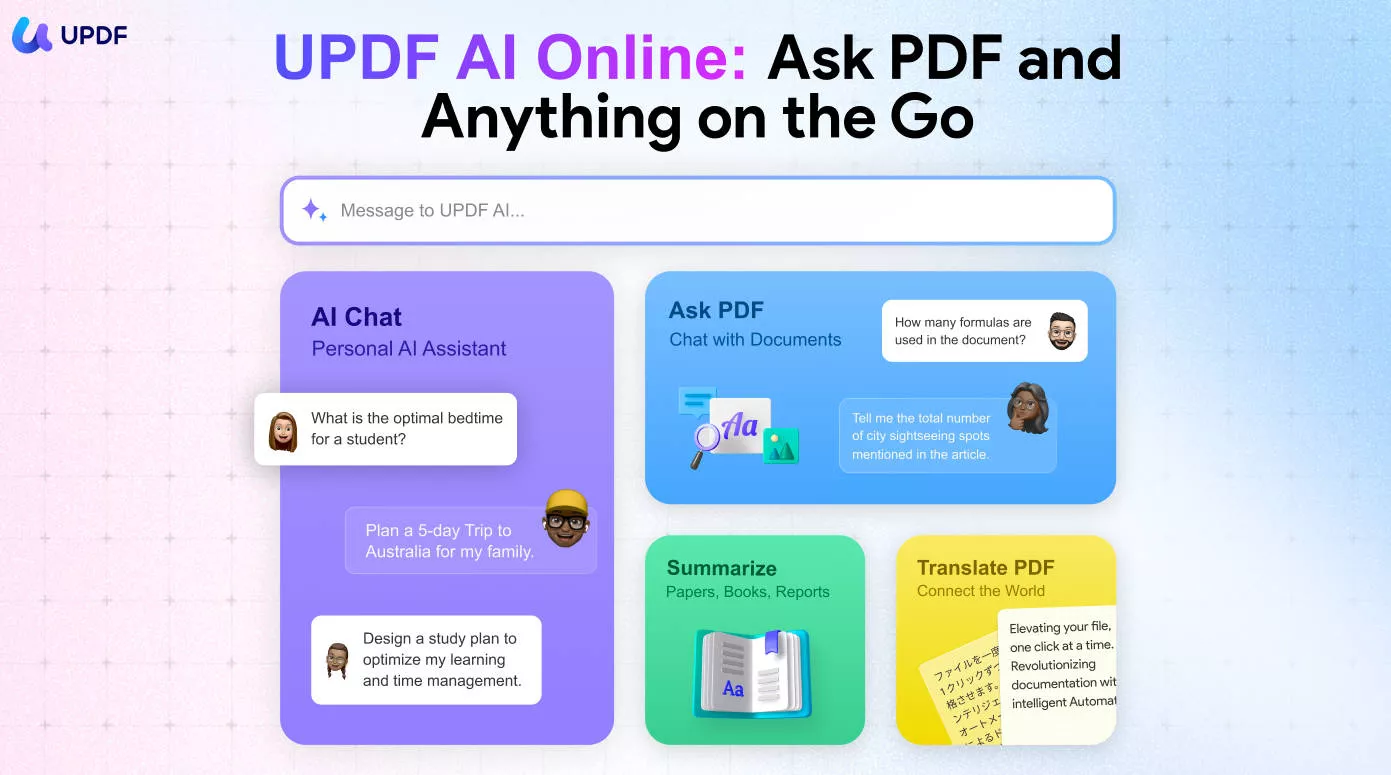
There are too many features that cannot be explained in one article. So we highly recommend you download the software to check on your own. Or you can read this UPDF review from Laptopmedia.
Windows • macOS • iOS • Android 100% secure
Pros:
- Cost-effective and supports one license for all platforms.
- Almost has all the features that users need like OCR, creating and editing PDF forms, combining PDF, batch process, etc.
- UPDF is integrated with AI which can help you translate, summarize, explain, write, rewrite, and chat.
- User-friendly UI design.
- Free trial version to test all features.
- Frequent updates to add new features and fix bugs.
Cons:
- It has some limitations in the free version.
Interested users can upgrade to the Pro version or buy the AI assistant to unlock more features or benefits.
Also Read: Top 5 Adobe Reader Alternatives to Upgrade Your PDF Experience
2. Foxit PDF Editor - A Popular Adobe Acrobat Alternative
Foxit PDF Editor is a well-known Adobe Acrobat alternative. It also has many advanced features that Adobe Acrobat provides like eSign, OCR, Form Creating, Cloud, and more. In fact, the Foxit PDF editor is not cheap, the cheapest version costs $129.99/year.
This PDF editor has been around for almost as long as Adobe Acrobat and is in many ways similar. Its main advantage is that it easily integrates with other apps and tools to create a very useful collaborative tool. Moreover, it also has the AI-powered redaction detection that Adobe Acrobat does not have.
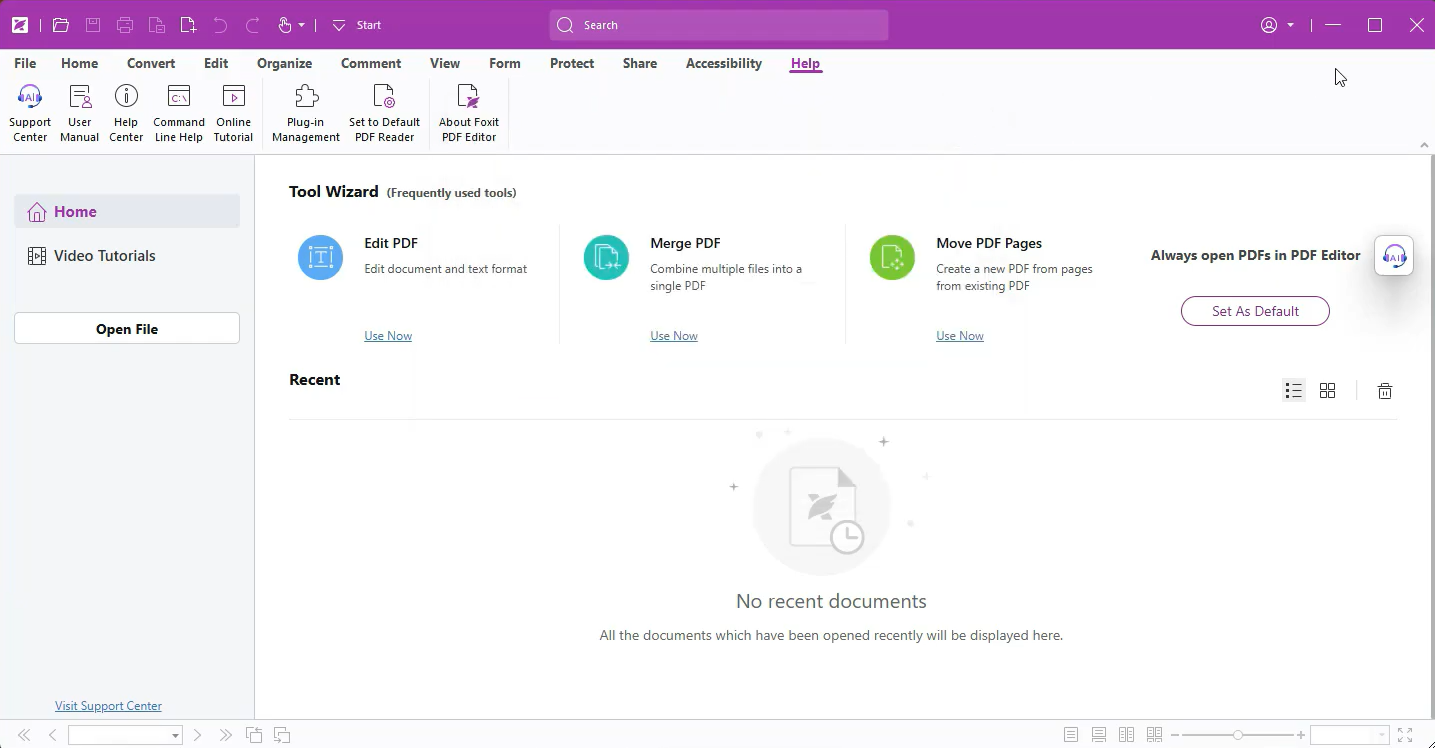
Unlike Adobe Acrobat, Foxit is also very easy to use as its all tools can be seen at one glance.
Pros:
- Foxit has almost advanced features that Adobe has.
- AI integrated into Foxit to help you improve working efficiency.
- It has a very simple user interface.
- It comes with a free trial.
Cons:
- Foxit can be very expensive and the license is limited to one device.
- It is very annoying if you want to download the free trial version as you have to leave your information.
⚠️ Warning: Foxit's trial requires you to provide personal information before download. If you prefer a no-strings-attached trial, UPDF offers a direct download without registration.
3. Nitro PDF Pro - Adobe Acrobat Alternative on Windows and Mac
Another highly sophisticated Adobe Acrobat alternative that you can use is Nitro PDF Pro. This is a PDF program that allows you to create, edit, combine, annotate, and convert PDFs to other formats. But perhaps its most praised feature is its e-signature capabilities. It was one of the first PDF tools to allow users to create a valid and binding signature to PDF documents.
Nitro PDF Pro is available for Windows and Mac, but the Mac version has a reduced feature set — notably, some batch processing and advanced form tools are Windows-only.
Nitro PDF also easily integrates with cloud storage and other tools to facilitate collaboration. Its powerful annotation features make it much easier for a team to work on the same document.
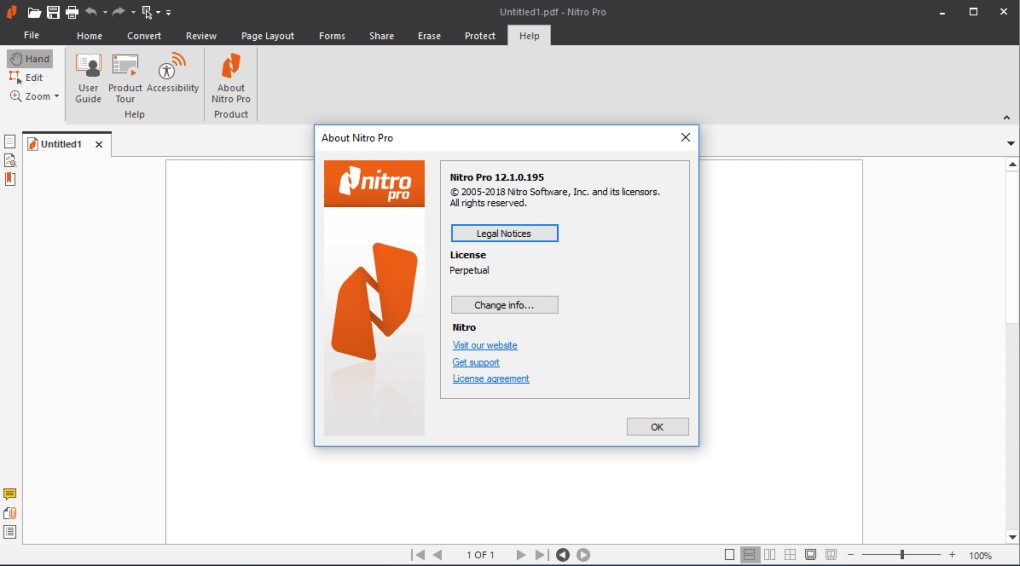
And when it comes to its price, Nitro PDF Pro is also cheaper than Adobe Acrobat. It costs $179.99 for perpetual.
Pros:
- It can create PDF documents by simply opening a document in the program.
- It can also be used to edit both the text and images on the document.
- Integrates easily with Google Drive, OneDrive, Dropbox, and Box for easier collaboration.
- It has e-signature capabilities.
Cons:
- The Mac version doesn't have enough features when compared with the Windows version.
- It only has a 14-day free trial. When the trial expires, you can't access its tools.
4. PDF Reader Pro - A Simple Alternative to Adobe Acrobat
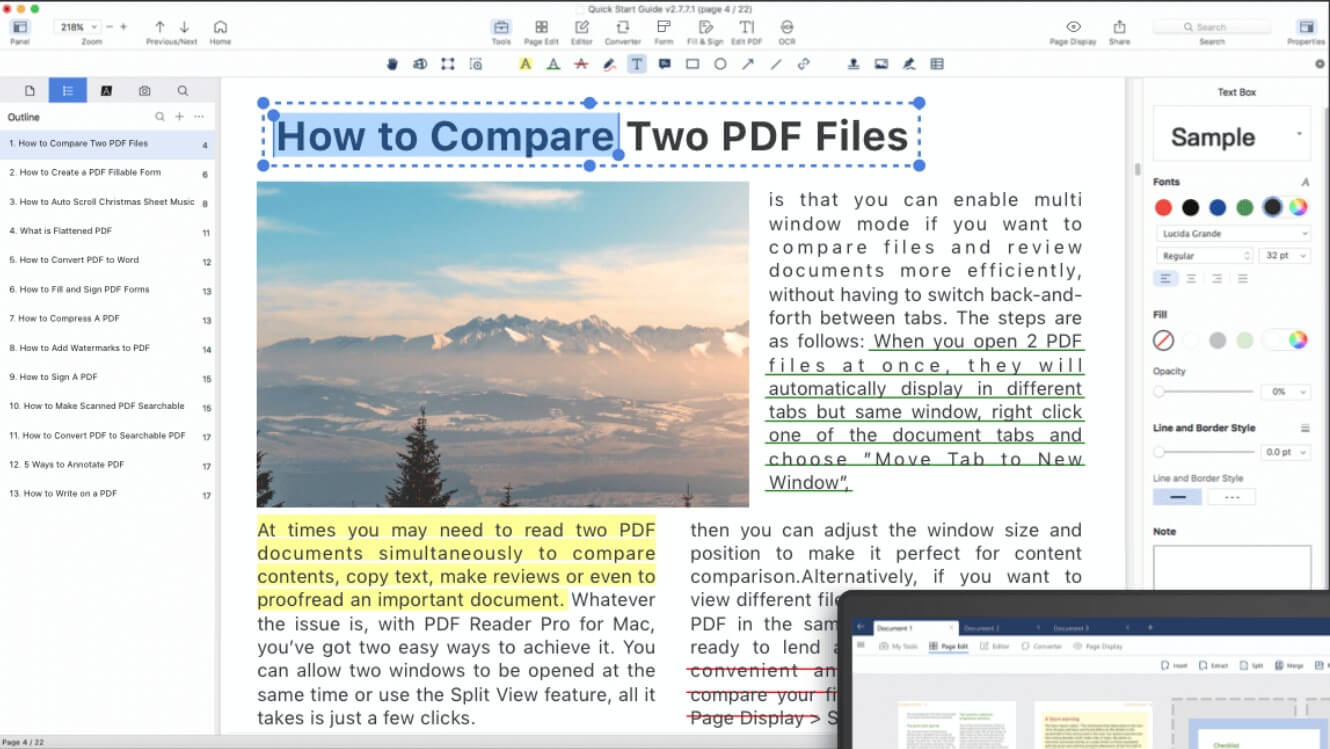
PDF Reade Pro is a great simple alternative to Adobe Acrobat that you can use to not just open and read PDF documents but also has numerous features to edit PDFs in various ways. For instance, it has powerful annotation features that allow you to highlight text in the document, underline text, and add comments and notes.
It also has e-signature features, allowing you to add a binding and valid signature to any section of the PDF document. It is also one of the best ways to combine multiple PDF documents into one, without losing the quality of the original documents and adding a watermark and other security features to the document.
At $39.99 for a perpetual license, PDF Reader Pro is the cheapest paid desktop option in this list — less than UPDF's annual subscription and a fraction of Acrobat's $239.88/year.
Pros:
- It can be used to create and edit PDFs.
- You can combine as many PDFs as you want into a single document.
- The OCR function makes it easy to work with scanned documents.
- It is a lightweight tool that doesn't require too much space on your computer.
Cons:
- The user interface can take a little getting used to.
- Some of the features, particularly security features are only available on the premium version.
💡 Tip: PDF Reader Pro is the best choice if you only need a single Windows or Mac device and prefer a one-time payment. However, it does not offer mobile apps or cross-platform license sharing.
5. Smallpdf - The Online Adobe Acrobat Alternative
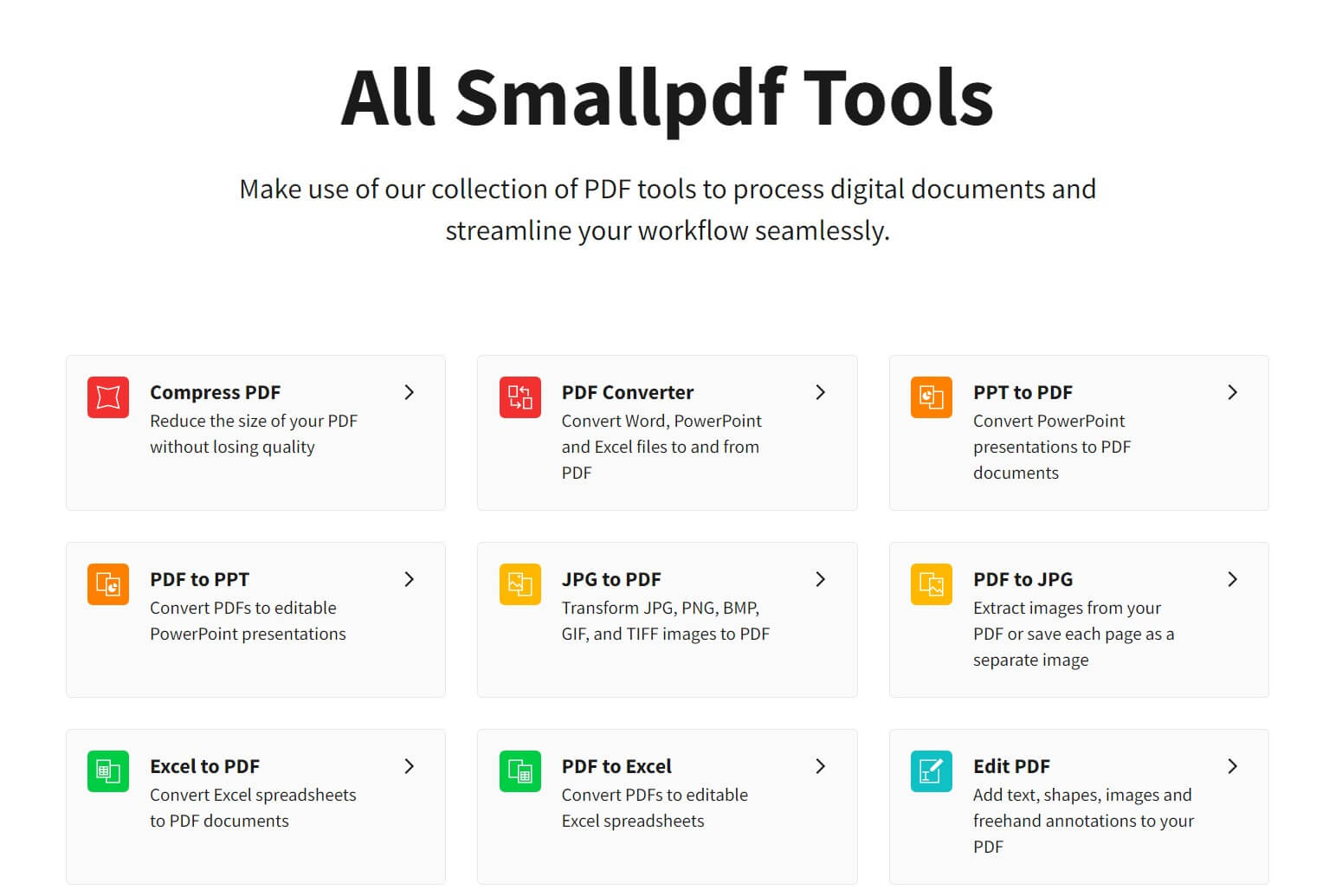
Smallpdf proofs that you don't need to install any programs on your computer to create and efdit PDF documents. This easy-to-use and free online Adobe Acrobat alternative can do many things that Adobe Acrobat can do, but completely on your browser. You can use this online tool to create, edit, combine, merge, and even convert PDFs to other formats, all without installing any programs on your computer.
Because Smallpdf processes files on its servers, it is not suitable for confidential documents such as legal contracts or financial statements. For sensitive files, a desktop-based tool (UPDF, Foxit, Nitro) or a self-hosted solution (Stirling PDF) is recommended.
And because it is deployed completely online, on a cloud-based platform, it presents unprecedented collaborative capabilities, allowing you to share the PDFs that you are working on widely and more easily.
Pros:
- Online tool and do not need to install the software on your device.
- It offers many features like converting, editing, compressing, and more.
- Has e-signature capabilities.
Cons:
- Most advanced features are available on a paid subscription plan.
- Users have reported that they have seen errors when converting files to other formats.
⚠️ Warning: Smallpdf is browser-based and requires uploading your files to their cloud servers. Avoid using it for documents containing personal, financial, or legal information.
Other Noteworthy Adobe Acrobat Alternatives
The five tools above cover the most popular commercial alternatives, but the landscape has expanded significantly in 2025-2026. Here are the most notable options outside the mainstream commercial category:
Stirling PDF (Open Source)
Stirling PDF 2.0, released in late 2025, is a fully open-source, self-hosted alternative to Acrobat. It now includes native desktop apps for Windows, macOS, and Linux, plus text editing capabilities. Best for organizations that need complete data privacy — all processing happens on your own infrastructure. Note: setup requires technical knowledge.
Okular (Free / Open Source)
Okular, developed by the KDE community, is a lightweight PDF viewer and annotator that is free and open-source. It handles comments, forms, and highlighting well, but lacks advanced editing features. Best for Linux users and anyone who needs a fast, privacy-respecting reader.
PDF-XChange Editor (Freemium)
PDF-XChange Editor offers a free version with OCR included — a rarity among free PDF tools. The paid version is a one-time purchase (from ~$56), making it the lowest cost-per-feature option for Windows users. Best for Windows users who need OCR on a tight budget.
💡 Tip: If none of the tools above match your needs, consider whether you actually need a full Acrobat replacement. For simple viewing and annotation, a free reader (UPDF Reader, Okular) may be sufficient. Download UPDF Reader for free to test whether a lightweight reader covers your use case.
Windows • macOS • iOS • Android 100% secure
Part 2. 5 Best Adobe Acrobat Alternatives vs. Adobe Acrobat
After going through all these features, you may still not know which tool is better. If you have any difficulties picking up the desired one, you can check the below comparison table to get a good idea.
| UPDF | Foxit | Nitro | PDF Reader Pro | Smallpdf | Adobe Acrobat Pro | |
| Price | US$49.99/Year US$79.99/Perpetual (One license for all platforms) | US$129.9/Year | US$179.99/Perpetual | $39.99/Perpetual | US$83.42/Year | USD$239.88/Year |
| Rating | 4.8 | 4.5 | 4.6 | 4.5 | 4.5 | 4.5 |
| AI Integrated | ||||||
| Create PDF | ||||||
| Convert PDF | ||||||
| OCR | ||||||
| Edit PDF | ||||||
| Organize PDF | ||||||
| Annotate PDF | ||||||
| Fill, Create, and Edit PDF Forms | ||||||
| Protect PDF | ||||||
| Share PDF | ||||||
| Batch Process |
From the above comparison table, we can clearly know UPDF is the best and most cost-effective Adobe Acrobat alternative when compared with other ones. The price is cheap and one license can be used for 4 devices. Moreover, it has all the features that you may need and the ChatGPT integrated can help you improve your PDF document handling efficiency. Buy it now if you like it.
FAQ
Does Adobe Acrobat have a free alternative?
Yes. Stirling PDF and Okular are fully free and open-source. PDF-XChange Editor offers a free version with OCR. UPDF offers a free trial with full features for testing.
Are there open-source Adobe Acrobat alternatives?
Yes. Stirling PDF 2.0 is the most full-featured open-source option with desktop apps for all platforms. Okular is a lightweight open-source viewer. LibreOffice Draw supports basic PDF editing.
What is the best Adobe Acrobat alternative for Mac users?
Mac users can use Preview for free. PDF Expert is a native Mac app with a one-time payment. UPDF offers cross-platform support including macOS. Avoid PDF-XChange (Windows-only) and Nitro (Mac version has reduced features).
How private are Adobe Acrobat alternatives?
Cloud tools (Smallpdf) require uploading files. Desktop tools (UPDF, Foxit, Nitro) process locally. Self-hosted tools (Stirling PDF, BentoPDF) offer the highest privacy—files never leave your machine.
Do Adobe Acrobat alternatives support Linux?
Commercial support is limited. UPDF has no Linux version. Foxit offers a Linux reader but not the full editor. Best Linux options are open-source: Okular, Stirling PDF 2.0, and LibreOffice Draw.
Conclusion
Adobe Acrobat charges incredibly high which may not be affordable for general users. So we list the 5 best Adobe Acrobat alternatives for you to choose from. Although each one in the above is great, it does not need to have them all. From the comparison table, we can find that UPDF is a cost-effective editor, it only charges US39.99 a year, 1/6 of the price of Adobe but with the same high-performance features that are friendly to users. Download it today, and enjoy your working time with UPDF!
Windows • macOS • iOS • Android 100% secure







 Lizzy Lozano

 Enid Brown